
OFFICE 365 TEAMS AND OUTLOOK INSTRUCTIONS HOW TO
- Slides: 7
OFFICE 365 TEAMS AND OUTLOOK INSTRUCTIONS
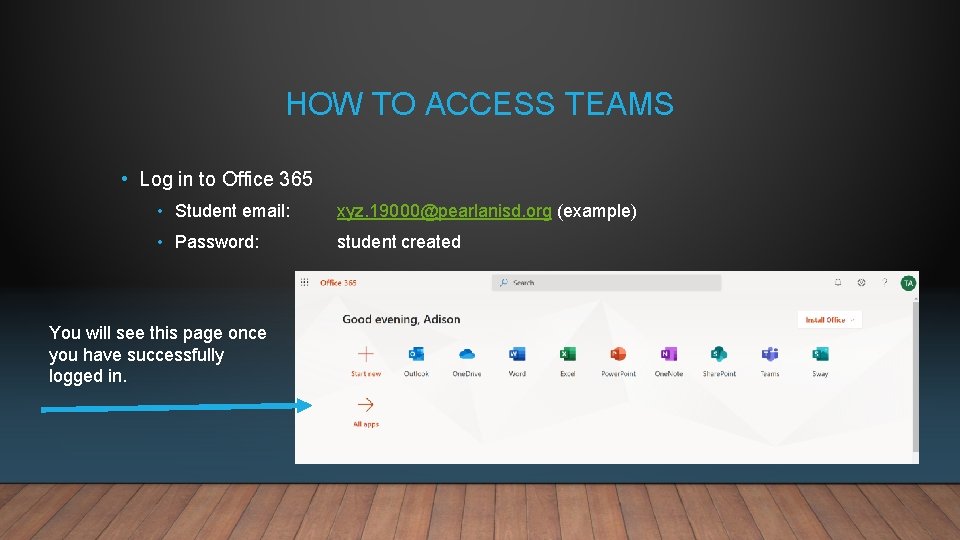
HOW TO ACCESS TEAMS • Log in to Office 365 • Student email: xyz. 19000@pearlanisd. org (example) • Password: student created You will see this page once you have successfully logged in.
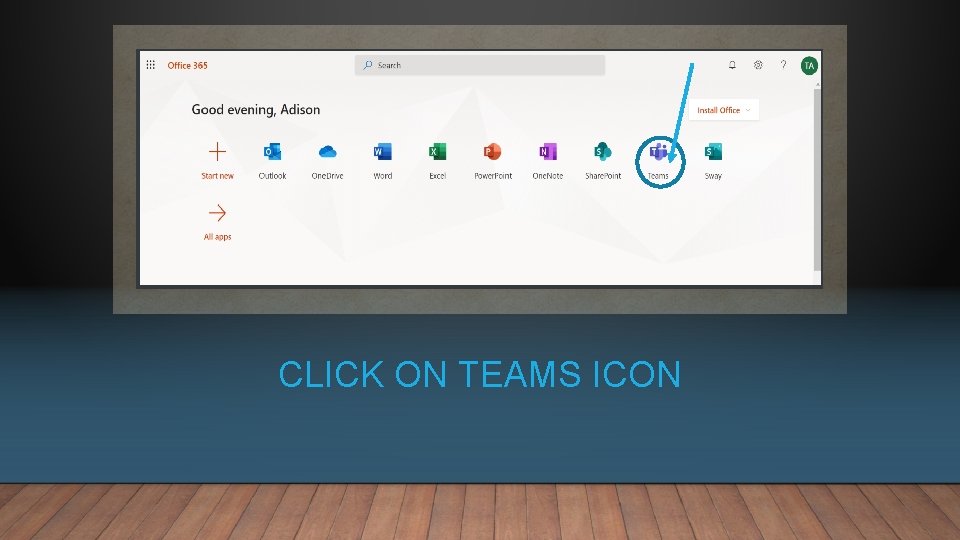
CLICK ON TEAMS ICON
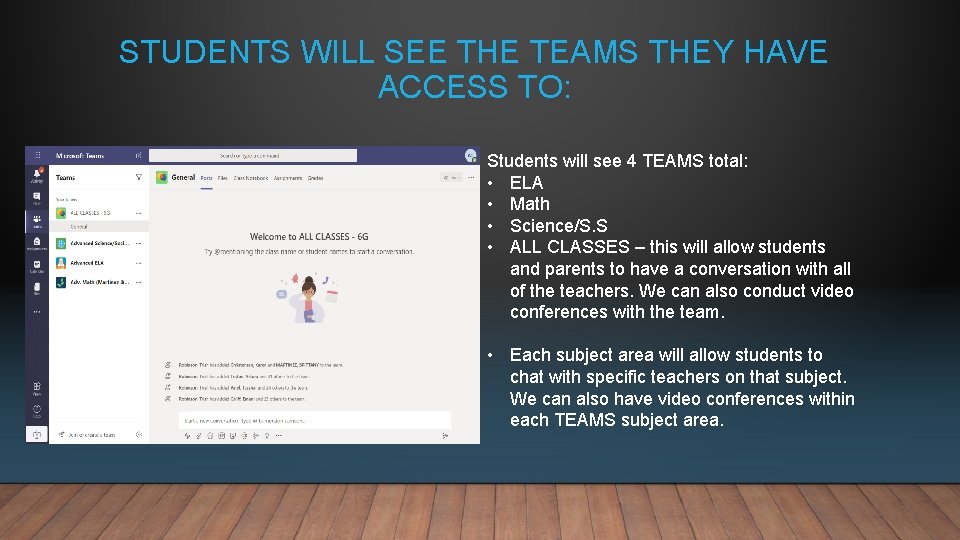
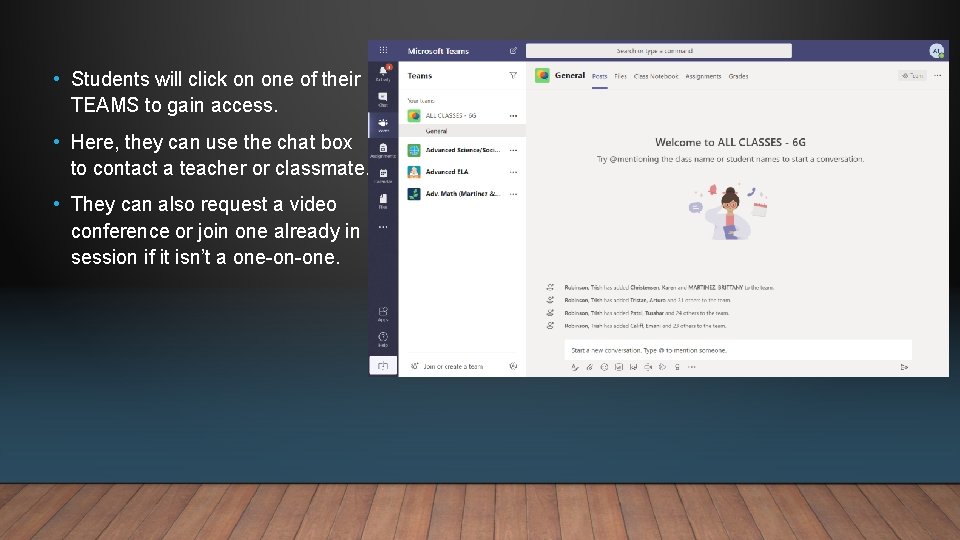
STUDENTS WILL SEE THE TEAMS THEY HAVE ACCESS TO: Students will see 4 TEAMS total: • ELA • Math • Science/S. S • ALL CLASSES – this will allow students and parents to have a conversation with all of the teachers. We can also conduct video conferences with the team. • Each subject area will allow students to chat with specific teachers on that subject. We can also have video conferences within each TEAMS subject area.
• Students will click on one of their TEAMS to gain access. • Here, they can use the chat box to contact a teacher or classmate. • They can also request a video conference or join one already in session if it isn’t a one-on-one.
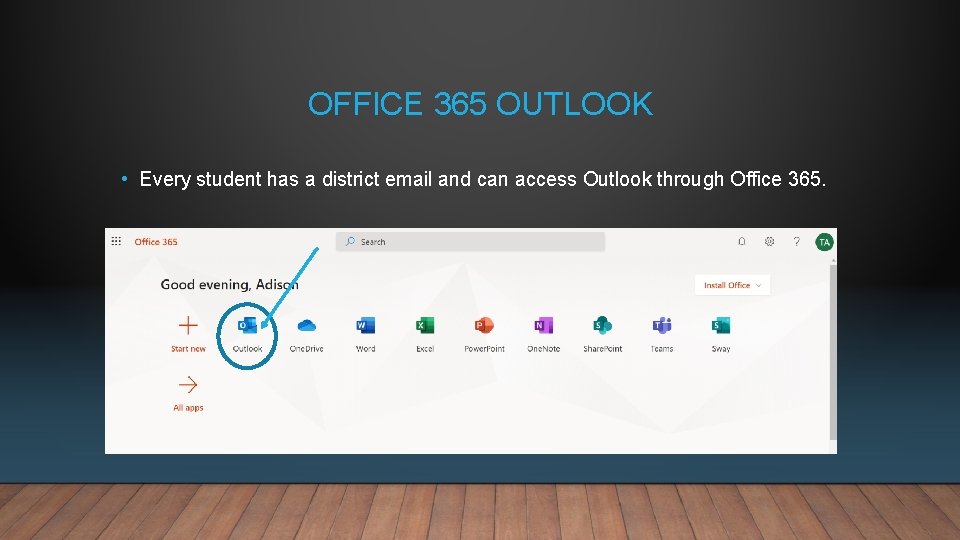
OFFICE 365 OUTLOOK • Every student has a district email and can access Outlook through Office 365.
RESPONSIBLE USE OF TECHNOLOGY • Please make sure that you use acceptable internet and technology practices for academic purposes. • There will be no negative comments between students on these platforms. • TEAMS chats will be monitored by your students’ teachers and Pearland ISD technology department.