
ODMAP Level 1 How to register and use


- Slides: 35
ODMAP Level 1 How to register and use ODMAP for Fire/EMS and other partners
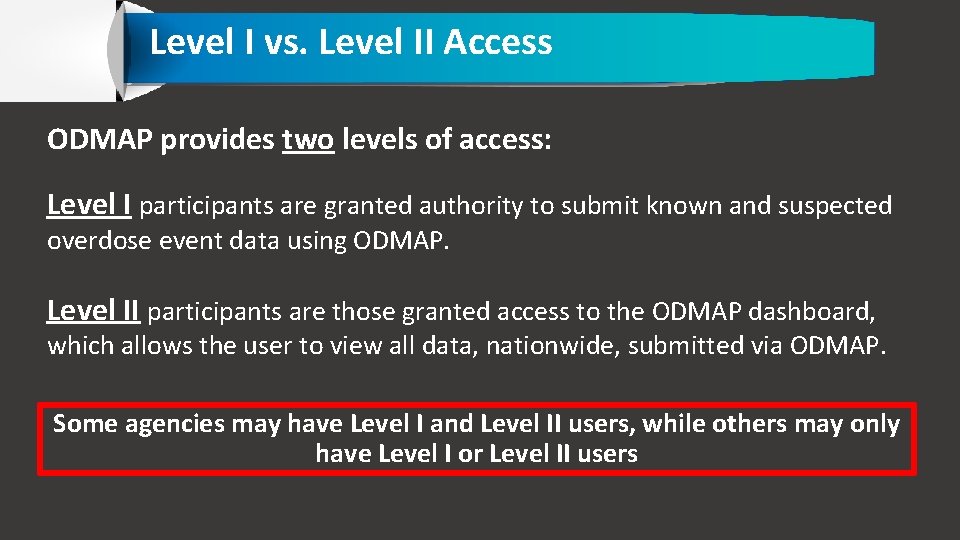
Level I vs. Level II Access ODMAP provides two levels of access: Level I participants are granted authority to submit known and suspected overdose event data using ODMAP. Level II participants are those granted access to the ODMAP dashboard, which allows the user to view all data, nationwide, submitted via ODMAP. Some agencies may have Level I and Level II users, while others may only have Level I or Level II users
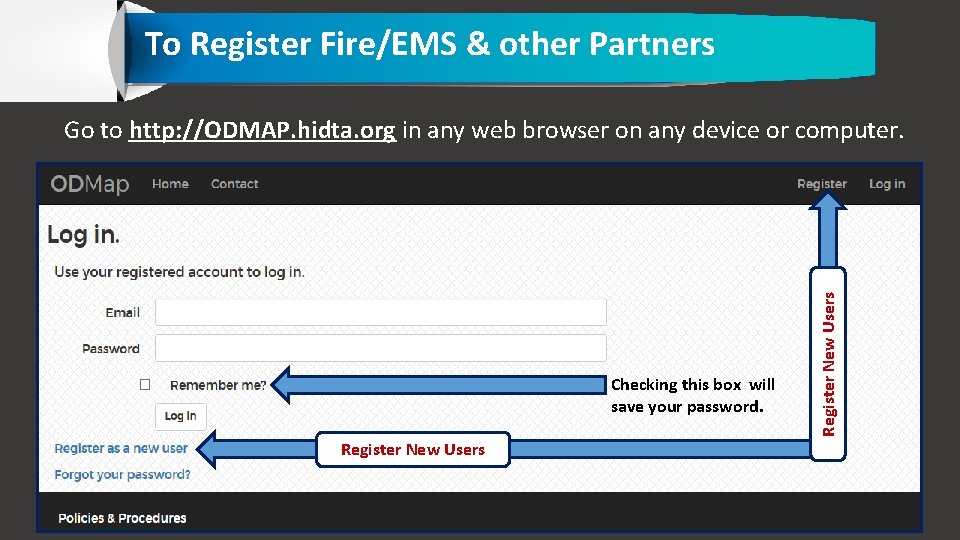
To Register Fire/EMS & other Partners Checking this box will save your password. Register New Users Go to http: //ODMAP. hidta. org in any web browser on any device or computer.
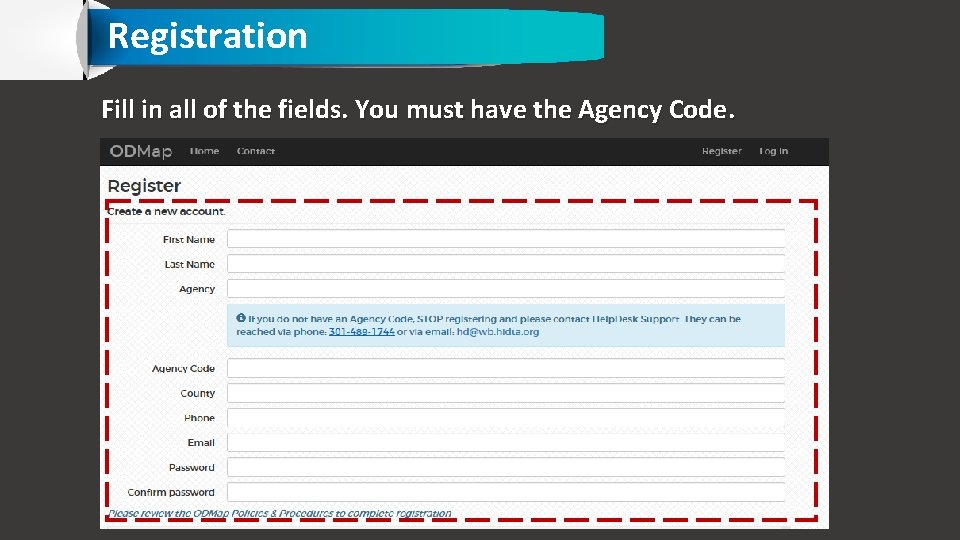
Registration Fill in all of the fields. You must have the Agency Code.
How do I get my Agency Code? Level I users should get their agency code from their agency head or designee. If they do not have this, they can contact the Help Desk to find out the Agency Code. HIDTA HELP DESK Hours: 8: 30 to 4: 30 Est. Days: Monday to Friday Phone: 301 -489 -1744
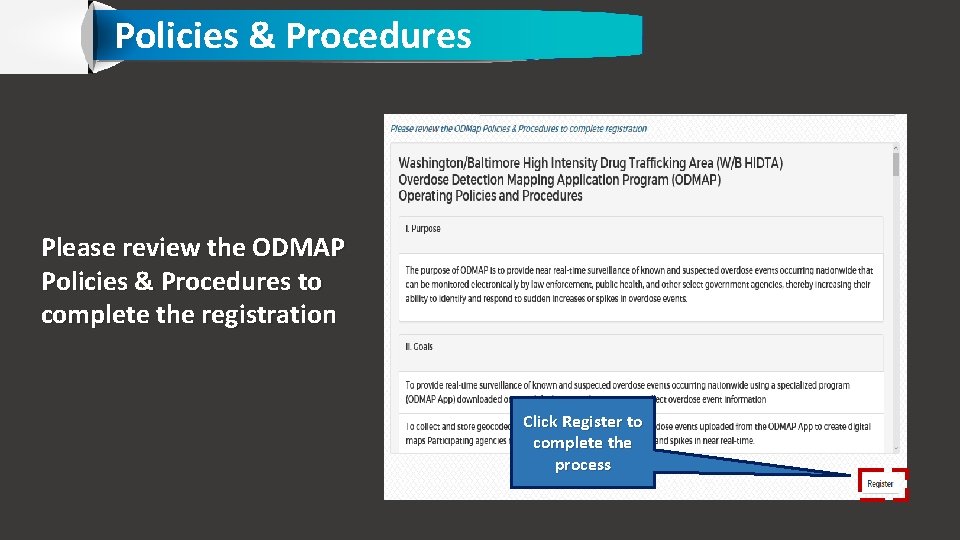
Policies & Procedures Please review the ODMAP Policies & Procedures to complete the registration Click Register to complete the process
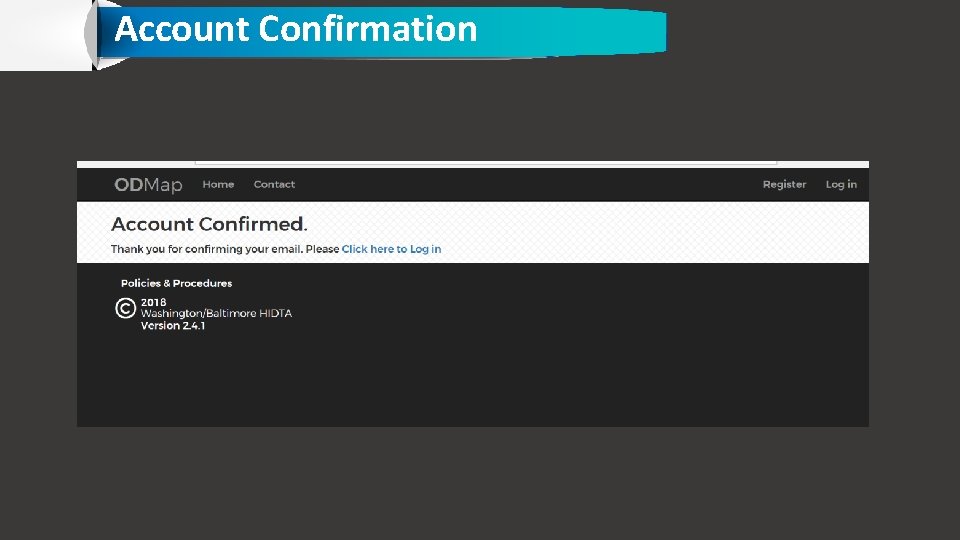
Account Confirmation
How do I use ODMAP Level I?
Devices ODMAP works on Windows, Android, i. OS, and OS X based devices with a standard browser including Chrome, Firefox, and Safari. ODMAP Level I can be used in the field or in the office from any mobile device, mobile device terminal, or desktop computer. Some features require location services and cookies to be turned-on.
ODMAP Level I Login Page https: //odmap. hidta. org
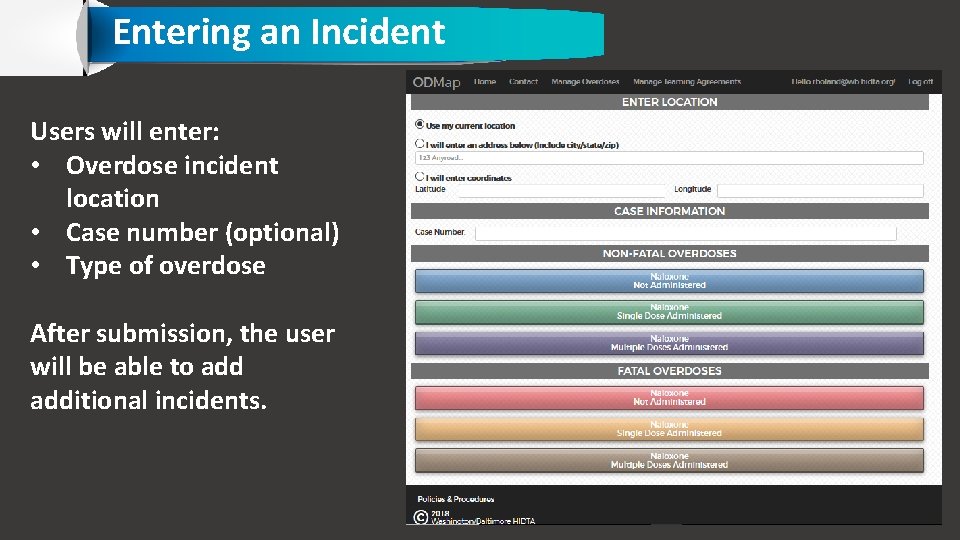
Entering an Incident Users will enter: • Overdose incident location • Case number (optional) • Type of overdose After submission, the user will be able to additional incidents.
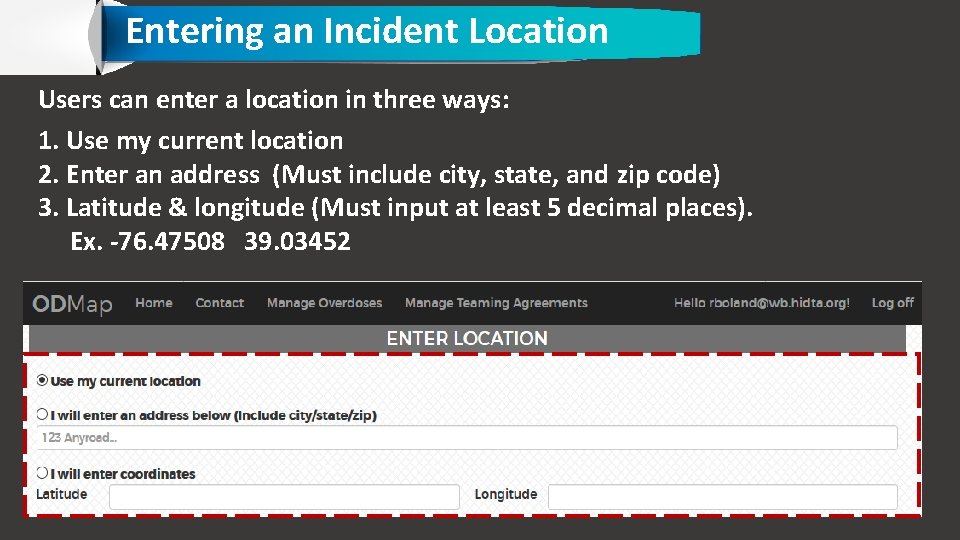
Entering an Incident Location Users can enter a location in three ways: 1. Use my current location 2. Enter an address (Must include city, state, and zip code) 3. Latitude & longitude (Must input at least 5 decimal places). Ex. -76. 47508 39. 03452
Using “My Current Location” If using “use my current location” note that once an overdose type is selected the incident is automatically submitted. If using a Windows or Apple computer that is not GPS capable, it is recommended that an address is entered to input the location of the incident.
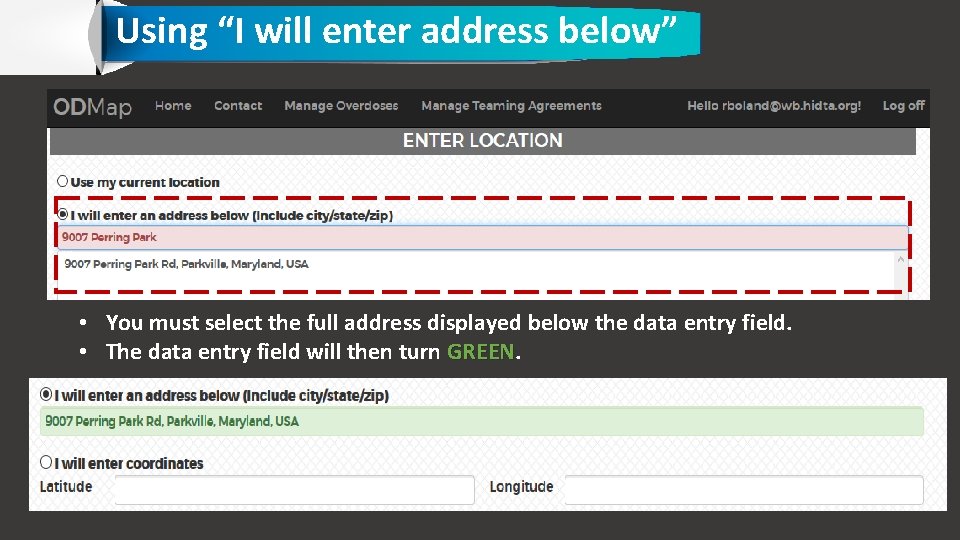
Using “I will enter address below” • You must select the full address displayed below the data entry field. • The data entry field will then turn GREEN
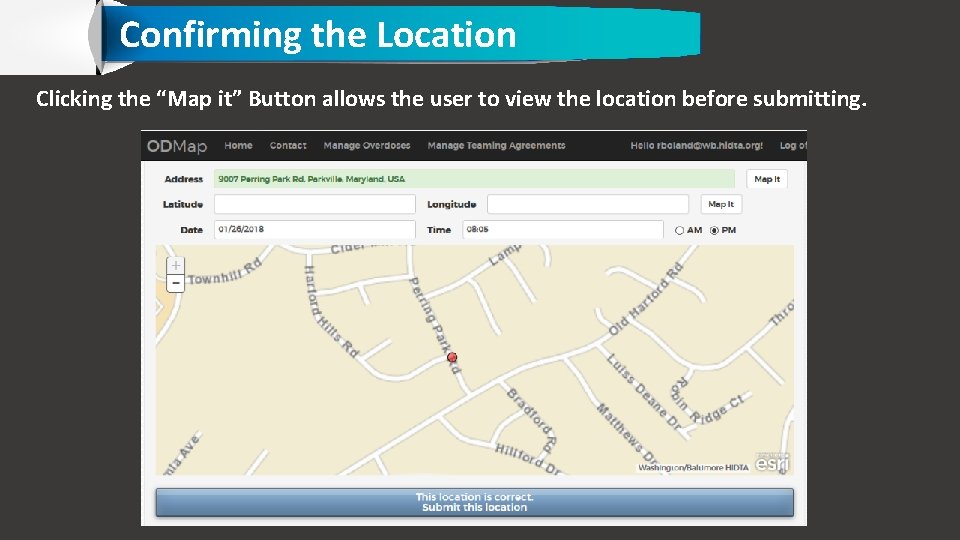
Confirming the Location Clicking the “Map it” Button allows the user to view the location before submitting.
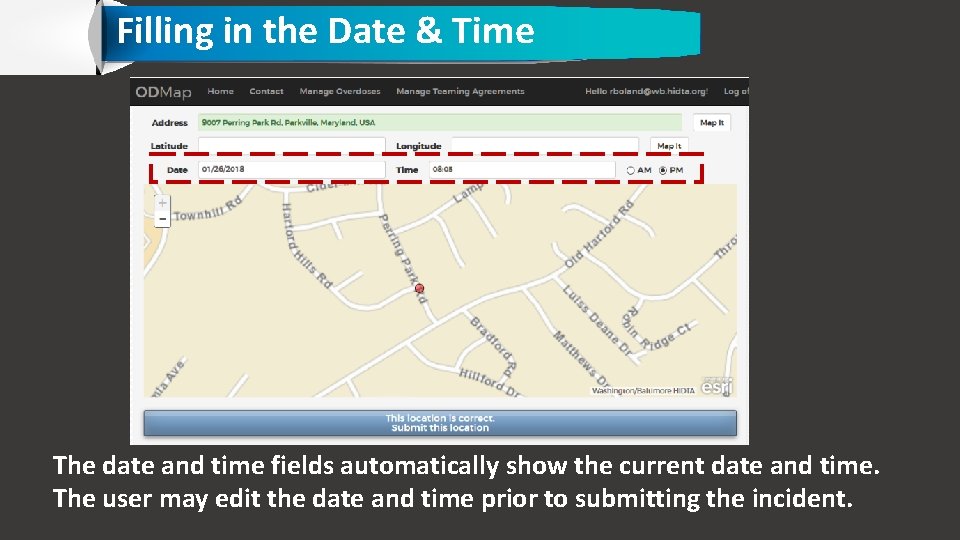
Filling in the Date & Time The date and time fields automatically show the current date and time. The user may edit the date and time prior to submitting the incident.
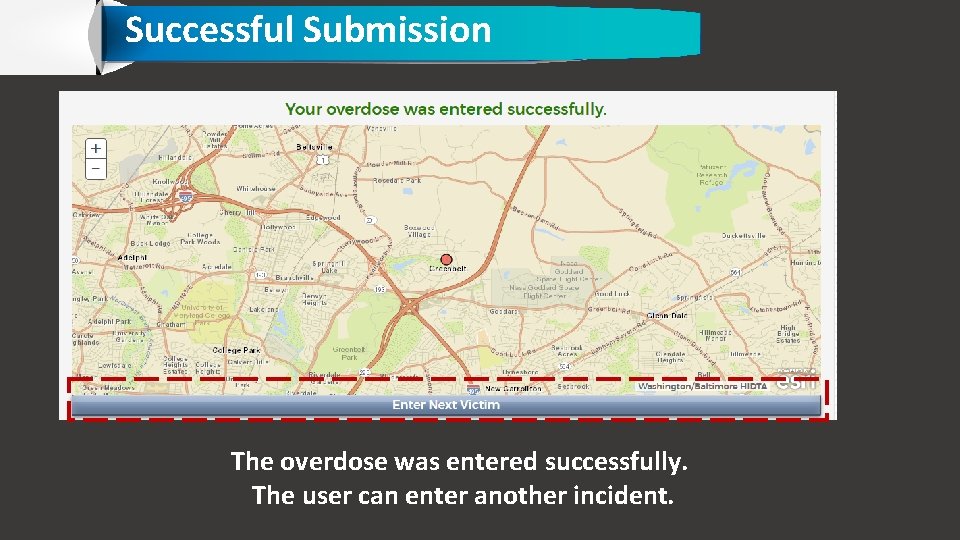
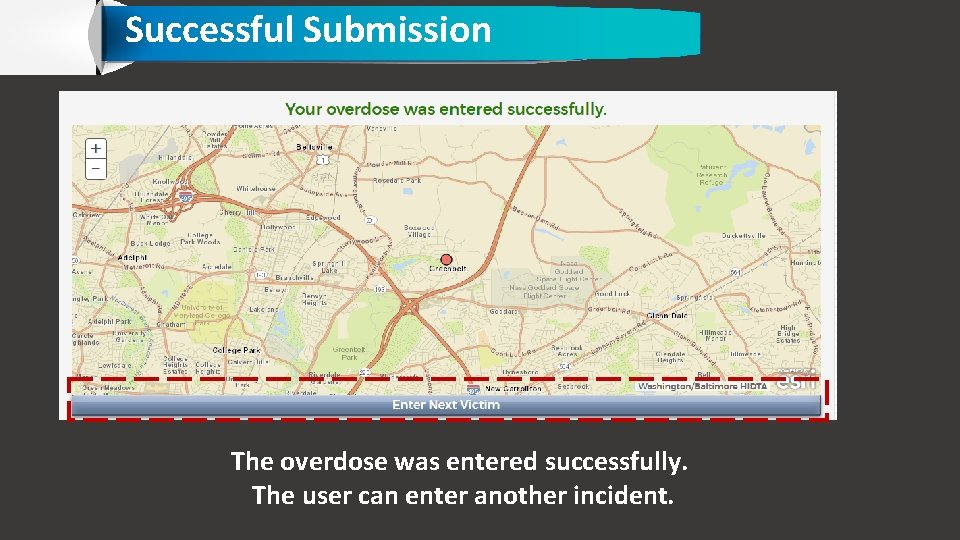
Successful Submission The overdose was entered successfully. The user can enter another incident.
Successful Submission The overdose was entered successfully. The user can enter another incident.
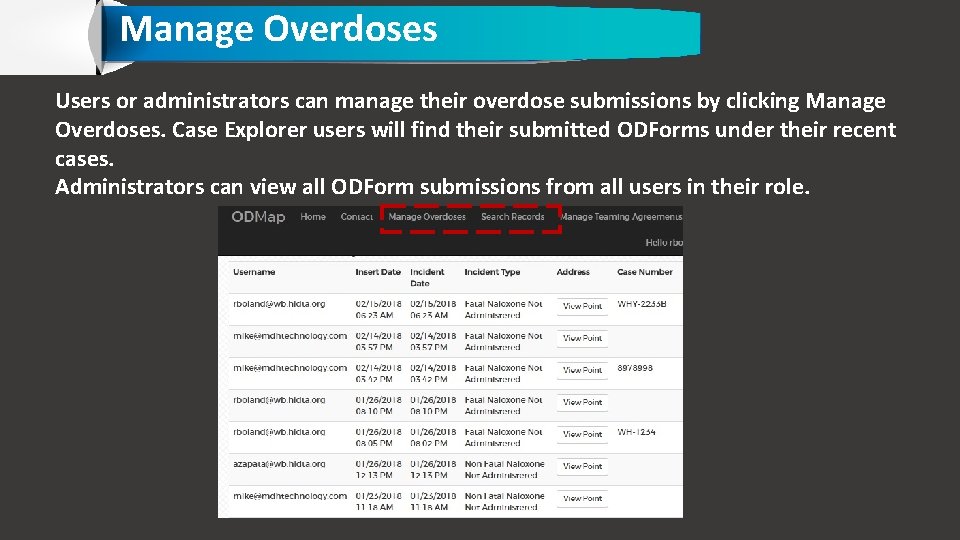
Manage Overdoses Users or administrators can manage their overdose submissions by clicking Manage Overdoses. Case Explorer users will find their submitted ODForms under their recent cases. Administrators can view all ODForm submissions from all users in their role.
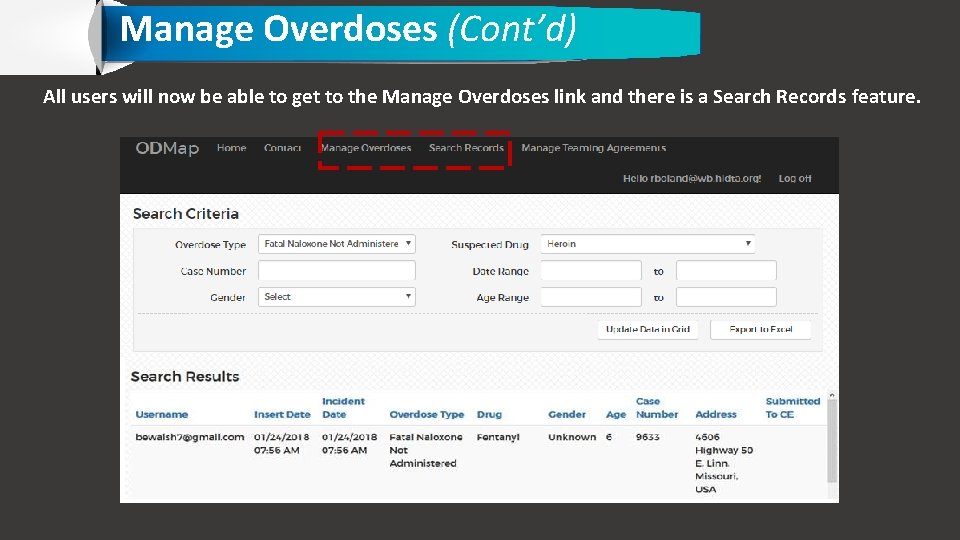
Manage Overdoses (Cont’d) All users will now be able to get to the Manage Overdoses link and there is a Search Records feature.
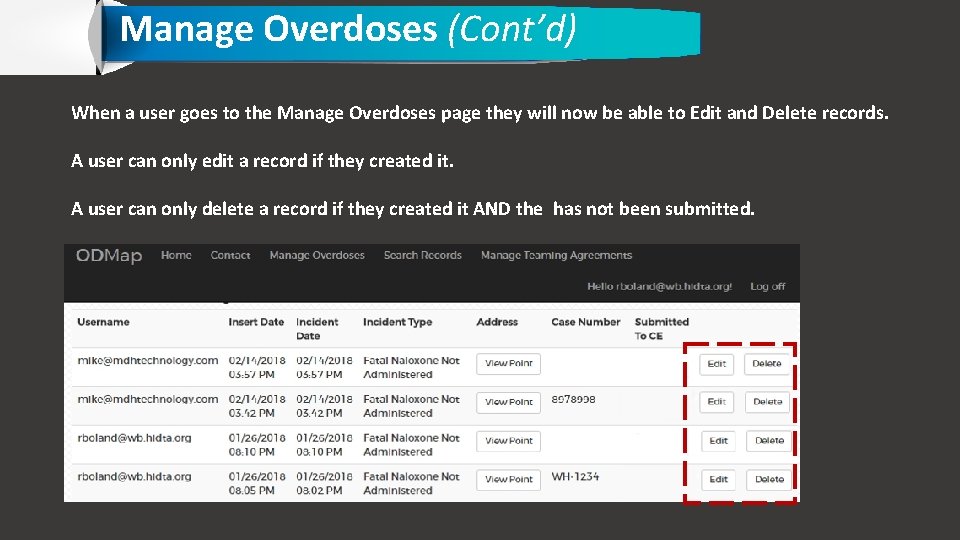
Manage Overdoses (Cont’d) When a user goes to the Manage Overdoses page they will now be able to Edit and Delete records. A user can only edit a record if they created it. A user can only delete a record if they created it AND the has not been submitted.
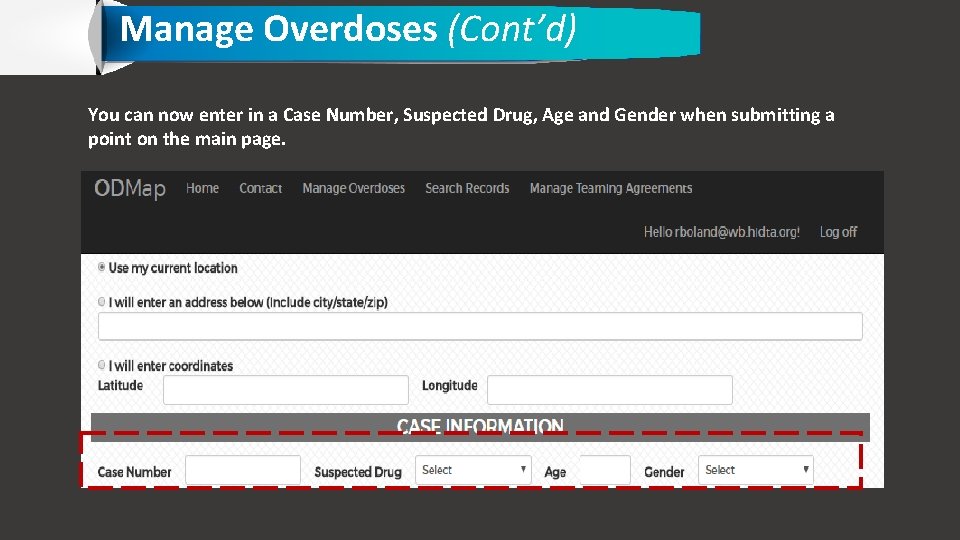
Manage Overdoses (Cont’d) You can now enter in a Case Number, Suspected Drug, Age and Gender when submitting a point on the main page.
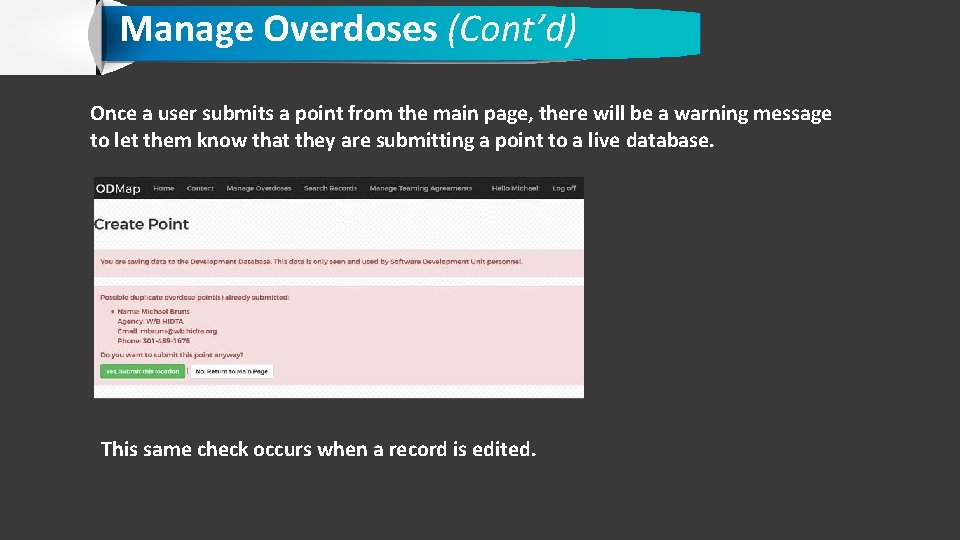
Manage Overdoses (Cont’d) Once a user submits a point from the main page, there will be a warning message to let them know that they are submitting a point to a live database. This same check occurs when a record is edited.
Manage Overdoses (Cont’d) Once a user clicks on the box verify the point is the correct one, the system will check for any existing overdoses that are within 50 feet and 2 hours of the overdose they are attempting to save. If there any matches (it matches on ALL records, not just the ones the user has submitted), it will return a warning message with the contact info from the other user(s) and asks if they still want to submit the point.
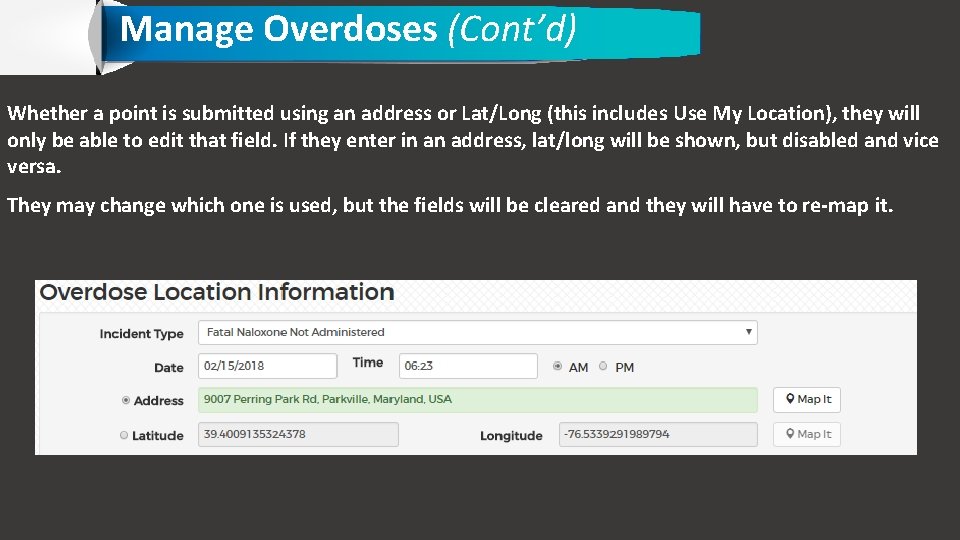
Manage Overdoses (Cont’d) Whether a point is submitted using an address or Lat/Long (this includes Use My Location), they will only be able to edit that field. If they enter in an address, lat/long will be shown, but disabled and vice versa. They may change which one is used, but the fields will be cleared and they will have to re-map it.
How do I configure my phone to use the app?
Phone Configuration Phone configuration is provided for popular devices. Configuration of other devices will be similar. If your model is not covered here, please consult the internet or your product manual.
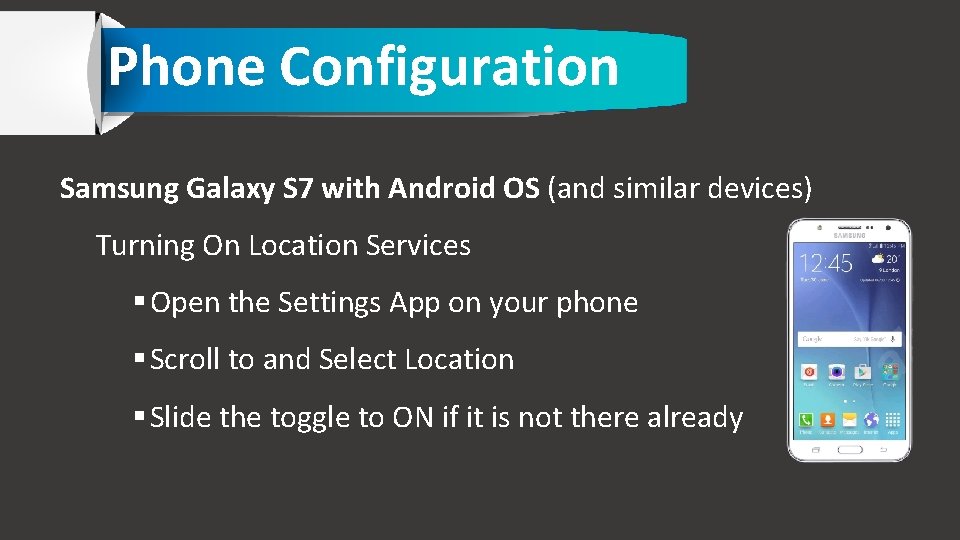
Phone Configuration Samsung Galaxy S 7 with Android OS (and similar devices) Turning On Location Services Open the Settings App on your phone Scroll to and Select Location Slide the toggle to ON if it is not there already
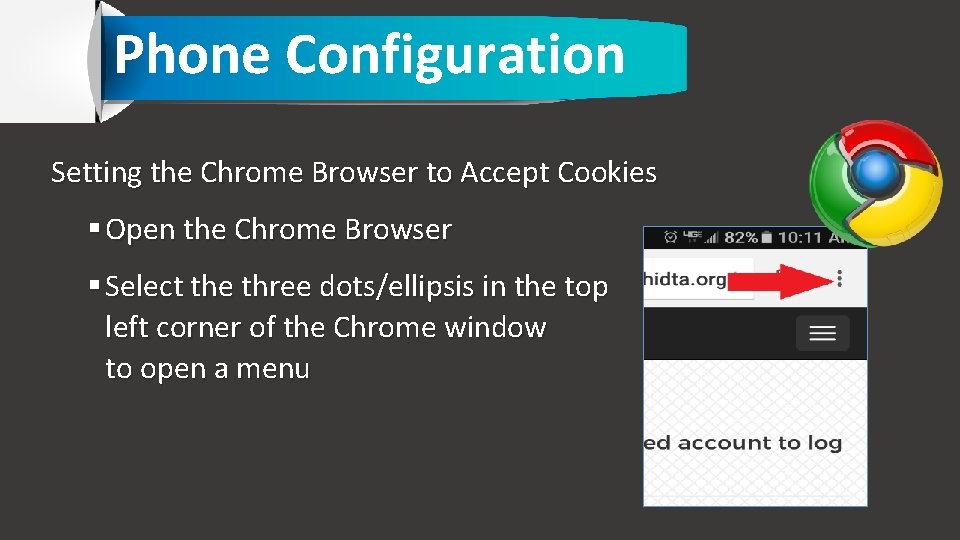
Phone Configuration Setting the Chrome Browser to Accept Cookies Open the Chrome Browser Select the three dots/ellipsis in the top left corner of the Chrome window to open a menu
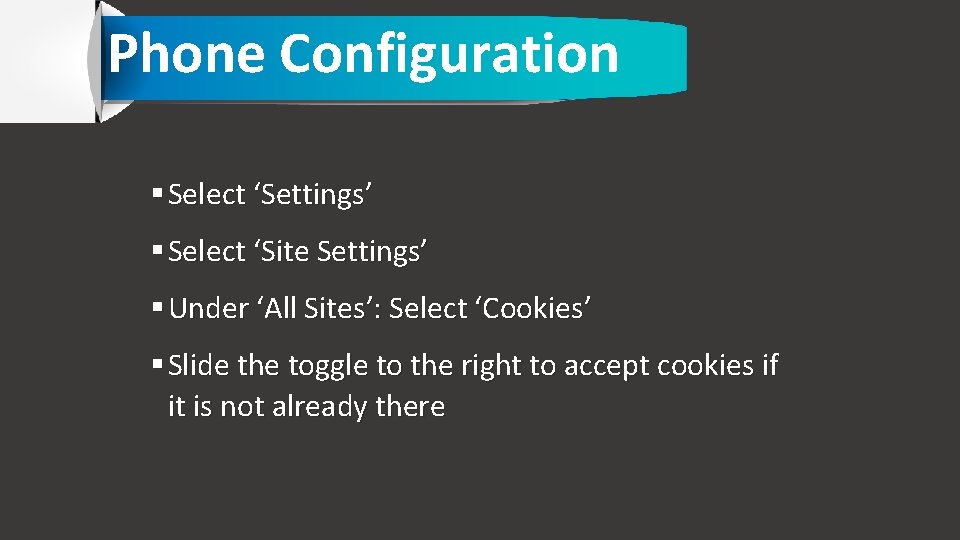
Phone Configuration Select ‘Settings’ Select ‘Site Settings’ Under ‘All Sites’: Select ‘Cookies’ Slide the toggle to the right to accept cookies if it is not already there
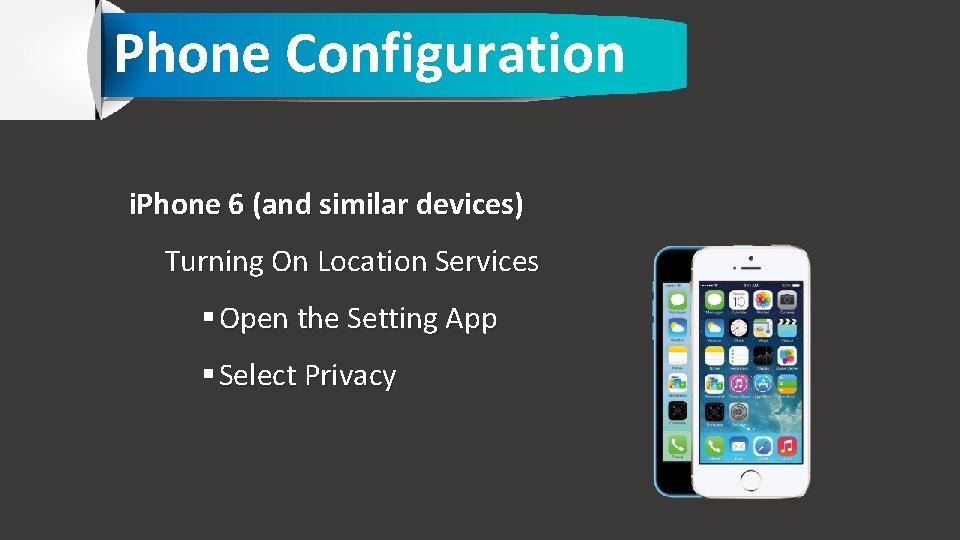
Phone Configuration i. Phone 6 (and similar devices) Turning On Location Services Open the Setting App Select Privacy
Phone Configuration Select Location Services Slide the toggle to the right to turn on Location Services In the list of apps that use location, select your browser Select ‘While Using’ to allow your browser to use location services while you are using your browser
Phone Configuration Setting the Safari Browser to Accept Cookies. Open Settings App Scroll down to and select Safari Scroll down to and select ‘Block Cookies’ Select ‘Allow from Current Website Only’
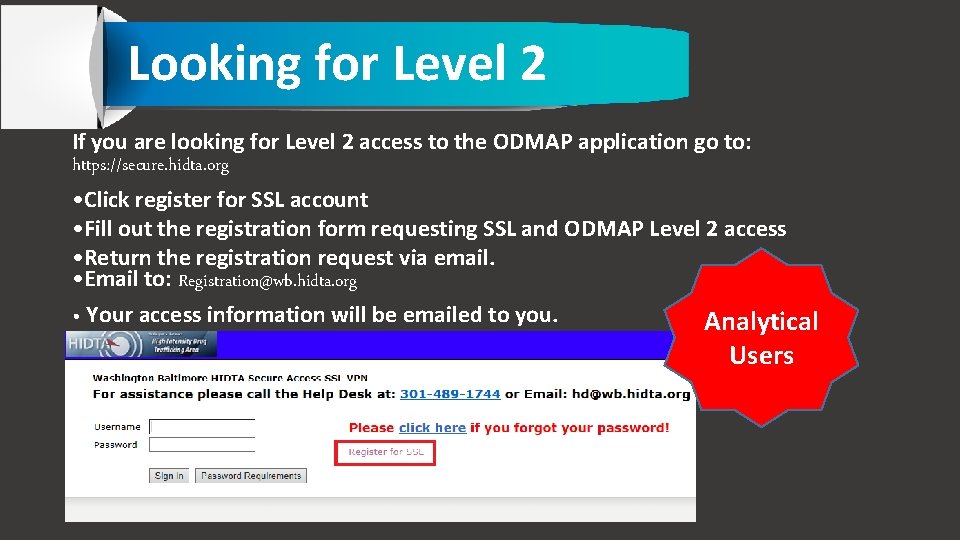
Looking for Level 2 If you are looking for Level 2 access to the ODMAP application go to: https: //secure. hidta. org • Click register for SSL account • Fill out the registration form requesting SSL and ODMAP Level 2 access • Return the registration request via email. • Email to: Registration@wb. hidta. org • Your access information will be emailed to you. Analytical Users
Contacts for Questions HIDTA HELP DESK Hours: 8: 30 to 4: 30 Est. Days: Monday to Friday Phone: 301 489 -1744 If you have any questions regarding the ODMAP Program, please contact Jeff Beeson by phone: (301) 489 -1734 or by email: jbeeson@wb. hidta. org For any questions regarding user registration, please contact Kelly Mc. Cord by phone: (301) 489 -1763 or by email: kmccord@wb. hidta. org