
OctaveMatlab Tutorial Kai Arras Social Robotics Lab v
Octave/Matlab Tutorial Kai Arras Social Robotics Lab v. 1. 0, koa, Oct 09
Contents § § § Overview Start, quit, getting help Variables and data types Matrices Plotting Programming Functions and scripts Files I/O Misc Octave and Matlab in practice librobotics Octave Matlab
Overview Octave is the "open-source Matlab" Octave is a great gnuplot wrapper § www. octave. org § www. mathworks. com Octave and Matlab are both, high-level languages and mathematical programming environments for: § Visualization § Programming, algorithm development § Numerical computation: linear algebra, optimization, control, statistics, signal and image processing, etc. Beware: Octave/Matlab programs can be slow.
Overview Matlab-Octave comparison: § Matlab is more flexible/advanced/powerful/costly § Octave is for free (GPL license) § There are minor differences in syntax This tutorial: § This tutorial applies to Octave *and* Matlab unless stated otherwise! Current versions (autumn 2009): § Octave 3. 2. 3 § Matlab 7. 6
Contents § § § Overview Start, quit, getting help Variables and data types Matrices Plotting Programming Functions and scripts Files I/O Misc Octave and Matlab in practice librobotics
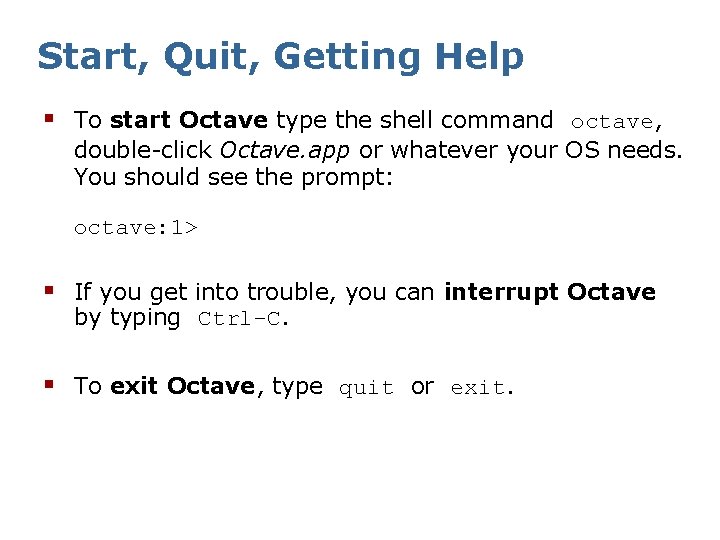
Start, Quit, Getting Help § To start Octave type the shell command octave, double-click Octave. app or whatever your OS needs. You should see the prompt: octave: 1> § If you get into trouble, you can interrupt Octave by typing Ctrl-C. § To exit Octave, type quit or exit.
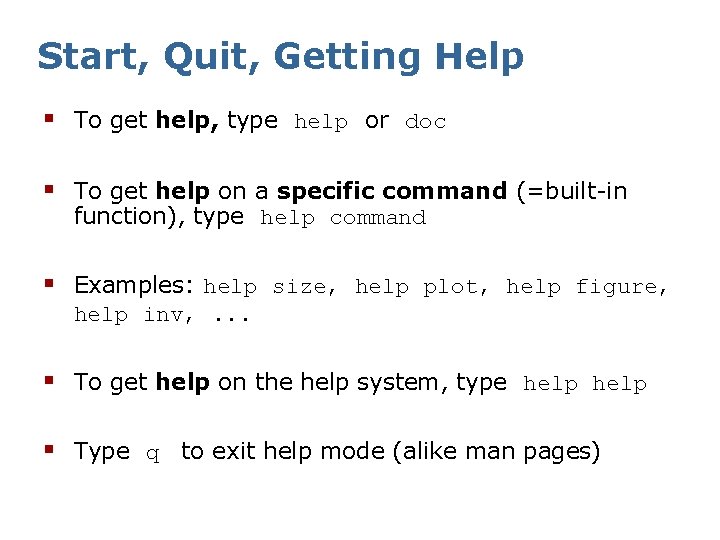
Start, Quit, Getting Help § To get help, type help or doc § To get help on a specific command (=built-in function), type help command § Examples: help size, help plot, help figure, help inv, . . . § To get help on the help system, type help § Type q to exit help mode (alike man pages)
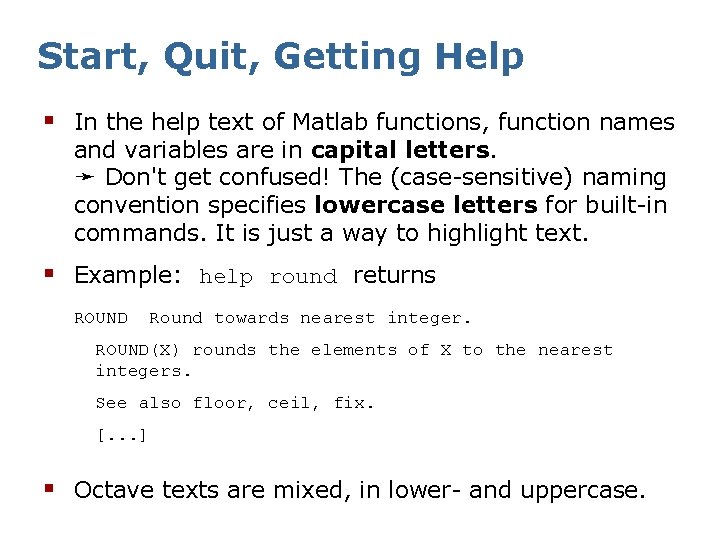
Start, Quit, Getting Help § In the help text of Matlab functions, function names and variables are in capital letters. ➛ Don't get confused! The (case-sensitive) naming convention specifies lowercase letters for built-in commands. It is just a way to highlight text. § Example: help round returns ROUND Round towards nearest integer. ROUND(X) rounds the elements of X to the nearest integers. See also floor, ceil, fix. [. . . ] § Octave texts are mixed, in lower- and uppercase.
Contents § § § Overview Start, quit, getting help Variables and data types Matrices Plotting Programming Functions and scripts Files I/O Misc Octave and Matlab in practice librobotics
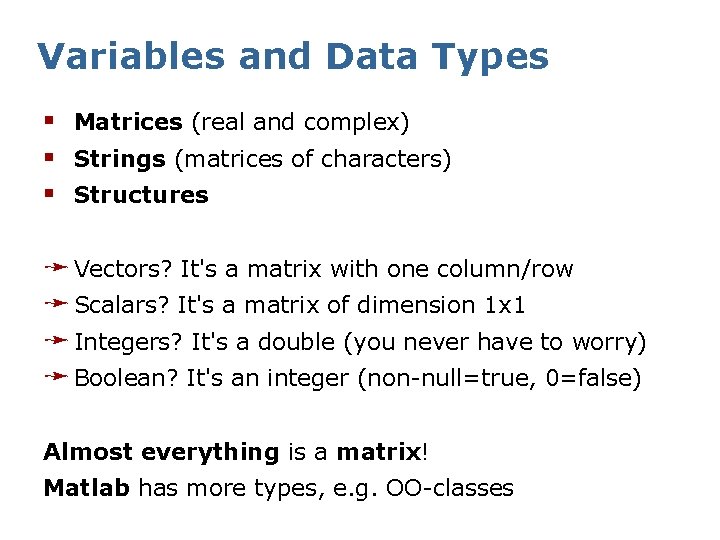
Variables and Data Types § Matrices (real and complex) § Strings (matrices of characters) § Structures ➛ Vectors? It's a matrix with one column/row ➛ Scalars? It's a matrix of dimension 1 x 1 ➛ Integers? It's a double (you never have to worry) ➛ Boolean? It's an integer (non-null=true, 0=false) Almost everything is a matrix! Matlab has more types, e. g. OO-classes
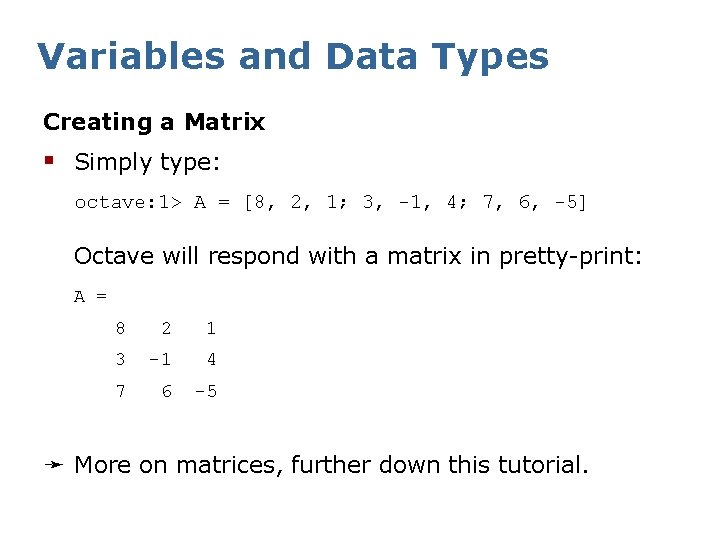
Variables and Data Types Creating a Matrix § Simply type: octave: 1> A = [8, 2, 1; 3, -1, 4; 7, 6, -5] Octave will respond with a matrix in pretty-print: A = 8 2 1 3 -1 4 7 6 -5 ➛ More on matrices, further down this tutorial.
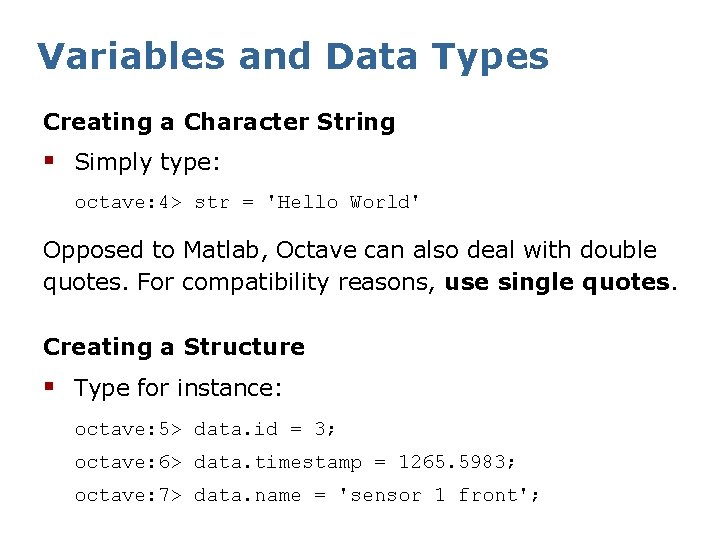
Variables and Data Types Creating a Character String § Simply type: octave: 4> str = 'Hello World' Opposed to Matlab, Octave can also deal with double quotes. For compatibility reasons, use single quotes. Creating a Structure § Type for instance: octave: 5> data. id = 3; octave: 6> data. timestamp = 1265. 5983; octave: 7> data. name = 'sensor 1 front';
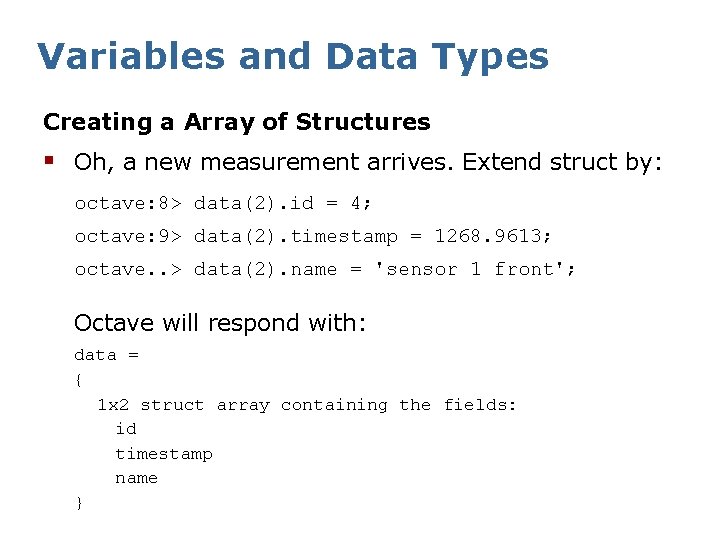
Variables and Data Types Creating a Array of Structures § Oh, a new measurement arrives. Extend struct by: octave: 8> data(2). id = 4; octave: 9> data(2). timestamp = 1268. 9613; octave. . > data(2). name = 'sensor 1 front'; Octave will respond with: data = { 1 x 2 struct array containing the fields: id timestamp name }
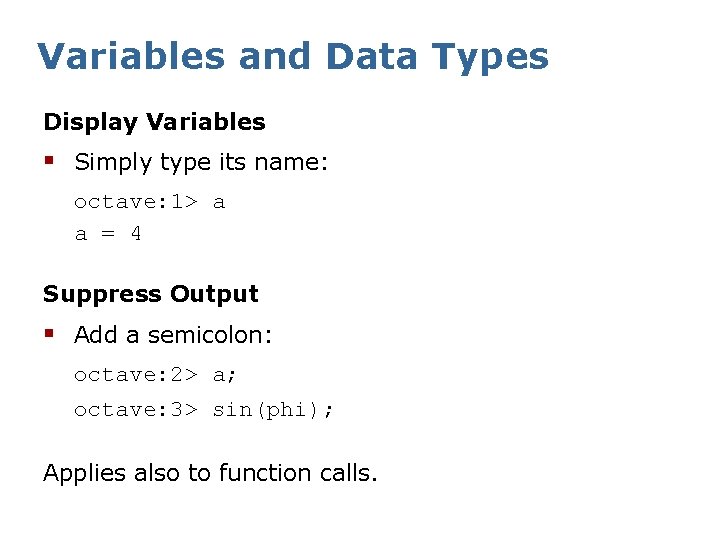
Variables and Data Types Display Variables § Simply type its name: octave: 1> a a = 4 Suppress Output § Add a semicolon: octave: 2> a; octave: 3> sin(phi); Applies also to function calls.
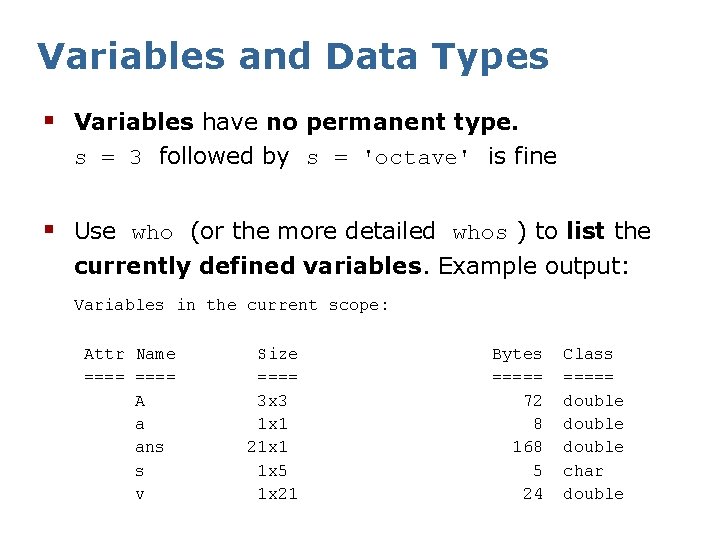
Variables and Data Types § Variables have no permanent type. s = 3 followed by s = 'octave' is fine § Use who (or the more detailed whos ) to list the currently defined variables. Example output: Variables in the current scope: Attr Name ==== A a ans s v Size ==== 3 x 3 1 x 1 21 x 1 1 x 5 1 x 21 Bytes ===== 72 8 168 5 24 Class ===== double char double
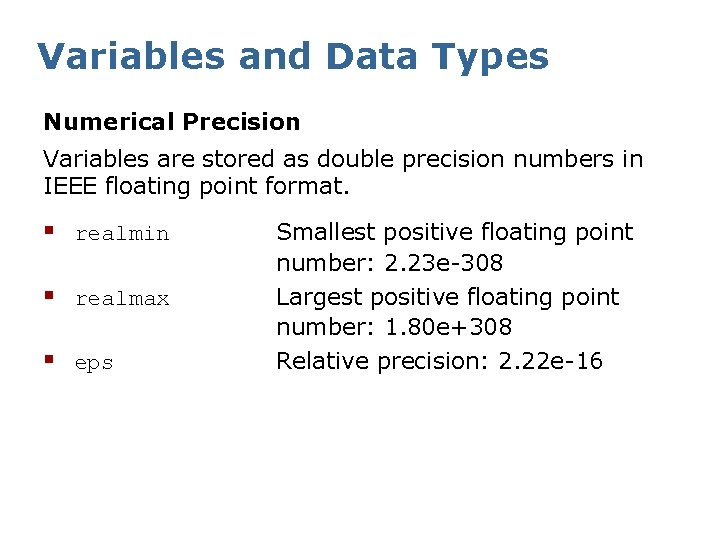
Variables and Data Types Numerical Precision Variables are stored as double precision numbers in IEEE floating point format. § realmin § realmax § eps Smallest positive floating point number: 2. 23 e-308 Largest positive floating point number: 1. 80 e+308 Relative precision: 2. 22 e-16
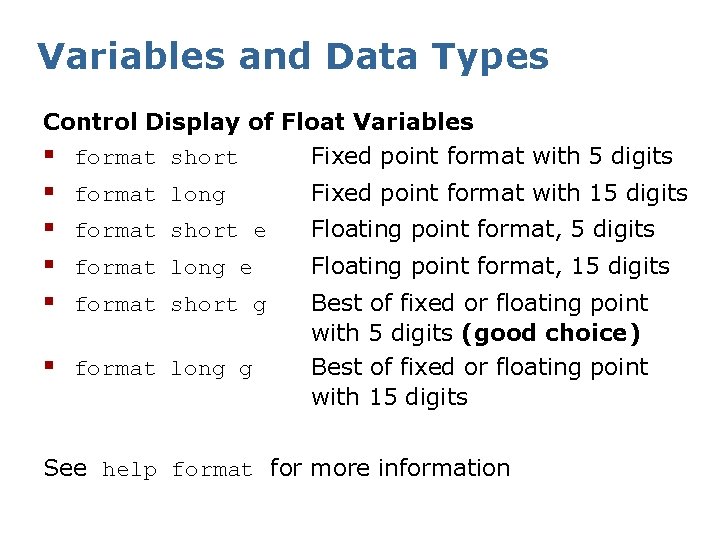
Variables and Data Types Control Display of Float Variables § format short Fixed point format with 5 digits § § format long Fixed point format with 15 digits format short e Floating point format, 5 digits format long e Floating point format, 15 digits format short g Best of fixed or floating point with 5 digits (good choice) Best of fixed or floating point with 15 digits § format long g See help format for more information
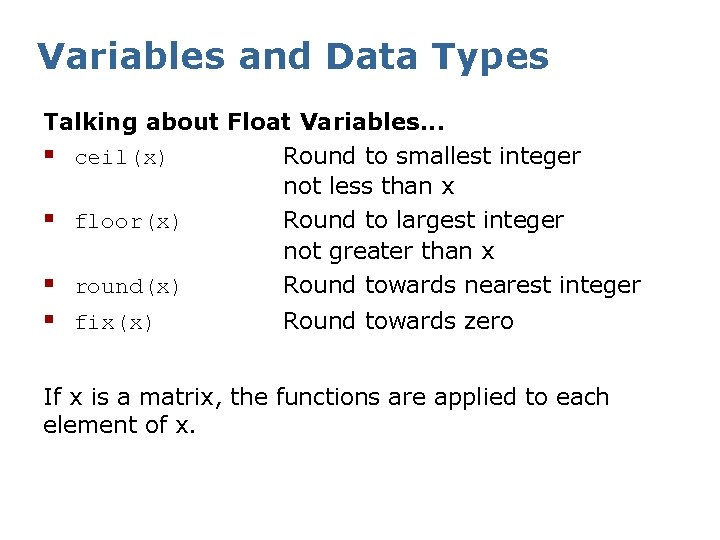
Variables and Data Types Talking about Float Variables. . . § ceil(x) Round to smallest integer not less than x § floor(x) Round to largest integer not greater than x § round(x) Round towards nearest integer § fix(x) Round towards zero If x is a matrix, the functions are applied to each element of x.
Contents § § § Overview Start, quit, getting help Variables and data types Matrices Plotting Programming Functions and scripts Files I/O Misc Octave and Matlab in practice librobotics
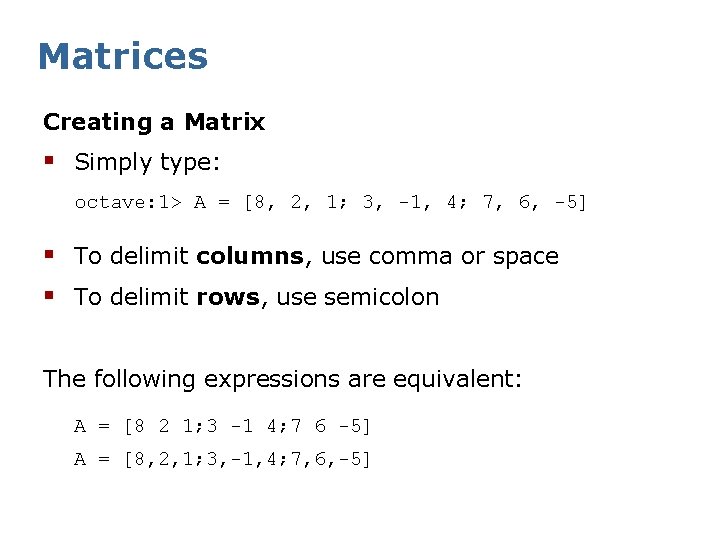
Matrices Creating a Matrix § Simply type: octave: 1> A = [8, 2, 1; 3, -1, 4; 7, 6, -5] § To delimit columns, use comma or space § To delimit rows, use semicolon The following expressions are equivalent: A = [8 2 1; 3 -1 4; 7 6 -5] A = [8, 2, 1; 3, -1, 4; 7, 6, -5]

Matrices Creating a Matrix § Octave will respond with a matrix in pretty-print: A = 8 3 7 2 -1 6 1 4 -5 § Alternative Example: octave: 2> phi = pi/3; octave: 3> R = [cos(phi) -sin(phi); sin(phi) cos(phi)] R = 0. 50000 0. 86603 -0. 86603 0. 50000

Matrices Creating a Matrix from Matrices octave: 1> A = [1 1 1; 2 2 2]; § Column-wise octave: 2> C = [A B] C = 1 2 1 2 33 33 § Row-wise: octave: 3> D = [A; [44 44 44]] D = 1 2 44 B = [33; 33];
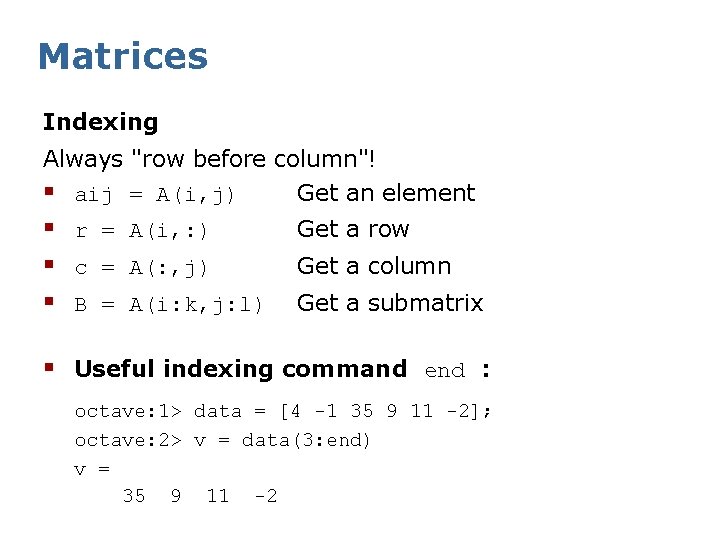
Matrices Indexing Always "row before column"! § aij = A(i, j) Get an element § r = A(i, : ) § c = A(: , j) § B = A(i: k, j: l) Get a row Get a column Get a submatrix § Useful indexing command end : octave: 1> data = [4 -1 35 9 11 -2]; octave: 2> v = data(3: end) v = 35 9 11 -2
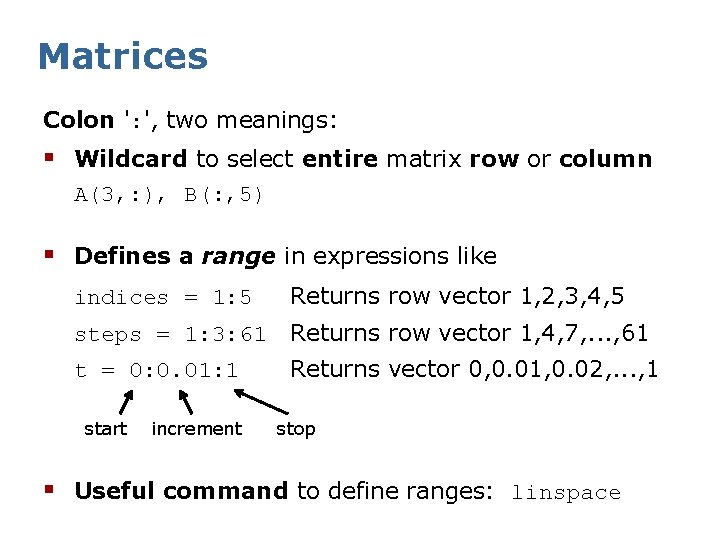
Matrices Colon ': ', two meanings: § Wildcard to select entire matrix row or column A(3, : ), B(: , 5) § Defines a range in expressions like indices = 1: 5 Returns row vector 1, 2, 3, 4, 5 steps = 1: 3: 61 Returns row vector 1, 4, 7, . . . , 61 t = 0: 0. 01: 1 Returns vector 0, 0. 01, 0. 02, . . . , 1 start increment stop § Useful command to define ranges: linspace
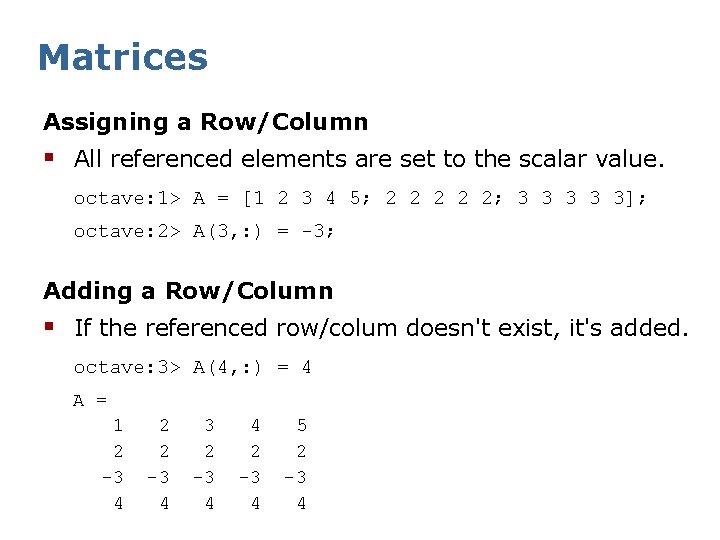
Matrices Assigning a Row/Column § All referenced elements are set to the scalar value. octave: 1> A = [1 2 3 4 5; 2 2 2; 3 3 3]; octave: 2> A(3, : ) = -3; Adding a Row/Column § If the referenced row/colum doesn't exist, it's added. octave: 3> A(4, : ) = 4 A = 1 2 -3 4 2 2 -3 4 3 2 -3 4 4 2 -3 4 5 2 -3 4
![Matrices Deleting a Row/Column § Assigning an empty matrix [] deletes the referenced rows](http://slidetodoc.com/presentation_image_h/b7bbc77f8b67b2d5a977f15a72b87808/image-26.jpg "Matrices Deleting a Row/Column § Assigning an empty matrix [] deletes the referenced rows")
Matrices Deleting a Row/Column § Assigning an empty matrix [] deletes the referenced rows or columns. Examples: octave: 4> A(2, : ) = [] A = 1 -3 4 2 -3 4 3 -3 4 4 -3 4 5 -3 4 octave: 4> A(: , 1: 2: 5) = [] A = 2 2 -3 4 4 2 -3 4
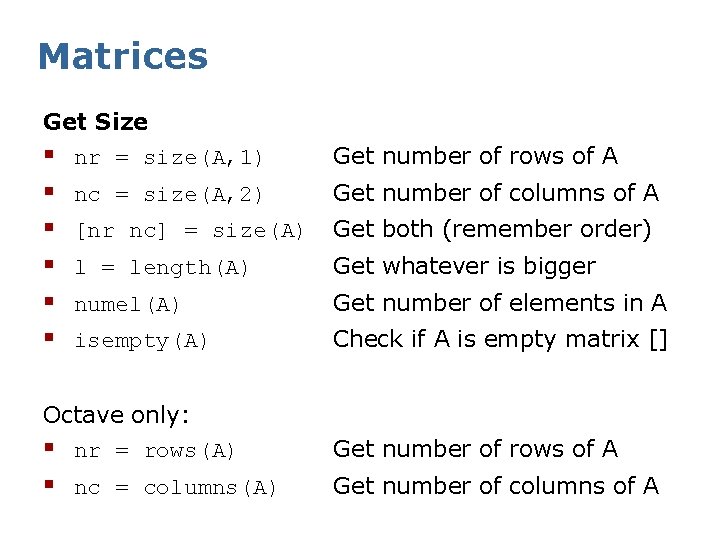
Matrices Get Size § nr = size(A, 1) § § § Get number of rows of A nc = size(A, 2) Get number of columns of A [nr nc] = size(A) Get both (remember order) l = length(A) Get whatever is bigger numel(A) Get number of elements in A isempty(A) Check if A is empty matrix [] Octave only: § nr = rows(A) Get number of rows of A § nc = columns(A) Get number of columns of A
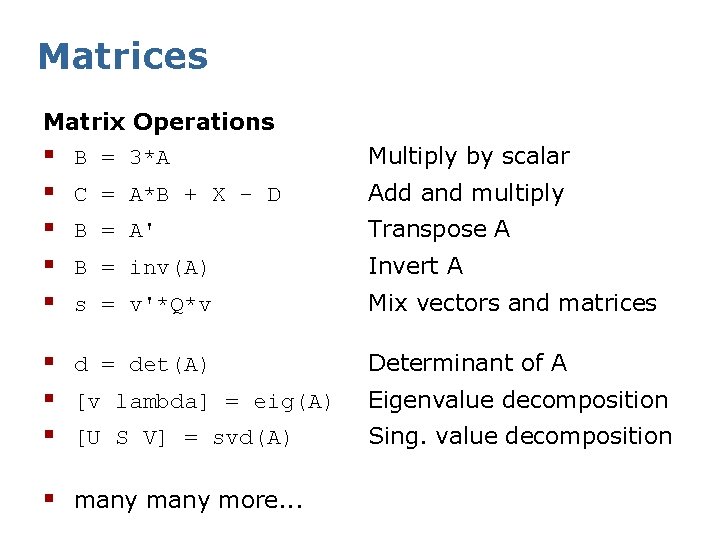
Matrices Matrix Operations § B = 3*A § § Multiply by scalar C = A*B + X - D Add and multiply B = A' Transpose A B = inv(A) Invert A s = v'*Q*v Mix vectors and matrices § d = det(A) § [v lambda] = eig(A) § [U S V] = svd(A) § many more. . . Determinant of A Eigenvalue decomposition Sing. value decomposition
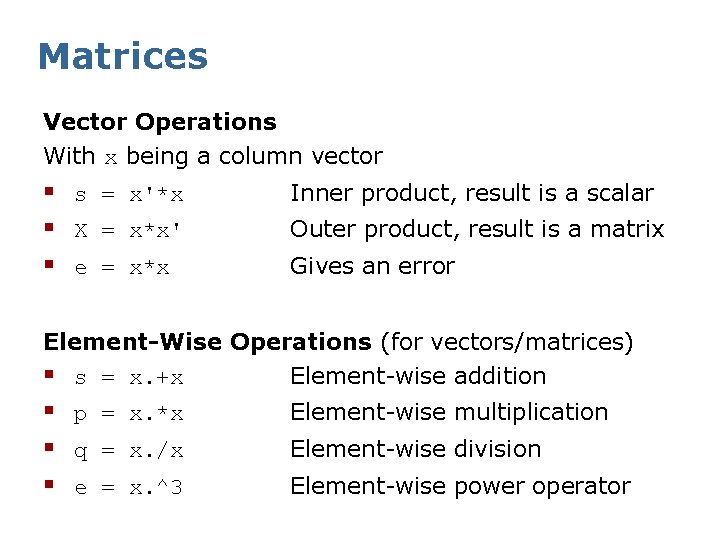
Matrices Vector Operations With x being a column vector § s = x'*x § X = x*x' § e = x*x Inner product, result is a scalar Outer product, result is a matrix Gives an error Element-Wise Operations (for vectors/matrices) § s = x. +x Element-wise addition § p = x. *x § q = x. /x § e = x. ^3 Element-wise multiplication Element-wise division Element-wise power operator
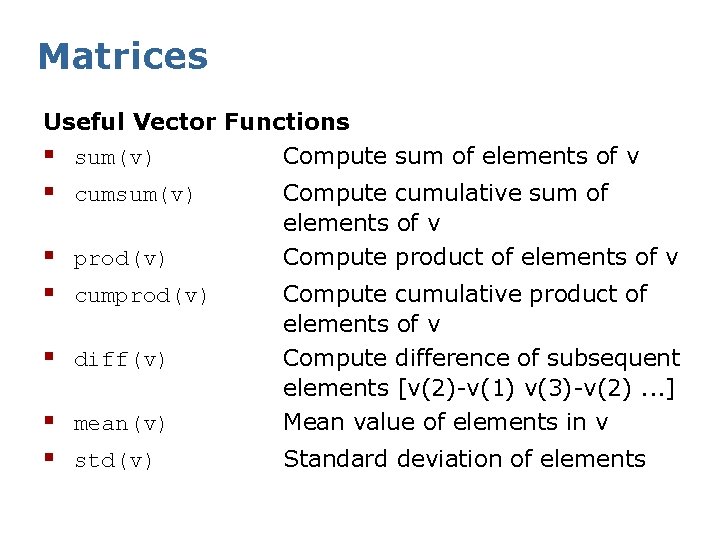
Matrices Useful Vector Functions § sum(v) Compute sum of elements of v § cumsum(v) § prod(v) § cumprod(v) § diff(v) § mean(v) § std(v) Compute cumulative sum of elements of v Compute product of elements of v Compute cumulative product of elements of v Compute difference of subsequent elements [v(2)-v(1) v(3)-v(2). . . ] Mean value of elements in v Standard deviation of elements
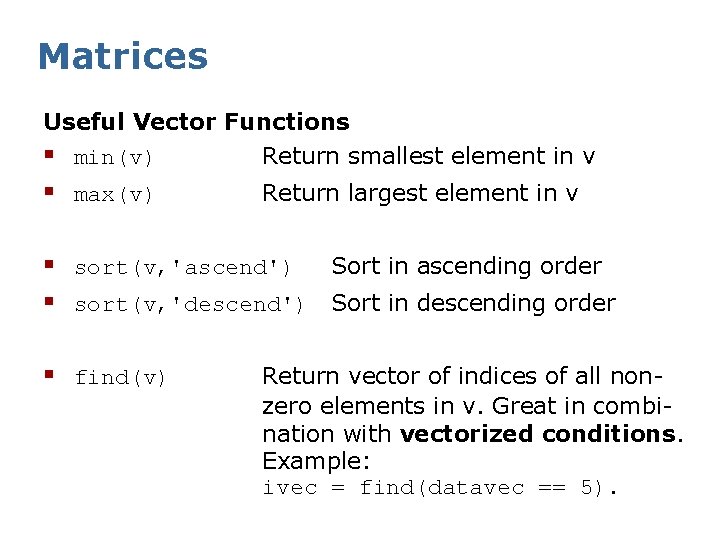
Matrices Useful Vector Functions § min(v) Return smallest element in v § max(v) Return largest element in v § sort(v, 'ascend') Sort in ascending order § sort(v, 'descend') Sort in descending order § find(v) Return vector of indices of all nonzero elements in v. Great in combination with vectorized conditions. Example: ivec = find(datavec == 5).
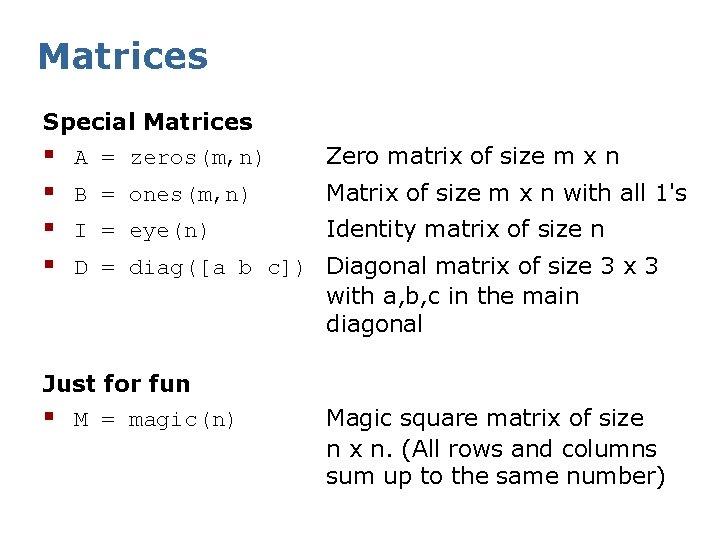
Matrices Special Matrices § A = zeros(m, n) Zero matrix of size m x n § B = ones(m, n) Matrix of size m x n with all 1's § I = eye(n) Identity matrix of size n § D = diag([a b c]) Diagonal matrix of size 3 x 3 with a, b, c in the main diagonal Just for fun § M = magic(n) Magic square matrix of size n x n. (All rows and columns sum up to the same number)
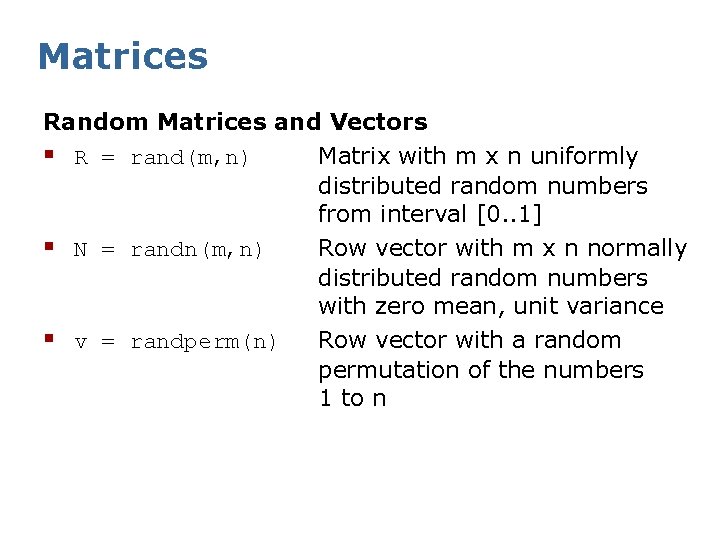
Matrices Random Matrices and Vectors § R = rand(m, n) Matrix with m x n uniformly distributed random numbers from interval [0. . 1] § N = randn(m, n) Row vector with m x n normally distributed random numbers with zero mean, unit variance § v = randperm(n) Row vector with a random permutation of the numbers 1 to n
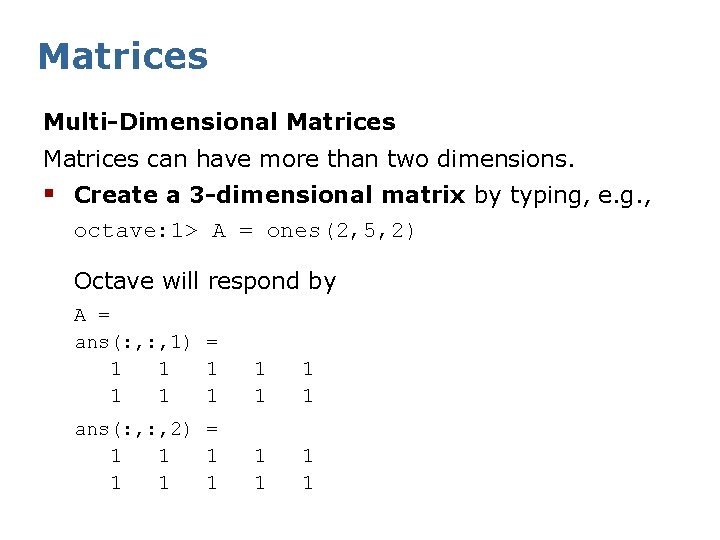
Matrices Multi-Dimensional Matrices can have more than two dimensions. § Create a 3 -dimensional matrix by typing, e. g. , octave: 1> A = ones(2, 5, 2) Octave will respond by A = ans(: , 1) = 1 1 1 1 1 ans(: , 2) = 1 1 1 1 1
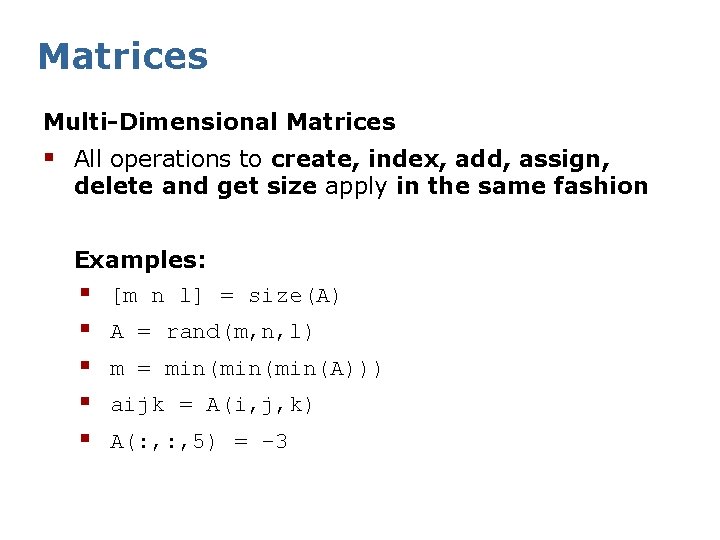
Matrices Multi-Dimensional Matrices § All operations to create, index, add, assign, delete and get size apply in the same fashion Examples: § [m n l] = size(A) § § A = rand(m, n, l) m = min(min(A))) aijk = A(i, j, k) A(: , 5) = -3
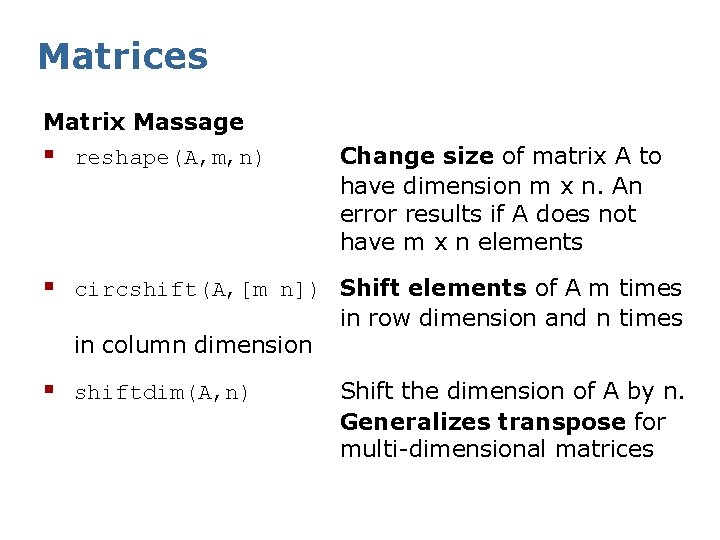
Matrices Matrix Massage § reshape(A, m, n) Change size of matrix A to have dimension m x n. An error results if A does not have m x n elements § circshift(A, [m n]) Shift elements of A m times in column dimension § shiftdim(A, n) in row dimension and n times Shift the dimension of A by n. Generalizes transpose for multi-dimensional matrices
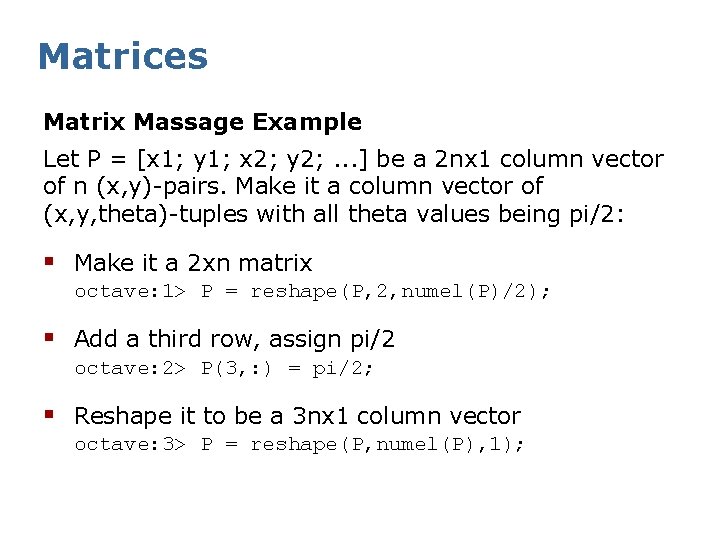
Matrices Matrix Massage Example Let P = [x 1; y 1; x 2; y 2; . . . ] be a 2 nx 1 column vector of n (x, y)-pairs. Make it a column vector of (x, y, theta)-tuples with all theta values being pi/2: § Make it a 2 xn matrix octave: 1> P = reshape(P, 2, numel(P)/2); § Add a third row, assign pi/2 octave: 2> P(3, : ) = pi/2; § Reshape it to be a 3 nx 1 column vector octave: 3> P = reshape(P, numel(P), 1);
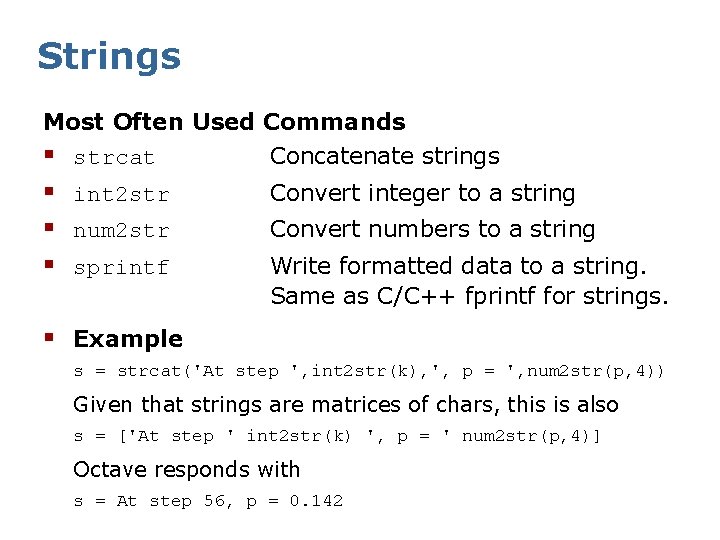
Strings Most Often Used Commands § strcat Concatenate strings § int 2 str § num 2 str § sprintf Convert integer to a string Convert numbers to a string Write formatted data to a string. Same as C/C++ fprintf for strings. § Example s = strcat('At step ', int 2 str(k), ', p = ', num 2 str(p, 4)) Given that strings are matrices of chars, this is also s = ['At step ' int 2 str(k) ', p = ' num 2 str(p, 4)] Octave responds with s = At step 56, p = 0. 142
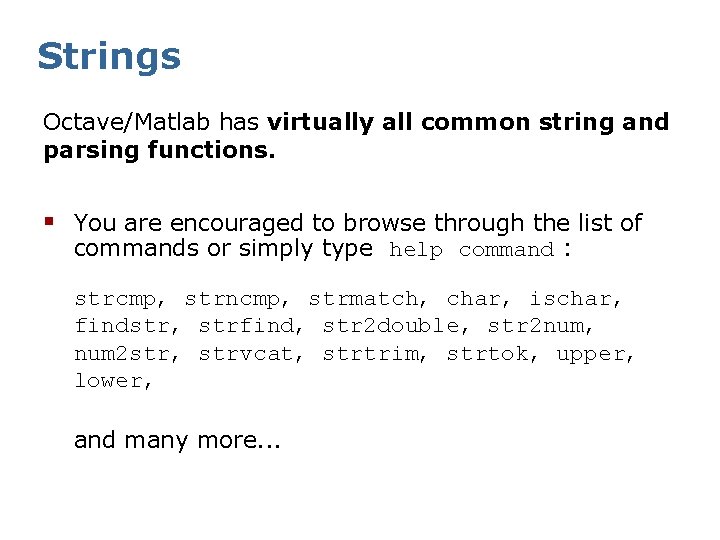
Strings Octave/Matlab has virtually all common string and parsing functions. § You are encouraged to browse through the list of commands or simply type help command : strcmp, strncmp, strmatch, char, ischar, findstr, strfind, str 2 double, str 2 num, num 2 str, strvcat, strtrim, strtok, upper, lower, and many more. . .
Contents § § § Overview Start, quit, getting help Variables and data types Matrices Plotting Programming Functions and scripts Files I/O Misc Octave and Matlab in practice librobotics
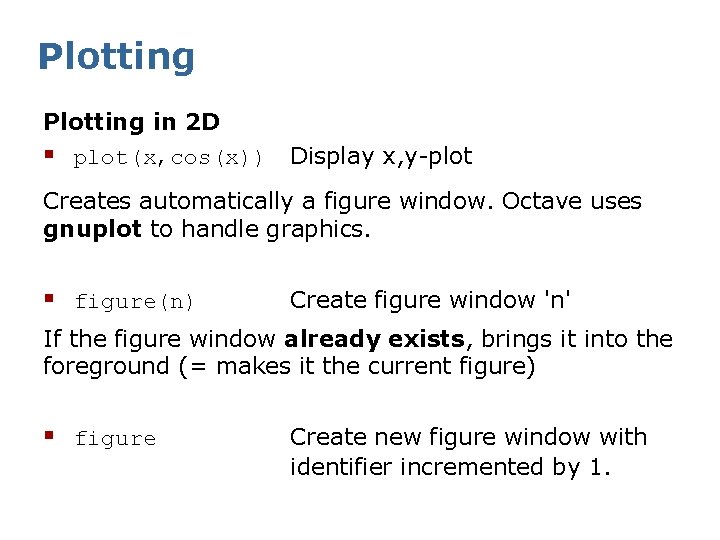
Plotting in 2 D § plot(x, cos(x)) Display x, y-plot Creates automatically a figure window. Octave uses gnuplot to handle graphics. § figure(n) Create figure window 'n' If the figure window already exists, brings it into the foreground (= makes it the current figure) § figure Create new figure window with identifier incremented by 1.
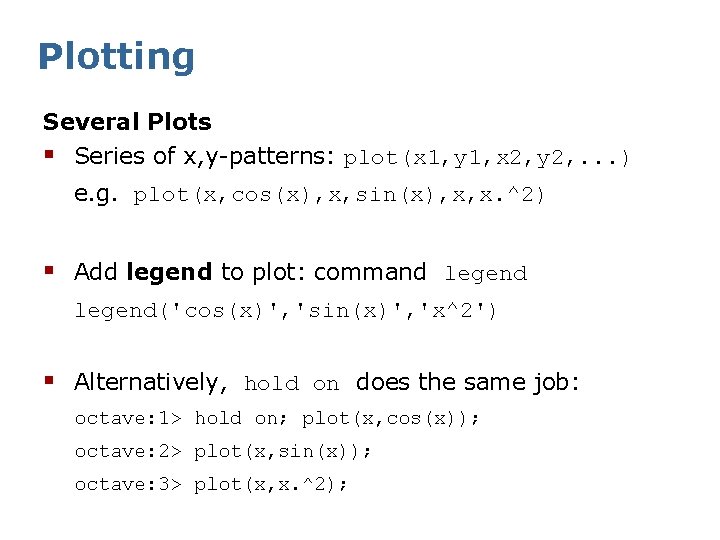
Plotting Several Plots § Series of x, y-patterns: plot(x 1, y 1, x 2, y 2, . . . ) e. g. plot(x, cos(x), x, sin(x), x, x. ^2) § Add legend to plot: command legend('cos(x)', 'sin(x)', 'x^2') § Alternatively, hold on does the same job: octave: 1> hold on; plot(x, cos(x)); octave: 2> plot(x, sin(x)); octave: 3> plot(x, x. ^2);
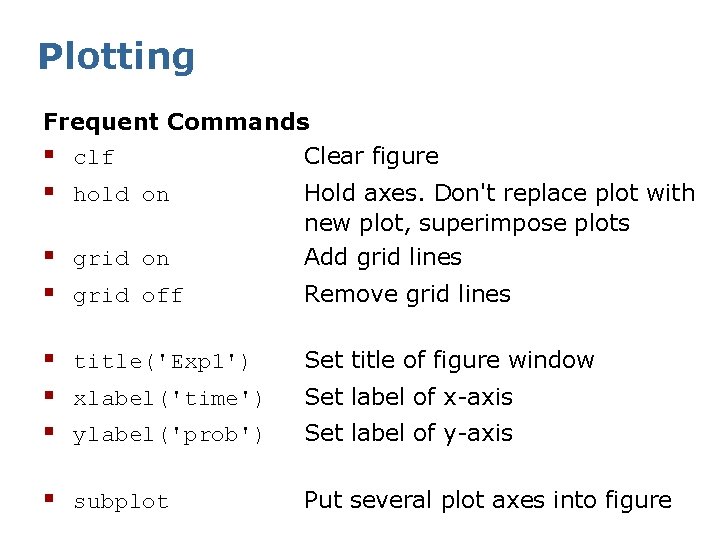
Plotting Frequent Commands § clf Clear figure § hold on § grid off Hold axes. Don't replace plot with new plot, superimpose plots Add grid lines Remove grid lines § title('Exp 1') § xlabel('time') § ylabel('prob') Set title of figure window § subplot Put several plot axes into figure Set label of x-axis Set label of y-axis
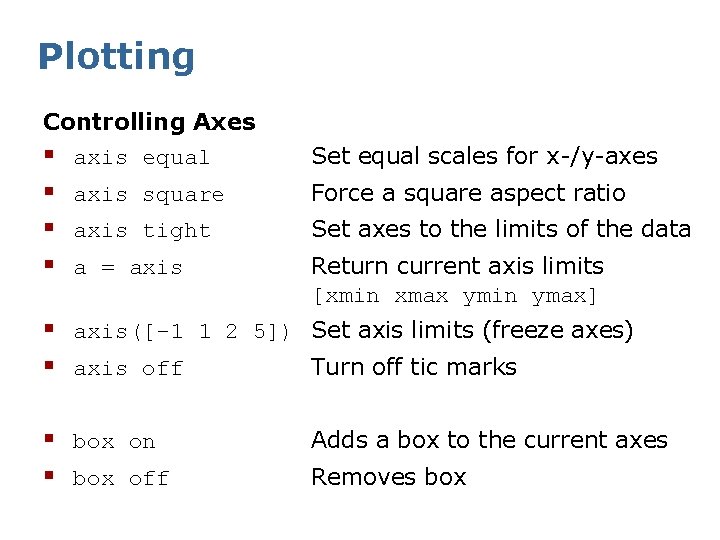
Plotting Controlling Axes § axis equal § axis square § axis tight § a = axis Set equal scales for x-/y-axes Force a square aspect ratio Set axes to the limits of the data Return current axis limits [xmin xmax ymin ymax] § axis([-1 1 2 5]) Set axis limits (freeze axes) § axis off Turn off tic marks § box on § box off Adds a box to the current axes Removes box
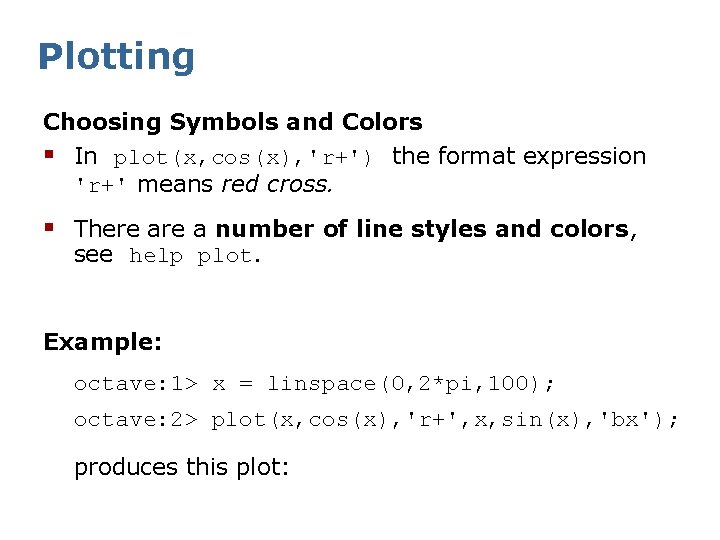
Plotting Choosing Symbols and Colors § In plot(x, cos(x), 'r+') the format expression 'r+' means red cross. § There a number of line styles and colors, see help plot. Example: octave: 1> x = linspace(0, 2*pi, 100); octave: 2> plot(x, cos(x), 'r+', x, sin(x), 'bx'); produces this plot:
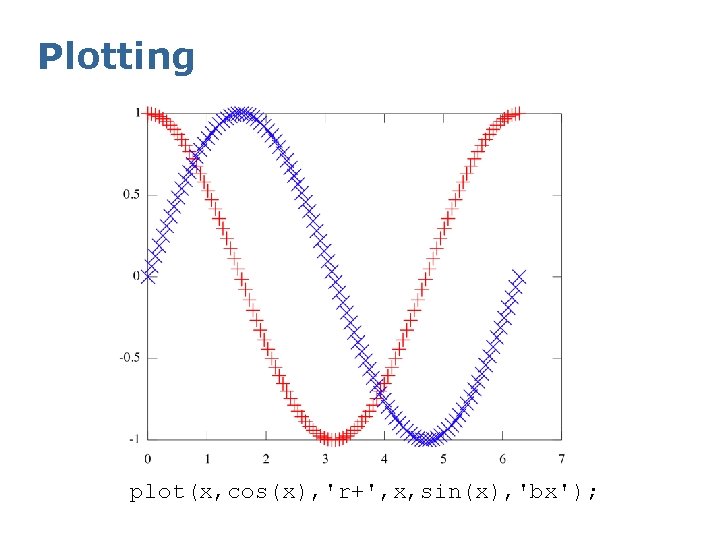
Plotting plot(x, cos(x), 'r+', x, sin(x), 'bx');
![Plotting § Adjusting the axes octave: 3> axis([0 2*pi -1 1]) (try also axis](http://slidetodoc.com/presentation_image_h/b7bbc77f8b67b2d5a977f15a72b87808/image-47.jpg "Plotting § Adjusting the axes octave: 3> axis([0 2*pi -1 1]) (try also axis")
Plotting § Adjusting the axes octave: 3> axis([0 2*pi -1 1]) (try also axis tight ) § Adding a legend, labels and a title octave: 4> legend('cos(x)', 'sin(x)', 'Location', 'Southwest') octave: 5> title('Trigonometric Functions') octave: 6> xlabel('x') octave: 7> ylabel('y')
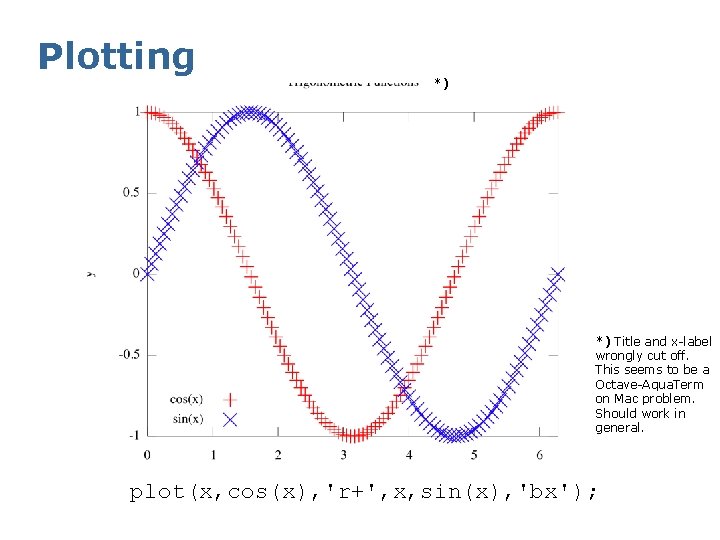
Plotting *) *) Title and x-label wrongly cut off. This seems to be a Octave-Aqua. Term on Mac problem. Should work in general. plot(x, cos(x), 'r+', x, sin(x), 'bx');
Plotting Uhm. . . , don't like it. New try: octave: 1> clf; § Controlling Color and Marker Size octave: 2> plot(x, cos(x), 'r+', x, sin(x), '-x', . . . 'Color', [1. 4. 8], 'Marker. Size', 2) octave: 3> axis tight § Adding Text octave: 4> text(1, -0. 5, 'cos(phi)') octave: 5> text(3, 0. 5, 'sin(phi)') Note the Late. X syntax!
![Plotting plot(x, cos(x), 'r+', x, sin(x), '-x', 'Color', [1. 4. 8], 'Marker. Size', 2)](http://slidetodoc.com/presentation_image_h/b7bbc77f8b67b2d5a977f15a72b87808/image-50.jpg "Plotting plot(x, cos(x), 'r+', x, sin(x), '-x', 'Color', [1. 4. 8], 'Marker. Size', 2)")
Plotting plot(x, cos(x), 'r+', x, sin(x), '-x', 'Color', [1. 4. 8], 'Marker. Size', 2)
Plotting Yepp, I like it. . . Get hardcopy! Exporting Figures § § print –deps my. Pic. BW. eps Export B/W. eps file print –depsc my. Pic. eps Export color. eps file print –djpeg –r 80 my. Pic. jpg Export. jpg in 80 ppi print –dpng –r 100 my. Pic. png Export. png in 100 ppi See help print for more devices including specialized ones for Latex. § print can also be called as a function. Then, it takes arguments and options as a comma-separated list. E. g. : print('-dpng', '-r 100', 'my. Pic. png');
Plotting This tutorial cannot cover the huge variety of graphics commands in Octave/Matlab. § You are encouraged to browse through the list of commands or simply type help command : hist, bar, pie, area, fill, contour, quiver, scatter, compass, rose, semilogx, loglog, stem, stairs, imagesc and many more. . .
Plotting in 3 D § plot 3 § mesh § surf Plot lines and points in 3 d 3 D mesh surface plot 3 D colored surface plot Most 2 d plot commands have a 3 D sibling. Check out, for example, bar 3, pie 3, fill 3, contour 3, quiver 3, scatter 3, stem 3
Contents § § § Overview Start, quit, getting help Variables and data types Matrices Plotting Programming Functions and scripts Files I/O Misc Octave and Matlab in practice librobotics
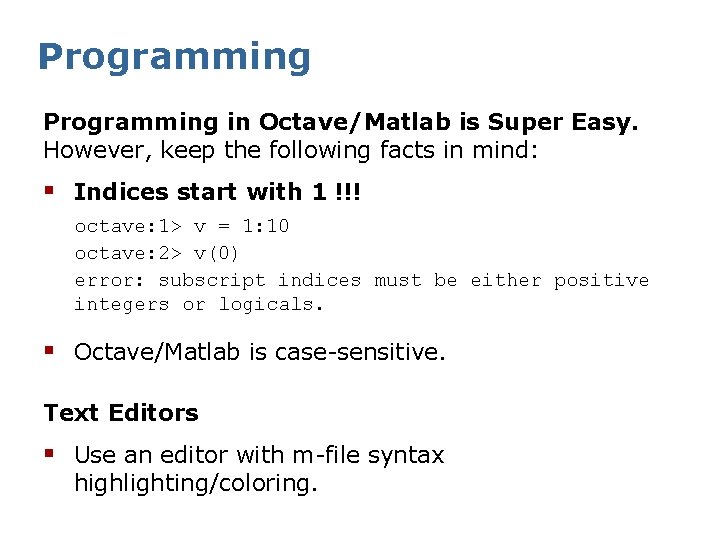
Programming in Octave/Matlab is Super Easy. However, keep the following facts in mind: § Indices start with 1 !!! octave: 1> v = 1: 10 octave: 2> v(0) error: subscript indices must be either positive integers or logicals. § Octave/Matlab is case-sensitive. Text Editors § Use an editor with m-file syntax highlighting/coloring.
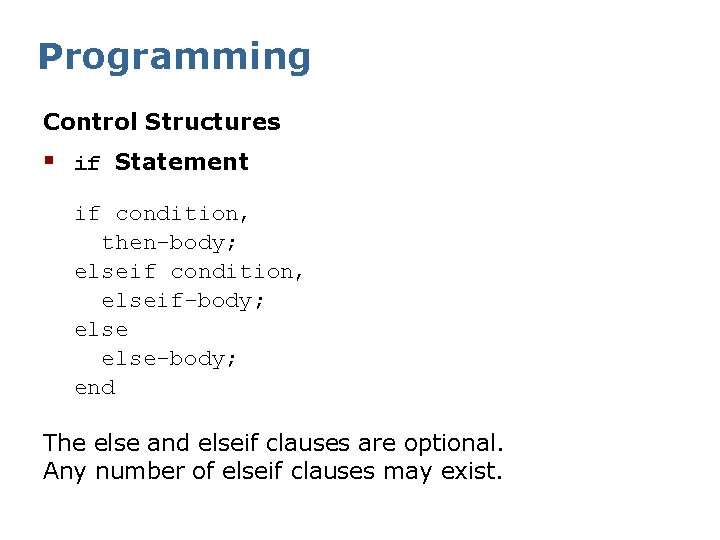
Programming Control Structures § if Statement if condition, then-body; elseif condition, elseif-body; else-body; end The else and elseif clauses are optional. Any number of elseif clauses may exist.
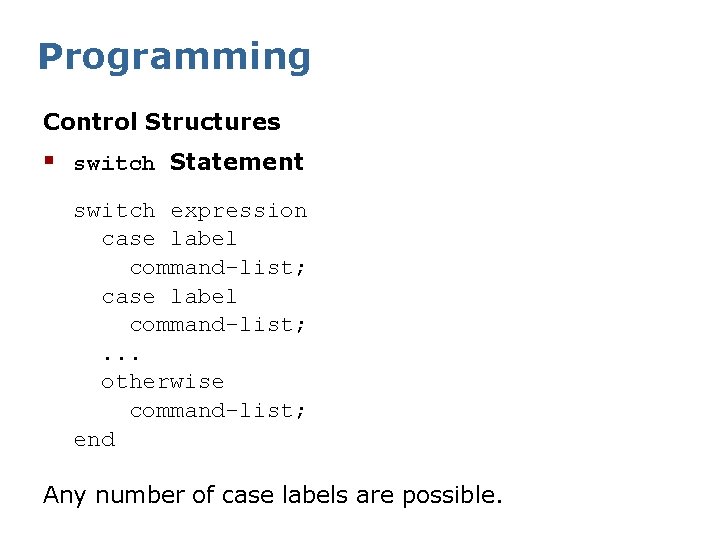
Programming Control Structures § switch Statement switch expression case label command-list; . . . otherwise command-list; end Any number of case labels are possible.
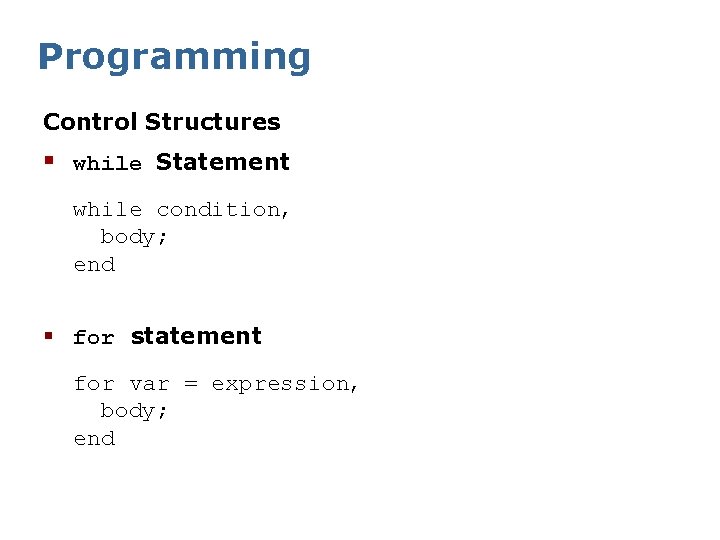
Programming Control Structures § while Statement while condition, body; end § for statement for var = expression, body; end
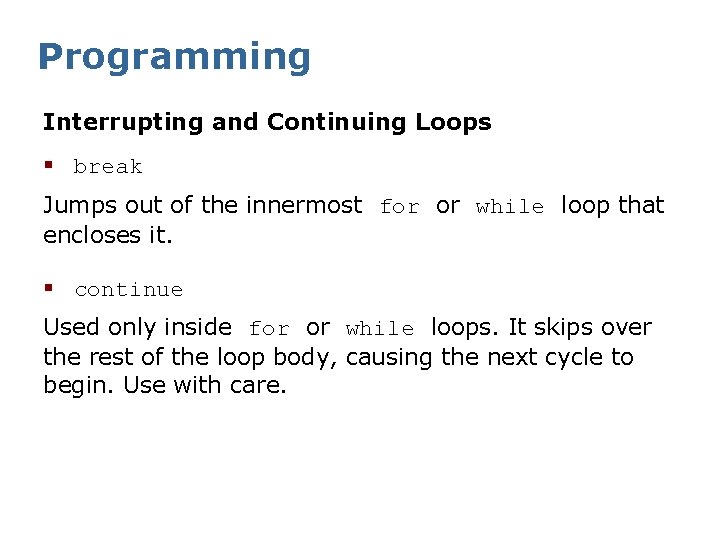
Programming Interrupting and Continuing Loops § break Jumps out of the innermost for or while loop that encloses it. § continue Used only inside for or while loops. It skips over the rest of the loop body, causing the next cycle to begin. Use with care.
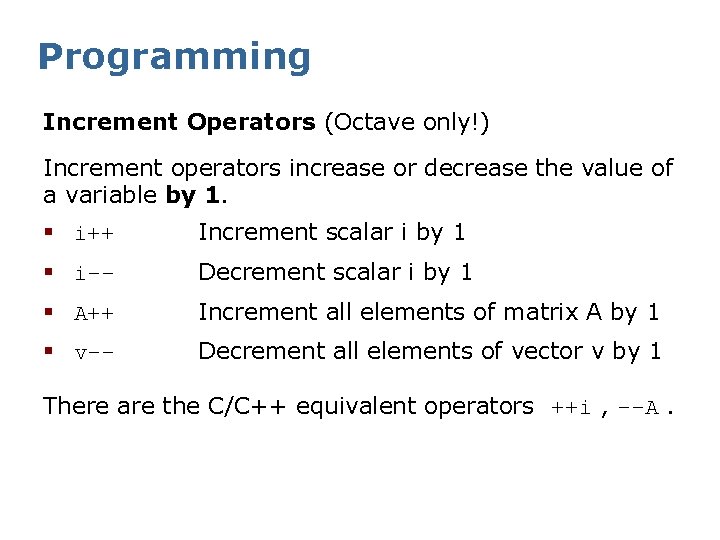
Programming Increment Operators (Octave only!) Increment operators increase or decrease the value of a variable by 1. § i++ Increment scalar i by 1 § i-- Decrement scalar i by 1 § A++ Increment all elements of matrix A by 1 § v-- Decrement all elements of vector v by 1 There are the C/C++ equivalent operators ++i , --A.
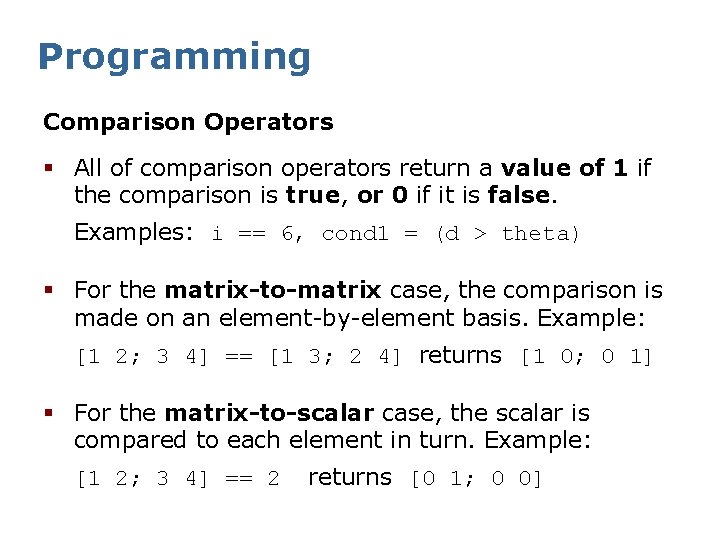
Programming Comparison Operators § All of comparison operators return a value of 1 if the comparison is true, or 0 if it is false. Examples: i == 6, cond 1 = (d > theta) § For the matrix-to-matrix case, the comparison is made on an element-by-element basis. Example: [1 2; 3 4] == [1 3; 2 4] returns [1 0; 0 1] § For the matrix-to-scalar case, the scalar is compared to each element in turn. Example: [1 2; 3 4] == 2 returns [0 1; 0 0]
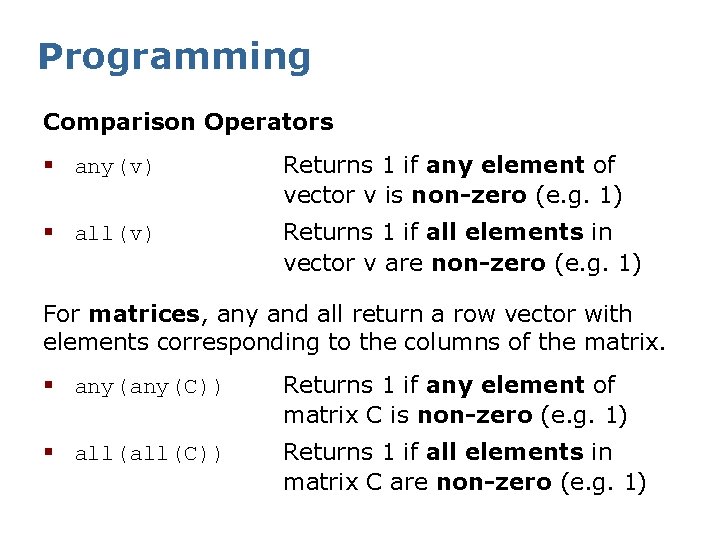
Programming Comparison Operators § any(v) Returns 1 if any element of vector v is non-zero (e. g. 1) § all(v) Returns 1 if all elements in vector v are non-zero (e. g. 1) For matrices, any and all return a row vector with elements corresponding to the columns of the matrix. § any(C)) Returns 1 if any element of matrix C is non-zero (e. g. 1) § all(C)) Returns 1 if all elements in matrix C are non-zero (e. g. 1)
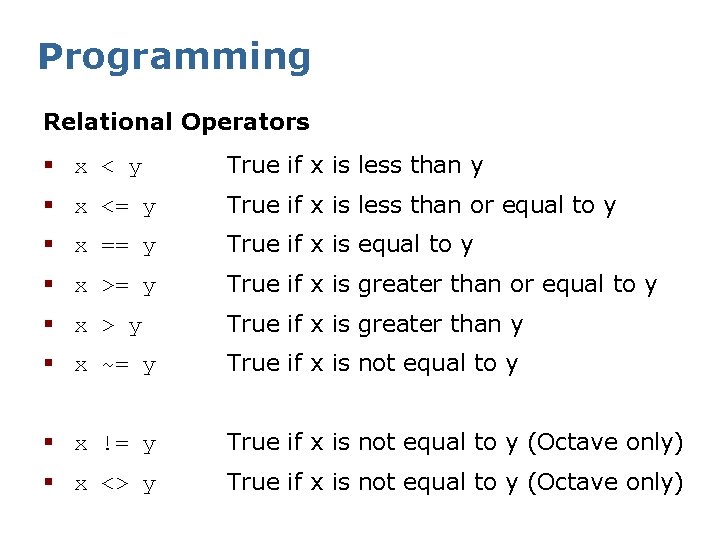
Programming Relational Operators § x < y True if x is less than y § x <= y True if x is less than or equal to y § x == y True if x is equal to y § x >= y True if x is greater than or equal to y § x > y True if x is greater than y § x ~= y True if x is not equal to y § x != y True if x is not equal to y (Octave only) § x <> y True if x is not equal to y (Octave only)
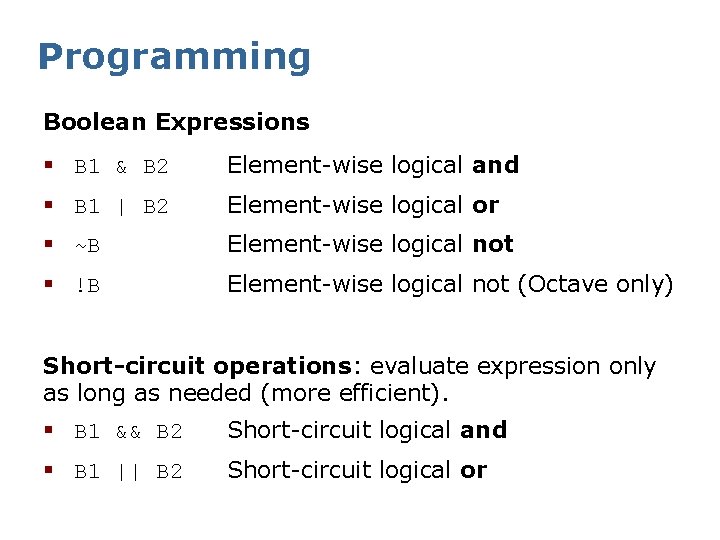
Programming Boolean Expressions § B 1 & B 2 Element-wise logical and § B 1 | B 2 Element-wise logical or § ~B Element-wise logical not § !B Element-wise logical not (Octave only) Short-circuit operations: evaluate expression only as long as needed (more efficient). § B 1 && B 2 Short-circuit logical and § B 1 || B 2 Short-circuit logical or
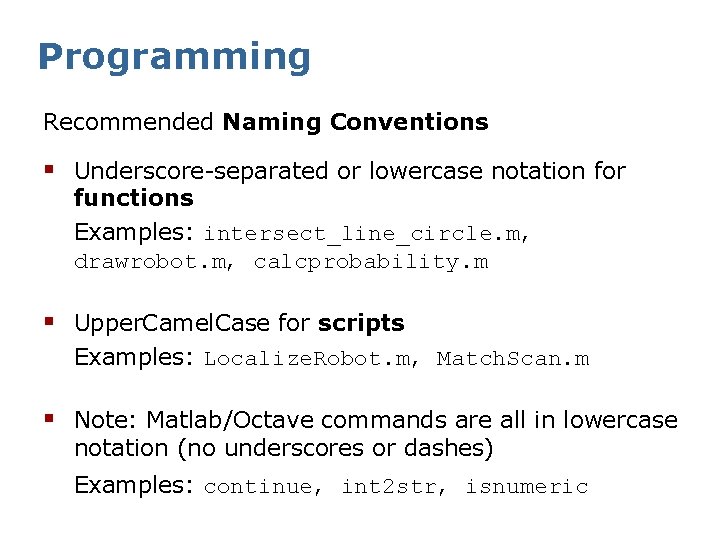
Programming Recommended Naming Conventions § Underscore-separated or lowercase notation for functions Examples: intersect_line_circle. m, drawrobot. m, calcprobability. m § Upper. Camel. Case for scripts Examples: Localize. Robot. m, Match. Scan. m § Note: Matlab/Octave commands are all in lowercase notation (no underscores or dashes) Examples: continue, int 2 str, isnumeric
Contents § § § Overview Start, quit, getting help Variables and data types Matrix arithmetic Plotting Programming Functions and scripts Files I/O Misc Octave and Matlab in practice librobotics
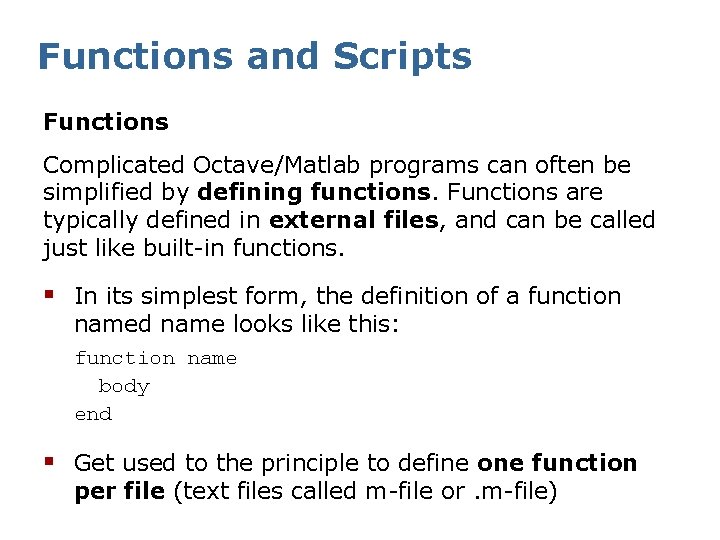
Functions and Scripts Functions Complicated Octave/Matlab programs can often be simplified by defining functions. Functions are typically defined in external files, and can be called just like built-in functions. § In its simplest form, the definition of a function named name looks like this: function name body end § Get used to the principle to define one function per file (text files called m-file or. m-file)
![Functions and Scripts Passing Parameters to/from Functions § Simply write function [ret-var] = name(arg-list)](http://slidetodoc.com/presentation_image_h/b7bbc77f8b67b2d5a977f15a72b87808/image-68.jpg "Functions and Scripts Passing Parameters to/from Functions § Simply write function [ret-var] = name(arg-list)")
Functions and Scripts Passing Parameters to/from Functions § Simply write function [ret-var] = name(arg-list) body end § arg-list is a comma-separated list of input arguments arg 1, arg 2, . . . , argn § ret-var is a comma-separated list of output arguments. Note that ret-var is a vector enclosed in square brackets [arg 1, arg 2, . . . , argm].
![Functions and Scripts Example Functions: function [mu sigma] = calcmoments(data) mu = mean(data); sigma](http://slidetodoc.com/presentation_image_h/b7bbc77f8b67b2d5a977f15a72b87808/image-69.jpg "Functions and Scripts Example Functions: function [mu sigma] = calcmoments(data) mu = mean(data); sigma")
Functions and Scripts Example Functions: function [mu sigma] = calcmoments(data) mu = mean(data); sigma = std(data); end function [haspeaks i] = findfirstpeak(data, thresh) indices = find(data > thresh); if isempty(indices), haspeaks = 0; i = []; else haspeaks = 1; i = indices(1); end
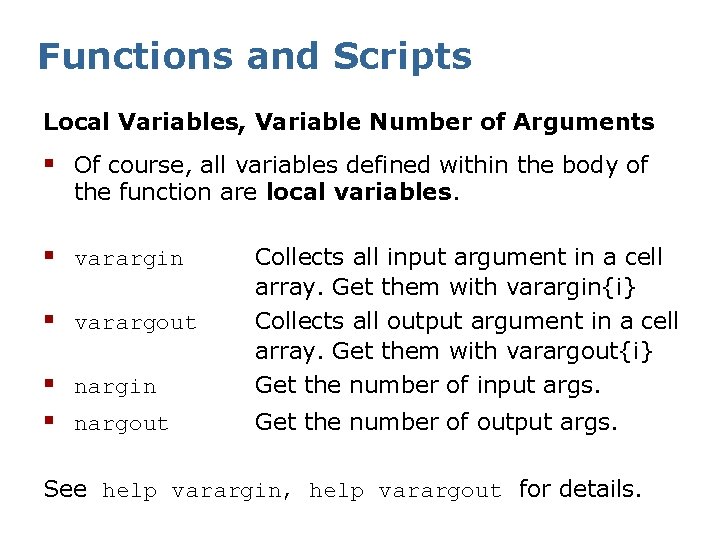
Functions and Scripts Local Variables, Variable Number of Arguments § Of course, all variables defined within the body of the function are local variables. § varargin § varargout § nargin § nargout Collects all input argument in a cell array. Get them with varargin{i} Collects all output argument in a cell array. Get them with varargout{i} Get the number of input args. Get the number of output args. See help varargin, help varargout for details.
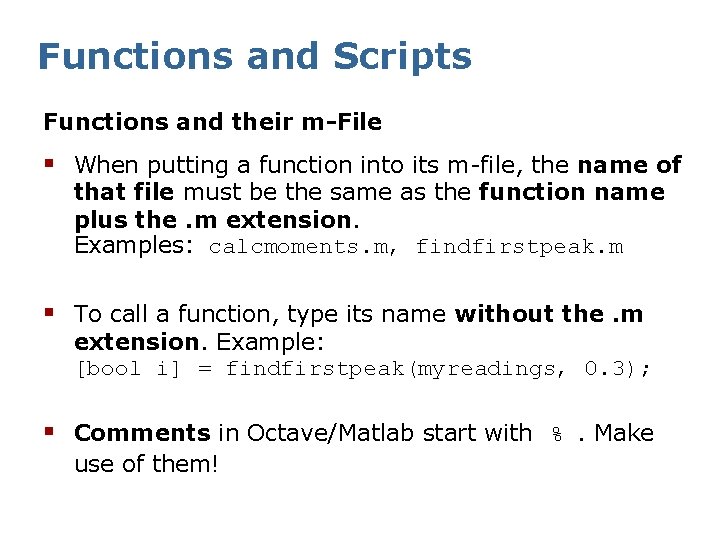
Functions and Scripts Functions and their m-File § When putting a function into its m-file, the name of that file must be the same as the function name plus the. m extension. Examples: calcmoments. m, findfirstpeak. m § To call a function, type its name without the. m extension. Example: [bool i] = findfirstpeak(myreadings, 0. 3); § Comments in Octave/Matlab start with %. Make use of them!
Functions and Scripts § The second type of m-files is called script. Again, Octave/Matlab scripts are text files with an. m extension. § Scripts contain executable code. They are basically the "main" programs. § Execute a script by typing its name without the. m extension! Example: octave: 1> Localize. Robot § Comments in Octave/Matlab start with %. (I can't repeat this often enough ; -)
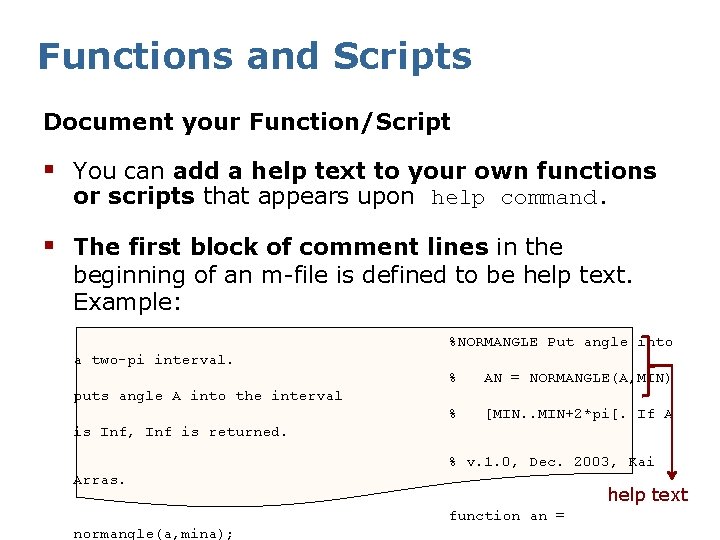
Functions and Scripts Document your Function/Script § You can add a help text to your own functions or scripts that appears upon help command. § The first block of comment lines in the beginning of an m-file is defined to be help text. Example: %NORMANGLE Put angle into a two-pi interval. % AN = NORMANGLE(A, MIN) % [MIN. . MIN+2*pi[. If A puts angle A into the interval is Inf, Inf is returned. % v. 1. 0, Dec. 2003, Kai Arras. help text function an = normangle(a, mina);
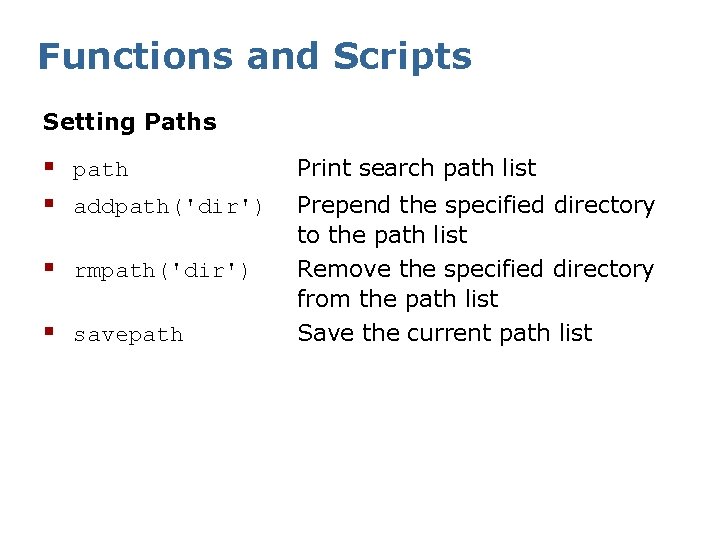
Functions and Scripts Setting Paths § path § addpath('dir') § rmpath('dir') § savepath Print search path list Prepend the specified directory to the path list Remove the specified directory from the path list Save the current path list
Contents § § § Overview Start, quit, getting help Variables and data types Matrix arithmetic Plotting Programming Functions and scripts Files I/O Misc Octave and Matlab in practice librobotics
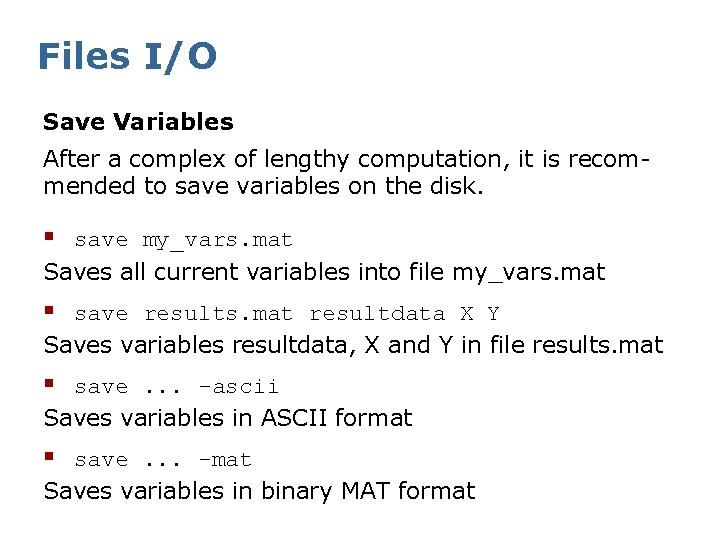
Files I/O Save Variables After a complex of lengthy computation, it is recommended to save variables on the disk. § save my_vars. mat Saves all current variables into file my_vars. mat § save results. mat resultdata X Y Saves variables resultdata, X and Y in file results. mat § save. . . -ascii Saves variables in ASCII format § save. . . -mat Saves variables in binary MAT format
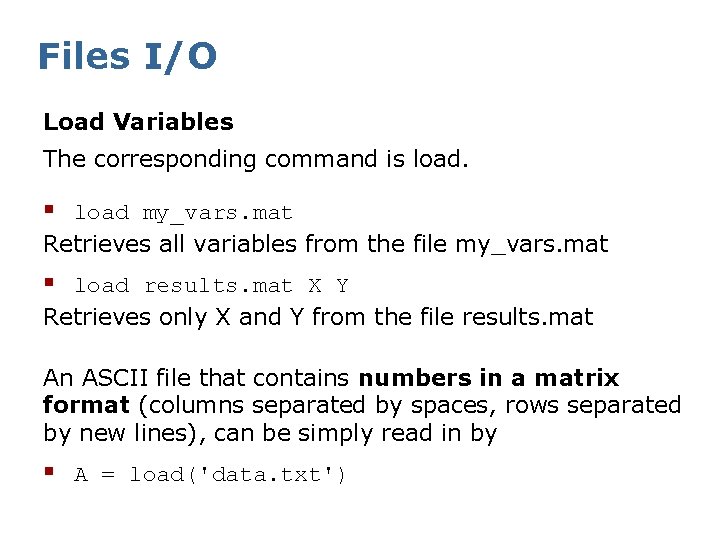
Files I/O Load Variables The corresponding command is load. § load my_vars. mat Retrieves all variables from the file my_vars. mat § load results. mat X Y Retrieves only X and Y from the file results. mat An ASCII file that contains numbers in a matrix format (columns separated by spaces, rows separated by new lines), can be simply read in by § A = load('data. txt')
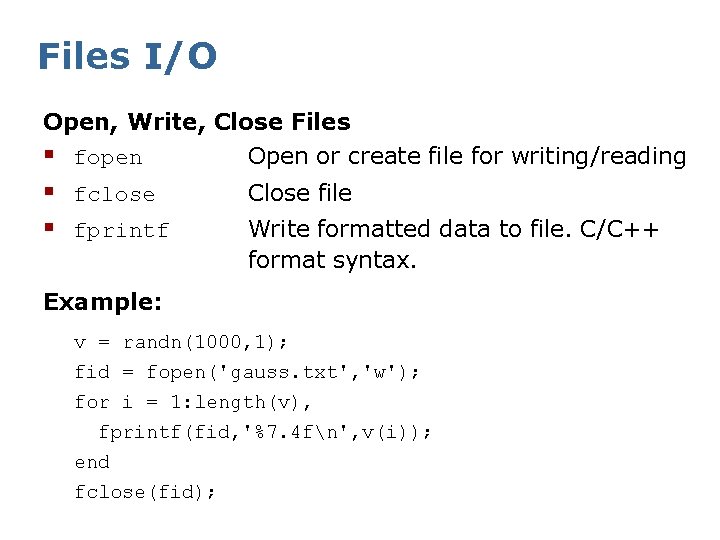
Files I/O Open, Write, Close Files § fopen Open or create file for writing/reading § fclose § fprintf Close file Write formatted data to file. C/C++ format syntax. Example: v = randn(1000, 1); fid = fopen('gauss. txt', 'w'); for i = 1: length(v), fprintf(fid, '%7. 4 fn', v(i)); end fclose(fid);
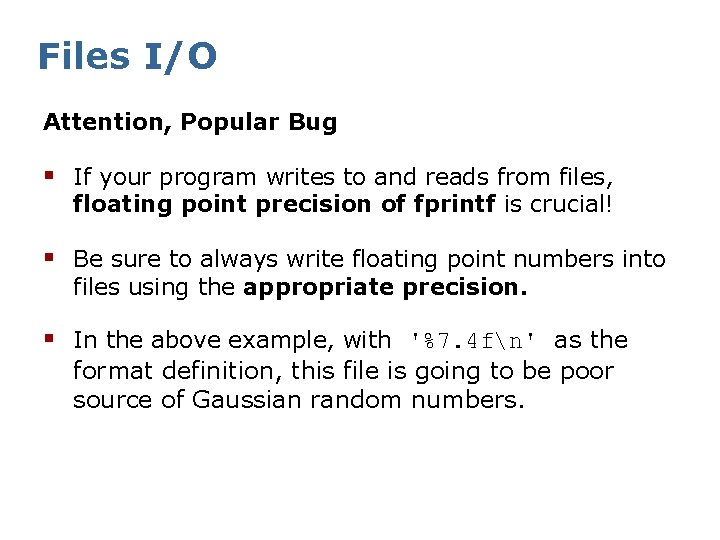
Files I/O Attention, Popular Bug § If your program writes to and reads from files, floating point precision of fprintf is crucial! § Be sure to always write floating point numbers into files using the appropriate precision. § In the above example, with '%7. 4 fn' as the format definition, this file is going to be poor source of Gaussian random numbers.
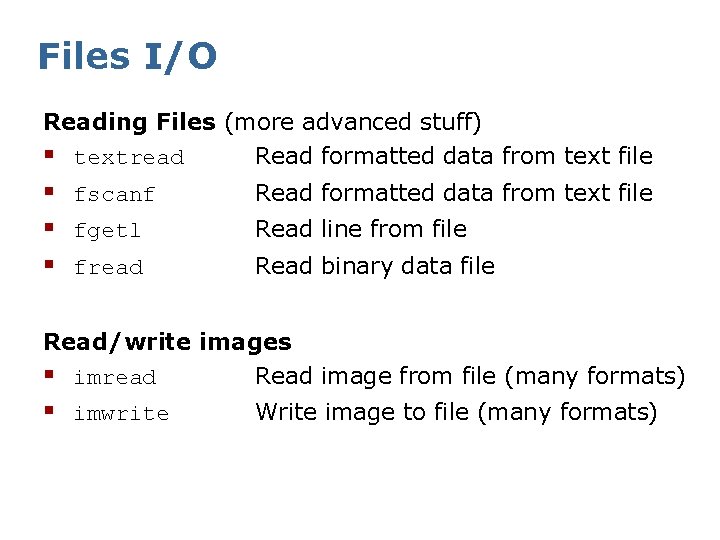
Files I/O Reading Files (more advanced stuff) § textread Read formatted data from text file § fscanf § fgetl § fread Read formatted data from text file Read line from file Read binary data file Read/write images § imread Read image from file (many formats) § imwrite Write image to file (many formats)
Contents § § § Overview Start, quit, getting help Variables and data types Matrix arithmetic Plotting Programming Functions and scripts Files I/O Misc Octave and Matlab in practice librobotics
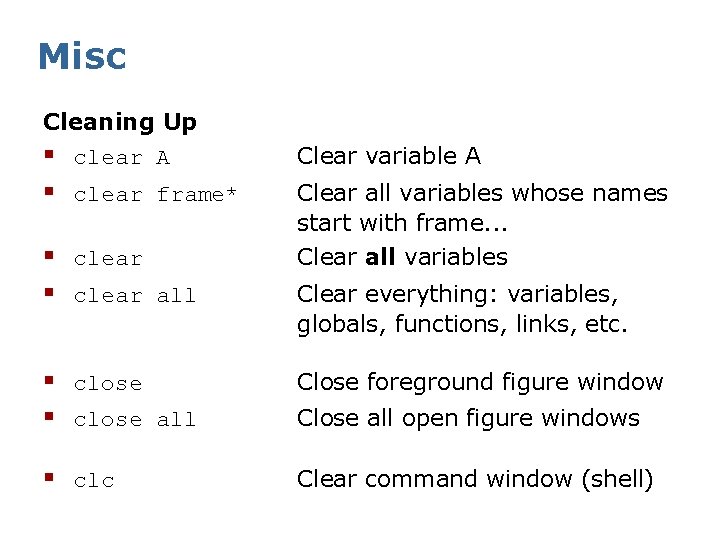
Misc Cleaning Up § clear A § clear frame* § clear all Clear variable A Clear all variables whose names start with frame. . . Clear all variables Clear everything: variables, globals, functions, links, etc. § close all Close foreground figure window § clc Clear command window (shell) Close all open figure windows
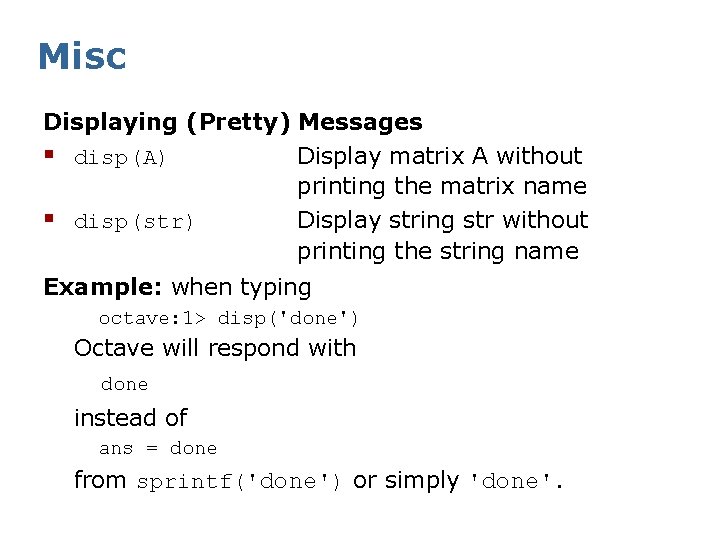
Misc Displaying (Pretty) Messages § disp(A) Display matrix A without printing the matrix name § disp(str) Display string str without printing the string name Example: when typing octave: 1> disp('done') Octave will respond with done instead of ans = done from sprintf('done') or simply 'done'.
Misc Command History § Navigate up and down the command history using the up/down arrow keys. § The command history is start-letter sensitive. Type one or more letters and use the arrow keys to navigate up and down the history of commands that start with the letters you typed. Tab completion § Octave/Matlab have tab completion. Type some letters followed by tab to get a list of all commands that start with the letters you typed.
Misc Built-in Unix Commands § pwd Display current working directory § § ls List directory. See also dir. cd Change directory mkdir Make new directory rmdir Delete directory Related Commands § movefile Move file § copyfile Copy file
Misc Random Seeds § randn obtain their initial seeds from the system clock. § To generate identical/repeatable sequences, set the random generator seeds manually. To set the random seeds: § rand('seed', value) Set seed to scalar integer value. § randn('seed', value) Set seed to scalar integer value.
Contents § § § Overview Start, quit, getting help Variables and data types Matrix arithmetic Plotting Programming Functions and scripts Files I/O Misc Octave and Matlab in practice librobotics
Octave/Matlab in Practice Useful Stuff in Practice § Generating output from a C/C++/Python/Java/. . . program in Octave syntax § Making animations § Calling unix/dos functions from within Octave programs § Increasing speed
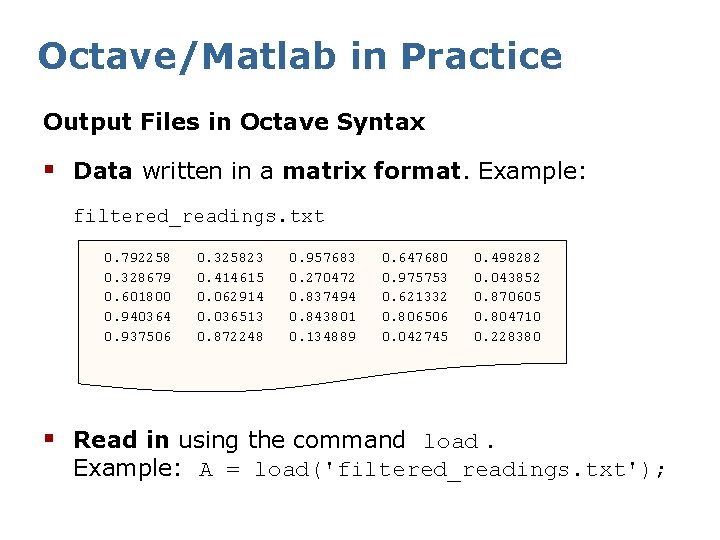
Octave/Matlab in Practice Output Files in Octave Syntax § Data written in a matrix format. Example: filtered_readings. txt 0. 792258 0. 328679 0. 601800 0. 940364 0. 937506 0. 325823 0. 414615 0. 062914 0. 036513 0. 872248 0. 957683 0. 270472 0. 837494 0. 843801 0. 134889 0. 647680 0. 975753 0. 621332 0. 806506 0. 042745 0. 498282 0. 043852 0. 870605 0. 804710 0. 228380 § Read in using the command load. Example: A = load('filtered_readings. txt');
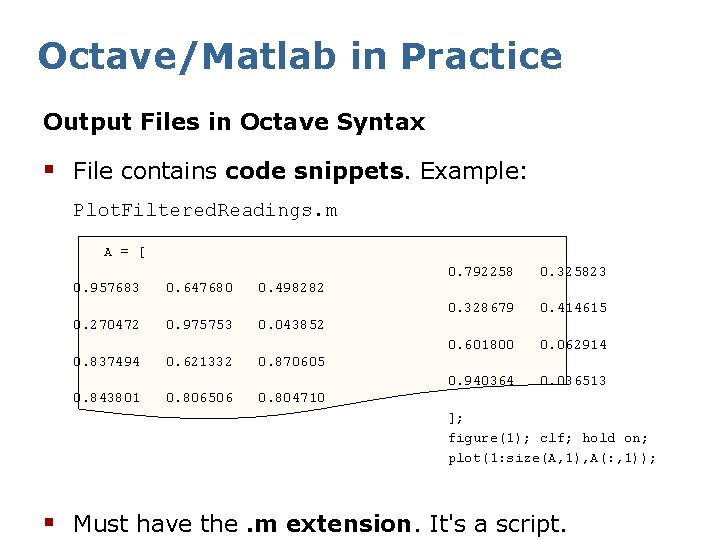
Octave/Matlab in Practice Output Files in Octave Syntax § File contains code snippets. Example: Plot. Filtered. Readings. m A = [ 0. 957683 0. 270472 0. 837494 0. 843801 0. 647680 0. 975753 0. 621332 0. 806506 0. 792258 0. 325823 0. 328679 0. 414615 0. 601800 0. 062914 0. 940364 0. 036513 0. 498282 0. 043852 0. 870605 0. 804710 ]; figure(1); clf; hold on; plot(1: size(A, 1), A(: , 1)); § Must have the. m extension. It's a script.
Octave/Matlab in Practice Making Animations § Matlab has commands such as getframe and movie to make animated movies from plots. § Octave, being free of charge, does not (yet) support these commands. § Never mind! Here is a pretty obvious way to make movies: Export plots to a "frames" directory using print from within a loop. Then compose frames to a movie using tools such as Image. Magick or Quicktime Pro.
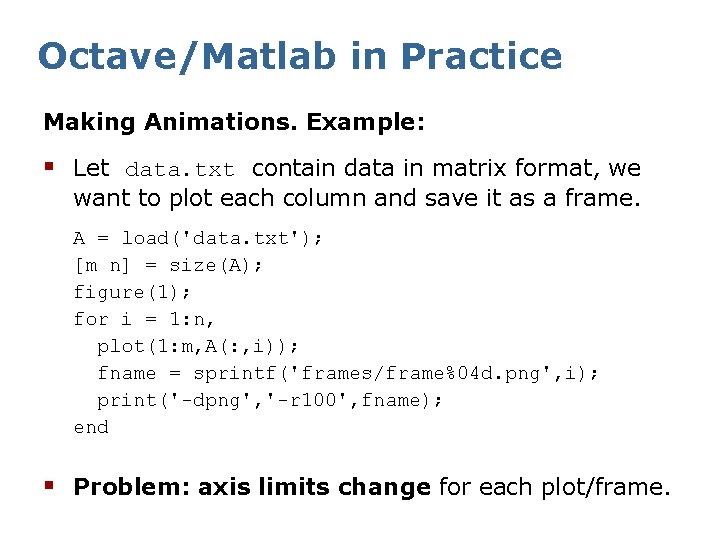
Octave/Matlab in Practice Making Animations. Example: § Let data. txt contain data in matrix format, we want to plot each column and save it as a frame. A = load('data. txt'); [m n] = size(A); figure(1); for i = 1: n, plot(1: m, A(: , i)); fname = sprintf('frames/frame%04 d. png', i); print('-dpng', '-r 100', fname); end § Problem: axis limits change for each plot/frame.
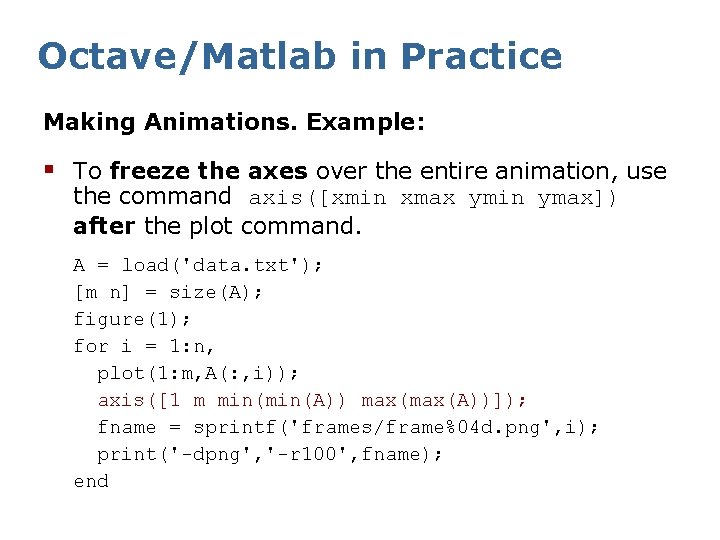
Octave/Matlab in Practice Making Animations. Example: § To freeze the axes over the entire animation, use the command axis([xmin xmax ymin ymax]) after the plot command. A = load('data. txt'); [m n] = size(A); figure(1); for i = 1: n, plot(1: m, A(: , i)); axis([1 m min(A)) max(A))]); fname = sprintf('frames/frame%04 d. png', i); print('-dpng', '-r 100', fname); end

Octave/Matlab in Practice Calling unix/dos Functions § For Unix/Linux/Mac. OSX systems, there is the command unix to execute system commands and return the result. Examples: unix('ls -al') unix('ftp < ftp_script') unix('. /myprogram') § For PCs, there is the equivalent command dos. § These commands allow for powerful and handy combinations with other programs or system commands.
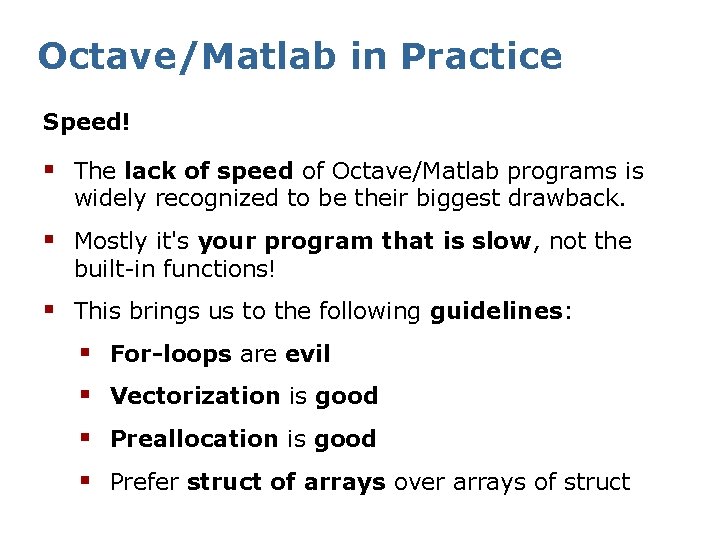
Octave/Matlab in Practice Speed! § The lack of speed of Octave/Matlab programs is widely recognized to be their biggest drawback. § Mostly it's your program that is slow, not the built-in functions! § This brings us to the following guidelines: § For-loops are evil § Vectorization is good § Preallocation is good § Prefer struct of arrays over arrays of struct
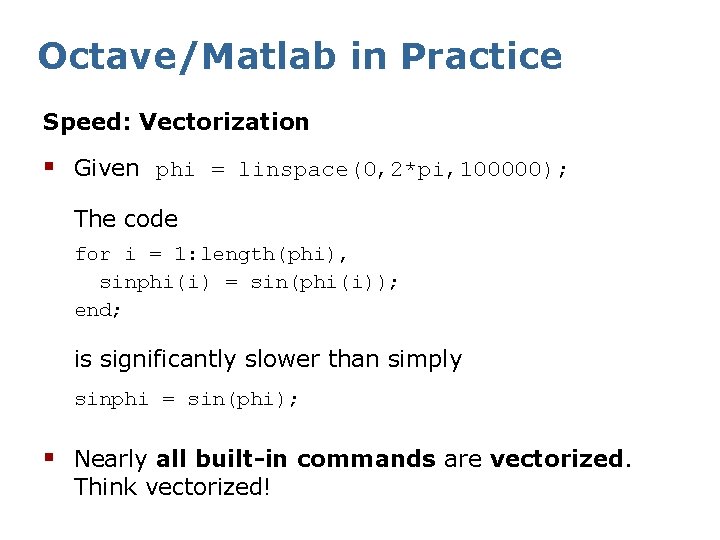
Octave/Matlab in Practice Speed: Vectorization § Given phi = linspace(0, 2*pi, 100000); The code for i = 1: length(phi), sinphi(i) = sin(phi(i)); end; is significantly slower than simply sinphi = sin(phi); § Nearly all built-in commands are vectorized. Think vectorized!
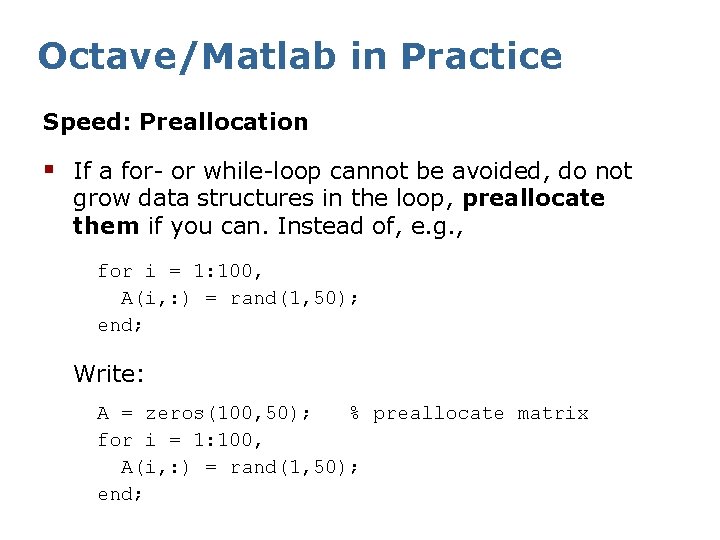
Octave/Matlab in Practice Speed: Preallocation § If a for- or while-loop cannot be avoided, do not grow data structures in the loop, preallocate them if you can. Instead of, e. g. , for i = 1: 100, A(i, : ) = rand(1, 50); end; Write: A = zeros(100, 50); % preallocate matrix for i = 1: 100, A(i, : ) = rand(1, 50); end;
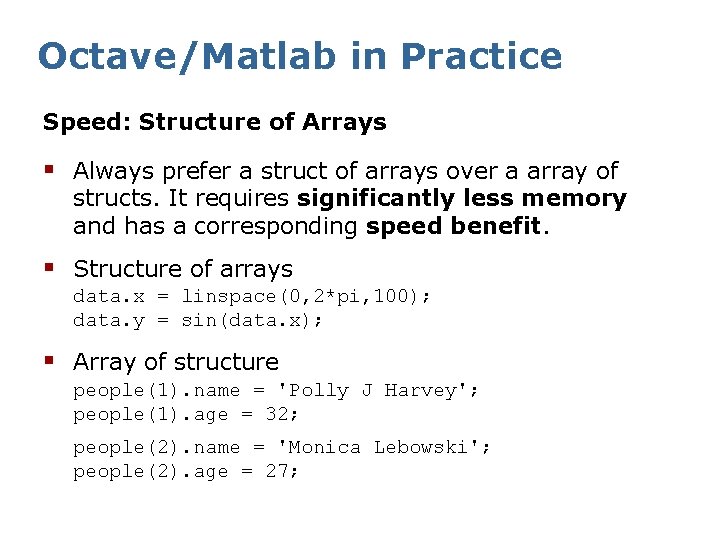
Octave/Matlab in Practice Speed: Structure of Arrays § Always prefer a struct of arrays over a array of structs. It requires significantly less memory and has a corresponding speed benefit. § Structure of arrays data. x = linspace(0, 2*pi, 100); data. y = sin(data. x); § Array of structure people(1). name = 'Polly J Harvey'; people(1). age = 32; people(2). name = 'Monica Lebowski'; people(2). age = 27;
Contents § § § Overview Start, quit, getting help Variables and data types Matrix arithmetic Plotting Programming Functions and scripts Files I/O Misc Octave and Matlab in practice librobotics
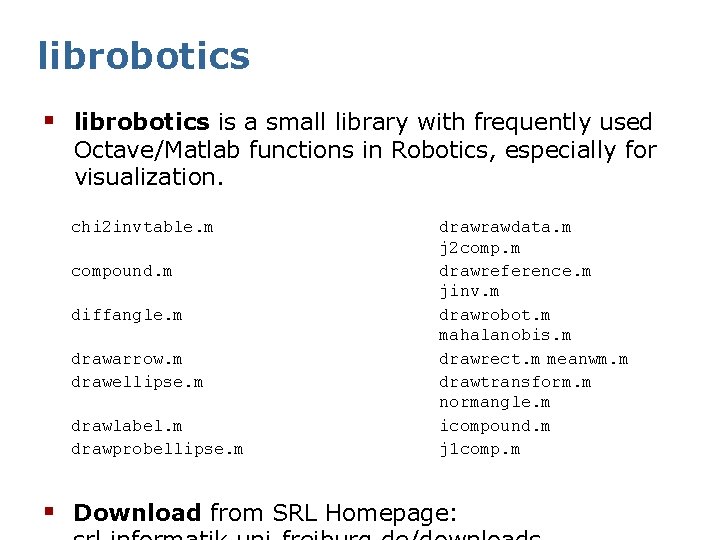
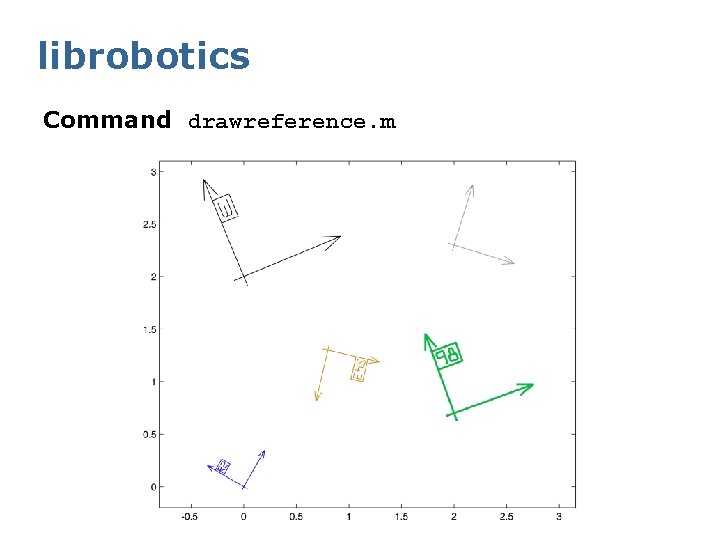
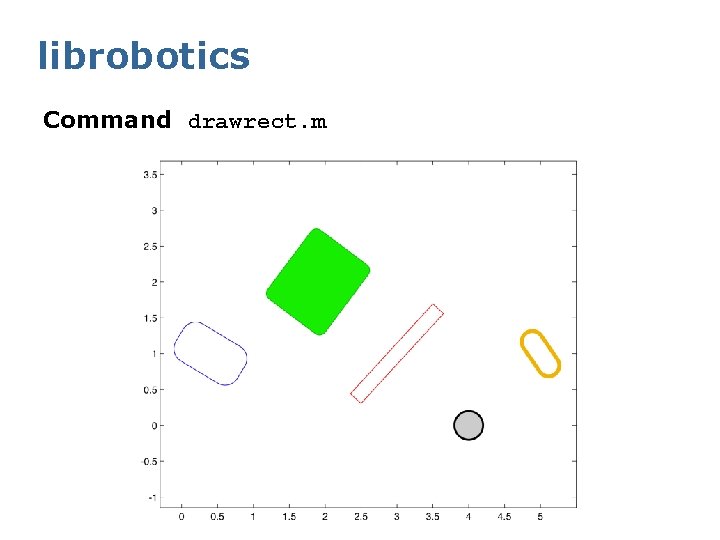
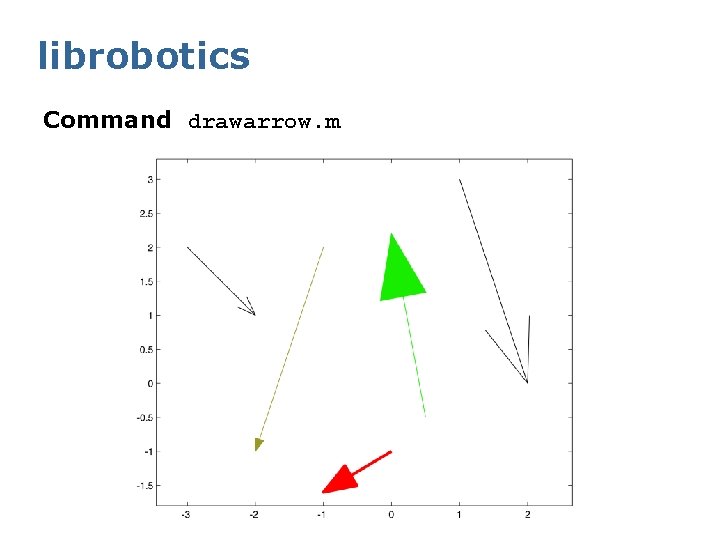
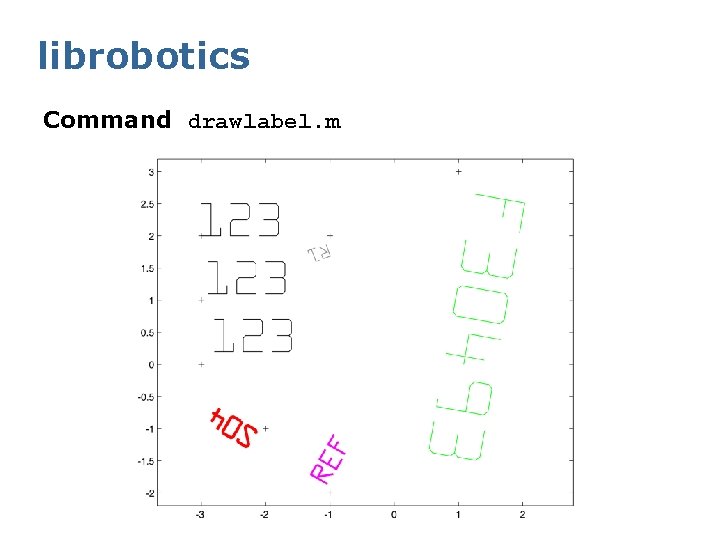
librobotics § librobotics is a small library with frequently used Octave/Matlab functions in Robotics, especially for visualization. chi 2 invtable. m compound. m diffangle. m drawarrow. m drawellipse. m drawlabel. m drawprobellipse. m drawrawdata. m j 2 comp. m drawreference. m jinv. m drawrobot. m mahalanobis. m drawrect. m meanwm. m drawtransform. m normangle. m icompound. m j 1 comp. m § Download from SRL Homepage:
librobotics Command drawreference. m
librobotics Command drawrect. m
librobotics Command drawarrow. m
librobotics Command drawlabel. m
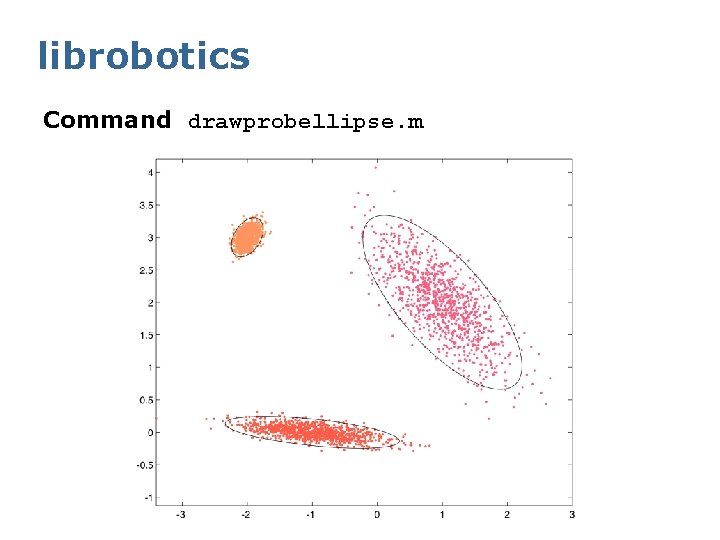
librobotics Command drawprobellipse. m
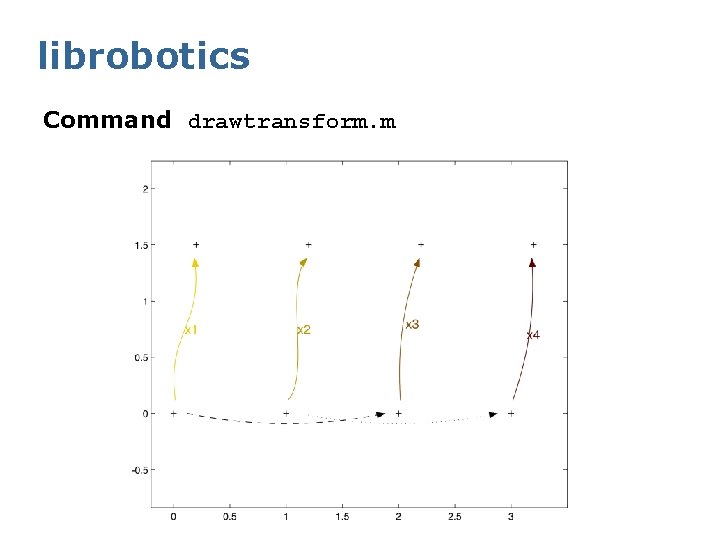
librobotics Command drawtransform. m
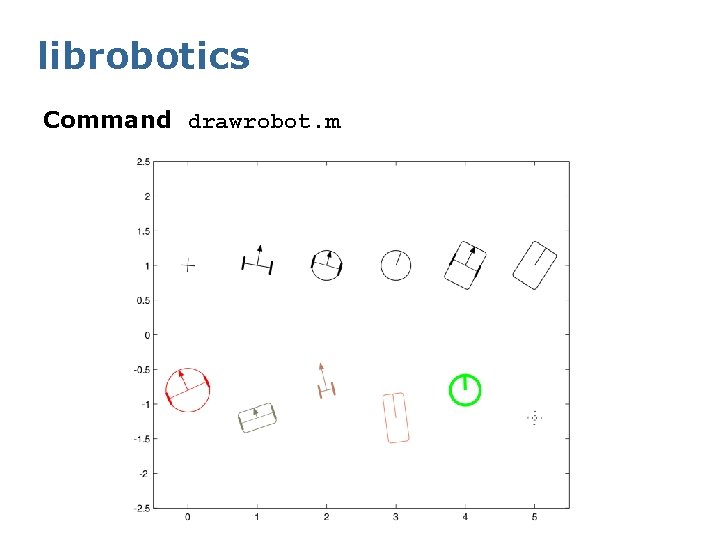
librobotics Command drawrobot. m
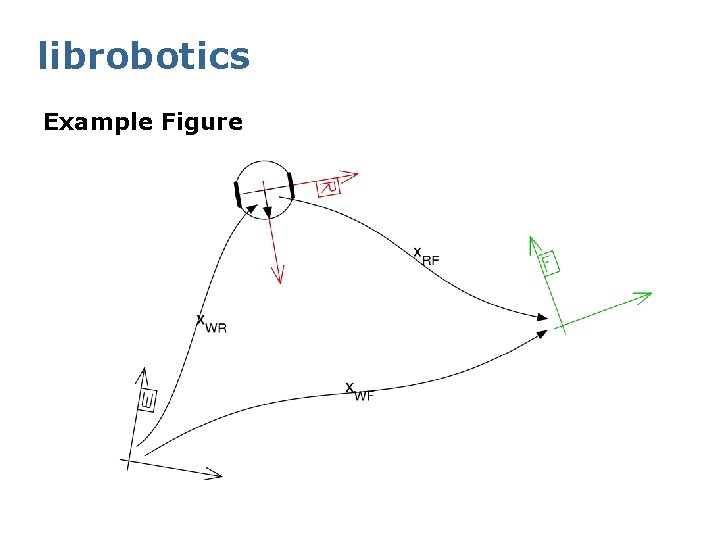
librobotics Example Figure
librobotics § All commands are fully documented, just type help command. § Note the command chi 2 invtable. m. It returns values of the cumulative chi square distribution, typically used for gating and hypothesis testing. It replaces the chi 2 inv function from the Matlab statistics toolbox (which is a costly addition to Matlab) while being much faster, too. § librobotics is compatible with both, Matlab and Octave. § It's open source, feel free to distribute and extend.
More Information Full Octave online documentation: http: //www. octave. org ➛ Docs ➛ 575 page manual (directly: www. gnu. org/software/octave/doc/interpreter) Full Matlab online documentation: http: //www. mathworks. com ➛ Products & Services ➛ Product List ➛ MATLAB ➛ Documentation
Thanks and Enjoy! Kai Arras Social Robotics Lab
- Slides: 111