
OCS ON ACCOUNT print and copy vending Designed
- Slides: 45
OCS ON ACCOUNT print and copy vending Designed for modern university environment n Photocopy and Print Vending 1
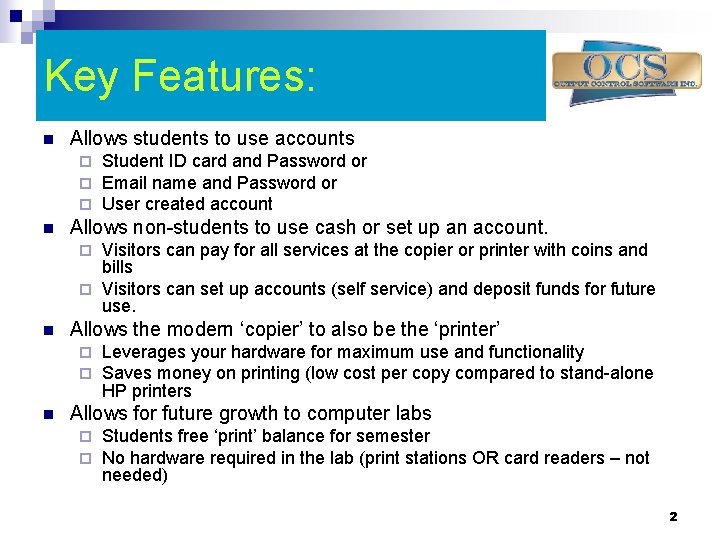
Key Features: n Allows students to use accounts ¨ ¨ ¨ n Student ID card and Password or Email name and Password or User created account Allows non-students to use cash or set up an account. Visitors can pay for all services at the copier or printer with coins and bills ¨ Visitors can set up accounts (self service) and deposit funds for future use. ¨ n Allows the modern ‘copier’ to also be the ‘printer’ ¨ ¨ n Leverages your hardware for maximum use and functionality Saves money on printing (low cost per copy compared to stand-alone HP printers Allows for future growth to computer labs ¨ ¨ Students free ‘print’ balance for semester No hardware required in the lab (print stations OR card readers – not needed) 2
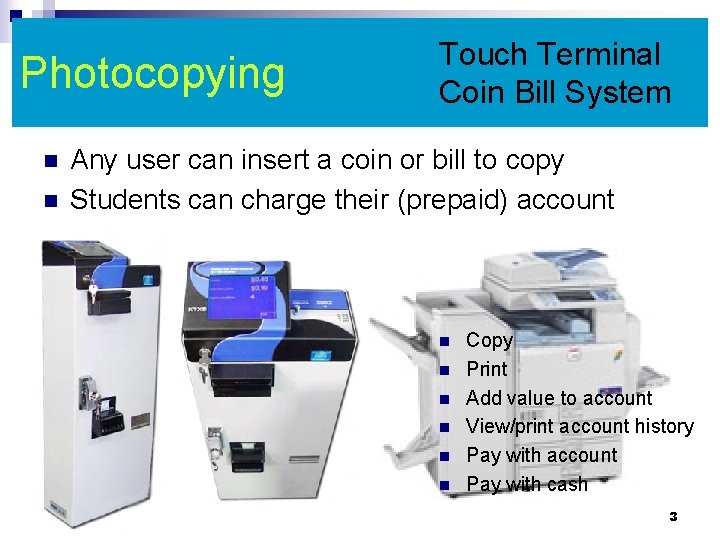
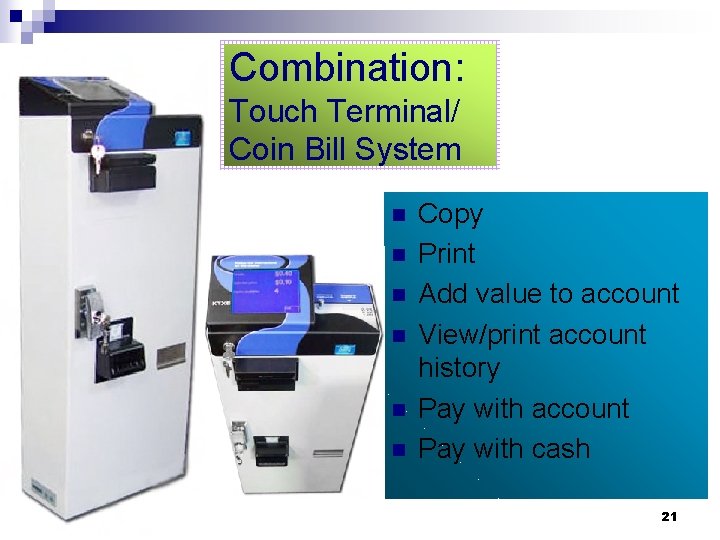
Photocopying n n Touch Terminal Coin Bill System Any user can insert a coin or bill to copy Students can charge their (prepaid) account n n n Copy Print Add value to account View/print account history Pay with account Pay with cash 3
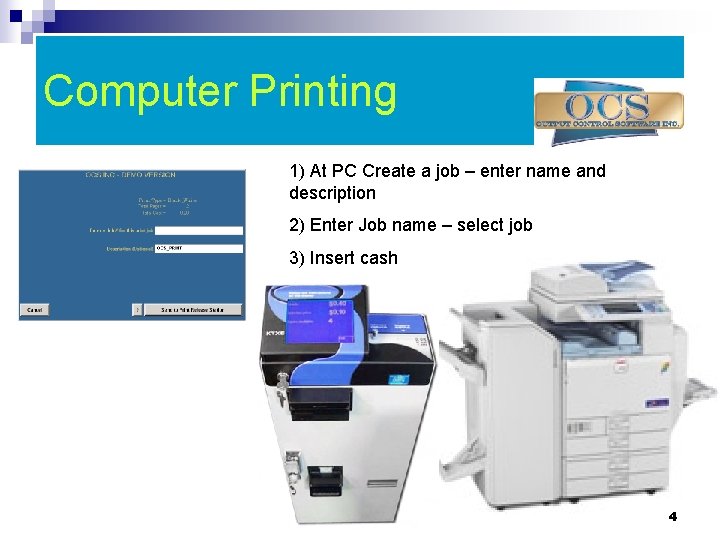
Computer Printing 1) At PC Create a job – enter name and description 2) Enter Job name – select job 3) Insert cash 4
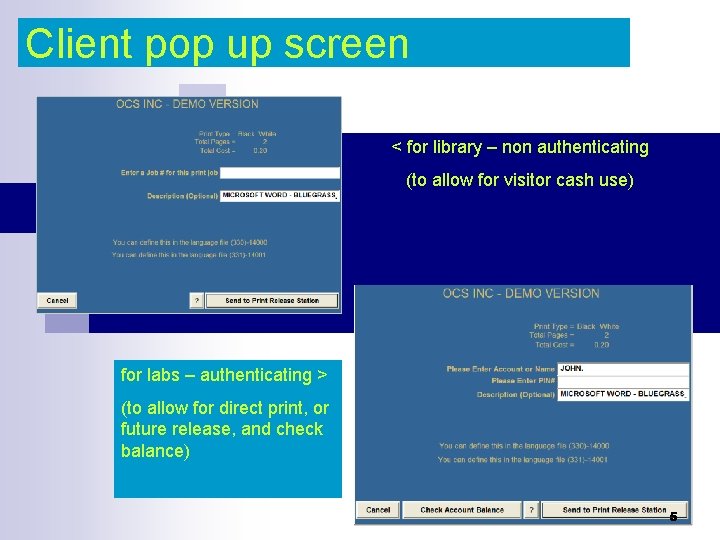
Client pop up screen < for library – non authenticating (to allow for visitor cash use) for labs – authenticating > (to allow for direct print, or future release, and check balance) 5
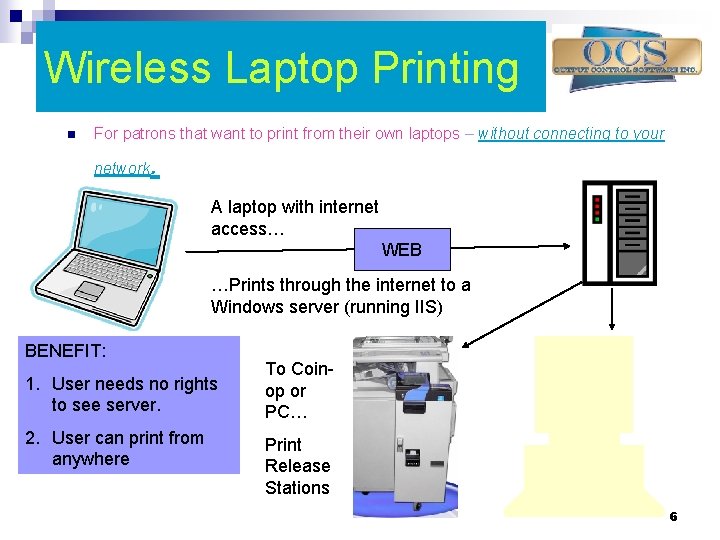
Wireless Laptop Printing n For patrons that want to print from their own laptops – without connecting to your network . A laptop with internet access… WEB …Prints through the internet to a Windows server (running IIS) BENEFIT: 1. User needs no rights to see server. 2. User can print from anywhere To Coinop or PC… Print Release Stations 6
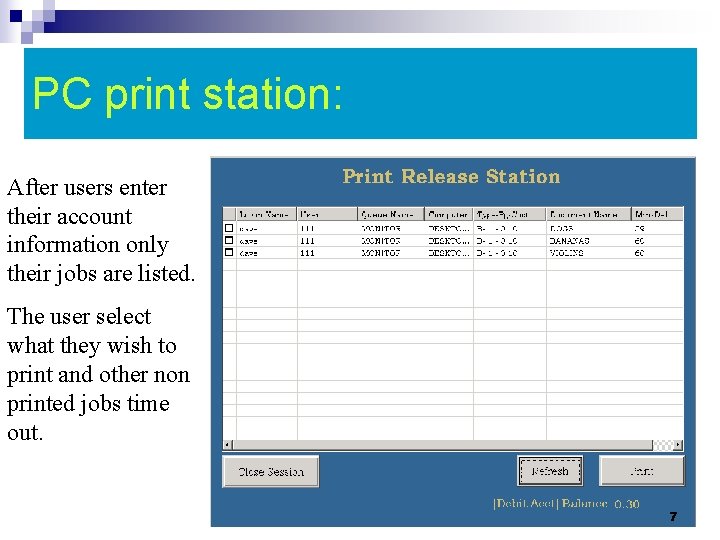
PC print station: After users enter their account information only their jobs are listed. The user select what they wish to print and other non printed jobs time out. 7
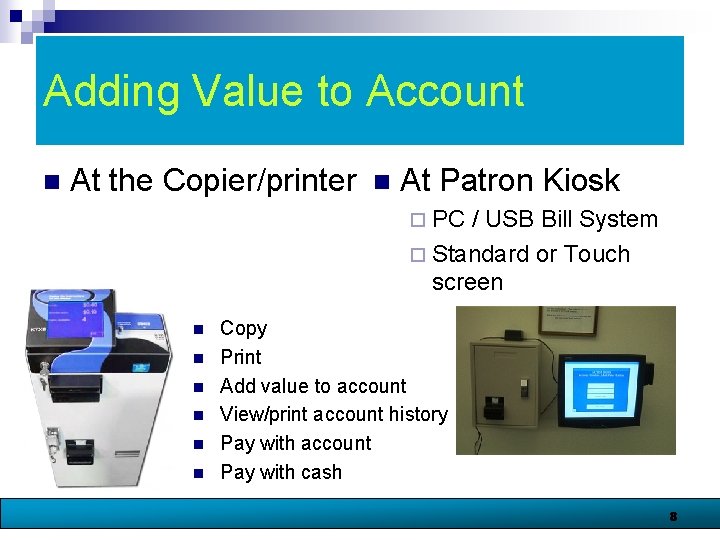
Adding Value to Account n At the Copier/printer n At Patron Kiosk ¨ PC / USB Bill System ¨ Standard or Touch screen n n n Copy Print Add value to account View/print account history Pay with account Pay with cash 8
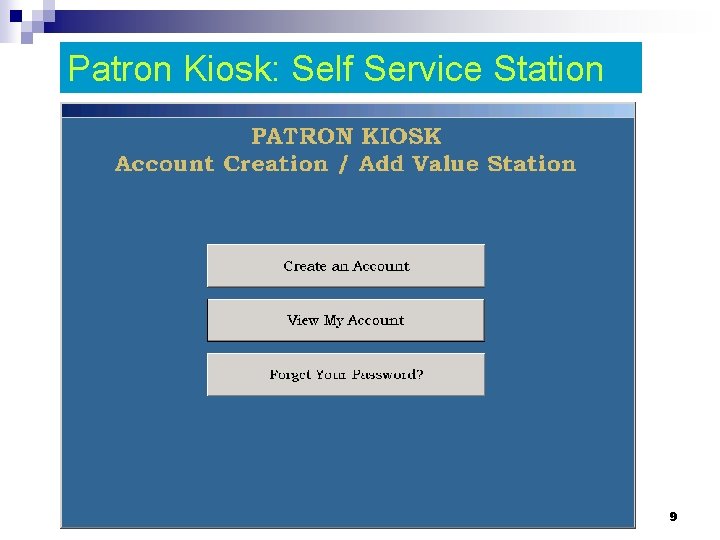
Patron Kiosk: Self Service Station 9
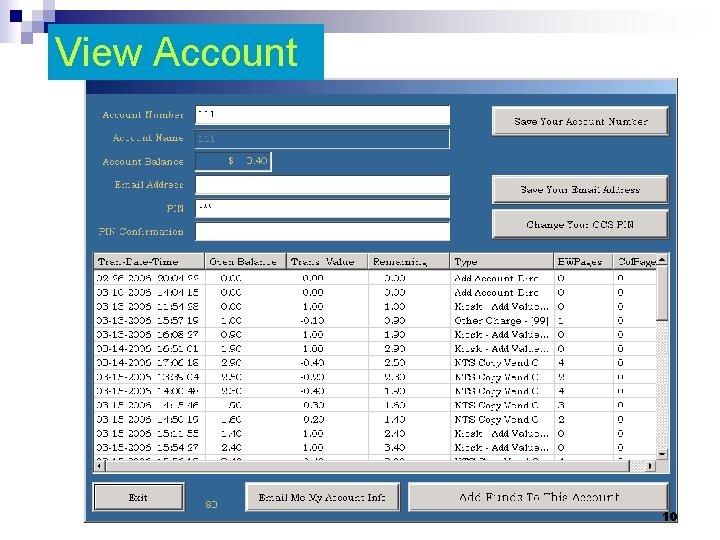
View Account 10
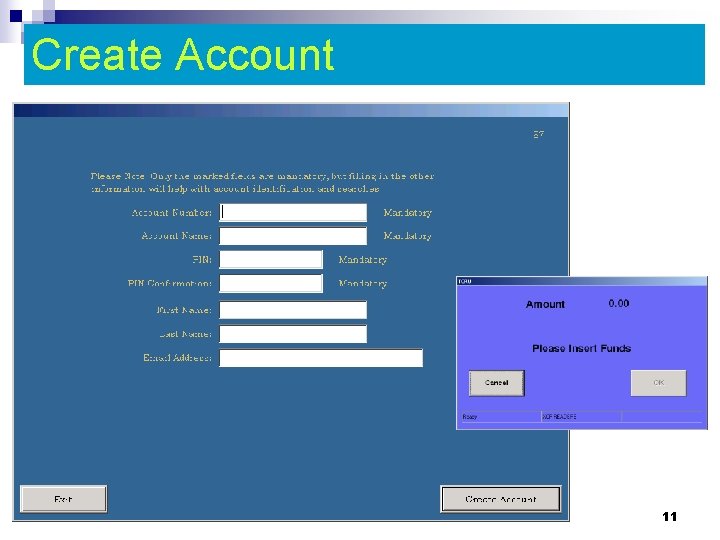
Create Account 11
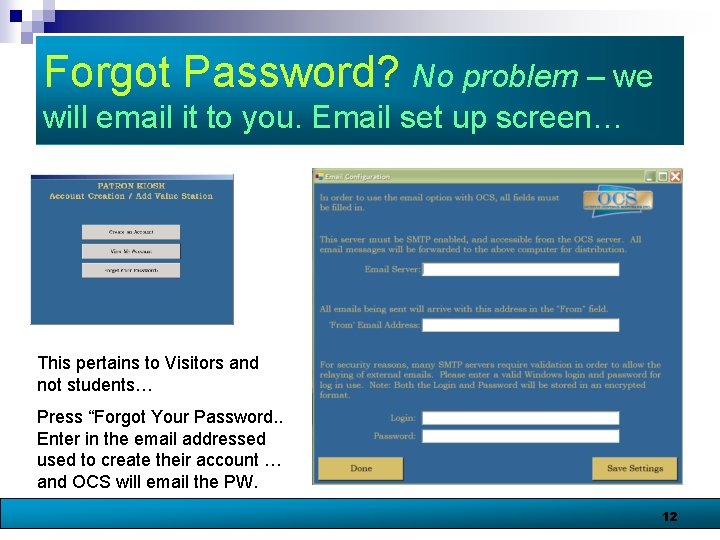
Forgot Password? No problem – we will email it to you. Email set up screen… This pertains to Visitors and not students… Press “Forgot Your Password. . Enter in the email addressed used to create their account … and OCS will email the PW. 12
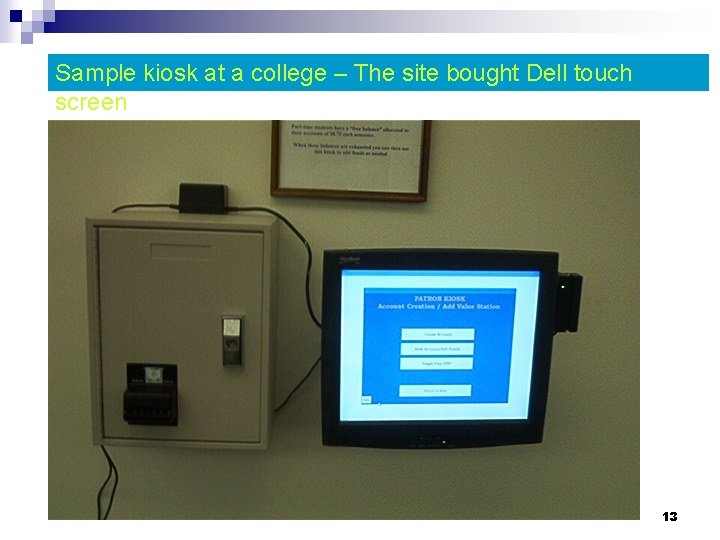
Sample kiosk at a college – The site bought Dell touch screen 13
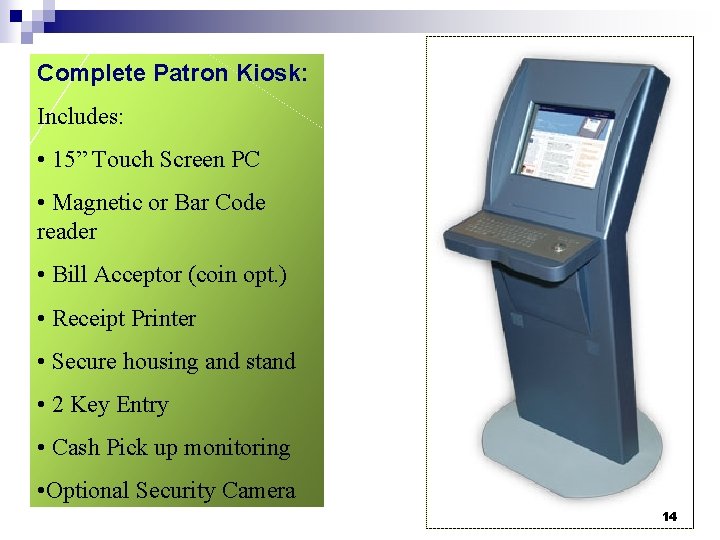
Complete Patron Kiosk: Includes: • 15” Touch Screen PC • Magnetic or Bar Code reader • Bill Acceptor (coin opt. ) • Receipt Printer • Secure housing and stand • 2 Key Entry • Cash Pick up monitoring • Optional Security Camera 14
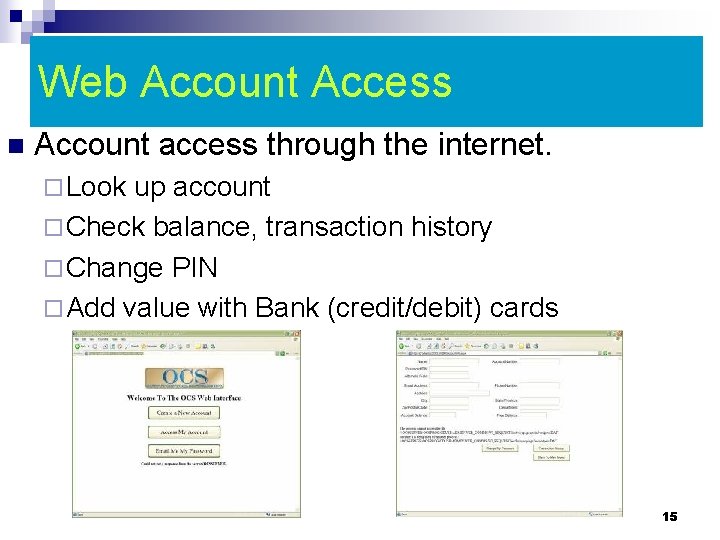
Web Account Access n Account access through the internet. ¨ Look up account ¨ Check balance, transaction history ¨ Change PIN ¨ Add value with Bank (credit/debit) cards 15
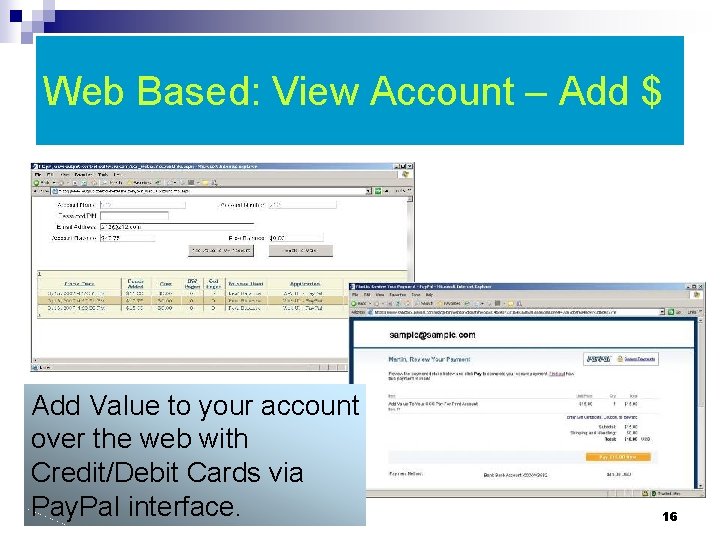
Web Based: View Account – Add $ Add Value to your account over the web with Credit/Debit Cards via Pay. Pal interface. 16
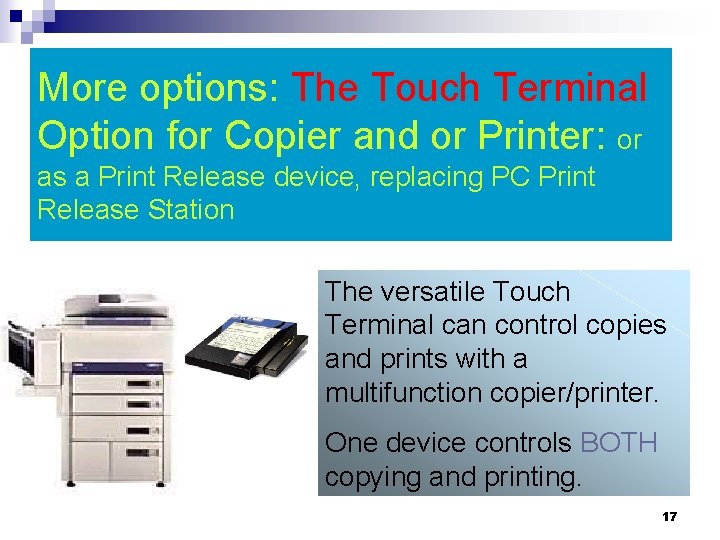
More options: The Touch Terminal Option for Copier and or Printer: or as a Print Release device, replacing PC Print Release Station The versatile Touch Terminal can control copies and prints with a multifunction copier/printer. One device controls BOTH copying and printing. 17
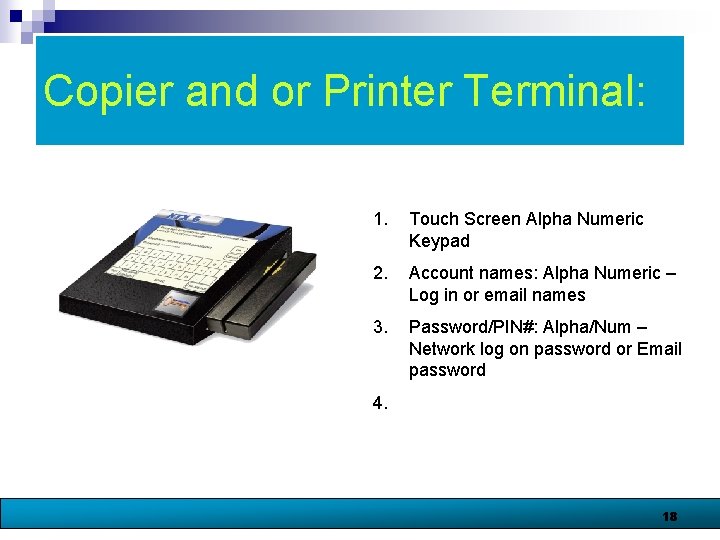
Copier and or Printer Terminal: 1. Touch Screen Alpha Numeric Keypad 2. Account names: Alpha Numeric – Log in or email names 3. Password/PIN#: Alpha/Num – Network log on password or Email password 4. 18
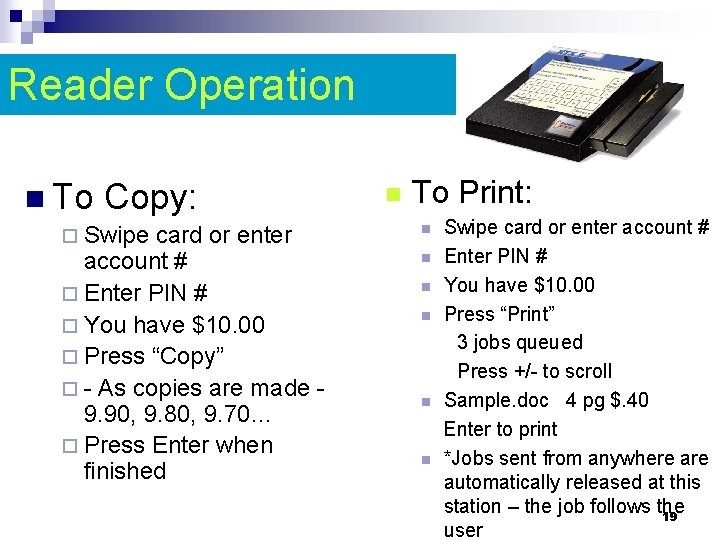
Reader Operation n To Copy: ¨ Swipe card or enter account # ¨ Enter PIN # ¨ You have $10. 00 ¨ Press “Copy” ¨ - As copies are made 9. 90, 9. 80, 9. 70… ¨ Press Enter when finished n To Print: n n n Swipe card or enter account # Enter PIN # You have $10. 00 Press “Print” 3 jobs queued Press +/- to scroll Sample. doc 4 pg $. 40 Enter to print *Jobs sent from anywhere automatically released at this station – the job follows the 19 user
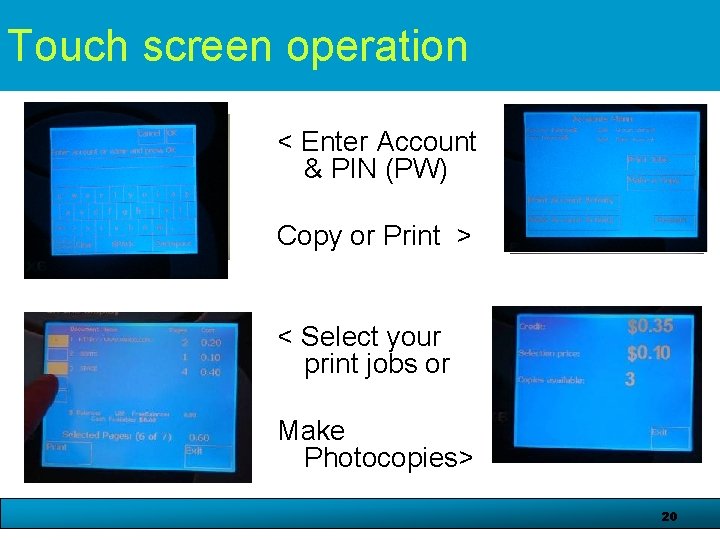
Touch screen operation < Enter Account & PIN (PW) Copy or Print > < Select your print jobs or Make Photocopies> 20
Combination: Touch Terminal/ Coin Bill System n n n Copy Print Add value to account View/print account history Pay with account Pay with cash 21
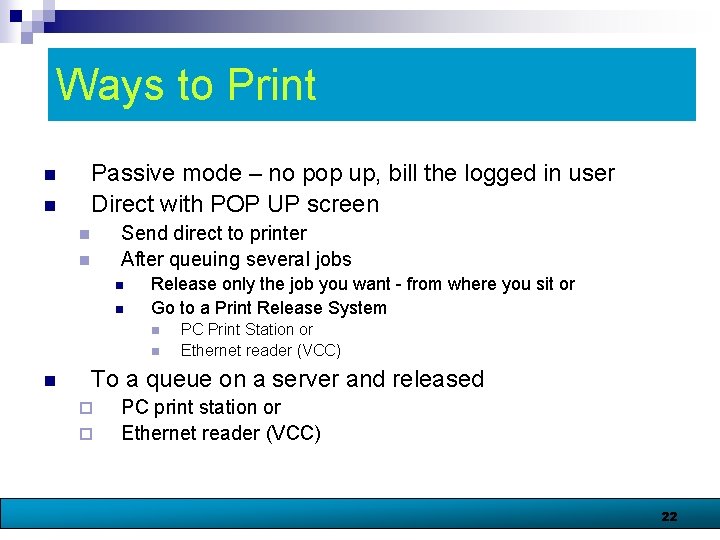
Ways to Print n n Passive mode – no pop up, bill the logged in user Direct with POP UP screen n n Send direct to printer After queuing several jobs n n Release only the job you want - from where you sit or Go to a Print Release System n n n PC Print Station or Ethernet reader (VCC) To a queue on a server and released ¨ ¨ PC print station or Ethernet reader (VCC) 22
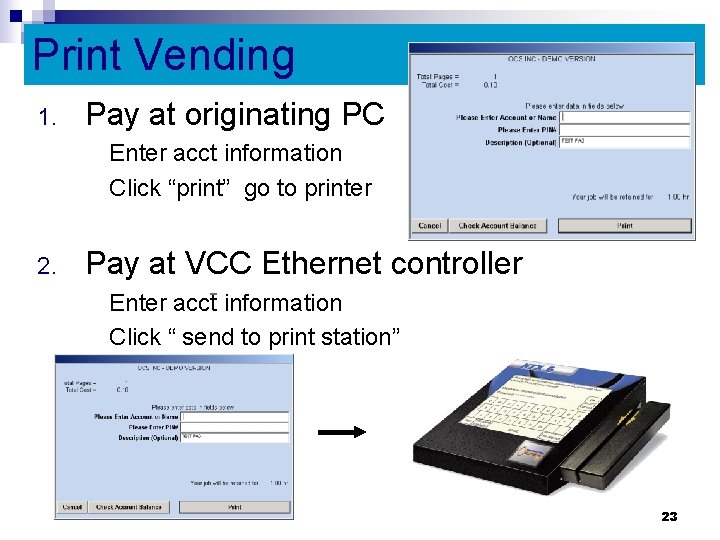
Print Vending 1. Pay at originating PC Enter acct information Click “print” go to printer 2. Pay at VCC Ethernet controller Enter acct information Click “ send to print station” 23
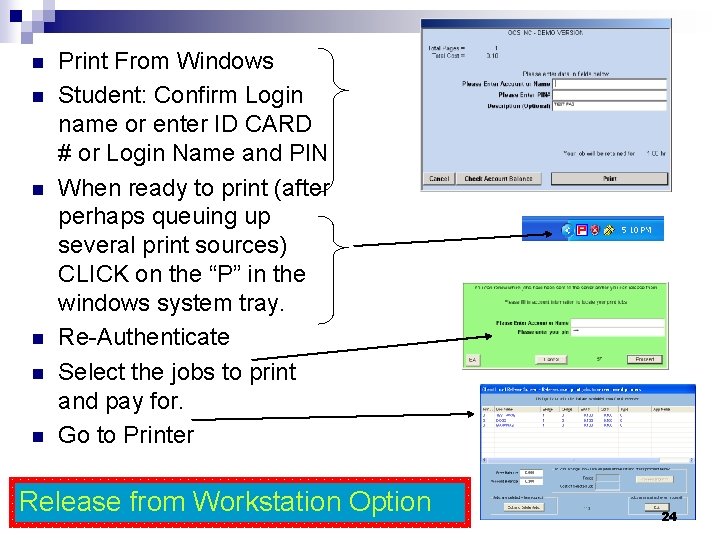
n n n Print From Windows Student: Confirm Login name or enter ID CARD # or Login Name and PIN When ready to print (after perhaps queuing up several print sources) CLICK on the “P” in the windows system tray. Re-Authenticate Select the jobs to print and pay for. Go to Printer Release from Workstation Option 24
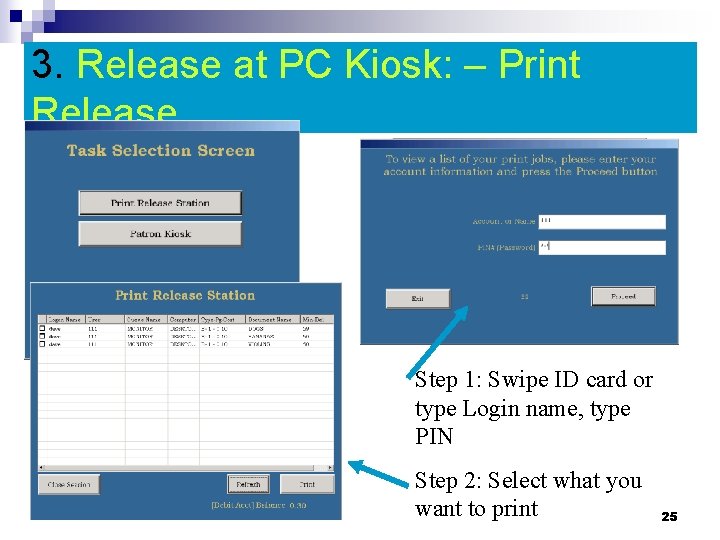
3. Release at PC Kiosk: – Print Release Step 1: Swipe ID card or type Login name, type PIN Step 2: Select what you want to print 25
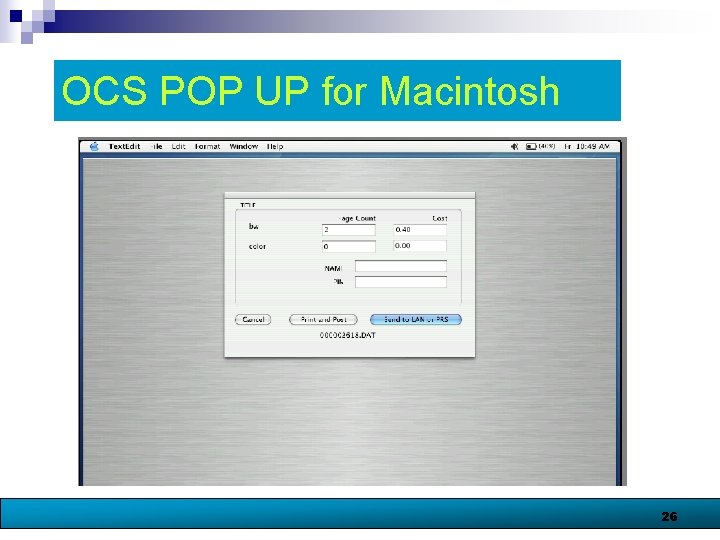
OCS POP UP for Macintosh 26
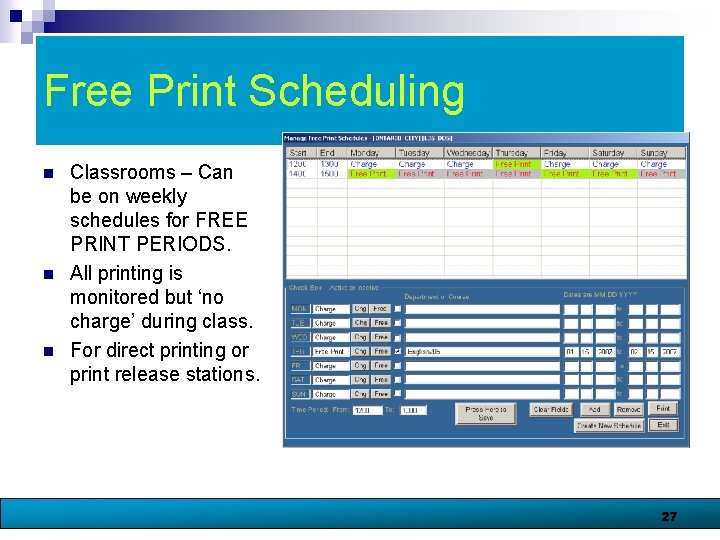
Free Print Scheduling n n n Classrooms – Can be on weekly schedules for FREE PRINT PERIODS. All printing is monitored but ‘no charge’ during class. For direct printing or print release stations. 27
URL or Application printing n Set specific charges or no charge per specific web URLs or Applications. ¨ Free print student class schedules, transcripts, citation systems. n Free “X” number of pages free. 28
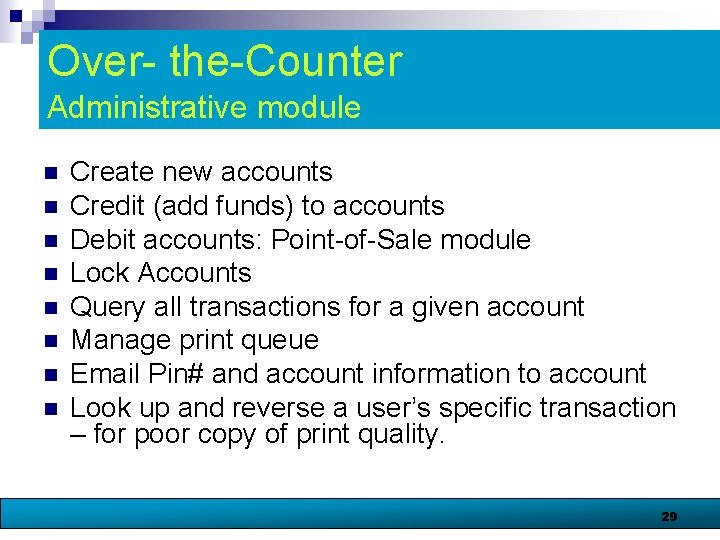
Over- the-Counter Administrative module n n n n Create new accounts Credit (add funds) to accounts Debit accounts: Point-of-Sale module Lock Accounts Query all transactions for a given account Manage print queue Email Pin# and account information to account Look up and reverse a user’s specific transaction – for poor copy of print quality. 29
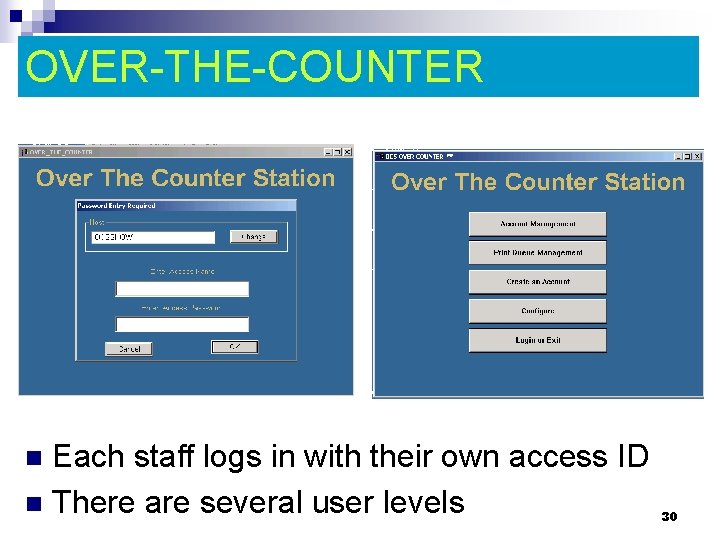
OVER-THE-COUNTER Each staff logs in with their own access ID n There are several user levels n 30
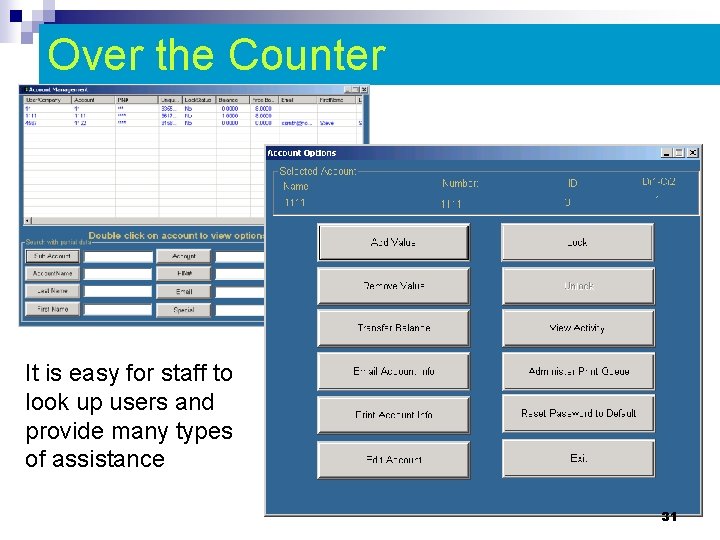
Over the Counter It is easy for staff to look up users and provide many types of assistance 31
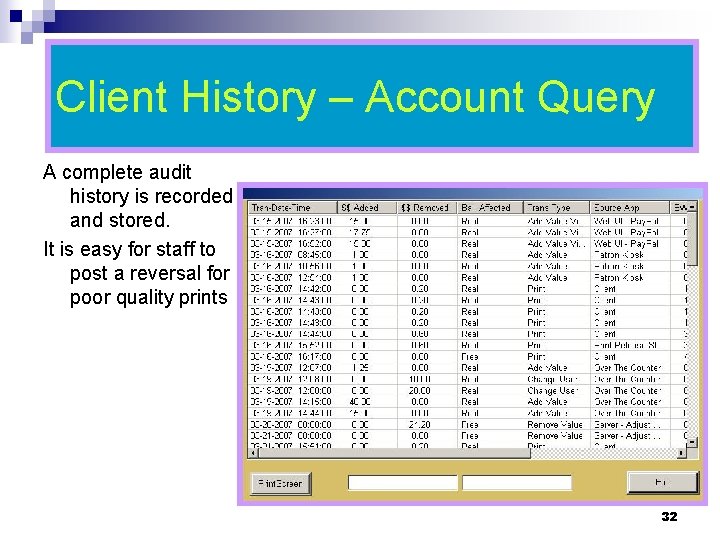
Client History – Account Query A complete audit history is recorded and stored. It is easy for staff to post a reversal for poor quality prints 32
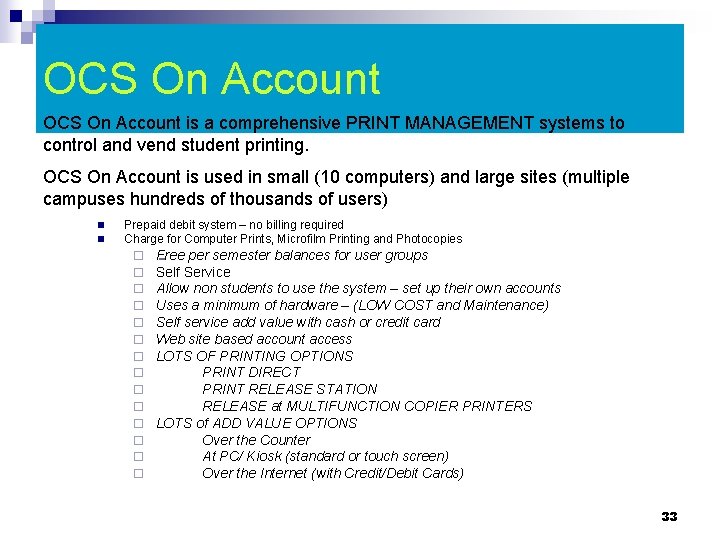
OCS On Account is a comprehensive PRINT MANAGEMENT systems to control and vend student printing. OCS On Account is used in small (10 computers) and large sites (multiple campuses hundreds of thousands of users) n n Prepaid debit system – no billing required Charge for Computer Prints, Microfilm Printing and Photocopies ¨ Free per semester balances for user groups ¨ Self Service ¨ Allow non students to use the system – set up their own accounts ¨ Uses a minimum of hardware – (LOW COST and Maintenance) ¨ Self service add value with cash or credit card ¨ Web site based account access ¨ LOTS OF PRINTING OPTIONS ¨ PRINT DIRECT ¨ PRINT RELEASE STATION ¨ RELEASE at MULTIFUNCTION COPIER PRINTERS ¨ LOTS of ADD VALUE OPTIONS ¨ Over the Counter ¨ At PC/ Kiosk (standard or touch screen) ¨ Over the Internet (with Credit/Debit Cards) 33
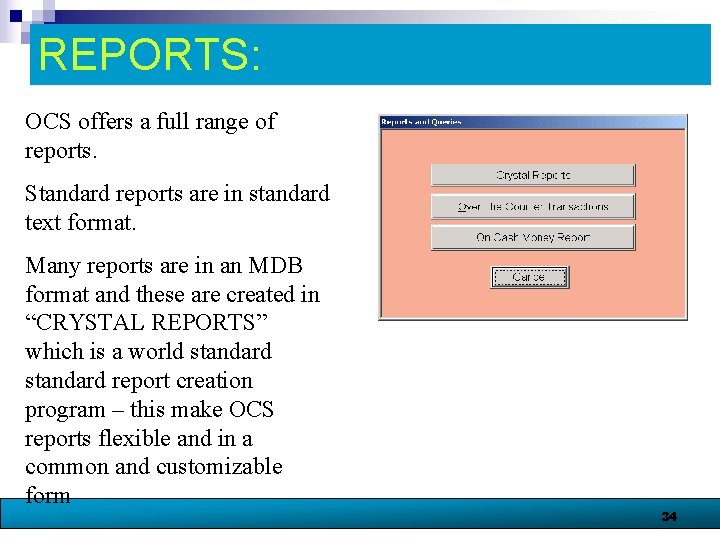
REPORTS: OCS offers a full range of reports. Standard reports are in standard text format. Many reports are in an MDB format and these are created in “CRYSTAL REPORTS” which is a world standard report creation program – this make OCS reports flexible and in a common and customizable form 34
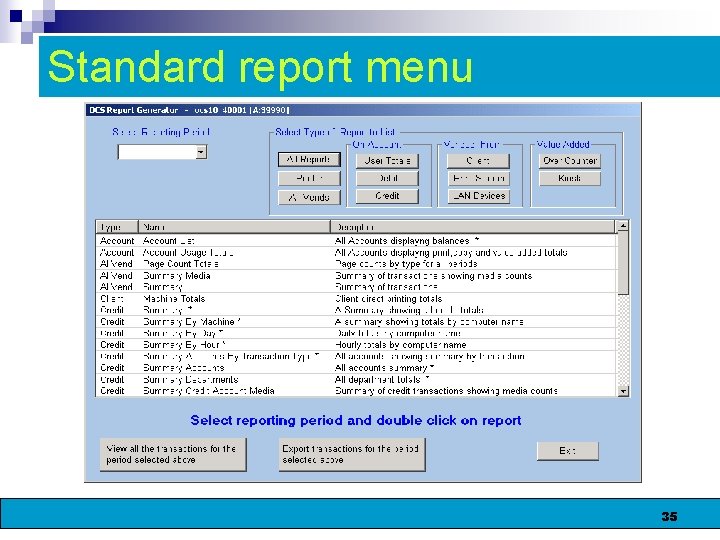
Standard report menu 35
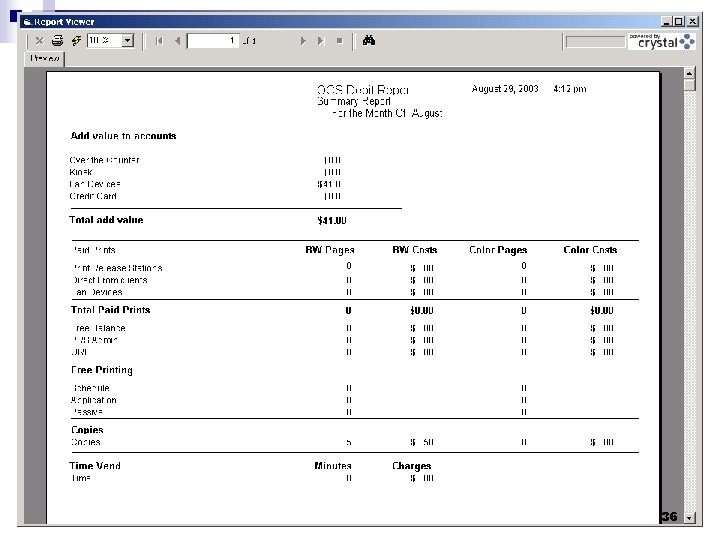
Sample: General Report 36
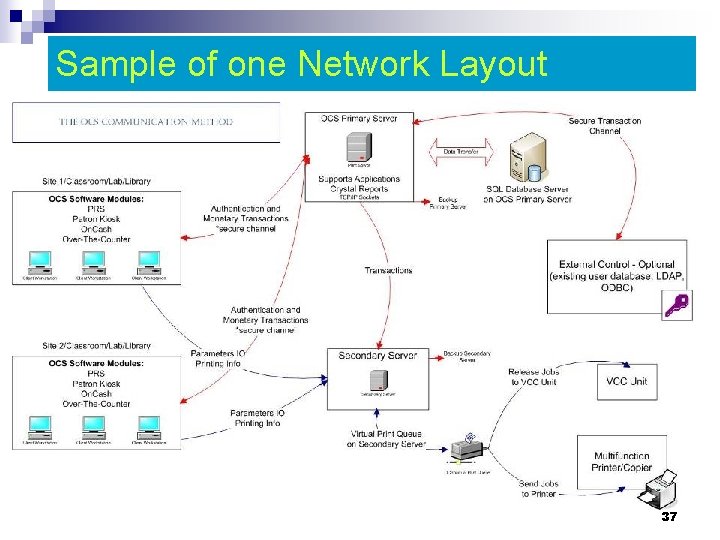
Sample of one Network Layout 37
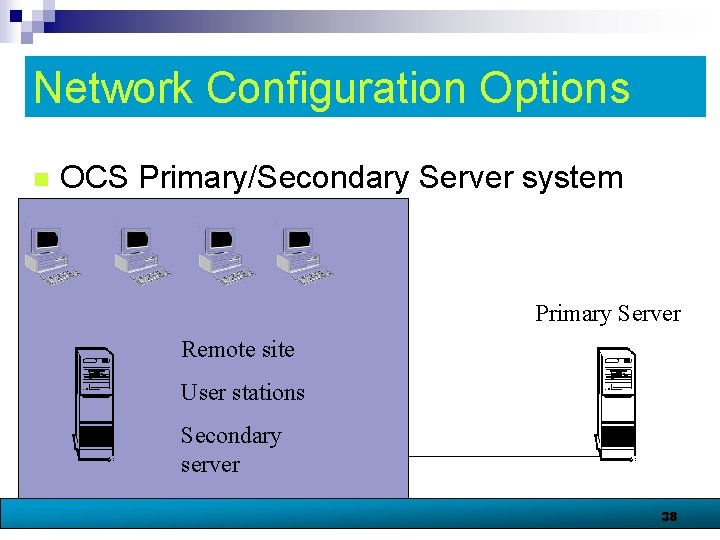
Network Configuration Options n OCS Primary/Secondary Server system Primary Server Remote site User stations Secondary server 38
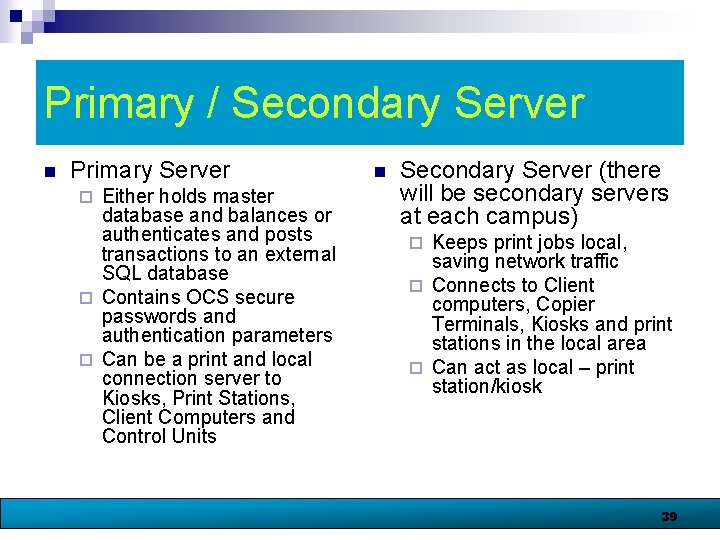
Primary / Secondary Server n Primary Server Either holds master database and balances or authenticates and posts transactions to an external SQL database ¨ Contains OCS secure passwords and authentication parameters ¨ Can be a print and local connection server to Kiosks, Print Stations, Client Computers and Control Units ¨ n Secondary Server (there will be secondary servers at each campus) Keeps print jobs local, saving network traffic ¨ Connects to Client computers, Copier Terminals, Kiosks and print stations in the local area ¨ Can act as local – print station/kiosk ¨ 39
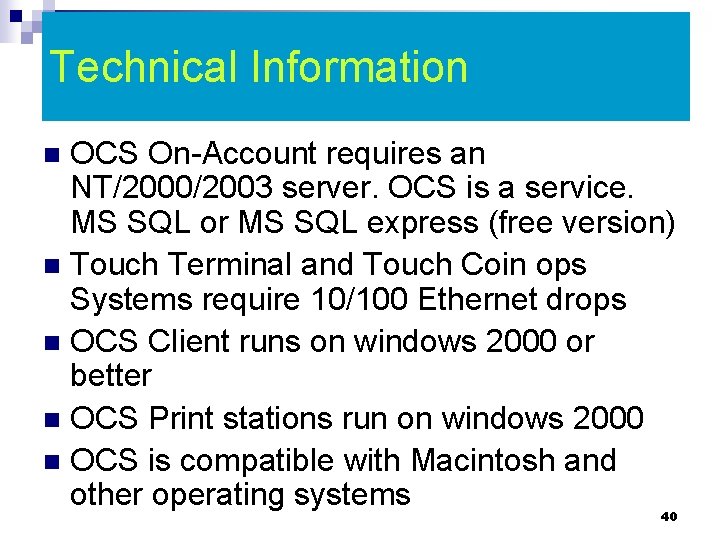
Technical Information OCS On-Account requires an NT/2000/2003 server. OCS is a service. MS SQL or MS SQL express (free version) n Touch Terminal and Touch Coin ops Systems require 10/100 Ethernet drops n OCS Client runs on windows 2000 or better n OCS Print stations run on windows 2000 n OCS is compatible with Macintosh and other operating systems n 40
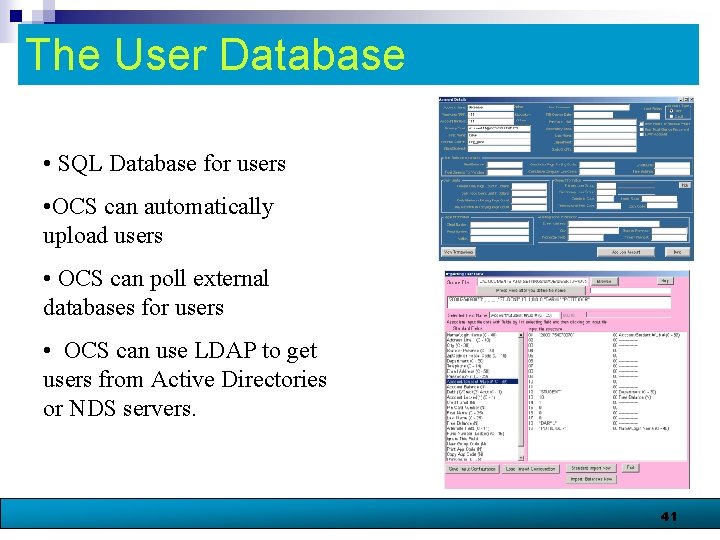
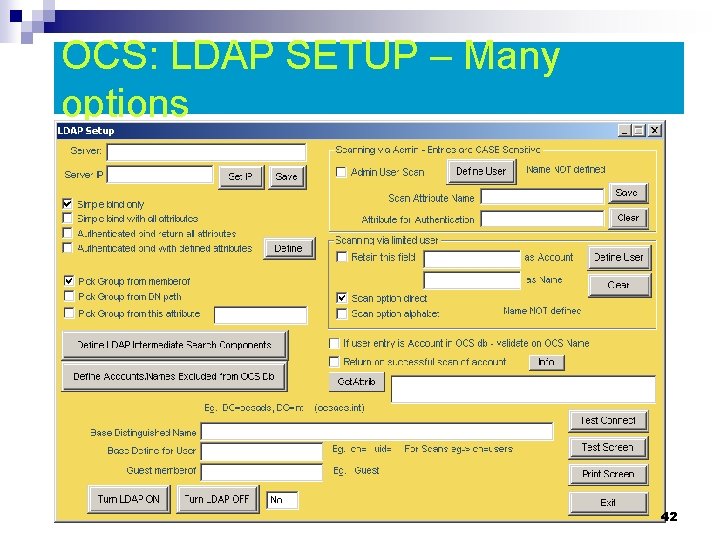
The User Database • SQL Database for users • OCS can automatically upload users • OCS can poll external databases for users • OCS can use LDAP to get users from Active Directories or NDS servers. 41
OCS: LDAP SETUP – Many options 42
Account Media n No Card, Keypad only – great for non students/patrons n Cards Accepted: Library (Bar Code) Cards, n Standard Magnetic Stripe Cards n Student ID Cards ¨ AAA Club or Shoppers Club Cards ¨ 43
General Overview n n A central system with an SQL database will act like a central bank account for a student copy/print account. The same balance can be used to copy/print in any site. Student can use the college ID card (magnetic stripe) plus a PIN# to access their account. (this mimics bank ATM card security), or ADS login authentication or other databases with LDAP or ODBC connections. Users can add value to their account at Kiosk Pay Stations with Bills or Bank Cards or over the internet ( a link on the campus web site will be created for this purpose) with a bank card (credit or debit). Value is used to photocopy and produce computer prints in the libraries and computer labs. 44
Contact information US Sales n USSALES@OUTPUT-CONTROLSOFTWARE. COM n 607 -539 -7434 International Sales n SALES@OUTPUT-CONTORLSOFTWARE. COM n 905 -828 -9706 45