
Objectives To identify methods of formatting the pages

Objectives • To identify methods of formatting the pages of a document. • To show techniques used to set up pages. • To demonstrate creating headers and footers. 2
Main Menu Page Design Applying Document Formatting Elements Page Layout Setting Up Pages Headers & Footers Creating Headers & Footers 3
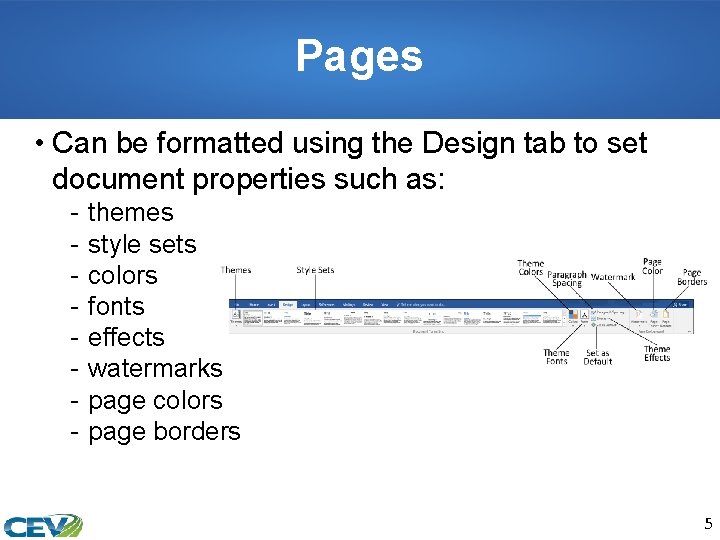
Pages • Can be formatted using the Design tab to set document properties such as: - themes style sets colors fonts effects watermarks page colors page borders 5
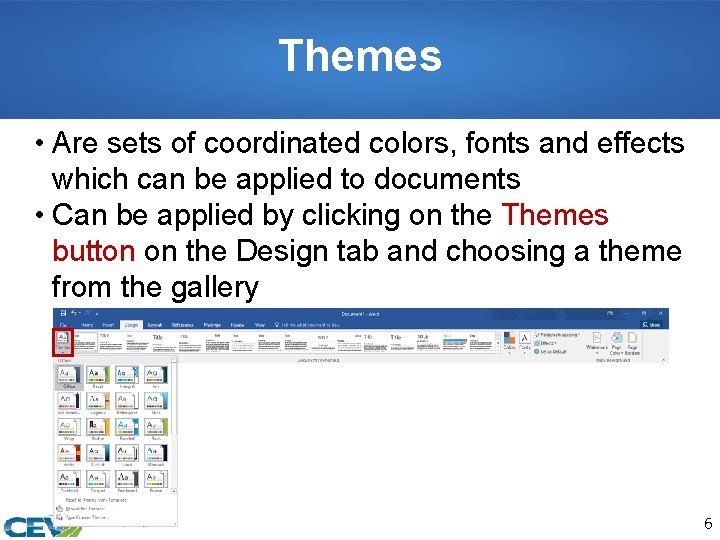
Themes • Are sets of coordinated colors, fonts and effects which can be applied to documents • Can be applied by clicking on the Themes button on the Design tab and choosing a theme from the gallery 6
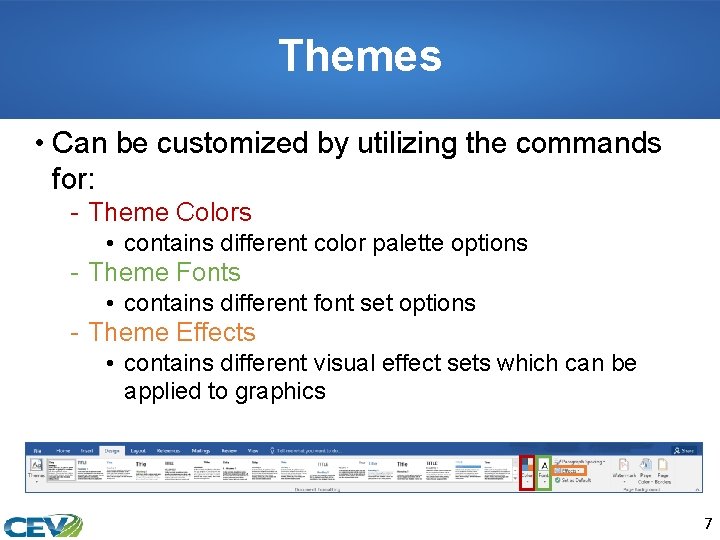
Themes • Can be customized by utilizing the commands for: - Theme Colors • contains different color palette options - Theme Fonts • contains different font set options - Theme Effects • contains different visual effect sets which can be applied to graphics 7
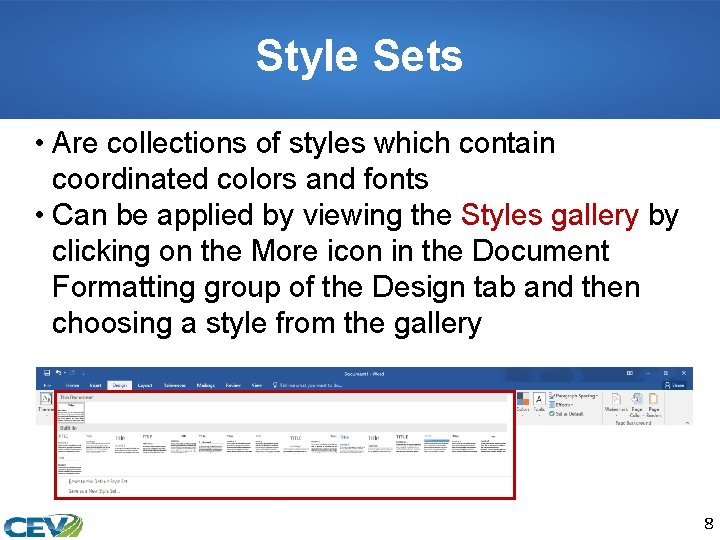
Style Sets • Are collections of styles which contain coordinated colors and fonts • Can be applied by viewing the Styles gallery by clicking on the More icon in the Document Formatting group of the Design tab and then choosing a style from the gallery 8
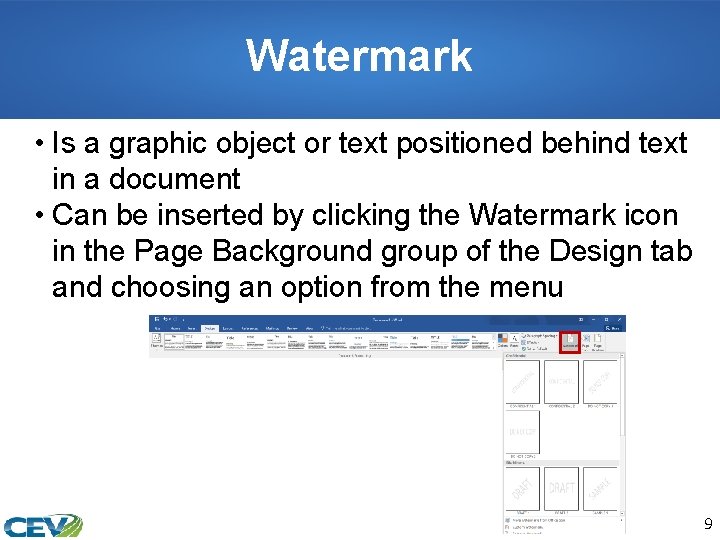
Watermark • Is a graphic object or text positioned behind text in a document • Can be inserted by clicking the Watermark icon in the Page Background group of the Design tab and choosing an option from the menu 9
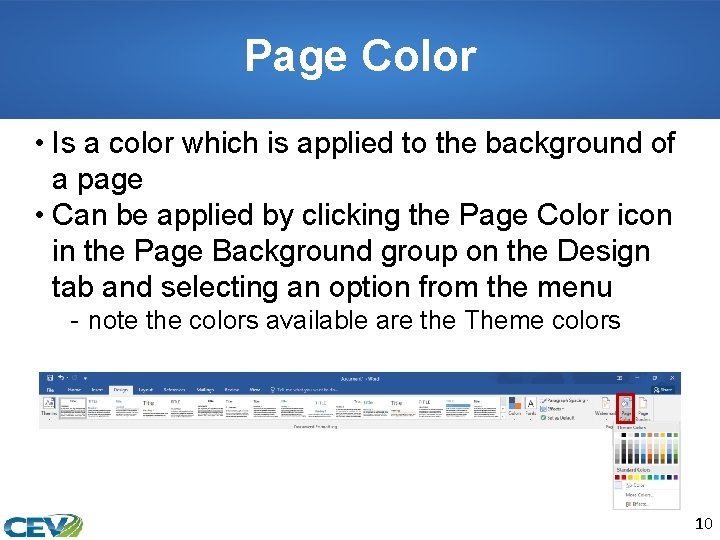
Page Color • Is a color which is applied to the background of a page • Can be applied by clicking the Page Color icon in the Page Background group on the Design tab and selecting an option from the menu - note the colors available are the Theme colors 10
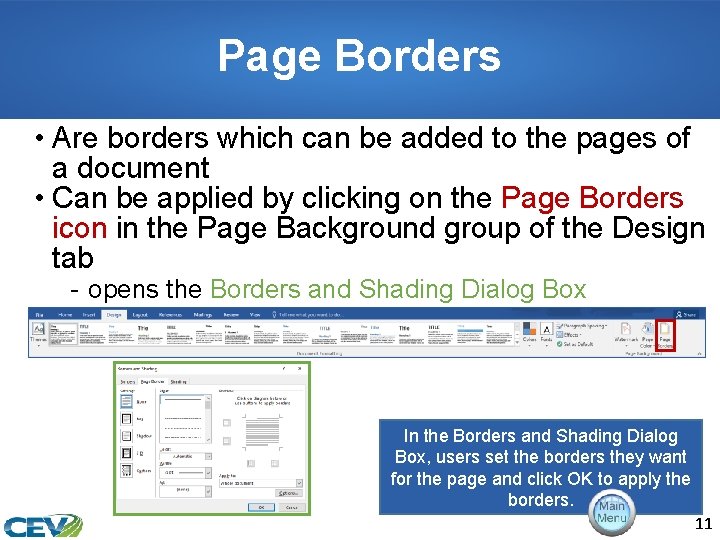
Page Borders • Are borders which can be added to the pages of a document • Can be applied by clicking on the Page Borders icon in the Page Background group of the Design tab - opens the Borders and Shading Dialog Box In the Borders and Shading Dialog Box, users set the borders they want for the page and click OK to apply the borders. 11
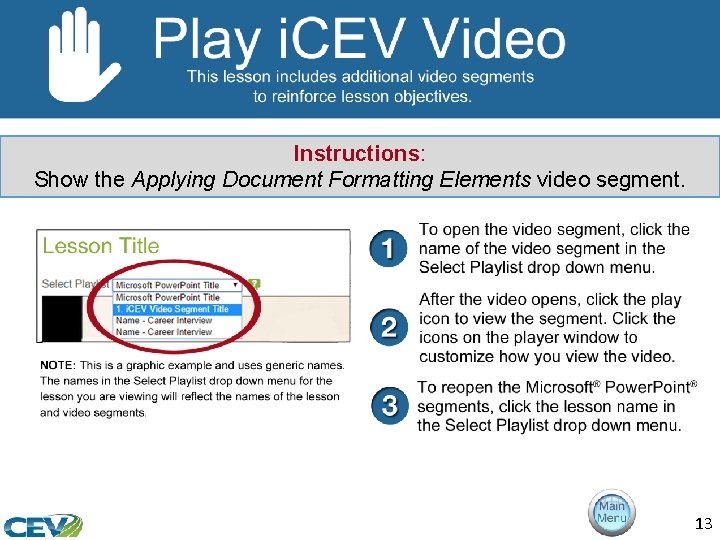
Instructions: Show the Applying Document Formatting Elements video segment. 13
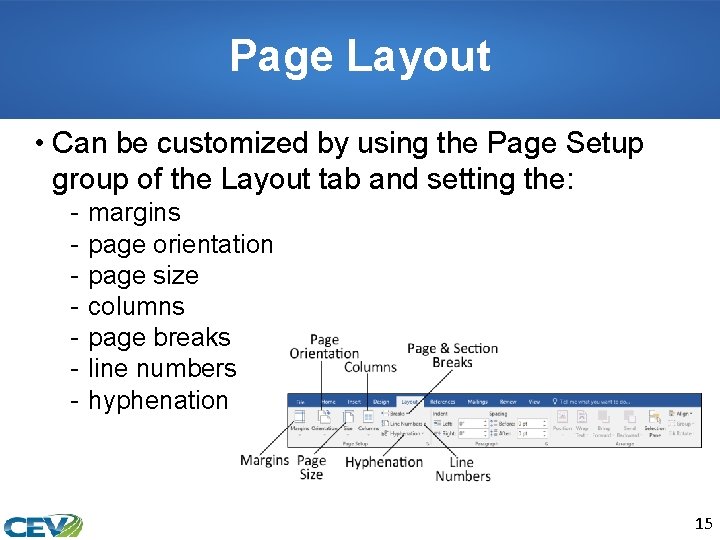
Page Layout • Can be customized by using the Page Setup group of the Layout tab and setting the: - margins page orientation page size columns page breaks line numbers hyphenation 15
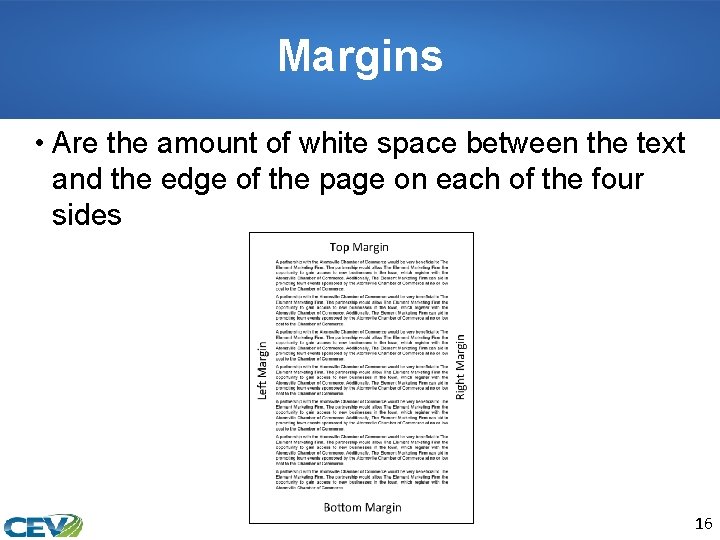
Margins • Are the amount of white space between the text and the edge of the page on each of the four sides 16
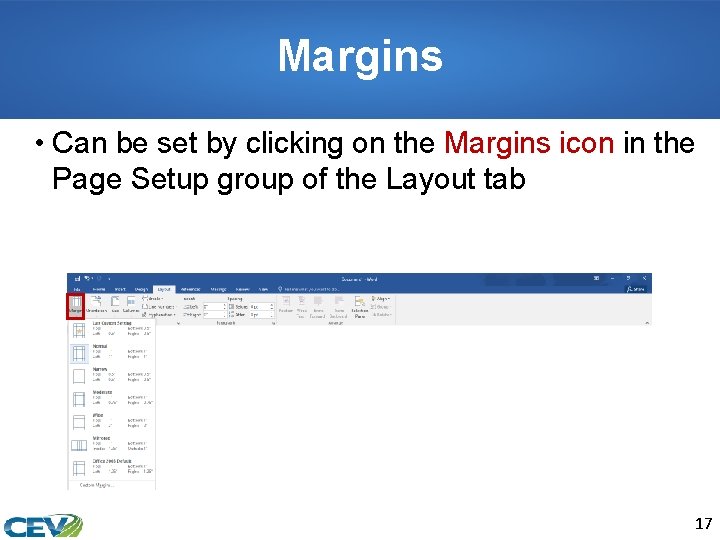
Margins • Can be set by clicking on the Margins icon in the Page Setup group of the Layout tab 17
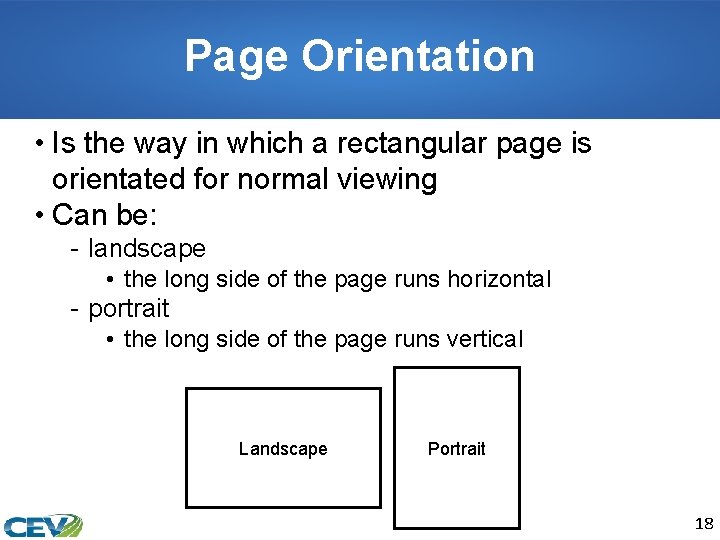
Page Orientation • Is the way in which a rectangular page is orientated for normal viewing • Can be: - landscape • the long side of the page runs horizontal - portrait • the long side of the page runs vertical Landscape Portrait 18
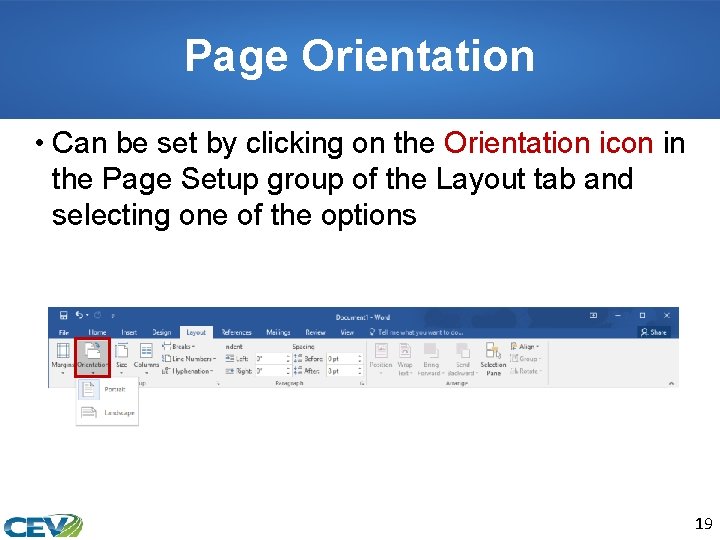
Page Orientation • Can be set by clicking on the Orientation icon in the Page Setup group of the Layout tab and selecting one of the options 19
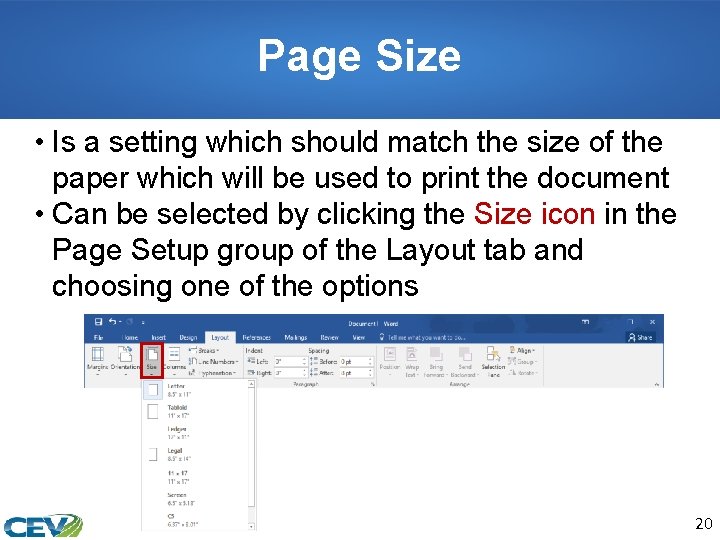
Page Size • Is a setting which should match the size of the paper which will be used to print the document • Can be selected by clicking the Size icon in the Page Setup group of the Layout tab and choosing one of the options 20
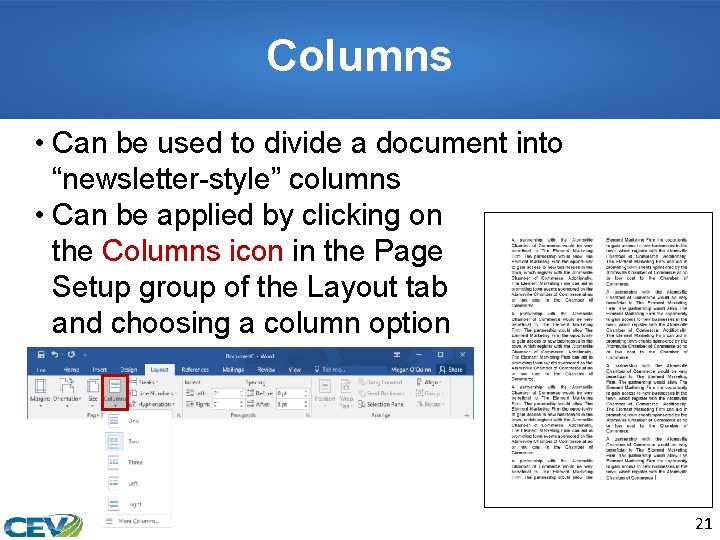
Columns • Can be used to divide a document into “newsletter-style” columns • Can be applied by clicking on the Columns icon in the Page Setup group of the Layout tab and choosing a column option 21
Page Breaks • Can be: - soft page breaks • break entered by Word to start a new page when the current page is full - hard page breaks • break entered by the user before the current page is full - can be used to keep related information together on the same page 22
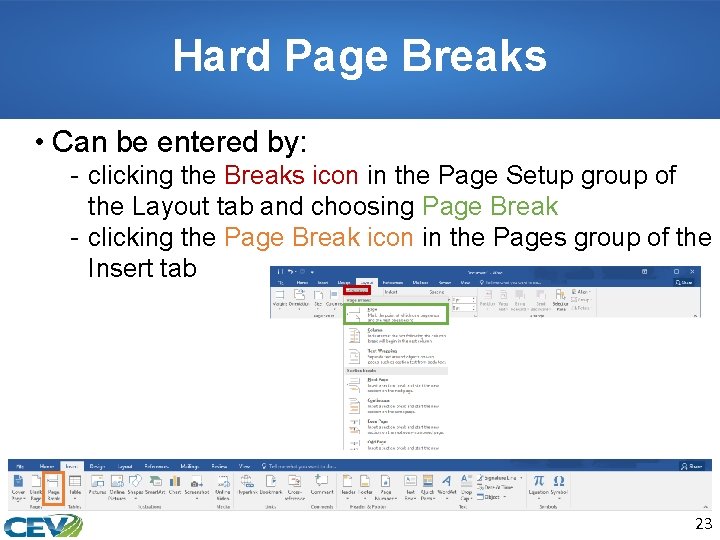
Hard Page Breaks • Can be entered by: - clicking the Breaks icon in the Page Setup group of the Layout tab and choosing Page Break - clicking the Page Break icon in the Pages group of the Insert tab 23
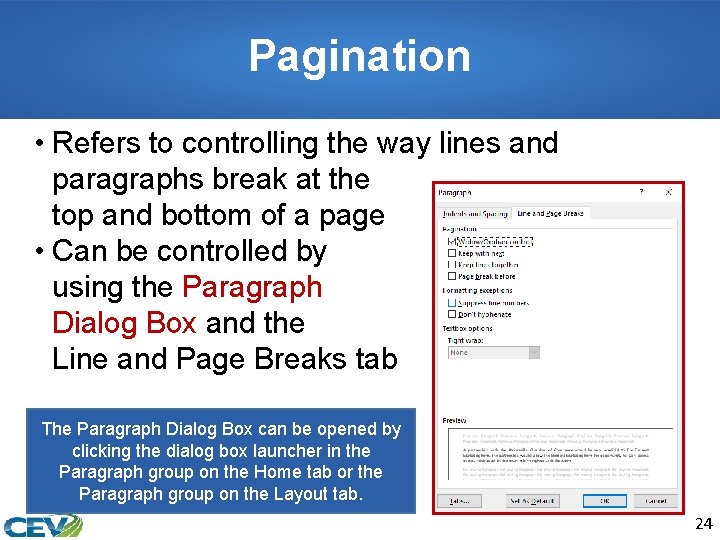
Pagination • Refers to controlling the way lines and paragraphs break at the top and bottom of a page • Can be controlled by using the Paragraph Dialog Box and the Line and Page Breaks tab The Paragraph Dialog Box can be opened by clicking the dialog box launcher in the Paragraph group on the Home tab or the Paragraph group on the Layout tab. 24
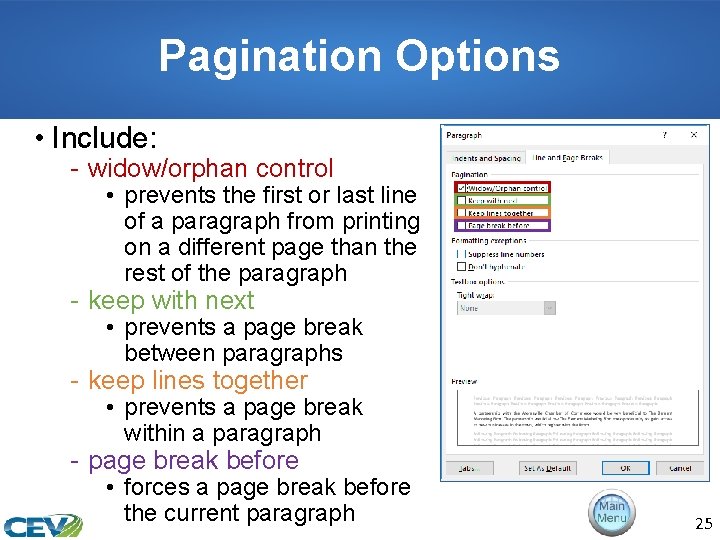
Pagination Options • Include: - widow/orphan control • prevents the first or last line of a paragraph from printing on a different page than the rest of the paragraph - keep with next • prevents a page break between paragraphs - keep lines together • prevents a page break within a paragraph - page break before • forces a page break before the current paragraph 25
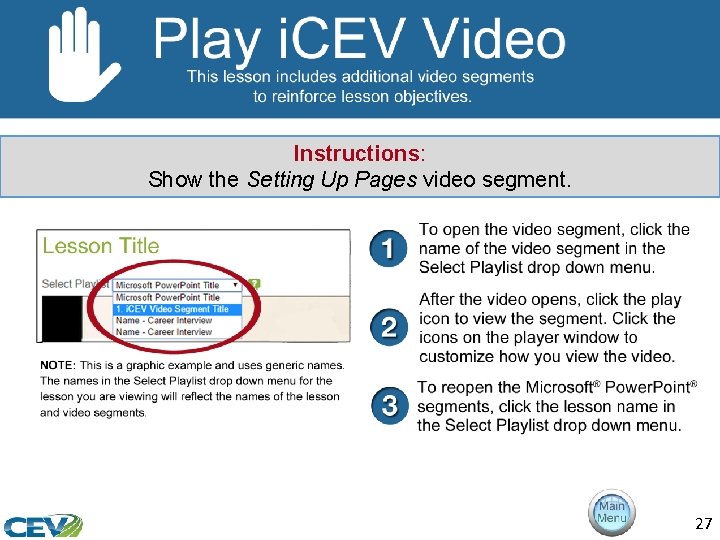
Instructions: Show the Setting Up Pages video segment. 27
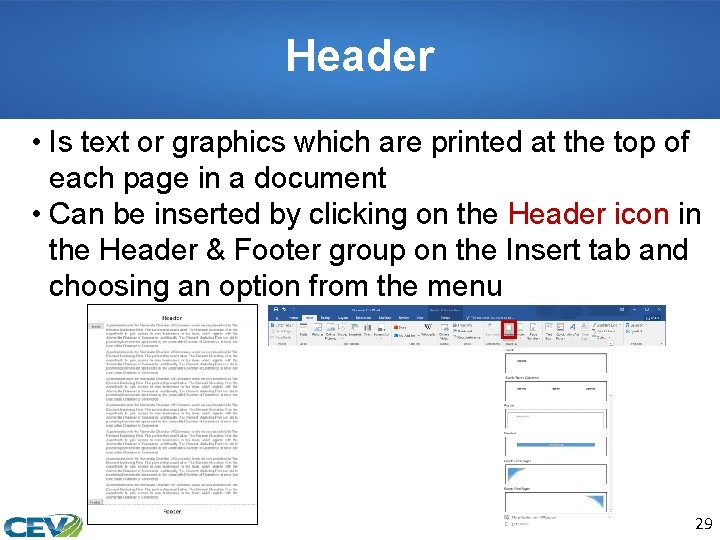
Header • Is text or graphics which are printed at the top of each page in a document • Can be inserted by clicking on the Header icon in the Header & Footer group on the Insert tab and choosing an option from the menu 29
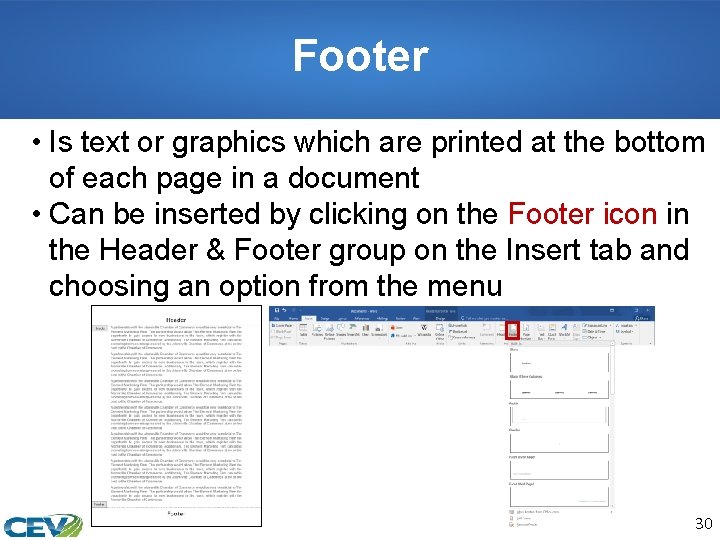
Footer • Is text or graphics which are printed at the bottom of each page in a document • Can be inserted by clicking on the Footer icon in the Header & Footer group on the Insert tab and choosing an option from the menu 30
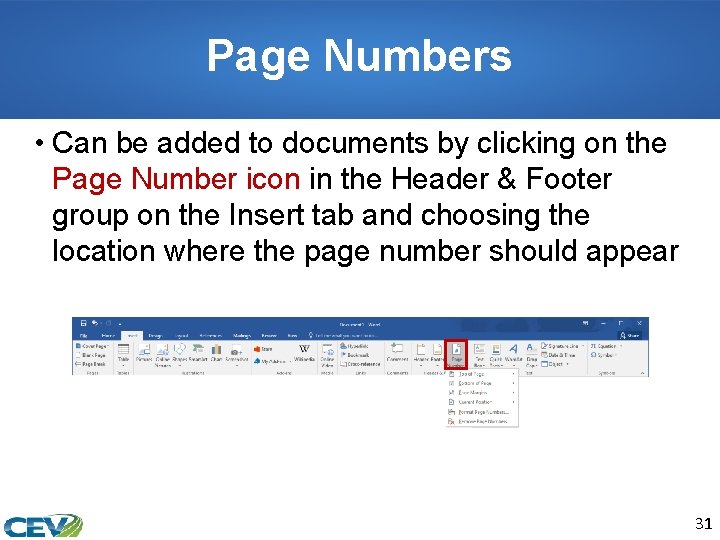
Page Numbers • Can be added to documents by clicking on the Page Number icon in the Header & Footer group on the Insert tab and choosing the location where the page number should appear 31
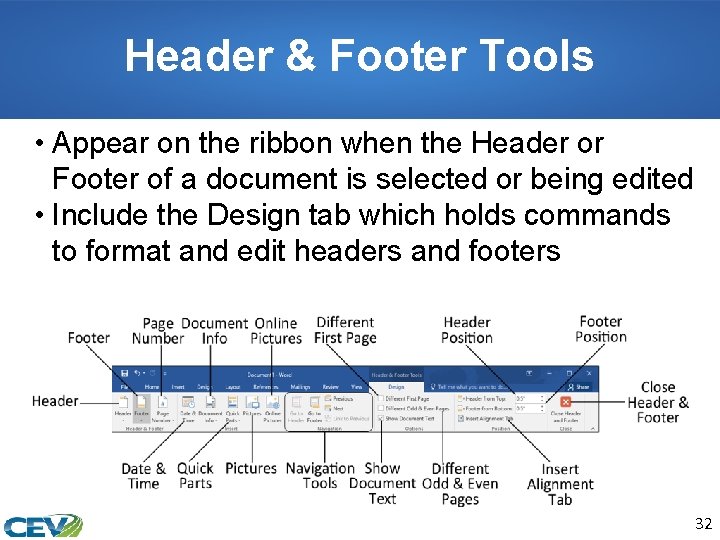
Header & Footer Tools • Appear on the ribbon when the Header or Footer of a document is selected or being edited • Include the Design tab which holds commands to format and edit headers and footers 32
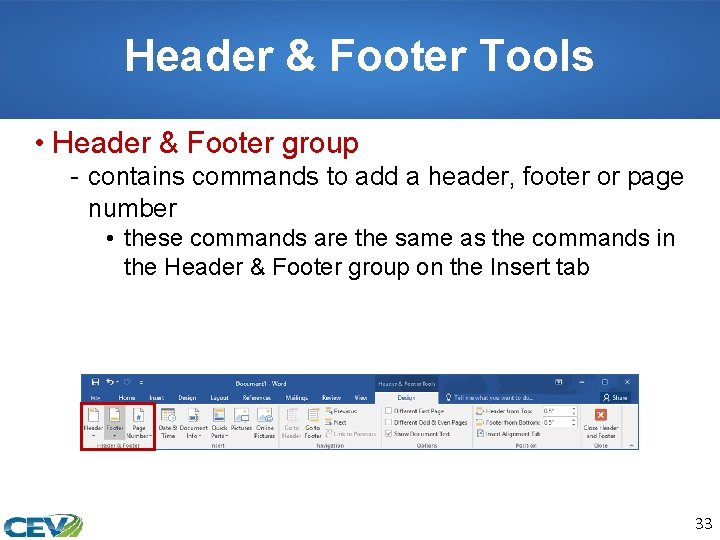
Header & Footer Tools • Header & Footer group - contains commands to add a header, footer or page number • these commands are the same as the commands in the Header & Footer group on the Insert tab 33
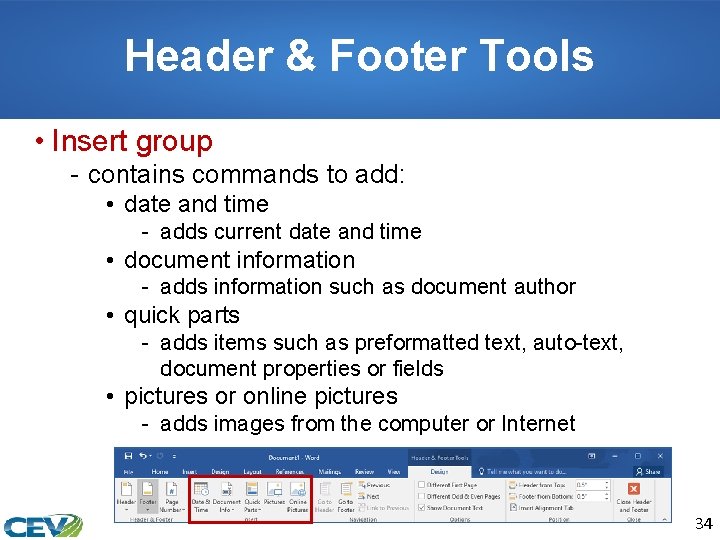
Header & Footer Tools • Insert group - contains commands to add: • date and time - adds current date and time • document information - adds information such as document author • quick parts - adds items such as preformatted text, auto-text, document properties or fields • pictures or online pictures - adds images from the computer or Internet 34
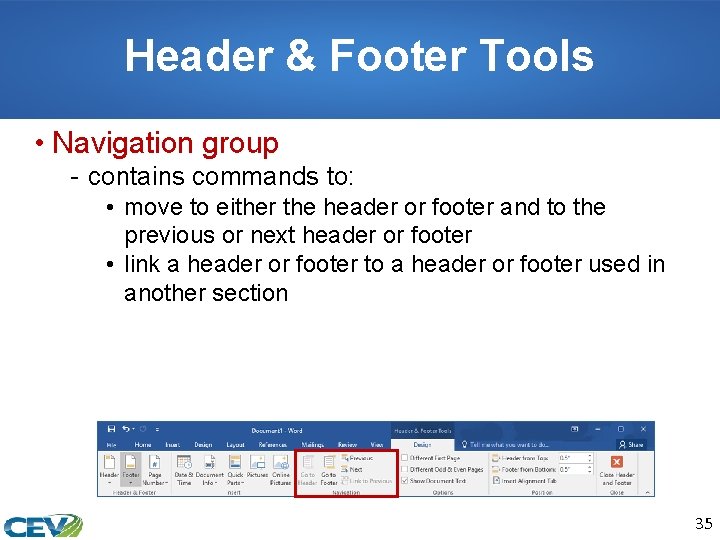
Header & Footer Tools • Navigation group - contains commands to: • move to either the header or footer and to the previous or next header or footer • link a header or footer to a header or footer used in another section 35
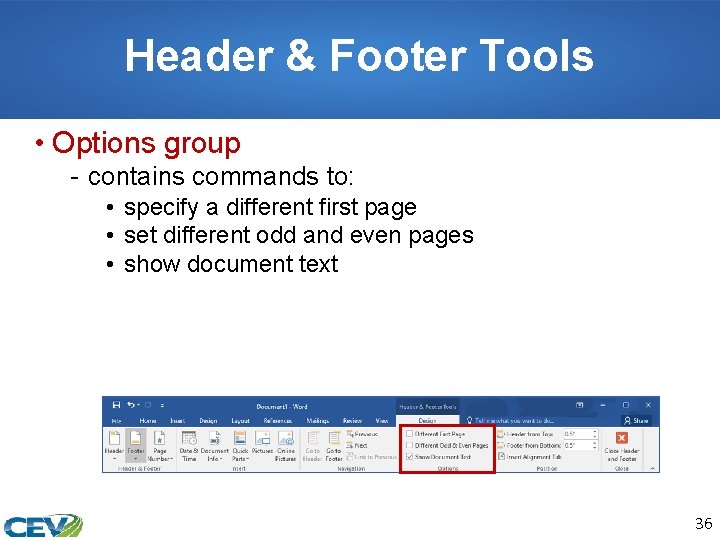
Header & Footer Tools • Options group - contains commands to: • specify a different first page • set different odd and even pages • show document text 36
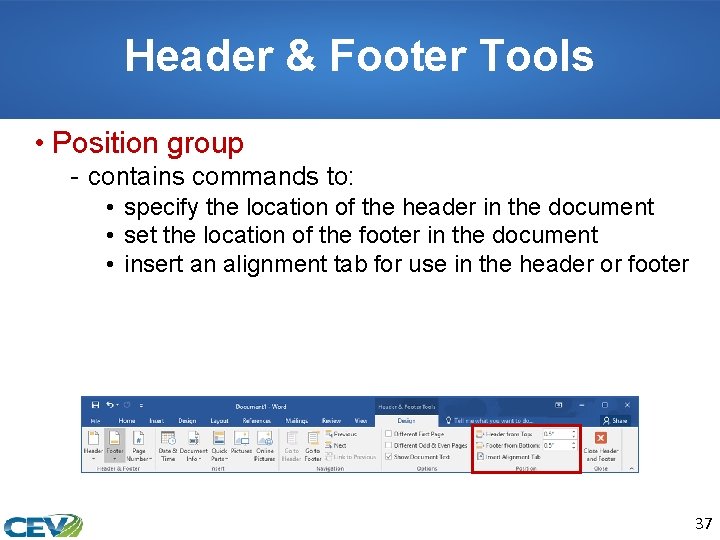
Header & Footer Tools • Position group - contains commands to: • specify the location of the header in the document • set the location of the footer in the document • insert an alignment tab for use in the header or footer 37
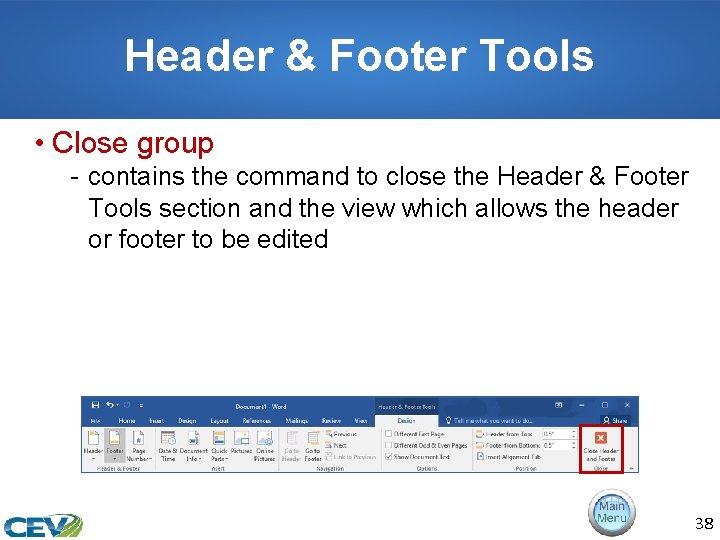
Header & Footer Tools • Close group - contains the command to close the Header & Footer Tools section and the view which allows the header or footer to be edited 38
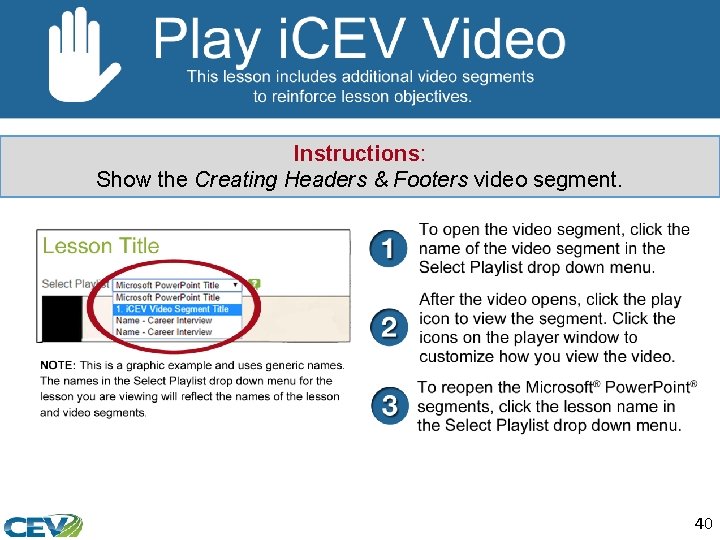
Instructions: Show the Creating Headers & Footers video segment. 40
Acknowledgements Director of Brand Management Megan O’Quinn Graphic Editors Hilary Jasper, Megan O’Quinn Collaborators Stephanie Tullis Business & Computer Technologies Educator Videography/Post Production Jake Saye Video Narrator Lora Cain V. P. of Brand Management Clayton Franklin Quality Control Director Angela Dehls © MMXVIII CEV Multimedia, Ltd. Executive Producer Gordon W. Davis, Ph. D. 41
- Slides: 41