
Objectives To examine the different types of slide

Objectives • To examine the different types of slide layouts. • To show to add, remove, hide and unhide slides in presentations. • To understand methods of changing slide order. • To identify techniques for adding footers and slide numbers to slides. 2
Main Menu Slide Layouts & Adding Slides Choosing a Layout & Adding Slides Removing & Hiding Slides How to Remove, Hide & Unhide Slides Slide Order Changing Slide Order 3
Main Menu Footers & Slide Numbers Adding Footers & Slide Numbers 4


Microsoft® Power. Point® • Contains built-in slide layouts which can be used to arrange content on slides 6
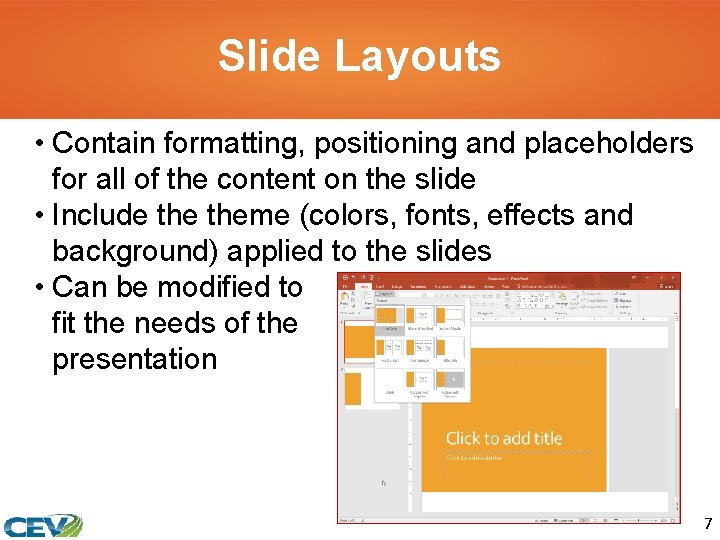
Slide Layouts • Contain formatting, positioning and placeholders for all of the content on the slide • Include theme (colors, fonts, effects and background) applied to the slides • Can be modified to fit the needs of the presentation 7
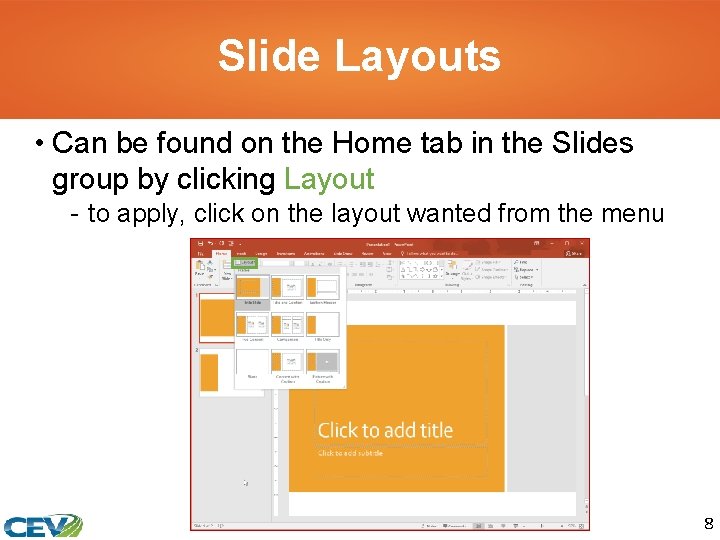
Slide Layouts • Can be found on the Home tab in the Slides group by clicking Layout - to apply, click on the layout wanted from the menu 8
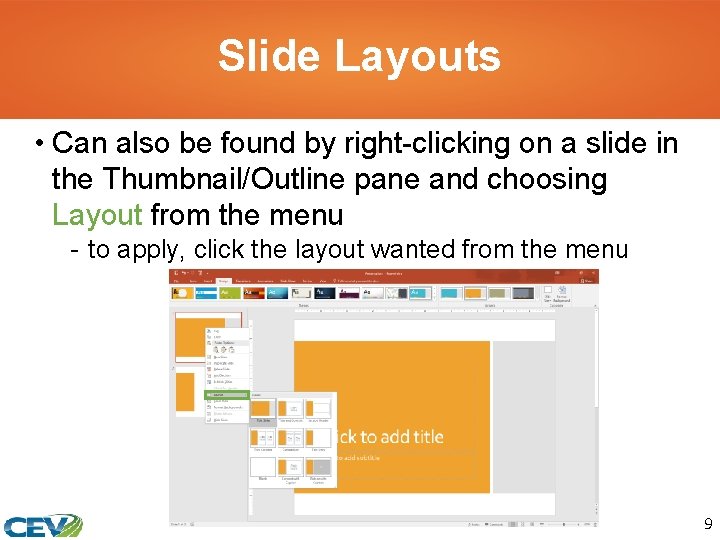
Slide Layouts • Can also be found by right-clicking on a slide in the Thumbnail/Outline pane and choosing Layout from the menu - to apply, click the layout wanted from the menu 9
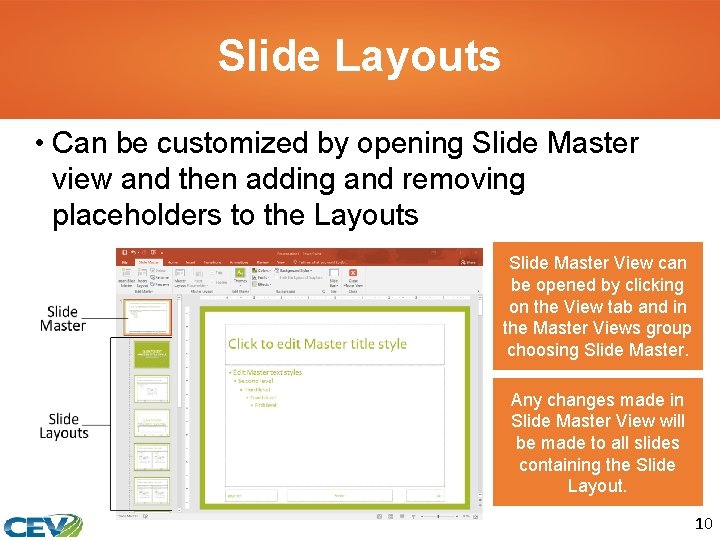
Slide Layouts • Can be customized by opening Slide Master view and then adding and removing placeholders to the Layouts Slide Master View can be opened by clicking on the View tab and in the Master Views group choosing Slide Master. Any changes made in Slide Master View will be made to all slides containing the Slide Layout. 10
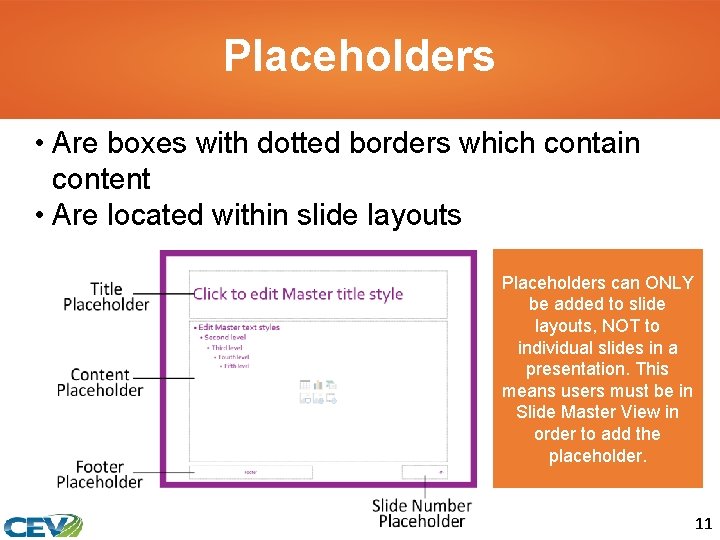
Placeholders • Are boxes with dotted borders which contain content • Are located within slide layouts Placeholders can ONLY be added to slide layouts, NOT to individual slides in a presentation. This means users must be in Slide Master View in order to add the placeholder. 11
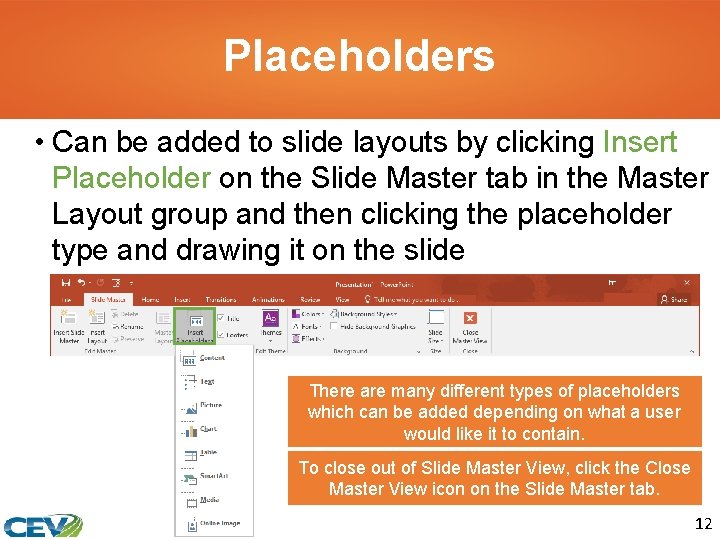
Placeholders • Can be added to slide layouts by clicking Insert Placeholder on the Slide Master tab in the Master Layout group and then clicking the placeholder type and drawing it on the slide There are many different types of placeholders which can be added depending on what a user would like it to contain. To close out of Slide Master View, click the Close Master View icon on the Slide Master tab. 12
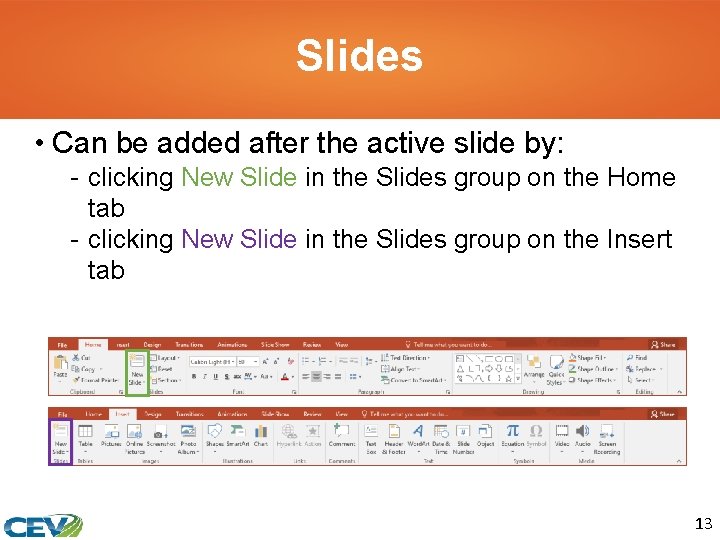
Slides • Can be added after the active slide by: - clicking New Slide in the Slides group on the Home tab - clicking New Slide in the Slides group on the Insert tab 13
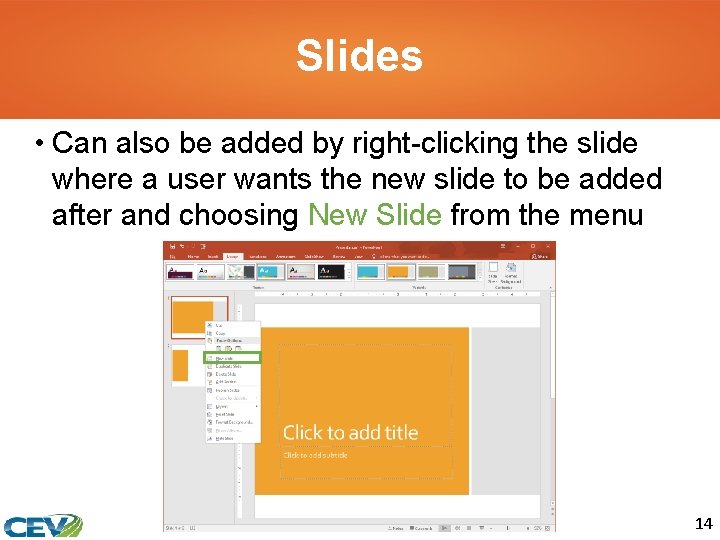
Slides • Can also be added by right-clicking the slide where a user wants the new slide to be added after and choosing New Slide from the menu 14
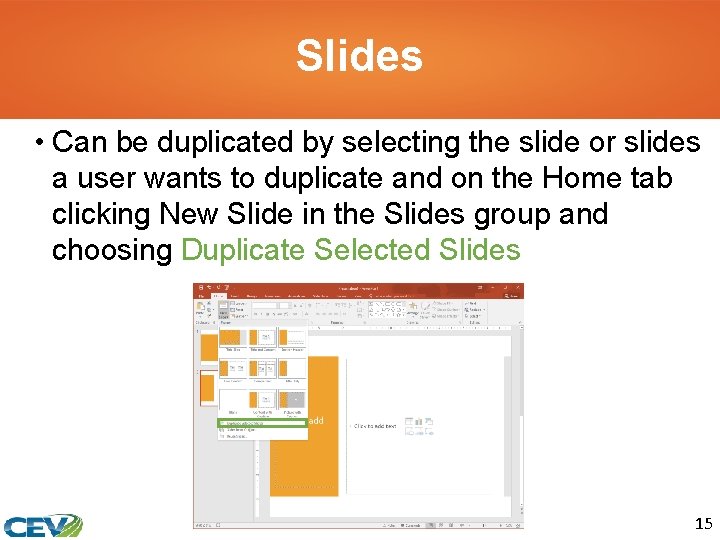
Slides • Can be duplicated by selecting the slide or slides a user wants to duplicate and on the Home tab clicking New Slide in the Slides group and choosing Duplicate Selected Slides 15
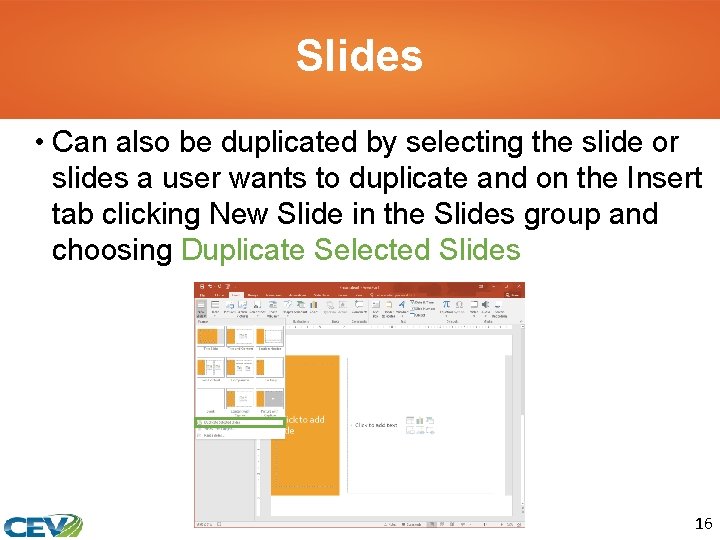
Slides • Can also be duplicated by selecting the slide or slides a user wants to duplicate and on the Insert tab clicking New Slide in the Slides group and choosing Duplicate Selected Slides 16
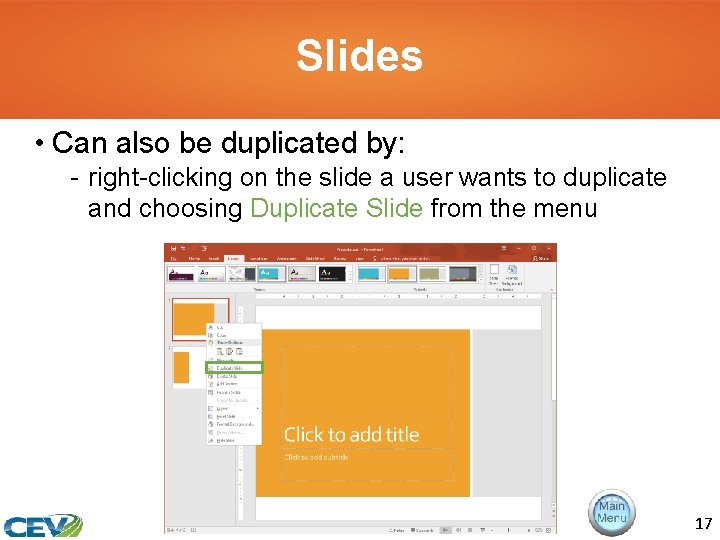
Slides • Can also be duplicated by: - right-clicking on the slide a user wants to duplicate and choosing Duplicate Slide from the menu 17
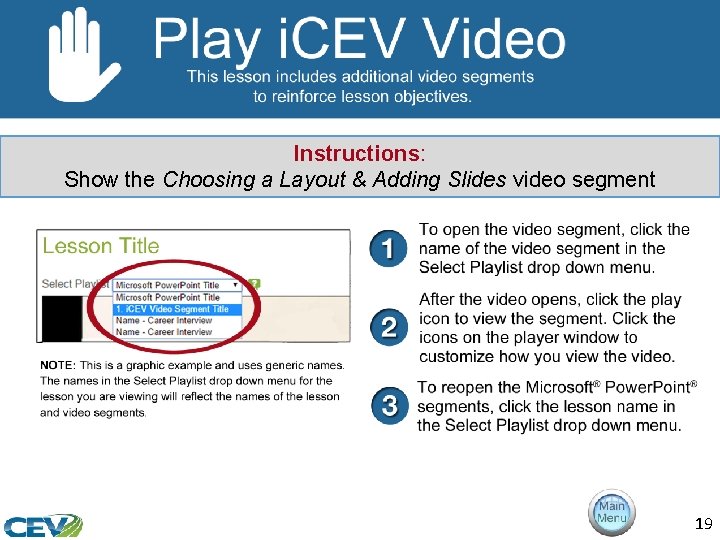
Instructions: Show the Choosing a Layout & Adding Slides video segment 19
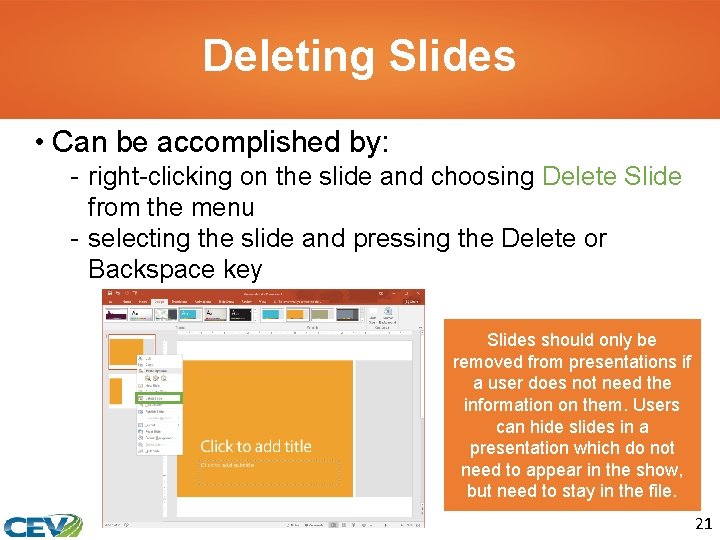
Deleting Slides • Can be accomplished by: - right-clicking on the slide and choosing Delete Slide from the menu - selecting the slide and pressing the Delete or Backspace key Slides should only be removed from presentations if a user does not need the information on them. Users can hide slides in a presentation which do not need to appear in the show, but need to stay in the file. 21
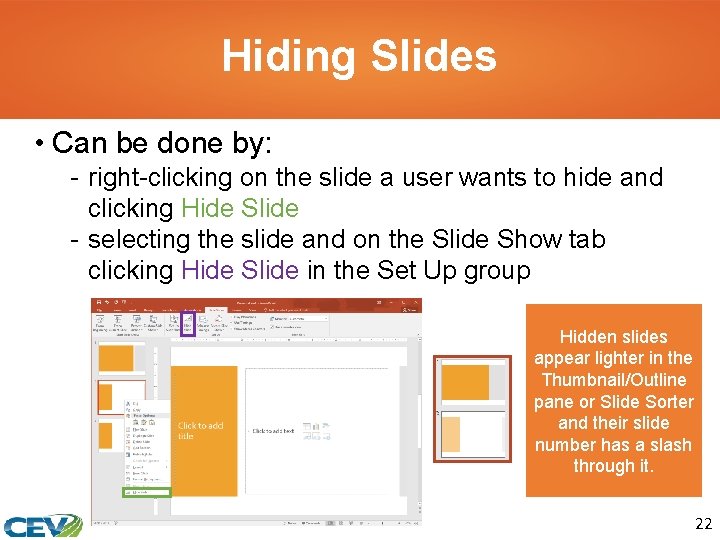
Hiding Slides • Can be done by: - right-clicking on the slide a user wants to hide and clicking Hide Slide - selecting the slide and on the Slide Show tab clicking Hide Slide in the Set Up group Hidden slides appear lighter in the Thumbnail/Outline pane or Slide Sorter and their slide number has a slash through it. 22
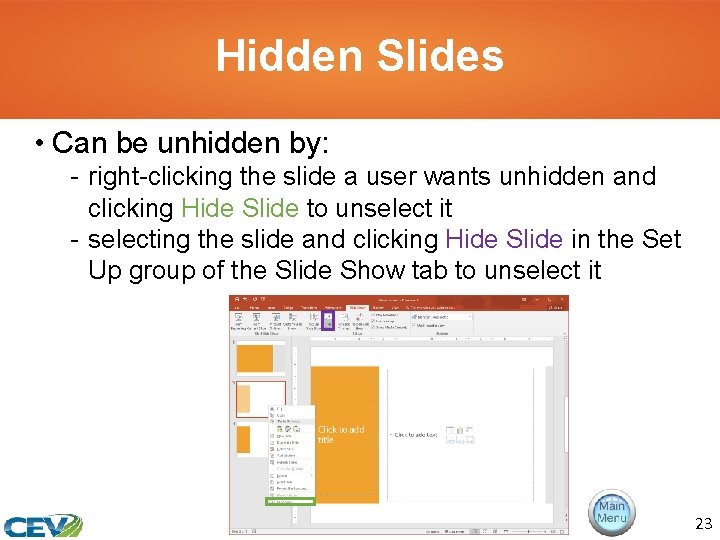
Hidden Slides • Can be unhidden by: - right-clicking the slide a user wants unhidden and clicking Hide Slide to unselect it - selecting the slide and clicking Hide Slide in the Set Up group of the Slide Show tab to unselect it 23
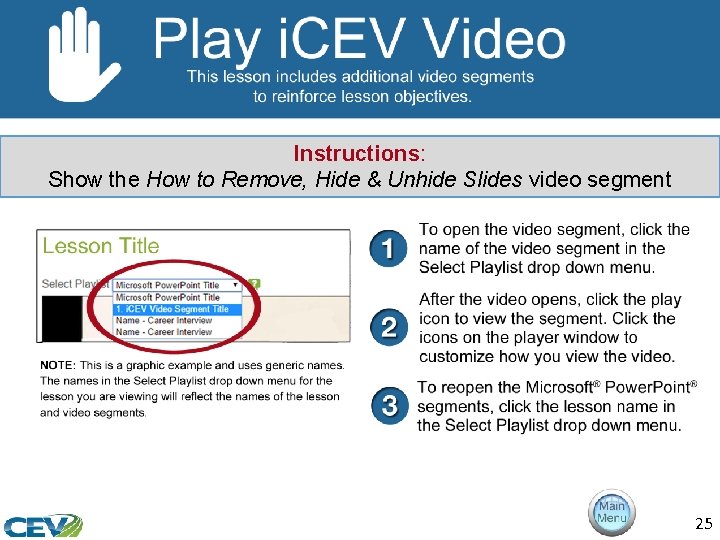
Instructions: Show the How to Remove, Hide & Unhide Slides video segment 25
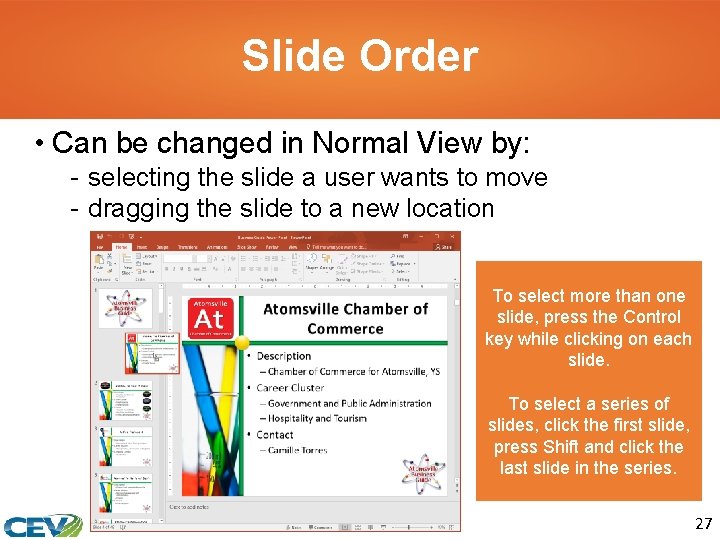
Slide Order • Can be changed in Normal View by: - selecting the slide a user wants to move - dragging the slide to a new location To select more than one slide, press the Control key while clicking on each slide. To select a series of slides, click the first slide, press Shift and click the last slide in the series. 27
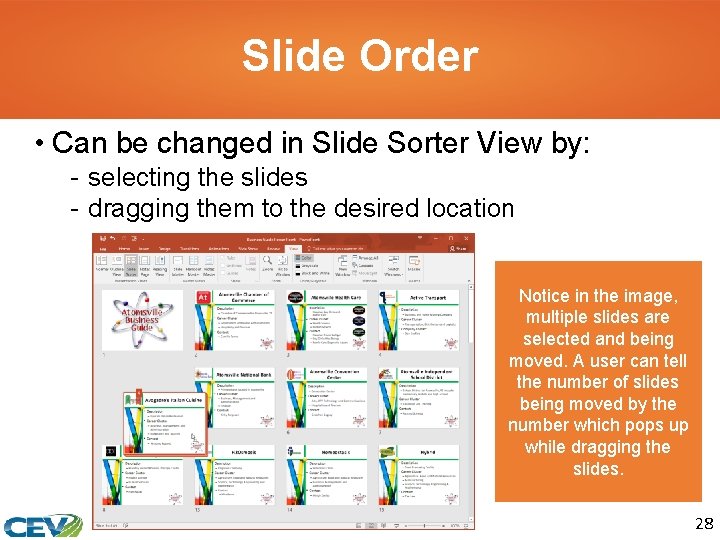
Slide Order • Can be changed in Slide Sorter View by: - selecting the slides - dragging them to the desired location Notice in the image, multiple slides are selected and being moved. A user can tell the number of slides being moved by the number which pops up while dragging the slides. 28
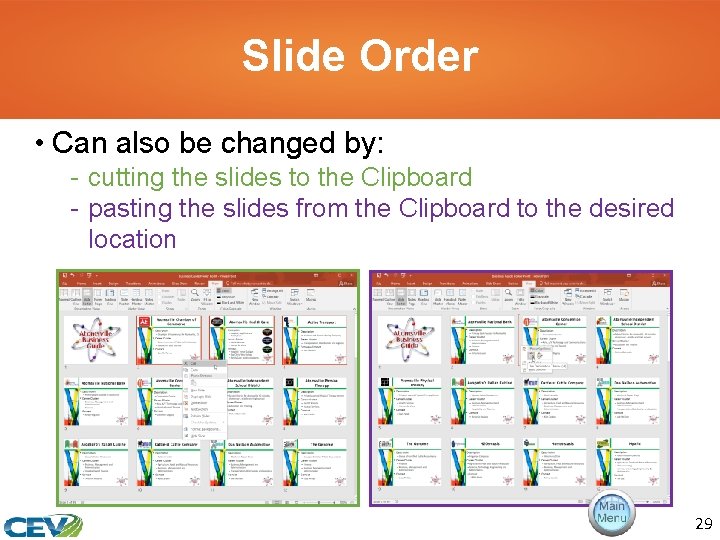
Slide Order • Can also be changed by: - cutting the slides to the Clipboard - pasting the slides from the Clipboard to the desired location 29
Instructions: Show the Changing Slide Order video segment 31

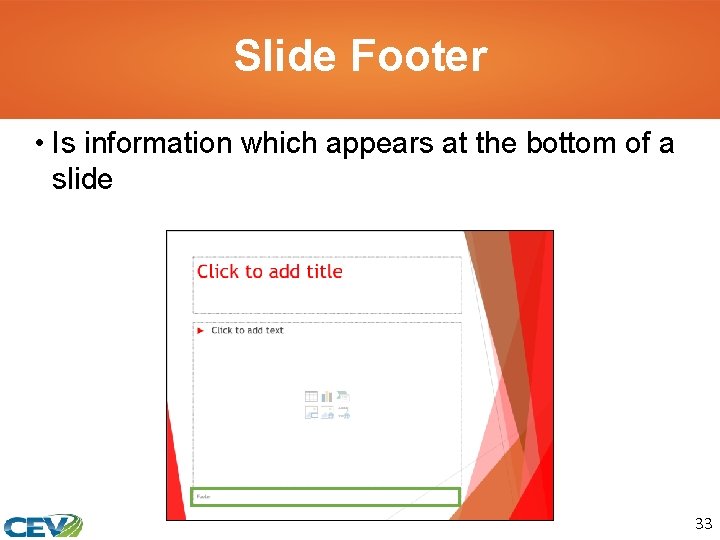
Slide Footer • Is information which appears at the bottom of a slide 33
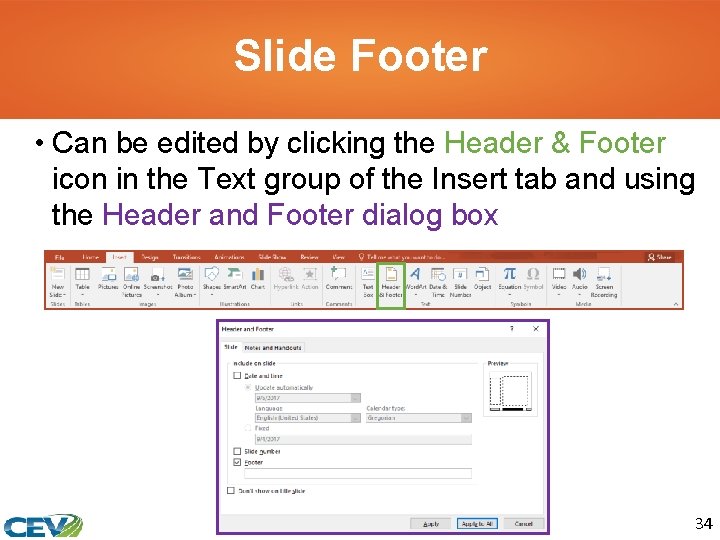
Slide Footer • Can be edited by clicking the Header & Footer icon in the Text group of the Insert tab and using the Header and Footer dialog box 34
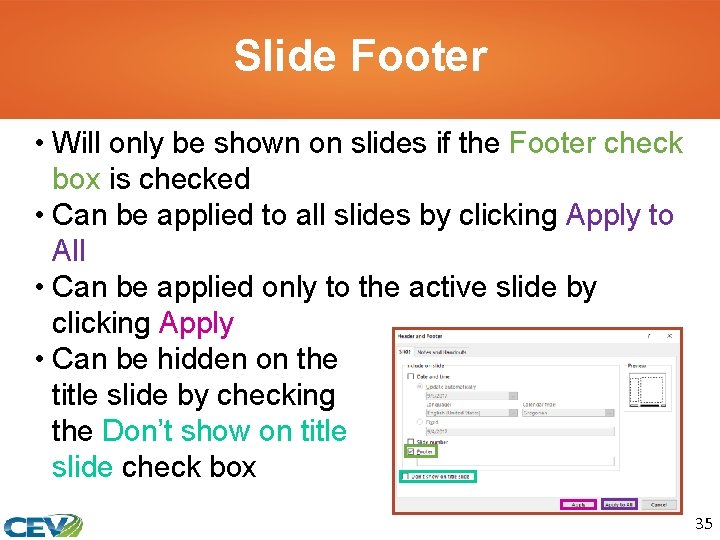
Slide Footer • Will only be shown on slides if the Footer check box is checked • Can be applied to all slides by clicking Apply to All • Can be applied only to the active slide by clicking Apply • Can be hidden on the title slide by checking the Don’t show on title slide check box 35
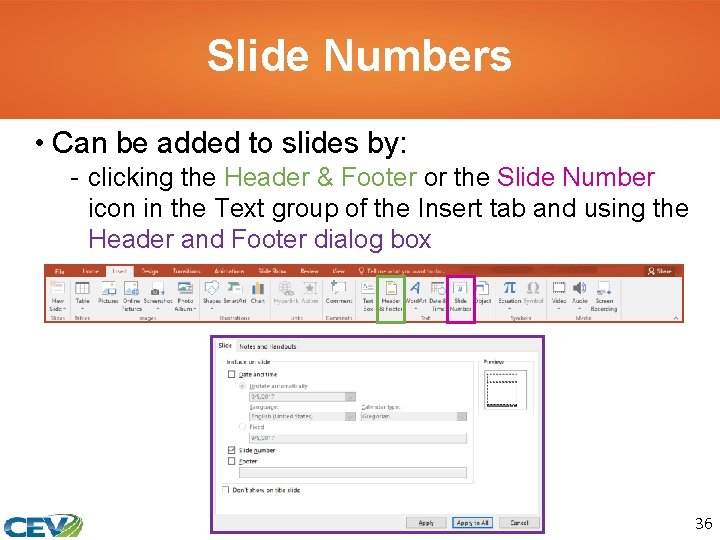
Slide Numbers • Can be added to slides by: - clicking the Header & Footer or the Slide Number icon in the Text group of the Insert tab and using the Header and Footer dialog box 36
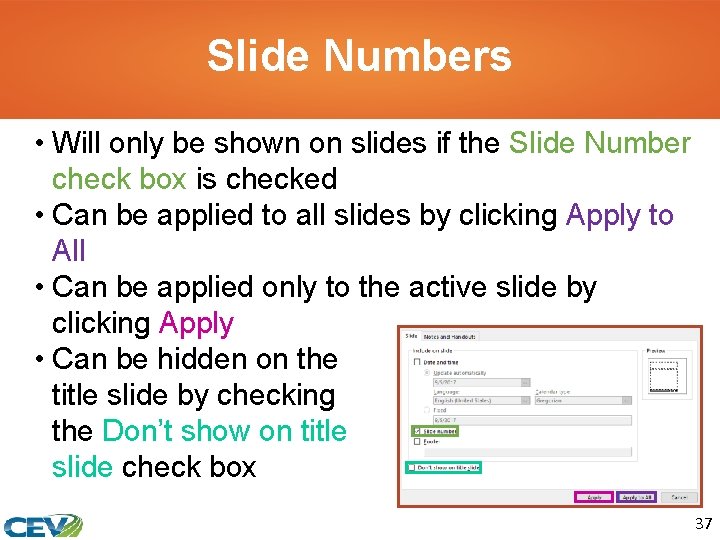
Slide Numbers • Will only be shown on slides if the Slide Number check box is checked • Can be applied to all slides by clicking Apply to All • Can be applied only to the active slide by clicking Apply • Can be hidden on the title slide by checking the Don’t show on title slide check box 37
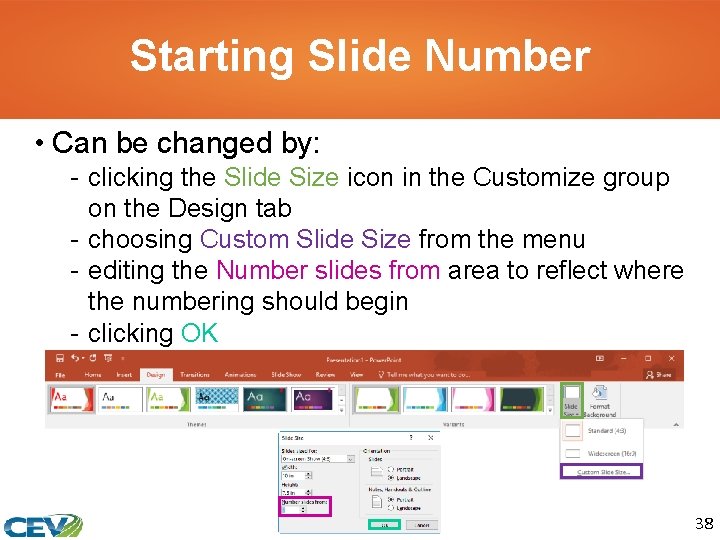
Starting Slide Number • Can be changed by: - clicking the Slide Size icon in the Customize group on the Design tab - choosing Custom Slide Size from the menu - editing the Number slides from area to reflect where the numbering should begin - clicking OK 38
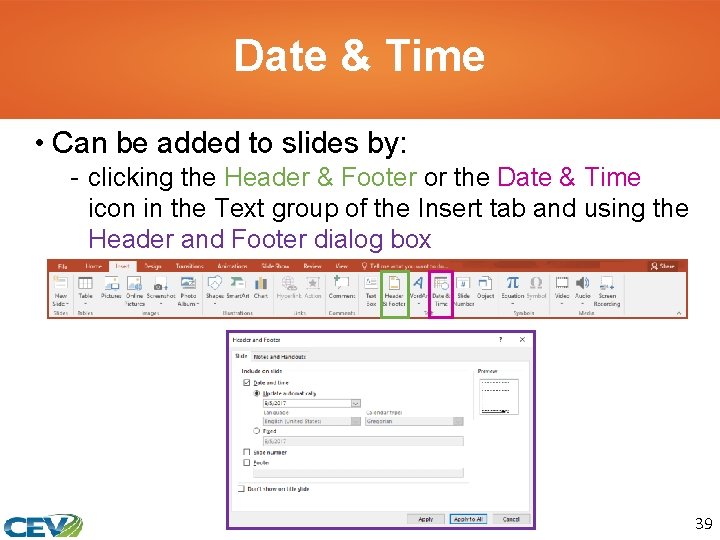
Date & Time • Can be added to slides by: - clicking the Header & Footer or the Date & Time icon in the Text group of the Insert tab and using the Header and Footer dialog box 39
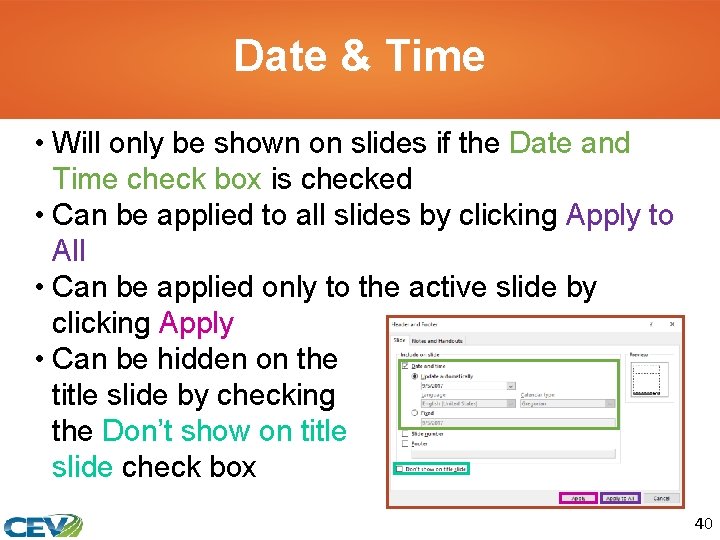
Date & Time • Will only be shown on slides if the Date and Time check box is checked • Can be applied to all slides by clicking Apply to All • Can be applied only to the active slide by clicking Apply • Can be hidden on the title slide by checking the Don’t show on title slide check box 40
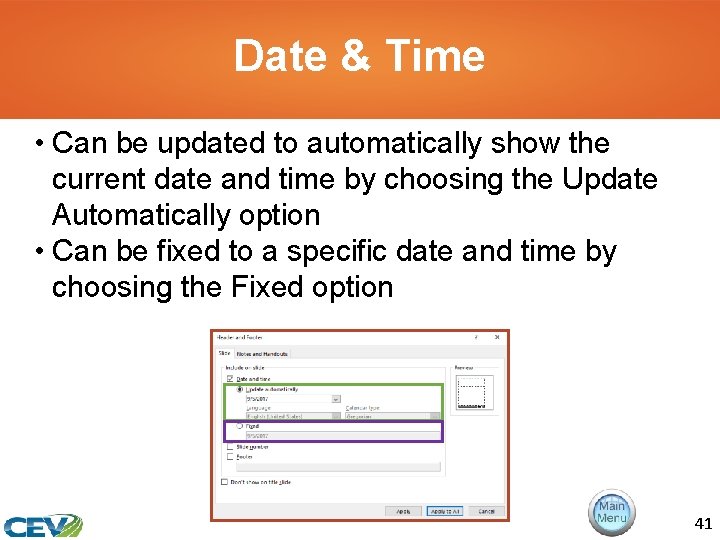
Date & Time • Can be updated to automatically show the current date and time by choosing the Update Automatically option • Can be fixed to a specific date and time by choosing the Fixed option 41
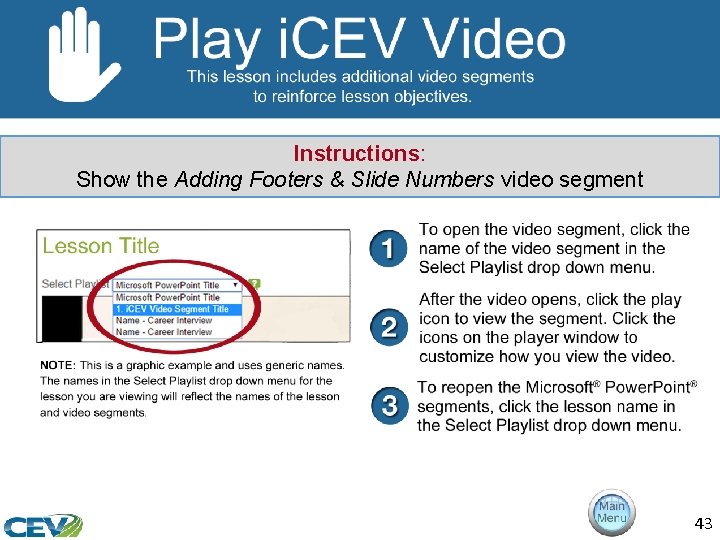
Instructions: Show the Adding Footers & Slide Numbers video segment 43

Acknowledgements Director of Brand Management Megan O’Quinn Graphic Editors Hilary Jasper, Megan O’Quinn Collaborators Stephanie Tullis Business & Computer Technologies Educator Videography/Post Production Jake Saye Video Narrator Lora Cain V. P. of Brand Management Clayton Franklin Quality Control Director Angela Dehls © MMXVIII CEV Multimedia, Ltd. Executive Producer Gordon W. Davis, Ph. D. 44
- Slides: 44