
Objectives To examine methods of opening documents and
Objectives • To examine methods of opening documents and templates. • To identify useful keys and keyboard shortcuts to use when working in Microsoft® Word. • To show techniques for entering text in a document. 2
Main Menu Documents & Templates Opening Documents & Templates Using the Keyboard & Entering Text Typing in a Document 3
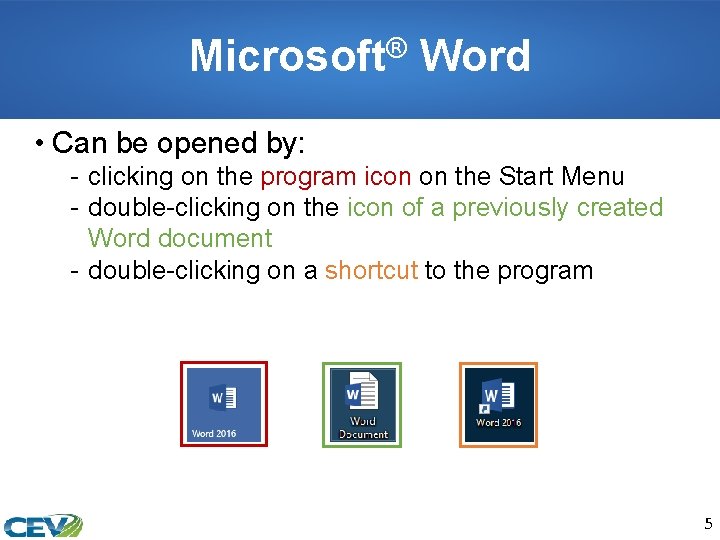
Microsoft® Word • Can be opened by: - clicking on the program icon on the Start Menu - double-clicking on the icon of a previously created Word document - double-clicking on a shortcut to the program 5
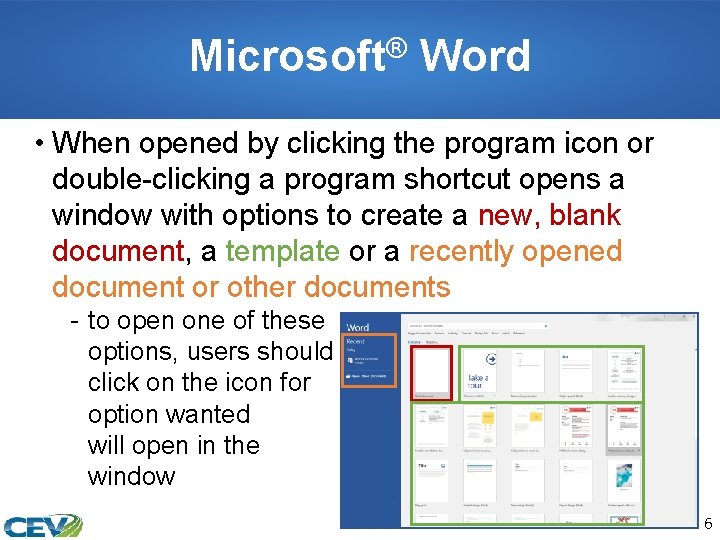
Microsoft® Word • When opened by clicking the program icon or double-clicking a program shortcut opens a window with options to create a new, blank document, a template or a recently opened document or other documents - to open one of these options, users should click on the icon for option wanted will open in the window the and it program 6
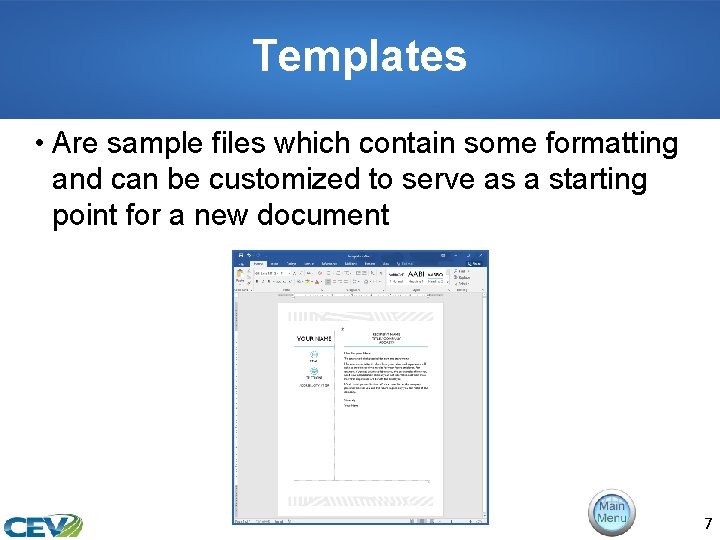
Templates • Are sample files which contain some formatting and can be customized to serve as a starting point for a new document 7
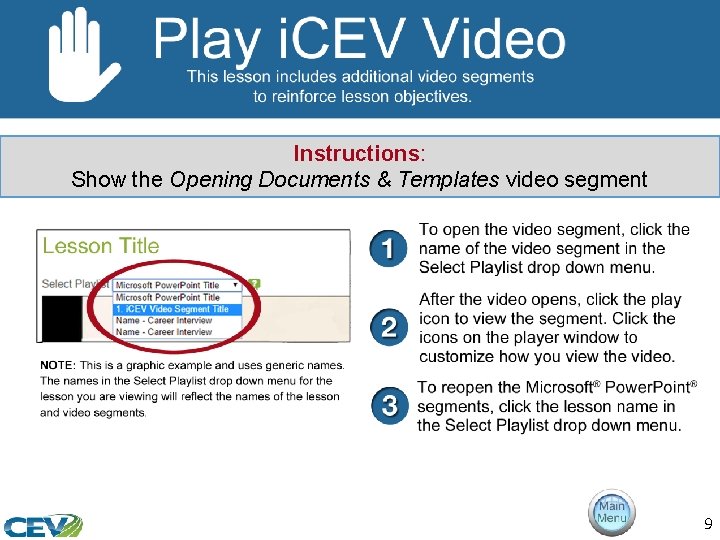
Instructions: Show the Opening Documents & Templates video segment 9
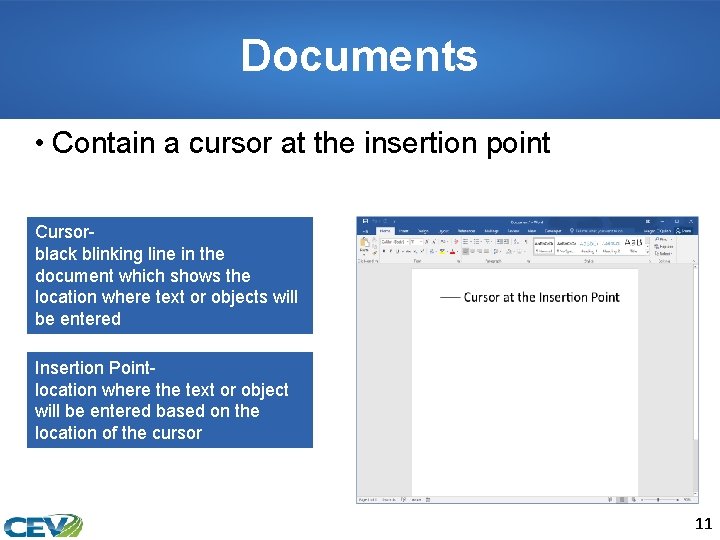
Documents • Contain a cursor at the insertion point Cursorblack blinking line in the document which shows the location where text or objects will be entered Insertion Pointlocation where the text or object will be entered based on the location of the cursor 11
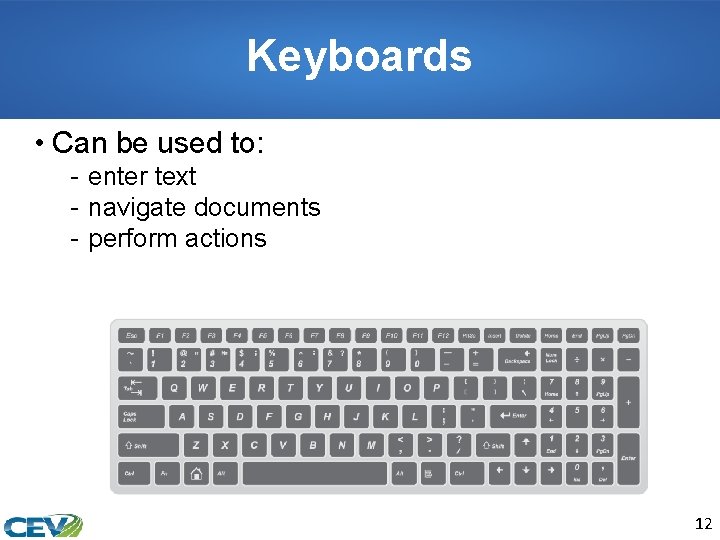
Keyboards • Can be used to: - enter text - navigate documents - perform actions 12
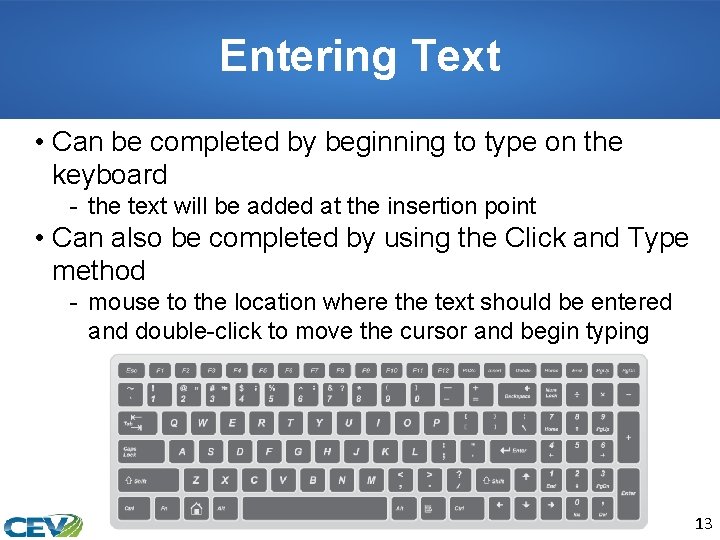
Entering Text • Can be completed by beginning to type on the keyboard - the text will be added at the insertion point • Can also be completed by using the Click and Type method - mouse to the location where the text should be entered and double-click to move the cursor and begin typing 13
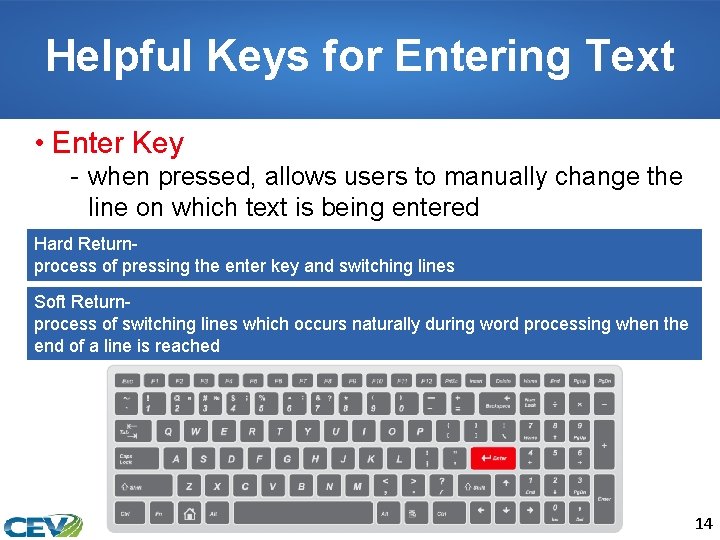
Helpful Keys for Entering Text • Enter Key - when pressed, allows users to manually change the line on which text is being entered Hard Returnprocess of pressing the enter key and switching lines Soft Returnprocess of switching lines which occurs naturally during word processing when the end of a line is reached 14
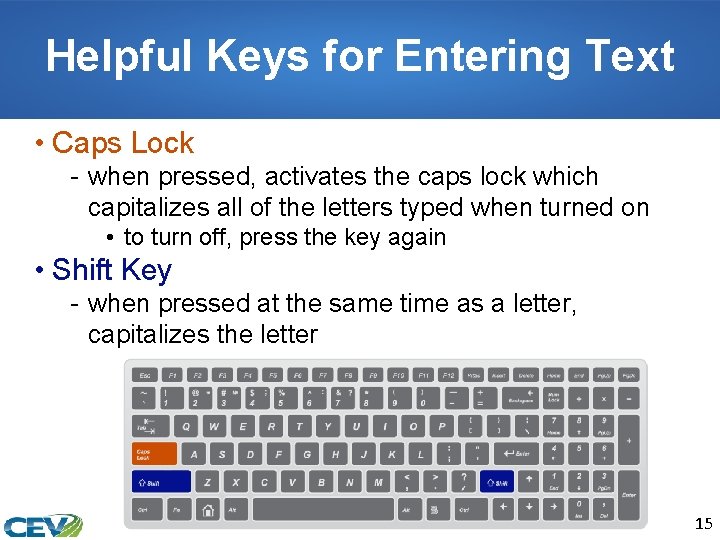
Helpful Keys for Entering Text • Caps Lock - when pressed, activates the caps lock which capitalizes all of the letters typed when turned on • to turn off, press the key again • Shift Key - when pressed at the same time as a letter, capitalizes the letter 15
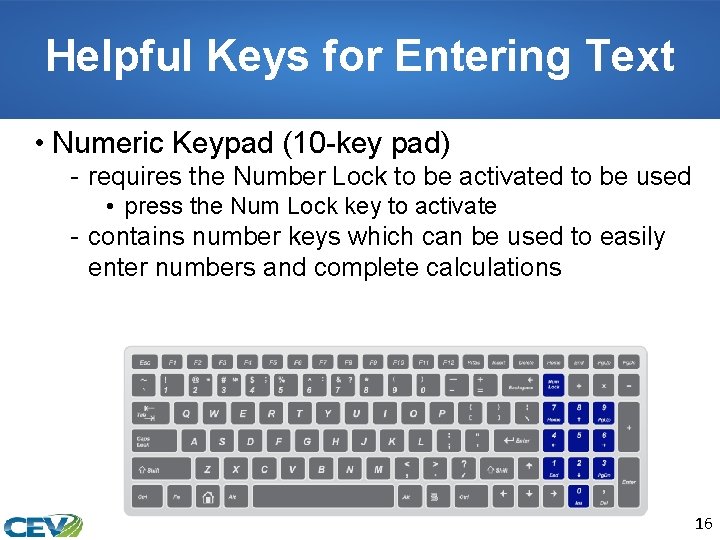
Helpful Keys for Entering Text • Numeric Keypad (10 -key pad) - requires the Number Lock to be activated to be used • press the Num Lock key to activate - contains number keys which can be used to easily enter numbers and complete calculations 16
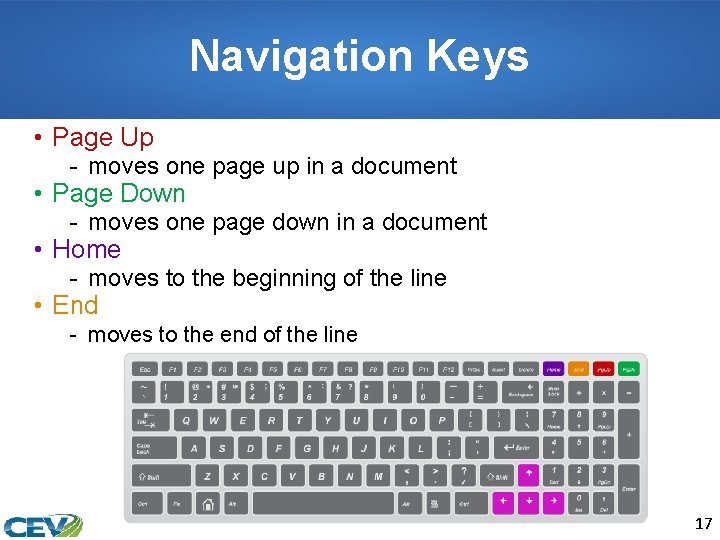
Navigation Keys • Page Up - moves one page up in a document • Page Down - moves one page down in a document • Home - moves to the beginning of the line • End - moves to the end of the line 17
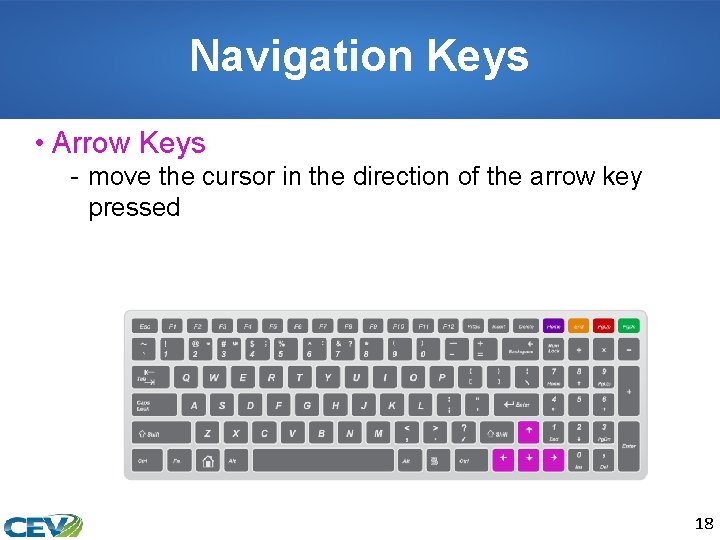
Navigation Keys • Arrow Keys - move the cursor in the direction of the arrow key pressed 18
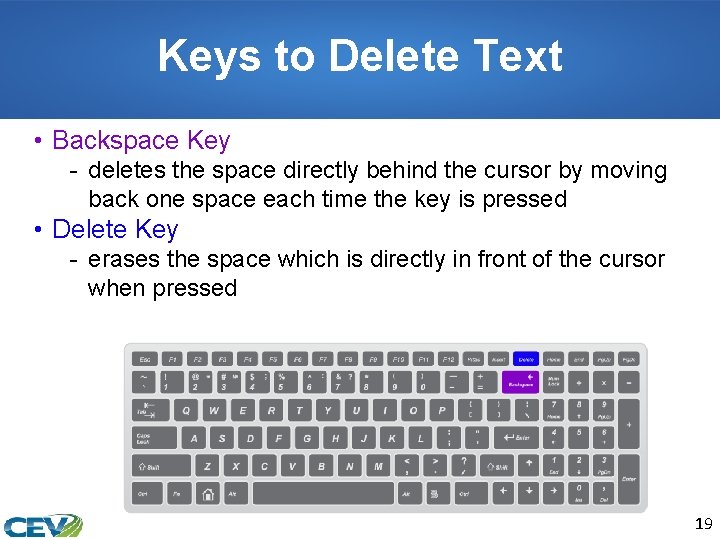
Keys to Delete Text • Backspace Key - deletes the space directly behind the cursor by moving back one space each time the key is pressed • Delete Key - erases the space which is directly in front of the cursor when pressed 19
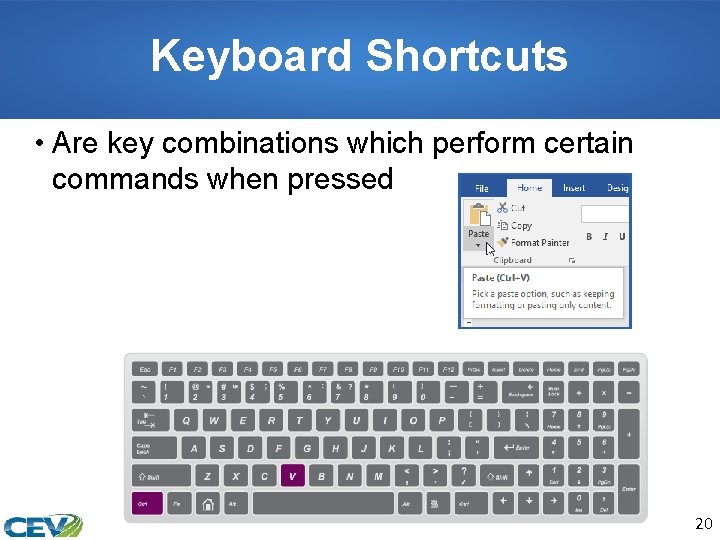
Keyboard Shortcuts • Are key combinations which perform certain commands when pressed 20
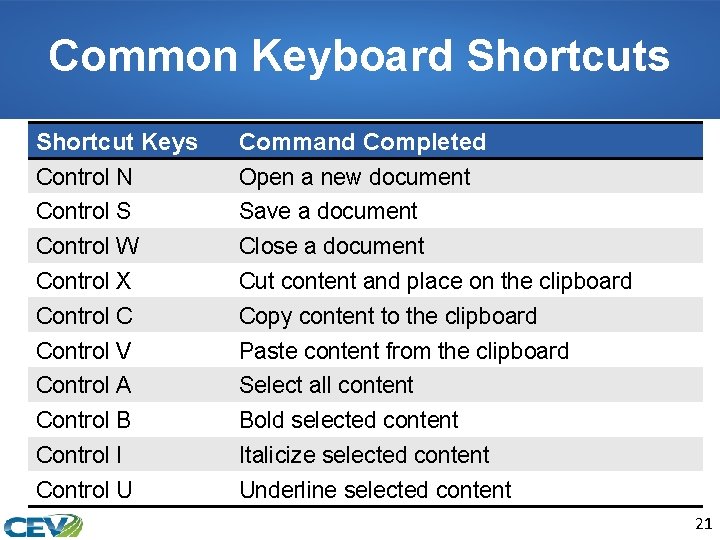
Common Keyboard Shortcuts Shortcut Keys Control N Control S Control W Control X Control C Control V Control A Control B Control I Control U Command Completed Open a new document Save a document Close a document Cut content and place on the clipboard Copy content to the clipboard Paste content from the clipboard Select all content Bold selected content Italicize selected content Underline selected content 21
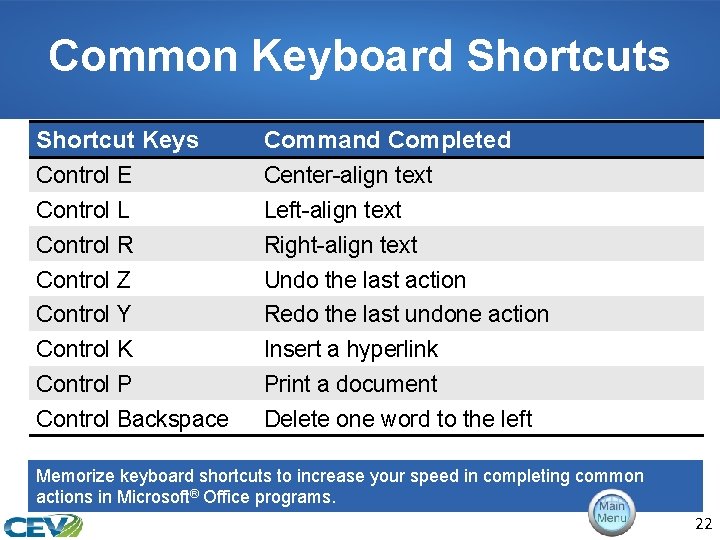
Common Keyboard Shortcuts Shortcut Keys Control E Control L Control R Control Z Control Y Control K Control P Control Backspace Command Completed Center-align text Left-align text Right-align text Undo the last action Redo the last undone action Insert a hyperlink Print a document Delete one word to the left Memorize keyboard shortcuts to increase your speed in completing common actions in Microsoft® Office programs. 22
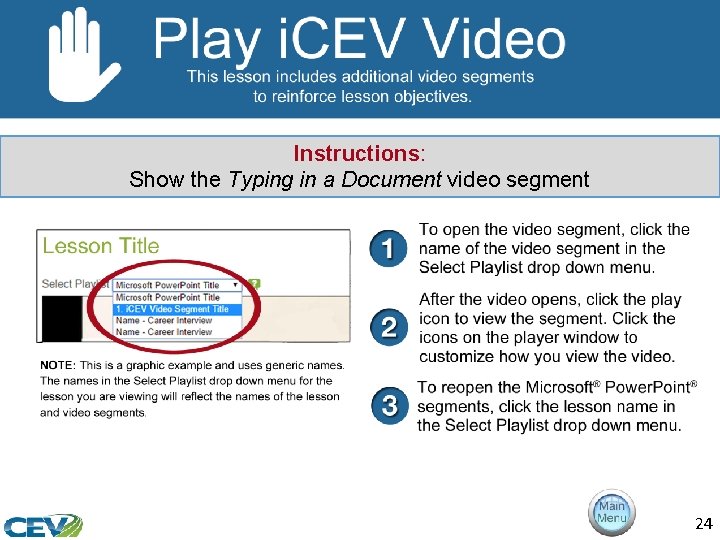
Instructions: Show the Typing in a Document video segment 24
Acknowledgements Director of Brand Management Megan O’Quinn Graphic Editors Hilary Jasper, Megan O’Quinn Collaborators Stephanie Tullis Business & Computer Technologies Educator Videography/Post Production Jake Saye Video Narrator Lora Cain V. P. of Brand Management Clayton Franklin Quality Control Director Angela Dehls © MMXVIII CEV Multimedia, Ltd. Executive Producer Gordon W. Davis, Ph. D. 25
- Slides: 25