
Objectives To demonstrate techniques for saving presentations To

Objectives • To demonstrate techniques for saving presentations. • To identify procedures for presenting and distributing presentations. 2
Main Menu Saving Presentations Presenting & Distributing Presentations Showing the Slide Show Creating & Printing Presentation Handouts 3
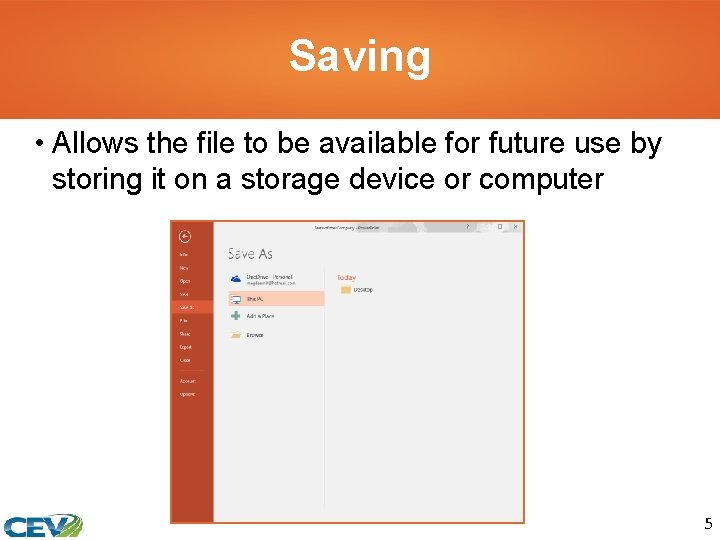
Saving • Allows the file to be available for future use by storing it on a storage device or computer 5
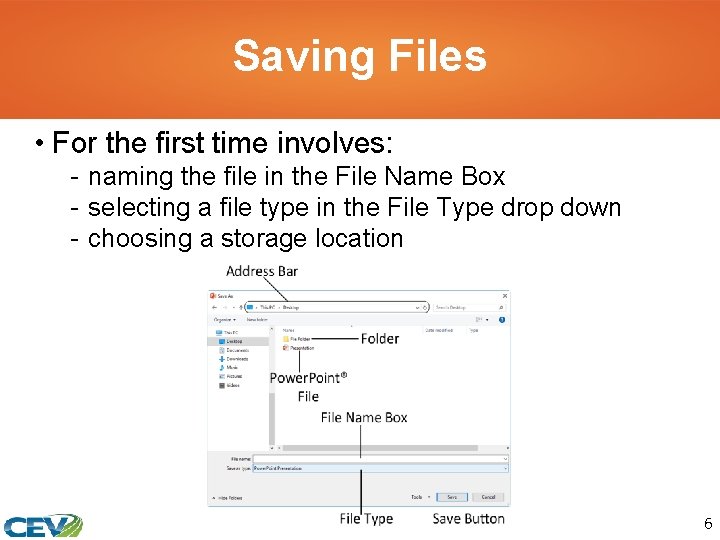
Saving Files • For the first time involves: - naming the file in the File Name Box - selecting a file type in the File Type drop down - choosing a storage location 6
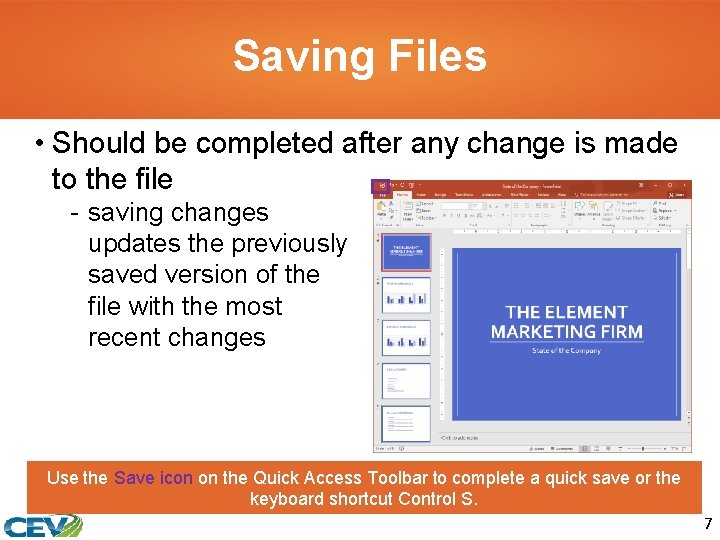
Saving Files • Should be completed after any change is made to the file - saving changes updates the previously saved version of the file with the most recent changes Use the Save icon on the Quick Access Toolbar to complete a quick save or the keyboard shortcut Control S. 7
Files • Are saved as different file types depending on the application used to create, save and open the file • Have file extensions which indicate the file type - for example, a file created in Power. Point® 2016 has a. pptx file extension File typethe format in which a file is stored; typically corresponds to the program used to create the file File extensiona dot followed by three or four characters at the end of the file name used to show the file type 8
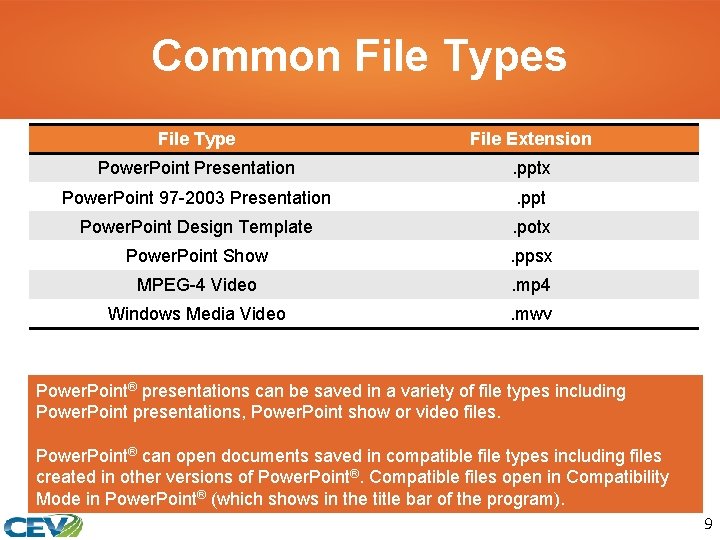
Common File Types File Type File Extension Power. Point Presentation . pptx Power. Point 97 -2003 Presentation . ppt Power. Point Design Template . potx Power. Point Show . ppsx MPEG-4 Video . mp 4 Windows Media Video . mwv Power. Point® presentations can be saved in a variety of file types including Power. Point presentations, Power. Point show or video files. Power. Point® can open documents saved in compatible file types including files created in other versions of Power. Point®. Compatible files open in Compatibility Mode in Power. Point® (which shows in the title bar of the program). 9
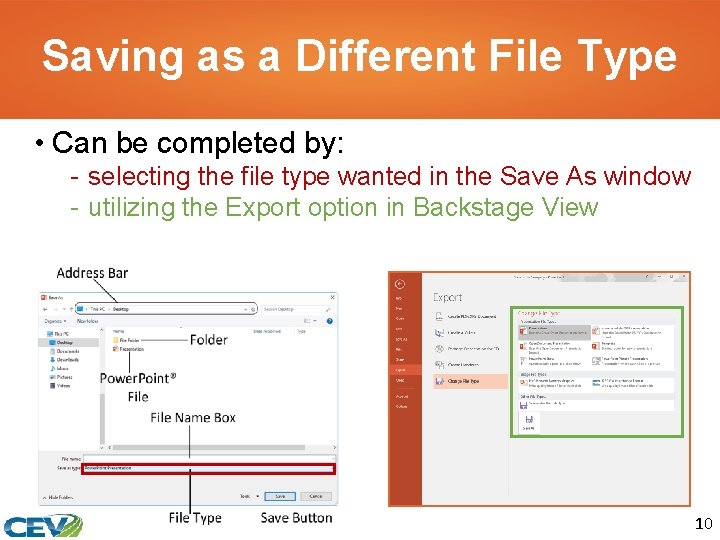
Saving as a Different File Type • Can be completed by: - selecting the file type wanted in the Save As window - utilizing the Export option in Backstage View 10
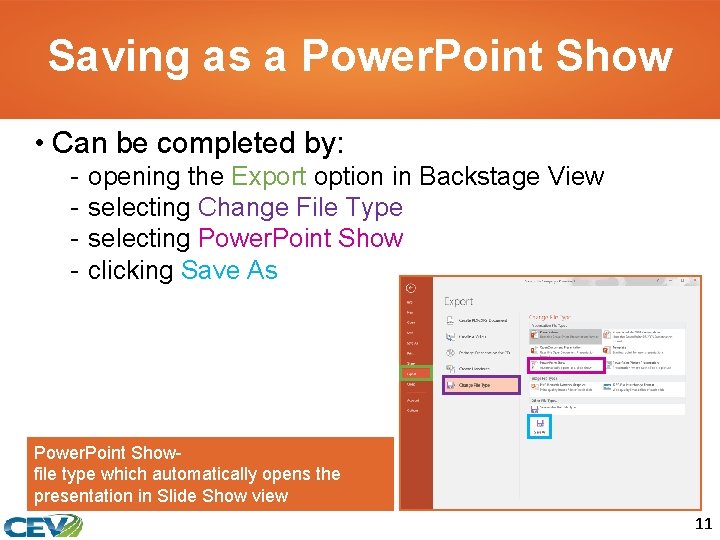
Saving as a Power. Point Show • Can be completed by: - opening the Export option in Backstage View selecting Change File Type selecting Power. Point Show clicking Save As Power. Point Showfile type which automatically opens the presentation in Slide Show view 11
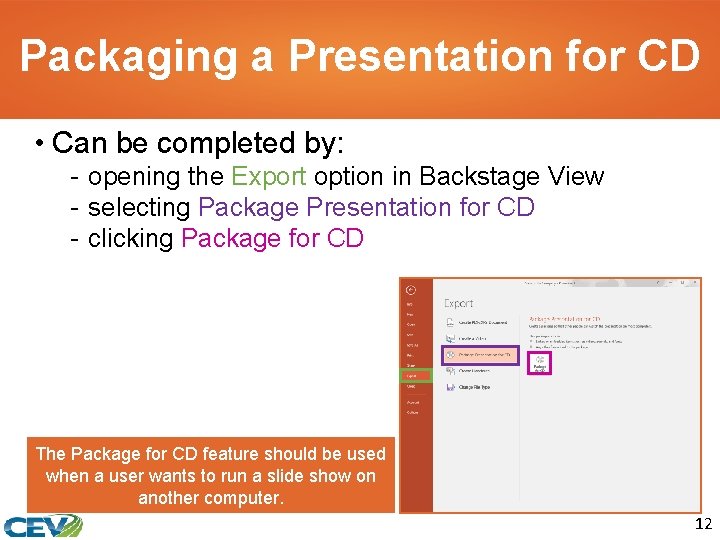
Packaging a Presentation for CD • Can be completed by: - opening the Export option in Backstage View - selecting Package Presentation for CD - clicking Package for CD The Package for CD feature should be used when a user wants to run a slide show on another computer. 12
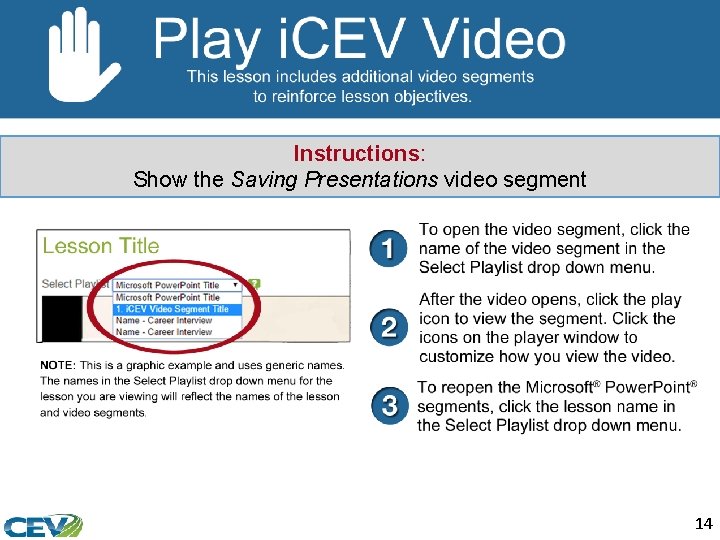
Instructions: Show the Saving Presentations video segment 14
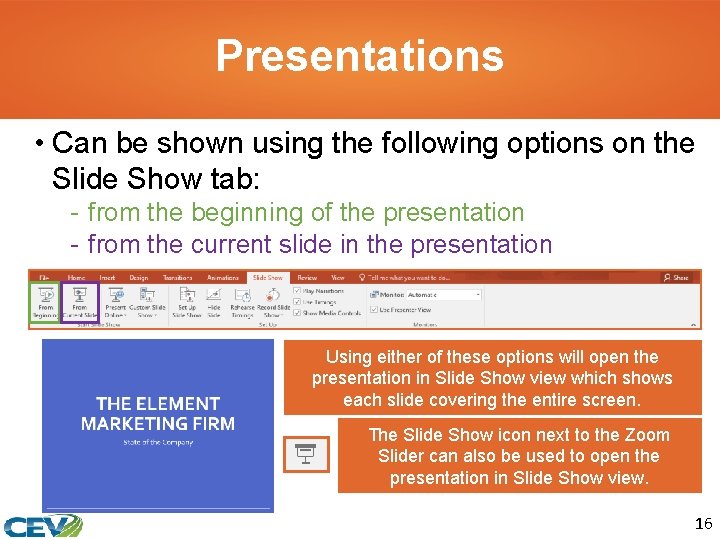
Presentations • Can be shown using the following options on the Slide Show tab: - from the beginning of the presentation - from the current slide in the presentation Using either of these options will open the presentation in Slide Show view which shows each slide covering the entire screen. The Slide Show icon next to the Zoom Slider can also be used to open the presentation in Slide Show view. 16
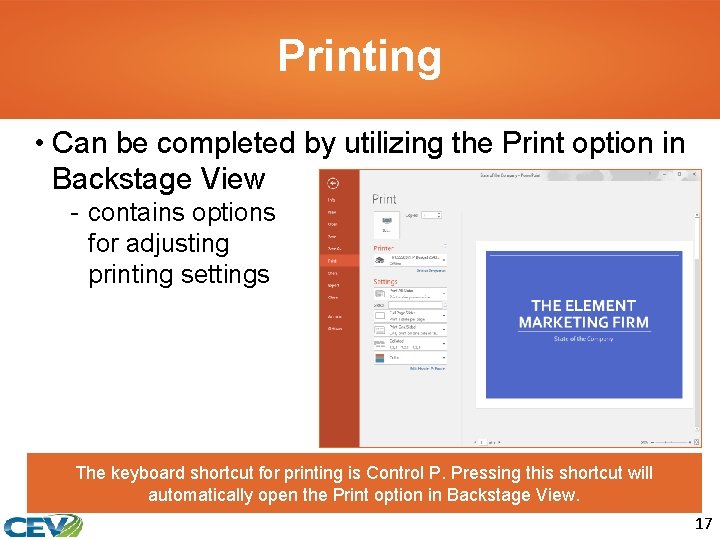
Printing • Can be completed by utilizing the Print option in Backstage View - contains options for adjusting printing settings The keyboard shortcut for printing is Control P. Pressing this shortcut will automatically open the Print option in Backstage View. 17
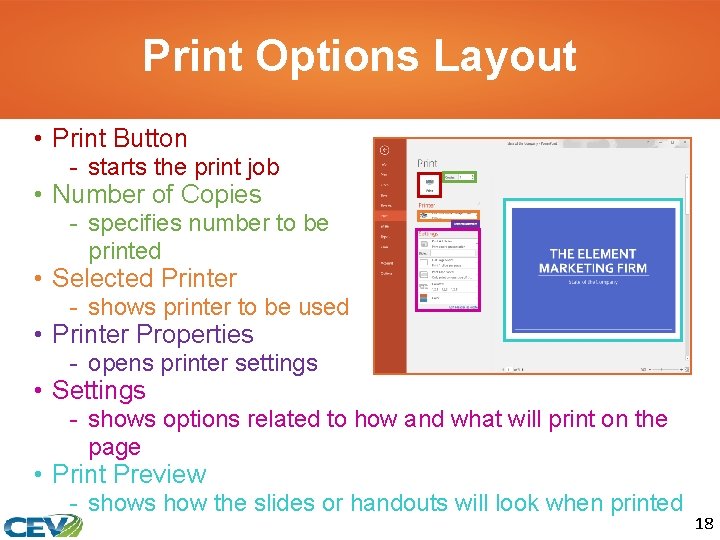
Print Options Layout • Print Button - starts the print job • Number of Copies - specifies number to be printed • Selected Printer - shows printer to be used • Printer Properties - opens printer settings • Settings - shows options related to how and what will print on the page • Print Preview - shows how the slides or handouts will look when printed 18
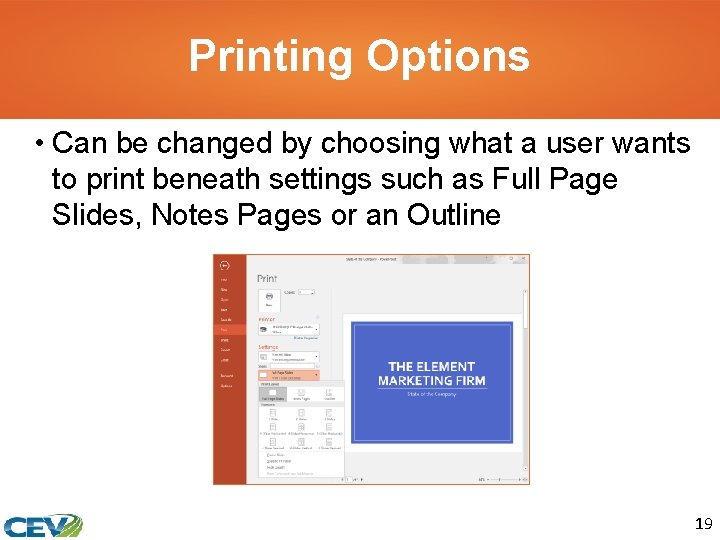
Printing Options • Can be changed by choosing what a user wants to print beneath settings such as Full Page Slides, Notes Pages or an Outline 19
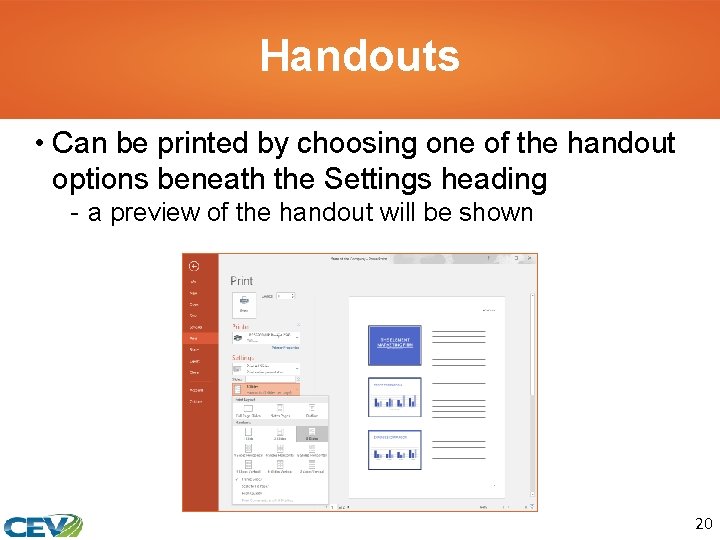
Handouts • Can be printed by choosing one of the handout options beneath the Settings heading - a preview of the handout will be shown 20
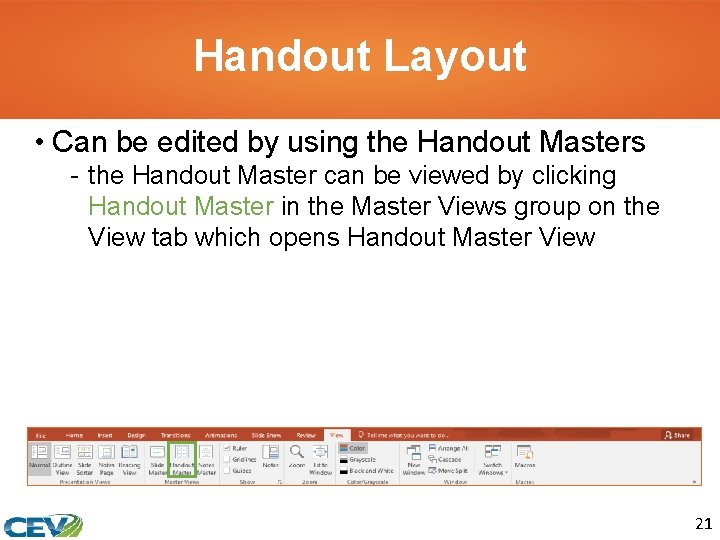
Handout Layout • Can be edited by using the Handout Masters - the Handout Master can be viewed by clicking Handout Master in the Master Views group on the View tab which opens Handout Master View 21
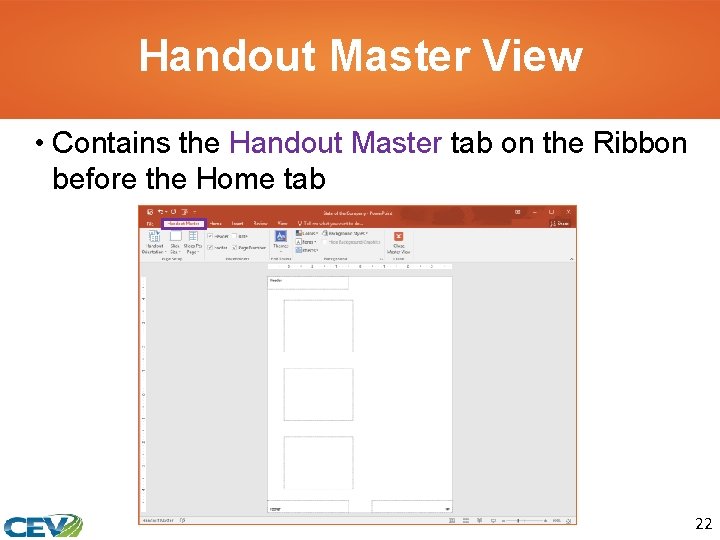
Handout Master View • Contains the Handout Master tab on the Ribbon before the Home tab 22
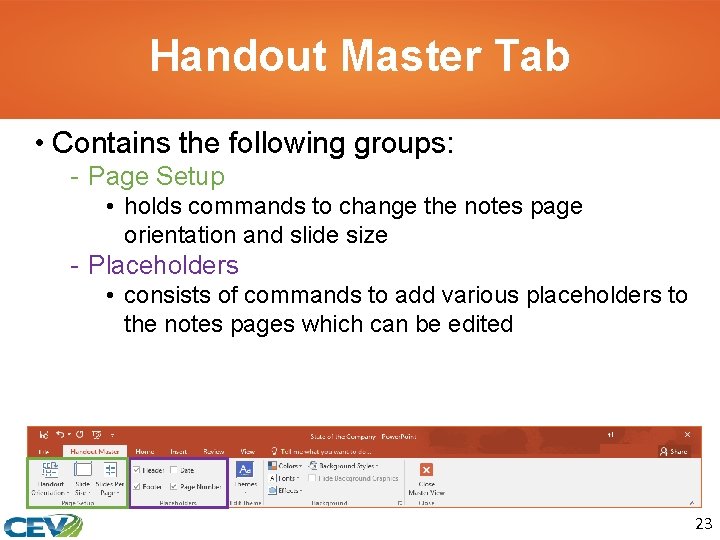
Handout Master Tab • Contains the following groups: - Page Setup • holds commands to change the notes page orientation and slide size - Placeholders • consists of commands to add various placeholders to the notes pages which can be edited 23
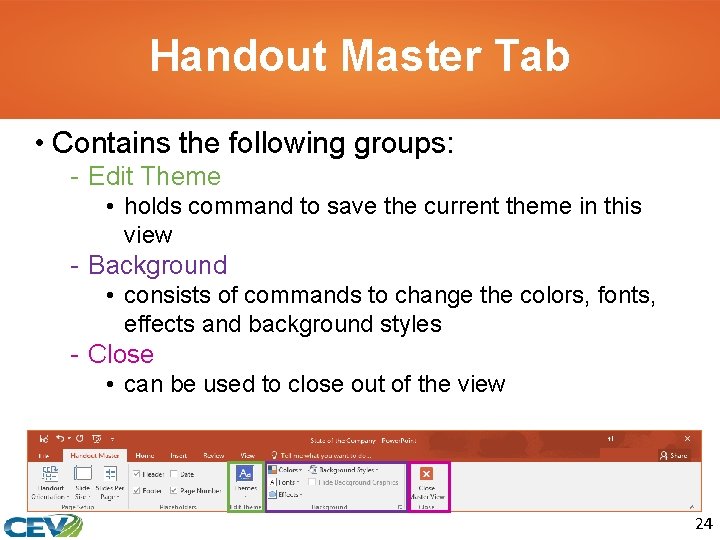
Handout Master Tab • Contains the following groups: - Edit Theme • holds command to save the current theme in this view - Background • consists of commands to change the colors, fonts, effects and background styles - Close • can be used to close out of the view 24
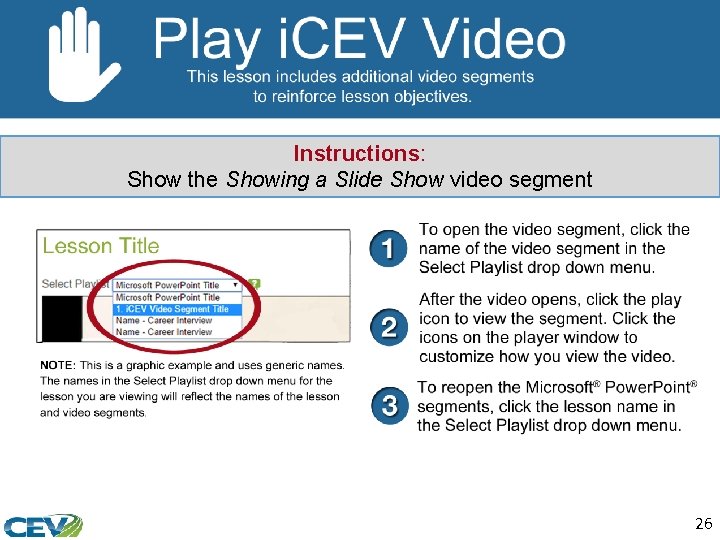
Instructions: Show the Showing a Slide Show video segment 26
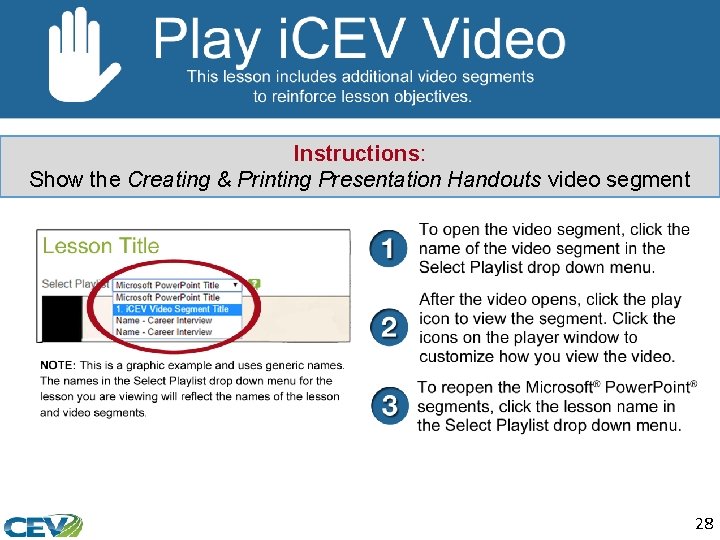
Instructions: Show the Creating & Printing Presentation Handouts video segment 28
Acknowledgements Director of Brand Management Megan O’Quinn Graphic Editors Hilary Jasper, Megan O’Quinn Collaborators Stephanie Tullis Business & Computer Technologies Educator Videography/Post Production Jake Saye Video Narrator Lora Cain V. P. of Brand Management Clayton Franklin Quality Control Director Angela Dehls © MMXVIII CEV Multimedia, Ltd. Executive Producer Gordon W. Davis, Ph. D. 29
- Slides: 29