
Objectives To define slide masters To demonstrate techniques
Objectives • To define slide masters. • To demonstrate techniques for creating and utilizing slide masters. • To analyze themes. • To show methods used to apply themes to presentations. 2
Main Menu Slide Masters Creating Slide Masters Themes Applying Themes 3

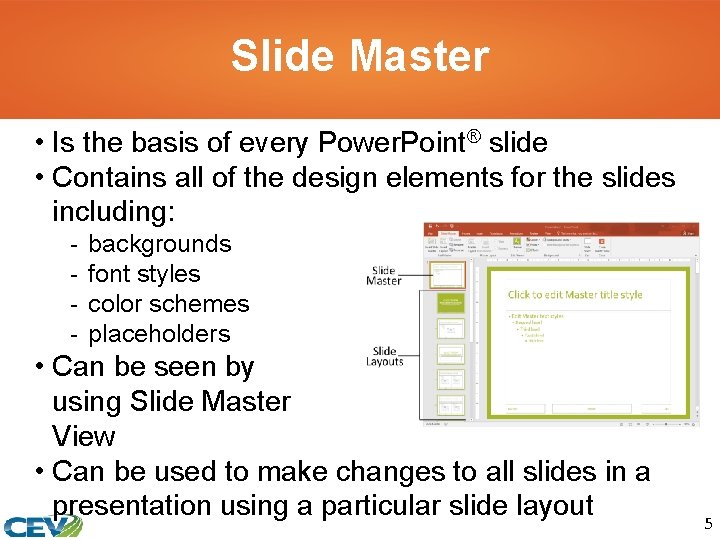
Slide Master • Is the basis of every Power. Point® slide • Contains all of the design elements for the slides including: - backgrounds font styles color schemes placeholders • Can be seen by using Slide Master View • Can be used to make changes to all slides in a presentation using a particular slide layout 5
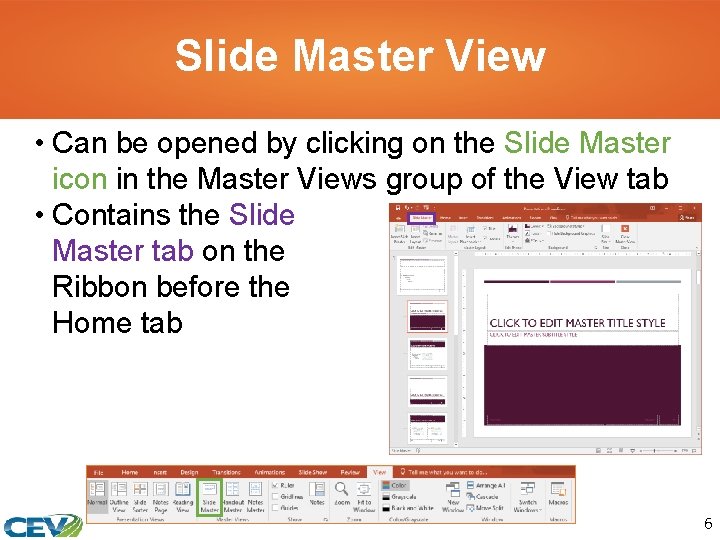
Slide Master View • Can be opened by clicking on the Slide Master icon in the Master Views group of the View tab • Contains the Slide Master tab on the Ribbon before the Home tab 6
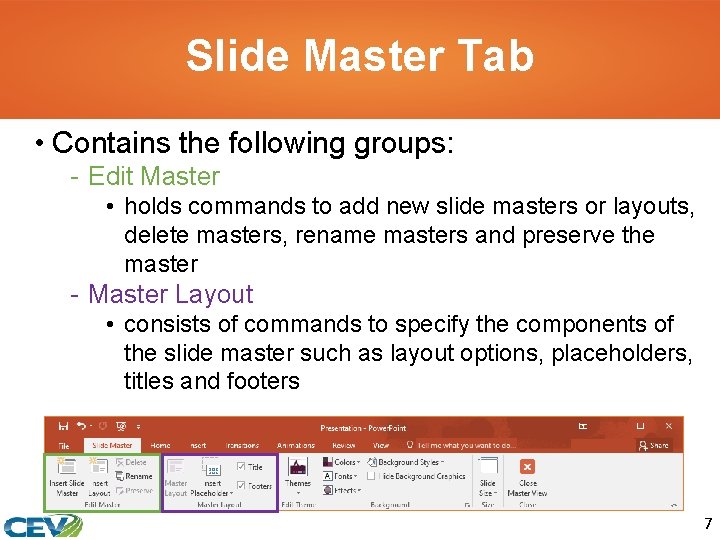
Slide Master Tab • Contains the following groups: - Edit Master • holds commands to add new slide masters or layouts, delete masters, rename masters and preserve the master - Master Layout • consists of commands to specify the components of the slide master such as layout options, placeholders, titles and footers 7
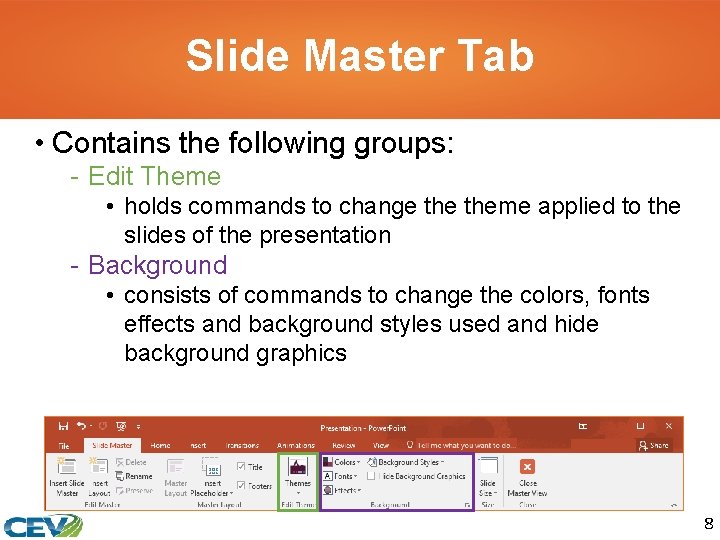
Slide Master Tab • Contains the following groups: - Edit Theme • holds commands to change theme applied to the slides of the presentation - Background • consists of commands to change the colors, fonts effects and background styles used and hide background graphics 8
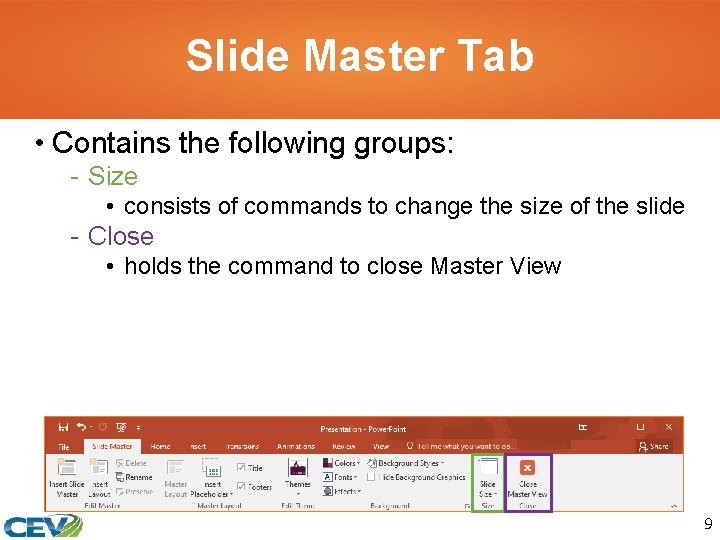
Slide Master Tab • Contains the following groups: - Size • consists of commands to change the size of the slide - Close • holds the command to close Master View 9
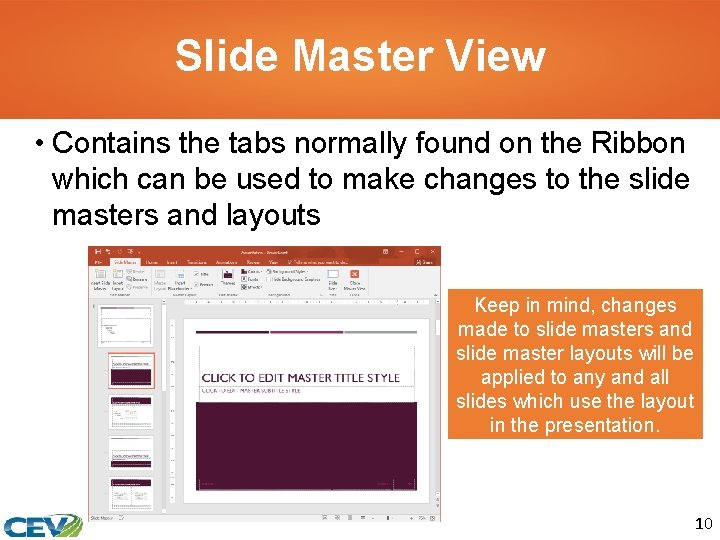
Slide Master View • Contains the tabs normally found on the Ribbon which can be used to make changes to the slide masters and layouts Keep in mind, changes made to slide masters and slide master layouts will be applied to any and all slides which use the layout in the presentation. 10
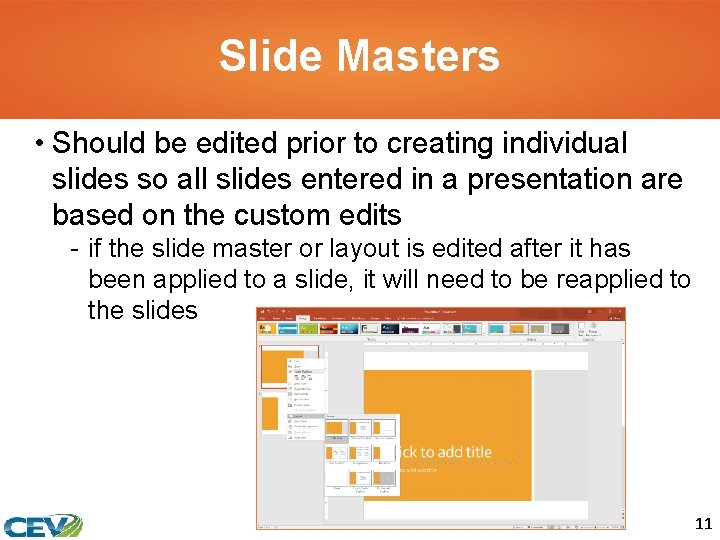
Slide Masters • Should be edited prior to creating individual slides so all slides entered in a presentation are based on the custom edits - if the slide master or layout is edited after it has been applied to a slide, it will need to be reapplied to the slides 11
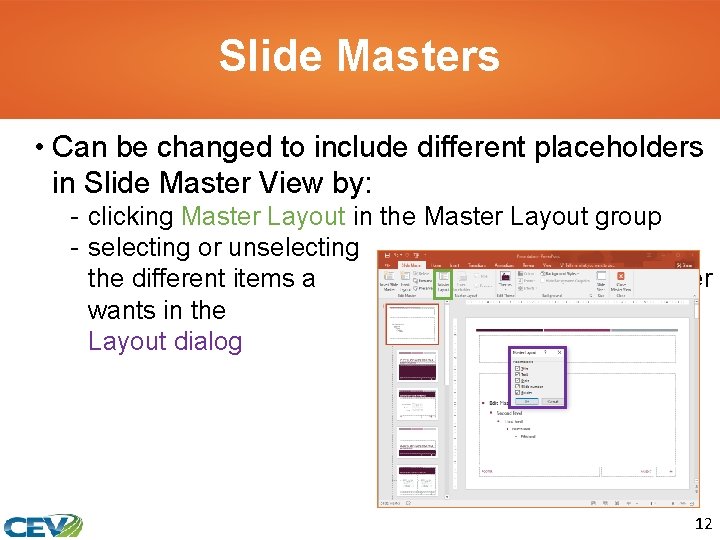
Slide Masters • Can be changed to include different placeholders in Slide Master View by: - clicking Master Layout in the Master Layout group - selecting or unselecting the different items a user wants in the Master Layout dialog box 12
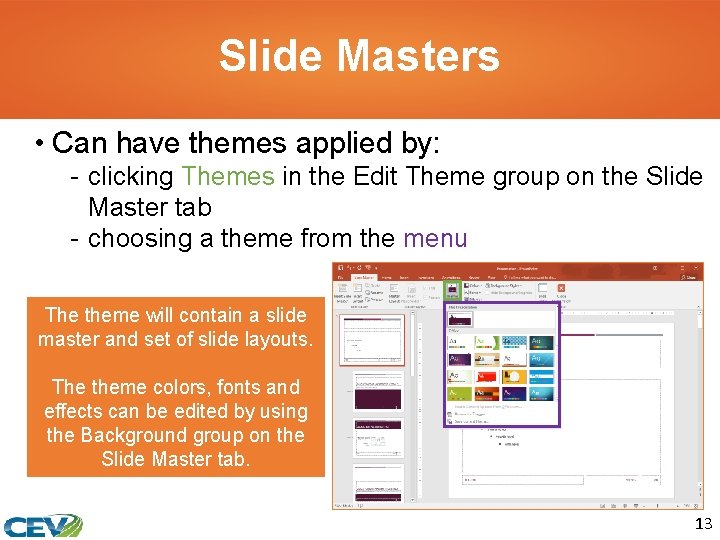
Slide Masters • Can have themes applied by: - clicking Themes in the Edit Theme group on the Slide Master tab - choosing a theme from the menu The theme will contain a slide master and set of slide layouts. The theme colors, fonts and effects can be edited by using the Background group on the Slide Master tab. 13
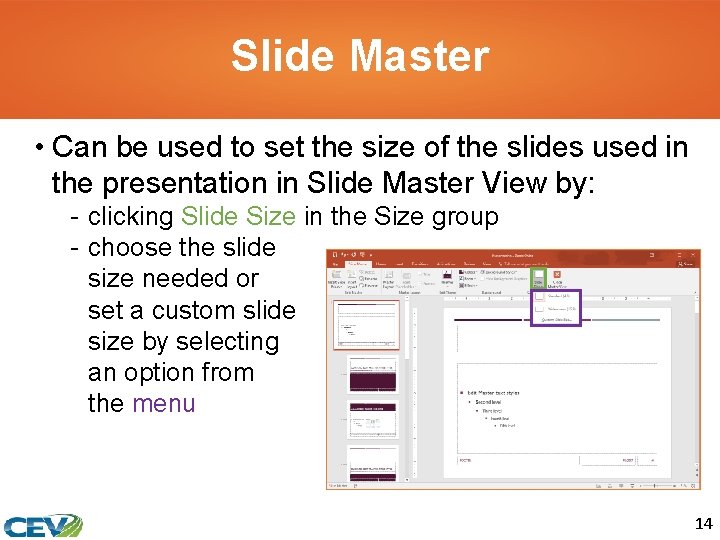
Slide Master • Can be used to set the size of the slides used in the presentation in Slide Master View by: - clicking Slide Size in the Size group - choose the slide size needed or set a custom slide size by selecting an option from the menu 14
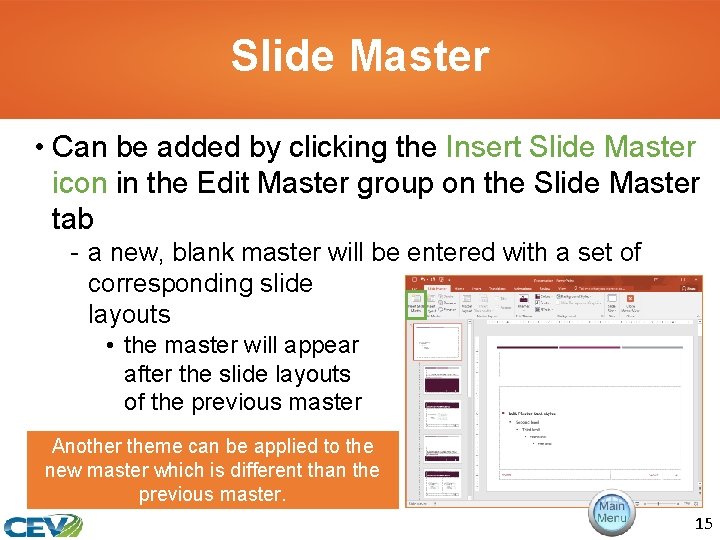
Slide Master • Can be added by clicking the Insert Slide Master icon in the Edit Master group on the Slide Master tab - a new, blank master will be entered with a set of corresponding slide layouts • the master will appear after the slide layouts of the previous master Another theme can be applied to the new master which is different than the previous master. 15
Instructions: Show the Creating Slide Masters video segment 17
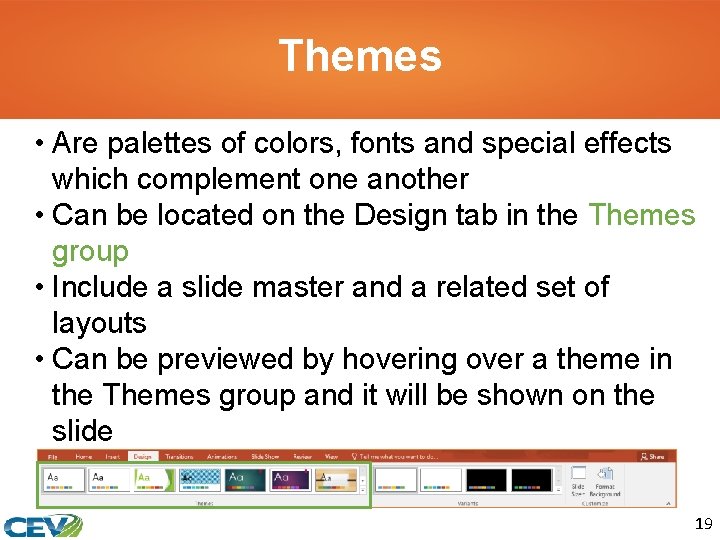
Themes • Are palettes of colors, fonts and special effects which complement one another • Can be located on the Design tab in the Themes group • Include a slide master and a related set of layouts • Can be previewed by hovering over a theme in the Themes group and it will be shown on the slide 19
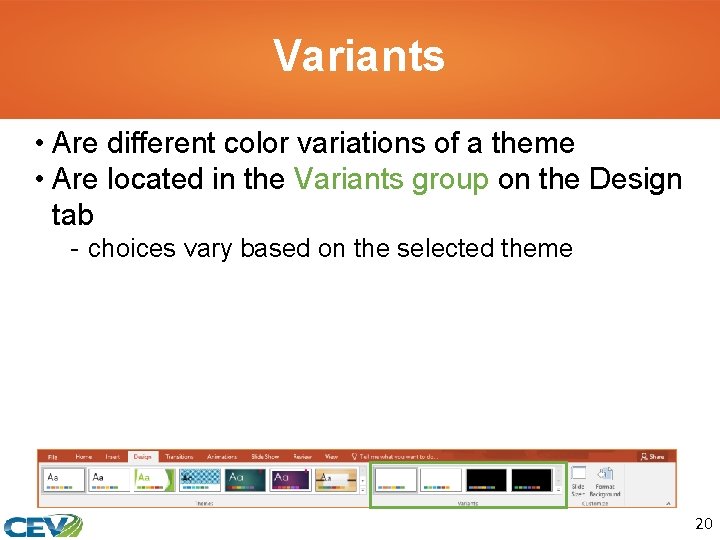
Variants • Are different color variations of a theme • Are located in the Variants group on the Design tab - choices vary based on the selected theme 20
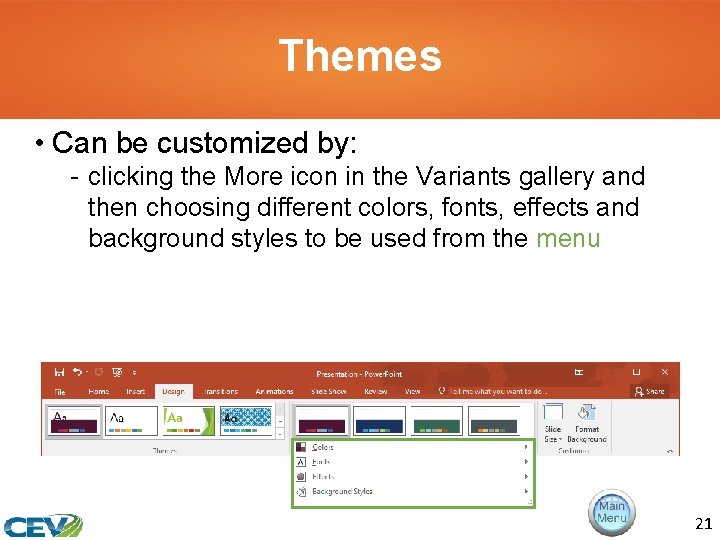
Themes • Can be customized by: - clicking the More icon in the Variants gallery and then choosing different colors, fonts, effects and background styles to be used from the menu 21
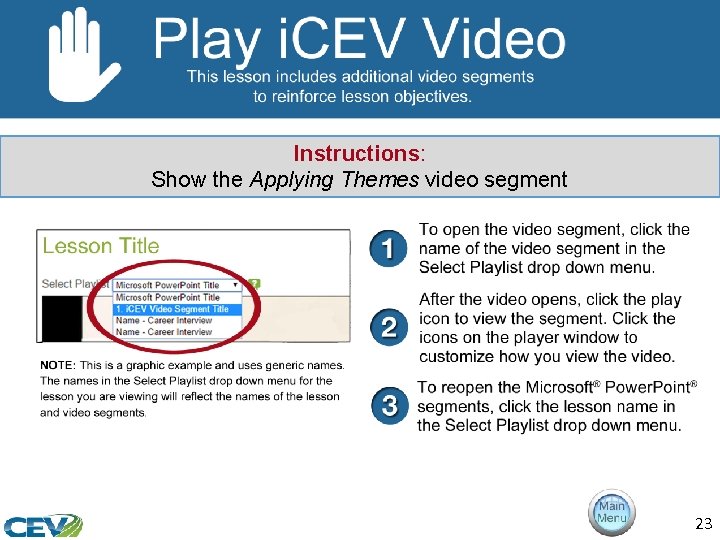
Instructions: Show the Applying Themes video segment 23
Acknowledgements Director of Brand Management Megan O’Quinn Graphic Editors Hilary Jasper, Megan O’Quinn Collaborators Stephanie Tullis Business & Computer Technologies Educator Videography/Post Production Jake Saye Video Narrator Lora Cain V. P. of Brand Management Clayton Franklin Quality Control Director Angela Dehls © MMXVIII CEV Multimedia, Ltd. Executive Producer Gordon W. Davis, Ph. D. 24
- Slides: 24