
Objectives Event Introduction WhileWend Loop Types DoWhile Determinate
Objectives Event Introduction While-Wend Loop Types Do-While Determinate Do-Until Indeterminate For-Next Exit z. Introduction to Computer Programming IT-104 Unit Five – Debugging – Using the Tools Provided by VB 6. 0 1/18/2022 Intro to Comp. Programming - IT 104 1
Objectives Home z. Define and discuss the three types of errors in a computer program. z. Discuss and illustrate Syntactical errors. z. Discuss and illustrate Run-Time errors. z. Discuss and illustrate Logic errors. z. Discuss the installation and use the Debug toolbar. 1/18/2022 Intro to Comp. Programming - IT 104 2
Objectives z. Discuss and illustrate Breakpoints. z. Discuss and illustrate Immediate window. z. Discuss and illustrate window. 1/18/2022 the use of the Watch the use of the Locals Intro to Comp. Programming - IT 104 3
Objectives z. Discuss and illustrate the use of the On Error statement in VB Coding. z. Define and discuss the Err object in Visual Basic. 1/18/2022 Intro to Comp. Programming - IT 104 4
Introduction Home No matter how good a programmer you become, you are human, and as a result, you will commit errors. Some errors are caused by inexperience, some by incomplete knowledge, some by bad judgement, but all cases create errors (or ‘bugs’) in your program that must be ferreted out and corrected. 1/18/2022 Intro to Comp. Programming - IT 104 5
Error Types z. There are three types of errors in Visual Basic programs, as there are in all computer programs : y. Syntax errors y. Run-time errors y. Logic errors z. VB will trap the first two types of errors, but you are on your own with logic errors. 1/18/2022 Intro to Comp. Programming - IT 104 6
Syntax Errors Home z. Syntax errors are caused by incorrect grammatical structure of the code in the program. z. We have all generated syntax errors and have seen the result. z. When typing the code in a procedure, the compiler is continuously 1/18/2022 Intro to Comp. Programming - IT 104 7
Syntax Errors Home evaluating your code. z. If you hit the ‘Enter’ key and the line contains a syntax error, the compiler will immediately alert you to this fact by turning the text red, which is the default color in the compiler settings for alerting the programmer to 1/18/2022 Intro to Comp. Programming - IT 104 8
Syntax Errors Home Syntax errors. z. This color can be changed, as can most compiler error settings, but this is best done after you have considerable experience, and you do not change the settings in the labs here. 1/18/2022 Intro to Comp. Programming - IT 104 9
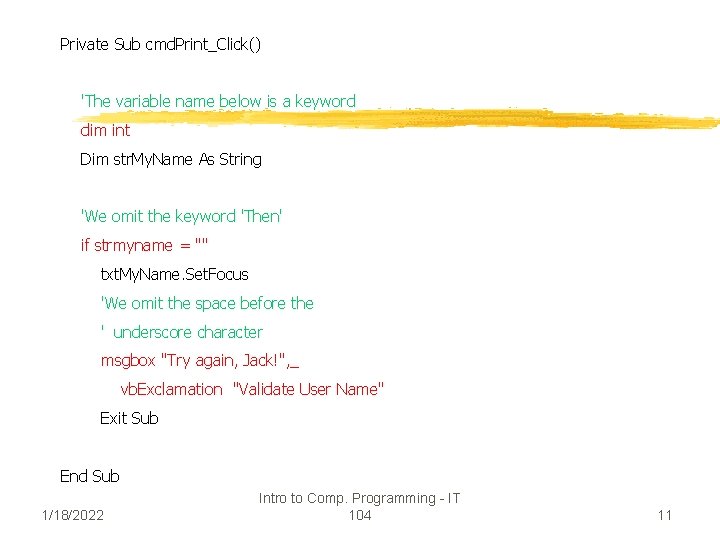
Syntax Errors Home z. The following slide contains a sample procedure where I have deliberately generated a number of syntactical errors, and as you will see, the compiler has successfully trapped them, turned the text red to alert me (actually, it also produced a dialog box at the same time to warn me of the faux pas’ I just committed. 1/18/2022 Intro to Comp. Programming - IT 104 10
Private Sub cmd. Print_Click() 'The variable name below is a keyword dim int Dim str. My. Name As String 'We omit the keyword 'Then' if strmyname = "" txt. My. Name. Set. Focus 'We omit the space before the ' underscore character msgbox "Try again, Jack!", _ vb. Exclamation "Validate User Name" Exit Sub End Sub 1/18/2022 Intro to Comp. Programming - IT 104 11
Syntax Errors z. The programmer in this case should be well aware that he has made a number of errors, and should he try to run this program, it won’t go any further than the first syntactical error. 1/18/2022 Intro to Comp. Programming - IT 104 12
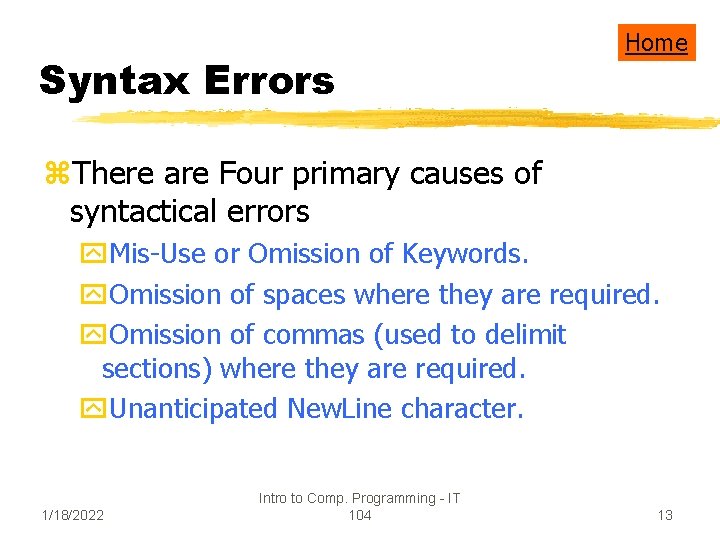
Syntax Errors Home z. There are Four primary causes of syntactical errors y. Mis-Use or Omission of Keywords. y. Omission of spaces where they are required. y. Omission of commas (used to delimit sections) where they are required. y. Unanticipated New. Line character. 1/18/2022 Intro to Comp. Programming - IT 104 13
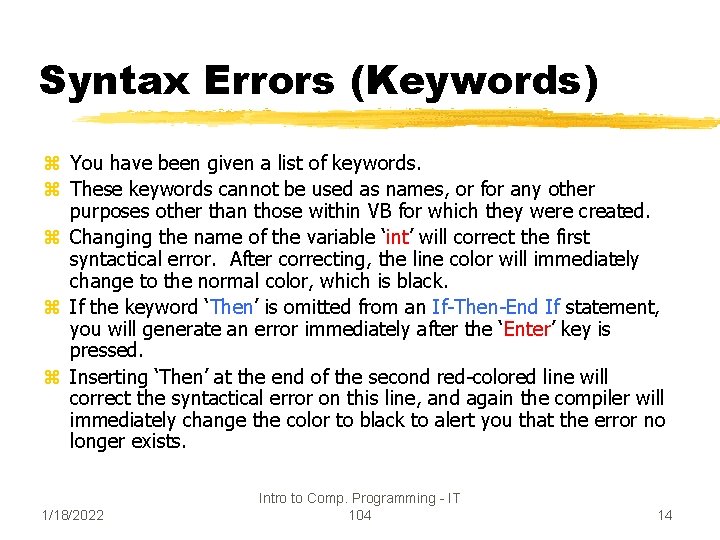
Syntax Errors (Keywords) z You have been given a list of keywords. z These keywords cannot be used as names, or for any other purposes other than those within VB for which they were created. z Changing the name of the variable ‘int’ will correct the first syntactical error. After correcting, the line color will immediately change to the normal color, which is black. z If the keyword ‘Then’ is omitted from an If-Then-End If statement, you will generate an error immediately after the ‘Enter’ key is pressed. z Inserting ‘Then’ at the end of the second red-colored line will correct the syntactical error on this line, and again the compiler will immediately change the color to black to alert you that the error no longer exists. 1/18/2022 Intro to Comp. Programming - IT 104 14
Run-Time Errors z. Run-Time Errors are generated when a statement tries to attempt an action that is not possible to execute. For example, a statement trying to divide a value by zero, or a statement trying to open a nonexistent file, or a file with an incorrect path will all generate a run-time error. 1/18/2022 Intro to Comp. Programming - IT 104 15
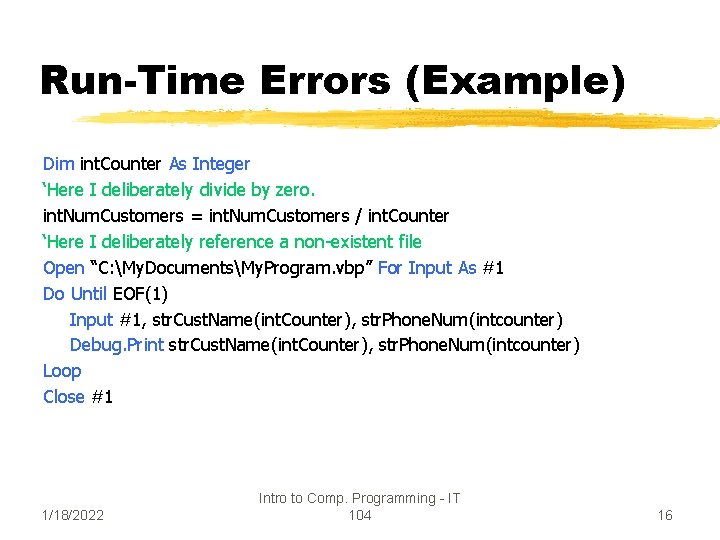
Run-Time Errors (Example) Dim int. Counter As Integer ‘Here I deliberately divide by zero. int. Num. Customers = int. Num. Customers / int. Counter ‘Here I deliberately reference a non-existent file Open “C: My. DocumentsMy. Program. vbp” For Input As #1 Do Until EOF(1) Input #1, str. Cust. Name(int. Counter), str. Phone. Num(intcounter) Debug. Print str. Cust. Name(int. Counter), str. Phone. Num(intcounter) Loop Close #1 1/18/2022 Intro to Comp. Programming - IT 104 16
Logic Errors z. Logic Errors occur when your program does execute, but does not produce the desired output. For example, if we create a calculator to add two numbers, and the result of adding the same two numbers produces different results each time they are added, or produces an obviously wrong result (2 + 2 = 9), then we have 1/18/2022 Intro to Comp. Programming - IT 104 17
Logic Errors a logic error in our program. z. Logic errors are the hardest type of error to trace and correct. z. Visual Basic has a plethora of tools to help you trace and find your error, but ultimately, you must use your brain to trace your faulty logic. 1/18/2022 Intro to Comp. Programming - IT 104 18
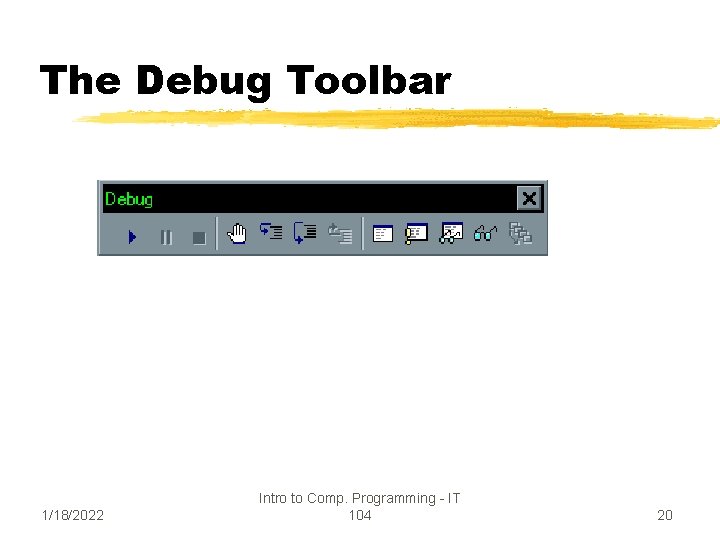
The Debug Toolbar Home z. The Debug toolbar can be added to your VB IDE if it is not already present. z. To add the Debug toolbar, select ‘View’ from the menu, then select ‘Toolbars’ and select the ‘Debug’ option from the fly-out menu. z. You will get a toolbar that looks like the object on the next slide. 1/18/2022 Intro to Comp. Programming - IT 104 19
The Debug Toolbar 1/18/2022 Intro to Comp. Programming - IT 104 20
The Debug Toolbar z. The toolbar will float on the desktop, or you can dock the toolbar by dragging it to the desired location in the IDE either directly underneath the existing toolbars, or inserting it on top of the existing toolbars. z. A discussion of the features of the toolbar is found on page 6. 5 of your text book. 1/18/2022 Intro to Comp. Programming - IT 104 21
Breakpoints z. A Breakpoint is a device in the VB IDE that allows the programmer to stop the execution of the program at that point. z. The Breakpoint is inserted by simply clicking once in the left border box in the code window. z. The Breakpoint will be denoted by a red dot in the border area. (See next slide) 1/18/2022 Intro to Comp. Programming - IT 104 22
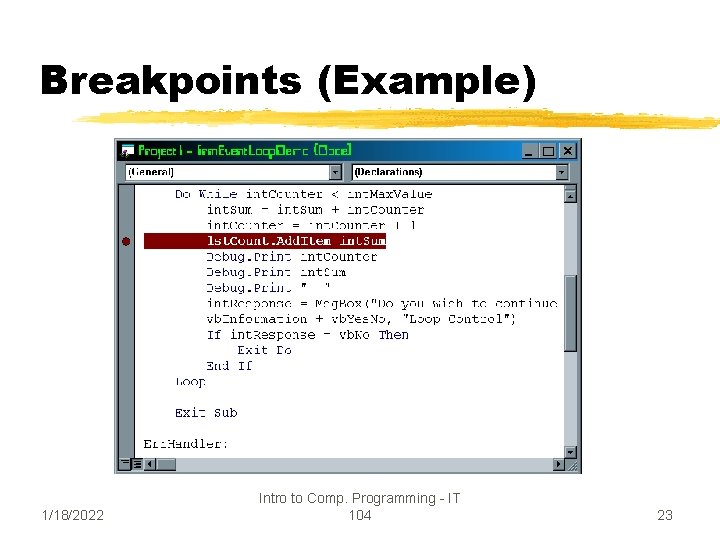
Breakpoints (Example) 1/18/2022 Intro to Comp. Programming - IT 104 23
Breakpoints z. Clicking in the area over the red dot again turns (toggles) the breakpoint off. z. A programmer may insert multiple Breakpoints in his code. z. Once a Breakpoint has been inserted, the program will only execute up to that line, and then it will pause. 1/18/2022 Intro to Comp. Programming - IT 104 24
Breakpoints Home z. Breakpoints are used in conjunction with the Debug toolbar to examine the behavior of objects and variables in a program at a particular point in the execution of that program. z. As we have already seen, starting a program in Debug mode, either by selecting the icon on the Debug toolbar, 1/18/2022 Intro to Comp. Programming - IT 104 25
Breakpoints or by selecting ‘Debug|Step Into’ from the IDE menu will cause a program to begin execution, and it will force you to confirm the execution of the program, one line at a time, by pressing the ‘F 8’ key from the keyboard. z. By moving the mouse cursor over objects (variables and form controls), we can 1/18/2022 Intro to Comp. Programming - IT 104 26
Breakpoints examine the value of the object at that point in the program. z. This is quite useful, but sometimes there a number of values that must be examined at once. For this purpose, we have three additional items in the VB IDE that we can use. 1/18/2022 Intro to Comp. Programming - IT 104 27
Debug Windows z. There are three separate windows, each having its own unique function that assist us in debugging applications : y. Immediate window y. Watch window y. Locals window 1/18/2022 Intro to Comp. Programming - IT 104 28
The Immediate Window z. The Immediate Window is invoked by adding the statement Debug. Print to your code. z. You can print the value of an object, or you can print any string using this device. z. When the program is executed, the Immediate Window will automatically open, and the values will be printed to 1/18/2022 Intro to Comp. Programming - IT 104 29
The Immediate Window the window. z. If you close the window using the control box in the upper right window, it will no longer display during that session, and you must re-open the window using the ‘View|Immediate Window’ menu options. z. The next slide gives us a sample of this window and its uses. 1/18/2022 Intro to Comp. Programming - IT 104 30
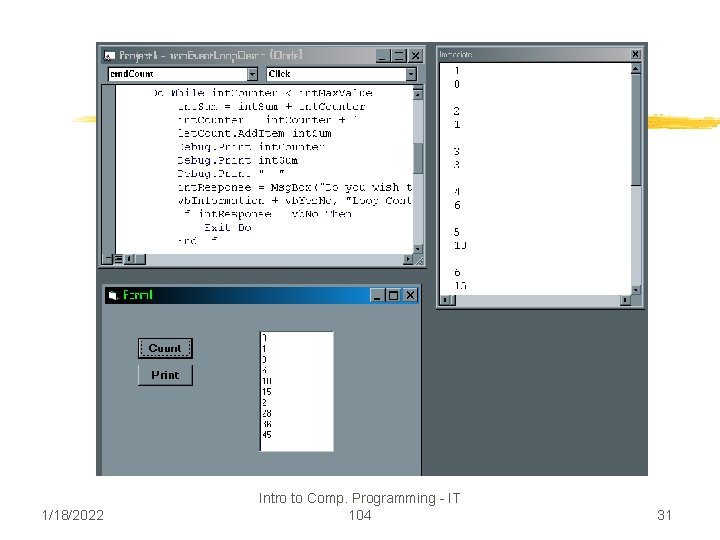
1/18/2022 Intro to Comp. Programming - IT 104 31
The Immediate Window z. The significant difference between the Immediate window and the other two is that the Immediate Window can display results as the program is running in normal run-time mode (not debug mode). z. This feature makes is quite useful for examining the contents of large objects, such as files, arrays, list boxes. 1/18/2022 Intro to Comp. Programming - IT 104 32
The Immediate Window Home z. Note that the box contains a built-in scroll bar that allows the user to scroll through very large numbers of values. 1/18/2022 Intro to Comp. Programming - IT 104 33
The Watch Window z. Unlike the Immediate window, the Watch window can only be used in debug mode. z. The Watch window is used to check the variable or object value. It can also evaluate and display the value of an expression. z. The Watch window may be accessed from 1/18/2022 Intro to Comp. Programming - IT 104 34
The Watch Window either the Debug toolbar or from the IDE menu. z. To add a variable, object, or an expression for viewing, you have to add it to the Watch window. Either the ‘Debug|Add Watch’ menu option or choosing the icon from the Debug toolbar will bring up the Add Watch Dialog. 1/18/2022 Intro to Comp. Programming - IT 104 35
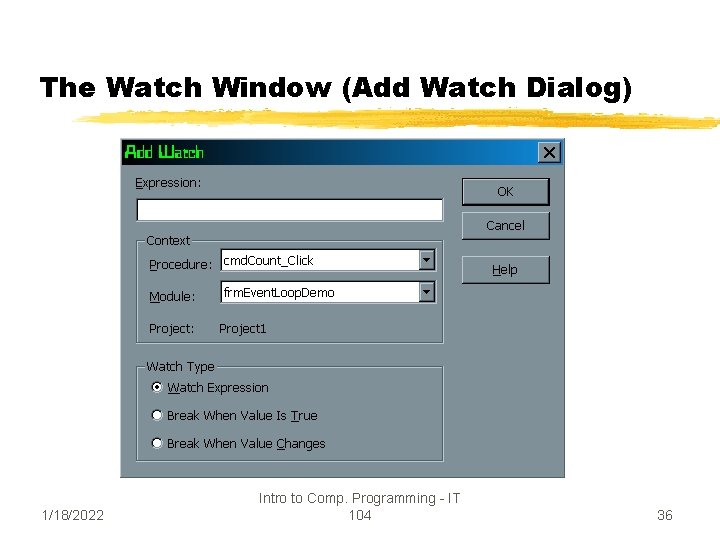
The Watch Window (Add Watch Dialog) 1/18/2022 Intro to Comp. Programming - IT 104 36
The Watch Window z. Notice that the dialog allows us to limit the focus to particular events, or the entire application. z. We can also cause a breakpoint whenever the value either becomes true, or the value changes in any way. z. These features make the Watch window 1/18/2022 Intro to Comp. Programming - IT 104 37
The Watch Window an extremely useful tool. z. Notice again that the first text box of the dialog allows us to insert a large expression, the name of a variable, or the name. property of a particular control used in an application. 1/18/2022 Intro to Comp. Programming - IT 104 38
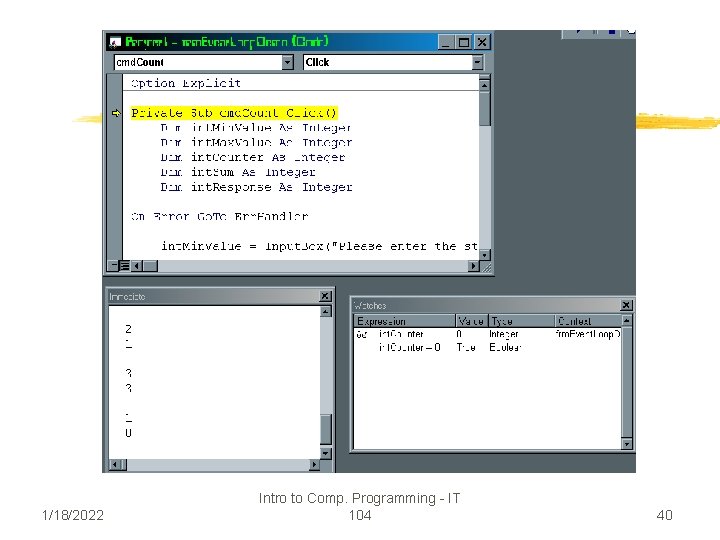
The Watch Window z. In the following example, we illustrate the use of the Watch window. z. I have added a watch to display the value of the variable int. Counter, and a watch to display the value of an expression int. Counter = 0. z. As the program initially starts in debug mode we get : 1/18/2022 Intro to Comp. Programming - IT 104 39
1/18/2022 Intro to Comp. Programming - IT 104 40
The Watch Window z As with all numeric variables, the initial value of int. Counter is zero, and thus the expression int. Counter =0 evaluates to TRUE, which is displayed in the Watch window z The value of int. Counter is also displayed in the window. z These are the real-time values of our variable and expression at this point. 1/18/2022 Intro to Comp. Programming - IT 104 41
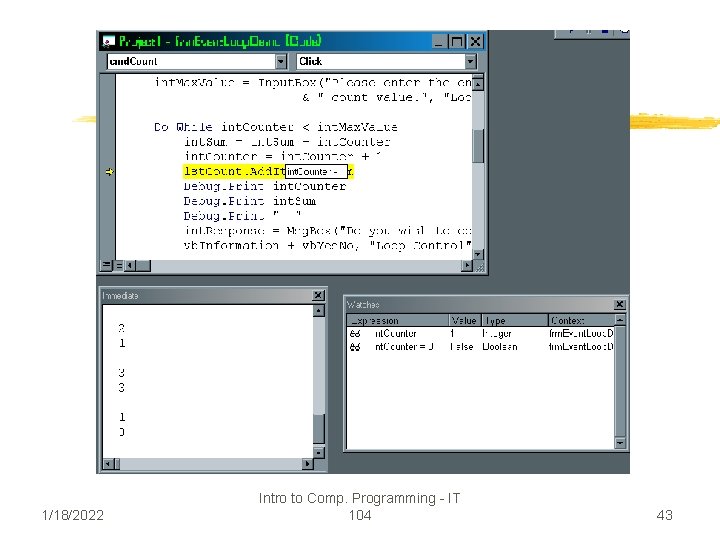
The Watch Window z. As we proceed with the execution by pressing ‘F 8’ until the statement int. Counter = int. Counter + 1 is executed, we see the values in the Watch window will change to reflect those shown on the next slide : 1/18/2022 Intro to Comp. Programming - IT 104 42
1/18/2022 Intro to Comp. Programming - IT 104 43
The Watch Window z. At this point the value of int. Counter has been incremented by one. It is no longer equal to zero, which makes the expression evaluate to FALSE, and the new value of int. Counter is also displayed in the window. 1/18/2022 Intro to Comp. Programming - IT 104 44
The Locals Window z. T 1/18/2022 Intro to Comp. Programming - IT 104 45
Infinite loops Home z. A loop statement usually has a terminating condition that will eventually occur, causing the loop to end. z. If a programmer is careless, he may create a loop for which this condition will never be met. z. This creates an infinite loop, which is a 1/18/2022 Intro to Comp. Programming - IT 104 46
Infinite loops loop which, once initiated, will continue to execute forever. z. If you accidentally create such and test such a loop, Windows usually responds by locking all other processes and dedicating the processor cycles to the loop exclusively. 1/18/2022 Intro to Comp. Programming - IT 104 47
Infinite loops z. The only way out of such a loop is to intercept the process using the Task Manager in Windows (if your version will allow that operation to occur) and use the dialog to end the process. z. There are times when the programmer intentionally wishes to create an infinite loop. 1/18/2022 Intro to Comp. Programming - IT 104 48
Infinite loops z. Windows programs, and Windows itself could not exist without the infinite loop. z. Obviously, a way to exit an infinite loop would then be useful. The Exit Do and Exit For commands were created for this purpose. The following slide illustrates examples of each. 1/18/2022 Intro to Comp. Programming - IT 104 49
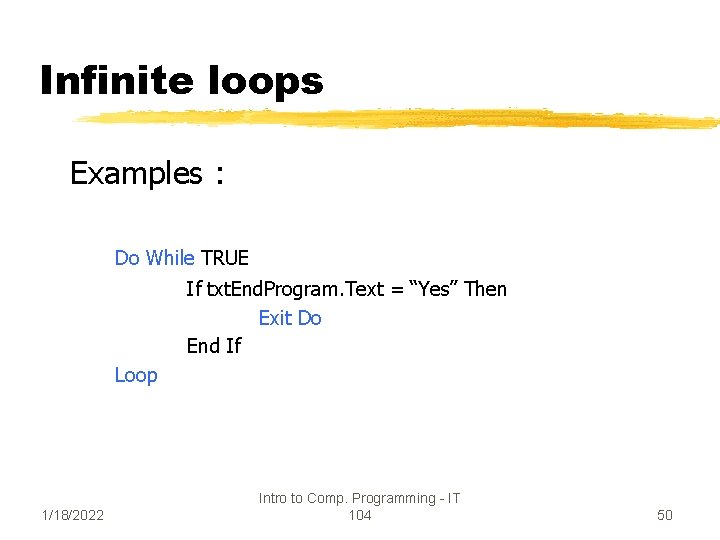
Infinite loops Examples : Do While TRUE If txt. End. Program. Text = “Yes” Then Exit Do End If Loop 1/18/2022 Intro to Comp. Programming - IT 104 50
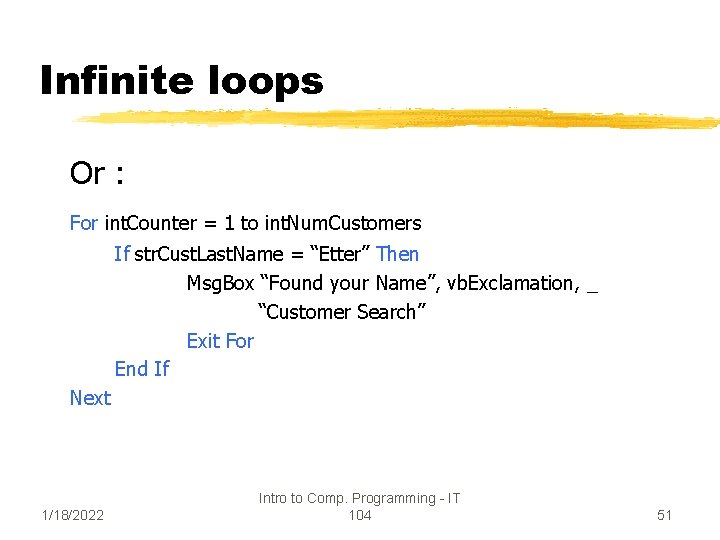
Infinite loops Or : For int. Counter = 1 to int. Num. Customers If str. Cust. Last. Name = “Etter” Then Msg. Box “Found your Name”, vb. Exclamation, _ “Customer Search” Exit For End If Next 1/18/2022 Intro to Comp. Programming - IT 104 51
Nested Loops z. As in the decision structures, it is often the case that loops must be nested to perform a particular program action. z. The next slide shows a nested loop application. 1/18/2022 Intro to Comp. Programming - IT 104 52
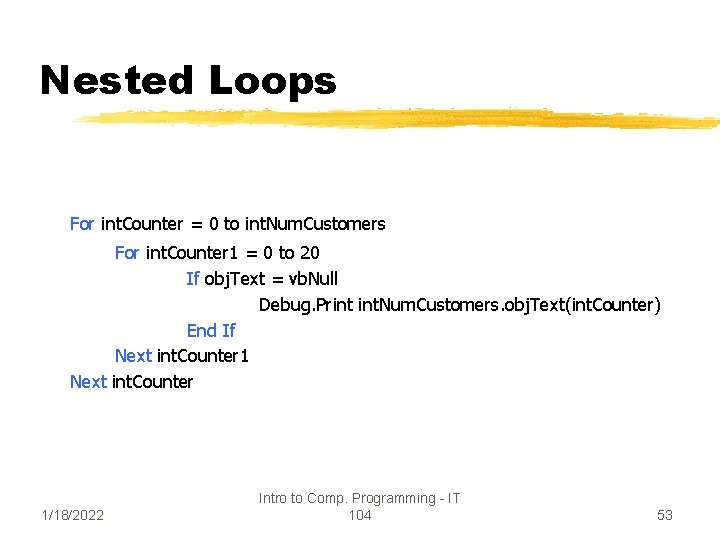
Nested Loops For int. Counter = 0 to int. Num. Customers For int. Counter 1 = 0 to 20 If obj. Text = vb. Null Debug. Print int. Num. Customers. obj. Text(int. Counter) End If Next int. Counter 1/18/2022 Intro to Comp. Programming - IT 104 53
Nested Loops z. The important point about nested loops is like the nested decision structures, the inner loop must be entirely contained within the outer loop, and different control variables must be used. 1/18/2022 Intro to Comp. Programming - IT 104 54
Summary z. Define and discuss the concept of the Loop/Repetition structure. z. Discuss the use of the Boolean Expression in controlling loop execution. z. Discuss the three types of loops. z. Discuss the Do-While-Loop structure. z. Discuss the Do-Until-Loop structure 1/18/2022 Intro to Comp. Programming - IT 104 55
Summary z. Discuss the While-Wend Loop structure. z. Discuss the For-Next Loop structure. z. Discuss the use of pre-test loops and post -test loops. z. Discuss the Exit Do and Exit For commands. 1/18/2022 Intro to Comp. Programming - IT 104 56
Summary z. Discuss the use of nested loops. 1/18/2022 Intro to Comp. Programming - IT 104 57
LAB Work 1/18/2022 Intro to Comp. Programming - IT 104 58
LAB Work 1/18/2022 Intro to Comp. Programming - IT 104 59
Assignment z. Read Chapter 5 1/18/2022 Intro to Comp. Programming - IT 104 60
Next Week : 1/18/2022 Intro to Comp. Programming - IT 104 61
- Slides: 61