
OB 10 Registration Guide OB 10 Invoice Generator
OB 10 Registration Guide OB 10 Invoice Generator Registration Guide OB 10 Registration Guide HP Restricted
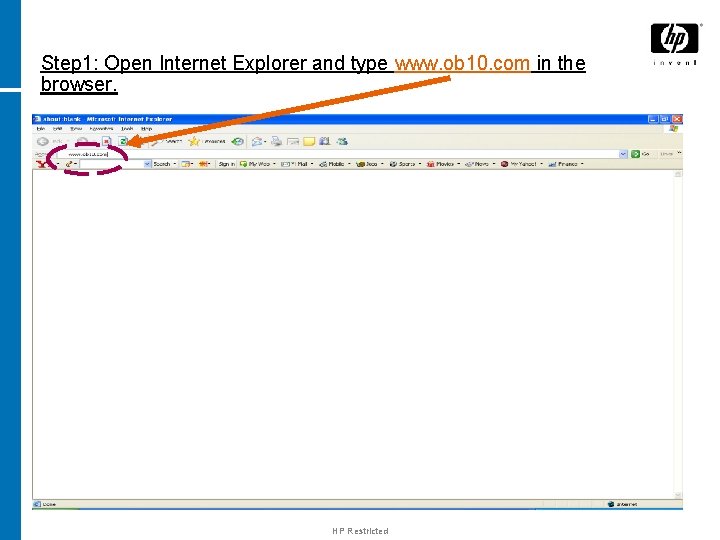
Step 1: Open Internet Explorer and type www. ob 10. com in the browser. HP Restricted
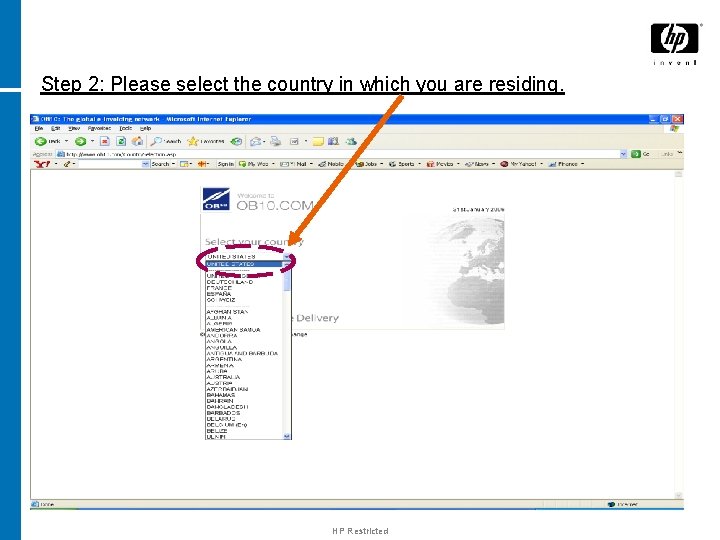
Step 2: Please select the country in which you are residing. HP Restricted
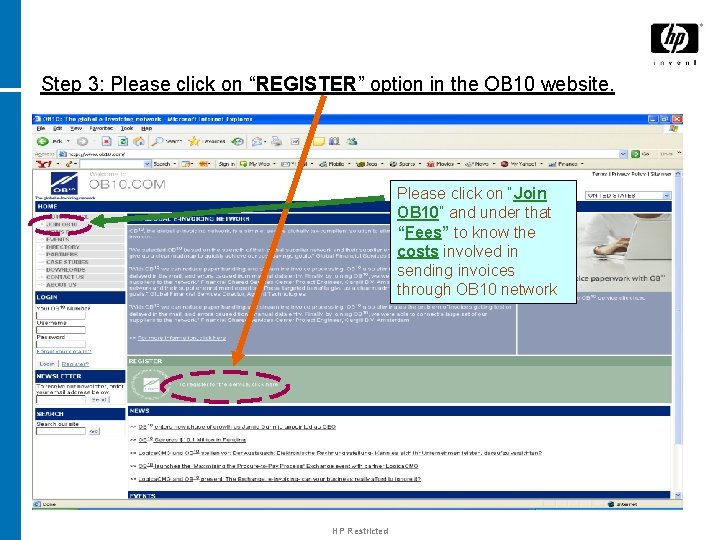
Step 3: Please click on “REGISTER” option in the OB 10 website. Please click on “Join OB 10” and under that “Fees” to know the costs involved in sending invoices through OB 10 network HP Restricted
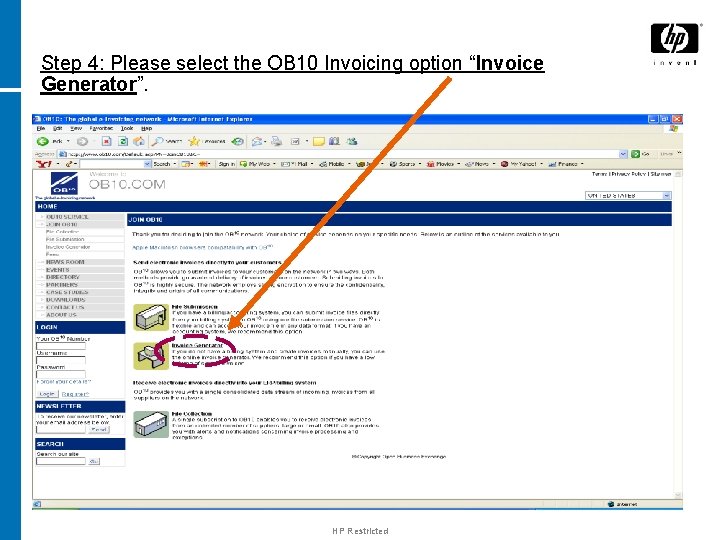
Step 4: Please select the OB 10 Invoicing option “Invoice Generator”. HP Restricted
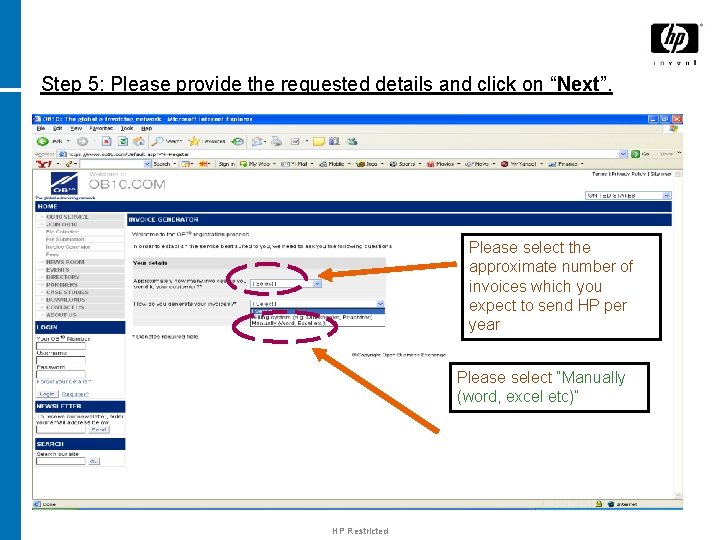
Step 5: Please provide the requested details and click on “Next”. Please select the approximate number of invoices which you expect to send HP per year Please select “Manually (word, excel etc)” HP Restricted
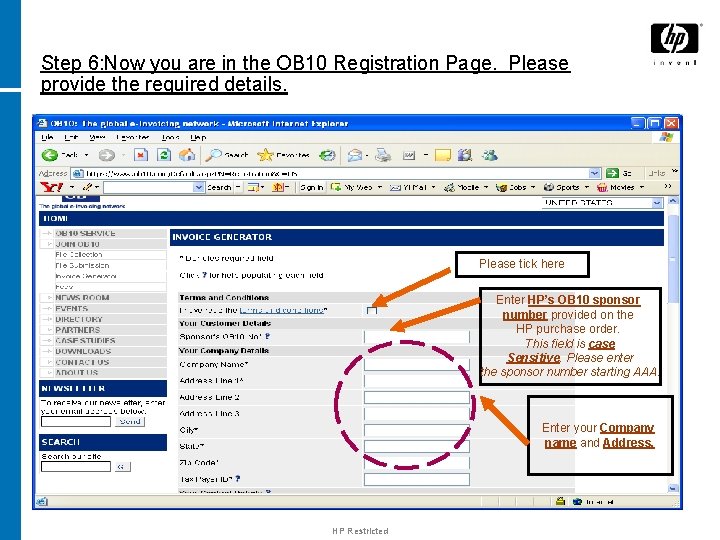
Step 6: Now you are in the OB 10 Registration Page. Please provide the required details. Please tick here Enter HP’s OB 10 sponsor number provided on the HP purchase order. This field is case Sensitive. Please enter the sponsor number starting AAA. Enter your Company name and Address. HP Restricted
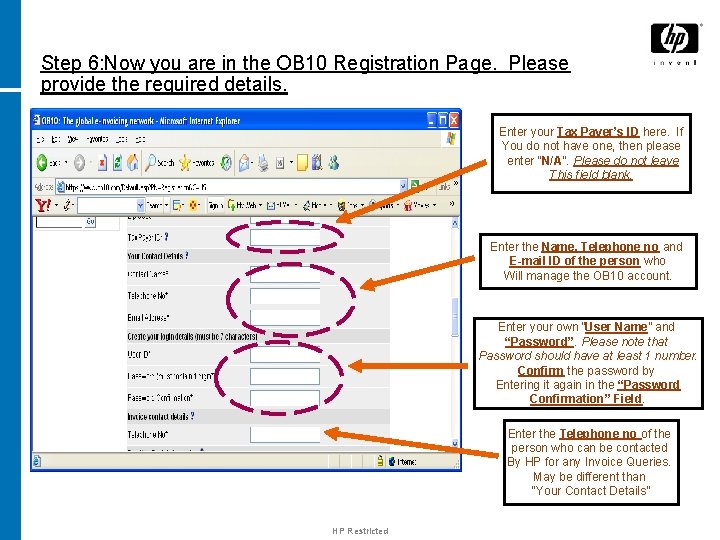
Step 6: Now you are in the OB 10 Registration Page. Please provide the required details. Enter your Tax Payer’s ID here. If You do not have one, then please enter “N/A”. Please do not leave This field blank. Enter the Name, Telephone no and E-mail ID of the person who Will manage the OB 10 account. Enter your own “User Name” and “Password”. Please note that Password should have at least 1 number. Confirm the password by Entering it again in the “Password Confirmation” Field. Enter the Telephone no of the person who can be contacted By HP for any Invoice Queries. May be different than “Your Contact Details” HP Restricted

Step 6: Now you are in the OB 10 Registration Page. Please provide the required details. Please enter the “Remit to” information here. -- If you are receiving payment by checks, please enter that address in the “Remit to Address Information” field --If you are receiving bank transfer payments (wire Transfer or electronic fund transfer), please enter the bank details in the “Remit to Bank Information”Field Note: Mentioning of bank details in the OB 10 registration page, does not qualify you to receive Bank transfer payments. If you receive payments by Check and are interested to receive payments by bank Transfer, please contact HP Customer Response Center for assistance, the details of which are given in the last slide. HP Restricted

Step 6: Now you are in the OB 10 Registration Page. Please provide the required details. If you have any static Information which should appear on all your Invoices, please enter the same in the “Additional Information” Field. Example: your company’s Website. Then click on “Submit” Button. HP Restricted
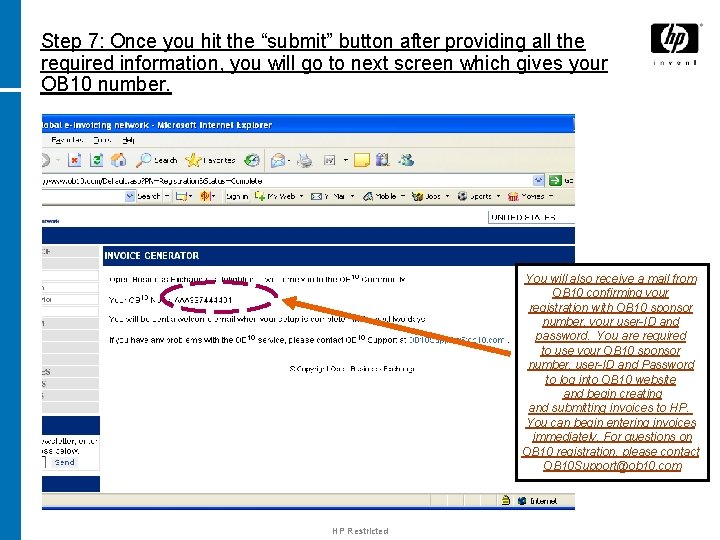
Step 7: Once you hit the “submit” button after providing all the required information, you will go to next screen which gives your OB 10 number. You will also receive a mail from OB 10 confirming your registration with OB 10 sponsor number, your user-ID and password. You are required to use your OB 10 sponsor number, user-ID and Password to log into OB 10 website and begin creating and submitting invoices to HP. You can begin entering invoices immediately. For questions on OB 10 registration, please contact OB 10 Support@ob 10. com HP Restricted
HP Customer Response Center Information OB 10 delivers your invoices to HP. Please contact HP for payment status. 1. Phone - 800 -325 -5372, preceded by your country code available on the AT&T website: http: //www. business. att. com/bt/internati onal_dialing. jsp 2. E-Mail • • 3. United States-- vendor-payables-ussupport@hp. com Canada-- cnd-vp-crc@hp. com United Kingdom/Ireland-- uk-irelandvp. crc@hp. com Other European Countries-ec. crc@hp. com Please have your OB 10 transaction number (available by logging into your OB 10 account at www. ob 10. com and going to the Reporting section) for the invoice in question, when you contact HP CRC. HP Restricted

- Slides: 13