
NXC and NBC NXC Not e Xactly C
NXC (and NBC) NXC (Not e. Xactly C) is a language similar to NQC, which was the most popular way to program the RCX Built on NBC, the Next Byte Code ‘assembler’ Uses the built in firmware, and p-code system
NXC uses Bricx. CC Reasonably stable development environment Provides support for all LEGO robotic platforms Free!
Programming with NXC Assuming you are comfortable with C… How to use the motors How to read the sensors Threading model
NXC Programs NXC is based on C Restrictions because it’s based on the built-in P-Code system There’s no stack Limited memory Limited number of tasks (256) n And subroutines, which are also ‘tasks’
NXC program skeleton #include "NXCDefs. h" task main() { }
NXC Sensors #include "NXCDefs. h" task main() { Set. Sensor. Type( IN_1, SENSOR_TYPE_TOUCH ); Set. Sensor. Mode( IN_1, SENSOR_MODE_BOOL ); }
NXC Sensors #include "NXCDefs. h" task main() { Set. Sensor( IN_1, SENSOR_TOUCH ); }
NXC Sensors To read a sensor use x = Sensor( IN_1 );
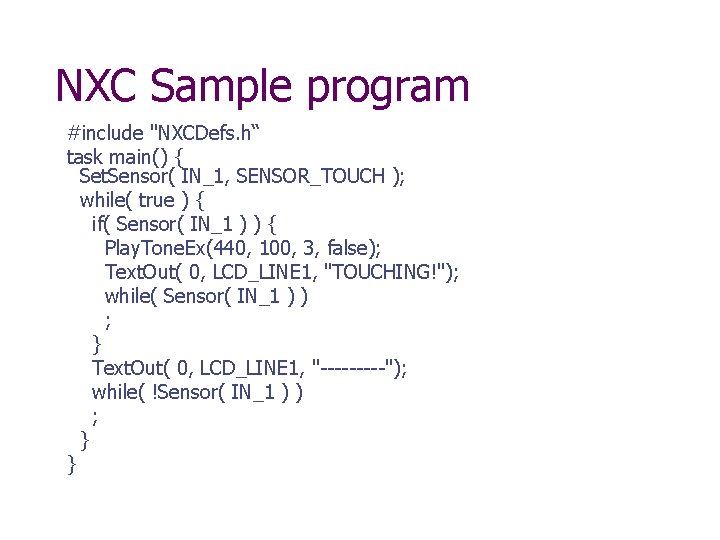
NXC Sample program #include "NXCDefs. h“ task main() { Set. Sensor( IN_1, SENSOR_TOUCH ); while( true ) { if( Sensor( IN_1 ) ) { Play. Tone. Ex(440, 100, 3, false); Text. Out( 0, LCD_LINE 1, "TOUCHING!"); while( Sensor( IN_1 ) ) ; } Text. Out( 0, LCD_LINE 1, "-----"); while( !Sensor( IN_1 ) ) ; } }
NXC Motors Simple motor commands are available n On. Fwd(), On. Rev(), Off(), Float()
NXC Motors To use the built-in rotation sensors, you need to use the new motor commands Easiest to use is Rotate. Motor()
Rotate. Motor( port, speed, angle ); n n n port is OUT_A, OUT_B, OUT_C, or combinations such as OUT_AB, OUT_ABC speed is a number -100 to 100 angle is the number of degrees you want the motor to turn (positive or negative)
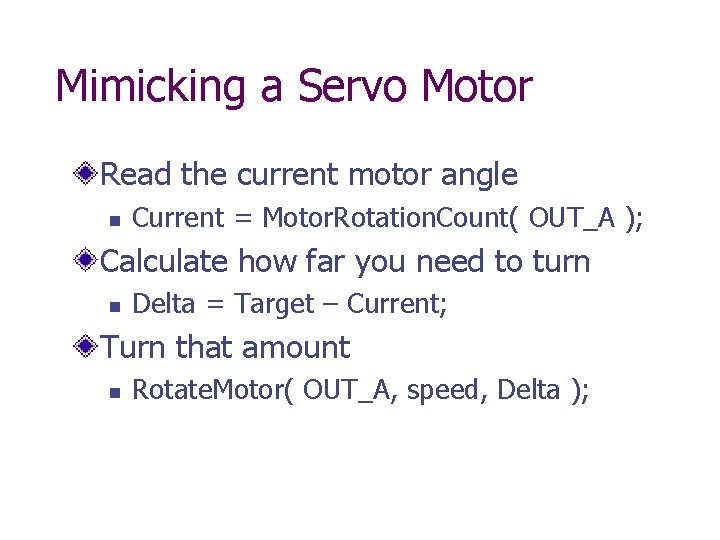
Mimicking a Servo Motor Read the current motor angle n Current = Motor. Rotation. Count( OUT_A ); Calculate how far you need to turn n Delta = Target – Current; Turn that amount n Rotate. Motor( OUT_A, speed, Delta );
Displaying Text The LCD display is useful for n n n Debugging Setting parameters Runtime messages Graphics Games … and more
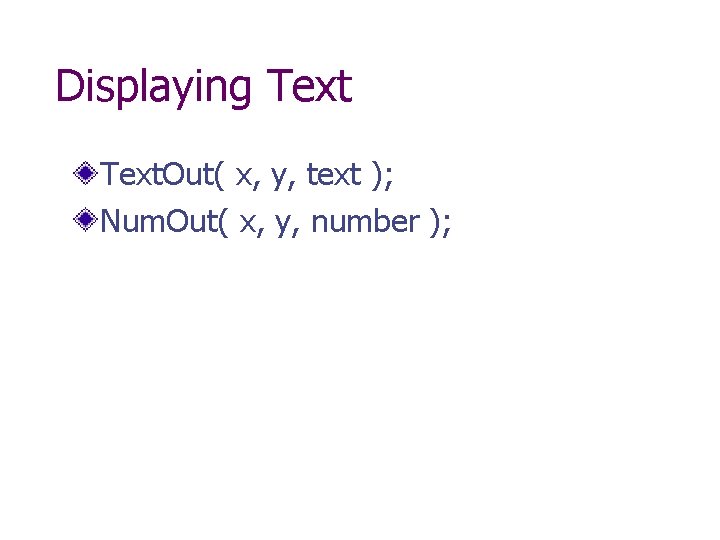
Displaying Text. Out( x, y, text ); Num. Out( x, y, number );
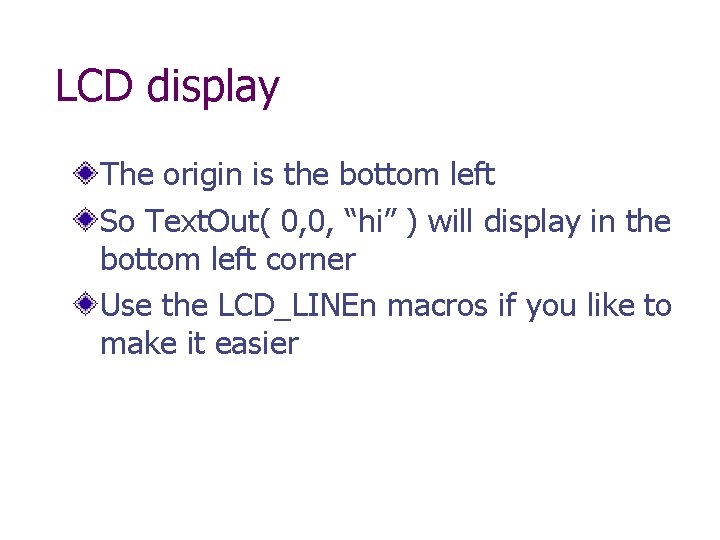
LCD display The origin is the bottom left So Text. Out( 0, 0, “hi” ) will display in the bottom left corner Use the LCD_LINEn macros if you like to make it easier
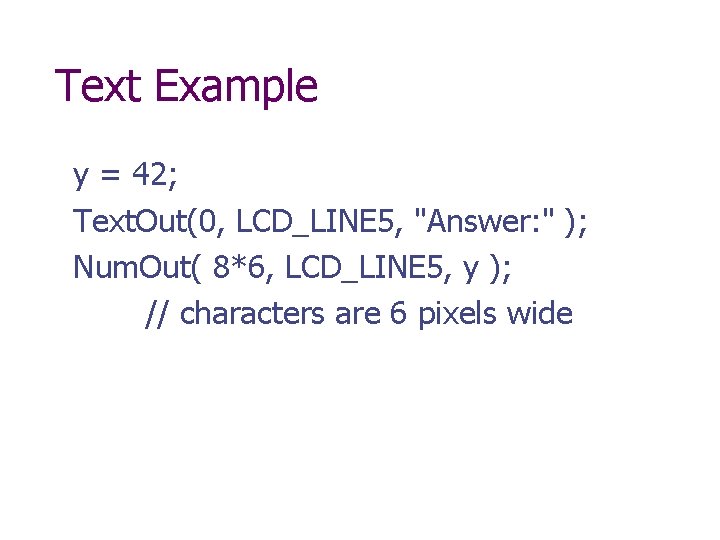
Text Example y = 42; Text. Out(0, LCD_LINE 5, "Answer: " ); Num. Out( 8*6, LCD_LINE 5, y ); // characters are 6 pixels wide
Graphics There also commands to draw lines, circles, rectangles, and set points You can display bitmaps from a file RIC files – contain drawing commands One problem is there isn’t an easy way to clear areas of the screen n n It’s easy to clear the whole screen You can display a 1 x 1 blank bitmap
Tasks and Subroutines Multiple tasks are possible, but don’t work like you might expect Scheduling is different – tasks start when a ‘dependant’ task finishes n There is no easy way of stopping a task Use Precedes() or Follows() in a task to define task dependencies
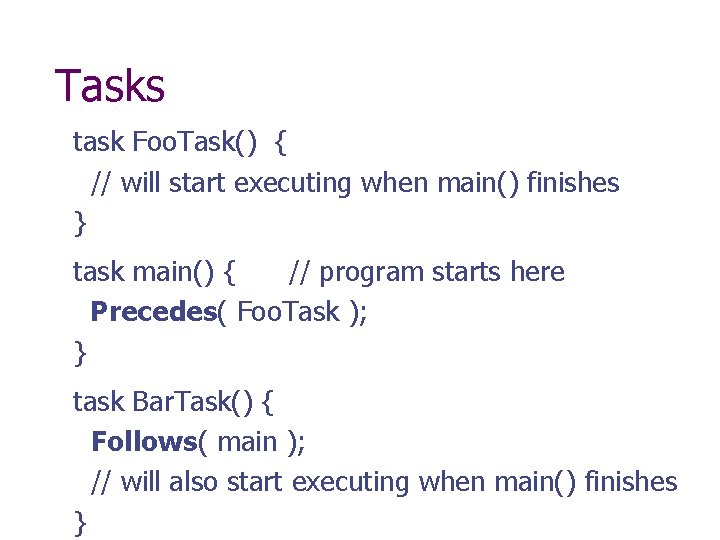
Tasks task Foo. Task() { // will start executing when main() finishes } task main() { // program starts here Precedes( Foo. Task ); } task Bar. Task() { Follows( main ); // will also start executing when main() finishes }
Subroutines Essentially a task that can be called It suspends the calling task until it returns Don’t use task keyword to define these Can pass in parameters or return a value
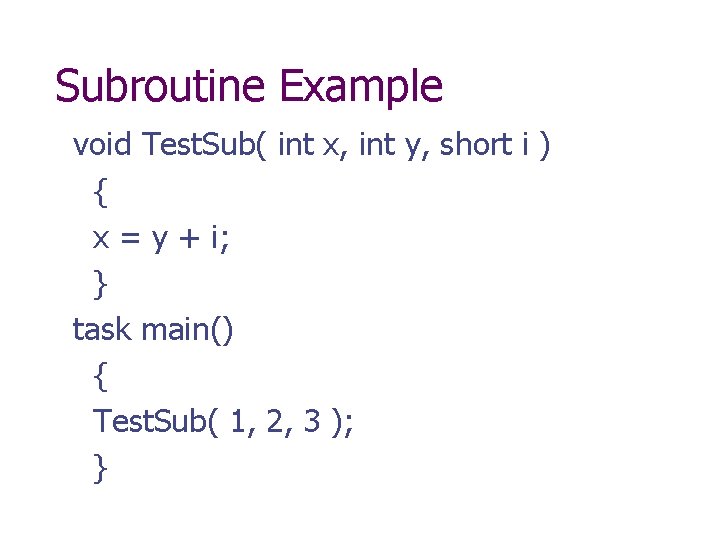
Subroutine Example void Test. Sub( int x, int y, short i ) { x = y + i; } task main() { Test. Sub( 1, 2, 3 ); }
NXC Help Preliminary help file is a PDF There are many samples and a tutorial online
- Slides: 23