
NUI Training Transitioning from GUI to NUI Login
- Slides: 37
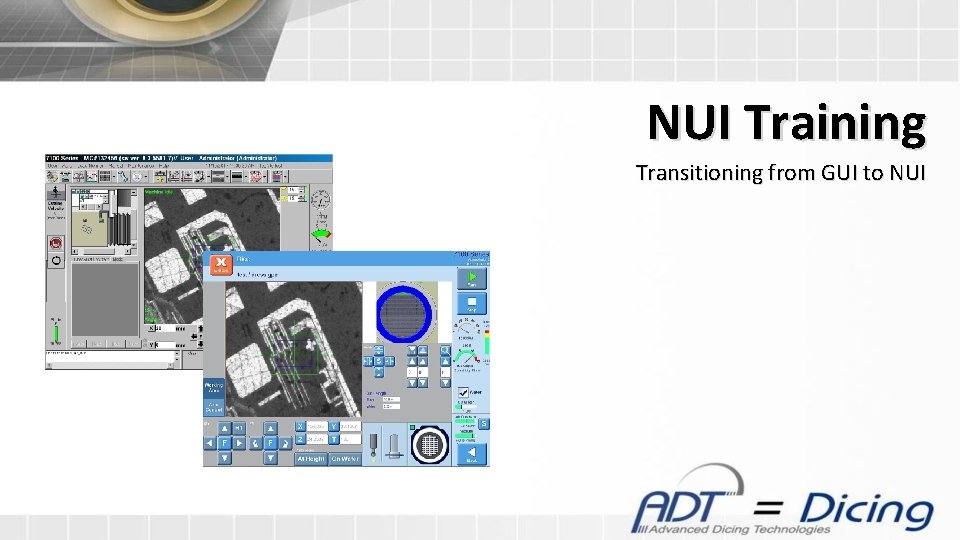
NUI Training Transitioning from GUI to NUI
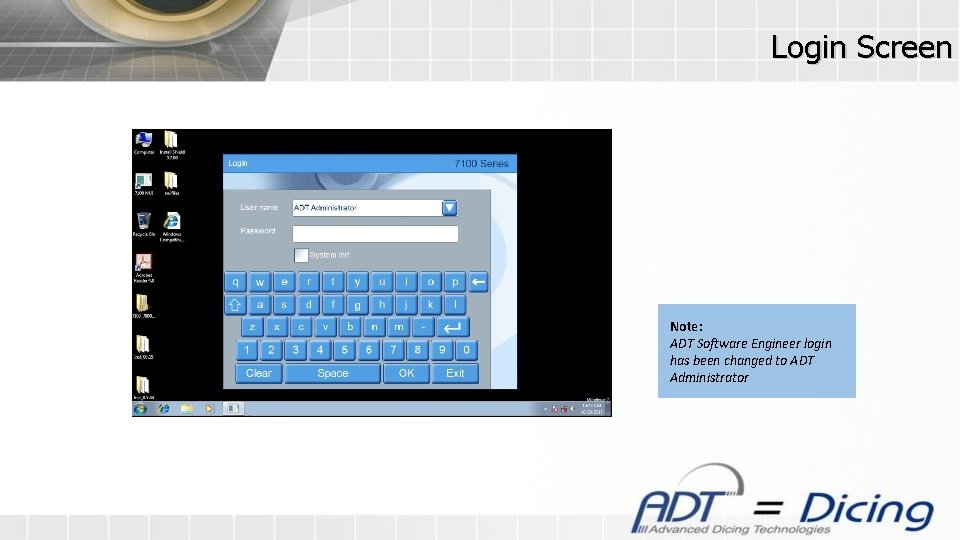
Login Screen Note: ADT Software Engineer login has been changed to ADT Administrator
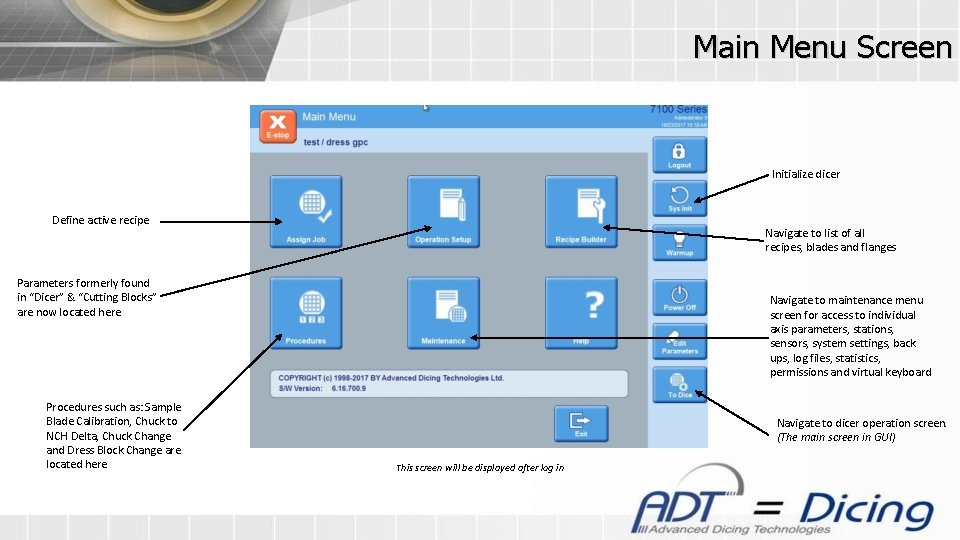
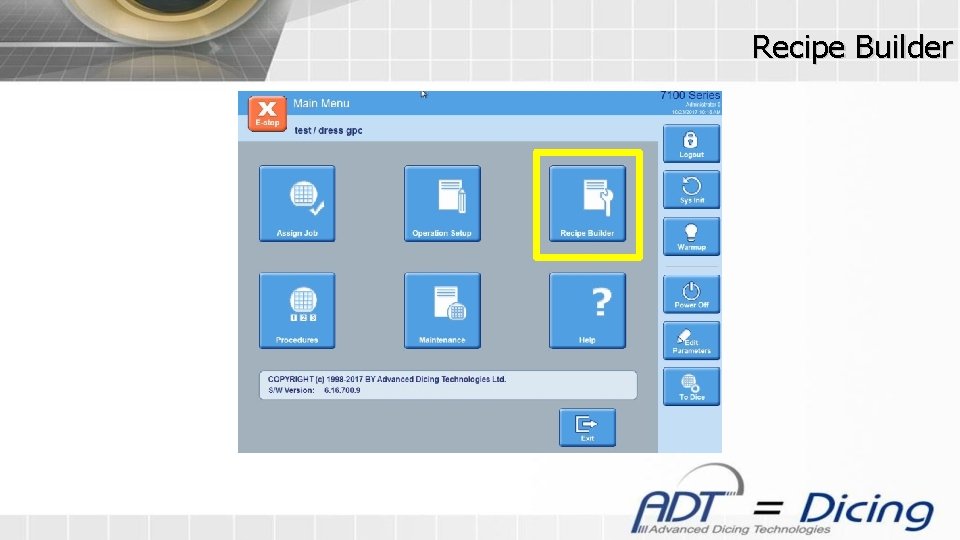
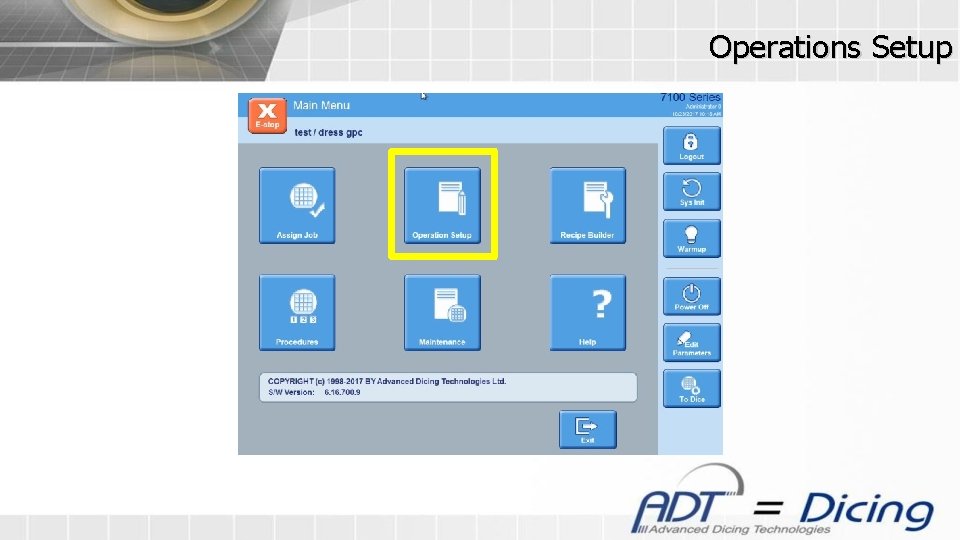
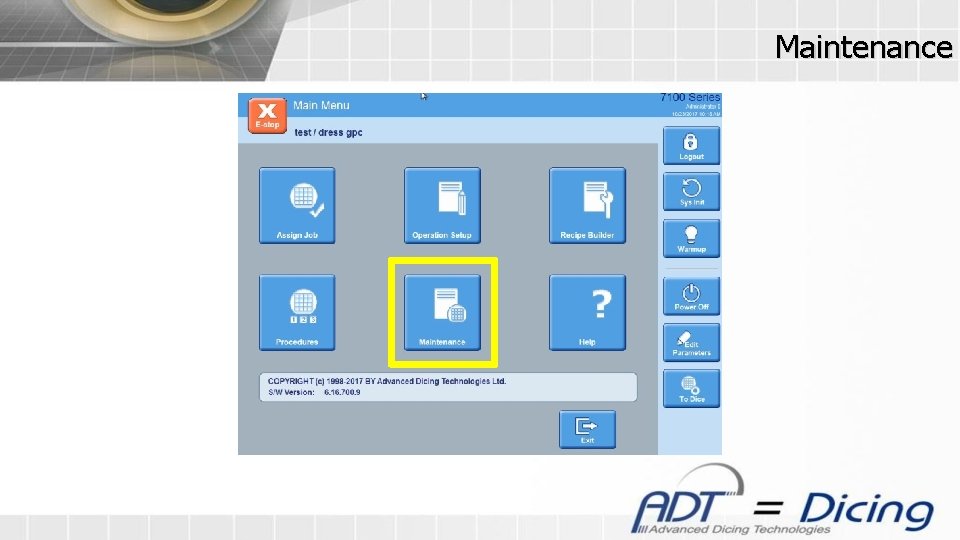
Main Menu Screen Initialize dicer Define active recipe Navigate to list of all recipes, blades and flanges Parameters formerly found in “Dicer” & “Cutting Blocks” are now located here Procedures such as: Sample Blade Calibration, Chuck to NCH Delta, Chuck Change and Dress Block Change are located here Navigate to maintenance menu screen for access to individual axis parameters, stations, sensors, system settings, back ups, log files, statistics, permissions and virtual keyboard Navigate to dicer operation screen. (The main screen in GUI) This screen will be displayed after log in
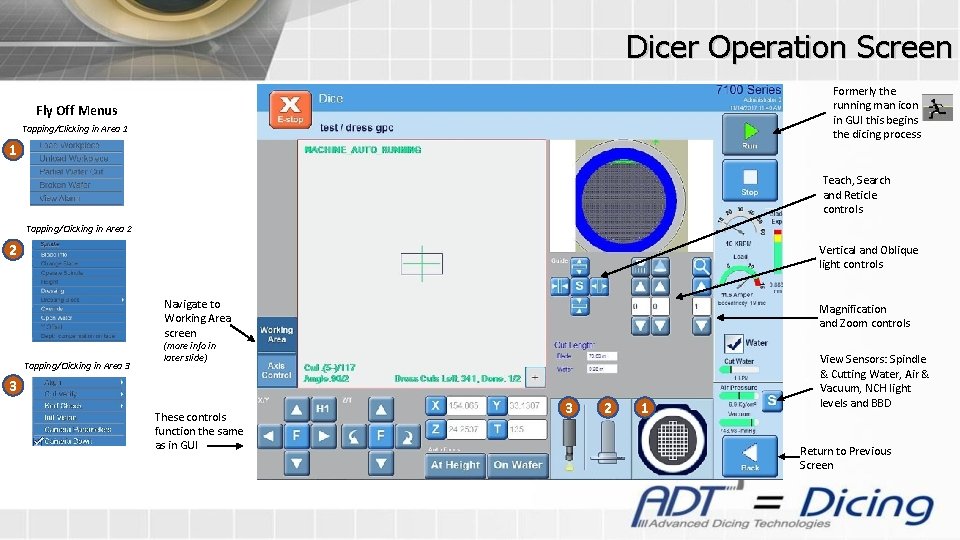
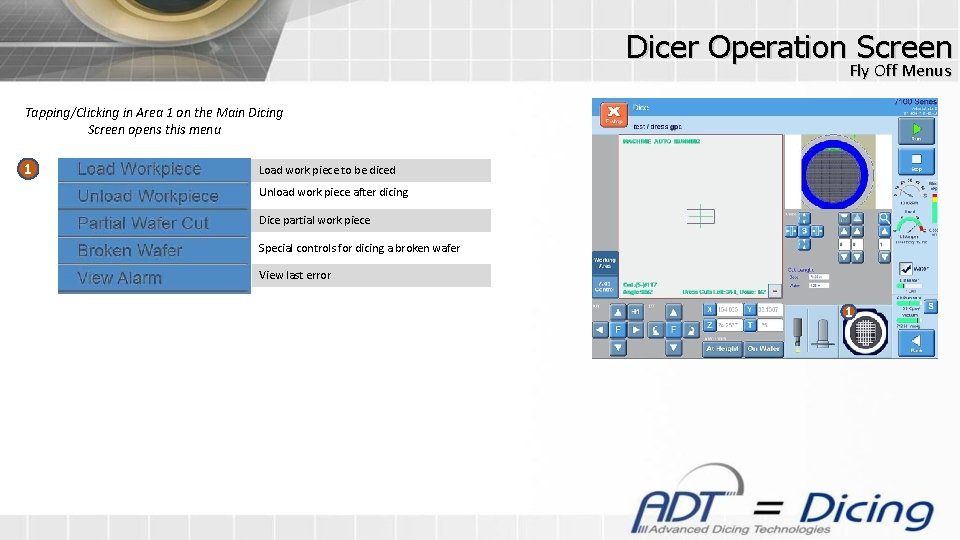
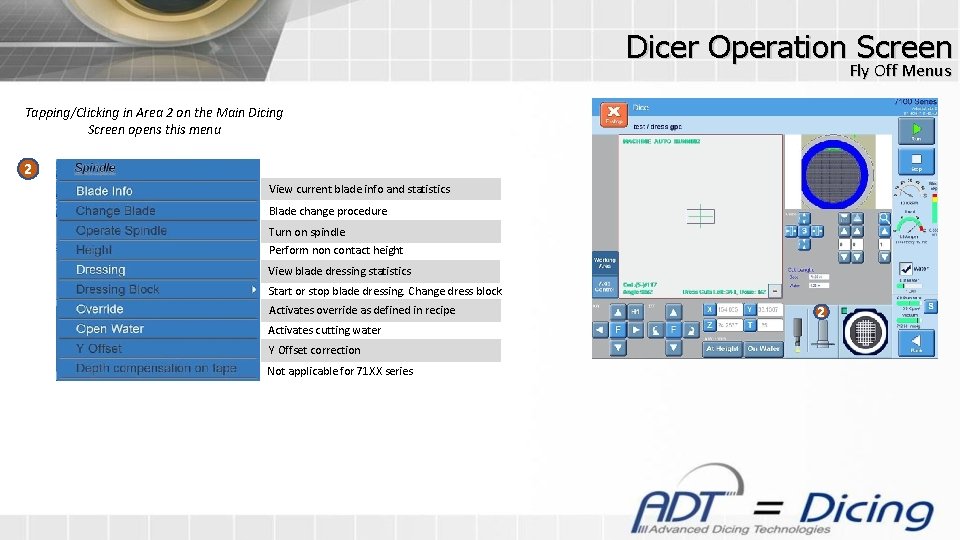
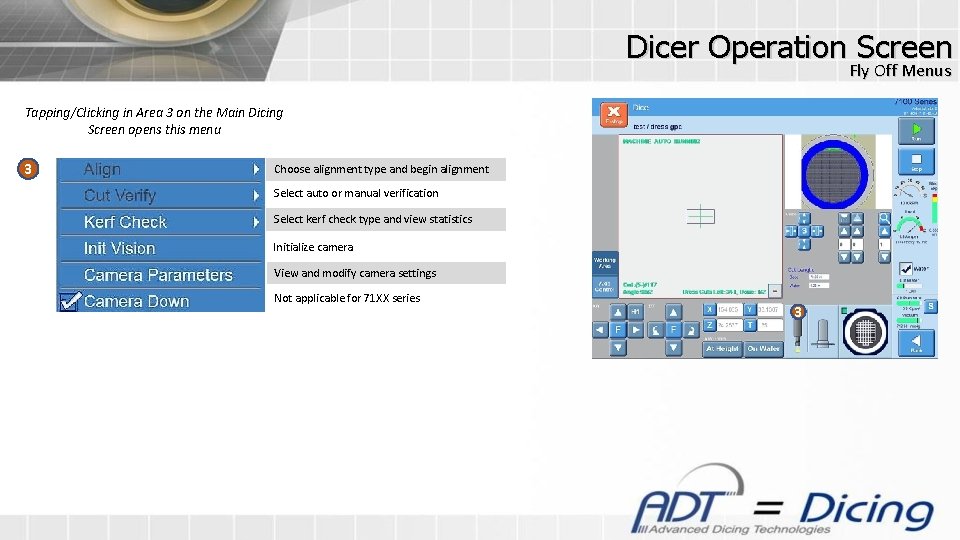
Dicer Operation Screen Formerly the running man icon in GUI this begins the dicing process Fly Off Menus Tapping/Clicking in Area 1 1 Teach, Search and Reticle controls Tapping/Clicking in Area 2 2 Vertical and Oblique light controls Navigate to Working Area screen Tapping/Clicking in Area 3 Magnification and Zoom controls (more info in later slide) 3 These controls function the same as in GUI 3 2 1 View Sensors: Spindle & Cutting Water, Air & Vacuum, NCH light levels and BBD Return to Previous Screen
Dicer Operation Screen Fly Off Menus Tapping/Clicking in Area 1 on the Main Dicing Screen opens this menu 1 Load work piece to be diced Unload work piece after dicing Dice partial work piece Special controls for dicing a broken wafer View last error 1
Dicer Operation Screen Fly Off Menus Tapping/Clicking in Area 2 on the Main Dicing Screen opens this menu 2 View current blade info and statistics Blade change procedure Turn on spindle Perform non contact height View blade dressing statistics Start or stop blade dressing. Change dress block Activates override as defined in recipe Activates cutting water Y Offset correction Not applicable for 71 XX series 2
Dicer Operation Screen Fly Off Menus Tapping/Clicking in Area 3 on the Main Dicing Screen opens this menu 3 Choose alignment type and begin alignment Select auto or manual verification Select kerf check type and view statistics Initialize camera View and modify camera settings Not applicable for 71 XX series 3
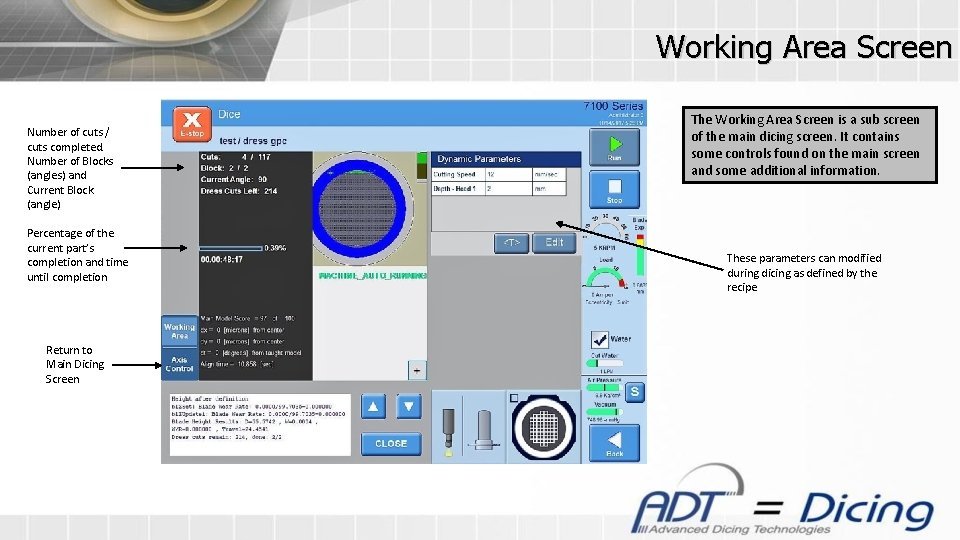
Working Area Screen Number of cuts / cuts completed. Number of Blocks (angles) and Current Block (angle) Percentage of the current part’s completion and time until completion Return to Main Dicing Screen The Working Area Screen is a sub screen of the main dicing screen. It contains some controls found on the main screen and some additional information. These parameters can modified during dicing as defined by the recipe
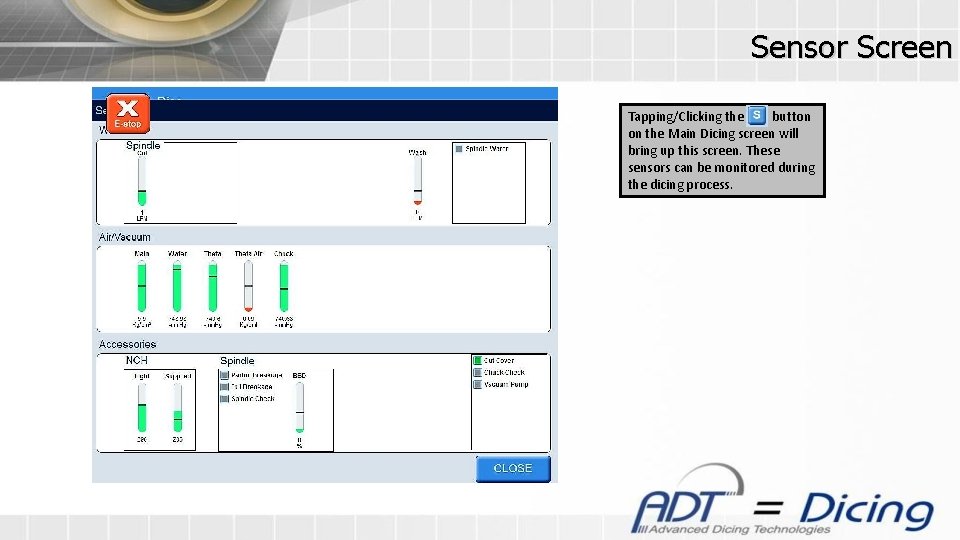
Sensor Screen Tapping/Clicking the button on the Main Dicing screen will bring up this screen. These sensors can be monitored during the dicing process.
Recipe Builder
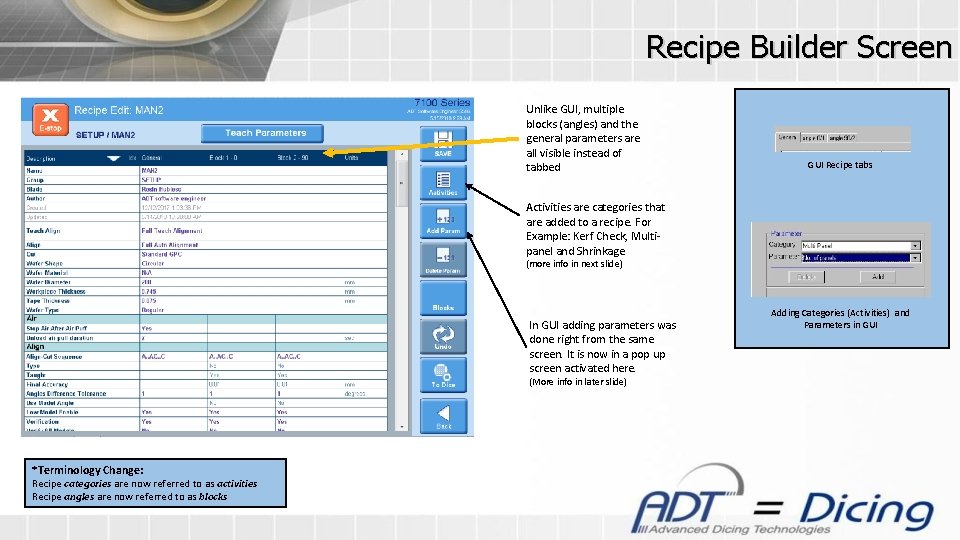
Recipe Builder Screen Unlike GUI, multiple blocks (angles) and the general parameters are all visible instead of tabbed GUI Recipe tabs Activities are categories that are added to a recipe. For Example: Kerf Check, Multipanel and Shrinkage (more info in next slide) In GUI adding parameters was done right from the same screen. It is now in a pop up screen activated here. (More info in later slide) *Terminology Change: Recipe categories are now referred to as activities Recipe angles are now referred to as blocks Adding Categories (Activities) and Parameters in GUI
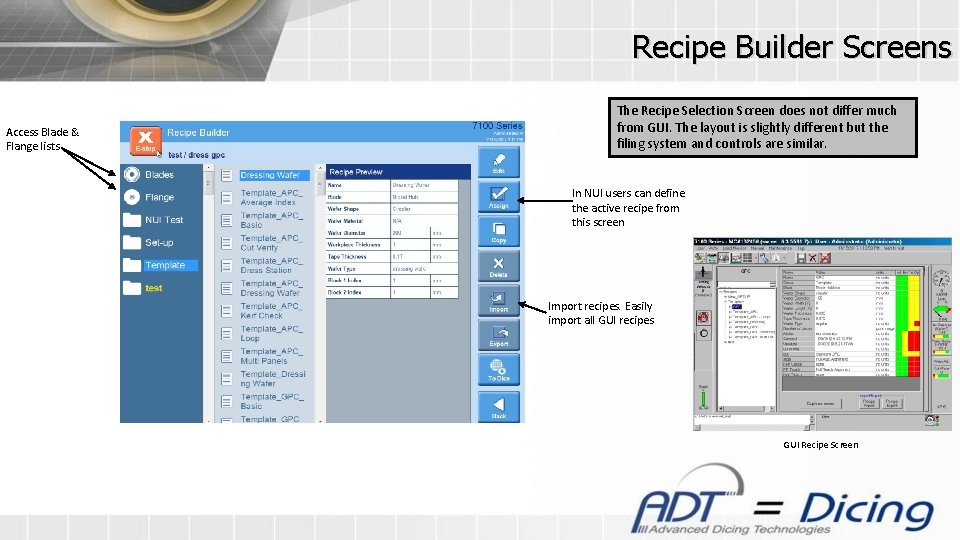
Recipe Builder Screens Access Blade & Flange lists The Recipe Selection Screen does not differ much from GUI. The layout is slightly different but the filing system and controls are similar. In NUI users can define the active recipe from this screen Import recipes. Easily import all GUI recipes GUI Recipe Screen
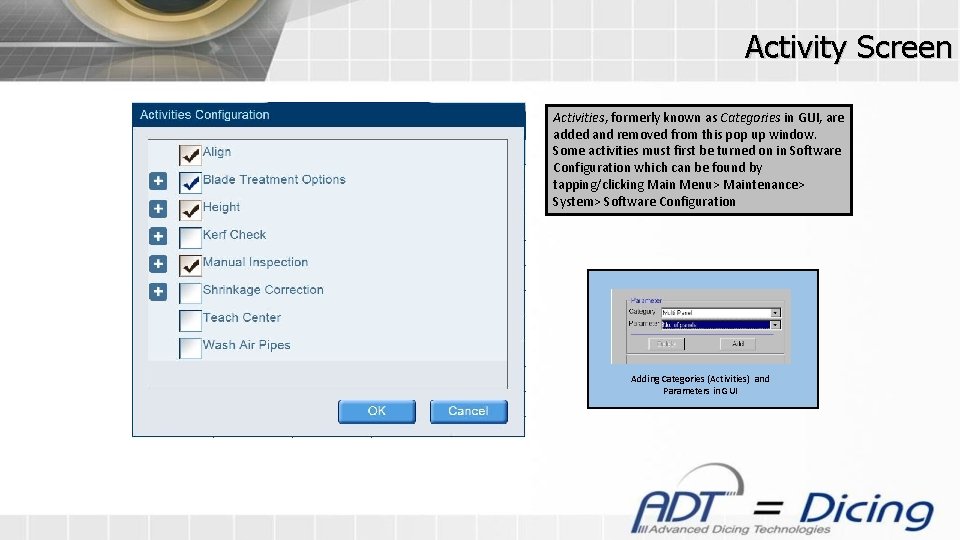
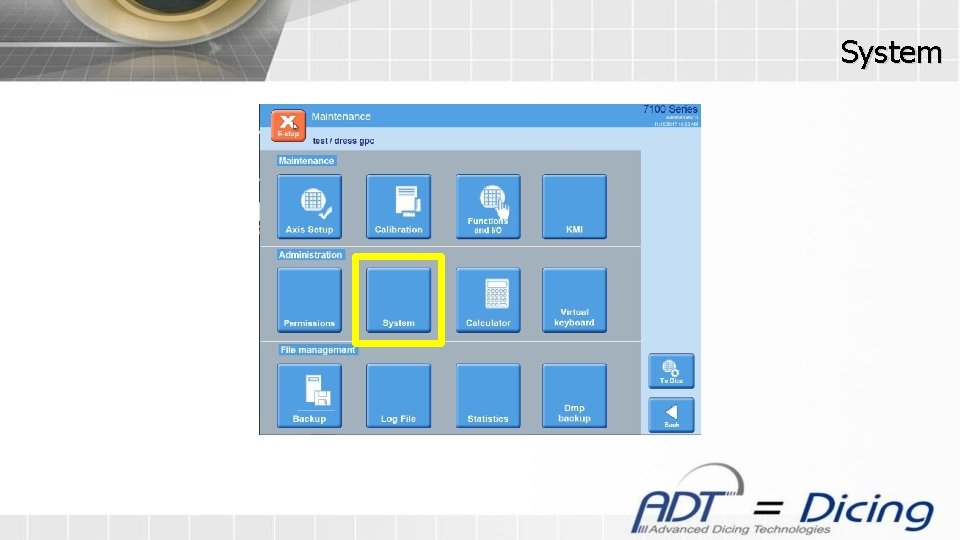
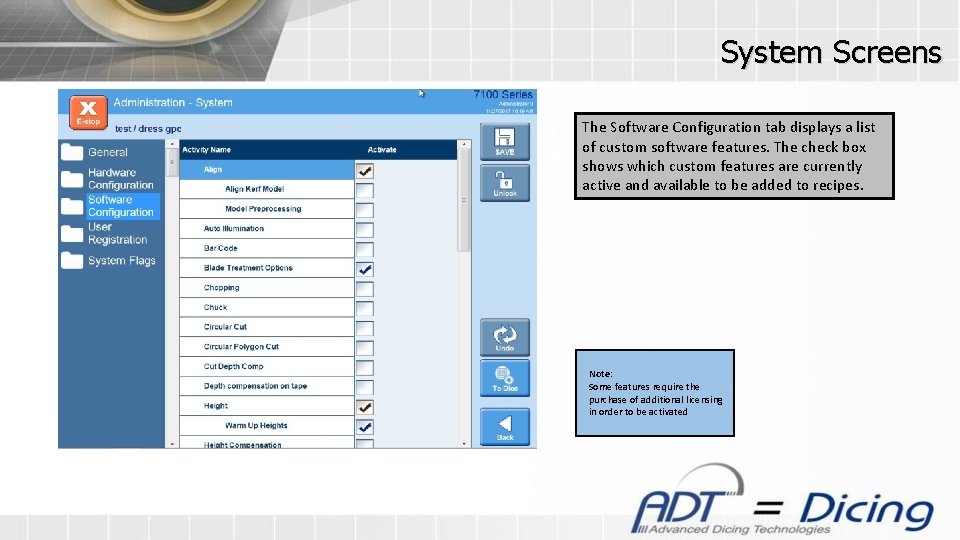
Activity Screen Activities, formerly known as Categories in GUI, are added and removed from this pop up window. Some activities must first be turned on in Software Configuration which can be found by tapping/clicking Main Menu> Maintenance> System> Software Configuration Adding Categories (Activities) and Parameters in GUI
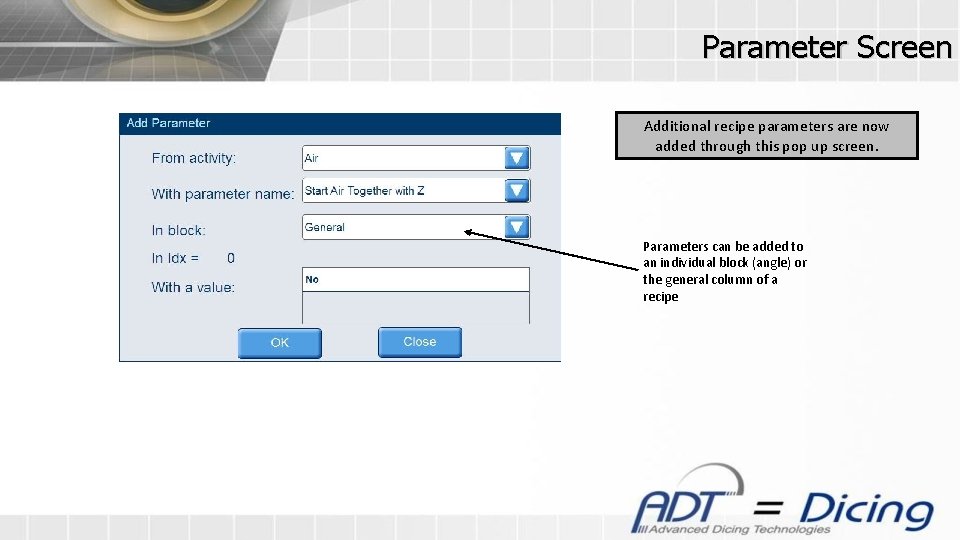
Parameter Screen Additional recipe parameters are now added through this pop up screen. Parameters can be added to an individual block (angle) or the general column of a recipe
Operations Setup
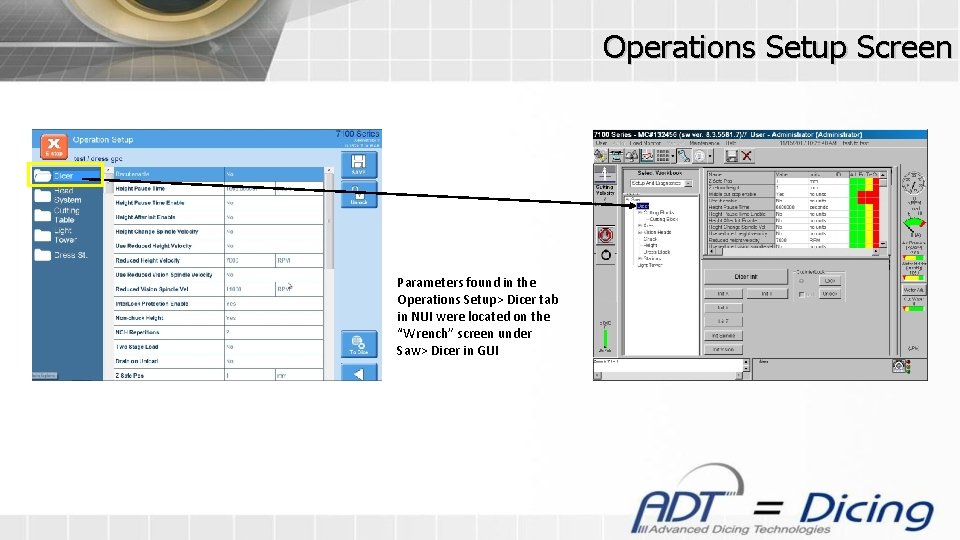
Operations Setup Screen Parameters found in the Operations Setup> Dicer tab in NUI were located on the “Wrench” screen under Saw> Dicer in GUI
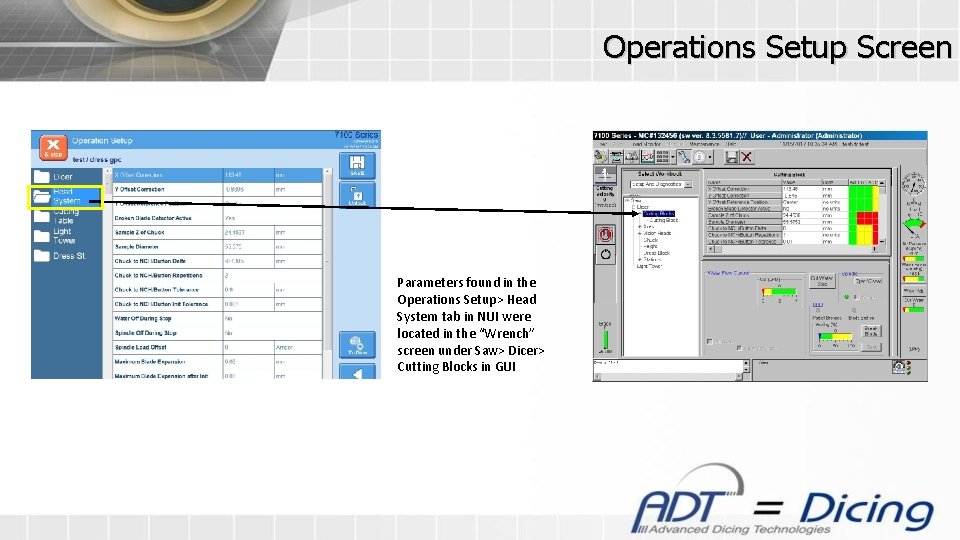
Operations Setup Screen Parameters found in the Operations Setup> Head System tab in NUI were located in the “Wrench” screen under Saw> Dicer> Cutting Blocks in GUI
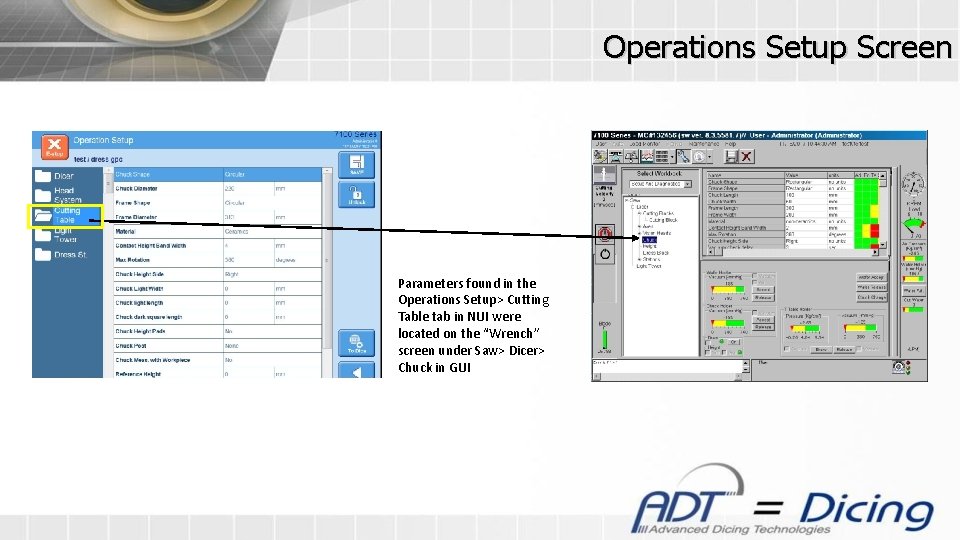
Operations Setup Screen Parameters found in the Operations Setup> Cutting Table tab in NUI were located on the “Wrench” screen under Saw> Dicer> Chuck in GUI
Maintenance
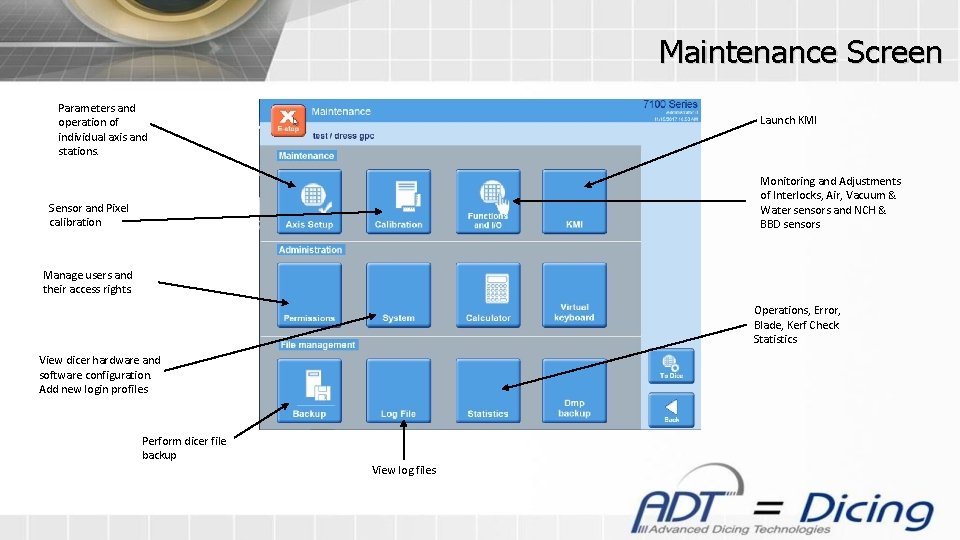
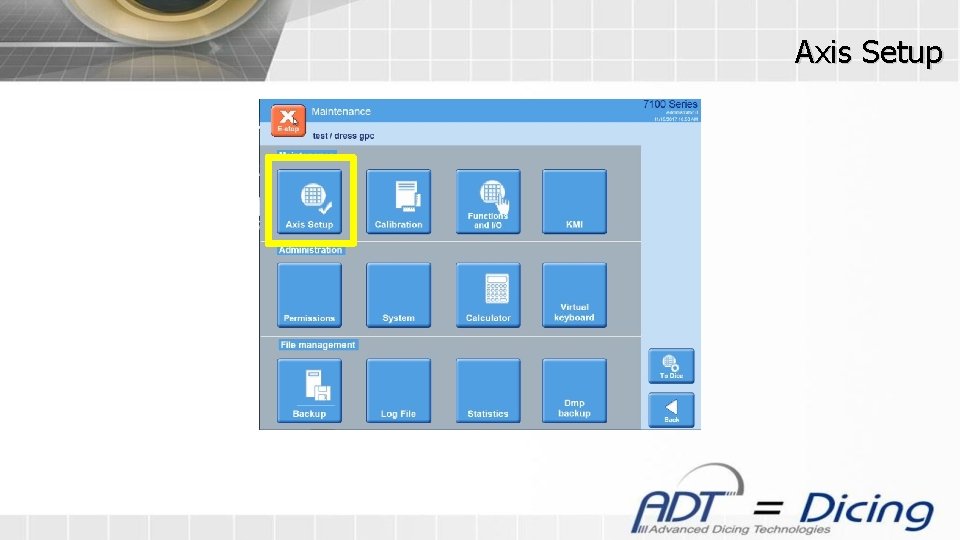
Maintenance Screen Parameters and operation of individual axis and stations. Launch KMI Monitoring and Adjustments of Interlocks, Air, Vacuum & Water sensors and NCH & BBD sensors Sensor and Pixel calibration Manage users and their access rights. Operations, Error, Blade, Kerf Check Statistics View dicer hardware and software configuration. Add new login profiles Perform dicer file backup View log files
Axis Setup
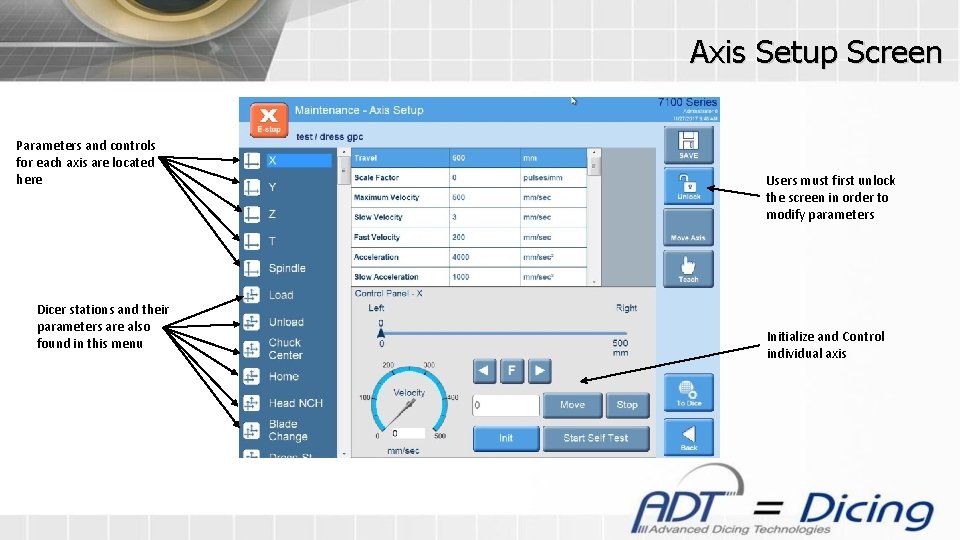
Axis Setup Screen Parameters and controls for each axis are located here Dicer stations and their parameters are also found in this menu Users must first unlock the screen in order to modify parameters Initialize and Control individual axis
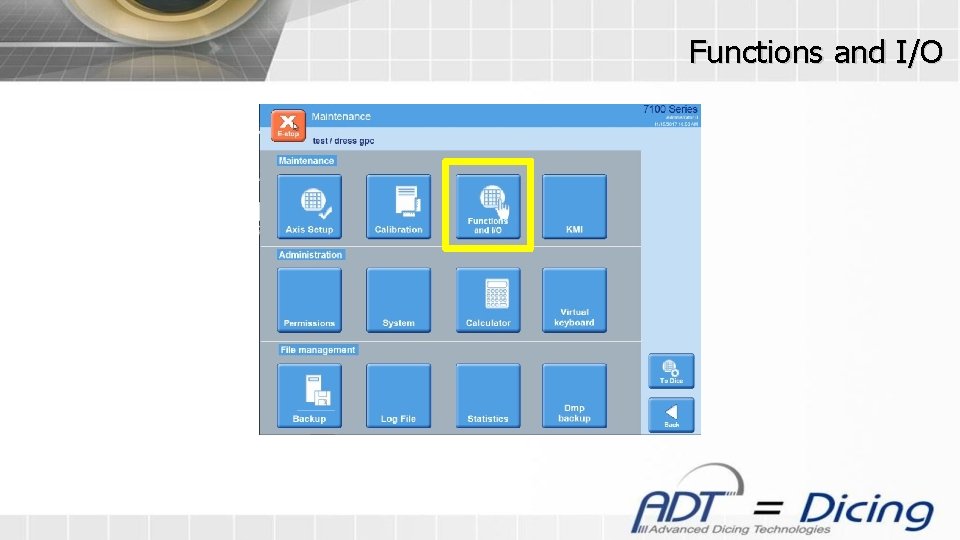
Functions and I/O
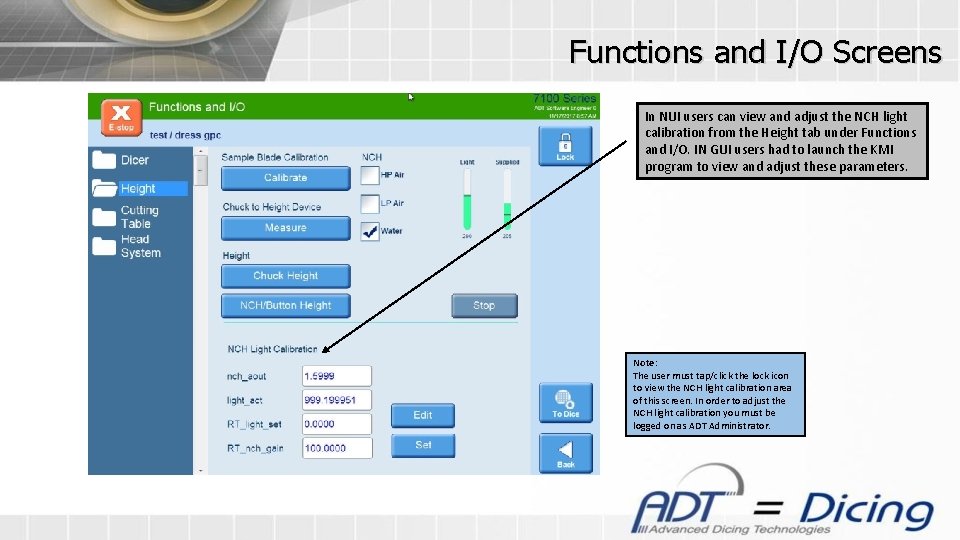
Functions and I/O Screens In NUI users can view and adjust the NCH light calibration from the Height tab under Functions and I/O. IN GUI users had to launch the KMI program to view and adjust these parameters. Note: The user must tap/click the lock icon to view the NCH light calibration area of this screen. In order to adjust the NCH light calibration you must be logged on as ADT Administrator.
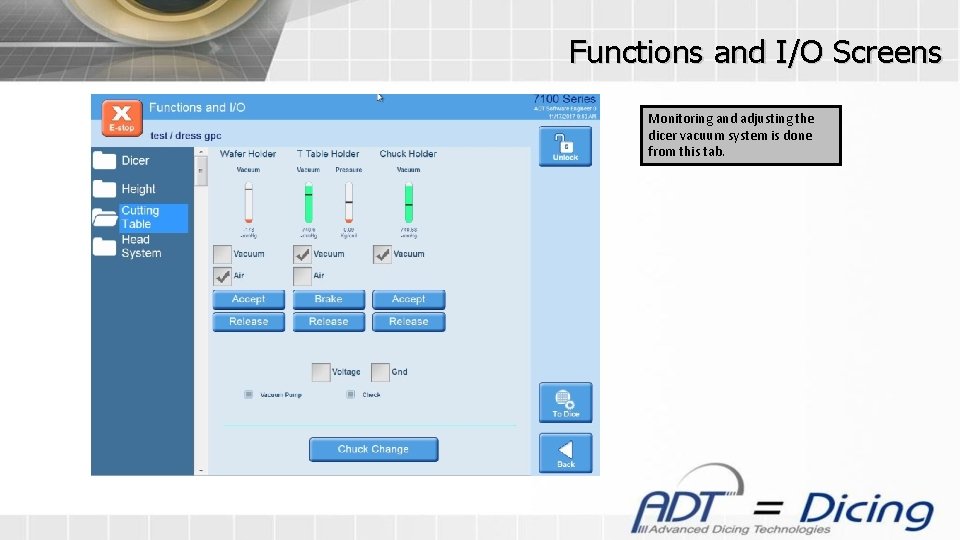
Functions and I/O Screens Monitoring and adjusting the dicer vacuum system is done from this tab.
System
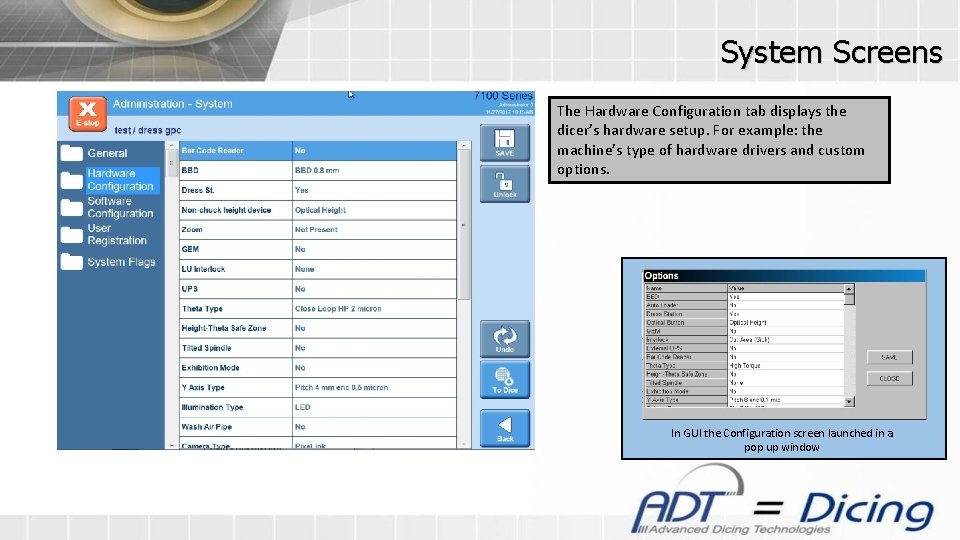
System Screens The Hardware Configuration tab displays the dicer’s hardware setup. For example: the machine’s type of hardware drivers and custom options. In GUI the Configuration screen launched in a pop up window
System Screens The Software Configuration tab displays a list of custom software features. The check box shows which custom features are currently active and available to be added to recipes. Note: Some features require the purchase of additional licensing in order to be activated
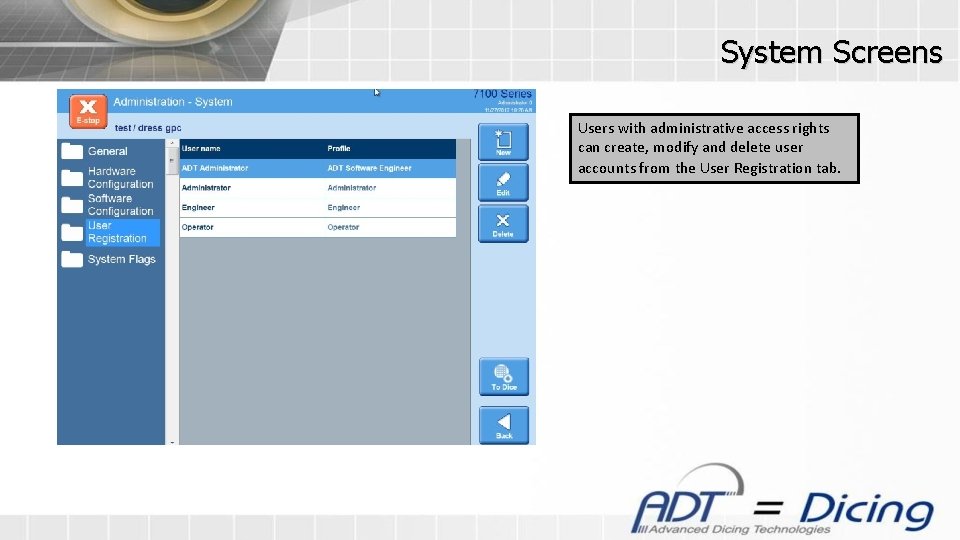
System Screens Users with administrative access rights can create, modify and delete user accounts from the User Registration tab.
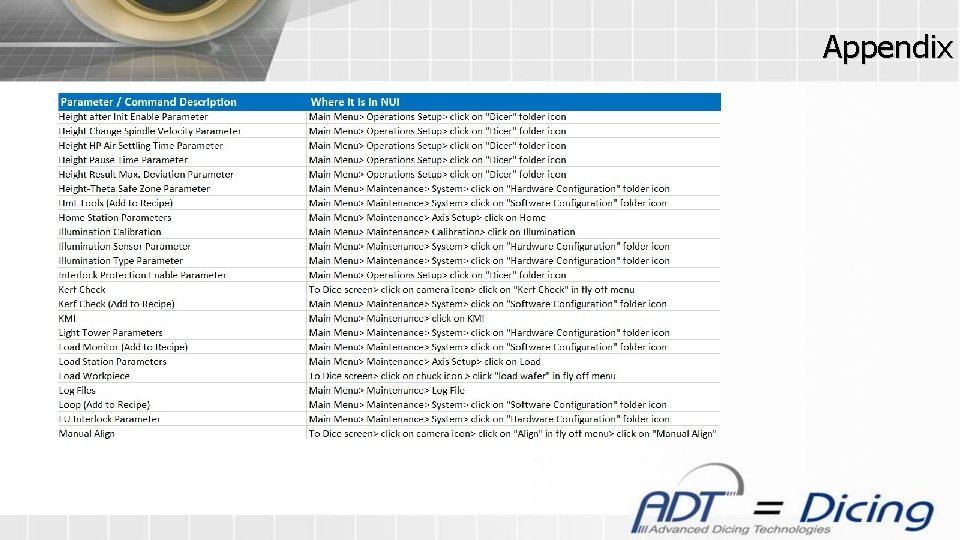
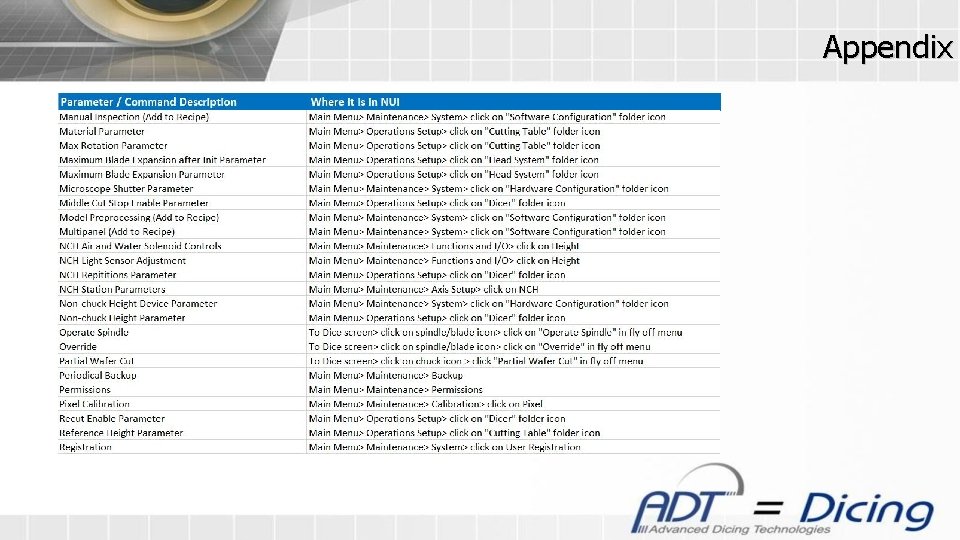
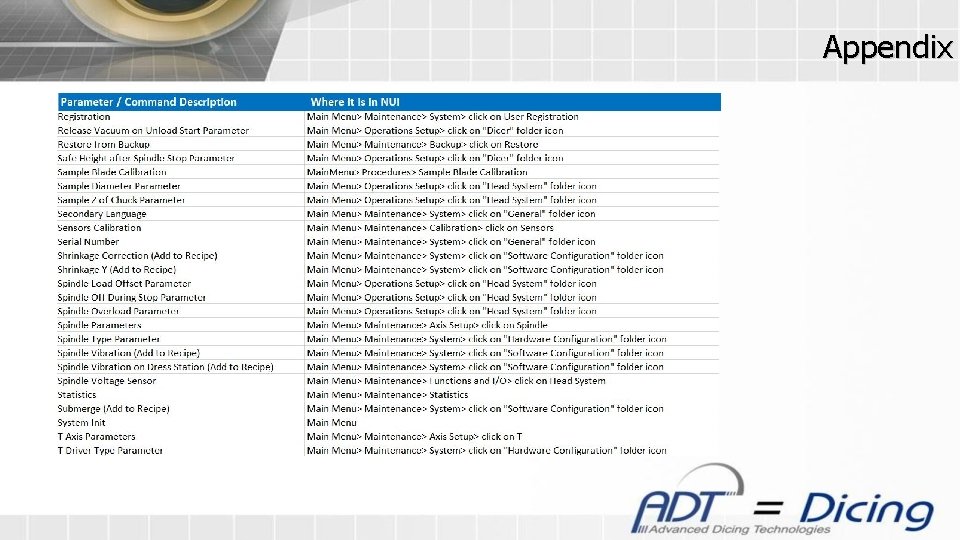
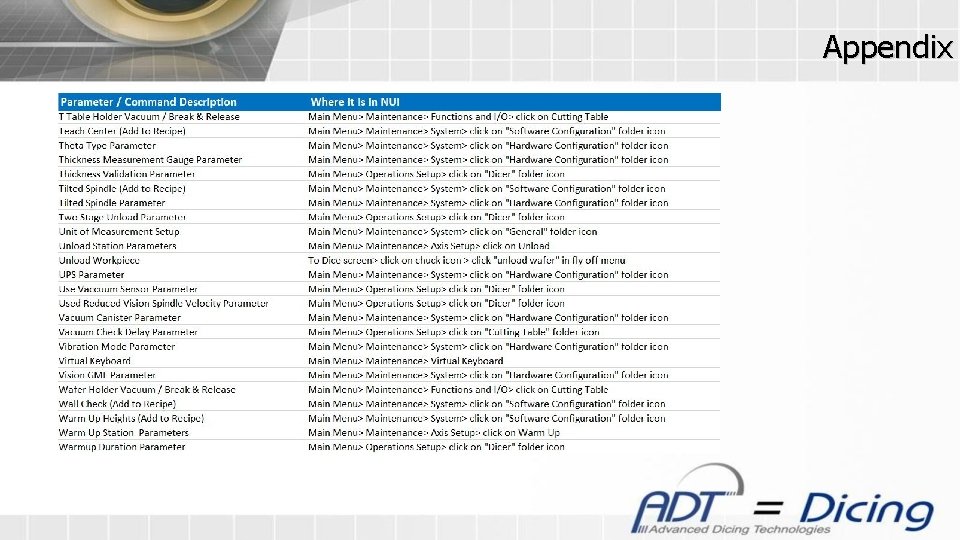
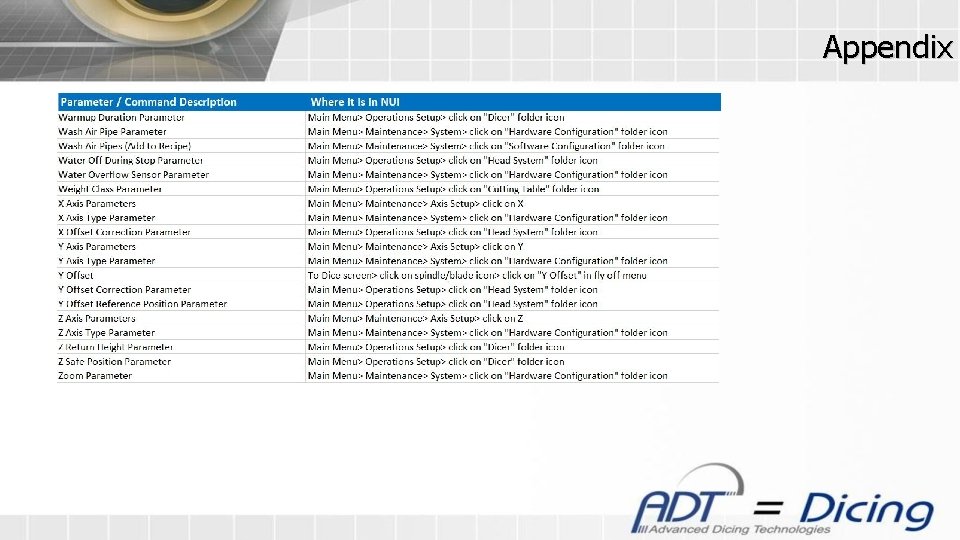
Appendix
Appendix
Appendix
Appendix
Appendix
Appendix
Appendix
Appendix