
NT 1110 Module 2 Unit 3 IO Ports

- Slides: 39
NT 1110 Module 2 Unit 3 I/O Ports and Devices
Objectives • Learn about the general approaches you need to take when installing and supporting I/O and mass storage devices • Learn how to install and configure several I/O devices, such as barcode readers, biometric devices, digital cameras, webcams, graphic tablets, and touch screens • Learn how to install and configure adapter cards video subsystem, monitors, video card and adapter cards A+ Guide to Managing & Maintaining Your PC, 8 th Edition © Cengage Learning 2014 2
Objectives • Learn about supporting I/O devices such as video subsystem, monitors, video card and adapter cards. © Cengage Learning 2014 3
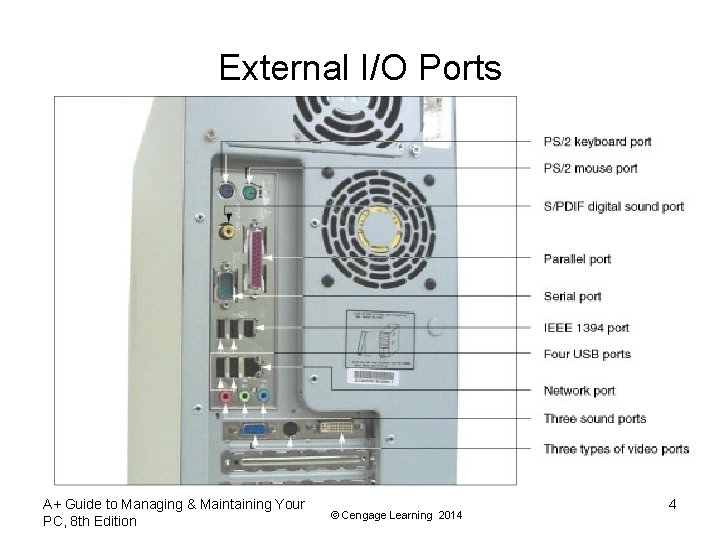
External I/O Ports A+ Guide to Managing & Maintaining Your PC, 8 th Edition © Cengage Learning 2014 4
Basic Principles For Supporting Devices • I/O devices may be internal or external • Fundamental principles and concepts: – – – Every device is controlled by software Best guide for installation and support: manufacturer Some devices need application software A device is no faster than the port/slot it is designed for Use an administrator account in Windows Problems are sometimes solved by updating drivers or firmware – Install only one device at a time A+ Guide to Managing & Maintaining Your PC, 8 th Edition © Cengage Learning 2014 5
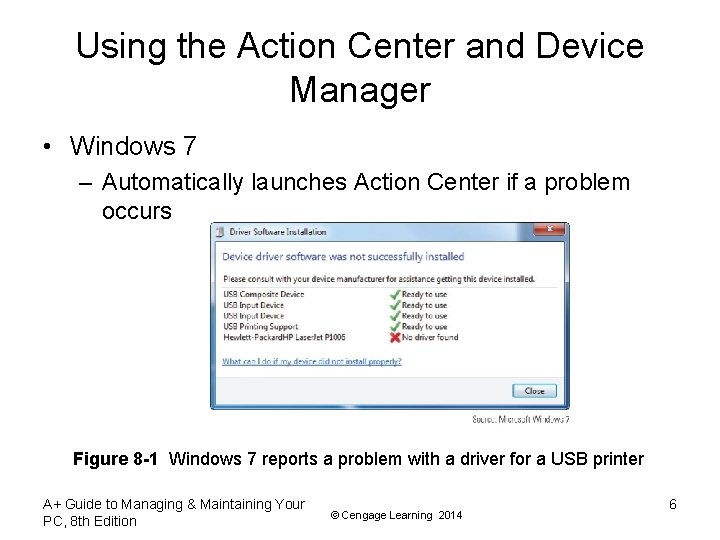
Using the Action Center and Device Manager • Windows 7 – Automatically launches Action Center if a problem occurs Figure 8 -1 Windows 7 reports a problem with a driver for a USB printer A+ Guide to Managing & Maintaining Your PC, 8 th Edition © Cengage Learning 2014 6
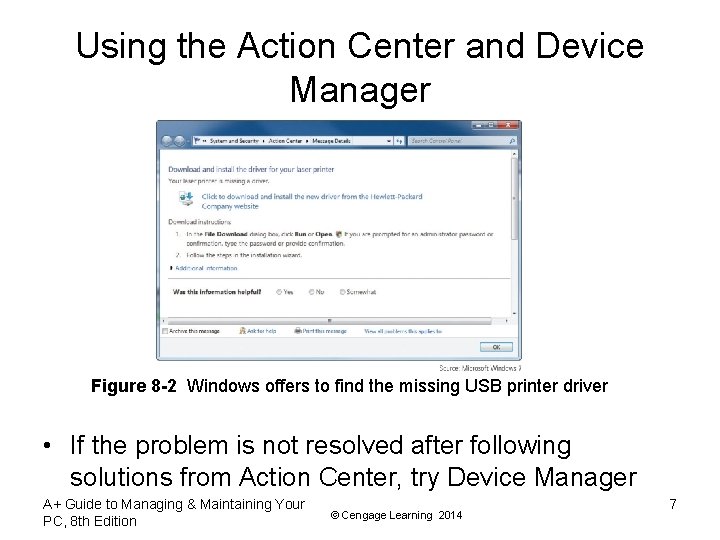
Using the Action Center and Device Manager Figure 8 -2 Windows offers to find the missing USB printer driver • If the problem is not resolved after following solutions from Action Center, try Device Manager A+ Guide to Managing & Maintaining Your PC, 8 th Edition © Cengage Learning 2014 7
Using the Action Center and Device Manager • Device Manager (devmgmt. msc) – Primary Windows tool for managing hardware • Using Device Manager you can: – – Disable or enable a device Update its drivers Uninstall a device Undo a driver update • To access Device Manger: – Click Start, right-click Computer, select Properties on the shortcut menu, Click Device Manager on the System window and respond to UAC box A+ Guide to Managing & Maintaining Your PC, 8 th Edition © Cengage Learning 2014 8
Using the Action Center and Device Manager • Ways to use Device Manager to solve problems: – Look for error messages offered by Device Manager – Update the drivers or roll back (undo) a driver update – Try uninstalling and reinstalling the device • If Windows is not able to locate new drivers for a device – Download latest driver file from manufacturer’s site – Use 64 -bit drivers for 64 -bit OS and 32 -bit drivers for 32 -bit OS A+ Guide to Managing & Maintaining Your PC, 8 th Edition © Cengage Learning 2014 9
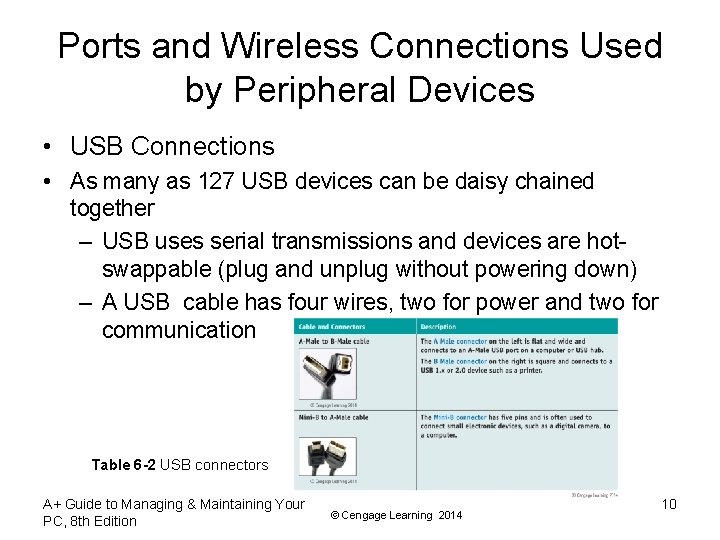
Ports and Wireless Connections Used by Peripheral Devices • USB Connections • As many as 127 USB devices can be daisy chained together – USB uses serial transmissions and devices are hotswappable (plug and unplug without powering down) – A USB cable has four wires, two for power and two for communication Table 6 -2 USB connectors A+ Guide to Managing & Maintaining Your PC, 8 th Edition © Cengage Learning 2014 10
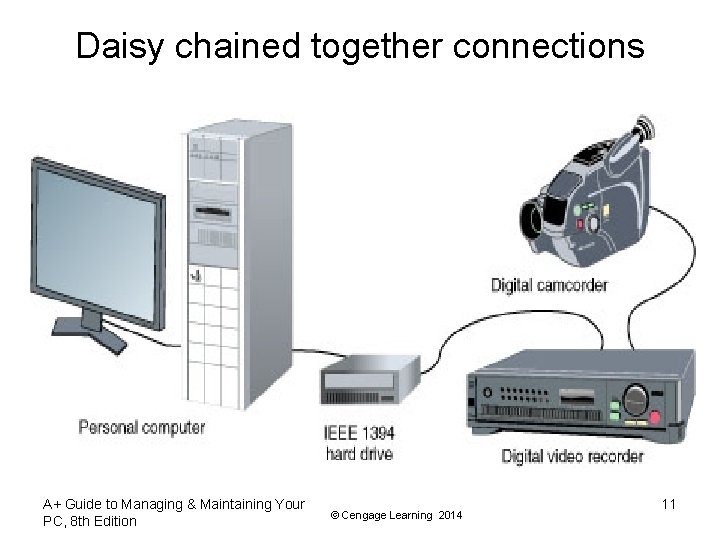
Daisy chained together connections A+ Guide to Managing & Maintaining Your PC, 8 th Edition © Cengage Learning 2014 11
Ports and Wireless Connections Used by Peripheral Devices • Fire. Wire (IEEE 1394) Connections – Hardly used in new devices – Uses serial transmissions and devices are hotswappable – Fire. Wire 800 allows for up to 63 devices and Fire. Wire 400 allows for up to 16 devices to be daisy chained together – Fire. Wire 400 supports two connector types – Fire. Wire 800 uses a 9 -pin rectangular connector A+ Guide to Managing & Maintaining Your PC, 8 th Edition © Cengage Learning 2014 12
Installing I/O Peripheral Devices • Simple input devices (mouse and keyboard) – Can be controlled by the BIOS or have embedded drivers built into the OS • General procedures to install any peripheral device: – 1. Read the manufacturer’s directions – 2. Make sure the drivers are written for the proper OS – 3. Make sure the motherboard port you are using is enabled – 4. Install drivers or plug in the device – 5. Install the application software to use the device A+ Guide to Managing & Maintaining Your PC, 8 th Edition © Cengage Learning 2014 13
Installing I/O Peripheral Devices • Mouse or Keyboard – Plug into a USB or older PS/2 port and OS should automatically recognize it and install generic drivers – For keyboards with special features: • Install drivers that came with the keyboard – Use Device Manager to uninstall, disable, or enable most devices • USB devices are managed through Control Panel A+ Guide to Managing & Maintaining Your PC, 8 th Edition © Cengage Learning 2014 14
Installing I/O Peripheral Devices • Biometric Devices - inputs a person’s biological data – Additional authentication to control access to sensitive data • Fingerprint reader types may: – Look like a mouse – Use wireless or USB connection – Be embedded on side of keyboard, flash drive or laptop • Read documentation to know if you should install drivers before plugging in device A+ Guide to Managing & Maintaining Your PC, 8 th Edition © Cengage Learning 2014 15
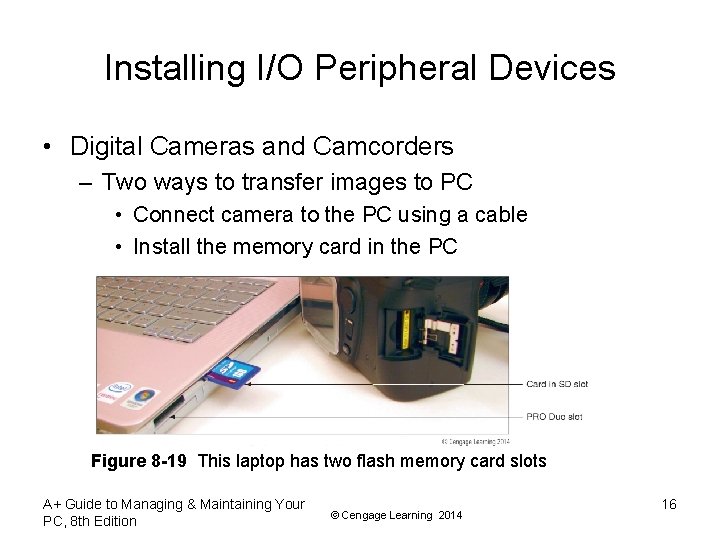
Installing I/O Peripheral Devices • Digital Cameras and Camcorders – Two ways to transfer images to PC • Connect camera to the PC using a cable • Install the memory card in the PC Figure 8 -19 This laptop has two flash memory card slots A+ Guide to Managing & Maintaining Your PC, 8 th Edition © Cengage Learning 2014 16
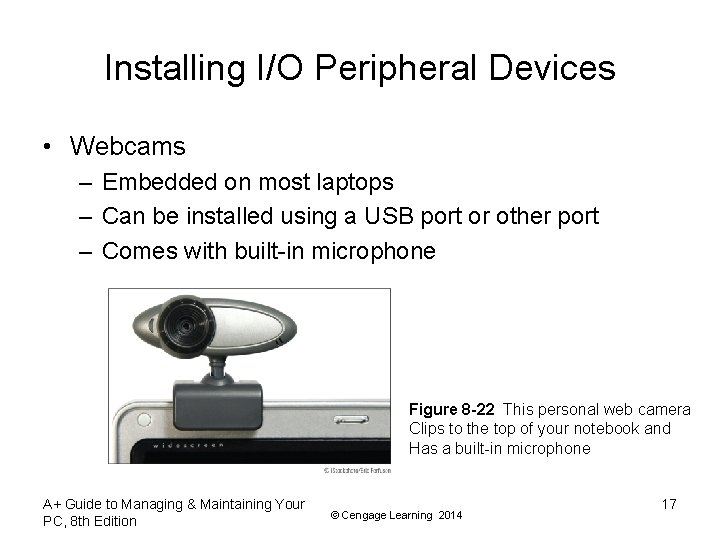
Installing I/O Peripheral Devices • Webcams – Embedded on most laptops – Can be installed using a USB port or other port – Comes with built-in microphone Figure 8 -22 This personal web camera Clips to the top of your notebook and Has a built-in microphone A+ Guide to Managing & Maintaining Your PC, 8 th Edition © Cengage Learning 2014 17
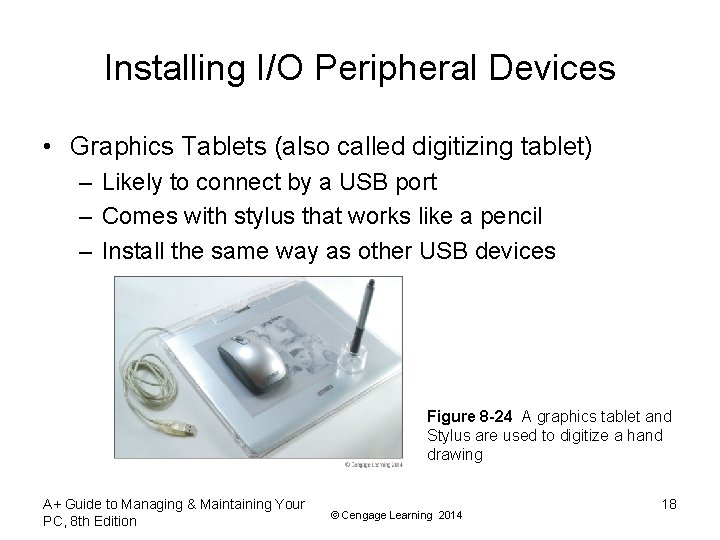
Installing I/O Peripheral Devices • Graphics Tablets (also called digitizing tablet) – Likely to connect by a USB port – Comes with stylus that works like a pencil – Install the same way as other USB devices Figure 8 -24 A graphics tablet and Stylus are used to digitize a hand drawing A+ Guide to Managing & Maintaining Your PC, 8 th Edition © Cengage Learning 2014 18
Installing I/O Peripheral Devices • MIDI Devices – MIDI (Musical instrument digital interface) – set of standards used to represent music in digital form – MIDI standards are used to connect musical equipment such as musical keyboards and mixers – Most sound cards can play MIDI files – MIDI port is a 5 -pin DIN port that looks like PS/2 keyboard port (only larger) A+ Guide to Managing & Maintaining Your PC, 8 th Edition © Cengage Learning 2014 19
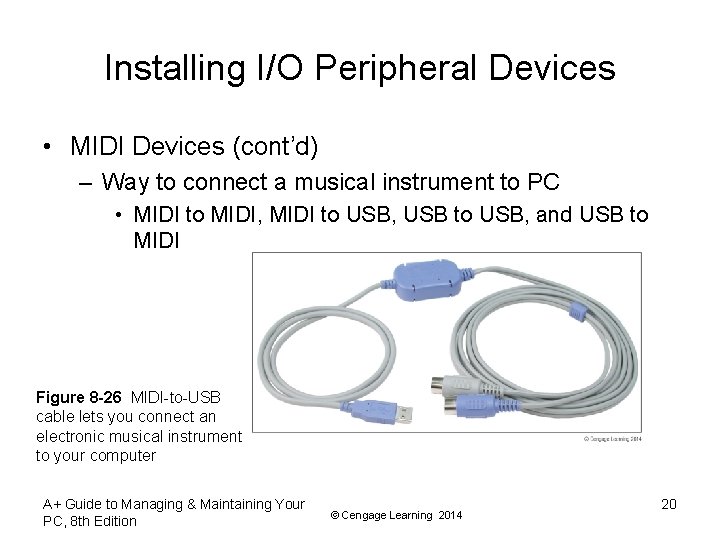
Installing I/O Peripheral Devices • MIDI Devices (cont’d) – Way to connect a musical instrument to PC • MIDI to MIDI, MIDI to USB, USB to USB, and USB to MIDI Figure 8 -26 MIDI-to-USB cable lets you connect an electronic musical instrument to your computer A+ Guide to Managing & Maintaining Your PC, 8 th Edition © Cengage Learning 2014 20
Installing I/O Peripheral Devices • Touch Screens – Input device that uses a monitor or LCD panel as the backdrop for input options – Some laptops and monitors for desktops have built-in touch screens – Can be installed as an add-on – For most installations, install drivers before connecting by way of a USB port – Use management software that came with the device to control and calibrate A+ Guide to Managing & Maintaining Your PC, 8 th Edition © Cengage Learning 2014 21
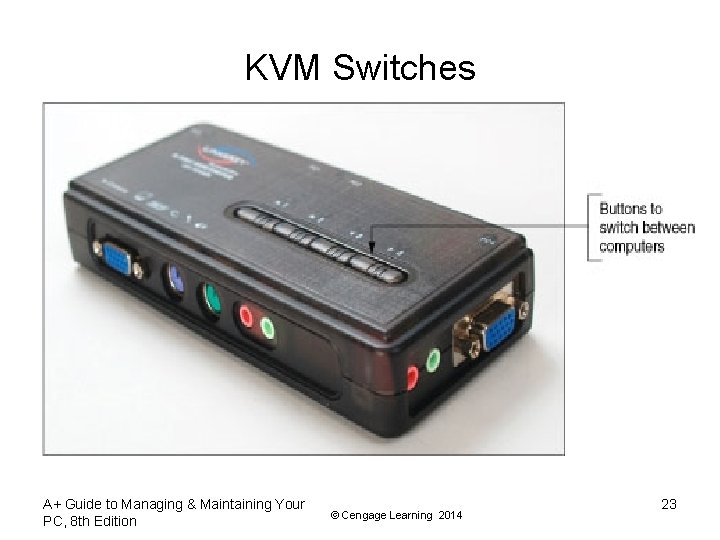
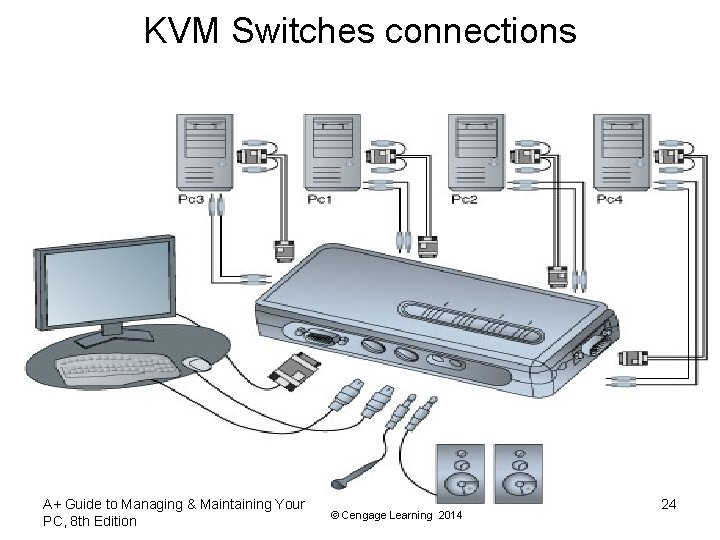
Installing I/O Peripheral Devices • KVM Switches – Keyboard, Video, and Mouse (KVM) switch allows the use of one keyboard, mouse, and monitor for multiple computers – Useful in a server room or testing lab – Does not require device drivers, just plug in cables form each computer to the device – Switch between computers by using a hot key on the keyboard, buttons on KVM switch, or a wired remote A+ Guide to Managing & Maintaining Your PC, 8 th Edition © Cengage Learning 2014 22
KVM Switches A+ Guide to Managing & Maintaining Your PC, 8 th Edition © Cengage Learning 2014 23
KVM Switches connections A+ Guide to Managing & Maintaining Your PC, 8 th Edition © Cengage Learning 2014 24
Installing and Configuring Adapter Cards • When preparing to install a adapter card: – – – Verify card fits an empty expansion slot or PCI slot PCI is Peripheral Component Interconnect Verify device drivers for the OS are available Back up important data not already backed up Know your starting point A+ Guide to Managing & Maintaining Your PC, 8 th Edition © Cengage Learning 2014 25
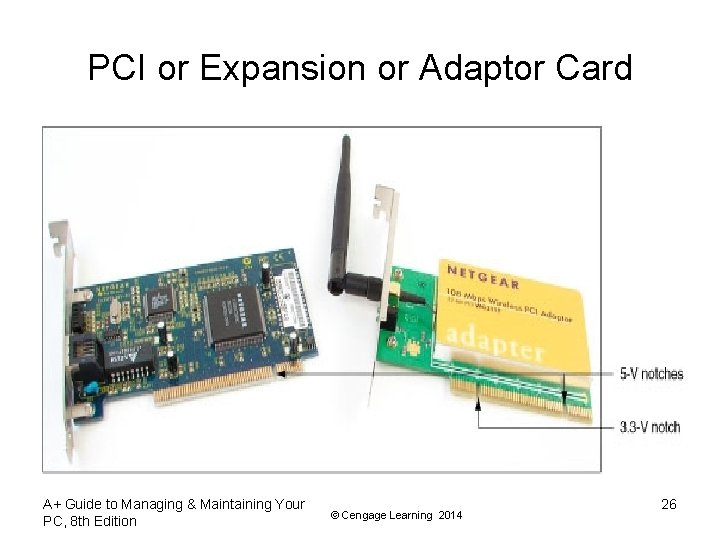
PCI or Expansion or Adaptor Card A+ Guide to Managing & Maintaining Your PC, 8 th Edition © Cengage Learning 2014 26
Installing and Configuring Adapter Cards • General directions to install an adapter card – Read the documentation – If replacing an onboard port, disable port in BIOS setup – Wear ground bracelet, shut down system, unplug power cords and cables, and drain power – Locate slot and prepare for installation – Insert card into expansion slot – Anchor card to top of the slot with screws – Connect any power cords or data cables A+ Guide to Managing & Maintaining Your PC, 8 th Edition © Cengage Learning 2014 27
Installing and Configuring Adapter Cards • General directions to install an adapter card (cont’d) – Replace the case cover, plug in any essential peripherals – Start the system – Windows should detect a new hardware device and attempt to automatically install the drivers – If a CD came with device, insert and run the setup program – May have to restart the system • If any problems with installation, turn to Device Manager to troubleshoot A+ Guide to Managing & Maintaining Your PC, 8 th Edition © Cengage Learning 2014 28
Installing and Configuring Adapter Cards • Possible problems and solutions – Whining sound at power up: inadequate power supply – Black screen at power up: disable onboard port – Series of beeps at power up: reseat card and check slot – Error messages about video when Windows starts: conflict in onboard video and video card – Games crash or lock up: update motherboard, video card, sound card drivers, update Direct. X, and apply game patches A+ Guide to Managing & Maintaining Your PC, 8 th Edition © Cengage Learning 2014 29
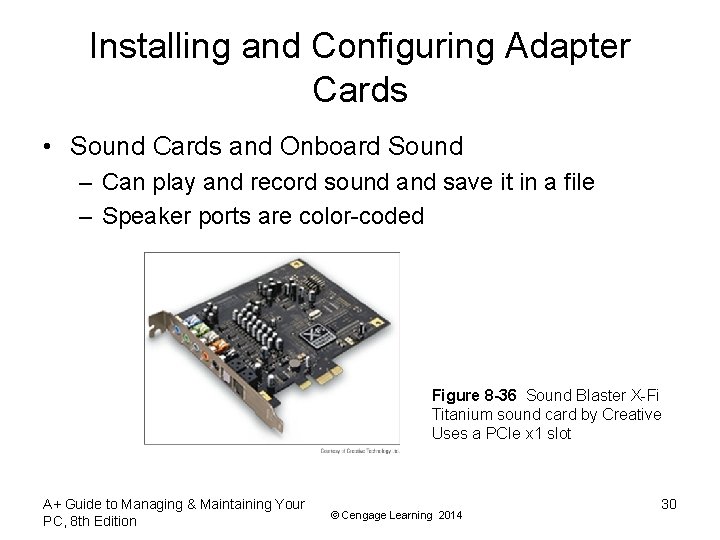
Installing and Configuring Adapter Cards • Sound Cards and Onboard Sound – Can play and record sound and save it in a file – Speaker ports are color-coded Figure 8 -36 Sound Blaster X-Fi Titanium sound card by Creative Uses a PCIe x 1 slot A+ Guide to Managing & Maintaining Your PC, 8 th Edition © Cengage Learning 2014 30
Installing and Configuring Adapter Cards • TV Tuner and Video Capture Cards – TV tuner card can turn a PC into a television – Video capture card enables capturing video input and saving it to a file – Some cards are a combination of the two cards above – When installing you will most likely: • Install the drivers, install the card, and then install the application software that comes bundled with card A+ Guide to Managing & Maintaining Your PC, 8 th Edition © Cengage Learning 2014 31
Supporting the Video Subsystem • Monitor: primary output device of a computer • Two necessary components for video output: – Monitor – Video card (also called video adapter or graphics card) or video port on motherboard A+ Guide to Managing & Maintaining Your PC, 8 th Edition © Cengage Learning 2014 32
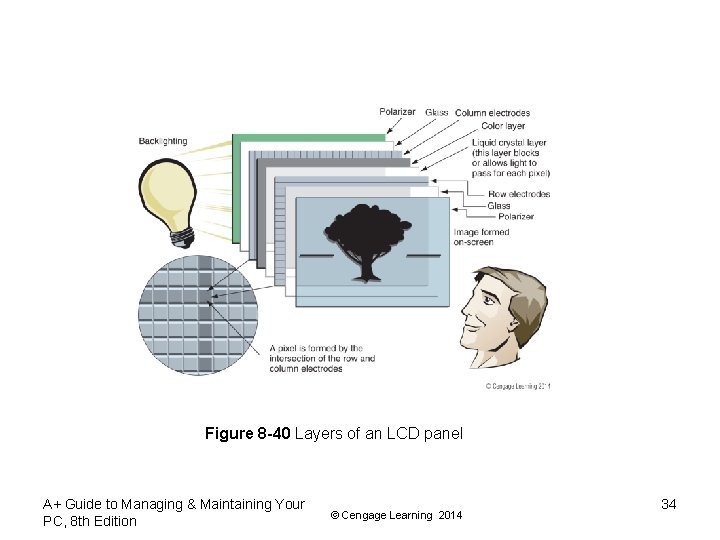
Monitor Technologies and Features • Types of monitors – CRT (cathode-ray tube) – first used in television sets • Largely obsolete – LCD (liquid crystal display) - also called flat panel • First used in laptops • Two grids of electrodes surround center layers – Make up an electrode matrix of rows and columns • • Each intersection of row and column forms a pixel Software manipulates each pixel via electrodes Image is formed by scanning columns and rows LED (light-emitting diode) backlighting is used to light the LCD panel A+ Guide to Managing & Maintaining Your PC, 8 th Edition © Cengage Learning 2014 33
Figure 8 -40 Layers of an LCD panel A+ Guide to Managing & Maintaining Your PC, 8 th Edition © Cengage Learning 2014 34
Video Cards and Connectors • Video cards – Graphic adapters, graphics cards, display cards – Most motherboards have integrated video controller – Can use AGP, PCI Express motherboard slot • Ports provided by video cards – VGA: red, green, blue video using VGA port (DB-15) – DVI (Digital Visual Interface) - variations of DVI: • • DVI-D – only transmits digital data DVI-I – supports analog and digital signals DVI-A – only transmits analog data Single Link or Dual Link – Dual link doubles the power of the signal and can support higher screen resolutions – Most DVD-D and DVI-I ports are dual link A+ Guide to Managing & Maintaining Your PC, 8 th Edition © Cengage Learning 2014 35
Video Cards and Connectors • Ports provided by video cards (cont’d): – Composite video: also called RGB port • Red, green, and blue are mixed together in the same signal • Does not produce as sharp an image as VGA or SVideo – S-Video (Super-Video): used by some TVs and video equipment • Connector is called a Mini. Din-6 and looks like PS/2 – Component video: has been split into different components and carried as separate signals A+ Guide to Managing & Maintaining Your PC, 8 th Edition © Cengage Learning 2014 36
Video Cards and Connectors • Ports provided by video cards (cont’d): – Display Port: designed to replace DVI • Can transmit digital and audio data • Uses data packet transmissions similar to Ethernet, USB, and PCI Express • Expected to replace VGA, DVI, and HDMI on desktop and laptop computers – HDMI: transmits both digital video and audio • Allows for several types of HDMI connectors (best known is Type A 19 -pin) • Only works on DVI-D ports (does not transmit analog) A+ Guide to Managing & Maintaining Your PC, 8 th Edition © Cengage Learning 2014 37
Supporting Storage Devices • Storage devices to support might include: – Optical discs – USB flash drives – Memory cards A+ Guide to Managing & Maintaining Your PC, 8 th Edition © Cengage Learning 2014 38
Summary • File systems a storage device might use in Windows include NTFS, ex. FAT, and FAT • Optical discs can be recordable (CD-R) or rewritable (DVD-RW) • Types of flash memory standards include SD, Mini. SD, Micro. SD, SDHC, Mini. SDHC, Micro. SDHC, SDXC, Micro. SDXC • Other memory cards include Memory Stick PRO Duo, Memory Stick PRO, Memory Stick Micro M 2, Compact. Flash I and II, and x. D-Picture Card A+ Guide to Managing & Maintaining Your PC, 8 th Edition © Cengage Learning 2014 39