
NSI 2000 Software Training Presented by Patrick Pelland
NSI 2000 Software Training Presented by: Patrick Pelland, NSI-MI

NSI 2000 Main Screen

NSI 2000 Ribbon and Menus Print and copy selected plots Select field region. Double click to Create new scan or open menu. view current scan parameters. Open recent files. Plot 1 D, 2 D and 3 D or tabulated data. Macro bar for access to common scripts Open beam list. Abort current action. Open scripter.
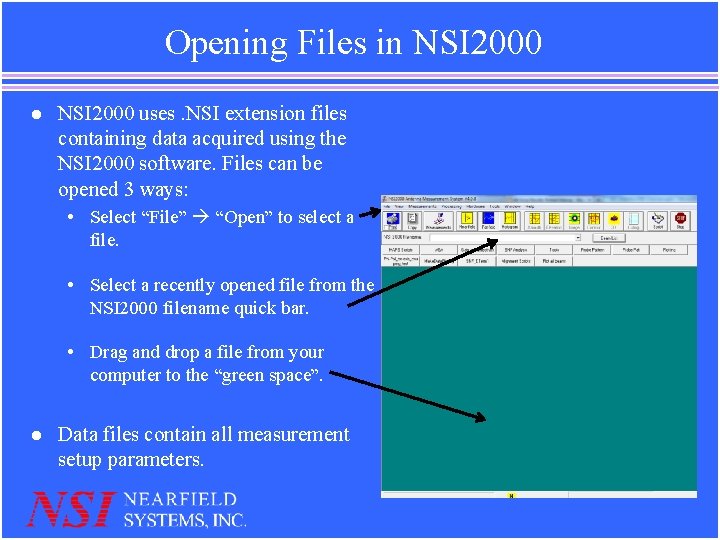
Opening Files in NSI 2000 l NSI 2000 uses. NSI extension files containing data acquired using the NSI 2000 software. Files can be opened 3 ways: • Select “File” “Open” to select a file. • Select a recently opened file from the NSI 2000 filename quick bar. • Drag and drop a file from your computer to the “green space”. l Data files contain all measurement setup parameters.

NSI 2000 Measurements Menu l NSI 2000 Measurements Menu contains five tabs. • Scan setup: used to select measurement type, input AUT and range dimensions and set up sampling parameters • Multi-beam setup: create list of frequencies, switch positions or auxiliary axis positions. • Probe setup: set up parameters for the near-field/far-field probe. • Reference setup: input location of AUT and drift check location. • Move axes: allow the user to move various system axes.

NSI 2000 Move Scanner Increment axis up (+) or down (-) by Amount Shown. Specify Axis & Desired Position Move to Scanner Zero Position Change Scanner Zero Position to Current Position (without moving probe) Index Scanner Axes (or Axis) System Monitor Move to Scan Center Position Set Scanner Center (Based on Current Position settings) Change Scanner Current Position to location typed in Position text box. (without moving probe)

NSI 2000 Near-Field Display Menu Select amplitude or phase for plotting/listing. Select acquisition pol-1 or pol-2 Amplitude and tapering options Pol-1/Pol-2 network corrections Position phase correction

NSI 2000 Near-Field Plot Parameters View peak near-field amplitude values Near-field amplitude and phase plotting scale Select near-field normalization type Plot adjust options Plot comment block
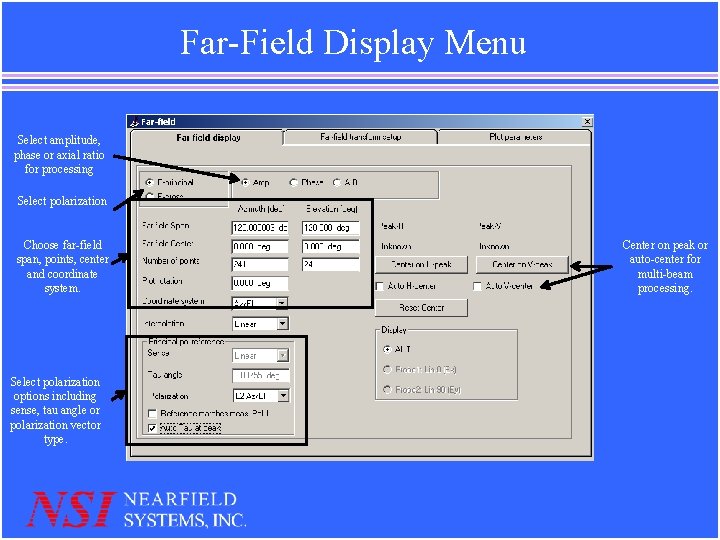
Far-Field Display Menu Select amplitude, phase or axial ratio for processing Select polarization Choose far-field span, points, center and coordinate system. Select polarization options including sense, tau angle or polarization vector type. Center on peak or auto-center for multi-beam processing.
Near-Field/Far-Field Polarization Tips l l l Remember to set position of probe to be horizontally polarized at Pol = 0 deg For unknown polarization, use dual-pol scan and “Polarization calculator” to determine polarization properties. Use “Auto-Tau at peak” to auto adjust tau angle automatically to match AUT polarization vector
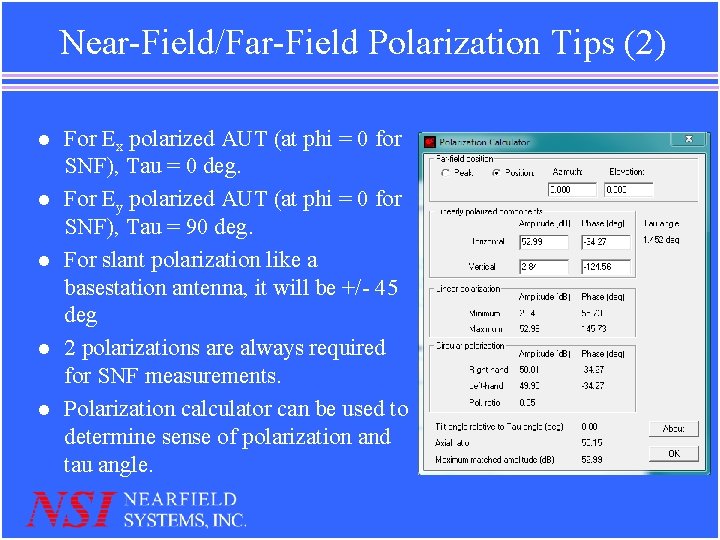
Near-Field/Far-Field Polarization Tips (2) l l l For Ex polarized AUT (at phi = 0 for SNF), Tau = 0 deg. For Ey polarized AUT (at phi = 0 for SNF), Tau = 90 deg. For slant polarization like a basestation antenna, it will be +/- 45 deg 2 polarizations are always required for SNF measurements. Polarization calculator can be used to determine sense of polarization and tau angle.
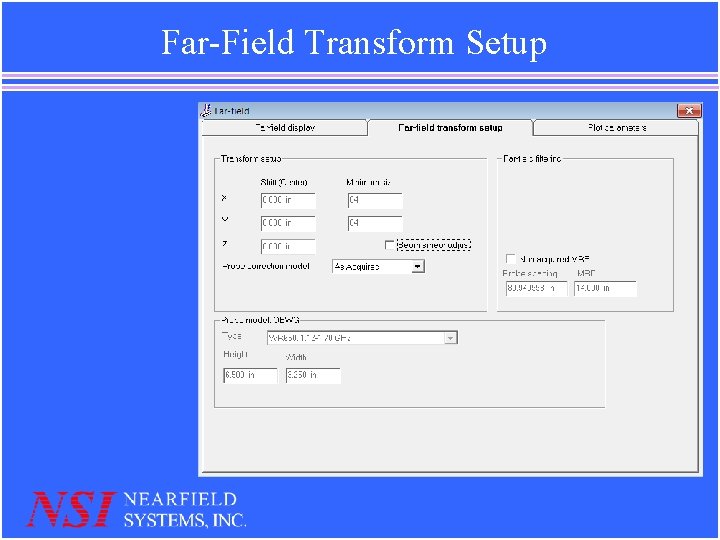
Far-Field Transform Setup
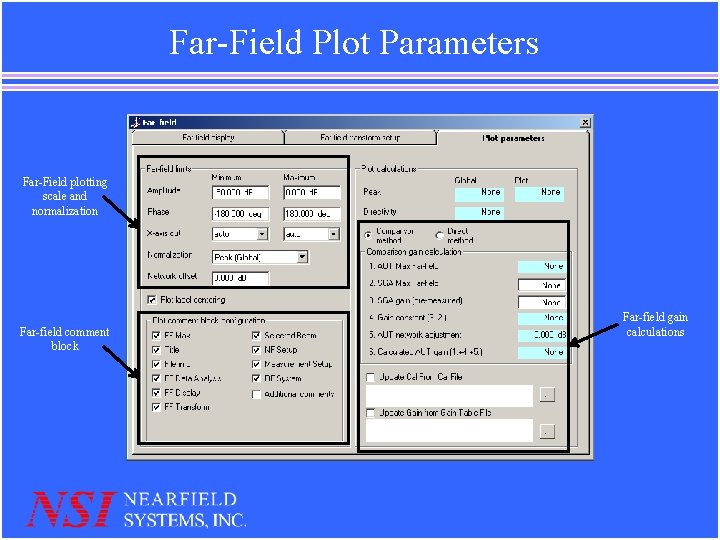
Far-Field Plot Parameters Far-Field plotting scale and normalization Far-field comment block Far-field gain calculations
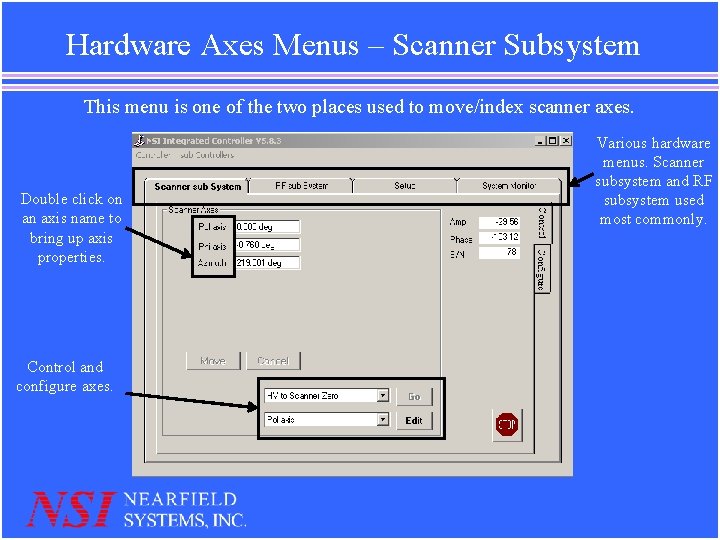
Hardware Axes Menus – Scanner Subsystem This menu is one of the two places used to move/index scanner axes. Double click on an axis name to bring up axis properties. Control and configure axes. Various hardware menus. Scanner subsystem and RF subsystem used most commonly.
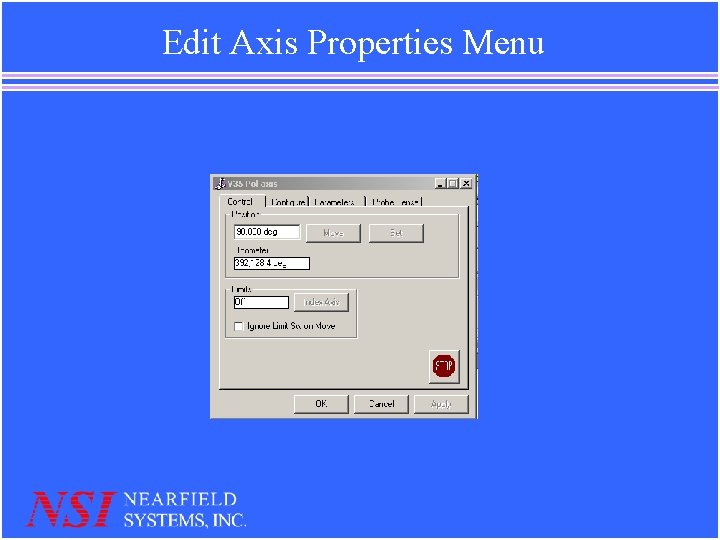
Edit Axis Properties Menu
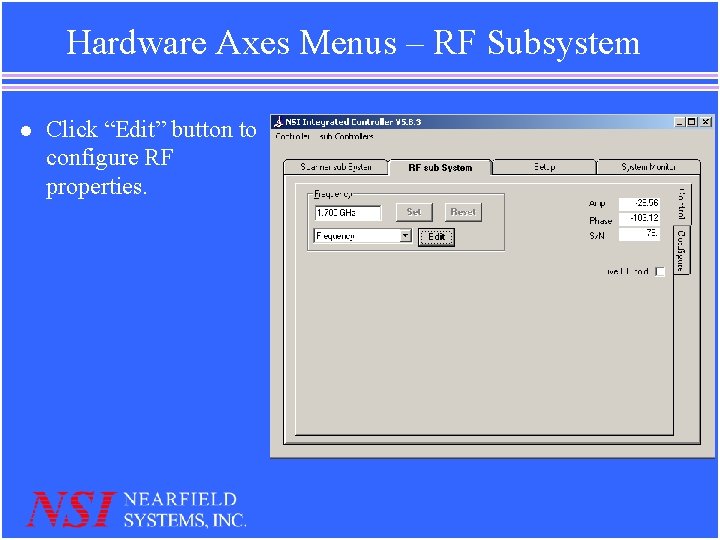
Hardware Axes Menus – RF Subsystem l Click “Edit” button to configure RF properties.
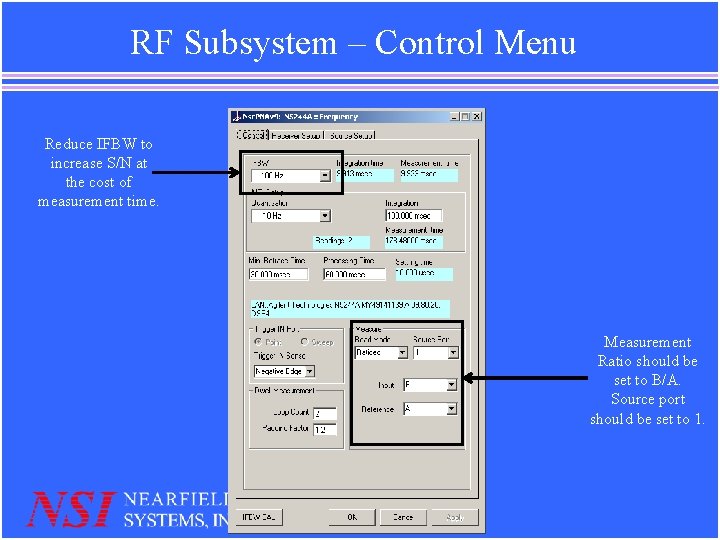
RF Subsystem – Control Menu Reduce IFBW to increase S/N at the cost of measurement time. Measurement Ratio should be set to B/A. Source port should be set to 1.
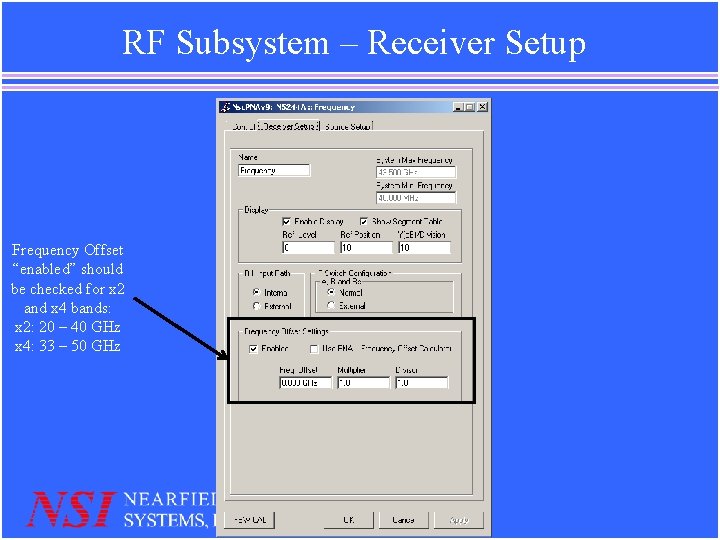
RF Subsystem – Receiver Setup Frequency Offset “enabled” should be checked for x 2 and x 4 bands: x 2: 20 – 40 GHz x 4: 33 – 50 GHz

RF Subsystem – Source Setup Toggle RF power. Recommend leaving power level at 0 d. Bm Harmonic ratio should be set based on frequency band: x 1: 1 – 20 GHz, harmonic = 1 x 2: 20 – 40 GHz, harmonic = 2 x 4: 33 – 50 GHz, harmonic = 4
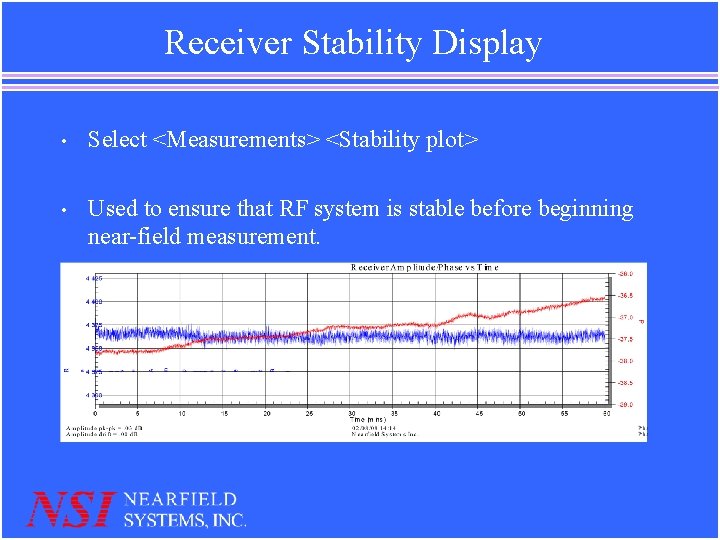
Receiver Stability Display • Select <Measurements> <Stability plot> • Used to ensure that RF system is stable before beginning near-field measurement.
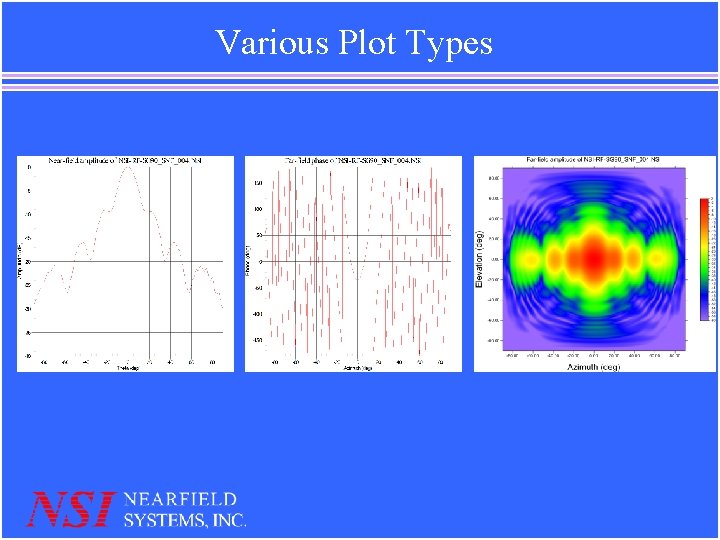
Various Plot Types
Macro bar Quick access to commonly used scripts. l Click “View” “Toolbars” “Macrobar” to hide/show macrobar and update contents. l Drag and drop “. bas” files to empty space in macro bar to create shortcut. l Drag to existing script to create macro library, useful for grouping several scripts. l
Useful Scripts l l l Beamwidthvsfreq – plot beam width vs. frequency for the current data file Directivity vs frequency – plot peak directivity vs. frequency Polarization calculator – calculates AUT polarization properties for dual-pol data file Spherical alignment – calculate the mechanical alignment accuracy of the SNF scanner Frequency bands – used to change between various RF configurations
NSI 2000 Tips l l View and edit existing scripts as a starting point when developing new scripts Contact NSI for examples and help instead of starting from scratch Use the “Hardware Axes” menu to index axes, change parameters and set position. Do these things with great caution and do not change parameters unless advised! Before running a scan, try moving an axis to its limits while watching motion to be sure it is safe. This is especially true with mm-wave setups and rotary positioners!
NSI 2000 Tips (2) l Many additional options are available in the “Tools” “Options” menu. l Click “Tools” “Save settings as default” after changing any hardware properties or the changes will be lost!

NSI 2000 Tips (3) l The most important tip is to read the NSI 2000 manuals when unsure of any particular step. l See “Help” “NSIHelp” for a list of useful documents related to the NSI 2000 software, scripter and your scanner.
- Slides: 26