
NRAO Proposal Tool PST Gustaaf van Moorsel NRAO
- Slides: 14
NRAO Proposal Tool (PST) Gustaaf van Moorsel NRAO Community Day 1/13/2012
Creating an NRAO proposal • Proposal Submission Tool (PST) – EVLA, VLBA, GBT, but … – for ALMA, use ALMA OT • This presentation: EVLA-centric • Accessing the PST – You must be registered at my. nrao. edu – Also allows access to other services (e. g. OPT) – Allows creating and submitting new proposals – Gives access to all proposals you are associated with regardless of your role (PI, co-I, contact author)
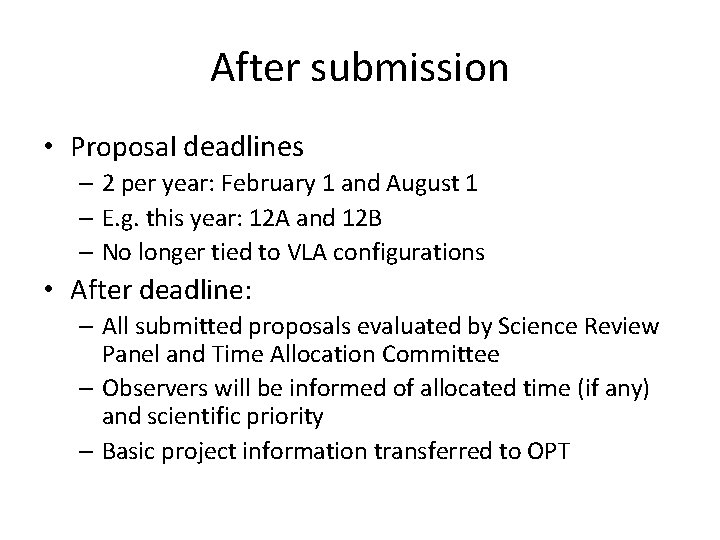
After submission • Proposal deadlines – 2 per year: February 1 and August 1 – E. g. this year: 12 A and 12 B – No longer tied to VLA configurations • After deadline: – All submitted proposals evaluated by Science Review Panel and Time Allocation Committee – Observers will be informed of allocated time (if any) and scientific priority – Basic project information transferred to OPT
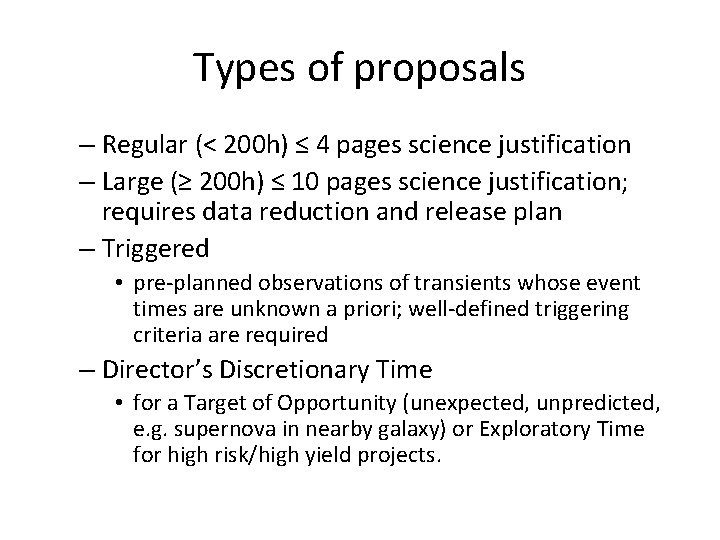
Types of proposals – Regular (< 200 h) ≤ 4 pages science justification – Large (≥ 200 h) ≤ 10 pages science justification; requires data reduction and release plan – Triggered • pre-planned observations of transients whose event times are unknown a priori; well-defined triggering criteria are required – Director’s Discretionary Time • for a Target of Opportunity (unexpected, unpredicted, e. g. supernova in nearby galaxy) or Exploratory Time for high risk/high yield projects.
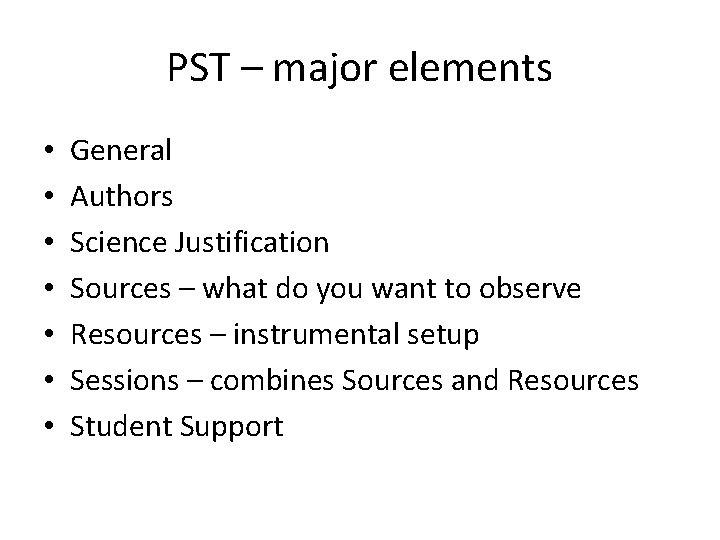
PST – major elements • • General Authors Science Justification Sources – what do you want to observe Resources – instrumental setup Sessions – combines Sources and Resources Student Support
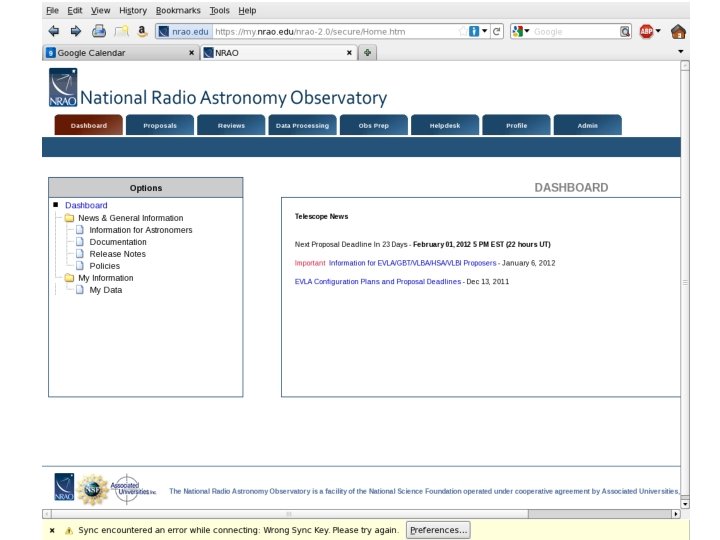
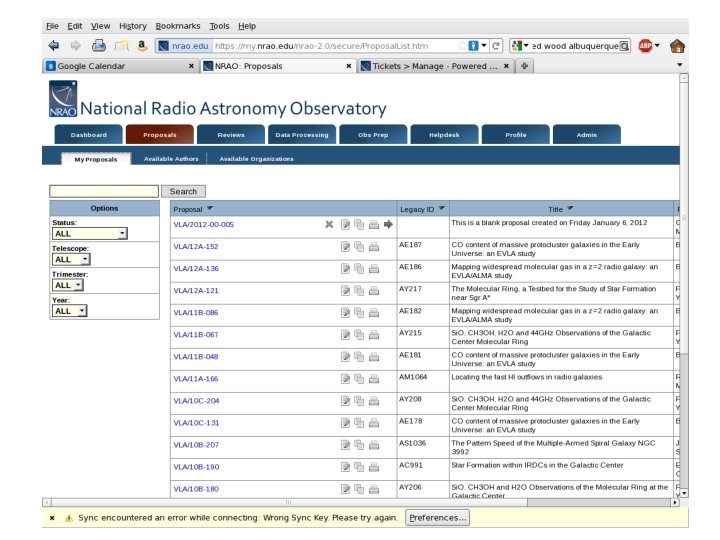
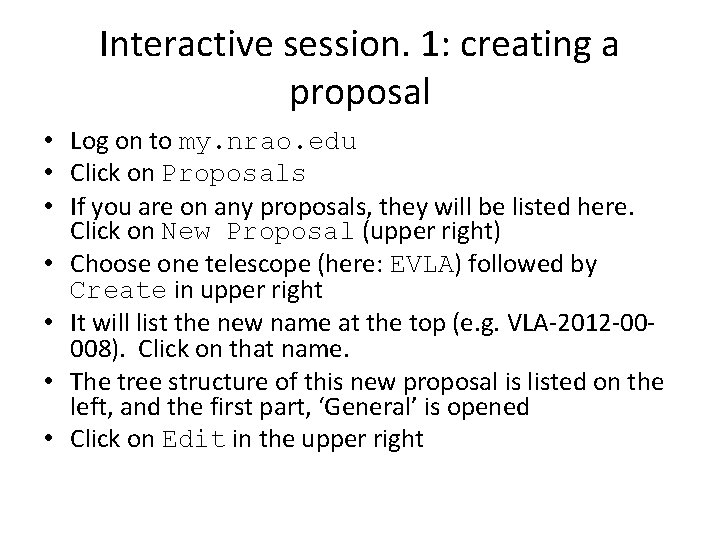
Interactive session. 1: creating a proposal • Log on to my. nrao. edu • Click on Proposals • If you are on any proposals, they will be listed here. Click on New Proposal (upper right) • Choose one telescope (here: EVLA) followed by Create in upper right • It will list the new name at the top (e. g. VLA-2012 -00008). Click on that name. • The tree structure of this new proposal is listed on the left, and the first part, ‘General’ is opened • Click on Edit in the upper right
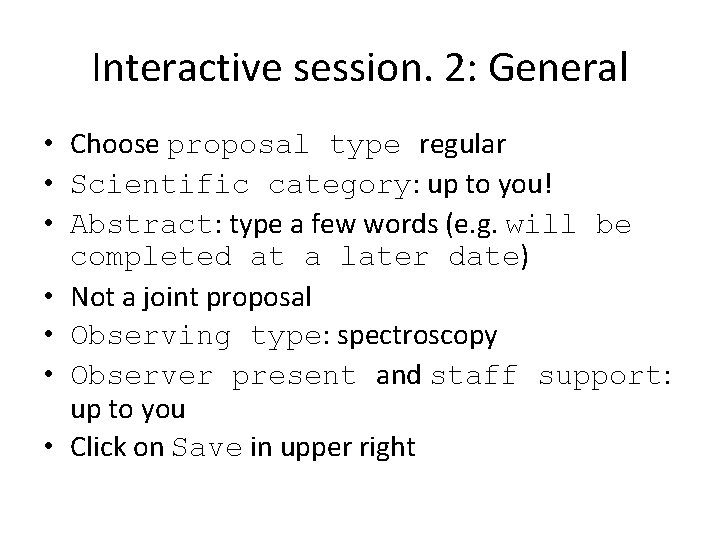
Interactive session. 2: General • Choose proposal type regular • Scientific category: up to you! • Abstract: type a few words (e. g. will be completed at a later date) • Not a joint proposal • Observing type: spectroscopy • Observer present and staff support: up to you • Click on Save in upper right
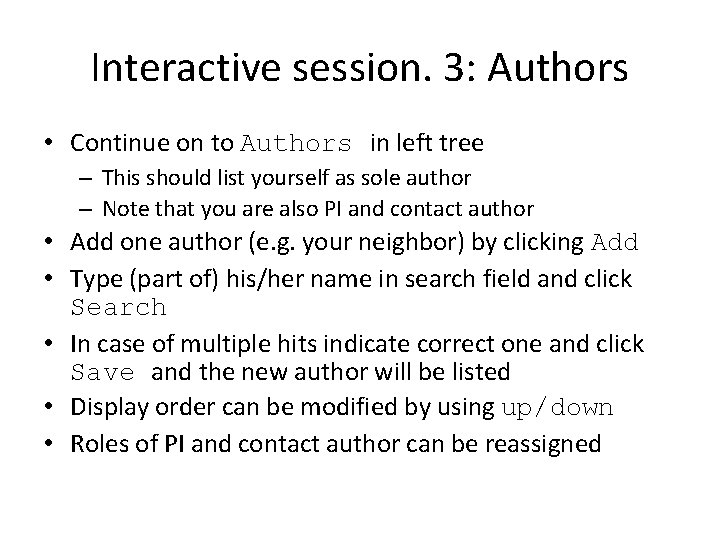
Interactive session. 3: Authors • Continue on to Authors in left tree – This should list yourself as sole author – Note that you are also PI and contact author • Add one author (e. g. your neighbor) by clicking Add • Type (part of) his/her name in search field and click Search • In case of multiple hits indicate correct one and click Save and the new author will be listed • Display order can be modified by using up/down • Roles of PI and contact author can be reassigned
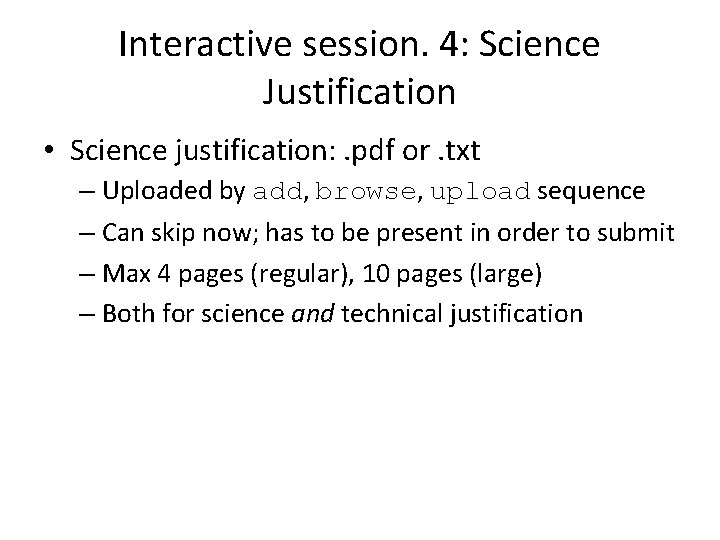
Interactive session. 4: Science Justification • Science justification: . pdf or. txt – Uploaded by add, browse, upload sequence – Can skip now; has to be present in order to submit – Max 4 pages (regular), 10 pages (large) – Both for science and technical justification
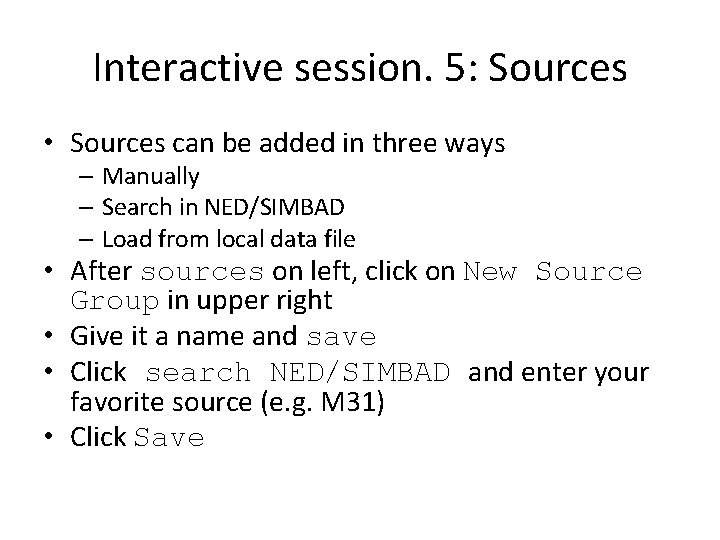
Interactive session. 5: Sources • Sources can be added in three ways – Manually – Search in NED/SIMBAD – Load from local data file • After sources on left, click on New Source Group in upper right • Give it a name and save • Click search NED/SIMBAD and enter your favorite source (e. g. M 31) • Click Save
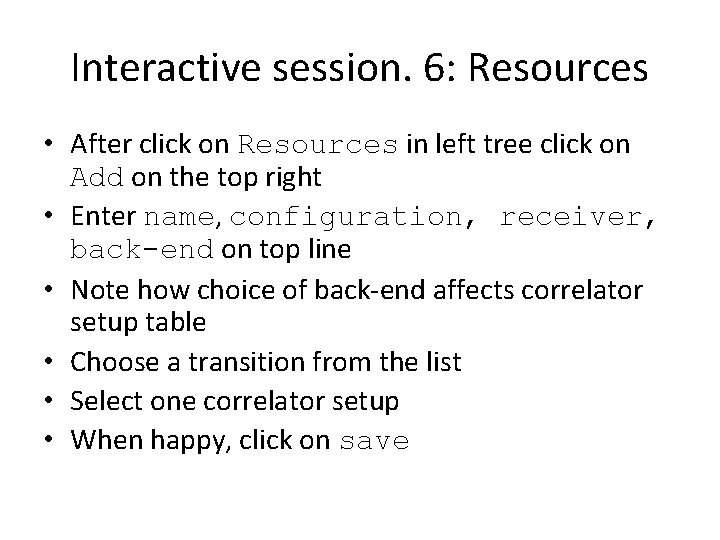
Interactive session. 6: Resources • After click on Resources in left tree click on Add on the top right • Enter name, configuration, receiver, back-end on top line • Note how choice of back-end affects correlator setup table • Choose a transition from the list • Select one correlator setup • When happy, click on save
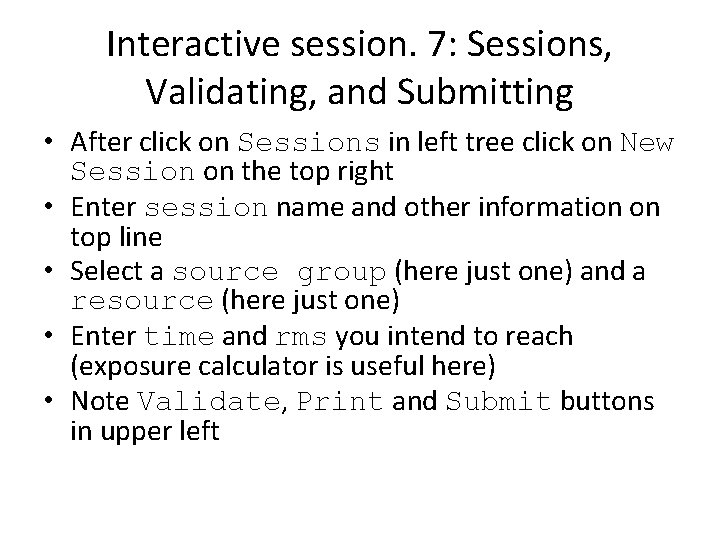
Interactive session. 7: Sessions, Validating, and Submitting • After click on Sessions in left tree click on New Session on the top right • Enter session name and other information on top line • Select a source group (here just one) and a resource (here just one) • Enter time and rms you intend to reach (exposure calculator is useful here) • Note Validate, Print and Submit buttons in upper left