
Now lets put the 3 different parts together
- Slides: 34
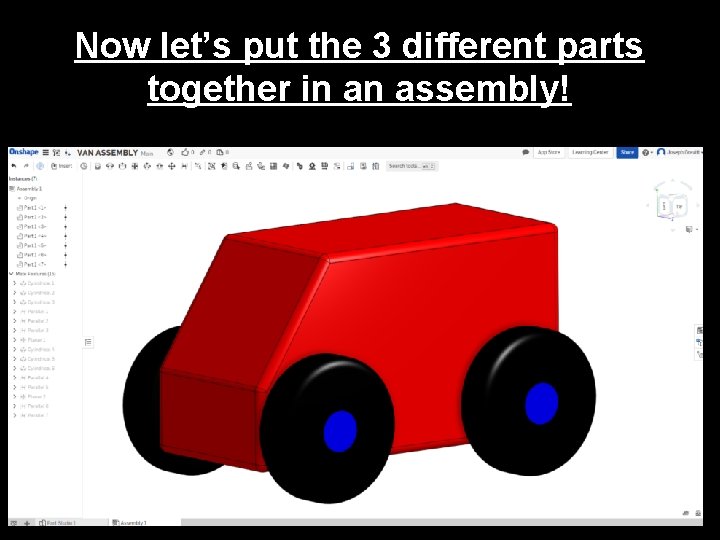
Now let’s put the 3 different parts together in an assembly!
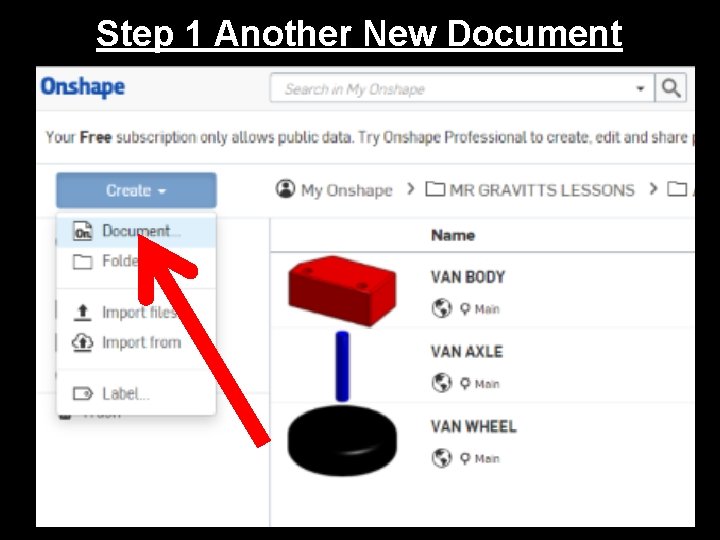
Step 1 Another New Document
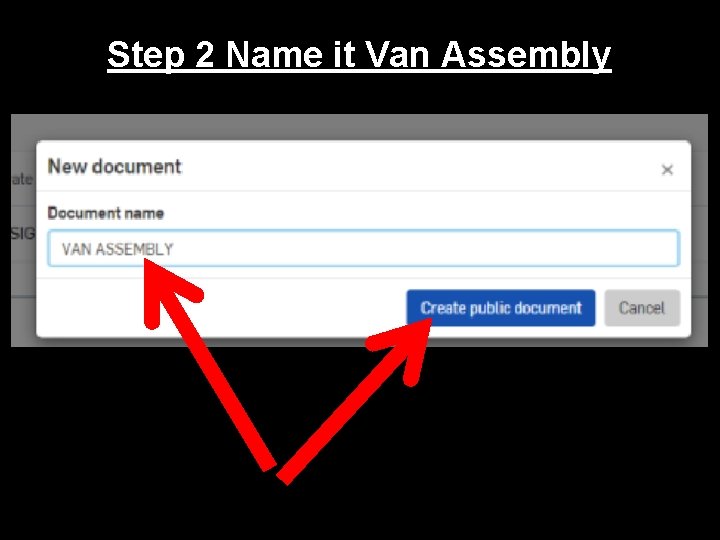
Step 2 Name it Van Assembly
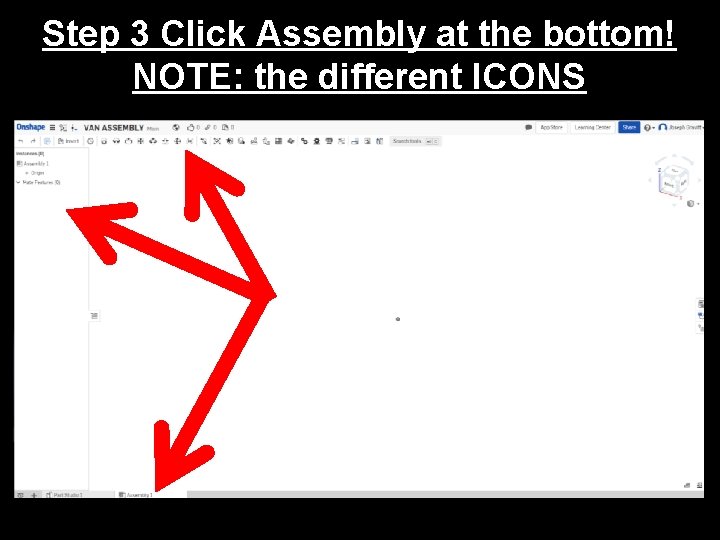
Step 3 Click Assembly at the bottom! NOTE: the different ICONS
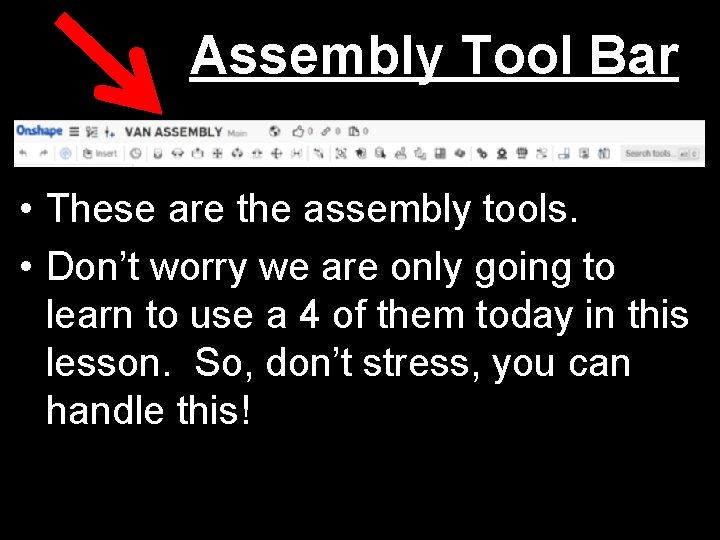
Assembly Tool Bar • These are the assembly tools. • Don’t worry we are only going to learn to use a 4 of them today in this lesson. So, don’t stress, you can handle this!
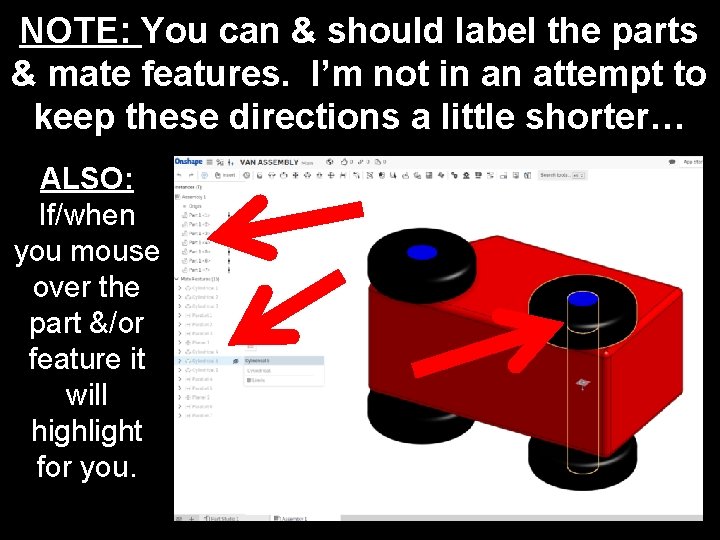
NOTE: You can & should label the parts & mate features. I’m not in an attempt to keep these directions a little shorter… ALSO: If/when you mouse over the part &/or feature it will highlight for you.
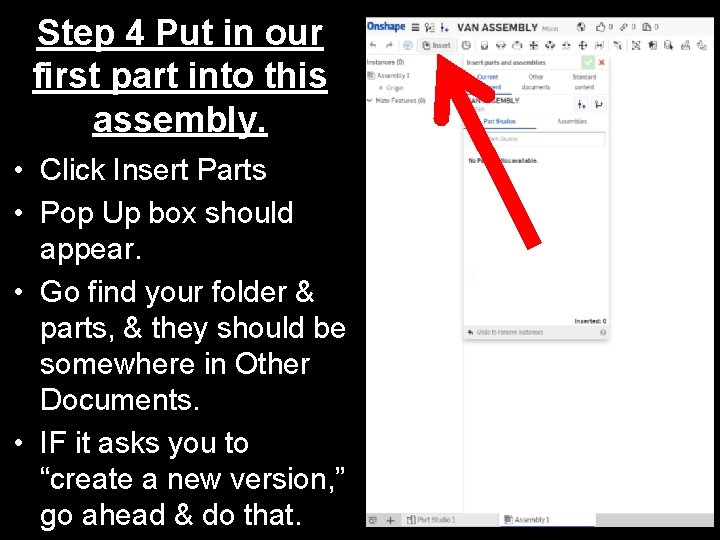
Step 4 Put in our first part into this assembly. • Click Insert Parts • Pop Up box should appear. • Go find your folder & parts, & they should be somewhere in Other Documents. • IF it asks you to “create a new version, ” go ahead & do that.
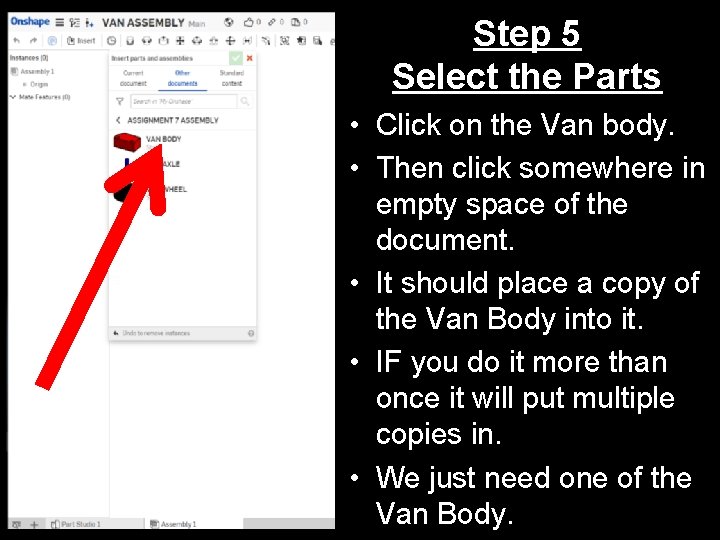
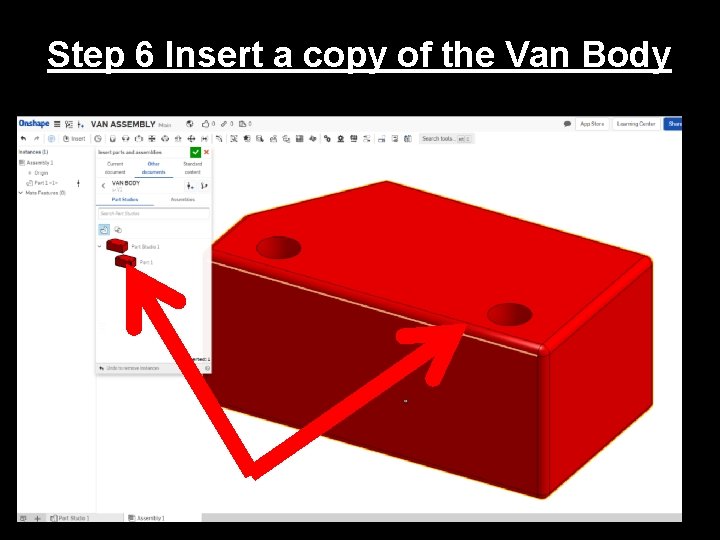
Step 5 Select the Parts • Click on the Van body. • Then click somewhere in empty space of the document. • It should place a copy of the Van Body into it. • IF you do it more than once it will put multiple copies in. • We just need one of the Van Body.
Step 6 Insert a copy of the Van Body
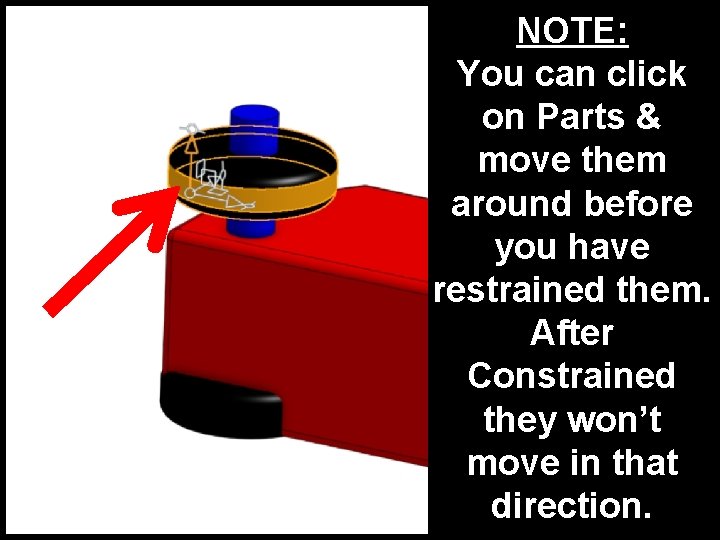
NOTE: You can click on Parts & move them around before you have restrained them. After Constrained they won’t move in that direction.
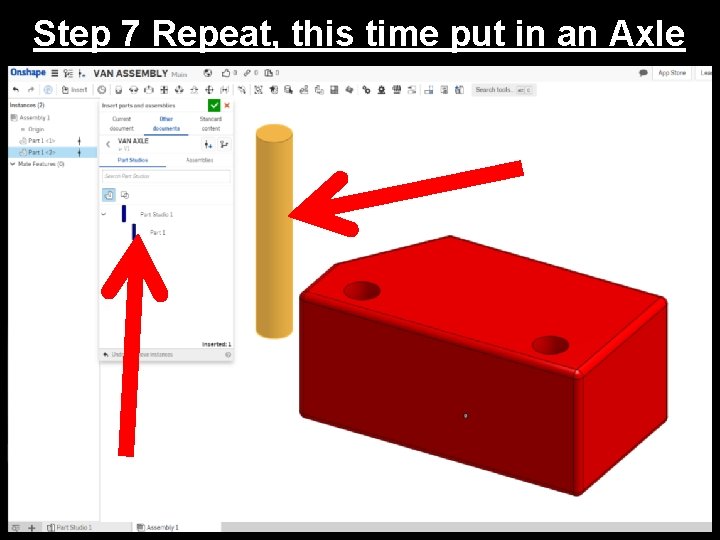
Step 7 Repeat, this time put in an Axle
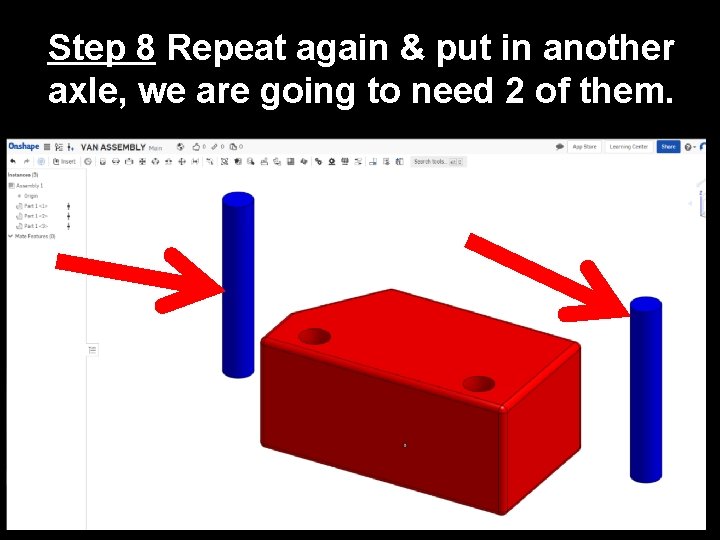
Step 8 Repeat again & put in another axle, we are going to need 2 of them.
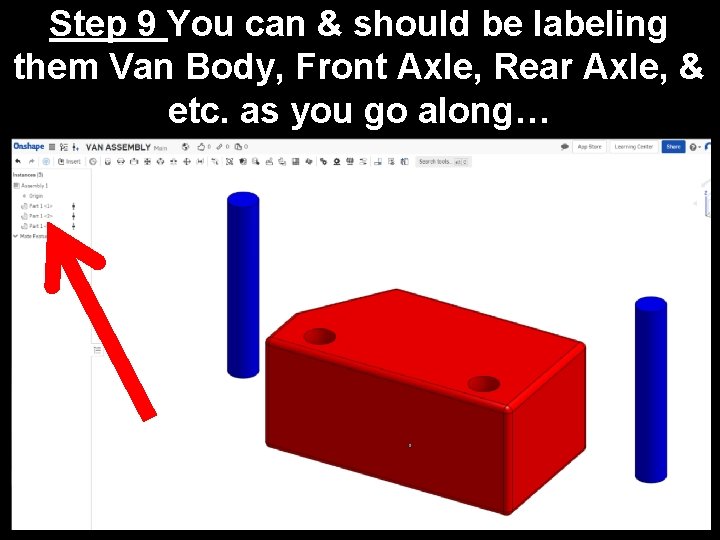
Step 9 You can & should be labeling them Van Body, Front Axle, Rear Axle, & etc. as you go along…
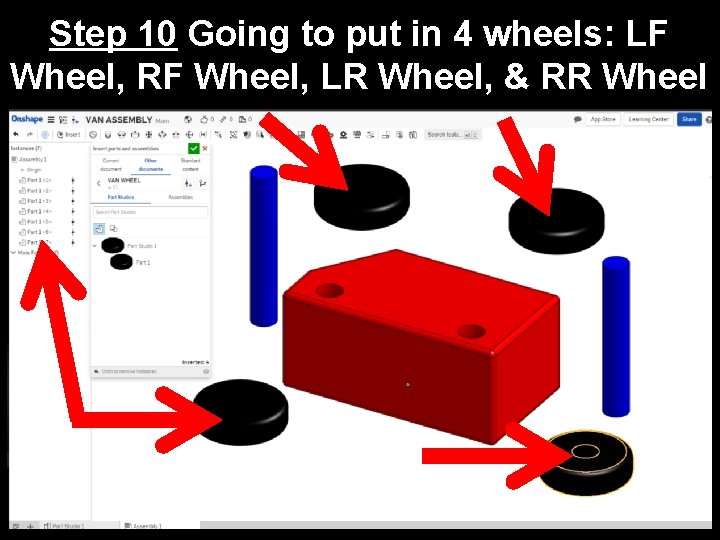
Step 10 Going to put in 4 wheels: LF Wheel, RF Wheel, LR Wheel, & RR Wheel
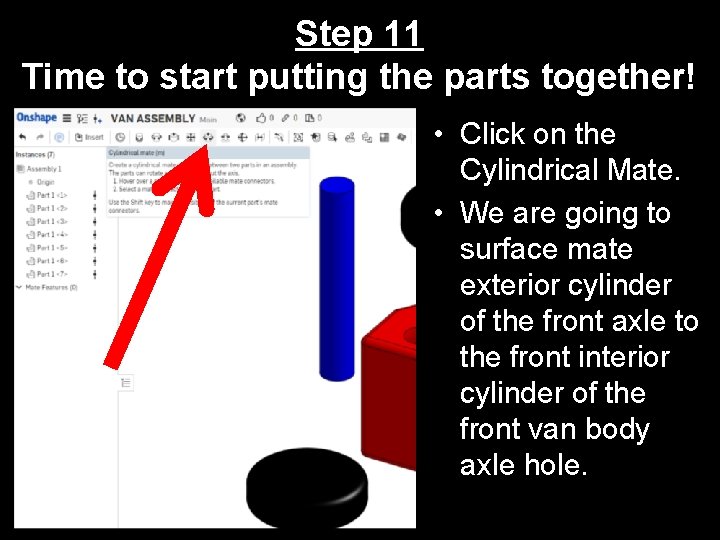
Step 11 Time to start putting the parts together! • Click on the Cylindrical Mate. • We are going to surface mate exterior cylinder of the front axle to the front interior cylinder of the front van body axle hole.
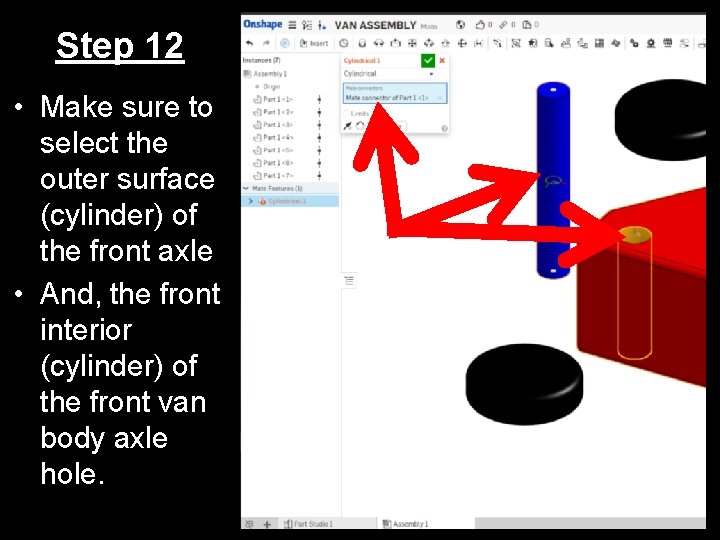
Step 12 • Make sure to select the outer surface (cylinder) of the front axle • And, the front interior (cylinder) of the front van body axle hole.
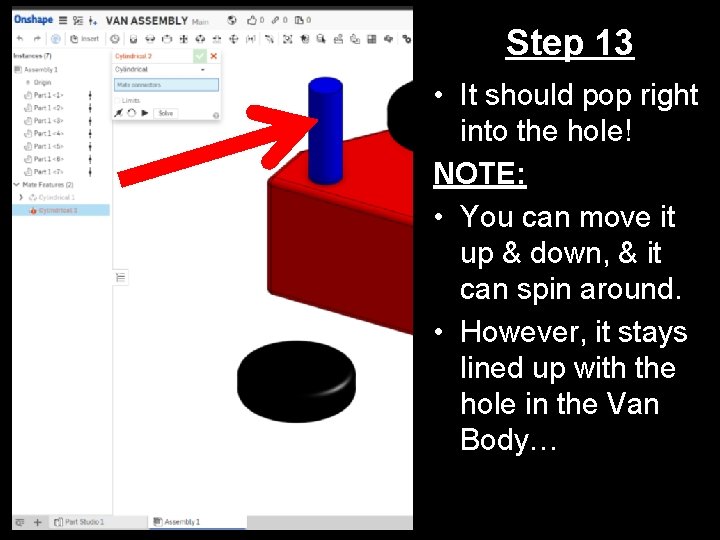
Step 13 • It should pop right into the hole! NOTE: • You can move it up & down, & it can spin around. • However, it stays lined up with the hole in the Van Body…
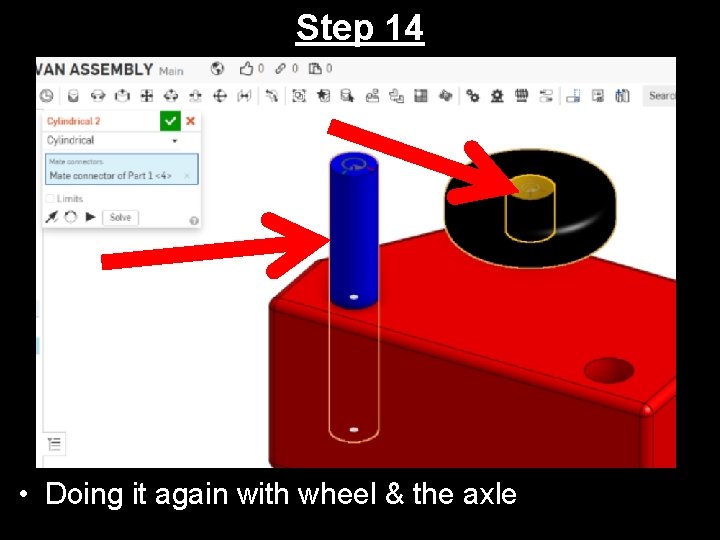
Step 14 • Doing it again with wheel & the axle
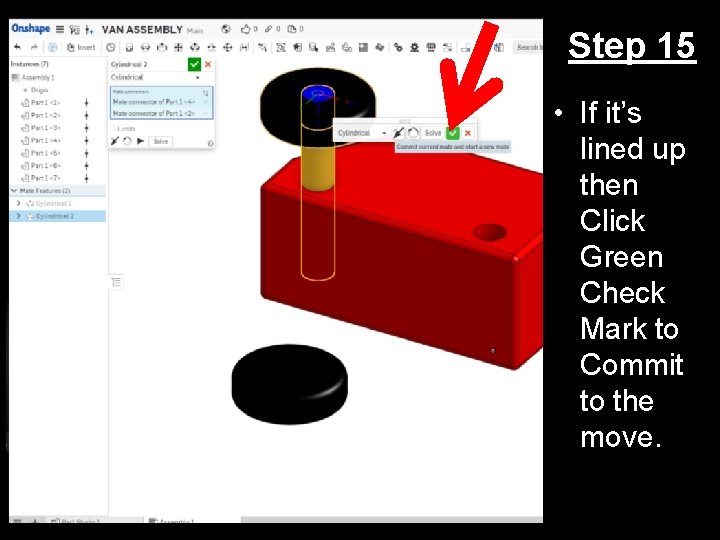
Step 15 • If it’s lined up then Click Green Check Mark to Commit to the move.
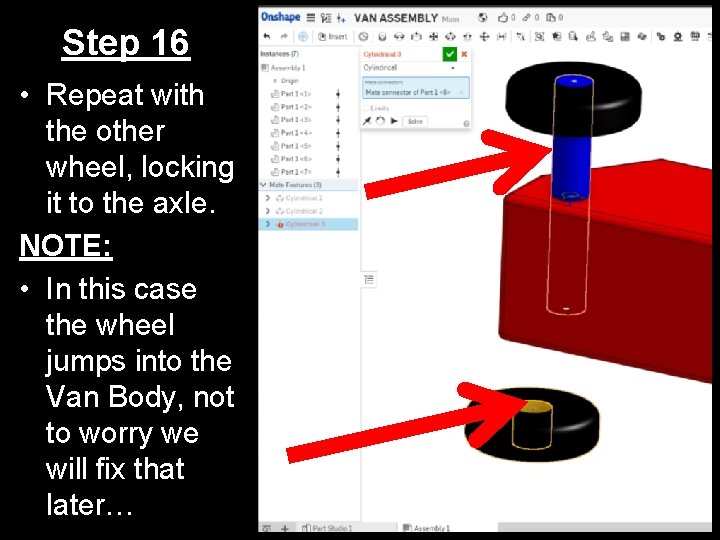
Step 16 • Repeat with the other wheel, locking it to the axle. NOTE: • In this case the wheel jumps into the Van Body, not to worry we will fix that later…
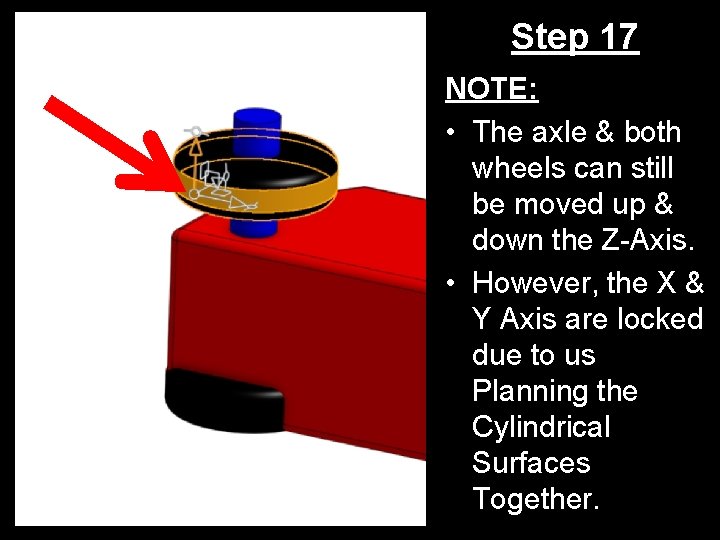
Step 17 NOTE: • The axle & both wheels can still be moved up & down the Z-Axis. • However, the X & Y Axis are locked due to us Planning the Cylindrical Surfaces Together.
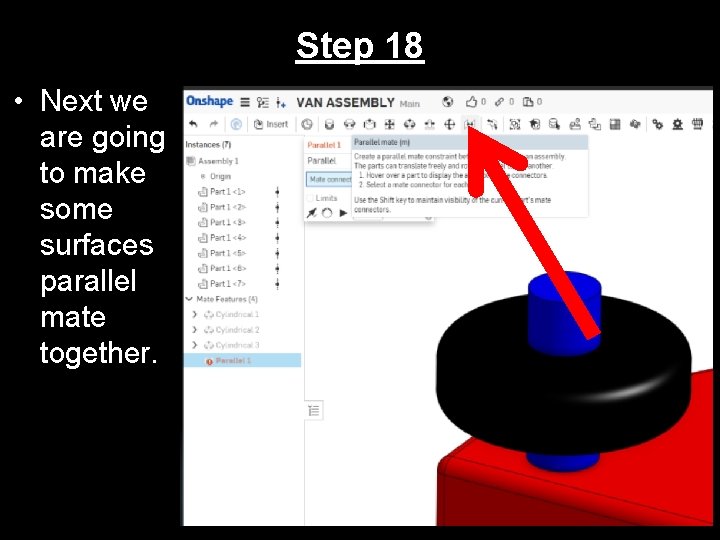
Step 18 • Next we are going to make some surfaces parallel mate together.
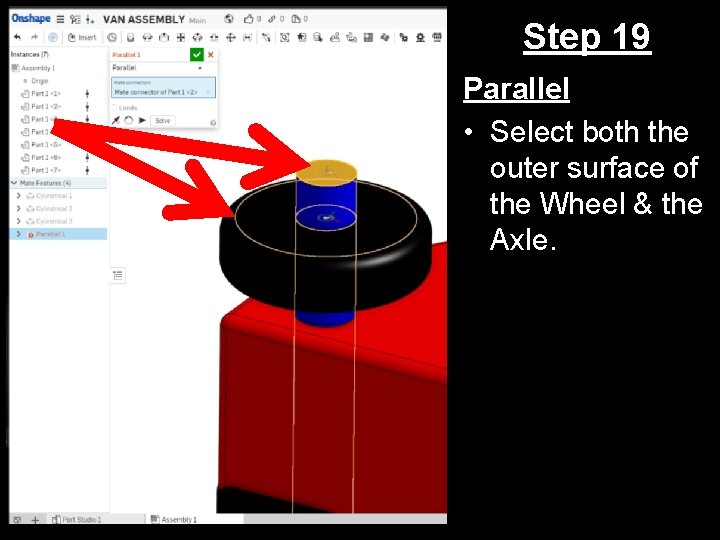
Step 19 Parallel • Select both the outer surface of the Wheel & the Axle.
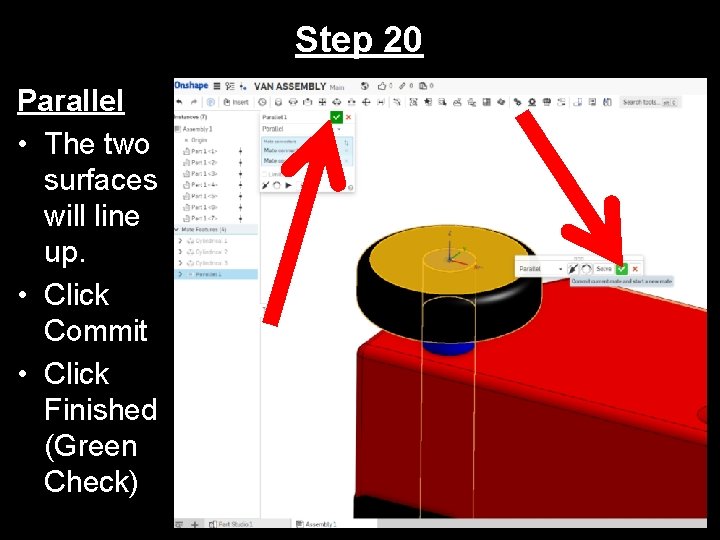
Step 20 Parallel • The two surfaces will line up. • Click Commit • Click Finished (Green Check)
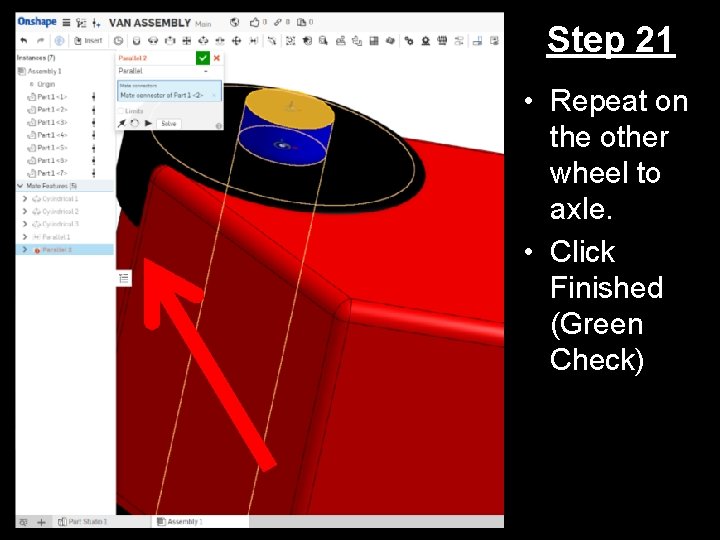
Step 21 • Repeat on the other wheel to axle. • Click Finished (Green Check)
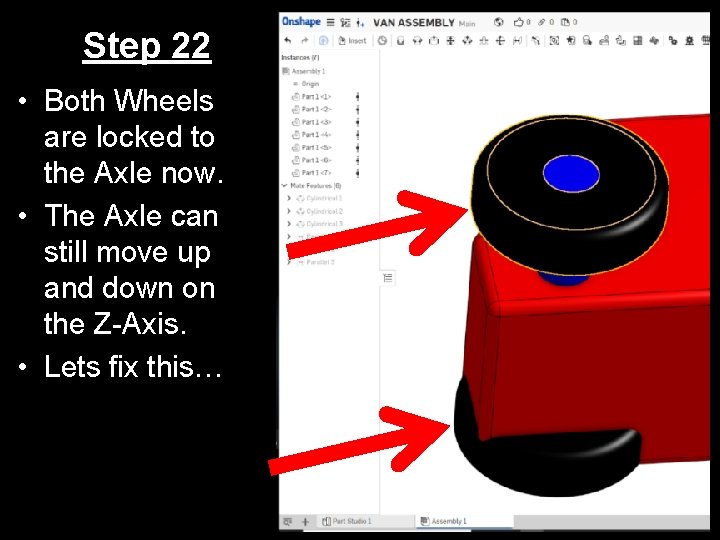
Step 22 • Both Wheels are locked to the Axle now. • The Axle can still move up and down on the Z-Axis. • Lets fix this…
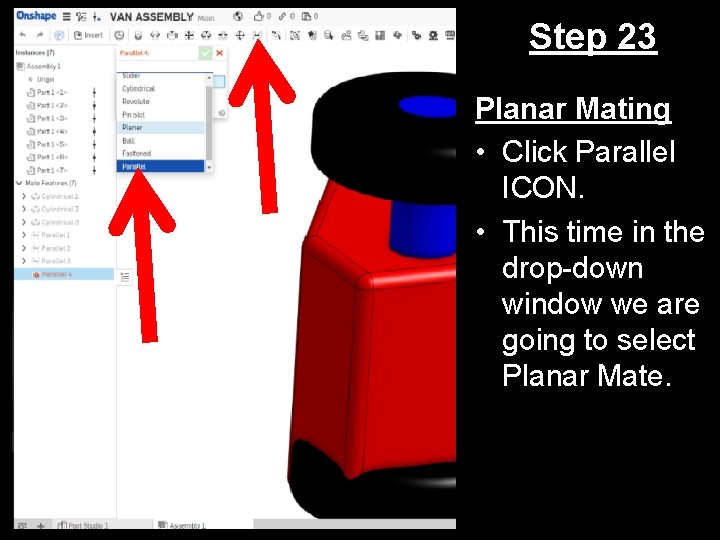
Step 23 Planar Mating • Click Parallel ICON. • This time in the drop-down window we are going to select Planar Mate.
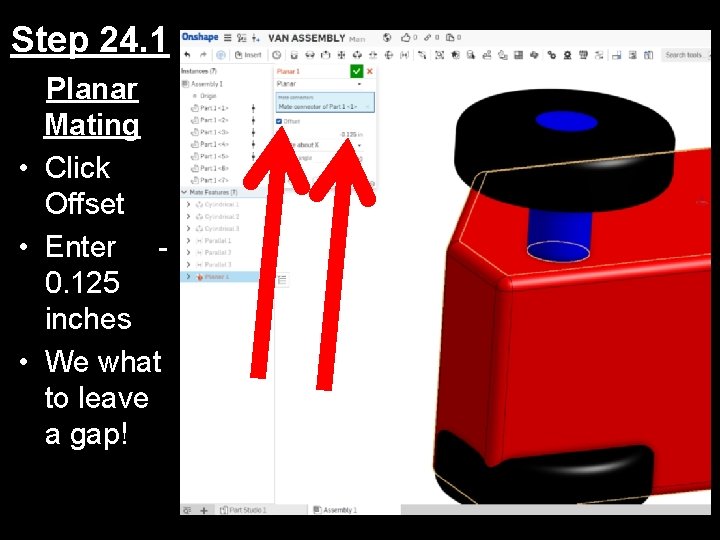
Step 24. 1 Planar Mating • Click Offset • Enter 0. 125 inches • We what to leave a gap!
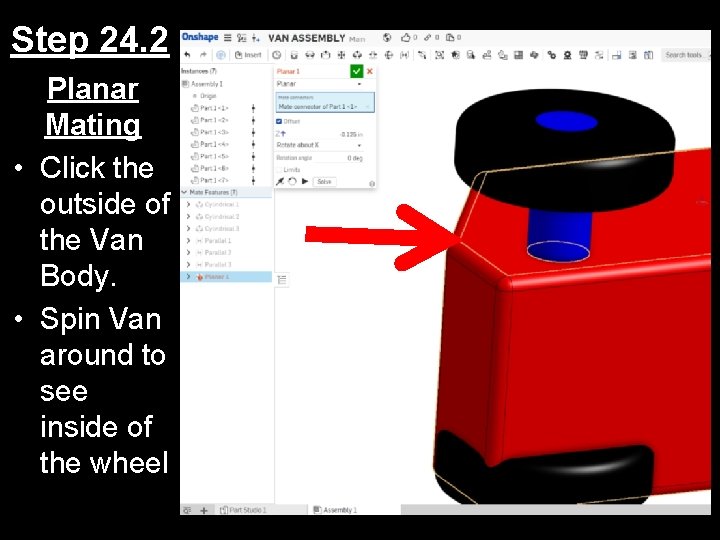
Step 24. 2 Planar Mating • Click the outside of the Van Body. • Spin Van around to see inside of the wheel
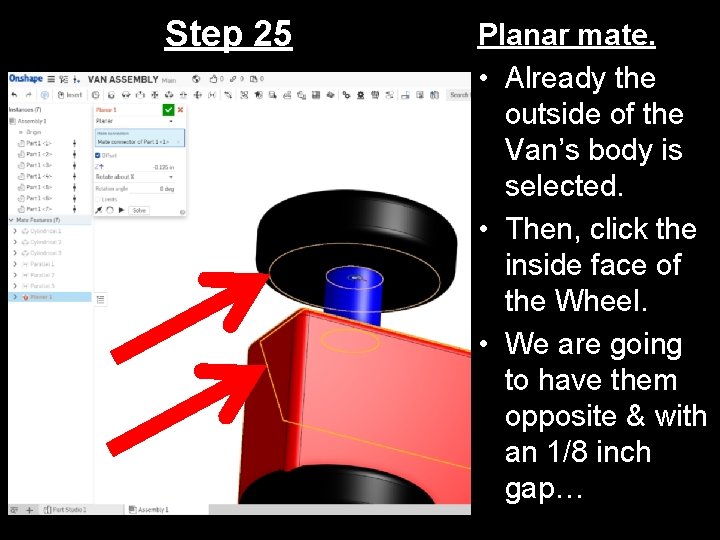
Step 25 Planar mate. • Already the outside of the Van’s body is selected. • Then, click the inside face of the Wheel. • We are going to have them opposite & with an 1/8 inch gap…
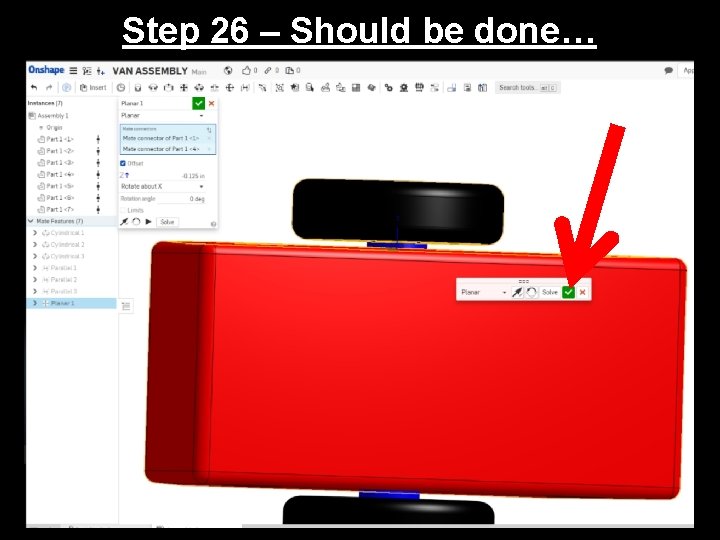
Step 26 – Should be done…
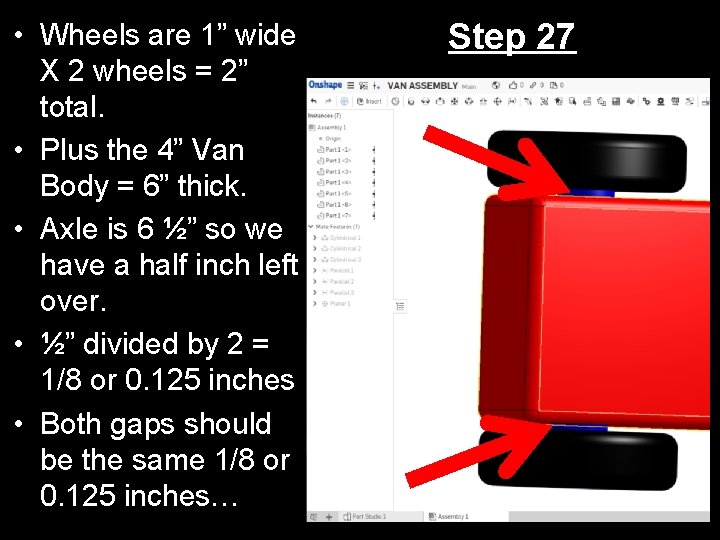
• Wheels are 1” wide X 2 wheels = 2” total. • Plus the 4” Van Body = 6” thick. • Axle is 6 ½” so we have a half inch left over. • ½” divided by 2 = 1/8 or 0. 125 inches • Both gaps should be the same 1/8 or 0. 125 inches… Step 27
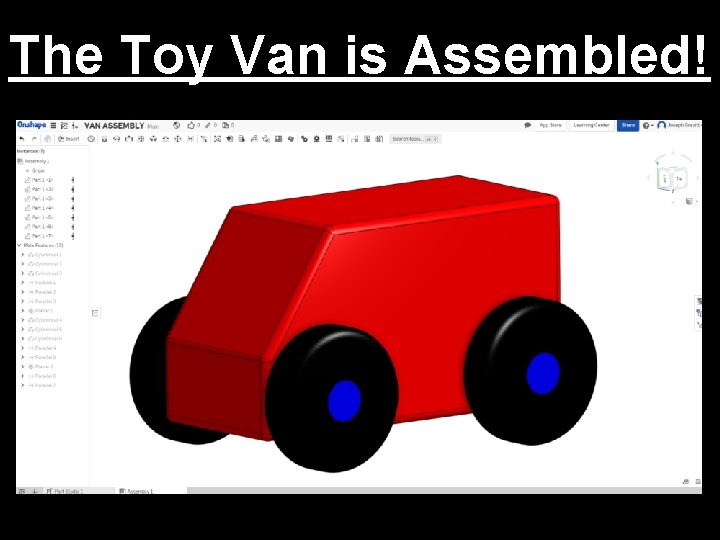
Step 28 REPEAT THESE STEPS: • Repeat Steps 11 through 27 again, but this time doing it on the back Axle & Wheels. • Then the Toy Van should then be assembled. • Lets take a look at it…
The Toy Van is Assembled!