
November 2020 Ianseo Software Presentation Running Tournaments for

November 2020 Ianseo Software Presentation Running Tournaments for Archery Ireland club 1
2 November 2020 Installing Ianseo Software www. ianseo. net - go to downloads page Uncompress the downloaded file in a chosen folder (for ex. : uncompress in c: will create the folder C: Ianseo) Launch the file "setup_xampp. bat" that is in the software main folder (in the previous example: c: ianseosetup_xampp. bat) and press 1) to setup the software on the computer.
3 November 2020 Starting software Start XAMPP, by running the c: ianseoxampp -control. exe Start Apache and My. SQL Load web browser of choice Type in http: //localhost (should take you to the ianseo software if default installation was performed) Initial screen detailing tournaments will be loaded
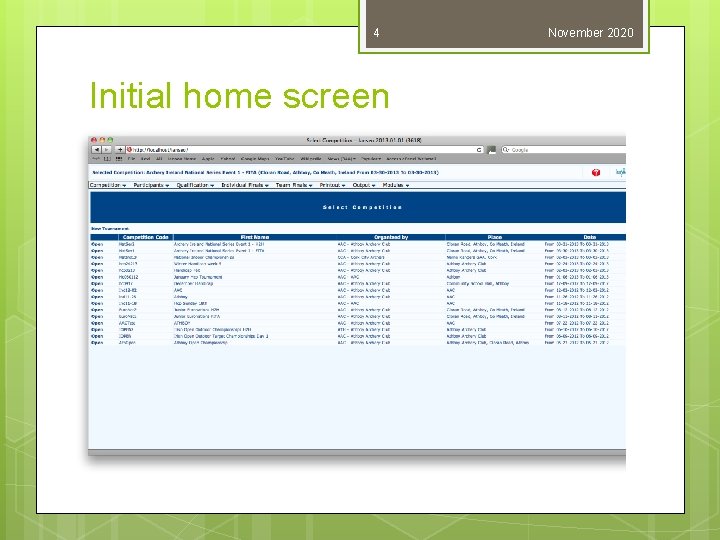
4 Initial home screen November 2020
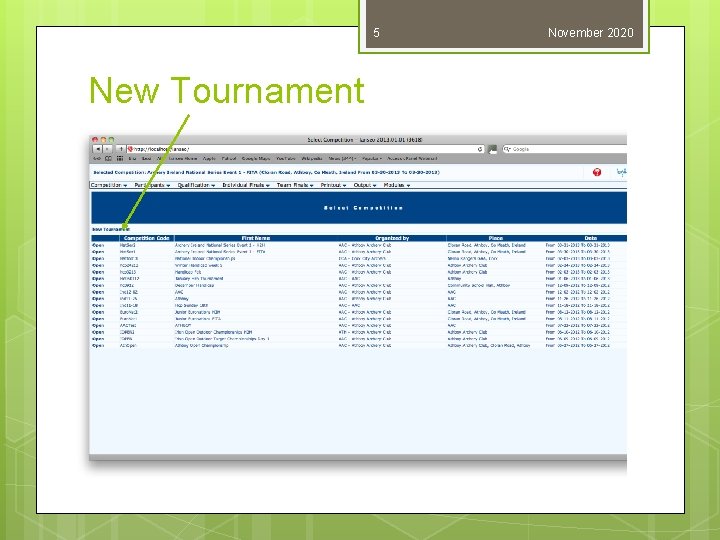
5 New Tournament November 2020
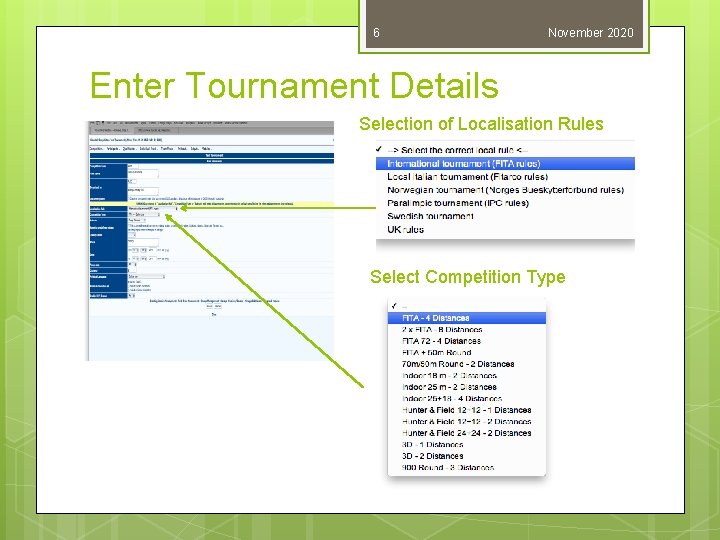
6 November 2020 Enter Tournament Details Selection of Localisation Rules Select Competition Type
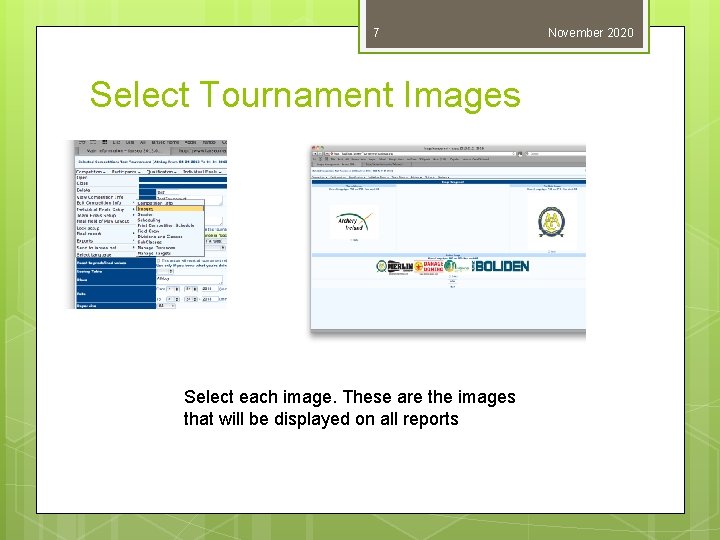
7 Select Tournament Images Select each image. These are the images that will be displayed on all reports November 2020
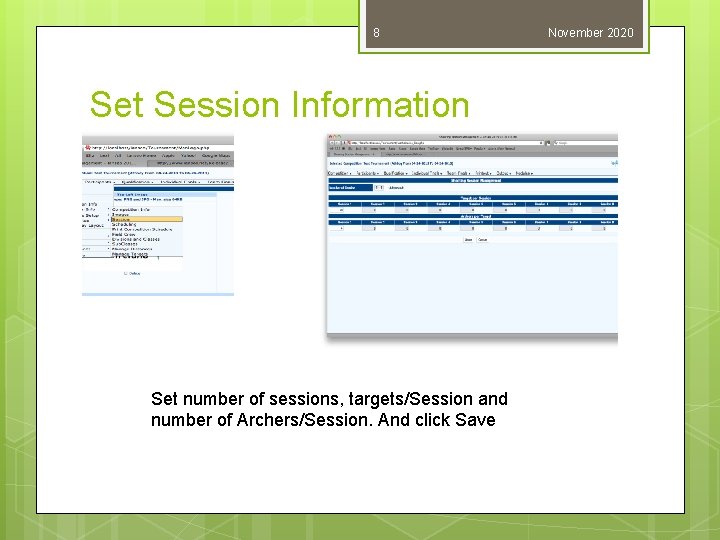
8 Set Session Information Set number of sessions, targets/Session and number of Archers/Session. And click Save November 2020
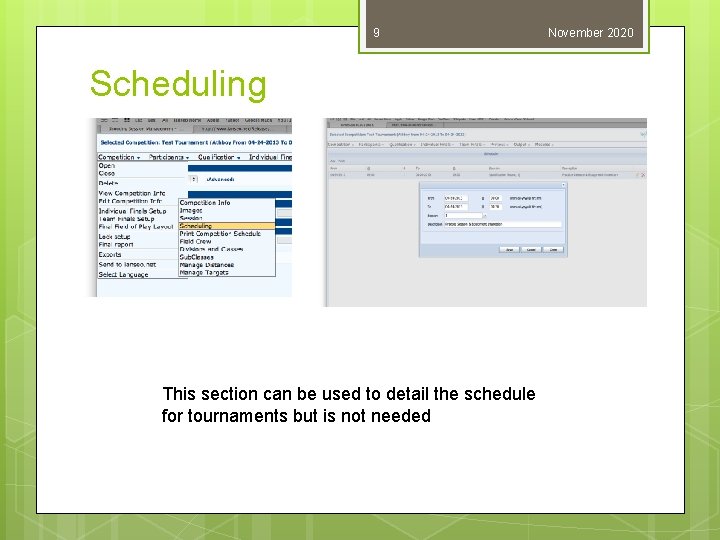
9 Scheduling This section can be used to detail the schedule for tournaments but is not needed November 2020
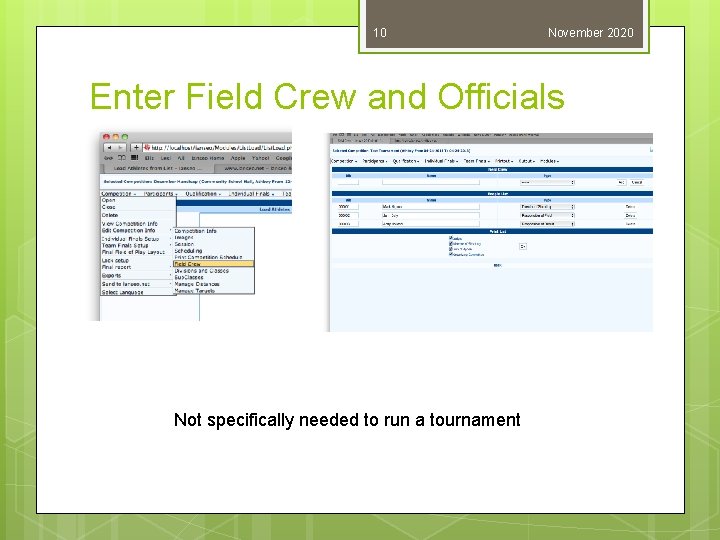
10 November 2020 Enter Field Crew and Officials Not specifically needed to run a tournament
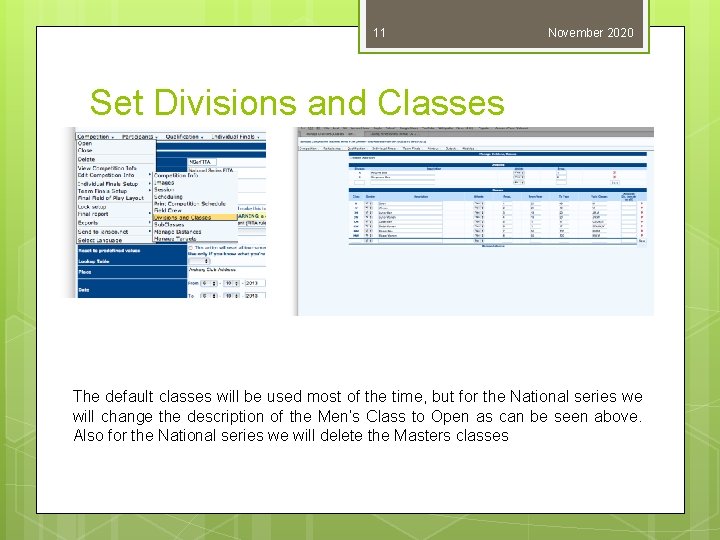
11 November 2020 Set Divisions and Classes The default classes will be used most of the time, but for the National series we will change the description of the Men’s Class to Open as can be seen above. Also for the National series we will delete the Masters classes
12 November 2020 Further Setup The rest of the setup will stay as default u. Sub Classes u. Manage Distances u. Manage Targets
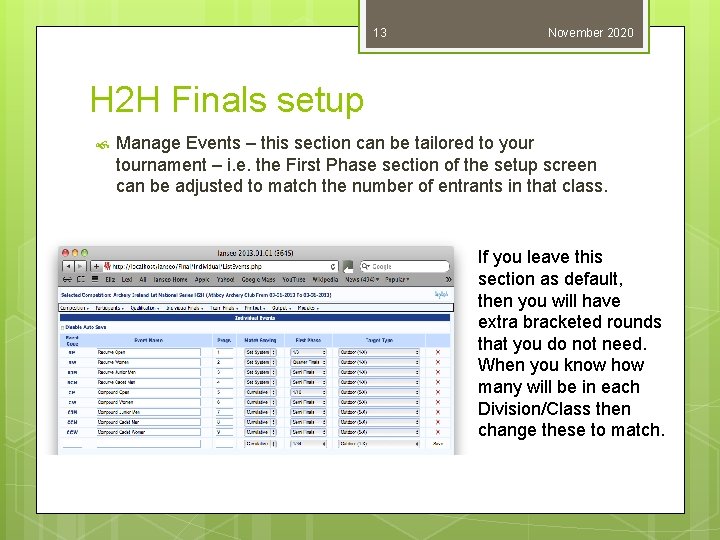
13 November 2020 H 2 H Finals setup Manage Events – this section can be tailored to your tournament – i. e. the First Phase section of the setup screen can be adjusted to match the number of entrants in that class. If you leave this section as default, then you will have extra bracketed rounds that you do not need. When you know how many will be in each Division/Class then change these to match.
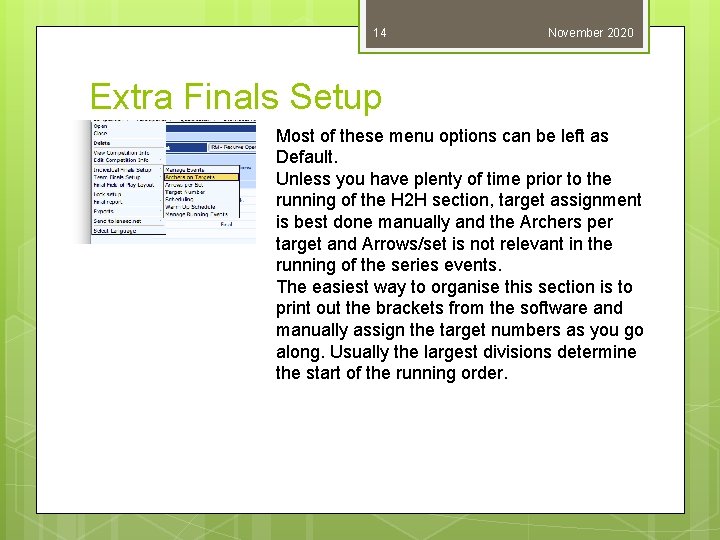
14 November 2020 Extra Finals Setup Most of these menu options can be left as Default. Unless you have plenty of time prior to the running of the H 2 H section, target assignment is best done manually and the Archers per target and Arrows/set is not relevant in the running of the series events. The easiest way to organise this section is to print out the brackets from the software and manually assign the target numbers as you go along. Usually the largest divisions determine the start of the running order.
15 November 2020 Participant Entry List (Simple) Participants List (advanced) List Load (Spreadsheet) The above options allow entry of all participants and the 2 that I have used are the first and last ones.
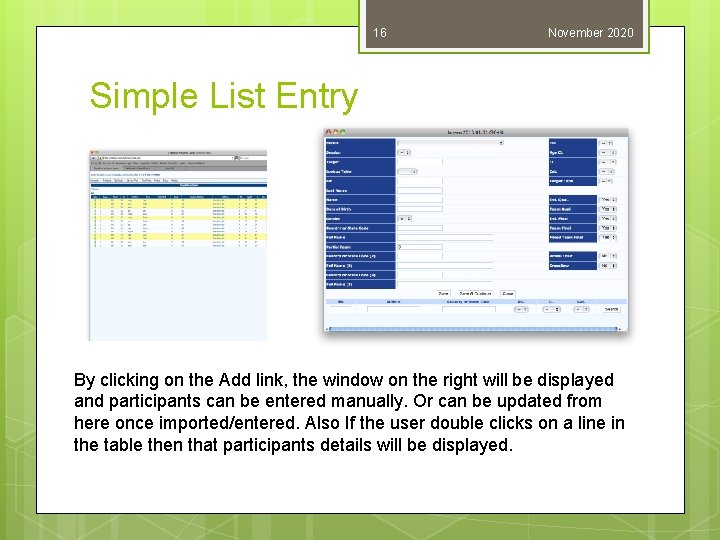
16 November 2020 Simple List Entry By clicking on the Add link, the window on the right will be displayed and participants can be entered manually. Or can be updated from here once imported/entered. Also If the user double clicks on a line in the table then that participants details will be displayed.
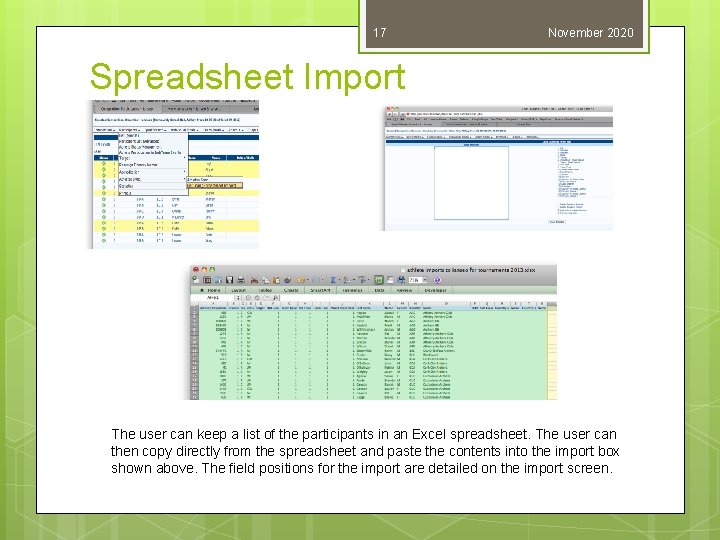
17 November 2020 Spreadsheet Import The user can keep a list of the participants in an Excel spreadsheet. The user can then copy directly from the spreadsheet and paste the contents into the import box shown above. The field positions for the import are detailed on the import screen.
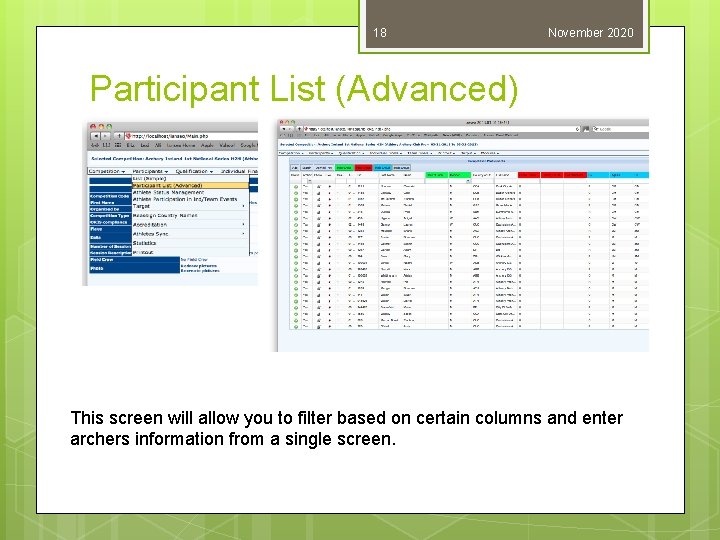
18 November 2020 Participant List (Advanced) This screen will allow you to filter based on certain columns and enter archers information from a single screen.
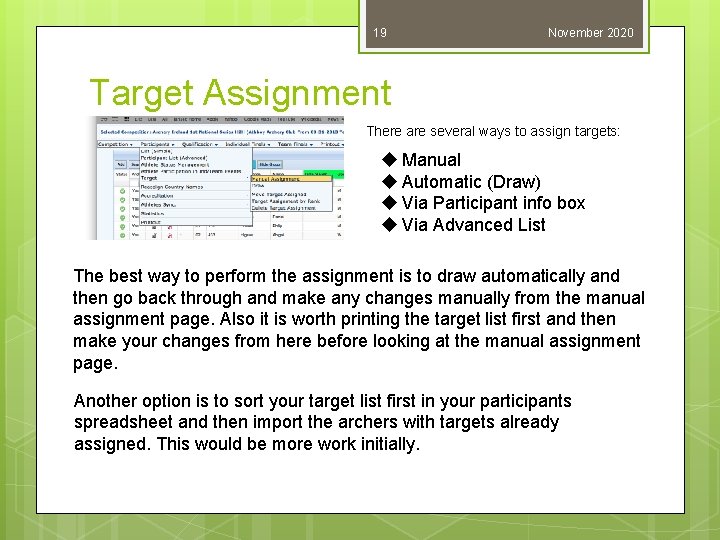
19 November 2020 Target Assignment There are several ways to assign targets: u Manual u Automatic (Draw) u Via Participant info box u Via Advanced List The best way to perform the assignment is to draw automatically and then go back through and make any changes manually from the manual assignment page. Also it is worth printing the target list first and then make your changes from here before looking at the manual assignment page. Another option is to sort your target list first in your participants spreadsheet and then import the archers with targets already assigned. This would be more work initially.
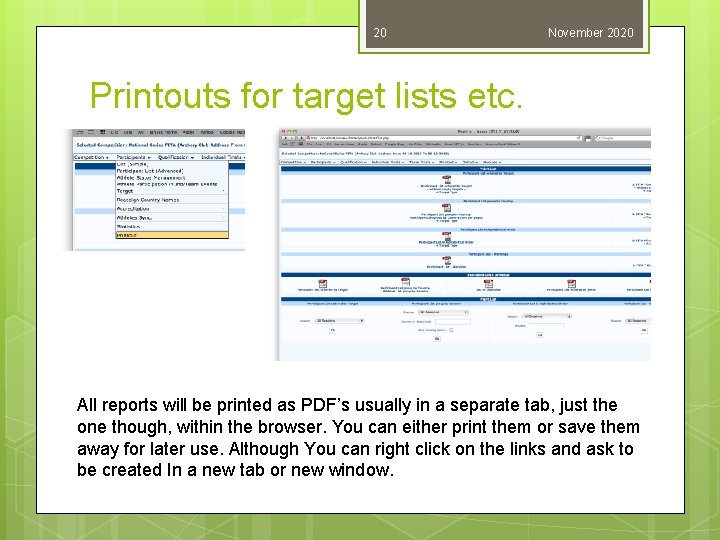
20 November 2020 Printouts for target lists etc. All reports will be printed as PDF’s usually in a separate tab, just the one though, within the browser. You can either print them or save them away for later use. Although You can right click on the links and ask to be created In a new tab or new window.
21 November 2020 Qualification Round scoring For a FITA round this is the main part of tournament For a 72 arrow qualifier with H 2 H’s the qualification bit is the 72 arrow section This section allows the scores to be entered. There are several methods of score entry
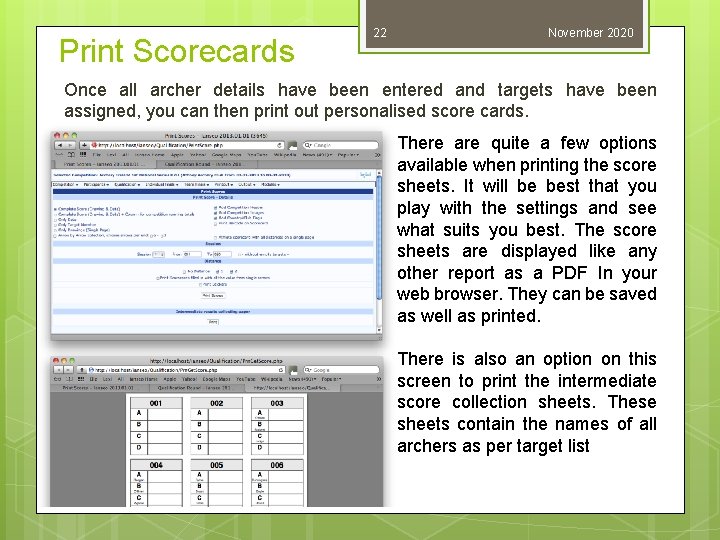
Print Scorecards 22 November 2020 Once all archer details have been entered and targets have been assigned, you can then print out personalised score cards. There are quite a few options available when printing the score sheets. It will be best that you play with the settings and see what suits you best. The score sheets are displayed like any other report as a PDF In your web browser. They can be saved as well as printed. There is also an option on this screen to print the intermediate score collection sheets. These sheets contain the names of all archers as per target list
23 Score Entry Methods Standard Table Extended Table Arrow by Arrow (Advanced User) Arrow by Arrow (Scorecard View) November 2020
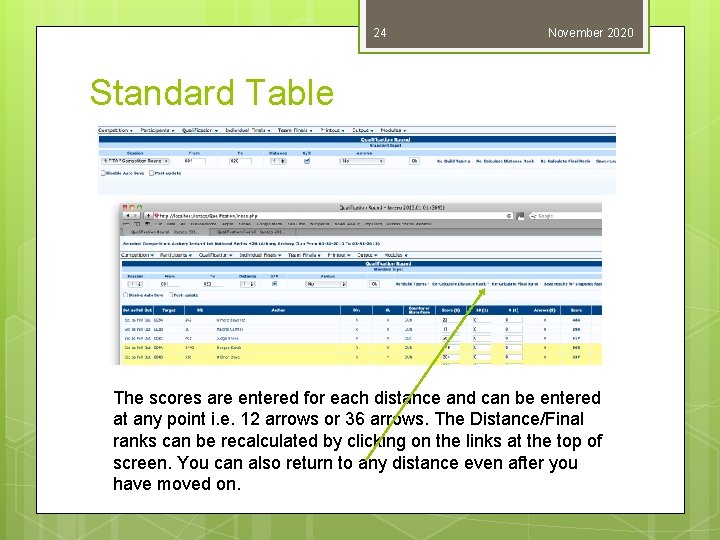
24 November 2020 Standard Table The scores are entered for each distance and can be entered at any point i. e. 12 arrows or 36 arrows. The Distance/Final ranks can be recalculated by clicking on the links at the top of screen. You can also return to any distance even after you have moved on.
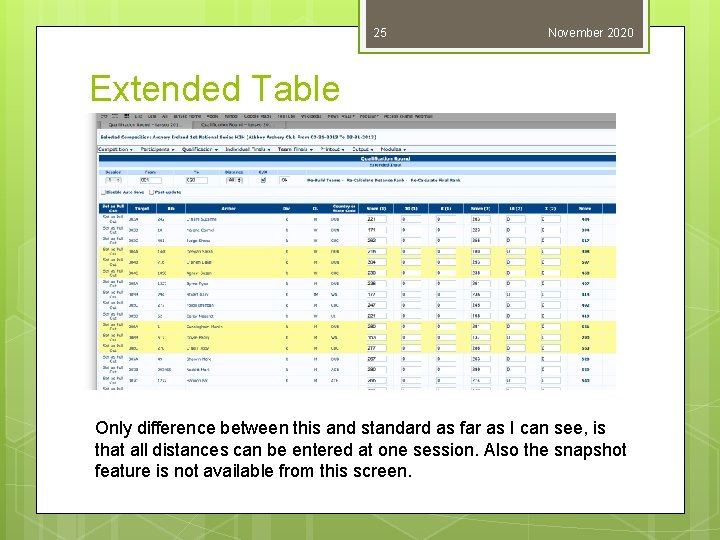
25 November 2020 Extended Table Only difference between this and standard as far as I can see, is that all distances can be entered at one session. Also the snapshot feature is not available from this screen.
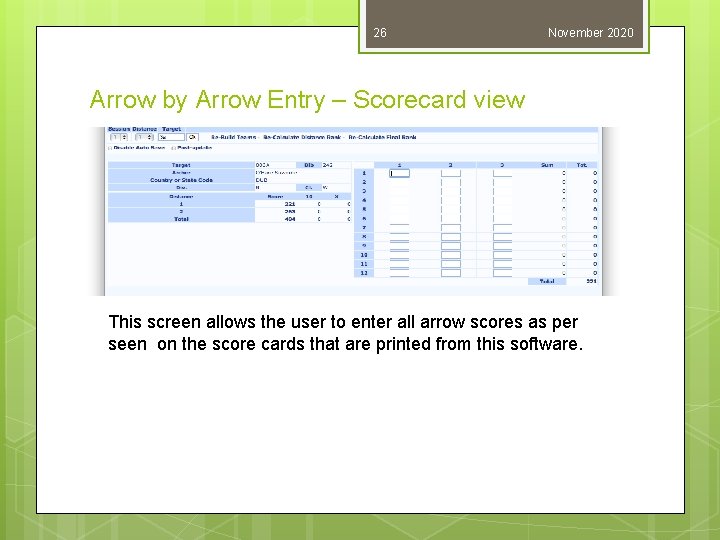
26 November 2020 Arrow by Arrow Entry – Scorecard view This screen allows the user to enter all arrow scores as per seen on the score cards that are printed from this software.
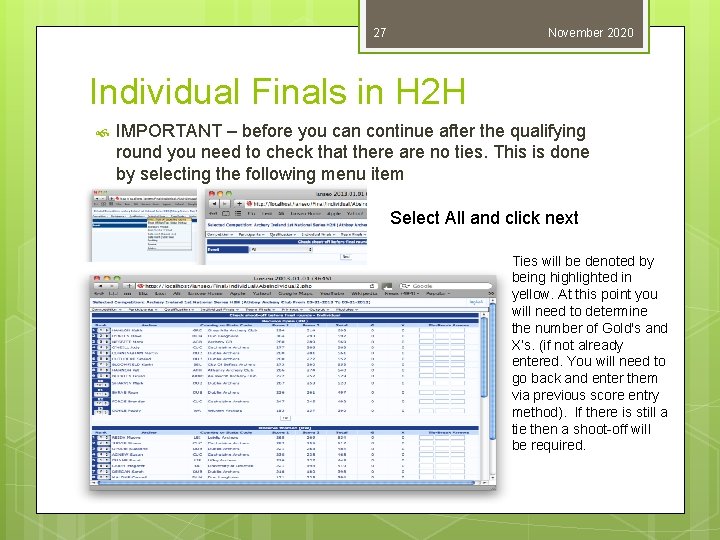
27 November 2020 Individual Finals in H 2 H IMPORTANT – before you can continue after the qualifying round you need to check that there are no ties. This is done by selecting the following menu item Select All and click next Ties will be denoted by being highlighted in yellow. At this point you will need to determine the number of Gold's and X’s. (if not already entered. You will need to go back and enter them via previous score entry method). If there is still a tie then a shoot-off will be required.
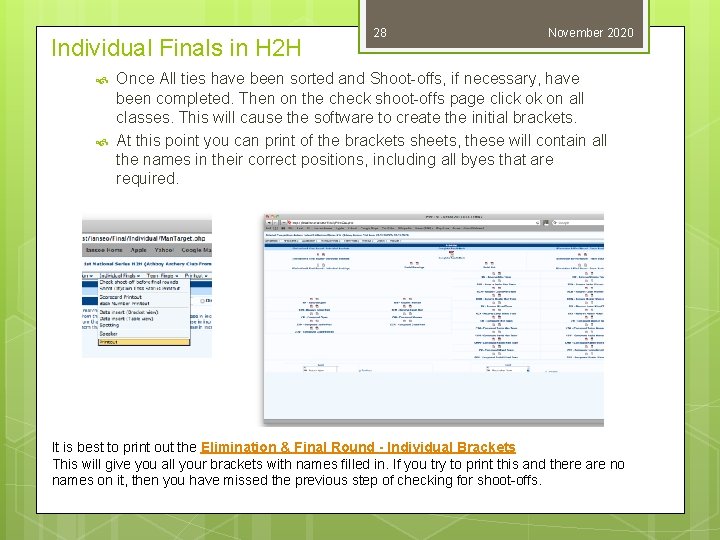
Individual Finals in H 2 H 28 November 2020 Once All ties have been sorted and Shoot-offs, if necessary, have been completed. Then on the check shoot-offs page click ok on all classes. This will cause the software to create the initial brackets. At this point you can print of the brackets sheets, these will contain all the names in their correct positions, including all byes that are required. It is best to print out the Elimination & Final Round - Individual Brackets This will give you all your brackets with names filled in. If you try to print this and there are no names on it, then you have missed the previous step of checking for shoot-offs.
29 November 2020 H 2 H Score sheets: There are several ways that you can print score sheets for the H 2 H section and these are as follows: Single score with all matches – archer carries his score sheet until they are eliminated. ( this is the easiest option) Score for single match – each individual match has a separate sheet You can print score sheets for individual divisions or for all divisions. There is also an option to print empty score sheets, these do not have the archers name printed. This could be used if the score sheets are to be preprinted. They can also be printed to match each different division/class i. e. 1/16, 1/8, semi finals etc. There will also be sheets for both Accumulative and set scoring.
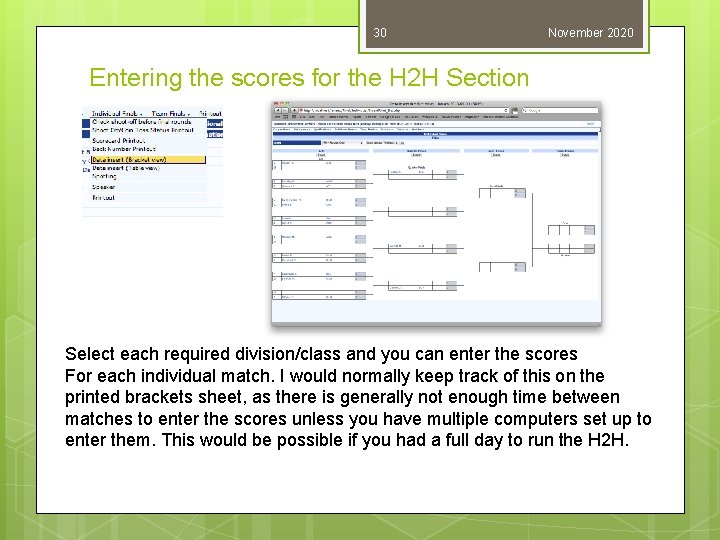
30 November 2020 Entering the scores for the H 2 H Section Select each required division/class and you can enter the scores For each individual match. I would normally keep track of this on the printed brackets sheet, as there is generally not enough time between matches to enter the scores unless you have multiple computers set up to enter them. This would be possible if you had a full day to run the H 2 H.
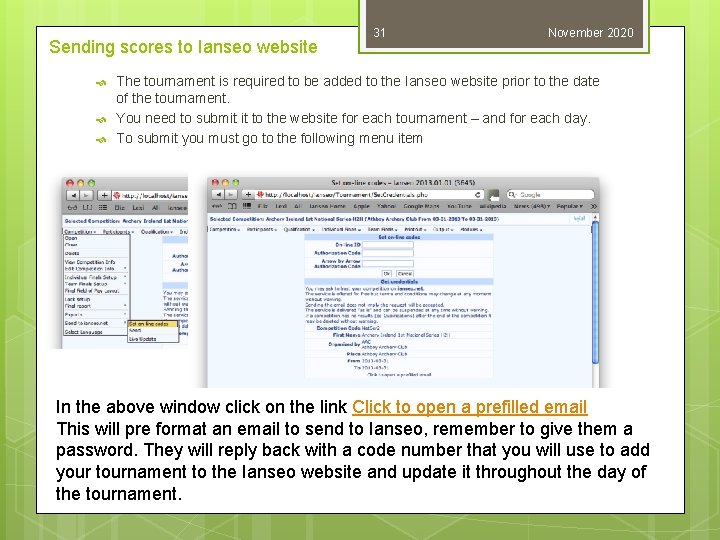
Sending scores to Ianseo website 31 November 2020 The tournament is required to be added to the Ianseo website prior to the date of the tournament. You need to submit it to the website for each tournament – and for each day. To submit you must go to the following menu item In the above window click on the link Click to open a prefilled email This will pre format an email to send to Ianseo, remember to give them a password. They will reply back with a code number that you will use to add your tournament to the Ianseo website and update it throughout the day of the tournament.
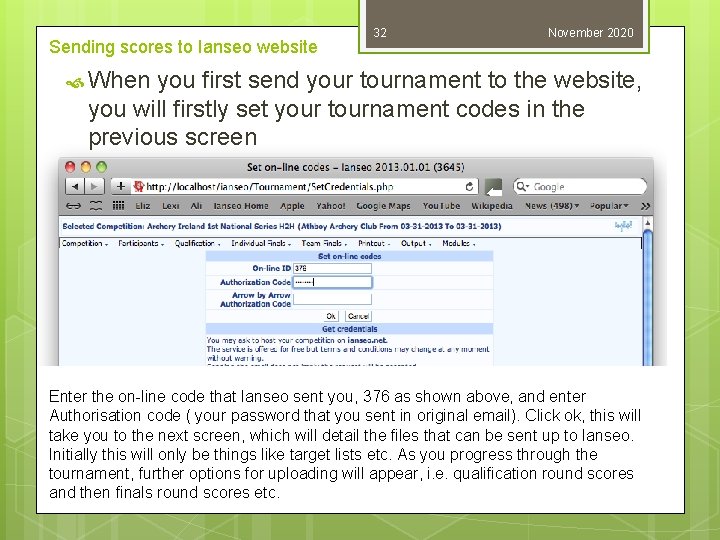
Sending scores to Ianseo website 32 November 2020 When you first send your tournament to the website, you will firstly set your tournament codes in the previous screen Enter the on-line code that Ianseo sent you, 376 as shown above, and enter Authorisation code ( your password that you sent in original email). Click ok, this will take you to the next screen, which will detail the files that can be sent up to Ianseo. Initially this will only be things like target lists etc. As you progress through the tournament, further options for uploading will appear, i. e. qualification round scores and then finals round scores etc.
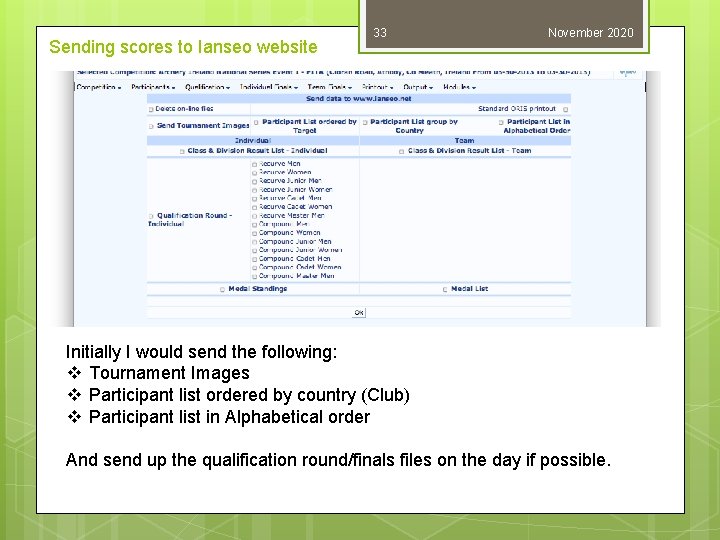
Sending scores to Ianseo website 33 November 2020 Initially I would send the following: v Tournament Images v Participant list ordered by country (Club) v Participant list in Alphabetical order And send up the qualification round/finals files on the day if possible.
- Slides: 33