
NOODLETOOLS Citation Tool FROM DESKTOP CHOOSE COBB DIGITAL

NOODLETOOLS Citation Tool
FROM DESKTOP – CHOOSE COBB DIGITAL LIBRARY. LOGIN – COMPUTER LOGIN
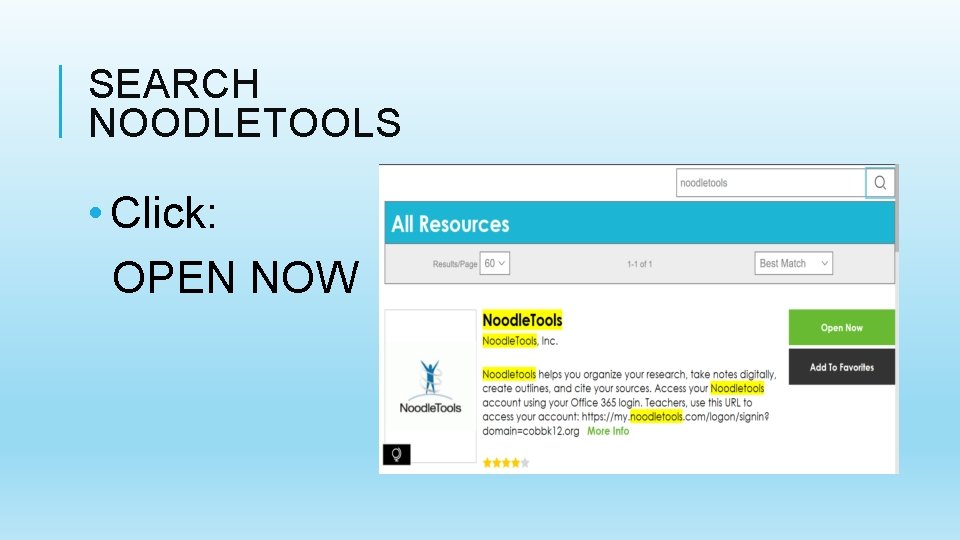
SEARCH NOODLETOOLS • Click: OPEN NOW
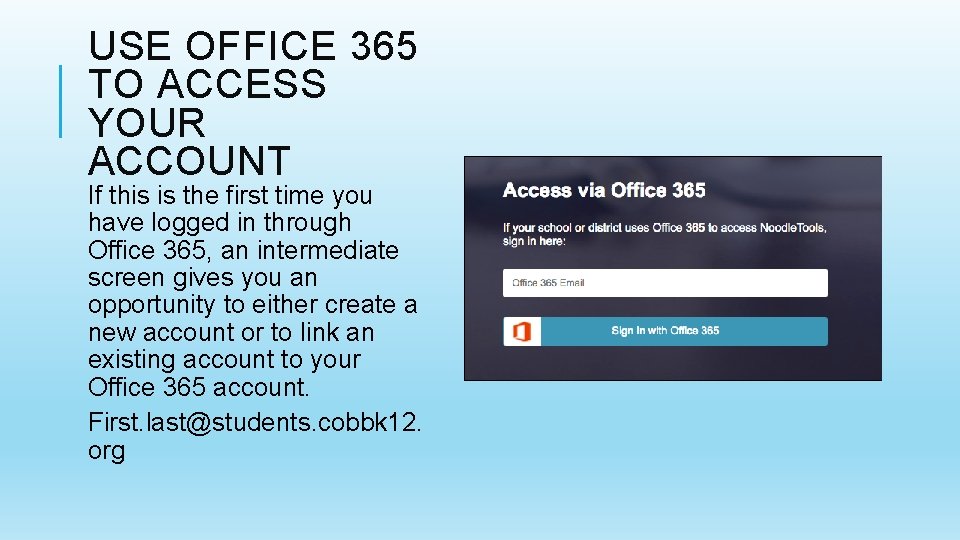
USE OFFICE 365 TO ACCESS YOUR ACCOUNT If this is the first time you have logged in through Office 365, an intermediate screen gives you an opportunity to either create a new account or to link an existing account to your Office 365 account. First. last@students. cobbk 12. org
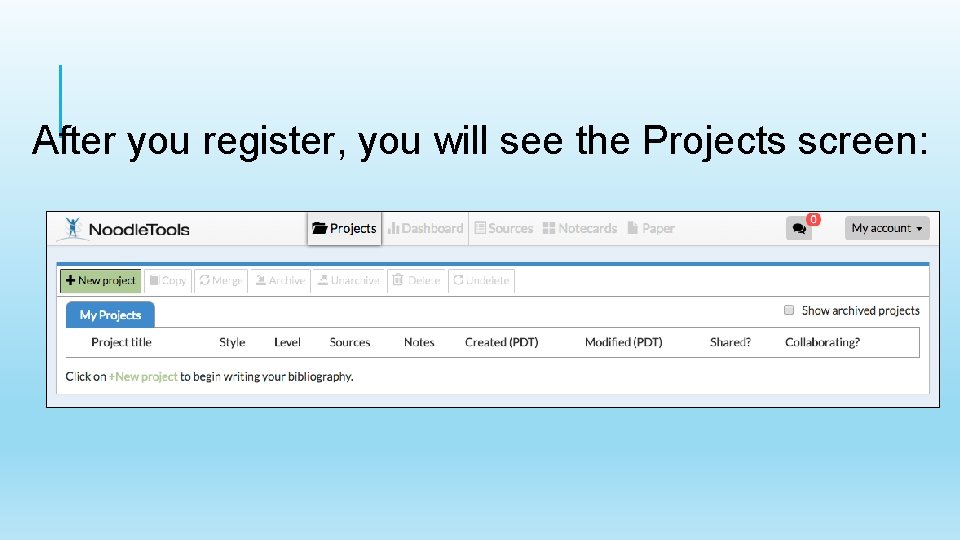
After you register, you will see the Projects screen:
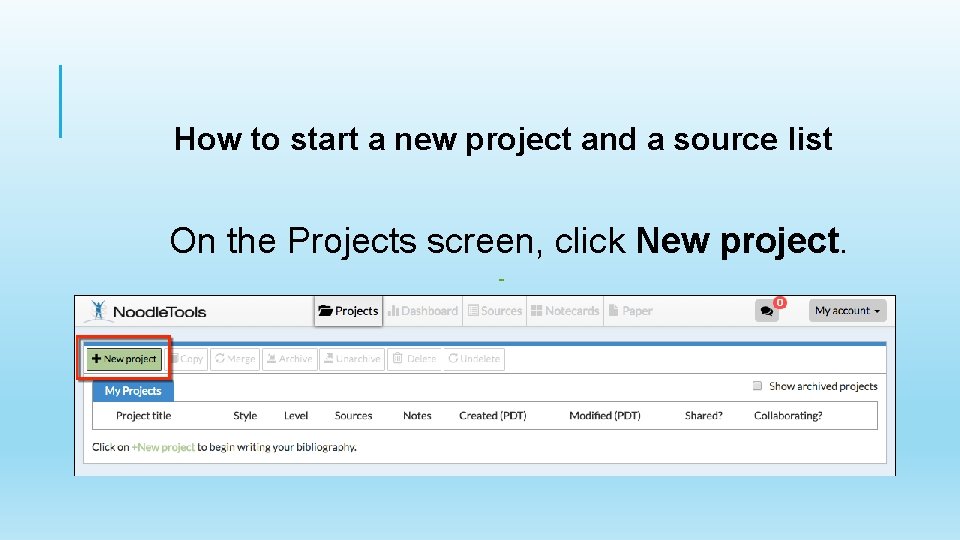
How to start a new project and a source list On the Projects screen, click New project.
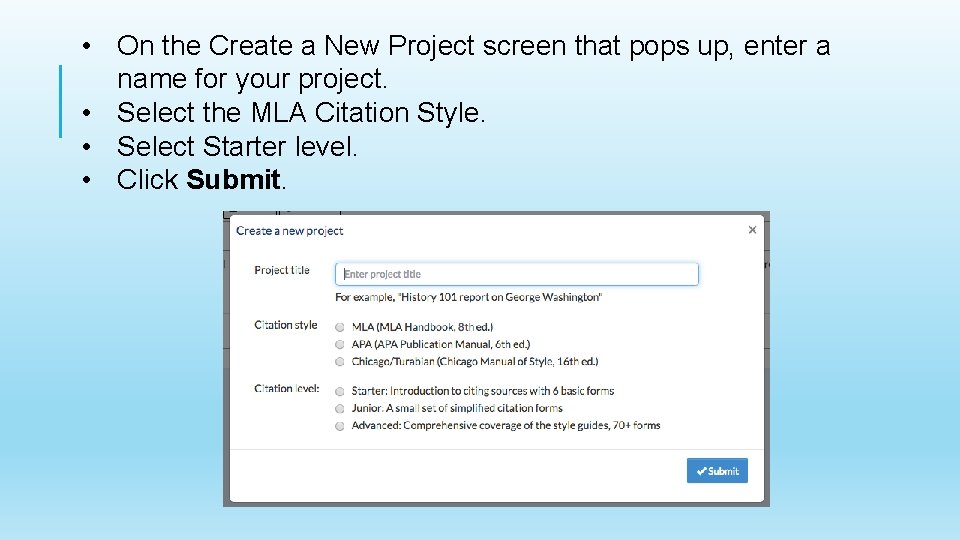
• On the Create a New Project screen that pops up, enter a name for your project. • Select the MLA Citation Style. • Select Starter level. • Click Submit.
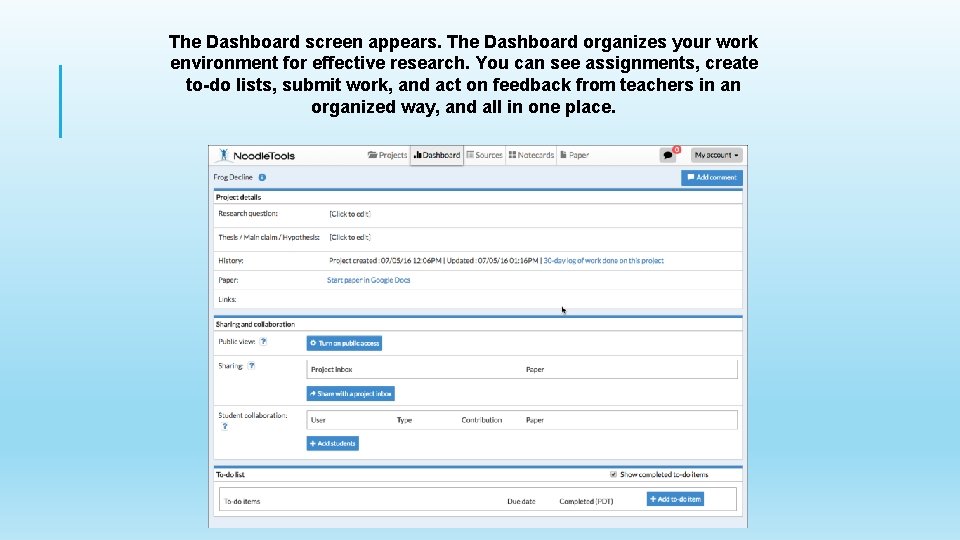
The Dashboard screen appears. The Dashboard organizes your work environment for effective research. You can see assignments, create to-do lists, submit work, and act on feedback from teachers in an organized way, and all in one place.
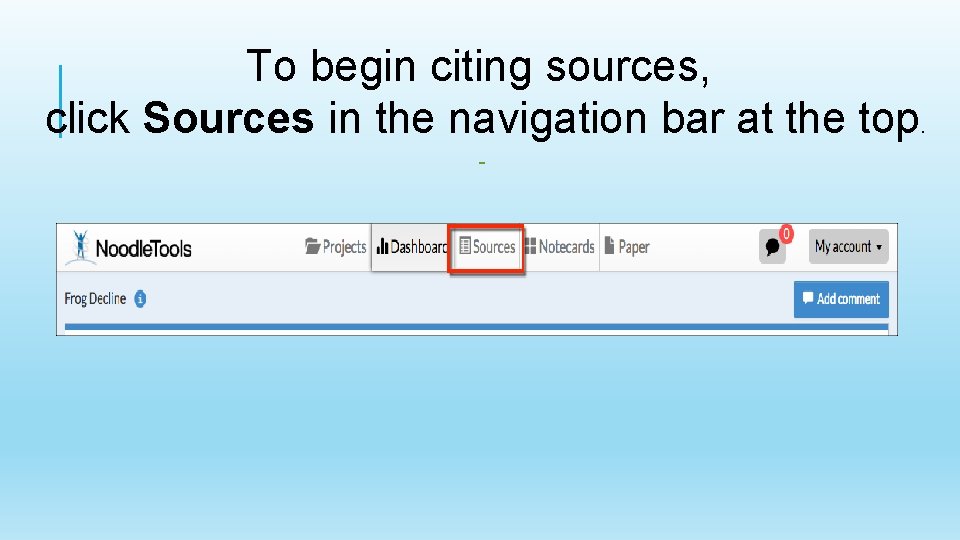
To begin citing sources, click Sources in the navigation bar at the top.
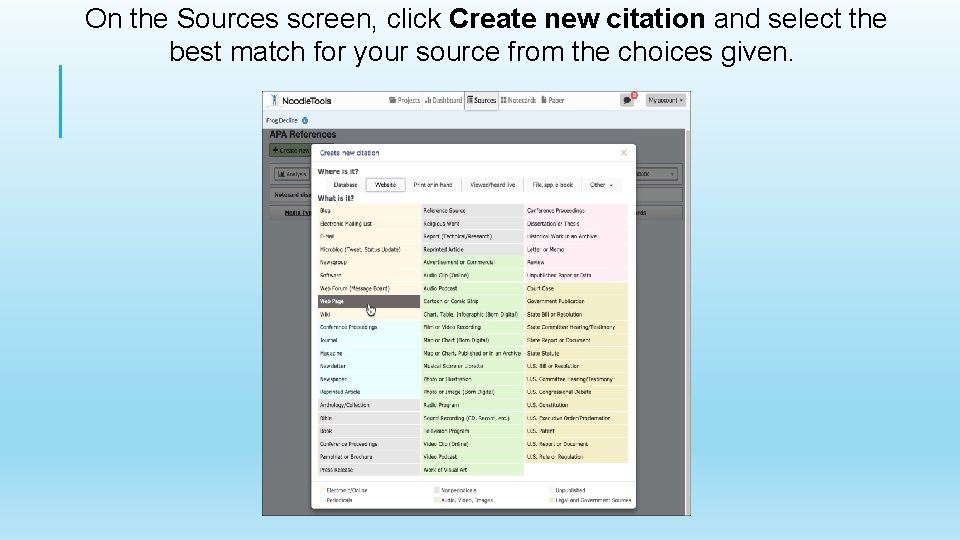
On the Sources screen, click Create new citation and select the best match for your source from the choices given.
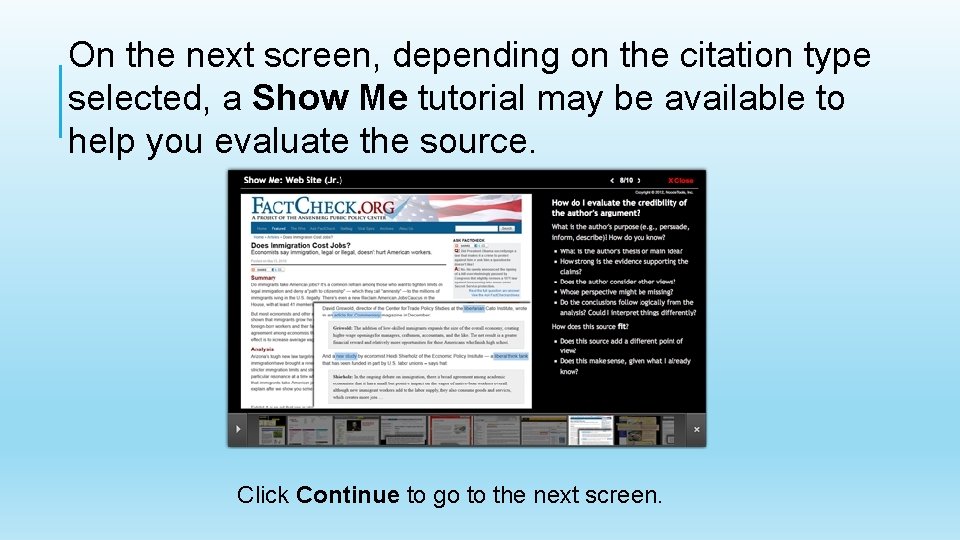
On the next screen, depending on the citation type selected, a Show Me tutorial may be available to help you evaluate the source. Click Continue to go to the next screen.
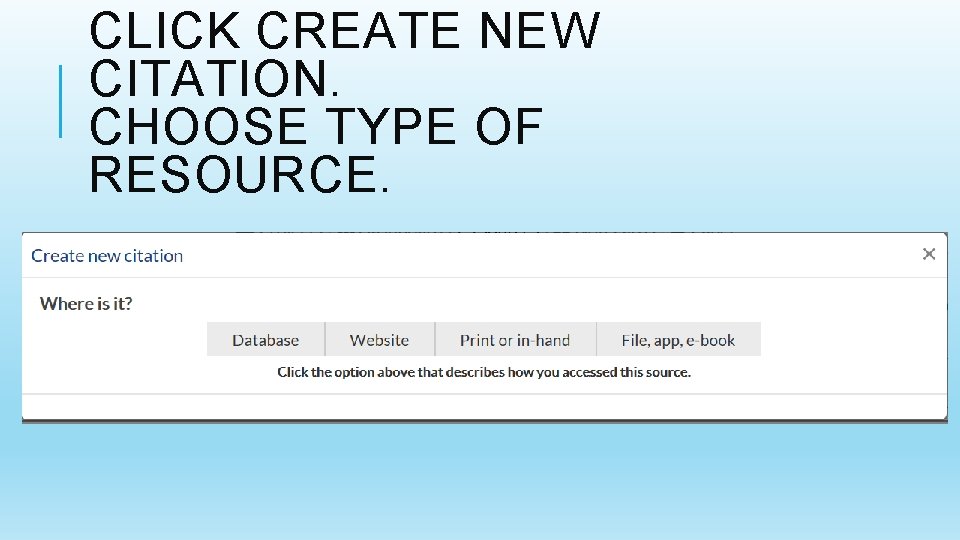
CLICK CREATE NEW CITATION. CHOOSE TYPE OF RESOURCE.

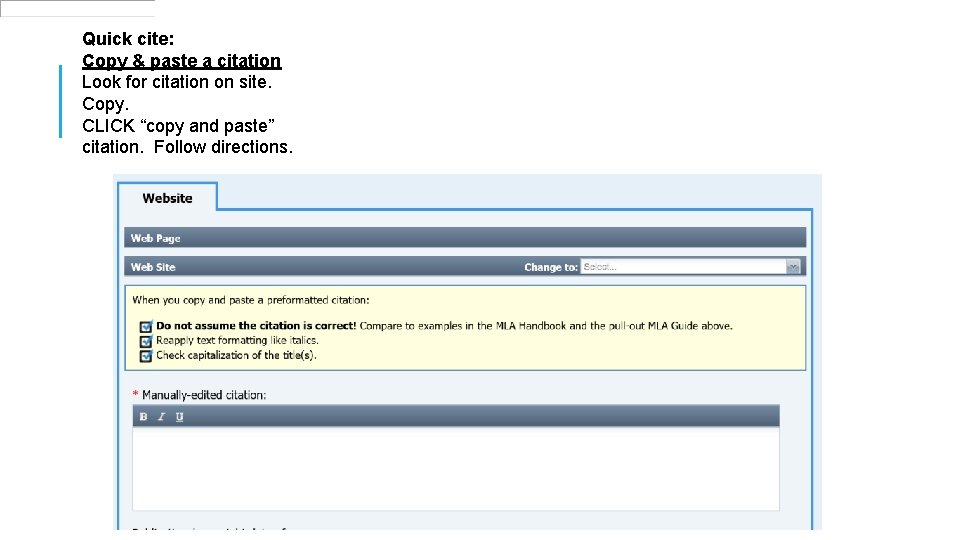
Quick cite: Copy & paste a citation Look for citation on site. Copy. CLICK “copy and paste” citation. Follow directions.
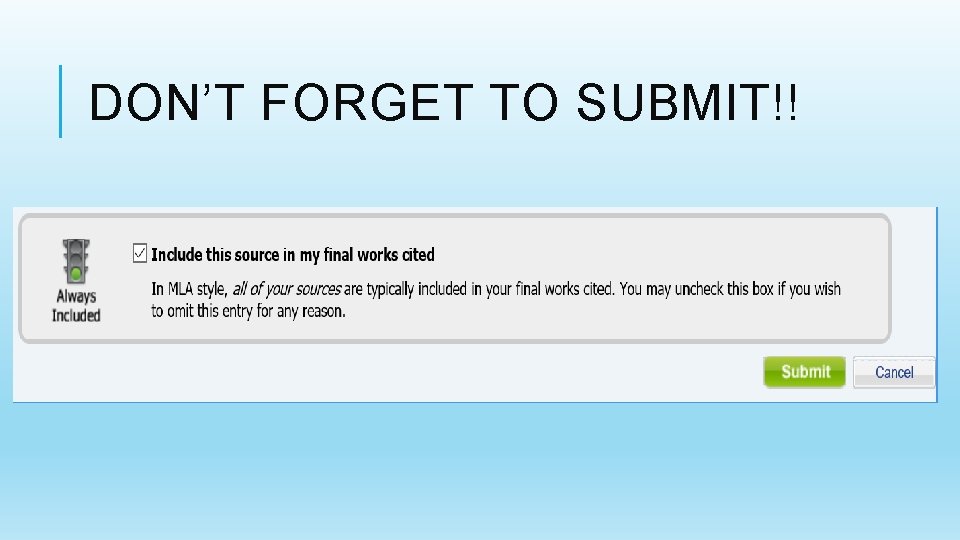
DON’T FORGET TO SUBMIT!!
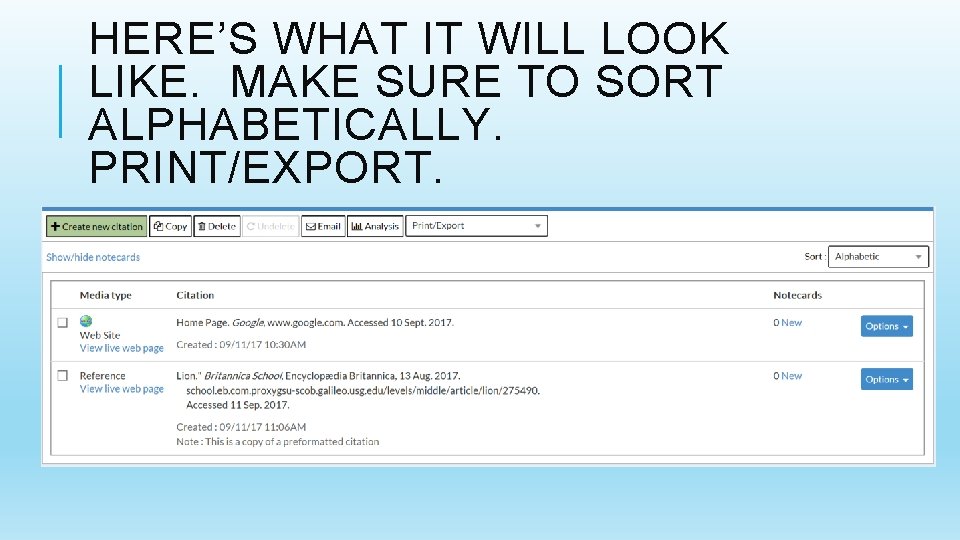
HERE’S WHAT IT WILL LOOK LIKE. MAKE SURE TO SORT ALPHABETICALLY. PRINT/EXPORT.
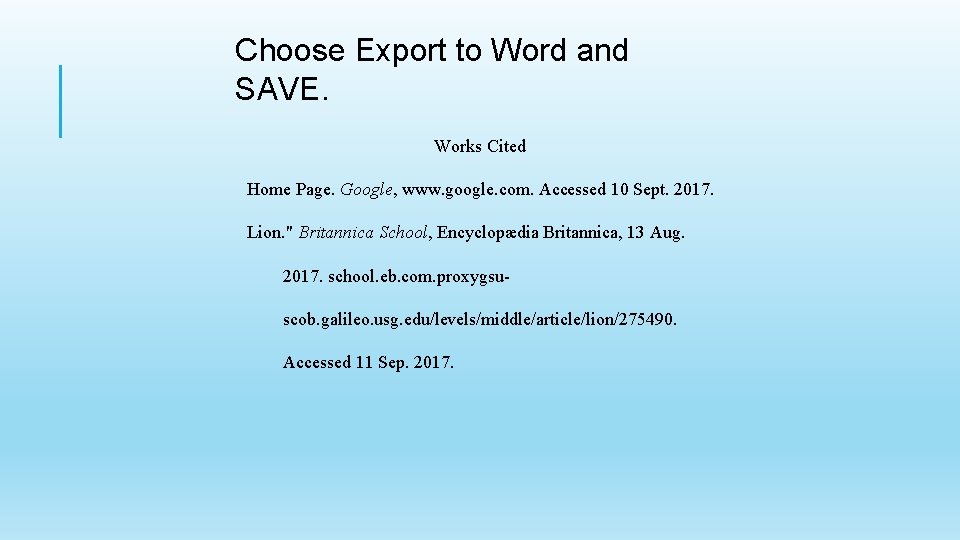
Choose Export to Word and SAVE. Works Cited Home Page. Google, www. google. com. Accessed 10 Sept. 2017. Lion. " Britannica School, Encyclopædia Britannica, 13 Aug. 2017. school. eb. com. proxygsuscob. galileo. usg. edu/levels/middle/article/lion/275490. Accessed 11 Sep. 2017.

HAPPY NOODLING!!
- Slides: 18