
node Game org Stefano Balietti MZES and Heidelberg

node. Game. org Stefano Balietti MZES and Heidelberg node. Game Intermediate Design and Implementation of Online Experiments @balietti @nodegameorg stefanobalietti. com@gmail. com
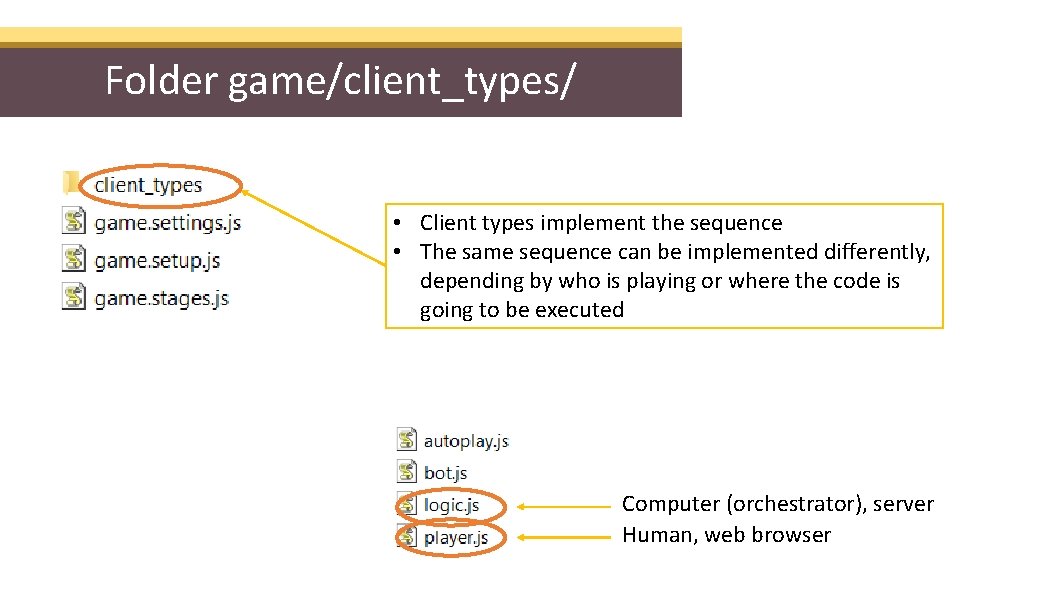
Folder game/client_types/ • Client types implement the sequence • The same sequence can be implemented differently, depending by who is playing or where the code is going to be executed Computer (orchestrator), server Human, web browser
Information Flow for Client Type
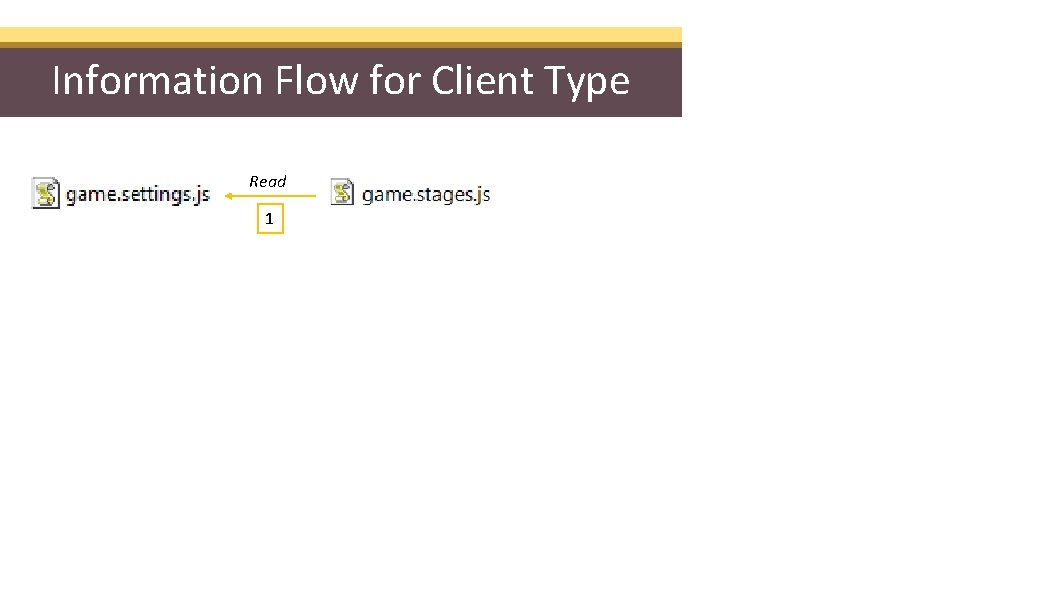
Information Flow for Client Type Read 1
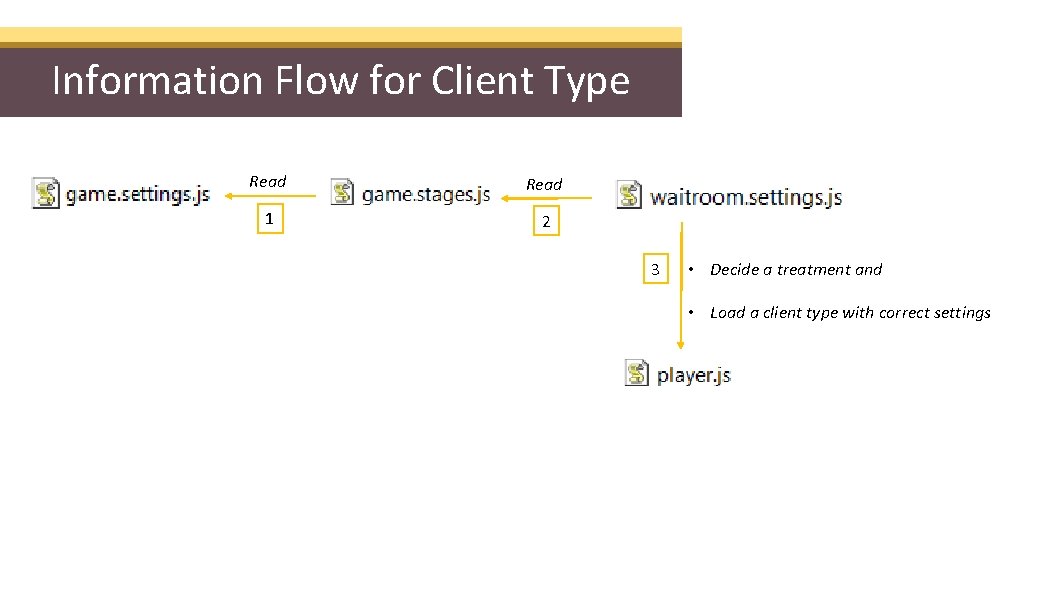
Information Flow for Client Type Read 1 2 3 • Decide a treatment and • Load a client type with correct settings
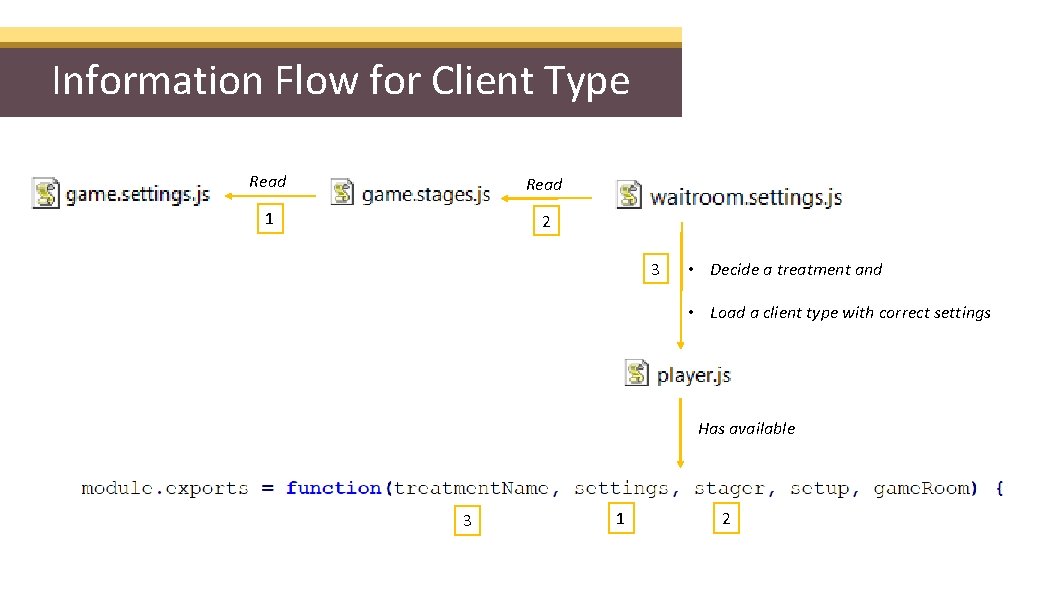
Information Flow for Client Type Read 1 2 3 • Decide a treatment and • Load a client type with correct settings Has available 3 1 2
![How To Implement a Sequence Client-Types-v 5 Use Stager API stager. [method] Initialize game](http://slidetodoc.com/presentation_image_h/26ddc993d208b8b0d55d27cb6ca68fd6/image-7.jpg "How To Implement a Sequence Client-Types-v 5 Use Stager API stager. [method] Initialize game")
How To Implement a Sequence Client-Types-v 5 Use Stager API stager. [method] Initialize game stager. set. On. Init(function() { // For instance, create Header and Frame, add widgets, etc. }); Add properties to stages and steps stager. extend. Stage("stage. Id", { foo: bar }); stager. extend. Step("step. Id", { foo: bar 2 }); Remember foo bar right? https: //en. wikipedia. org/wiki/Foobar
![How To Implement a Sequence Use Stager API stager. [method] Client-Types-v 5 The name](http://slidetodoc.com/presentation_image_h/26ddc993d208b8b0d55d27cb6ca68fd6/image-8.jpg "How To Implement a Sequence Use Stager API stager. [method] Client-Types-v 5 The name")
How To Implement a Sequence Use Stager API stager. [method] Client-Types-v 5 The name of the stage/step must be found in the game sequence. A property defined at the stage level is shared with all the steps inside the same stage. Initialize game stager. set. On. Init(function() { In this example, the step "bidder" is overwriting the value of foo defined at // For instance, create Header and Frame, add level. widgets, the stage What etc. is the value of foo in step "respondent"? }); game. stages. js Add properties to stages and steps stager. extend. Stage("ultimatum", { foo: bar }); stager. extend. Step("bidder", { foo: bar 2 }); stager. next('select. Language'). next('instructions'). repeat('ultimatum', 2). step('bidder'). step('respondent'). next('questionnaire')
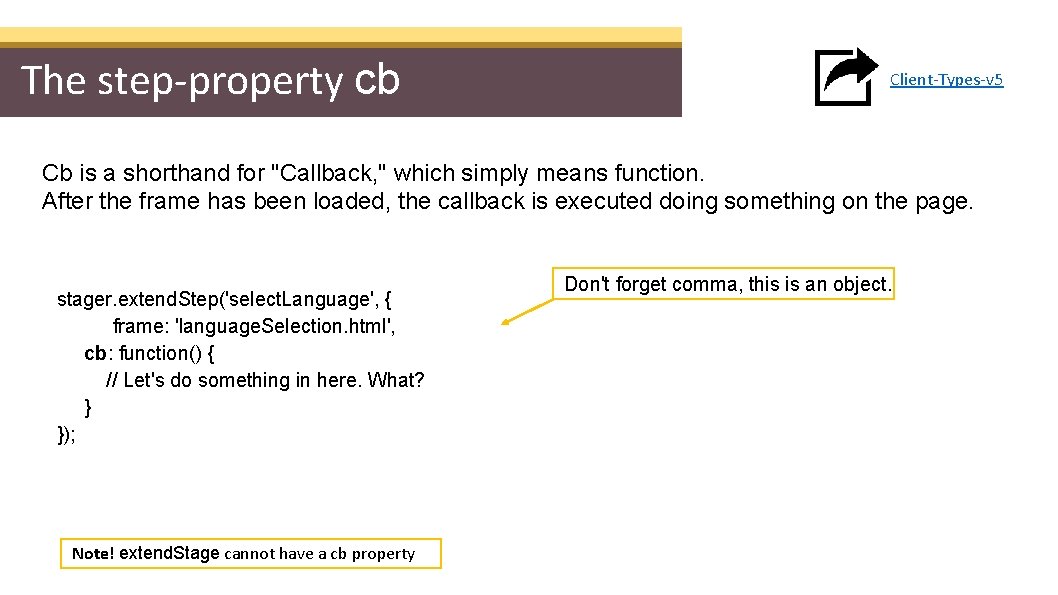
The step-property cb Client-Types-v 5 Cb is a shorthand for "Callback, " which simply means function. After the frame has been loaded, the callback is executed doing something on the page. stager. extend. Step('select. Language', { frame: 'language. Selection. html', cb: function() { // Let's do something in here. What? } }); Note! extend. Stage cannot have a cb property Don't forget comma, this is an object.
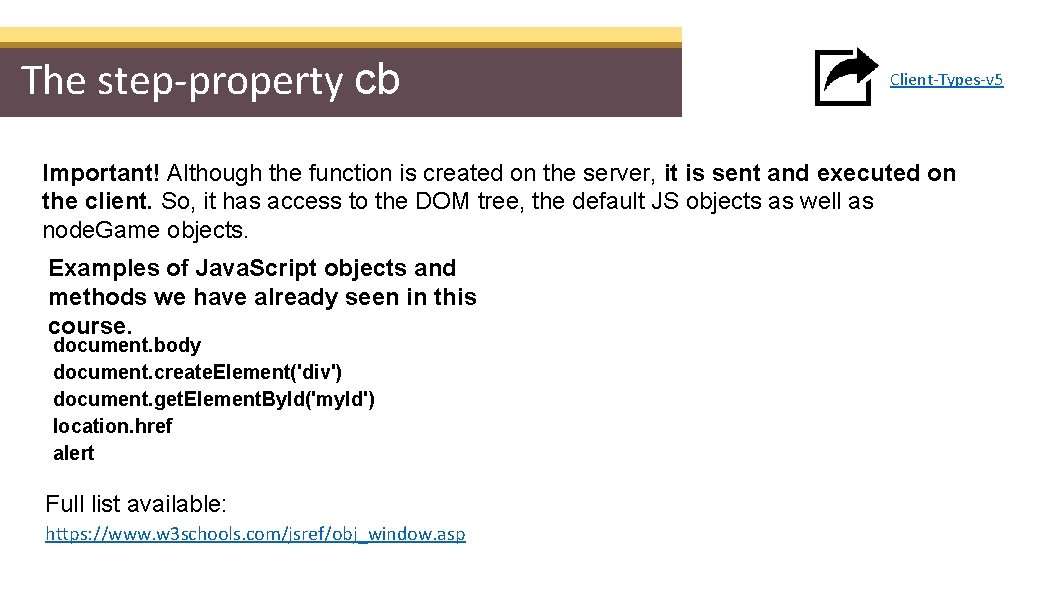
The step-property cb Client-Types-v 5 Important! Although the function is created on the server, it is sent and executed on the client. So, it has access to the DOM tree, the default JS objects as well as node. Game objects. Examples of Java. Script objects and methods we have already seen in this course. document. body document. create. Element('div') document. get. Element. By. Id('my. Id') location. href alert Full list available: https: //www. w 3 schools. com/jsref/obj_window. asp
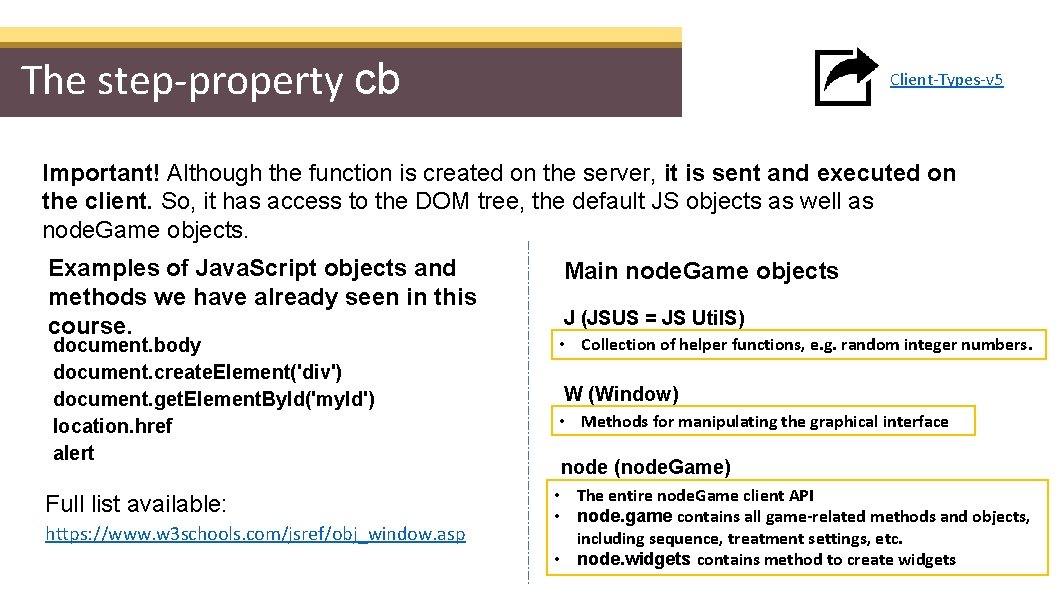
The step-property cb Client-Types-v 5 Important! Although the function is created on the server, it is sent and executed on the client. So, it has access to the DOM tree, the default JS objects as well as node. Game objects. Examples of Java. Script objects and methods we have already seen in this course. document. body document. create. Element('div') document. get. Element. By. Id('my. Id') location. href alert Full list available: https: //www. w 3 schools. com/jsref/obj_window. asp Main node. Game objects J (JSUS = JS Util. S) • Collection of helper functions, e. g. random integer numbers. W (Window) • Methods for manipulating the graphical interface node (node. Game) • The entire node. Game client API • node. game contains all game-related methods and objects, including sequence, treatment settings, etc. • node. widgets contains method to create widgets
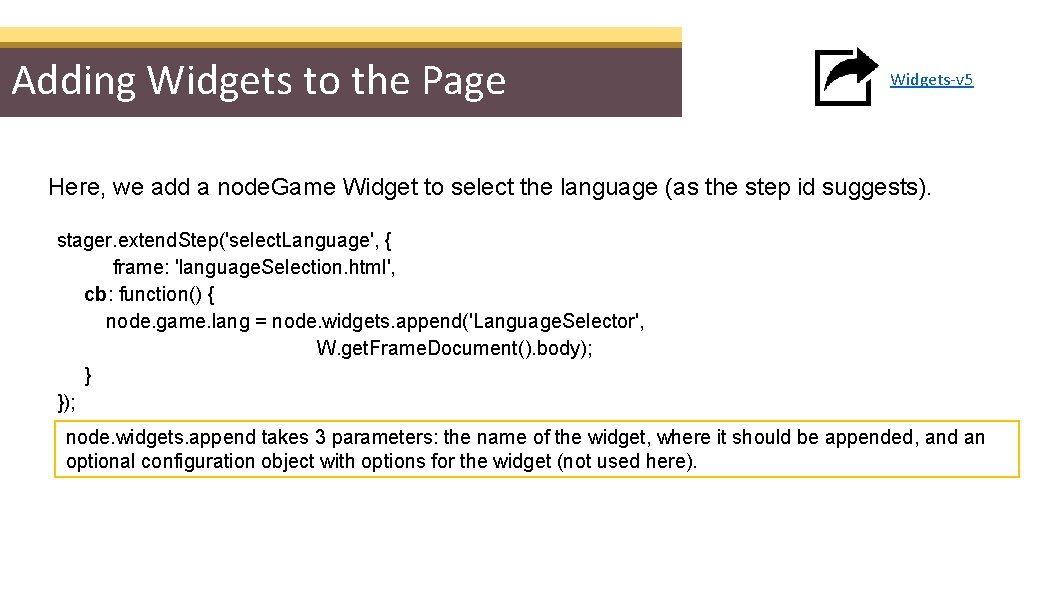
Adding Widgets to the Page Widgets-v 5 Here, we add a node. Game Widget to select the language (as the step id suggests). stager. extend. Step('select. Language', { frame: 'language. Selection. html', cb: function() { node. game. lang = node. widgets. append('Language. Selector', W. get. Frame. Document(). body); } }); node. widgets. append takes 3 parameters: the name of the widget, where it should be appended, and an optional configuration object with options for the widget (not used here).
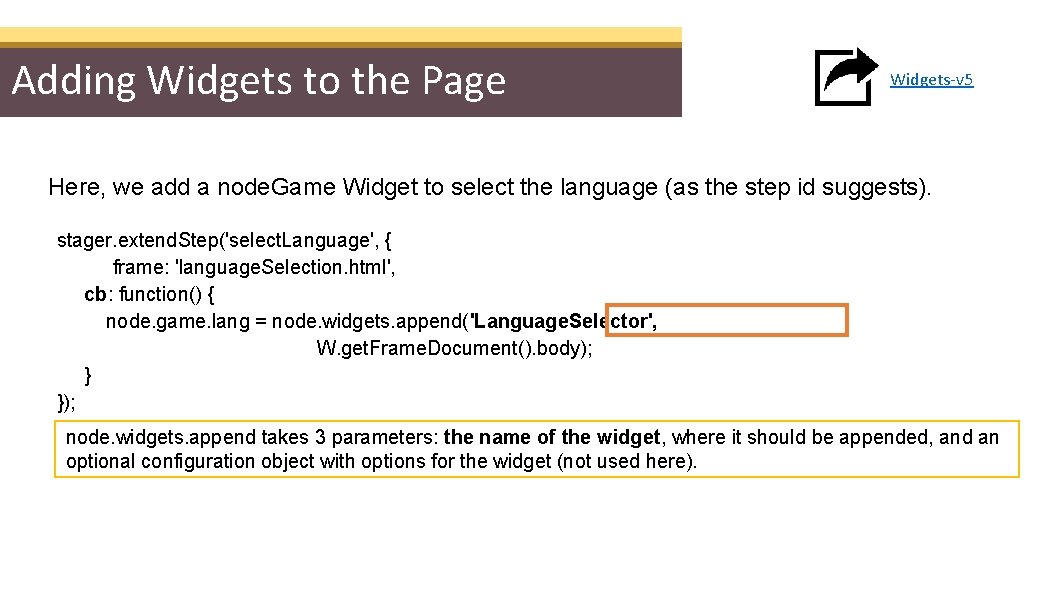
Adding Widgets to the Page Widgets-v 5 Here, we add a node. Game Widget to select the language (as the step id suggests). stager. extend. Step('select. Language', { frame: 'language. Selection. html', cb: function() { node. game. lang = node. widgets. append('Language. Selector', W. get. Frame. Document(). body); } }); node. widgets. append takes 3 parameters: the name of the widget, where it should be appended, and an optional configuration object with options for the widget (not used here).
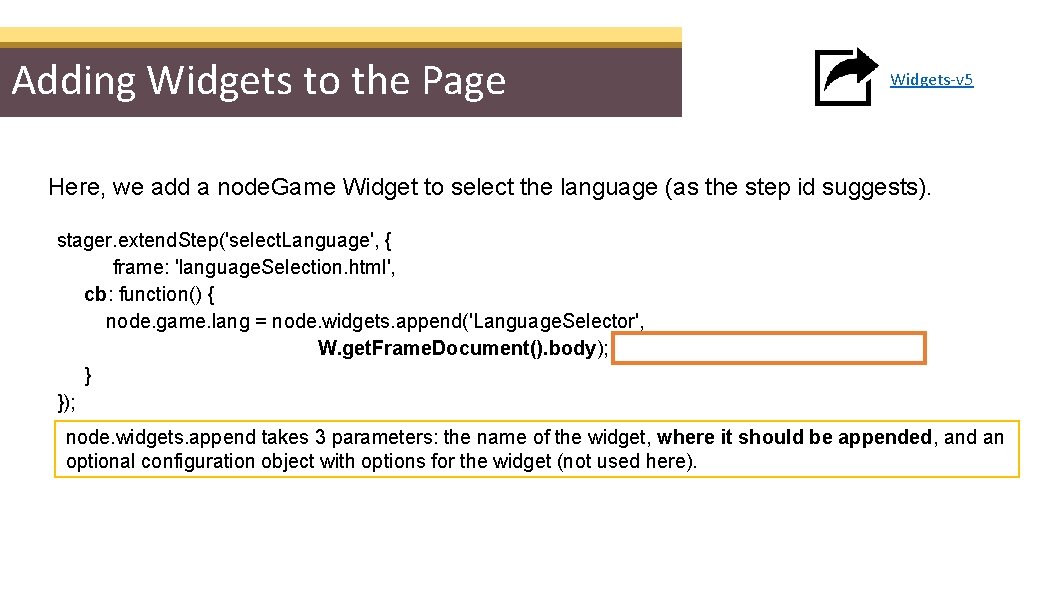
Adding Widgets to the Page Widgets-v 5 Here, we add a node. Game Widget to select the language (as the step id suggests). stager. extend. Step('select. Language', { frame: 'language. Selection. html', cb: function() { node. game. lang = node. widgets. append('Language. Selector', W. get. Frame. Document(). body); } }); node. widgets. append takes 3 parameters: the name of the widget, where it should be appended, and an optional configuration object with options for the widget (not used here).
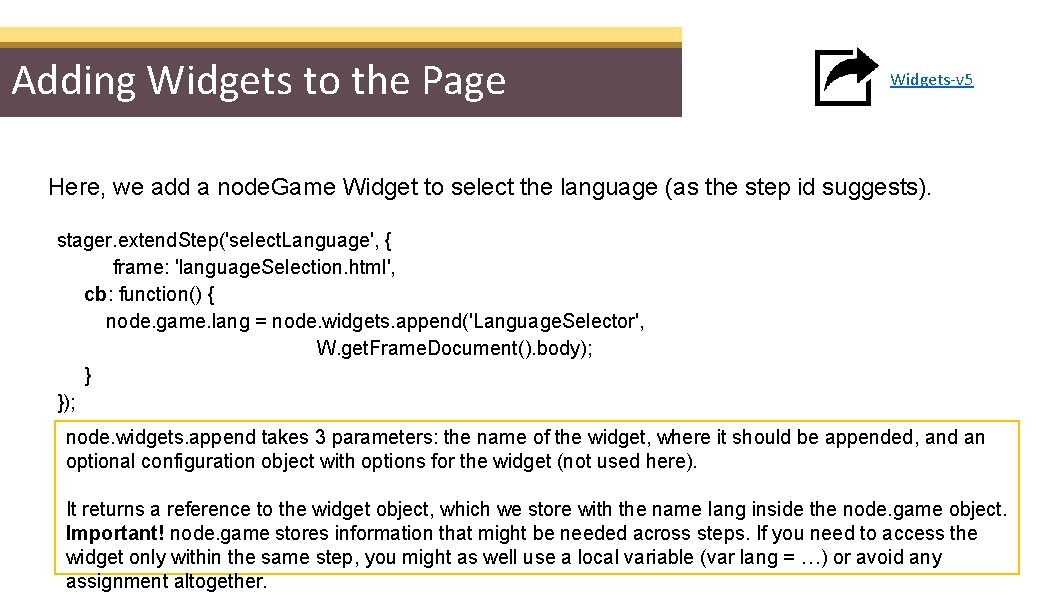
Adding Widgets to the Page Widgets-v 5 Here, we add a node. Game Widget to select the language (as the step id suggests). stager. extend. Step('select. Language', { frame: 'language. Selection. html', cb: function() { node. game. lang = node. widgets. append('Language. Selector', W. get. Frame. Document(). body); } }); node. widgets. append takes 3 parameters: the name of the widget, where it should be appended, and an optional configuration object with options for the widget (not used here). It returns a reference to the widget object, which we store with the name lang inside the node. game object. Important! node. game stores information that might be needed across steps. If you need to access the widget only within the same step, you might as well use a local variable (var lang = …) or avoid any assignment altogether.
Adding Widgets to the Page Widgets-v 5 Here, we add a node. Game Widget to select the language (as the step id suggests). stager. extend. Step('select. Language', { frame: 'language. Selection. html', cb: function() { node. game. lang = node. widgets. append('Language. Selector', W. get. Frame. Document(). body); } }); W (stands for Window) is an object that helps to manipulate the user interface. Here, W is returning the body tag. Why can't we use document. body? We could, but it would not be the body we expect. Let's learn what's going on behind the user interface.
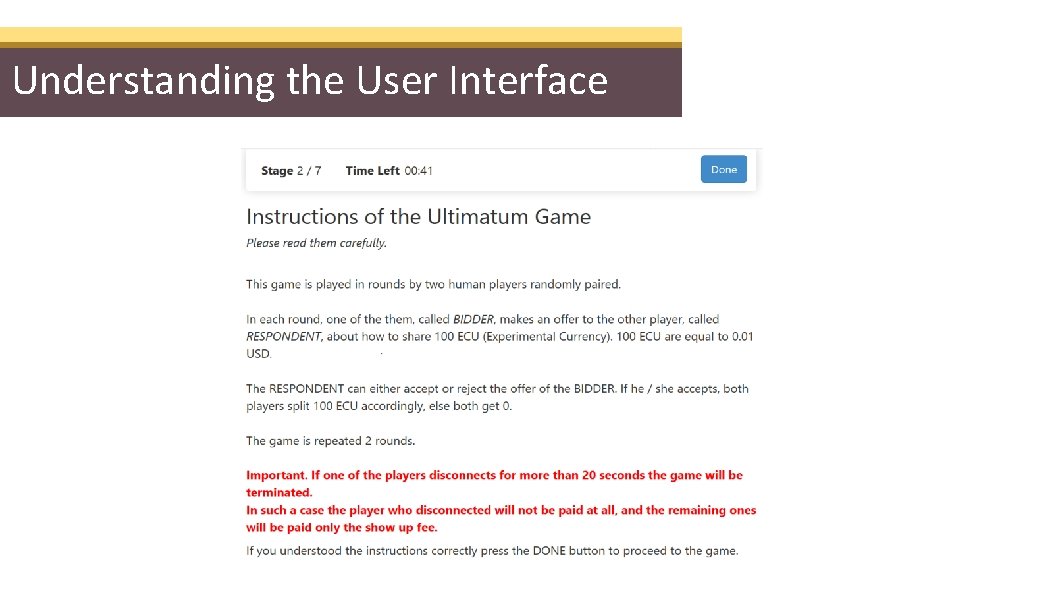
Understanding the User Interface
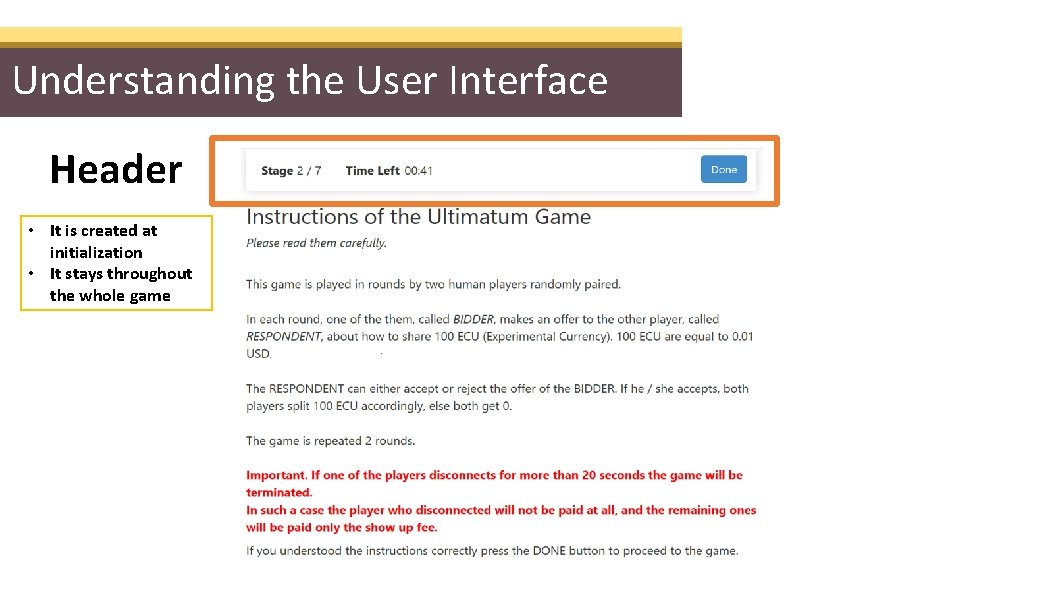
Understanding the User Interface Header • It is created at initialization • It stays throughout the whole game
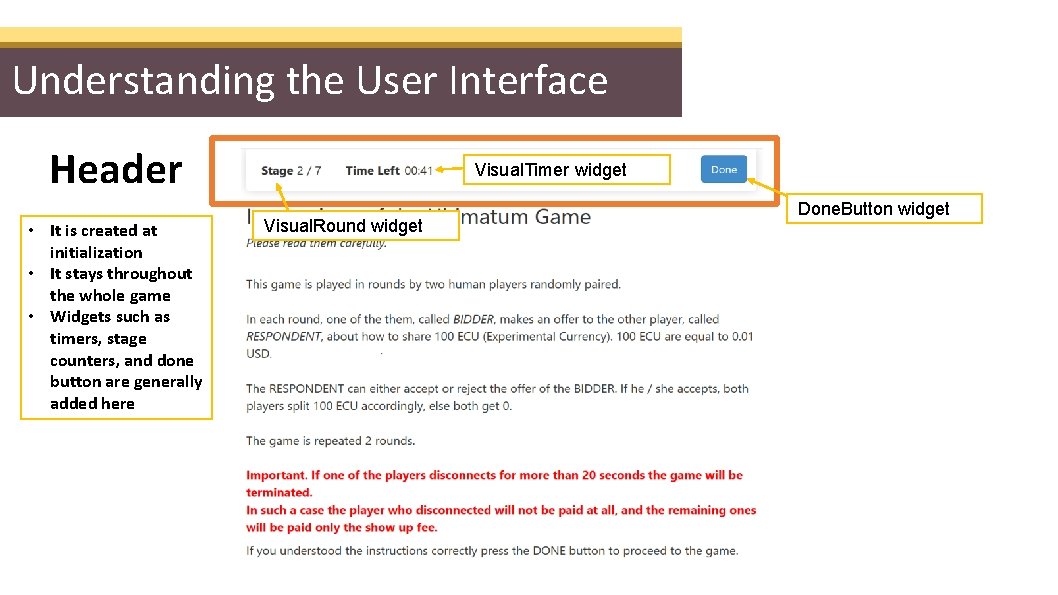
Understanding the User Interface Header • It is created at initialization • It stays throughout the whole game • Widgets such as timers, stage counters, and done button are generally added here Visual. Timer widget Visual. Round widget Done. Button widget
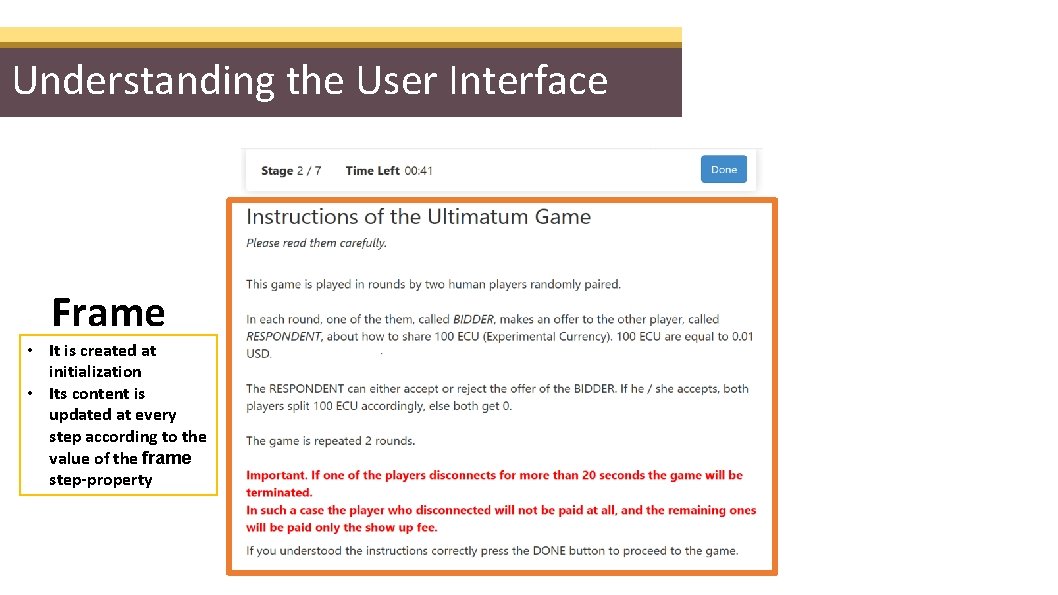
Understanding the User Interface Frame • It is created at initialization • Its content is updated at every step according to the value of the frame step-property
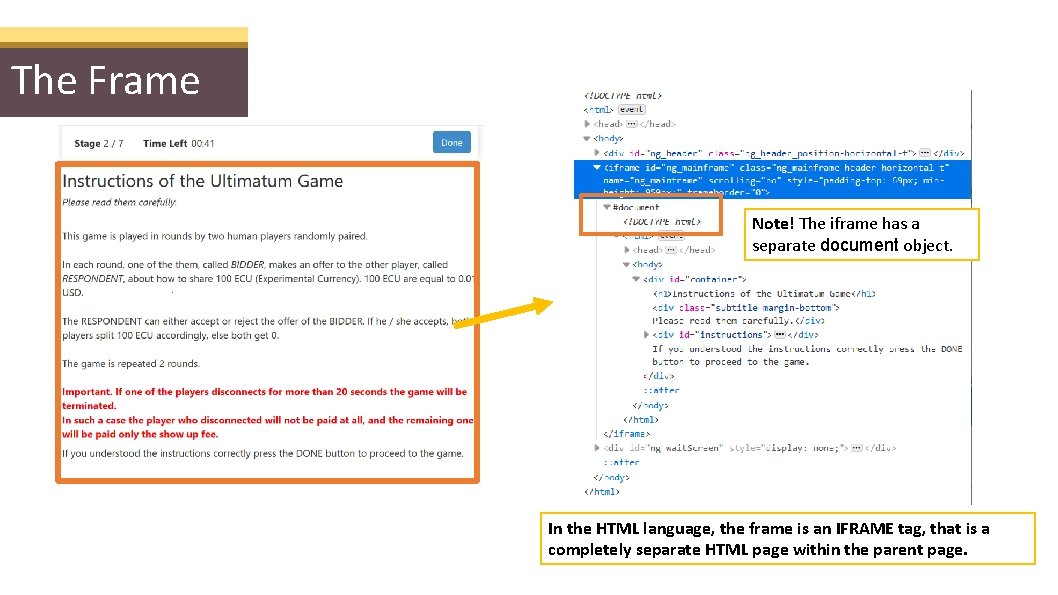
The Frame Note! The iframe has a separate document object. In the HTML language, the frame is an IFRAME tag, that is a completely separate HTML page within the parent page.
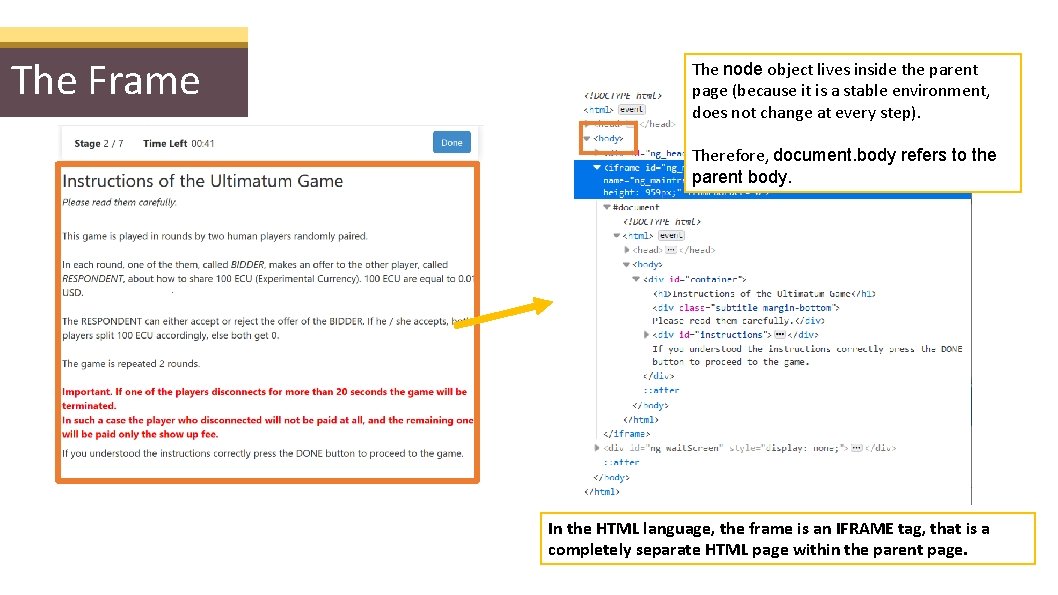
The Frame The node object lives inside the parent page (because it is a stable environment, does not change at every step). Therefore, document. body refers to the parent body. In the HTML language, the frame is an IFRAME tag, that is a completely separate HTML page within the parent page.
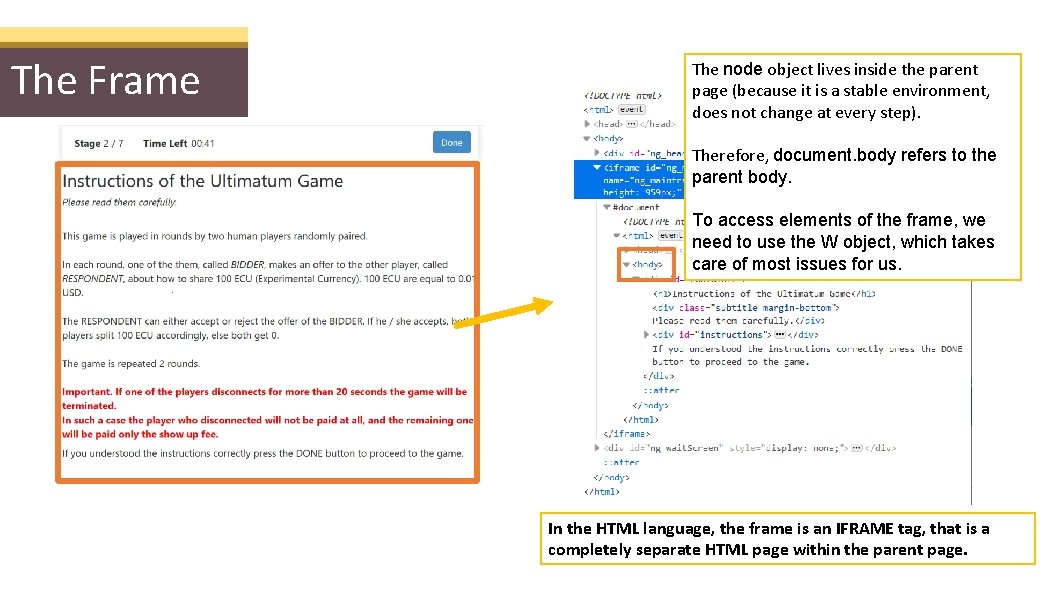
The Frame The node object lives inside the parent page (because it is a stable environment, does not change at every step). Therefore, document. body refers to the parent body. To access elements of the frame, we need to use the W object, which takes care of most issues for us. In the HTML language, the frame is an IFRAME tag, that is a completely separate HTML page within the parent page.
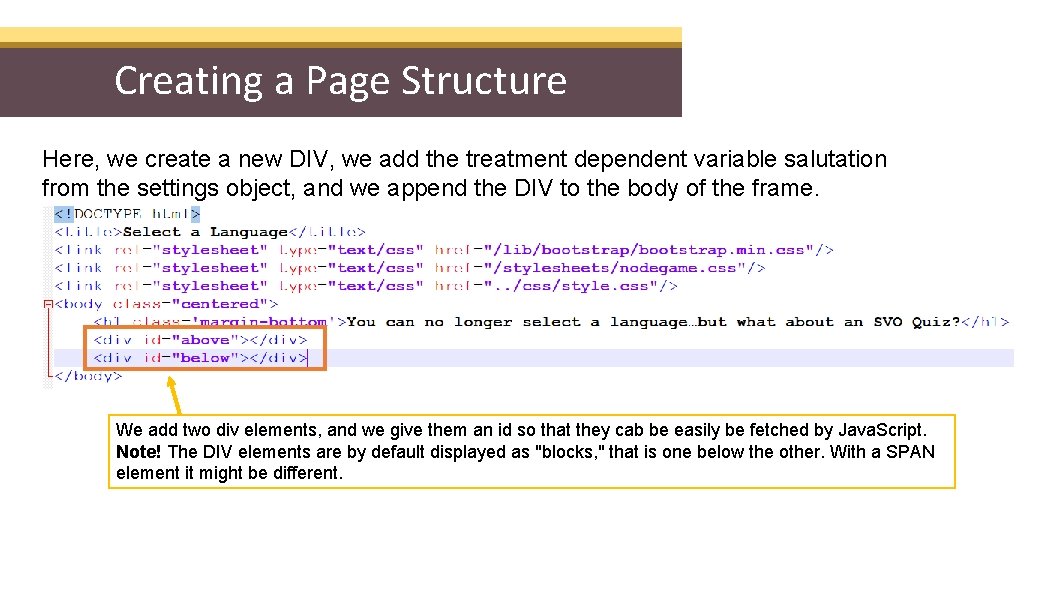
Creating a Page Structure Here, we create a new DIV, we add the treatment dependent variable salutation from the settings object, and we append the DIV to the body of the frame. We add two div elements, and we give them an id so that they cab be easily be fetched by Java. Script. Note! The DIV elements are by default displayed as "blocks, " that is one below the other. With a SPAN element it might be different.
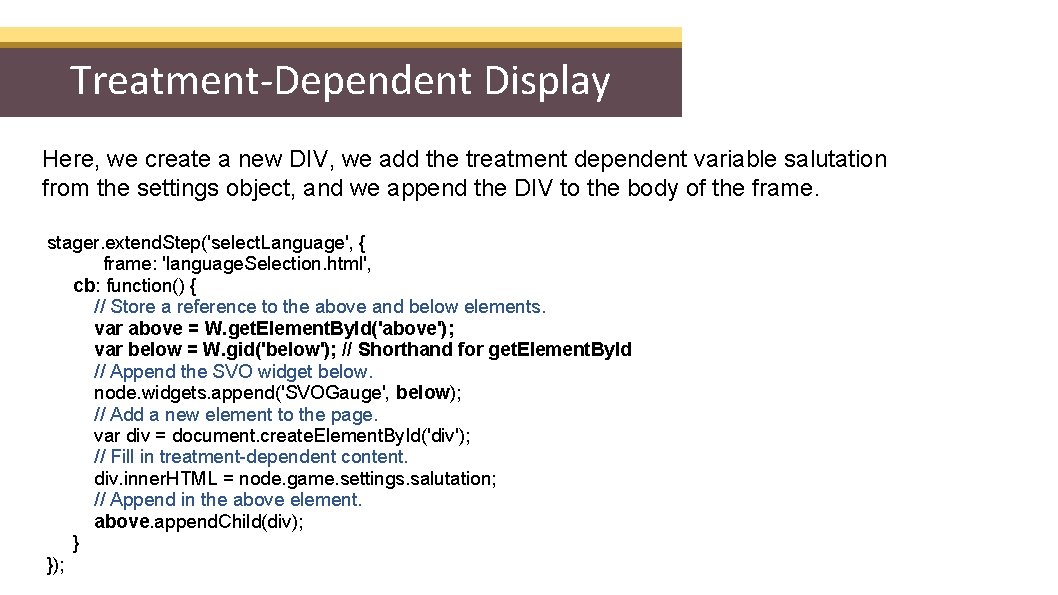
Treatment-Dependent Display Here, we create a new DIV, we add the treatment dependent variable salutation from the settings object, and we append the DIV to the body of the frame. stager. extend. Step('select. Language', { frame: 'language. Selection. html', cb: function() { // Store a reference to the above and below elements. var above = W. get. Element. By. Id('above'); var below = W. gid('below'); // Shorthand for get. Element. By. Id // Append the SVO widget below. node. widgets. append('SVOGauge', below); // Add a new element to the page. var div = document. create. Element. By. Id('div'); // Fill in treatment-dependent content. div. inner. HTML = node. game. settings. salutation; // Append in the above element. above. append. Child(div); } });
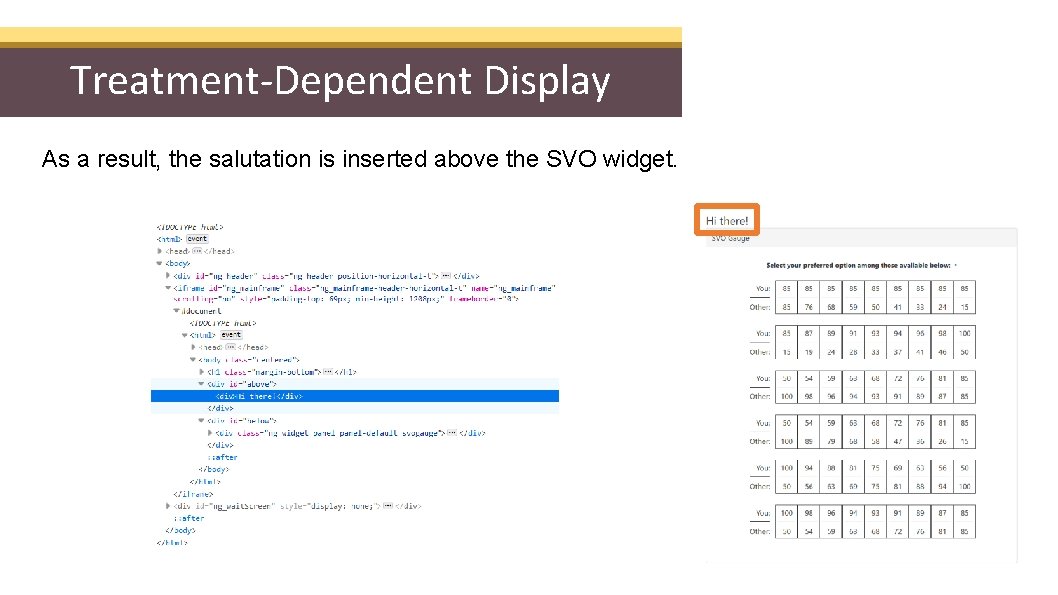
Treatment-Dependent Display As a result, the salutation is inserted above the SVO widget.
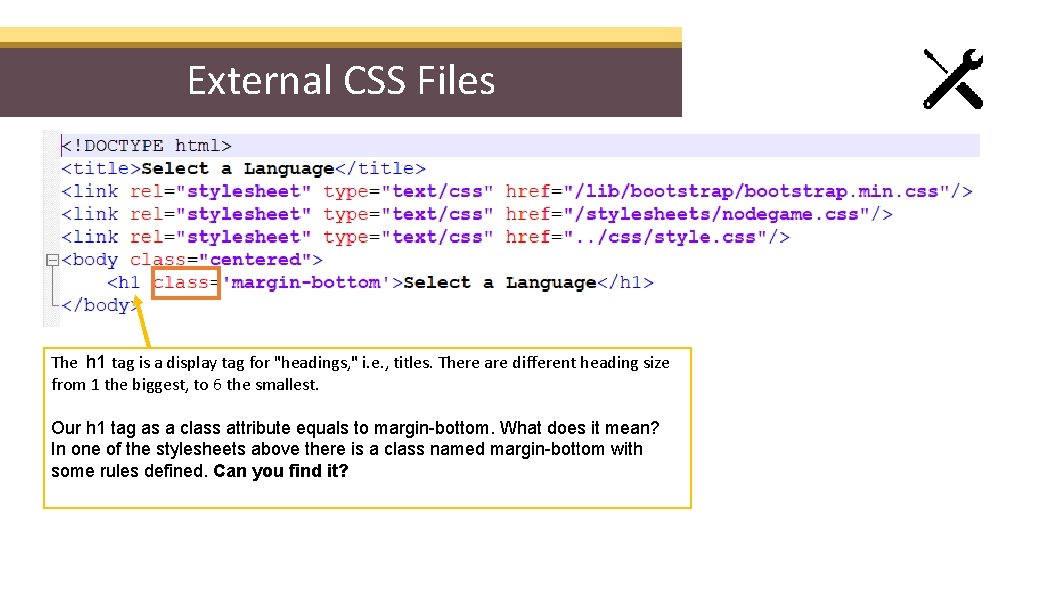
External CSS Files The h 1 tag is a display tag for "headings, " i. e. , titles. There are different heading size from 1 the biggest, to 6 the smallest. Our h 1 tag as a class attribute equals to margin-bottom. What does it mean? In one of the stylesheets above there is a class named margin-bottom with some rules defined. Can you find it?
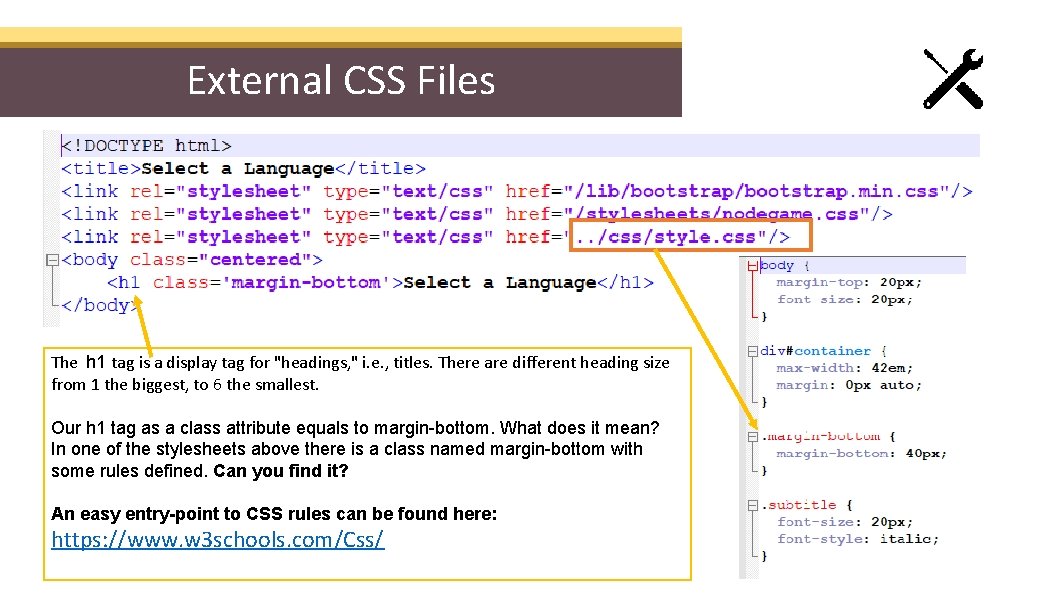
External CSS Files The h 1 tag is a display tag for "headings, " i. e. , titles. There are different heading size from 1 the biggest, to 6 the smallest. Our h 1 tag as a class attribute equals to margin-bottom. What does it mean? In one of the stylesheets above there is a class named margin-bottom with some rules defined. Can you find it? An easy entry-point to CSS rules can be found here: https: //www. w 3 schools. com/Css/
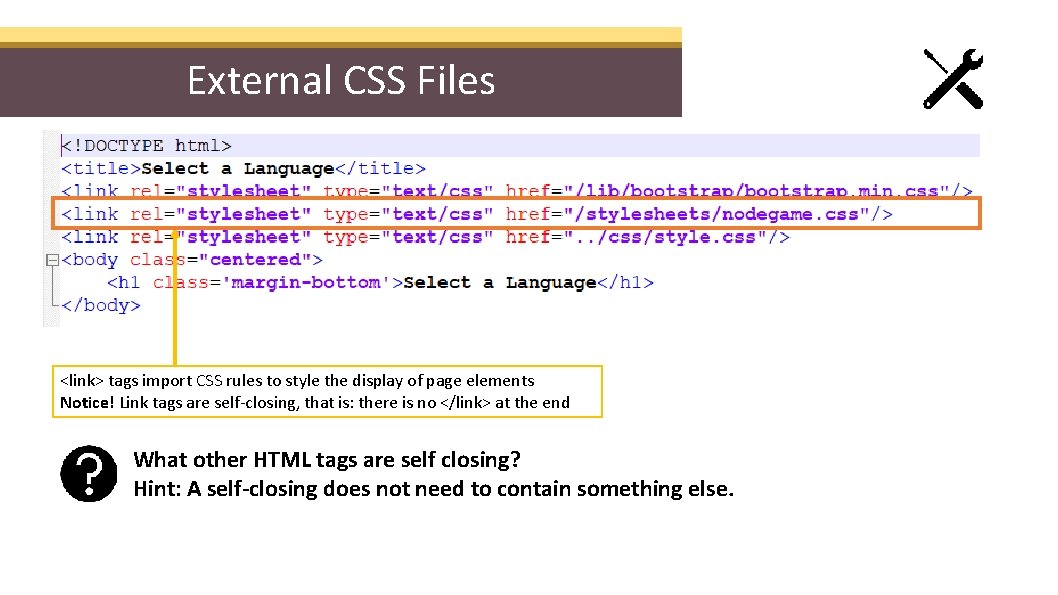
External CSS Files <link> tags import CSS rules to style the display of page elements Notice! Link tags are self-closing, that is: there is no </link> at the end What other HTML tags are self closing? Hint: A self-closing does not need to contain something else.
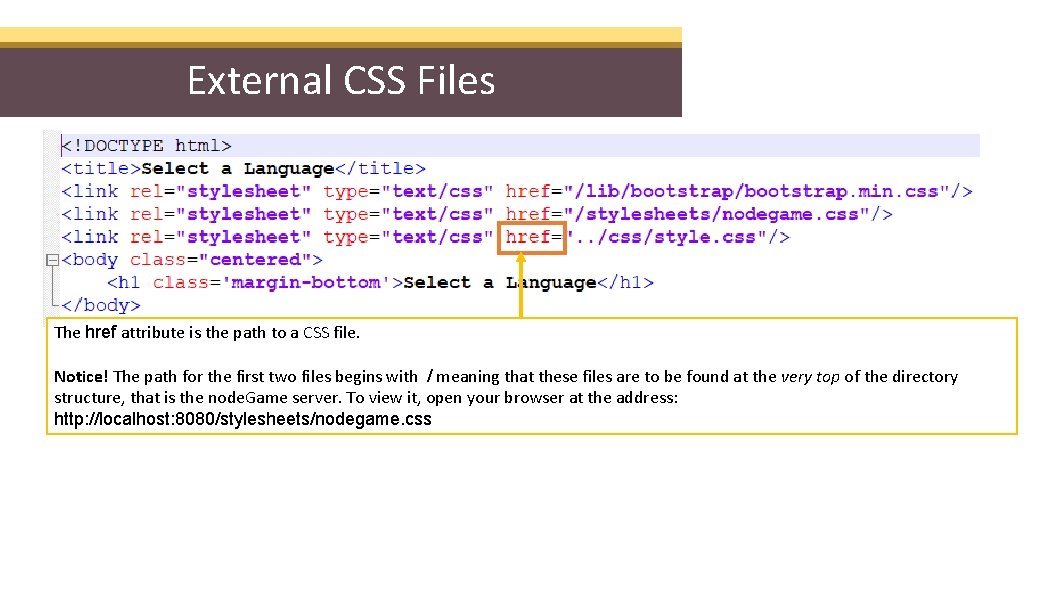
External CSS Files The href attribute is the path to a CSS file. Notice! The path for the first two files begins with / meaning that these files are to be found at the very top of the directory structure, that is the node. Game server. To view it, open your browser at the address: http: //localhost: 8080/stylesheets/nodegame. css
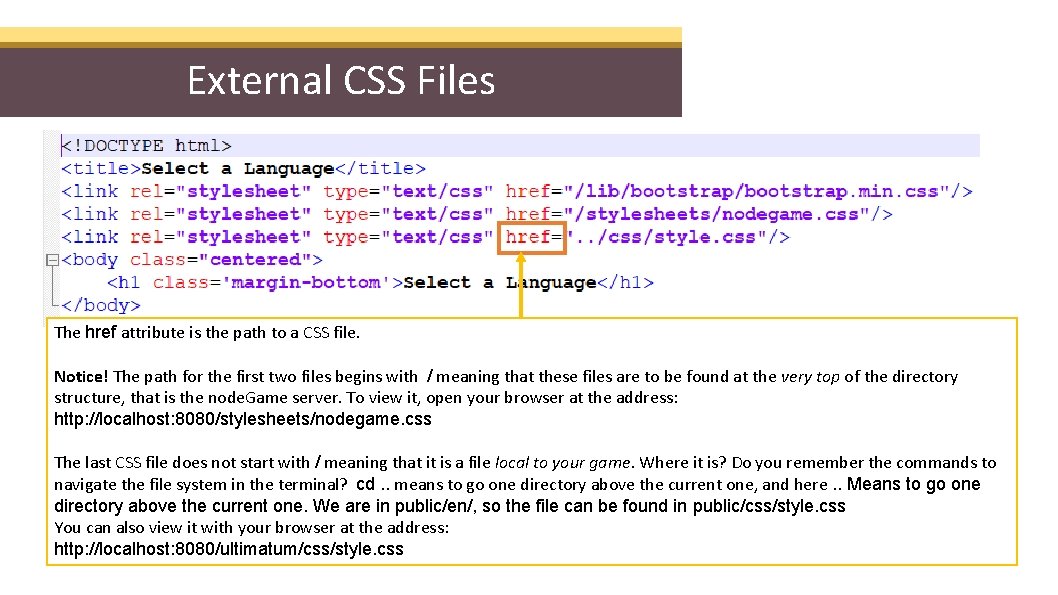
External CSS Files The href attribute is the path to a CSS file. Notice! The path for the first two files begins with / meaning that these files are to be found at the very top of the directory structure, that is the node. Game server. To view it, open your browser at the address: http: //localhost: 8080/stylesheets/nodegame. css The last CSS file does not start with / meaning that it is a file local to your game. Where it is? Do you remember the commands to navigate the file system in the terminal? cd. . means to go one directory above the current one, and here. . Means to go one directory above the current one. We are in public/en/, so the file can be found in public/css/style. css You can also view it with your browser at the address: http: //localhost: 8080/ultimatum/css/style. css
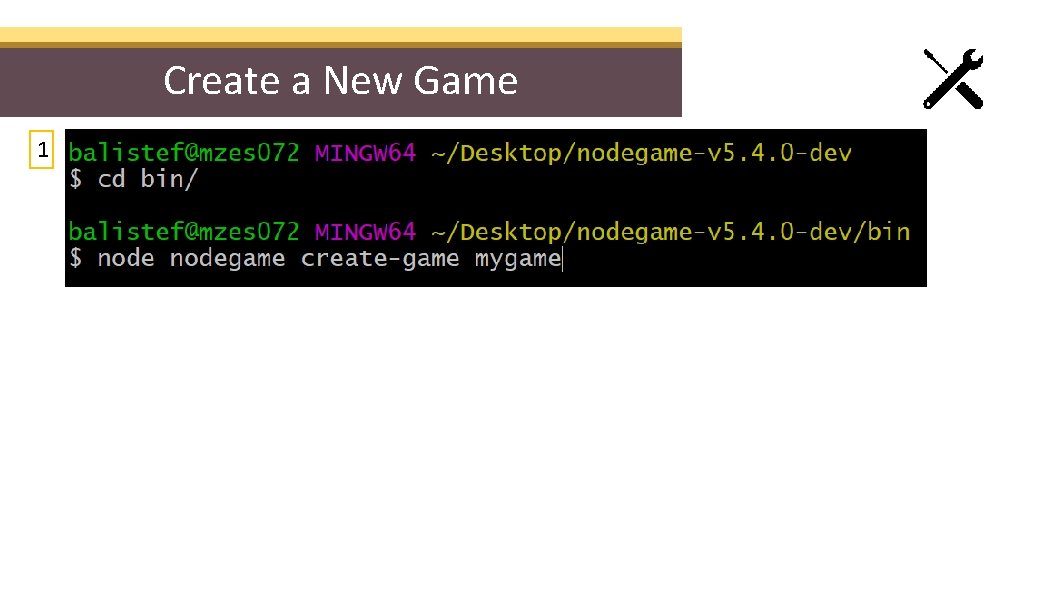
Create a New Game 1
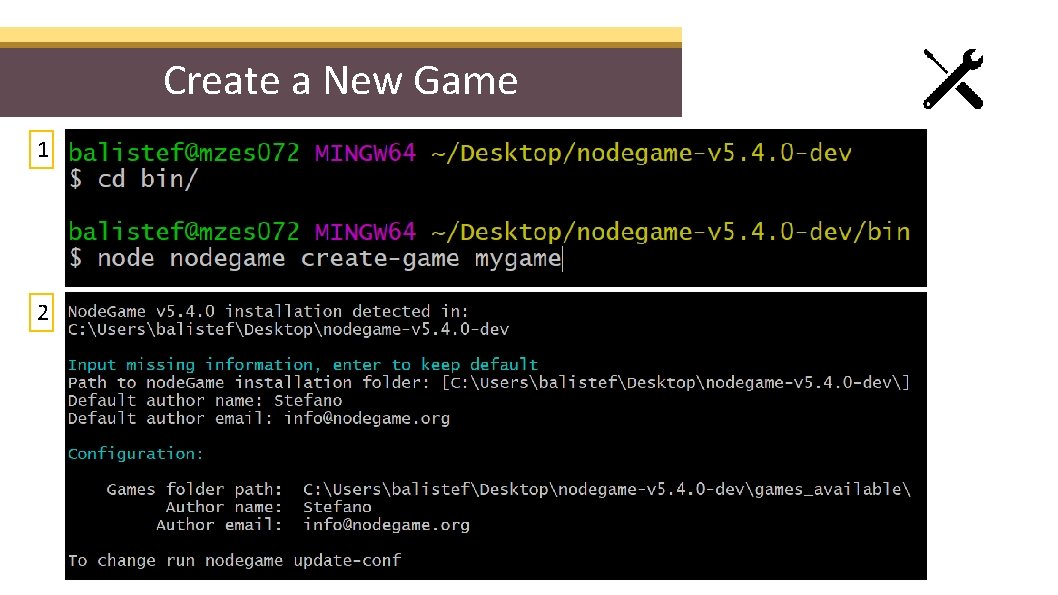
Create a New Game 1 2
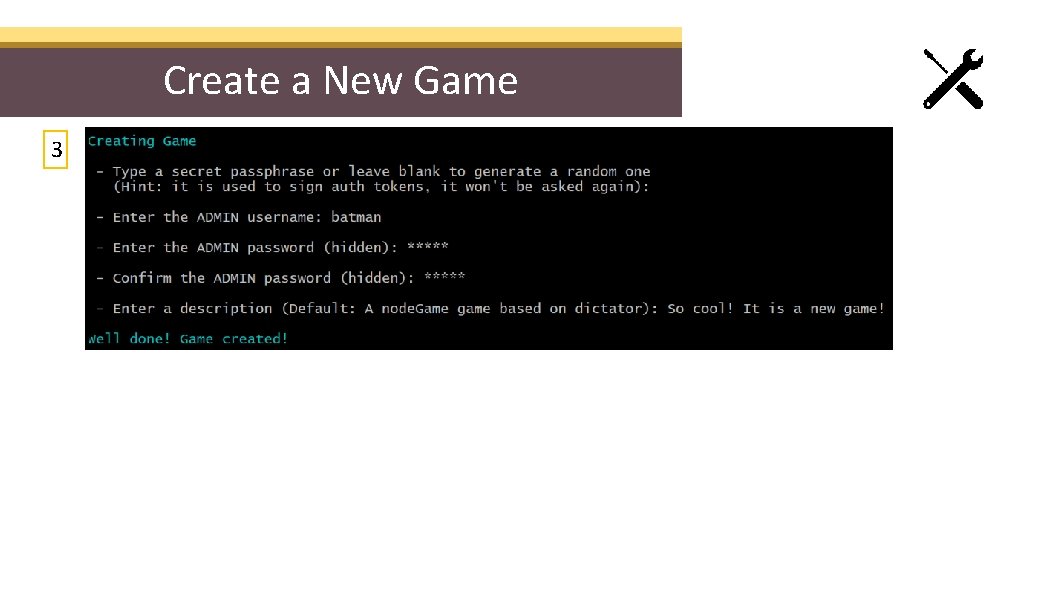
Create a New Game 3
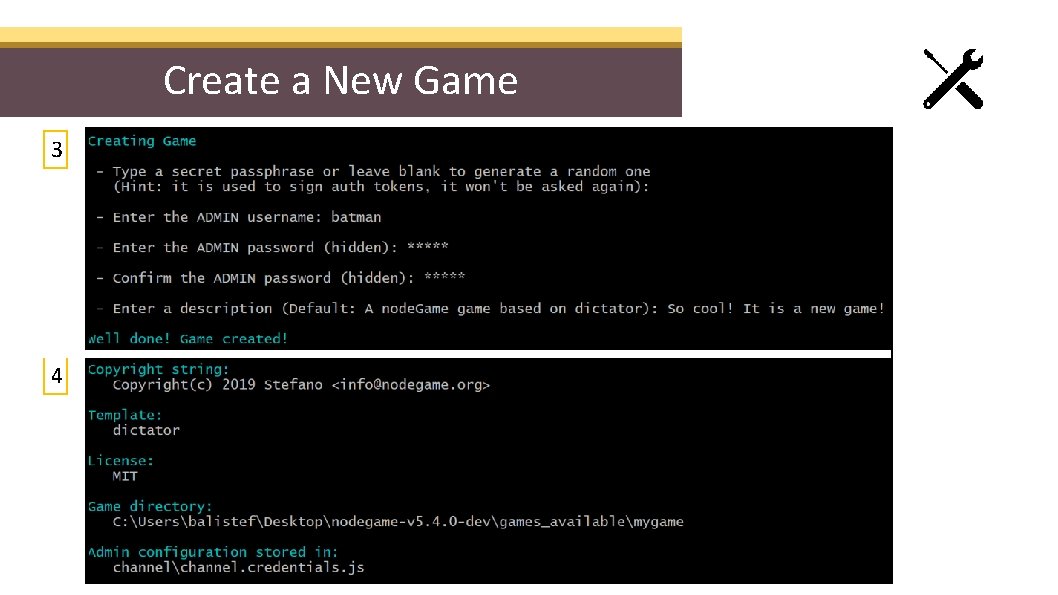
Create a New Game 3 4
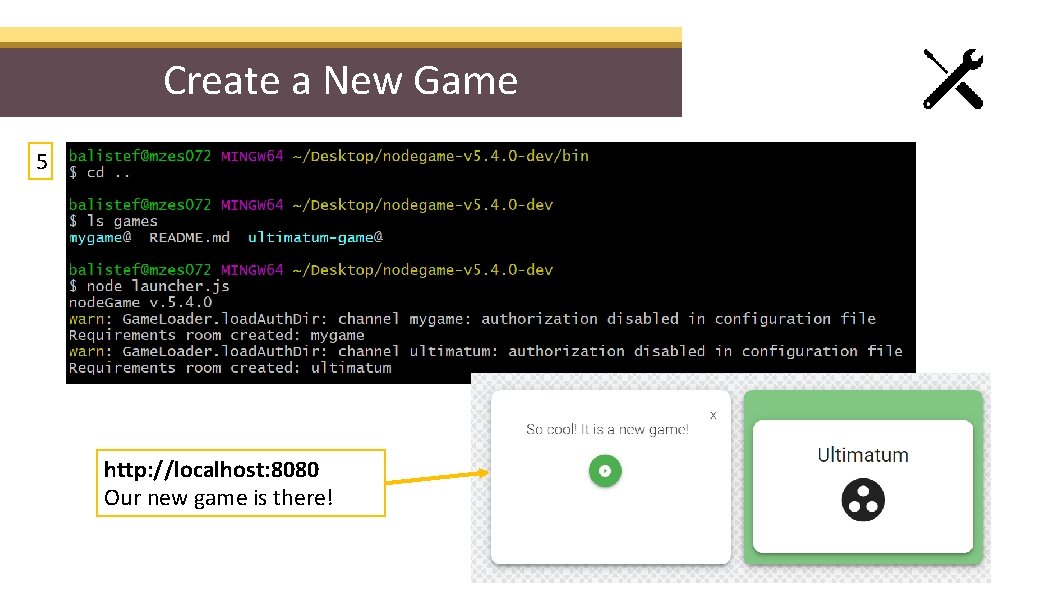
Create a New Game 5 http: //localhost: 8080 Our new game is there!
The Default Template of a New Game Dictator Game • The default template is a basic Dictator Game • The Dictator game is like an Ultimatum, but even simpler: after an offer is made, the other player cannot reply, he or she must merely observe. • It is appropriate to study fairness and altruism • A rational player should always offer 0, however non-zero offers are common in experiments • Framing makes a difference: taking from vs giving to others
The Default Template of a New Game How can we improve this basic game? 1. 2. 3. 4. Add a feedback form at the end of the experiment Add an understanding quiz after the instructions Add a bot client type Fix the timer issue?
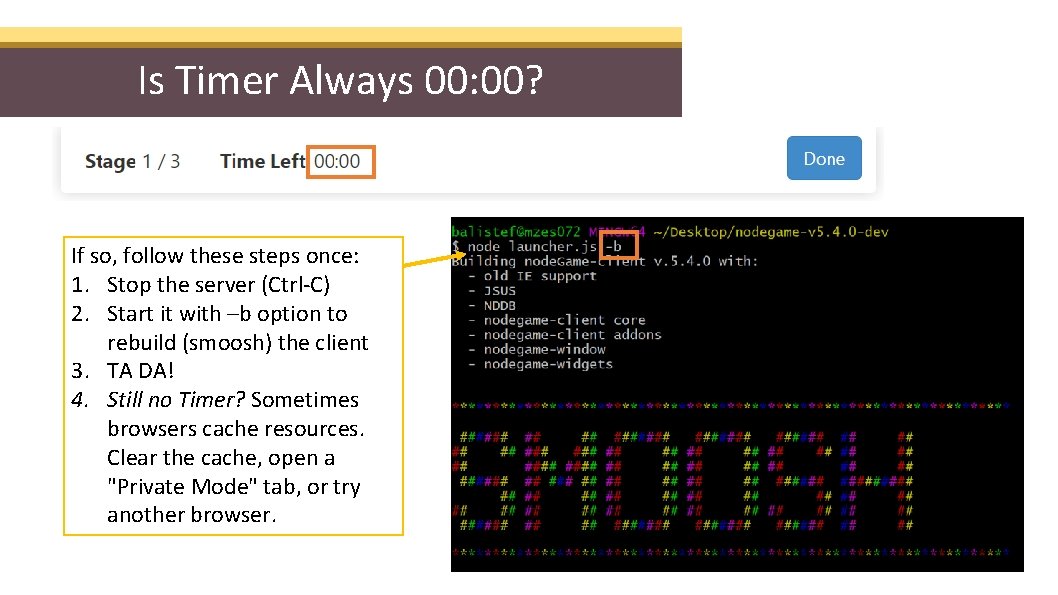
Is Timer Always 00: 00? If so, follow these steps once: 1. Stop the server (Ctrl-C) 2. Start it with –b option to rebuild (smoosh) the client 3. TA DA! 4. Still no Timer? Sometimes browsers cache resources. Clear the cache, open a "Private Mode" tab, or try another browser.
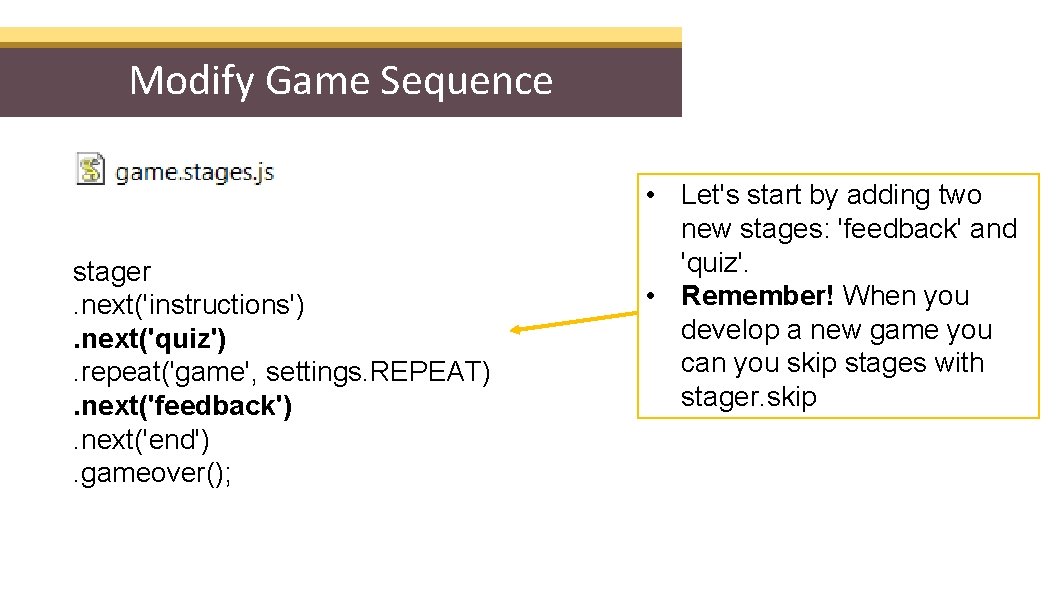
Modify Game Sequence stager. next('instructions'). next('quiz'). repeat('game', settings. REPEAT). next('feedback'). next('end'). gameover(); • Let's start by adding two new stages: 'feedback' and 'quiz'. • Remember! When you develop a new game you can you skip stages with stager. skip
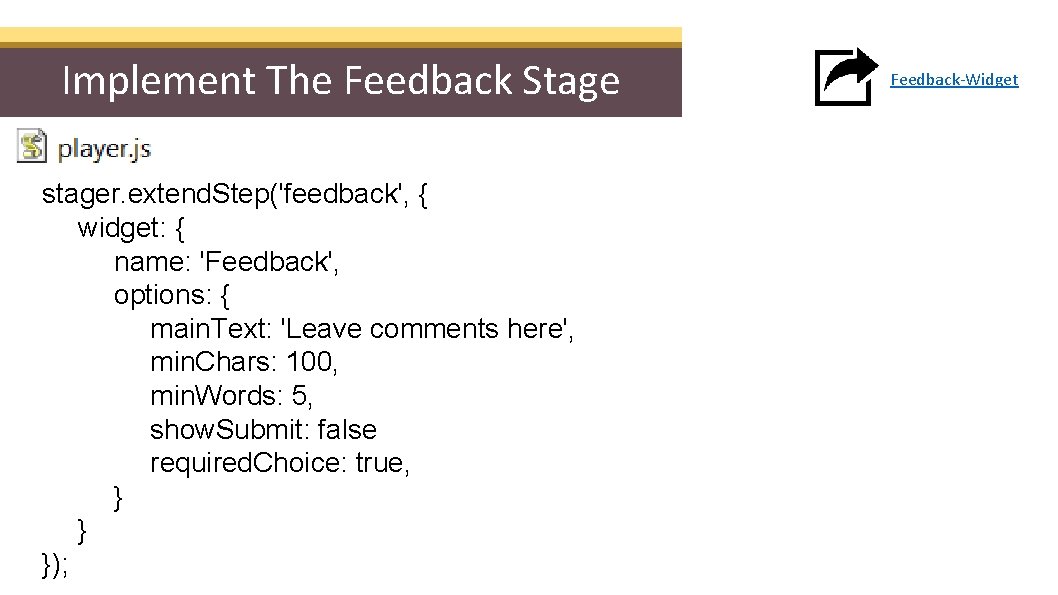
Implement The Feedback Stage stager. extend. Step('feedback', { widget: { name: 'Feedback', options: { main. Text: 'Leave comments here', min. Chars: 100, min. Words: 5, show. Submit: false required. Choice: true, } } }); Feedback-Widget
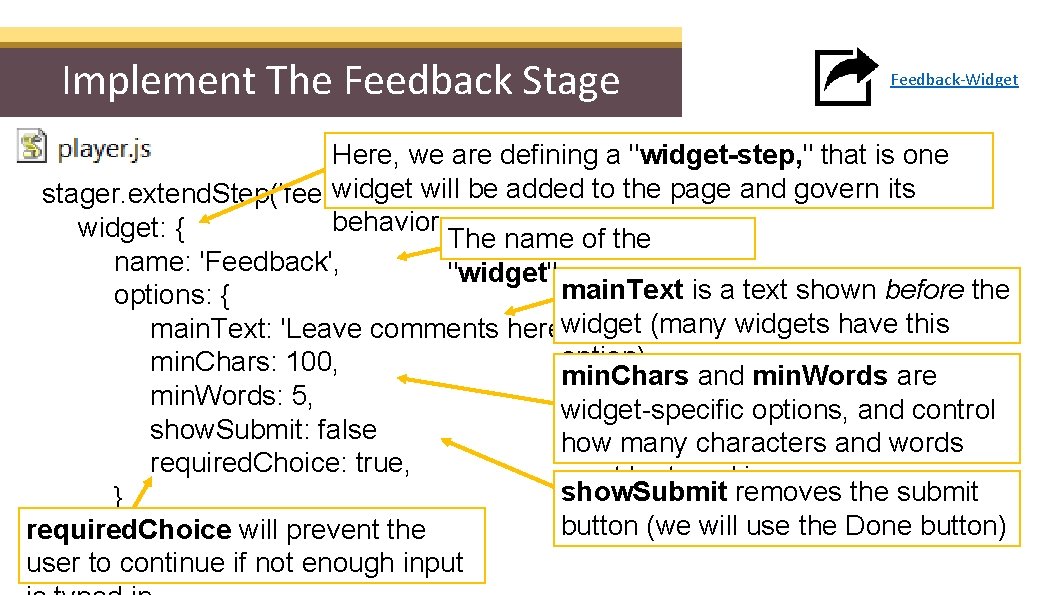
Implement The Feedback Stage Feedback-Widget Here, we are defining a "widget-step, " that is one widget {will be added to the page and govern its stager. extend. Step('feedback', behavior. widget: { The name of the name: 'Feedback', "widget" main. Text is a text shown before the options: { widget (many widgets have this main. Text: 'Leave comments here', option) min. Chars: 100, min. Chars and min. Words are min. Words: 5, widget-specific options, and control show. Submit: false how many characters and words required. Choice: true, must be typed in show. Submit removes the submit } button (we will use the Done button) required. Choice will prevent the } user }); to continue if not enough input
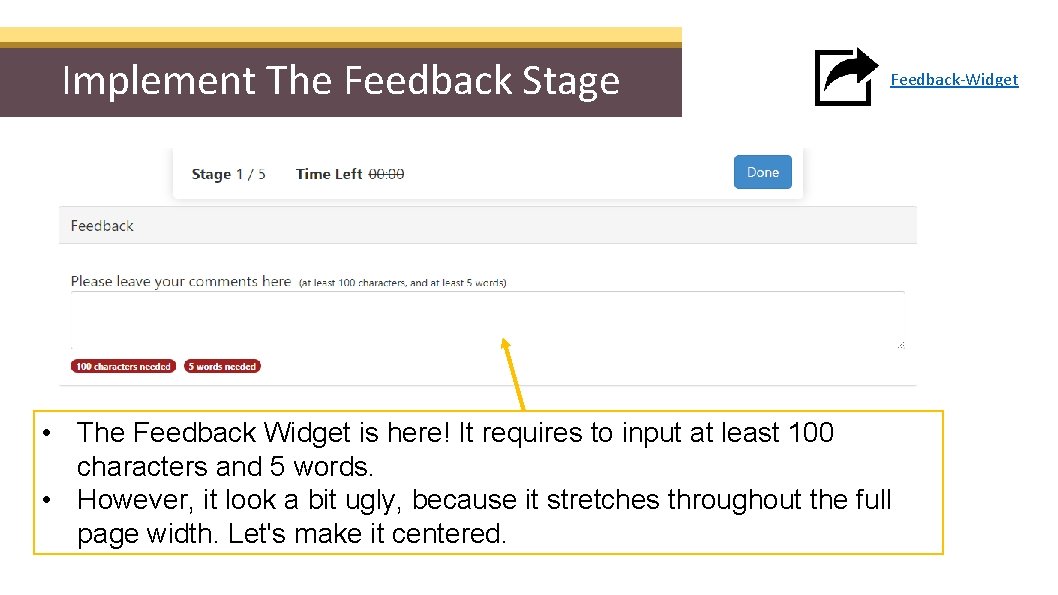
Implement The Feedback Stage Feedback-Widget • The Feedback Widget is here! It requires to input at least 100 characters and 5 words. • However, it look a bit ugly, because it stretches throughout the full page width. Let's make it centered.
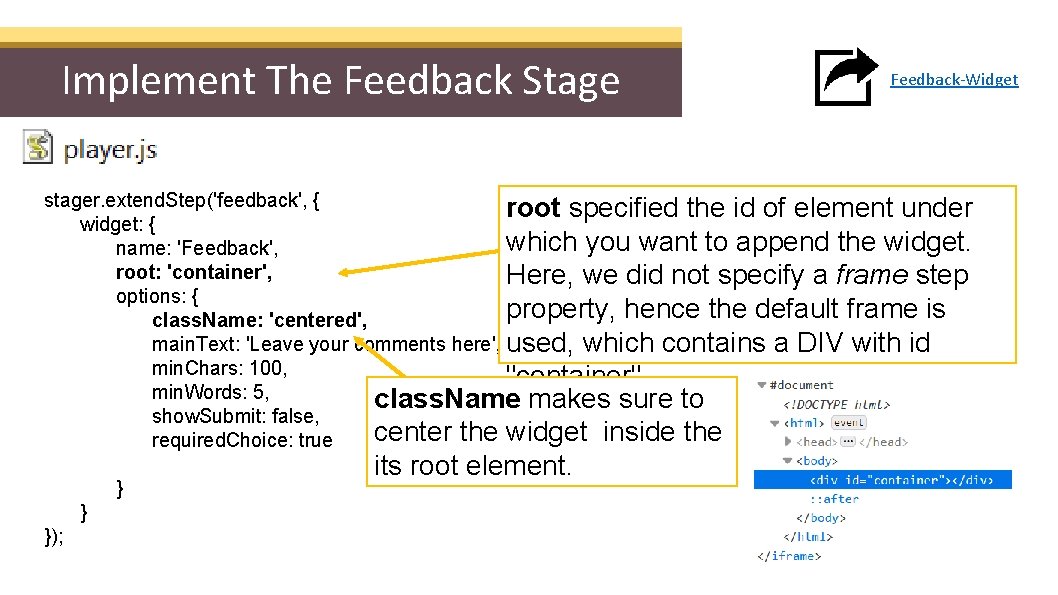
Implement The Feedback Stage Feedback-Widget stager. extend. Step('feedback', { root specified the id of element under widget: { which you want to append the widget. name: 'Feedback', root: 'container', Here, we did not specify a frame step options: { property, hence the default frame is class. Name: 'centered', main. Text: 'Leave your comments here', used, which contains a DIV with id min. Chars: 100, "container" min. Words: 5, class. Name makes sure to show. Submit: false, center the widget inside the required. Choice: true } } }); its root element.
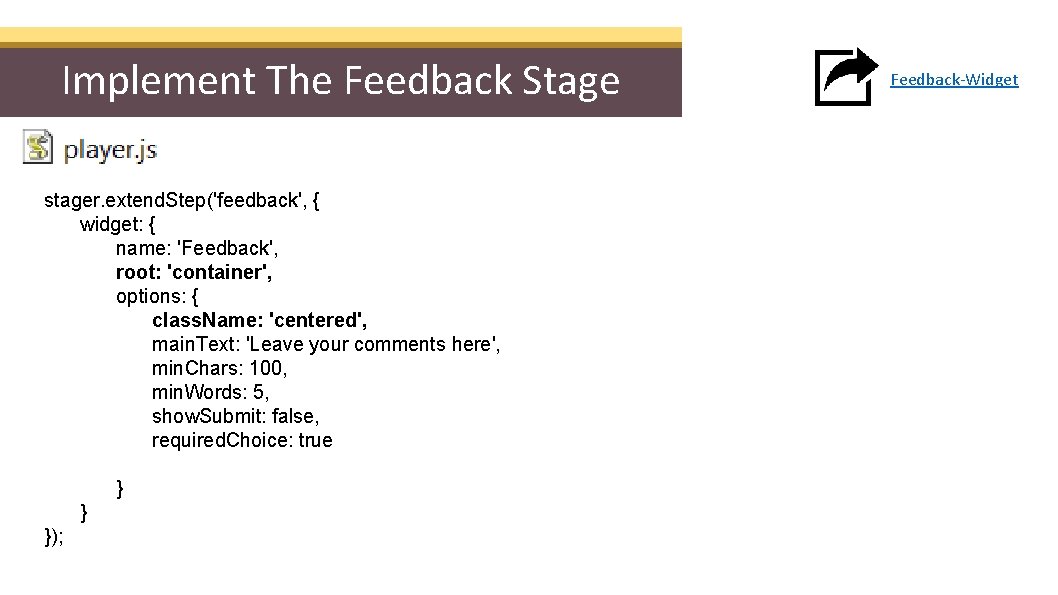
Implement The Feedback Stage stager. extend. Step('feedback', { widget: { name: 'Feedback', root: 'container', options: { class. Name: 'centered', main. Text: 'Leave your comments here', min. Chars: 100, min. Words: 5, show. Submit: false, required. Choice: true } } }); Feedback-Widget
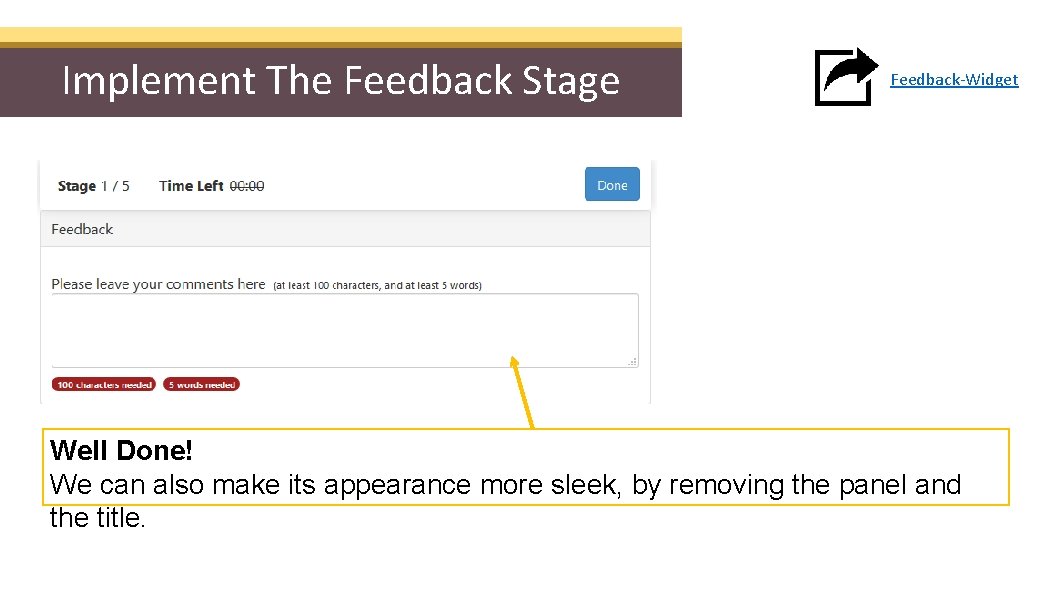
Implement The Feedback Stage Feedback-Widget Well Done! We can also make its appearance more sleek, by removing the panel and the title.
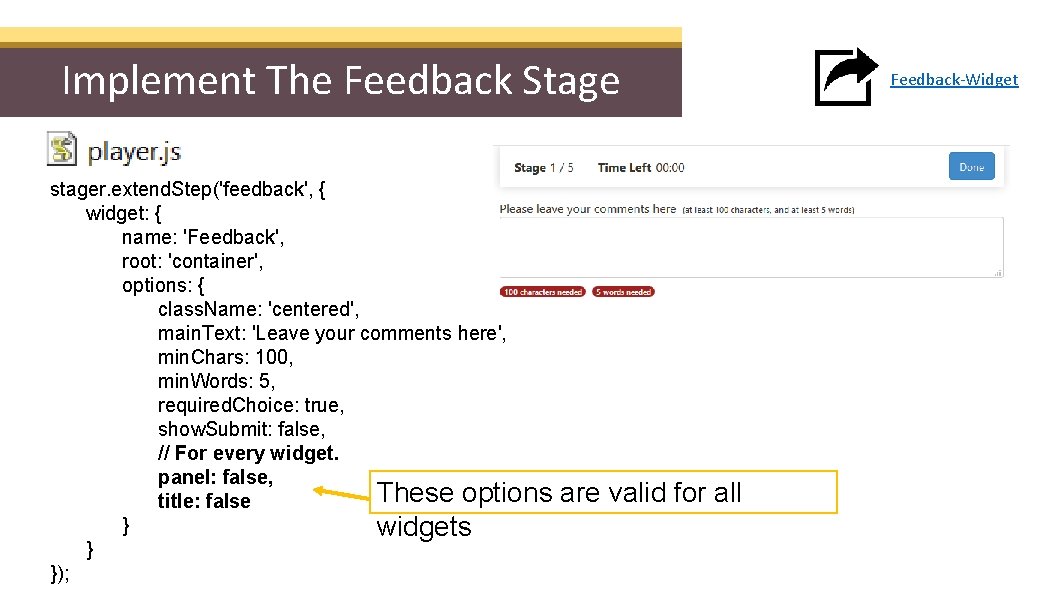
Implement The Feedback Stage stager. extend. Step('feedback', { widget: { name: 'Feedback', root: 'container', options: { class. Name: 'centered', main. Text: 'Leave your comments here', min. Chars: 100, min. Words: 5, required. Choice: true, show. Submit: false, // For every widget. panel: false, These options title: false } widgets } }); are valid for all Feedback-Widget
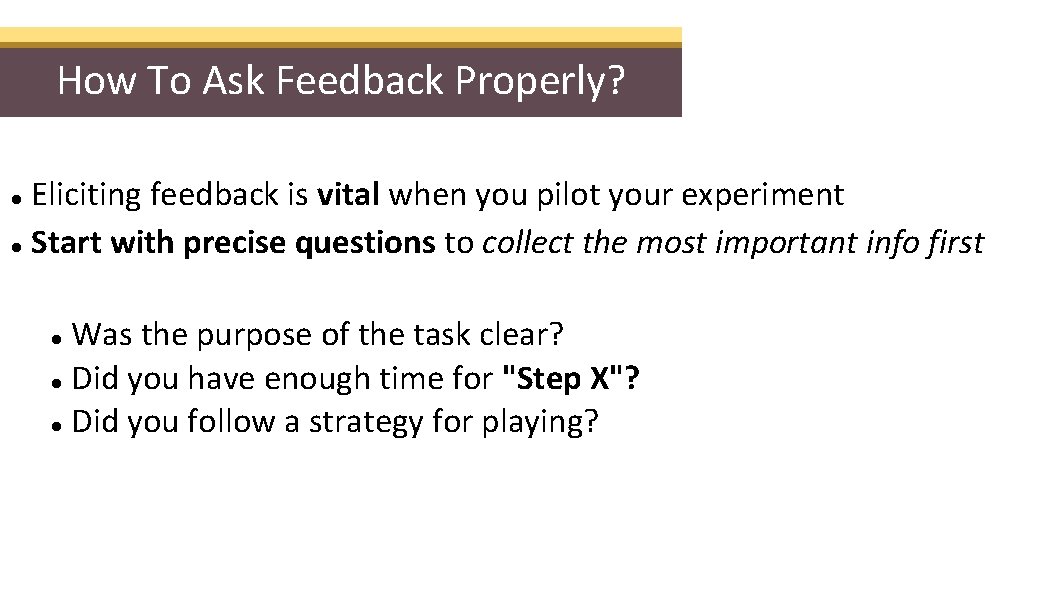
How To Ask Feedback Properly? Eliciting feedback is vital when you pilot your experiment Start with precise questions to collect the most important info first Was the purpose of the task clear? Did you have enough time for "Step X"? Did you follow a strategy for playing?
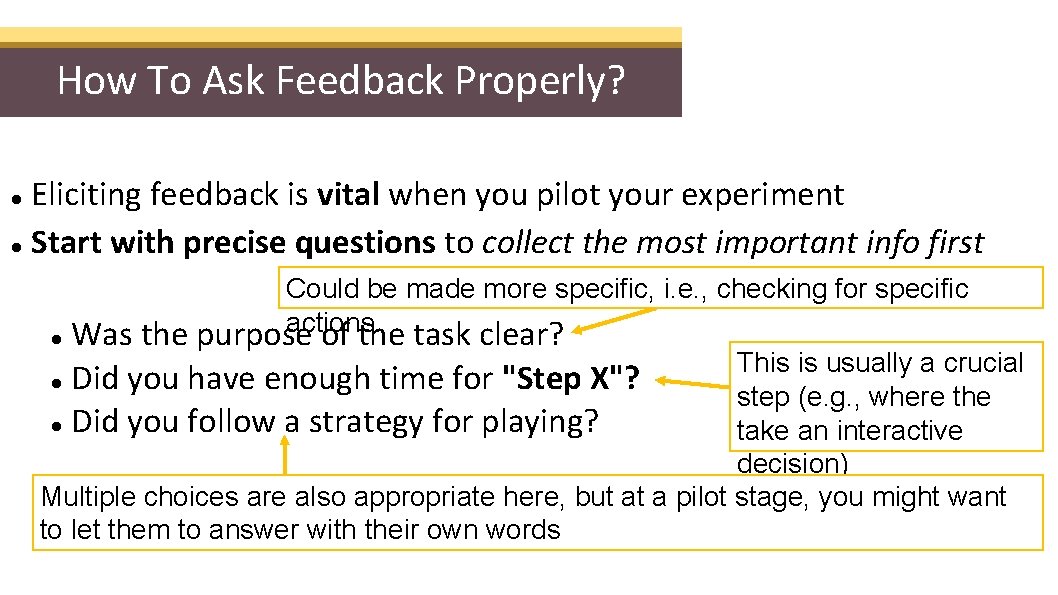
How To Ask Feedback Properly? Eliciting feedback is vital when you pilot your experiment Start with precise questions to collect the most important info first Could be made more specific, i. e. , checking for specific actions. Was the purpose of the task clear? This is usually a crucial Did you have enough time for "Step X"? step (e. g. , where the Did you follow a strategy for playing? take an interactive decision) Multiple choices are also appropriate here, but at a pilot stage, you might want to let them to answer with their own words
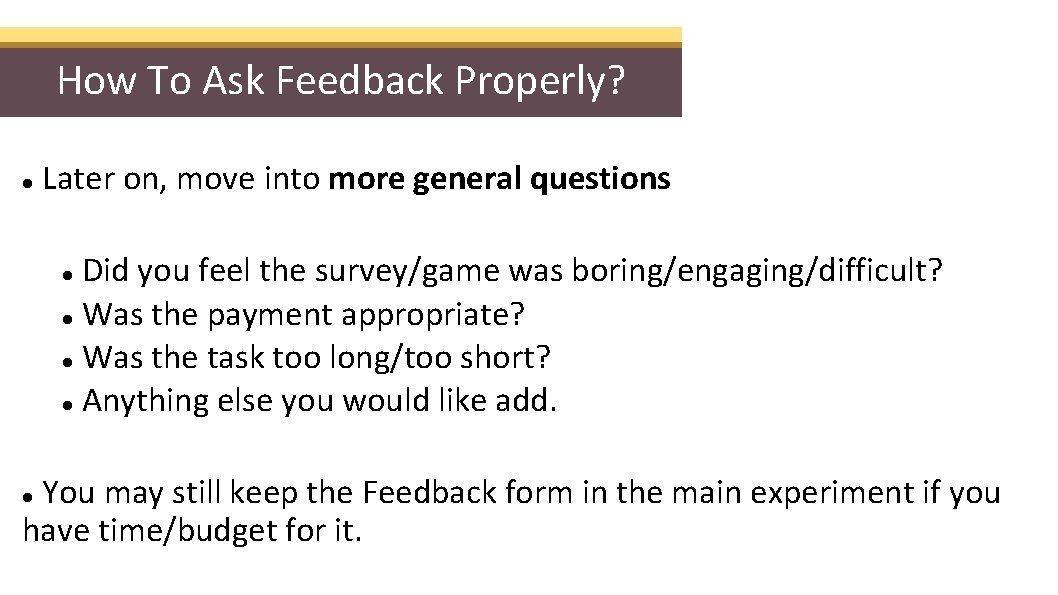
How To Ask Feedback Properly? Later on, move into more general questions Did you feel the survey/game was boring/engaging/difficult? Was the payment appropriate? Was the task too long/too short? Anything else you would like add. You may still keep the Feedback form in the main experiment if you have time/budget for it.
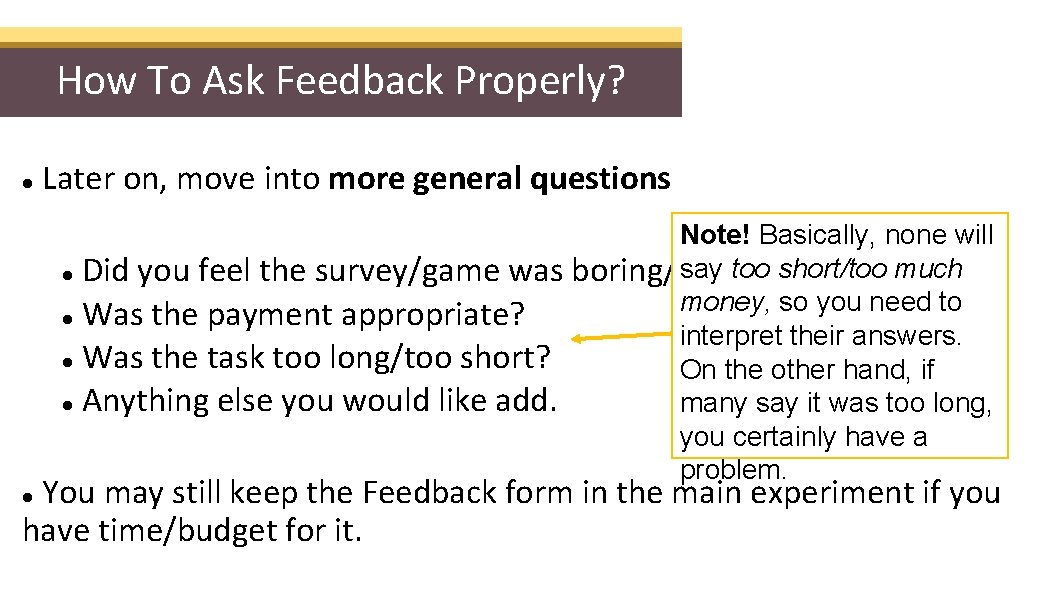
How To Ask Feedback Properly? Later on, move into more general questions Note! Basically, none will say too short/too much Did you feel the survey/game was boring/engaging/difficult? money, so you need to Was the payment appropriate? interpret their answers. Was the task too long/too short? On the other hand, if Anything else you would like add. many say it was too long, you certainly have a problem. You may still keep the Feedback form in the main experiment if you have time/budget for it.
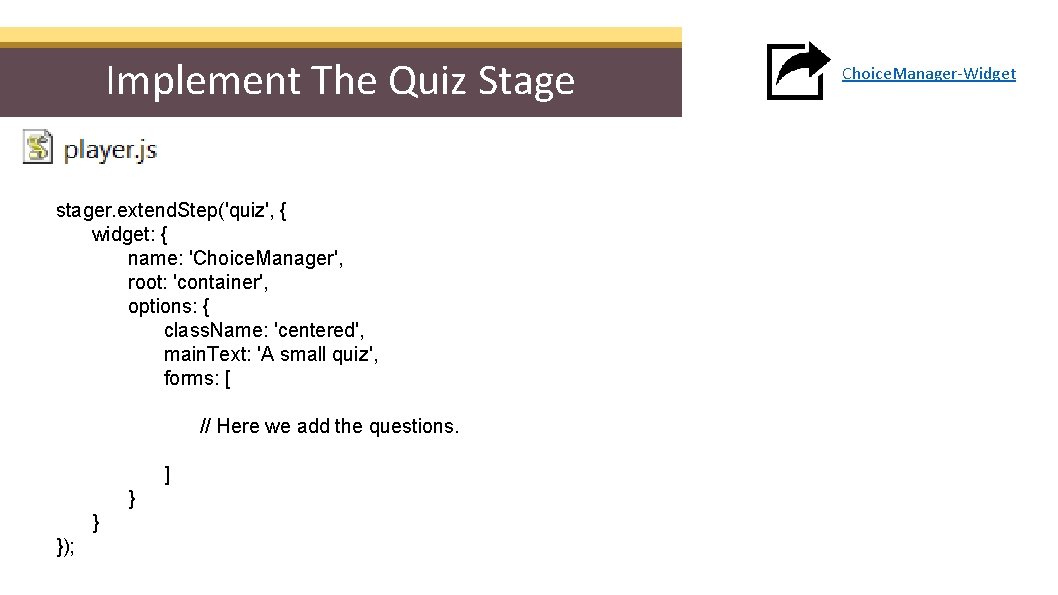
Implement The Quiz Stage stager. extend. Step('quiz', { widget: { name: 'Choice. Manager', root: 'container', options: { class. Name: 'centered', main. Text: 'A small quiz', forms: [ // Here we add the questions. ] } } }); Choice. Manager-Widget
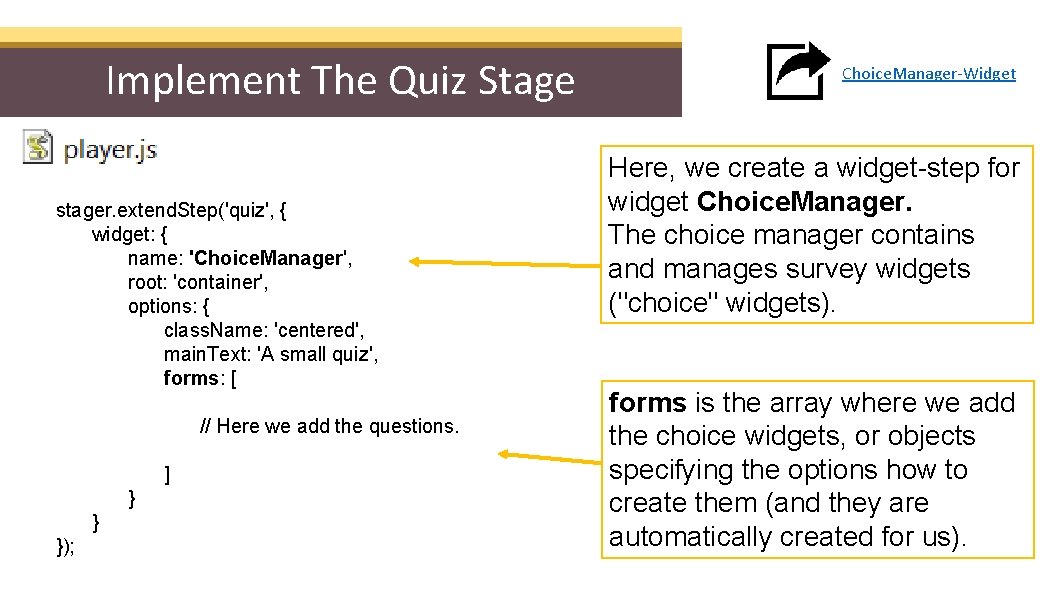
Implement The Quiz Stage stager. extend. Step('quiz', { widget: { name: 'Choice. Manager', root: 'container', options: { class. Name: 'centered', main. Text: 'A small quiz', forms: [ // Here we add the questions. ] } } }); Choice. Manager-Widget Here, we create a widget-step for widget Choice. Manager. The choice manager contains and manages survey widgets ("choice" widgets). forms is the array where we add the choice widgets, or objects specifying the options how to create them (and they are automatically created for us).
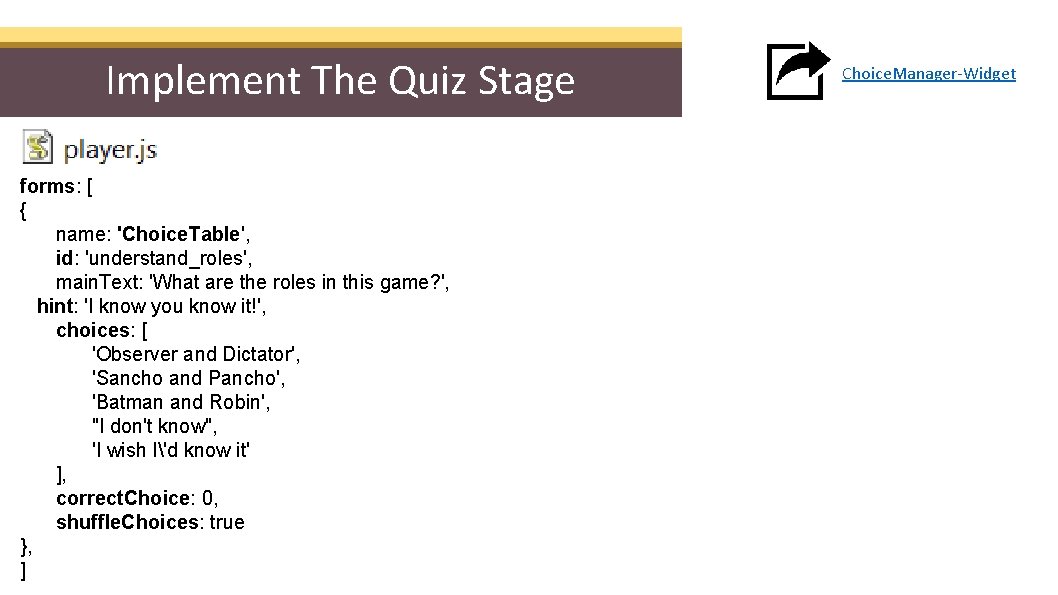
Implement The Quiz Stage forms: [ { name: 'Choice. Table', id: 'understand_roles', main. Text: 'What are the roles in this game? ', hint: 'I know you know it!', choices: [ 'Observer and Dictator', 'Sancho and Pancho', 'Batman and Robin', "I don't know", 'I wish I'd know it' ], correct. Choice: 0, shuffle. Choices: true }, ] Choice. Manager-Widget
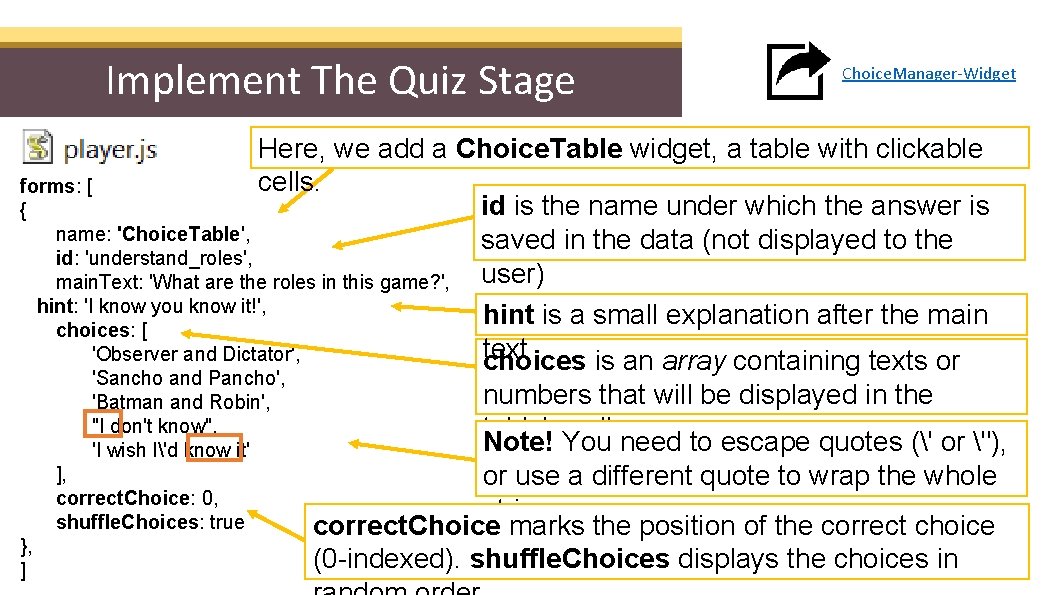
Implement The Quiz Stage Choice. Manager-Widget Here, we add a Choice. Table widget, a table with clickable cells. forms: [ id is the name under which the answer is { name: 'Choice. Table', saved in the data (not displayed to the id: 'understand_roles', user) main. Text: 'What are the roles in this game? ', hint: 'I know you know it!', hint is a small explanation after the main choices: [ text 'Observer and Dictator', choices is an array containing texts or 'Sancho and Pancho', 'Batman and Robin', "I don't know", 'I wish I'd know it' ], correct. Choice: 0, shuffle. Choices: true }, ] numbers that will be displayed in the table's cells. Note! You need to escape quotes (' or "), or use a different quote to wrap the whole string. correct. Choice marks the position of the correct choice (0 -indexed). shuffle. Choices displays the choices in
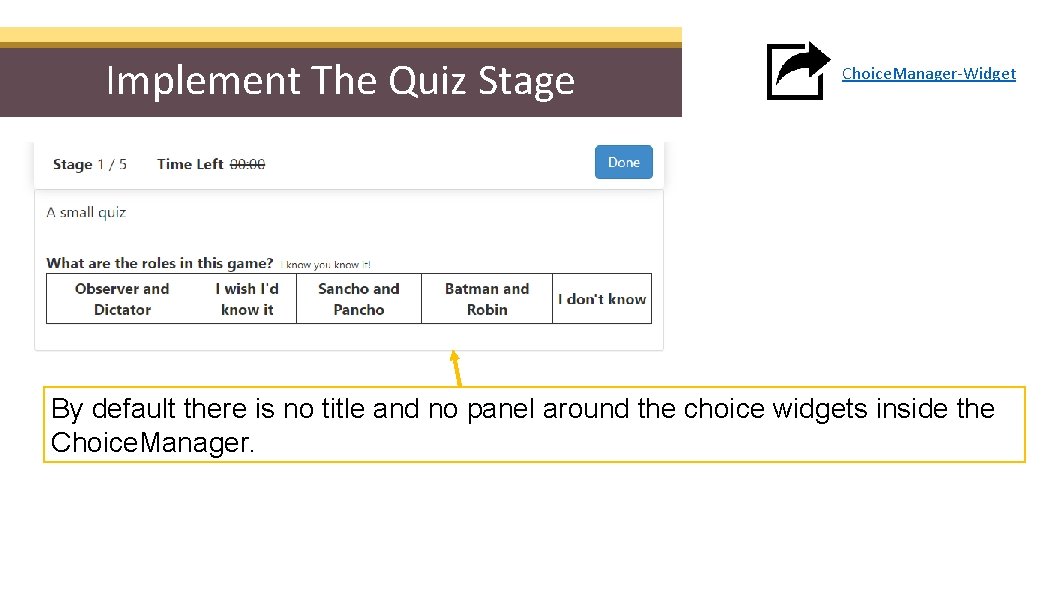
Implement The Quiz Stage Choice. Manager-Widget By default there is no title and no panel around the choice widgets inside the Choice. Manager.
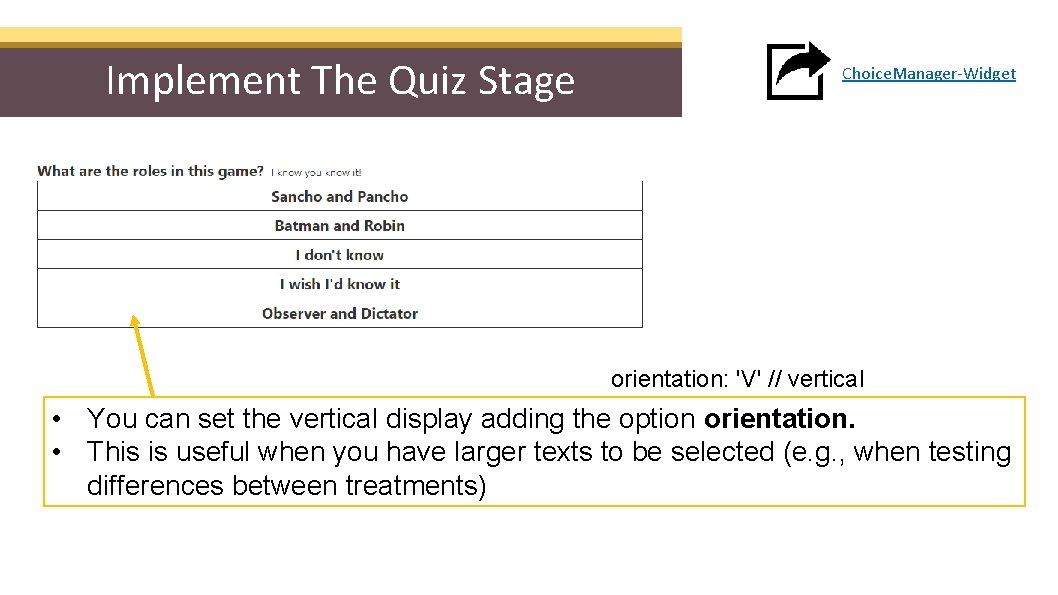
Implement The Quiz Stage Choice. Manager-Widget orientation: 'V' // vertical • You can set the vertical display adding the option orientation. • This is useful when you have larger texts to be selected (e. g. , when testing differences between treatments)
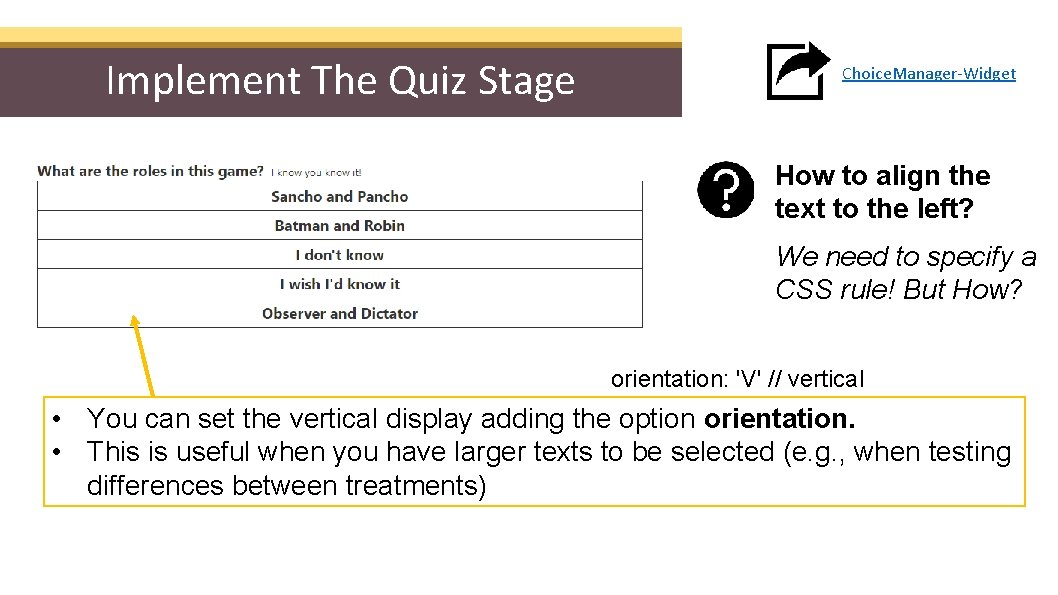
Implement The Quiz Stage Choice. Manager-Widget How to align the text to the left? We need to specify a CSS rule! But How? orientation: 'V' // vertical • You can set the vertical display adding the option orientation. • This is useful when you have larger texts to be selected (e. g. , when testing differences between treatments)
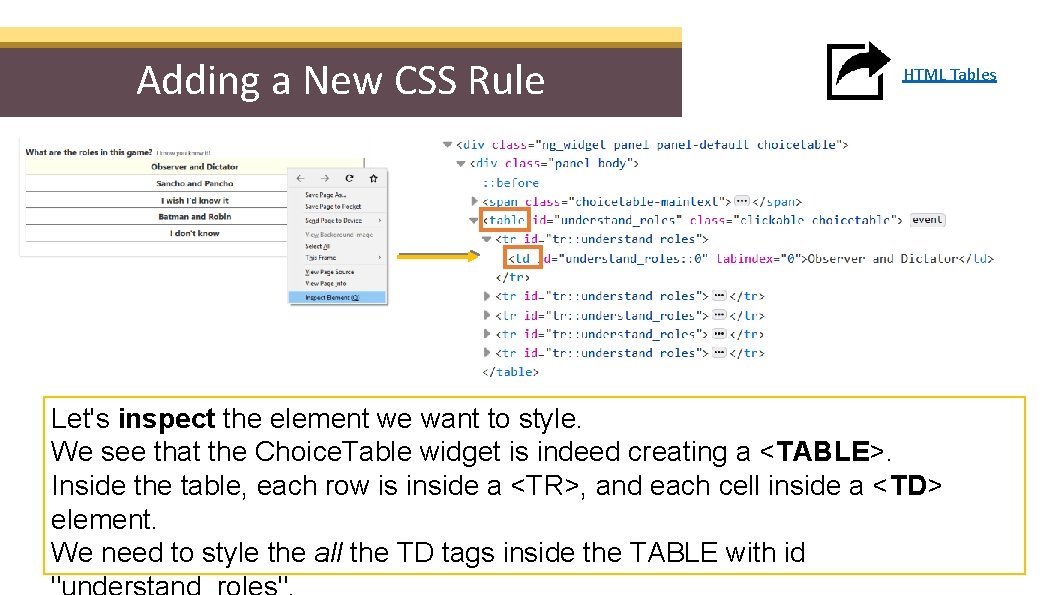
Adding a New CSS Rule HTML Tables Let's inspect the element we want to style. We see that the Choice. Table widget is indeed creating a <TABLE>. Inside the table, each row is inside a <TR>, and each cell inside a <TD> element. We need to style the all the TD tags inside the TABLE with id
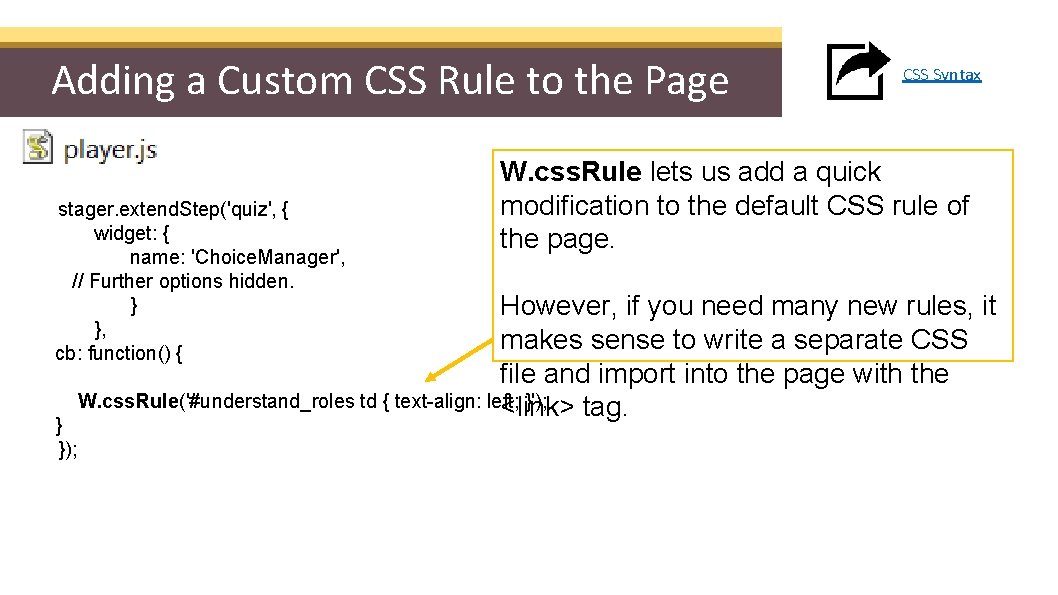
Adding a Custom CSS Rule to the Page stager. extend. Step('quiz', { widget: { name: 'Choice. Manager', // Further options hidden. } }, cb: function() { } }); CSS Syntax W. css. Rule lets us add a quick modification to the default CSS rule of the page. However, if you need many new rules, it makes sense to write a separate CSS file and import into the page with the W. css. Rule('#understand_roles td { text-align: left; }'); <link> tag.
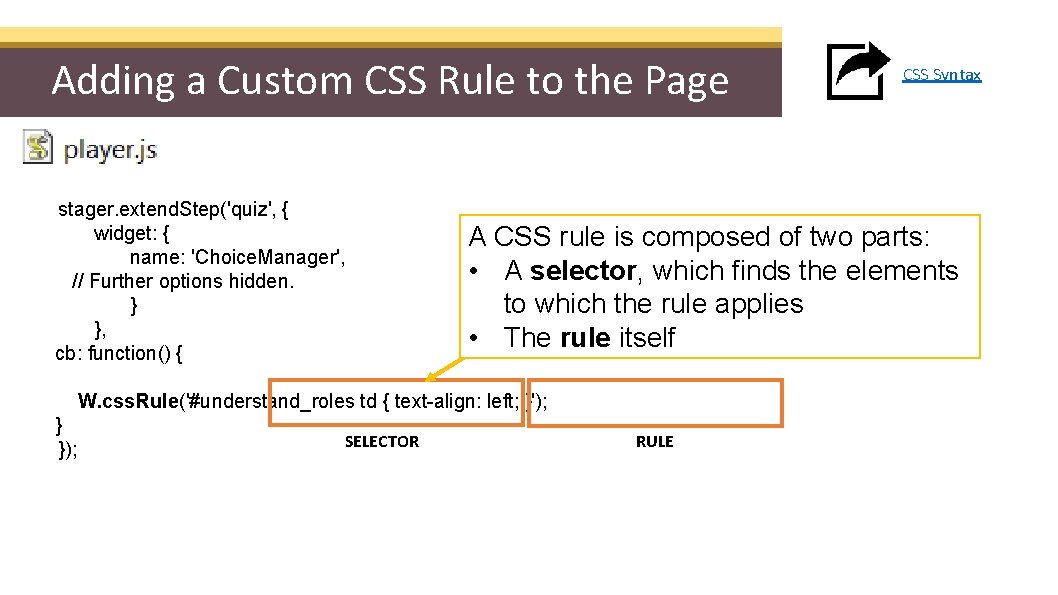
Adding a Custom CSS Rule to the Page stager. extend. Step('quiz', { widget: { name: 'Choice. Manager', // Further options hidden. } }, cb: function() { A CSS rule is composed of two parts: • A selector, which finds the elements to which the rule applies • The rule itself W. css. Rule('#understand_roles td { text-align: left; }'); } }); SELECTOR CSS Syntax RULE
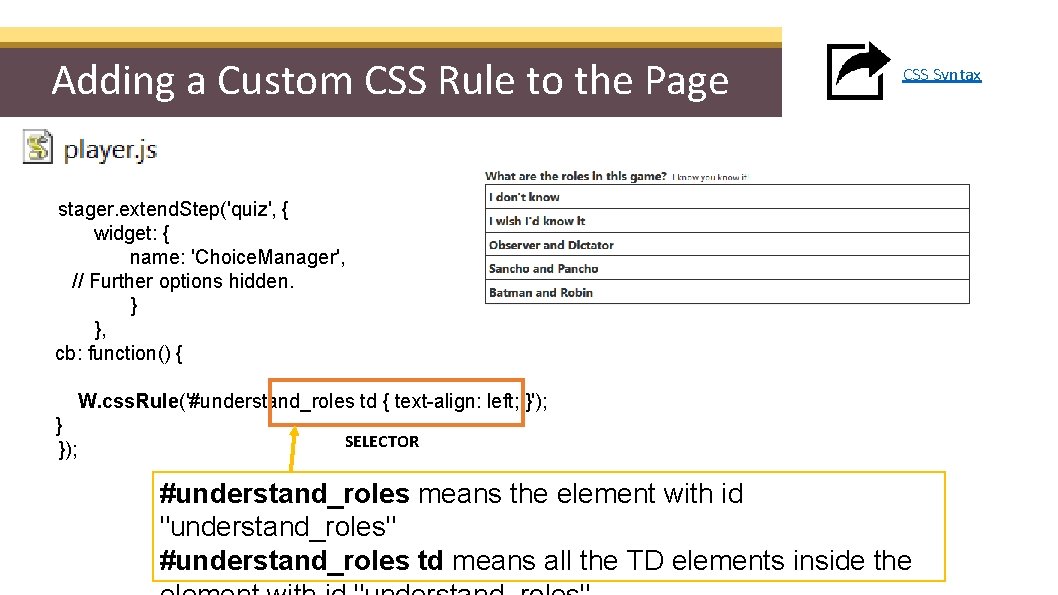
Adding a Custom CSS Rule to the Page CSS Syntax stager. extend. Step('quiz', { widget: { name: 'Choice. Manager', // Further options hidden. } }, cb: function() { W. css. Rule('#understand_roles td { text-align: left; }'); } }); SELECTOR #understand_roles means the element with id "understand_roles" #understand_roles td means all the TD elements inside the
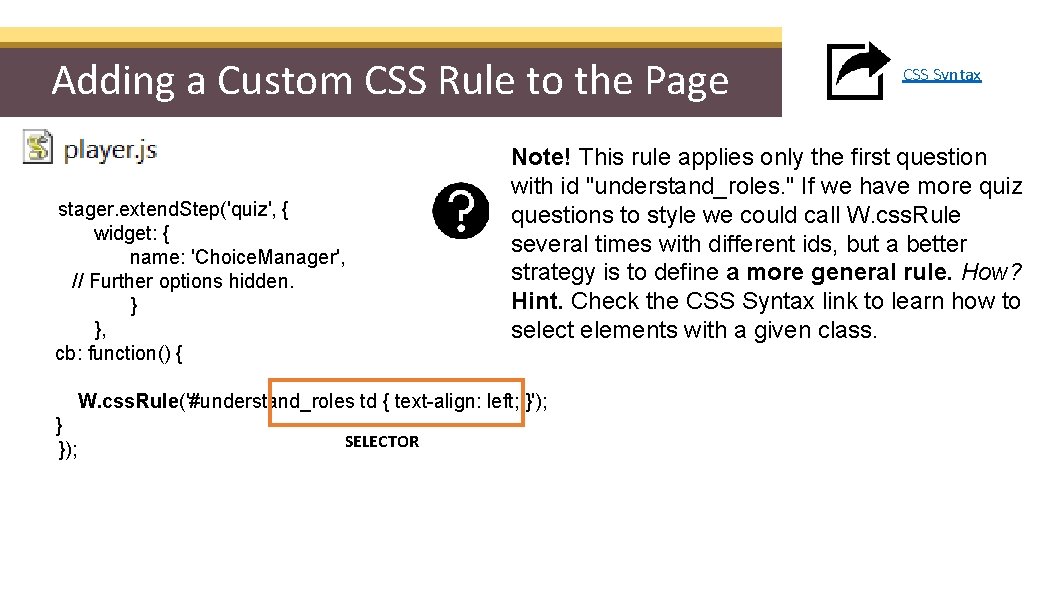
Adding a Custom CSS Rule to the Page stager. extend. Step('quiz', { widget: { name: 'Choice. Manager', // Further options hidden. } }, cb: function() { Note! This rule applies only the first question with id "understand_roles. " If we have more quiz questions to style we could call W. css. Rule several times with different ids, but a better strategy is to define a more general rule. How? Hint. Check the CSS Syntax link to learn how to select elements with a given class. W. css. Rule('#understand_roles td { text-align: left; }'); } }); SELECTOR CSS Syntax
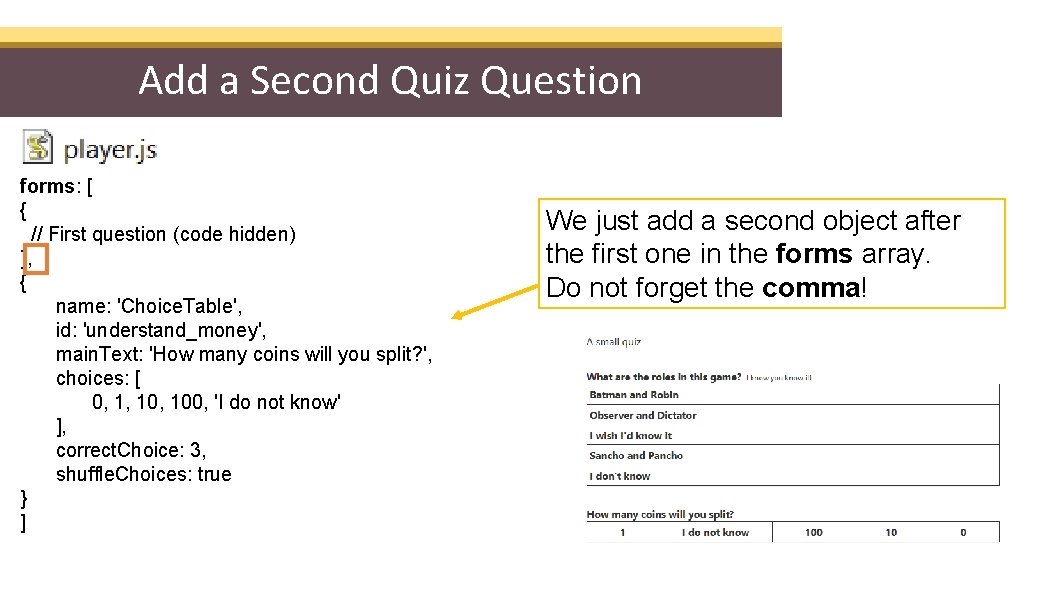
Add a Second Quiz Question forms: [ { // First question (code hidden) }, { name: 'Choice. Table', id: 'understand_money', main. Text: 'How many coins will you split? ', choices: [ 0, 1, 100, 'I do not know' ], correct. Choice: 3, shuffle. Choices: true } ] We just add a second object after the first one in the forms array. Do not forget the comma!
Adding a Bot to the Game • • A bot is a computer controlled player that goes through the same stages and steps A bot does not need to visualize any HTML, instructions, quizzes, etc. Important! There is no need to implement a bot if the computer-made decisions are simple and limited to one step only. You could code those decisions in the logic file. However, writing a bot has some advantages: • A bot gives a clearer separation of code • A bot lets you use the Play with Bots option from the waiting room • A bot can replace a human player that dropped out
Adding a Bot to the Game To implement a bot you need to add your code to file bot. js in folder client_types/ stager. set. Default. Callback(function() { this. node. timer. random. Done(); }); First, we are setting the default callback for every step. In the callback, we are telling the bot to be DONE after a random time interval, using the node. timer. random. Done() method. DONE is a special node. Game event that ends the current step. After all players are DONE, the game will proceed to the next step in the sequence.
Adding a Bot to the Game To implement a bot you need to add your code to file bot. js in folder client_types/ stager. set. Default. Callback(function() { this. node. timer. random. Done(); }); Why are we using this. node instead of just node ? The node object is a global variable in the browser, i. e. , it is accessible from anywhere in the code. However, in the server node is not global, i. e, you need a reference to access it. When the callback function is executed a special reference is added inside it, and you can access it through the this operator.
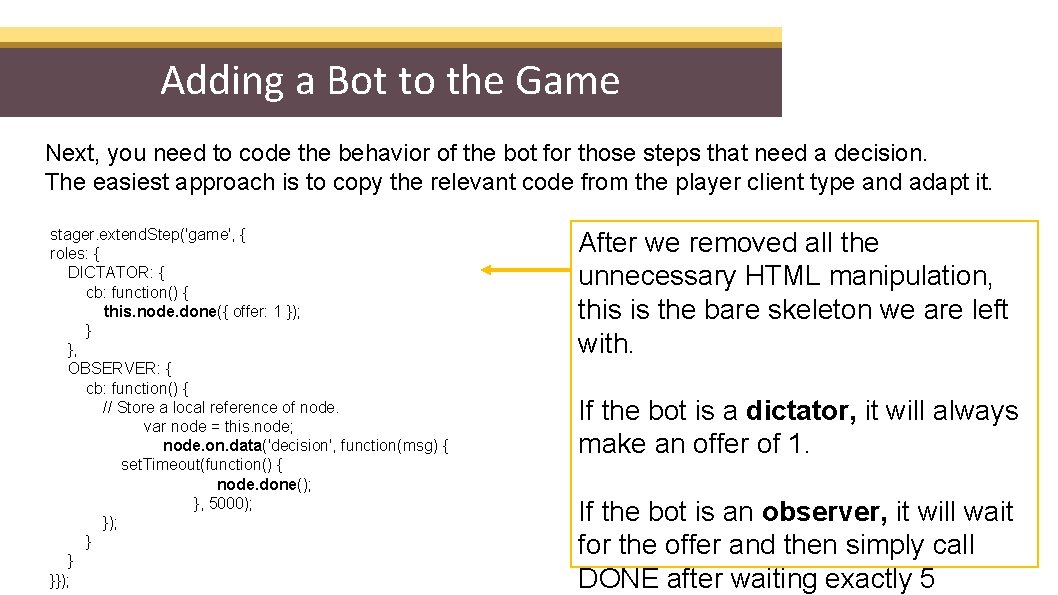
Adding a Bot to the Game Next, you need to code the behavior of the bot for those steps that need a decision. The easiest approach is to copy the relevant code from the player client type and adapt it. stager. extend. Step('game', { roles: { DICTATOR: { cb: function() { this. node. done({ offer: 1 }); } }, OBSERVER: { cb: function() { // Store a local reference of node. var node = this. node; node. on. data('decision', function(msg) { set. Timeout(function() { node. done(); }, 5000); } } }}); After we removed all the unnecessary HTML manipulation, this is the bare skeleton we are left with. If the bot is a dictator, it will always make an offer of 1. If the bot is an observer, it will wait for the offer and then simply call DONE after waiting exactly 5
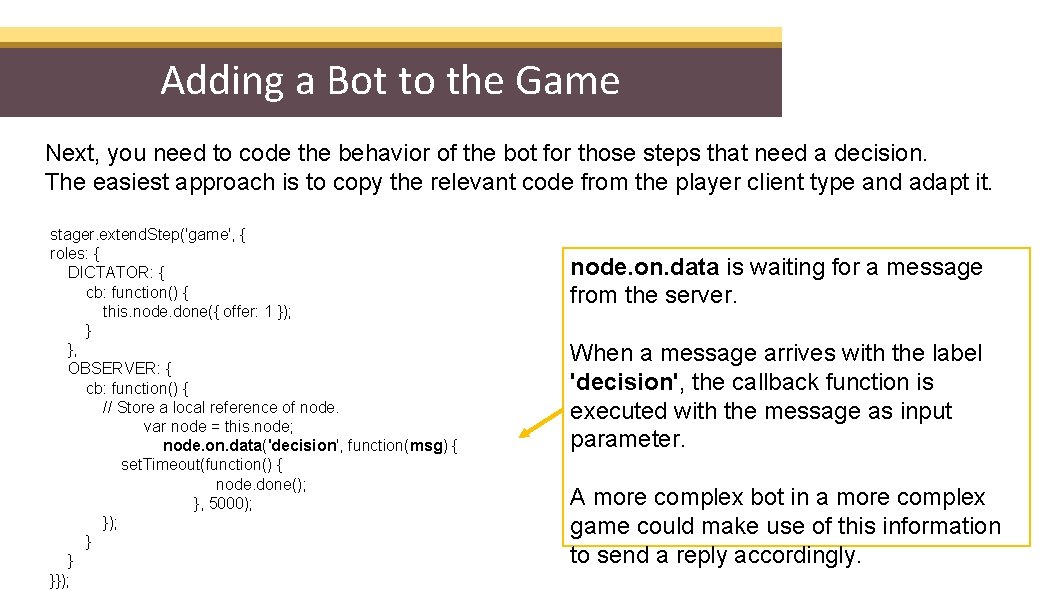
Adding a Bot to the Game Next, you need to code the behavior of the bot for those steps that need a decision. The easiest approach is to copy the relevant code from the player client type and adapt it. stager. extend. Step('game', { roles: { DICTATOR: { cb: function() { this. node. done({ offer: 1 }); } }, OBSERVER: { cb: function() { // Store a local reference of node. var node = this. node; node. on. data('decision', function(msg) { set. Timeout(function() { node. done(); }, 5000); } } }}); node. on. data is waiting for a message from the server. When a message arrives with the label 'decision', the callback function is executed with the message as input parameter. A more complex bot in a more complex game could make use of this information to send a reply accordingly.
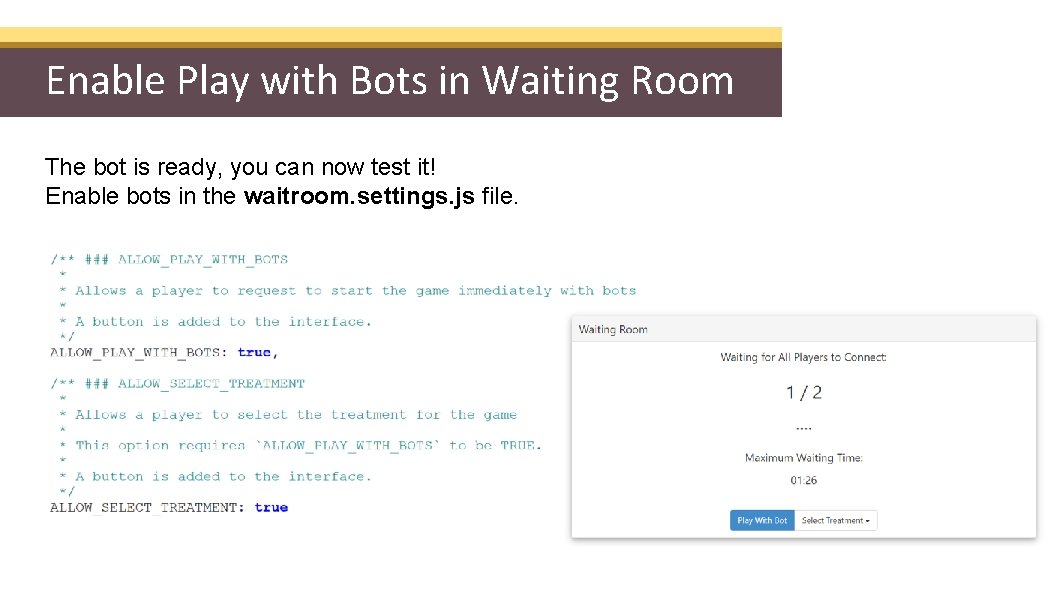
Enable Play with Bots in Waiting Room The bot is ready, you can now test it! Enable bots in the waitroom. settings. js file.
- Slides: 70