
NMVS Portal User Guide for Local Organisations Applicable
NMVS Portal User Guide for Local Organisations Applicable To: Solidsoft Reply NBS Release 3 Document Version: 1. 0 Published: 3 October 2018 Audience: Pharmacies, Wholesalers, Hospitals via NMVOs
Portal User Guide for Local Organisations Introduction Terminology This User Guide provides guidance to Local Organisations (i. e. Pharmacies, Wholesalers, and Hospitals) on the usage of the National Medicines Verification System. National Medicines Verification Organisation (NMVO) The examples used in the slides may present data specific to a Wholesaler account, or a Pharmacy account, but all processes and features are equally applicable to the above organisation type. . Prerequisites to the Registration Process The following are required prior to a Local Organisation beginning the registration process. 1. The NMVO has agreed with the Local Organisation the Prime Contact and a set of Known Facts. 2. The NMVO has sent the Prime Contact of the Local Organisation a registration email. The organisation set up by national stakeholders to manage the National System and medicine verification for that country National Medicines Verification System (NMVS) A system in the European Medicines Verification landscape that serves as the verification platform for one country. Local Organisations check a product’s authenticity using a connection to this system Local Organisations The organisations required to use the NMVS to check a product’s authenticity Prime Contact The first point of contact in the Local Organisation for the registration process Known Facts A pre-agreed set of challenge questions and answers used to verify identity during the registration process and known only to the NMVO and the NCA
Introduction to Users and Clients Users Clients/Client Systems • A User of the system is a physical user, i. e. a person. • A Client of the NMVS is another IT system (i. e. a Wholesaler/Pharmacy/Hospital IT System). • A User interacts with the NMVS through the NMVS Administration Portal and the NMVS Emergency Verification Portal. • The Client System interacts with the NMVS through a technical interface and is issued with Client System Credentials. • A User requires an NMVS account to login to the Administration Portal and Emergency Verification Portal. • The Client System Credentials used by Client Systems always provide the Client System with a Role that has the full permissions set. • A User account is associated with a User Role that defines the permissions available to the role. • The Permissions provided to a Wholesaler Client System are the same as provided to the Wholesaler Super User. • User Roles are defined through the NMVS Administration Portal. User Roles may be provided the full permissions set, or a reduced permissions set. • It is not possible to modify the permission set for a Client System through the Portal.
Local Organisation Registration
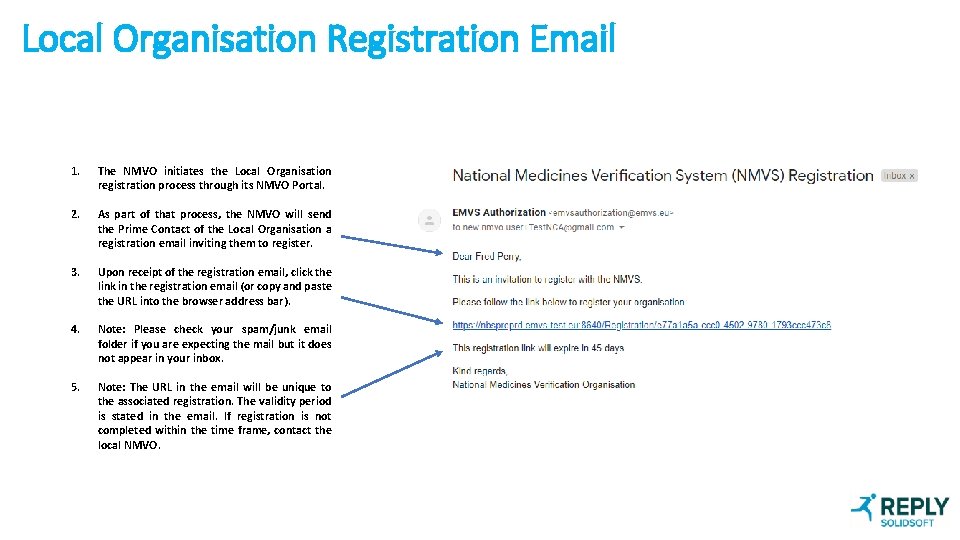
Local Organisation Registration Email 1. The NMVO initiates the Local Organisation registration process through its NMVO Portal. 2. As part of that process, the NMVO will send the Prime Contact of the Local Organisation a registration email inviting them to register. 3. Upon receipt of the registration email, click the link in the registration email (or copy and paste the URL into the browser address bar). 4. Note: Please check your spam/junk email folder if you are expecting the mail but it does not appear in your inbox. 5. Note: The URL in the email will be unique to the associated registration. The validity period is stated in the email. If registration is not completed within the time frame, contact the local NMVO.
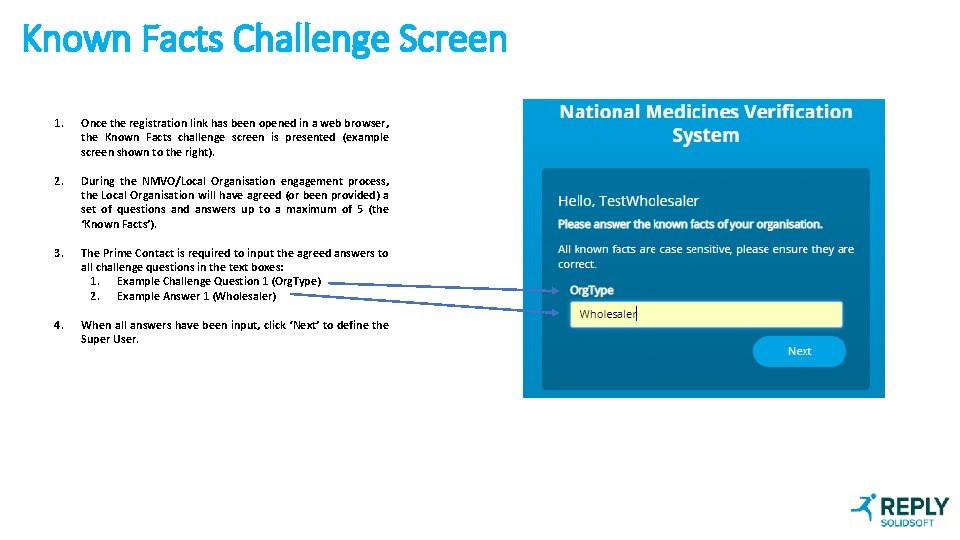
Known Facts Challenge Screen 1. Once the registration link has been opened in a web browser, the Known Facts challenge screen is presented (example screen shown to the right). 2. During the NMVO/Local Organisation engagement process, the Local Organisation will have agreed (or been provided) a set of questions and answers up to a maximum of 5 (the ‘Known Facts’). 3. The Prime Contact is required to input the agreed answers to all challenge questions in the text boxes: 1. Example Challenge Question 1 (Org. Type) 2. Example Answer 1 (Wholesaler) 4. When all answers have been input, click ‘Next’ to define the Super User.
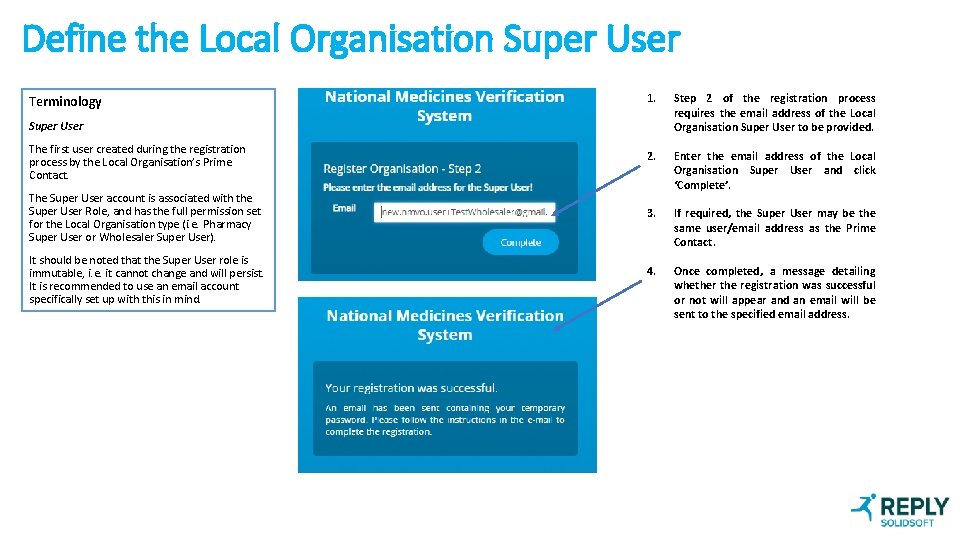
Define the Local Organisation Super User Terminology 1. Step 2 of the registration process requires the email address of the Local Organisation Super User to be provided. 2. Enter the email address of the Local Organisation Super User and click ‘Complete’. 3. If required, the Super User may be the same user/email address as the Prime Contact. 4. Once completed, a message detailing whether the registration was successful or not will appear and an email will be sent to the specified email address. Super User The first user created during the registration process by the Local Organisation’s Prime Contact. The Super User account is associated with the Super User Role, and has the full permission set for the Local Organisation type (i. e. Pharmacy Super User or Wholesaler Super User). It should be noted that the Super User role is immutable, i. e. it cannot change and will persist. It is recommended to use an email account specifically set up with this in mind.
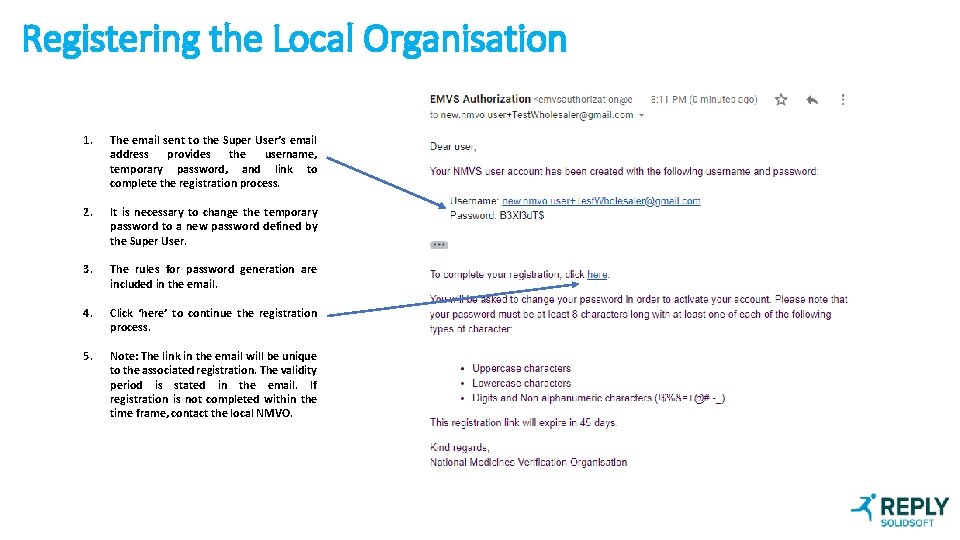
Registering the Local Organisation 1. The email sent to the Super User’s email address provides the username, temporary password, and link to complete the registration process. 2. It is necessary to change the temporary password to a new password defined by the Super User. 3. The rules for password generation are included in the email. 4. Click ‘here’ to continue the registration process. 5. Note: The link in the email will be unique to the associated registration. The validity period is stated in the email. If registration is not completed within the time frame, contact the local NMVO.
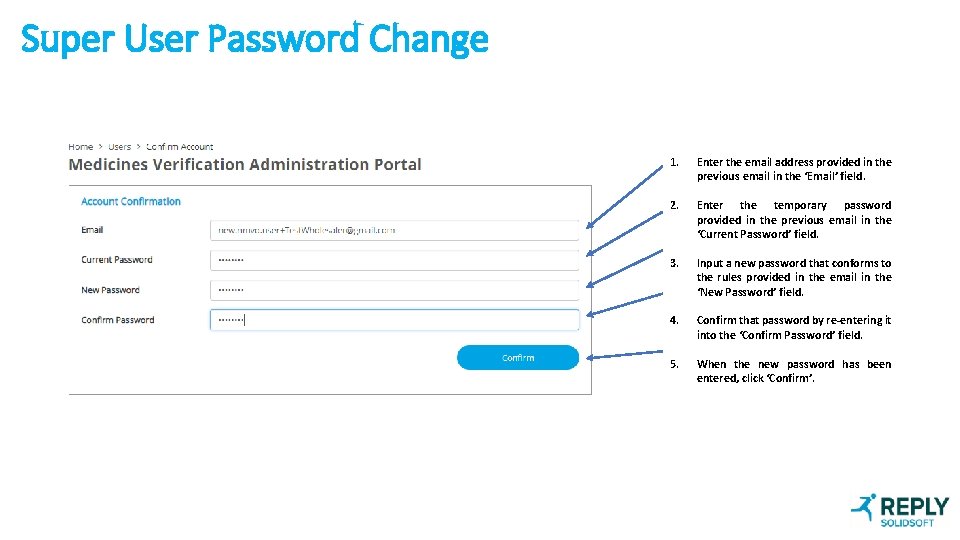
Super User Password Change 1. Enter the email address provided in the previous email in the ‘Email’ field. 2. Enter the temporary password provided in the previous email in the ‘Current Password’ field. 3. Input a new password that conforms to the rules provided in the email in the ‘New Password’ field. 4. Confirm that password by re-entering it into the ‘Confirm Password’ field. 5. When the new password has been entered, click ‘Confirm’.
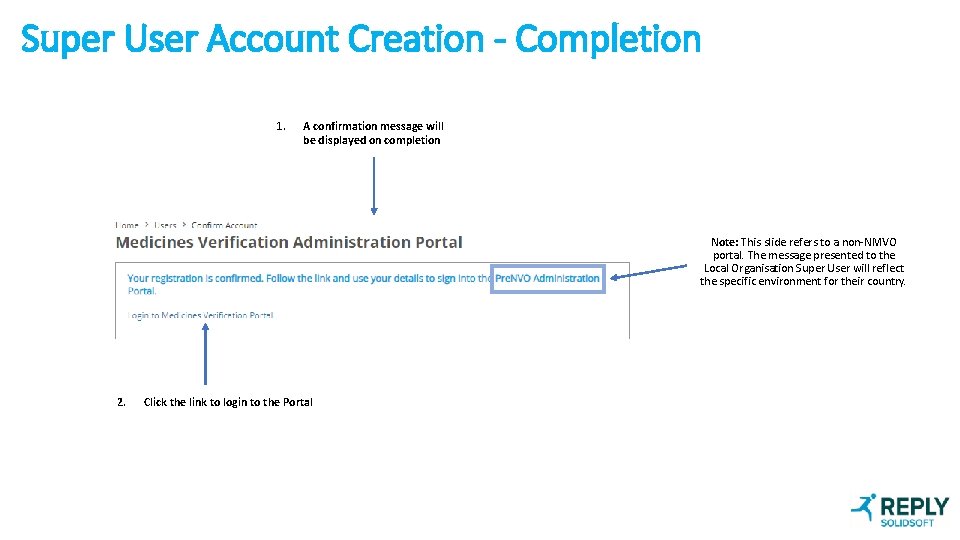
Super User Account Creation - Completion 1. A confirmation message will be displayed on completion Note: This slide refers to a non-NMVO portal. The message presented to the Local Organisation Super User will reflect the specific environment for their country. 2. Click the link to login to the Portal
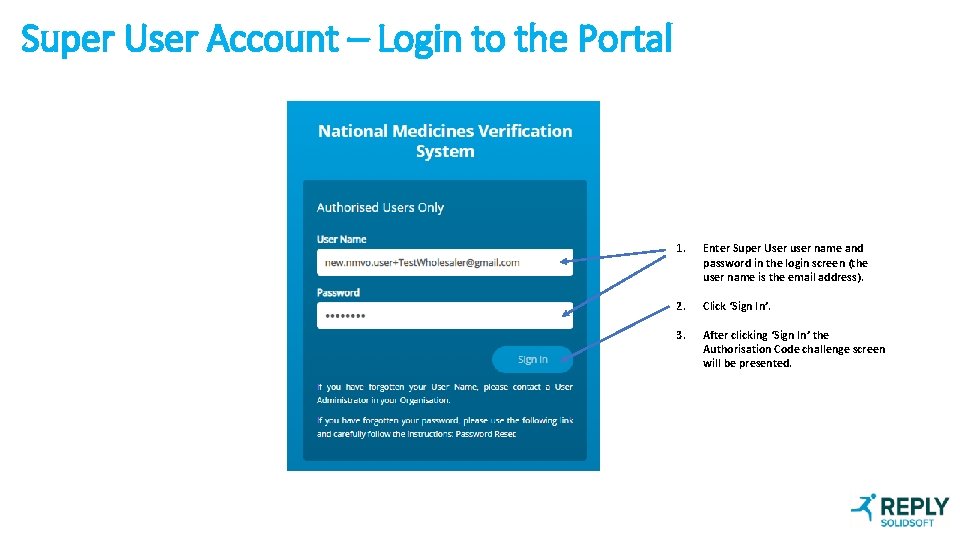
Super User Account – Login to the Portal 1. Enter Super User user name and password in the login screen (the user name is the email address). 2. Click ‘Sign In’. 3. After clicking ‘Sign In’ the Authorisation Code challenge screen will be presented.
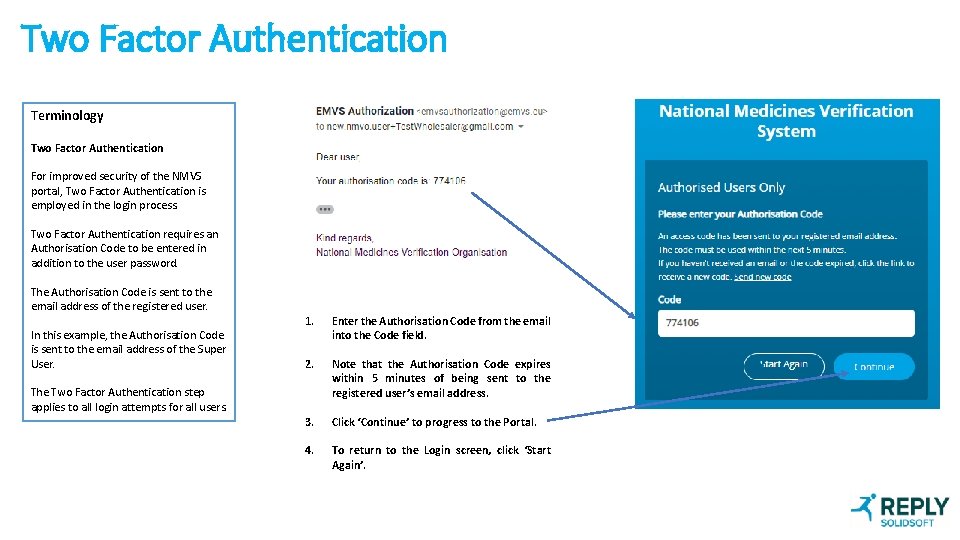
Two Factor Authentication Terminology Two Factor Authentication For improved security of the NMVS portal, Two Factor Authentication is employed in the login process. Two Factor Authentication requires an Authorisation Code to be entered in addition to the user password. The Authorisation Code is sent to the email address of the registered user. In this example, the Authorisation Code is sent to the email address of the Super User. The Two Factor Authentication step applies to all login attempts for all users. 1. Enter the Authorisation Code from the email into the Code field. 2. Note that the Authorisation Code expires within 5 minutes of being sent to the registered user’s email address. 3. Click ‘Continue’ to progress to the Portal. 4. To return to the Login screen, click ‘Start Again’.
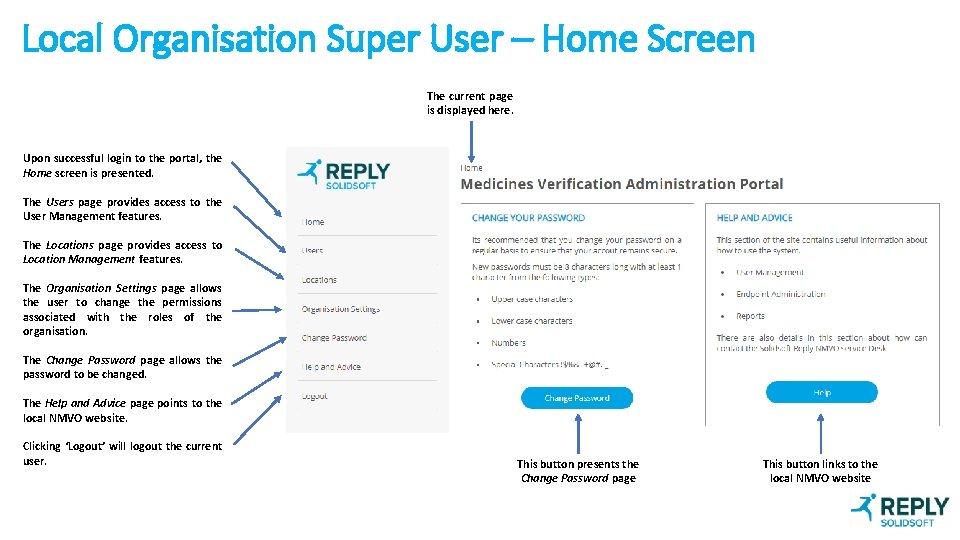
Local Organisation Super User – Home Screen The current page is displayed here. Upon successful login to the portal, the Home screen is presented. The Users page provides access to the User Management features. The Locations page provides access to Location Management features. The Organisation Settings page allows the user to change the permissions associated with the roles of the organisation. The Change Password page allows the password to be changed. The Help and Advice page points to the local NMVO website. Clicking ‘Logout’ will logout the current user. This button presents the Change Password page This button links to the local NMVO website
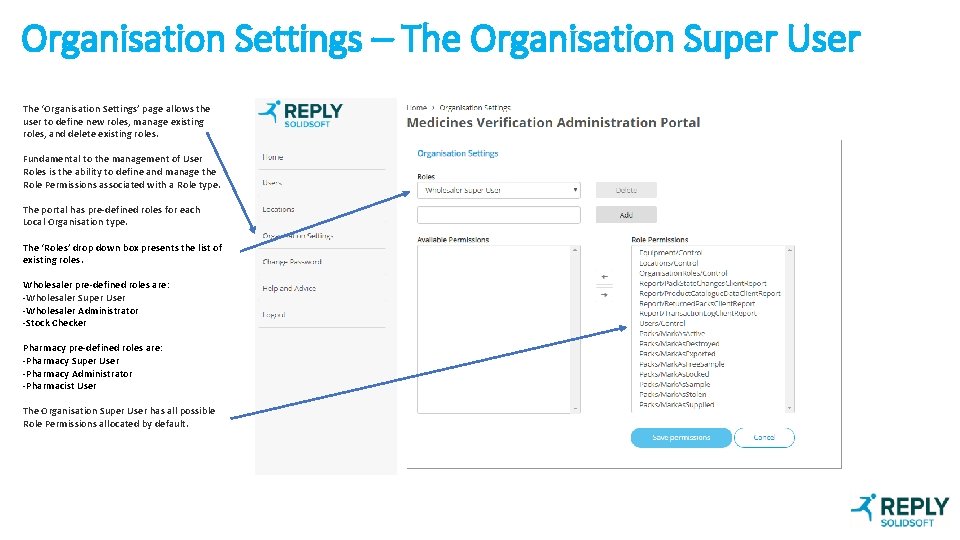
Organisation Settings – The Organisation Super User The ‘Organisation Settings’ page allows the user to define new roles, manage existing roles, and delete existing roles. Fundamental to the management of User Roles is the ability to define and manage the Role Permissions associated with a Role type. The portal has pre-defined roles for each Local Organisation type. The ‘Roles’ drop down box presents the list of existing roles. Wholesaler pre-defined roles are: -Wholesaler Super User -Wholesaler Administrator -Stock Checker Pharmacy pre-defined roles are: -Pharmacy Super User -Pharmacy Administrator -Pharmacist User The Organisation Super User has all possible Role Permissions allocated by default.
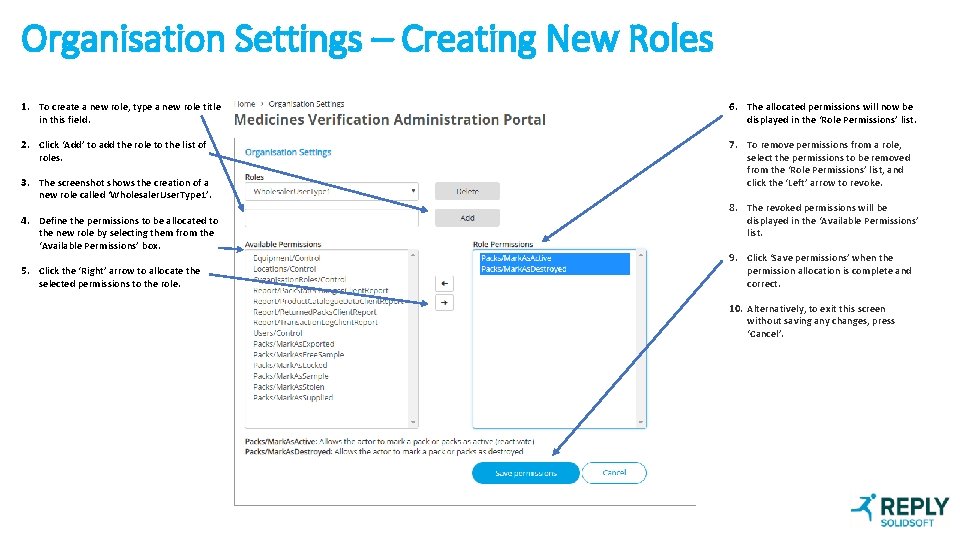
Organisation Settings – Creating New Roles 1. To create a new role, type a new role title in this field. 6. The allocated permissions will now be displayed in the ‘Role Permissions’ list. 2. Click ‘Add’ to add the role to the list of roles. 7. To remove permissions from a role, select the permissions to be removed from the ‘Role Permissions’ list, and click the ‘Left’ arrow to revoke. 3. The screenshot shows the creation of a new role called ‘Wholesaler. User. Type 1’. 4. Define the permissions to be allocated to the new role by selecting them from the ‘Available Permissions’ box. 5. Click the ‘Right’ arrow to allocate the selected permissions to the role. 8. The revoked permissions will be displayed in the ‘Available Permissions’ list. 9. Click ‘Save permissions’ when the permission allocation is complete and correct. 10. Alternatively, to exit this screen without saving any changes, press ‘Cancel’.
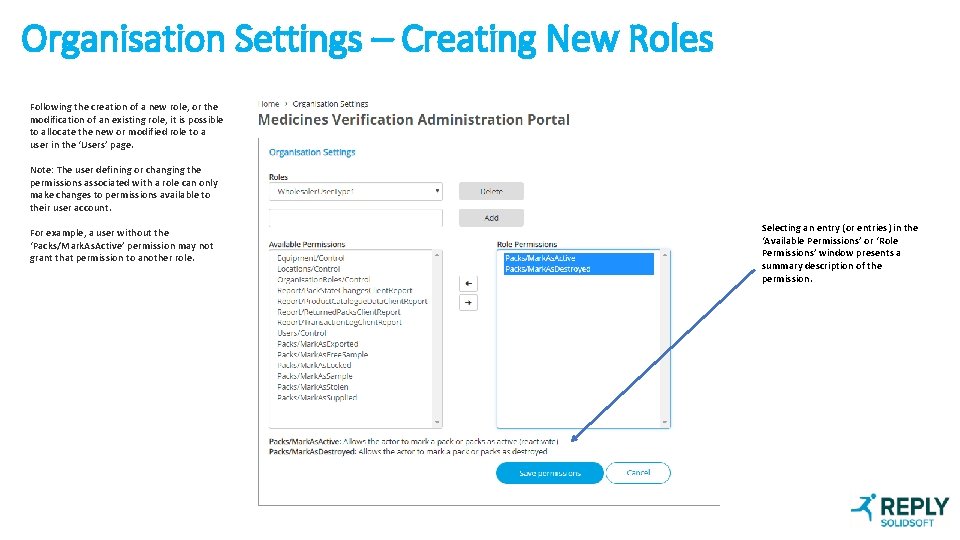
Organisation Settings – Creating New Roles Following the creation of a new role, or the modification of an existing role, it is possible to allocate the new or modified role to a user in the ‘Users’ page. Note: The user defining or changing the permissions associated with a role can only make changes to permissions available to their user account. For example, a user without the ‘Packs/Mark. As. Active’ permission may not grant that permission to another role. Selecting an entry (or entries) in the ‘Available Permissions’ or ‘Role Permissions’ window presents a summary description of the permission.
Creating Additional Local Organisation Portal Users
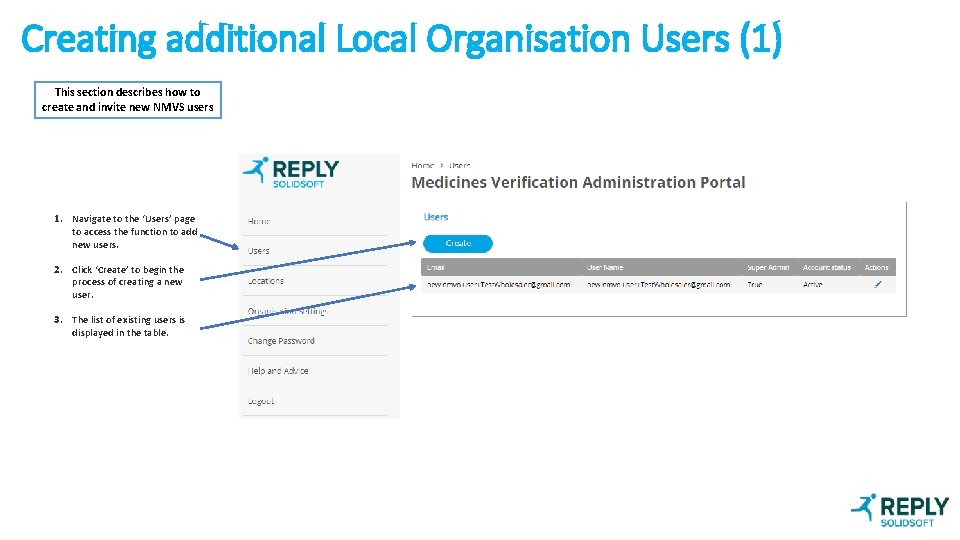
Creating additional Local Organisation Users (1) This section describes how to create and invite new NMVS users 1. Navigate to the ‘Users’ page to access the function to add new users. 2. Click ‘Create’ to begin the process of creating a new user. 3. The list of existing users is displayed in the table.
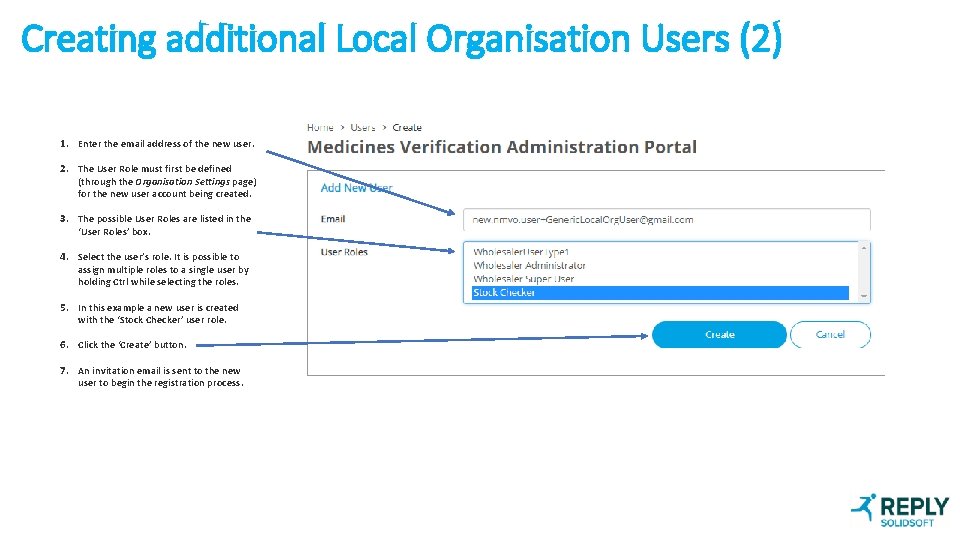
Creating additional Local Organisation Users (2) 1. Enter the email address of the new user. 2. The User Role must first be defined (through the Organisation Settings page) for the new user account being created. 3. The possible User Roles are listed in the ‘User Roles’ box. 4. Select the user’s role. It is possible to assign multiple roles to a single user by holding Ctrl while selecting the roles. 5. In this example a new user is created with the ‘Stock Checker’ user role. 6. Click the ‘Create’ button. 7. An invitation email is sent to the new user to begin the registration process.
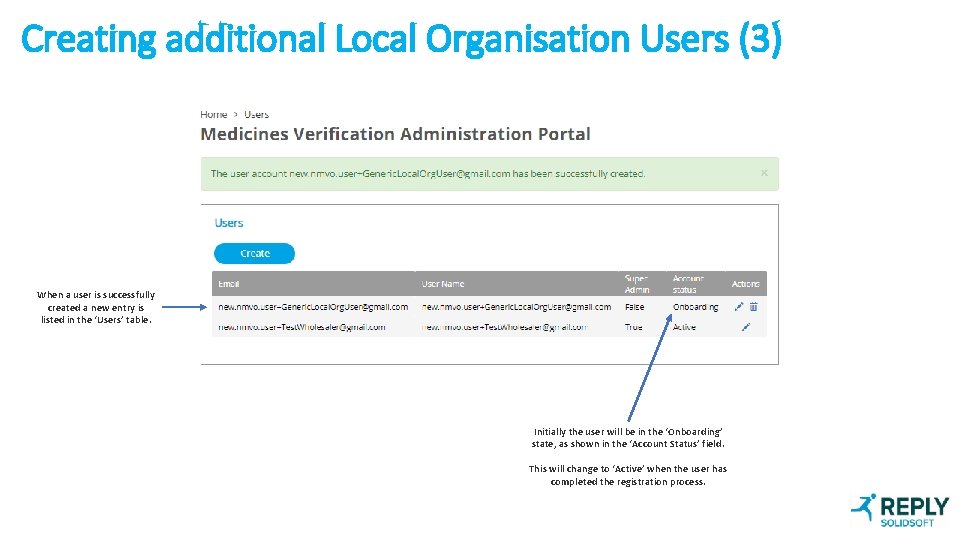
Creating additional Local Organisation Users (3) When a user is successfully created a new entry is listed in the ‘Users’ table. Initially the user will be in the ‘Onboarding’ state, as shown in the ‘Account Status’ field. This will change to ‘Active’ when the user has completed the registration process.
Local Organisation User Management – Managing Existing Accounts
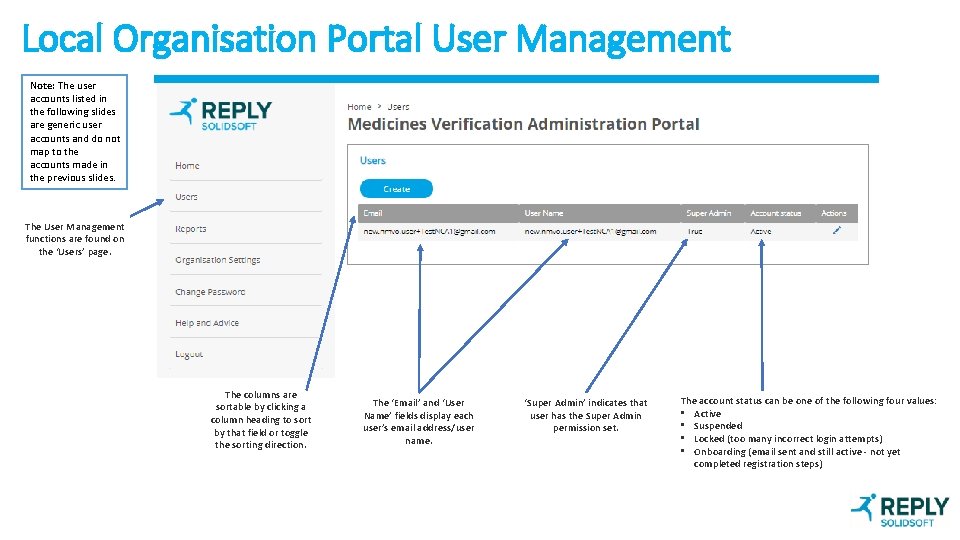
Local Organisation Portal User Management Note: The user accounts listed in the following slides are generic user accounts and do not map to the accounts made in the previous slides. The User Management functions are found on the ‘Users’ page. The columns are sortable by clicking a column heading to sort by that field or toggle the sorting direction. The ‘Email’ and ‘User Name’ fields display each user’s email address/user name. ‘Super Admin’ indicates that user has the Super Admin permission set. The account status can be one of the following four values: • Active • Suspended • Locked (too many incorrect login attempts) • Onboarding (email sent and still active - not yet completed registration steps)
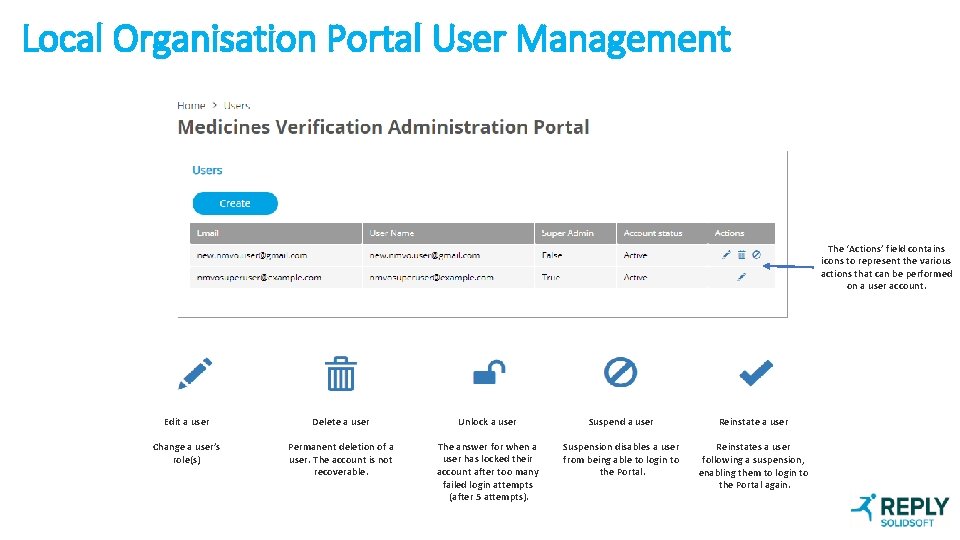
Local Organisation Portal User Management The ‘Actions’ field contains icons to represent the various actions that can be performed on a user account. Edit a user Delete a user Unlock a user Suspend a user Reinstate a user Change a user’s role(s) Permanent deletion of a user. The account is not recoverable. The answer for when a user has locked their account after too many failed login attempts (after 5 attempts). Suspension disables a user from being able to login to the Portal. Reinstates a user following a suspension, enabling them to login to the Portal again.
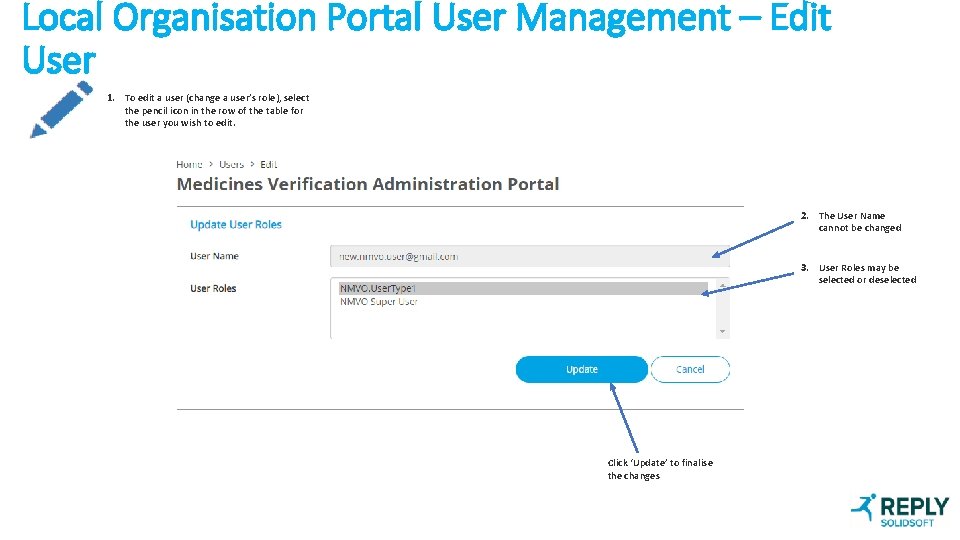
Local Organisation Portal User Management – Edit User 1. To edit a user (change a user’s role), select the pencil icon in the row of the table for the user you wish to edit. 2. The User Name cannot be changed 3. User Roles may be selected or deselected Click ‘Update’ to finalise the changes
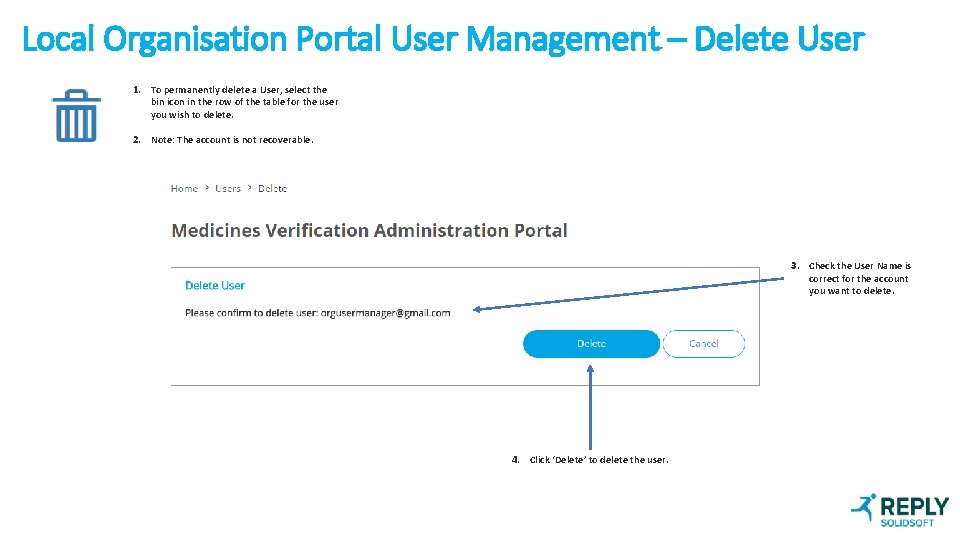
Local Organisation Portal User Management – Delete User 1. To permanently delete a User, select the bin icon in the row of the table for the user you wish to delete. 2. Note: The account is not recoverable. 3. Check the User Name is correct for the account you want to delete. 4. Click ‘Delete’ to delete the user.
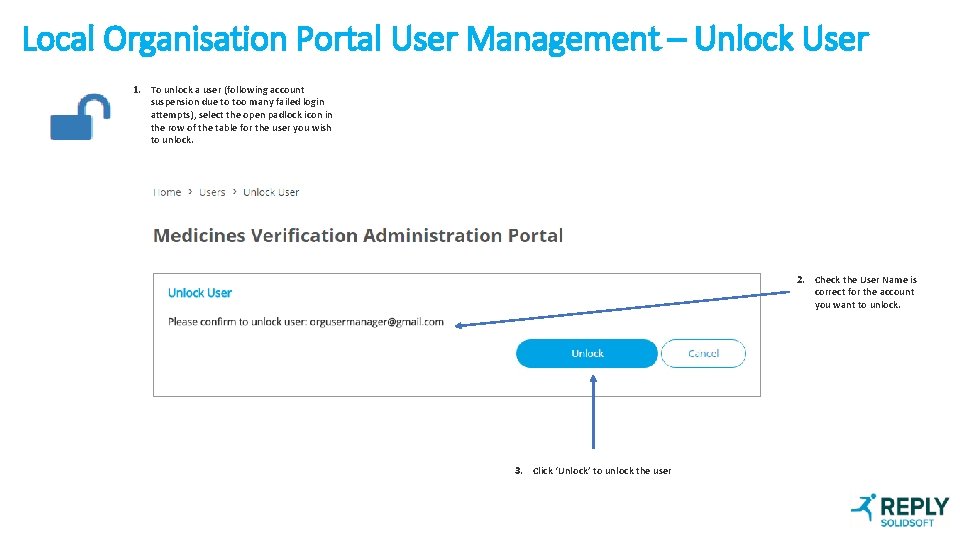
Local Organisation Portal User Management – Unlock User 1. To unlock a user (following account suspension due to too many failed login attempts), select the open padlock icon in the row of the table for the user you wish to unlock. 2. Check the User Name is correct for the account you want to unlock. 3. Click ‘Unlock’ to unlock the user
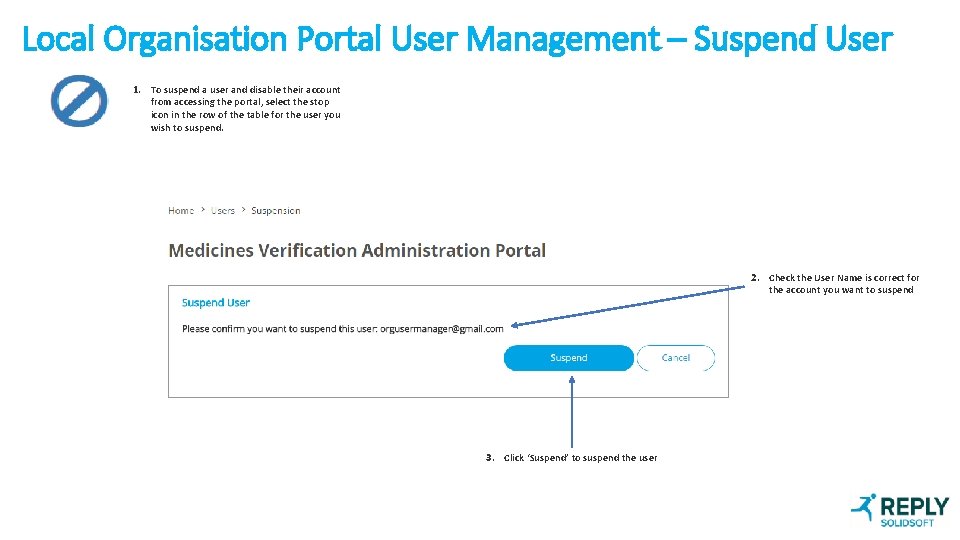
Local Organisation Portal User Management – Suspend User 1. To suspend a user and disable their account from accessing the portal, select the stop icon in the row of the table for the user you wish to suspend. 2. Check the User Name is correct for the account you want to suspend 3. Click ‘Suspend’ to suspend the user
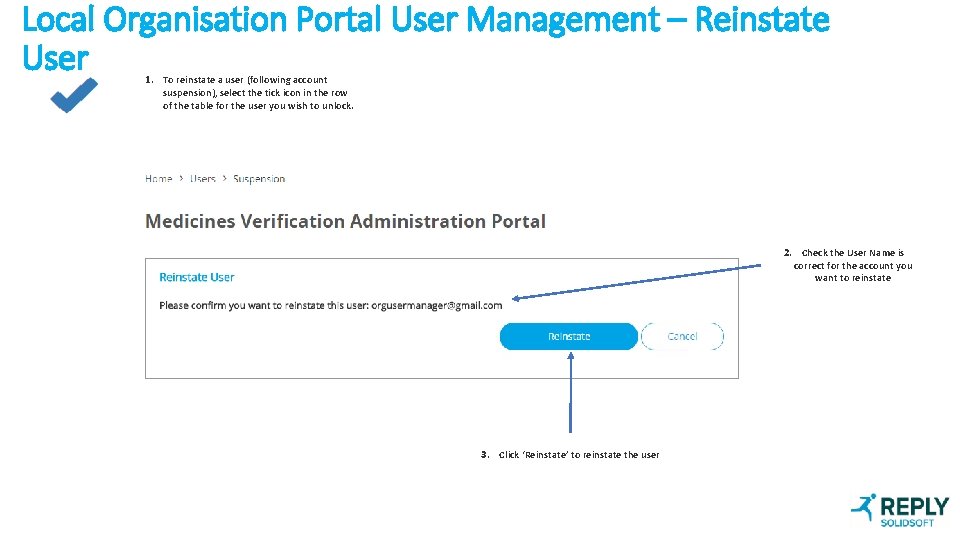
Local Organisation Portal User Management – Reinstate User 1. To reinstate a user (following account suspension), select the tick icon in the row of the table for the user you wish to unlock. 2. Check the User Name is correct for the account you want to reinstate 3. Click ‘Reinstate’ to reinstate the user
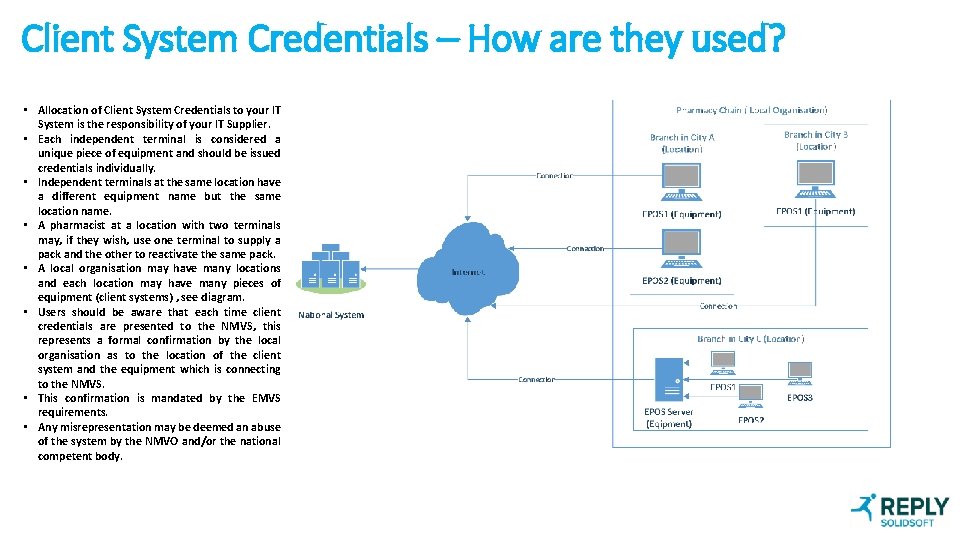
Client System Credentials – How are they used? • Allocation of Client System Credentials to your IT System is the responsibility of your IT Supplier. • Each independent terminal is considered a unique piece of equipment and should be issued credentials individually. • Independent terminals at the same location have a different equipment name but the same location name. • A pharmacist at a location with two terminals may, if they wish, use one terminal to supply a pack and the other to reactivate the same pack. • A local organisation may have many locations and each location may have many pieces of equipment (client systems) , see diagram. • Users should be aware that each time client credentials are presented to the NMVS, this represents a formal confirmation by the local organisation as to the location of the client system and the equipment which is connecting to the NMVS. • This confirmation is mandated by the EMVS requirements. • Any misrepresentation may be deemed an abuse of the system by the NMVO and/or the national competent body.
Deleting/Revoking Client System Credentials • Client System Credentials are authenticated during a request for an access token from the NMVS. • Access tokens represent authorisation of the system to perform actions against the NMVS. The access tokens are renewed every 8 hours. • In the event a set of Client System Credentials are revoked, the specific equipment using the revoked credentials will be able to make calls to the NMVS until the next token renewal point. • After the renewal point, the specific equipment using the revoked credentials will no longer receive responses from the NMVS. • Should the equipment need to call the NMVS again, a new set of Client System Credentials need to be generated and applied. Note: The NBS does not authenticate users of client systems. This is the responsibility of the client system. No mechanism is provided to client systems to inform the NBS about the user of the client system or their roles or permissions. The NBS does not record any information about the local user.
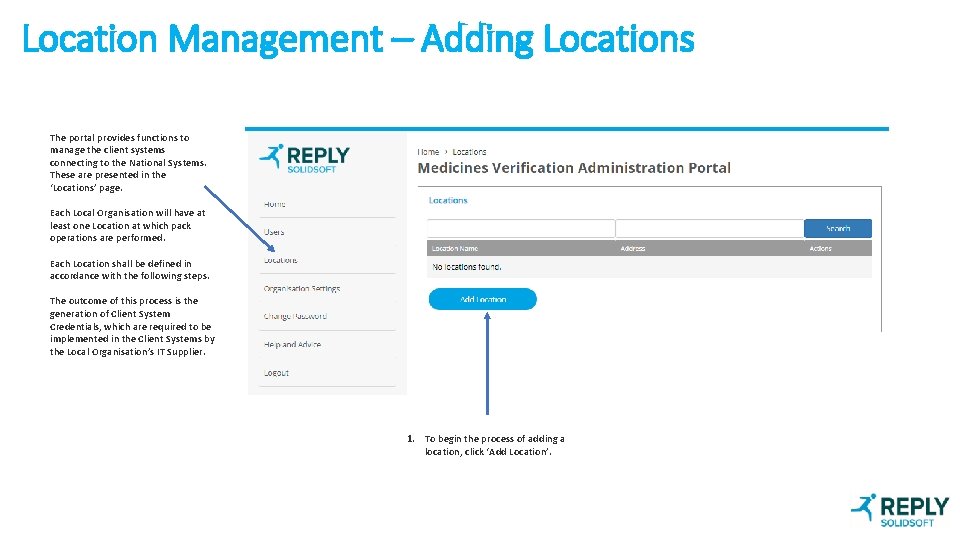
Location Management – Adding Locations The portal provides functions to manage the client systems connecting to the National Systems. These are presented in the ‘Locations’ page. Each Local Organisation will have at least one Location at which pack operations are performed. Each Location shall be defined in accordance with the following steps. The outcome of this process is the generation of Client System Credentials, which are required to be implemented in the Client Systems by the Local Organisation’s IT Supplier. 1. To begin the process of adding a location, click ‘Add Location’.
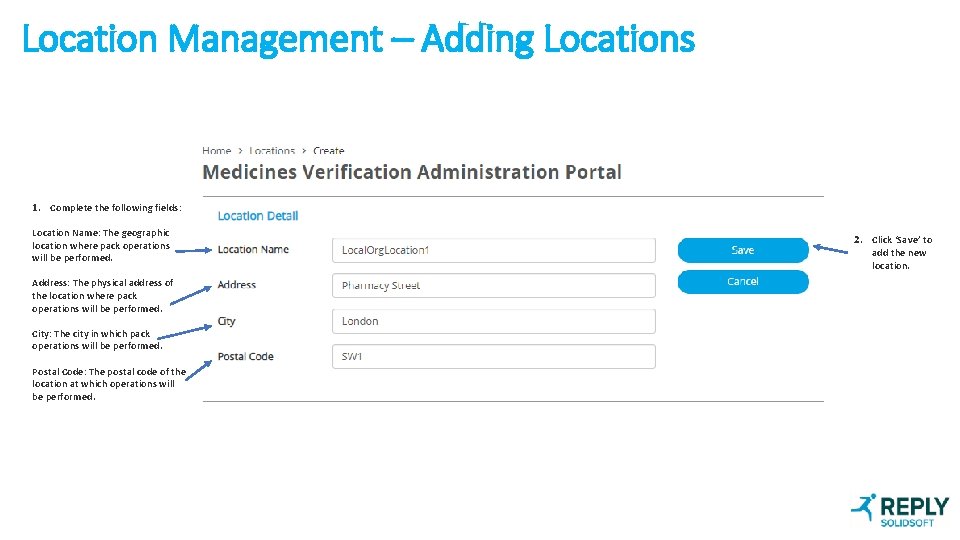
Location Management – Adding Locations 1. Complete the following fields: Location Name: The geographic location where pack operations will be performed. Address: The physical address of the location where pack operations will be performed. City: The city in which pack operations will be performed. Postal Code: The postal code of the location at which operations will be performed. 2. Click ‘Save’ to add the new location.
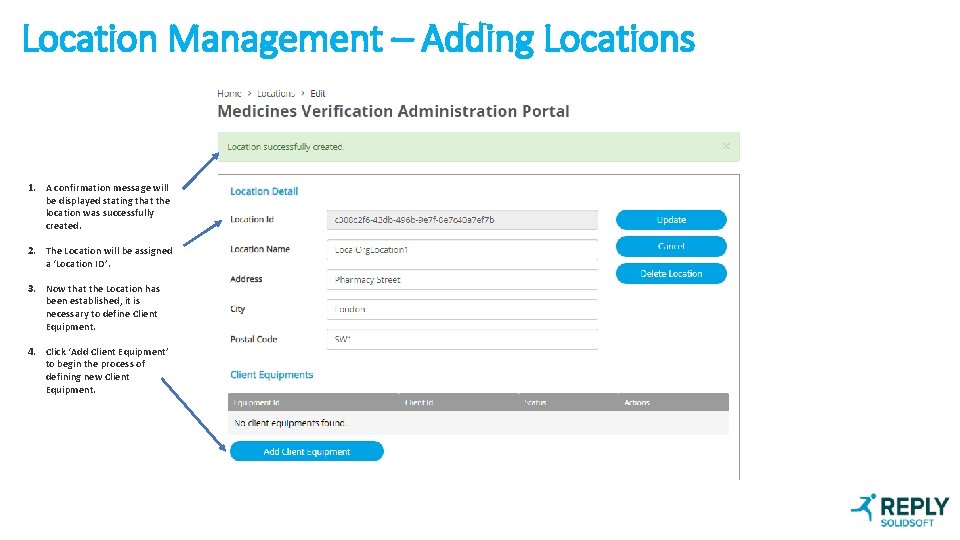
Location Management – Adding Locations 1. A confirmation message will be displayed stating that the location was successfully created. 2. The Location will be assigned a ‘Location ID’. 3. Now that the Location has been established, it is necessary to define Client Equipment. 4. Click ‘Add Client Equipment’ to begin the process of defining new Client Equipment.
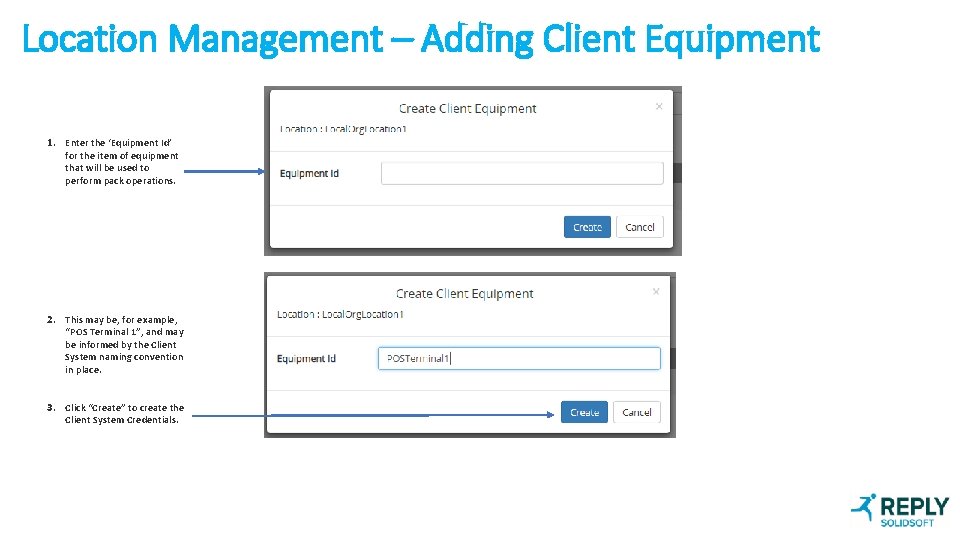
Location Management – Adding Client Equipment 1. Enter the ‘Equipment Id’ for the item of equipment that will be used to perform pack operations. 2. This may be, for example, “POS Terminal 1”, and may be informed by the Client System naming convention in place. 3. Click “Create” to create the Client System Credentials.
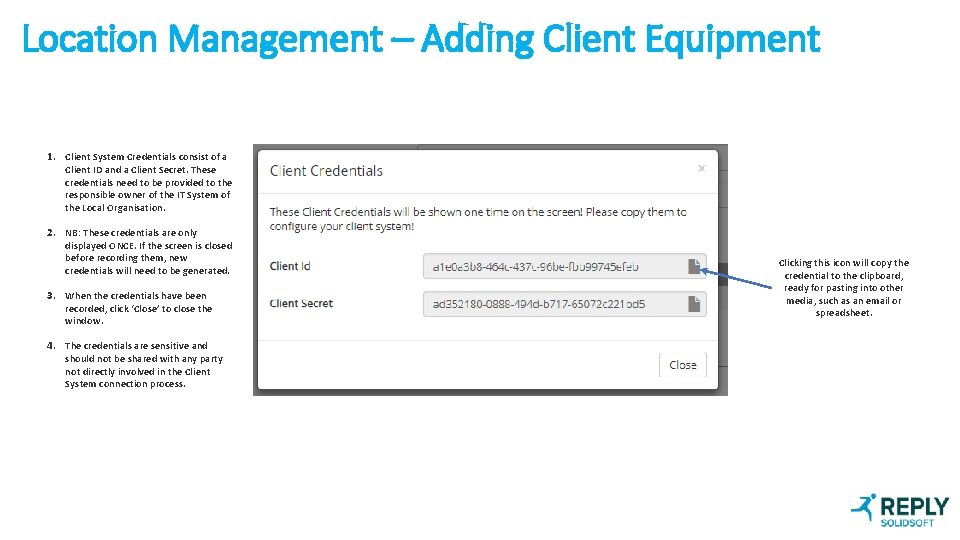
Location Management – Adding Client Equipment 1. Client System Credentials consist of a Client ID and a Client Secret. These credentials need to be provided to the responsible owner of the IT System of the Local Organisation. 2. NB: These credentials are only displayed ONCE. If the screen is closed before recording them, new credentials will need to be generated. 3. When the credentials have been recorded, click ‘Close’ to close the window. 4. The credentials are sensitive and should not be shared with any party not directly involved in the Client System connection process. Clicking this icon will copy the credential to the clipboard, ready for pasting into other media, such as an email or spreadsheet.
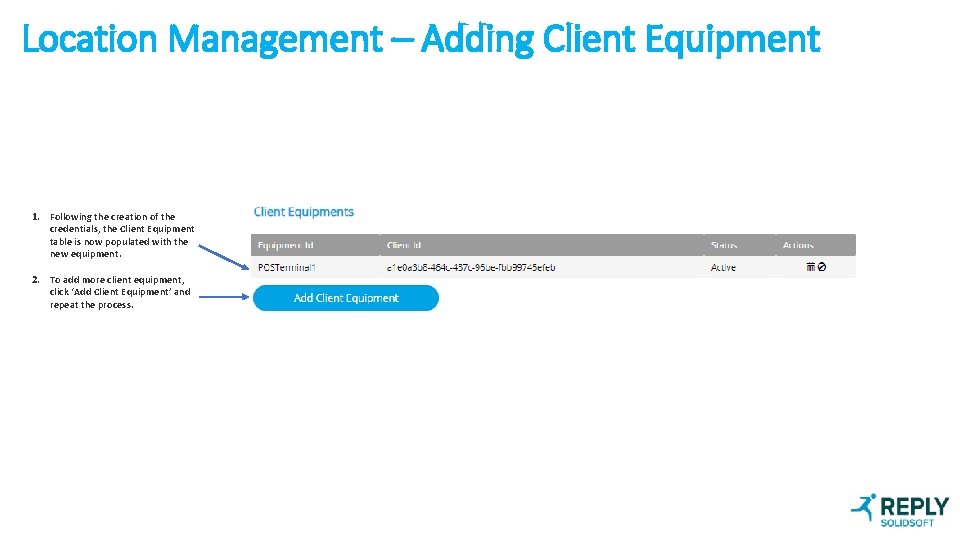
Location Management – Adding Client Equipment 1. Following the creation of the credentials, the Client Equipment table is now populated with the new equipment. 2. To add more client equipment, click ‘Add Client Equipment’ and repeat the process.
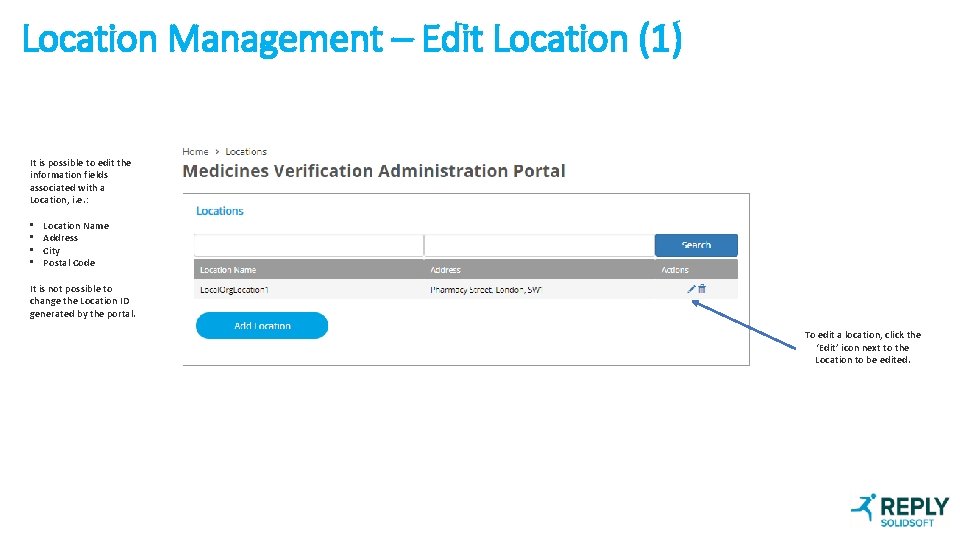
Location Management – Edit Location (1) It is possible to edit the information fields associated with a Location, i. e. : • • Location Name Address City Postal Code It is not possible to change the Location ID generated by the portal. To edit a location, click the ‘Edit’ icon next to the Location to be edited.
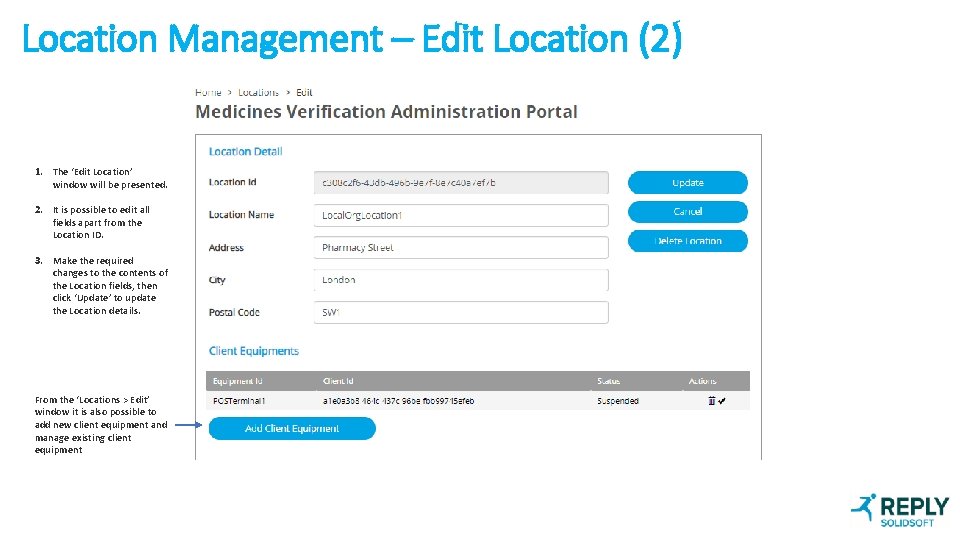
Location Management – Edit Location (2) 1. The ‘Edit Location’ window will be presented. 2. It is possible to edit all fields apart from the Location ID. 3. Make the required changes to the contents of the Location fields, then click ‘Update’ to update the Location details. From the ‘Locations > Edit’ window it is also possible to add new client equipment and manage existing client equipment
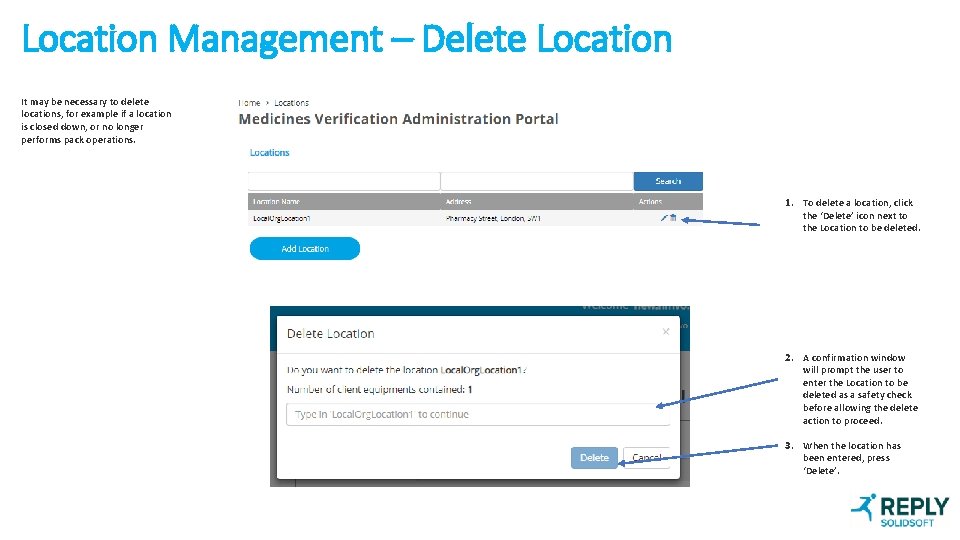
Location Management – Delete Location It may be necessary to delete locations, for example if a location is closed down, or no longer performs pack operations. 1. To delete a location, click the ‘Delete’ icon next to the Location to be deleted. 2. A confirmation window will prompt the user to enter the Location to be deleted as a safety check before allowing the delete action to proceed. 3. When the location has been entered, press ‘Delete’.
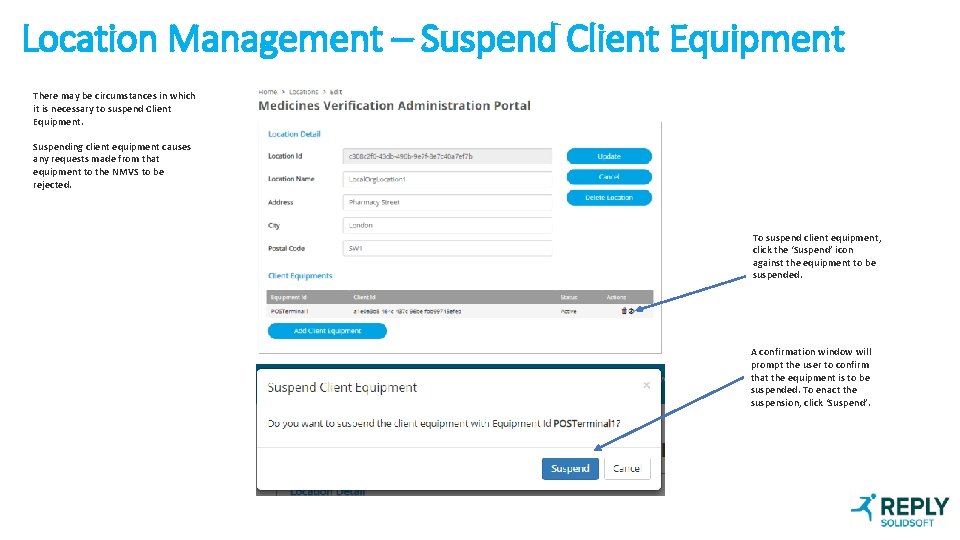
Location Management – Suspend Client Equipment There may be circumstances in which it is necessary to suspend Client Equipment. Suspending client equipment causes any requests made from that equipment to the NMVS to be rejected. To suspend client equipment, click the ‘Suspend’ icon against the equipment to be suspended. A confirmation window will prompt the user to confirm that the equipment is to be suspended. To enact the suspension, click ‘Suspend’.
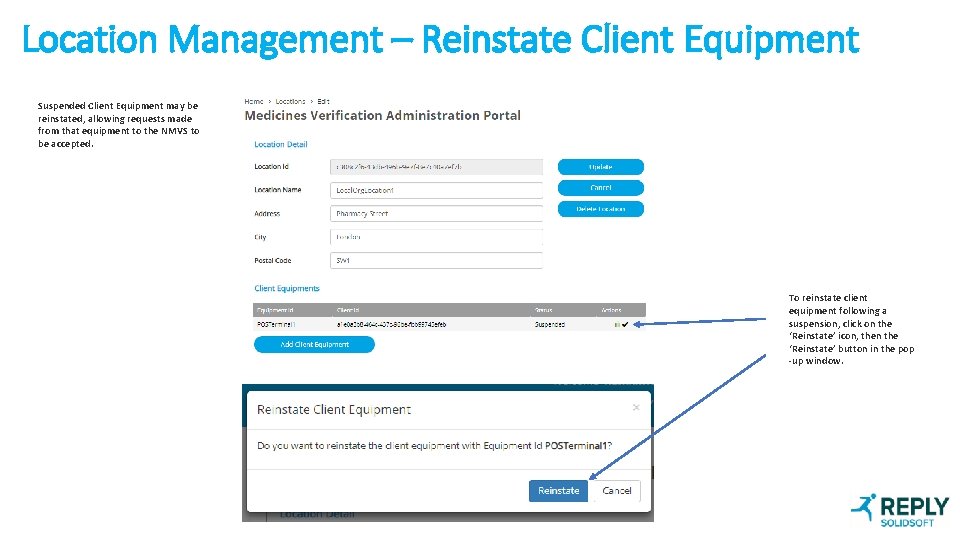
Location Management – Reinstate Client Equipment Suspended Client Equipment may be reinstated, allowing requests made from that equipment to the NMVS to be accepted. To reinstate client equipment following a suspension, click on the ‘Reinstate’ icon, then the ‘Reinstate’ button in the pop -up window.
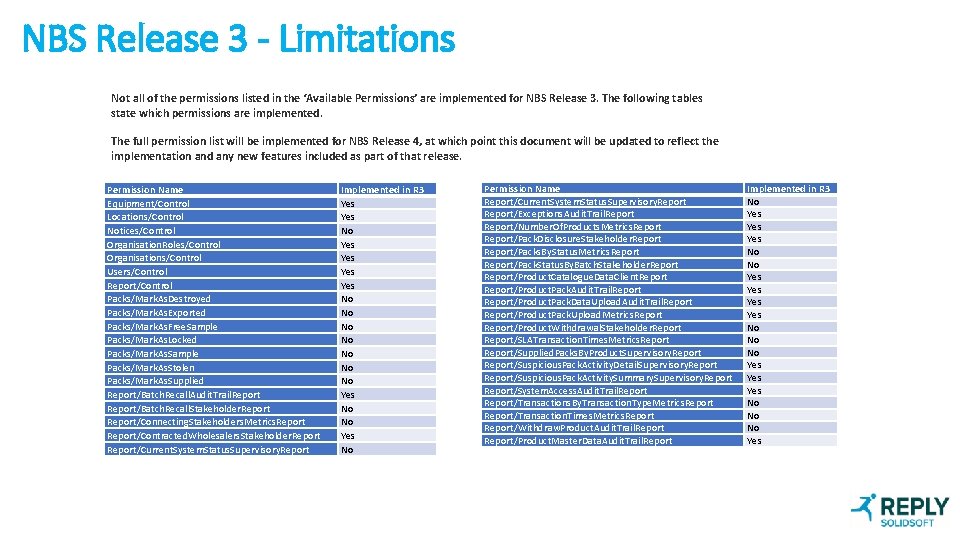
NBS Release 3 - Limitations Not all of the permissions listed in the ‘Available Permissions’ are implemented for NBS Release 3. The following tables state which permissions are implemented. The full permission list will be implemented for NBS Release 4, at which point this document will be updated to reflect the implementation and any new features included as part of that release. Permission Name Equipment/Control Locations/Control Notices/Control Organisation. Roles/Control Organisations/Control Users/Control Report/Control Packs/Mark. As. Destroyed Packs/Mark. As. Exported Packs/Mark. As. Free. Sample Packs/Mark. As. Locked Packs/Mark. As. Sample Packs/Mark. As. Stolen Packs/Mark. As. Supplied Report/Batch. Recall. Audit. Trail. Report/Batch. Recall. Stakeholder. Report/Connecting. Stakeholders. Metrics. Report/Contracted. Wholesalers. Stakeholder. Report/Current. System. Status. Supervisory. Report Implemented in R 3 Yes No Yes Yes No No Yes No Permission Name Report/Current. System. Status. Supervisory. Report/Exceptions. Audit. Trail. Report/Number. Of. Products. Metrics. Report/Pack. Disclosure. Stakeholder. Report/Packs. By. Status. Metrics. Report/Pack. Status. By. Batch. Stakeholder. Report/Product. Catalogue. Data. Client. Report/Product. Pack. Audit. Trail. Report/Product. Pack. Data. Upload. Audit. Trail. Report/Product. Pack. Upload. Metrics. Report/Product. Withdrawal. Stakeholder. Report/SLATransaction. Times. Metrics. Report/Supplied. Packs. By. Product. Supervisory. Report/Suspicious. Pack. Activity. Detail. Supervisory. Report/Suspicious. Pack. Activity. Summary. Supervisory. Report/System. Access. Audit. Trail. Report/Transactions. By. Transaction. Type. Metrics. Report/Transaction. Times. Metrics. Report/Withdraw. Product. Audit. Trail. Report/Product. Master. Data. Audit. Trail. Report Implemented in R 3 No Yes Yes No No No Yes Yes No No No Yes
- Slides: 42