
Nios TM Advanced Training SESSION I Interrupt Routines
- Slides: 33
Nios. TM Advanced Training SESSION I Interrupt Routines Implementation 1 © 2001 ®
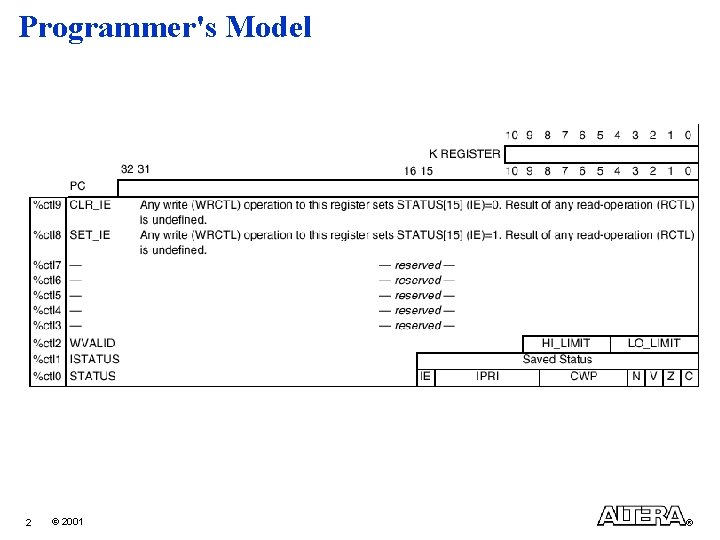
Programmer's Model 2 © 2001 ®
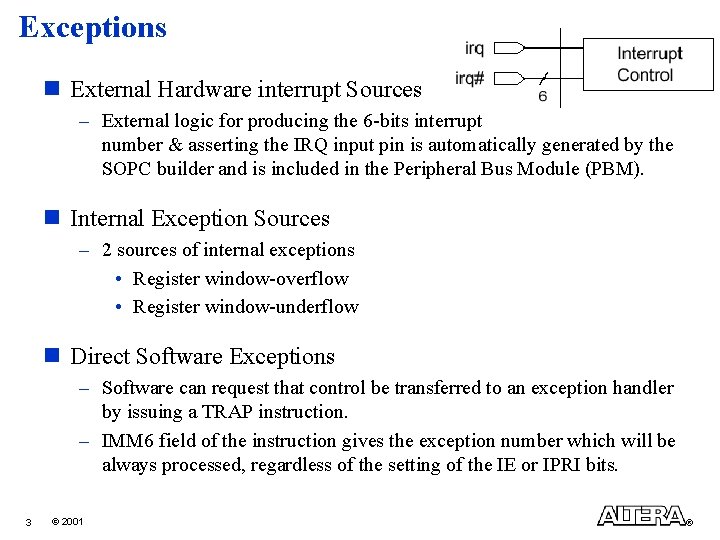
Exceptions n External Hardware interrupt Sources – External logic for producing the 6 -bits interrupt number & asserting the IRQ input pin is automatically generated by the SOPC builder and is included in the Peripheral Bus Module (PBM). n Internal Exception Sources – 2 sources of internal exceptions • Register window-overflow • Register window-underflow n Direct Software Exceptions – Software can request that control be transferred to an exception handler by issuing a TRAP instruction. – IMM 6 field of the instruction gives the exception number which will be always processed, regardless of the setting of the IE or IPRI bits. 3 © 2001 ®
External Hardware Interrupts n Active-high interrupt signal: irq – Level sensitive – Sampled synchronously at the rising edge of Nios clock – Should stay asserted until the interrupt is acknowledged by software n 6 -bit Input Interrupt Number: irq_number[5: 0] – Identifies the highest priority interrupt currently requested • Highest priority = 0 (irq #0 to #15 are reserved) • Lowest priority = 63 n Nios will process the indicated exception if – IE= 1 – i. e. external interrupts & internal exceptions are enabled, AND – The interrupt number is smaller (lower or equal) than the IPRI field value 4 © 2001 ®
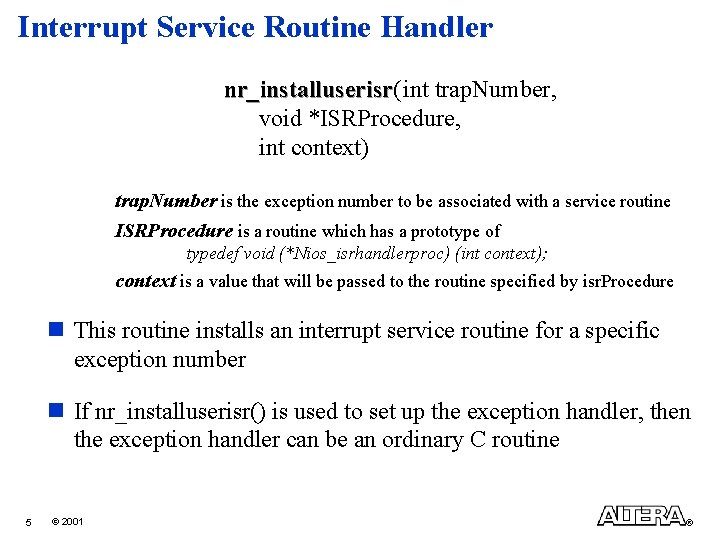
Interrupt Service Routine Handler nr_installuserisr( installuserisr int trap. Number, void *ISRProcedure, int context) trap. Number is the exception number to be associated with a service routine ISRProcedure is a routine which has a prototype of typedef void (*Nios_isrhandlerproc) (int context); context is a value that will be passed to the routine specified by isr. Procedure n This routine installs an interrupt service routine for a specific exception number n If nr_installuserisr() is used to set up the exception handler, then the exception handler can be an ordinary C routine 5 © 2001 ®
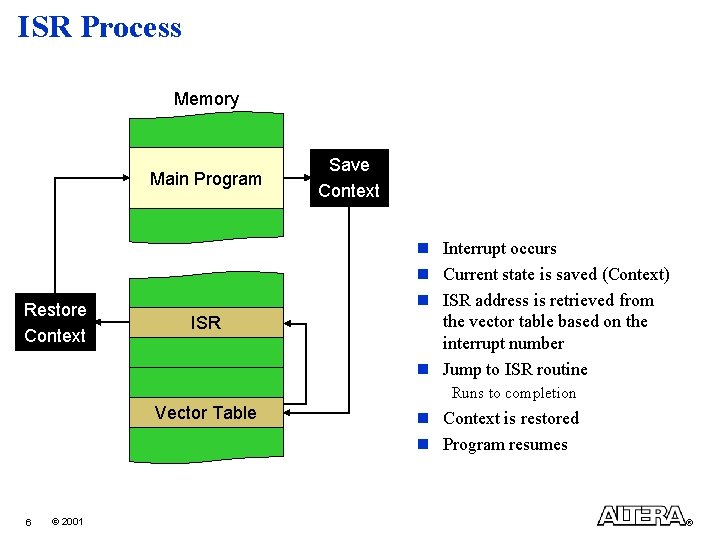
ISR Process Memory Main Program Restore Context ISR Save Context n Interrupt occurs n Current state is saved (Context) n ISR address is retrieved from the vector table based on the interrupt number n Jump to ISR routine Runs to completion Vector Table 6 © 2001 n Context is restored n Program resumes ®
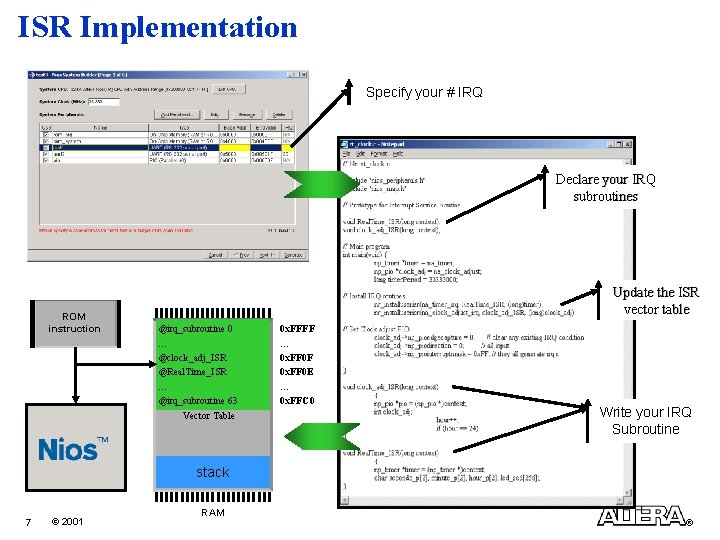
ISR Implementation Specify your # IRQ Declare your IRQ subroutines ROM instruction Update the ISR vector table @irq_subroutine 0 … @clock_adj_ISR @Real. Time_ISR … @irq_subroutine 63 Vector Table 0 x. FFFF … 0 x. FF 0 F 0 x. FF 0 E … 0 x. FFC 0 Write your IRQ Subroutine stack 7 © 2001 RAM ®
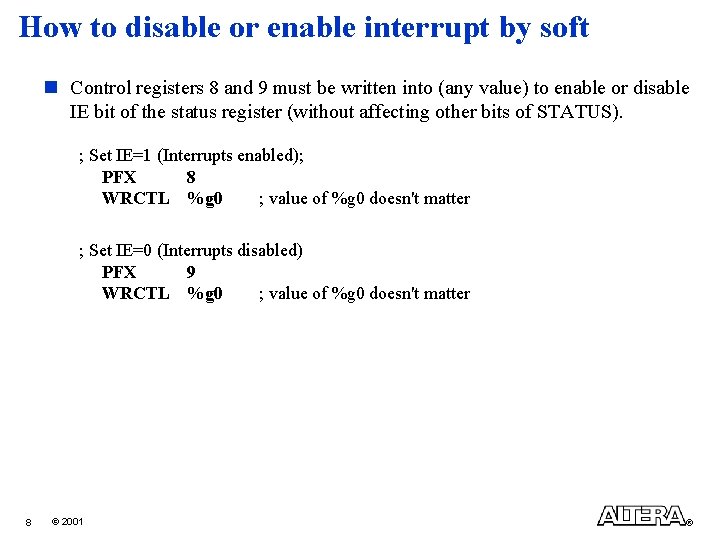
How to disable or enable interrupt by soft n Control registers 8 and 9 must be written into (any value) to enable or disable IE bit of the status register (without affecting other bits of STATUS). ; Set IE=1 (Interrupts enabled); PFX 8 WRCTL %g 0 ; value of %g 0 doesn't matter ; Set IE=0 (Interrupts disabled) PFX 9 WRCTL %g 0 ; value of %g 0 doesn't matter 8 © 2001 ®
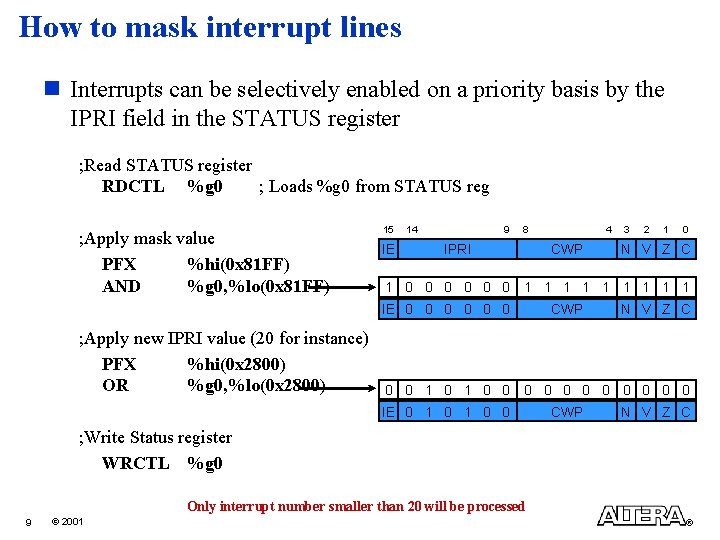
How to mask interrupt lines n Interrupts can be selectively enabled on a priority basis by the IPRI field in the STATUS register ; Read STATUS register RDCTL %g 0 ; Loads %g 0 from STATUS reg ; Apply mask value PFX %hi(0 x 81 FF) AND %g 0, %lo(0 x 81 FF) 15 IE 14 9 8 IPRI CWP 3 2 1 0 N V Z C 1 0 0 0 1 1 1 1 1 IE 0 0 0 ; Apply new IPRI value (20 for instance) PFX %hi(0 x 2800) OR %g 0, %lo(0 x 2800) 4 CWP N V Z C 0 0 1 0 0 0 IE 0 1 0 0 CWP N V Z C ; Write Status register WRCTL %g 0 Only interrupt number smaller than 20 will be processed 9 © 2001 ®
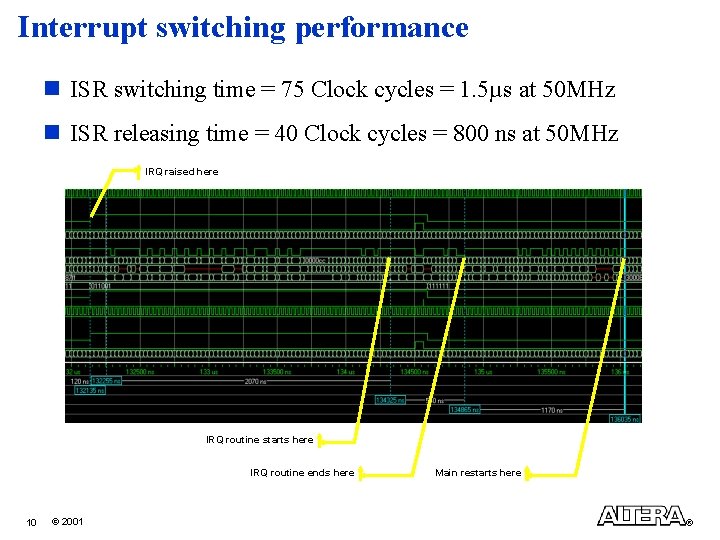
Interrupt switching performance n ISR switching time = 75 Clock cycles = 1. 5µs at 50 MHz n ISR releasing time = 40 Clock cycles = 800 ns at 50 MHz IRQ raised here IRQ routine starts here IRQ routine ends here 10 © 2001 Main restarts here ®
Nios. TM Advanced Training SESSION I Lab – Real Time Clock 11 © 2001 ®
Goals v Creating a Quartus II project v Generating a Nios. TM System Variation v Writing & compiling a C Software Application Using an ISR Template will be provided v Simulating with Modelsim v Compiling with Quartus II Pin-Out file will be provided v Configuring the Nios board v Downloading & running the application v Creating a boot rom user application 12 © 2001 ®
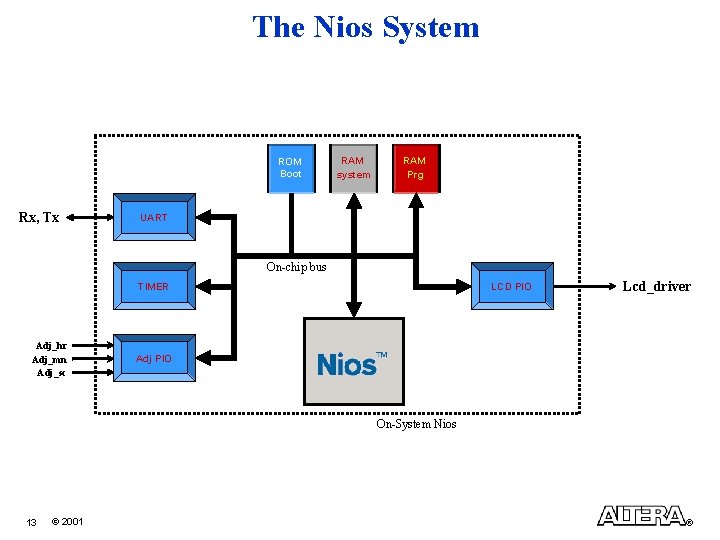
The Nios System ROM Boot Rx, Tx RAM system RAM Prg UART On-chip bus TIMER Adj_hr Adj_mn Adj_sc LCD PIO Lcd_driver Adj PIO On-System Nios 13 © 2001 ®
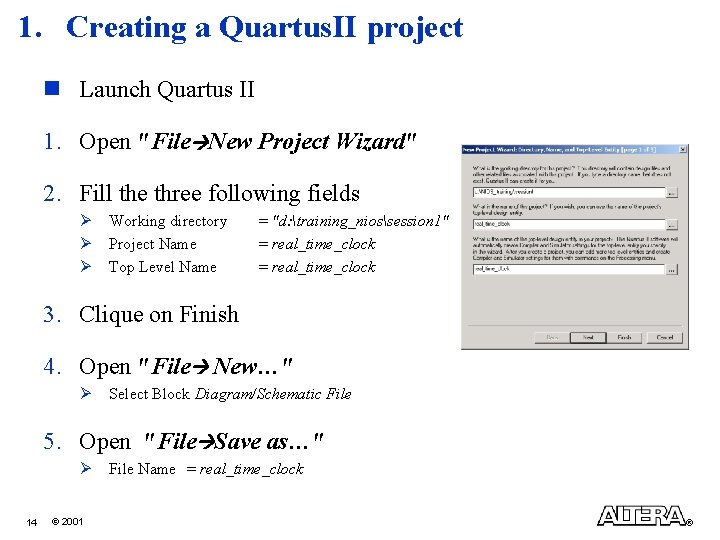
1. Creating a Quartus. II project n Launch Quartus II 1. Open "File New Project Wizard" 2. Fill the three following fields Ø Ø Ø Working directory Project Name Top Level Name = "d: training_niossession 1" = real_time_clock 3. Clique on Finish 4. Open "File New…" Ø Select Block Diagram/Schematic File 5. Open "File Save as…" Ø 14 © 2001 File Name = real_time_clock ®
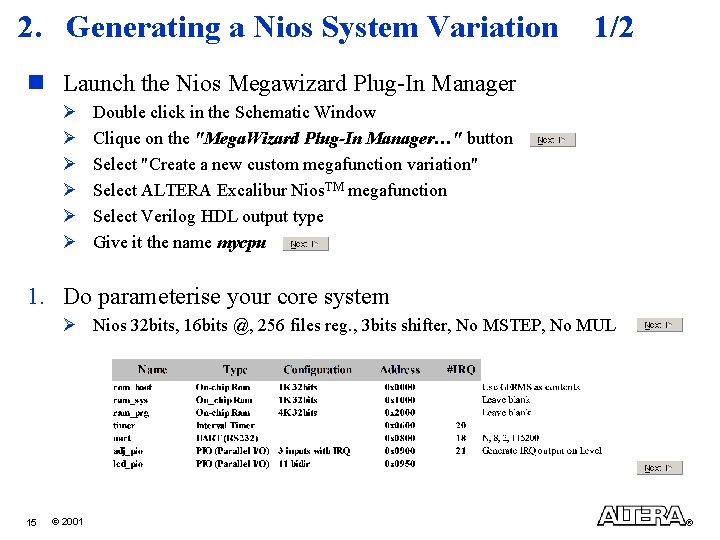
2. Generating a Nios System Variation 1/2 n Launch the Nios Megawizard Plug-In Manager Ø Ø Ø Double click in the Schematic Window Clique on the "Mega. Wizard Plug-In Manager…" button Select "Create a new custom megafunction variation" Select ALTERA Excalibur Nios. TM megafunction Select Verilog HDL output type Give it the name mycpu 1. Do parameterise your core system Ø Nios 32 bits, 16 bits @, 256 files reg. , 3 bits shifter, No MSTEP, No MUL 15 © 2001 ®
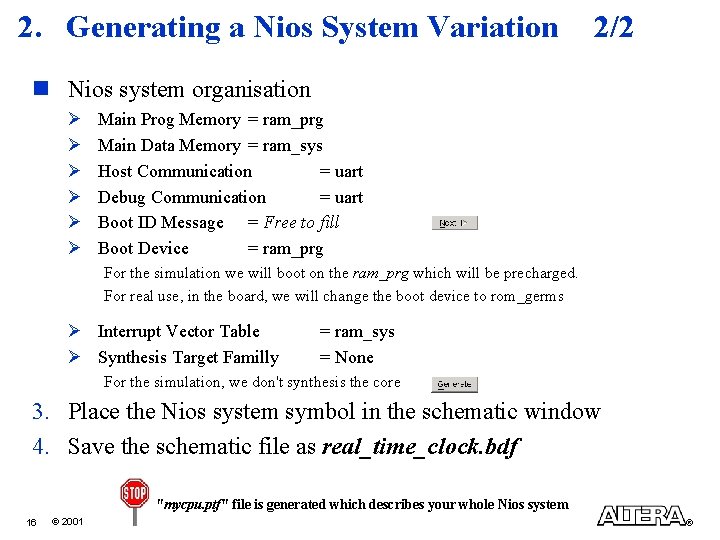
2. Generating a Nios System Variation 2/2 n Nios system organisation Ø Ø Ø Main Prog Memory = ram_prg Main Data Memory = ram_sys Host Communication = uart Debug Communication = uart Boot ID Message = Free to fill Boot Device = ram_prg For the simulation we will boot on the ram_prg which will be precharged. For real use, in the board, we will change the boot device to rom_germs Ø Interrupt Vector Table Ø Synthesis Target Familly = ram_sys = None For the simulation, we don't synthesis the core 3. Place the Nios system symbol in the schematic window 4. Save the schematic file as real_time_clock. bdf "mycpu. ptf" file is generated which describes your whole Nios system 16 © 2001 ®
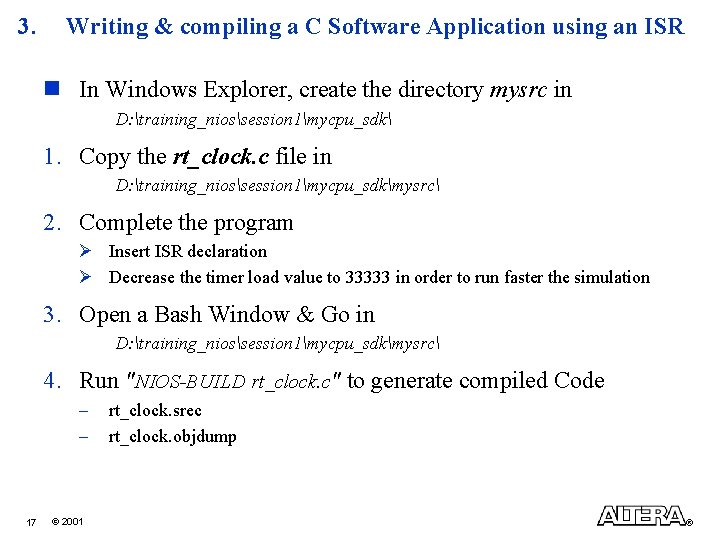
3. Writing & compiling a C Software Application using an ISR n In Windows Explorer, create the directory mysrc in D: training_niossession 1mycpu_sdk 1. Copy the rt_clock. c file in D: training_niossession 1mycpu_sdkmysrc 2. Complete the program Ø Insert ISR declaration Ø Decrease the timer load value to 33333 in order to run faster the simulation 3. Open a Bash Window & Go in D: training_niossession 1mycpu_sdkmysrc 4. Run "NIOS-BUILD rt_clock. c" to generate compiled Code – – 17 © 2001 rt_clock. srec rt_clock. objdump ®
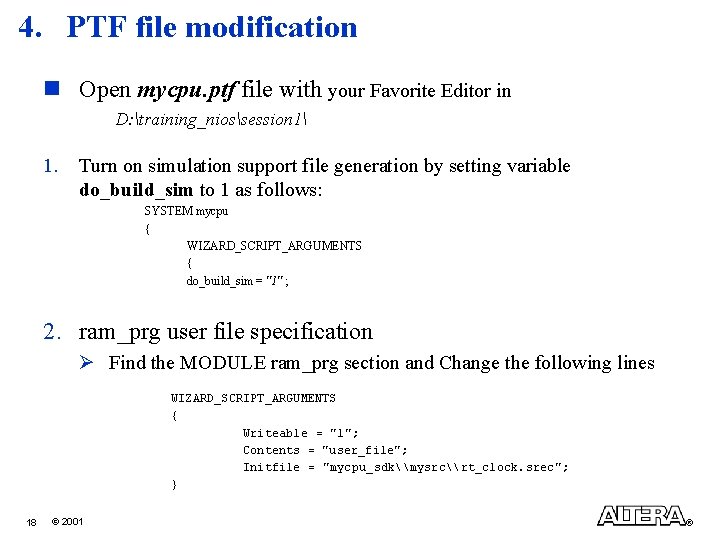
4. PTF file modification n Open mycpu. ptf file with your Favorite Editor in D: training_niossession 1 1. Turn on simulation support file generation by setting variable do_build_sim to 1 as follows: SYSTEM mycpu { WIZARD_SCRIPT_ARGUMENTS { do_build_sim = "1" ; 2. ram_prg user file specification Ø Find the MODULE ram_prg section and Change the following lines WIZARD_SCRIPT_ARGUMENTS { Writeable = "1"; Contents = "user_file"; Initfile = "mycpu_sdk\mysrc\rt_clock. srec"; } 18 © 2001 ®
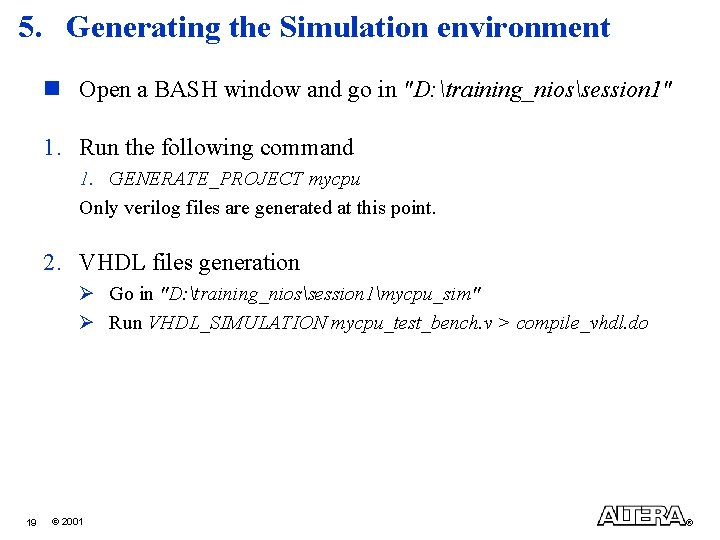
5. Generating the Simulation environment n Open a BASH window and go in "D: training_niossession 1" 1. Run the following command 1. GENERATE_PROJECT mycpu Only verilog files are generated at this point. 2. VHDL files generation Ø Go in "D: training_niossession 1mycpu_sim" Ø Run VHDL_SIMULATION mycpu_test_bench. v > compile_vhdl. do 19 © 2001 ®
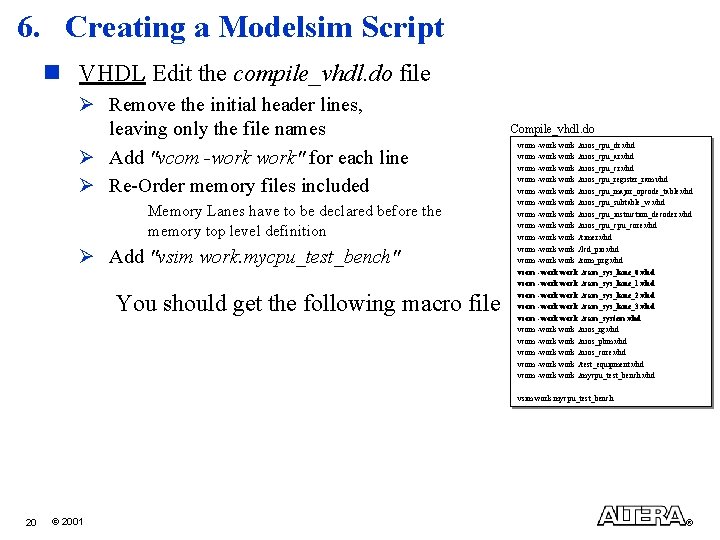
6. Creating a Modelsim Script n VHDL Edit the compile_vhdl. do file Ø Remove the initial header lines, leaving only the file names Ø Add "vcom -work" for each line Ø Re-Order memory files included Memory Lanes have to be declared before the memory top level definition Ø Add "vsim work. mycpu_test_bench" You should get the following macro file Compile_vhdl. do vcom -work. /nios_cpu_dr. vhd vcom -work. /nios_cpu_ar. vhd vcom -work. /nios_cpu_cr. vhd vcom -work. /nios_cpu_register_ram. vhd vcom -work. /nios_cpu_major_opcode_table. vhd vcom -work. /nios_cpu_subtable_w. vhd vcom -work. /nios_cpu_instruction_decoder. vhd vcom -work. /nios_cpu_core. vhd vcom -work. /timer. vhd vcom -work. /lcd_pio. vhd vcom -work. /rom_prg. vhd vcom -work. /ram_sys_lane_0. vhd vcom -work. /ram_sys_lane_1. vhd vcom -work. /ram_sys_lane_2. vhd vcom -work. /ram_sys_lane_3. vhd vcom -work. /ram_system. vhd vcom -work. /nios_rg. vhd vcom -work. /nios_pbm. vhd vcom -work. /nios_core. vhd vcom -work. /test_equipment. vhd vcom -work. /mycpu_test_bench. vhd vsim work. mycpu_test_bench 20 © 2001 ®
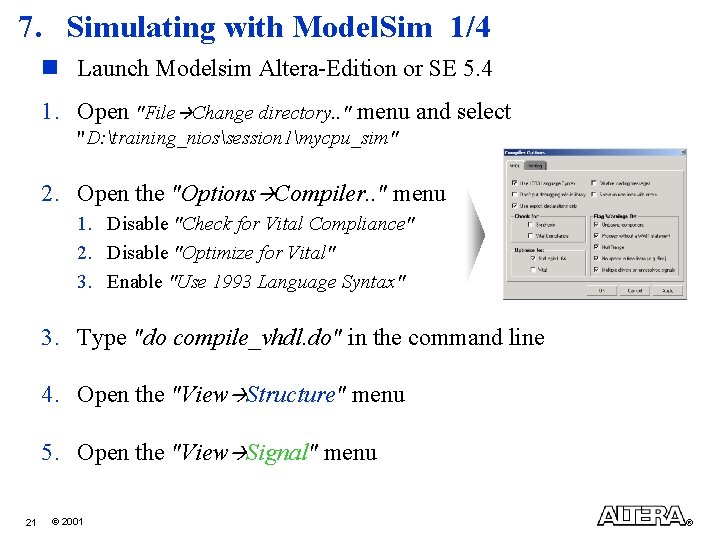
7. Simulating with Model. Sim 1/4 n Launch Modelsim Altera-Edition or SE 5. 4 1. Open "File Change directory. . " menu and select "D: training_niossession 1mycpu_sim" 2. Open the "Options Compiler. . " menu 1. Disable "Check for Vital Compliance" 2. Disable "Optimize for Vital" 3. Enable "Use 1993 Language Syntax" 3. Type "do compile_vhdl. do" in the command line 4. Open the "View Structure" menu 5. Open the "View Signal" menu 21 © 2001 ®
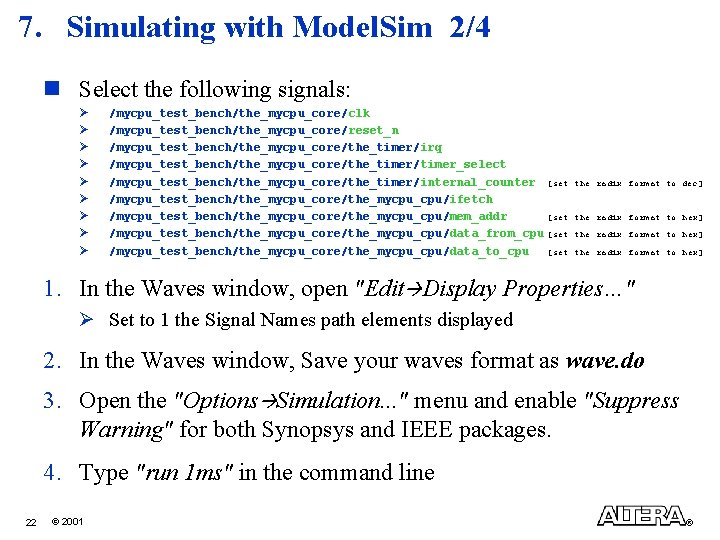
7. Simulating with Model. Sim 2/4 n Select the following signals: Ø Ø Ø Ø Ø /mycpu_test_bench/the_mycpu_core/clk /mycpu_test_bench/the_mycpu_core/reset_n /mycpu_test_bench/the_mycpu_core/the_timer/irq /mycpu_test_bench/the_mycpu_core/the_timer/timer_select /mycpu_test_bench/the_mycpu_core/the_timer/internal_counter [set /mycpu_test_bench/the_mycpu_core/the_mycpu_cpu/ifetch /mycpu_test_bench/the_mycpu_core/the_mycpu_cpu/mem_addr [set /mycpu_test_bench/the_mycpu_core/the_mycpu_cpu/data_from_cpu [set /mycpu_test_bench/the_mycpu_core/the_mycpu_cpu/data_to_cpu [set the radix format to dec] the radix format to hex] 1. In the Waves window, open "Edit Display Properties…" Ø Set to 1 the Signal Names path elements displayed 2. In the Waves window, Save your waves format as wave. do 3. Open the "Options Simulation. . . " menu and enable "Suppress Warning" for both Synopsys and IEEE packages. 4. Type "run 1 ms" in the command line 22 © 2001 ®
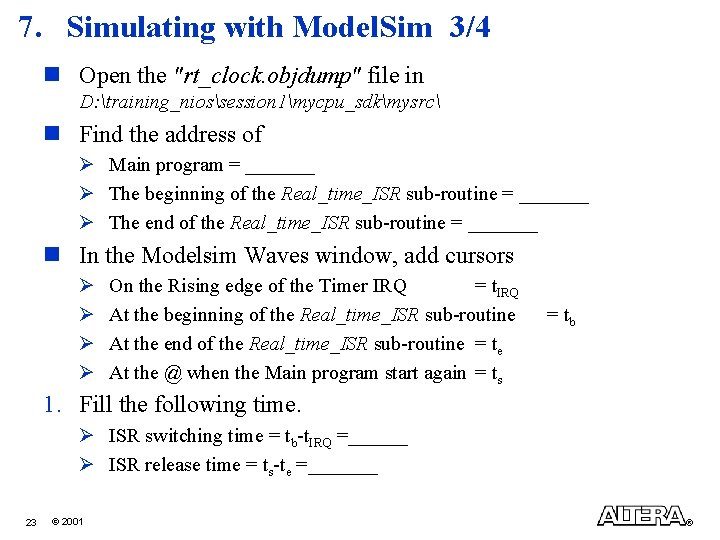
7. Simulating with Model. Sim 3/4 n Open the "rt_clock. objdump" file in D: training_niossession 1mycpu_sdkmysrc n Find the address of Ø Main program = _______ Ø The beginning of the Real_time_ISR sub-routine = _______ Ø The end of the Real_time_ISR sub-routine = _______ n In the Modelsim Waves window, add cursors Ø Ø On the Rising edge of the Timer IRQ = t. IRQ At the beginning of the Real_time_ISR sub-routine At the end of the Real_time_ISR sub-routine = te At the @ when the Main program start again = ts = tb 1. Fill the following time. Ø ISR switching time = tb-t. IRQ =______ Ø ISR release time = ts-te =_______ 23 © 2001 ®
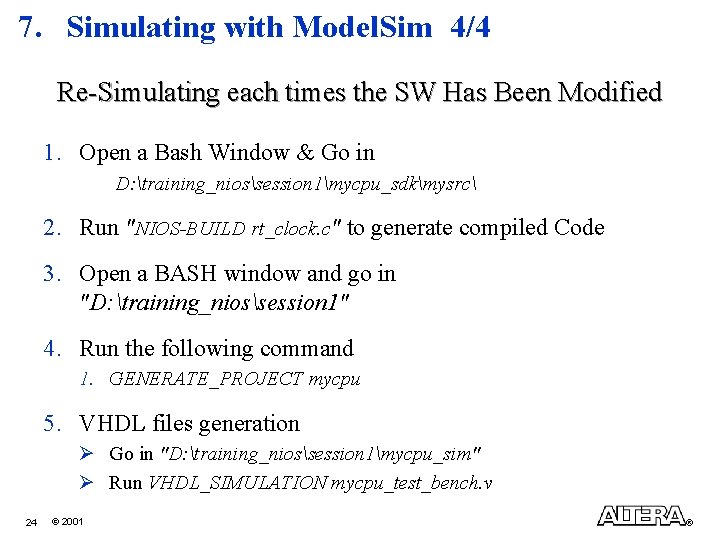
7. Simulating with Model. Sim 4/4 Re-Simulating each times the SW Has Been Modified 1. Open a Bash Window & Go in D: training_niossession 1mycpu_sdkmysrc 2. Run "NIOS-BUILD rt_clock. c" to generate compiled Code 3. Open a BASH window and go in "D: training_niossession 1" 4. Run the following command 1. GENERATE_PROJECT mycpu 5. VHDL files generation Ø Go in "D: training_niossession 1mycpu_sim" Ø Run VHDL_SIMULATION mycpu_test_bench. v 24 © 2001 ®
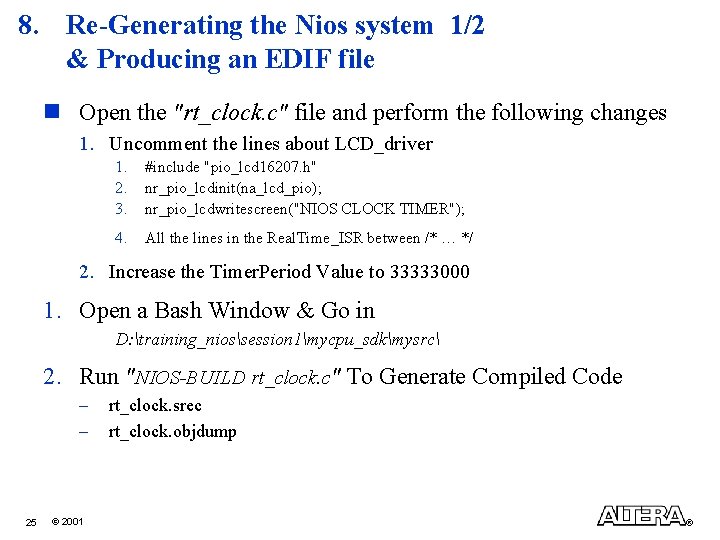
8. Re-Generating the Nios system 1/2 & Producing an EDIF file n Open the "rt_clock. c" file and perform the following changes 1. Uncomment the lines about LCD_driver 1. 2. 3. #include "pio_lcd 16207. h" nr_pio_lcdinit(na_lcd_pio); nr_pio_lcdwritescreen("NIOS CLOCK TIMER"); 4. All the lines in the Real. Time_ISR between /* … */ 2. Increase the Timer. Period Value to 33333000 1. Open a Bash Window & Go in D: training_niossession 1mycpu_sdkmysrc 2. Run "NIOS-BUILD rt_clock. c" To Generate Compiled Code – – 25 © 2001 rt_clock. srec rt_clock. objdump ®
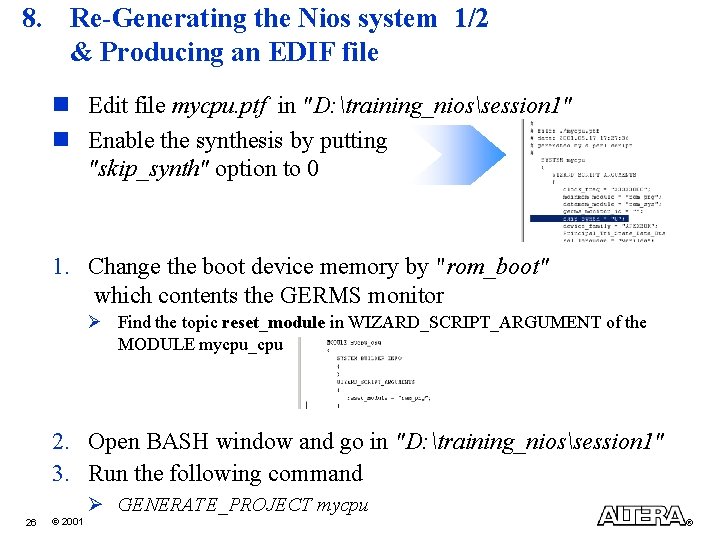
8. Re-Generating the Nios system 1/2 & Producing an EDIF file n Edit file mycpu. ptf in "D: training_niossession 1" n Enable the synthesis by putting "skip_synth" option to 0 1. Change the boot device memory by "rom_boot" which contents the GERMS monitor Ø Find the topic reset_module in WIZARD_SCRIPT_ARGUMENT of the MODULE mycpu_cpu 2. Open BASH window and go in "D: training_niossession 1" 3. Run the following command Ø GENERATE_PROJECT mycpu 26 © 2001 ®
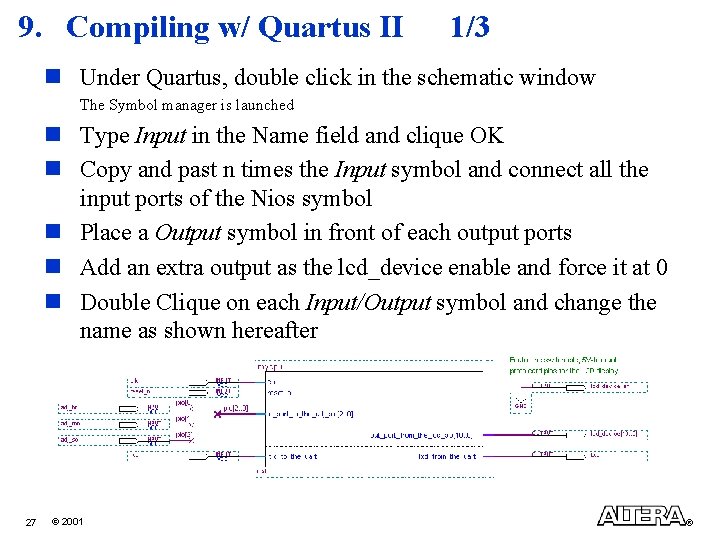
9. Compiling w/ Quartus II 1/3 n Under Quartus, double click in the schematic window The Symbol manager is launched n Type Input in the Name field and clique OK n Copy and past n times the Input symbol and connect all the input ports of the Nios symbol n Place a Output symbol in front of each output ports n Add an extra output as the lcd_device enable and force it at 0 n Double Clique on each Input/Output symbol and change the name as shown hereafter 27 © 2001 ®
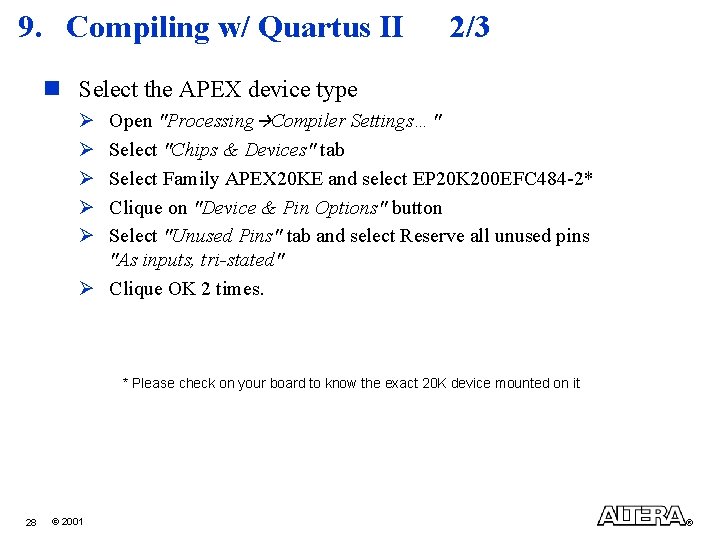
9. Compiling w/ Quartus II 2/3 n Select the APEX device type Ø Ø Ø Open "Processing Compiler Settings…" Select "Chips & Devices" tab Select Family APEX 20 KE and select EP 20 K 200 EFC 484 -2* Clique on "Device & Pin Options" button Select "Unused Pins" tab and select Reserve all unused pins "As inputs, tri-stated" Ø Clique OK 2 times. * Please check on your board to know the exact 20 K device mounted on it 28 © 2001 ®
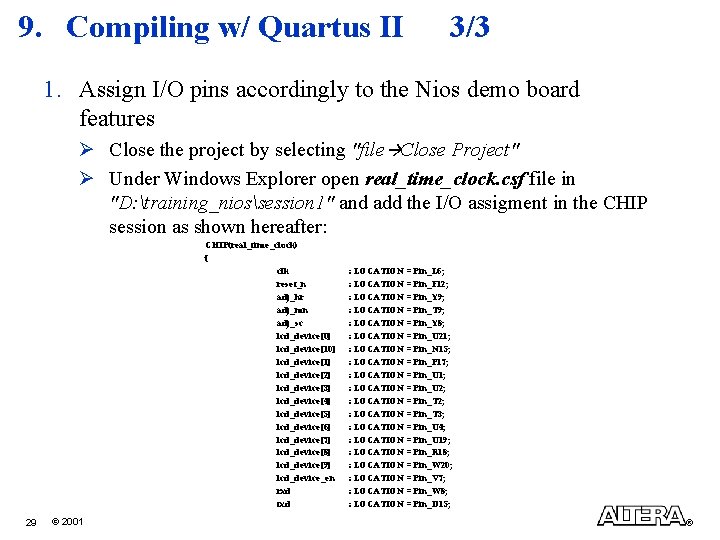
9. Compiling w/ Quartus II 3/3 1. Assign I/O pins accordingly to the Nios demo board features Ø Close the project by selecting "file Close Project" Ø Under Windows Explorer open real_time_clock. csf file in "D: training_niossession 1" and add the I/O assigment in the CHIP session as shown hereafter: CHIP(real_time_clock) { clk reset_n adj_hr adj_mn adj_sc lcd_device[0] lcd_device[1] lcd_device[2] lcd_device[3] lcd_device[4] lcd_device[5] lcd_device[6] lcd_device[7] lcd_device[8] lcd_device[9] lcd_device_en rxd txd 29 © 2001 : LOCATION = Pin_L 6; : LOCATION = Pin_F 12; : LOCATION = Pin_Y 9; : LOCATION = Pin_T 9; : LOCATION = Pin_Y 8; : LOCATION = Pin_U 21; : LOCATION = Pin_N 15; : LOCATION = Pin_P 17; : LOCATION = Pin_U 1; : LOCATION = Pin_U 2; : LOCATION = Pin_T 3; : LOCATION = Pin_U 4; : LOCATION = Pin_U 19; : LOCATION = Pin_R 18; : LOCATION = Pin_W 20; : LOCATION = Pin_V 7; : LOCATION = Pin_W 8; : LOCATION = Pin_D 15; ®
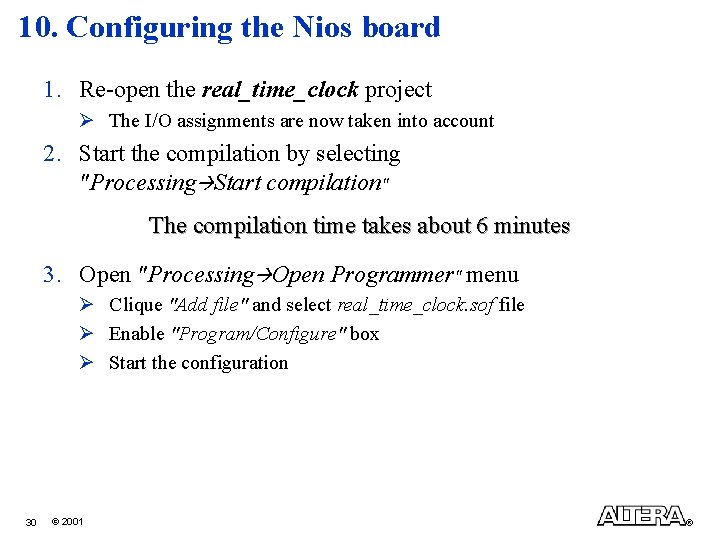
10. Configuring the Nios board 1. Re-open the real_time_clock project Ø The I/O assignments are now taken into account 2. Start the compilation by selecting "Processing Start compilation" The compilation time takes about 6 minutes 3. Open "Processing Open Programmer" menu Ø Clique "Add file" and select real_time_clock. sof file Ø Enable "Program/Configure" box Ø Start the configuration 30 © 2001 ®
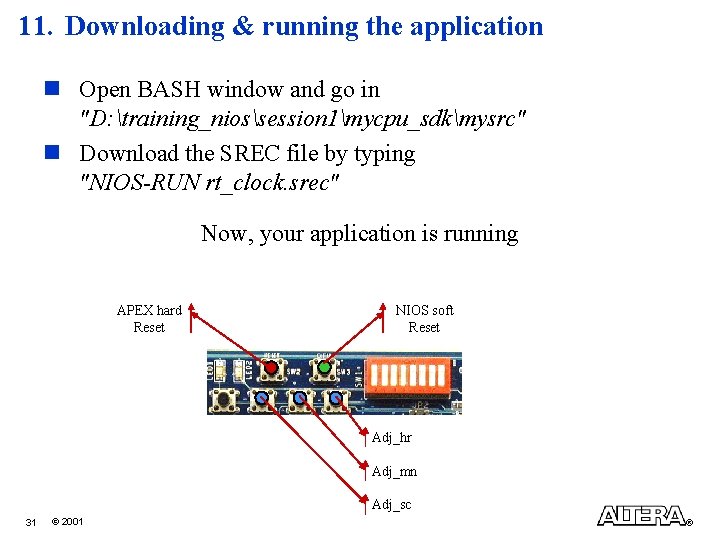
11. Downloading & running the application n Open BASH window and go in "D: training_niossession 1mycpu_sdkmysrc" n Download the SREC file by typing "NIOS-RUN rt_clock. srec" Now, your application is running APEX hard Reset NIOS soft Reset Adj_hr Adj_mn Adj_sc 31 © 2001 ®
12. Adding feature in the C application n Open the file rt_clock. c n Add the adj_pio ISR in order to manage the update of • • • Hours, Minutes, Seconds 1. Open a Bash Window & Go in D: training_niossession 1mycpu_sdkmysrc 2. Run "NIOS-BUILD rt_clock. c" To Generate Compiled Code 3. Reset the Nios system in order to go back in the GERMS monitor 4. Download the srec file by typing "NIOS-RUN rt_clock. srec" 32 © 2001 ®
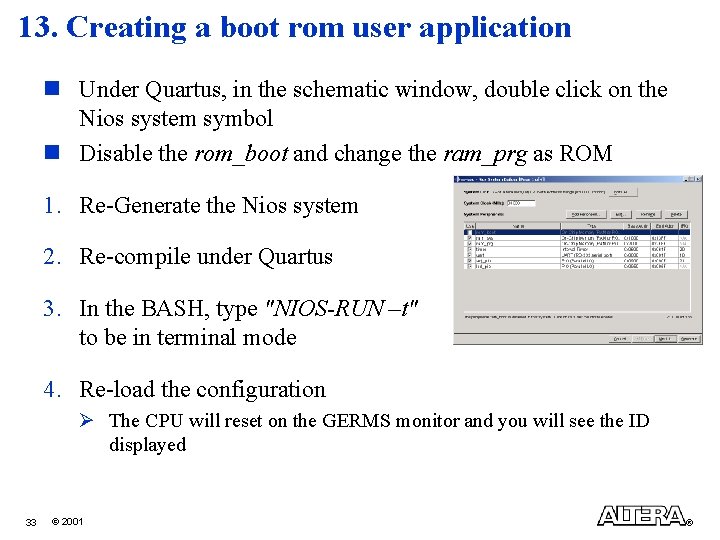
13. Creating a boot rom user application n Under Quartus, in the schematic window, double click on the Nios system symbol n Disable the rom_boot and change the ram_prg as ROM 1. Re-Generate the Nios system 2. Re-compile under Quartus 3. In the BASH, type "NIOS-RUN –t" to be in terminal mode 4. Re-load the configuration Ø The CPU will reset on the GERMS monitor and you will see the ID displayed 33 © 2001 ®