
Ninja Cabling 2 Learn Cabling in 30 Minutes

Ninja Cabling 2: Learn Cabling in 30 Minutes Brian K. Martin Mechanical Engineer / Lead Application Engineer for PTC Products SGT Inc. supporting NASA Goddard Space Flight Center Wednesday June 12, 2013 PTC Live Global - Anaheim, CA

E L B I Learn Creo Cabling “Only the impossible is S S O doing. ” P inworth half an hour? IM -Akong Rinpoche
What Will We Discuss? Agenda • Key Takeaways • Things I Cannot Teach in 30 Minutes • Learning Resources • Cabling Terminology • Logical References Overview <Ed. Note: This section will be updated> • Routing a Harness in 8 Easy Steps • Modifying a Harness <Ed. Note: This section will be updated> • Questions 3
Key Takeaways What will you gain from this presentation? • Learn the 8 easy steps to Ninja Cabling • Create robust cabling assemblies on your own • Understand cabling terminology • Build confidence in using Creo Cabling • Become more valuable and marketable instantly 4
Things to Know Before You Start* * or… things I can’t teach in 30 minutes! • Large assembly management techniques – Simplified Representations – Skeleton Modeling • Shared geometry tools – Copy Geometry – Shrinkwraps • Creation and manipulation of datum features – Coordinate Systems and Points are especially important • Basic Creo modeling skills – Creation of sketches – Controlling references to achieve design flexibility 5
Learning Resources Where can I find additional information, training, and support? • PTC University – Concepts, Videos, Exercises – http: //www. ptc. com/training/elearning/ • PTC Community – Direct Support From Peers & Subject Matter Experts – http: //communities. ptc. com/index. jspa – http: //communities. ptc. com/community/creo/piping-cabling-schematics • Learning Exchange – Expert Videos, Tips and Tricks – http: //learningexchange. ptc. com/ • Learning Connector – Access to Creo Help Files, Links to PTC University • Best Practice Academy – Learn Why To Use Certain Tools in Various Circumstances 6

Start The Timer NOW 30 Minutes Starts
Cabling Terminology The boring stuff you need to understand before we can begin. 8

Cabling Terminology Common terms used in Creo Cabling… • Cable Assembly / Harness • Connector • Pin • Entry Port • Wire • Cable • Spool • Network • Location • Logical Reference 9

Cabling Terminology Cable Assembly Self-contained assembly of wires, cables, connectors, and related items. Harness Creo part containing only wires and cables (no connectors or other items) Simple Cable Assembly Complex Cable Assembly 10

Cabling Terminology Connector Any device used as an interface to a harness. • Found at harness break points and ends • Contain one or more pins Physical points of electrical contact in a connector • Can be modeled (not required) • Attach to wire conductors at Entry Ports 11
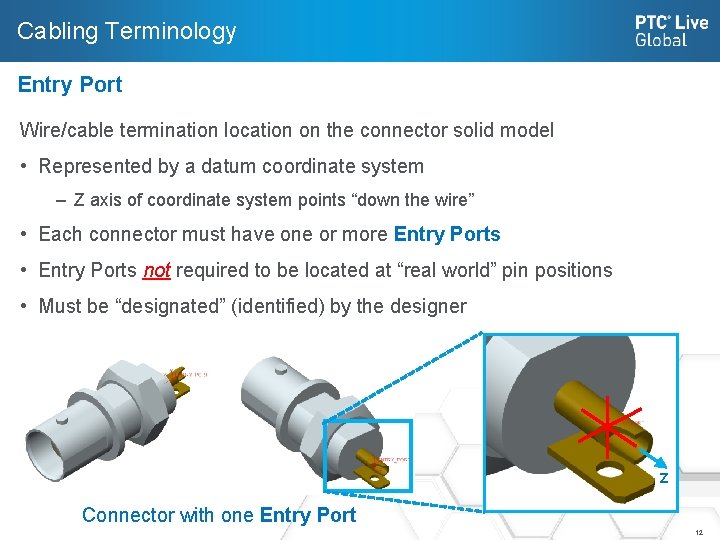
Cabling Terminology Entry Port Wire/cable termination location on the connector solid model • Represented by a datum coordinate system – Z axis of coordinate system points “down the wire” • Each connector must have one or more Entry Ports • Entry Ports not required to be located at “real world” pin positions • Must be “designated” (identified) by the designer Z Connector with one Entry Port 12

Cabling Terminology Entry Port Variations Entry Ports at Each Pin Individual Wires Connector Model Single Entry Port Bundle of Wires 13

Cabling Terminology Wire One individual electrical conductor • Characteristics: – Numerous materials, colors, and construction – Electrical properties & service rating vary Stranded Cable Solid Two or more electrical conductors bundled into a single element • Characteristics: – Numerous materials, colors, and construction – Electrical properties & service rating vary – Variations: Twisted Pairs, Shielded/Unshielded, Flat/Ribbon Twisted Pairs Multi-Conductor Flat/Ribbon 14
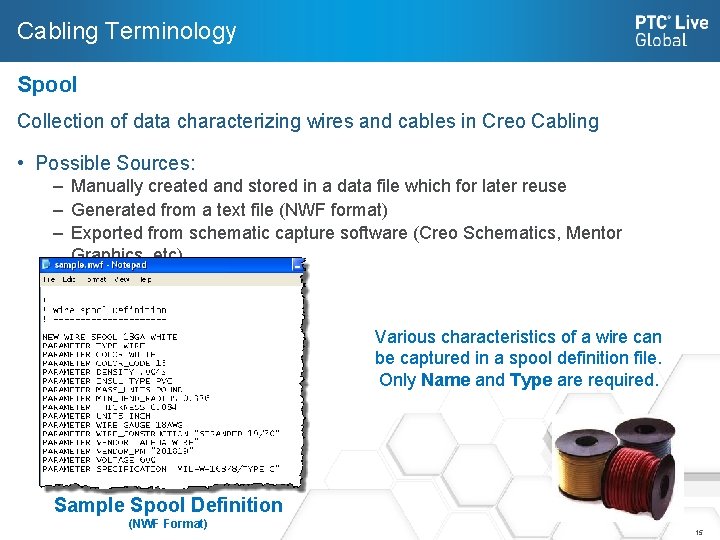
Cabling Terminology Spool Collection of data characterizing wires and cables in Creo Cabling • Possible Sources: – Manually created and stored in a data file which for later reuse – Generated from a text file (NWF format) – Exported from schematic capture software (Creo Schematics, Mentor Graphics, etc) Various characteristics of a wire can be captured in a spool definition file. Only Name and Type are required. Sample Spool Definition (NWF Format) 15

Cabling Terminology Network Pre-determined path for wires and cables to follow between connectors • Used by Creo Cabling for automatic harness routing • Define using sketches (Ninja Cabling Style) • Apply location points to sketch to build Network Foot Paths Sketched Paths Network Paths 16
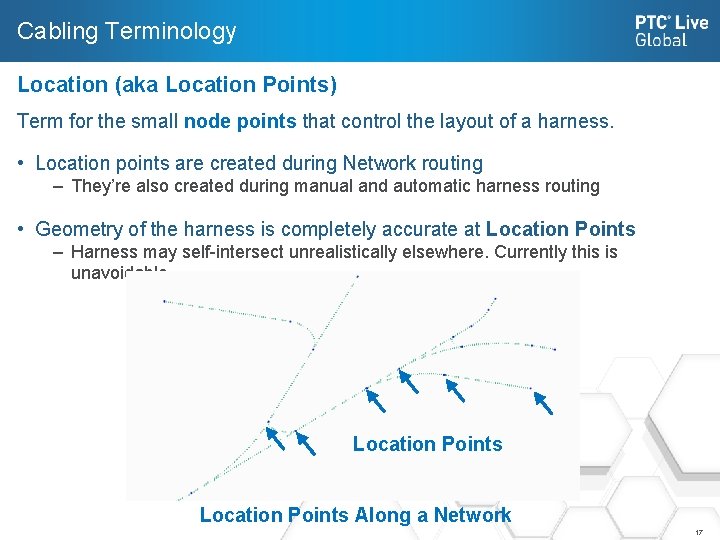
Cabling Terminology Location (aka Location Points) Term for the small node points that control the layout of a harness. • Location points are created during Network routing – They’re also created during manual and automatic harness routing • Geometry of the harness is completely accurate at Location Points – Harness may self-intersect unrealistically elsewhere. Currently this is unavoidable. Location Points Along a Network 17
Cabling Terminology Logical Reference Data file used as a source of “intelligent” information about your harness: • Spool Definition for Wires & Cables • Connector Name, Pin, and Entry Port Information • Wire/Cable Names • Wire/Cable Attachments (which electrical connectors they link to) – Also called “From/To Connections” 18
Logical References What is it, why do I need it, and how do I get it? 19
Logical Reference Discussion Placeholder Slide This is a placeholder slide. During the live presentation, I discussed Logical References. I need to document the material presented and expand on it for the ‘home’ audience. This section will be updated. 20

Ninja Cabling Procedure …or how to route any harness in 8 easy steps. 21

Overview of Procedure 8 Steps to Routing Any Harness 1. Create a cabling assembly. 2. Sketch cable pathways. 3. Create harness part. 4. Create network. 5. Load logical reference data. 6. Create spools. 7. Designate connectors. 8. Create and autoroute conductors. To Modify: • Update design and/or logical reference data and regenerate 22
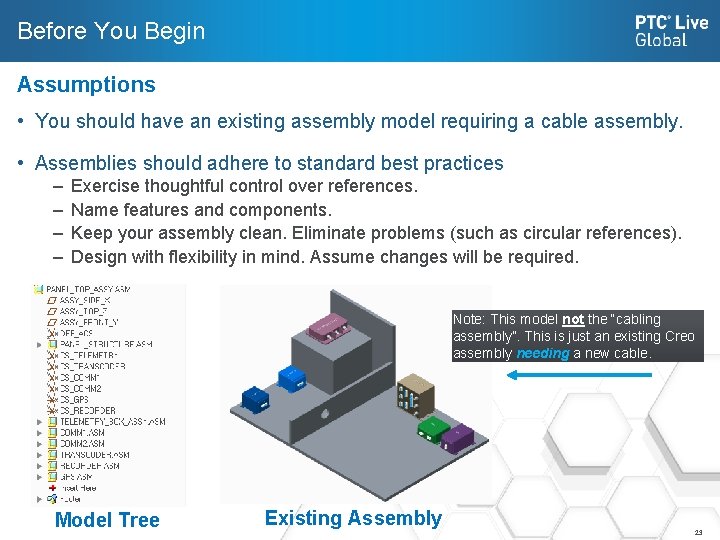
Before You Begin Assumptions • You should have an existing assembly model requiring a cable assembly. • Assemblies should adhere to standard best practices – – Exercise thoughtful control over references. Name features and components. Keep your assembly clean. Eliminate problems (such as circular references). Design with flexibility in mind. Assume changes will be required. Note: This model not the “cabling assembly”. This is just an existing Creo assembly needing a new cable. Model Tree Existing Assembly 23

Create Cabling Assembly What is it… and what goes there? • The cabling assembly will eventually contain all connectors, wires, cables, and other related items. At this stage, it should be blank. • Begin a new skeleton within the cabling assembly which will: – Contain coordinate systems for connectors (beyond the scope of this presentation) – Contain sketched pathways for your network (next step). Note: This is the cabling assembly. There’s nothing here yet except a skeleton. Blank Cabling Assembly 24

Cabling Assembly Skeleton Why use a skeleton? The cabling assembly skeleton provides a way to group and control the references which will ultimately drive your cabling assembly. The skeleton should contain: • Coordinate systems to place all connectors. – This will be a hot topic for debate. For now, trust me. – Name your CSYS according to the reference designator they control. • Reference datums (walls, holes, etc. ) • Sketched pathways for your cable assembly – This will become the basis of your network. Model Tree of Skeleton with Named CSYS 25

Final Prep for the Cabling Assembly Add Connectors to the Cabling Assembly Using coordinate systems created in the cabling skeleton, place connectors into the cabling assembly. • Most Common Mistake: Not paying attention to which assembly is active! • Coordinate systems for connector placement go in the Skeleton • Connector models themselves go in the Cabling Assembly • If you make a mistake and place items in the wrong location, go back and fix it! 26

Sketch Cable Pathways Simple sketches will drive the cable assembly. • The goal is to draw a pathway to each connector • Keep sketches simple when possible • Keep lines tangent in corners and bends • Take advantage of symmetry, equivalent dimensions and radii • The bend radius of the sketches will affect the bend radii of the harness. • Anticipate future changes. Strive for design flexibility. Remember These? 28

Sketch Cable Pathways Tips • Sketches go inside the Skeleton only (most common error for new users) • Make new datums (planes, etc) as required for sketches. These also go in the Skeleton. • You can sketch in the any orientation that makes sense for your design Before Sketching Pathways After Sketching Pathways 29

Create the Harness Part Easiest step EVER • Switch into the Creo Cabling application (icon on Applications tab) • Create and name a new harness part (icon shown below) • Harness will automatically add itself to the cable assembly and activate Create Harness Icon Harness Part Added and Activated 30
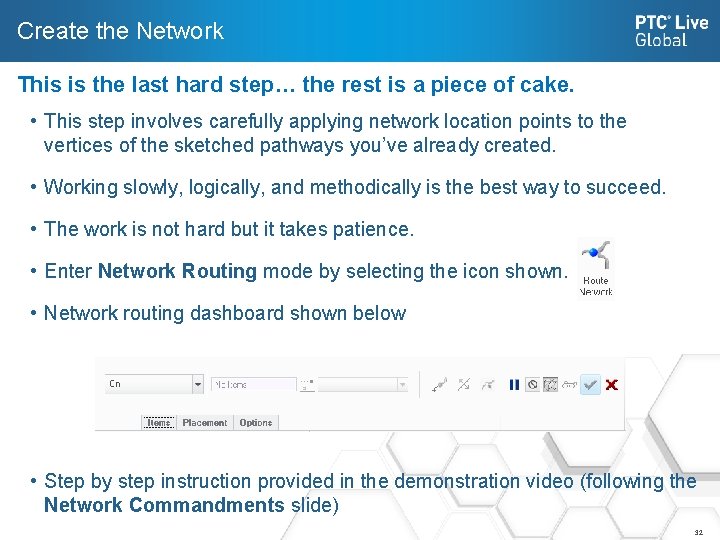
Create the Network This is the last hard step… the rest is a piece of cake. • This step involves carefully applying network location points to the vertices of the sketched pathways you’ve already created. • Working slowly, logically, and methodically is the best way to succeed. • The work is not hard but it takes patience. • Enter Network Routing mode by selecting the icon shown. • Network routing dashboard shown below • Step by step instruction provided in the demonstration video (following the Network Commandments slide) 32
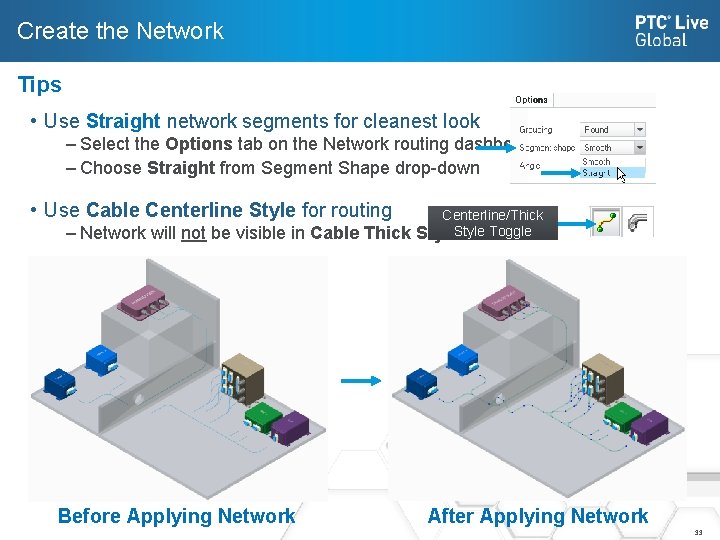
Create the Network Tips • Use Straight network segments for cleanest look – Select the Options tab on the Network routing dashboard – Choose Straight from Segment Shape drop-down • Use Cable Centerline Style for routing – Network will not be visible in Cable Thick Before Applying Network Centerline/Thick Style Toggle After Applying Network 33
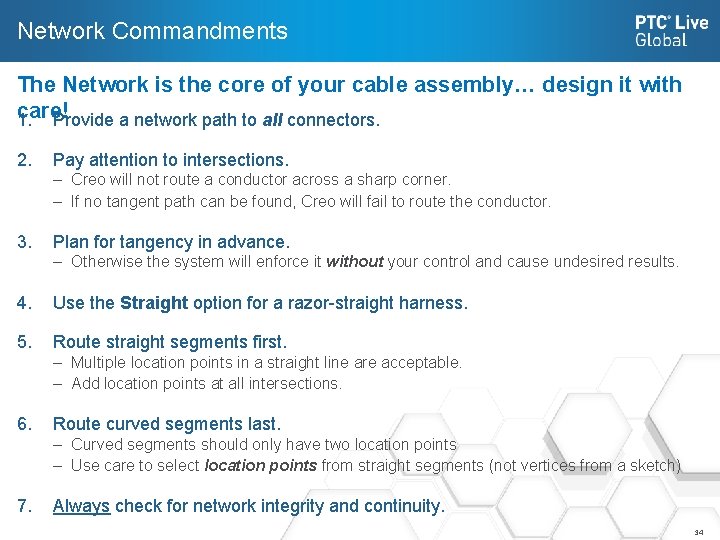
Network Commandments The Network is the core of your cable assembly… design it with care! 1. Provide a network path to all connectors. 2. Pay attention to intersections. – Creo will not route a conductor across a sharp corner. – If no tangent path can be found, Creo will fail to route the conductor. 3. Plan for tangency in advance. – Otherwise the system will enforce it without your control and cause undesired results. 4. Use the Straight option for a razor-straight harness. 5. Route straight segments first. – Multiple location points in a straight line are acceptable. – Add location points at all intersections. 6. Route curved segments last. – Curved segments should only have two location points – Use care to select location points from straight segments (not vertices from a sketch) 7. Always check for network integrity and continuity. 34
Work Meticulously Do. And Not. Above Skip Around All… Work Logically Go In Order (See what we did there? While telling you not to skip around, we skipped around… it’s supposed to be funny. Nevermind. )
Network Troubleshooting Always check your network before proceeding. Discuss network diagnostic tools • Another placeholder. I will update this slide. 37
The Last 4 Steps… aka… the fun part! The last 4 steps to creating a cabling assembly are simple. The logical reference file does most of the tedious work: • Creating Spools • Designating Connectors • Creating and Naming Wires and Cables • Autorouting These steps are demonstrated in the final video (after the autorouting slide) 38
Load Logical Reference Data • Demonstrated Live. Will update with detailed slides. 39
Create Spools • Demonstrated Live. Will update with detailed slides. 40
Designate Connectors • Demonstrated Live. Will update with detailed slides. 41
Create and Autoroute Conductors • Demonstrated Live. Will update with detailed slides. 42

Making Modifications This is when you make that “cabling expert” at work look silly and it all pays off! 43
Modification of a Harness Placeholder. • Demonstration of how to modify/re-route. 44

Contact Information Brian K. Martin SGT Incorporated contracted to NASA Goddard Space Flight Center Greenbelt, MD 301. 286. 0059 (NASA Office) 443. 421. 2532 (Cell) Twitter: @Creo. Help Email: brian. k. martin@nasa. gov creohelppro@gmail. com Blog: http: //communities. ptc. com/blogs/the_zone Follow Me on PTC Community (Just look for Cocoa the Guinea Pig) & Check Out the BRAND NEW(ish) Piping, Cabling, & Schematics Section Cocoa
- Slides: 45