
NIDS with Snort and Snort Snarf By Muhammad

NIDS with Snort and Snort. Snarf By Muhammad Hasan Course : 60 -564 Instructor: Dr. A. K. Aggarwal Winter, 2006 60 -564 Presentation By Muhammad Hasan 1
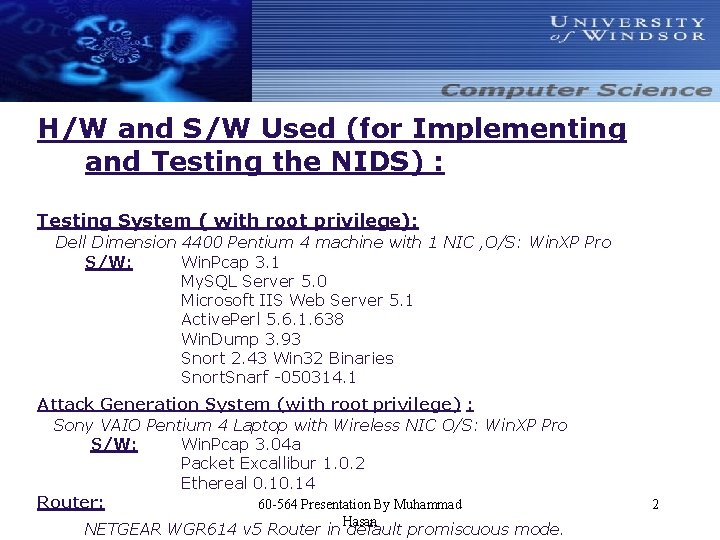
H/W and S/W Used (for Implementing and Testing the NIDS) : Testing System ( with root privilege): Dell Dimension 4400 Pentium 4 machine with 1 NIC , O/S: Win. XP Pro S/W: Win. Pcap 3. 1 My. SQL Server 5. 0 Microsoft IIS Web Server 5. 1 Active. Perl 5. 6. 1. 638 Win. Dump 3. 93 Snort 2. 43 Win 32 Binaries Snort. Snarf -050314. 1 Attack Generation System (with root privilege) : Sony VAIO Pentium 4 Laptop with Wireless NIC O/S: Win. XP Pro S/W: Win. Pcap 3. 04 a Packet Excallibur 1. 0. 2 Ethereal 0. 14 Router: 60 -564 Presentation By Muhammad Hasan NETGEAR WGR 614 v 5 Router in default promiscuous mode. 2
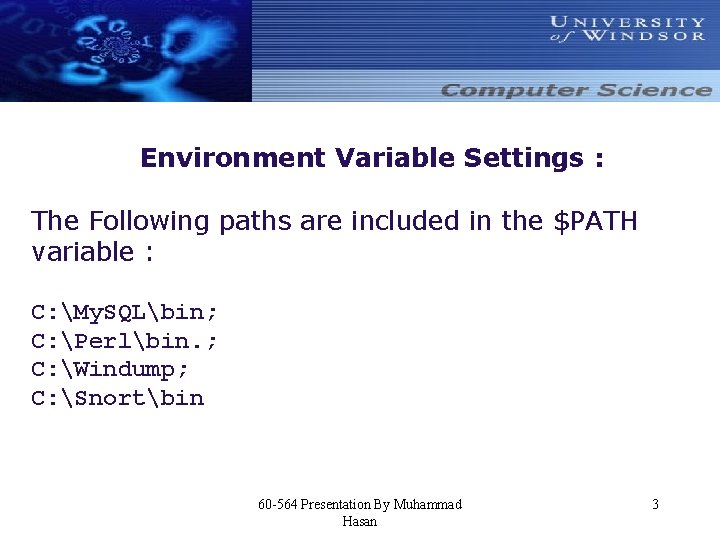
Environment Variable Settings : The Following paths are included in the $PATH variable : C: My. SQLbin; C: Perlbin. ; C: Windump; C: Snortbin 60 -564 Presentation By Muhammad Hasan 3
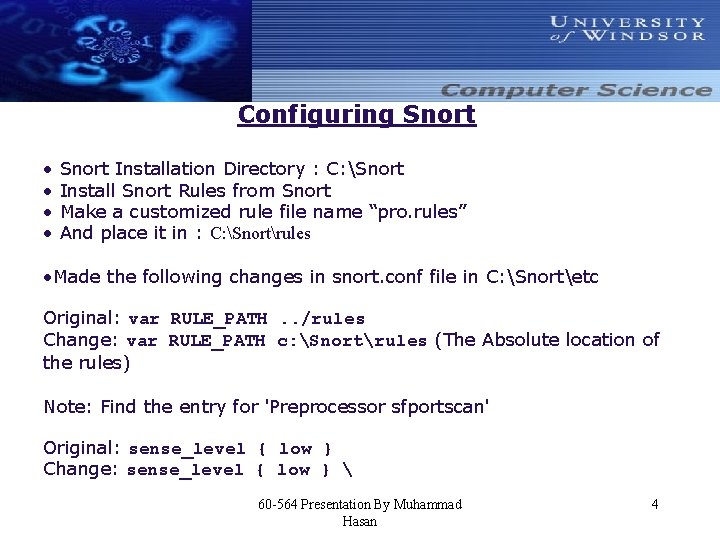
Configuring Snort • • Snort Installation Directory : C: Snort Install Snort Rules from Snort Make a customized rule file name “pro. rules” And place it in : C: Snortrules • Made the following changes in snort. conf file in C: Snortetc Original: var RULE_PATH. . /rules Change: var RULE_PATH c: Snortrules (The Absolute location of the rules) Note: Find the entry for 'Preprocessor sfportscan' Original: sense_level { low } Change: sense_level { low } 60 -564 Presentation By Muhammad Hasan 4

Configuring Snort (Cont. ) Just below the changed line above add: logfile { portscan. log } Note: Just below '# output log_tcpdump: tcpdump. log' insert this next line: output alert_fast: alert. ids Original: include classification. config Change: include c: Snortetcclassification. config 60 -564 Presentation By Muhammad Hasan 5
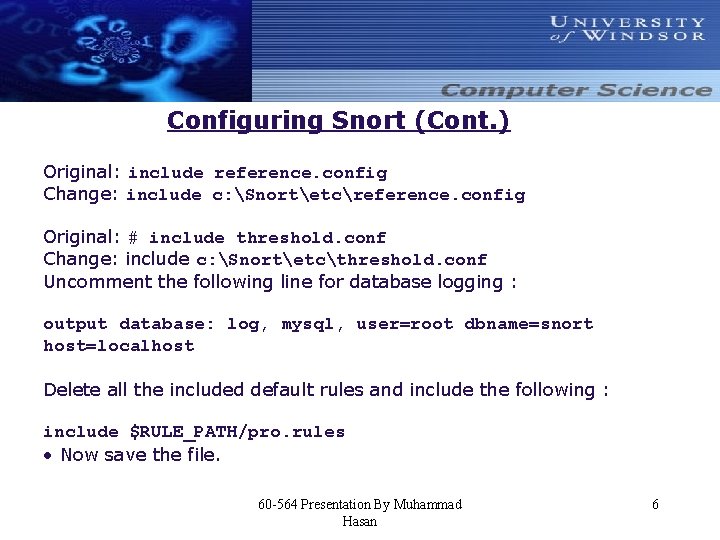
Configuring Snort (Cont. ) Original: include reference. config Change: include c: Snortetcreference. config Original: # include threshold. conf Change: include c: Snortetcthreshold. conf Uncomment the following line for database logging : output database: log, mysql, user=root dbname=snort host=localhost Delete all the included default rules and include the following : include $RULE_PATH/pro. rules • Now save the file. 60 -564 Presentation By Muhammad Hasan 6
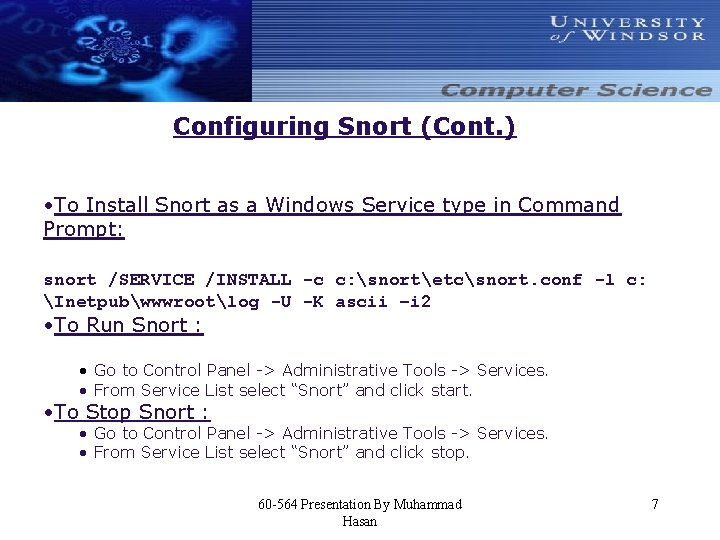
Configuring Snort (Cont. ) • To Install Snort as a Windows Service type in Command Prompt: snort /SERVICE /INSTALL -c c: snortetcsnort. conf -l c: Inetpubwwwrootlog -U -K ascii –i 2 • To Run Snort : • Go to Control Panel -> Administrative Tools -> Services. • From Service List select “Snort” and click start. • To Stop Snort : • Go to Control Panel -> Administrative Tools -> Services. • From Service List select “Snort” and click stop. 60 -564 Presentation By Muhammad Hasan 7
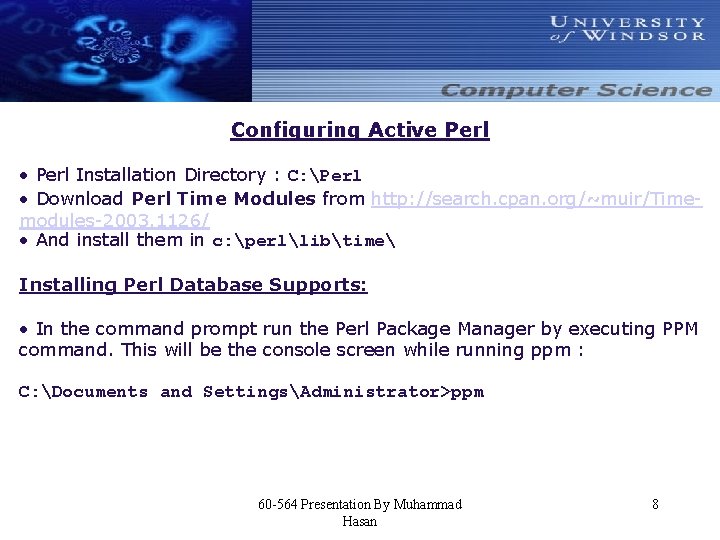
Configuring Active Perl • Perl Installation Directory : C: Perl • Download Perl Time Modules from http: //search. cpan. org/~muir/Timemodules-2003. 1126/ • And install them in c: perllibtime Installing Perl Database Supports: • In the command prompt run the Perl Package Manager by executing PPM command. This will be the console screen while running ppm : C: Documents and SettingsAdministrator>ppm 60 -564 Presentation By Muhammad Hasan 8
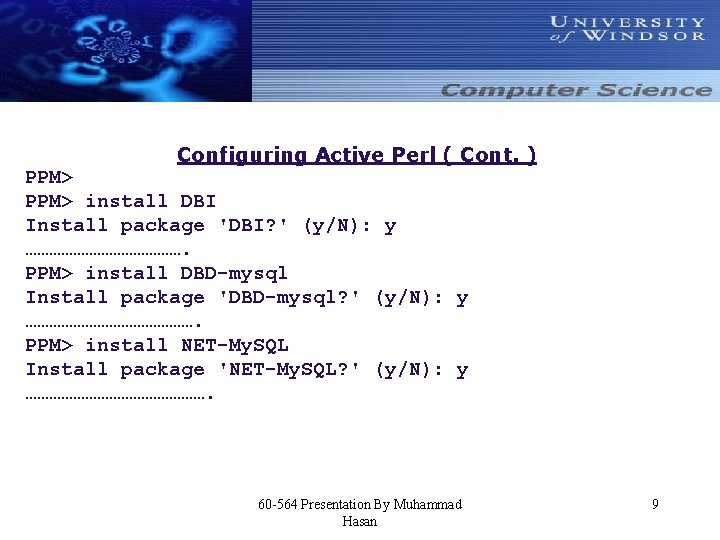
Configuring Active Perl ( Cont. ) PPM> install DBI Install package 'DBI? ' (y/N): y …………………. PPM> install DBD-mysql Install package 'DBD-mysql? ' (y/N): y …………………. PPM> install NET-My. SQL Install package 'NET-My. SQL? ' (y/N): y ……………………. 60 -564 Presentation By Muhammad Hasan 9
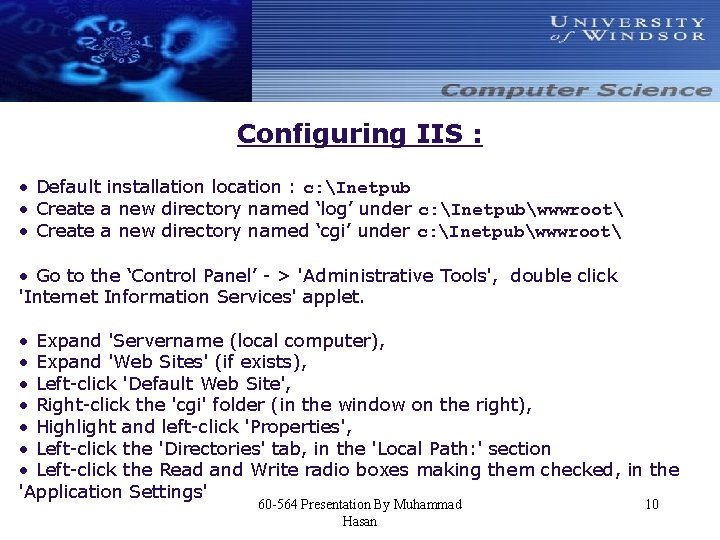
Configuring IIS : • Default installation location : c: Inetpub • Create a new directory named ‘log’ under c: Inetpubwwwroot • Create a new directory named ‘cgi’ under c: Inetpubwwwroot • Go to the ‘Control Panel’ - > 'Administrative Tools', double click 'Internet Information Services' applet. • Expand 'Servername (local computer), • Expand 'Web Sites' (if exists), • Left-click 'Default Web Site', • Right-click the 'cgi' folder (in the window on the right), • Highlight and left-click 'Properties', • Left-click the 'Directories' tab, in the 'Local Path: ' section • Left-click the Read and Write radio boxes making them checked, in the 'Application Settings' 60 -564 Presentation By Muhammad Hasan 10
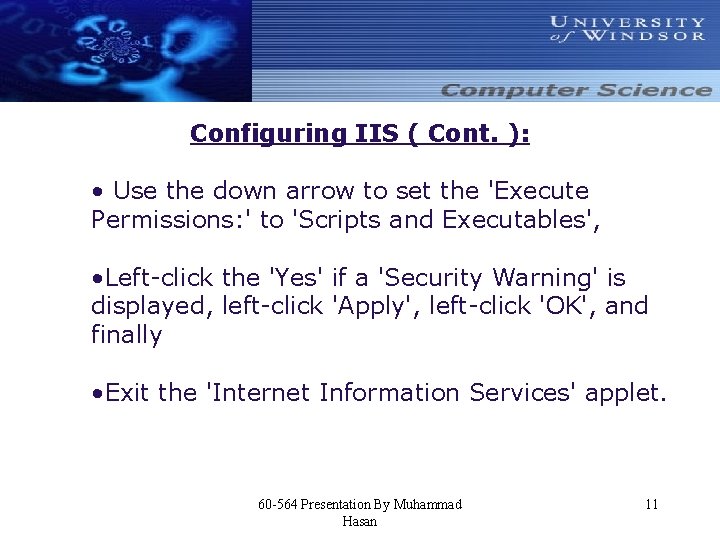
Configuring IIS ( Cont. ): • Use the down arrow to set the 'Execute Permissions: ' to 'Scripts and Executables', • Left-click the 'Yes' if a 'Security Warning' is displayed, left-click 'Apply', left-click 'OK', and finally • Exit the 'Internet Information Services' applet. 60 -564 Presentation By Muhammad Hasan 11
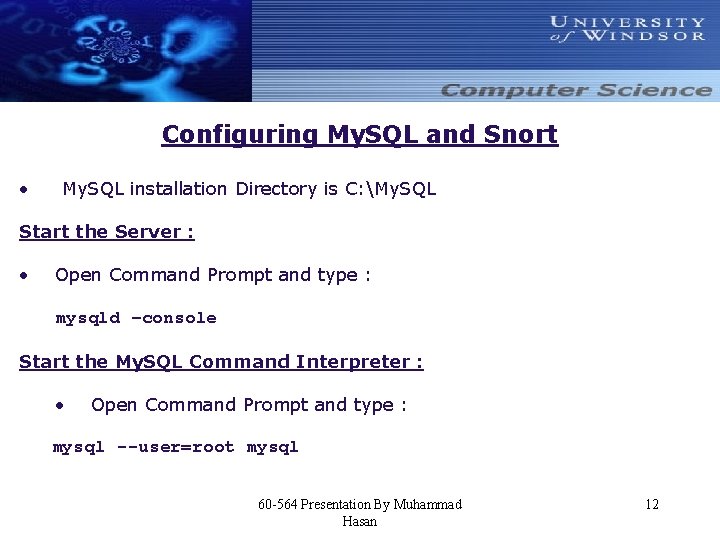
Configuring My. SQL and Snort • My. SQL installation Directory is C: My. SQL Start the Server : • Open Command Prompt and type : mysqld –console Start the My. SQL Command Interpreter : • Open Command Prompt and type : mysql --user=root mysql 60 -564 Presentation By Muhammad Hasan 12
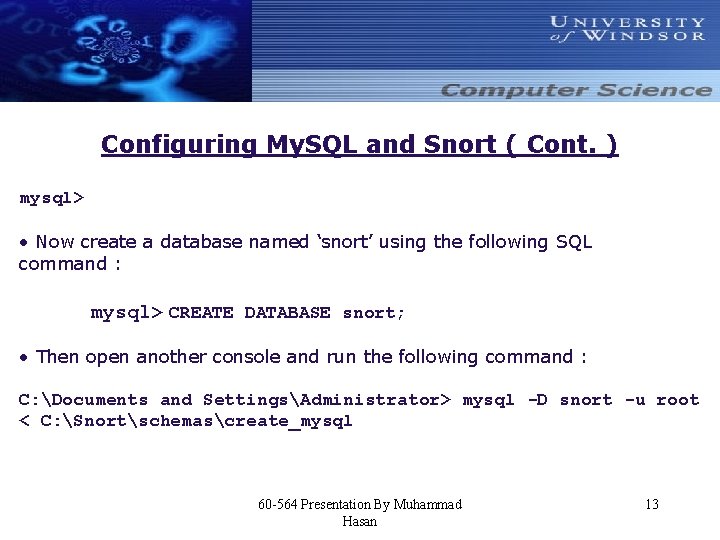
Configuring My. SQL and Snort ( Cont. ) mysql> • Now create a database named ‘snort’ using the following SQL command : mysql> CREATE DATABASE snort; • Then open another console and run the following command : C: Documents and SettingsAdministrator> mysql -D snort -u root < C: Snortschemascreate_mysql 60 -564 Presentation By Muhammad Hasan 13
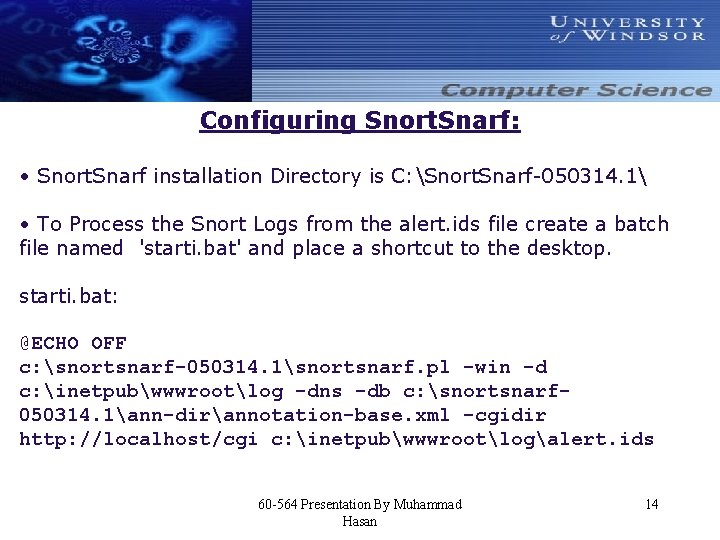
Configuring Snort. Snarf: • Snort. Snarf installation Directory is C: Snort. Snarf-050314. 1 • To Process the Snort Logs from the alert. ids file create a batch file named 'starti. bat' and place a shortcut to the desktop. starti. bat: @ECHO OFF c: snortsnarf-050314. 1snortsnarf. pl -win -d c: inetpubwwwrootlog -dns -db c: snortsnarf 050314. 1ann-dirannotation-base. xml -cgidir http: //localhost/cgi c: inetpubwwwrootlogalert. ids 60 -564 Presentation By Muhammad Hasan 14
Configuring Snort. Snarf ( Cont. ): To Process the Snort Logs from the mysql database create a batch file named : 'startdb. bat' and place a shortcut to the desktop. startdb. bat: @ECHO OFF c: snortsnarf-050314. 1snortsnarf. pl root: @snort@localhost -win -d c: inetpubwwwrootlog -dns -db c: snortsnarf-050314. 1ann-dirannotationbase. xml -cgidir http: //localhost/cgi 60 -564 Presentation By Muhammad Hasan 15
Preparing the Attack : • • Used Packet Excalibur Installation directory : C: Pack. Ex • Very Easy to Use Graphical Interface for packet generation. Constructed the packets according to snort signatures and rules for the 10 selected signatures. 10 crafted packets are then added to a script called ‘pro’ located in C: Pack. Exscripts • • • Load the script and then run it. 60 -564 Presentation By Muhammad Hasan 16
Testing the NIDS : Do the following steps sequentially : On the Testing Machine • Run the database server • Run Snort • Run Win. Dump as sniffer with the following command : windump –i 2 On the Attacking Machine • Run Ethereal to sniff • Initiate Attack from Packet Excallibur 60 -564 Presentation By Muhammad Hasan 17
Testing the NIDS ( Cont. ) : On the Testing Machine: • Run either ‘starti. bat’ if we want to generate html from the alert. ids file • Or Run ‘startdb. bat’ if we want to generate html from the database logging • Open a browser and at the addressbar type : http: //localhost/log/index. html 60 -564 Presentation By Muhammad Hasan 18

DEMONSTRATION 60 -564 Presentation By Muhammad Hasan 19
- Slides: 19