
Nextiva Desktop App Training What is the Nextiva
- Slides: 18
Nextiva Desktop App Training
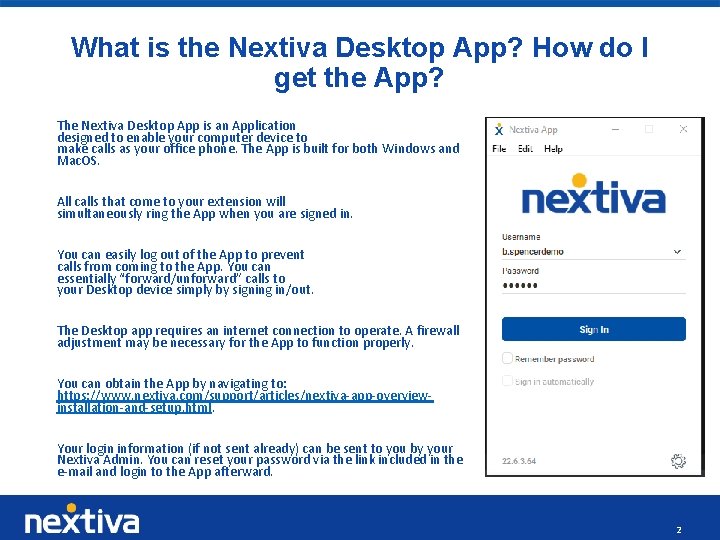
What is the Nextiva Desktop App? How do I get the App? The Nextiva Desktop App is an Application designed to enable your computer device to make calls as your office phone. The App is built for both Windows and Mac. OS. All calls that come to your extension will simultaneously ring the App when you are signed in. You can easily log out of the App to prevent calls from coming to the App. You can essentially “forward/unforward” calls to your Desktop device simply by signing in/out. The Desktop app requires an internet connection to operate. A firewall adjustment may be necessary for the App to function properly. You can obtain the App by navigating to: https: //www. nextiva. com/support/articles/nextiva-app-overviewinstallation-and-setup. html. Your login information (if not sent already) can be sent to you by your Nextiva Admin. You can reset your password via the link included in the e-mail and login to the App afterward. 2
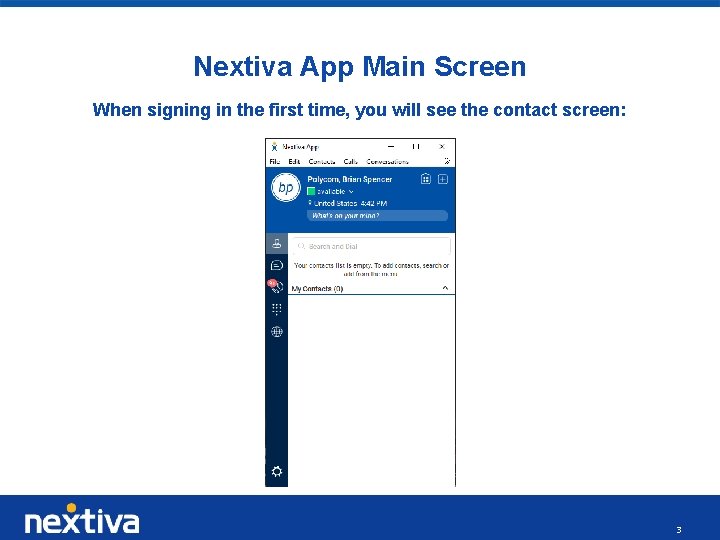
Nextiva App Main Screen When signing in the first time, you will see the contact screen: 3
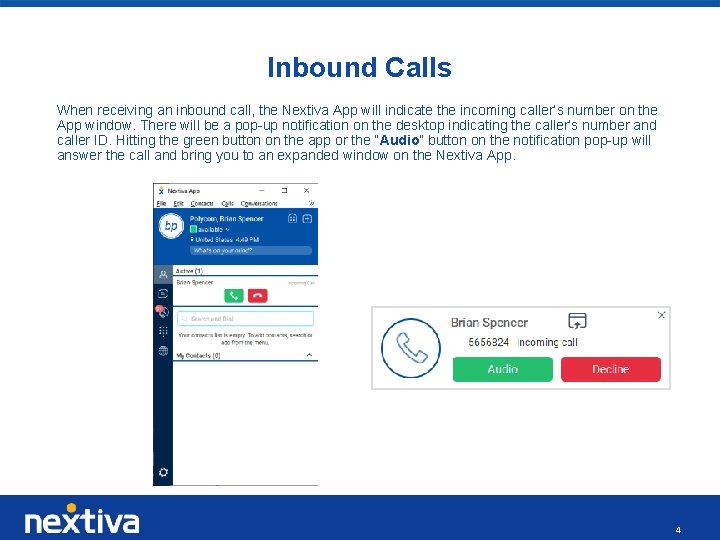
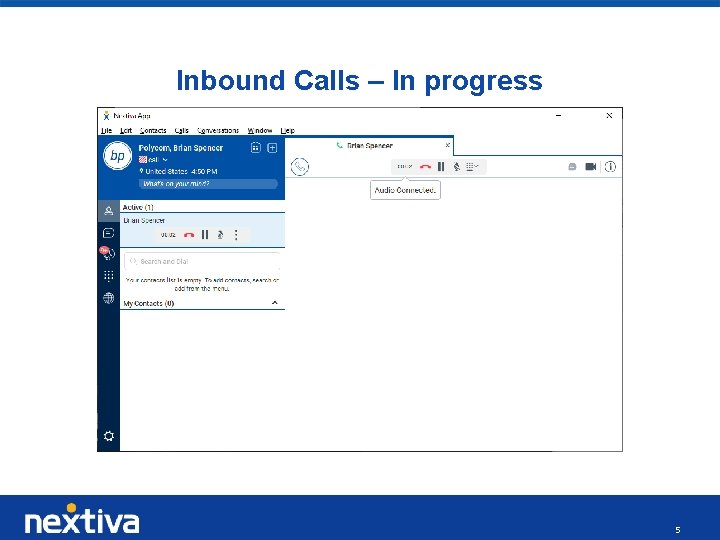
Inbound Calls When receiving an inbound call, the Nextiva App will indicate the incoming caller’s number on the App window. There will be a pop-up notification on the desktop indicating the caller’s number and caller ID. Hitting the green button on the app or the “Audio” button on the notification pop-up will answer the call and bring you to an expanded window on the Nextiva App. 4
Inbound Calls – In progress 5
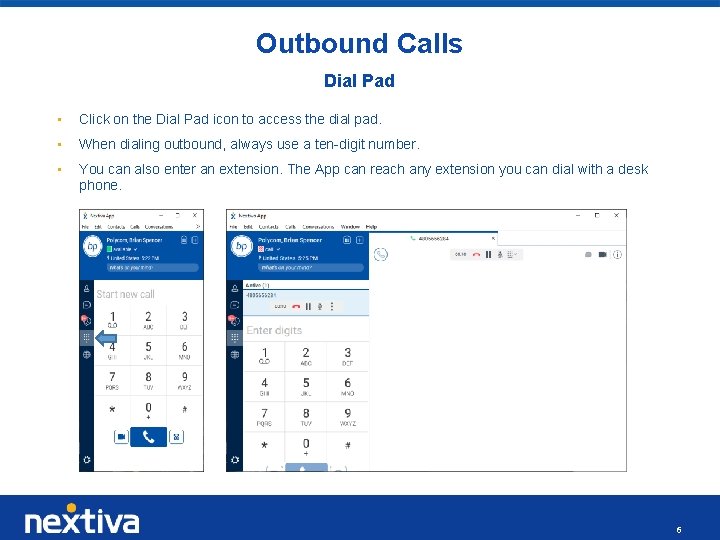
Outbound Calls Dial Pad • Click on the Dial Pad icon to access the dial pad. • When dialing outbound, always use a ten-digit number. • You can also enter an extension. The App can reach any extension you can dial with a desk phone. 6
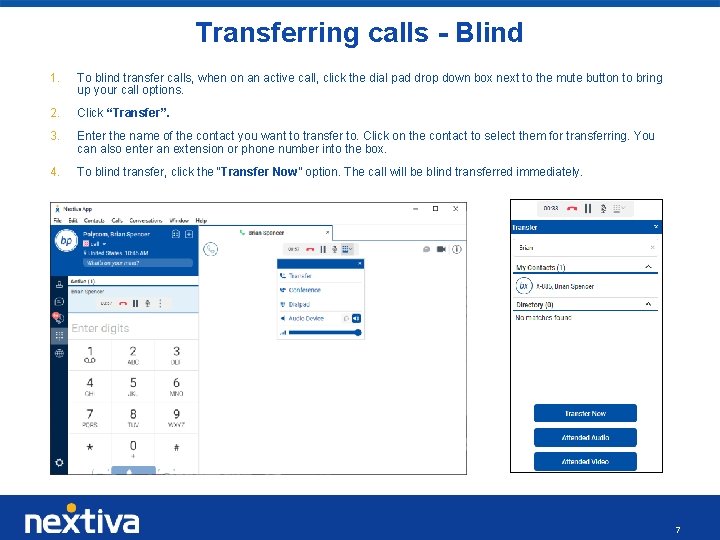
Transferring calls - Blind 1. To blind transfer calls, when on an active call, click the dial pad drop down box next to the mute button to bring up your call options. 2. Click “Transfer”. 3. Enter the name of the contact you want to transfer to. Click on the contact to select them for transferring. You can also enter an extension or phone number into the box. 4. To blind transfer, click the “Transfer Now” option. The call will be blind transferred immediately. 7
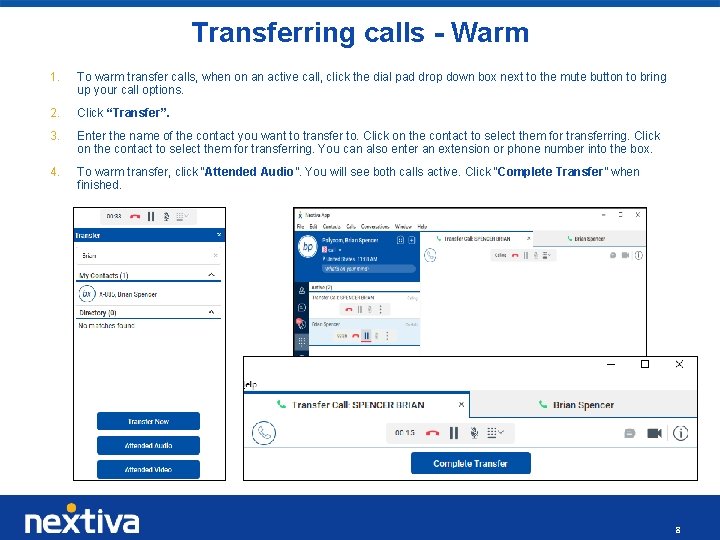
Transferring calls - Warm 1. To warm transfer calls, when on an active call, click the dial pad drop down box next to the mute button to bring up your call options. 2. Click “Transfer”. 3. Enter the name of the contact you want to transfer to. Click on the contact to select them for transferring. You can also enter an extension or phone number into the box. 4. To warm transfer, click “Attended Audio”. You will see both calls active. Click “Complete Transfer” when finished. 8
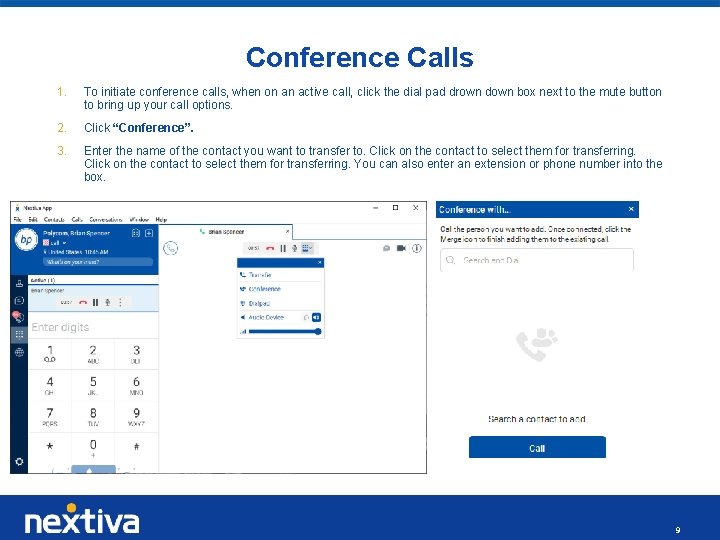
Conference Calls 1. To initiate conference calls, when on an active call, click the dial pad drown down box next to the mute button to bring up your call options. 2. Click “Conference”. 3. Enter the name of the contact you want to transfer to. Click on the contact to select them for transferring. You can also enter an extension or phone number into the box. 9
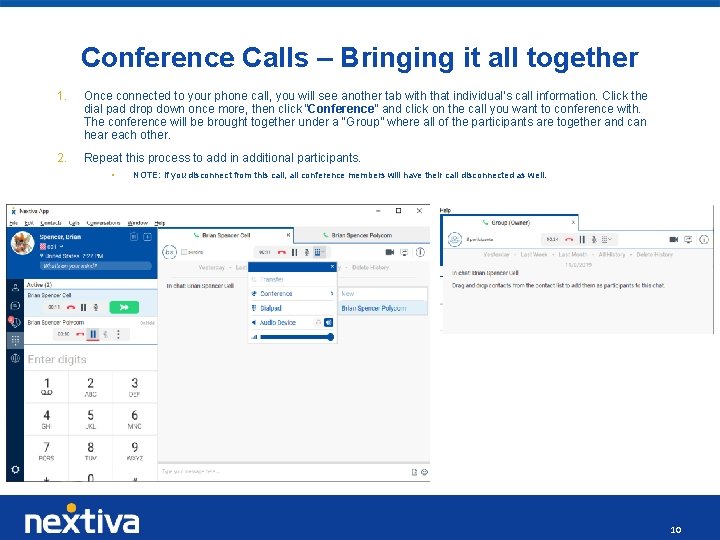
Conference Calls – Bringing it all together 1. Once connected to your phone call, you will see another tab with that individual’s call information. Click the dial pad drop down once more, then click “Conference” and click on the call you want to conference with. The conference will be brought together under a “Group” where all of the participants are together and can hear each other. 2. Repeat this process to add in additional participants. • NOTE: If you disconnect from this call, all conference members will have their call disconnected as well. 10
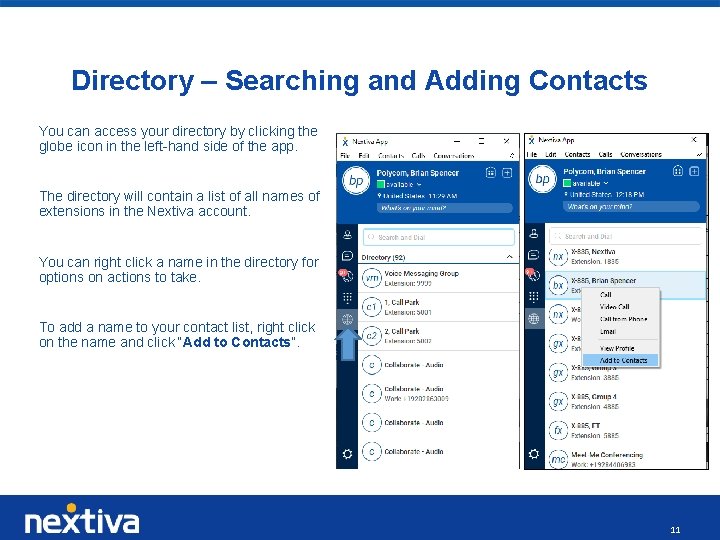
Directory – Searching and Adding Contacts You can access your directory by clicking the globe icon in the left-hand side of the app. The directory will contain a list of all names of extensions in the Nextiva account. You can right click a name in the directory for options on actions to take. To add a name to your contact list, right click on the name and click “Add to Contacts”. 11
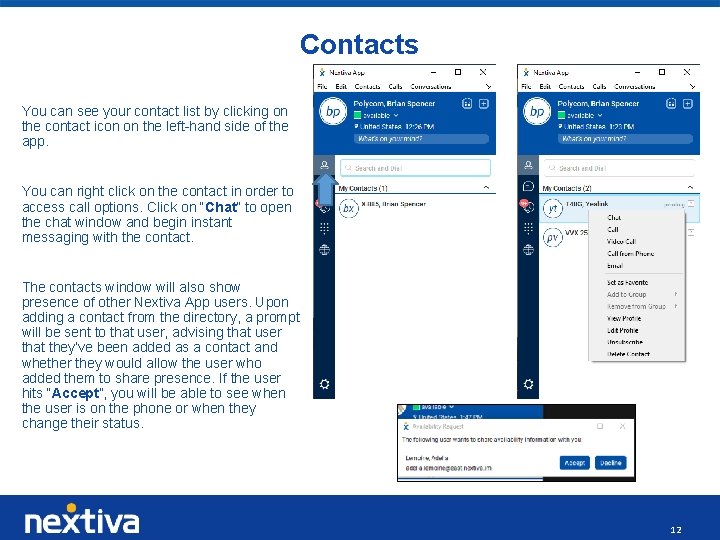
Contacts You can see your contact list by clicking on the contact icon on the left-hand side of the app. You can right click on the contact in order to access call options. Click on “Chat” to open the chat window and begin instant messaging with the contact. The contacts window will also show presence of other Nextiva App users. Upon adding a contact from the directory, a prompt will be sent to that user, advising that user that they’ve been added as a contact and whether they would allow the user who added them to share presence. If the user hits “Accept”, you will be able to see when the user is on the phone or when they change their status. 12
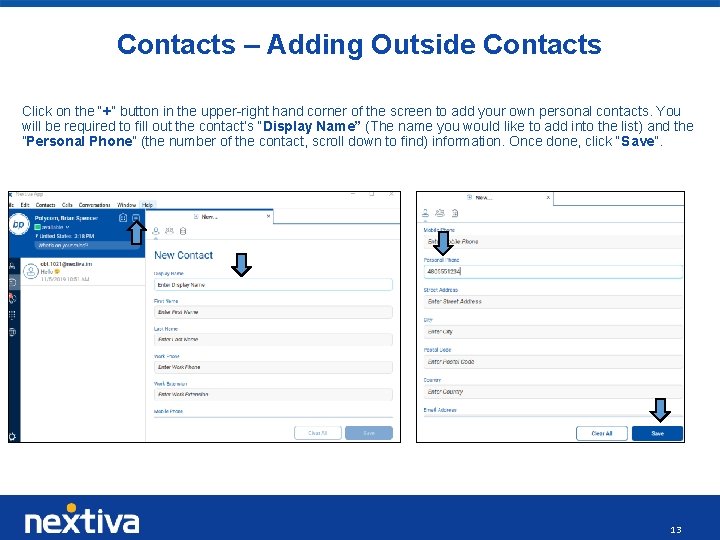
Contacts – Adding Outside Contacts Click on the “+” button in the upper-right hand corner of the screen to add your own personal contacts. You will be required to fill out the contact’s “Display Name” (The name you would like to add into the list) and the ”Personal Phone” (the number of the contact, scroll down to find) information. Once done, click “Save”. 13
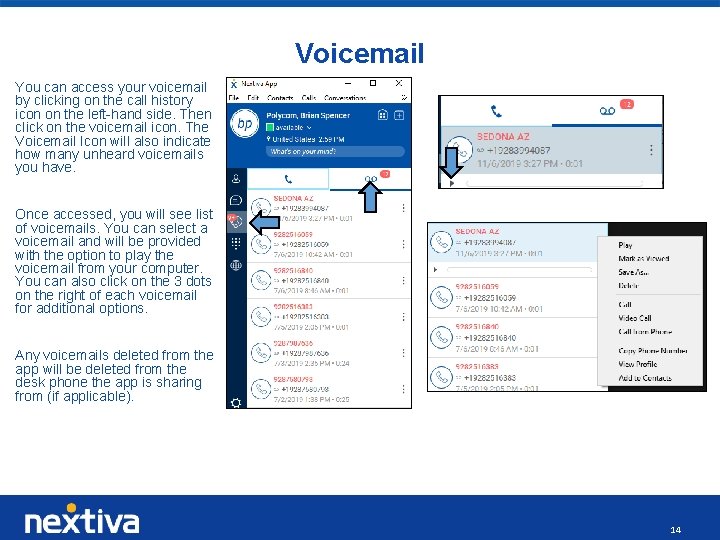
Voicemail You can access your voicemail by clicking on the call history icon on the left-hand side. Then click on the voicemail icon. The Voicemail Icon will also indicate how many unheard voicemails you have. Once accessed, you will see list of voicemails. You can select a voicemail and will be provided with the option to play the voicemail from your computer. You can also click on the 3 dots on the right of each voicemail for additional options. Any voicemails deleted from the app will be deleted from the desk phone the app is sharing from (if applicable). 14
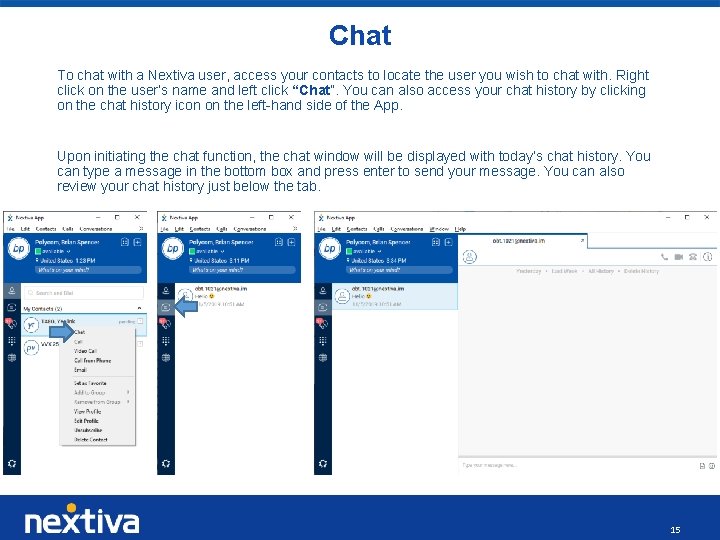
Chat To chat with a Nextiva user, access your contacts to locate the user you wish to chat with. Right click on the user’s name and left click “Chat”. You can also access your chat history by clicking on the chat history icon on the left-hand side of the App. Upon initiating the chat function, the chat window will be displayed with today’s chat history. You can type a message in the bottom box and press enter to send your message. You can also review your chat history just below the tab. 15
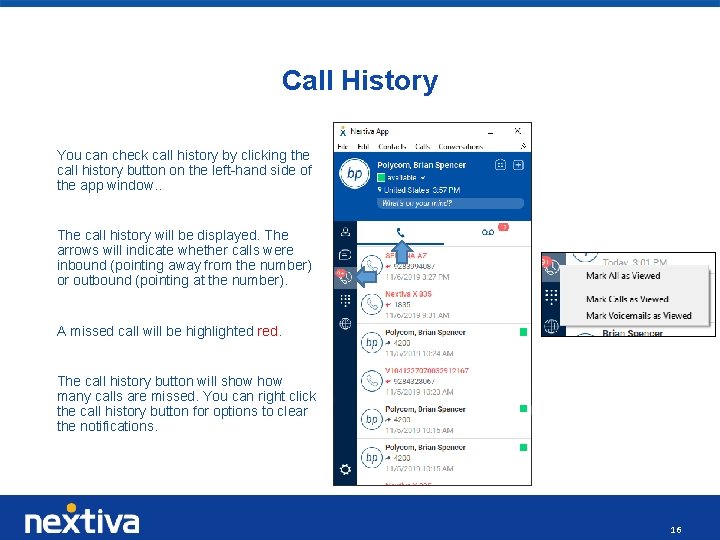
Call History You can check call history by clicking the call history button on the left-hand side of the app window. . The call history will be displayed. The arrows will indicate whether calls were inbound (pointing away from the number) or outbound (pointing at the number). A missed call will be highlighted red. The call history button will show many calls are missed. You can right click the call history button for options to clear the notifications. 16
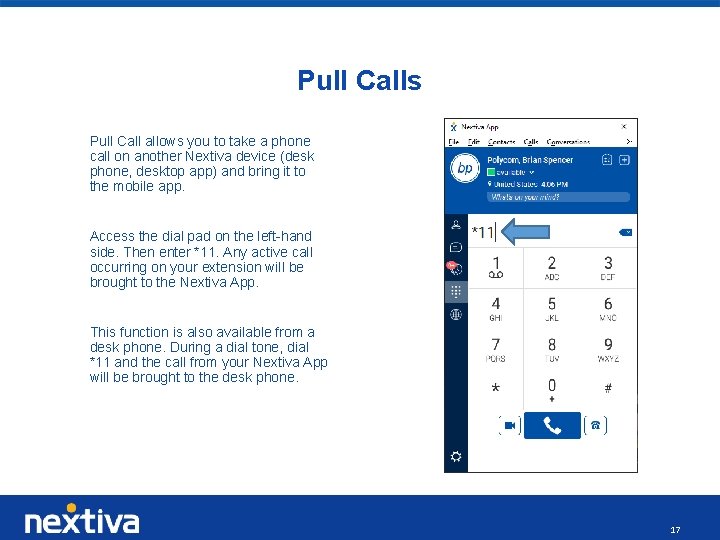
Pull Calls Pull Call allows you to take a phone call on another Nextiva device (desk phone, desktop app) and bring it to the mobile app. Access the dial pad on the left-hand side. Then enter *11. Any active call occurring on your extension will be brought to the Nextiva App. This function is also available from a desk phone. During a dial tone, dial *11 and the call from your Nextiva App will be brought to the desk phone. 17
Any questions? 18