
New Student Dashboard Overview Student Dashboard Your dashboard
New Student Dashboard Overview
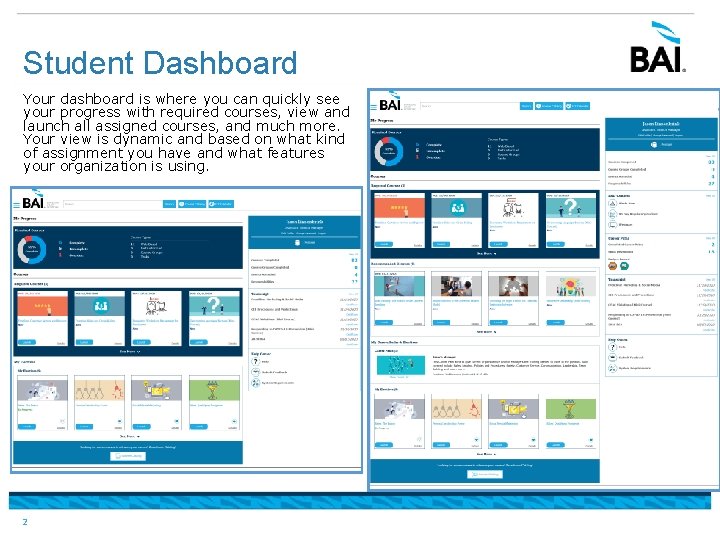
Student Dashboard Your dashboard is where you can quickly see your progress with required courses, view and launch all assigned courses, and much more. Your view is dynamic and based on what kind of assignment you have and what features your organization is using. 2
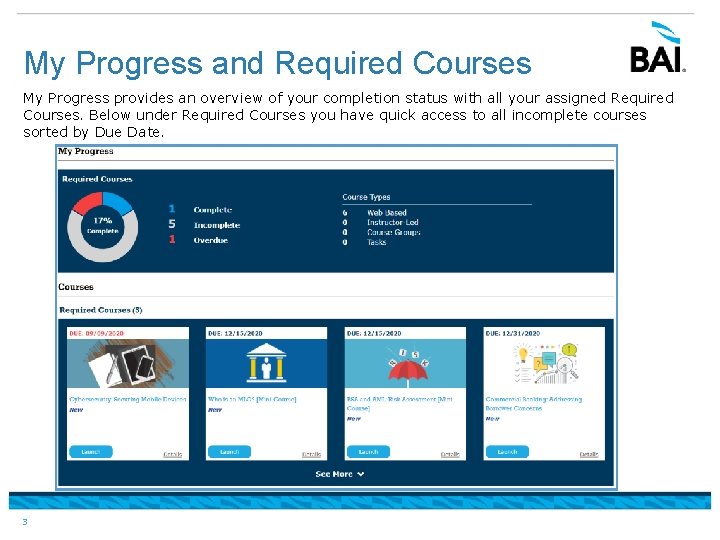
My Progress and Required Courses My Progress provides an overview of your completion status with all your assigned Required Courses. Below under Required Courses you have quick access to all incomplete courses sorted by Due Date. 3
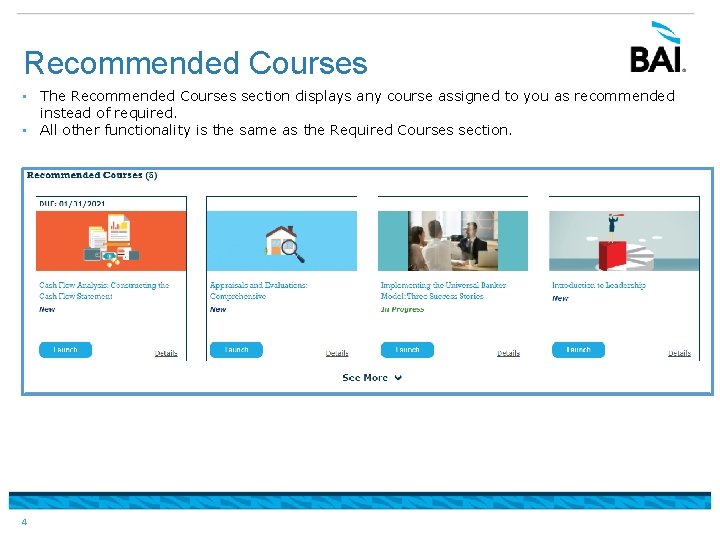
Recommended Courses • The Recommended Courses section displays any course assigned to you as recommended instead of required. • All other functionality is the same as the Required Courses section. 4
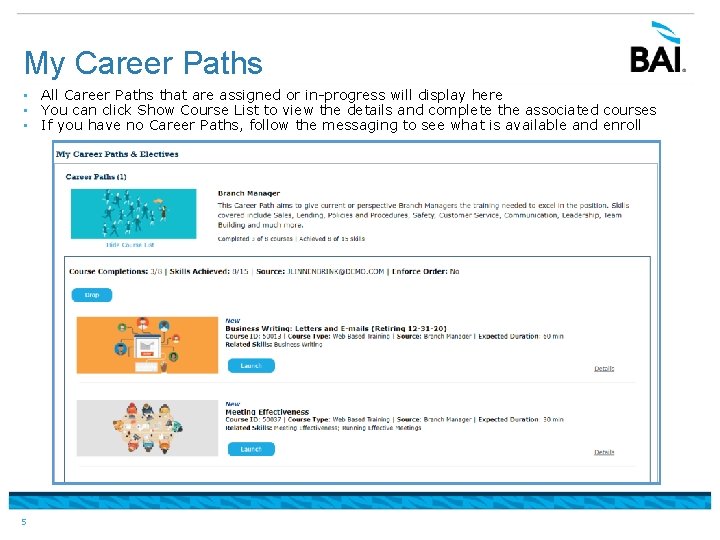
My Career Paths • All Career Paths that are assigned or in-progress will display here • You can click Show Course List to view the details and complete the associated courses • If you have no Career Paths, follow the messaging to see what is available and enroll 5
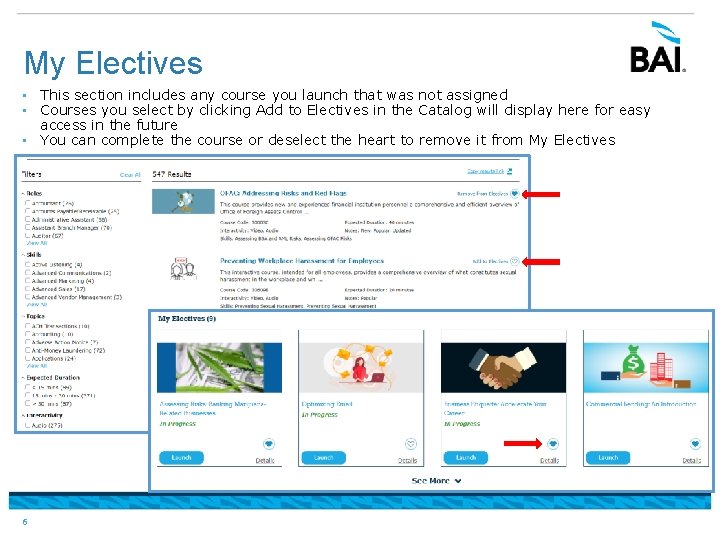
My Electives • This section includes any course you launch that was not assigned • Courses you select by clicking Add to Electives in the Catalog will display here for easy access in the future • You can complete the course or deselect the heart to remove it from My Electives 6
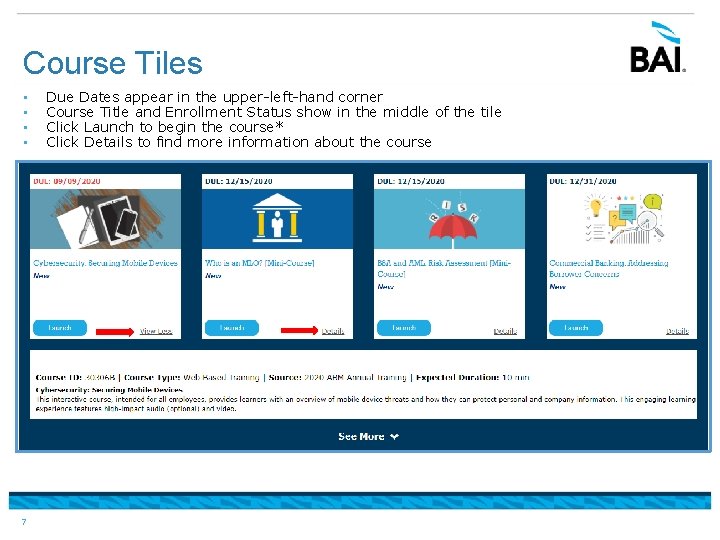
Course Tiles • • 7 Due Dates appear in the upper-left-hand corner Course Title and Enrollment Status show in the middle of the tile Click Launch to begin the course* Click Details to find more information about the course
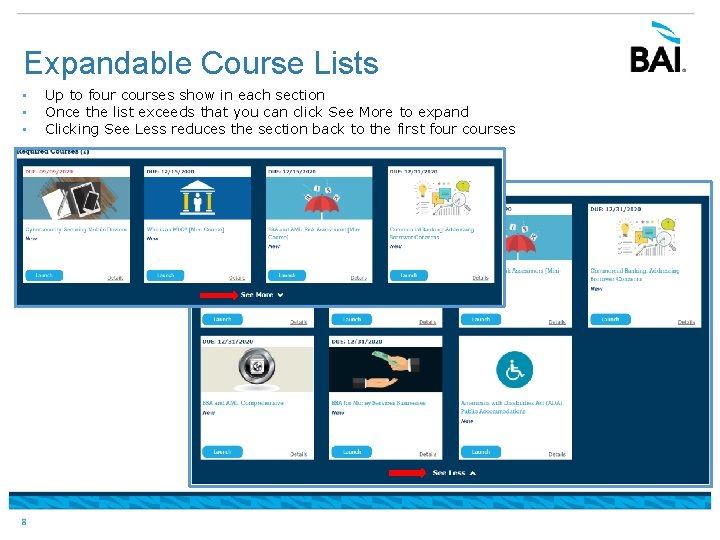
Expandable Course Lists • • • 8 Up to four courses show in each section Once the list exceeds that you can click See More to expand Clicking See Less reduces the section back to the first four courses
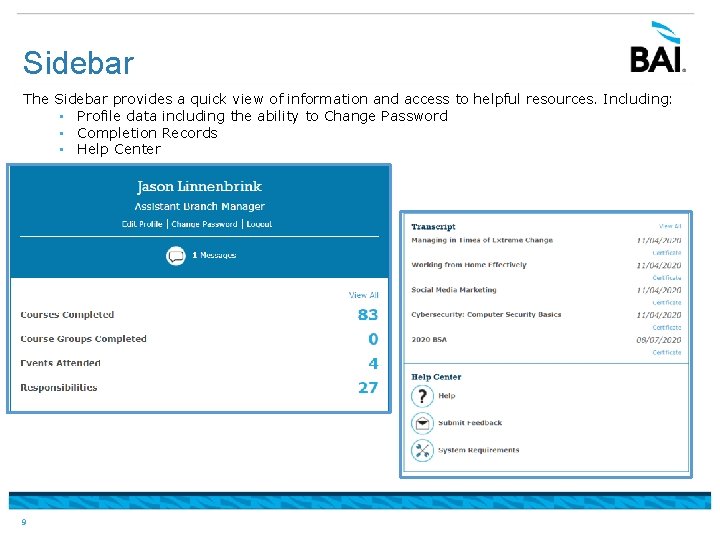
Sidebar The Sidebar provides a quick view of information and access to helpful resources. Including: • Profile data including the ability to Change Password • Completion Records • Help Center 9
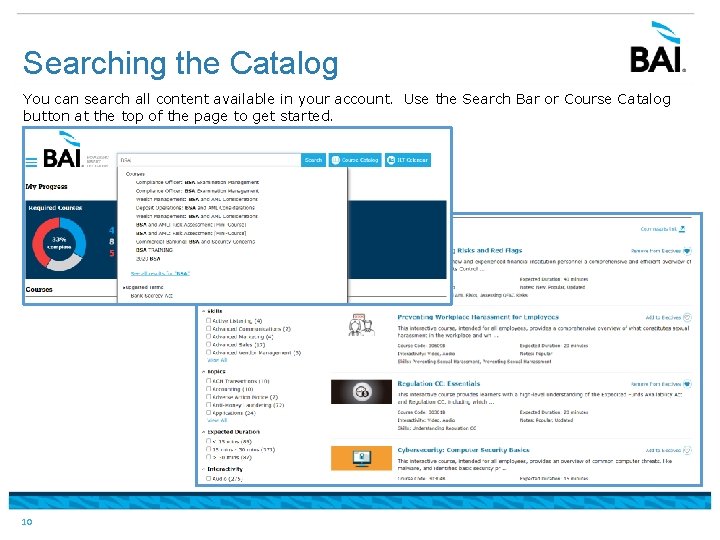
Searching the Catalog You can search all content available in your account. Use the Search Bar or Course Catalog button at the top of the page to get started. 10
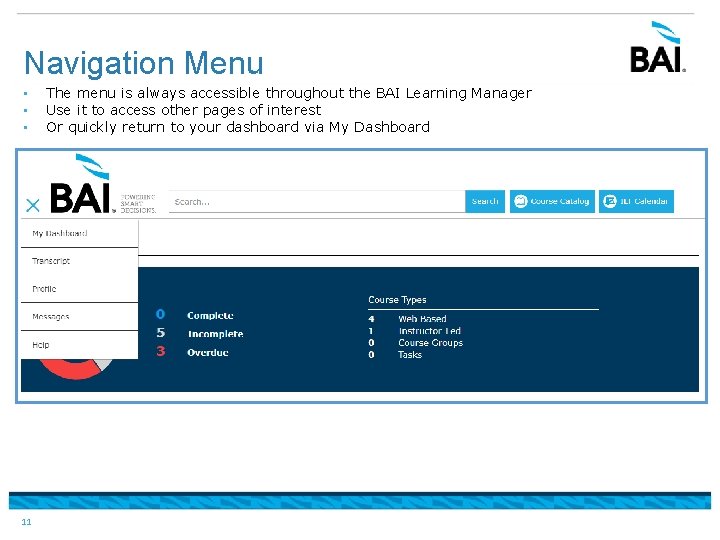
Navigation Menu • • • 11 The menu is always accessible throughout the BAI Learning Manager Use it to access other pages of interest Or quickly return to your dashboard via My Dashboard
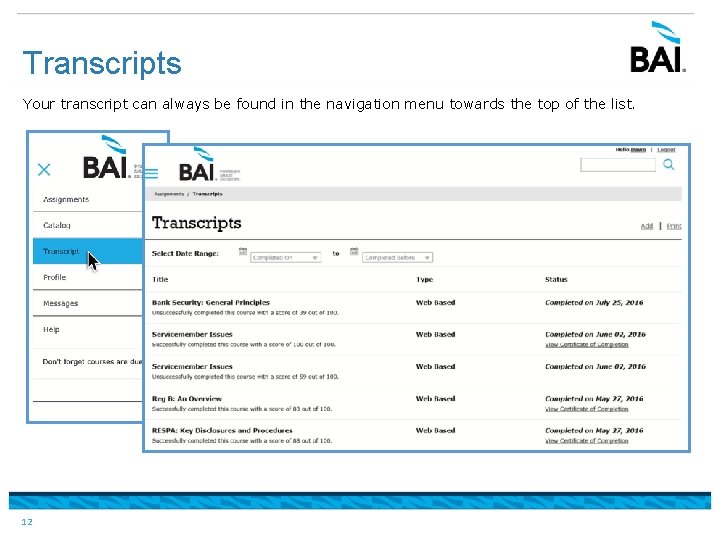
Transcripts Your transcript can always be found in the navigation menu towards the top of the list. 12
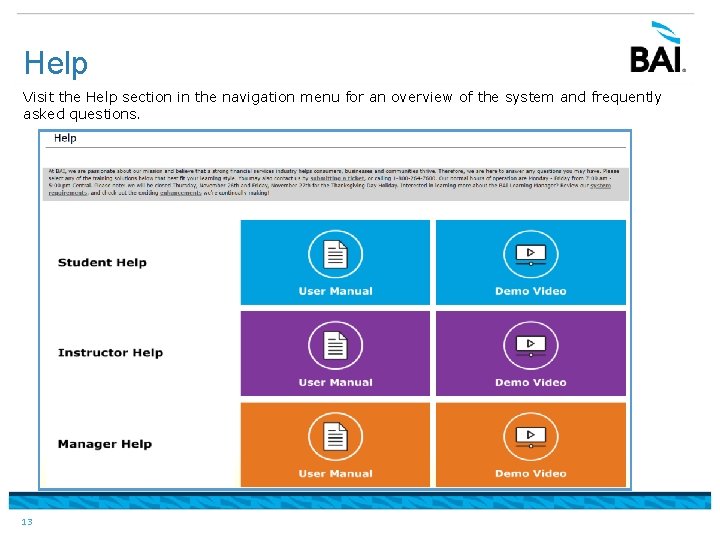
Help Visit the Help section in the navigation menu for an overview of the system and frequently asked questions. 13
- Slides: 14