
New Product Release Trimble PCS 900 v 1

New Product Release Trimble PCS 900 v 1. 1 & Cat Accu. Grade v 1. 1 Update of new sales features October 2010
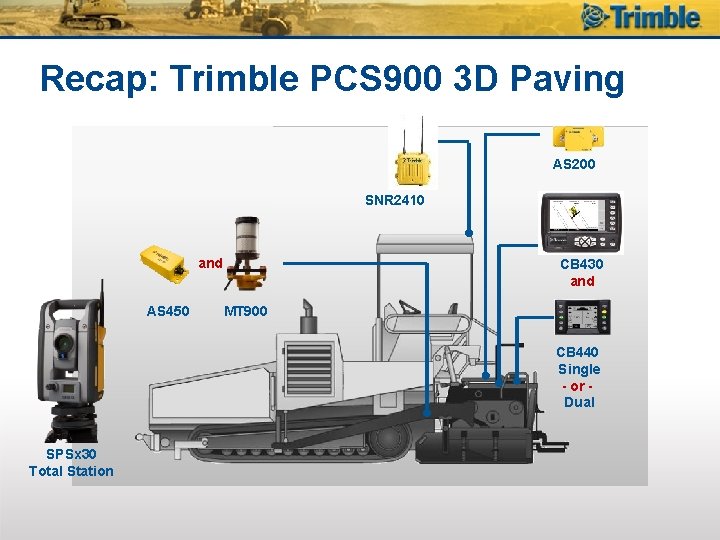
Recap: Trimble PCS 900 3 D Paving AS 200 SNR 2410 and AS 450 CB 430 and MT 900 CB 440 Single - or Dual SPSx 30 Total Station
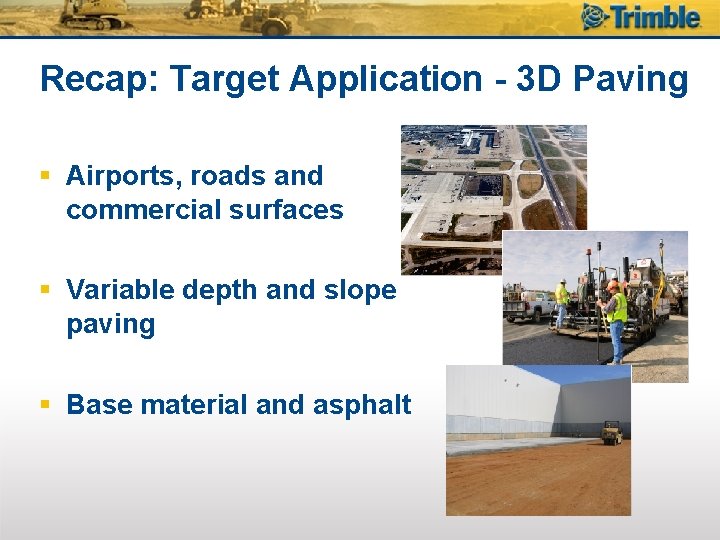
Recap: Target Application - 3 D Paving § Airports, roads and commercial surfaces § Variable depth and slope paving § Base material and asphalt
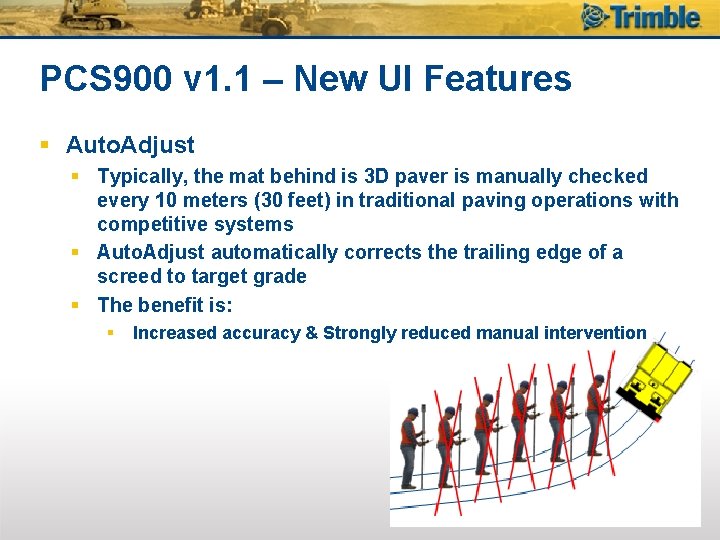
PCS 900 v 1. 1 – New UI Features § Auto. Adjust § Typically, the mat behind is 3 D paver is manually checked every 10 meters (30 feet) in traditional paving operations with competitive systems § Auto. Adjust automatically corrects the trailing edge of a screed to target grade § The benefit is: § Increased accuracy & Strongly reduced manual intervention

PCS 900 v 1. 1 – New UI Features § Distance to the UTS is now a text item § Plan View Map shows an accurately positioned UTS icon § Machine Radio Configuration can now be configured by the operator
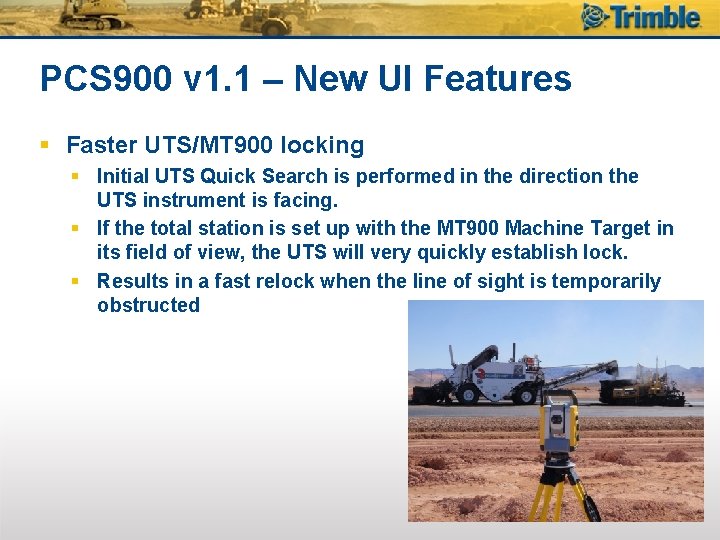
PCS 900 v 1. 1 – New UI Features § Faster UTS/MT 900 locking § Initial UTS Quick Search is performed in the direction the UTS instrument is facing. § If the total station is set up with the MT 900 Machine Target in its field of view, the UTS will very quickly establish lock. § Results in a fast relock when the line of sight is temporarily obstructed
![Quote PCS 900 v 1. 1 User Savko Ohio § “The [Savko] supervisor, who](http://slidetodoc.com/presentation_image/213cf738ef9e5087eee17340201c0a33/image-7.jpg "Quote PCS 900 v 1. 1 User Savko Ohio § “The [Savko] supervisor, who")
Quote PCS 900 v 1. 1 User Savko Ohio § “The [Savko] supervisor, who is very proud of what they can do with RCC material, admitted that the side of the road that our system paved was the smoothest RCC he has ever driven on. ”

3 D Paving Points Phil Jackson September 2010

Welcome § Why are we here? § Because our Beta sites prefer to work with different work-flows § We need to understand different methods of working – So we can match our system to their practice § We have also changed the way some functions work – To better match our system to their practice
Discussion § Today’s training is designed to be a discussion § Please ask questions to clarify the topics being discussed
3 D Paving § 3 D Paving is a complete package § You must: – – – Understand & check the 3 D Design Understand & check the site control Set-up and check the SPS 930 s Install & Calibrate the PCS 900 paver Know the operating procedures and best practice for PCS 900 – Know how to Grade Check correctly
3 D Paving § 3 D Paving is a complete package § You must: § Understand & check the 3 D Design § Understand & check the site control § Set-up and check the SPS 930 s § Install & Calibrate the PCS 900 paver § Know the operating procedures and best practice for PCS 900 § Know how to Grade Check correctly § If the team can’t do EVERY step above – Don’t start!
Agenda § § § § § Best Benching practice Auto. Adjust 3 D Offsets vs. 2 D Offsets Paving Operation mm Accuracy UTS Set-Up & Calibartion Joint Match & Differential Compation Design Tolerance Documentation
Best Benching §Bench on Material – As opposed to blocks § Material fully supports the screed § Stops flexing of the screed § Angle of attack is correct – If you have paved a short distance § You can Bench on blocks § But on material is better
Best Benching § Once you have benched § AND you are happy with the results § You do not need to bench again for the next run – So long as NOTHING changes – E. g. You can bench for run 1 and then come back for runs 2, 3, and 4 with. OUT rebenching – You can rebench any time you are unhappy with the accuracy
PCS 900 Benching Warning § We have also added a full screen warning on benching if the 2 D system offset is nonzero § You must remove any 2 D system offsets and then bench PCS 900
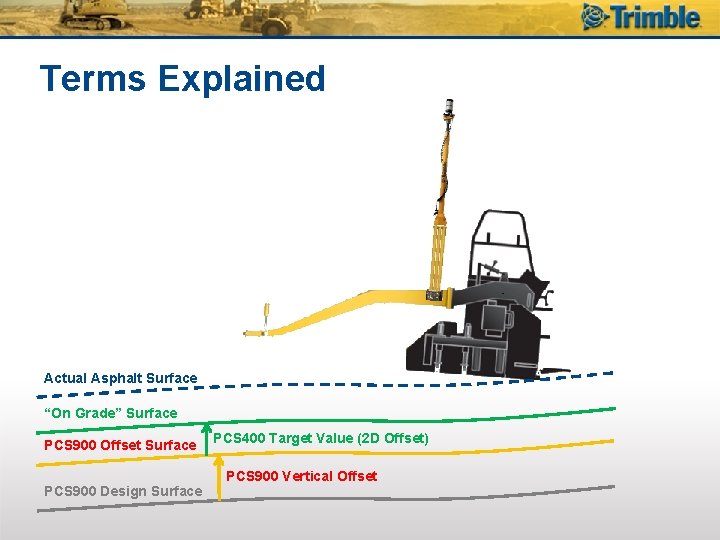
Terms Explained Actual Asphalt Surface “On Grade” Surface PCS 900 Offset Surface PCS 900 Design Surface PCS 400 Target Value (2 D Offset) PCS 900 Vertical Offset
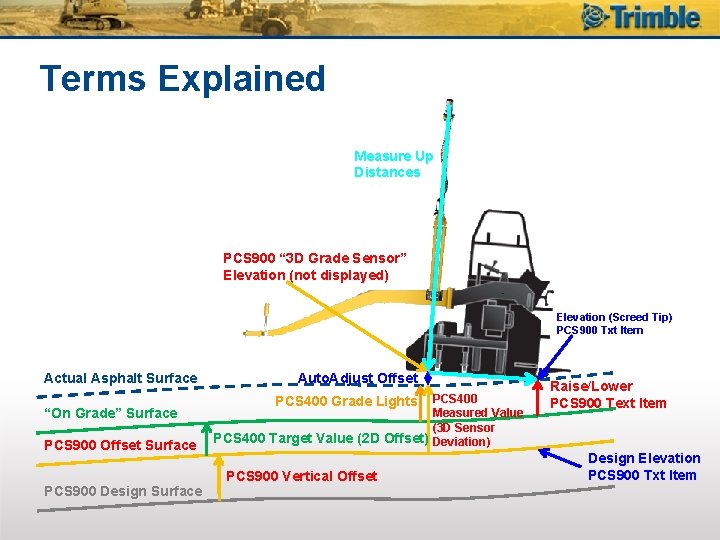
Terms Explained Measure Up Distances PCS 900 “ 3 D Grade Sensor” Elevation (not displayed) Elevation (Screed Tip) PCS 900 Txt Item Actual Asphalt Surface “On Grade” Surface PCS 900 Offset Surface PCS 900 Design Surface Auto. Adjust Offset PCS 400 Grade Lights PCS 400 Measured Value (3 D Sensor PCS 400 Target Value (2 D Offset) Deviation) PCS 900 Vertical Offset Raise/Lower PCS 900 Text Item Design Elevation PCS 900 Txt Item
3 D Paving Training Auto. Adjust V 1. 10 March 2010 by Phil Jackson
What is Auto. Adjust? § Auto. Adjust automates the previous manual nudging of the screed § PCS 900 v 1. 10 monitors the height of the trailing edge of the screed and automatically adjusts the system to keep this point on grade § Manual nudging via the underlying 2 D control system (PCS 400, Accu. Grade, Cat Grade & Slope or MOBA) is still supported
PCS 900 v 1. 00 § PCS 900 v 1. 00 emulates a 2 D grade sensor – Think of the MT 900 as a sonic tracer § Control point is below the mast – Move the target forward for smoother response – Move the target backward for a more accurate response § Screed trailing edge is not automatically controlled in v 1. 00 – Manual adjustments were required
Why We Needed To ‘Nudge’ • The height under the mast is controlled, but the height at the trailing edge “floats” • During paving the Angle of attack changes to compensate for the other factors that control the trailing edge height § § § Material head Mixture Speed Temperature Etc.
No Different To 2 D System § 2 D systems test depth to check mat thickness § Then adjust the operation to correct depth – Assuming all other factors are OK then by incrementing or decrementing the 2 D offset § On US Screeds in 2 D can also turn the crank handle § After paving some distance Depth Checker confirms the correction
No Different To 2 D System § V 1. 00 3 D system uses a Grade Checker to check mat surface height § Then you adjust the operation to the correct height – Assuming all other factors are OK then by incrementing or decrementing the 2 D offset § On US Screeds in 3 D can. NOT turn the crank handle § After paving some distance Grade Checker confirms the correction
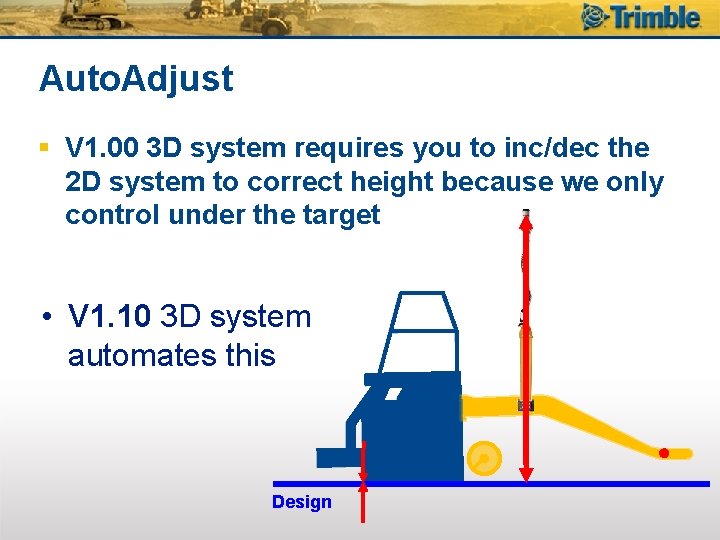
Auto. Adjust § V 1. 00 3 D system requires you to inc/dec the 2 D system to correct height because we only control under the target • V 1. 10 3 D system automates this Design
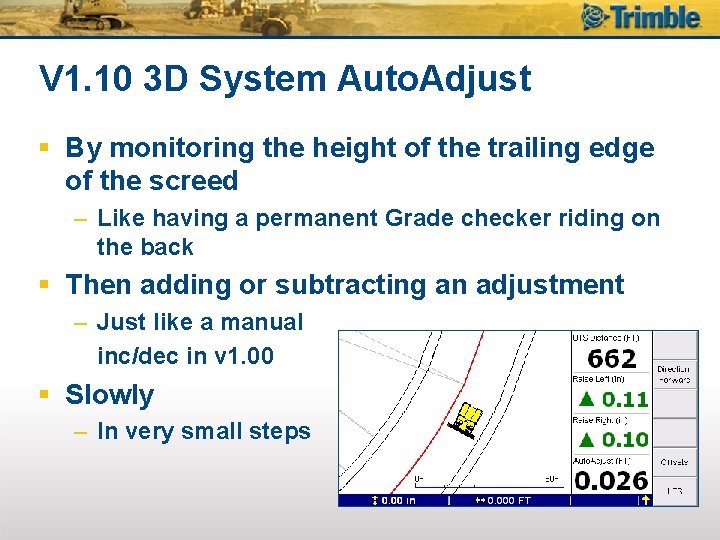
V 1. 10 3 D System Auto. Adjust § By monitoring the height of the trailing edge of the screed – Like having a permanent Grade checker riding on the back § Then adding or subtracting an adjustment – Just like a manual inc/dec in v 1. 00 § Slowly – In very small steps
How Not to Break Auto. Adjust § Use a Non-US Screed – With No Crank Handle § Mount the 3 D Target on the screed – Not the tow arm § Do NOT wind the Crank handle on US screeds – If your target is mounted on the tow arm § Do NOT let the tow arms drive to extent – And the screed still be Off Grade by < 50 mm
Tow Arm Mounted Target on US Screeds § Winding the Crank Handle alters the position of the back of the screed relative to the target – Invalidates the measure-up § IF you Wind the Crank Handle MUST Re-Bench – Step 14 of the Quick Start Guide you
Details § Always on by default § Text item reports amount of Automatic Adjustment applied § Can turn this off in Manager Mode – But why would you? § Auto. Adjust learns – Starts with value from Benching – Remembers and updates constantly
Graphical Explanation § The next slides step through time and explain each stage of Auto. Adjust – Time is given as T 0, T 1, T 2, etc. § The sample values are larger than you will see on a real job
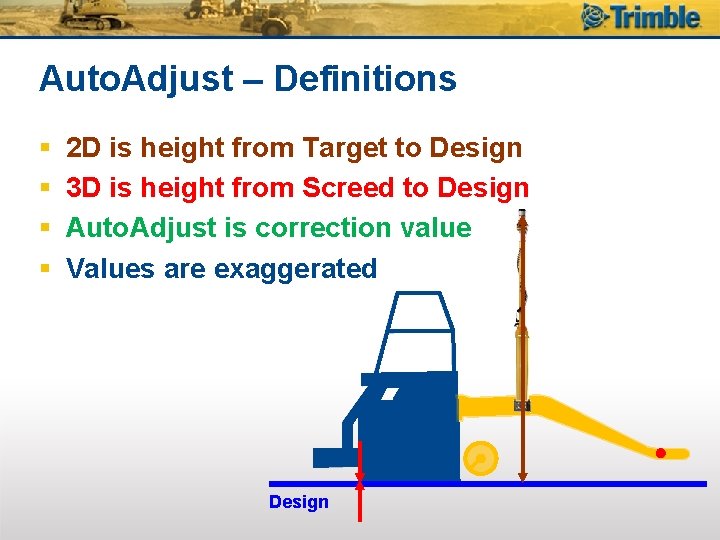
Auto. Adjust – Definitions § § 2 D is height from Target to Design 3 D is height from Screed to Design Auto. Adjust is correction value Values are exaggerated Design
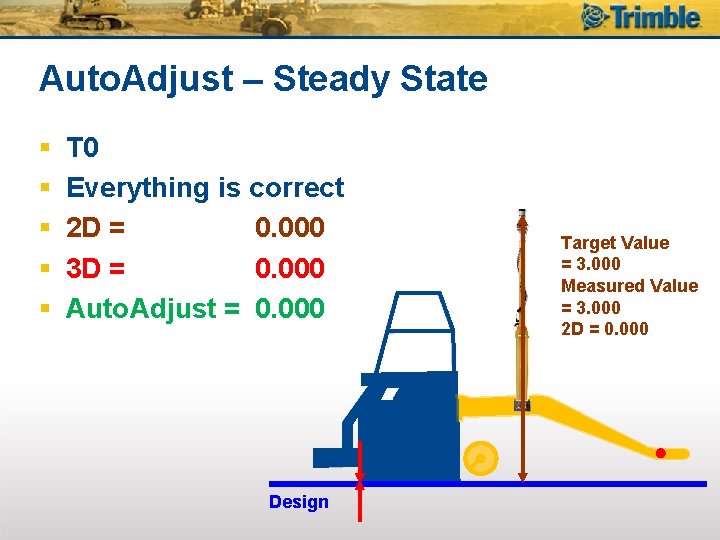
Auto. Adjust – Steady State § § § T 0 Everything is correct 2 D = 0. 000 3 D = 0. 000 Auto. Adjust = 0. 000 Design Target Value = 3. 000 Measured Value = 3. 000 2 D = 0. 000
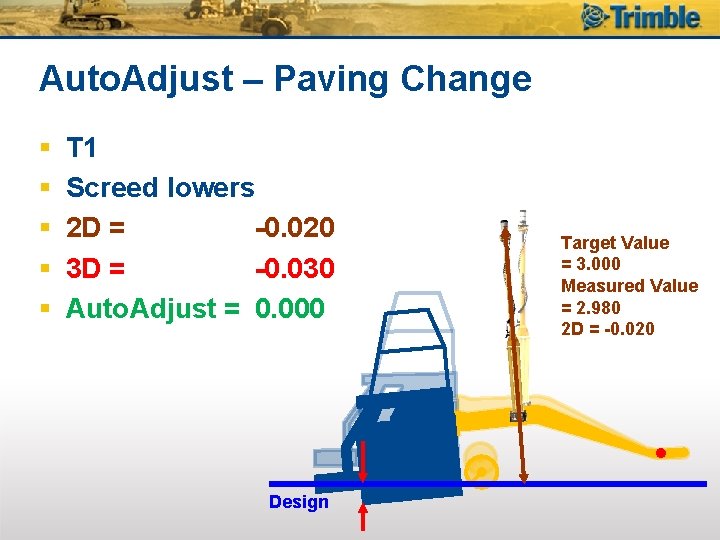
Auto. Adjust – Paving Change § § § T 1 Screed lowers 2 D = -0. 020 3 D = -0. 030 Auto. Adjust = 0. 000 Design Target Value = 3. 000 Measured Value = 2. 980 2 D = -0. 020
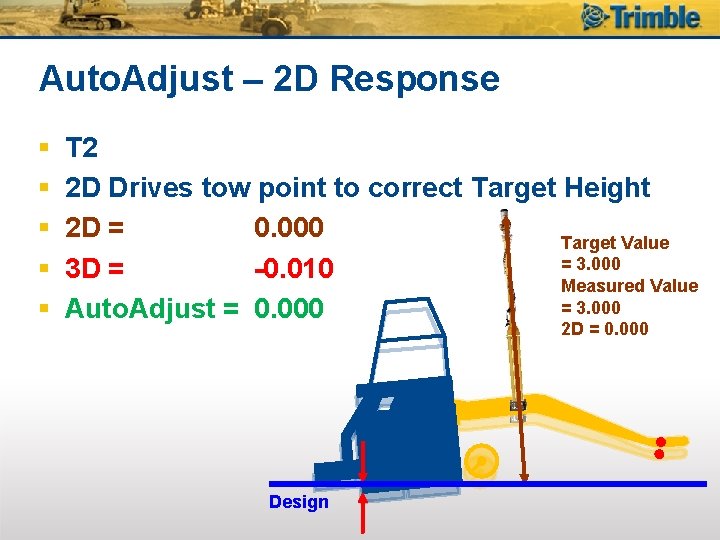
Auto. Adjust – 2 D Response § § § T 2 2 D Drives tow point to correct Target Height 2 D = 0. 000 Target Value = 3. 000 3 D = -0. 010 Measured Value = 3. 000 Auto. Adjust = 0. 000 2 D = 0. 000 Design
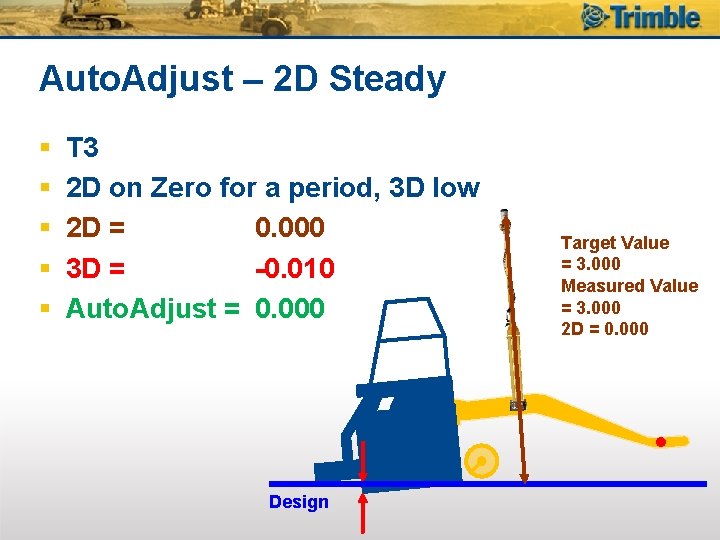
Auto. Adjust – 2 D Steady § § § T 3 2 D on Zero for a period, 3 D low 2 D = 0. 000 3 D = -0. 010 Auto. Adjust = 0. 000 Design Target Value = 3. 000 Measured Value = 3. 000 2 D = 0. 000
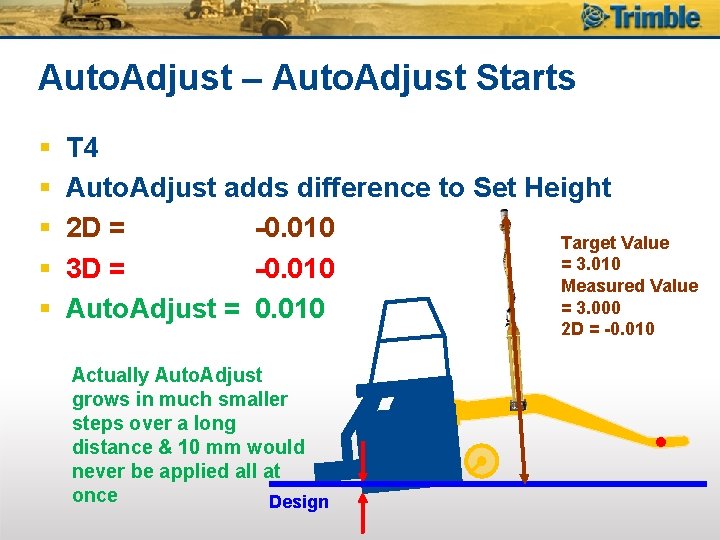
Auto. Adjust – Auto. Adjust Starts § § § T 4 Auto. Adjust adds difference to Set Height 2 D = -0. 010 Target Value = 3. 010 3 D = -0. 010 Measured Value = 3. 000 Auto. Adjust = 0. 010 2 D = -0. 010 Actually Auto. Adjust grows in much smaller steps over a long distance & 10 mm would never be applied all at once Design
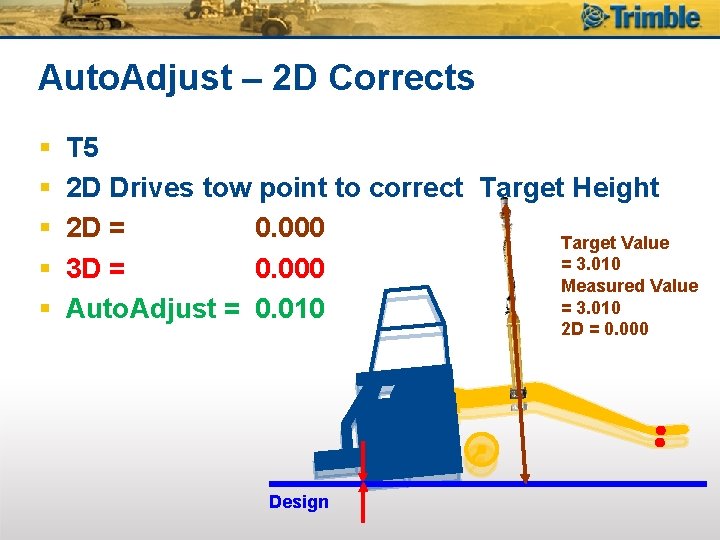
Auto. Adjust – 2 D Corrects § § § T 5 2 D Drives tow point to correct Target Height 2 D = 0. 000 Target Value = 3. 010 3 D = 0. 000 Measured Value = 3. 010 Auto. Adjust = 0. 010 2 D = 0. 000 Design
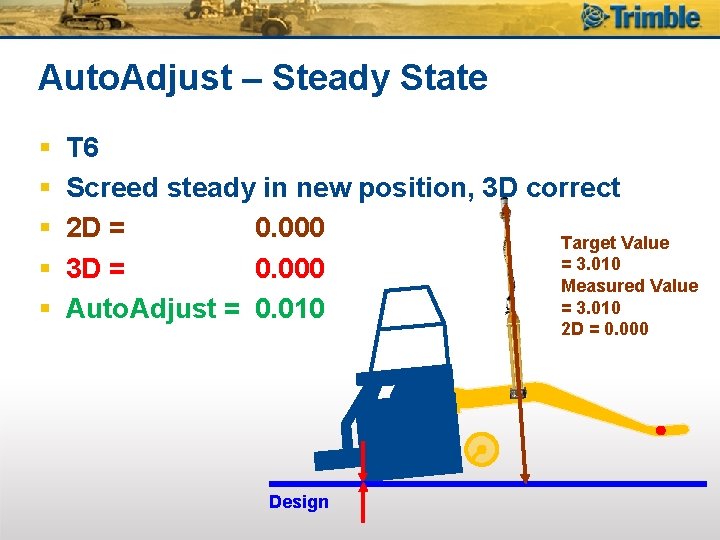
Auto. Adjust – Steady State § § § T 6 Screed steady in new position, 3 D correct 2 D = 0. 000 Target Value = 3. 010 3 D = 0. 000 Measured Value = 3. 010 Auto. Adjust = 0. 010 2 D = 0. 000 Design
Benching & Auto. Adjust § Population of the Auto. Adjust value when benching PCS 900 § Probably the biggest change – Used to be set to zero § When benching the 3 D system PCS 900 will pre-populate the Auto. Adjust value with the deviation seen under the mast – Minus any deviation to design
Benching & Auto. Adjust § This is the amount Auto. Adjust would have learnt after you started paving § This means, if the screed is setup on design, customers will see green grade lights on the 2 D boxes – It isn't a problem if they aren't on design as we back that deviation out of the calculation – When they do get to grade they will see green grade lights
Benching & Auto. Adjust If the customer has the screed at an incorrect angle of attack when they bench, the prepopulated Auto. Adjust value will be incorrect to start with
Auto. Adjust Limits § The maximum positive Auto. Adjust limit has been increased from 30 to 100 mm § The negative limit remains at -200 mm § These limits are now applied relative to the initial Auto. Adjust offset value calculated at the time of benching – previously centred around 0 mm
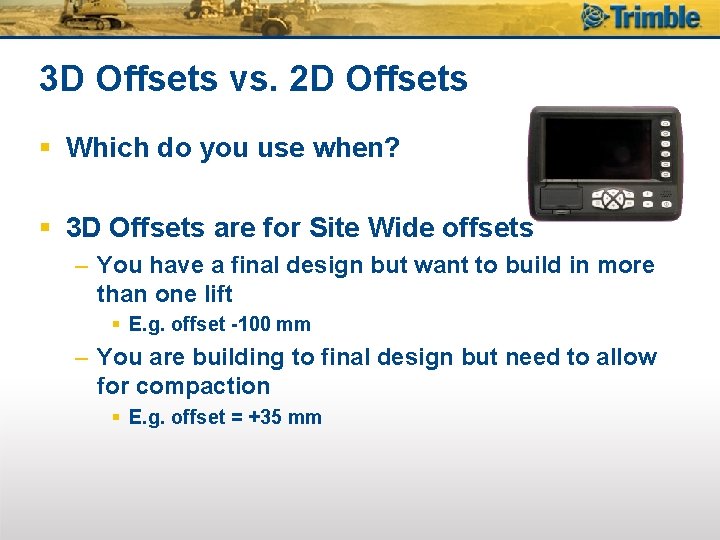
3 D Offsets vs. 2 D Offsets § Which do you use when? § 3 D Offsets are for Site Wide offsets – You have a final design but want to build in more than one lift § E. g. offset -100 mm – You are building to final design but need to allow for compaction § E. g. offset = +35 mm
3 D Offsets vs. 2 D Offsets § Which do you use when? § 2 D Offsets are for Temporary offsets – You must allow extra thickness over a low area that is small § E. g. offset = +15 mm until you pass over it – You need to “feather” the design to match another surface § E. g. Manually change offset from 0 mm to +25 mm over the transition distance
3 D Offsets vs. 2 D Offsets § Which do you use when? § 2 D Offsets are for Temporary offsets – If grade check is off by a few mm – Can be used to nudge the screed until the Grade Check cut/fill number matches the 3 D raise/lower value § *Assumes* Grade Checker is correct § Like a manual bench § Useful when changing from one UTS to another

Design or Minimum Thickness? § Are you building to Design or to Minimum Thickness? – Sounds like a basic question? § Yes it is! § Building to Design – Use 3 D § Building to Minimum Thickness – Use 2 D
Design or Minimum Thickness? § One Beta site wanted both – Real answer § Survey the base surface and make a “correct” 3 D design § Then use 3 D – What they did § Pave in 3 D to original design § Manually add 2 D offsets to ensure minimum thickness over high spots
Paving Thickness § Or Subgrade level § IF the base level is too high PCS 900 will try to grade it off – Very Bad § PCS 900 (3 D) gives you an absolute height § When the base is higher than your paving design, the PCS tries to keep the screed on grade and tries to plough the screed through the base
Paving Thickness § IF the base level is too high PCS 900 will drive the Tow Arms to the limits § Do NOT let the tow arms drive to limits – And the screed still be Off Grade by < 50 mm § Warning: Auto. Adjust will keep learning – But it will be wrong § When you get back to “normal” Auto. Adjust will have to unlearn the false correction
Paving Thickness § Really Simple § Don’t EVER let the rams hit the limits with Auto. Adjust turned on § If this happens: – – Change to Manual Pave until back on grade Bench Continue in Auto
Starting Surface Too High – This happened also during Beta… § In the morning found that yesterday they achieved less compaction then planned – Start surface too high
Starting Surface Too High § Answer: 1. Set up screed per normal practice 2. Bench 3. Enter 2 D offset – 2 D is “on-grade” 4. Place in Auto and start paving 5. Slowly reduce 2 D offset back to zero § To get back to design § Note: Grade check will not check in with 3 D raise/lower text items until 2 D offset is brought back to zero
Millimetre Accuracy § What is a millimetre? § 9 sheets of paper = 1 mm thick!
Millimetre Accuracy § Just like a NASCAR racing car – They spend a lot of time tuning it – And it goes faster than the car you drive § If you want the absolute best out of a UTS – Then spend a lot of time looking after it – Calibrate it regularly – Don’t throw it in the back of the truck
Millimetre Accuracy § Does the PCS give the same result as the Grade Checker? – Are the 2 UTS in the same terms § We are trying to squeeze the tightest tolerances possible out of large, heavy machines – Everything must be perfect
Millimetre Accuracy § Start with Site Control – Or infrastructure § The survey marks you use to set up the SPS 930 s § You cannot be better than this – Most important when your paving run requires multiple setups § You can use best surveying practice to minimise errors
Millimetre Accuracy § Always set the 2 UTS up near each other – Use the same marks to resect in (free station) § Does Not make it more accurate § Does mean they will be in the same terms § Same errors, so Grade Checker will agree with PCS 900 – Use extra marks for resection § More than the minimum § Extra redundancy = more accurate § 3 marks are a LOT better than 2 marks
UTS Set-Up § How to get the best UTS Set-Up § And how to Check that your UTS is accurate enough § Observe Two Faces
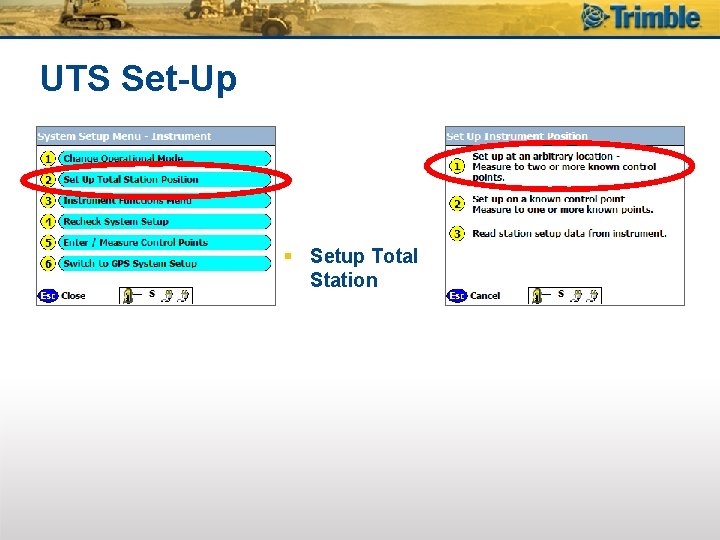
UTS Set-Up § Setup Total Station
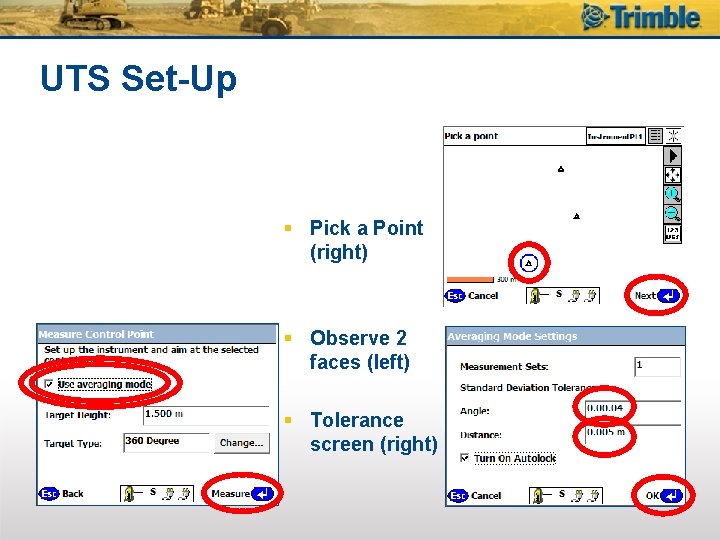
UTS Set-Up § Pick a Point (right) § Observe 2 faces (left) § Tolerance screen (right)
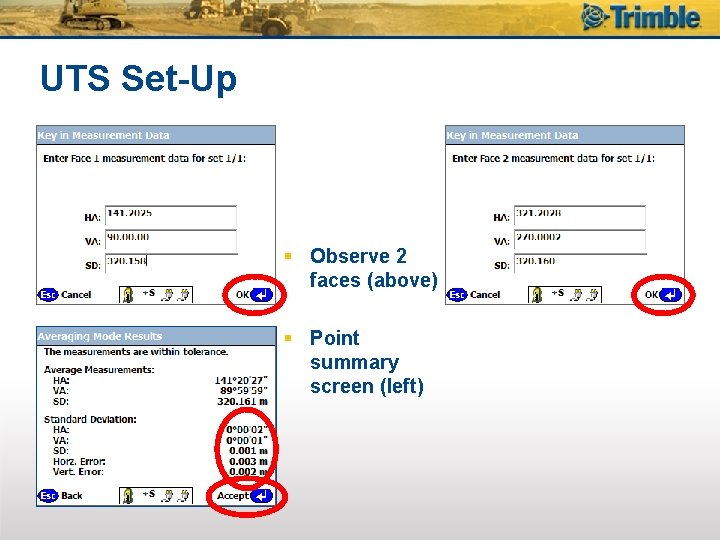
UTS Set-Up § Observe 2 faces (above) § Point summary screen (left)
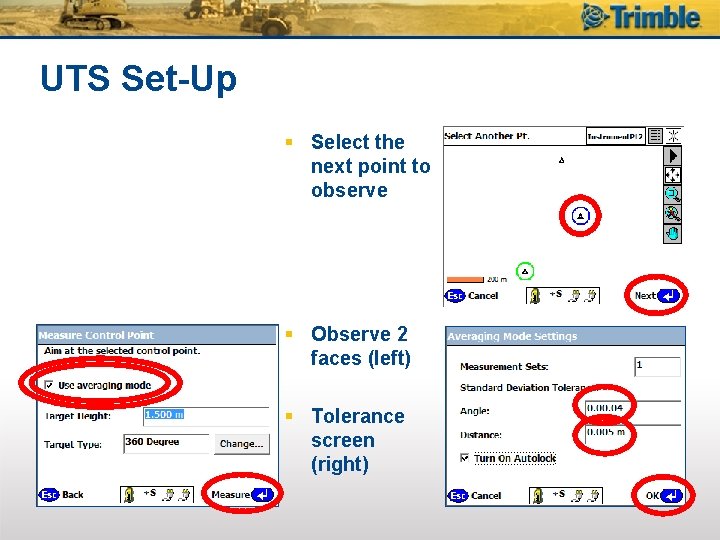
UTS Set-Up § Select the next point to observe § Observe 2 faces (left) § Tolerance screen (right)
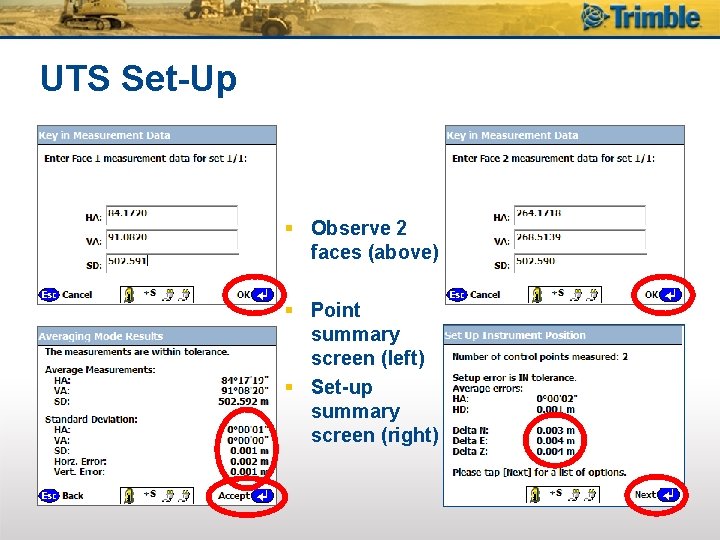
UTS Set-Up § Observe 2 faces (above) § Point summary screen (left) § Set-up summary screen (right)
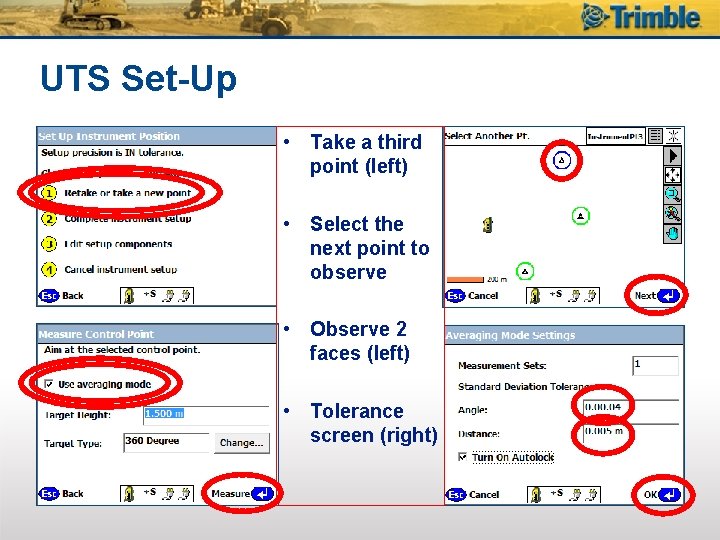
UTS Set-Up • Take a third point (left) • Select the next point to observe • Observe 2 faces (left) • Tolerance screen (right)
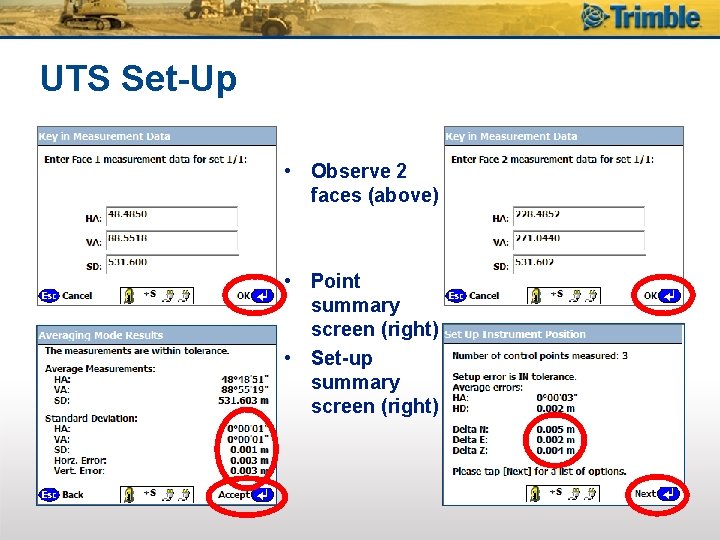
UTS Set-Up • Observe 2 faces (above) • Point summary screen (right) • Set-up summary screen (right)
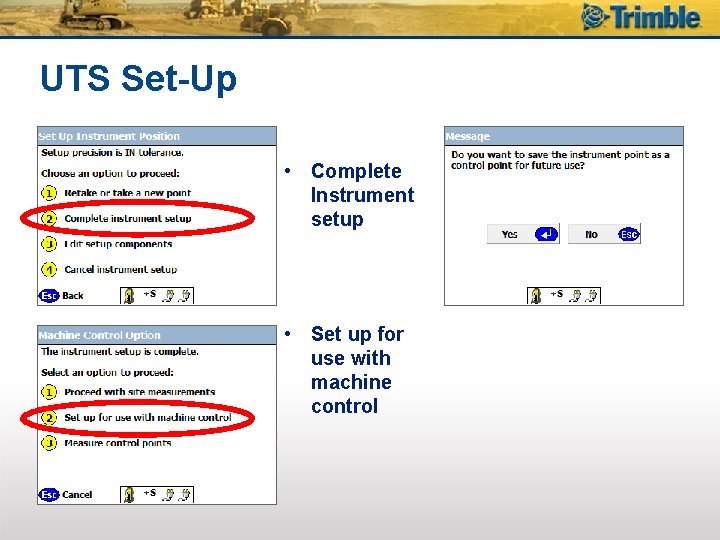
UTS Set-Up • Complete Instrument setup • Set up for use with machine control
UTS Set-Up Summary § Always use at least 3 marks for Set-Up – This gives you a more accurate set-up – And checks that the set-up marks are correct § Always use Averaging Mode – Two Faces – This checks you point correctly at each mark – And checks that the UTS calibration and collimation has not changed
Millimetre Accuracy § Then when you are ready use both UTS to measure to the same stationary target § Suggest MT 900 § Read coords in Diagnostics – Do you get the same result? § Trick question, there will always be an error – What is the error you get § Real question – You should not expect to be more accurate then this error
UTS Collimation § Carry out a collimation test in the following situations: – When you can’t get measurements in tolerance – Whenever the instrument may have been roughly handled during transport. – When the ambient temperature differs by more than 10°C (18°F) from the previous collimation test – When your height changes by more than 300 m
UTS Collimation § This can be done by a competent user – But if you get it wrong, all measurements will be wrong until it is corrected. § Should do it once a week – Must do it at least once a month
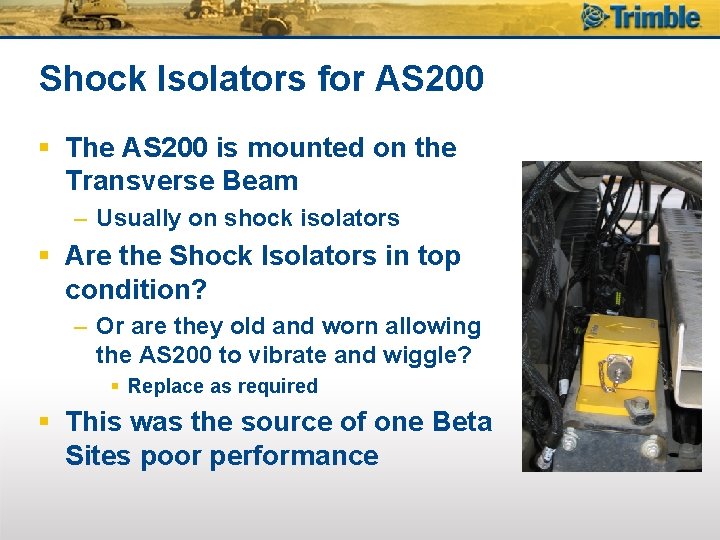
Shock Isolators for AS 200 § The AS 200 is mounted on the Transverse Beam – Usually on shock isolators § Are the Shock Isolators in top condition? – Or are they old and worn allowing the AS 200 to vibrate and wiggle? § Replace as required § This was the source of one Beta Sites poor performance
UTS Line of Sight § Sounds very basic, … and it is! § Must have line of sight – Consider where Asphalt trucks drive – Consider where other machines drive – Consider where second and subsequent paving runs are § Preferably when paver moves over for the next run it gets closer to the UTS

UTS Line of Sight § Maximum range for top accuracy – 200 m (660 ft)

UTS Line of Sight § What is wrong here?

UTS Line of Sight § What is wrong here?

UTS Line of Sight § What is wrong here?
UTS Quick Search Time Limit § This has been reduced to 15 seconds – Previous PCS 900 release candidates had a 2 minute time limit on UTS quick searches § This should greatly improve the user experience when the UTS loses lock on the MT 900
UTS Quick Search Sequence § The system will quick search for 15 seconds – If no target is found it will then perform a full search in the configured search window – If no target is found it will go back to the quick search window for 15 seconds, etc. § The loop continues until the target is found
Joint Match & Differential Compaction § Differential Compaction increases Mat thickness when sub grade drops so the final compacted surface is correct § Joint Match with sonic matches that side to the existing surface
Joint Match & Differential Compaction § Differential Compaction should be used as 3 D Elevation and 3 D Slope – Entire width gets the benefit of the differential design • 3 D Elevation to a differential design on one side and 2 D Elevation Joint Match on the other is DIFFERENT – Cross Slope will vary – But some customers do this successfully
Direction Softkey Gone § Based on the feedback and severe negative performance with Western Rock we have removed the ability to toggle the direction the paver is facing § The system is now back to like it is in v 1. 00 – i. e. motion is always assumed to be forward
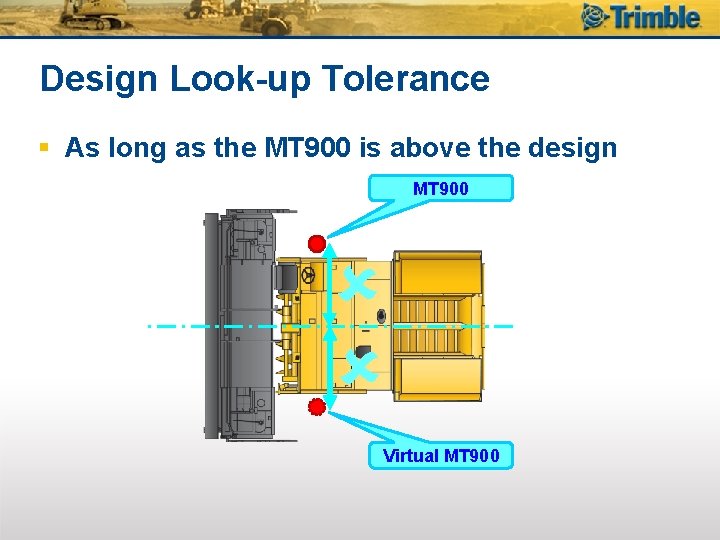
Design Look-up Tolerance § As long as the MT 900 is above the design MT 900 Virtual MT 900
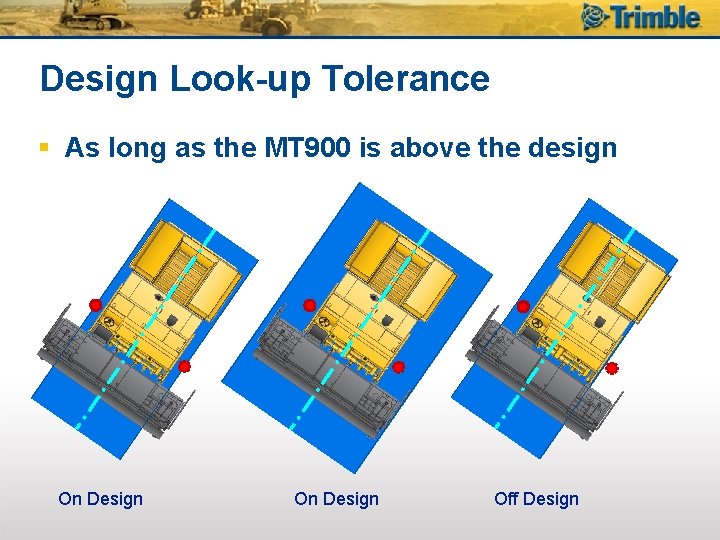
Design Look-up Tolerance § As long as the MT 900 is above the design On Design Off Design
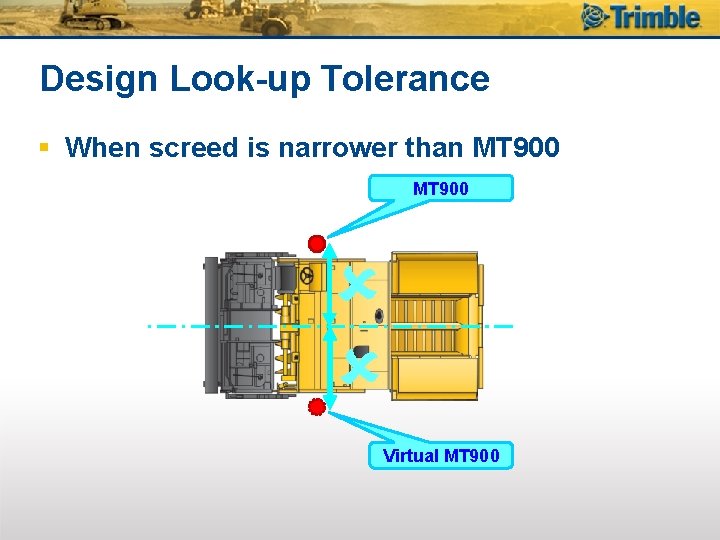
Design Look-up Tolerance § When screed is narrower than MT 900 Virtual MT 900
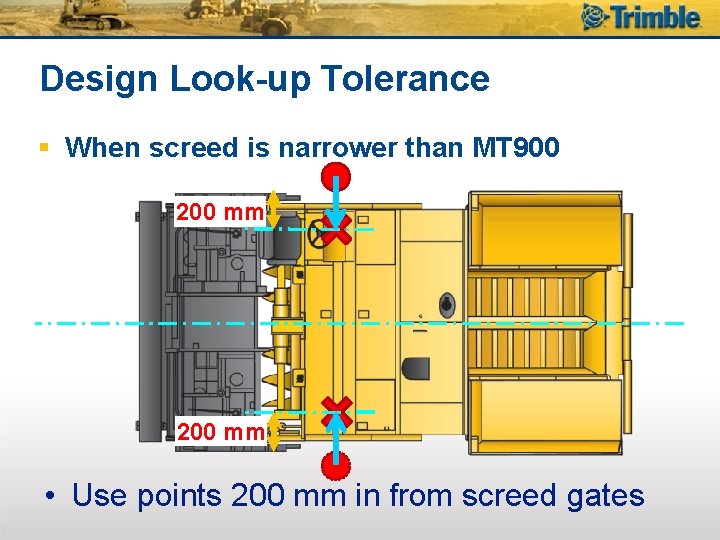
Design Look-up Tolerance § When screed is narrower than MT 900 200 mm • Use points 200 mm in from screed gates
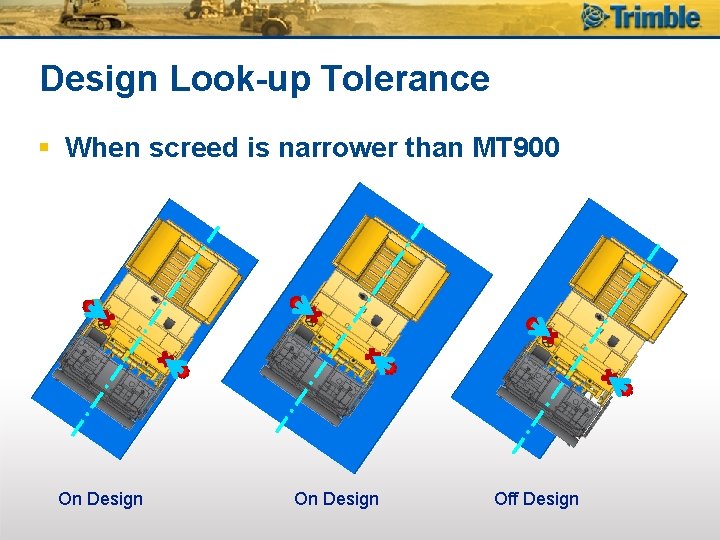
Design Look-up Tolerance § When screed is narrower than MT 900 On Design Off Design
Documentation § UTS measure-up documentation and Quick Start Guide tweaks § We have made some corrections to the UTS measure-up instructions in chapter 7 of the installation manual § We have also removed some wording from the Quick Start Guide
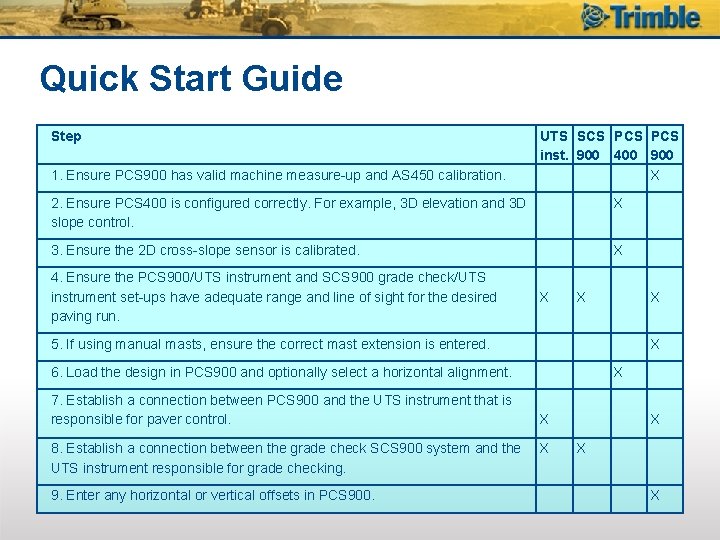
Quick Start Guide Step 1. Ensure PCS 900 has valid machine measure-up and AS 450 calibration. UTS SCS PCS inst. 900 400 900 X 2. Ensure PCS 400 is configured correctly. For example, 3 D elevation and 3 D slope control. X 3. Ensure the 2 D cross-slope sensor is calibrated. X 4. Ensure the PCS 900/UTS instrument and SCS 900 grade check/UTS instrument set-ups have adequate range and line of sight for the desired paving run. X X 5. If using manual masts, ensure the correct mast extension is entered. X 6. Load the design in PCS 900 and optionally select a horizontal alignment. X 7. Establish a connection between PCS 900 and the UTS instrument that is responsible for paver control. X X X 8. Establish a connection between the grade check SCS 900 system and the UTS instrument responsible for grade checking. X X 9. Enter any horizontal or vertical offsets in PCS 900. X
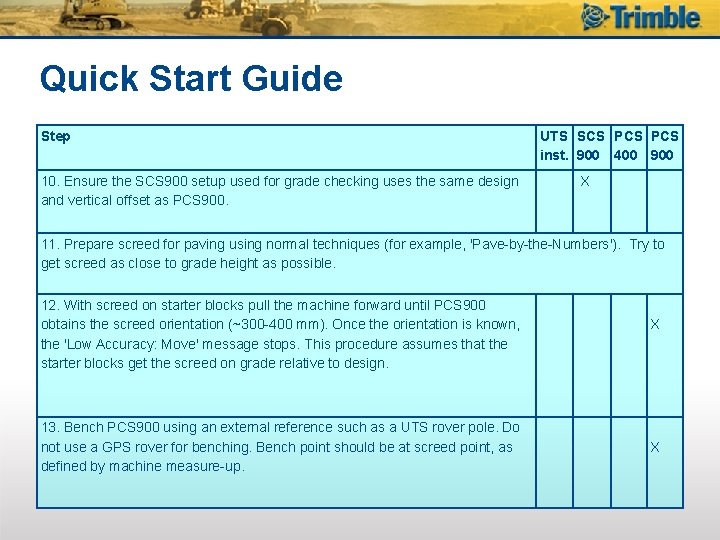
Quick Start Guide Step 10. Ensure the SCS 900 setup used for grade checking uses the same design and vertical offset as PCS 900. UTS SCS PCS inst. 900 400 900 X 11. Prepare screed for paving using normal techniques (for example, 'Pave-by-the-Numbers'). Try to get screed as close to grade height as possible. 12. With screed on starter blocks pull the machine forward until PCS 900 obtains the screed orientation (~300 -400 mm). Once the orientation is known, the 'Low Accuracy: Move' message stops. This procedure assumes that the starter blocks get the screed on grade relative to design. 13. Bench PCS 900 using an external reference such as a UTS rover pole. Do not use a GPS rover for benching. Bench point should be at screed point, as defined by machine measure-up. X X
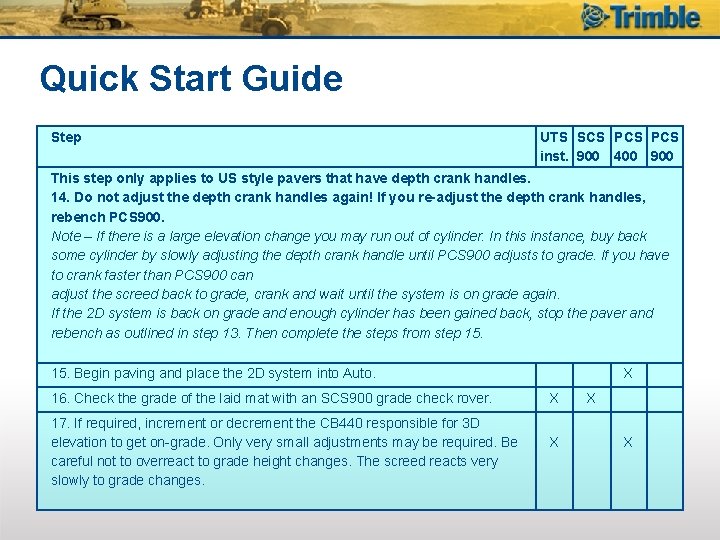
Quick Start Guide Step UTS SCS PCS inst. 900 400 900 This step only applies to US style pavers that have depth crank handles. 14. Do not adjust the depth crank handles again! If you re-adjust the depth crank handles, rebench PCS 900. Note – If there is a large elevation change you may run out of cylinder. In this instance, buy back some cylinder by slowly adjusting the depth crank handle until PCS 900 adjusts to grade. If you have to crank faster than PCS 900 can adjust the screed back to grade, crank and wait until the system is on grade again. If the 2 D system is back on grade and enough cylinder has been gained back, stop the paver and rebench as outlined in step 13. Then complete the steps from step 15. Begin paving and place the 2 D system into Auto. 16. Check the grade of the laid mat with an SCS 900 grade check rover. X X 17. If required, increment or decrement the CB 440 responsible for 3 D elevation to get on-grade. Only very small adjustments may be required. Be careful not to overreact to grade height changes. The screed reacts very slowly to grade changes. X X X

Questions? ?
- Slides: 91