
New Perspectives on Microsoft Excel 2019 Module 3
- Slides: 27
New Perspectives on Microsoft Excel 2019 Module 3: Performing Calculations with Formulas and Functions
Objectives, Part 1 • Translate an equation into a function • Do calculations with dates and times • Extend data and formulas with Auto. Fill • Use the Function Library • Calculate statistics © 2020 Cengage Learning. All Rights Reserved. May not be copied, scanned, or duplicated, in whole or in part, except for use as permitted in a license distributed with a certain product or service or otherwise on a password-protected website for classroom use. 2
Objectives, Part 2 • Using the Quick Analysis toolbar • Use absolute and relative cell references • Use a logical function • Retrieve data with lookup tables • Do what-if analysis with Goal Seek © 2020 Cengage Learning. All Rights Reserved. May not be copied, scanned, or duplicated, in whole or in part, except for use as permitted in a license distributed with a certain product or service or otherwise on a password-protected website for classroom use. 3
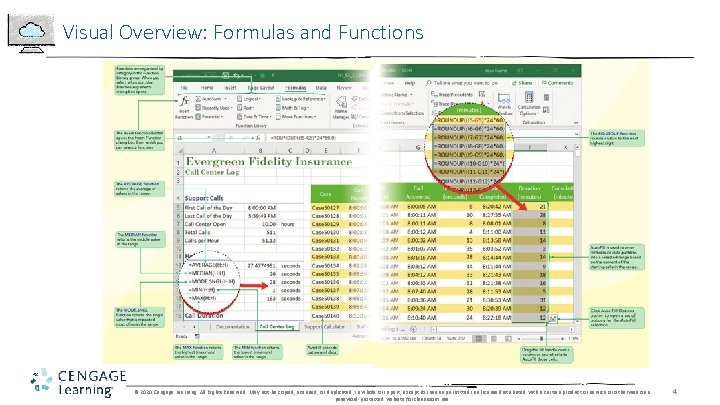
Visual Overview: Formulas and Functions © 2020 Cengage Learning. All Rights Reserved. May not be copied, scanned, or duplicated, in whole or in part, except for use as permitted in a license distributed with a certain product or service or otherwise on a password-protected website for classroom use. 4
Designing a Workbook for Calculations • A workbook with many calculations can be challenging for the author to write and for others to use • To help everyone, it is important to list the formulas used in the workbook and to explain the assumptions behind those formulas • The workbook documentation should also include the definitions of key terms to make it clear what is being calculated and why • Some equations use constants , which are terms in an equation whose values don’t change © 2020 Cengage Learning. All Rights Reserved. May not be copied, scanned, or duplicated, in whole or in part, except for use as permitted in a license distributed with a certain product or service or otherwise on a password-protected website for classroom use. 5
Calculating with Dates and Times • Excel stores dates and times as the number of days since January 0, 1900. Full days are a whole number and partial days are a fraction such as 0. 5 for a half day or 12 hours • Storing dates and times as numbers makes it easier to calculate time and date intervals © 2020 Cengage Learning. All Rights Reserved. May not be copied, scanned, or duplicated, in whole or in part, except for use as permitted in a license distributed with a certain product or service or otherwise on a password-protected website for classroom use. 6
Auto. Filling Formulas and Data Patterns • One way to efficiently enter long columns or rows of formulas and data values is with Auto. Fill • Auto. Fill extends a formula or a pattern of data values into a selected range and is often faster than copying and pasting, which requires two distinct actions on the part of the user © 2020 Cengage Learning. All Rights Reserved. May not be copied, scanned, or duplicated, in whole or in part, except for use as permitted in a license distributed with a certain product or service or otherwise on a password-protected website for classroom use. 7
Exploring Auto Fill Options • By default, Auto. Fill extends both the formulas and the formatting of the initial cell or cells • However, you might want to extend only the formulas or only the formatting © 2020 Cengage Learning. All Rights Reserved. May not be copied, scanned, or duplicated, in whole or in part, except for use as permitted in a license distributed with a certain product or service or otherwise on a password-protected website for classroom use. 8
Filling a Series • Use Auto. Fill to create a series of numbers, dates, or text based on a pattern • To extend a series of data values based on a pattern, enter enough values to establish the pattern, select those cells containing the pattern, and then drag the fill handle extending the pattern into a larger range. • Use the Series dialog box for more complex Auto. Fill patterns © 2020 Cengage Learning. All Rights Reserved. May not be copied, scanned, or duplicated, in whole or in part, except for use as permitted in a license distributed with a certain product or service or otherwise on a password-protected website for classroom use. 9
Applying Excel Functions, Part 1 • Rounding Data Values • ROUNDDOWN • ROUNDUP • Calculating Minimums and Maximums • The MIN and MAX functions return the smallest and largest values from a specified set of numbers: - MIN(number 1, [number 2], …) - MAX(number 1, [number 2], …) © 2020 Cengage Learning. All Rights Reserved. May not be copied, scanned, or duplicated, in whole or in part, except for use as permitted in a license distributed with a certain product or service or otherwise on a password-protected website for classroom use. 10
Applying Excel Functions, Part 2 • Measures of Central Tendency • Mean • Median • Mode • Nesting Functions • The Role of Blanks and Zeros © 2020 Cengage Learning. All Rights Reserved. May not be copied, scanned, or duplicated, in whole or in part, except for use as permitted in a license distributed with a certain product or service or otherwise on a password-protected website for classroom use. 11
Date and Time Functions, Part 1 • Many workbooks include the current date • Use the TODAY function to display the current date in a worksheet • The TODAY function has the following syntax: =TODAY() • The date displayed by the TODAY function is updated automatically whenever you reopen the workbook or enter a new calculation © 2020 Cengage Learning. All Rights Reserved. May not be copied, scanned, or duplicated, in whole or in part, except for use as permitted in a license distributed with a certain product or service or otherwise on a password-protected website for classroom use. 12
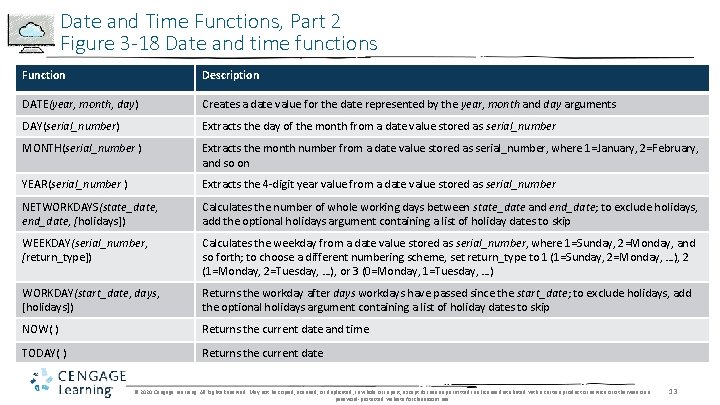
Date and Time Functions, Part 2 Figure 3 -18 Date and time functions Function Description DATE(year, month, day) Creates a date value for the date represented by the year, month and day arguments DAY(serial_number) Extracts the day of the month from a date value stored as serial_number MONTH(serial_number ) Extracts the month number from a date value stored as serial_number, where 1=January, 2=February, and so on YEAR(serial_number ) Extracts the 4 -digit year value from a date value stored as serial_number NETWORKDAYS(state_date, end_date, [holidays]) Calculates the number of whole working days between state_date and end_date; to exclude holidays, add the optional holidays argument containing a list of holiday dates to skip WEEKDAY(serial_number, [return_type]) Calculates the weekday from a date value stored as serial_number, where 1=Sunday, 2=Monday, and so forth; to choose a different numbering scheme, set return_type to 1 (1=Sunday, 2=Monday, …), 2 (1=Monday, 2=Tuesday, …), or 3 (0=Monday, 1=Tuesday, …) WORKDAY(start_date, days, [holidays]) Returns the workday after days workdays have passed since the start_date; to exclude holidays, add the optional holidays argument containing a list of holiday dates to skip NOW( ) Returns the current date and time TODAY( ) Returns the current date © 2020 Cengage Learning. All Rights Reserved. May not be copied, scanned, or duplicated, in whole or in part, except for use as permitted in a license distributed with a certain product or service or otherwise on a password-protected website for classroom use. 13
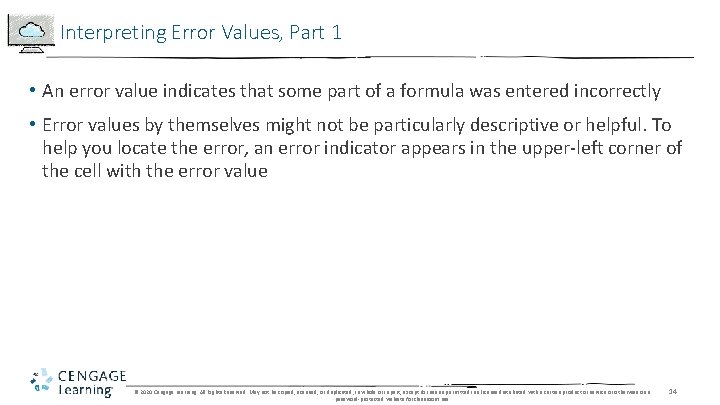
Interpreting Error Values, Part 1 • An error value indicates that some part of a formula was entered incorrectly • Error values by themselves might not be particularly descriptive or helpful. To help you locate the error, an error indicator appears in the upper-left corner of the cell with the error value © 2020 Cengage Learning. All Rights Reserved. May not be copied, scanned, or duplicated, in whole or in part, except for use as permitted in a license distributed with a certain product or service or otherwise on a password-protected website for classroom use. 14
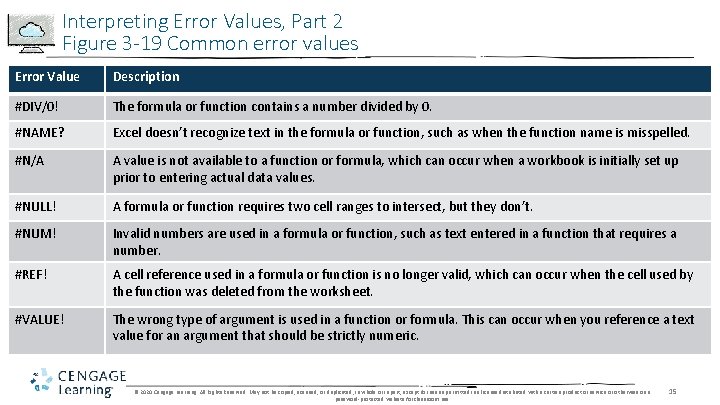
Interpreting Error Values, Part 2 Figure 3 -19 Common error values Error Value Description #DIV/0! The formula or function contains a number divided by 0. #NAME? Excel doesn’t recognize text in the formula or function, such as when the function name is misspelled. #N/A A value is not available to a function or formula, which can occur when a workbook is initially set up prior to entering actual data values. #NULL! A formula or function requires two cell ranges to intersect, but they don’t. #NUM! Invalid numbers are used in a formula or function, such as text entered in a function that requires a number. #REF! A cell reference used in a formula or function is no longer valid, which can occur when the cell used by the function was deleted from the worksheet. #VALUE! The wrong type of argument is used in a function or formula. This can occur when you reference a text value for an argument that should be strictly numeric. © 2020 Cengage Learning. All Rights Reserved. May not be copied, scanned, or duplicated, in whole or in part, except for use as permitted in a license distributed with a certain product or service or otherwise on a password-protected website for classroom use. 15
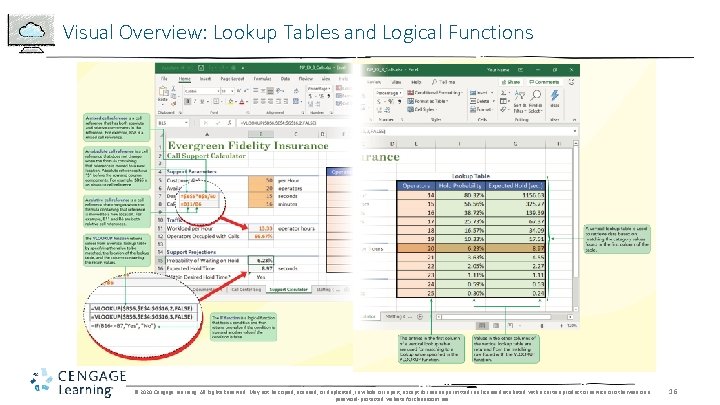
Visual Overview: Lookup Tables and Logical Functions © 2020 Cengage Learning. All Rights Reserved. May not be copied, scanned, or duplicated, in whole or in part, except for use as permitted in a license distributed with a certain product or service or otherwise on a password-protected website for classroom use. 16
Calculating Running Totals with the Quick Analysis Tool • The Quick Analysis tool appears whenever you select a range of cells, providing easy access to the most common tools for data analysis, chart creation, and data formatting • It is an excellent tool for doing useful calculations and entering Excel functions © 2020 Cengage Learning. All Rights Reserved. May not be copied, scanned, or duplicated, in whole or in part, except for use as permitted in a license distributed with a certain product or service or otherwise on a password-protected website for classroom use. 17
Exploring Cell References, Part 1 • Relative cell references • Excel interprets a relative cell reference relative to the position of the cell containing the formula. For example, if cell A 1 contains the formula =B 1+B 2, Excel interprets that formula as “Add the value of the cell one column to the right (B 1) to the value of the cell one column to the right and one row down (B 2)” • Absolute cell references • An absolute cell reference remains fixed even when a formula or function is copied to a new location. Absolute references include $ (a dollar sign) before each column and row designation. For example, B 8 is a relative reference to cell B 8, while $B$8 is an absolute reference to that cell © 2020 Cengage Learning. All Rights Reserved. May not be copied, scanned, or duplicated, in whole or in part, except for use as permitted in a license distributed with a certain product or service or otherwise on a password-protected website for classroom use. 18
Exploring Cell References, Part 2 • Mixed cell references • A mixed cell reference contains both relative and absolute components. For example, a mixed cell reference for cell A 2 can be either $A 2 where the column is the absolute component and the row is the relative component, or it can be entered as A$2 with a relative column component and a fixed row component © 2020 Cengage Learning. All Rights Reserved. May not be copied, scanned, or duplicated, in whole or in part, except for use as permitted in a license distributed with a certain product or service or otherwise on a password-protected website for classroom use. 19
Entering an Absolute Cell Reference • You can easily cycle between relative, absolute, and mixed cell references in formulas by selecting the cell reference in the formula and pressing F 4 while in Edit mode © 2020 Cengage Learning. All Rights Reserved. May not be copied, scanned, or duplicated, in whole or in part, except for use as permitted in a license distributed with a certain product or service or otherwise on a password-protected website for classroom use. 20
Working with the IF Logical Function • Returns one value if a condition is true and returns a different value if that condition is false • value_if_true is the value returned by the function if the condition is true, and value_if_false is an optional argument containing the value if the condition is false • The = symbol in IF function is a comparison operator, which is an operator expressing the relationship between two values © 2020 Cengage Learning. All Rights Reserved. May not be copied, scanned, or duplicated, in whole or in part, except for use as permitted in a license distributed with a certain product or service or otherwise on a password-protected website for classroom use. 21
Formatting Input, Calculated, and Output Values • Formatting cells based on their purpose helps others correctly use and interpret your worksheet • The Cell Styles gallery includes cell styles to format cells containing input, calculation, and output values © 2020 Cengage Learning. All Rights Reserved. May not be copied, scanned, or duplicated, in whole or in part, except for use as permitted in a license distributed with a certain product or service or otherwise on a password-protected website for classroom use. 22
Looking Up Data, Part 1 • Lookup functions find values in tables of data and insert them in another location in the worksheet such as cells or in formulas • An exact match lookup is when the lookup value must match one of the compare values in the first column of the lookup table • An approximate match lookup occurs when the lookup value falls within a range of numbers in the first column of the lookup table © 2020 Cengage Learning. All Rights Reserved. May not be copied, scanned, or duplicated, in whole or in part, except for use as permitted in a license distributed with a certain product or service or otherwise on a password-protected website for classroom use. 23
Looking Up Data, Part 2 • To retrieve a return value from a vertical lookup table, you use the VLOOKUP function: VLOOKUP(lookup_value, table_array, col_index_num, [range_lookup=TRUE]) • The lookup table contains the following columns: • • Operators Hold probability Expected hold (sec) Failure rate © 2020 Cengage Learning. All Rights Reserved. May not be copied, scanned, or duplicated, in whole or in part, except for use as permitted in a license distributed with a certain product or service or otherwise on a password-protected website for classroom use. 24
Performing What-If Analyses with Formulas and Functions, Part 1 • A what-if analysis lets you explore the impact that changing input values has on calculated values and output values • One way to perform a what-if analysis is by changing one or more of the input values to see how they affect the calculated results © 2020 Cengage Learning. All Rights Reserved. May not be copied, scanned, or duplicated, in whole or in part, except for use as permitted in a license distributed with a certain product or service or otherwise on a password-protected website for classroom use. 25
Performing What-If Analyses with Formulas and Functions, Part 2 • The trial-and-error method requires some guesswork as you estimate which values to change and by how much • To perform a what-if analysis by trial and error: • Change the value of a worksheet cell (the input cell) • Observe its impact on one or more calculated cells (the result cells) • Repeat until the desired results are achieved © 2020 Cengage Learning. All Rights Reserved. May not be copied, scanned, or duplicated, in whole or in part, except for use as permitted in a license distributed with a certain product or service or otherwise on a password-protected website for classroom use. 26
Using Goal Seek • Goal Seek automates the trial-and-error process by specifying a value for a calculated item • To perform a what-if analysis using Goal Seek: • On the Data tab, in the Forecast group, click the What-If Analysis button, and then click Goal Seek • Select the result cell in the Set cell box, and then specify its value (goal) in the To value box • In the By changing cell box, specify the input cell • Click OK. The value of the input cell changes to set the value of the result cell © 2020 Cengage Learning. All Rights Reserved. May not be copied, scanned, or duplicated, in whole or in part, except for use as permitted in a license distributed with a certain product or service or otherwise on a password-protected website for classroom use. 27