
New Perspectives on Microsoft Access 2016 Module 10















- Slides: 36
New Perspectives on Microsoft Access 2016 Module 10: Automating Tasks with Macros
Objectives • Session 10. 1 • • • View macros in the Macro Designer Run and add actions to macros Single step a macro Create a submacro Add a command button to a form Attach a macro to a command Button © 2017 Cengage Learning. All Rights Reserved. May not be copied, scanned, or duplicated, in whole or in part, except for use as permitted in a license distributed with a certain product or service or otherwise on a password-protected website for classroom use. 2
Objectives • Session 10. 2 • • • Create an unbound form Add a list box to a form Use a SQL statement to fill a list box with object names Create multiple macros for a form Create a navigation form © 2017 Cengage Learning. All Rights Reserved. May not be copied, scanned, or duplicated, in whole or in part, except for use as permitted in a license distributed with a certain product or service or otherwise on a password-protected website for classroom use. 3
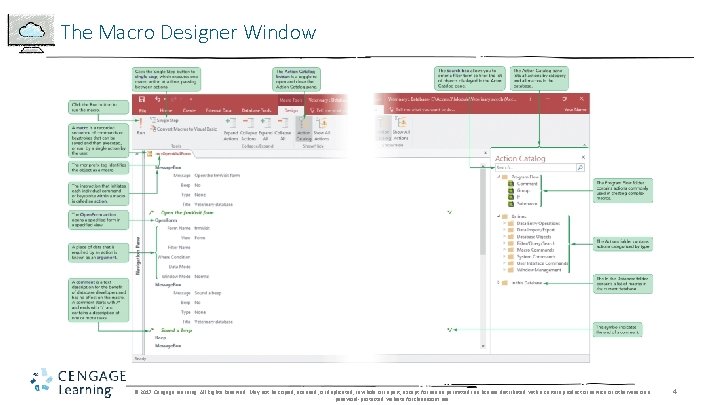
The Macro Designer Window © 2017 Cengage Learning. All Rights Reserved. May not be copied, scanned, or duplicated, in whole or in part, except for use as permitted in a license distributed with a certain product or service or otherwise on a password-protected website for classroom use. 4
Introduction to Macros • A macro is a recorded sequence of commands or keystrokes that can be saved and then executed, or run, by a single action by the user • Access provides more than 80 common actions you can include in your database macros © 2017 Cengage Learning. All Rights Reserved. May not be copied, scanned, or duplicated, in whole or in part, except for use as permitted in a license distributed with a certain product or service or otherwise on a password-protected website for classroom use. 5
Introduction to Macros © 2017 Cengage Learning. All Rights Reserved. May not be copied, scanned, or duplicated, in whole or in part, except for use as permitted in a license distributed with a certain product or service or otherwise on a password-protected website for classroom use. 6
Running a Macro • You can reference and run a macro from within a form or report, or you can run a macro by right-clicking its name in the Macros section of the Navigation Pane © 2017 Cengage Learning. All Rights Reserved. May not be copied, scanned, or duplicated, in whole or in part, except for use as permitted in a license distributed with a certain product or service or otherwise on a password-protected website for classroom use. 7
Running a Macro © 2017 Cengage Learning. All Rights Reserved. May not be copied, scanned, or duplicated, in whole or in part, except for use as permitted in a license distributed with a certain product or service or otherwise on a password-protected website for classroom use. 8
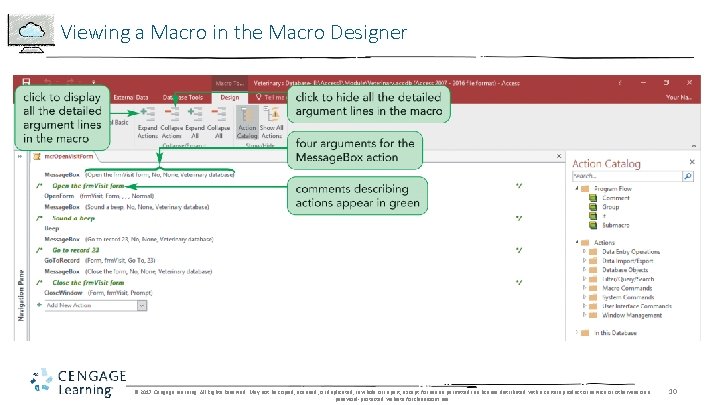
Viewing a Macro in the Macro Designer • You create, view, and edit a macro using the Macro Designer, which is a development environment built into Access • To open the Macro Designer, you’ll open the macro in Design view • Using Arguments in a Macro © 2017 Cengage Learning. All Rights Reserved. May not be copied, scanned, or duplicated, in whole or in part, except for use as permitted in a license distributed with a certain product or service or otherwise on a password-protected website for classroom use. 9
Viewing a Macro in the Macro Designer © 2017 Cengage Learning. All Rights Reserved. May not be copied, scanned, or duplicated, in whole or in part, except for use as permitted in a license distributed with a certain product or service or otherwise on a password-protected website for classroom use. 10
Viewing a Macro in the Macro Designer • Arguments • A piece of data that is required by an action • Message. Box - Four arguments: The Message argument contains text that appears in the message box when it is displayed - The Beep argument (Yes or No), specifies whether a beep will sound when the message box opens - The Type argument determines which icon, if any, appears Choices are None, Critical Warning? Warning! and Information - The Title argument contains the word(s) that will appear in the message box title © 2017 Cengage Learning. All Rights Reserved. May not be copied, scanned, or duplicated, in whole or in part, except for use as permitted in a license distributed with a certain product or service or otherwise on a password-protected website for classroom use. 11
Adding Actions to a Macro • Once a macro has been created, you can modify it by adding or deleting actions in the Macro Designer • The Find. Record action is used to find the first record, or the next record if the action is used again, that meets the criteria specified by the Find. Record arguments © 2017 Cengage Learning. All Rights Reserved. May not be copied, scanned, or duplicated, in whole or in part, except for use as permitted in a license distributed with a certain product or service or otherwise on a password-protected website for classroom use. 12
Adding Actions to a Macro (Cont. ) © 2017 Cengage Learning. All Rights Reserved. May not be copied, scanned, or duplicated, in whole or in part, except for use as permitted in a license distributed with a certain product or service or otherwise on a password-protected website for classroom use. 13
Single Stepping a Macro • Single Step Mode • Executes a macro one action at a time, pausing between actions – called single stepping • Allows you to make sure you have placed actions in the right order and with the correct arguments • You can use single step mode to find the causes of problems and to determine corrections • The Single Step button on the DESIGN tab is a toggle you use to turn single step mode on and off - Once you turn on single step mode, it stays on for all macros until you turn it off © 2017 Cengage Learning. All Rights Reserved. May not be copied, scanned, or duplicated, in whole or in part, except for use as permitted in a license distributed with a certain product or service or otherwise on a password-protected website for classroom use. 14
Single Stepping a Macro (Cont. ) © 2017 Cengage Learning. All Rights Reserved. May not be copied, scanned, or duplicated, in whole or in part, except for use as permitted in a license distributed with a certain product or service or otherwise on a password-protected website for classroom use. 15
Using a Command Button with an Attached Macro © 2017 Cengage Learning. All Rights Reserved. May not be copied, scanned, or duplicated, in whole or in part, except for use as permitted in a license distributed with a certain product or service or otherwise on a password-protected website for classroom use. 16
Using a Command Button with an Attached Macro (Cont. ) • Event • A state, condition, or occurrence detectable by Access • Event Property • Specifies how an object responds when an event occurs • Event Procedure • A group of statements using VBA code that Access executes together © 2017 Cengage Learning. All Rights Reserved. May not be copied, scanned, or duplicated, in whole or in part, except for use as permitted in a license distributed with a certain product or service or otherwise on a password-protected website for classroom use. 17
Adding a Submacro • The Select. Object action selects a specified object so that you can run an action that applies to the Object • The Run. Menu. Command action selects and runs a command on the ribbon • The Print. Selection argument, which prints the selected form record © 2017 Cengage Learning. All Rights Reserved. May not be copied, scanned, or duplicated, in whole or in part, except for use as permitted in a license distributed with a certain product or service or otherwise on a password-protected website for classroom use. 18
Adding a Submacro (Cont. ) © 2017 Cengage Learning. All Rights Reserved. May not be copied, scanned, or duplicated, in whole or in part, except for use as permitted in a license distributed with a certain product or service or otherwise on a password-protected website for classroom use. 19
Adding a Command Button to a Form • In Design view for a form, you use the Button tool in the Controls group on the Form Design Tools Design tab to add a command button control to a form • If the Use Control Wizards tool is selected when you click the Button tool, the Command Button Wizard guides you through the process of adding the command button control © 2017 Cengage Learning. All Rights Reserved. May not be copied, scanned, or duplicated, in whole or in part, except for use as permitted in a license distributed with a certain product or service or otherwise on a password-protected website for classroom use. 20
Adding a Command Button to a Form © 2017 Cengage Learning. All Rights Reserved. May not be copied, scanned, or duplicated, in whole or in part, except for use as permitted in a license distributed with a certain product or service or otherwise on a password-protected website for classroom use. 21
Attaching a Submacro to a Command Button © 2017 Cengage Learning. All Rights Reserved. May not be copied, scanned, or duplicated, in whole or in part, except for use as permitted in a license distributed with a certain product or service or otherwise on a password-protected website for classroom use. 22
A Navigation Form © 2017 Cengage Learning. All Rights Reserved. May not be copied, scanned, or duplicated, in whole or in part, except for use as permitted in a license distributed with a certain product or service or otherwise on a password-protected website for classroom use. 23
Designing a User Interface • A user interface is what you see and use when you communicate with a computer application • Restricting Access to Database Objects and Prohibiting Design Changes • It’s important to ensure that data is as accurate as possible © 2017 Cengage Learning. All Rights Reserved. May not be copied, scanned, or duplicated, in whole or in part, except for use as permitted in a license distributed with a certain product or service or otherwise on a password-protected website for classroom use. 24
Creating an Unbound Form © 2017 Cengage Learning. All Rights Reserved. May not be copied, scanned, or duplicated, in whole or in part, except for use as permitted in a license distributed with a certain product or service or otherwise on a password-protected website for classroom use. 25
Creating an Unbound Form • When the form controls in a form do not need data from a table or query, you create an unbound form • The data displayed in an unbound form can be provided by a Structured Query Language (SQL) statement © 2017 Cengage Learning. All Rights Reserved. May not be copied, scanned, or duplicated, in whole or in part, except for use as permitted in a license distributed with a certain product or service or otherwise on a password-protected website for classroom use. 26
Adding a List Box Control to a Form © 2017 Cengage Learning. All Rights Reserved. May not be copied, scanned, or duplicated, in whole or in part, except for use as permitted in a license distributed with a certain product or service or otherwise on a password-protected website for classroom use. 27
Adding a List Box Control to a Form • You can add a list box control to a form using the Control Wizards tool, or you can set the properties for the list box control individually in the control’s Property Sheet • Adding a List Box Control to a Form © 2017 Cengage Learning. All Rights Reserved. May not be copied, scanned, or duplicated, in whole or in part, except for use as permitted in a license distributed with a certain product or service or otherwise on a password-protected website for classroom use. 28
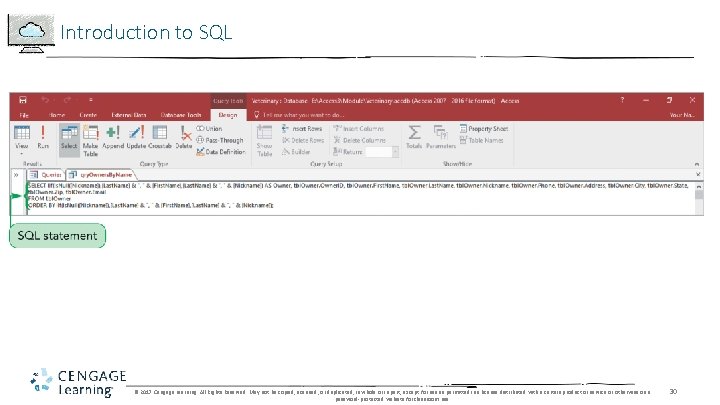
Introduction to SQL • SQL (Structured Query Language) • A standard language used in querying, updating, and managing relational databases • Used mostly in a relational DBMS such as my. SQL or Oracle • Viewing a SQL Statement for a Query © 2017 Cengage Learning. All Rights Reserved. May not be copied, scanned, or duplicated, in whole or in part, except for use as permitted in a license distributed with a certain product or service or otherwise on a password-protected website for classroom use. 29
Introduction to SQL © 2017 Cengage Learning. All Rights Reserved. May not be copied, scanned, or duplicated, in whole or in part, except for use as permitted in a license distributed with a certain product or service or otherwise on a password-protected website for classroom use. 30
Introduction to SQL • SELECT Statement • • • The basic form of a SQL SELECT statement includes four sections, known as clauses Each clause starts with a different keyword: SELECT, FROM, WHERE, and ORDER BY After the SELECT keyword, you list the fields you want to display After FROM, you list the tables used in the query After WHERE, you list the selection criteria After ORDER BY, you list the sort fields © 2017 Cengage Learning. All Rights Reserved. May not be copied, scanned, or duplicated, in whole or in part, except for use as permitted in a license distributed with a certain product or service or otherwise on a password-protected website for classroom use. 31
Introduction to SQL • Using a SQL Statement for a List Box • System tables are special tables maintained by Access that store information about the characteristics of a database and about the structure of the objects in the database • Although system tables do not appear in the Navigation Pane, you can retrieve information from system tables using SELECT statements • One of the system tables, the MSys. Objects table, keeps track of the names, types, and other characteristics of every object in a database © 2017 Cengage Learning. All Rights Reserved. May not be copied, scanned, or duplicated, in whole or in part, except for use as permitted in a license distributed with a certain product or service or otherwise on a password-protected website for classroom use. 32
Creating Multiple Macros for a Form • After creating a custom form, you should test the form in Form view • For the frm. Queries form, you need to double-click a query name in the list box to make sure the query datasheet opens • Also, you must scroll the list box, click a query name, and then click the Display command button to make sure the query datasheet opens, and also click the Preview command button to make sure the query opens in Print Preview • Load Event • Occurs when Access opens a form or report © 2017 Cengage Learning. All Rights Reserved. May not be copied, scanned, or duplicated, in whole or in part, except for use as permitted in a license distributed with a certain product or service or otherwise on a password-protected website for classroom use. 33
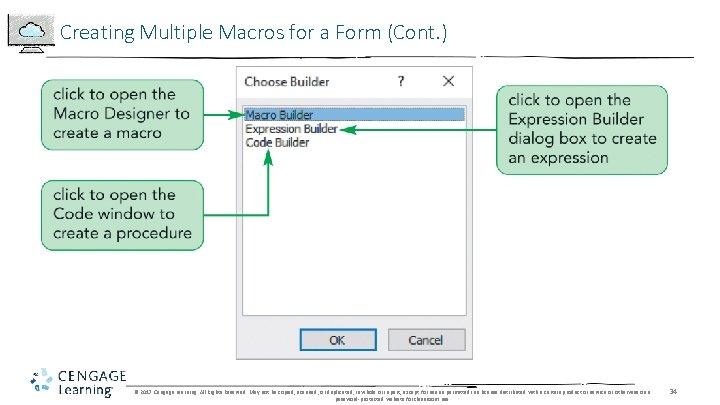
Creating Multiple Macros for a Form (Cont. ) © 2017 Cengage Learning. All Rights Reserved. May not be copied, scanned, or duplicated, in whole or in part, except for use as permitted in a license distributed with a certain product or service or otherwise on a password-protected website for classroom use. 34
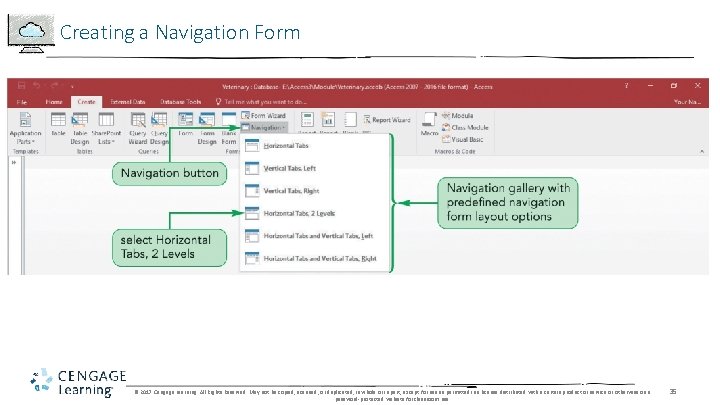
Creating a Navigation Form © 2017 Cengage Learning. All Rights Reserved. May not be copied, scanned, or duplicated, in whole or in part, except for use as permitted in a license distributed with a certain product or service or otherwise on a password-protected website for classroom use. 35
Creating a Navigation Form • It is a good practice to ensure a form element has the focus when the form opens so that if a user presses the Enter key, the default behavior of the element with the focus is executed • If no form controls have the focus when a form opens and a user presses the Enter key, an error message might display, which could confuse or frustrate users • To avoid this situation, you’ll place the focus on the first query name in the lst. Query. List list box control when the form opens © 2017 Cengage Learning. All Rights Reserved. May not be copied, scanned, or duplicated, in whole or in part, except for use as permitted in a license distributed with a certain product or service or otherwise on a password-protected website for classroom use. 36