
New CASORT Feature Briefing Digital Inspection Job Aids
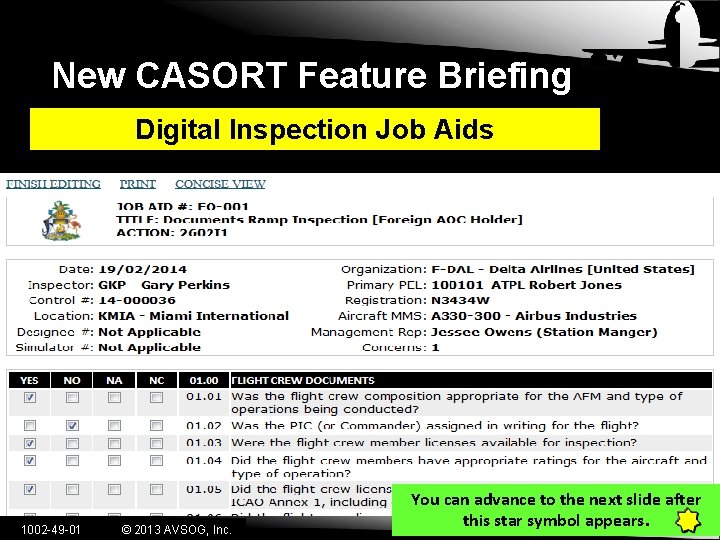
New CASORT Feature Briefing Digital Inspection Job Aids 1002 -49 -01 © 2013 AVSOG, Inc. You can advance to the next slide after this star symbol appears.
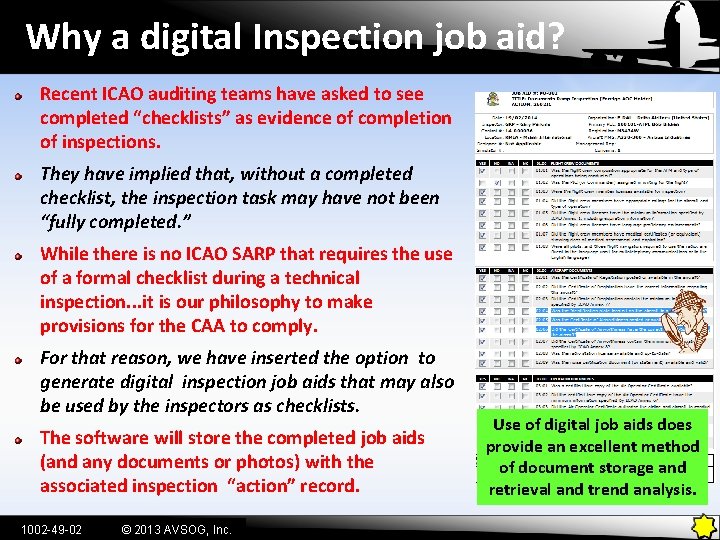
Why a digital Inspection job aid? Recent ICAO auditing teams have asked to see completed “checklists” as evidence of completion of inspections. They have implied that, without a completed checklist, the inspection task may have not been “fully completed. ” While there is no ICAO SARP that requires the use of a formal checklist during a technical inspection. . . it is our philosophy to make provisions for the CAA to comply. For that reason, we have inserted the option to generate digital inspection job aids that may also be used by the inspectors as checklists. The software will store the completed job aids (and any documents or photos) with the associated inspection “action” record. 1002 -49 -02 © 2013 AVSOG, Inc. CASORT does not require you to complete a job aid to log your inspection action. Use of digital job aids does provide an excellent method of document storage and retrieval and trend analysis.
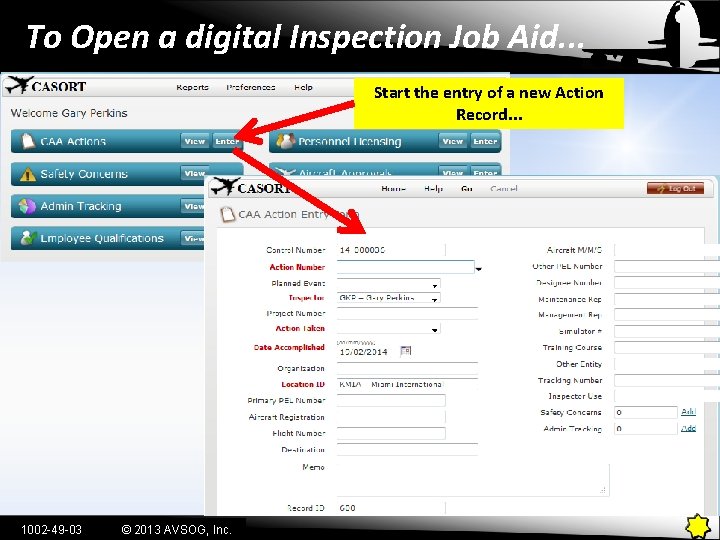
To Open a digital Inspection Job Aid. . . Start the entry of a new Action Record. . . 1002 -49 -03 © 2013 AVSOG, Inc.
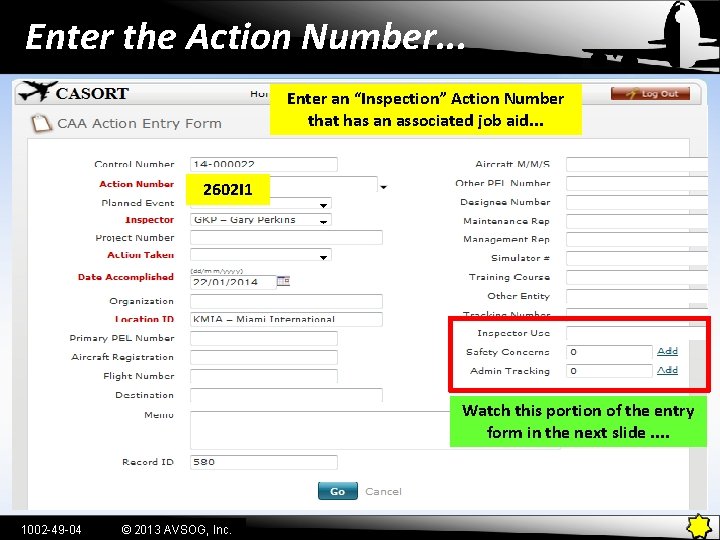
Enter the Action Number. . . Enter an “Inspection” Action Number that has an associated job aid. . . 2602 I 1 Watch this portion of the entry form in the next slide. . 1002 -49 -04 © 2013 AVSOG, Inc.
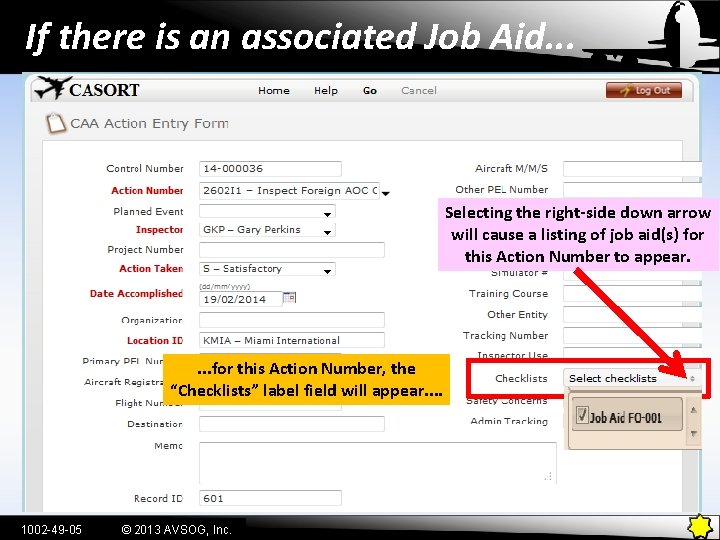
If there is an associated Job Aid. . . Selecting the right-side down arrow will cause a listing of job aid(s) for this Action Number to appear. . for this Action Number, the “Checklists” label field will appear. . 1002 -49 -05 © 2013 AVSOG, Inc.
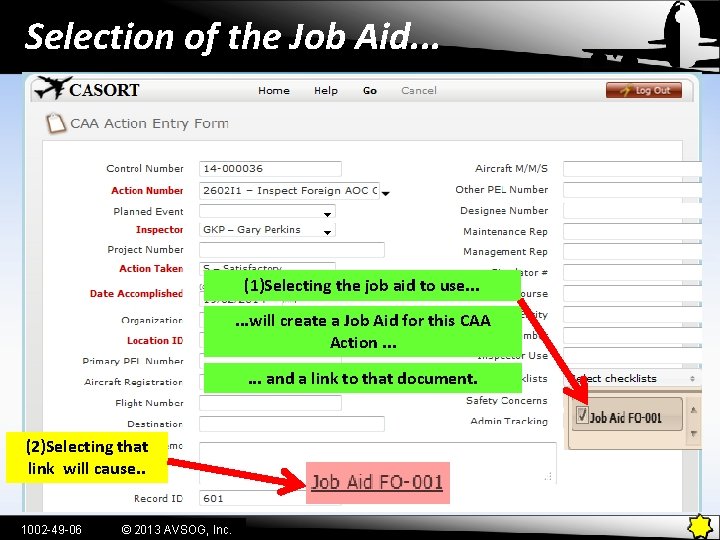
Selection of the Job Aid. . . (1)Selecting the job aid to use. . . will create a Job Aid for this CAA Action. . . and a link to that document. (2)Selecting that link will cause. . 1002 -49 -06 © 2013 AVSOG, Inc.
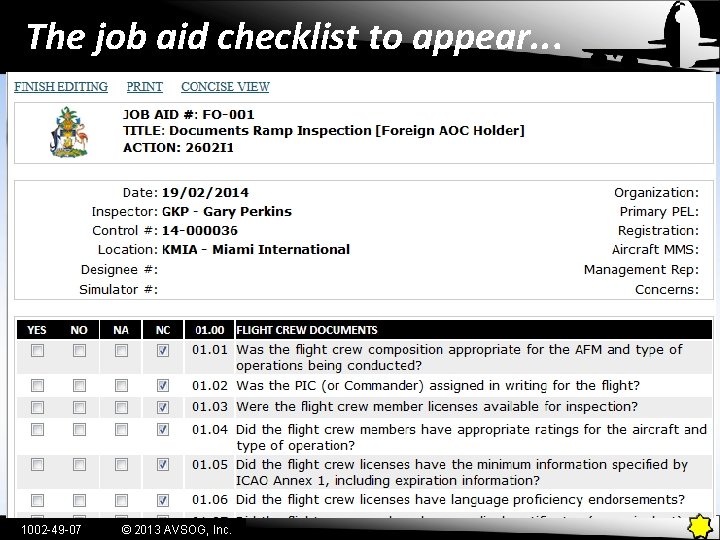
The job aid checklist to appear. . . 1002 -49 -07 © 2013 AVSOG, Inc.
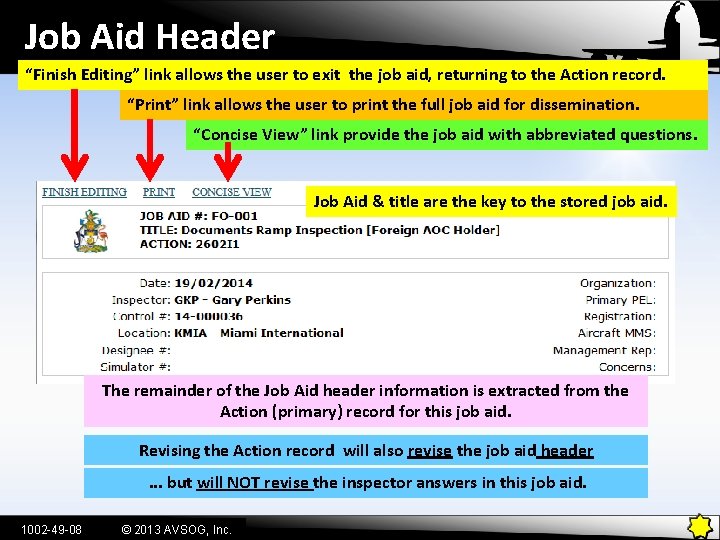
Job Aid Header “Finish Editing” link allows the user to exit the job aid, returning to the Action record. “Print” link allows the user to print the full job aid for dissemination. “Concise View” link provide the job aid with abbreviated questions. Job Aid & title are the key to the stored job aid. The remainder of the Job Aid header information is extracted from the Action (primary) record for this job aid. Revising the Action record will also revise the job aid header. . . but will NOT revise the inspector answers in this job aid. 1002 -49 -08 © 2013 AVSOG, Inc.
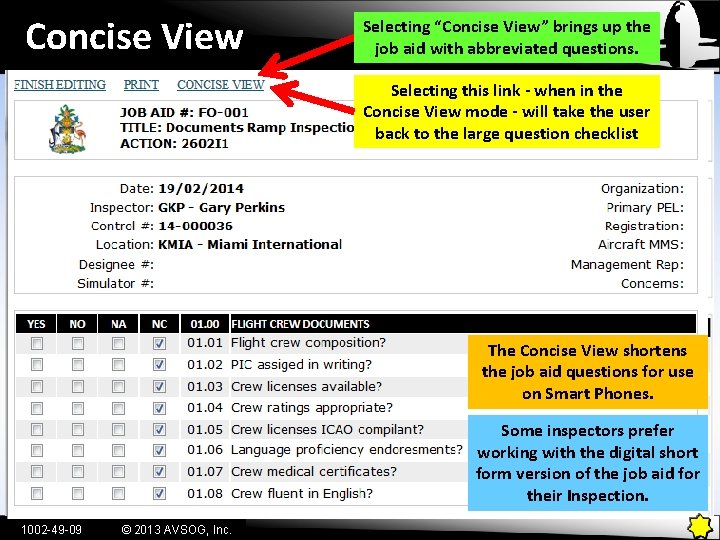
Concise View Selecting “Concise View” brings up the job aid with abbreviated questions. Selecting this link - when in the Concise View mode - will take the user back to the large question checklist The Concise View shortens the job aid questions for use on Smart Phones. Some inspectors prefer working with the digital short form version of the job aid for their Inspection. 1002 -49 -09 © 2013 AVSOG, Inc.
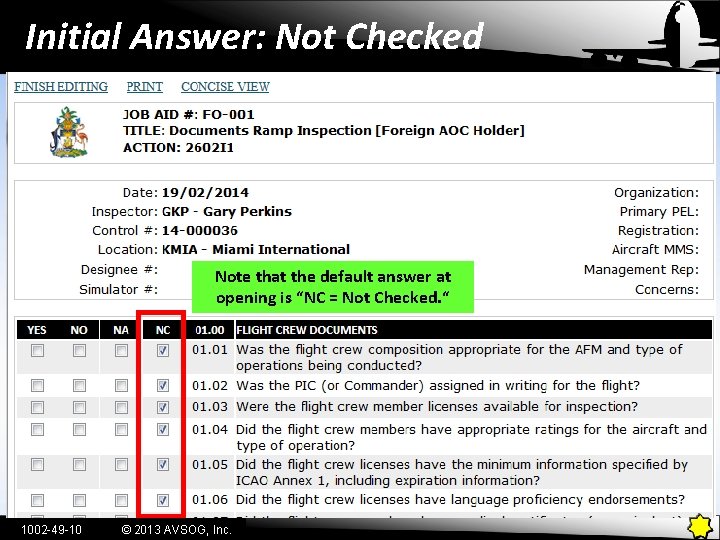
Initial Answer: Not Checked Note that the default answer at opening is “NC = Not Checked. “ 1002 -49 -10 © 2013 AVSOG, Inc.

Completing the Inspection Job Aid An INSPECTION job aid compares the relevant regulations with applicable standard. Check NA if the requirement does not apply to this organization, aircraft or person. Check YES if entity is in compliance with this requirement. Check NO if entity is in NOT in compliance with this requirement Then you will be prompted to author the basis (finding) for the NO selection. 1002 -49 -11 © 2013 AVSOG, Inc.
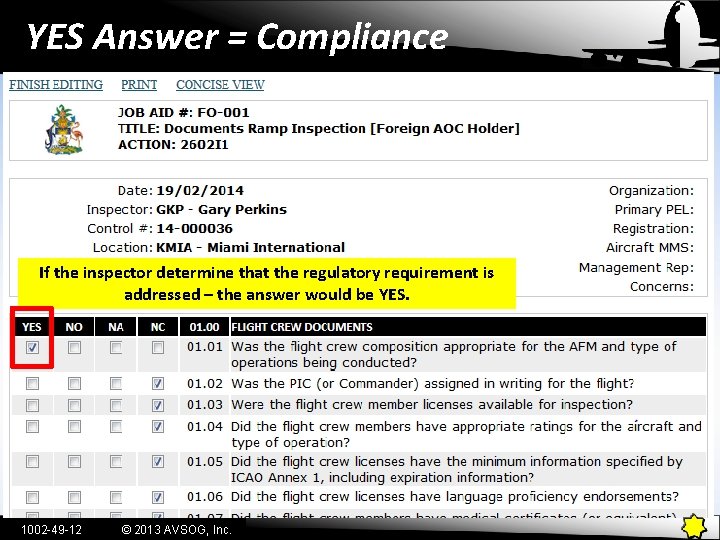
YES Answer = Compliance If the inspector determine that the regulatory requirement is addressed – the answer would be YES. 1002 -49 -12 © 2013 AVSOG, Inc.
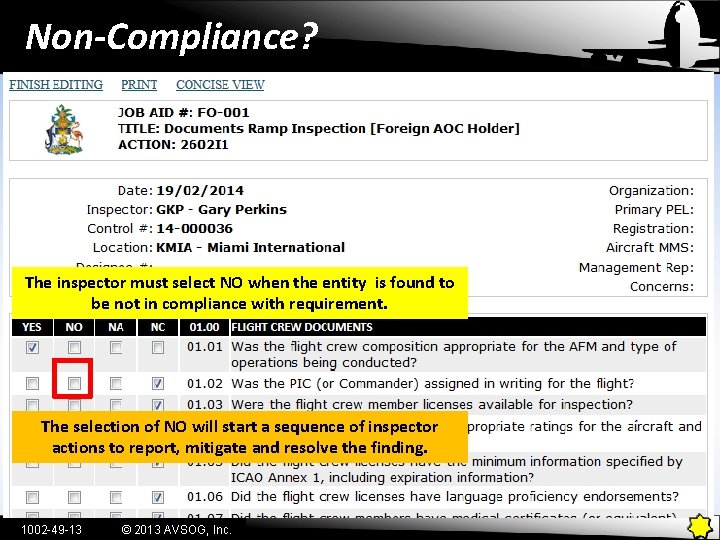
Non-Compliance? The inspector must select NO when the entity is found to be not in compliance with requirement. The selection of NO will start a sequence of inspector actions to report, mitigate and resolve the finding. 1002 -49 -13 © 2013 AVSOG, Inc.
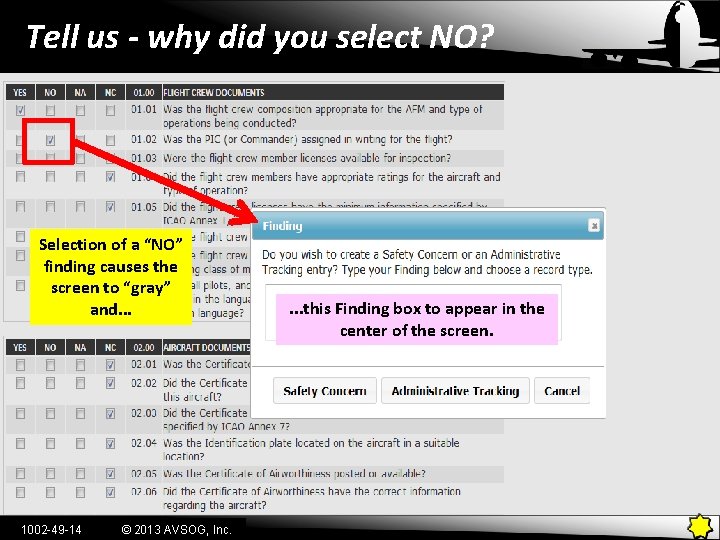
Tell us - why did you select NO? Selection of a “NO” finding causes the screen to “gray” and. . . 1002 -49 -14 © 2013 AVSOG, Inc. . this Finding box to appear in the center of the screen.
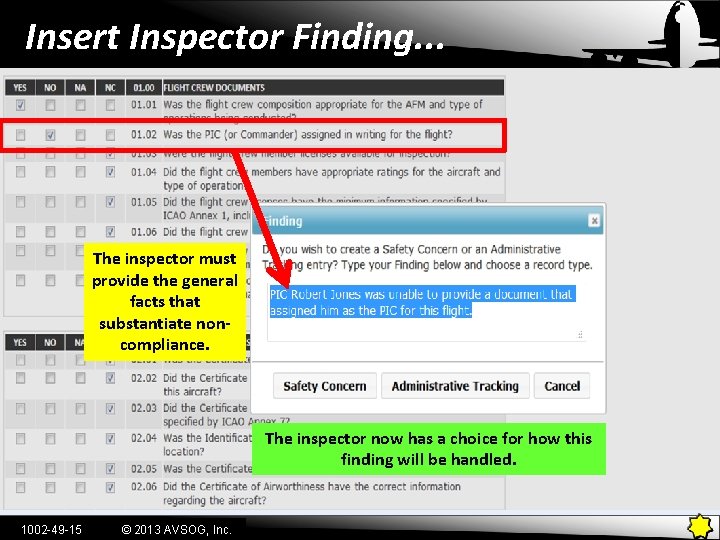
Insert Inspector Finding. . . The inspector must provide the general facts that substantiate noncompliance. The inspector now has a choice for how this finding will be handled. 1002 -49 -15 © 2013 AVSOG, Inc.
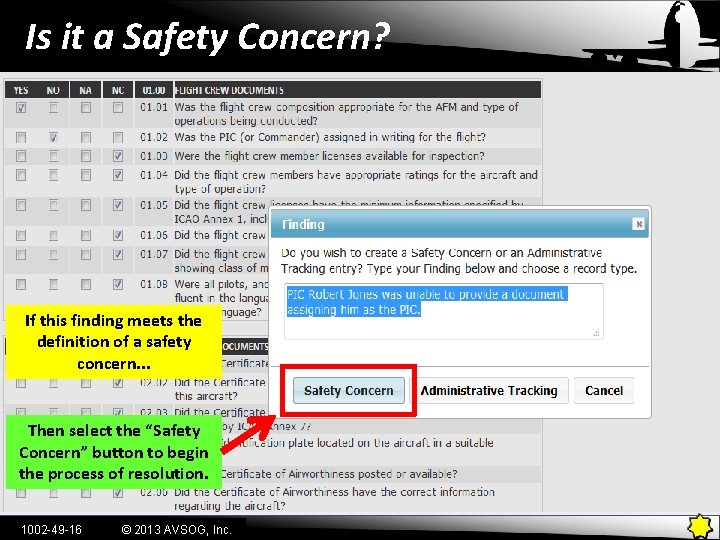
Is it a Safety Concern? If this finding meets the definition of a safety concern. . . Then select the “Safety Concern” button to begin the process of resolution. 1002 -49 -16 © 2013 AVSOG, Inc.
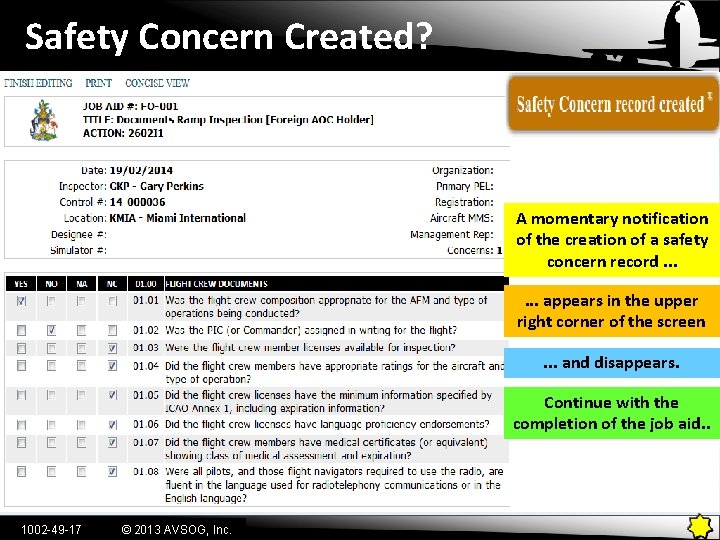
Safety Concern Created? A momentary notification of the creation of a safety concern record. . . appears in the upper right corner of the screen. . . and disappears. Continue with the completion of the job aid. . 1002 -49 -17 © 2013 AVSOG, Inc.
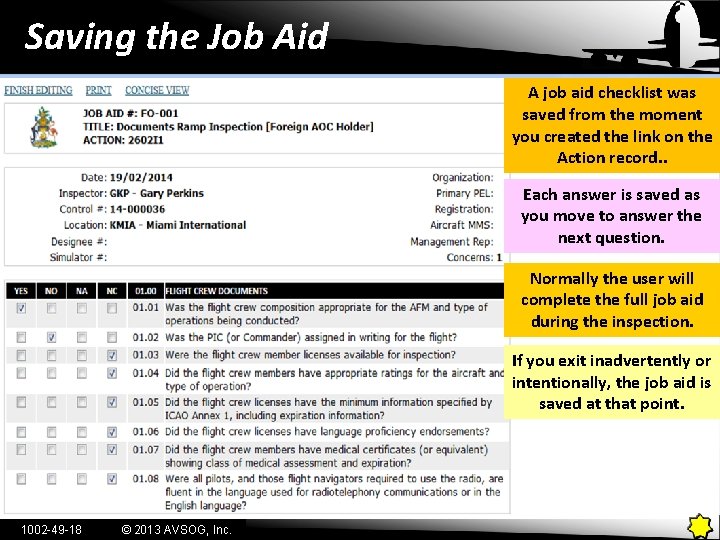
Saving the Job Aid A job aid checklist was saved from the moment you created the link on the Action record. . Each answer is saved as you move to answer the next question. Normally the user will complete the full job aid during the inspection. If you exit inadvertently or intentionally, the job aid is saved at that point. 1002 -49 -18 © 2013 AVSOG, Inc.
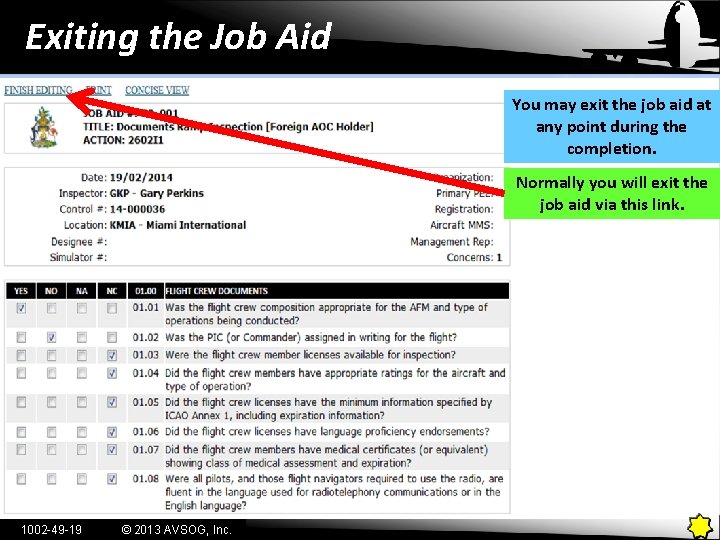
Exiting the Job Aid You may exit the job aid at any point during the completion. Normally you will exit the job aid via this link. 1002 -49 -19 © 2013 AVSOG, Inc.
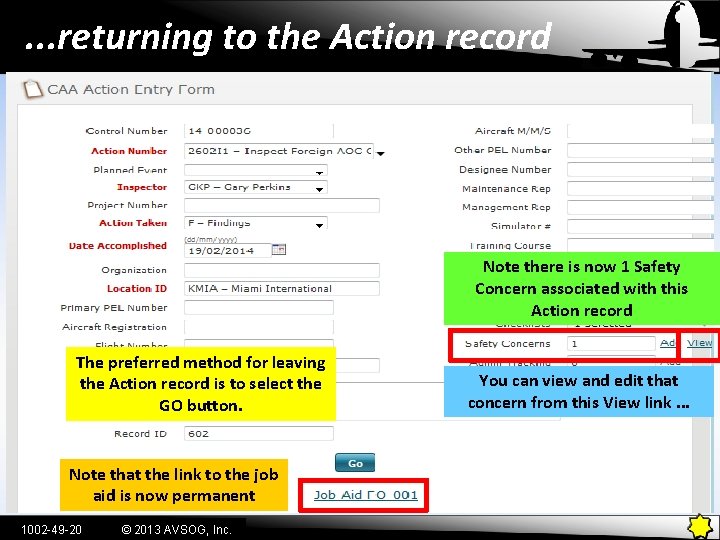
. . . returning to the Action record Note there is now 1 Safety Concern associated with this Action record The preferred method for leaving the Action record is to select the GO button. Note that the link to the job aid is now permanent 1002 -49 -20 © 2013 AVSOG, Inc. You can view and edit that concern from this View link. . .
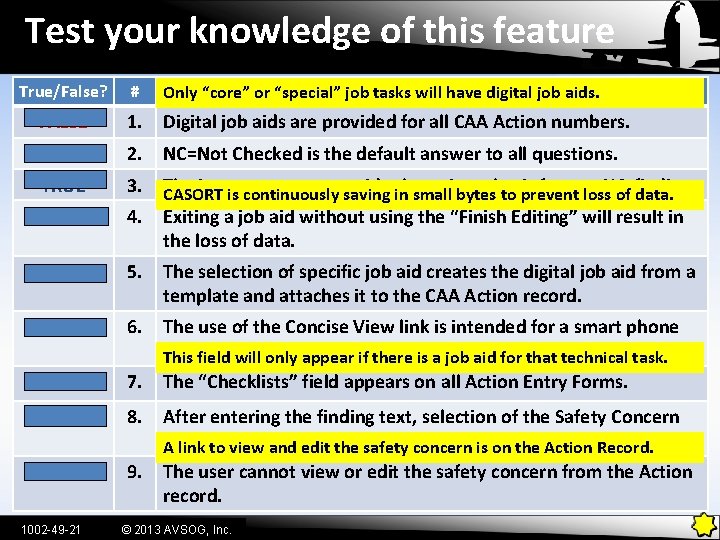
Test your knowledge of this feature True/False? # POSSIBLE ANSWER Only “core” or “special” job tasks will have digital job aids. FALSE 1. Digital job aids are provided for all CAA Action numbers. TRUE 2. NC=Not Checked is the default answer to all questions. TRUE 3. FALSE 4. The inspector must provide the written for any NO CASORT is continuously saving in small bytesbasis to prevent loss of finding. data. TRUE 5. The selection of specific job aid creates the digital job aid from a template and attaches it to the CAA Action record. TRUE 6. The use of the Concise View link is intended for a smart phone application. This field will only appear if there is a job aid for that technical task. FALSE 7. The “Checklists” field appears on all Action Entry Forms. TRUE 8. After entering the finding text, selection of the Safety Concern button Safetyconcern Concern record. A link toauto-generates view and edit theasafety is on the Action Record. FALSE 9. The user cannot view or edit the safety concern from the Action record. 1002 -49 -21 Exiting a job aid without using the “Finish Editing” will result in the loss of data. © 2013 AVSOG, Inc.
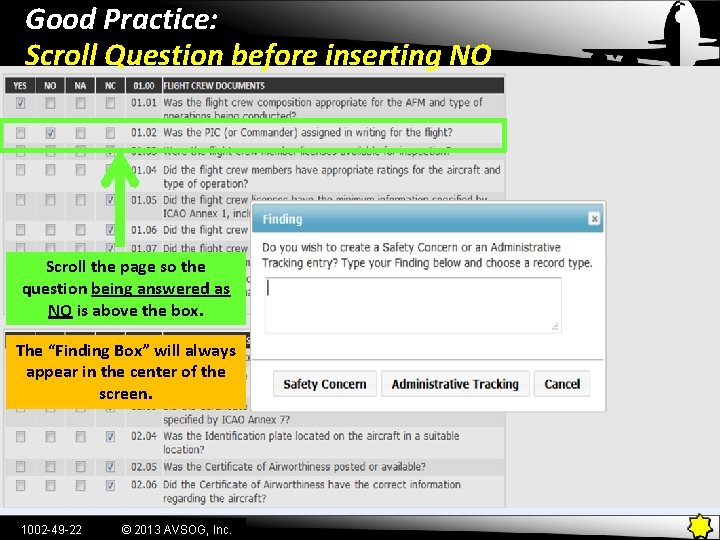
Good Practice: Scroll Question before inserting NO Scroll the page so the question being answered as NO is above the box. The “Finding Box” will always appear in the center of the screen. 1002 -49 -22 © 2013 AVSOG, Inc.
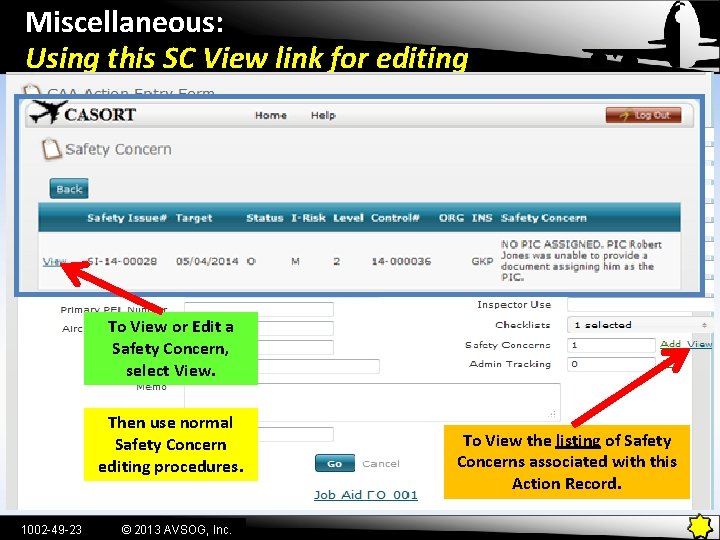
Miscellaneous: Using this SC View link for editing To View or Edit a Safety Concern, select View. Then use normal Safety Concern editing procedures. 1002 -49 -23 © 2013 AVSOG, Inc. To View the listing of Safety Concerns associated with this Action Record.
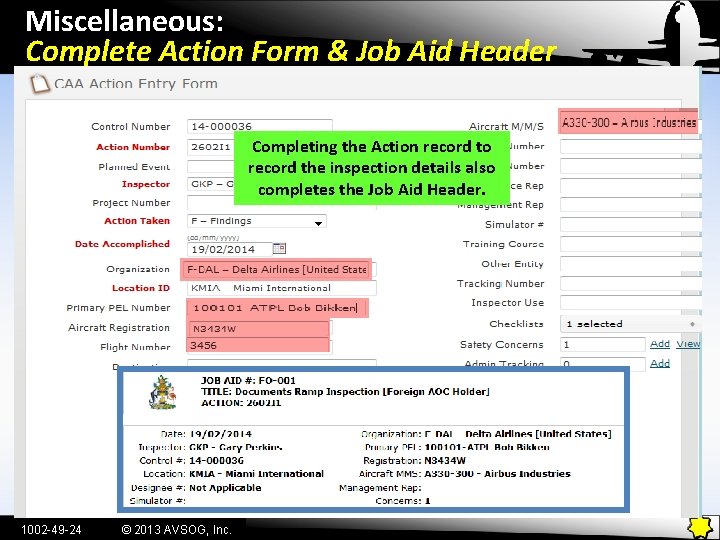
Miscellaneous: Complete Action Form & Job Aid Header Completing the Action record to record the inspection details also completes the Job Aid Header. 1002 -49 -24 © 2013 AVSOG, Inc.
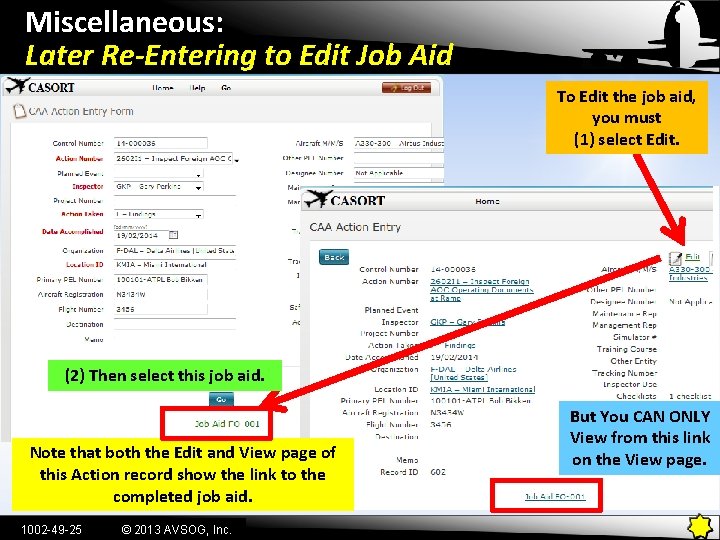
Miscellaneous: Later Re-Entering to Edit Job Aid To Edit the job aid, you must (1) select Edit. (2) Then select this job aid. Note that both the Edit and View page of this Action record show the link to the completed job aid. 1002 -49 -25 © 2013 AVSOG, Inc. But You CAN ONLY View from this link on the View page.
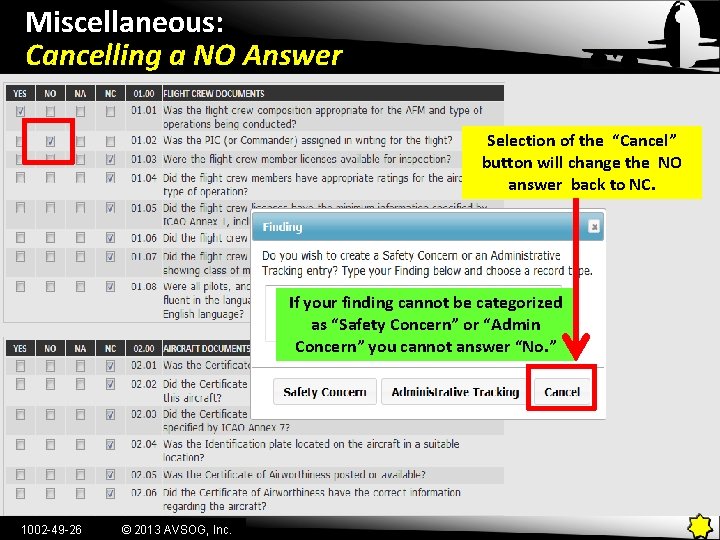
Miscellaneous: Cancelling a NO Answer Selection of the “Cancel” button will change the NO answer back to NC. If your finding cannot be categorized as “Safety Concern” or “Admin Concern” you cannot answer “No. ” 1002 -49 -26 © 2013 AVSOG, Inc.
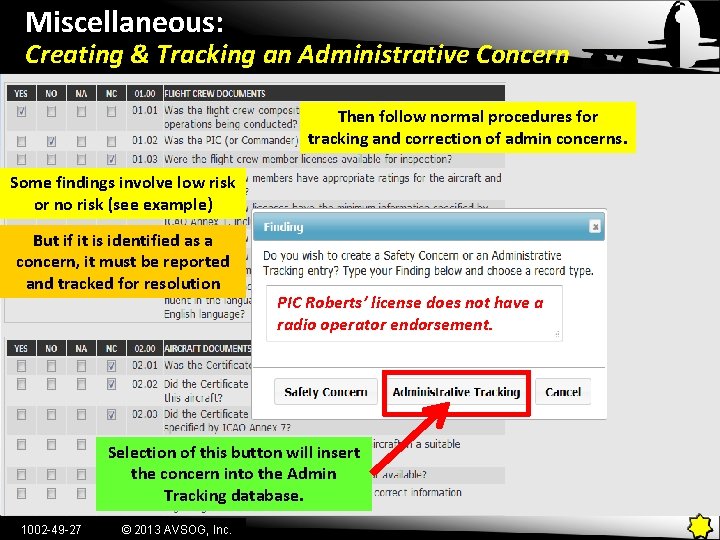
Miscellaneous: Creating & Tracking an Administrative Concern Then follow normal procedures for tracking and correction of admin concerns. Some findings involve low risk or no risk (see example) But if it is identified as a concern, it must be reported and tracked for resolution PIC Roberts’ license does not have a radio operator endorsement. Selection of this button will insert the concern into the Admin Tracking database. 1002 -49 -27 © 2013 AVSOG, Inc.
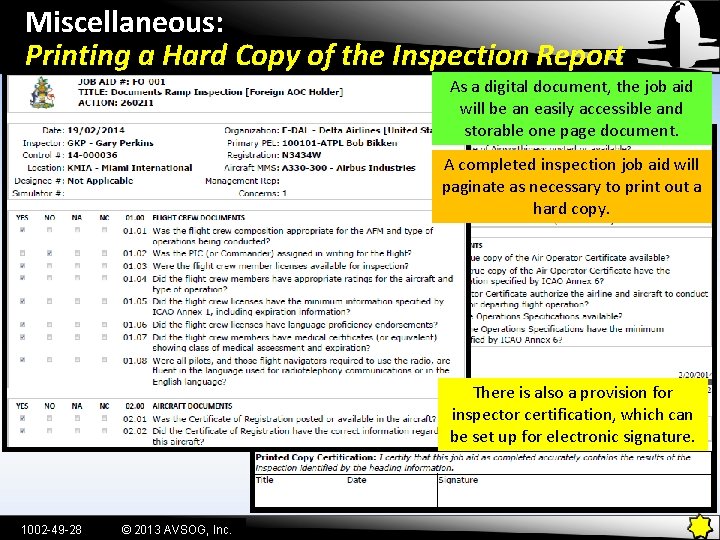
Miscellaneous: Printing a Hard Copy of the Inspection Report As a digital document, the job aid will be an easily accessible and storable one page document. A completed inspection job aid will paginate as necessary to print out a hard copy. There is also a provision for inspector certification, which can be set up for electronic signature. 1002 -49 -28 © 2013 AVSOG, Inc.
Status & Intended Capability § The capability to insert digital job aids into CASORT – then access and complete them - is now operational. § The software update for this capability is available from AVSOG on request. § The necessary job aids for inspection of foreign AOC operators are the first provided. § We will continue to insert and update job aids that are necessary to the “core” inspection functions. § We will insert additional questions proposed by a CAA into existing job aids. § We will insert “special” job aids provided by a CAA if these aids follow the methodology outlined in this presentation. Consider the following concepts when providing your proposed questions or job aids. 1002 -49 -29 © 2012 AVSOG, Inc.
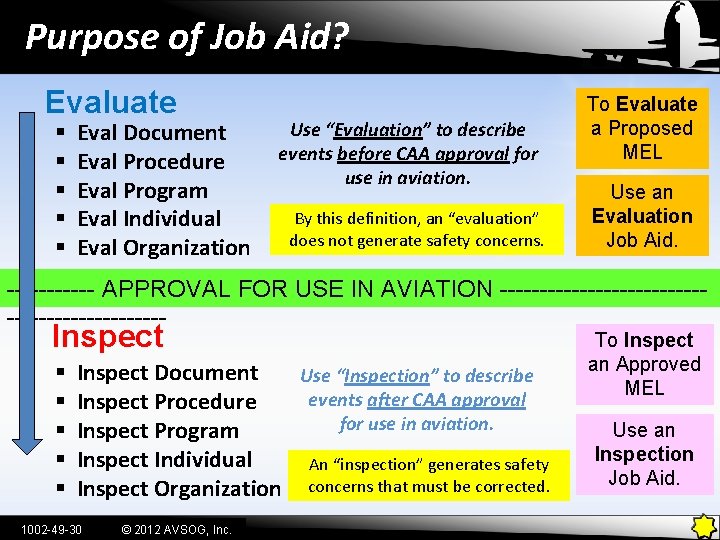
Purpose of Job Aid? Evaluate § § § Eval Document Eval Procedure Eval Program Eval Individual Eval Organization Use “Evaluation” to describe events before CAA approval for use in aviation. By this definition, an “evaluation” does not generate safety concerns. To Evaluate a Proposed MEL Use an Evaluation Job Aid. ------ APPROVAL FOR USE IN AVIATION ----------------------- Inspect § § § Inspect Document Use “Inspection” to describe events after CAA approval Inspect Procedure for use in aviation. Inspect Program Inspect Individual An “inspection” generates safety Inspect Organization concerns that must be corrected. 1002 -49 -30 © 2012 AVSOG, Inc. To Inspect an Approved MEL Use an Inspection Job Aid.
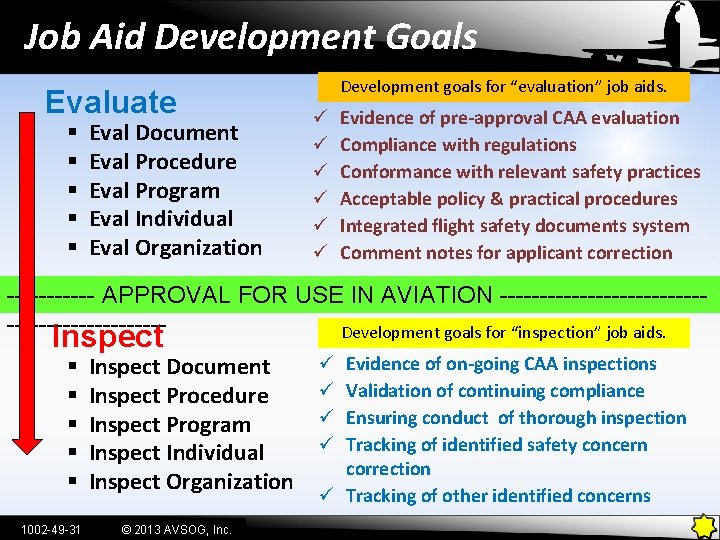
Job Aid Development Goals Evaluate § § § Eval Document Eval Procedure Eval Program Eval Individual Eval Organization Development goals for “evaluation” job aids. ü ü ü Evidence of pre-approval CAA evaluation Compliance with regulations Conformance with relevant safety practices Acceptable policy & practical procedures Integrated flight safety documents system Comment notes for applicant correction ------ APPROVAL FOR USE IN AVIATION ----------------------Development goals for “inspection” job aids. Inspect § § § 1002 -49 -31 Inspect Document Inspect Procedure Inspect Program Inspect Individual Inspect Organization © 2013 AVSOG, Inc. Evidence of on-going CAA inspections Validation of continuing compliance Ensuring conduct of thorough inspection Tracking of identified safety concern correction ü Tracking of other identified concerns ü ü
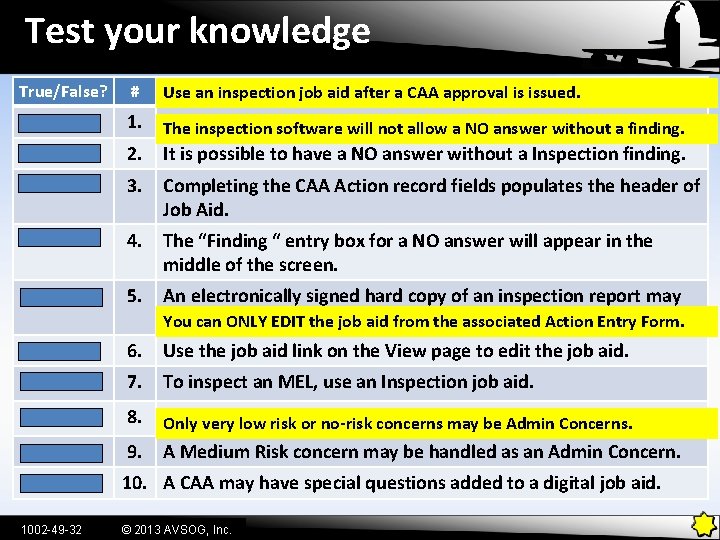
Test your knowledge True/False? # POSSIBLE ANSWERjob aid after a CAA approval is issued. Use an inspection FALSE 1. An job aid iswill fornot use before CAA approval issued. The. Inspection inspection software allow a NOa answer without is a finding. FALSE 2. It is possible to have a NO answer without a Inspection finding. TRUE 3. Completing the CAA Action record fields populates the header of Job Aid. TRUE 4. The “Finding “ entry box for a NO answer will appear in the middle of the screen. TRUE 5. An electronically signed hard copy of an inspection report may be Youprinted. can ONLY EDIT the job aid from the associated Action Entry Form. FALSE 6. Use the job aid link on the View page to edit the job aid. TRUE 7. To inspect an MEL, use an Inspection job aid. TRUE 8. All joboraids willconcerns follow the this lesson. Onlyinspection very low risk no-risk mayprotocols be Adminof Concerns. FALSE 9. A Medium Risk concern may be handled as an Admin Concern. TRUE 10. A CAA may have special questions added to a digital job aid. 1002 -49 -32 © 2013 AVSOG, Inc.
Your comments and questions will be appreciated. gperkins@avsog. com www. avsog. com 305. 331. 8158 You may test this feature in the AVSOG Training database. If you need log-in information, please advise. 1002 -49 -33 © 2013 AVSOG, Inc.
- Slides: 33