
Network Management Monitoring Network and Server Statistics Using

- Slides: 41
Network Management & Monitoring Network and Server Statistics Using Cacti These materials are licensed under the Creative Commons Attribution-Noncommercial 3. 0 Unported license (http: //creativecommons. org/licenses/by-nc/3. 0/)
Introduction Network Monitoring Tools �Availability �Reliability �Performance Cacti monitors the performance and usage of devices.
Introduction • A tool to monitor, store and present network and system/server statistics • Designed around RRDTool with a special emphasis on the graphical interface • Almost all of Cacti's functionality can be configured via the Web. • You can find Cacti here: http: //www. cacti. net/
Introduction Cacti: Uses RRDtool, PHP and stores data in My. SQL. It supports the use of SNMP and graphics with MRTG. “Cacti is a complete frontend to RRDTool, it stores all of the necessary information to create graphs and populate them with data in a My. SQL database. The frontend is completely PHP driven. Along with being able to maintain Graphs, Data Sources, and Round Robin Archives in a database, cacti handles the data gathering. There is also SNMP support for those used to creating traffic graphs with MRTG. ”
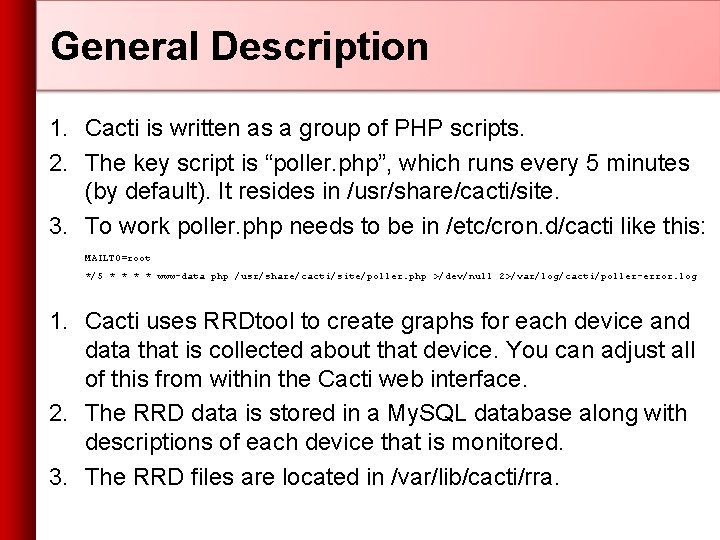
General Description 1. Cacti is written as a group of PHP scripts. 2. The key script is “poller. php”, which runs every 5 minutes (by default). It resides in /usr/share/cacti/site. 3. To work poller. php needs to be in /etc/cron. d/cacti like this: MAILTO=root */5 * * www-data php /usr/share/cacti/site/poller. php >/dev/null 2>/var/log/cacti/poller-error. log 1. Cacti uses RRDtool to create graphs for each device and data that is collected about that device. You can adjust all of this from within the Cacti web interface. 2. The RRD data is stored in a My. SQL database along with descriptions of each device that is monitored. 3. The RRD files are located in /var/lib/cacti/rra.
Advantages You can measure Availability, Load, Errors and more all with history. – Cacti con view your router and switch interfaces and their traffic, including all error traffic as well. – Cacti can measure drive capacity, CPU load (network h/w and servers) and much more. It can react to conditions and send notifications based on specified ranges. Graphics – Allows you to use all the functionality of rrdgraph to define graphics and automate how they are displayed. – Allows you to organize information in hierarchical tree structures. Data Sources – Permits you to utilize all the functions of rrdcreate and rrdupdate including defining several sources of information for each RRD file.
Advantages cont. Data Collection – Supports SNMP including the use of php-snmp or net-snmp – Data sources can be updated via SNMP or by defining scripts to capture required data. – An optional component, cactid, implements SNMP routines in C with multi-threading. Critical for very large installations. Templates – You can create templates to reutilize graphics definitions, data and device sources Cacti Plugin Architecture – Extends Cacti functionality. Many, many plugins are available. User Management – You can manage users locally or via LDAP and you can assign granular levels of authorization by user or groups of users.
Disadvantages Configuration of Interfaces is Tedious – The first time you add an interfaces, add graphics for each interface and place these graphics correctly on a hierarchical menu requires considerable time and effort. – It’s very important that you keep your Cacti configuration up-to-date with your network. You must either assign someone to do this, or create appropriate scripts and data shares for this purpose. – If you make a configuration error it can be tedious to correct it. Configuration of Plugin Architecture is non-trivial – Plugin Architecture (PA) versions are released based on specific Cacti versions. – Installing the PA with packaged Cacti versions can be hard. – Upgrading Cacti if you have installed the PA can be hard. For continuous use or large installations it is likely that you will be using scripts and tools to automate the configuration of Cacti.
Installation: Ubuntu Server 10. 04 – Available in RPM form and packages for Gentoo, Red Hat, Fedora, Su. SE, Free. BSD, etc. – It is necessary to install cactid separately if you wish to use this for larger installations. This is the cacti-spine package in Ubuntu. – In Ubuntu/Debian… (we’d do this on our local machines: ) # apt-get install cacti
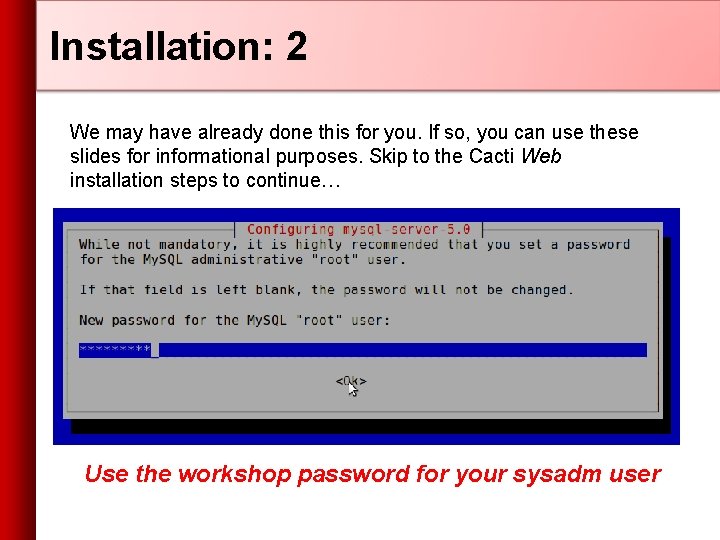
Installation: 2 We may have already done this for you. If so, you can use these slides for informational purposes. Skip to the Cacti Web installation steps to continue… Use the workshop password for your sysadm user
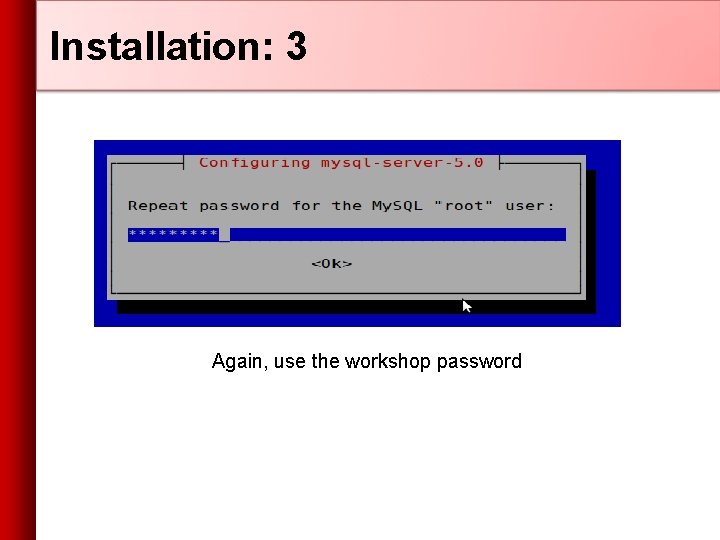
Installation: 3 Again, use the workshop password
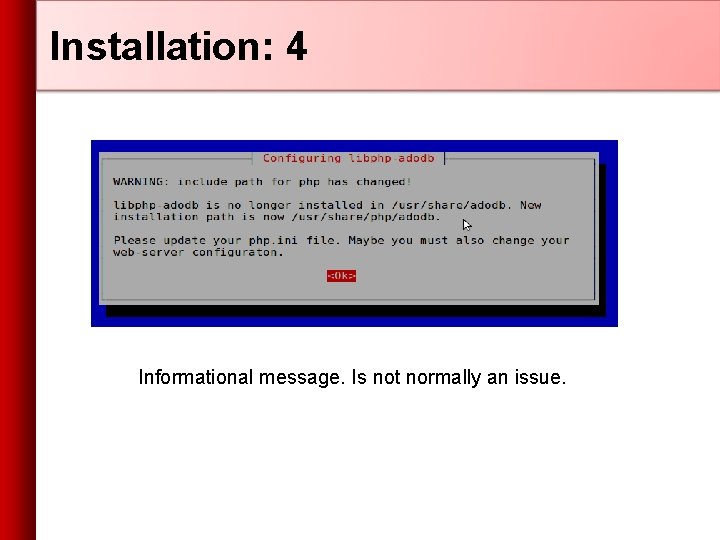
Installation: 4 Informational message. Is not normally an issue.
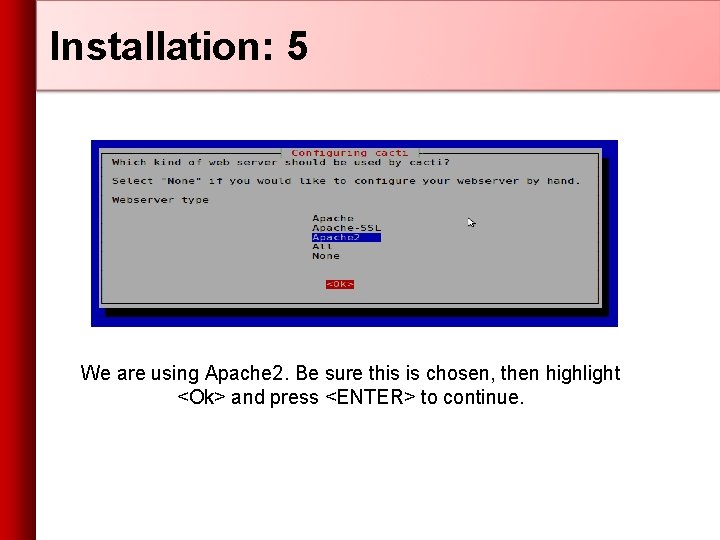
Installation: 5 We are using Apache 2. Be sure this is chosen, then highlight <Ok> and press <ENTER> to continue.
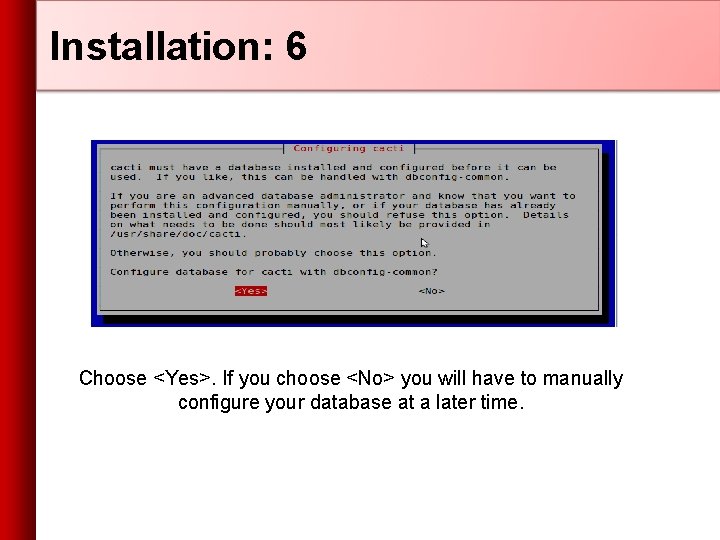
Installation: 6 Choose <Yes>. If you choose <No> you will have to manually configure your database at a later time.
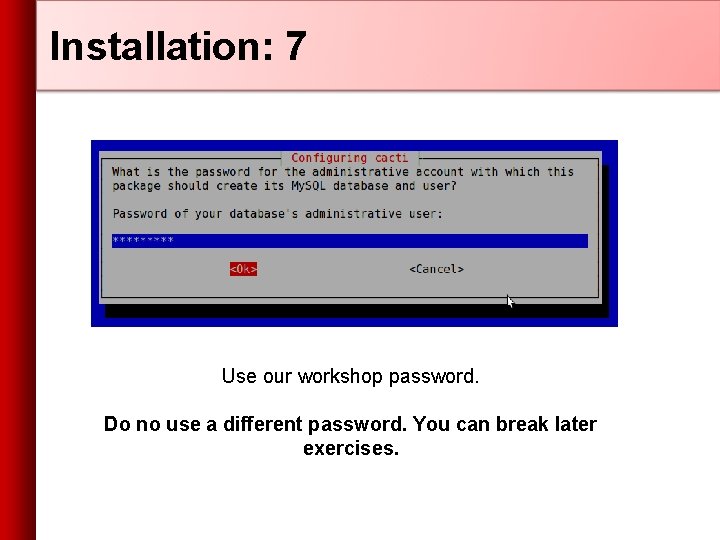
Installation: 7 Use our workshop password. Do no use a different password. You can break later exercises.
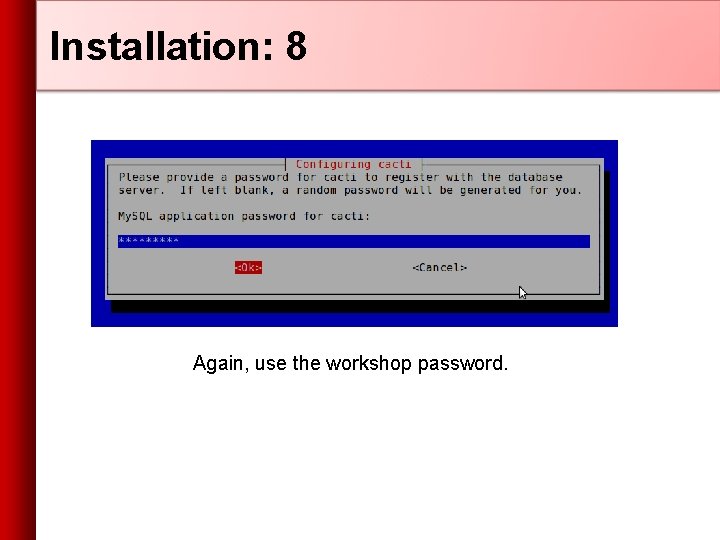
Installation: 8 Again, use the workshop password.
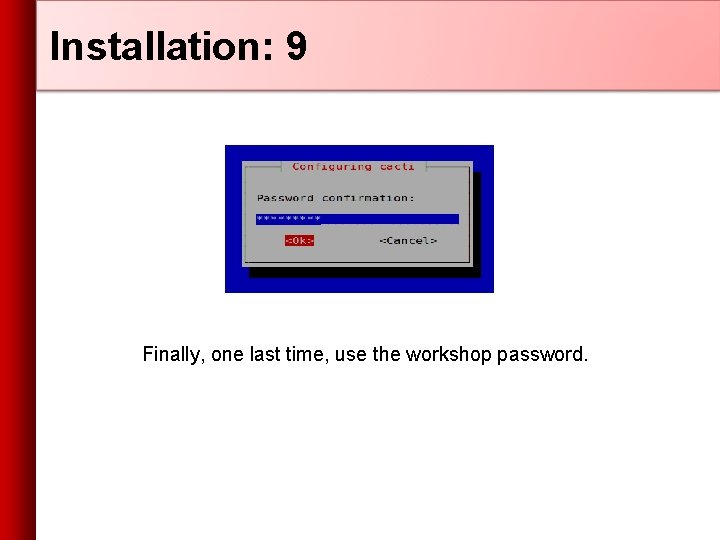
Installation: 9 Finally, one last time, use the workshop password.
Cacti: Installation - Web Now use a web browser and open the following address: http: //pc. N. ws. nsrc. org/cacti You will see the following. . .
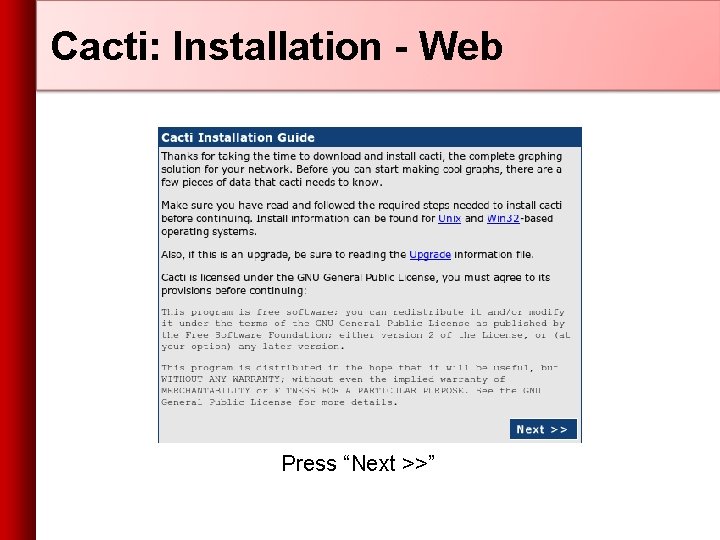
Cacti: Installation - Web Press “Next >>”
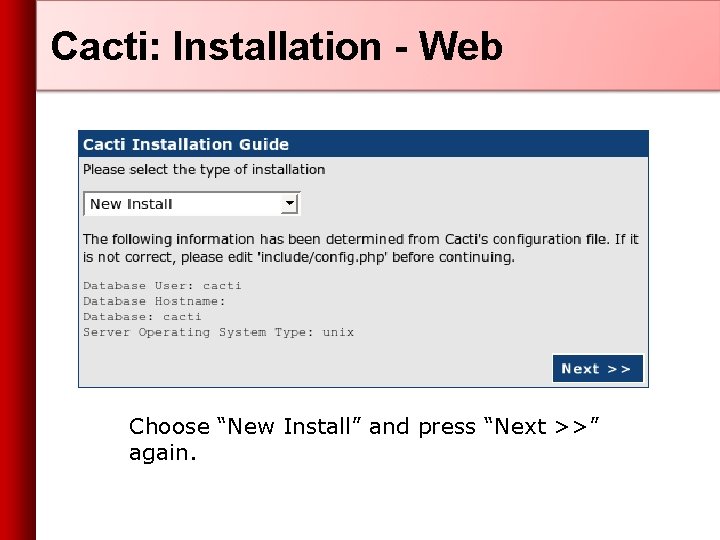
Cacti: Installation - Web Choose “New Install” and press “Next >>” again.
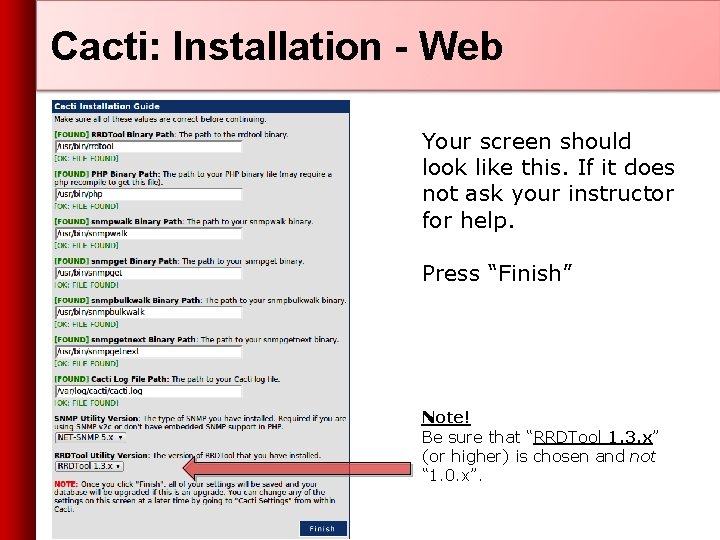
Cacti: Installation - Web Your screen should look like this. If it does not ask your instructor for help. Press “Finish” Note! Be sure that “RRDTool 1. 3. x” (or higher) is chosen and not “ 1. 0. x”.
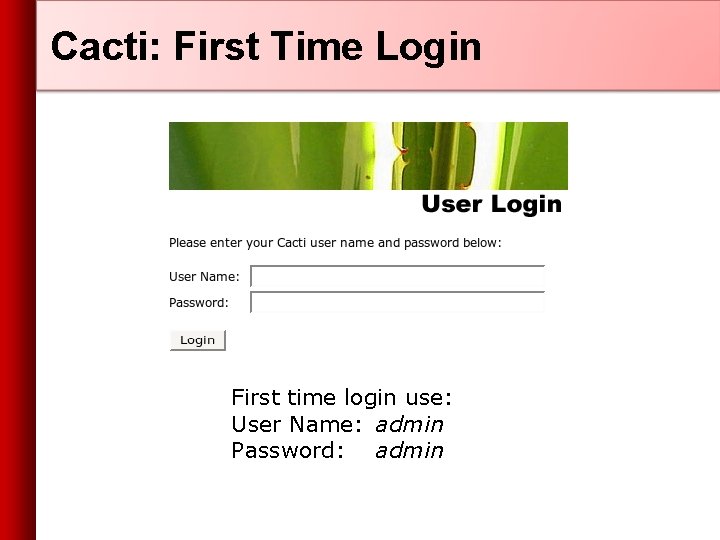
Cacti: First Time Login First time login use: User Name: admin Password: admin
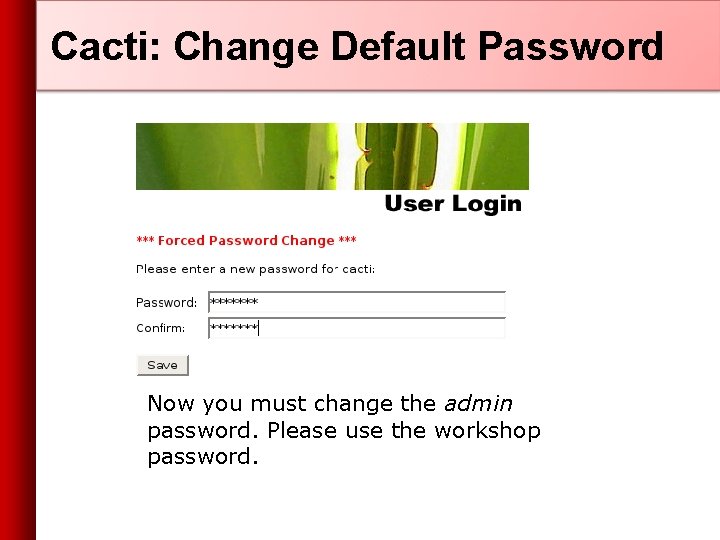
Cacti: Change Default Password Now you must change the admin password. Please use the workshop password.
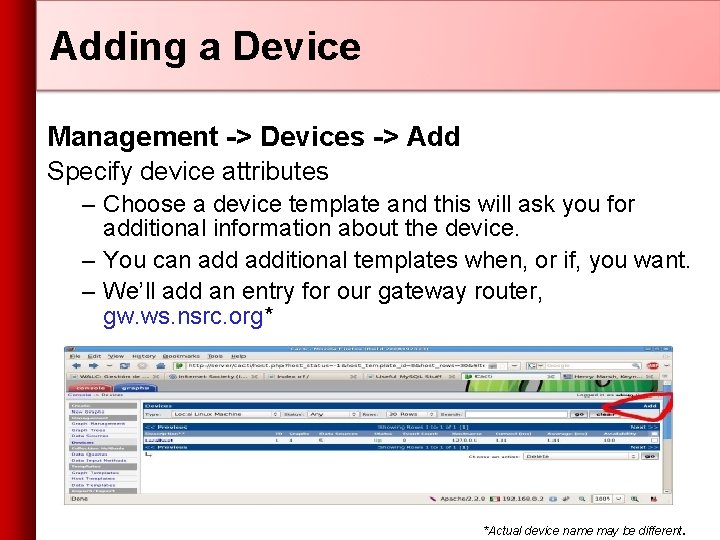
Adding a Device Management -> Devices -> Add Specify device attributes – Choose a device template and this will ask you for additional information about the device. – You can additional templates when, or if, you want. – We’ll add an entry for our gateway router, gw. ws. nsrc. org* *Actual device name may be different.
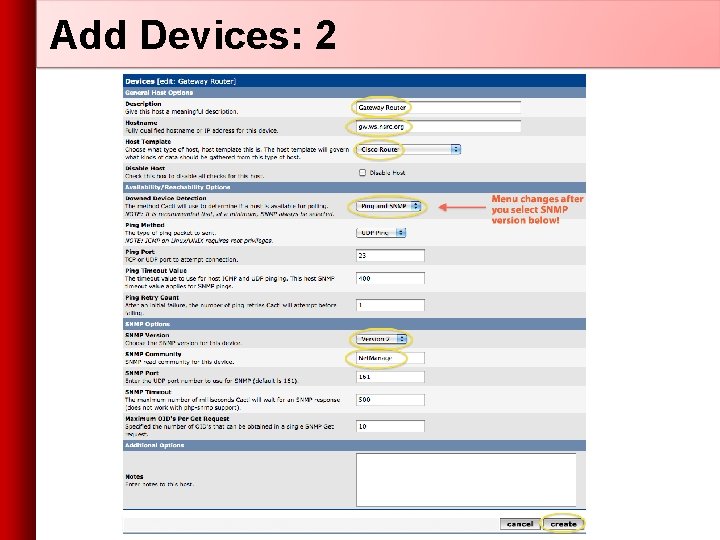
Add Devices: 2
Add Devices: 3 • Choose SNMP version 2 for this workshop. • For “Downed Device Detection” we recommend either using Ping and SNMP, or just Ping. • At your own location you can use SNMP version 3 if your devices support this. • SNMP access is a security issue: - Version 2 is not encrypted - Watch out for globally readable “public” communities - Be careful about who can access r/w communities. - Replace “xxxxxxx” with your local public r/o string
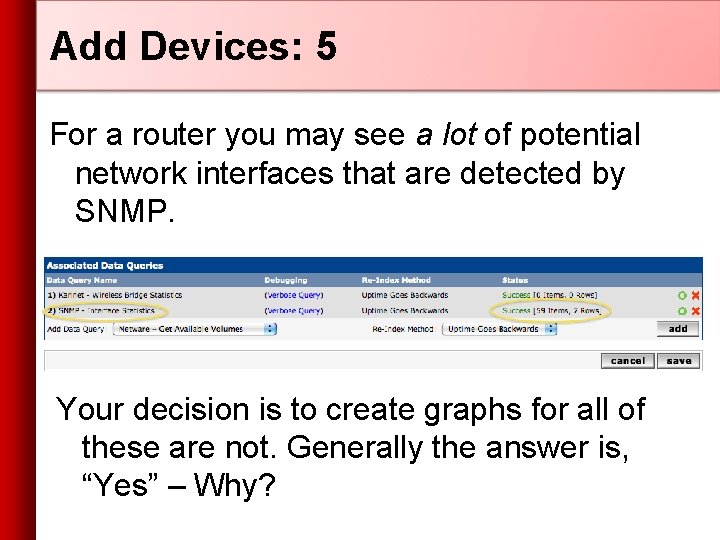
Add Devices: 5 For a router you may see a lot of potential network interfaces that are detected by SNMP. Your decision is to create graphs for all of these are not. Generally the answer is, “Yes” – Why?
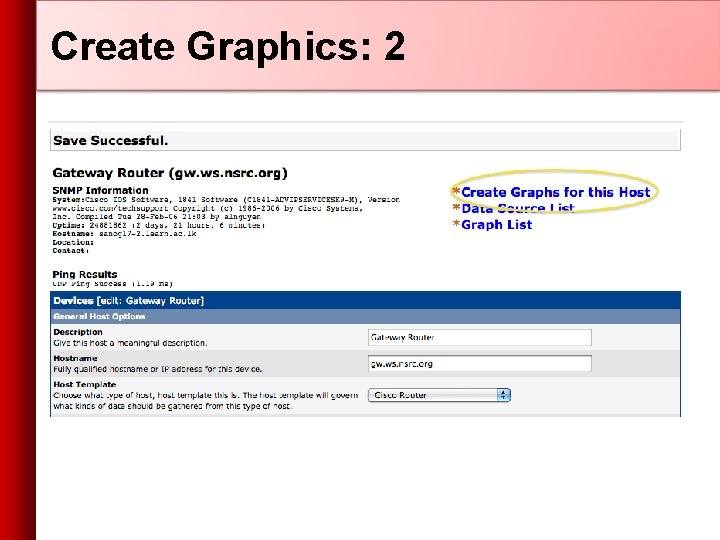
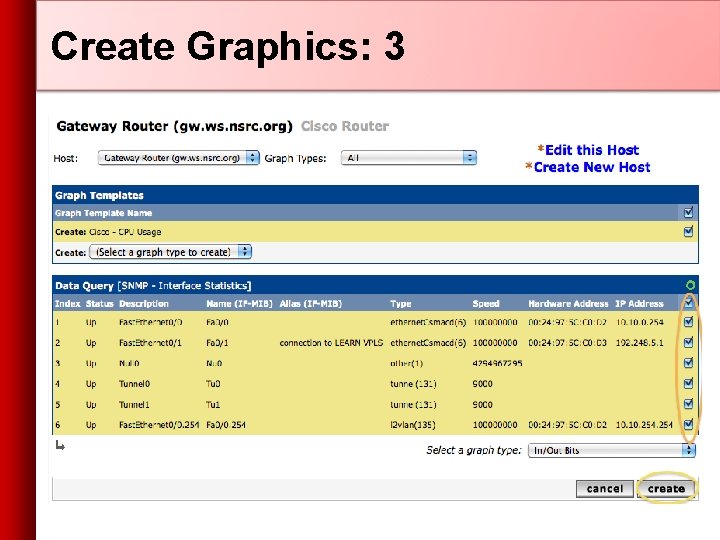
Create Graphics • Chose the “Create graphs for this host” • Under Graph Templates generally check the top box that chooses all the available graphs to be displayed. • Press Create. • You can change the default colors, but the predefined definitions generally work well.
Create Graphics: 2
Create Graphics: 3
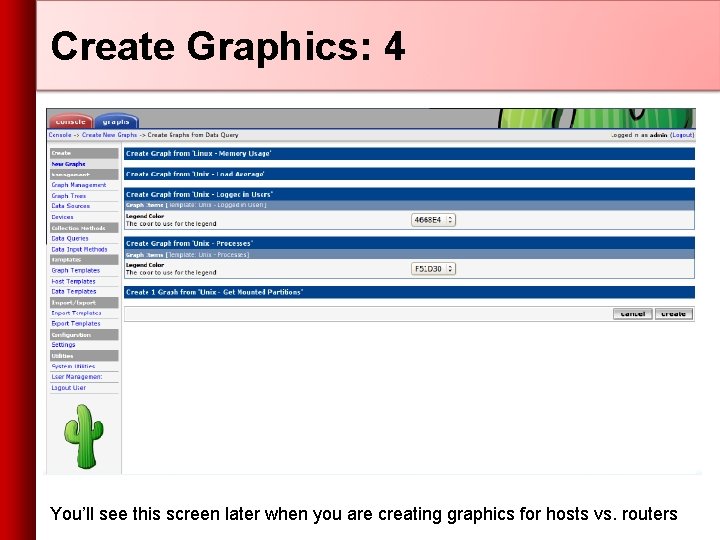
Create Graphics: 4 You’ll see this screen later when you are creating graphics for hosts vs. routers
View the Graphics • Place the new device in its proper location in your tree hierarchy. • Building your display hierarchy is your decision. It might make sense to try drawing this out on paper first. – Under Management Graph Trees select the Default Tree hierarchy (or, create one of your own).
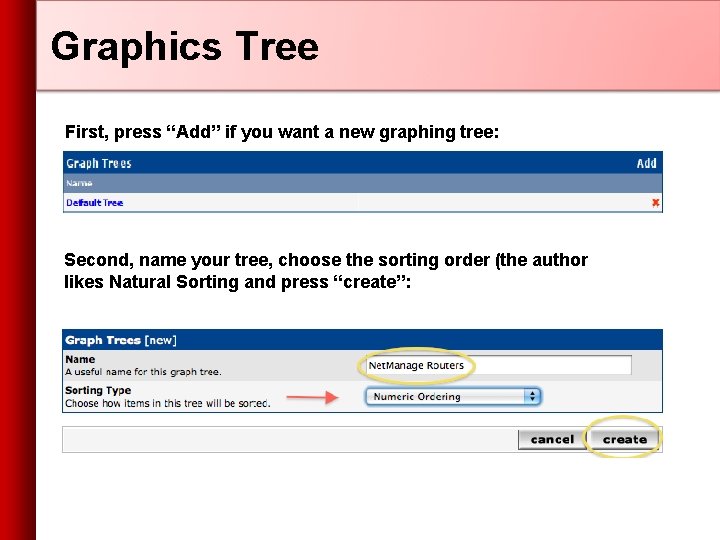
Graphics Tree First, press “Add” if you want a new graphing tree: Second, name your tree, choose the sorting order (the author likes Natural Sorting and press “create”:
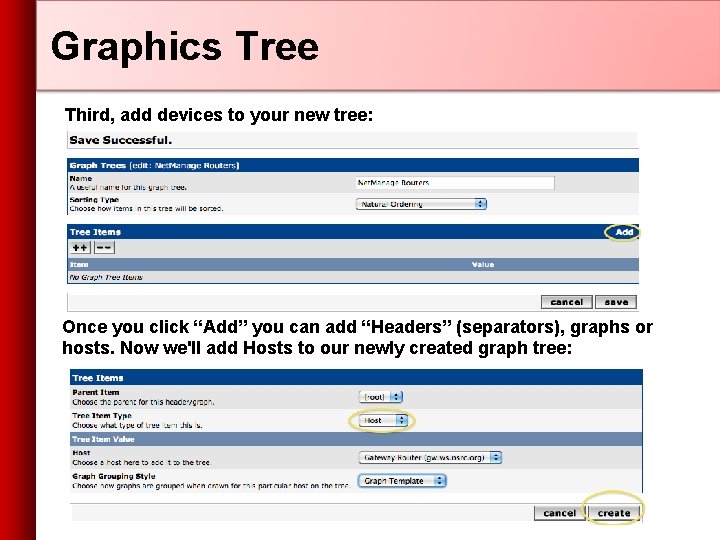
Graphics Tree Third, add devices to your new tree: Once you click “Add” you can add “Headers” (separators), graphs or hosts. Now we'll add Hosts to our newly created graph tree:
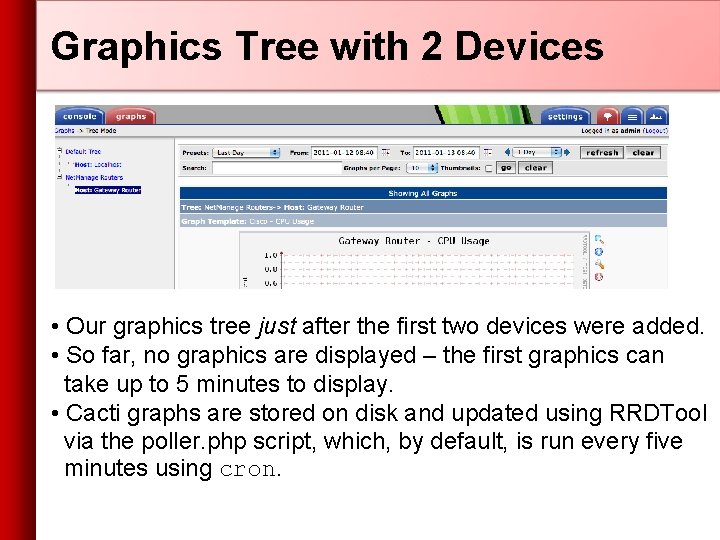
Graphics Tree with 2 Devices • Our graphics tree just after the first two devices were added. • So far, no graphics are displayed – the first graphics can take up to 5 minutes to display. • Cacti graphs are stored on disk and updated using RRDTool via the poller. php script, which, by default, is run every five minutes using cron.
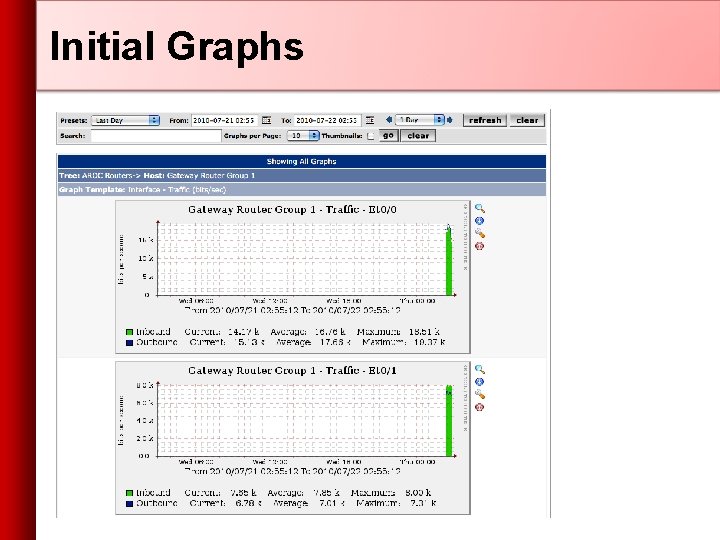
Initial Graphs
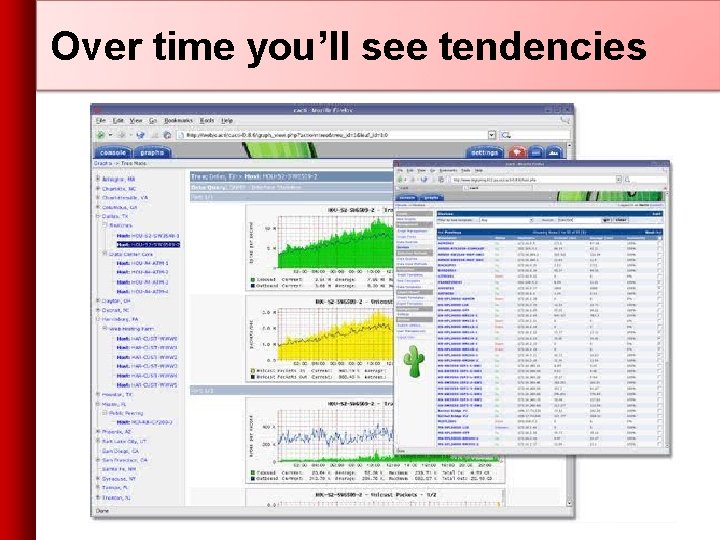
Over time you’ll see tendencies
Next Steps • You can extend cacti by installing the Cacti Plugin Architecture: http: //cactiusers. org/wiki/Plugin. Architecture. Install • There a number of popular Cacti plugins, such as: - Settings - thold - PHP Weathermap - Syslog-NG • A good place to start is http: //cactiusers. net/ and Google. • To send email to RT from Cacti via rt-mailgate you can use the Cacti “settings” plugin: http: //docs. cacti. net/plugin: settings
Conclusions • Cacti is very flexible due to its use of templates. • Once you understand the concepts behind RRDTool, then how Cacti works should be (more or less) intuitive. • The visualization hierarchy of devices helps to organize and discover new devices quickly. • It is not easy to do a rediscover of devices. • To add lots of devices requires lots of time and effort. Software such as Netdot, Netdisco, IPPlan, TIPP can help – as well as local scripts that update the Cacti backend My. SQL database directly.
Exercises Your Mission. . . – Create device entries in Cacti for every router – Create device entries in Cacti for each server – Create device entries for any additional network equipment in the classroom. Use SNMP for all items. – Create graphs for each item. – Place PCs, Routers, Switches in a tree hierarchy of your design. This is tedious and you may wish to only create entries for a subset of items in the classroom. Use the Network Diagram on the class wiki as a reference.
References • Cacti Web Site: http: //www. cacti. net/ • Cacti Discussion Group: http: //forums. cacti. net/