
NET Web Forms HTML Introduction 2002 by Jerry
. NET Web Forms HTML Introduction © 2002 by Jerry Post 1
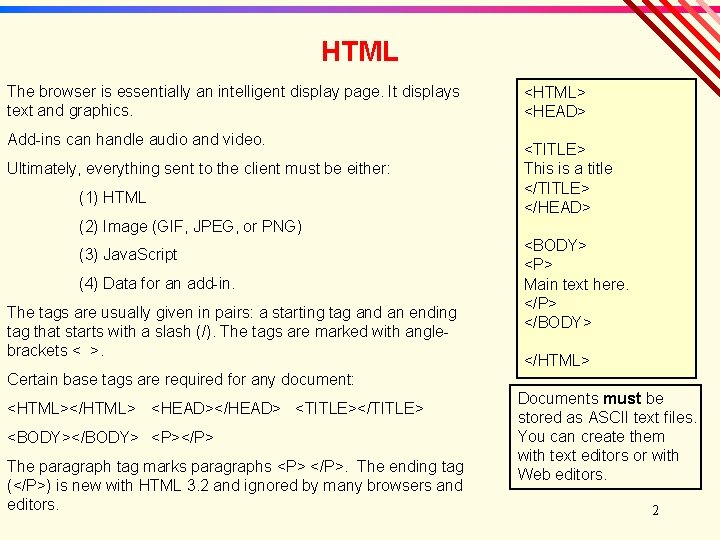
HTML The browser is essentially an intelligent display page. It displays text and graphics. Add-ins can handle audio and video. Ultimately, everything sent to the client must be either: (1) HTML <HTML> <HEAD> <TITLE> This is a title </TITLE> </HEAD> (2) Image (GIF, JPEG, or PNG) (3) Java. Script (4) Data for an add-in. The tags are usually given in pairs: a starting tag and an ending tag that starts with a slash (/). The tags are marked with anglebrackets < >. <BODY> <P> Main text here. </P> </BODY> </HTML> Certain base tags are required for any document: <HTML></HTML> <HEAD></HEAD> <TITLE></TITLE> <BODY></BODY> <P></P> The paragraph tag marks paragraphs <P> </P>. The ending tag (</P>) is new with HTML 3. 2 and ignored by many browsers and editors. Documents must be stored as ASCII text files. You can create them with text editors or with Web editors. 2
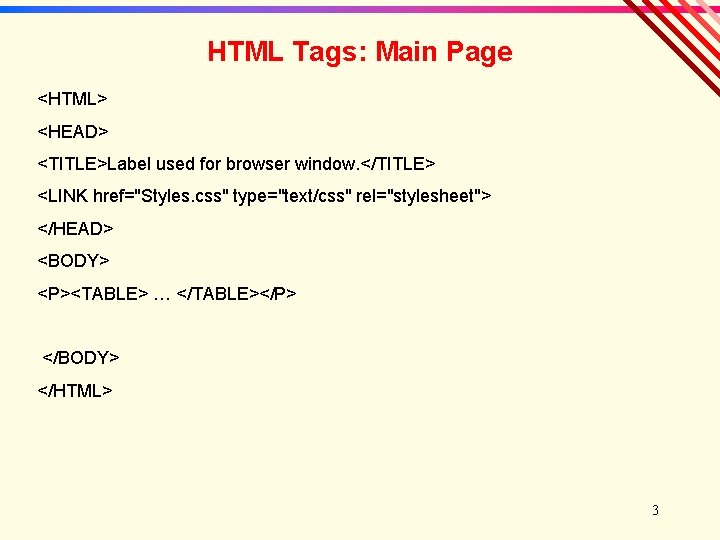
HTML Tags: Main Page <HTML> <HEAD> <TITLE>Label used for browser window. </TITLE> <LINK href="Styles. css" type="text/css" rel="stylesheet"> </HEAD> <BODY> <P><TABLE> … </TABLE></P> </BODY> </HTML> 3
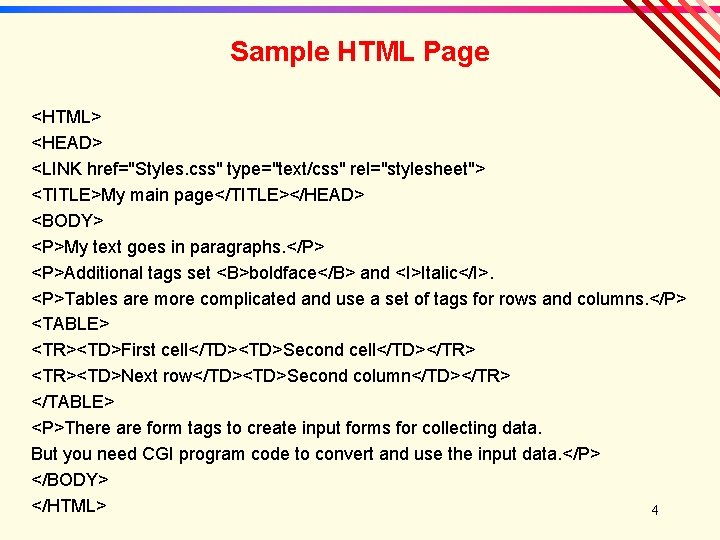
Sample HTML Page <HTML> <HEAD> <LINK href="Styles. css" type="text/css" rel="stylesheet"> <TITLE>My main page</TITLE></HEAD> <BODY> <P>My text goes in paragraphs. </P> <P>Additional tags set <B>boldface</B> and <I>Italic</I>. <P>Tables are more complicated and use a set of tags for rows and columns. </P> <TABLE> <TR><TD>First cell</TD><TD>Second cell</TD></TR> <TR><TD>Next row</TD><TD>Second column</TD></TR> </TABLE> <P>There are form tags to create input forms for collecting data. But you need CGI program code to convert and use the input data. </P> </BODY> </HTML> 4

HTML Colors Netscape and Microsoft define colors by “#rrggbb” Most browsers also support some standard color names. Color numbers are given as percentages of red, green, and blue. Values are entered in hexadecimal format (0. . . FF) => (0. . . 255). White #FFFFFF Red #FF 0000 decimal 0 1 2 3 4 5 6 7 8 9 10 11 12 13 14 15 Green #00 FF 00 hex 0 1 2 3 4 5 6 7 8 9 A Blue #0000 FF B C D E hex convert decimal Magenta #FF 00 FF 15 1*16 + 5 21 Cyan #00 FFFF A 4 10*16 + 4 164 Yellow #FFFF 00 Black #000000 F 5
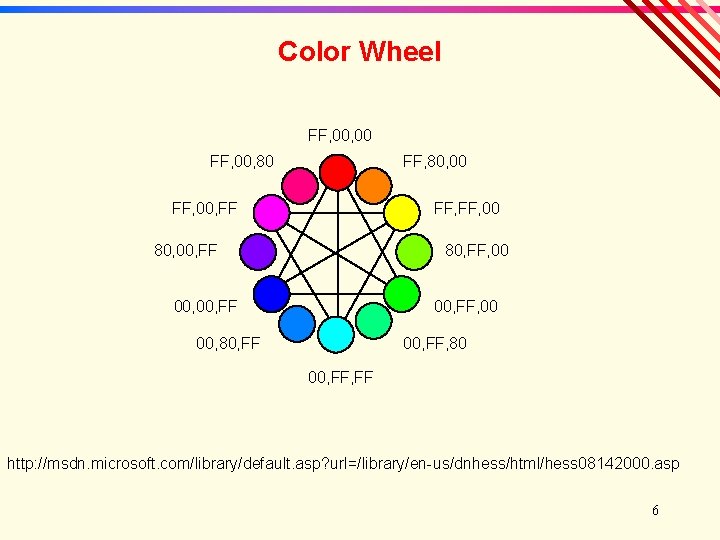
Color Wheel FF, 00, 80 FF, 80, 00 FF, 00, FF FF, 00 80, 00, FF 80, FF, 00 00, FF, 00 00, 80, FF 00, FF, 80 00, FF http: //msdn. microsoft. com/library/default. asp? url=/library/en-us/dnhess/html/hess 08142000. asp 6
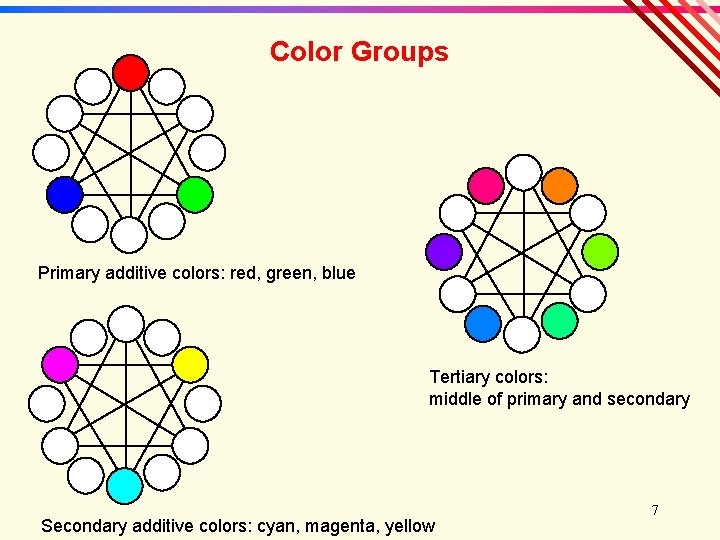
Color Groups Primary additive colors: red, green, blue Tertiary colors: middle of primary and secondary Secondary additive colors: cyan, magenta, yellow 7
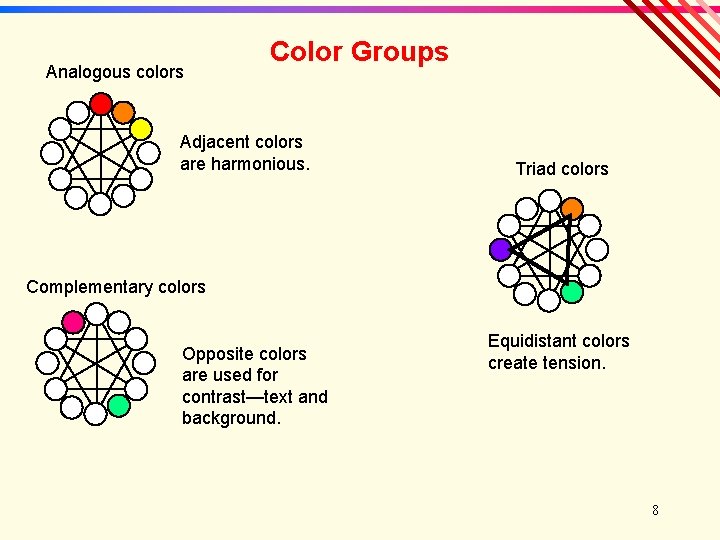
Analogous colors Color Groups Adjacent colors are harmonious. Triad colors Complementary colors Opposite colors are used for contrast—text and background. Equidistant colors create tension. 8
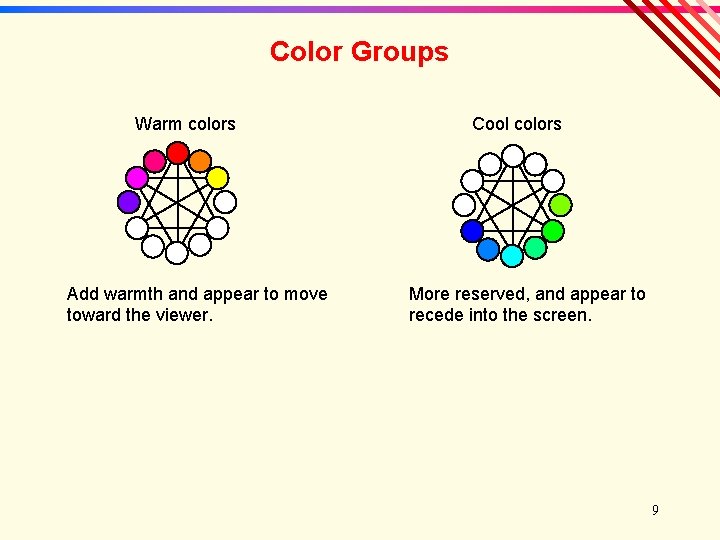
Color Groups Warm colors Add warmth and appear to move toward the viewer. Cool colors More reserved, and appear to recede into the screen. 9
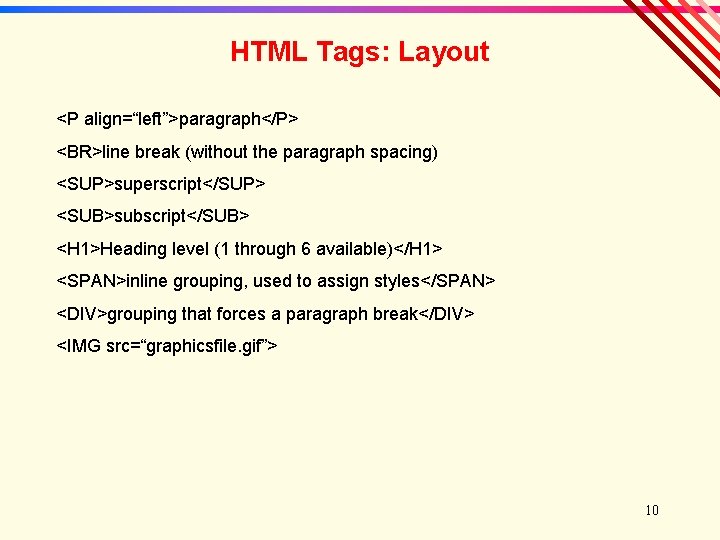
HTML Tags: Layout <P align=“left”>paragraph</P> <BR>line break (without the paragraph spacing) <SUP>superscript</SUP> <SUB>subscript</SUB> <H 1>Heading level (1 through 6 available)</H 1> <SPAN>inline grouping, used to assign styles</SPAN> <DIV>grouping that forces a paragraph break</DIV> <IMG src=“graphicsfile. gif”> 10
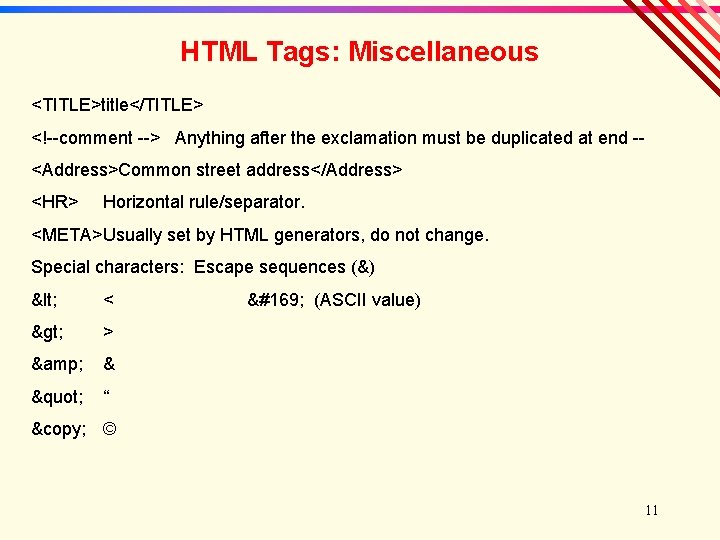
HTML Tags: Miscellaneous <TITLE>title</TITLE> <!--comment --> Anything after the exclamation must be duplicated at end -<Address>Common street address</Address> <HR> Horizontal rule/separator. <META>Usually set by HTML generators, do not change. Special characters: Escape sequences (&) < < > > & & " “ © (ASCII value) © © 11
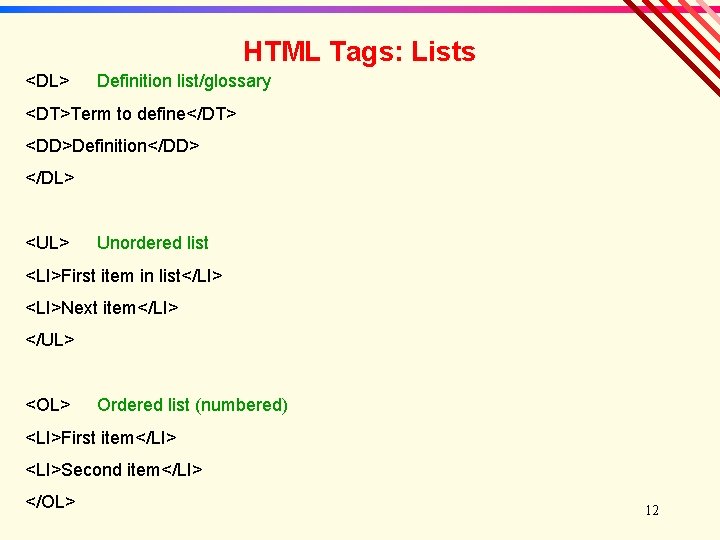
HTML Tags: Lists <DL> Definition list/glossary <DT>Term to define</DT> <DD>Definition</DD> </DL> <UL> Unordered list <LI>First item in list</LI> <LI>Next item</LI> </UL> <OL> Ordered list (numbered) <LI>First item</LI> <LI>Second item</LI> </OL> 12
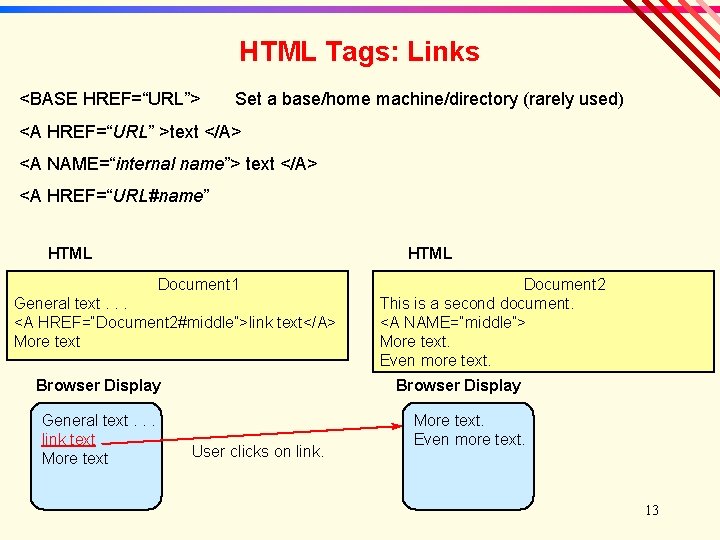
HTML Tags: Links <BASE HREF=“URL”> Set a base/home machine/directory (rarely used) <A HREF=“URL” >text </A> <A NAME=“internal name”> text </A> <A HREF=“URL#name” HTML Document 1 General text. . . <A HREF=“Document 2#middle”>link text</A> More text Browser Display General text. . . link text More text Document 2 This is a second document. <A NAME=“middle”> More text. Even more text. Browser Display User clicks on link. More text. Even more text. 13
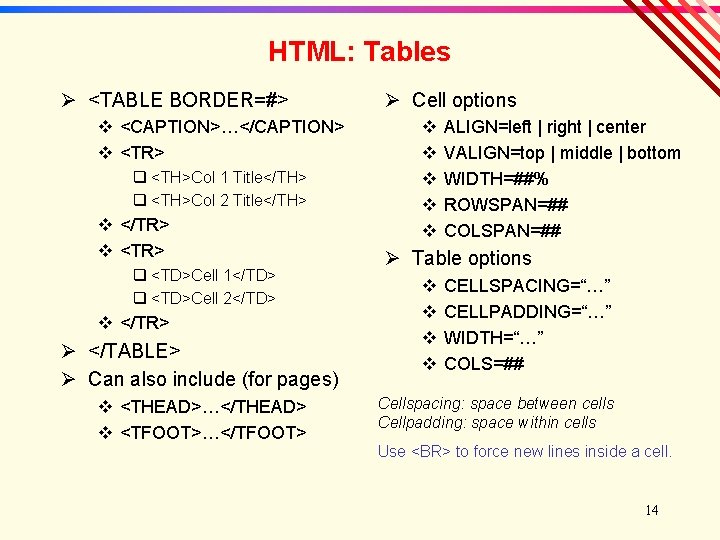
HTML: Tables Ø <TABLE BORDER=#> v <CAPTION>…</CAPTION> v <TR> q <TH>Col 1 Title</TH> q <TH>Col 2 Title</TH> v </TR> v <TR> q <TD>Cell 1</TD> q <TD>Cell 2</TD> v </TR> Ø </TABLE> Ø Can also include (for pages) v <THEAD>…</THEAD> v <TFOOT>…</TFOOT> Ø Cell options v v v ALIGN=left | right | center VALIGN=top | middle | bottom WIDTH=##% ROWSPAN=## COLSPAN=## Ø Table options v v CELLSPACING=“…” CELLPADDING=“…” WIDTH=“…” COLS=## Cellspacing: space between cells Cellpadding: space within cells Use <BR> to force new lines inside a cell. 14
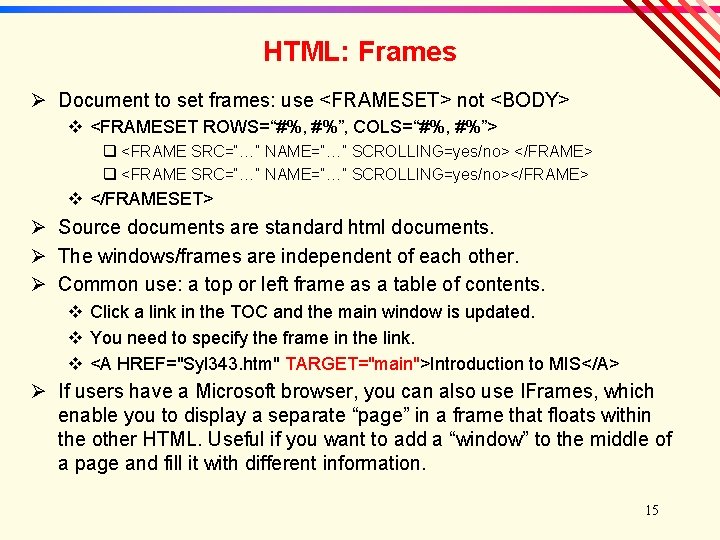
HTML: Frames Ø Document to set frames: use <FRAMESET> not <BODY> v <FRAMESET ROWS=“#%, #%”, COLS=“#%, #%”> q <FRAME SRC=“…” NAME=“…” SCROLLING=yes/no> </FRAME> q <FRAME SRC=“…” NAME=“…” SCROLLING=yes/no></FRAME> v </FRAMESET> Ø Source documents are standard html documents. Ø The windows/frames are independent of each other. Ø Common use: a top or left frame as a table of contents. v Click a link in the TOC and the main window is updated. v You need to specify the frame in the link. v <A HREF="Syl 343. htm" TARGET="main">Introduction to MIS</A> Ø If users have a Microsoft browser, you can also use IFrames, which enable you to display a separate “page” in a frame that floats within the other HTML. Useful if you want to add a “window” to the middle of a page and fill it with different information. 15
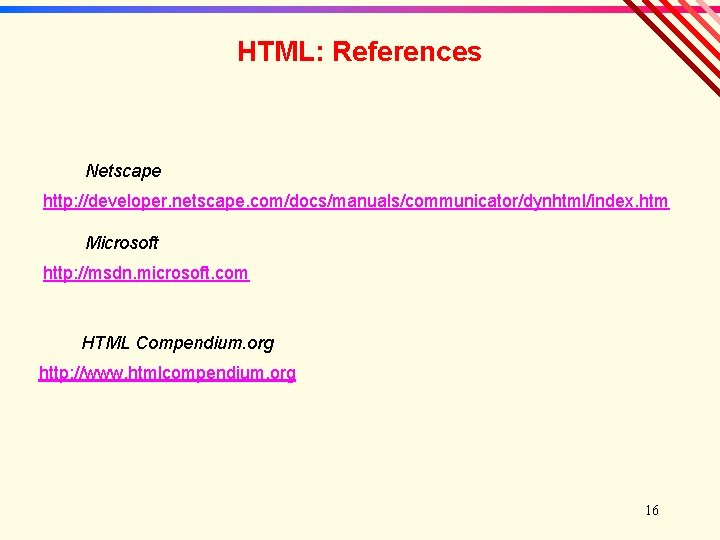
HTML: References Netscape http: //developer. netscape. com/docs/manuals/communicator/dynhtml/index. htm Microsoft http: //msdn. microsoft. com HTML Compendium. org http: //www. htmlcompendium. org 16
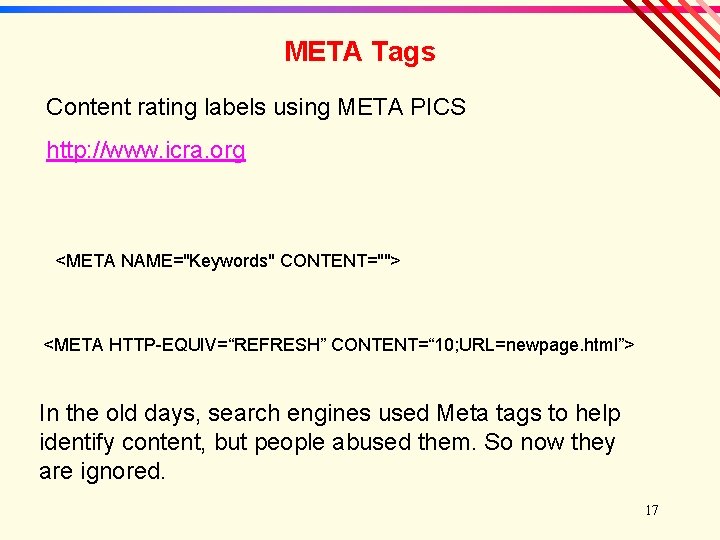
META Tags Content rating labels using META PICS http: //www. icra. org <META NAME="Keywords" CONTENT=""> <META HTTP-EQUIV=“REFRESH” CONTENT=“ 10; URL=newpage. html”> In the old days, search engines used Meta tags to help identify content, but people abused them. So now they are ignored. 17
- Slides: 17