
NC Comprehensive Continuous Improvement Plan NCCCIP CCIP Training
- Slides: 31
NC Comprehensive Continuous Improvement Plan (NCCCIP) CCIP Training Module 2 – Planning Tool Pt 1
Agenda Planning Tool Overview CCIP Home Page & Sign In Changing Application Year for Competition Submission Planning Tool – Needs Assessment – Goals • Fiscal Resources • Strategies – Action Steps • Plan Navigation and Modification • • Feb 2020 NCCCIP Training Module 2 - Planning Tool Pt 1 2
Planning Tool Overview • Does not have a submission or approval workflow • Ideally begins prior to knowledge of grant awards • Fiscal year specific – Do not have to create from scratch each year – Goals – Motherhood and Apple Pie statements • Fiscal Resources • Strategies – more Program-specific – Action Steps (optional) • For LEAs*, a district-wide initiative • For non-LEAs, it’s YOUR Plan for the 21 st CCLC program • LEAs should not create plan just to satisfy one funding application’s requirements – Specific role (LEA Plan Data Entry) for editing Plan data – Organizations should consider limiting ability to update the Plan; suggest no more than 2 or 3 personnel with this role * ‘LEA’ is used throughout the CCIP system – any organization which provides educational services Feb 2020 NCCCIP Training Module 2 - Planning Tool Pt 1 3
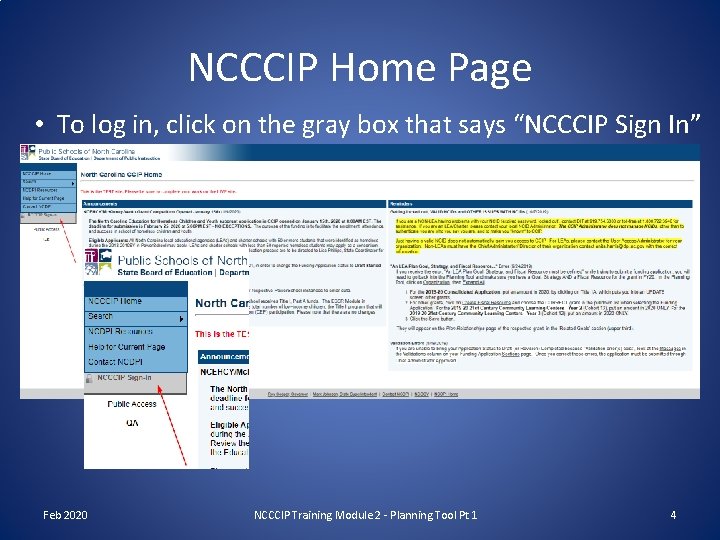
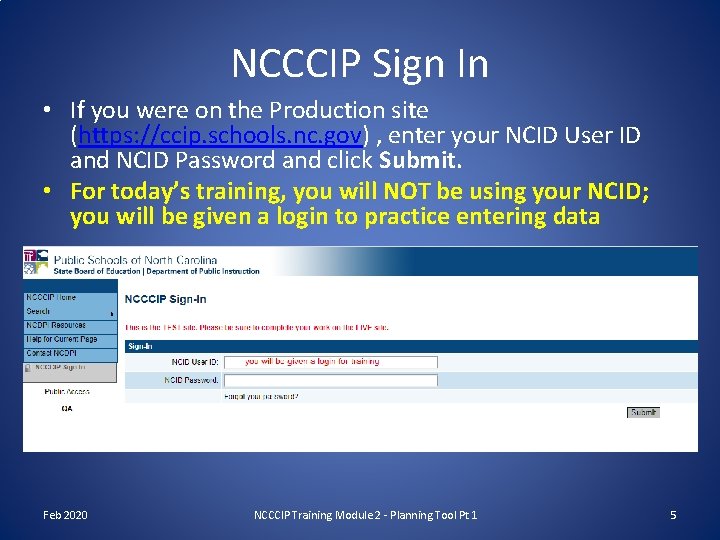
NCCCIP Home Page • To log in, click on the gray box that says “NCCCIP Sign In” Feb 2020 NCCCIP Training Module 2 - Planning Tool Pt 1 4
NCCCIP Sign In • If you were on the Production site (https: //ccip. schools. nc. gov) , enter your NCID User ID and NCID Password and click Submit. • For today’s training, you will NOT be using your NCID; you will be given a login to practice entering data Feb 2020 NCCCIP Training Module 2 - Planning Tool Pt 1 5
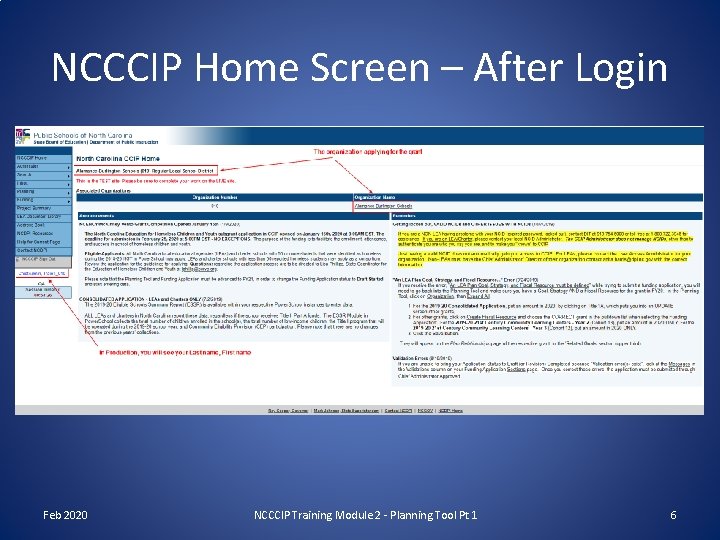
NCCCIP Home Screen – After Login Feb 2020 NCCCIP Training Module 2 - Planning Tool Pt 1 6
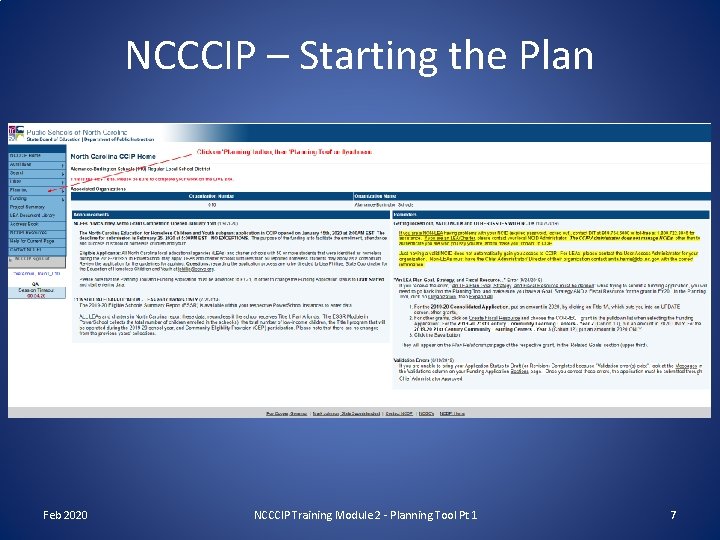
NCCCIP – Starting the Plan Feb 2020 NCCCIP Training Module 2 - Planning Tool Pt 1 7
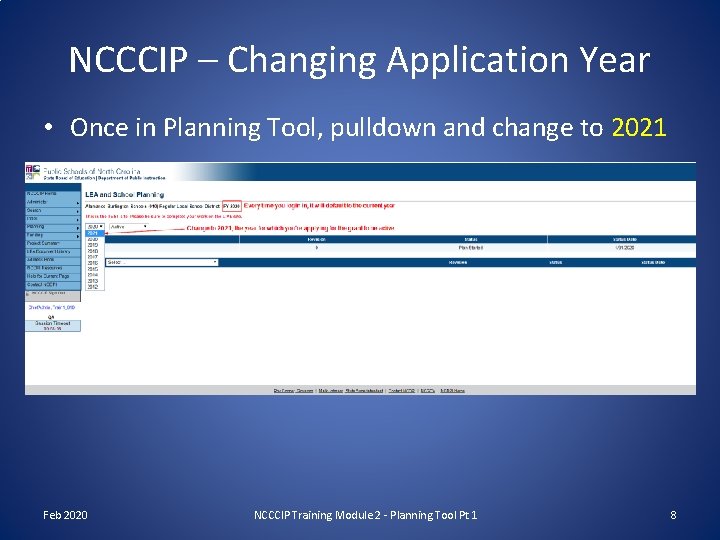
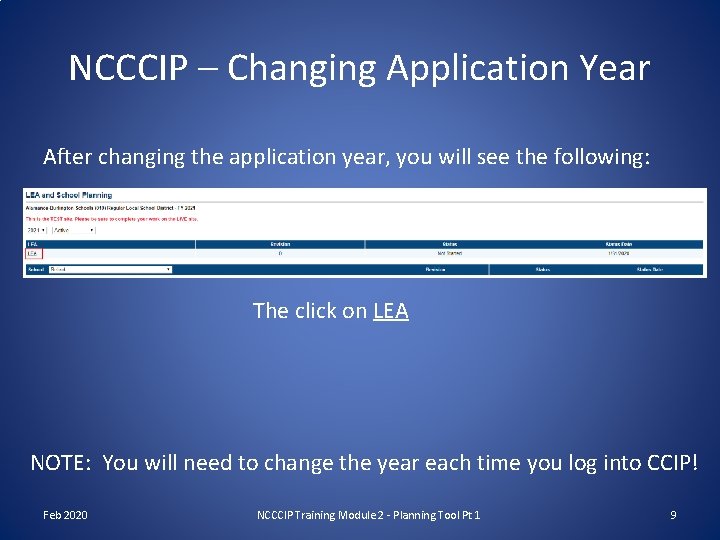
NCCCIP – Changing Application Year • Once in Planning Tool, pulldown and change to 2021 Feb 2020 NCCCIP Training Module 2 - Planning Tool Pt 1 8
NCCCIP – Changing Application Year After changing the application year, you will see the following: The click on LEA NOTE: You will need to change the year each time you log into CCIP! Feb 2020 NCCCIP Training Module 2 - Planning Tool Pt 1 9
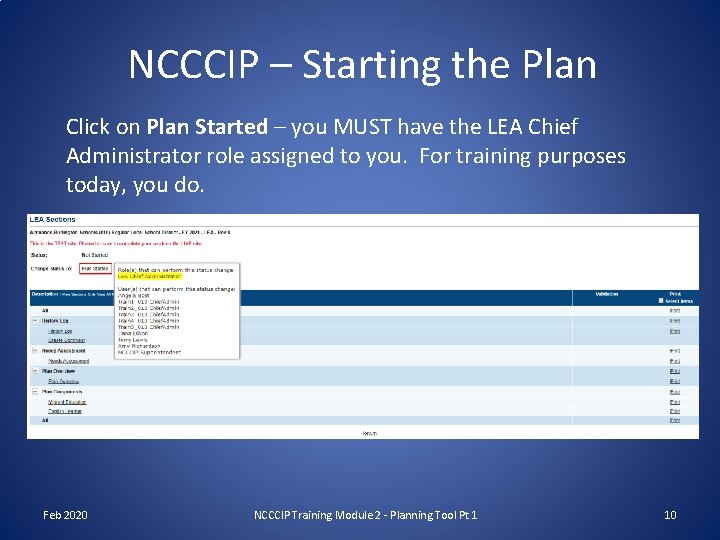
NCCCIP – Starting the Plan Click on Plan Started – you MUST have the LEA Chief Administrator role assigned to you. For training purposes today, you do. Feb 2020 NCCCIP Training Module 2 - Planning Tool Pt 1 10
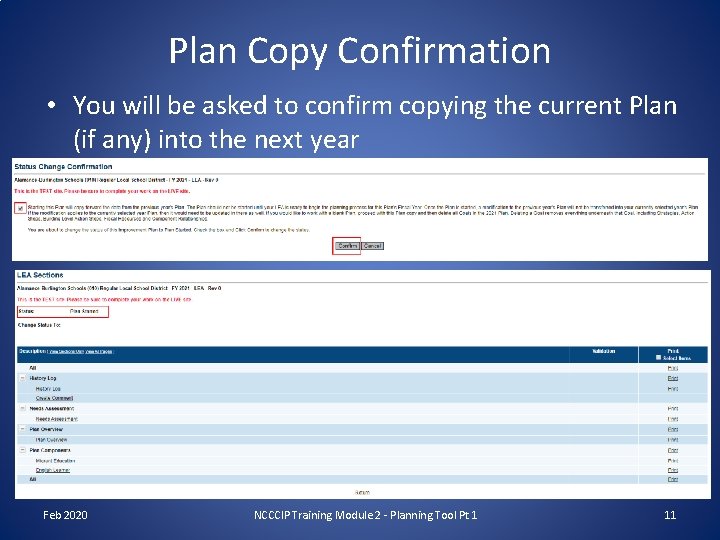
Plan Copy Confirmation • You will be asked to confirm copying the current Plan (if any) into the next year Feb 2020 NCCCIP Training Module 2 - Planning Tool Pt 1 11
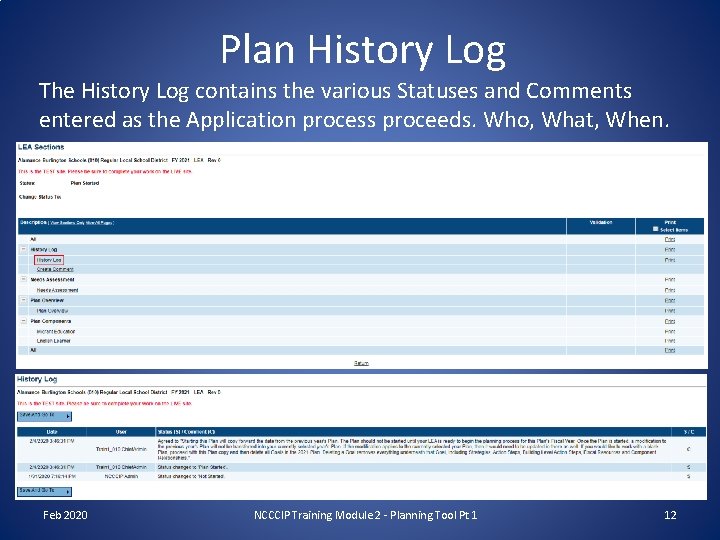
Plan History Log The History Log contains the various Statuses and Comments entered as the Application process proceeds. Who, What, When. Feb 2020 NCCCIP Training Module 2 - Planning Tool Pt 1 12
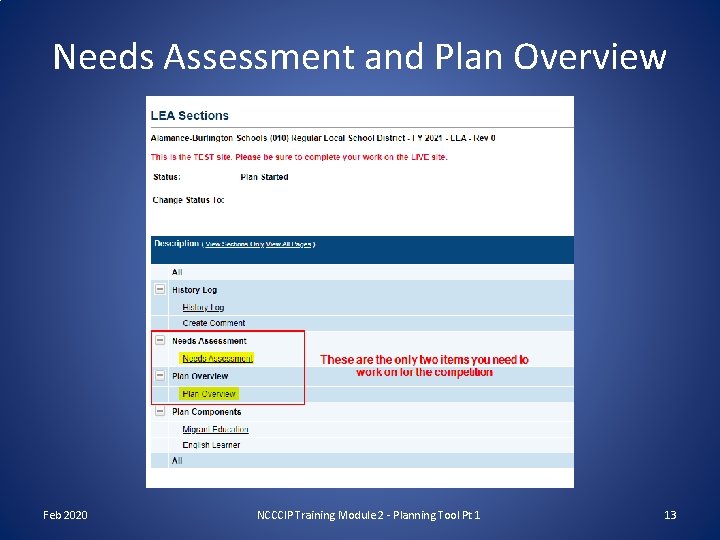
Needs Assessment and Plan Overview Feb 2020 NCCCIP Training Module 2 - Planning Tool Pt 1 13
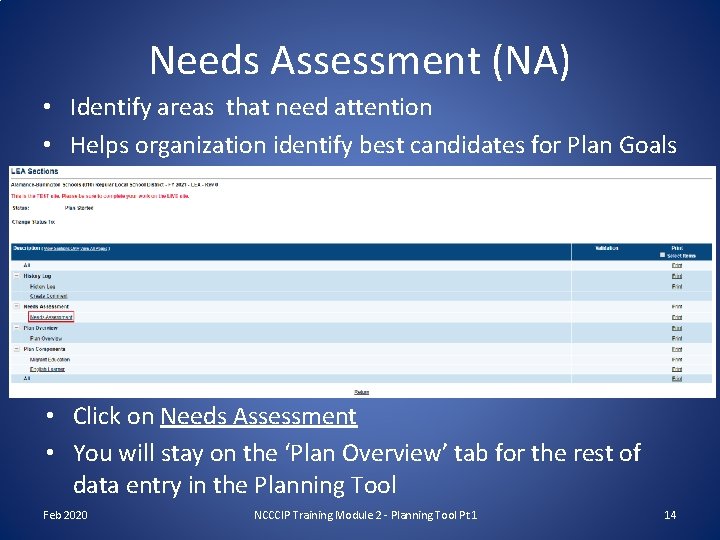
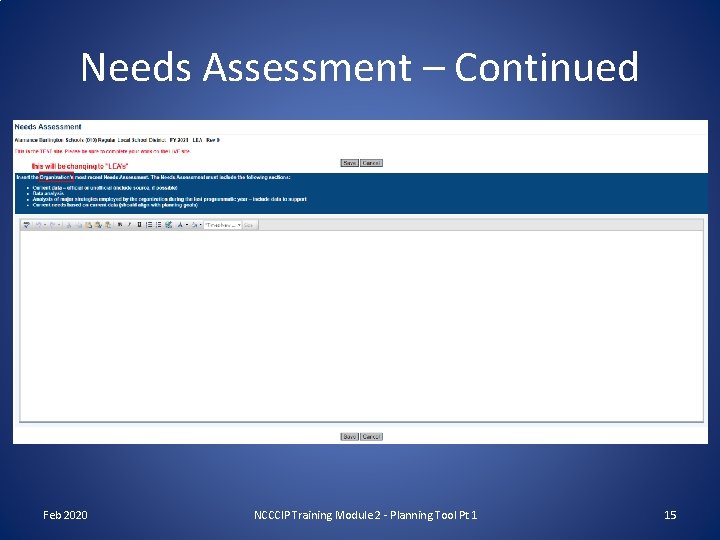
Needs Assessment (NA) • Identify areas that need attention • Helps organization identify best candidates for Plan Goals • Click on Needs Assessment • You will stay on the ‘Plan Overview’ tab for the rest of data entry in the Planning Tool Feb 2020 NCCCIP Training Module 2 - Planning Tool Pt 1 14
Needs Assessment – Continued Feb 2020 NCCCIP Training Module 2 - Planning Tool Pt 1 15
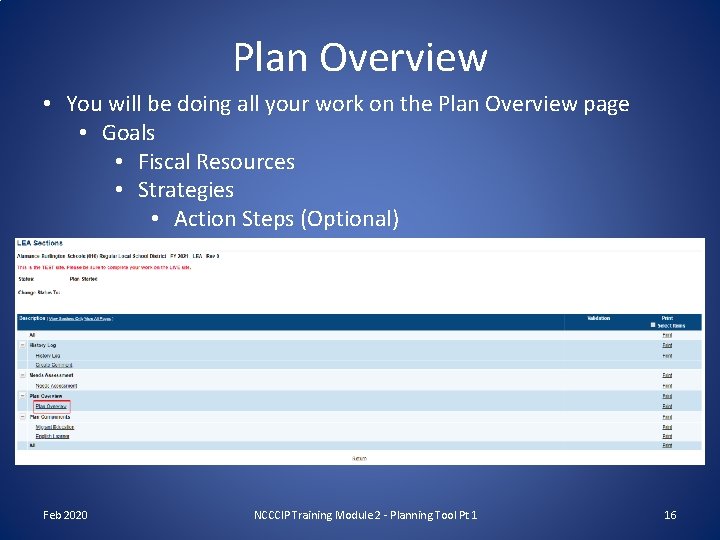
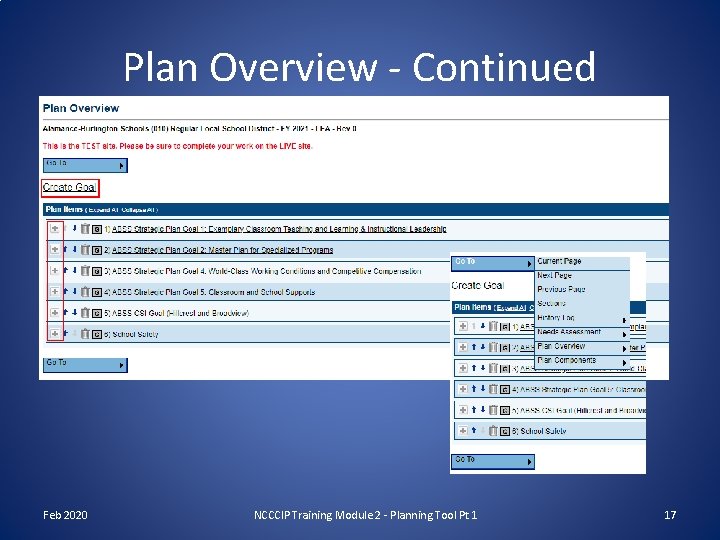
Plan Overview • You will be doing all your work on the Plan Overview page • Goals • Fiscal Resources • Strategies • Action Steps (Optional) Feb 2020 NCCCIP Training Module 2 - Planning Tool Pt 1 16
Plan Overview - Continued Feb 2020 NCCCIP Training Module 2 - Planning Tool Pt 1 17
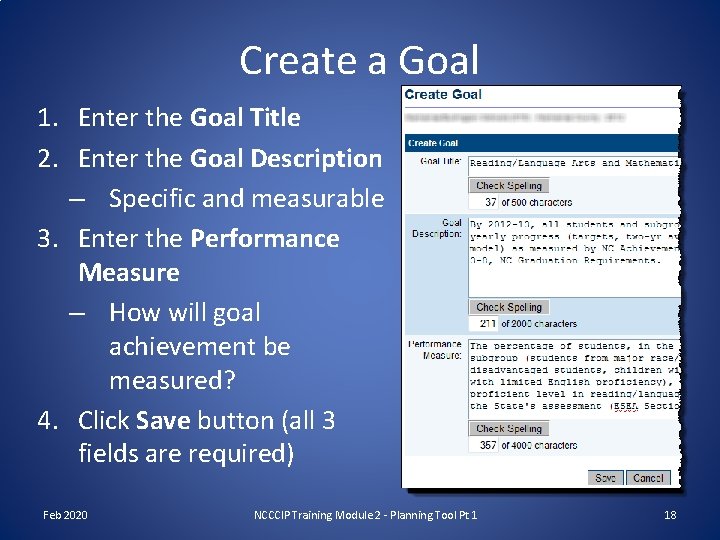
Create a Goal 1. Enter the Goal Title 2. Enter the Goal Description – Specific and measurable 3. Enter the Performance Measure – How will goal achievement be measured? 4. Click Save button (all 3 fields are required) Feb 2020 NCCCIP Training Module 2 - Planning Tool Pt 1 18
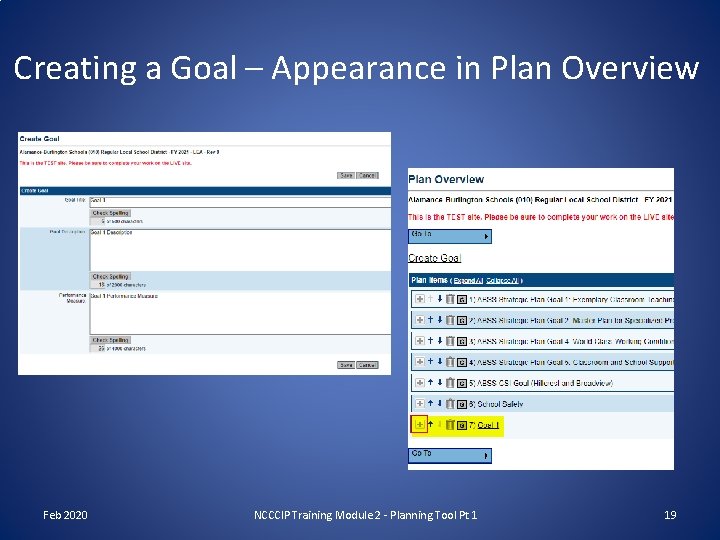
Creating a Goal – Appearance in Plan Overview Feb 2020 NCCCIP Training Module 2 - Planning Tool Pt 1 19
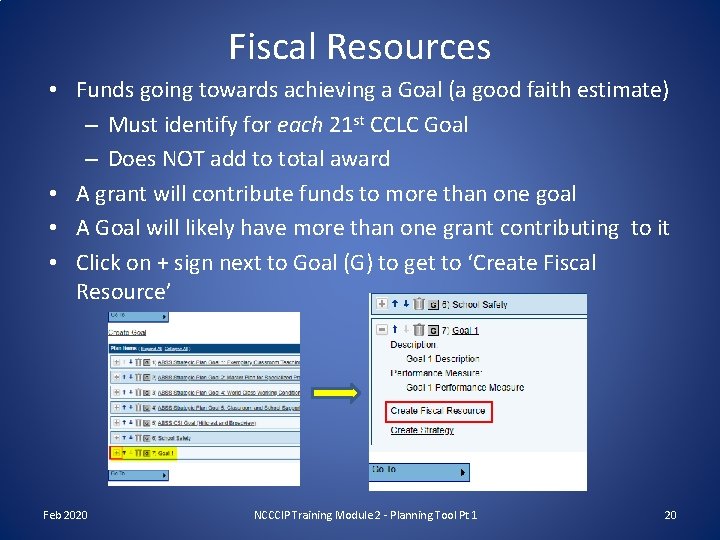
Fiscal Resources • Funds going towards achieving a Goal (a good faith estimate) – Must identify for each 21 st CCLC Goal – Does NOT add to total award • A grant will contribute funds to more than one goal • A Goal will likely have more than one grant contributing to it • Click on + sign next to Goal (G) to get to ‘Create Fiscal Resource’ Feb 2020 NCCCIP Training Module 2 - Planning Tool Pt 1 20
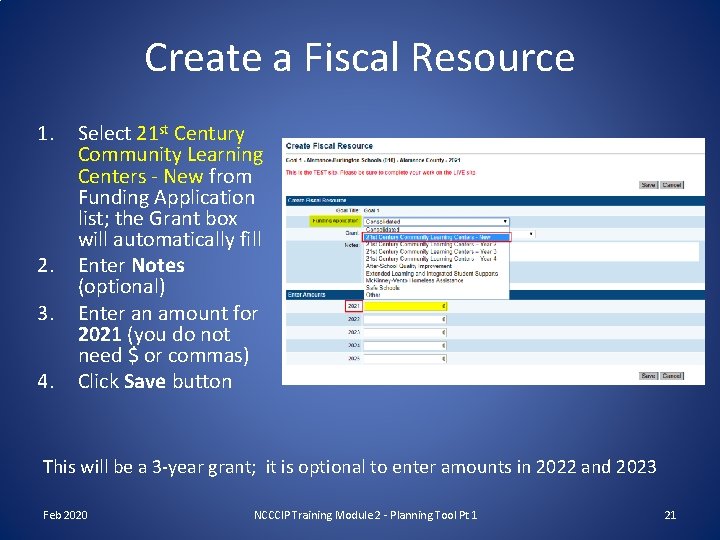
Create a Fiscal Resource 1. 2. 3. 4. Select 21 st Century Community Learning Centers - New from Funding Application list; the Grant box will automatically fill Enter Notes (optional) Enter an amount for 2021 (you do not need $ or commas) Click Save button This will be a 3 -year grant; it is optional to enter amounts in 2022 and 2023 Feb 2020 NCCCIP Training Module 2 - Planning Tool Pt 1 21
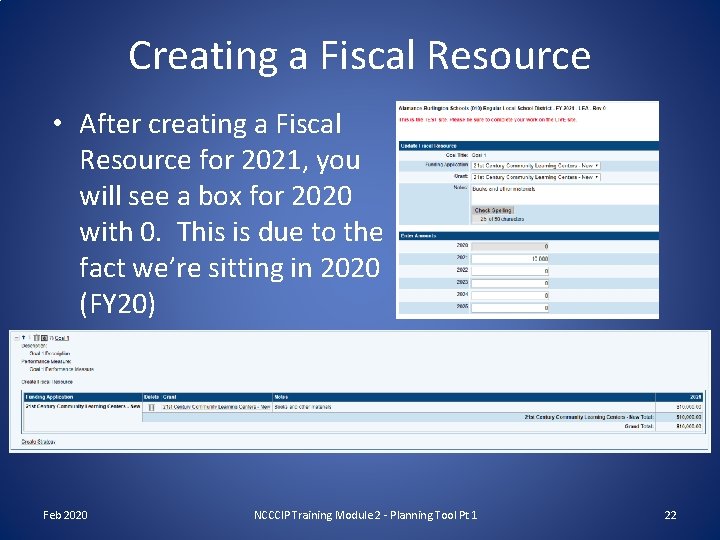
Creating a Fiscal Resource • After creating a Fiscal Resource for 2021, you will see a box for 2020 with 0. This is due to the fact we’re sitting in 2020 (FY 20) Feb 2020 NCCCIP Training Module 2 - Planning Tool Pt 1 22
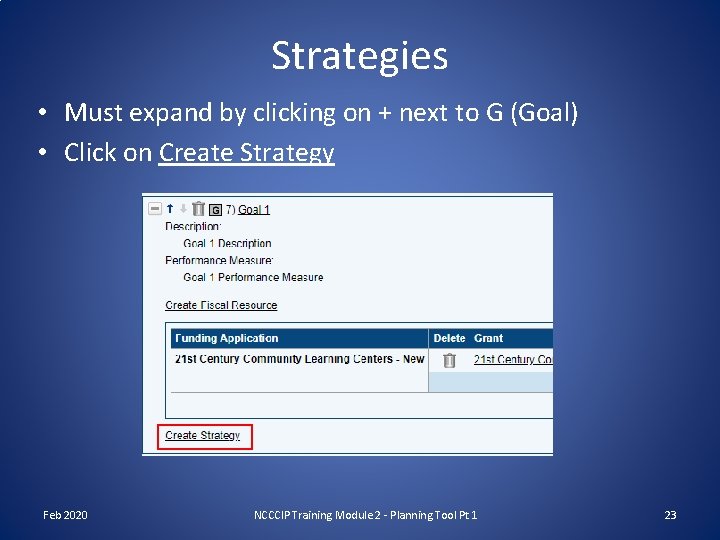
Strategies • Must expand by clicking on + next to G (Goal) • Click on Create Strategy Feb 2020 NCCCIP Training Module 2 - Planning Tool Pt 1 23
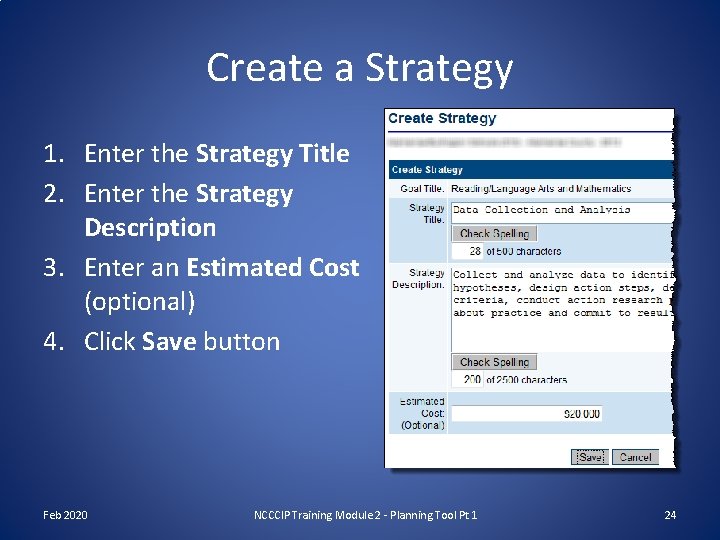
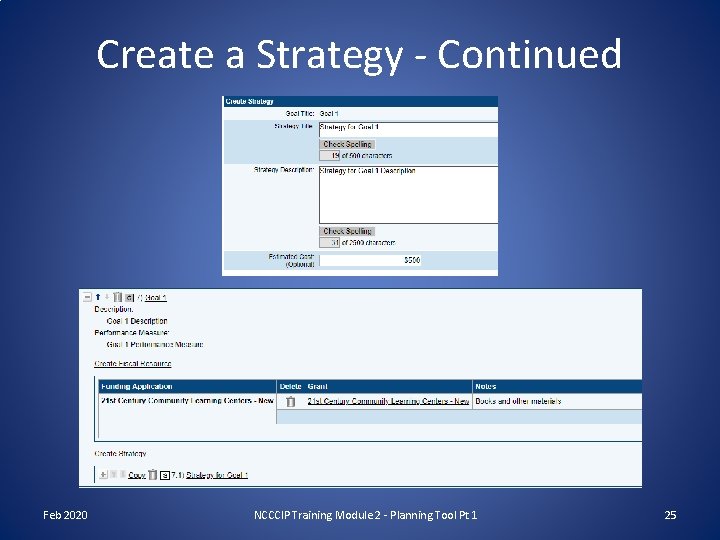
Create a Strategy 1. Enter the Strategy Title 2. Enter the Strategy Description 3. Enter an Estimated Cost (optional) 4. Click Save button Feb 2020 NCCCIP Training Module 2 - Planning Tool Pt 1 24
Create a Strategy - Continued Feb 2020 NCCCIP Training Module 2 - Planning Tool Pt 1 25
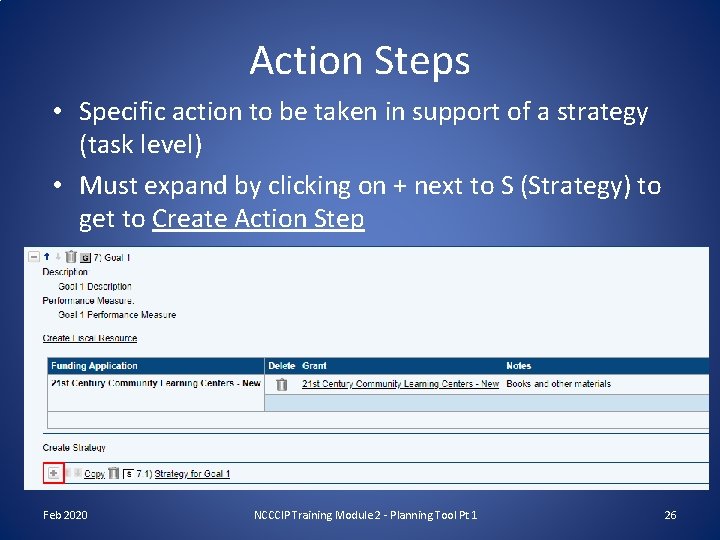
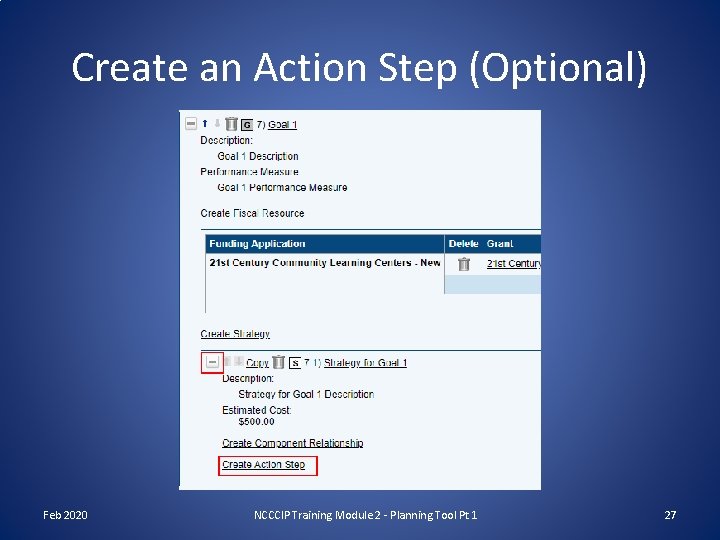
Action Steps • Specific action to be taken in support of a strategy (task level) • Must expand by clicking on + next to S (Strategy) to get to Create Action Step Feb 2020 NCCCIP Training Module 2 - Planning Tool Pt 1 26
Create an Action Step (Optional) Feb 2020 NCCCIP Training Module 2 - Planning Tool Pt 1 27
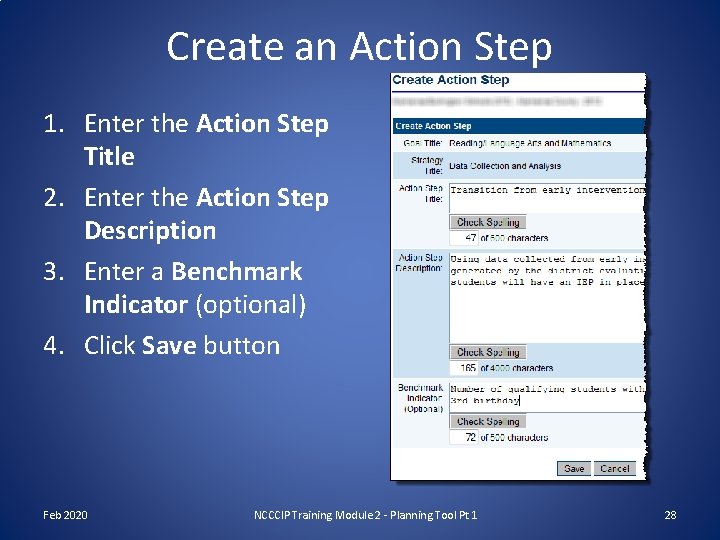
Create an Action Step 1. Enter the Action Step Title 2. Enter the Action Step Description 3. Enter a Benchmark Indicator (optional) 4. Click Save button Feb 2020 NCCCIP Training Module 2 - Planning Tool Pt 1 28
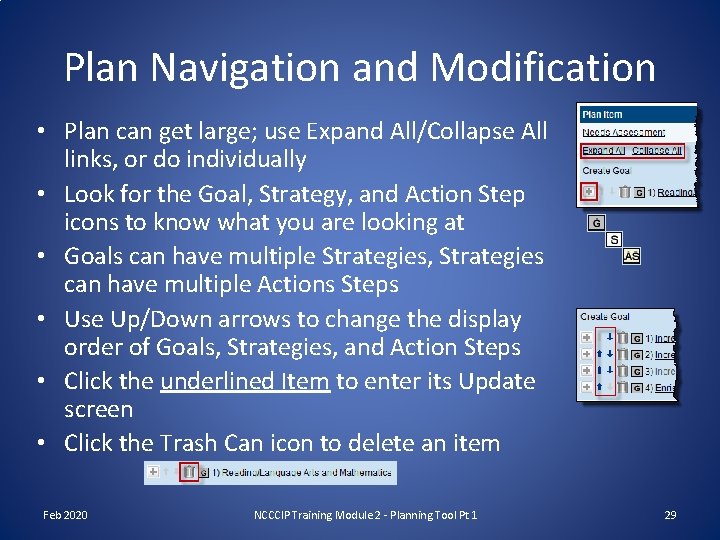
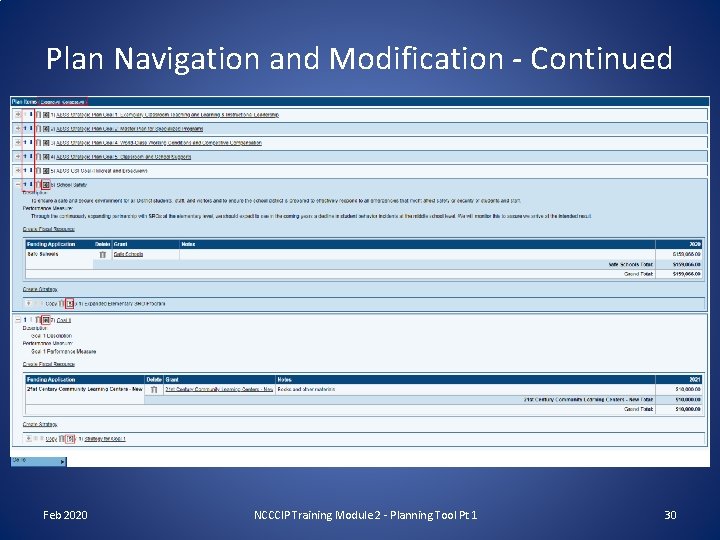
Plan Navigation and Modification • Plan can get large; use Expand All/Collapse All links, or do individually • Look for the Goal, Strategy, and Action Step icons to know what you are looking at • Goals can have multiple Strategies, Strategies can have multiple Actions Steps • Use Up/Down arrows to change the display order of Goals, Strategies, and Action Steps • Click the underlined Item to enter its Update screen • Click the Trash Can icon to delete an item Feb 2020 NCCCIP Training Module 2 - Planning Tool Pt 1 29
Plan Navigation and Modification - Continued Feb 2020 NCCCIP Training Module 2 - Planning Tool Pt 1 30
Activity – Create Plan Data 1. Log into the system with your Training login (given in class) 2. Navigate to the Planning Tool 3. Change application year to 2021 4. Fill in Needs Assessment data 5. Create two or more Goals 6. Create a Fiscal Resource under each Goal 7. Create a Strategy under each Goal 8. Create an Action Step under each of the Strategies 9. Change the Display Sequence of the Strategies 10. Delete the Strategy that has an Action Step under it Feb 2020 NCCCIP Training Module 2 - Planning Tool Pt 1 31