
NAVSUP Weapon Systems Support presented by Craig Pulver
NAVSUP Weapon Systems Support presented by: Craig Pulver The NAVSUP Enterprise
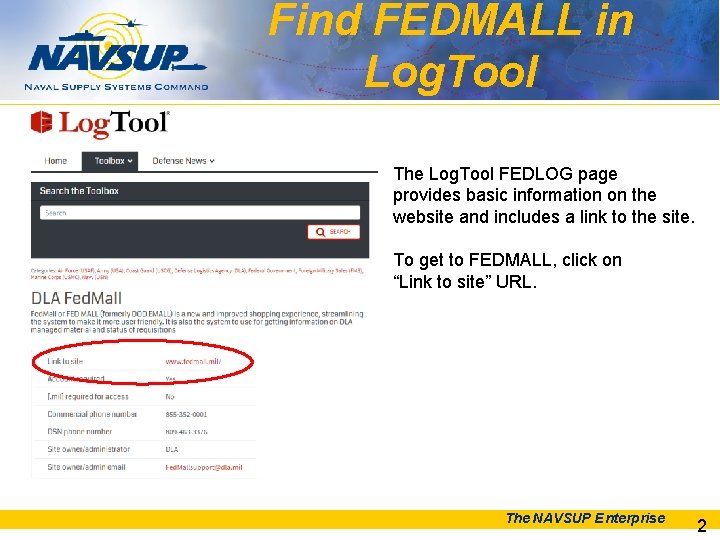
Find FEDMALL in Log. Tool The Log. Tool FEDLOG page provides basic information on the website and includes a link to the site. To get to FEDMALL, click on “Link to site” URL. The NAVSUP Enterprise 2
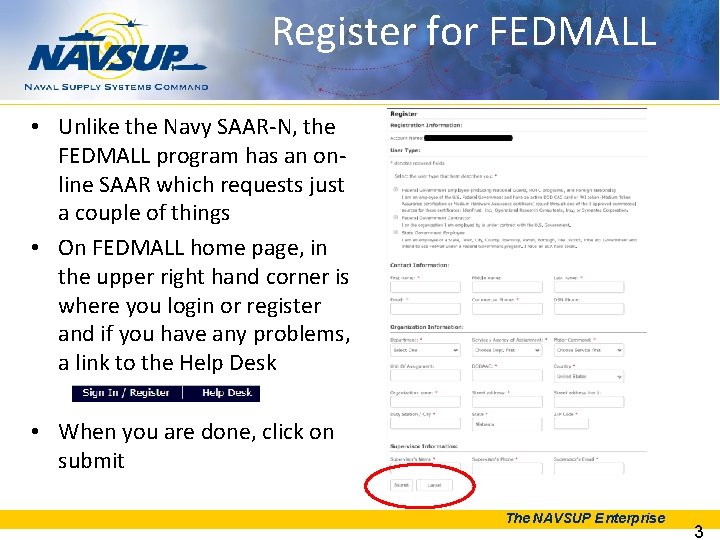
Register for FEDMALL • Unlike the Navy SAAR-N, the FEDMALL program has an online SAAR which requests just a couple of things • On FEDMALL home page, in the upper right hand corner is where you login or register and if you have any problems, a link to the Help Desk • When you are done, click on submit The NAVSUP Enterprise 3
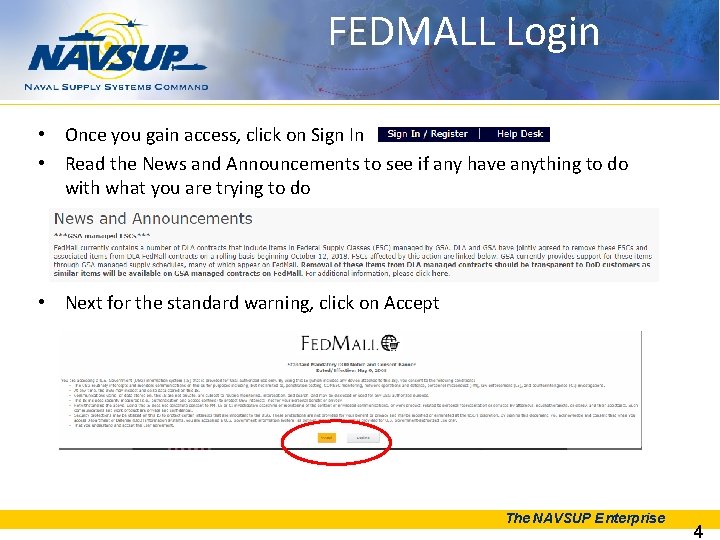
FEDMALL Login • Once you gain access, click on Sign In • Read the News and Announcements to see if any have anything to do with what you are trying to do • Next for the standard warning, click on Accept The NAVSUP Enterprise 4
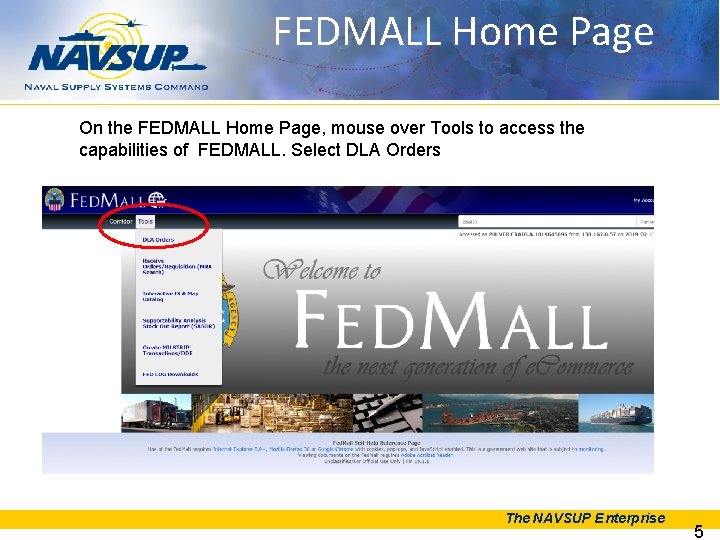
FEDMALL Home Page On the FEDMALL Home Page, mouse over Tools to access the capabilities of FEDMALL. Select DLA Orders The NAVSUP Enterprise 5

FEDMALL NSN/NIIN Query Since most people ask the question “do you have any”, FEDMALL starts with a NSN/NIIN query The NAVSUP Enterprise 6
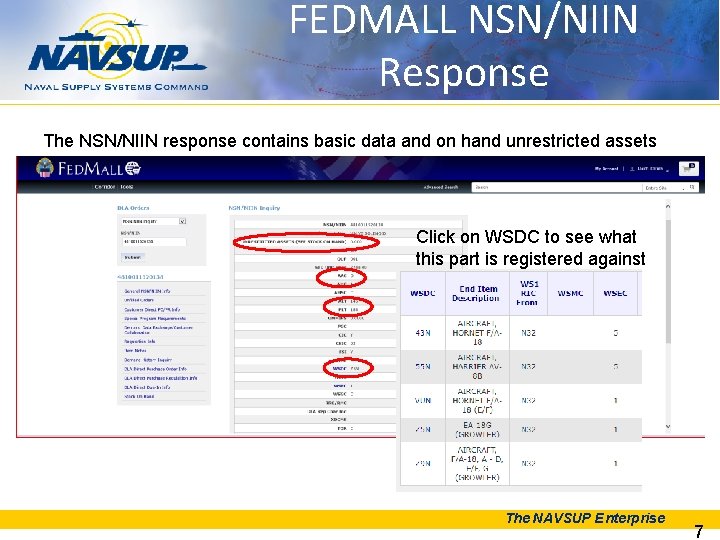
FEDMALL NSN/NIIN Response The NSN/NIIN response contains basic data and on hand unrestricted assets Click on WSDC to see what this part is registered against The NAVSUP Enterprise 7
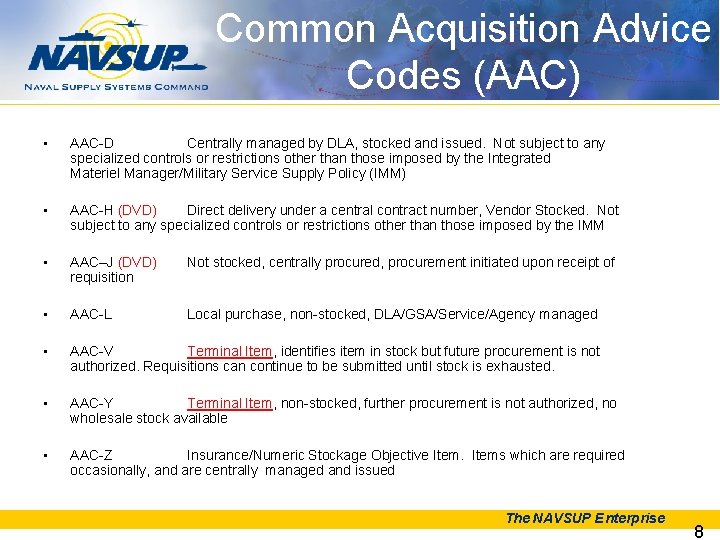
Common Acquisition Advice Codes (AAC) • AAC-D Centrally managed by DLA, stocked and issued. Not subject to any specialized controls or restrictions other than those imposed by the Integrated Materiel Manager/Military Service Supply Policy (IMM) • AAC-H (DVD) Direct delivery under a central contract number, Vendor Stocked. Not subject to any specialized controls or restrictions other than those imposed by the IMM • AAC–J (DVD) requisition Not stocked, centrally procured, procurement initiated upon receipt of • AAC-L Local purchase, non-stocked, DLA/GSA/Service/Agency managed • AAC-V Terminal Item, identifies item in stock but future procurement is not authorized. Requisitions can continue to be submitted until stock is exhausted. • AAC-Y Terminal Item, non-stocked, further procurement is not authorized, no wholesale stock available • AAC-Z Insurance/Numeric Stockage Objective Items which are required occasionally, and are centrally managed and issued The NAVSUP Enterprise 8
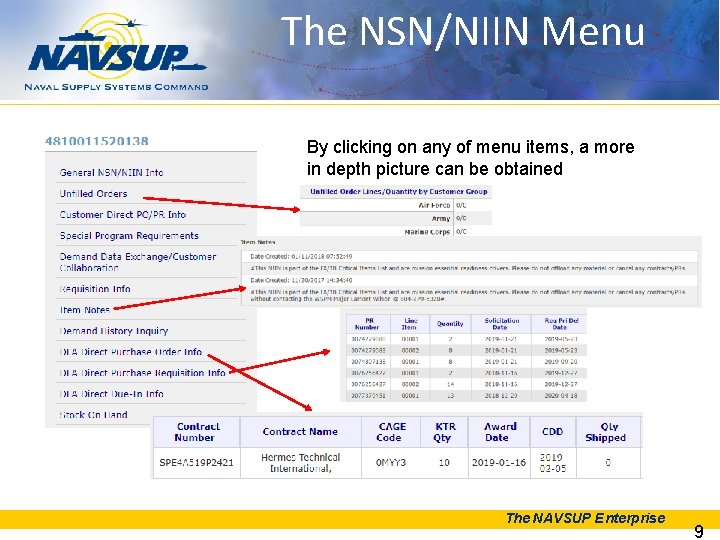
The NSN/NIIN Menu By clicking on any of menu items, a more in depth picture can be obtained The NAVSUP Enterprise 9
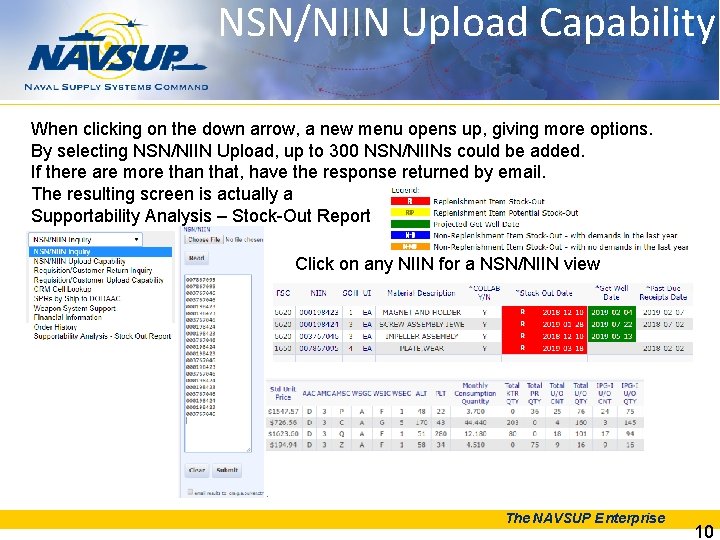
NSN/NIIN Upload Capability When clicking on the down arrow, a new menu opens up, giving more options. By selecting NSN/NIIN Upload, up to 300 NSN/NIINs could be added. If there are more than that, have the response returned by email. The resulting screen is actually a Supportability Analysis – Stock-Out Report Click on any NIIN for a NSN/NIIN view The NAVSUP Enterprise 10
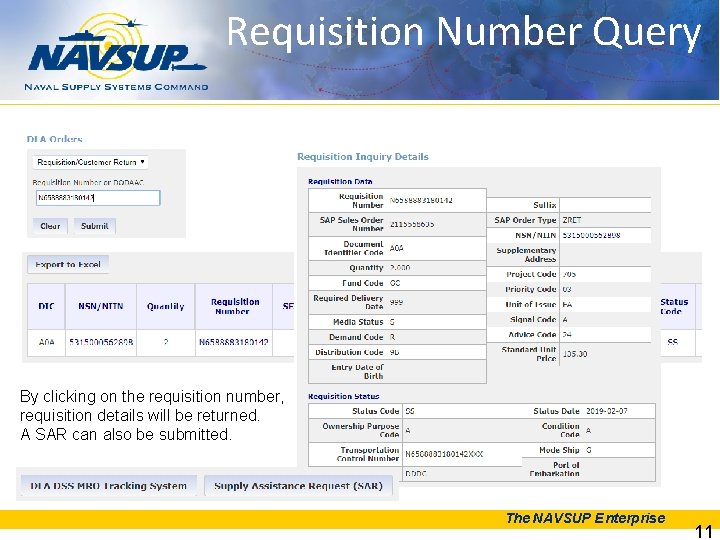
Requisition Number Query By clicking on the requisition number, requisition details will be returned. A SAR can also be submitted. The NAVSUP Enterprise 11
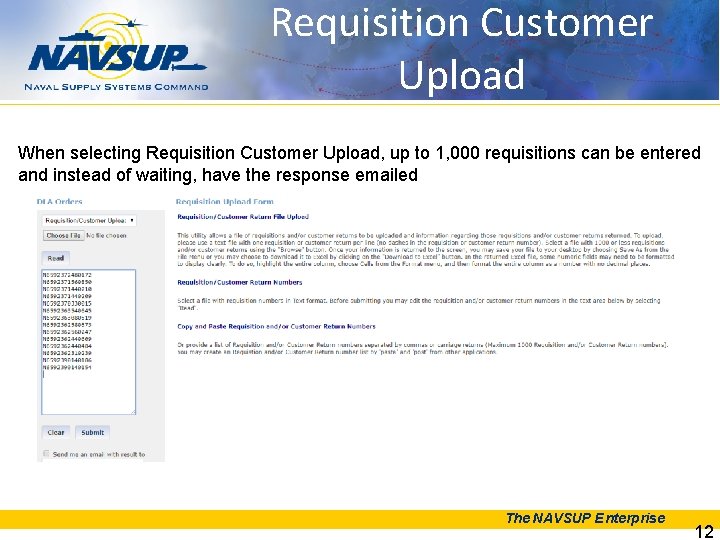
Requisition Customer Upload When selecting Requisition Customer Upload, up to 1, 000 requisitions can be entered and instead of waiting, have the response emailed The NAVSUP Enterprise 12
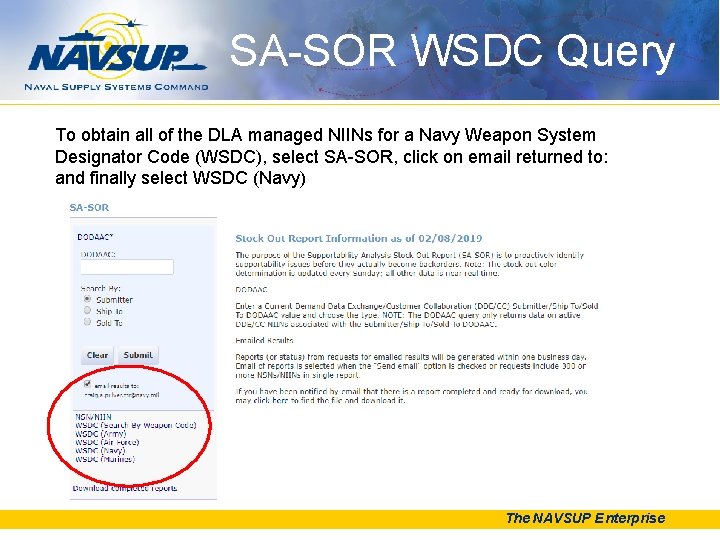
SA-SOR WSDC Query To obtain all of the DLA managed NIINs for a Navy Weapon System Designator Code (WSDC), select SA-SOR, click on email returned to: and finally select WSDC (Navy) The NAVSUP Enterprise
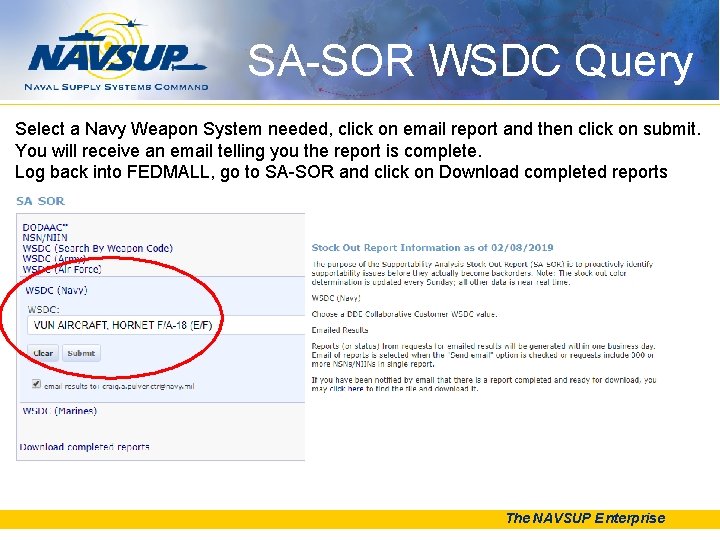
SA-SOR WSDC Query Select a Navy Weapon System needed, click on email report and then click on submit. You will receive an email telling you the report is complete. Log back into FEDMALL, go to SA-SOR and click on Download completed reports The NAVSUP Enterprise
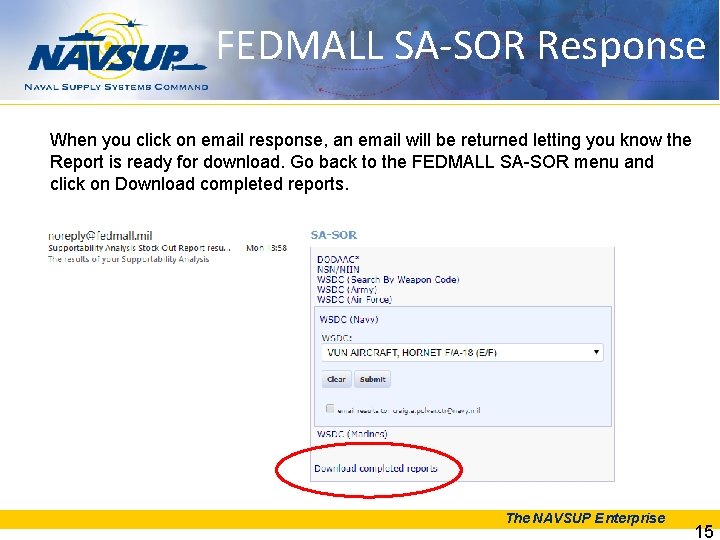
FEDMALL SA-SOR Response When you click on email response, an email will be returned letting you know the Report is ready for download. Go back to the FEDMALL SA-SOR menu and click on Download completed reports. The NAVSUP Enterprise 15
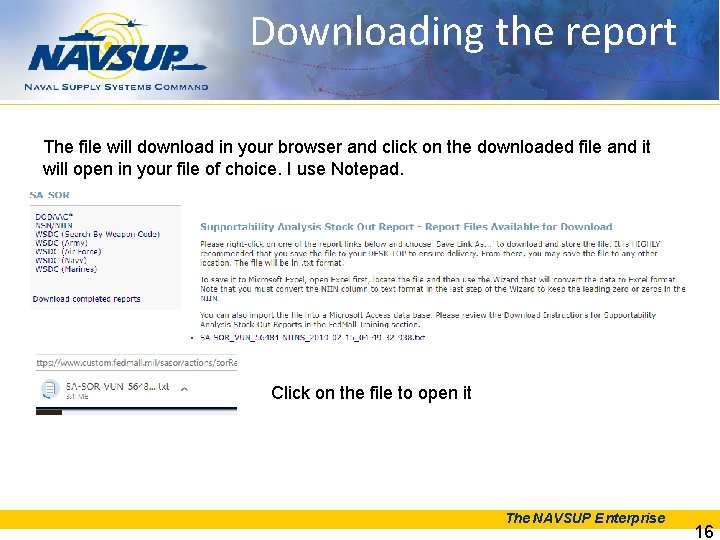
Downloading the report The file will download in your browser and click on the downloaded file and it will open in your file of choice. I use Notepad. Click on the file to open it The NAVSUP Enterprise 16
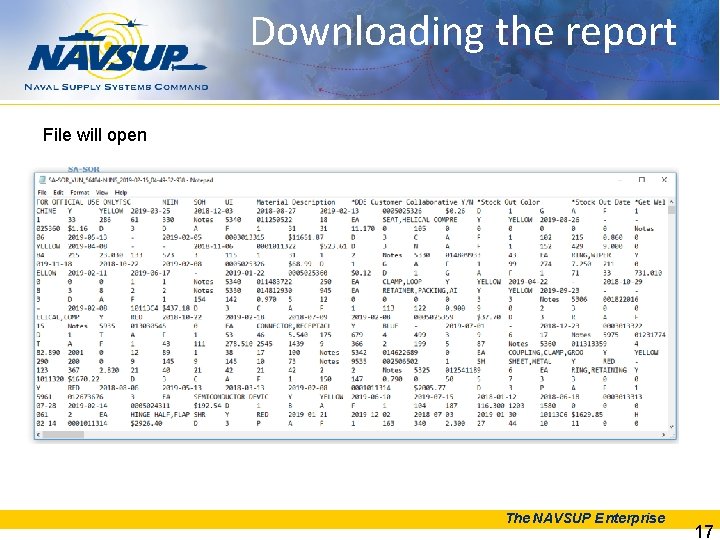
Downloading the report File will open The NAVSUP Enterprise 17
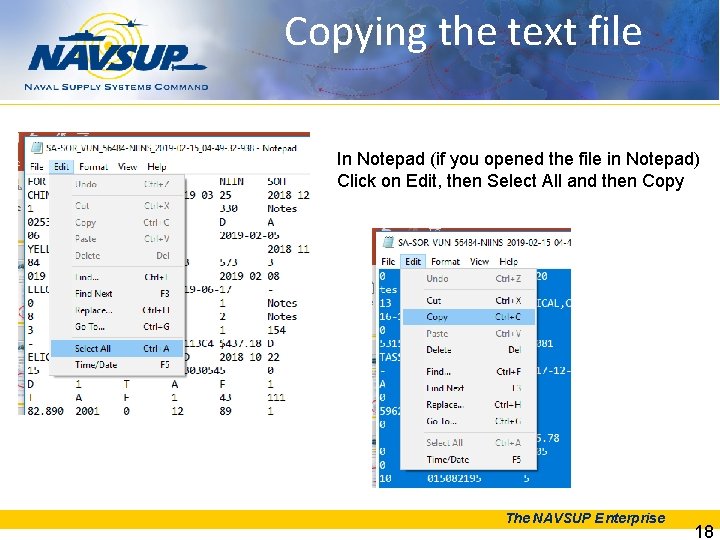
Copying the text file In Notepad (if you opened the file in Notepad) Click on Edit, then Select All and then Copy The NAVSUP Enterprise 18
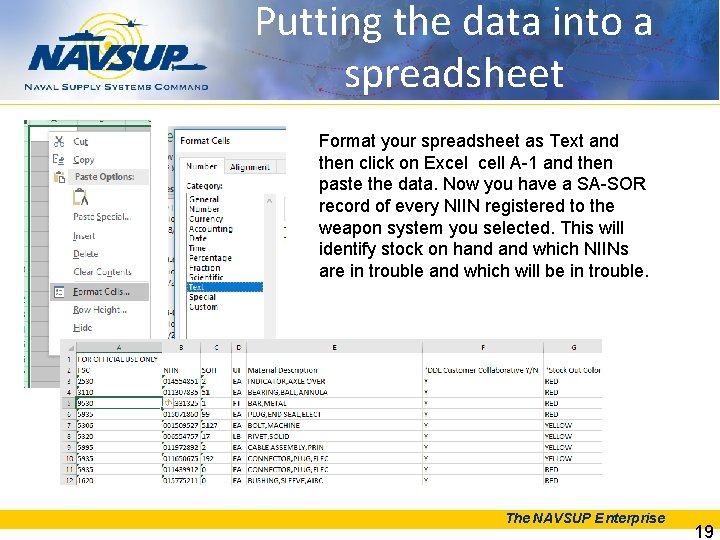
Putting the data into a spreadsheet Format your spreadsheet as Text and then click on Excel cell A-1 and then paste the data. Now you have a SA-SOR record of every NIIN registered to the weapon system you selected. This will identify stock on hand which NIINs are in trouble and which will be in trouble. The NAVSUP Enterprise 19
POC Info: Peter Browne peter. s. browne@navy. mil (215) 697 -5056 Craig Pulver craig. a. pulver. ctr@navy. mil (215) 697 -4639 Gary Condit gary. e. condit. ctr@navy. mil (215)-697 -4726 The NAVSUP Enterprise
- Slides: 20