
NAVIGATING WORD PPT AND THE INTERNET WITH SCREEN

- Slides: 45
NAVIGATING WORD, PPT, AND THE INTERNET WITH SCREEN READERS Critical Skills High School Students Need to Survive Higher Education Dave Wilkinson, National Education Manager, HIMS Inc. Korey Singleton, ATI Manager, George Mason University
Session Agenda • Introductions • Which Screen Reader should you use? • Making Word and PPT Documents Accessible • Testing Documents for Accessibility • Q&A Break (5 -10 minutes) • Navigating Word and PPT Documents (Screen Reader Demos) • Navigating the Internet (Screen Reader Demos) • Q&A Break
Speakers • Dave Wilkinson, National Education Manager, HIMS Inc. • Korey Singleton, ATI Manager, George Mason University
WHICH SCREEN READER SHOULD YOU USE? Jaws, Window. Eyes, NVDA, Voice. Over…
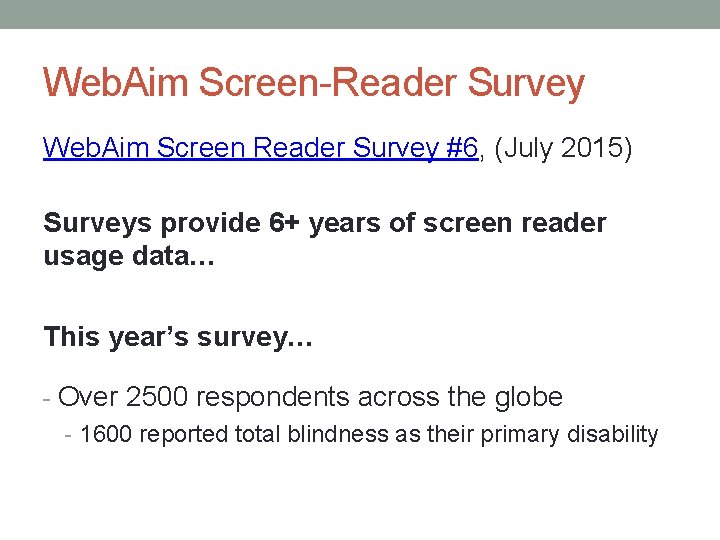
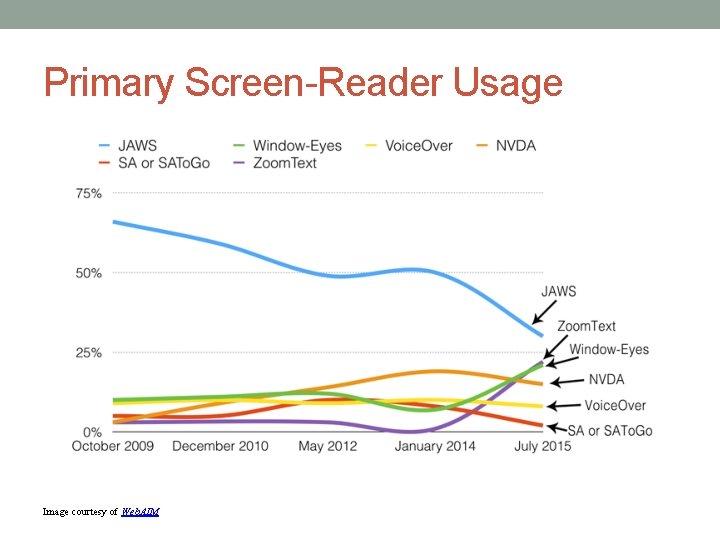
Web. Aim Screen-Reader Survey Web. Aim Screen Reader Survey #6, (July 2015) Surveys provide 6+ years of screen reader usage data… This year’s survey… - Over 2500 respondents across the globe - 1600 reported total blindness as their primary disability
Primary Screen-Reader Usage Image courtesy of Web. AIM
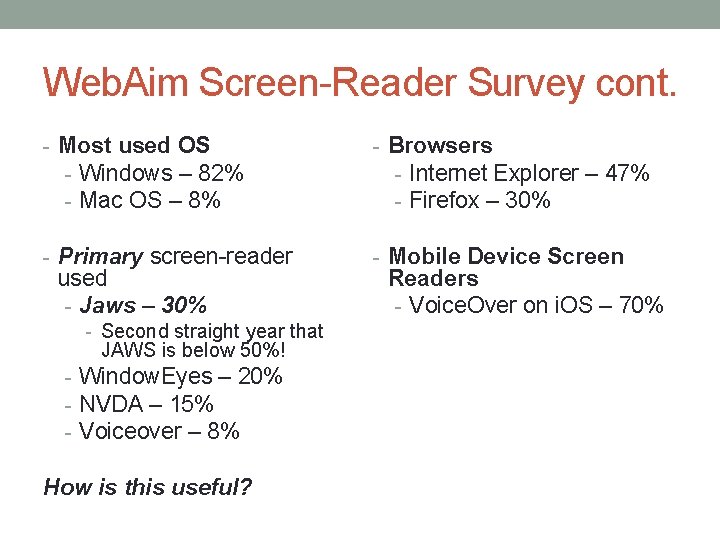
Web. Aim Screen-Reader Survey cont. - Most used OS - Windows – 82% - Mac OS – 8% - Browsers - Internet Explorer – 47% - Firefox – 30% - Primary screen-reader - Mobile Device Screen used - Jaws – 30% - Second straight year that JAWS is below 50%! - Window. Eyes – 20% - NVDA – 15% - Voiceover – 8% How is this useful? Readers - Voice. Over on i. OS – 70%
CREATING ACCESSIBLE DOCUMENTS Tips and Strategies for ensuring equivalent access to MS Word documents and MS PPT presentations
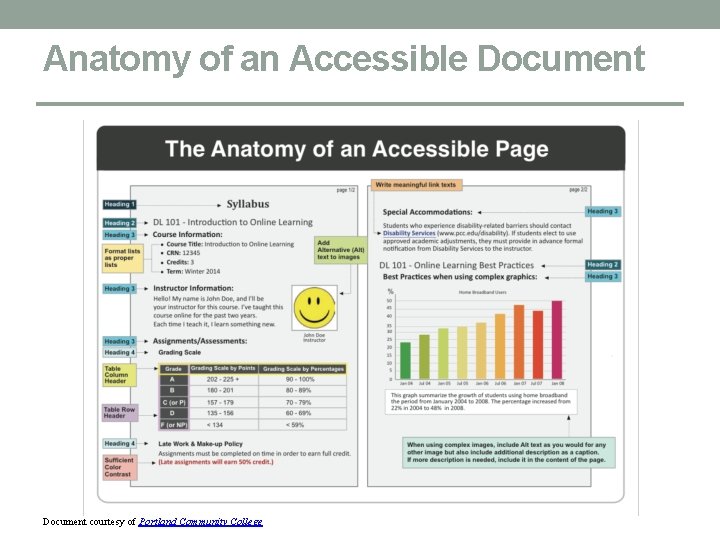
Anatomy of an Accessible Document courtesy of Portland Community College
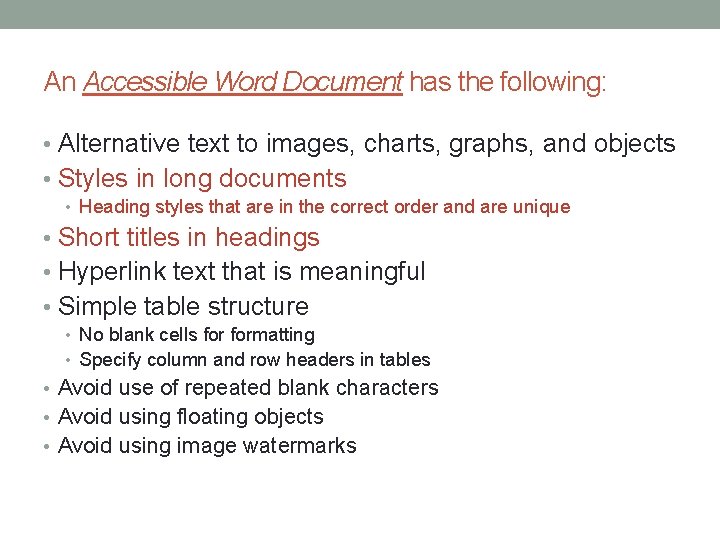
An Accessible Word Document has the following: • Alternative text to images, charts, graphs, and objects • Styles in long documents • Heading styles that are in the correct order and are unique • Short titles in headings • Hyperlink text that is meaningful • Simple table structure • No blank cells formatting • Specify column and row headers in tables • Avoid use of repeated blank characters • Avoid using floating objects • Avoid using image watermarks
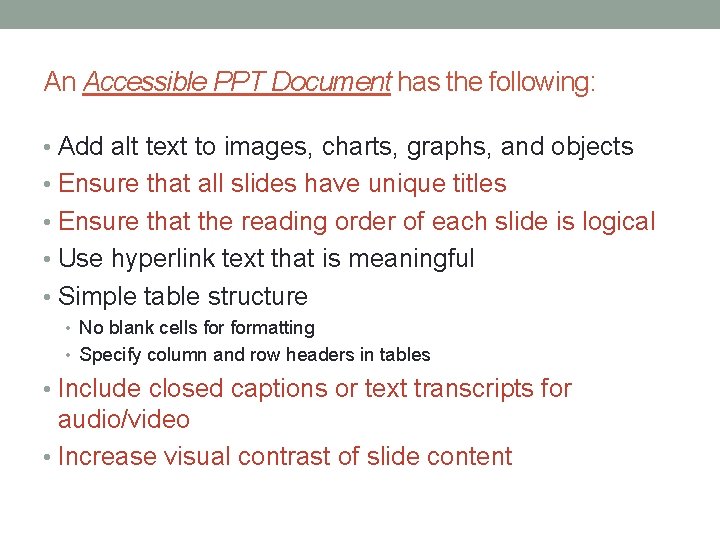
An Accessible PPT Document has the following: • Add alt text to images, charts, graphs, and objects • Ensure that all slides have unique titles • Ensure that the reading order of each slide is logical • Use hyperlink text that is meaningful • Simple table structure • No blank cells formatting • Specify column and row headers in tables • Include closed captions or text transcripts for audio/video • Increase visual contrast of slide content
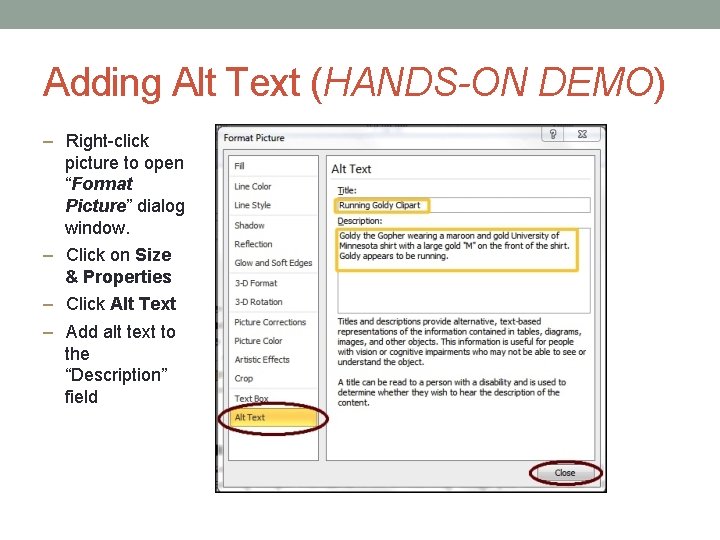
Adding Alt Text (HANDS-ON DEMO) – Right-click picture to open “Format Picture” dialog window. – Click on Size & Properties – Click Alt Text – Add alt text to the “Description” field
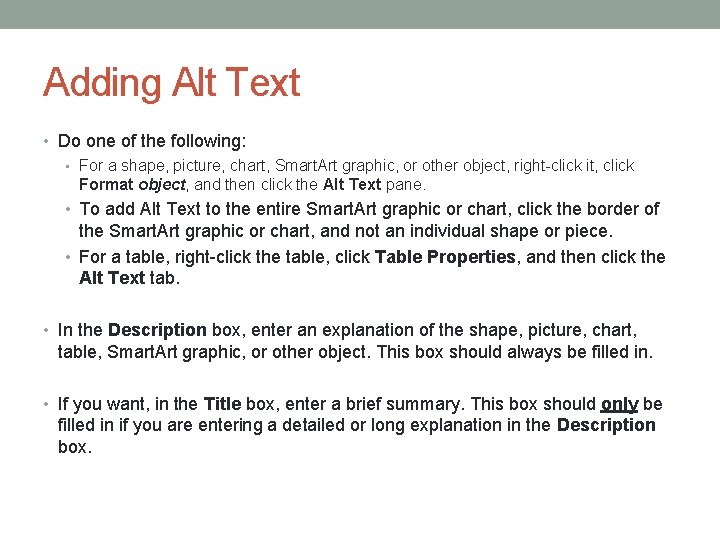
Adding Alt Text • Do one of the following: • For a shape, picture, chart, Smart. Art graphic, or other object, right-click it, click Format object, and then click the Alt Text pane. • To add Alt Text to the entire Smart. Art graphic or chart, click the border of the Smart. Art graphic or chart, and not an individual shape or piece. • For a table, right-click the table, click Table Properties, and then click the Alt Text tab. • In the Description box, enter an explanation of the shape, picture, chart, table, Smart. Art graphic, or other object. This box should always be filled in. • If you want, in the Title box, enter a brief summary. This box should only be filled in if you are entering a detailed or long explanation in the Description box.
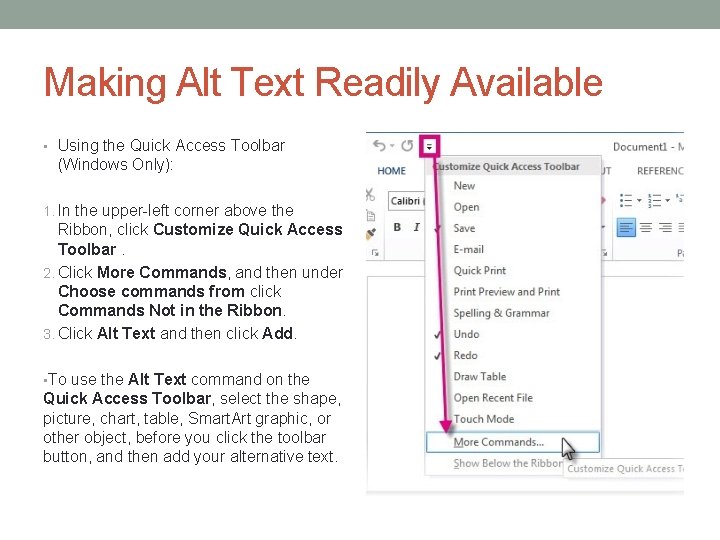
Making Alt Text Readily Available • Using the Quick Access Toolbar (Windows Only): 1. In the upper-left corner above the Ribbon, click Customize Quick Access Toolbar. 2. Click More Commands, and then under Choose commands from click Commands Not in the Ribbon. 3. Click Alt Text and then click Add. • To use the Alt Text command on the Quick Access Toolbar, select the shape, picture, chart, table, Smart. Art graphic, or other object, before you click the toolbar button, and then add your alternative text.
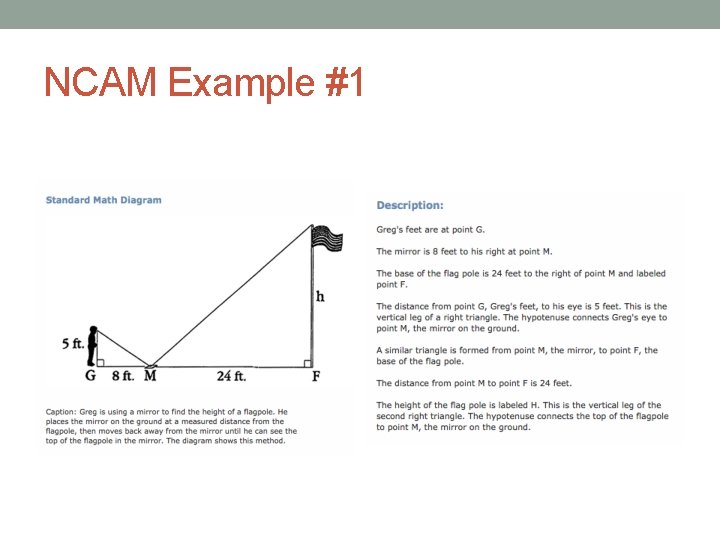
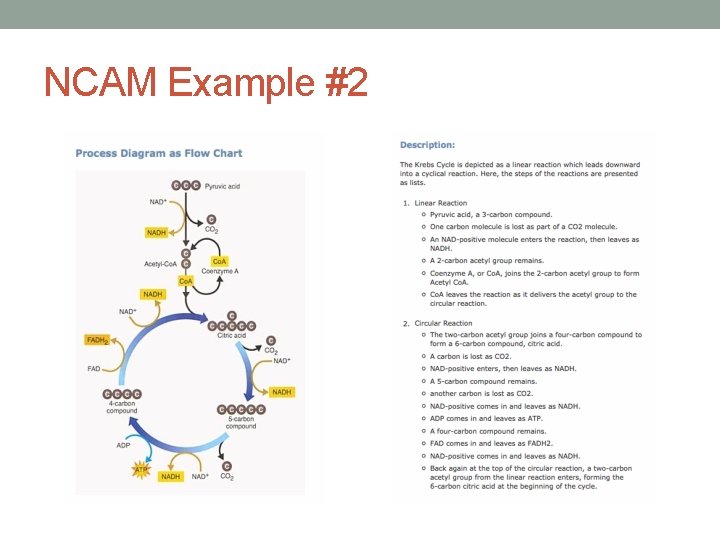
Alternative Text Examples (STEM) • NCAM – National Center for Accessible Media Great examples of how to provide alternative text descriptions for a number of different types of STEM subject matter (e. g. scatter plots, bar graphs, diagrams, etc. • Effective Practices for Description of Science Content within Digital Talking Books •
NCAM Example #1
NCAM Example #2
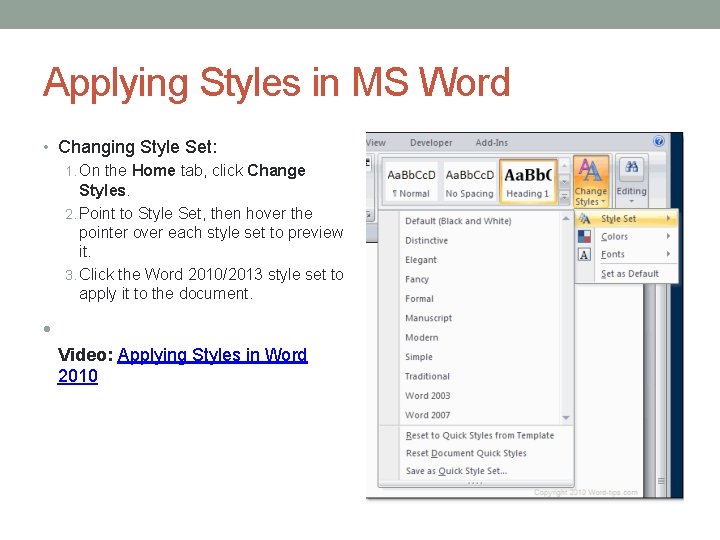
Applying Styles in MS Word • Changing Style Set: 1. On the Home tab, click Change Styles. 2. Point to Style Set, then hover the pointer over each style set to preview it. 3. Click the Word 2010/2013 style set to apply it to the document. • Video: Applying Styles in Word 2010
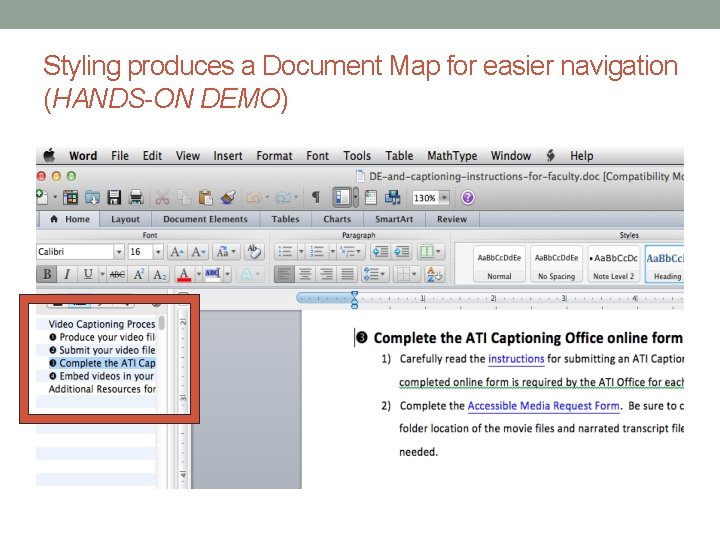
Styling produces a Document Map for easier navigation (HANDS-ON DEMO)
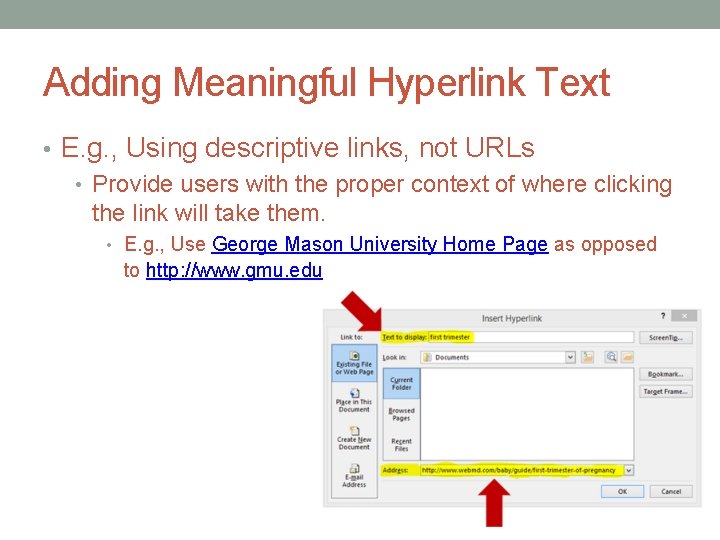
Adding Meaningful Hyperlink Text • E. g. , Using descriptive links, not URLs • Provide users with the proper context of where clicking the link will take them. • E. g. , Use George Mason University Home Page as opposed to http: //www. gmu. edu
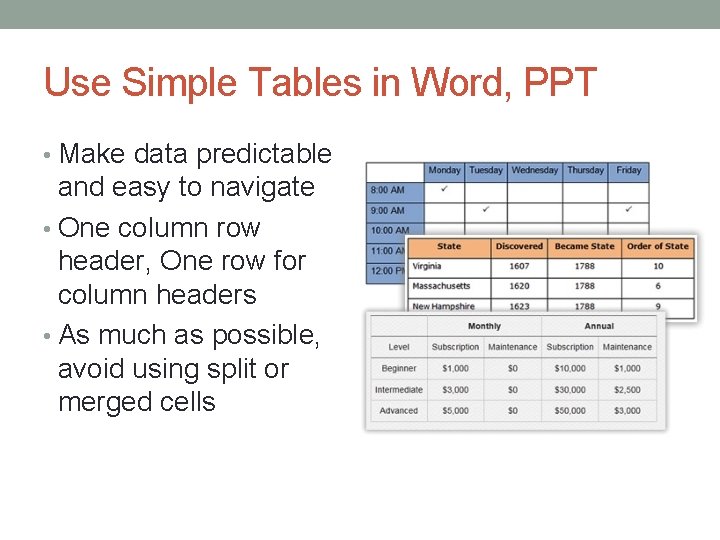
Use Simple Tables in Word, PPT • Make data predictable and easy to navigate • One column row header, One row for column headers • As much as possible, avoid using split or merged cells
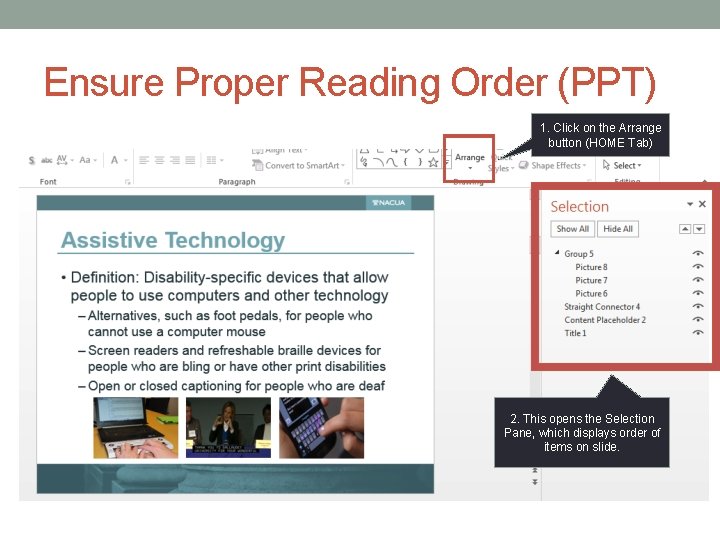
Ensure Proper Reading Order (PPT) 1. Click on the Arrange button (HOME Tab) 2. This opens the Selection Pane, which displays order of items on slide.
TESTING YOUR DOCUMENTS FOR ACCESSIBILITY Using Microsoft’s Accessibility Checker
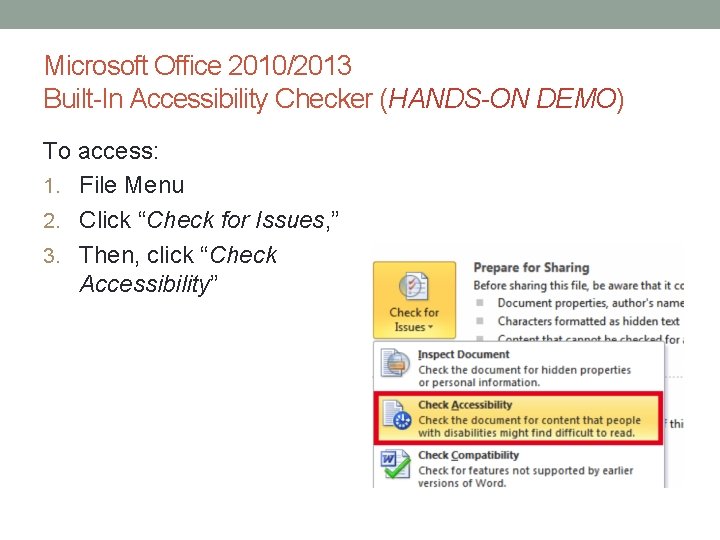
Microsoft Office 2010/2013 Built-In Accessibility Checker (HANDS-ON DEMO) To access: 1. File Menu 2. Click “Check for Issues, ” 3. Then, click “Check Accessibility”
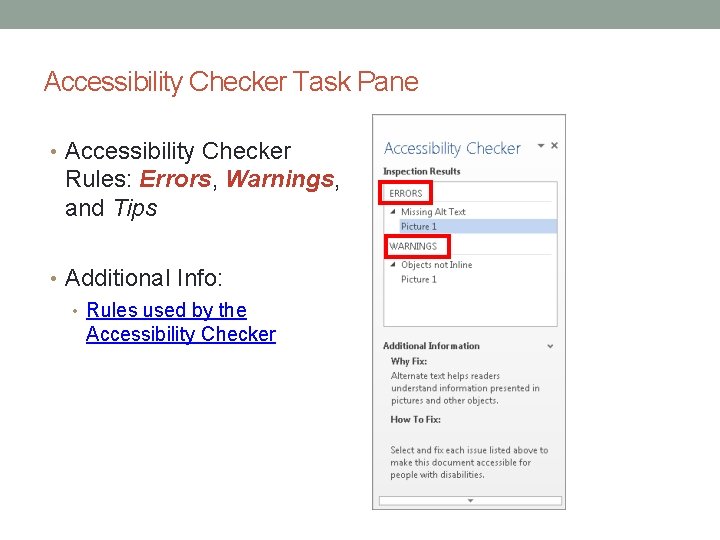
Accessibility Checker Task Pane • Accessibility Checker Rules: Errors, Warnings, and Tips • Additional Info: • Rules used by the Accessibility Checker
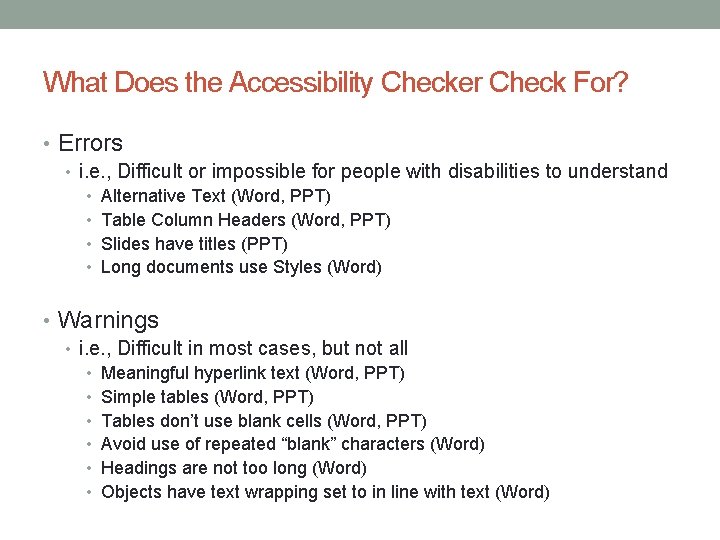
What Does the Accessibility Checker Check For? • Errors • i. e. , Difficult or impossible for people with disabilities to understand • • Alternative Text (Word, PPT) Table Column Headers (Word, PPT) Slides have titles (PPT) Long documents use Styles (Word) • Warnings • i. e. , Difficult in most cases, but not all • • • Meaningful hyperlink text (Word, PPT) Simple tables (Word, PPT) Tables don’t use blank cells (Word, PPT) Avoid use of repeated “blank” characters (Word) Headings are not too long (Word) Objects have text wrapping set to in line with text (Word)
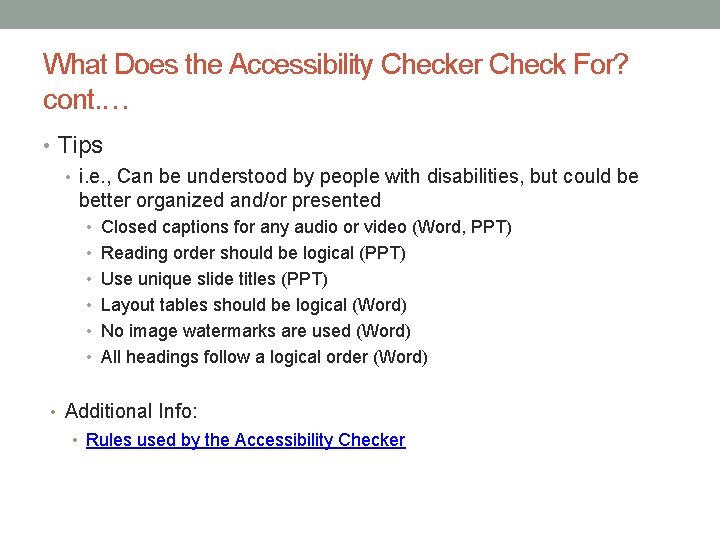
What Does the Accessibility Checker Check For? cont. … • Tips • i. e. , Can be understood by people with disabilities, but could be better organized and/or presented • Closed captions for any audio or video (Word, PPT) • Reading order should be logical (PPT) • Use unique slide titles (PPT) • Layout tables should be logical (Word) • No image watermarks are used (Word) • All headings follow a logical order (Word) • Additional Info: • Rules used by the Accessibility Checker
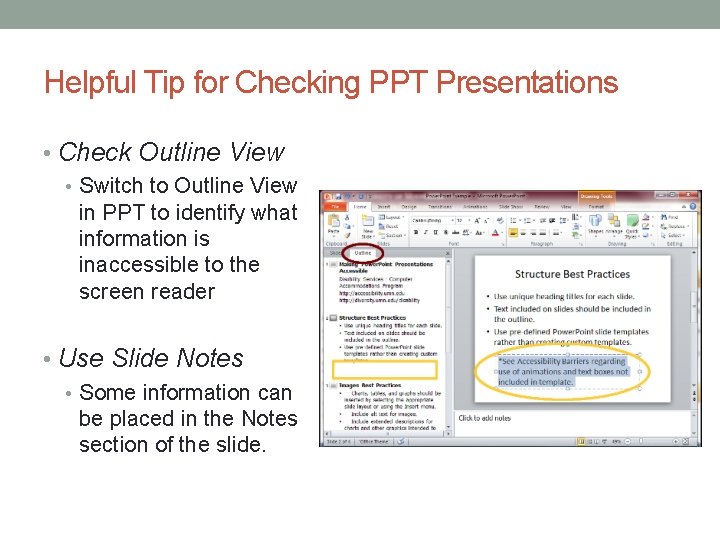
Helpful Tip for Checking PPT Presentations • Check Outline View • Switch to Outline View in PPT to identify what information is inaccessible to the screen reader • Use Slide Notes • Some information can be placed in the Notes section of the slide.
Take 5 -10 Minute Break!
NAVIGATING DOCUMENTS Tips and Strategies for navigating Word and PPT documents with a screen reader (DEMO)
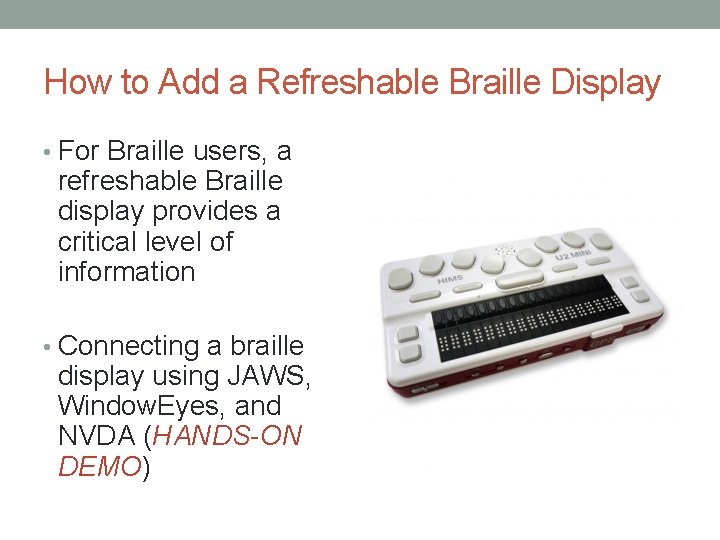
How to Add a Refreshable Braille Display • For Braille users, a refreshable Braille display provides a critical level of information • Connecting a braille display using JAWS, Window. Eyes, and NVDA (HANDS-ON DEMO)
What to consider… • Focus on basic navigation • Characters, words, sentences, paragraphs, pages, Say All • Formatting • Accessing the menus • Table reading commands • Form controls • Advancing through slides • Accessing notes in slides • Provide readily available resources for more advanced commands • E. g. , Accessing comments in Word • E. g. , Tracked changes in Word
Basic Reading and Editing Commands • Much of this is basic • Characters – Left/Right Arrow • Words – Control + Left/Right Arrow • Lines – Up/Down Arrow • Sentences – Alt + Up/Down Arrow (JAWS) • Paragraphs – Ctrl + Up/Down Arrow (JAWS) • Pages – Page Up/Page Down • Formatting – Ctrl + B (Bold), Ctrl + I (Italic), Ctrl + U (Underline) • Spell Check – F 7 • Thesaurus – Shift + F 7 • List goes on…
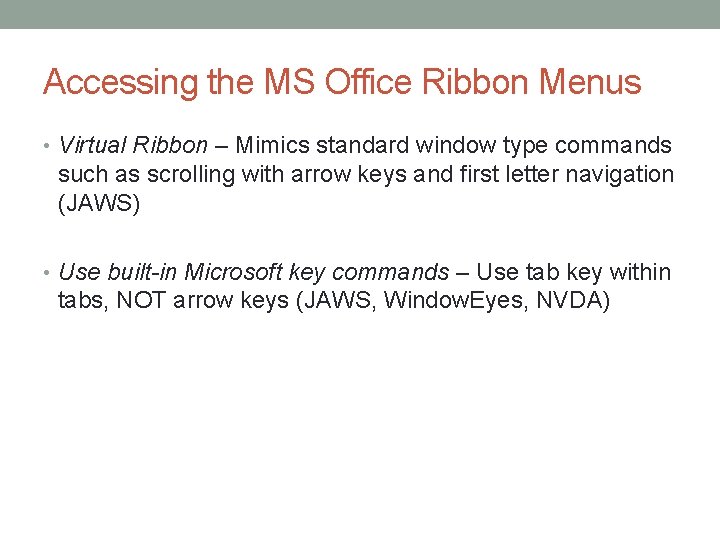
Accessing the MS Office Ribbon Menus • Virtual Ribbon – Mimics standard window type commands such as scrolling with arrow keys and first letter navigation (JAWS) • Use built-in Microsoft key commands – Use tab key within tabs, NOT arrow keys (JAWS, Window. Eyes, NVDA)
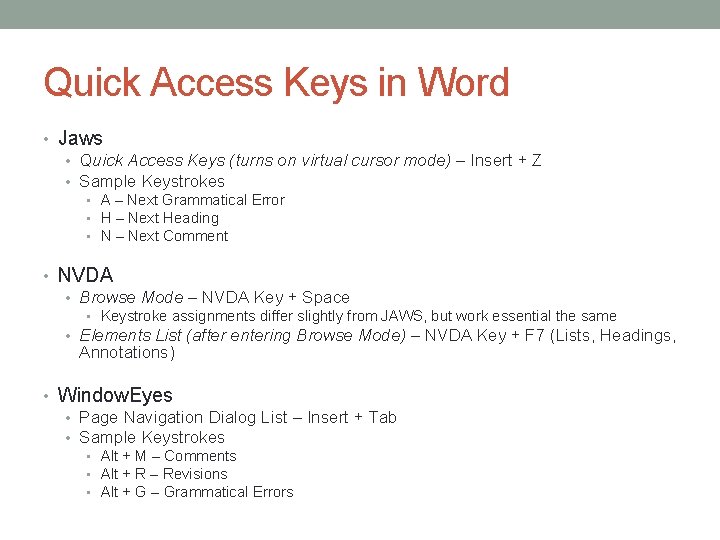
Quick Access Keys in Word • Jaws • Quick Access Keys (turns on virtual cursor mode) – Insert + Z • Sample Keystrokes • A – Next Grammatical Error • H – Next Heading • N – Next Comment • NVDA • Browse Mode – NVDA Key + Space • Keystroke assignments differ slightly from JAWS, but work essential the same • Elements List (after entering Browse Mode) – NVDA Key + F 7 (Lists, Headings, Annotations) • Window. Eyes • Page Navigation Dialog List – Insert + Tab • Sample Keystrokes • Alt + M – Comments • Alt + R – Revisions • Alt + G – Grammatical Errors
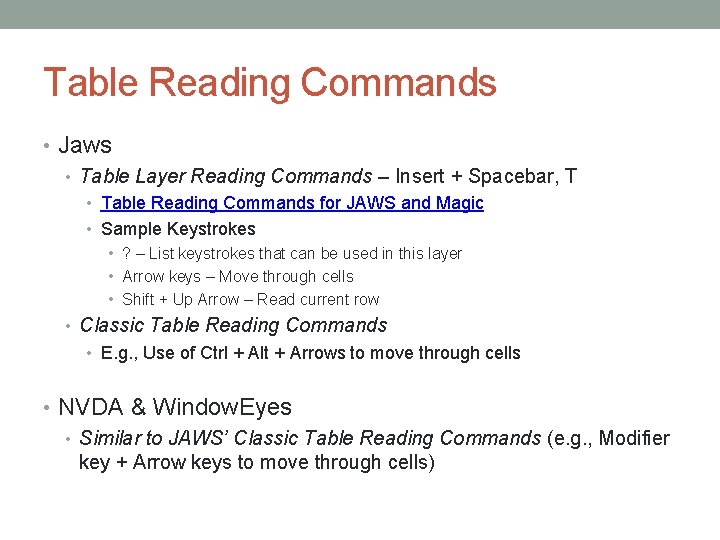
Table Reading Commands • Jaws • Table Layer Reading Commands – Insert + Spacebar, T • Table Reading Commands for JAWS and Magic • Sample Keystrokes • ? – List keystrokes that can be used in this layer • Arrow keys – Move through cells • Shift + Up Arrow – Read current row • Classic Table Reading Commands • E. g. , Use of Ctrl + Alt + Arrows to move through cells • NVDA & Window. Eyes • Similar to JAWS’ Classic Table Reading Commands (e. g. , Modifier key + Arrow keys to move through cells)
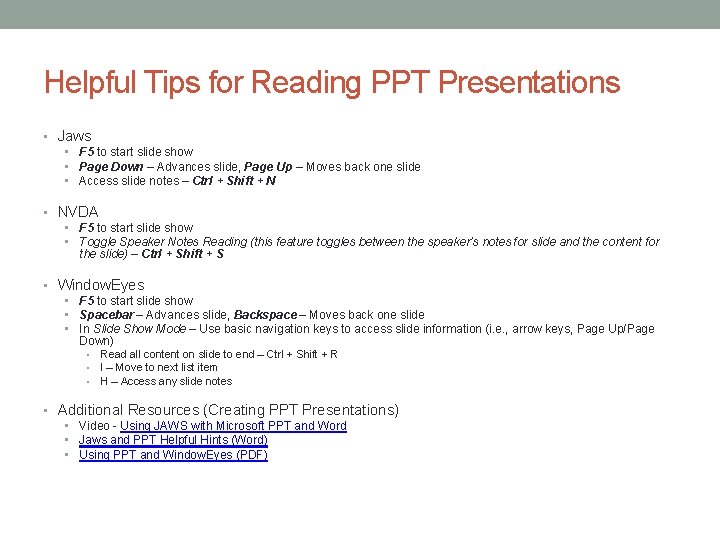
Helpful Tips for Reading PPT Presentations • Jaws • F 5 to start slide show • Page Down – Advances slide, Page Up – Moves back one slide • Access slide notes – Ctrl + Shift + N • NVDA • F 5 to start slide show • Toggle Speaker Notes Reading (this feature toggles between the speaker’s notes for slide and the content for the slide) – Ctrl + Shift + S • Window. Eyes • F 5 to start slide show • Spacebar – Advances slide, Backspace – Moves back one slide • In Slide Show Mode – Use basic navigation keys to access slide information (i. e. , arrow keys, Page Up/Page Down) • • • Read all content on slide to end – Ctrl + Shift + R I – Move to next list item H – Access any slide notes • Additional Resources (Creating PPT Presentations) • Video - Using JAWS with Microsoft PPT and Word • Jaws and PPT Helpful Hints (Word) • Using PPT and Window. Eyes (PDF)
NAVIGATING THE INTERNET WITH A SCREEN READER Tips and Strategies for Navigating with Jaws, Window. Eyes, and NVDA
What to consider… • Focus on basic navigation • Using the Tab Key • Basic Reading Commands – Say All, By Character/Word/Line/Etc. • Form controls • Use of Element Lists (e. g. , Headings List) • Table Reading Commands • Get students comfortable with navigating different browsers AND using more than one screen reader
Quick Access Keys in HTML (SPEAKER DEMO) • Jaws • Quick Access Keys – Automatically available in a browser • Navigation Quick Keys for JAWS 15 or later • NVDA • Browse Mode • Again, keystroke assignments differ slightly from JAWS, but work essential the same • Window. Eyes • Using the Internet with Window. Eyes
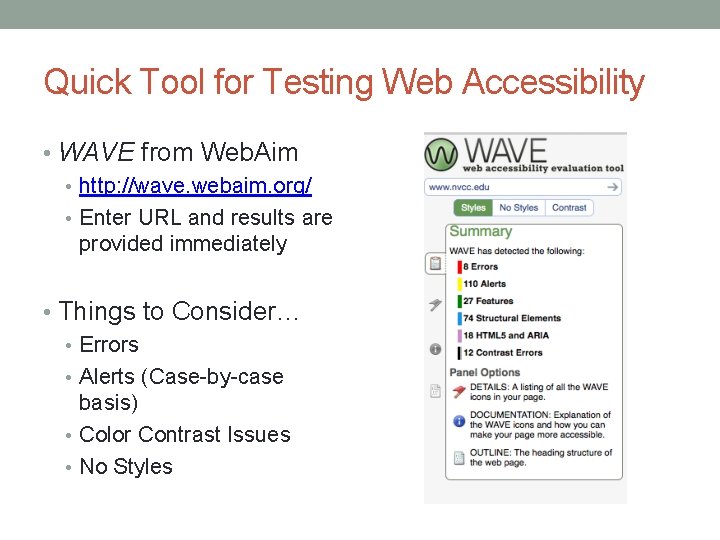
Quick Tool for Testing Web Accessibility • WAVE from Web. Aim • http: //wave. webaim. org/ • Enter URL and results are provided immediately • Things to Consider… • Errors • Alerts (Case-by-case basis) • Color Contrast Issues • No Styles
ADDITIONAL RESOURCES Training Resources for Jaws, Window. Eyes, and NVDA
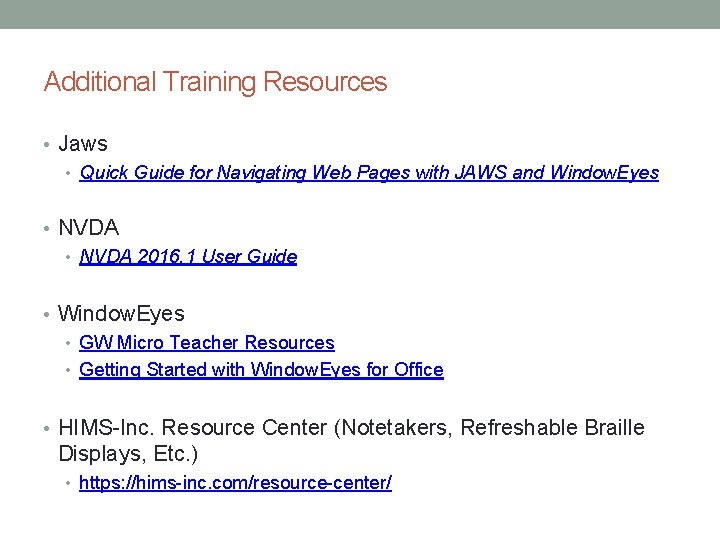
Additional Training Resources • Jaws • Quick Guide for Navigating Web Pages with JAWS and Window. Eyes • NVDA 2016. 1 User Guide • Window. Eyes • GW Micro Teacher Resources • Getting Started with Window. Eyes for Office • HIMS-Inc. Resource Center (Notetakers, Refreshable Braille Displays, Etc. ) • https: //hims-inc. com/resource-center/
Questions
Contact Information • Dave Wilkinson, HIMS-Inc. National Education Manager • 918 -527 -0688 • dave@hims-inc. com • Korey Singleton, GMU ATI Manager • 703 -993 -2143 • ksinglet@gmu. edu