
Navigating Google Classroom Creating a Class Creating a

- Slides: 28
Navigating Google Classroom
Creating a Class
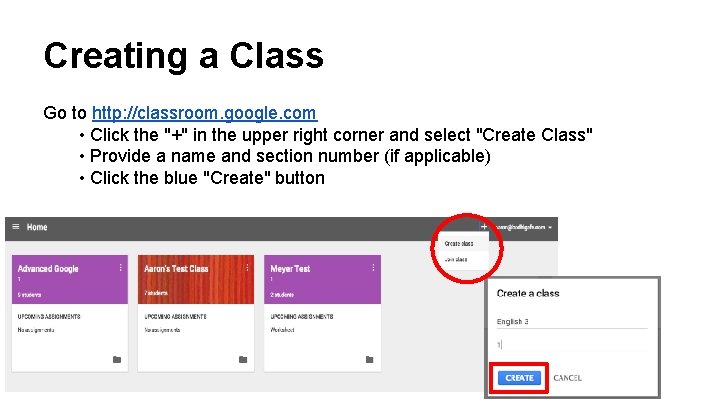
Creating a Class Go to http: //classroom. google. com • Click the "+" in the upper right corner and select "Create Class" • Provide a name and section number (if applicable) • Click the blue "Create" button
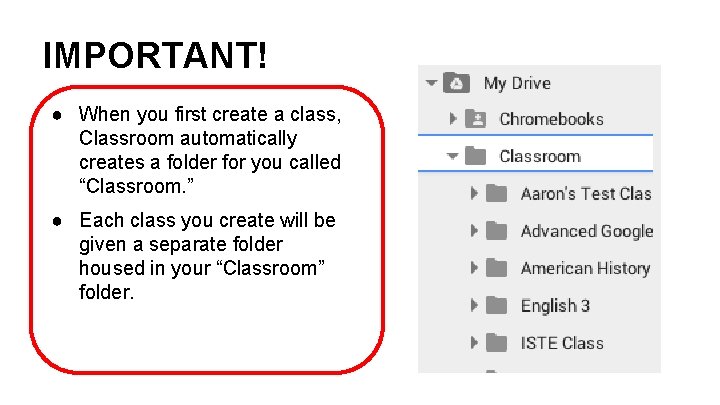
IMPORTANT! ● When you first create a class, Classroom automatically creates a folder for you called “Classroom. ” ● Each class you create will be given a separate folder housed in your “Classroom” folder.
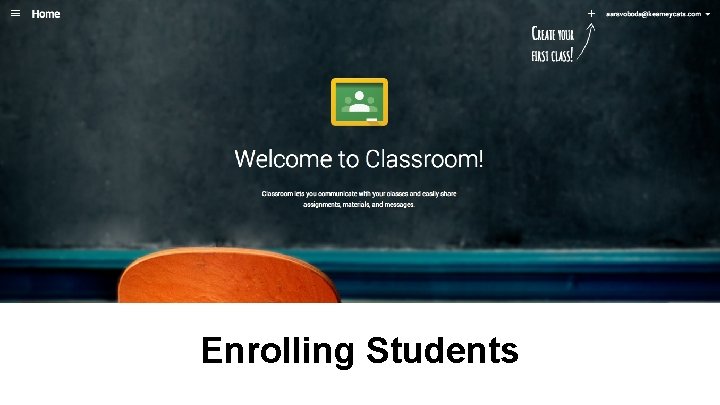
Enrolling Students
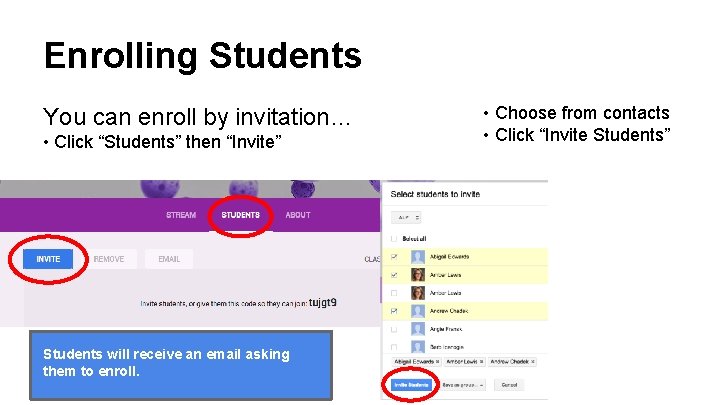
Enrolling Students You can enroll by invitation… • Click “Students” then “Invite” Students will receive an email asking them to enroll. • Choose from contacts • Click “Invite Students”
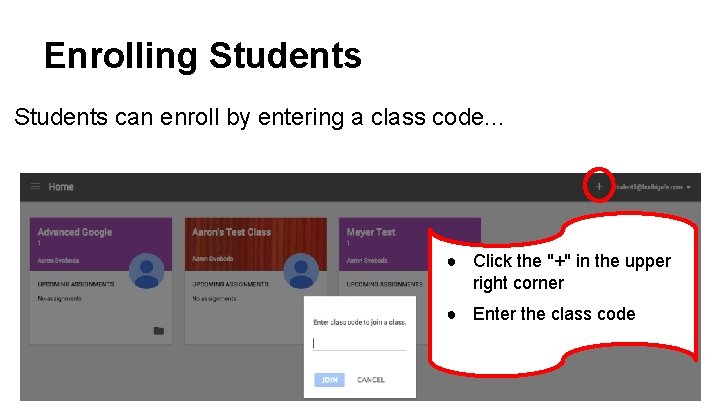
Enrolling Students can enroll by entering a class code. . . ● Click the "+" in the upper right corner ● Enter the class code
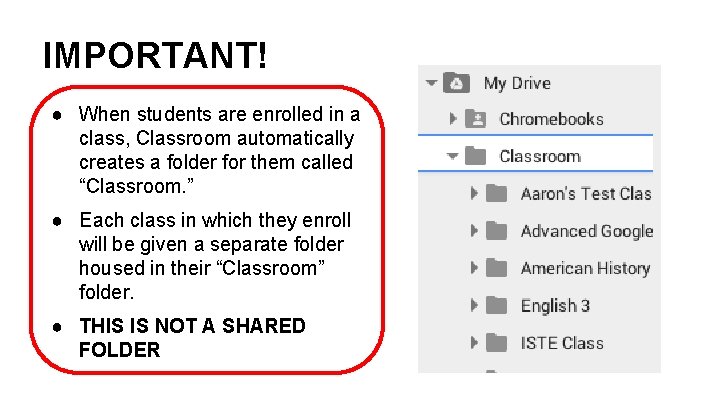
IMPORTANT! ● When students are enrolled in a class, Classroom automatically creates a folder for them called “Classroom. ” ● Each class in which they enroll will be given a separate folder housed in their “Classroom” folder. ● THIS IS NOT A SHARED FOLDER
Announcements
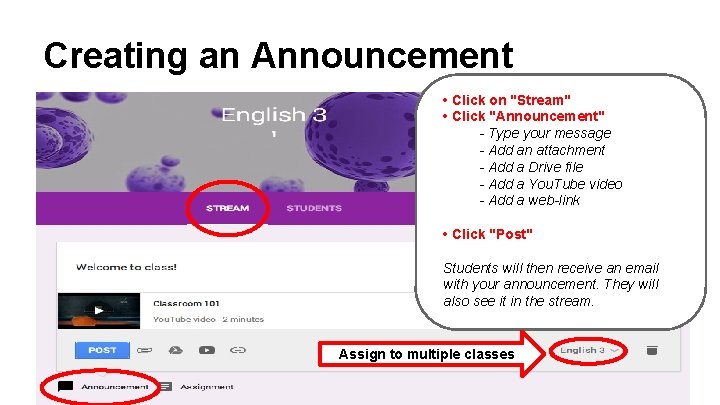
Creating an Announcement • Click on "Stream" • Click "Announcement" - Type your message - Add an attachment - Add a Drive file - Add a You. Tube video - Add a web-link • Click "Post" Students will then receive an email with your announcement. They will also see it in the stream. Assign to multiple classes
Creating Assignments
Create an Assignment • Click on "Stream" • Click "Assignment" • Provide a title and instructions • Provide a Due Date and Time • Provide resources: - Attachment - Drive Template - You. Tube Video - Web-link • Click "Assign" Assign to multiple classes
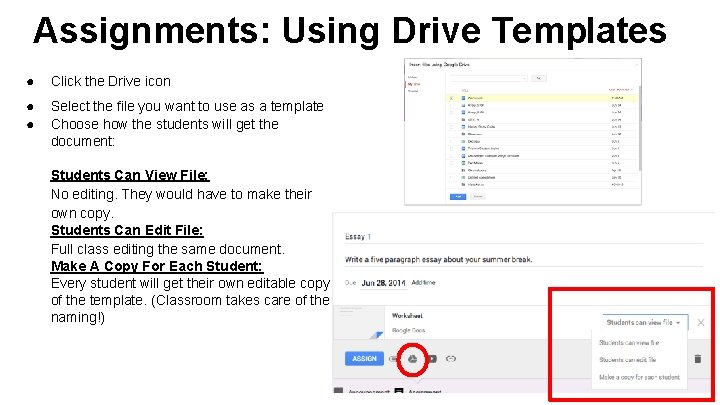
Assignments: Using Drive Templates ● Click the Drive icon ● ● Select the file you want to use as a template Choose how the students will get the document: Students Can View File: No editing. They would have to make their own copy. Students Can Edit File: Full class editing the same document. Make A Copy For Each Student: Every student will get their own editable copy of the template. (Classroom takes care of the naming!)
Editing Assignments
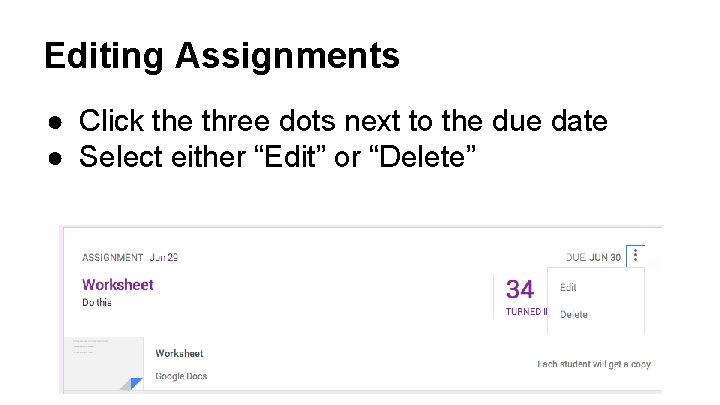
Editing Assignments ● Click the three dots next to the due date ● Select either “Edit” or “Delete”
Students Submitting Assignments
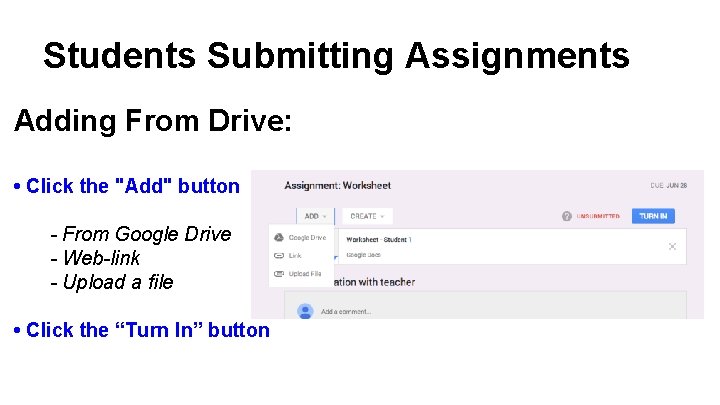
Students Submitting Assignments Adding From Drive: • Click the "Add" button - From Google Drive - Web-link - Upload a file • Click the “Turn In” button
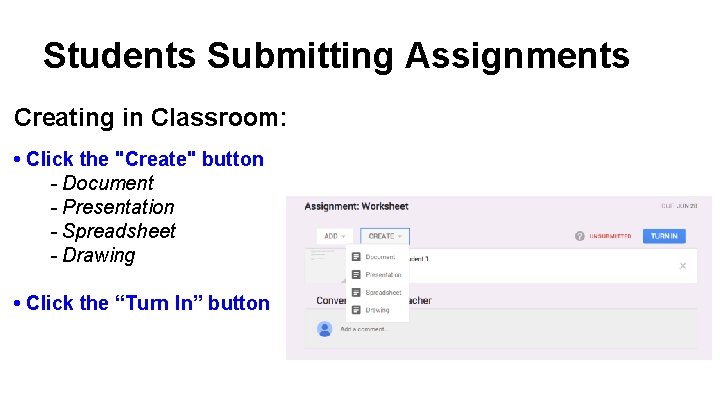
Students Submitting Assignments Creating in Classroom: • Click the "Create" button - Document - Presentation - Spreadsheet - Drawing • Click the “Turn In” button
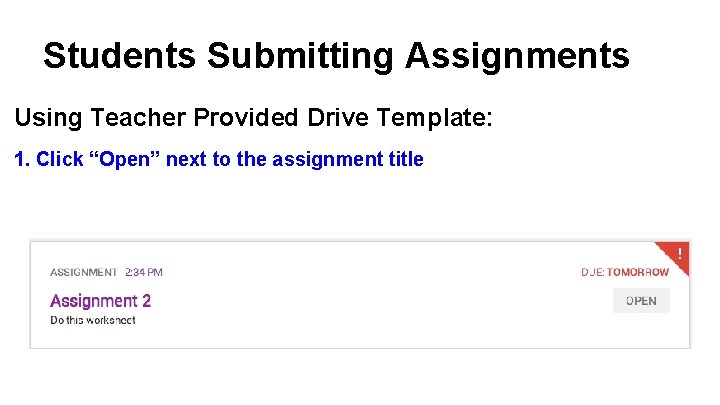
Students Submitting Assignments Using Teacher Provided Drive Template: 1. Click “Open” next to the assignment title
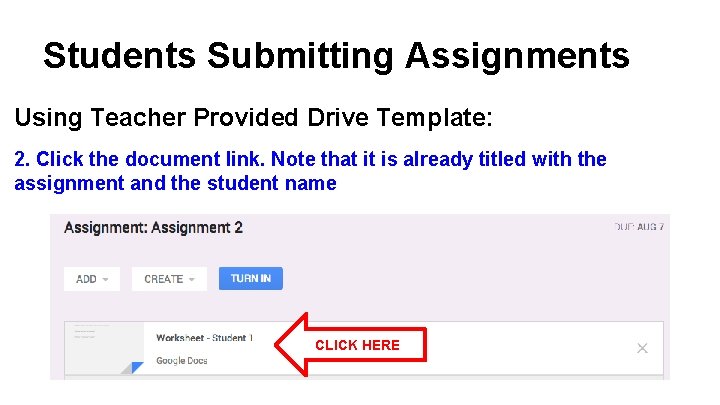
Students Submitting Assignments Using Teacher Provided Drive Template: 2. Click the document link. Note that it is already titled with the assignment and the student name CLICK HERE
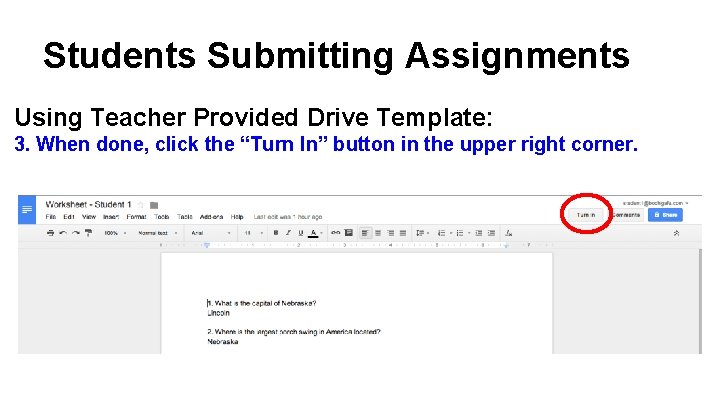
Students Submitting Assignments Using Teacher Provided Drive Template: 3. When done, click the “Turn In” button in the upper right corner.
Grading Assignments
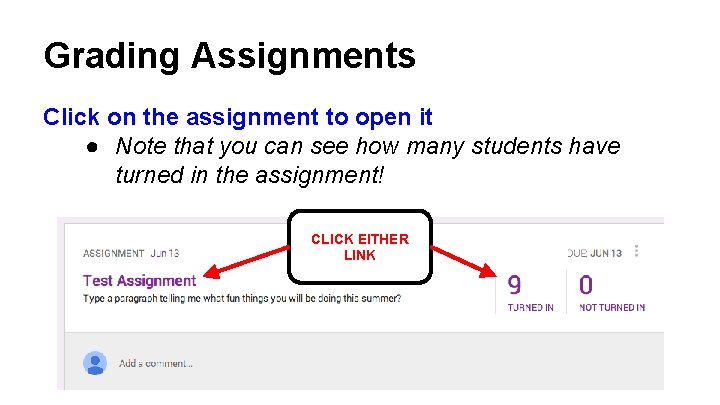
Grading Assignments Click on the assignment to open it ● Note that you can see how many students have turned in the assignment! CLICK EITHER LINK
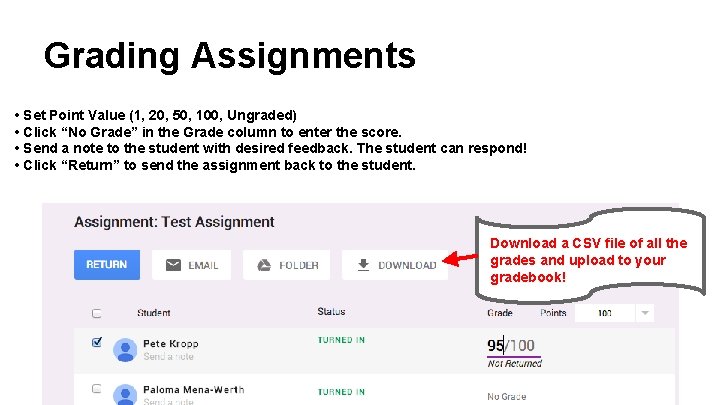
Grading Assignments • Set Point Value (1, 20, 50, 100, Ungraded) • Click “No Grade” in the Grade column to enter the score. • Send a note to the student with desired feedback. The student can respond! • Click “Return” to send the assignment back to the student. Download a CSV file of all the grades and upload to your gradebook!
Other Features
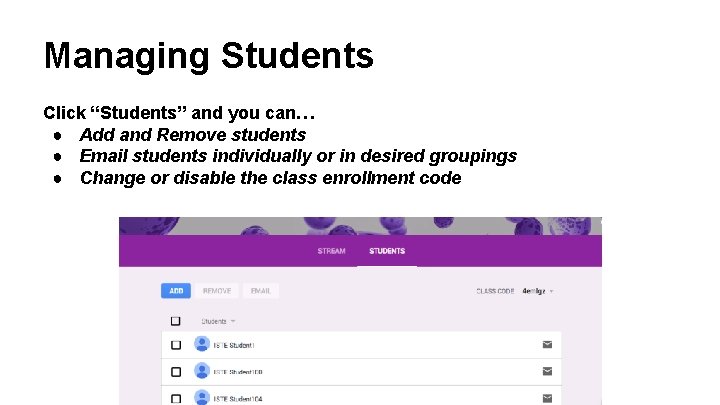
Managing Students Click “Students” and you can… ● Add and Remove students ● Email students individually or in desired groupings ● Change or disable the class enrollment code
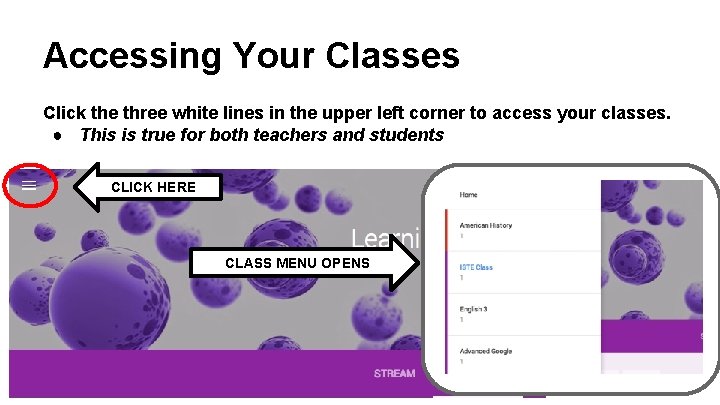
Accessing Your Classes Click the three white lines in the upper left corner to access your classes. ● This is true for both teachers and students CLICK HERE CLASS MENU OPENS
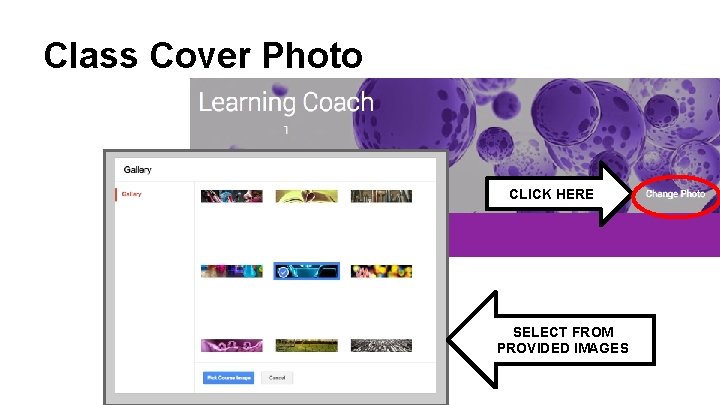
Class Cover Photo CLICK HERE SELECT FROM PROVIDED IMAGES