
My OBLab Purchasing Options Bookstore Text My Lab

My. OBLab
Purchasing Options: Bookstore: • Text + My. Lab access code package • Access code with e. Text stand-alone Online: (www. mypearsonstore. com) • Access code
Before you Register Be sure you have: • A valid email address • Course ID from your instructor • A My. OBLab access code, a credit card, smith 12345 or a Pay. Pal account Example ID– Not active Course ID
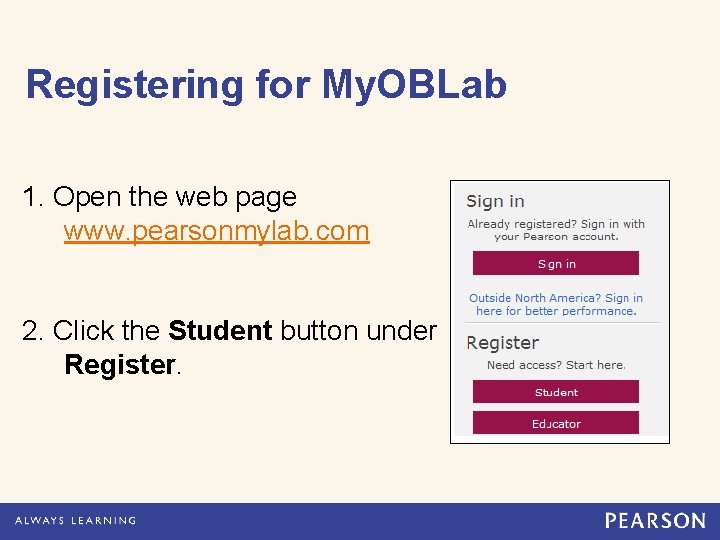
Registering for My. OBLab 1. Open the web page www. pearsonmylab. com 2. Click the Student button under Register.
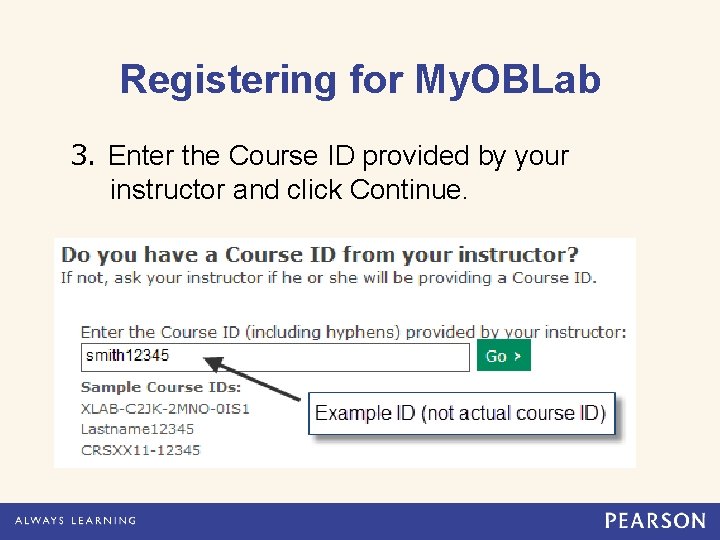
Registering for My. OBLab 3. Enter the Course ID provided by your instructor and click Continue.
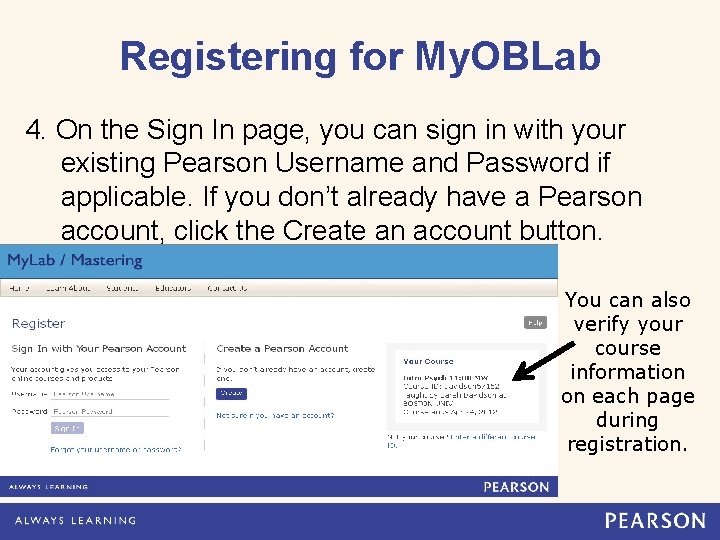
Registering for My. OBLab 4. On the Sign In page, you can sign in with your existing Pearson Username and Password if applicable. If you don’t already have a Pearson account, click the Create an account button. You can also verify your course information on each page during registration.
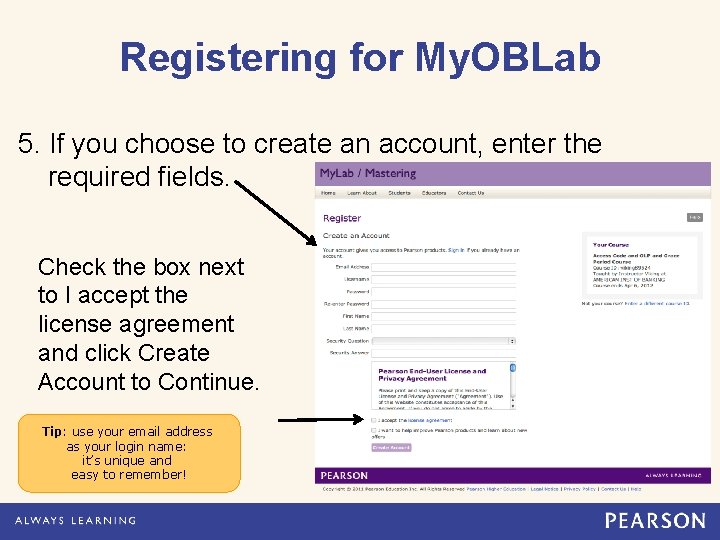
Registering for My. OBLab 5. If you choose to create an account, enter the required fields. Check the box next to I accept the license agreement and click Create Account to Continue. Tip: use your email address as your login name: it’s unique and easy to remember!
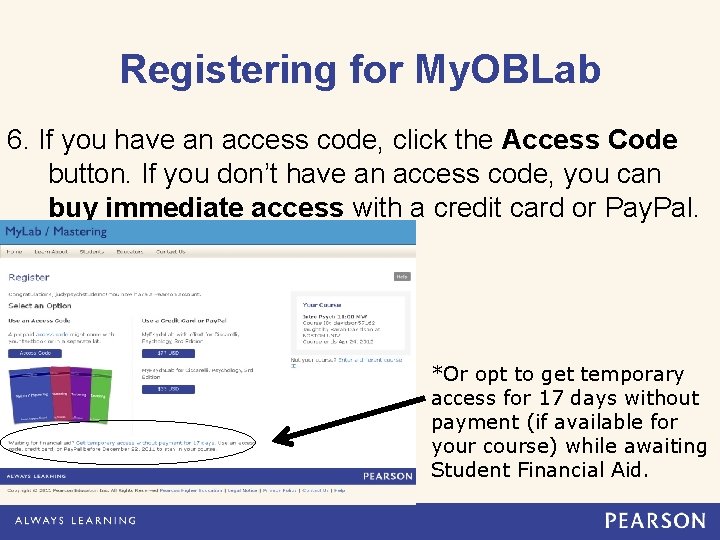
Registering for My. OBLab 6. If you have an access code, click the Access Code button. If you don’t have an access code, you can buy immediate access with a credit card or Pay. Pal. *Or opt to get temporary access for 17 days without payment (if available for your course) while awaiting Student Financial Aid.
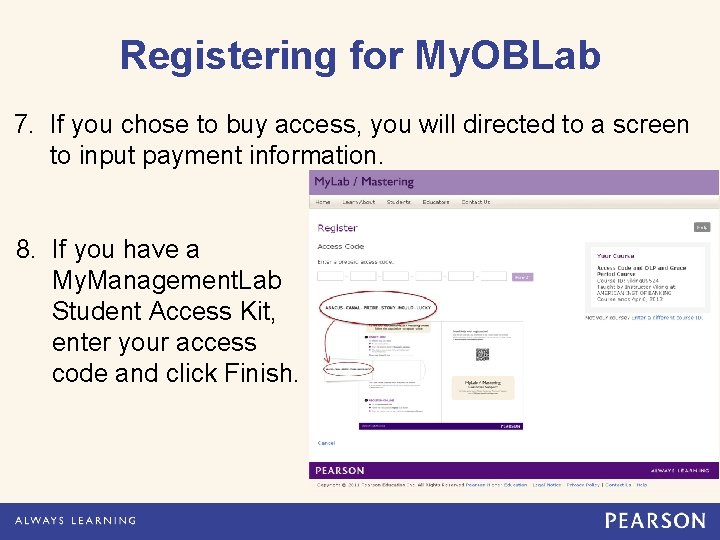
Registering for My. OBLab 7. If you chose to buy access, you will directed to a screen to input payment information. 8. If you have a My. Management. Lab Student Access Kit, enter your access code and click Finish.
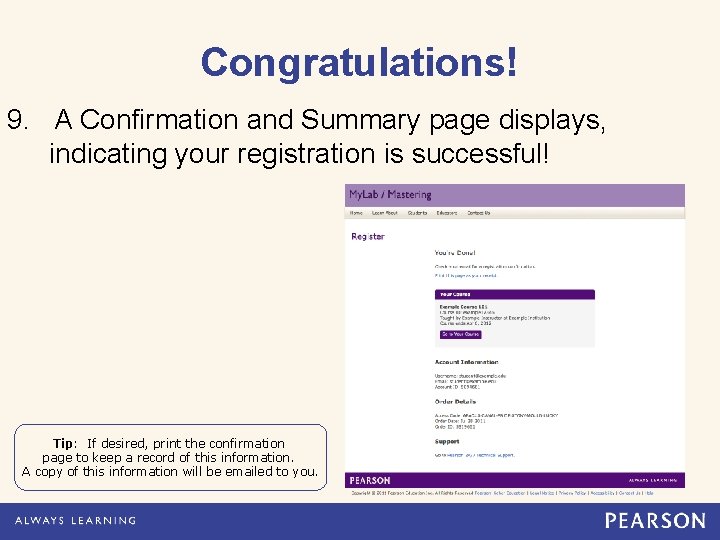
Congratulations! 9. A Confirmation and Summary page displays, indicating your registration is successful! Tip: If desired, print the confirmation page to keep a record of this information. A copy of this information will be emailed to you.
Log In to My. OBLab 10. Click the button to log into My. OBLab. 11. Click the Course Name to enter your course under the My. Lab/Mastering New Design column.
Student Technical Support http: //247 pearsoned. custhelp. com/ § Self-Help Knowledgebase: Extensive & searchable articles. § Online Chat: Students’ favorite mode of accessing support. § Support form: Enter your question in a form to submit to support. § Phone Support : (800) 677 -6337 Monday through Friday Noon to 8 PM EST Tip: If you use Ask a Question, Chat, or Phone Support, you will be given an incident number. This number is VERY IMPORTANT, so make sure you keep record of it for reference.
For more information and a link to Student Support visit us at www. pearsoned. ca/myoblab/
- Slides: 13