
MY CLINICAL EXCHANGE The Student WHAT DOES THE



- Slides: 53
MY CLINICAL EXCHANGE The Student
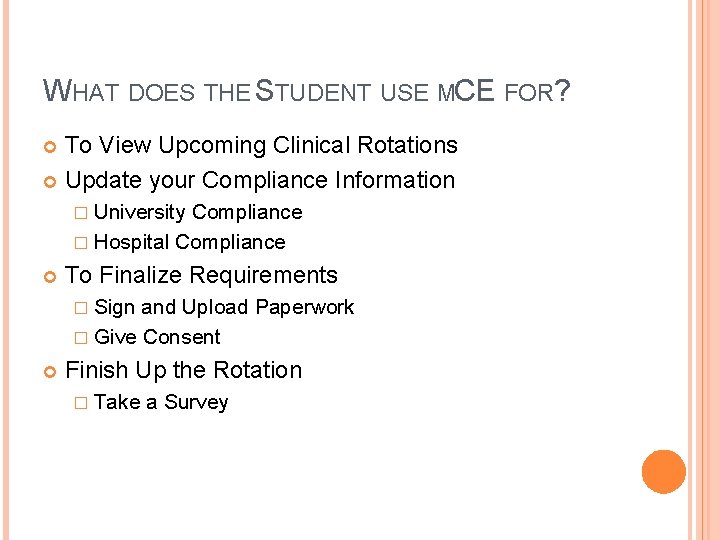
WHAT DOES THE STUDENT USE MCE FOR? To View Upcoming Clinical Rotations Update your Compliance Information � University Compliance � Hospital Compliance To Finalize Requirements � Sign and Upload Paperwork � Give Consent Finish Up the Rotation � Take a Survey
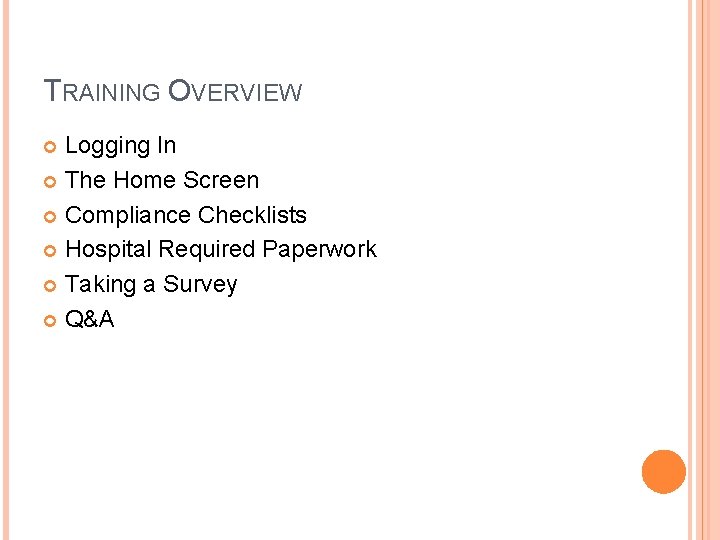
TRAINING OVERVIEW Logging In The Home Screen Compliance Checklists Hospital Required Paperwork Taking a Survey Q&A
LOGGING IN How do I get to my. Clinical. Exchange?
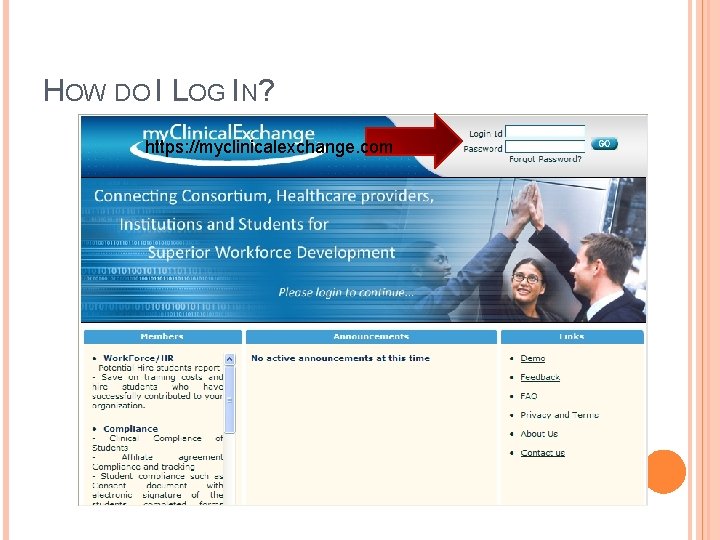
HOW DO I LOG IN? https: //myclinicalexchange. com
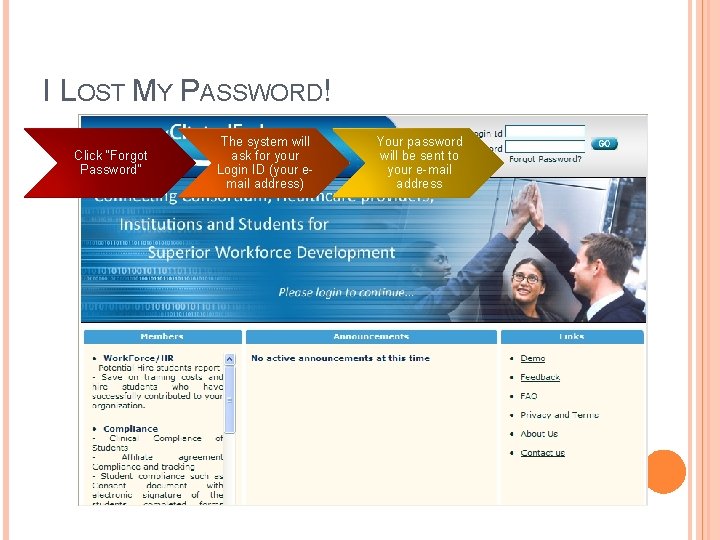
I LOST MY PASSWORD! Click “Forgot Password” The system will ask for your Login ID (your email address) Your password will be sent to your e-mail address
THE HOME SCREEN What will I see once I log in?
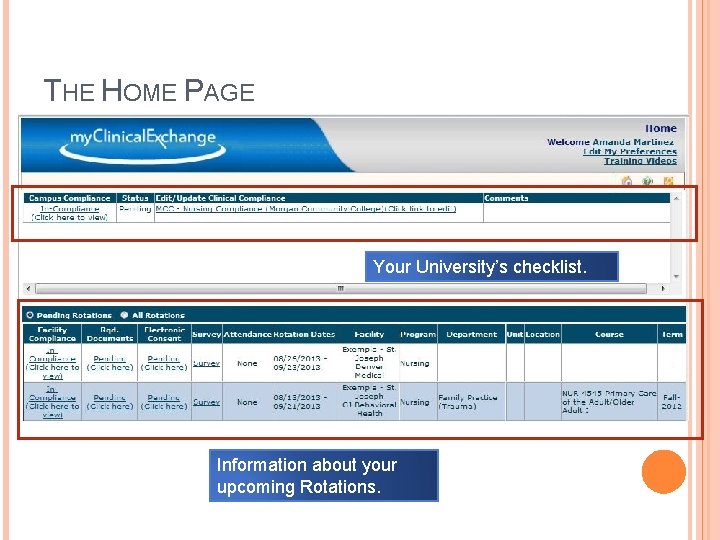
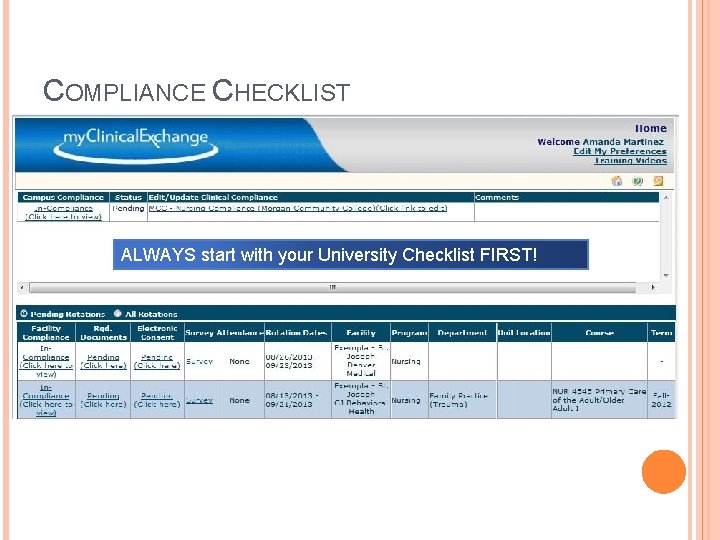
THE HOME PAGE Your University’s checklist. Information about your upcoming Rotations.
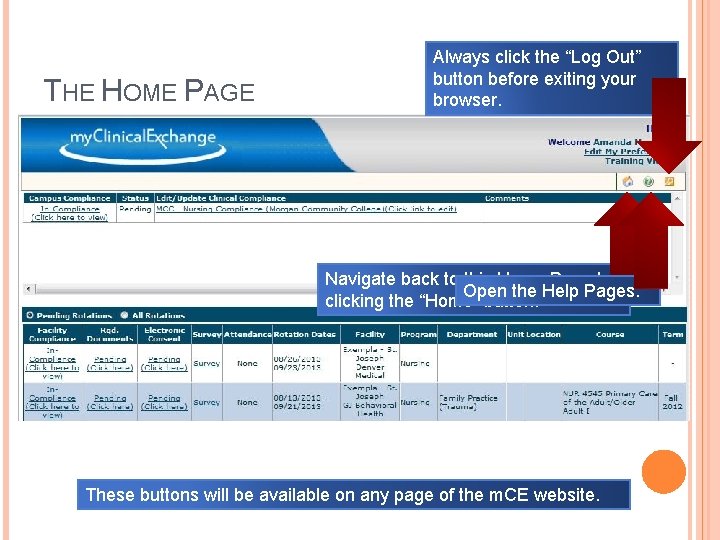
THE HOME PAGE Always click the “Log Out” button before exiting your browser. Navigate back to this Home Page by Open the Help Pages. clicking the “Home” button. These buttons will be available on any page of the m. CE website.
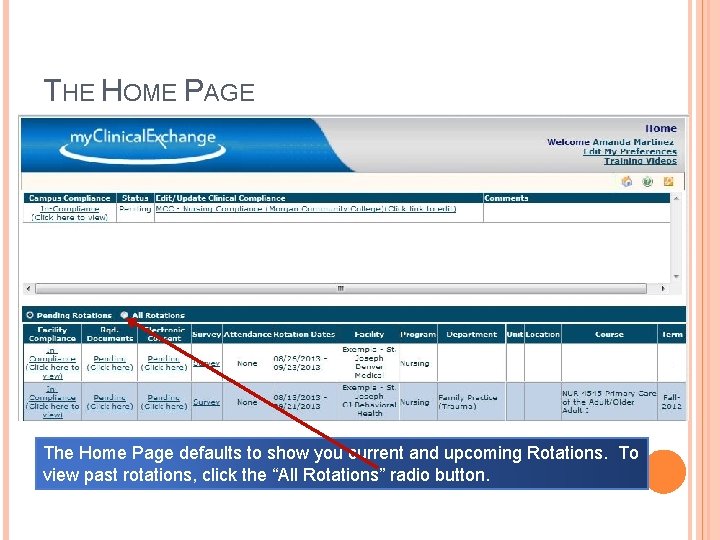
THE HOME PAGE The Home Page defaults to show you current and upcoming Rotations. To view past rotations, click the “All Rotations” radio button.
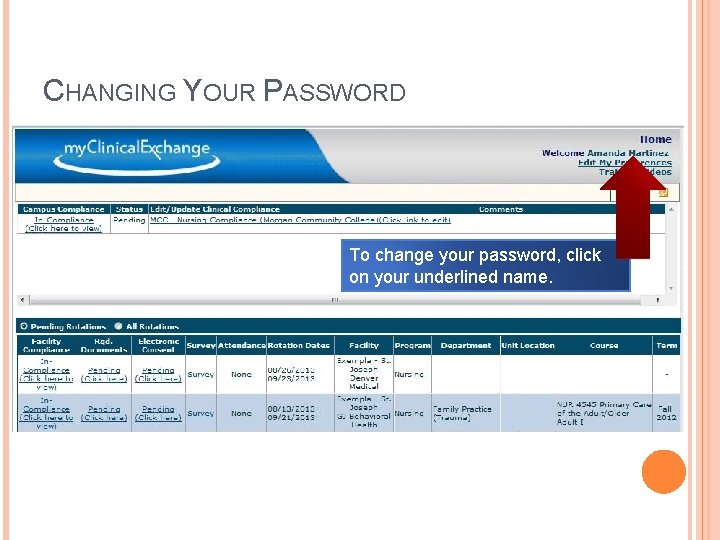
CHANGING YOUR PASSWORD To change your password, click on your underlined name.
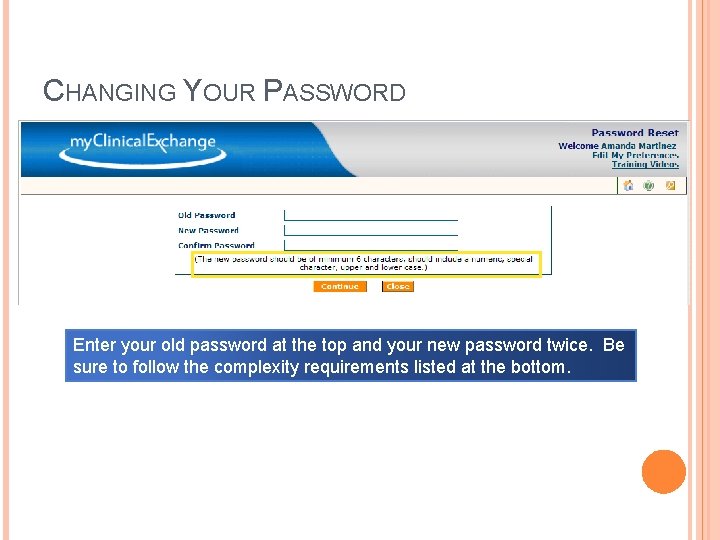
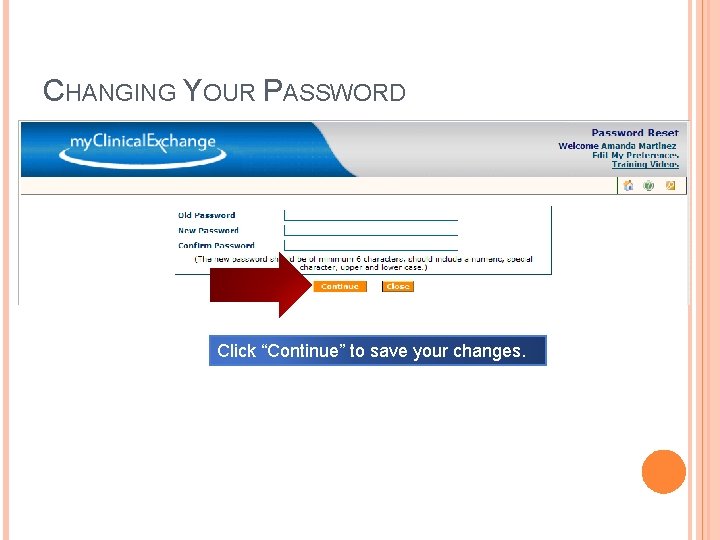
CHANGING YOUR PASSWORD Enter your old password at the top and your new password twice. Be sure to follow the complexity requirements listed at the bottom.
CHANGING YOUR PASSWORD Click “Continue” to save your changes.
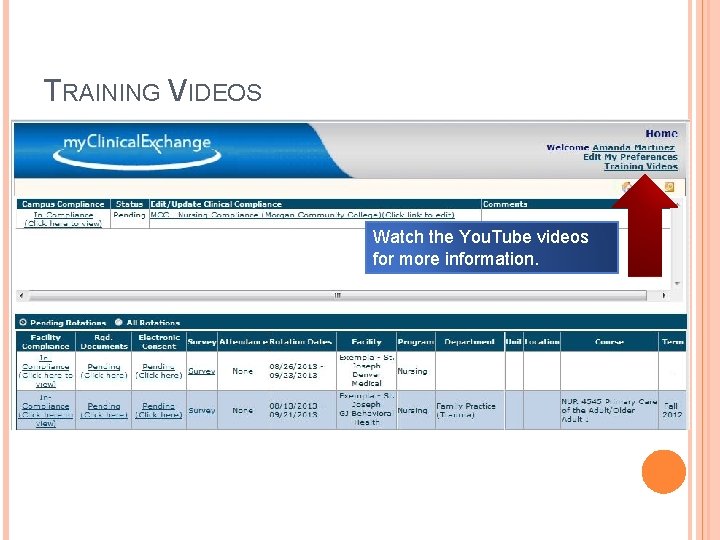
TRAINING VIDEOS Watch the You. Tube videos for more information.
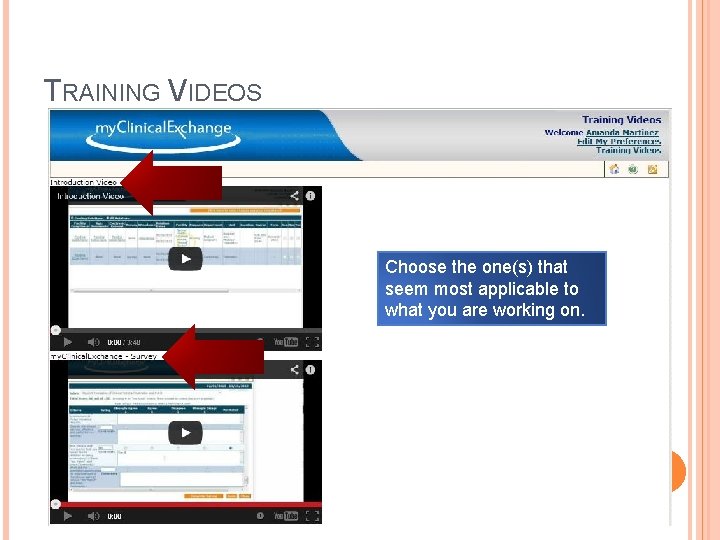
TRAINING VIDEOS Choose the one(s) that seem most applicable to what you are working on.
COMPLIANCE CHECKLISTS How can I view and update my compliance checklists?
COMPLIANCE CHECKLIST ALWAYS start with your University Checklist FIRST!
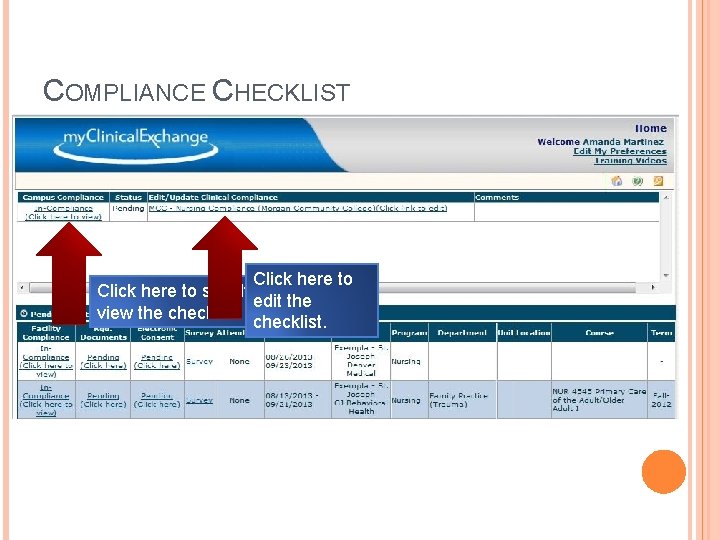
COMPLIANCE CHECKLIST Click here to simply edit the view the checklist.
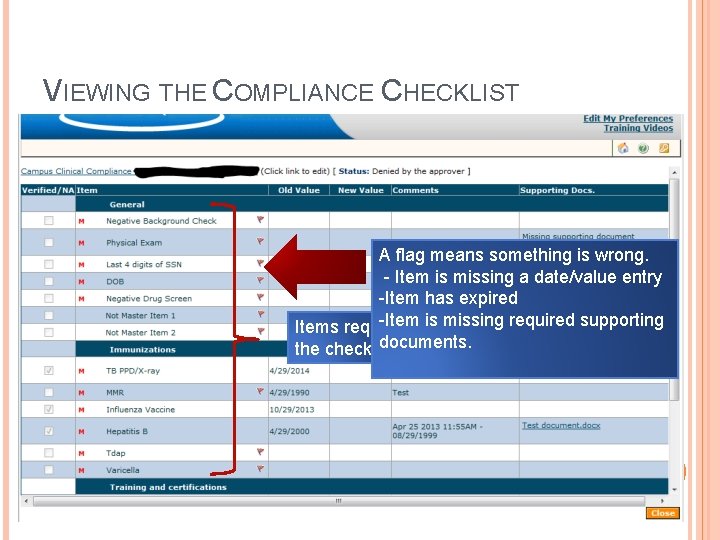
VIEWING THE COMPLIANCE CHECKLIST A flag means something is wrong. - Item is missing a date/value entry -Item has expired -Itemon is missing required supporting Items required documents. the checklist.
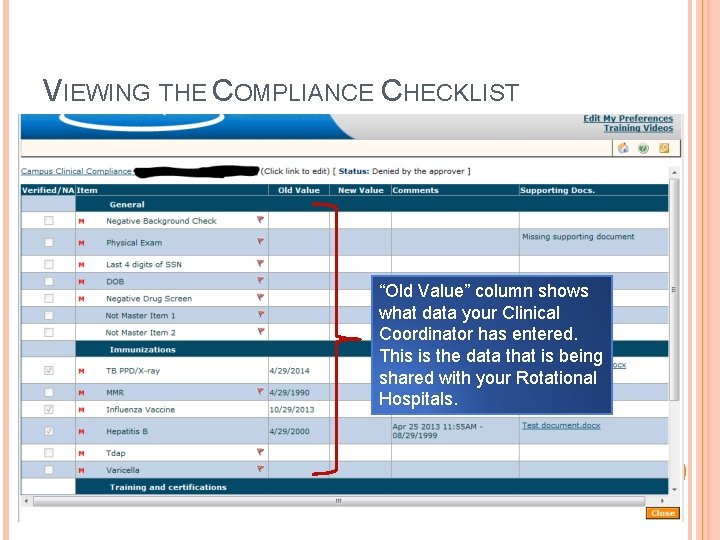
VIEWING THE COMPLIANCE CHECKLIST “Old Value” column shows what data your Clinical Coordinator has entered. This is the data that is being shared with your Rotational Hospitals.
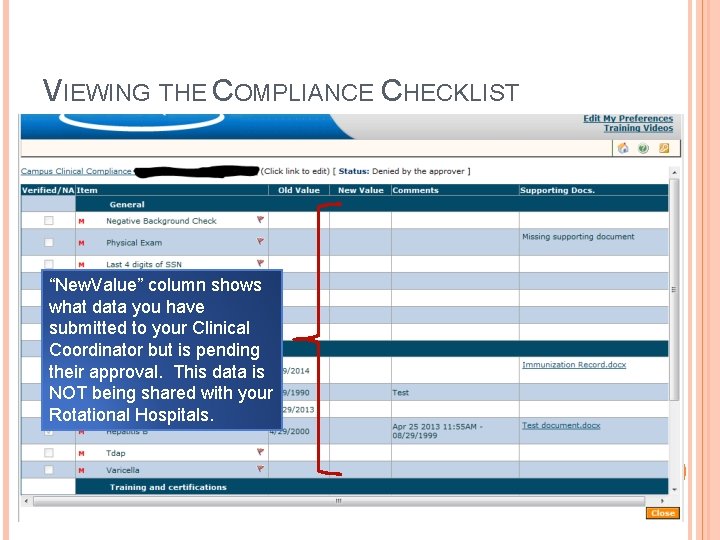
VIEWING THE COMPLIANCE CHECKLIST “New. Value” column shows what data you have submitted to your Clinical Coordinator but is pending their approval. This data is NOT being shared with your Rotational Hospitals.
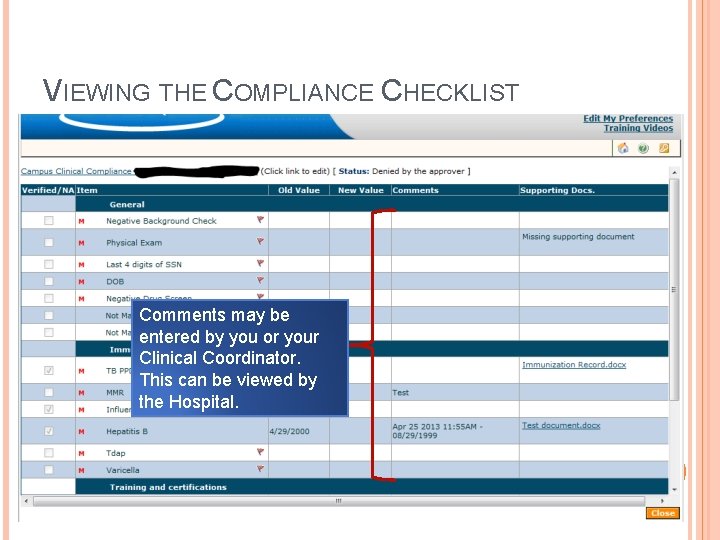
VIEWING THE COMPLIANCE CHECKLIST Comments may be entered by you or your Clinical Coordinator. This can be viewed by the Hospital.
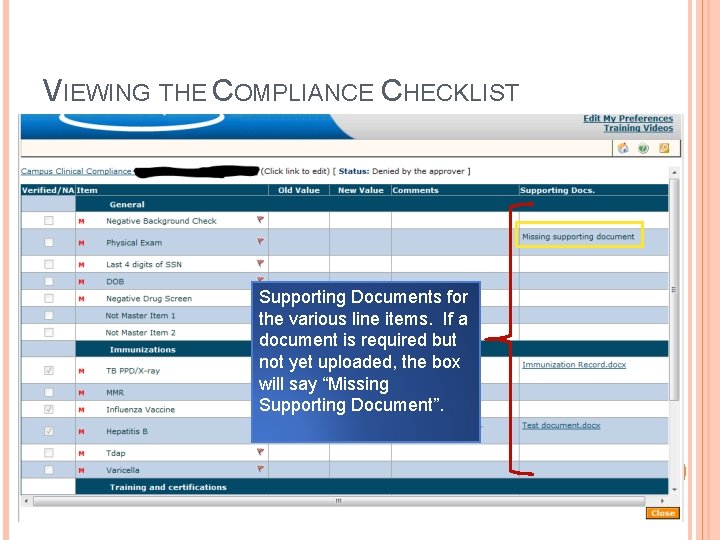
VIEWING THE COMPLIANCE CHECKLIST Supporting Documents for the various line items. If a document is required but not yet uploaded, the box will say “Missing Supporting Document”.
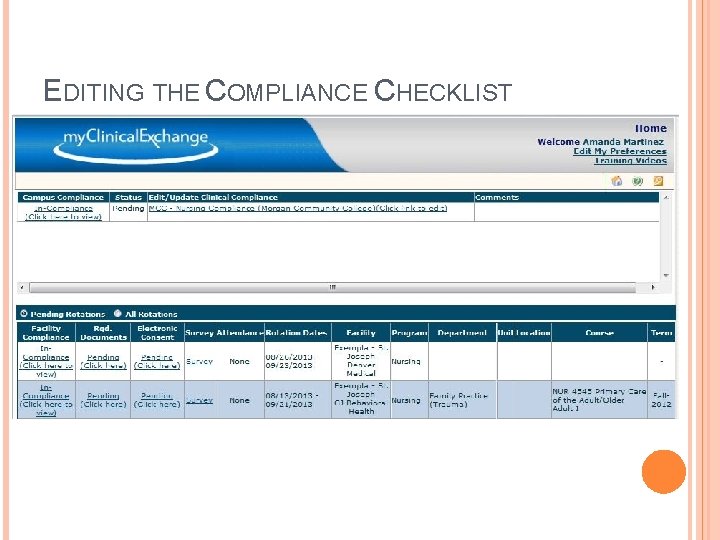
EDITING THE COMPLIANCE CHECKLIST
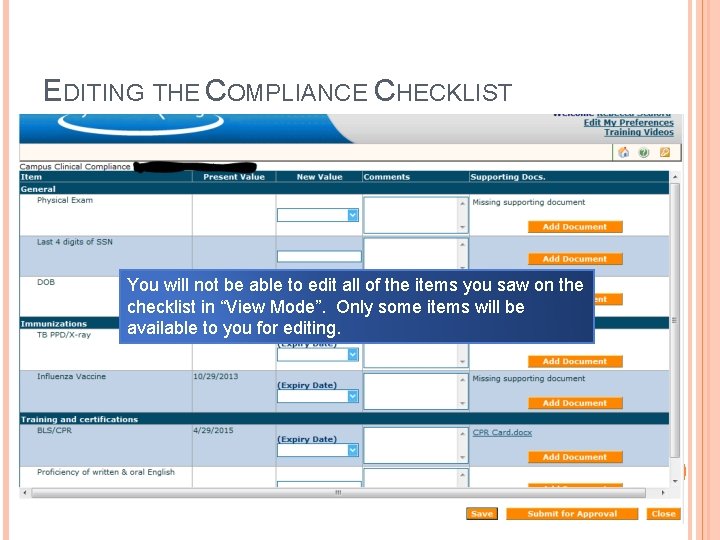
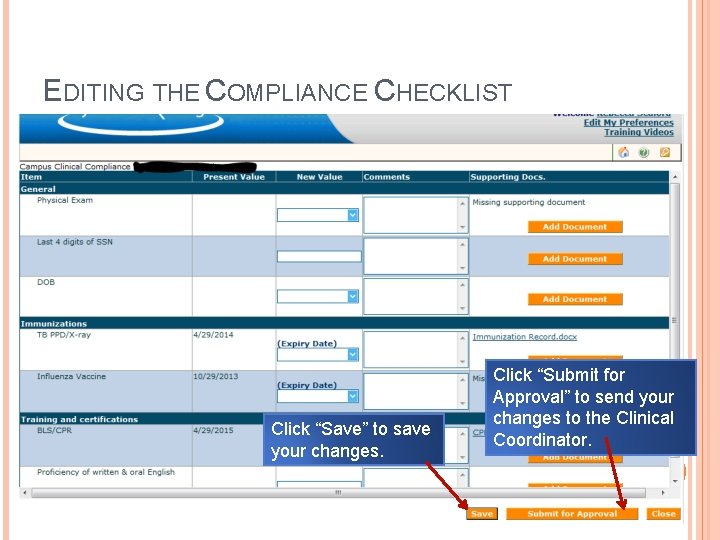
EDITING THE COMPLIANCE CHECKLIST You will not be able to edit all of the items you saw on the checklist in “View Mode”. Only some items will be available to you for editing.
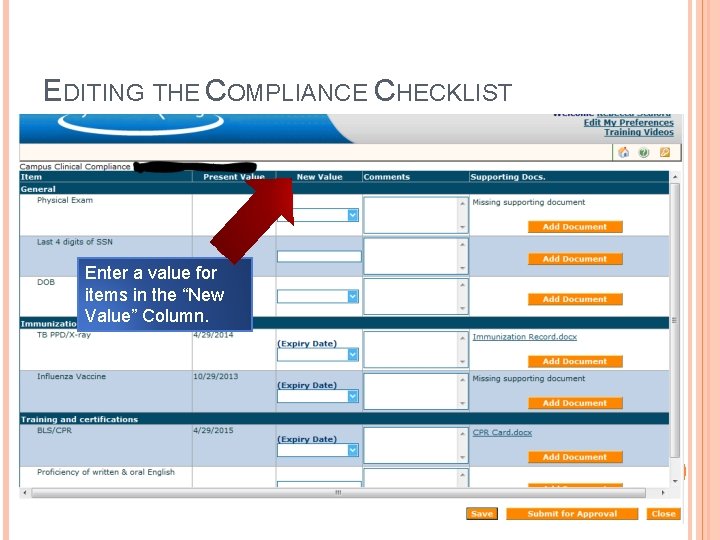
EDITING THE COMPLIANCE CHECKLIST Enter a value for items in the “New Value” Column.
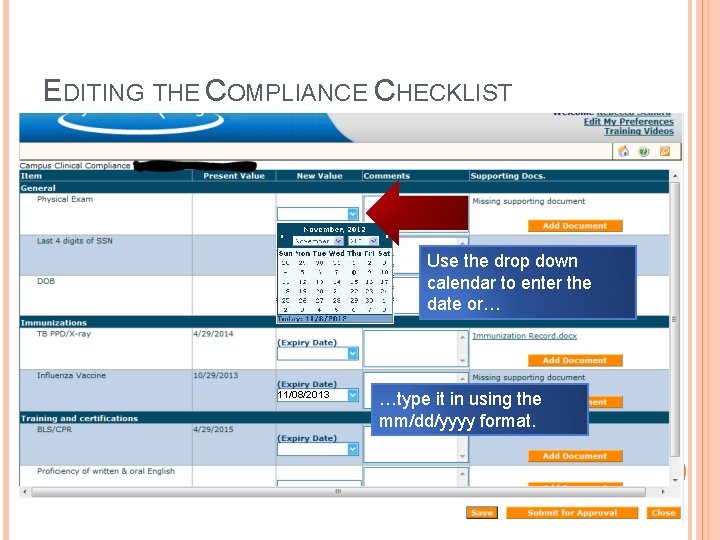
EDITING THE COMPLIANCE CHECKLIST Use the drop down calendar to enter the date or… 11/08/2013 …type it in using the mm/dd/yyyy format.
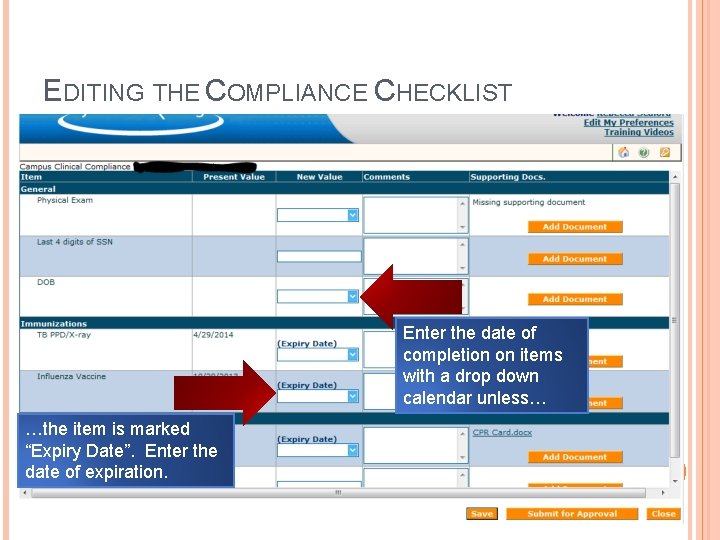
EDITING THE COMPLIANCE CHECKLIST Enter the date of completion on items with a drop down calendar unless… …the item is marked “Expiry Date”. Enter the date of expiration.
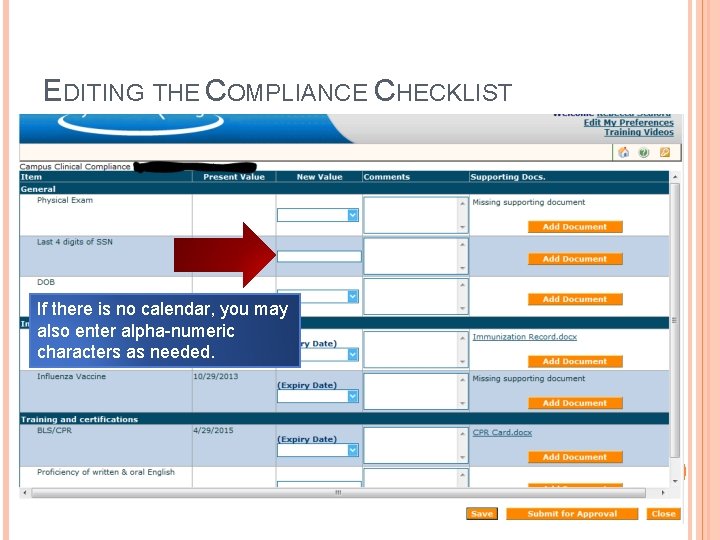
EDITING THE COMPLIANCE CHECKLIST If there is no calendar, you may also enter alpha-numeric characters as needed.
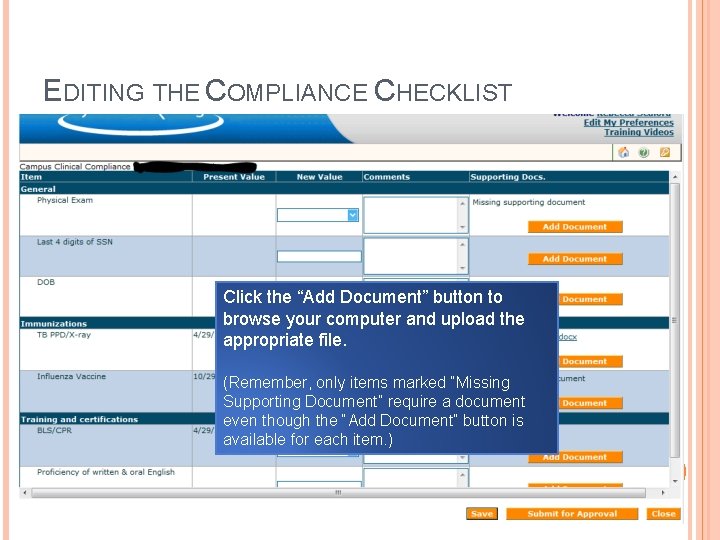
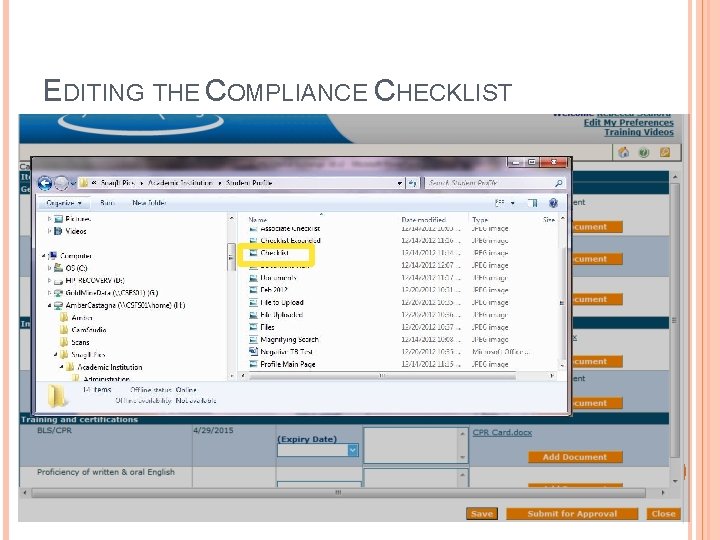
EDITING THE COMPLIANCE CHECKLIST Click the “Add Document” button to browse your computer and upload the appropriate file. (Remember, only items marked “Missing Supporting Document” require a document even though the “Add Document” button is available for each item. )
EDITING THE COMPLIANCE CHECKLIST
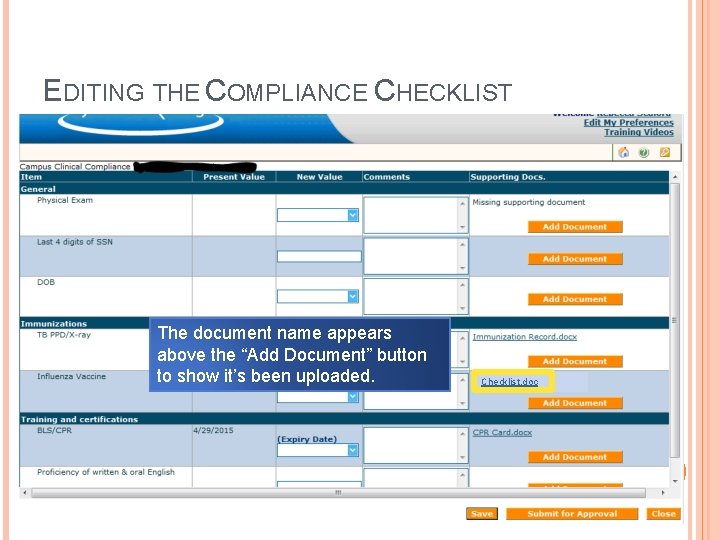
EDITING THE COMPLIANCE CHECKLIST The document name appears above the “Add Document” button to show it’s been uploaded. Checklist. doc
EDITING THE COMPLIANCE CHECKLIST Click “Save” to save your changes. Click “Submit for Approval” to send your changes to the Clinical Coordinator.
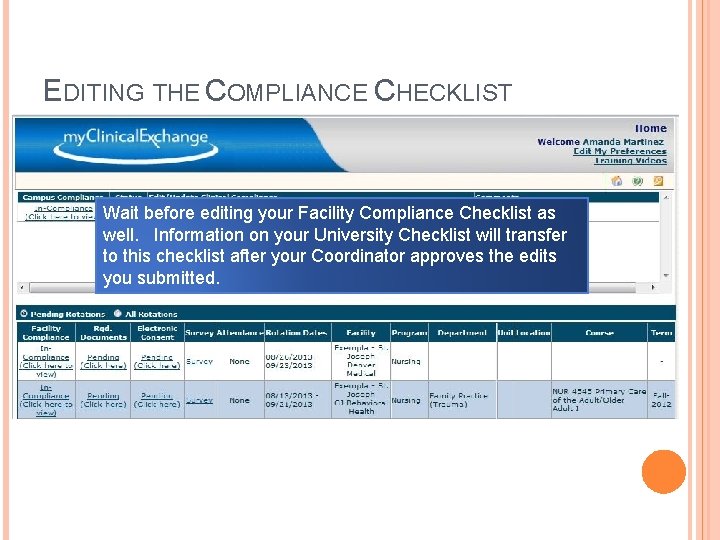
EDITING THE COMPLIANCE CHECKLIST Wait before editing your Facility Compliance Checklist as well. Information on your University Checklist will transfer to this checklist after your Coordinator approves the edits you submitted.
HOSPITAL REQUIRED PAPERWORK How do I find and upload necessary documents? How do I give electronic consent?
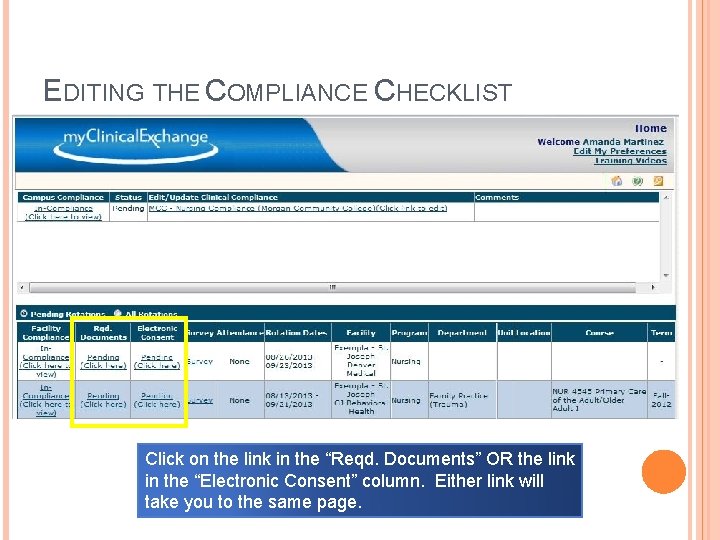
EDITING THE COMPLIANCE CHECKLIST Click on the link in the “Reqd. Documents” OR the link in the “Electronic Consent” column. Either link will take you to the same page.
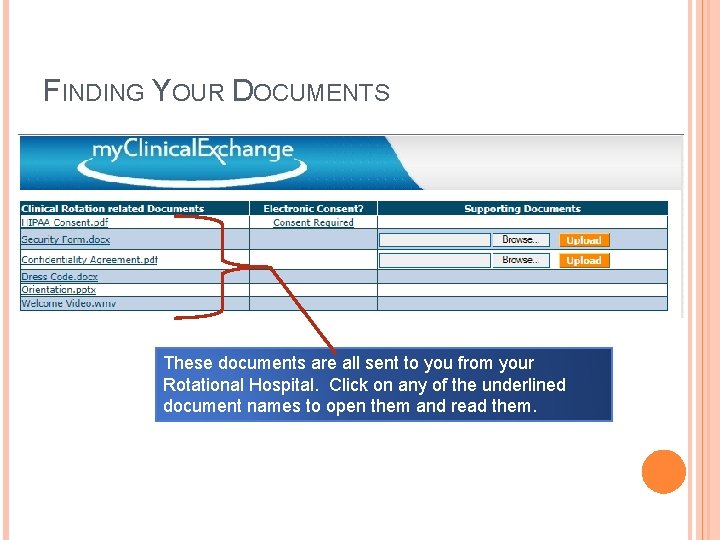
FINDING YOUR DOCUMENTS These documents are all sent to you from your Rotational Hospital. Click on any of the underlined document names to open them and read them.
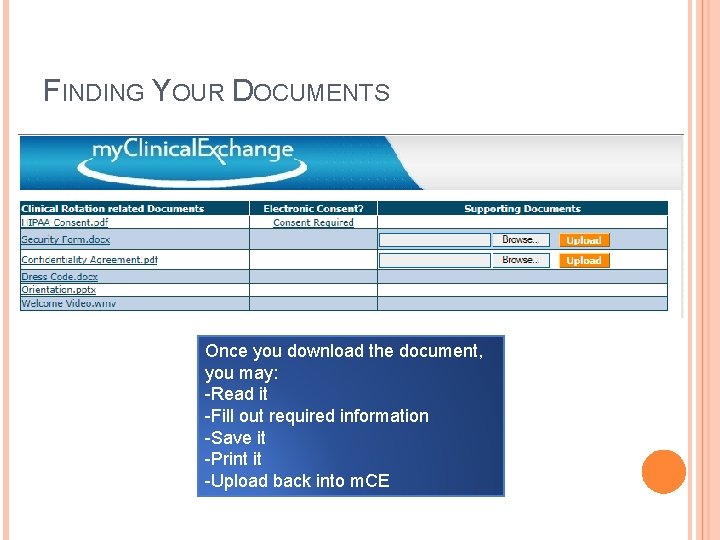
FINDING YOUR DOCUMENTS Once you download the document, you may: -Read it -Fill out required information -Save it -Print it -Upload back into m. CE
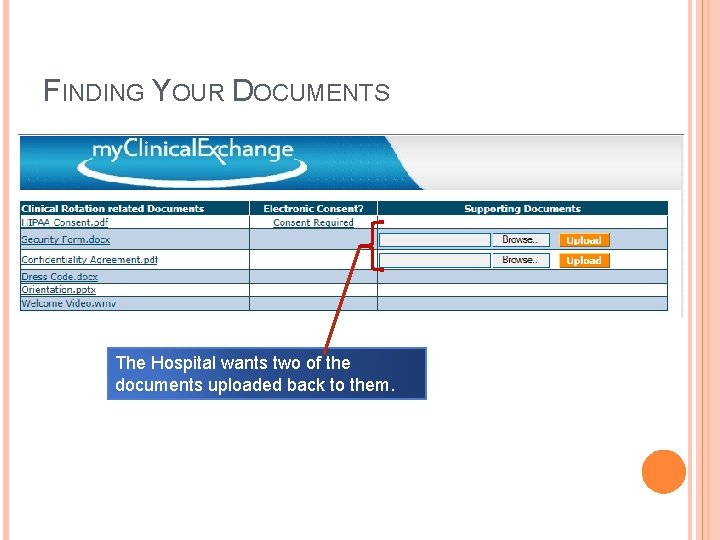
FINDING YOUR DOCUMENTS The Hospital wants two of the documents uploaded back to them.
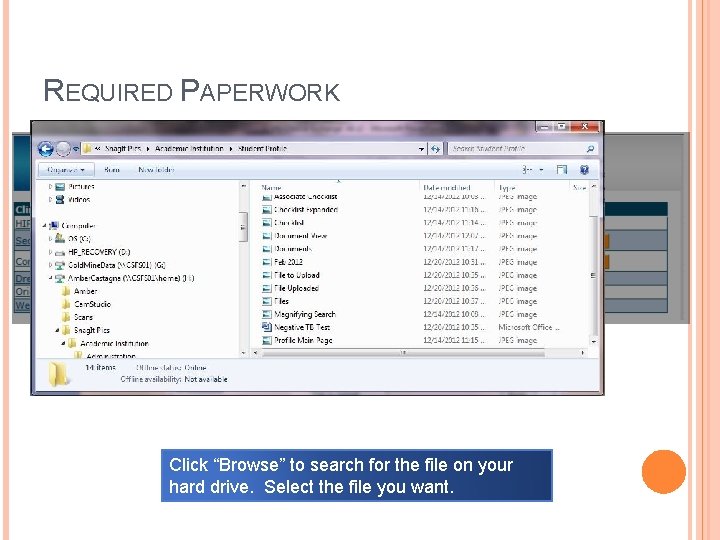
REQUIRED PAPERWORK Click “Browse” to search for the file on your hard drive. Select the file you want.
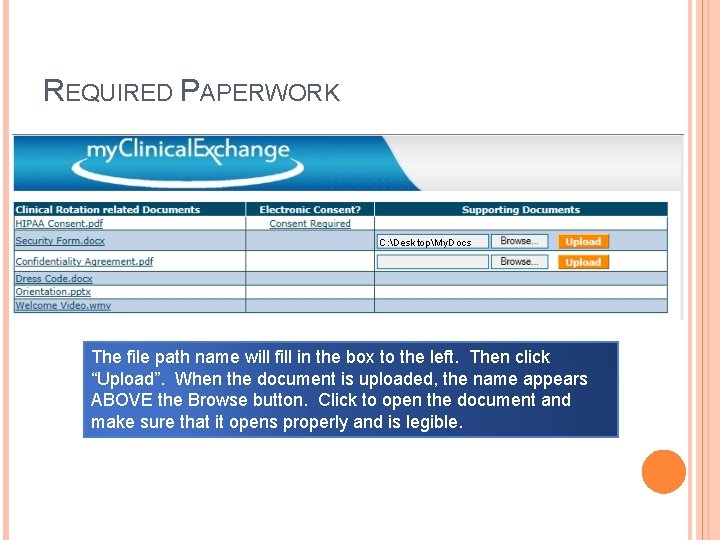
REQUIRED PAPERWORK C: DesktopMy. Docs The file path name will fill in the box to the left. Then click “Upload”. When the document is uploaded, the name appears ABOVE the Browse button. Click to open the document and make sure that it opens properly and is legible.
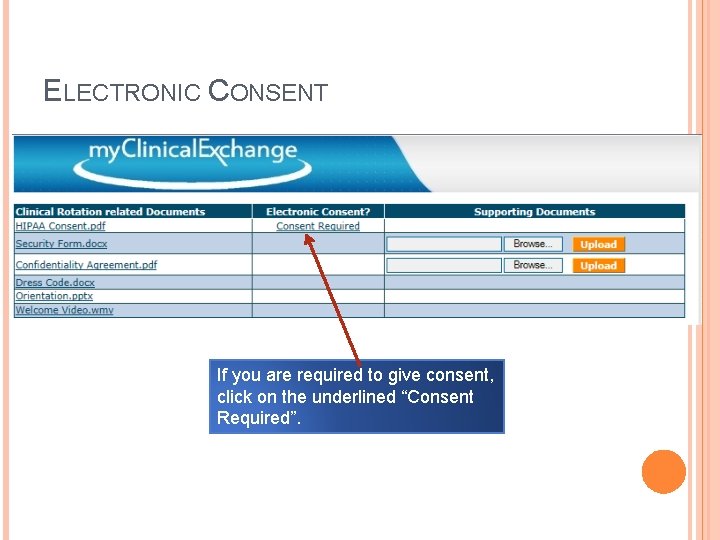
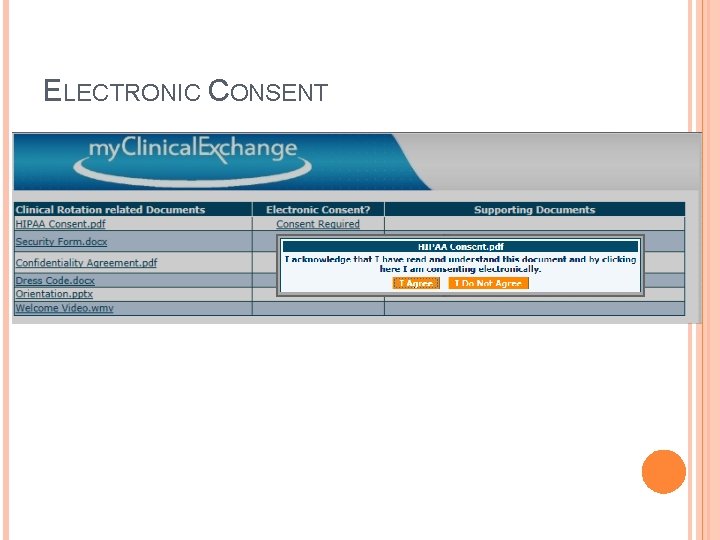
ELECTRONIC CONSENT If you are required to give consent, click on the underlined “Consent Required”.
ELECTRONIC CONSENT
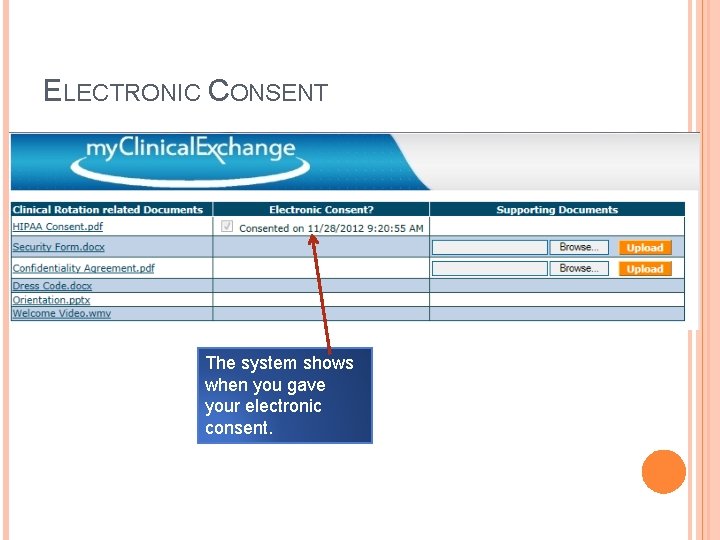
ELECTRONIC CONSENT The system shows when you gave your electronic consent.
FINISHING A ROTATION How do I complete a survey for the Organization or Academic Institution?
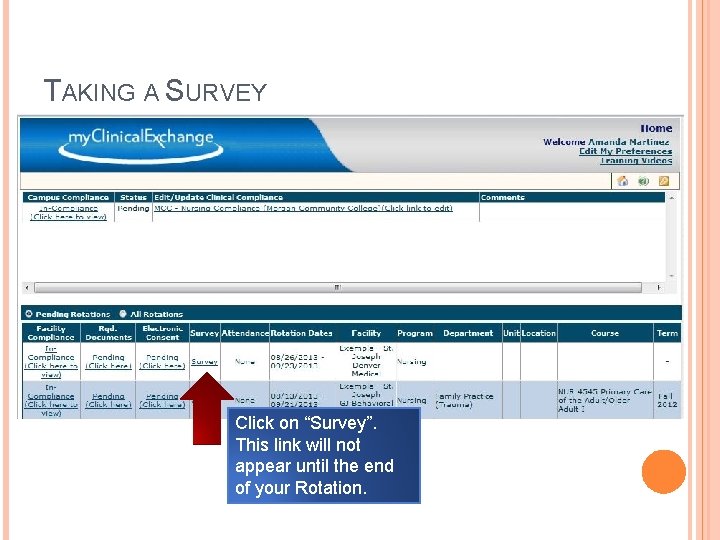
TAKING A SURVEY Click on “Survey”. This link will not appear until the end of your Rotation.
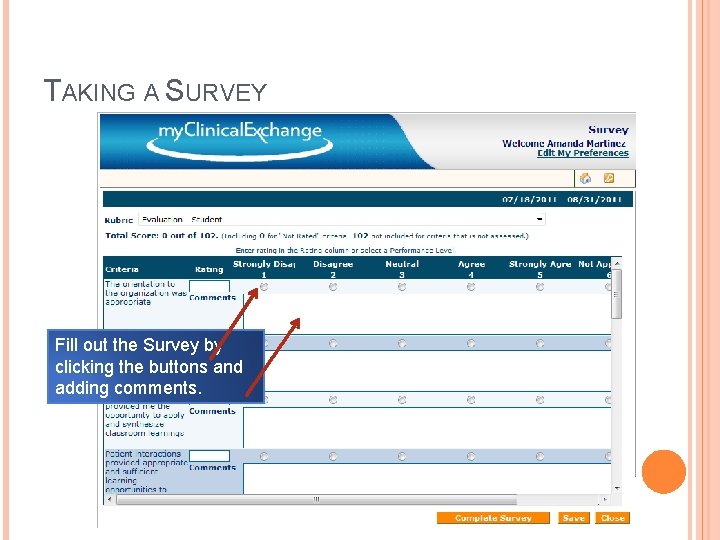
TAKING A SURVEY Fill out the Survey by clicking the buttons and adding comments.
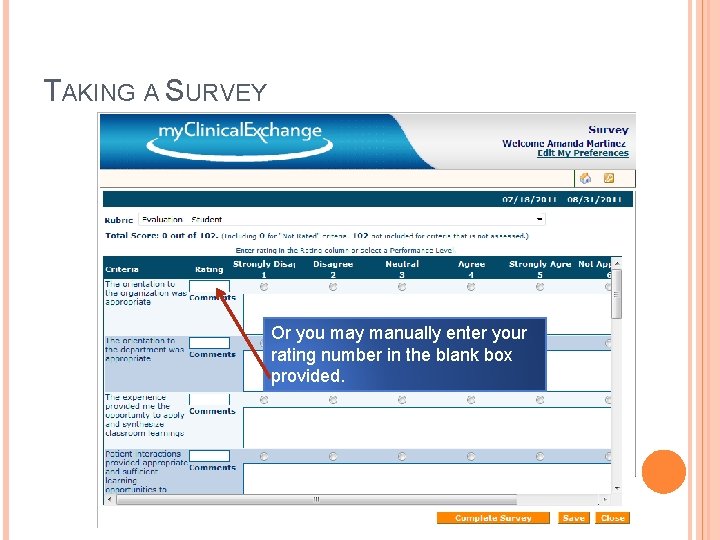
TAKING A SURVEY Or you may manually enter your rating number in the blank box provided.
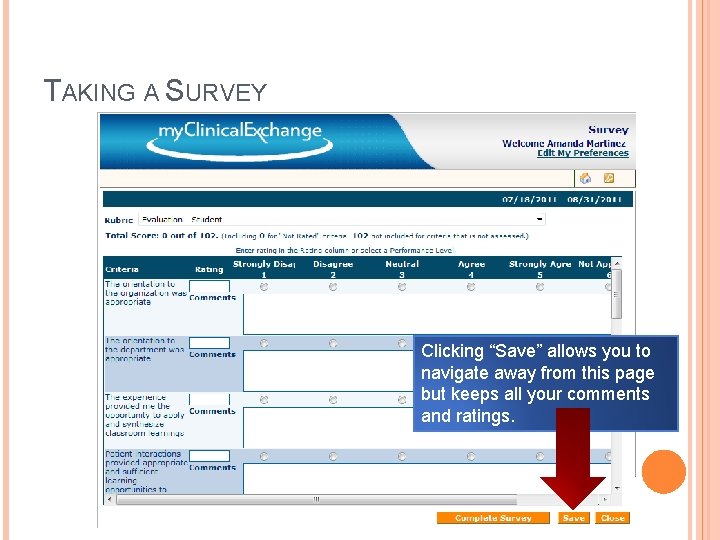
TAKING A SURVEY Clicking “Save” allows you to navigate away from this page but keeps all your comments and ratings.
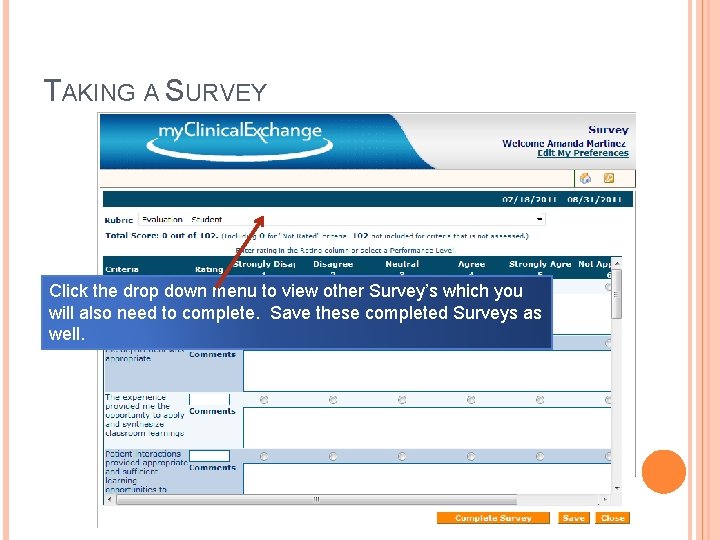
TAKING A SURVEY Click the drop down menu to view other Survey’s which you will also need to complete. Save these completed Surveys as well.
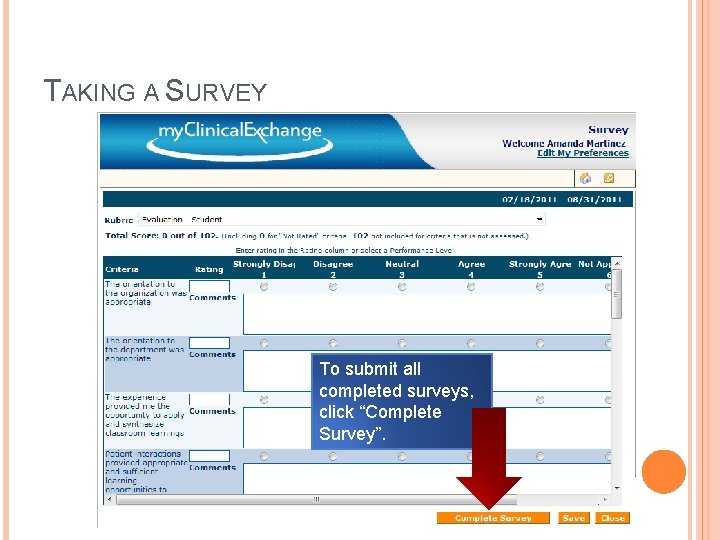
TAKING A SURVEY To submit all completed surveys, click “Complete Survey”.
Q&A