
My Business Lab First Day of Class Registration

My. Business. Lab First Day of Class Registration Walkthrough
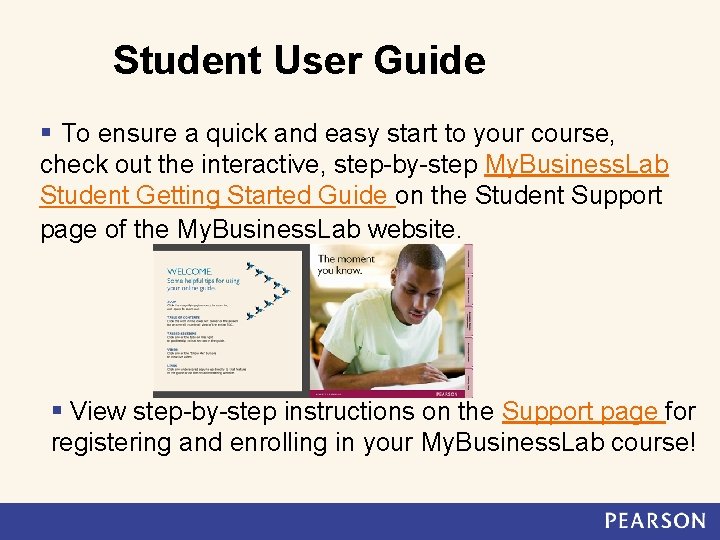
Student User Guide § To ensure a quick and easy start to your course, check out the interactive, step-by-step My. Business. Lab Student Getting Started Guide on the Student Support page of the My. Business. Lab website. § View step-by-step instructions on the Support page for registering and enrolling in your My. Business. Lab course!
Before you Register Before you register, be sure you have: • A valid email address • A course ID from your instructor • CXSCDSR-620902 A My. Business. Lab access code or a credit card Example ID– Not active Course ID
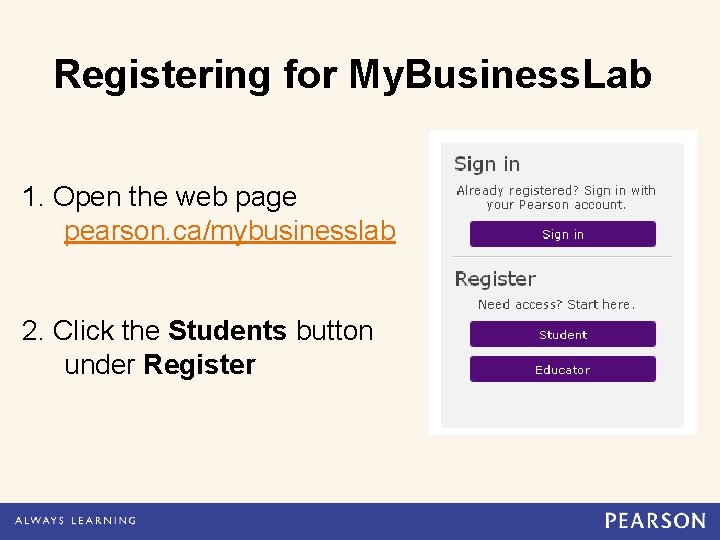
Registering for My. Business. Lab 1. Open the web page pearson. ca/mybusinesslab 2. Click the Students button under Register

Access Code Verification: 1. Click I already have an access code
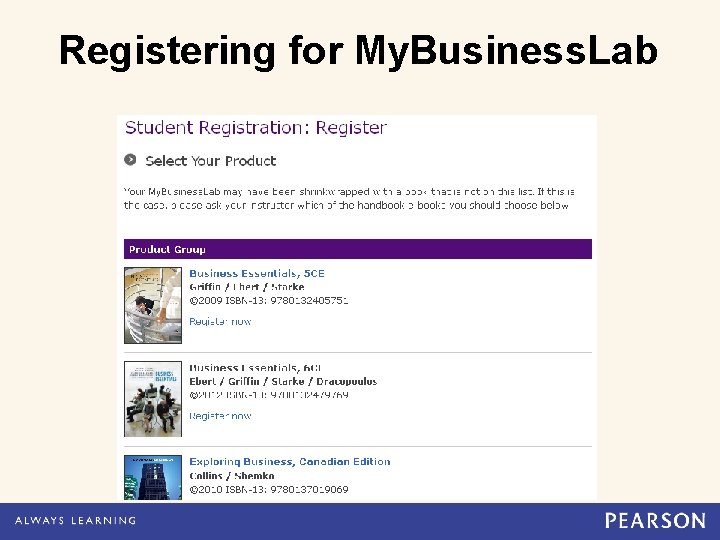
Registering for My. Business. Lab
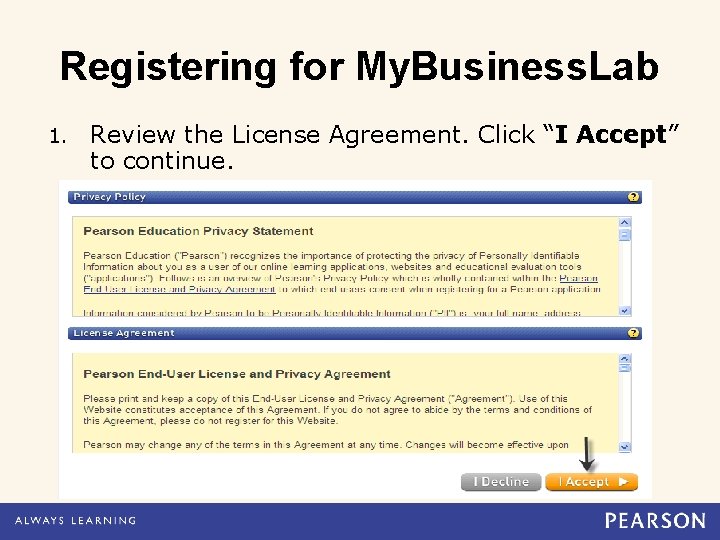
Registering for My. Business. Lab 1. Review the License Agreement. Click “I Accept” to continue.
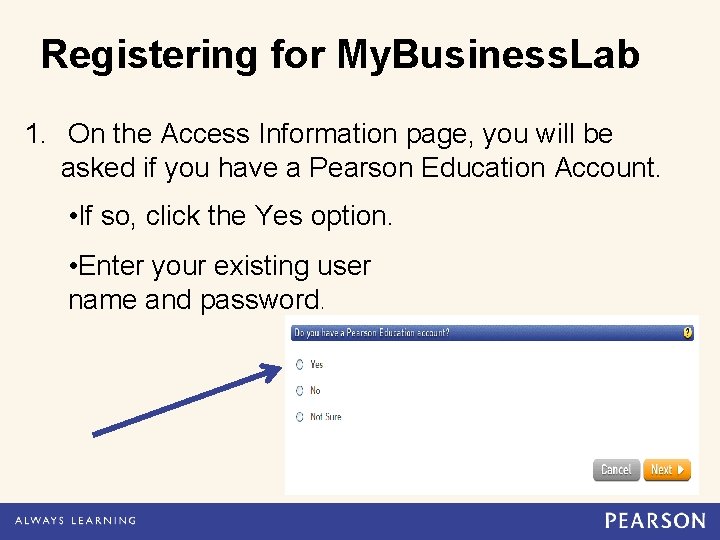
Registering for My. Business. Lab 1. On the Access Information page, you will be asked if you have a Pearson Education Account. • If so, click the Yes option. • Enter your existing user name and password.
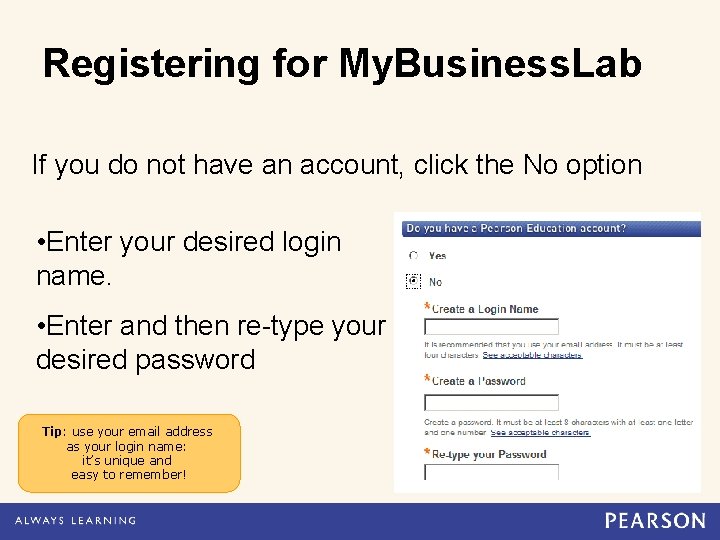
Registering for My. Business. Lab If you do not have an account, click the No option • Enter your desired login name. • Enter and then re-type your desired password Tip: use your email address as your login name: it’s unique and easy to remember!
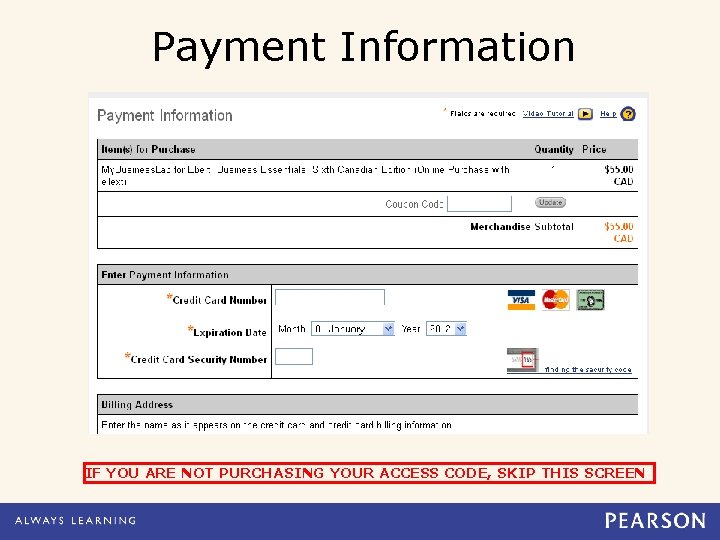
Payment Information IF YOU ARE NOT PURCHASING YOUR ACCESS CODE, SKIP THIS SCREEN
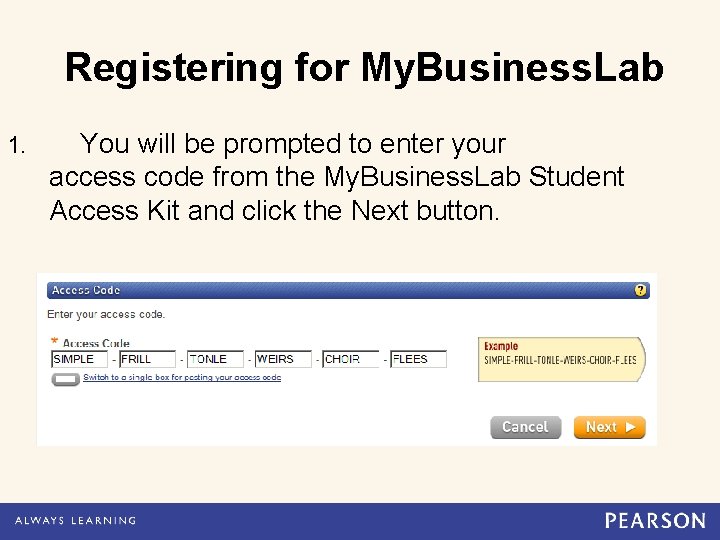
Registering for My. Business. Lab 1. You will be prompted to enter your access code from the My. Business. Lab Student Access Kit and click the Next button.
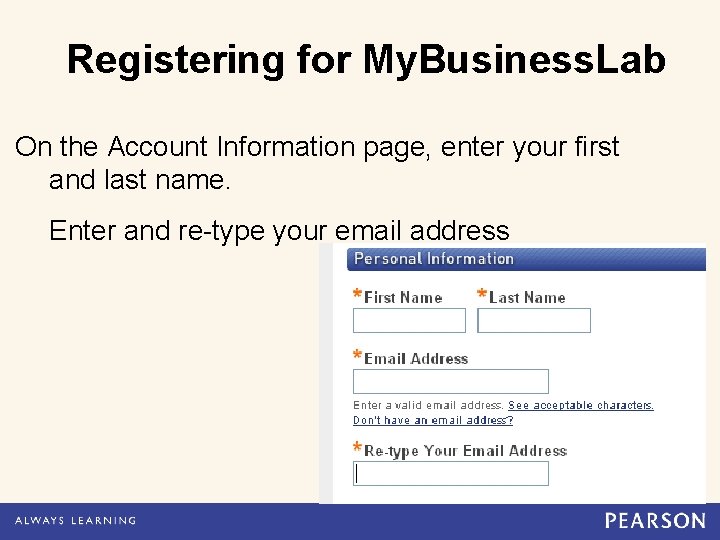
Registering for My. Business. Lab On the Account Information page, enter your first and last name. Enter and re-type your email address
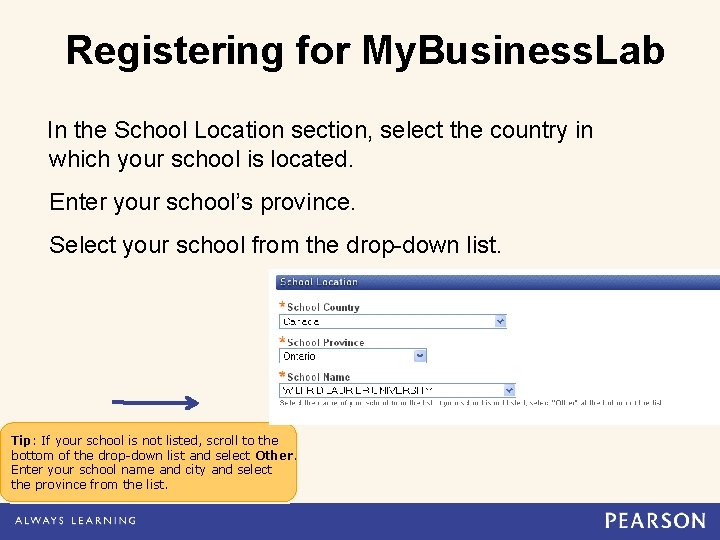
Registering for My. Business. Lab In the School Location section, select the country in which your school is located. Enter your school’s province. Select your school from the drop-down list. Tip: If your school is not listed, scroll to the bottom of the drop-down list and select Other. Enter your school name and city and select the province from the list.
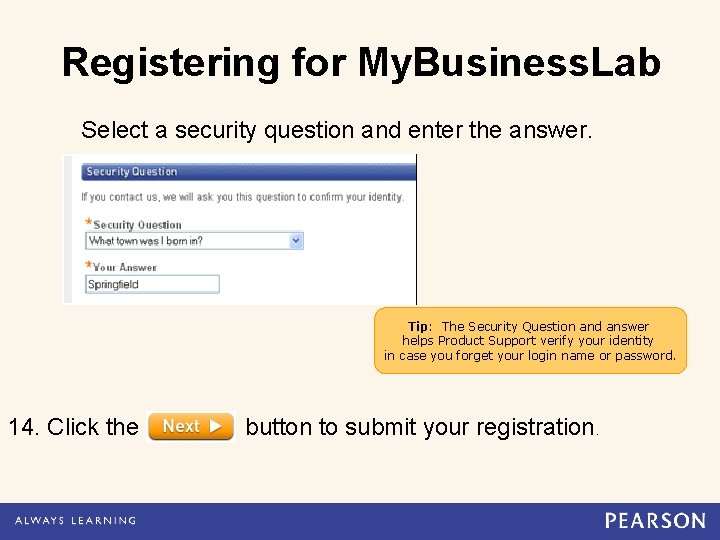
Registering for My. Business. Lab Select a security question and enter the answer. Tip: The Security Question and answer helps Product Support verify your identity in case you forget your login name or password. 14. Click the button to submit your registration.
Registering for My. Business. Lab 1. A Confirmation and Summary page displays, indicating your registration is successful! YOU ARE NOT DONE. You still need to enroll in your instructor’s course with the course ID. Click the My. Lab Courses log into My. Business. Lab. button to Tip: If desired, print the confirmation page to keep a record of this information. A copy of this information will be emailed to you.
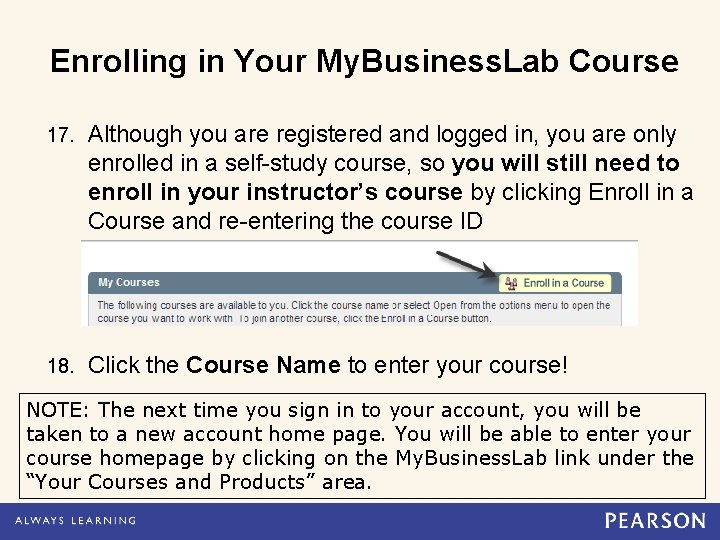
Enrolling in Your My. Business. Lab Course 17. Although you are registered and logged in, you are only enrolled in a self-study course, so you will still need to enroll in your instructor’s course by clicking Enroll in a Course and re-entering the course ID 18. Click the Course Name to enter your course! NOTE: The next time you sign in to your account, you will be taken to a new account home page. You will be able to enter your course homepage by clicking on the My. Business. Lab link under the “Your Courses and Products” area.
Purchasing Options: Bookstore: • Text + My. Lab access code package • Access code with e. Text stand-alone Online (www. mypearsonstore. com): • Text + My. Lab access code package • Access code stand-alone with e. Text • Access code stand-alone without e. Text
Student Technical Support http: //247 pearsoned. custhelp. com/ § Self-Help Knowledgebase: Extensive & searchable articles. § Online Chat: Students’ favorite mode of accessing support. § Support form: Enter your question in a form to submit to support. § Phone Support : (800) 677 -6337 Monday through Friday Noon to 8 PM EST Click on the Support tab of the pearsoned. ca/mybusinesslab homepage for more information. Tip: If you use Ask a Question, Chat, or Phone Support, you will be given an incident number. This number is VERY IMPORTANT, so make sure you keep record of it for reference.

For more information and a link to Student Support visit us at pearsoned. ca/mybusinesslab
- Slides: 19