
My Ameri Corps State Program Member Management Presentation
My Ameri. Corps State Program Member Management Presentation developed for the Corporation for National and Community Service by the e. Grants Coaching Unit JBS International, Aguirre Division (2008); 1 -888 -333 -8272
Introduction 2 The following presentation will guide Ameri. Corps State Program users through how to manage members in My Ameri. Corps. e. Grants Coaching Unit
My Ameri. Corps Usage – Important Considerations… 3 All of the My Ameri. Corps tutorials and webinars focus on the functionality of the system rather than grant requirements or program policies. The My Ameri. Corps system does not include comprehensive compliance checks. We recommend that programs set their own policies around system use and monitor usage for compliance. However, we suggest that programs give some thought to how they assign roles and access so that they are comfortable with the level of authority they are giving their users. If they have questions they should contact their program officer/program specialist or program director/project sponsor. e. Grants Coaching Unit
AGENDA 4 How to search for members How to edit member info How to create, approve or reject a Change of Term of Service request How to create, approve or reject a Suspension request How to create, approve or reject a Reinstatement request How to create, approve or reject a Transfer-out request How to create, approve or reject a Transfer-in request How to exit a member as scheduled How to exit a member early e. Grants Coaching Unit
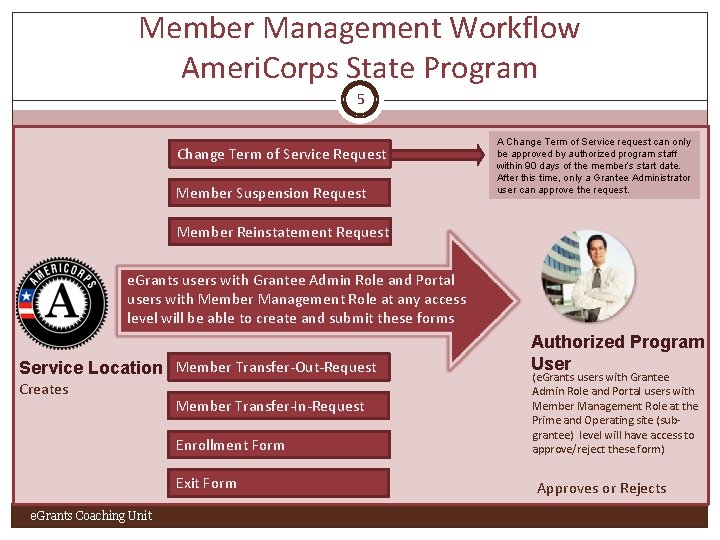
Member Management Workflow Ameri. Corps State Program 5 Change Term of Service Request Member Suspension Request A Change Term of Service request can only be approved by authorized program staff within 90 days of the member’s start date. After this time, only a Grantee Administrator user can approve the request. Member Reinstatement Request e. Grants users with Grantee Admin Role and Portal users with Member Management Role at any access level will be able to create and submit these forms Service Location Member Transfer-Out-Request Creates Member Transfer-In-Request Enrollment Form Exit Form e. Grants Coaching Unit Authorized Program User (e. Grants users with Grantee Admin Role and Portal users with Member Management Role at the Prime and Operating site (subgrantee) level will have access to approve/reject these form) Approves or Rejects

Member Search 6 Click on Manage Members to open the member search menu e. Grants Coaching Unit
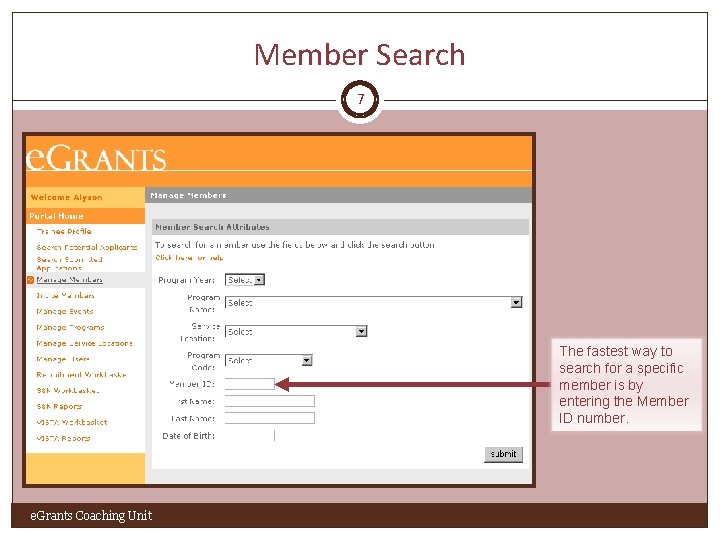
Member Search 7 The fastest way to search for a specific member is by entering the Member ID number. e. Grants Coaching Unit
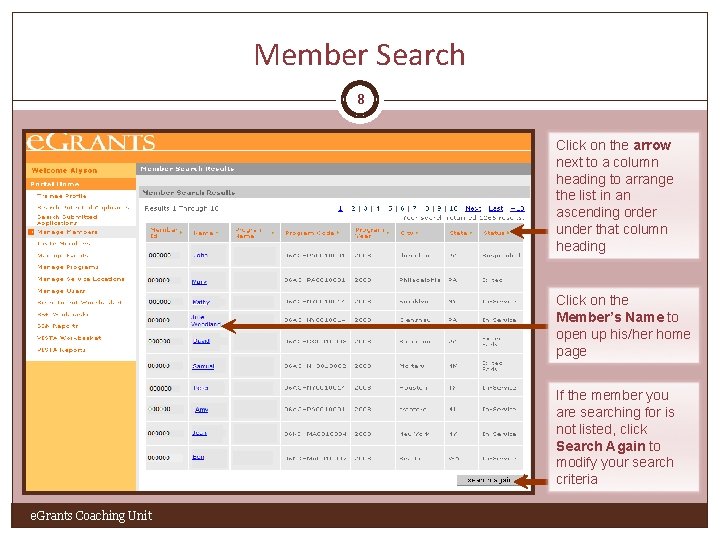
Member Search 8 Click on the arrow next to a column heading to arrange the list in an ascending order under that column heading Click on the Member’s Name to open up his/her home page If the member you are searching for is not listed, click Search Again to modify your search criteria e. Grants Coaching Unit
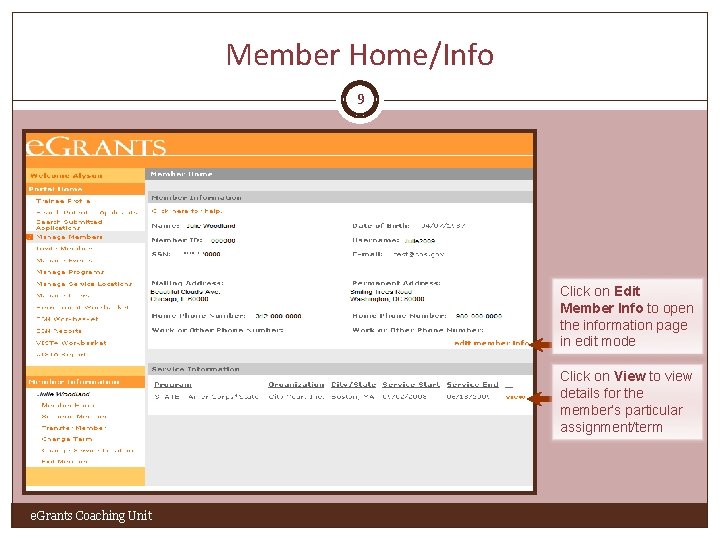
Member Home/Info 9 Click on Edit Member Info to open the information page in edit mode Click on View to view details for the member’s particular assignment/term e. Grants Coaching Unit
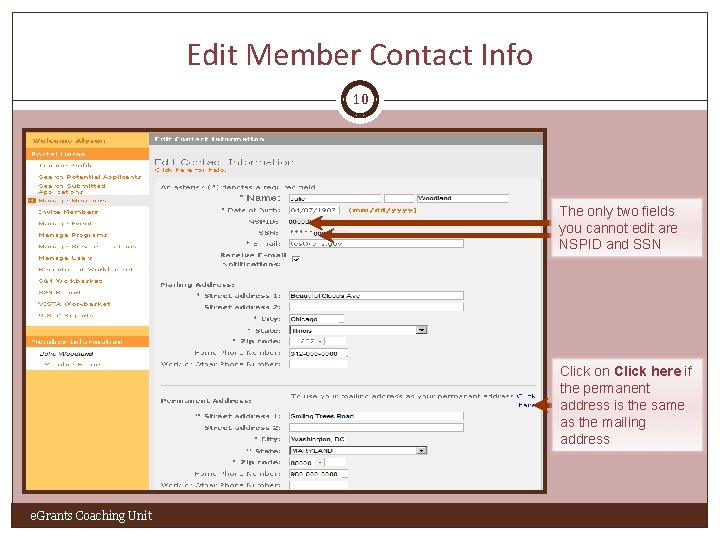
Edit Member Contact Info 10 The only two fields you cannot edit are NSPID and SSN Click on Click here if the permanent address is the same as the mailing address e. Grants Coaching Unit
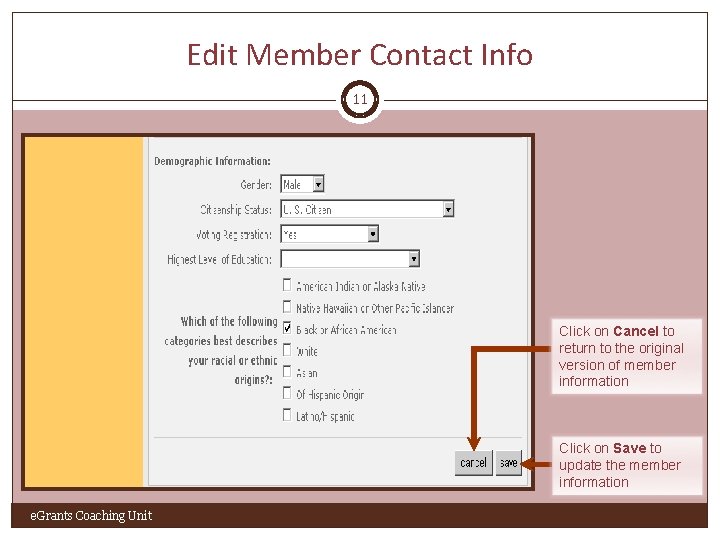
Edit Member Contact Info 11 Click on Cancel to return to the original version of member information Click on Save to update the member information e. Grants Coaching Unit
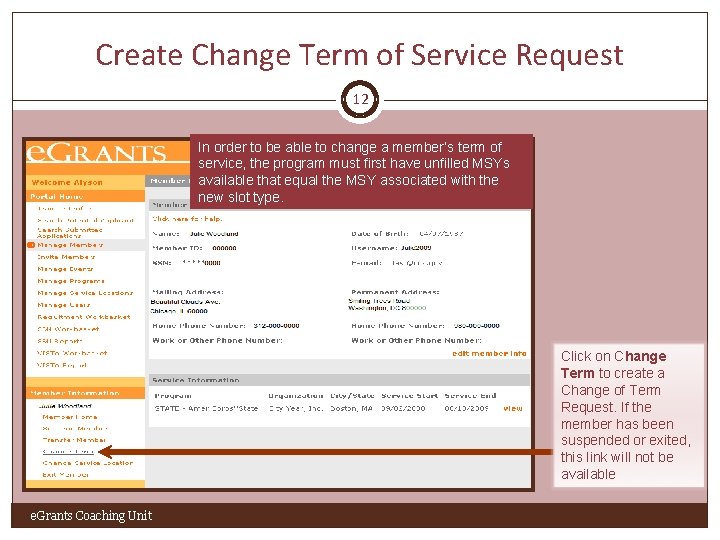
Create Change Term of Service Request 12 In order to be able to change a member’s term of service, the program must first have unfilled MSYs available that equal the MSY associated with the new slot type. Click on Change Term to create a Change of Term Request. If the member has been suspended or exited, this link will not be available e. Grants Coaching Unit
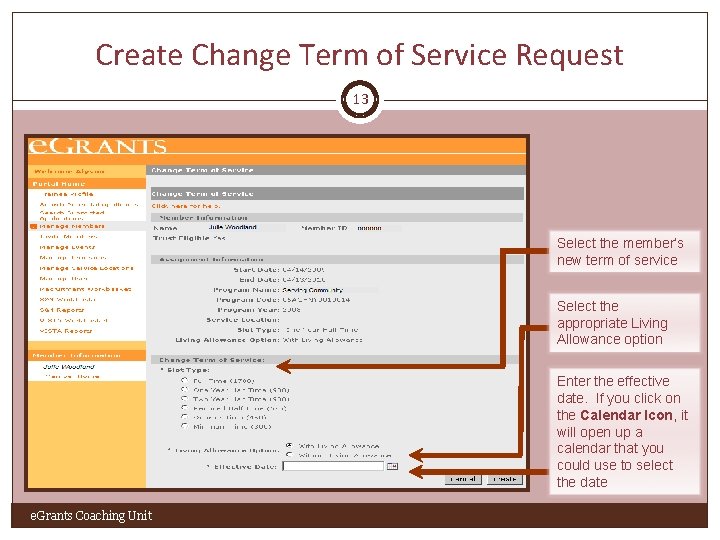
Create Change Term of Service Request 13 Select the member’s new term of service Select the appropriate Living Allowance option Enter the effective date. If you click on the Calendar Icon, it will open up a calendar that you could use to select the date e. Grants Coaching Unit
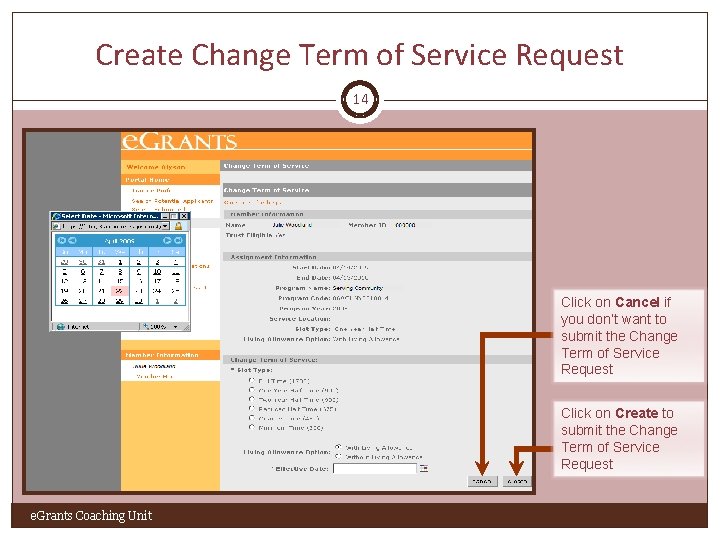
Create Change Term of Service Request 14 Click on Cancel if you don’t want to submit the Change Term of Service Request Click on Create to submit the Change Term of Service Request e. Grants Coaching Unit
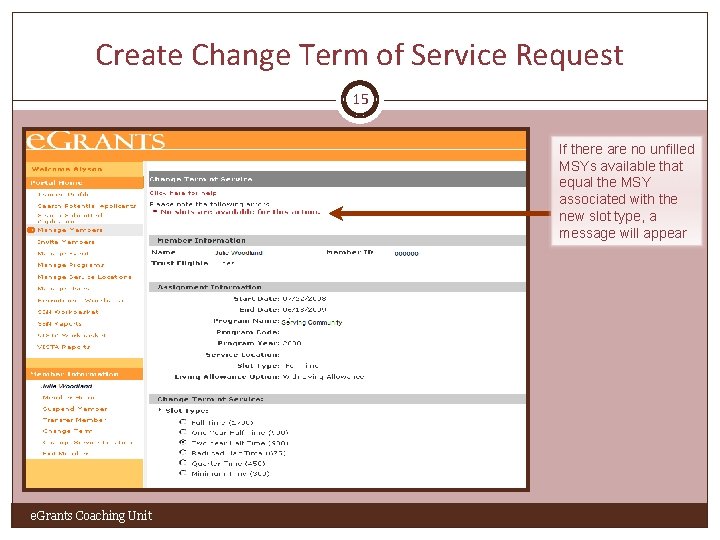
Create Change Term of Service Request 15 If there are no unfilled MSYs available that equal the MSY associated with the new slot type, a message will appear e. Grants Coaching Unit
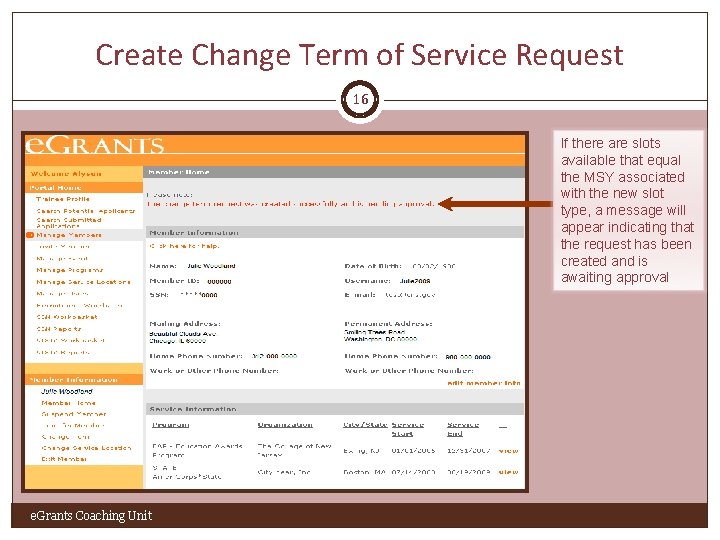
Create Change Term of Service Request 16 If there are slots available that equal the MSY associated with the new slot type, a message will appear indicating that the request has been created and is awaiting approval e. Grants Coaching Unit
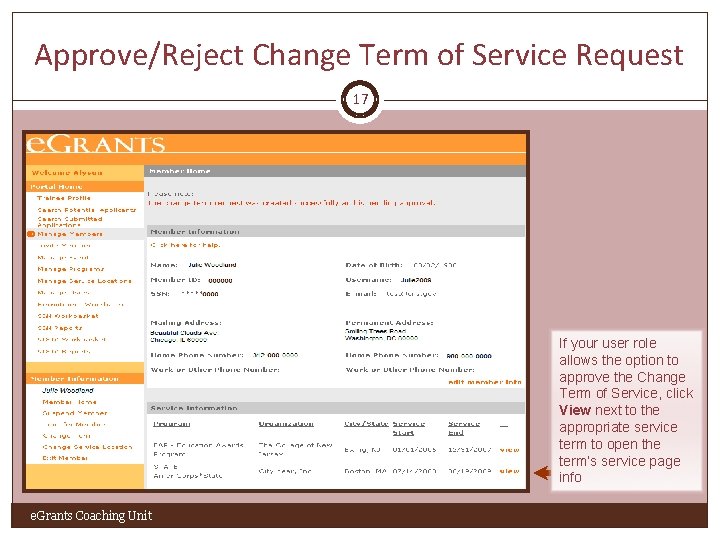
Approve/Reject Change Term of Service Request 17 If your user role allows the option to approve the Change Term of Service, click View next to the appropriate service term to open the term’s service page info e. Grants Coaching Unit
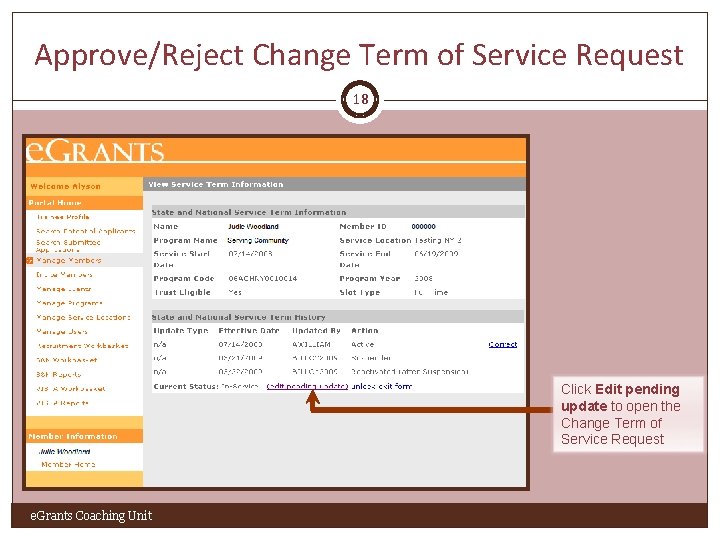
Approve/Reject Change Term of Service Request 18 Click Edit pending update to open the Change Term of Service Request e. Grants Coaching Unit
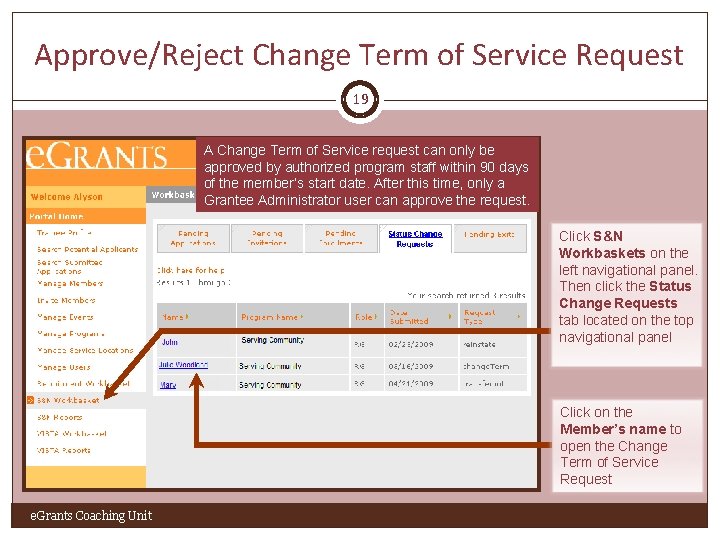
Approve/Reject Change Term of Service Request 19 A Change Term of Service request can only be approved by authorized program staff within 90 days of the member’s start date. After this time, only a Grantee Administrator user can approve the request. Click S&N Workbaskets on the left navigational panel. Then click the Status Change Requests tab located on the top navigational panel Click on the Member’s name to open the Change Term of Service Request e. Grants Coaching Unit
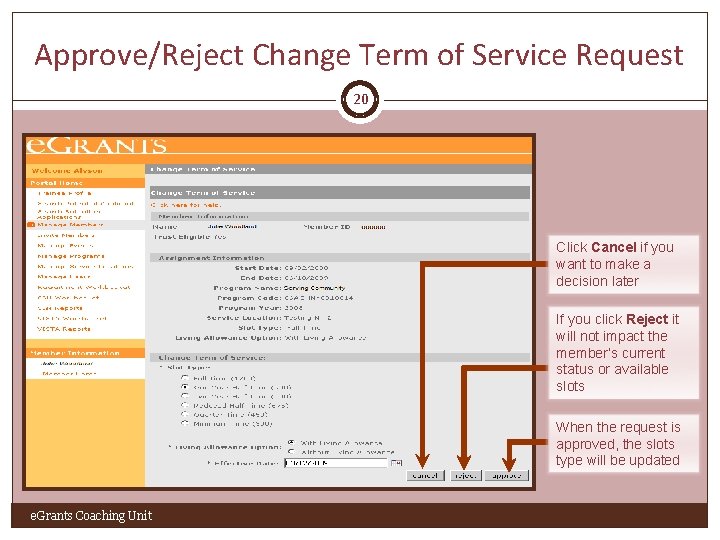
Approve/Reject Change Term of Service Request 20 Click Cancel if you want to make a decision later If you click Reject it will not impact the member’s current status or available slots When the request is approved, the slots type will be updated e. Grants Coaching Unit
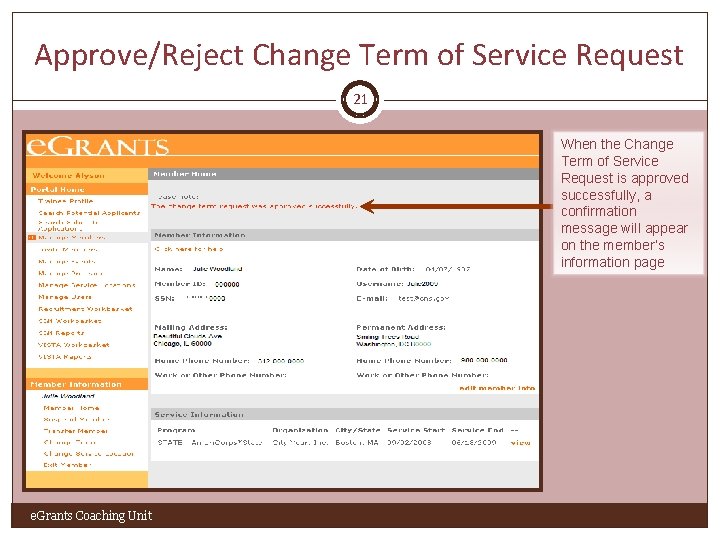
Approve/Reject Change Term of Service Request 21 When the Change Term of Service Request is approved successfully, a confirmation message will appear on the member’s information page e. Grants Coaching Unit
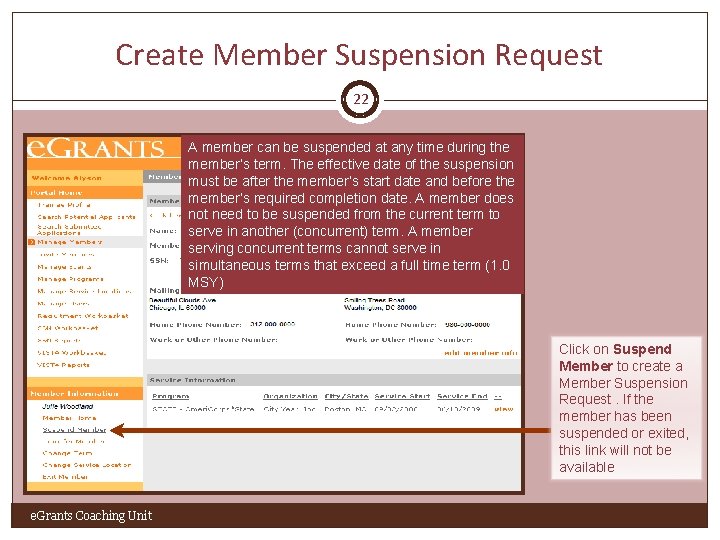
Create Member Suspension Request 22 A member can be suspended at any time during the member’s term. The effective date of the suspension must be after the member’s start date and before the member’s required completion date. A member does not need to be suspended from the current term to serve in another (concurrent) term. A member serving concurrent terms cannot serve in simultaneous terms that exceed a full time term (1. 0 MSY) Click on Suspend Member to create a Member Suspension Request. If the member has been suspended or exited, this link will not be available e. Grants Coaching Unit
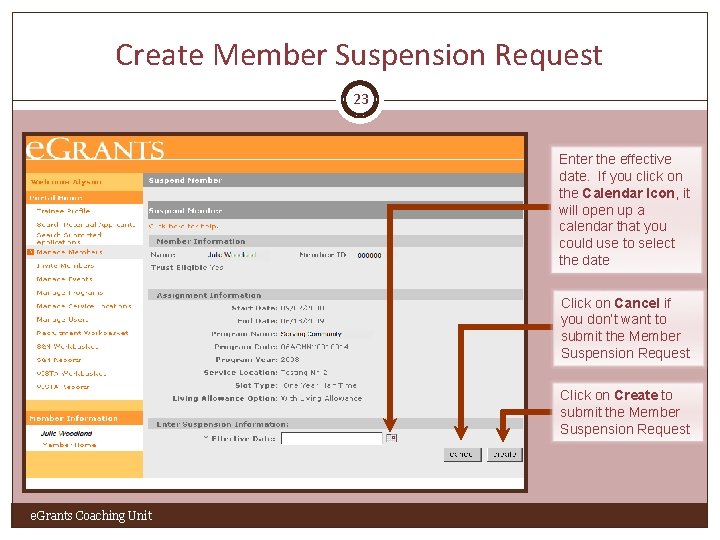
Create Member Suspension Request 23 Enter the effective date. If you click on the Calendar Icon, it will open up a calendar that you could use to select the date Click on Cancel if you don’t want to submit the Member Suspension Request Click on Create to submit the Member Suspension Request e. Grants Coaching Unit
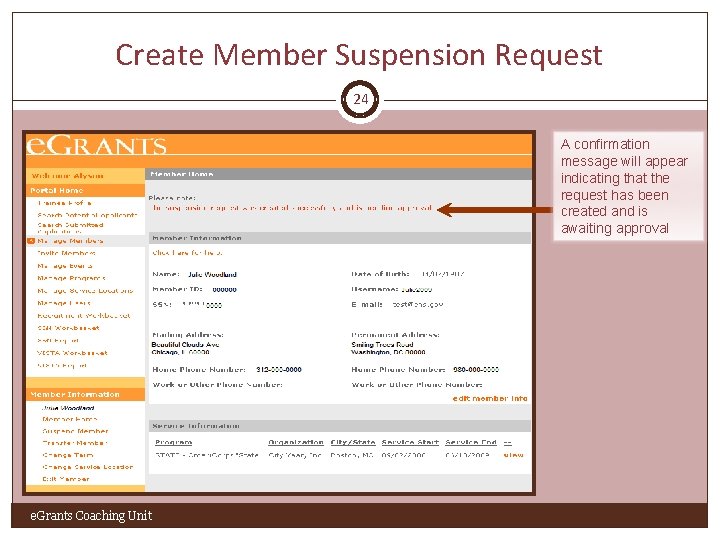
Create Member Suspension Request 24 A confirmation message will appear indicating that the request has been created and is awaiting approval e. Grants Coaching Unit
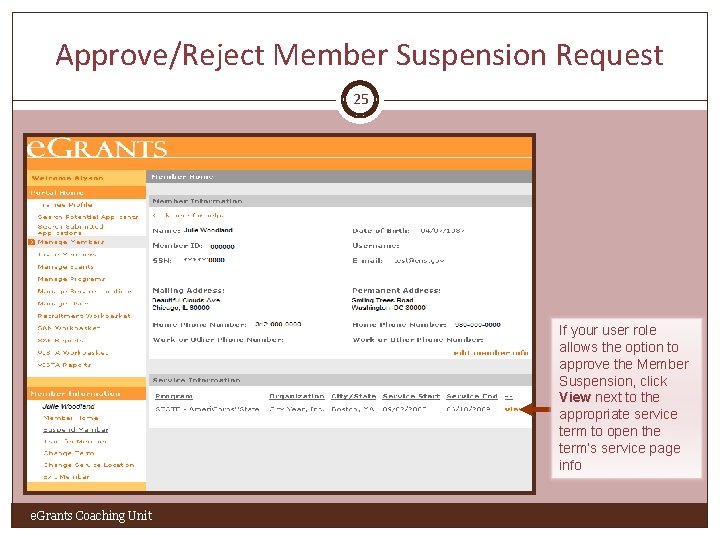
Approve/Reject Member Suspension Request 25 If your user role allows the option to approve the Member Suspension, click View next to the appropriate service term to open the term’s service page info e. Grants Coaching Unit
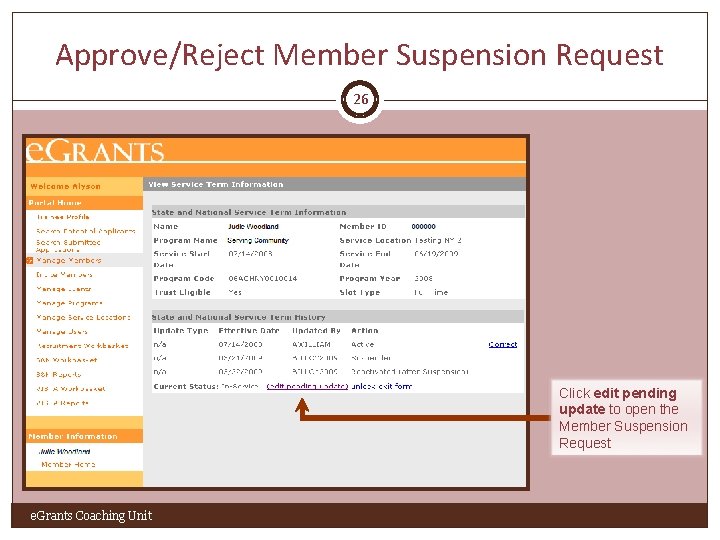
Approve/Reject Member Suspension Request 26 Click edit pending update to open the Member Suspension Request e. Grants Coaching Unit
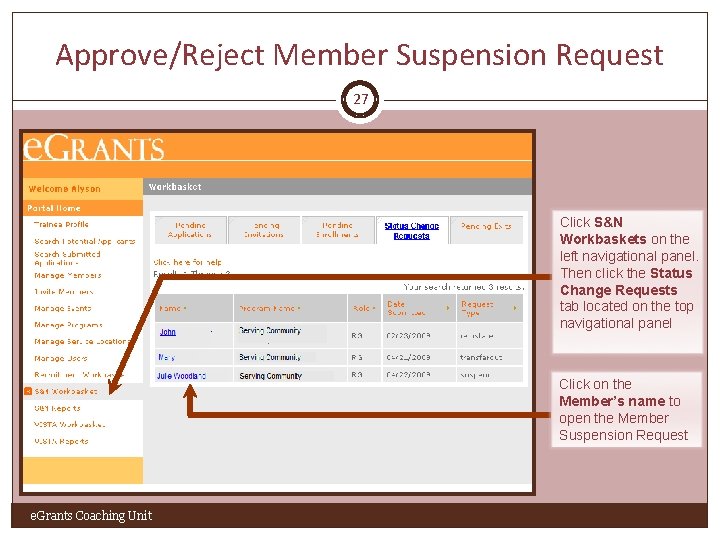
Approve/Reject Member Suspension Request 27 Click S&N Workbaskets on the left navigational panel. Then click the Status Change Requests tab located on the top navigational panel Click on the Member’s name to open the Member Suspension Request e. Grants Coaching Unit
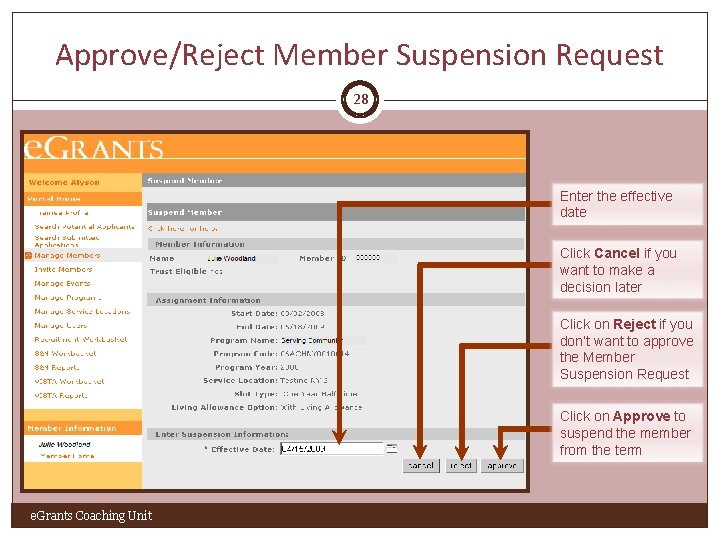
Approve/Reject Member Suspension Request 28 Enter the effective date Click Cancel if you want to make a decision later Click on Reject if you don’t want to approve the Member Suspension Request Click on Approve to suspend the member from the term e. Grants Coaching Unit
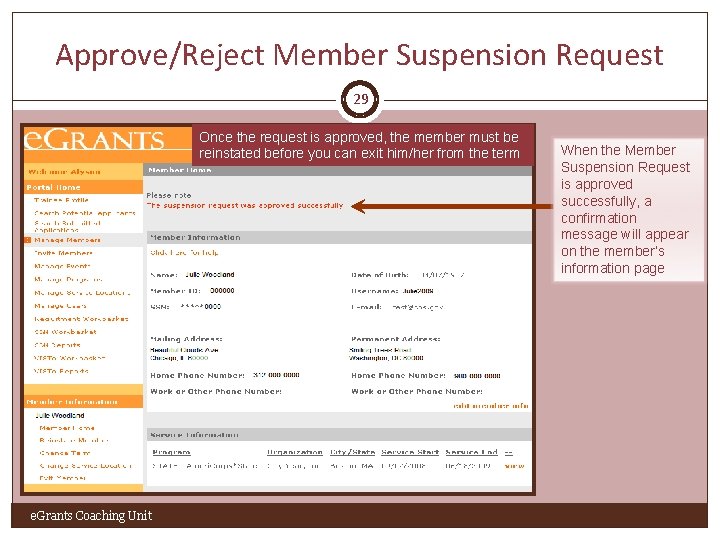
Approve/Reject Member Suspension Request 29 Once the request is approved, the member must be reinstated before you can exit him/her from the term e. Grants Coaching Unit When the Member Suspension Request is approved successfully, a confirmation message will appear on the member’s information page
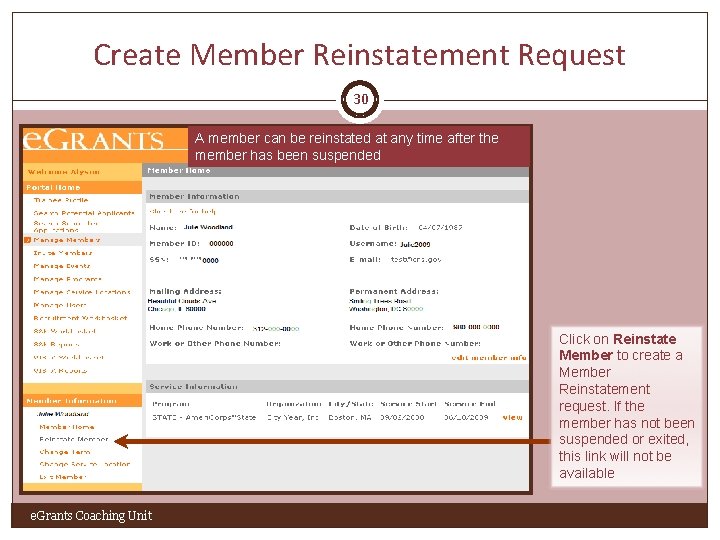
Create Member Reinstatement Request 30 A member can be reinstated at any time after the member has been suspended Click on Reinstate Member to create a Member Reinstatement request. If the member has not been suspended or exited, this link will not be available e. Grants Coaching Unit
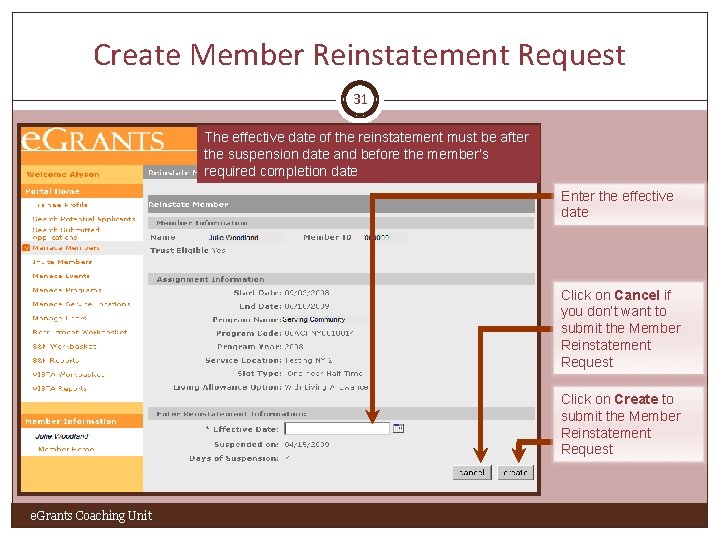
Create Member Reinstatement Request 31 The effective date of the reinstatement must be after the suspension date and before the member’s required completion date Enter the effective date Click on Cancel if you don’t want to submit the Member Reinstatement Request Click on Create to submit the Member Reinstatement Request e. Grants Coaching Unit
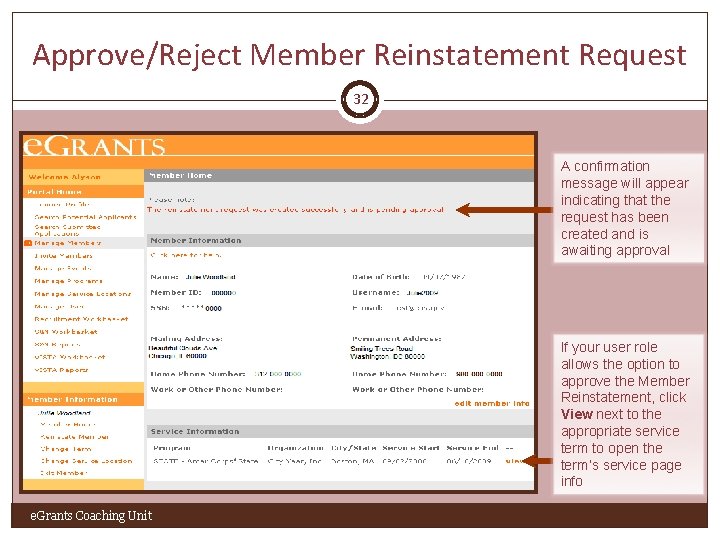
Approve/Reject Member Reinstatement Request 32 A confirmation message will appear indicating that the request has been created and is awaiting approval If your user role allows the option to approve the Member Reinstatement, click View next to the appropriate service term to open the term’s service page info e. Grants Coaching Unit
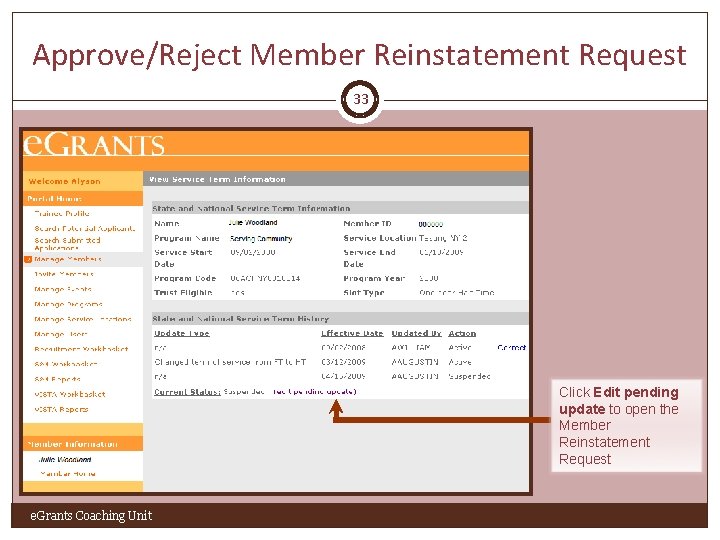
Approve/Reject Member Reinstatement Request 33 Click Edit pending update to open the Member Reinstatement Request e. Grants Coaching Unit
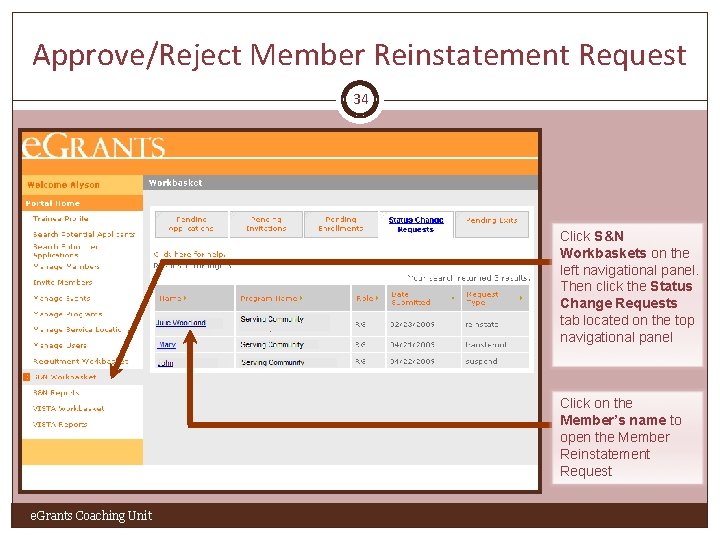
Approve/Reject Member Reinstatement Request 34 Click S&N Workbaskets on the left navigational panel. Then click the Status Change Requests tab located on the top navigational panel Click on the Member’s name to open the Member Reinstatement Request e. Grants Coaching Unit
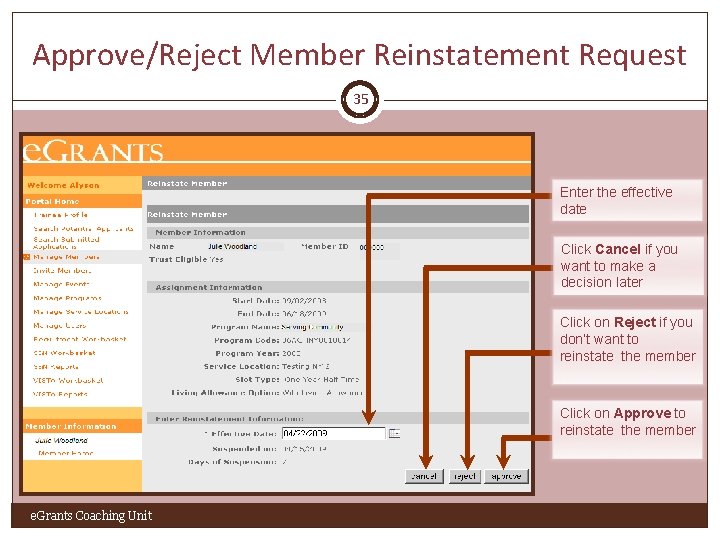
Approve/Reject Member Reinstatement Request 35 Enter the effective date Click Cancel if you want to make a decision later Click on Reject if you don’t want to reinstate the member Click on Approve to reinstate the member e. Grants Coaching Unit
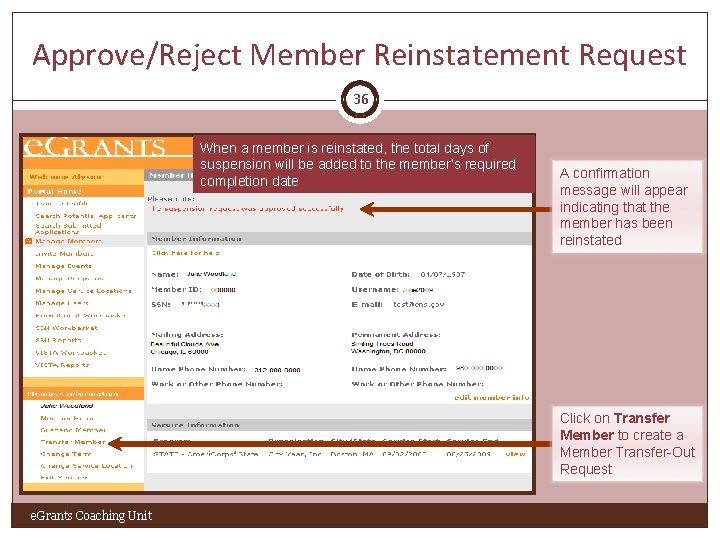
Approve/Reject Member Reinstatement Request 36 When a member is reinstated, the total days of suspension will be added to the member’s required completion date A confirmation message will appear indicating that the member has been reinstated Click on Transfer Member to create a Member Transfer-Out Request e. Grants Coaching Unit
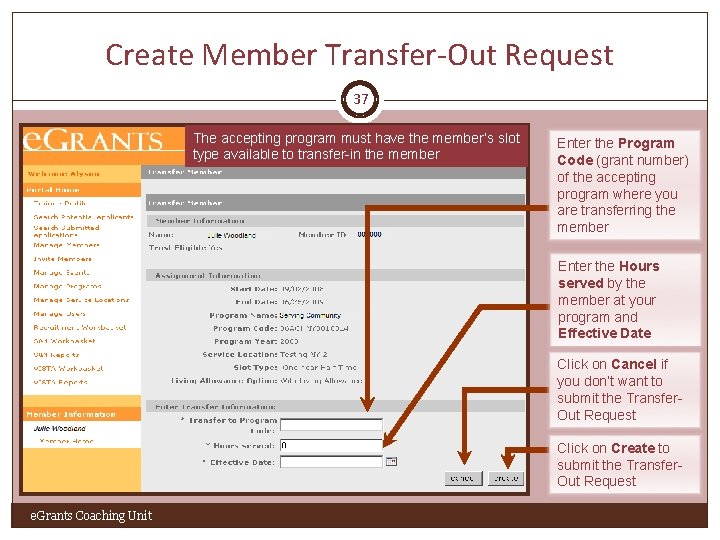
Create Member Transfer-Out Request 37 The accepting program must have the member’s slot type available to transfer-in the member Enter the Program Code (grant number) of the accepting program where you are transferring the member Enter the Hours served by the member at your program and Effective Date Click on Cancel if you don’t want to submit the Transfer. Out Request Click on Create to submit the Transfer. Out Request e. Grants Coaching Unit
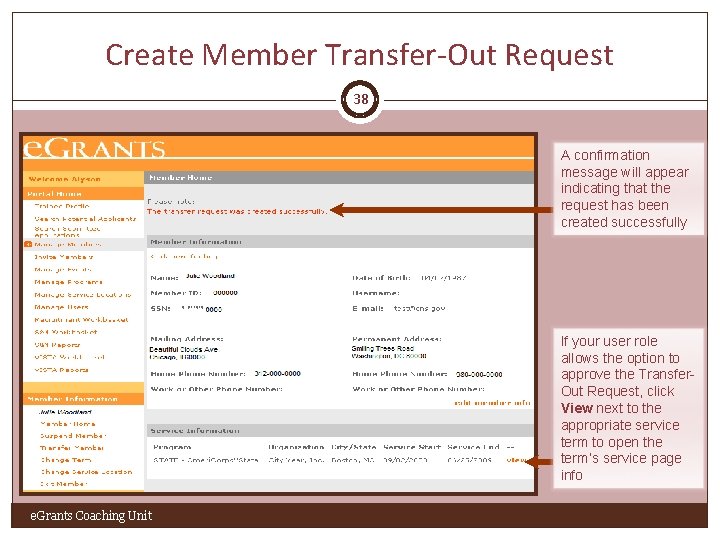
Create Member Transfer-Out Request 38 A confirmation message will appear indicating that the request has been created successfully If your user role allows the option to approve the Transfer. Out Request, click View next to the appropriate service term to open the term’s service page info e. Grants Coaching Unit
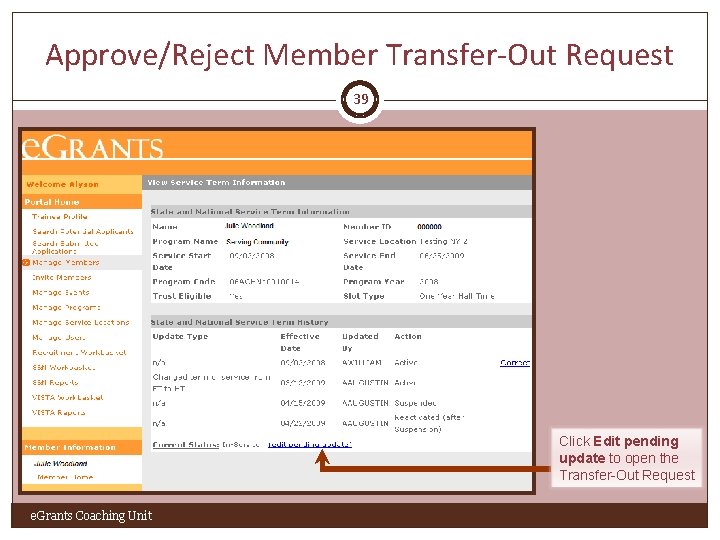
Approve/Reject Member Transfer-Out Request 39 Click Edit pending update to open the Transfer-Out Request e. Grants Coaching Unit
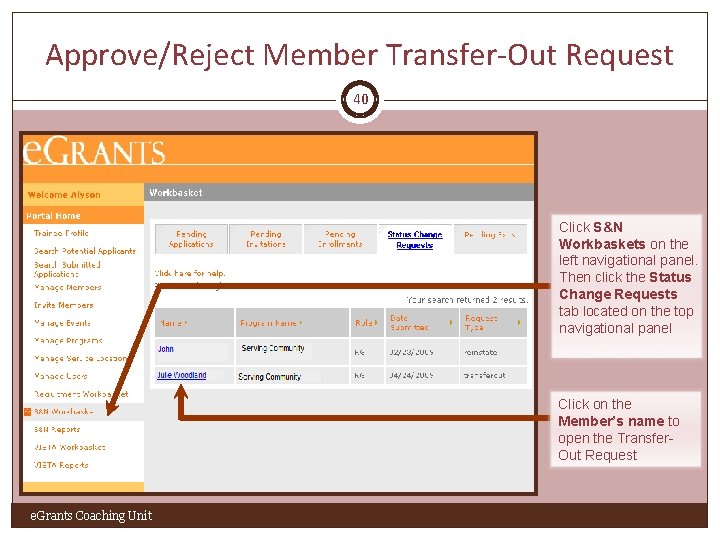
Approve/Reject Member Transfer-Out Request 40 Click S&N Workbaskets on the left navigational panel. Then click the Status Change Requests tab located on the top navigational panel Click on the Member’s name to open the Transfer. Out Request e. Grants Coaching Unit
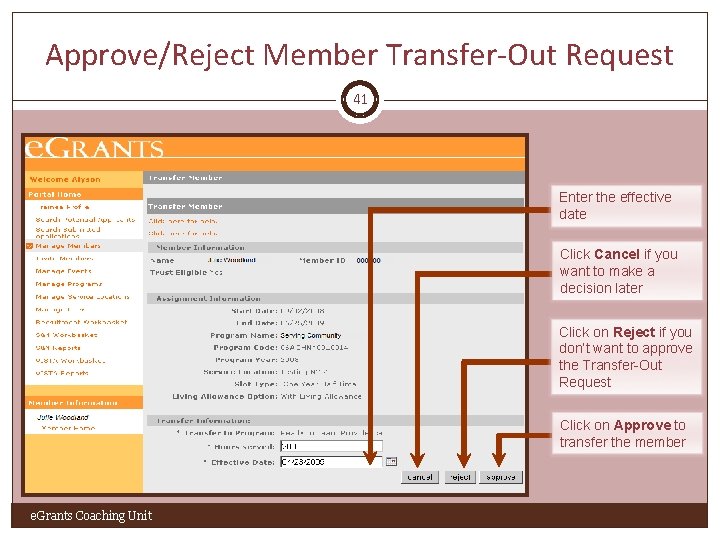
Approve/Reject Member Transfer-Out Request 41 Enter the effective date Click Cancel if you want to make a decision later Click on Reject if you don’t want to approve the Transfer-Out Request Click on Approve to transfer the member e. Grants Coaching Unit
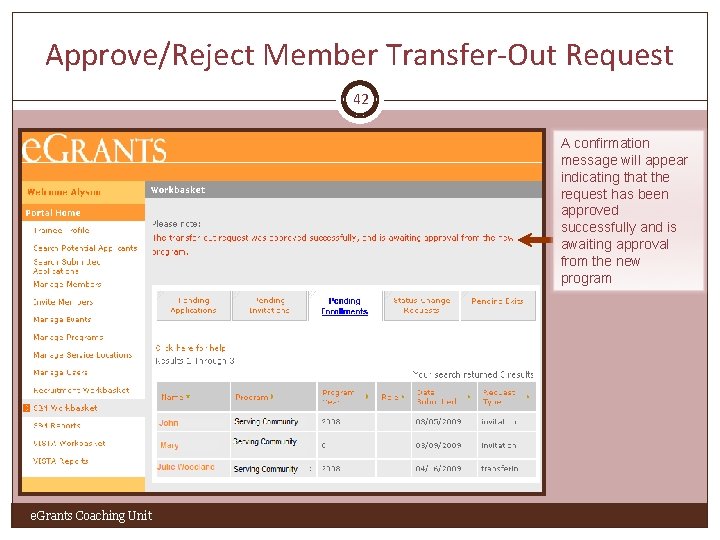
Approve/Reject Member Transfer-Out Request 42 A confirmation message will appear indicating that the request has been approved successfully and is awaiting approval from the new program e. Grants Coaching Unit
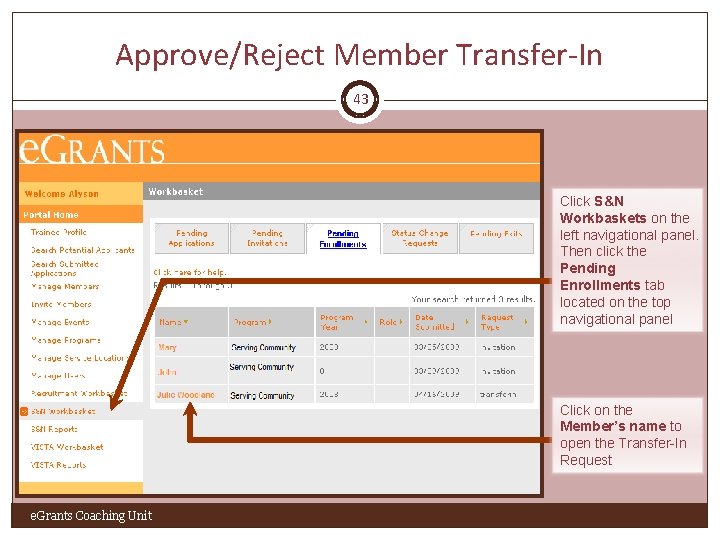
Approve/Reject Member Transfer-In 43 Click S&N Workbaskets on the left navigational panel. Then click the Pending Enrollments tab located on the top navigational panel Click on the Member’s name to open the Transfer-In Request e. Grants Coaching Unit
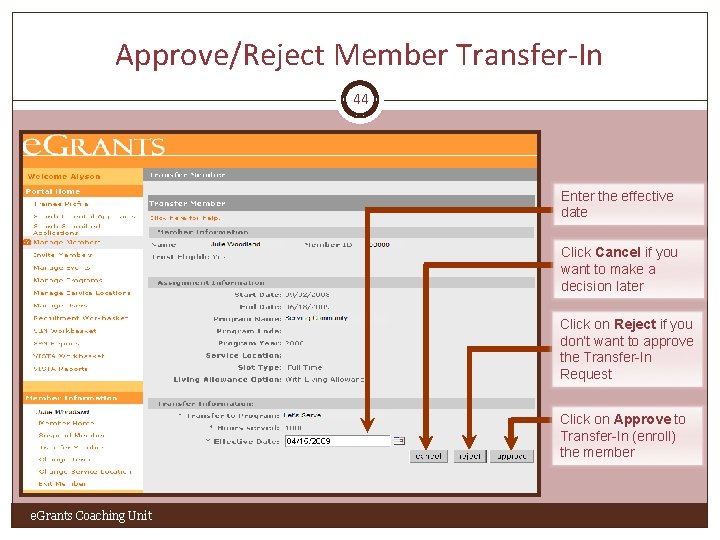
Approve/Reject Member Transfer-In 44 Enter the effective date Click Cancel if you want to make a decision later Click on Reject if you don’t want to approve the Transfer-In Request Click on Approve to Transfer-In (enroll) the member e. Grants Coaching Unit

Approve/Reject Member Transfer-In 45 When a member is transferred in to a new program, the slot the member was serving will be returned to the original program and can be used again e. Grants Coaching Unit A confirmation message will appear indicating that the Transfer-In has been approved successfully which means that the member is now officially enrolled in the program

Member Exit 46 Members who are approaching the end of their service (30 days prior to their expected completion date) will be listed in your Pending Exits workbasket. These members will have access to a link on their home page to complete their portion of the exit form which includes an option for them to complete their Member Satisfaction Survey Click on Pending Exits Not Started means the member’s portion of the Exit has not yet been completed Submitted means the member has completed the section and is awaiting approval If you want to complete the member’s portion of the exit, click on his/her name e. Grants Coaching Unit
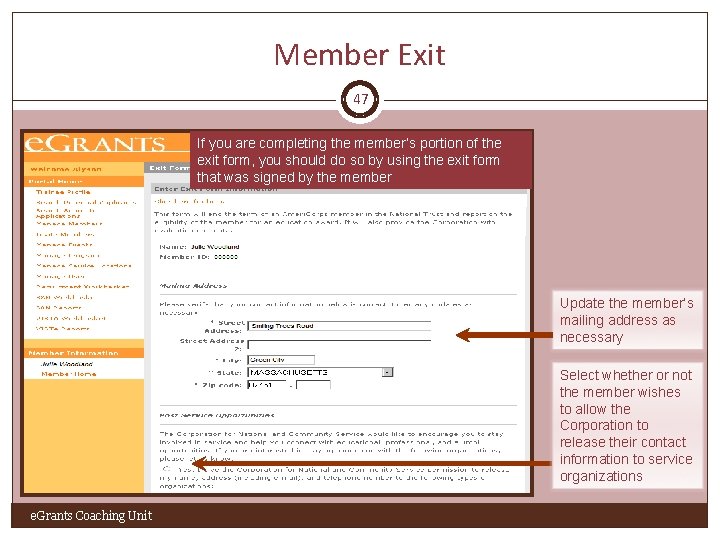
Member Exit 47 If you are completing the member’s portion of the exit form, you should do so by using the exit form that was signed by the member Update the member’s mailing address as necessary Select whether or not the member wishes to allow the Corporation to release their contact information to service organizations e. Grants Coaching Unit
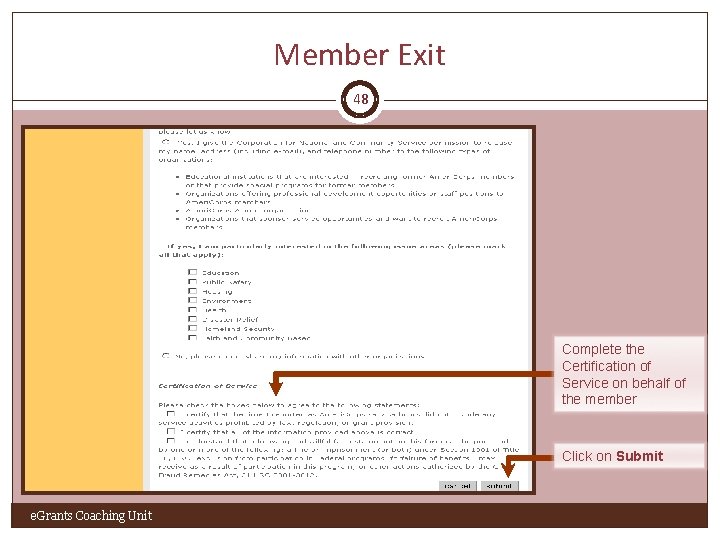
Member Exit 48 Complete the Certification of Service on behalf of the member Click on Submit e. Grants Coaching Unit

Member Exit 49 A confirmation message will appear indicating that the member’s portion of the Exit Form has been saved Click on Exit Member to open the Exit Form and exit the member e. Grants Coaching Unit
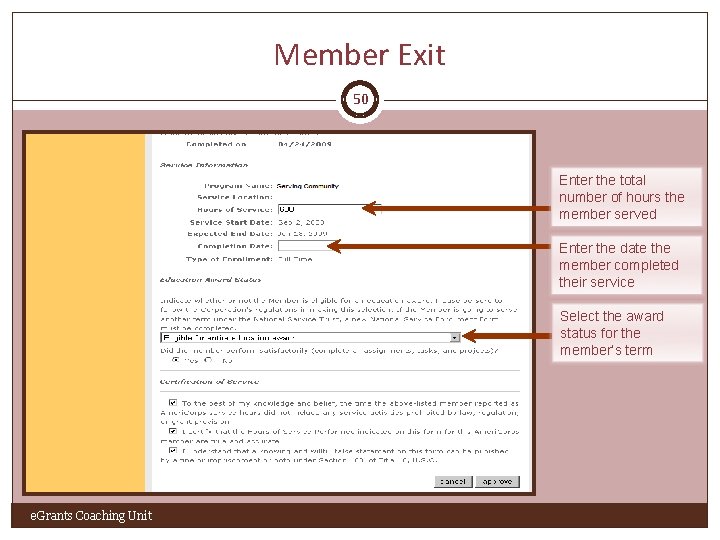
Member Exit 50 Enter the total number of hours the member served Enter the date the member completed their service Select the award status for the member’s term e. Grants Coaching Unit
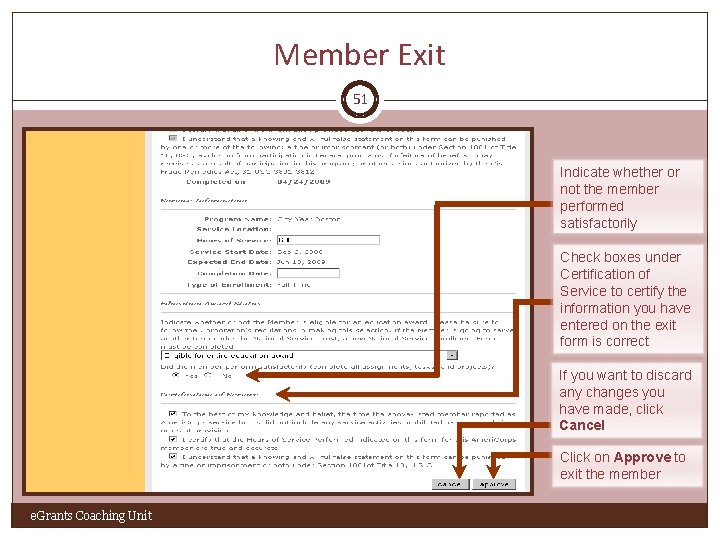
Member Exit 51 Indicate whether or not the member performed satisfactorily Check boxes under Certification of Service to certify the information you have entered on the exit form is correct If you want to discard any changes you have made, click Cancel Click on Approve to exit the member e. Grants Coaching Unit
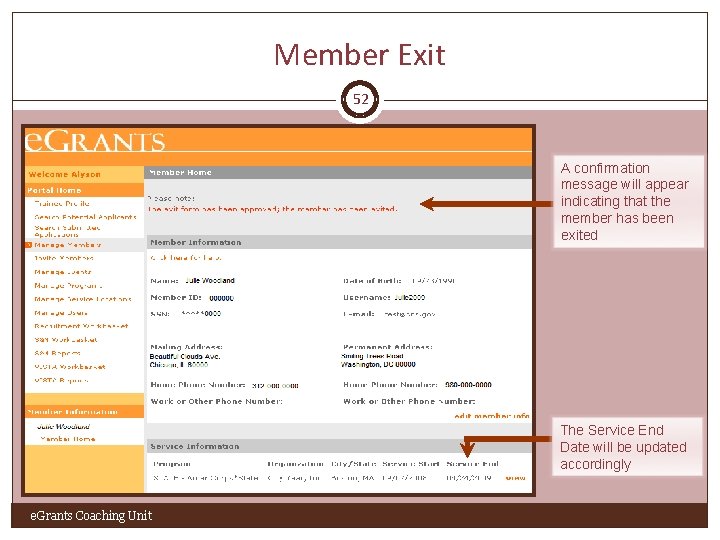
Member Exit 52 A confirmation message will appear indicating that the member has been exited The Service End Date will be updated accordingly e. Grants Coaching Unit
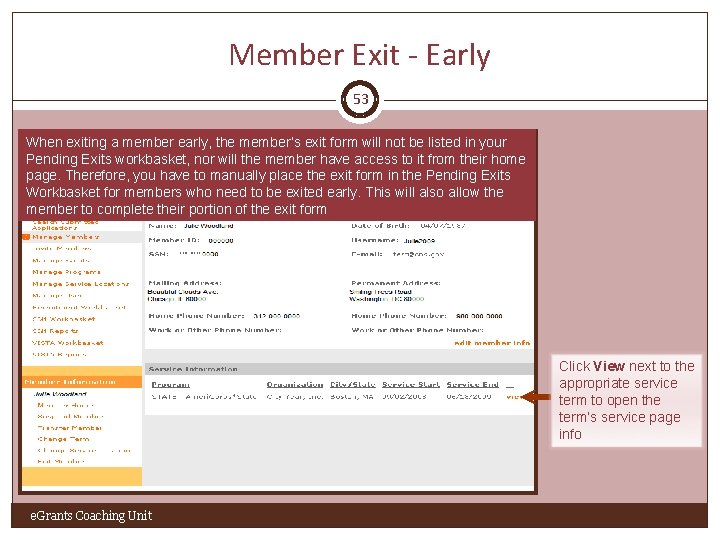
Member Exit - Early 53 When exiting a member early, the member’s exit form will not be listed in your Pending Exits workbasket, nor will the member have access to it from their home page. Therefore, you have to manually place the exit form in the Pending Exits Workbasket for members who need to be exited early. This will also allow the member to complete their portion of the exit form Click View next to the appropriate service term to open the term’s service page info e. Grants Coaching Unit

Member Exit - Early 54 Once you unlock the exit form, you can wait for the member to complete member's portion of the Exit form or you can complete it on behalf of the member if the member has already completed and signed the paper exit form. Once the member’s portion is completed, exit the member. Click Unlock Exit Form. The member will appear in your Pending Exit Workbasket e. Grants Coaching Unit

What’s next? 55 The Resource Center o www. nationalserviceresources. org/ac-training-support o Includes other tutorials o Live training and registration schedule The e. Grants Coaching Unit o 1 -888 -333 -8272 o egrantstta@jbsinternational. com o Training/Technical Assistance The e. Grants Help Desk o 1 -888 -677 -7849 o Technical Assistance o User name/Password reset assistance e. Grants Coaching Unit
- Slides: 55