
Multiplication Table By Melissa Dalis Professor Susan Rodger
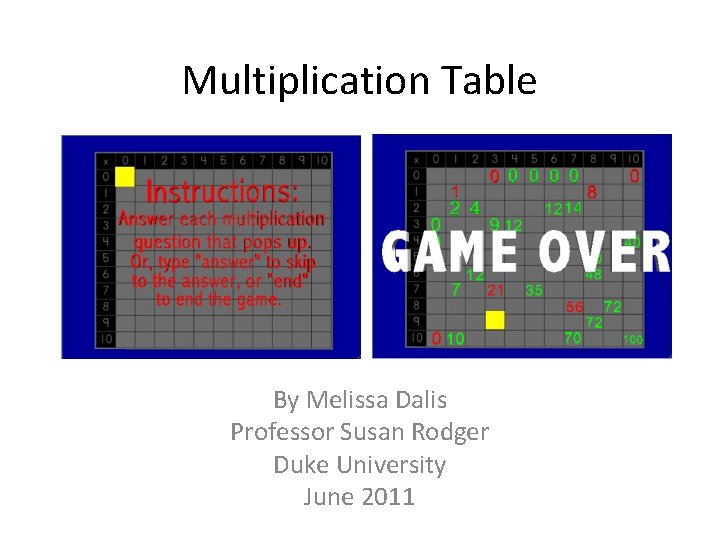
Multiplication Table By Melissa Dalis Professor Susan Rodger Duke University June 2011
Overview • This tutorial will show you how to create a fun and interactive multiplication table game. • This comes with a starting world where the objects are already set up, so the programmer will focus on writing the methods. • In the game, the player is prompted to answer 121 multiplication questions in a different order each time they play. • Programming concepts covered include arrays, nested loops, Whiles, animation, and other basic Alice constructs.
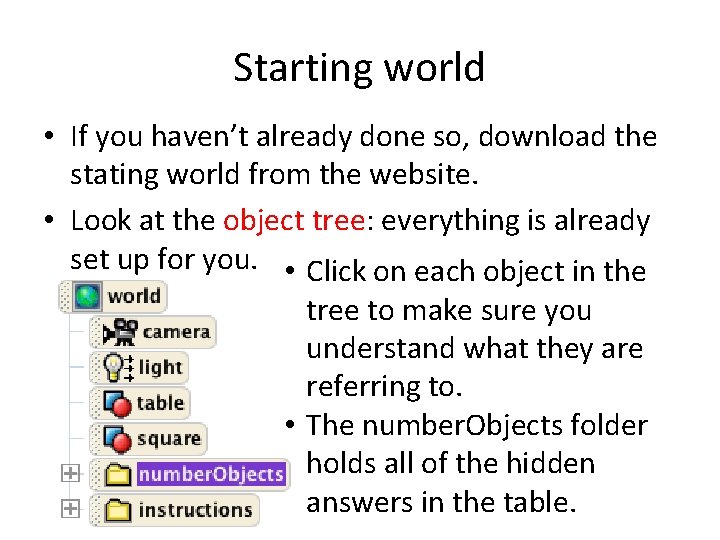
Starting world • If you haven’t already done so, download the stating world from the website. • Look at the object tree: everything is already set up for you. • Click on each object in the tree to make sure you understand what they are referring to. • The number. Objects folder holds all of the hidden answers in the table.
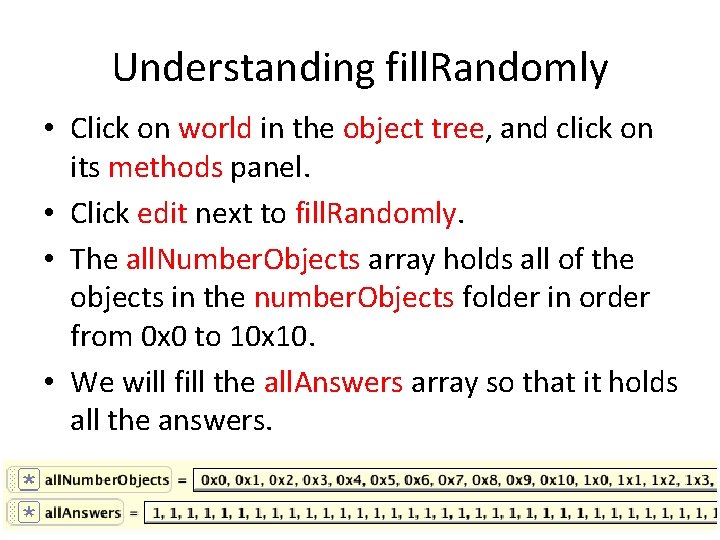
Understanding fill. Randomly • Click on world in the object tree, and click on its methods panel. • Click edit next to fill. Randomly. • The all. Number. Objects array holds all of the objects in the number. Objects folder in order from 0 x 0 to 10 x 10. • We will fill the all. Answers array so that it holds all the answers.
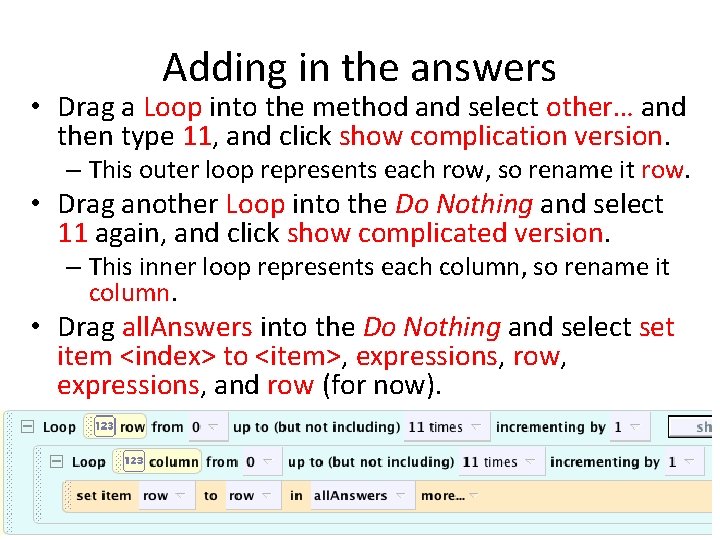
Adding in the answers • Drag a Loop into the method and select other… and then type 11, and click show complication version. – This outer loop represents each row, so rename it row. • Drag another Loop into the Do Nothing and select 11 again, and click show complicated version. – This inner loop represents each column, so rename it column. • Drag all. Answers into the Do Nothing and select set item <index> to <item>, expressions, row, expressions, and row (for now).
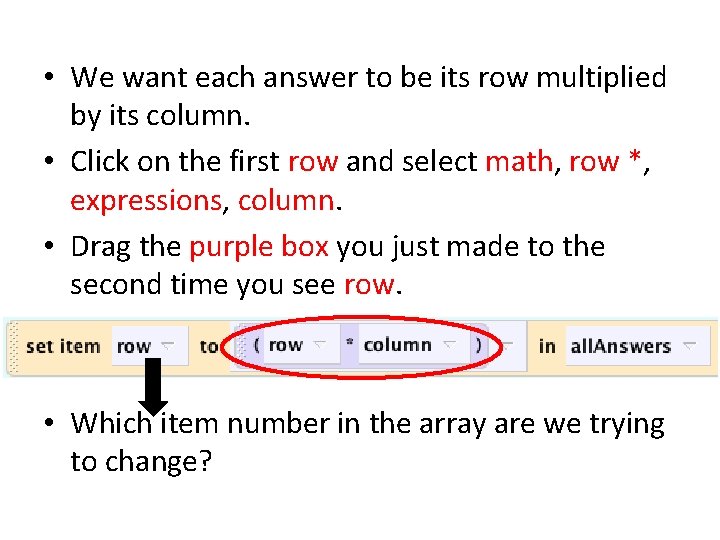
• We want each answer to be its row multiplied by its column. • Click on the first row and select math, row *, expressions, column. • Drag the purple box you just made to the second time you see row. • Which item number in the array are we trying to change?
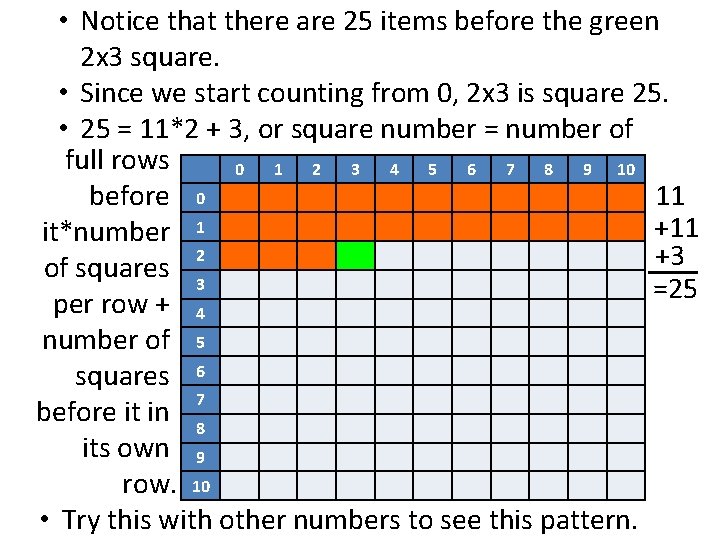
• Notice that there are 25 items before the green 2 x 3 square. • Since we start counting from 0, 2 x 3 is square 25. • 25 = 11*2 + 3, or square number = number of full rows 0 1 2 3 4 5 6 7 8 9 10 before 0 11 +11 it*number 1 2 +3 of squares 3 =25 per row + 4 number of 5 squares 6 7 before it in 8 its own 9 row. 10 • Try this with other numbers to see this pattern.
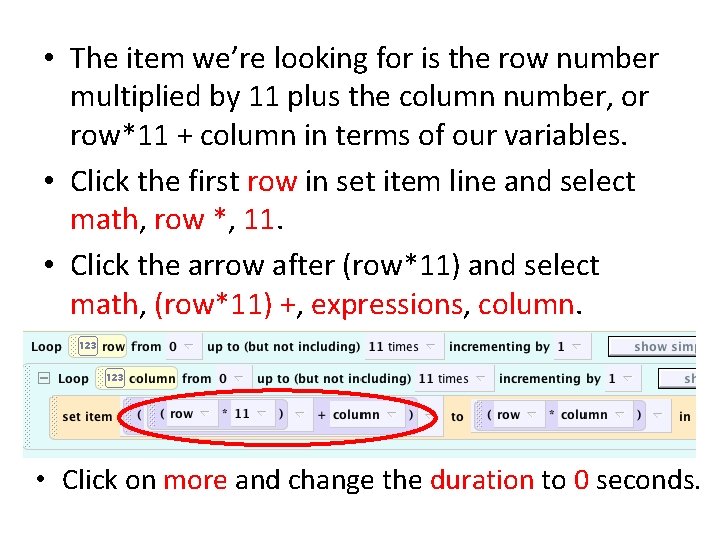
• The item we’re looking for is the row number multiplied by 11 plus the column number, or row*11 + column in terms of our variables. • Click the first row in set item line and select math, row *, 11. • Click the arrow after (row*11) and select math, (row*11) +, expressions, column. • Click on more and change the duration to 0 seconds.
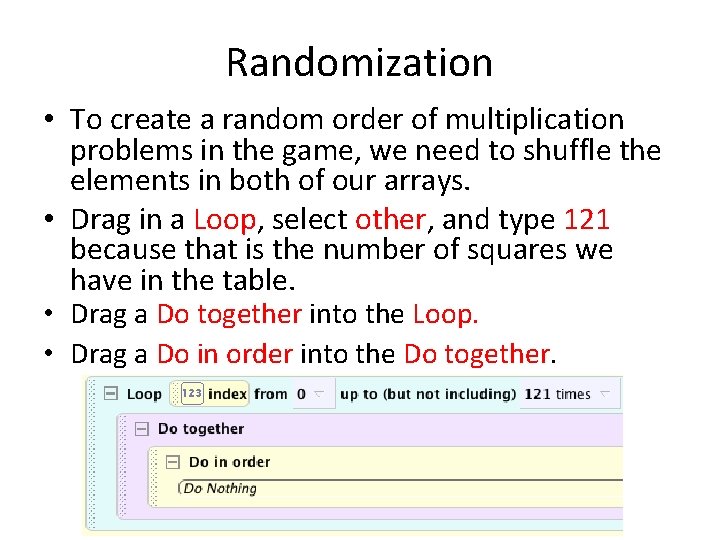
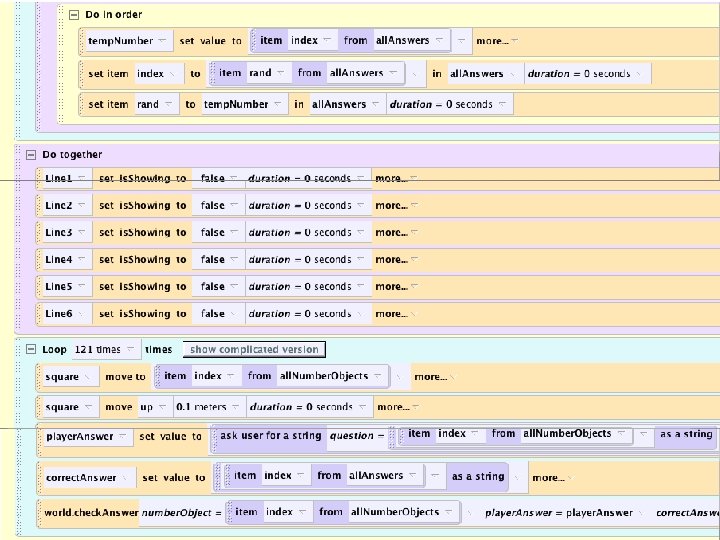
Randomization • To create a random order of multiplication problems in the game, we need to shuffle the elements in both of our arrays. • Drag in a Loop, select other, and type 121 because that is the number of squares we have in the table. • Drag a Do together into the Loop. • Drag a Do in order into the Do together.
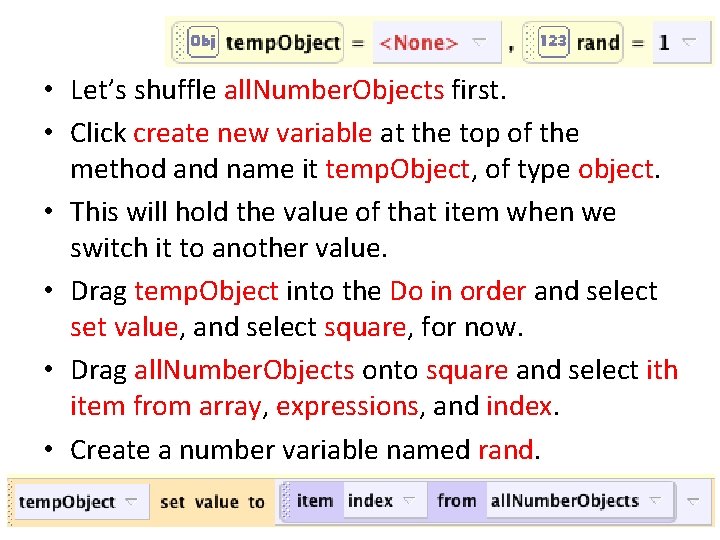
• Let’s shuffle all. Number. Objects first. • Click create new variable at the top of the method and name it temp. Object, of type object. • This will hold the value of that item when we switch it to another value. • Drag temp. Object into the Do in order and select set value, and select square, for now. • Drag all. Number. Objects onto square and select ith item from array, expressions, and index. • Create a number variable named rand.
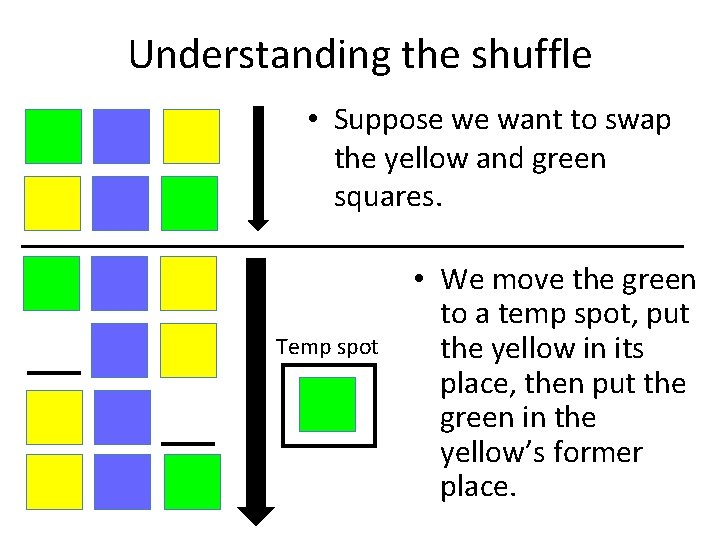
Understanding the shuffle • Suppose we want to swap the yellow and green squares. Temp spot • We move the green to a temp spot, put the yellow in its place, then put the green in the yellow’s former place.
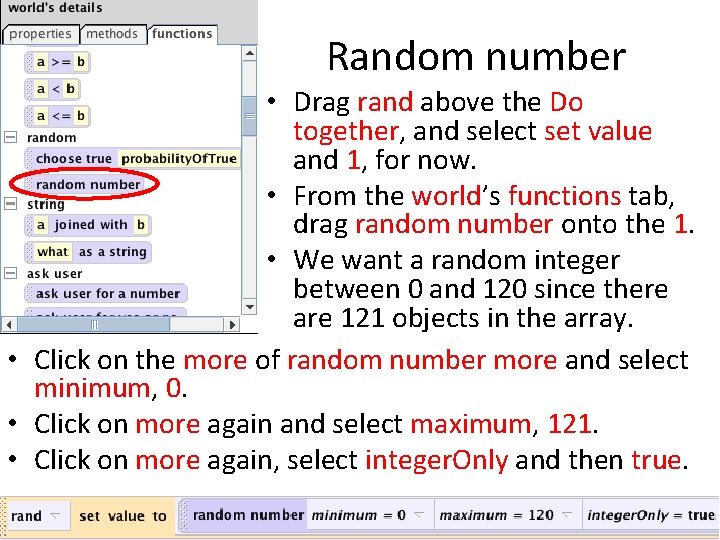
Random number • Drag rand above the Do together, and select set value and 1, for now. • From the world’s functions tab, drag random number onto the 1. • We want a random integer between 0 and 120 since there are 121 objects in the array. • Click on the more of random number more and select minimum, 0. • Click on more again and select maximum, 121. • Click on more again, select integer. Only and then true.
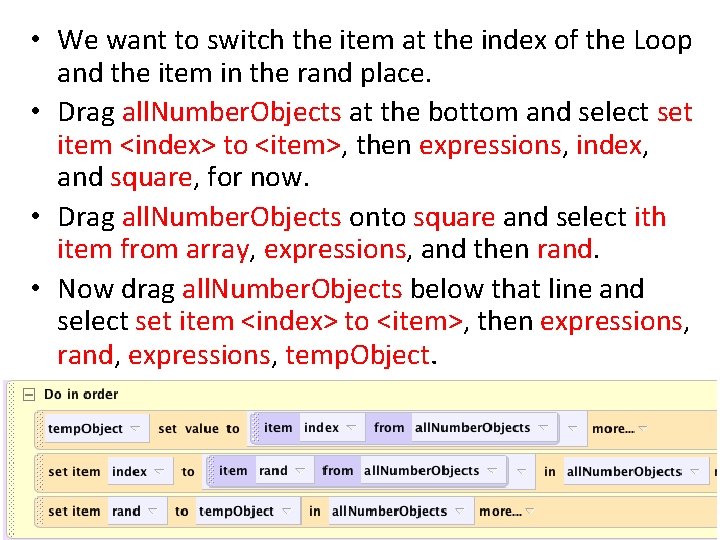
• We want to switch the item at the index of the Loop and the item in the rand place. • Drag all. Number. Objects at the bottom and select set item <index> to <item>, then expressions, index, and square, for now. • Drag all. Number. Objects onto square and select ith item from array, expressions, and then rand. • Now drag all. Number. Objects below that line and select set item <index> to <item>, then expressions, rand, expressions, temp. Object.
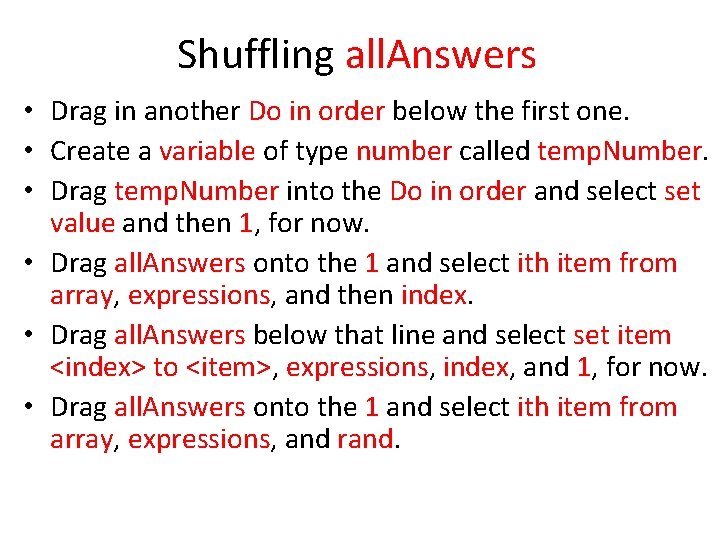
Shuffling all. Answers • Drag in another Do in order below the first one. • Create a variable of type number called temp. Number. • Drag temp. Number into the Do in order and select set value and then 1, for now. • Drag all. Answers onto the 1 and select ith item from array, expressions, and then index. • Drag all. Answers below that line and select set item <index> to <item>, expressions, index, and 1, for now. • Drag all. Answers onto the 1 and select ith item from array, expressions, and rand.
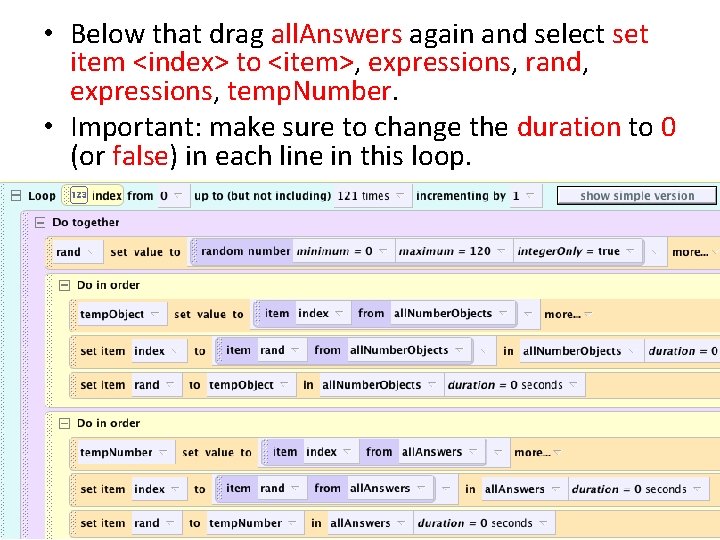
• Below that drag all. Answers again and select set item <index> to <item>, expressions, rand, expressions, temp. Number. • Important: make sure to change the duration to 0 (or false) in each line in this loop.
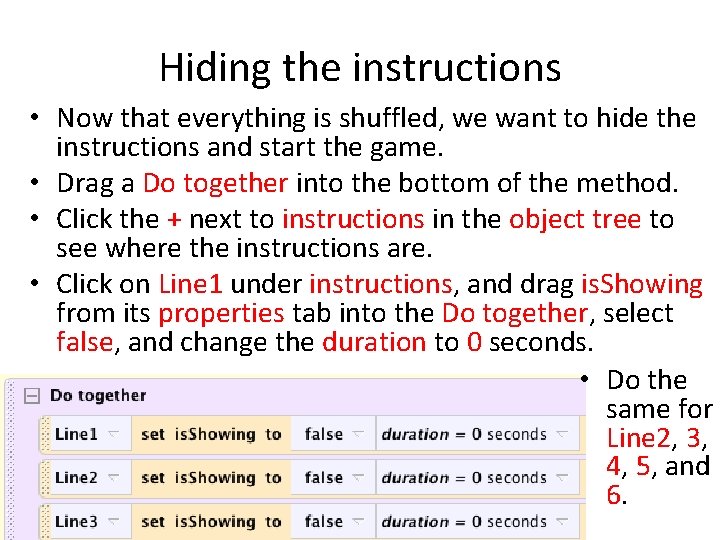
Hiding the instructions • Now that everything is shuffled, we want to hide the instructions and start the game. • Drag a Do together into the bottom of the method. • Click the + next to instructions in the object tree to see where the instructions are. • Click on Line 1 under instructions, and drag is. Showing from its properties tab into the Do together, select false, and change the duration to 0 seconds. • Do the same for Line 2, 3, 4, 5, and 6.
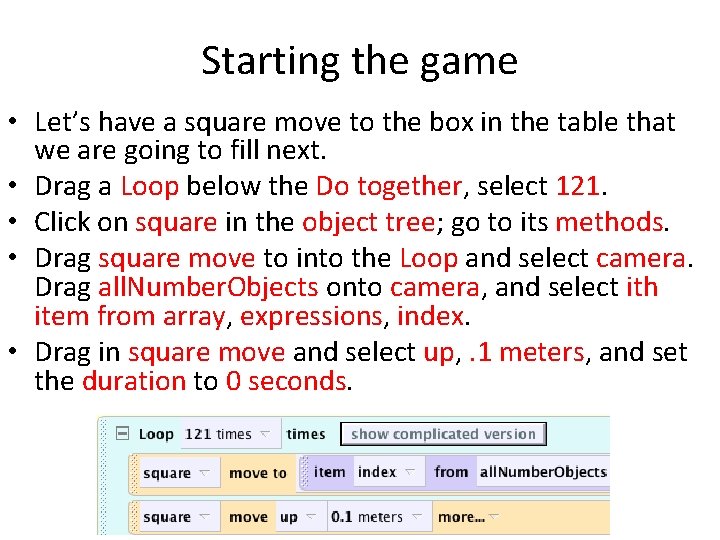
Starting the game • Let’s have a square move to the box in the table that we are going to fill next. • Drag a Loop below the Do together, select 121. • Click on square in the object tree; go to its methods. • Drag square move to into the Loop and select camera. Drag all. Number. Objects onto camera, and select ith item from array, expressions, index. • Drag in square move and select up, . 1 meters, and set the duration to 0 seconds.
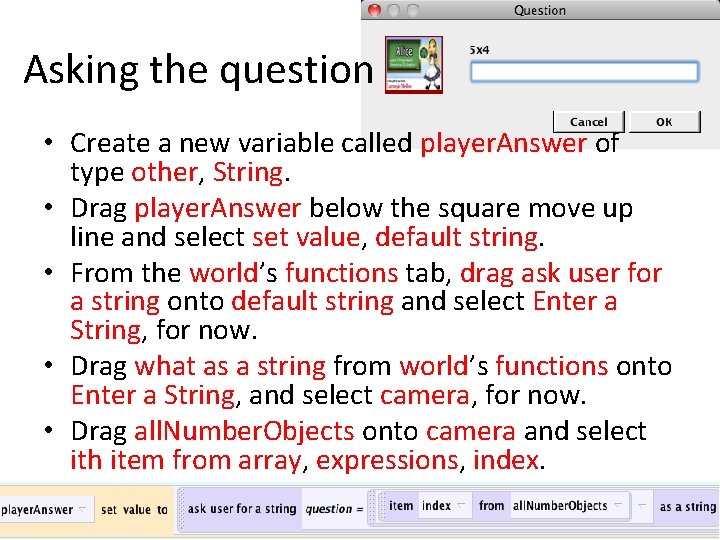
Asking the question • Create a new variable called player. Answer of type other, String. • Drag player. Answer below the square move up line and select set value, default string. • From the world’s functions tab, drag ask user for a string onto default string and select Enter a String, for now. • Drag what as a string from world’s functions onto Enter a String, and select camera, for now. • Drag all. Number. Objects onto camera and select ith item from array, expressions, index.
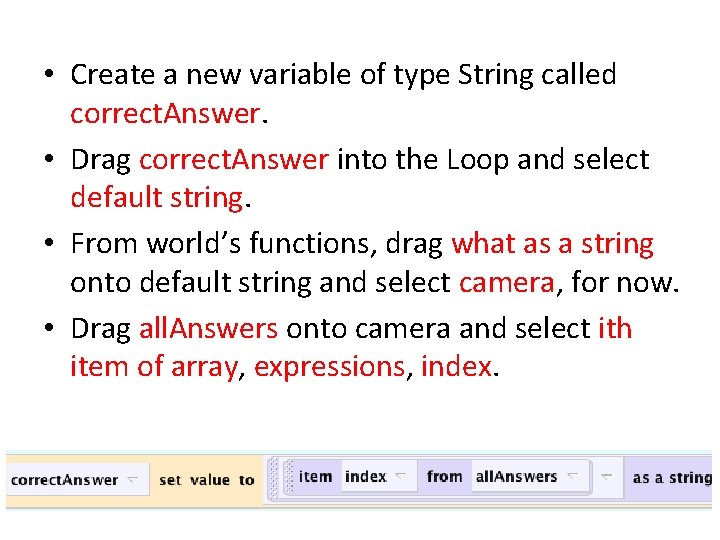
• Create a new variable of type String called correct. Answer. • Drag correct. Answer into the Loop and select default string. • From world’s functions, drag what as a string onto default string and select camera, for now. • Drag all. Answers onto camera and select ith item of array, expressions, index.
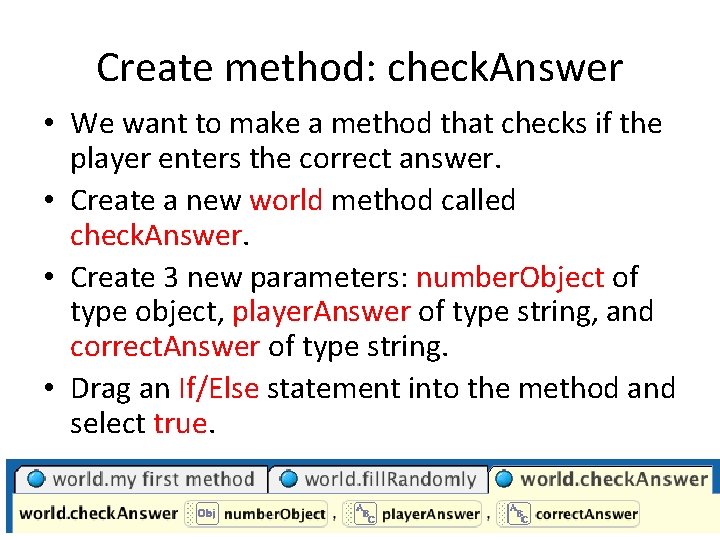
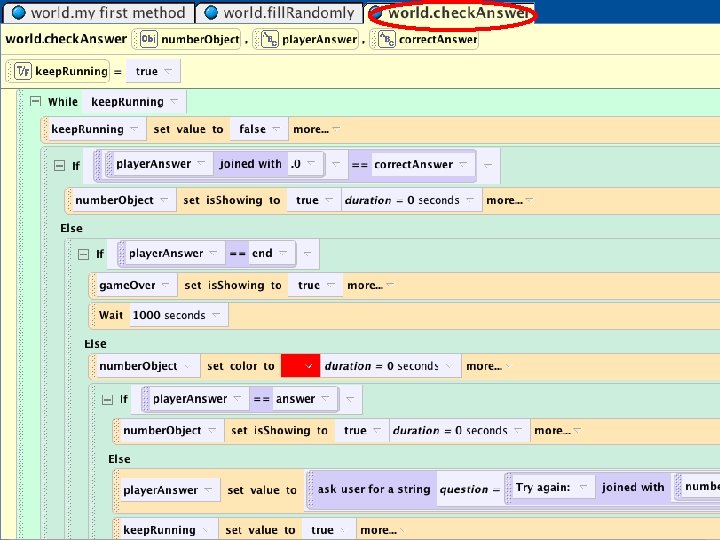
Create method: check. Answer • We want to make a method that checks if the player enters the correct answer. • Create a new world method called check. Answer. • Create 3 new parameters: number. Object of type object, player. Answer of type string, and correct. Answer of type string. • Drag an If/Else statement into the method and select true.
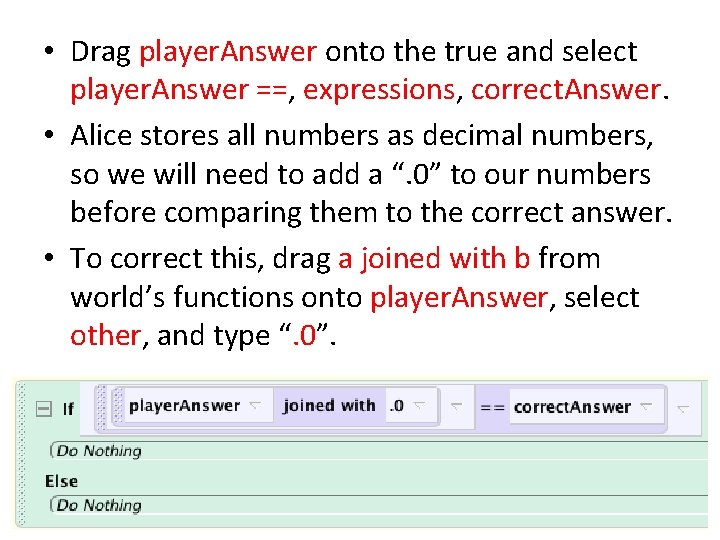
• Drag player. Answer onto the true and select player. Answer ==, expressions, correct. Answer. • Alice stores all numbers as decimal numbers, so we will need to add a “. 0” to our numbers before comparing them to the correct answer. • To correct this, drag a joined with b from world’s functions onto player. Answer, select other, and type “. 0”.
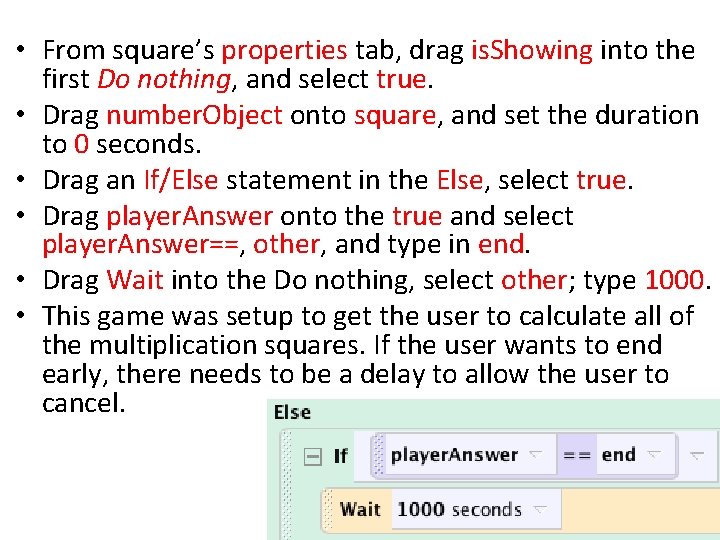
• From square’s properties tab, drag is. Showing into the first Do nothing, and select true. • Drag number. Object onto square, and set the duration to 0 seconds. • Drag an If/Else statement in the Else, select true. • Drag player. Answer onto the true and select player. Answer==, other, and type in end. • Drag Wait into the Do nothing, select other; type 1000. • This game was setup to get the user to calculate all of the multiplication squares. If the user wants to end early, there needs to be a delay to allow the user to cancel.
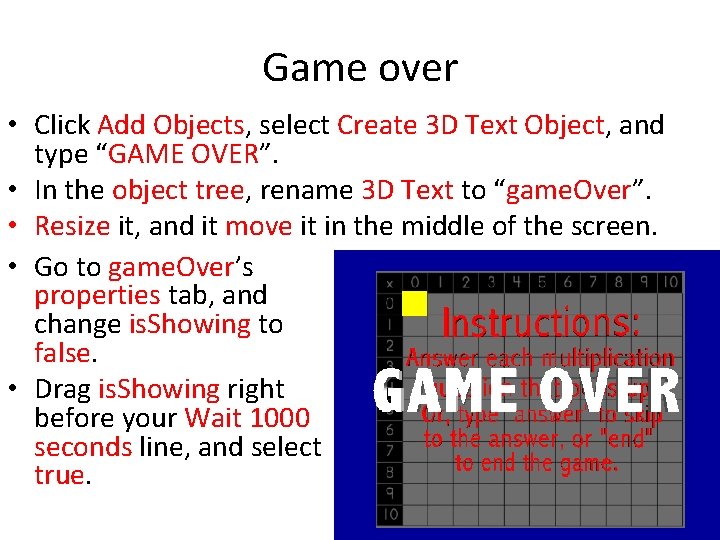
Game over • Click Add Objects, select Create 3 D Text Object, and type “GAME OVER”. • In the object tree, rename 3 D Text to “game. Over”. • Resize it, and it move it in the middle of the screen. • Go to game. Over’s properties tab, and change is. Showing to false. • Drag is. Showing right before your Wait 1000 seconds line, and select true.
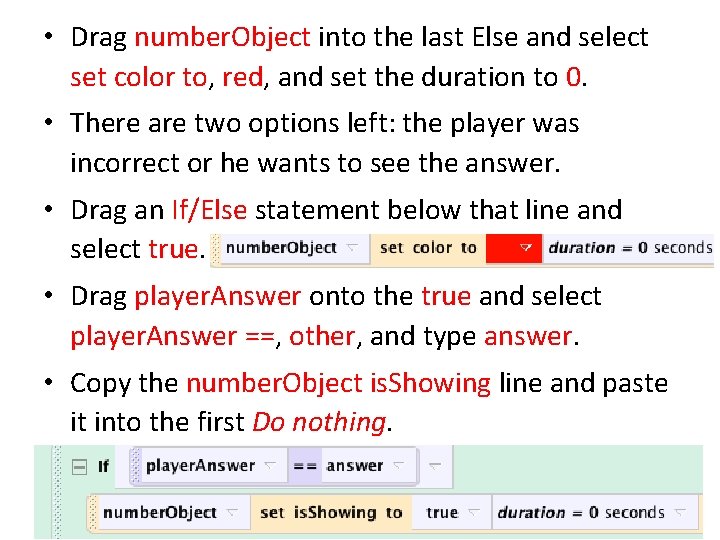
• Drag number. Object into the last Else and select set color to, red, and set the duration to 0. • There are two options left: the player was incorrect or he wants to see the answer. • Drag an If/Else statement below that line and select true. • Drag player. Answer onto the true and select player. Answer ==, other, and type answer. • Copy the number. Object is. Showing line and paste it into the first Do nothing.
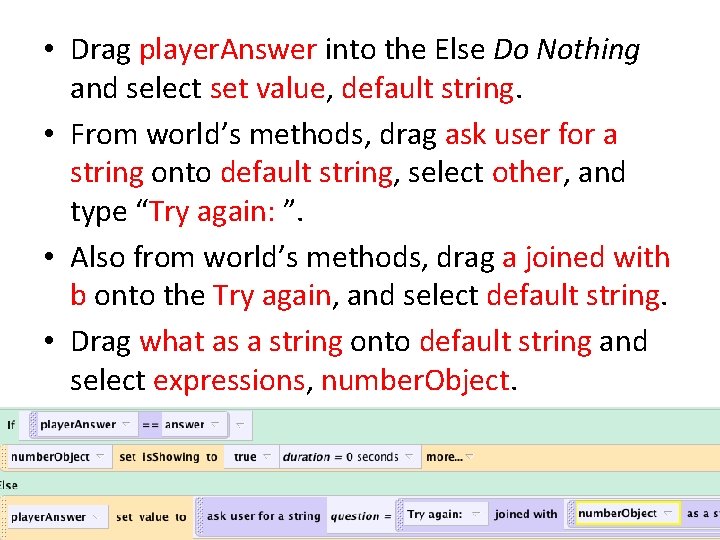
• Drag player. Answer into the Else Do Nothing and select set value, default string. • From world’s methods, drag ask user for a string onto default string, select other, and type “Try again: ”. • Also from world’s methods, drag a joined with b onto the Try again, and select default string. • Drag what as a string onto default string and select expressions, number. Object.
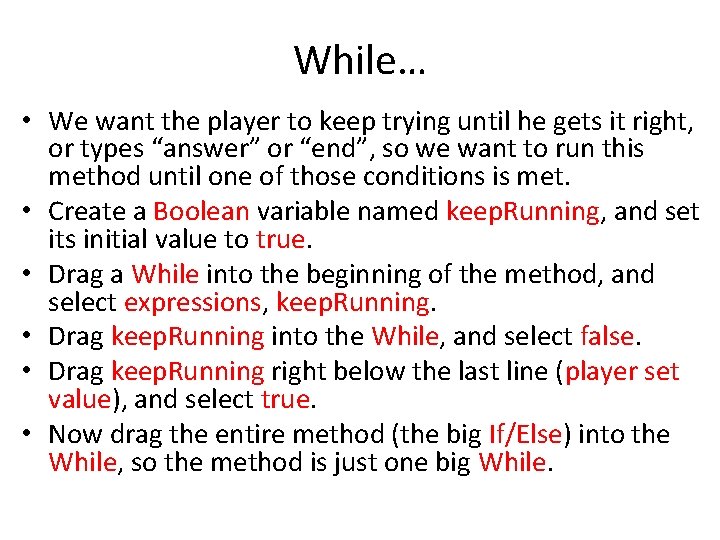
While… • We want the player to keep trying until he gets it right, or types “answer” or “end”, so we want to run this method until one of those conditions is met. • Create a Boolean variable named keep. Running, and set its initial value to true. • Drag a While into the beginning of the method, and select expressions, keep. Running. • Drag keep. Running into the While, and select false. • Drag keep. Running right below the last line (player set value), and select true. • Now drag the entire method (the big If/Else) into the While, so the method is just one big While.
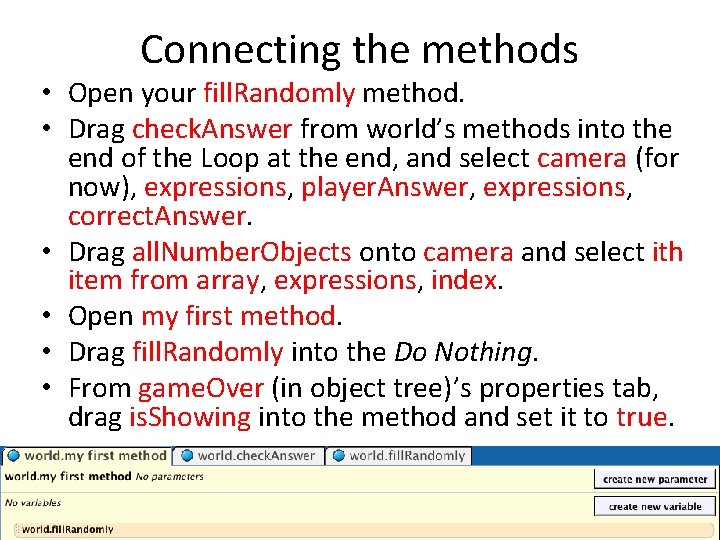
Connecting the methods • Open your fill. Randomly method. • Drag check. Answer from world’s methods into the end of the Loop at the end, and select camera (for now), expressions, player. Answer, expressions, correct. Answer. • Drag all. Number. Objects onto camera and select ith item from array, expressions, index. • Open my first method. • Drag fill. Randomly into the Do Nothing. • From game. Over (in object tree)’s properties tab, drag is. Showing into the method and set it to true.
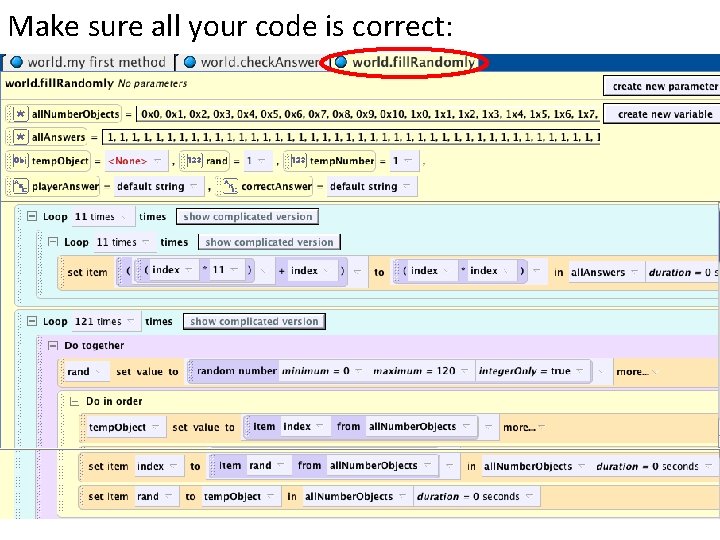
Make sure all your code is correct:
Finished!! Play your world and see how many multiplication problems you can answer correctly!
- Slides: 31