
Multimedia and Animation Symbols and Library Library Panel
Multimedia and Animation Symbols and Library
Library Panel (ctrl + L) • Stores symbols as well as assets; images, sounds, and video files that you’ve imported or created inside your Flash document. • Manages library’s contents. • Lets you view, sort, edit, and return information on symbols.
Working with the Library Panel a. Importing an item to the Library Panel b. Adding an item from Library panel to the stage
Symbols • As you create graphics on the Stage, you’ll realize that you may want to reuse those graphics several times throughout your movie. • Although you could copy and paste the artwork as many times as necessary, keeping track of each copy would be difficult because there’s no way of letting Flash know they are related.

Symbols • A better choice is to use symbols: reusable graphics, images, and animations stored in your document’s library. • A symbol is the original from which all copies are made; each copy of a symbol (called an instance) remains linked to the master symbol in the library.

Symbols • Changes made to the original symbol in your library affect all instances of that symbol throughout your movie.
Three Types of Symbols: • Graphic • Button • Movie Clip
Graphic Symbols • Are the most basic of the three types and can contain graphics, type, imported artwork, or bitmaps. • Use graphic symbols to store your artwork in the library or to get graphics ready for animation. • Graphic symbols can contain other graphics, so you can make more elaborate symbols by converting groups of graphic symbols into a single, new graphic symbol.
Button Symbols • These symbols are designed for use as controls, and they contain multiple states that react to a user’s mouse interaction, including clicks and rollovers.
Movie Clip Symbols • Movie clips can best be described as supersymbols. They can contain anything from other symbols to full animations, even sounds and video. • In addition, movie clip symbols have their own independent timelines, so they are capable of housing elaborate animations that can be treated as movies themselves.
Registration Points • A symbol’s registration point determines the measurement point by which the symbol is positioned on the Stage. • You specify a registration point when you first convert an object to a symbol, and you should choose a point subjectively based on the shape of the object.
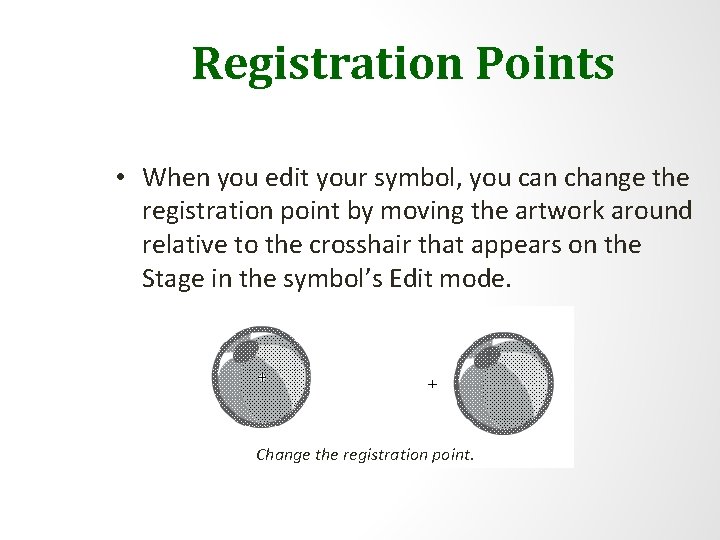
Registration Points • When you edit your symbol, you can change the registration point by moving the artwork around relative to the crosshair that appears on the Stage in the symbol’s Edit mode. Change the registration point.
CONVERTING OBJECTS TO SYMBOLS Any object (or group of objects) that can appear on the stage can be made into a symbol. Here’s how to do it: 1. Select one or more objects on the stage. The selected objects may include paths, text objects, bitmaps, or even other symbols 2. Choose Modify > Convert to Symbol, or press the F 8 key. The Convert to Symbol dialog box appears.
CONVERTING OBJECTS TO SYMBOLS 3. Enter a name for the symbol into the Name field. 4. Click the radio button for the type of symbol you want to create: a movie clip, button, or graphic. If you’re experimenting with symbols for the first time, the simplest choice is Graphic. 5. Click one of the small squares in the diagram next to the word Registration. The square you click will determine the symbol’s registration point 6. Think of the registration point as the handle by which Flash will hold the symbol when it’s in motion
Group or Symbol? Let’s say you have several objects on the stage that you want to make selectable with a single click. Should you group them, or convert them to a symbol? Here are some criteria to help you decide: Impermanence. If you want just to bring the objects together temporarily, and you plan to separate them later, it’s quicker to use a group than a symbol. Uniqueness. If a set of objects will appear only once in the movie, it’s more efficient to group them than to convert them to a symbol. Movement. If you plan to animate a set of objects, convert them to a symbol. (Both symbols and groups can be motion-tweened, but motiontweening symbols is preferable. )
End of Module 3
- Slides: 16