
MSOffice WORD Part 1 Microsoft Office 2010 Illustrated
- Slides: 36
MSOffice WORD Part 1 Microsoft® Office 2010: Illustrated Introductory ® 1
Objectives: • Identify parts of the Word screen • Name and save a document • Key text into a document • Edit text • Insert footer & header. • Adding a Hyperlinks. • Print a document • Close a document Microsoft® Office 2010: Illustrated Introductory 2
Microsoft Word 2010 is a word processing program that makes it easy to create a variety of professional-looking documents, from simple letters, research papers, business cards, CV, financial reports, and other documents that include multiple pages of text and formatting. Microsoft® Office 2010: Illustrated Introductory 3
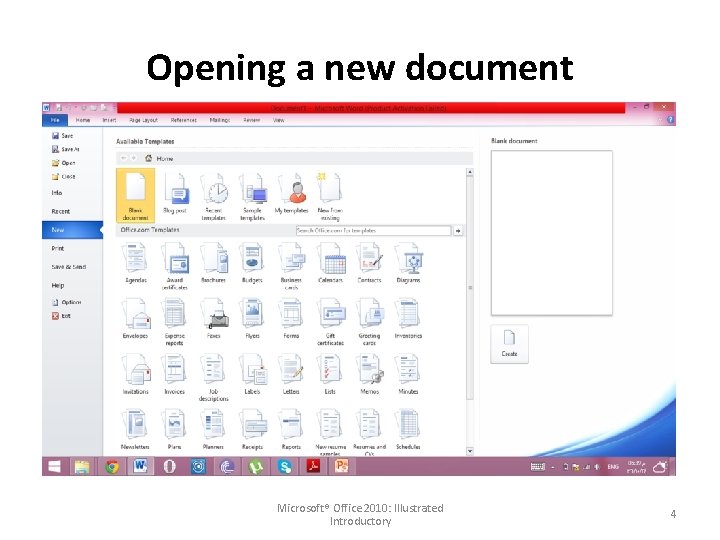
Opening a new document Microsoft® Office 2010: Illustrated Introductory 4
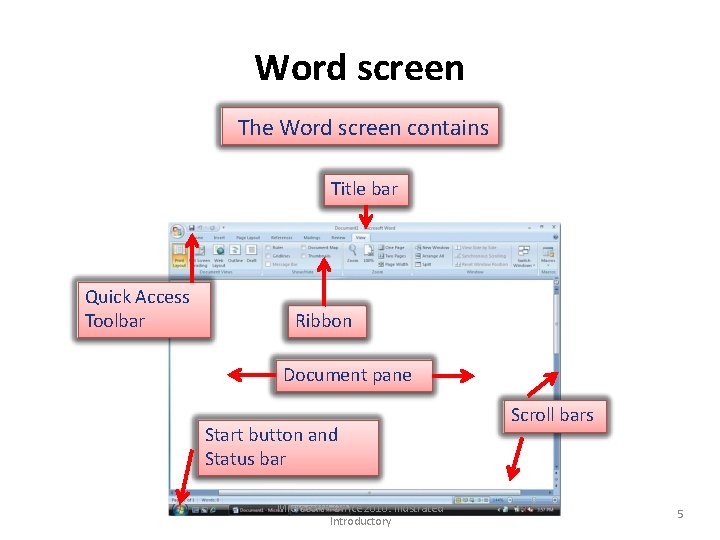
Word screen The Word screen contains Title bar Quick Access Toolbar Ribbon Document pane Start button and Status bar Microsoft® Office 2010: Illustrated Introductory Scroll bars 5
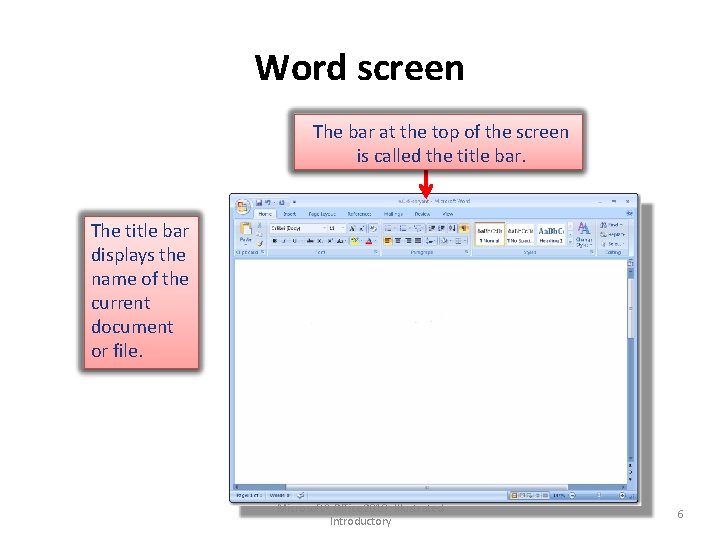
Word screen The bar at the top of the screen is called the title bar. The title bar displays the name of the current document or file. Microsoft® Office 2010: Illustrated Introductory 6
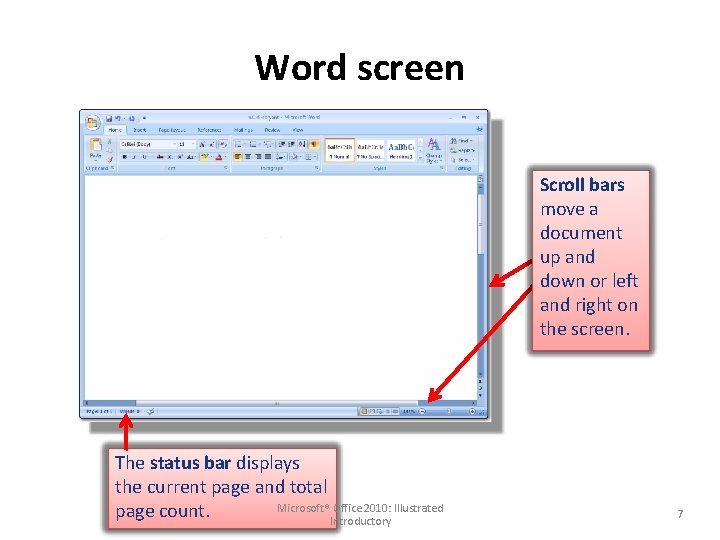
Word screen Scroll bars move a document up and down or left and right on the screen. The status bar displays the current page and total Microsoft® Office 2010: Illustrated page count. Introductory 7
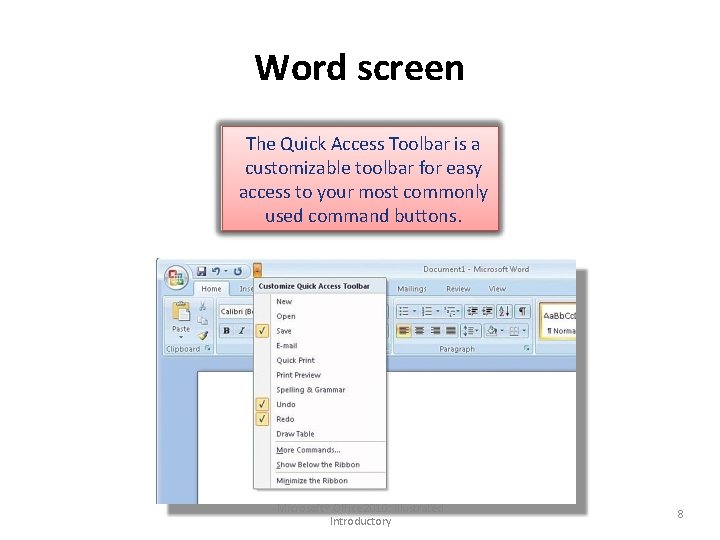
Word screen The Quick Access Toolbar is a customizable toolbar for easy access to your most commonly used command buttons. Microsoft® Office 2010: Illustrated Introductory 8
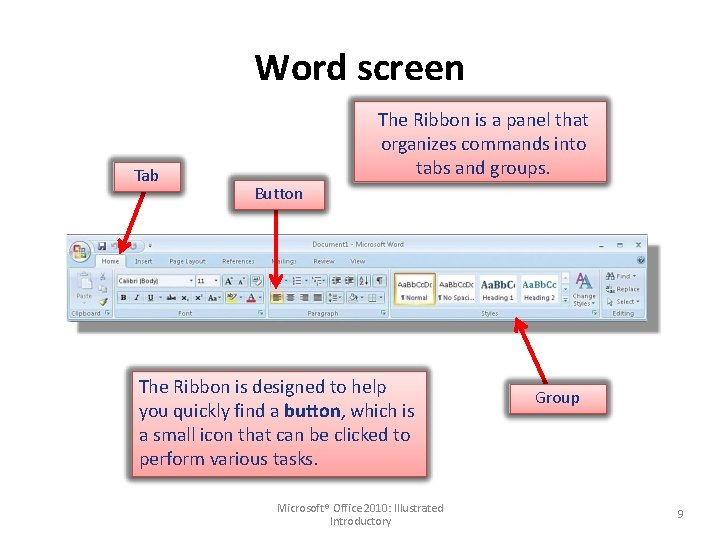
Word screen Tab The Ribbon is a panel that organizes commands into tabs and groups. Button The Ribbon is designed to help you quickly find a button, which is a small icon that can be clicked to perform various tasks. Microsoft® Office 2010: Illustrated Introductory Group 9
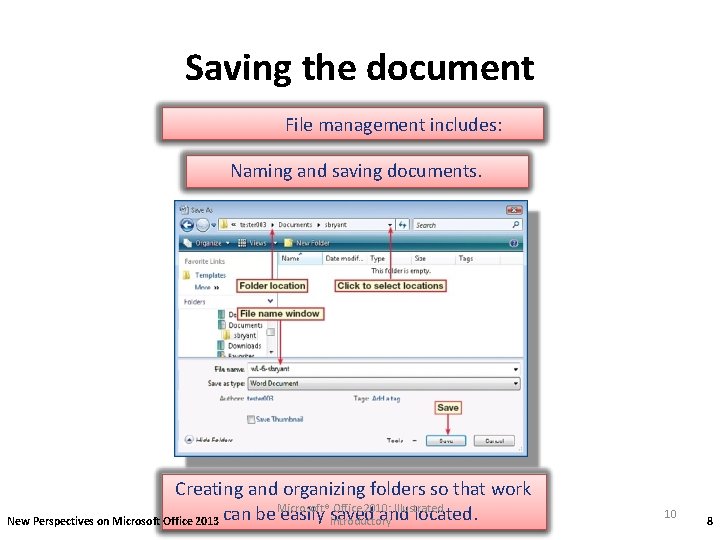
Saving the document File management includes: Naming and saving documents. Creating and organizing folders so that work Microsoft® Office 2010: Illustrated and located. Introductory New Perspectives on Microsoft Office 2013 can be easily saved 10 8
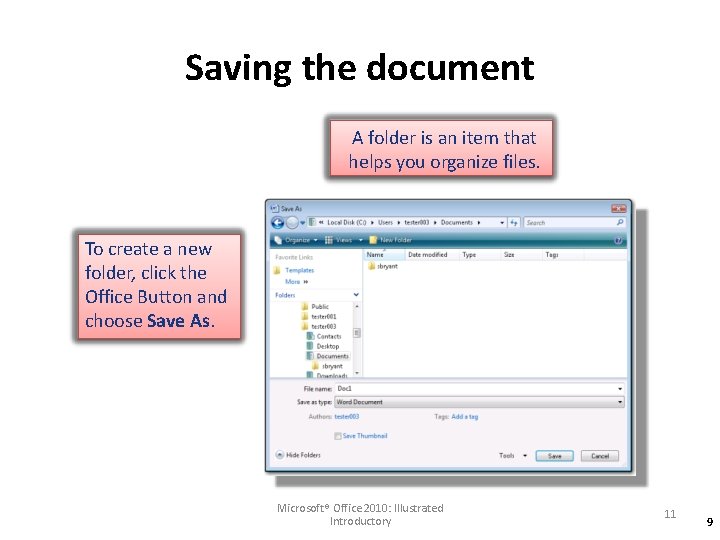
Saving the document A folder is an item that helps you organize files. To create a new folder, click the Office Button and choose Save As. Microsoft® Office 2010: Illustrated Introductory 11 9
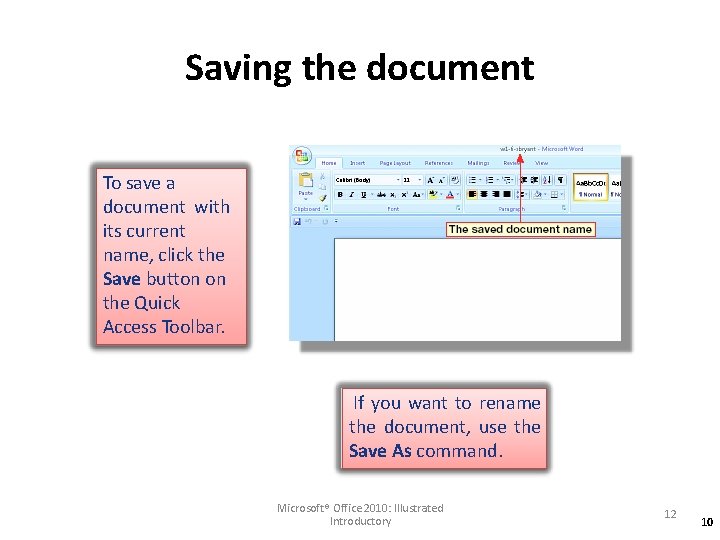
Saving the document To save a document with its current name, click the Save button on the Quick Access Toolbar. If you want to rename the document, use the Save As command. Microsoft® Office 2010: Illustrated Introductory 12 10
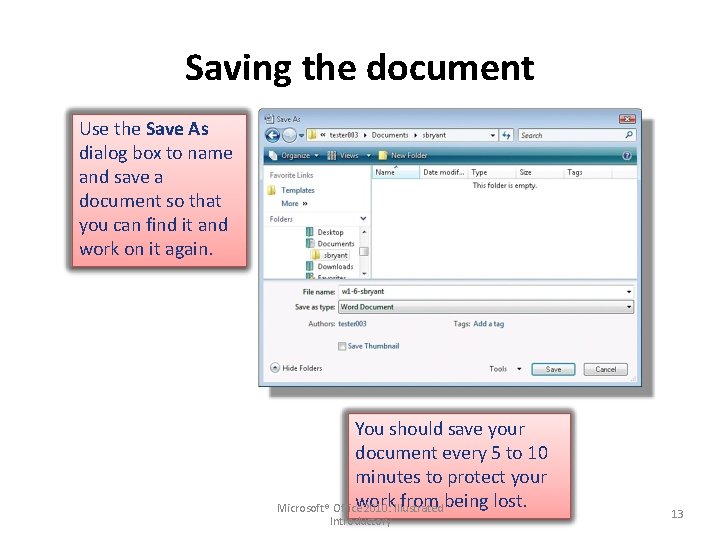
Saving the document Use the Save As dialog box to name and save a document so that you can find it and work on it again. You should save your document every 5 to 10 minutes to protect your work from being lost. Microsoft® Office 2010: Illustrated Introductory 13
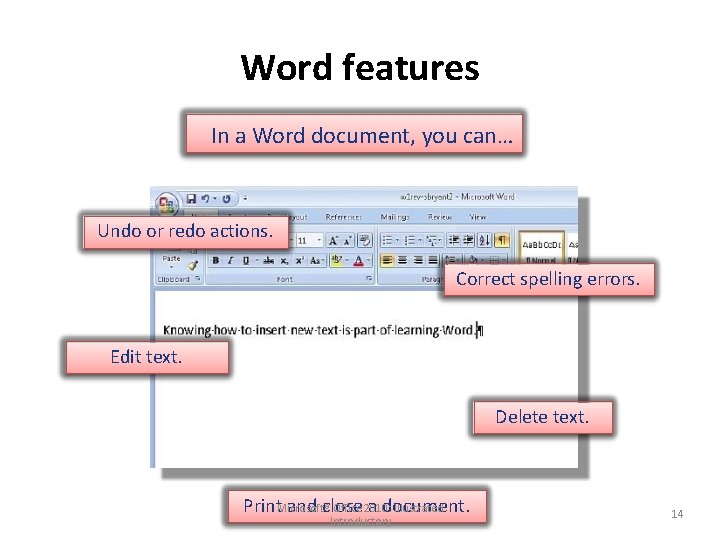
Word features In a Word document, you can… Undo or redo actions. Correct spelling errors. Edit text. Delete text. Print. Microsoft® and close a document. Office 2010: Illustrated Introductory 14
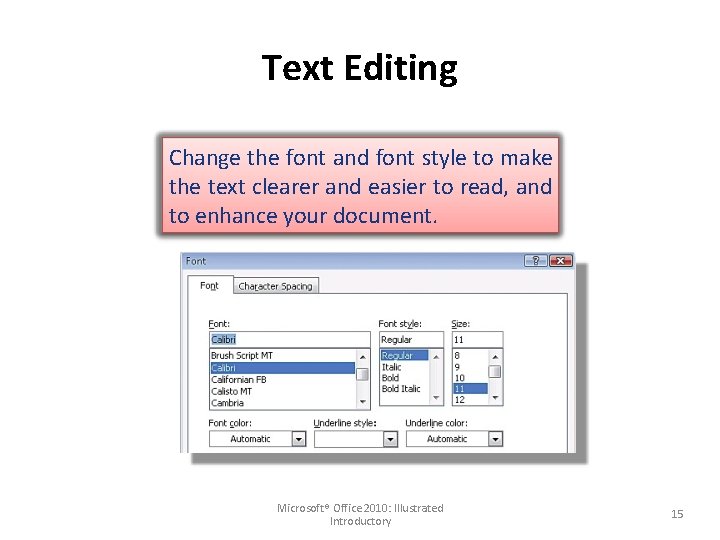
Text Editing Change the font and font style to make the text clearer and easier to read, and to enhance your document. Microsoft® Office 2010: Illustrated Introductory 15
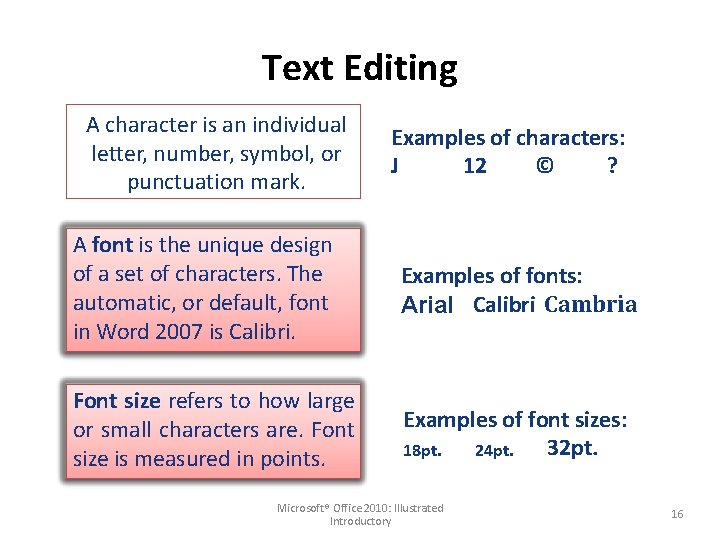
Text Editing A character is an individual letter, number, symbol, or punctuation mark. Examples of characters: J 12 © ? A font is the unique design of a set of characters. The automatic, or default, font in Word 2007 is Calibri. Examples of fonts: Arial Calibri Cambria Font size refers to how large or small characters are. Font size is measured in points. Examples of font sizes: 32 pt. 18 pt. 24 pt. Microsoft® Office 2010: Illustrated Introductory 16
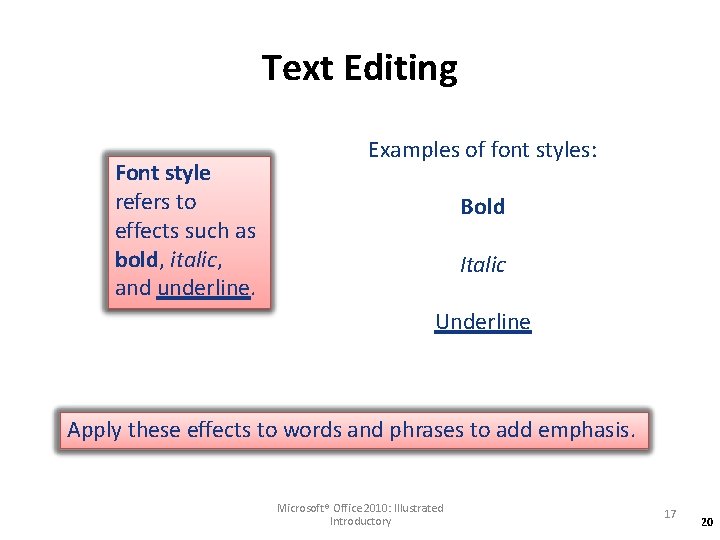
Text Editing Font style refers to effects such as bold, italic, and underline. Examples of font styles: Bold Italic Underline Apply these effects to words and phrases to add emphasis. Microsoft® Office 2010: Illustrated Introductory 17 20
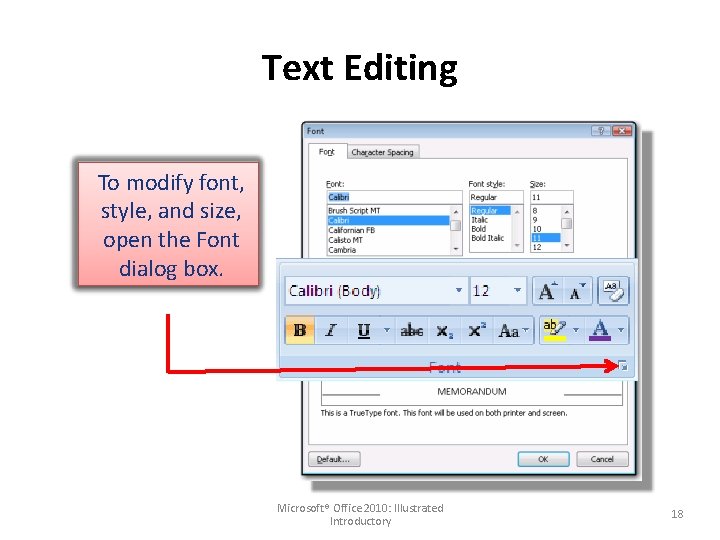
Text Editing To modify font, style, and size, open the Font dialog box. Microsoft® Office 2010: Illustrated Introductory 18
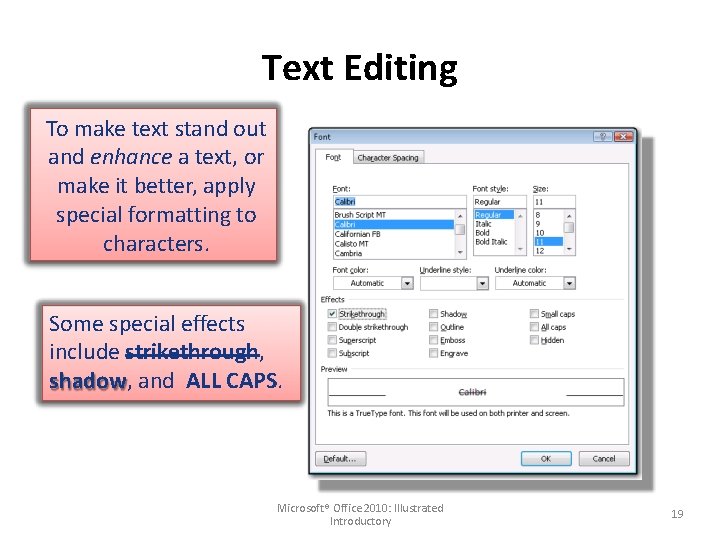
Text Editing To make text stand out and enhance a text, or make it better, apply special formatting to characters. Some special effects include strikethrough, shadow, and ALL CAPS. Microsoft® Office 2010: Illustrated Introductory 19
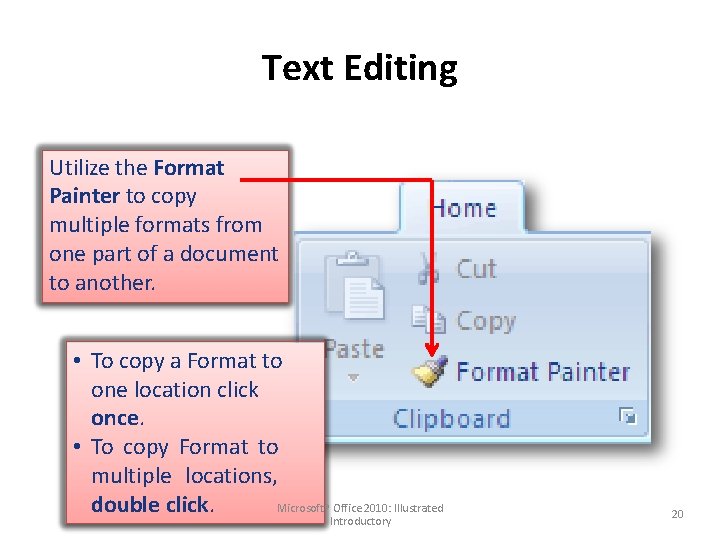
Text Editing Utilize the Format Painter to copy multiple formats from one part of a document to another. • To copy a Format to one location click once. • To copy Format to multiple locations, double click. Microsoft® Office 2010: Illustrated Introductory 20
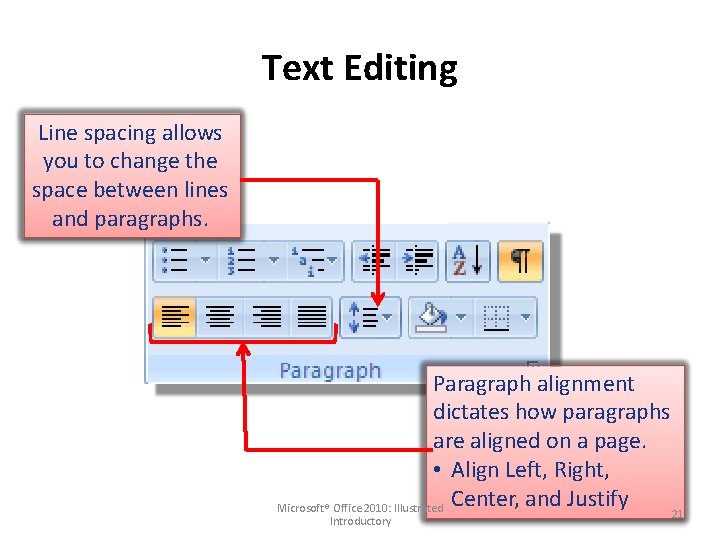
Text Editing Line spacing allows you to change the space between lines and paragraphs. Paragraph alignment dictates how paragraphs are aligned on a page. • Align Left, Right, Center, and Justify Microsoft® Office 2010: Illustrated Introductory 21
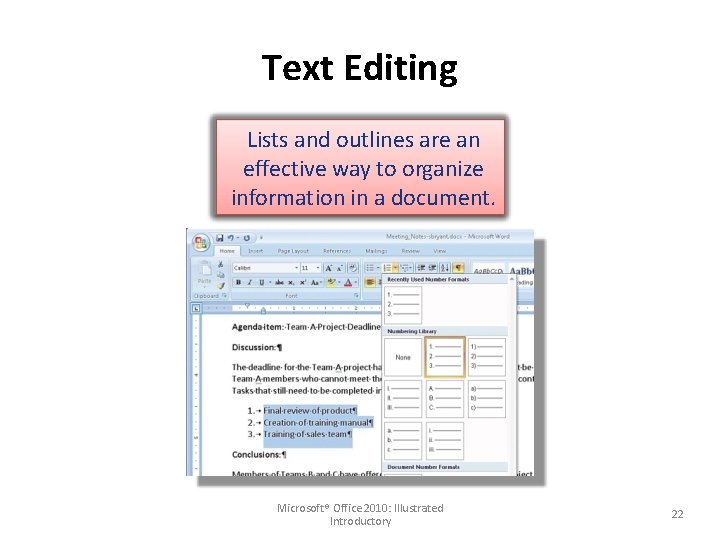
Text Editing Lists and outlines are an effective way to organize information in a document. Microsoft® Office 2010: Illustrated Introductory 22
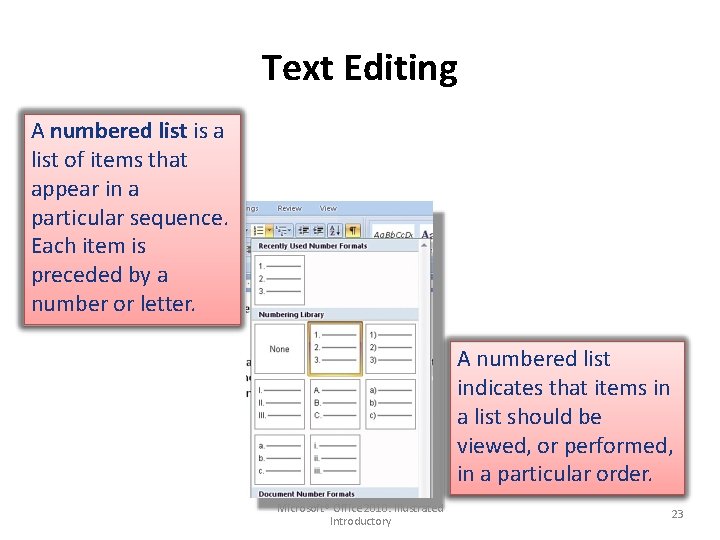
Text Editing A numbered list is a list of items that appear in a particular sequence. Each item is preceded by a number or letter. A numbered list indicates that items in a list should be viewed, or performed, in a particular order. Microsoft® Office 2010: Illustrated Introductory 23
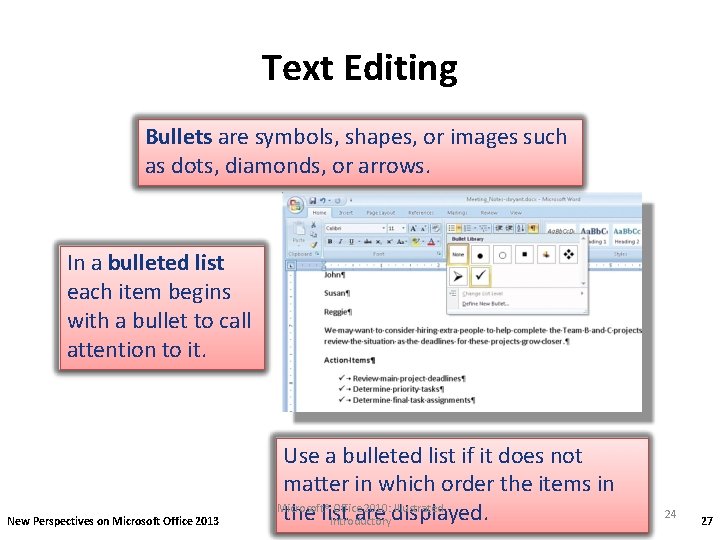
Text Editing Bullets are symbols, shapes, or images such as dots, diamonds, or arrows. In a bulleted list each item begins with a bullet to call attention to it. New Perspectives on Microsoft Office 2013 Use a bulleted list if it does not matter in which order the items in Microsoft® Office 2010: Illustrated the list are displayed. Introductory 24 27
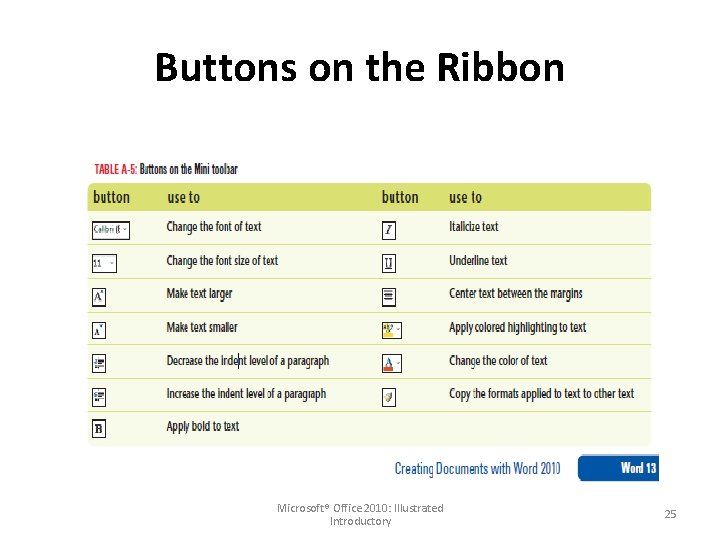
Buttons on the Ribbon Microsoft® Office 2010: Illustrated Introductory 25
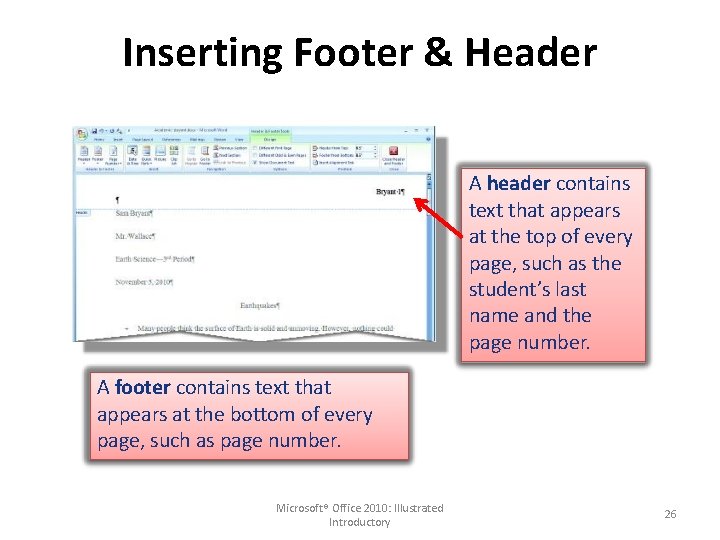
Inserting Footer & Header A header contains text that appears at the top of every page, such as the student’s last name and the page number. A footer contains text that appears at the bottom of every page, such as page number. Microsoft® Office 2010: Illustrated Introductory 26
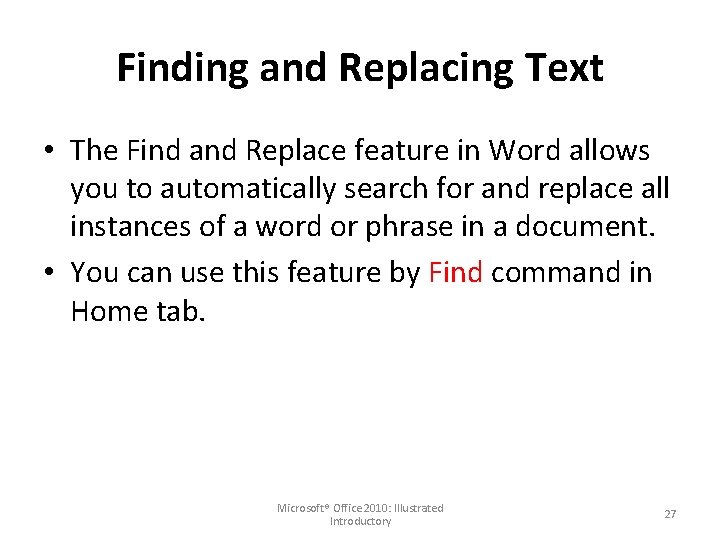
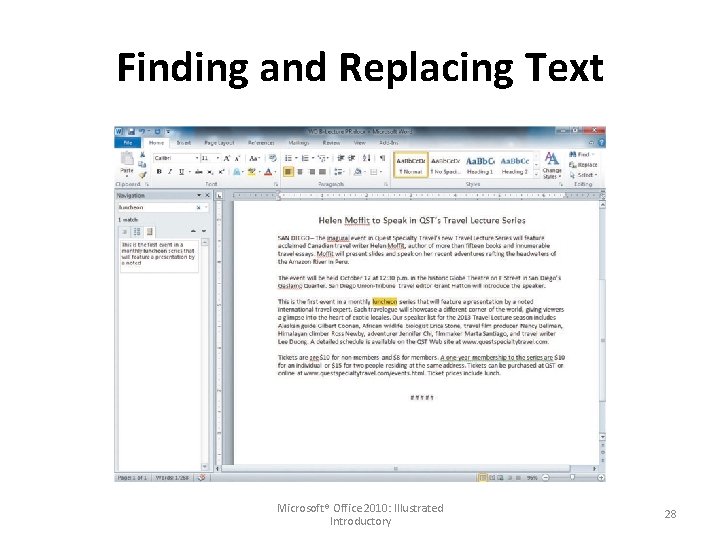
Finding and Replacing Text • The Find and Replace feature in Word allows you to automatically search for and replace all instances of a word or phrase in a document. • You can use this feature by Find command in Home tab. Microsoft® Office 2010: Illustrated Introductory 27
Finding and Replacing Text Microsoft® Office 2010: Illustrated Introductory 28
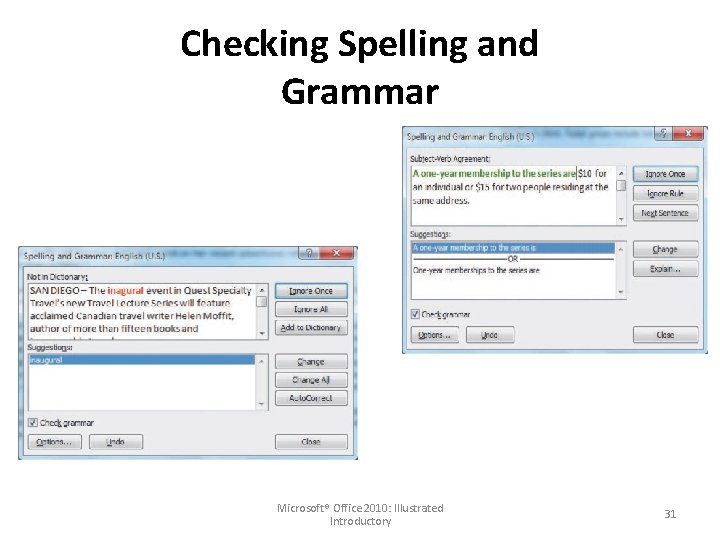
Checking Spelling and Grammar • When you finish typing and revising a document, you can use the Spelling and Grammar command to search the document for misspelled words and grammar errors. Microsoft® Office 2010: Illustrated Introductory 29
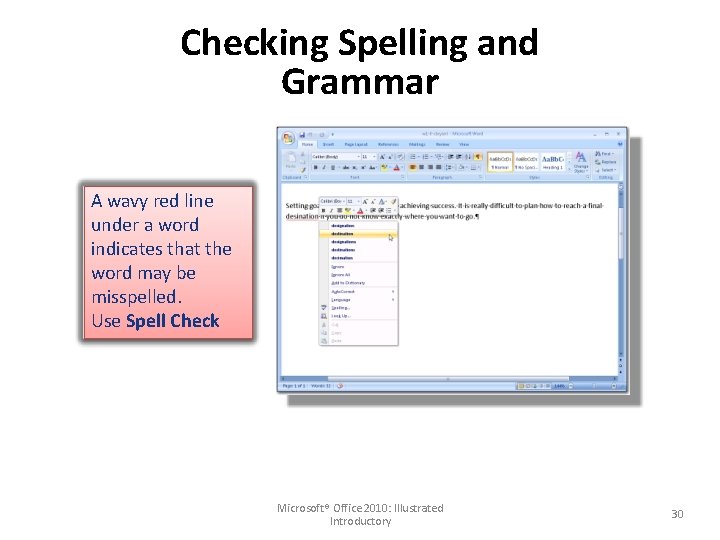
Checking Spelling and Grammar A wavy red line under a word indicates that the word may be misspelled. Use Spell Check Microsoft® Office 2010: Illustrated Introductory 30
Checking Spelling and Grammar Microsoft® Office 2010: Illustrated Introductory 31
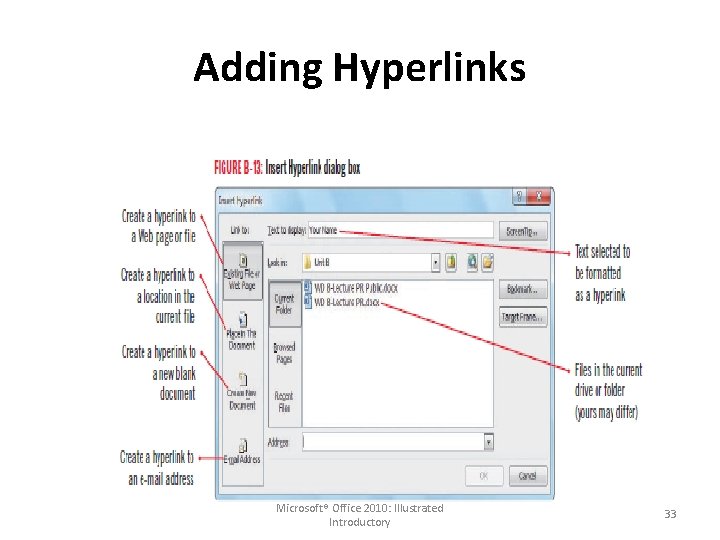
Adding Hyperlinks • A hyperlink is text or a graphic that, when clicked, “jumps” the viewer to a different location or program. • You can add Hyperlinks to specific text by Insert tab >> Hyperlink Microsoft® Office 2010: Illustrated Introductory 32
Adding Hyperlinks Microsoft® Office 2010: Illustrated Introductory 33
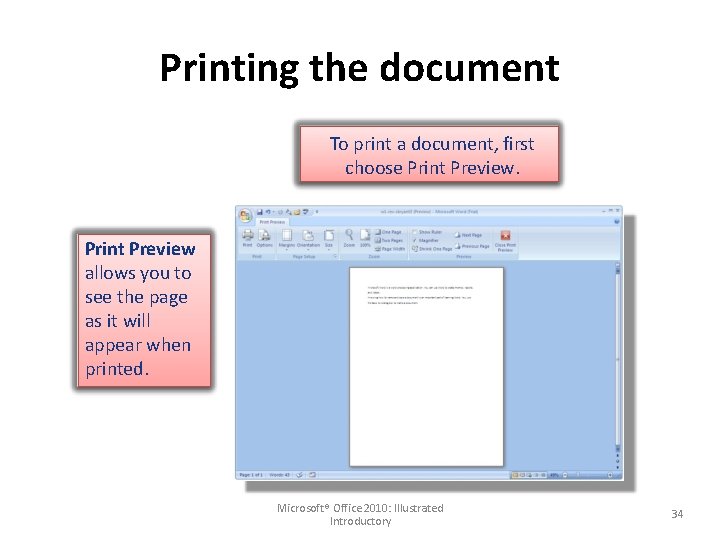
Printing the document To print a document, first choose Print Preview allows you to see the page as it will appear when printed. Microsoft® Office 2010: Illustrated Introductory 34
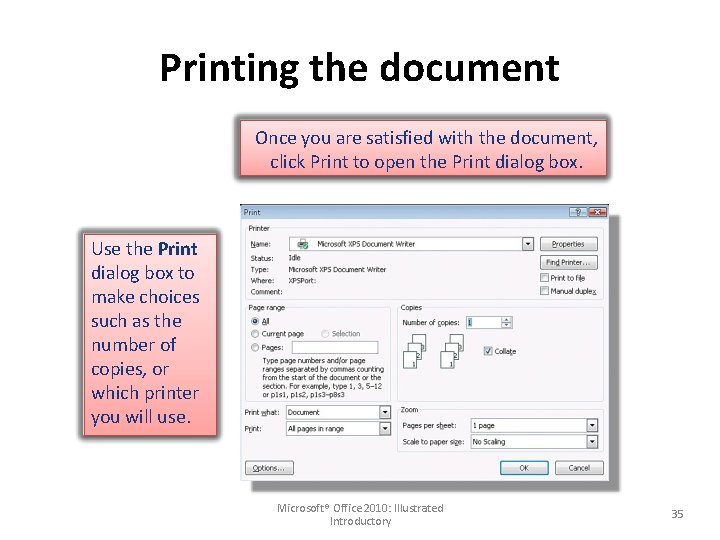
Printing the document Once you are satisfied with the document, click Print to open the Print dialog box. Use the Print dialog box to make choices such as the number of copies, or which printer you will use. Microsoft® Office 2010: Illustrated Introductory 35
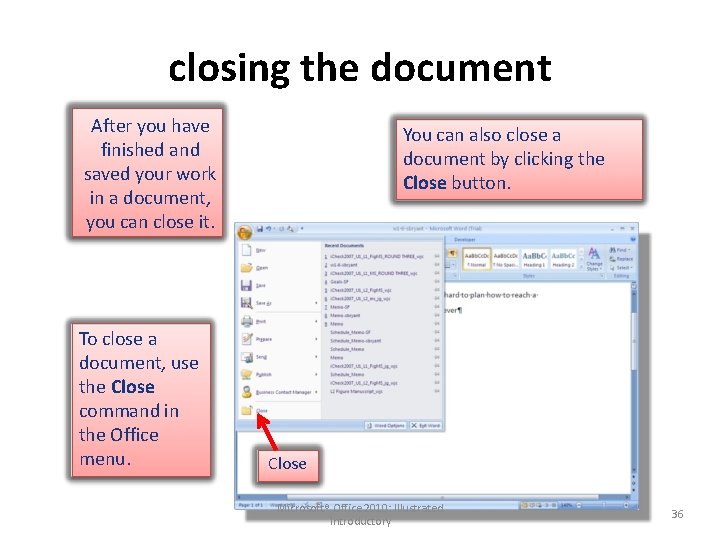
closing the document After you have finished and saved your work in a document, you can close it. To close a document, use the Close command in the Office menu. You can also close a document by clicking the Close button. Close Microsoft® Office 2010: Illustrated Introductory 36