
MSBuild Unveiled Peter Schneider MVP Visual Developer Visual
MSBuild Unveiled Peter Schneider MVP Visual Developer – Visual C# MCT, MCSD. NET, MCAD. NET, MCDBA ps@ugwa. net
In This Session… l MSBuild Architecture l MSBuild – File Format l MSBuild – Tips & Tricks
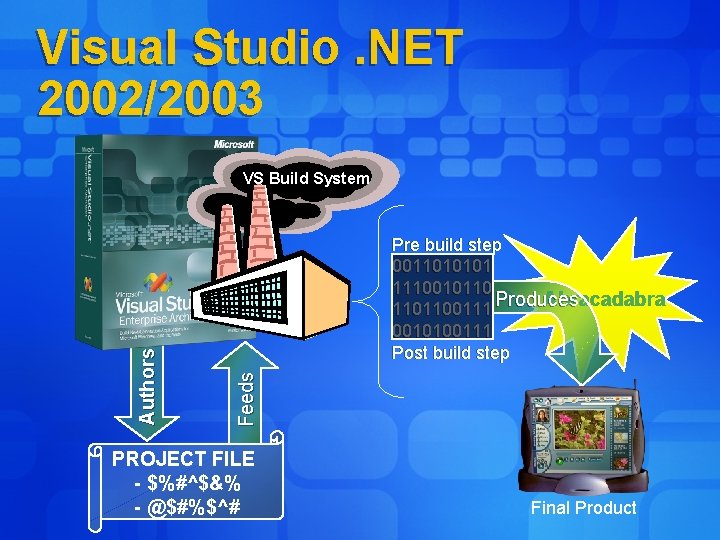
Visual Studio. NET 2002/2003 Pre build step 0011010101 1110010110 Abracadabra 1101100111 Produces 0010100111 Post build step F eeds A u th o r s VS Build System PROJECT FILE - $%#^$&% - @$#%$^# Final Product
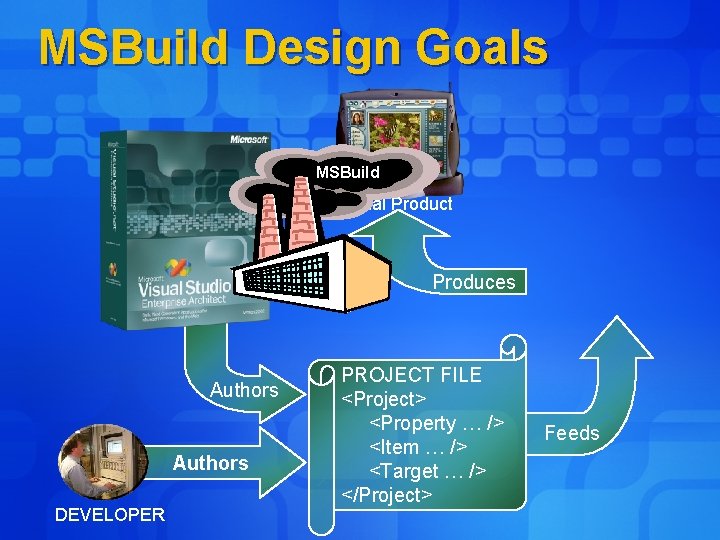
MSBuild Design Goals MSBuild Final Product Produces Authors DEVELOPER PROJECT FILE <Project> <Property … /> <Item … /> <Target … /> </Project> Feeds
MSBuild in 5 minutes l l l The underlying build engine in Visual Studio 2005 Fully open and published XML file format for describing build Visual Studio 2005 build is fully customizable You extend the build by writing managed code (tasks and loggers) You don’t need the IDE to build Visual Studio projects

MSBuild File Format <Project xmlns=“http: //schemas. microsoft. com/developer/msbuild/2003”> <Property. Group> <App. Name>My. Cool. App</App. Name> <Debug. Symbols>true</Debug. Symbols> <Output. Assembly>$(App. Name). exe</Output. Assembly> </Property. Group> <Item. Group> <Compile Include=“Hello. cs” /> <Compile Include=“Program. cs” /> </Item. Group> <Target Name=“Build”> <Message Text=“Executing Build Target for App $(App. Name)” /> <Csc Sources=“@(Compile)” Emit. Debug. Information=“$(Debug. Symbols)” Output. Assembly=“$(Output. Assembly)”/> </Target> <Import Project=“Microsoft. CSharp. targets” /> </Project>
MSBuild Key Components l Items l Properties l Targets l Tasks
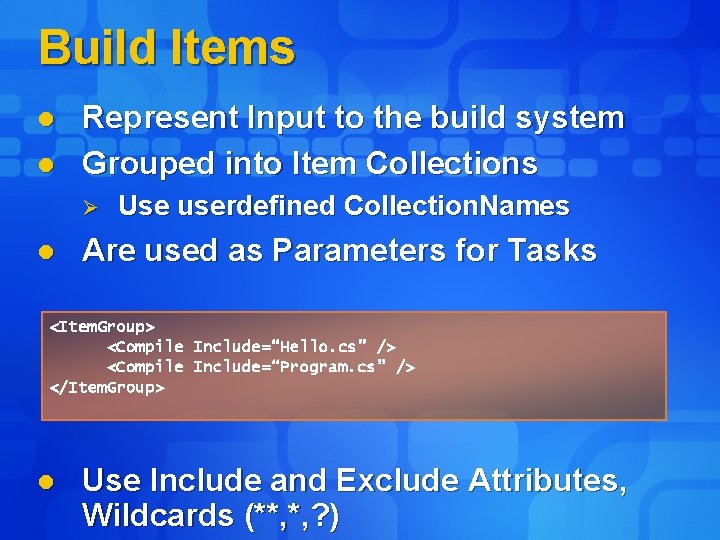
Build Items l l Represent Input to the build system Grouped into Item Collections Ø l Use userdefined Collection. Names Are used as Parameters for Tasks <Item. Group> <Compile Include=“Hello. cs” /> <Compile Include=“Program. cs” /> </Item. Group> l Use Include and Exclude Attributes, Wildcards (**, *, ? )
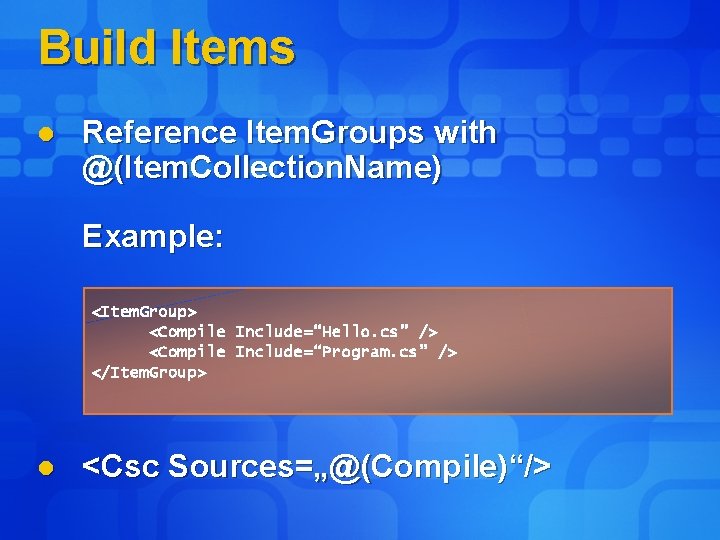
Build Items l Reference Item. Groups with @(Item. Collection. Name) Example: <Item. Group> <Compile Include=“Hello. cs” /> <Compile Include=“Program. cs” /> </Item. Group> l <Csc Sources=„@(Compile)“/>
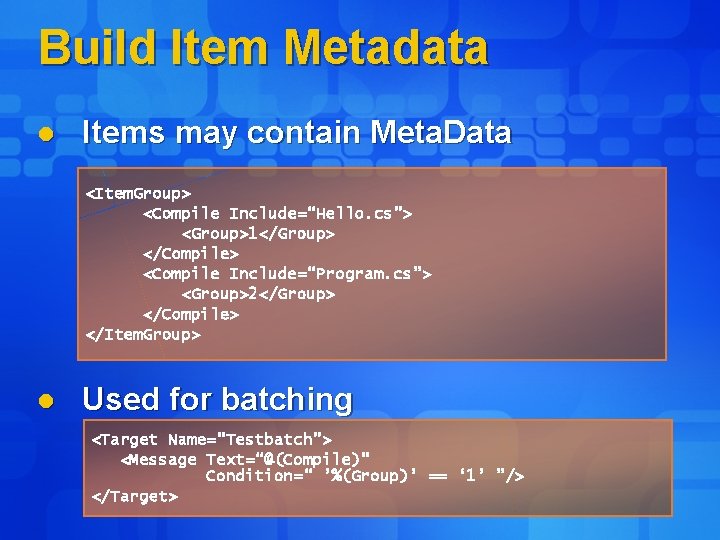
Build Item Metadata l Items may contain Meta. Data <Item. Group> <Compile Include=“Hello. cs”> <Group>1</Group> </Compile> <Compile Include=“Program. cs”> <Group>2</Group> </Compile> </Item. Group> l Used for batching <Target Name=“Testbatch”> <Message Text=“@(Compile)” Condition=“ ’%(Group)’ == ‘ 1’ ”/> </Target>
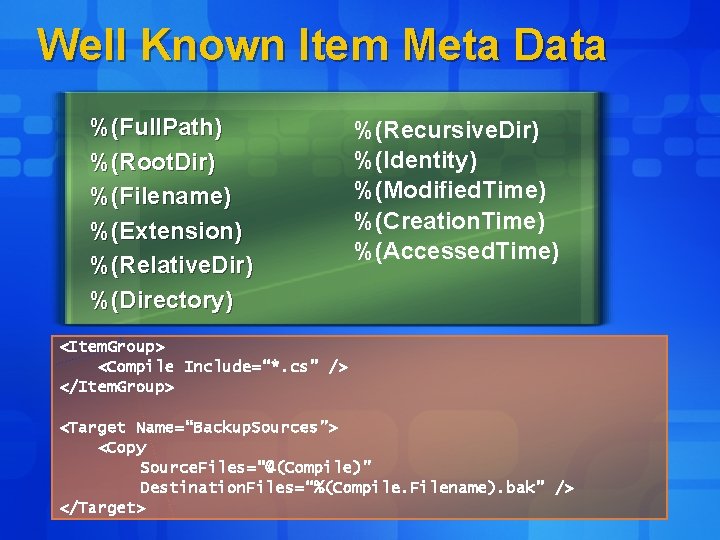
Well Known Item Meta Data %(Full. Path) %(Root. Dir) %(Filename) %(Extension) %(Relative. Dir) %(Directory) %(Recursive. Dir) %(Identity) %(Modified. Time) %(Creation. Time) %(Accessed. Time) <Item. Group> <Compile Include=“*. cs” /> </Item. Group> <Target Name=“Backup. Sources”> <Copy Source. Files=“@(Compile)” Destination. Files=“%(Compile. Filename). bak” /> </Target>
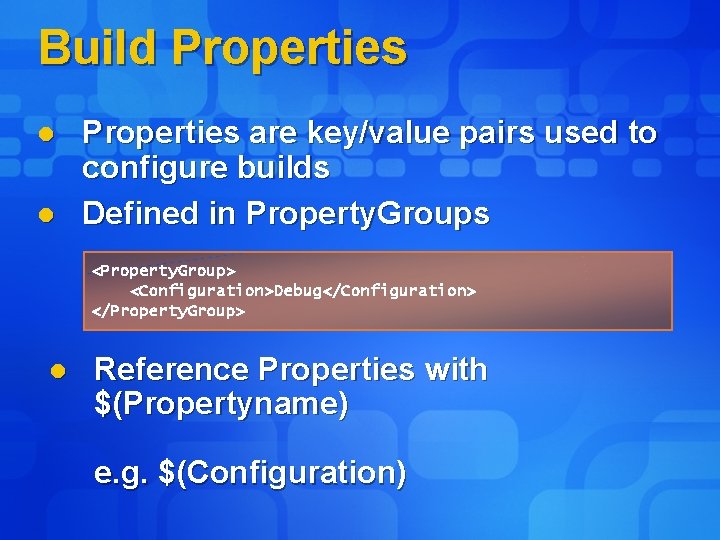
Build Properties l l Properties are key/value pairs used to configure builds Defined in Property. Groups <Property. Group> <Configuration>Debug</Configuration> </Property. Group> l Reference Properties with $(Propertyname) e. g. $(Configuration)
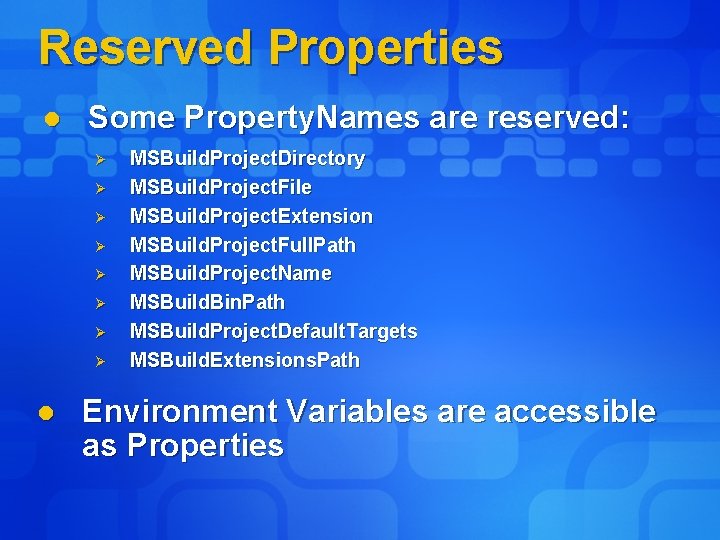
Reserved Properties l Some Property. Names are reserved: Ø Ø Ø Ø l MSBuild. Project. Directory MSBuild. Project. File MSBuild. Project. Extension MSBuild. Project. Full. Path MSBuild. Project. Name MSBuild. Bin. Path MSBuild. Project. Default. Targets MSBuild. Extensions. Path Environment Variables are accessible as Properties
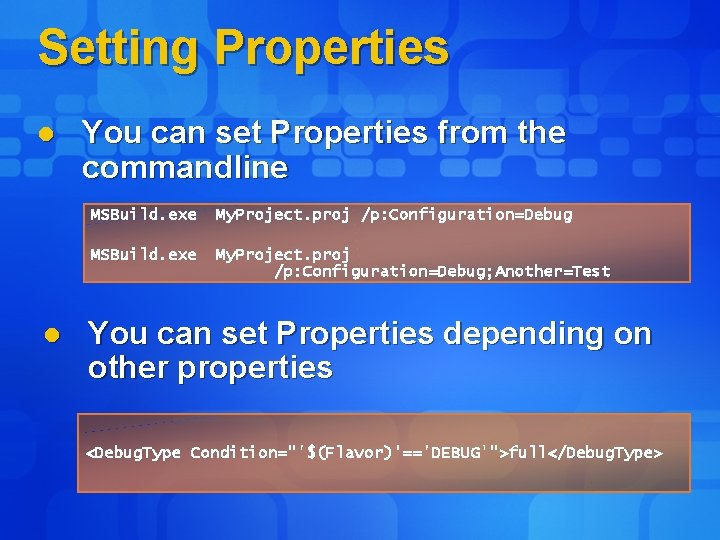
Setting Properties l l You can set Properties from the commandline MSBuild. exe My. Project. proj /p: Configuration=Debug; Another=Test You can set Properties depending on other properties <Debug. Type Condition="'$(Flavor)'=='DEBUG'">full</Debug. Type>
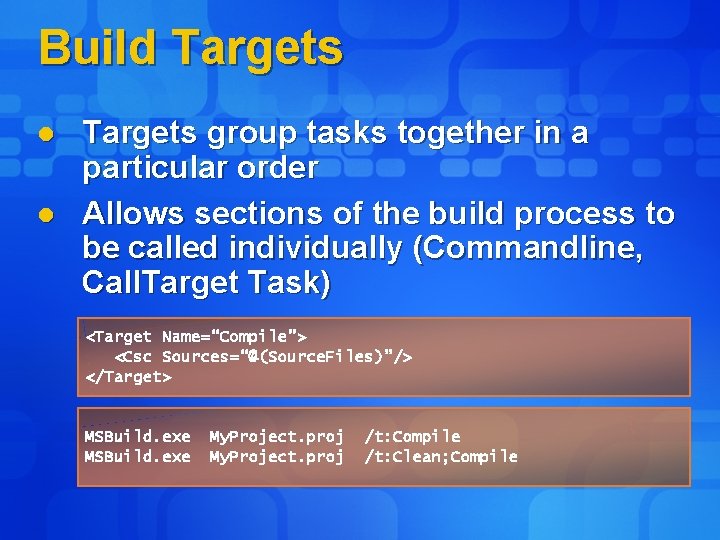
Build Targets l l Targets group tasks together in a particular order Allows sections of the build process to be called individually (Commandline, Call. Target Task) <Target Name=“Compile”> <Csc Sources=“@(Source. Files)”/> </Target> MSBuild. exe My. Project. proj /t: Compile /t: Clean; Compile
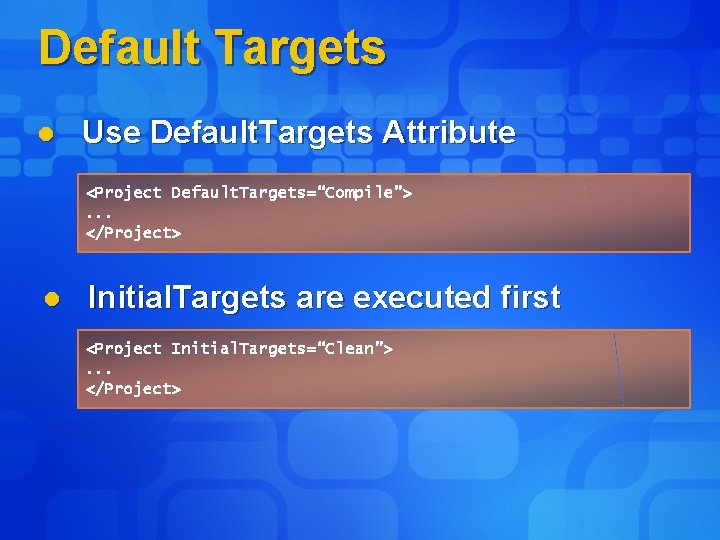
Default Targets l Use Default. Targets Attribute <Project Default. Targets=“Compile”>. . . </Project> l Initial. Targets are executed first <Project Initial. Targets=“Clean”>. . . </Project>
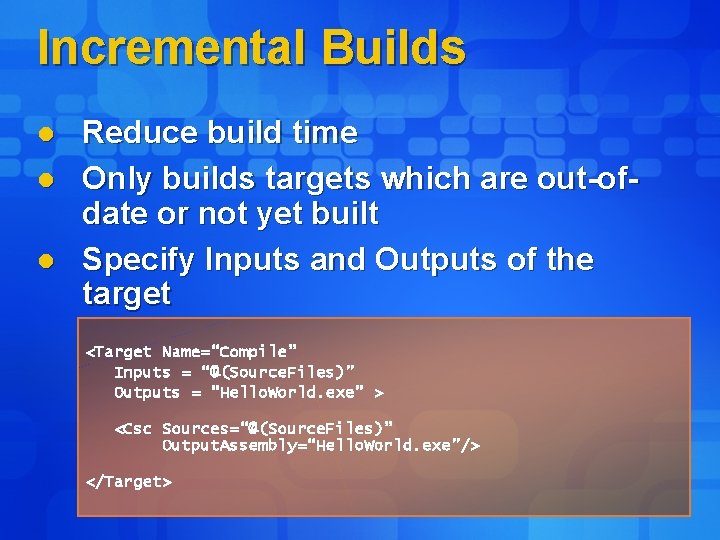
Incremental Builds l l l Reduce build time Only builds targets which are out-ofdate or not yet built Specify Inputs and Outputs of the target <Target Name=“Compile” Inputs = “@(Source. Files)” Outputs = “Hello. World. exe” > <Csc Sources=“@(Source. Files)” Output. Assembly=“Hello. World. exe”/> </Target>
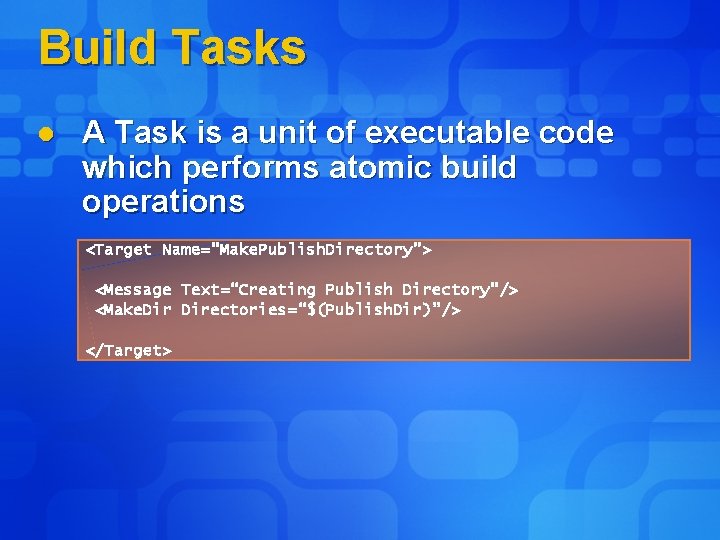
Build Tasks l A Task is a unit of executable code which performs atomic build operations <Target Name=“Make. Publish. Directory”> <Message Text=“Creating Publish Directory”/> <Make. Directories=“$(Publish. Dir)”/> </Target>
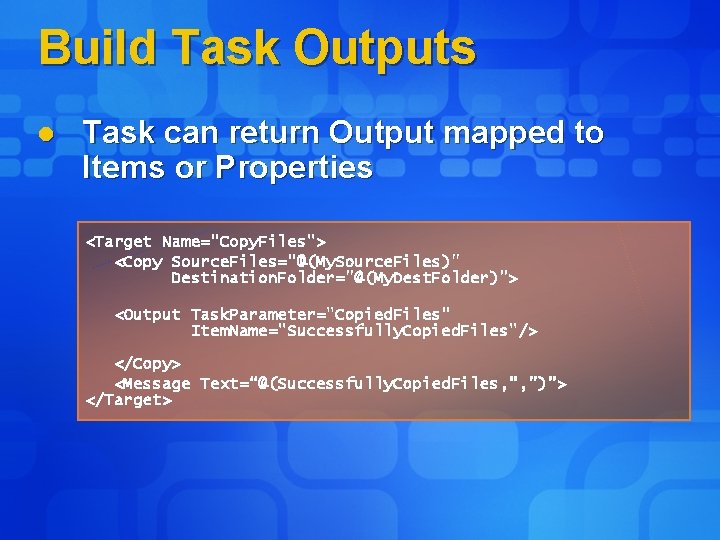
Build Task Outputs l Task can return Output mapped to Items or Properties <Target Name="Copy. Files"> <Copy Source. Files="@(My. Source. Files)" Destination. Folder="@(My. Dest. Folder)"> <Output Task. Parameter="Copied. Files" Item. Name="Successfully. Copied. Files"/> </Copy> <Message Text=“@(Successfully. Copied. Files, ”, ”)”> </Target>
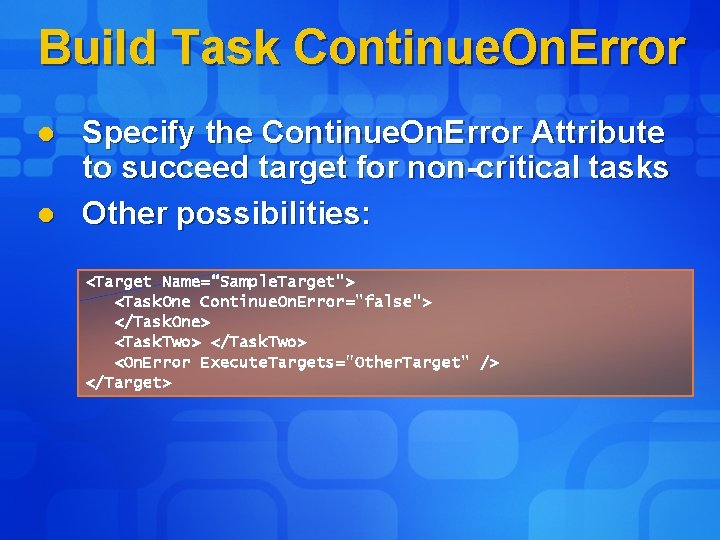
Build Task Continue. On. Error l l Specify the Continue. On. Error Attribute to succeed target for non-critical tasks Other possibilities: <Target Name=“Sample. Target"> <Task. One Continue. On. Error="false"> </Task. One> <Task. Two> </Task. Two> <On. Error Execute. Targets="Other. Target" /> </Target>
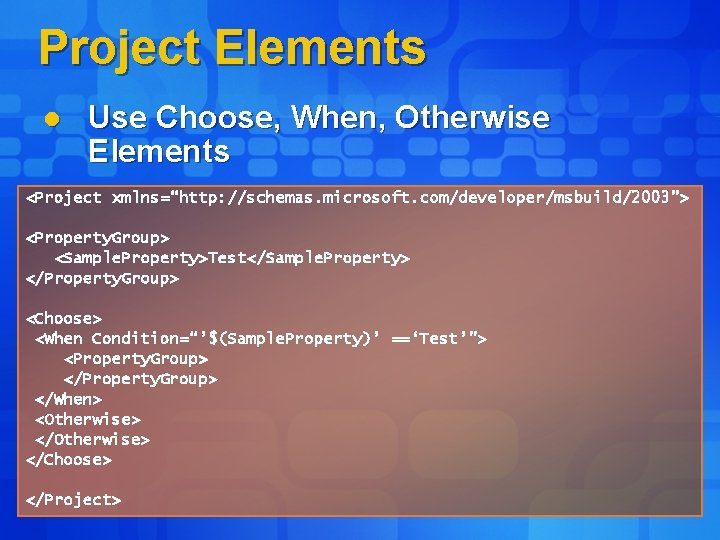
Project Elements l Use Choose, When, Otherwise Elements <Project xmlns=“http: //schemas. microsoft. com/developer/msbuild/2003”> <Property. Group> <Sample. Property>Test</Sample. Property> </Property. Group> <Choose> <When Condition=“’$(Sample. Property)’ ==‘Test’”> <Property. Group> </When> <Otherwise> </Choose> </Project>
Summary l l l Properties Items Targets Tasks Projects
- Slides: 22