
MS Power Point What Is Power Point Power

- Slides: 23
MS Power. Point
What Is Power. Point? • Power. Point is a powerful presentation graphics program that provides everything you need to produce an effective presentation in the form of onscreen slides, a slide presentation on a Web site, or black-and-white or color overheads • Using Power. Point, you can prepare each component of a presentation: individual slides, speaker notes, an outline, and audience handouts
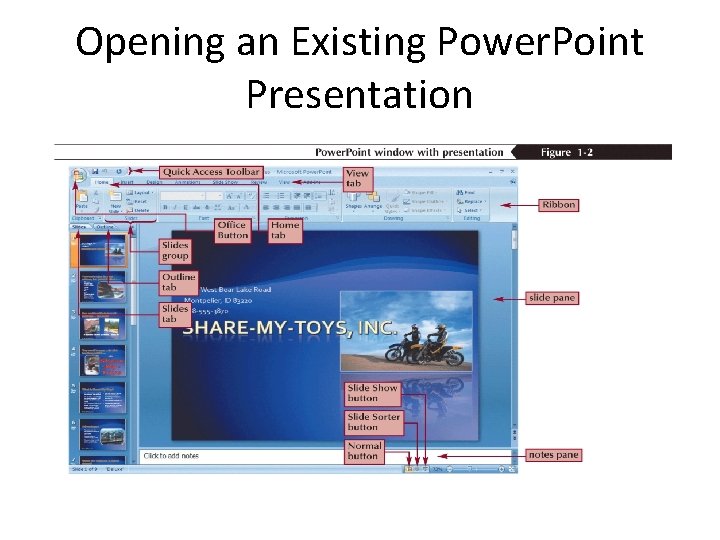
Opening an Existing Power. Point Presentation
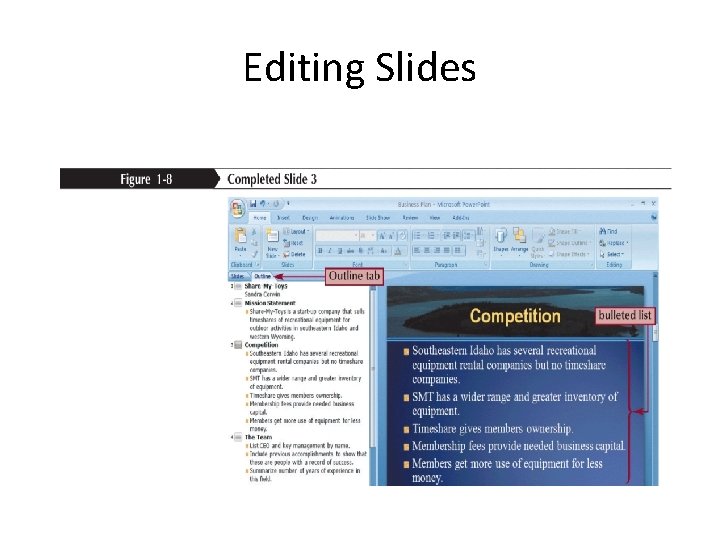
Editing Slides • The slide title text is a text box at the top of the slide that gives the title of the information on that slide • The slide content is a large box in which you type a bulleted or numbered list or insert some other kind of object • You also can enter text using the Outline tab
Editing Slides
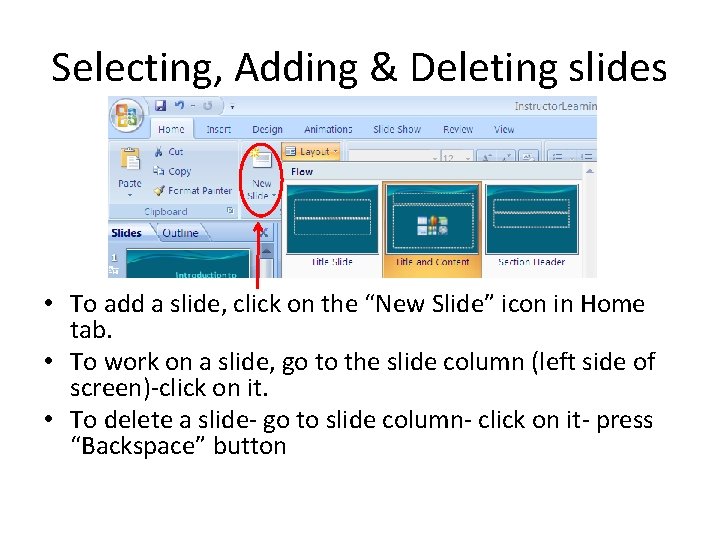
Selecting, Adding & Deleting slides • To add a slide, click on the “New Slide” icon in Home tab. • To work on a slide, go to the slide column (left side of screen)-click on it. • To delete a slide- go to slide column- click on it- press “Backspace” button
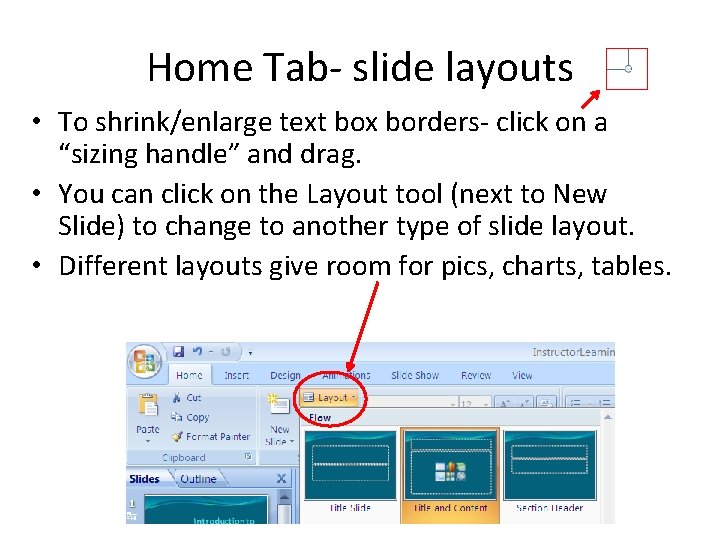
Home Tab- slide layouts • To shrink/enlarge text box borders- click on a “sizing handle” and drag. • You can click on the Layout tool (next to New Slide) to change to another type of slide layout. • Different layouts give room for pics, charts, tables.
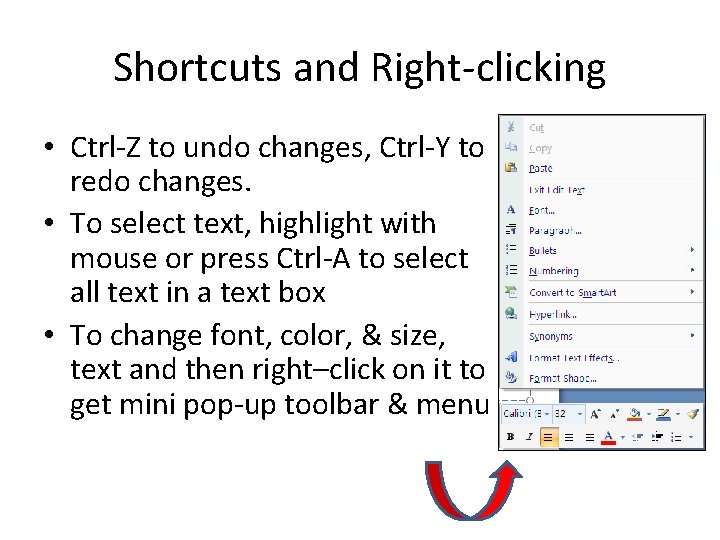
Shortcuts and Right-clicking • Ctrl-Z to undo changes, Ctrl-Y to redo changes. • To select text, highlight with mouse or press Ctrl-A to select all text in a text box • To change font, color, & size, text and then right–click on it to get mini pop-up toolbar & menu
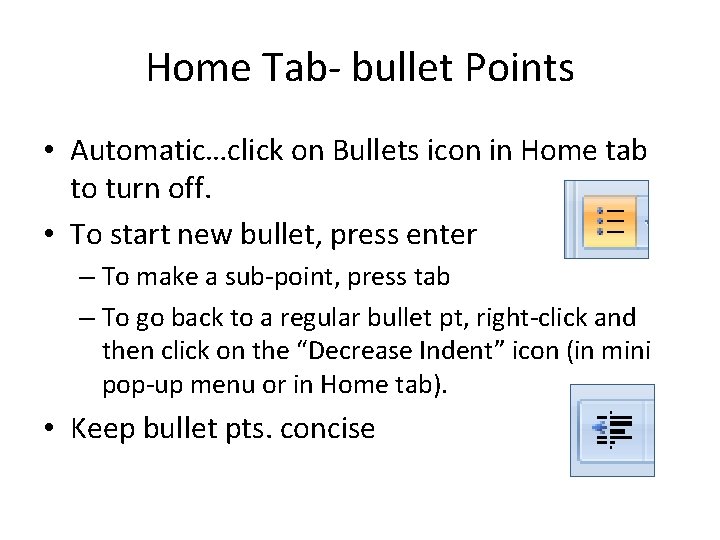
Home Tab- bullet Points • Automatic…click on Bullets icon in Home tab to turn off. • To start new bullet, press enter – To make a sub-point, press tab – To go back to a regular bullet pt, right-click and then click on the “Decrease Indent” icon (in mini pop-up menu or in Home tab). • Keep bullet pts. concise
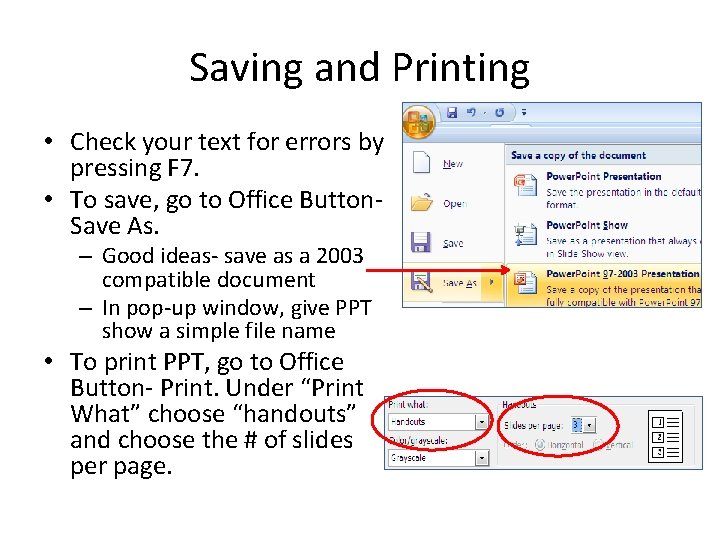
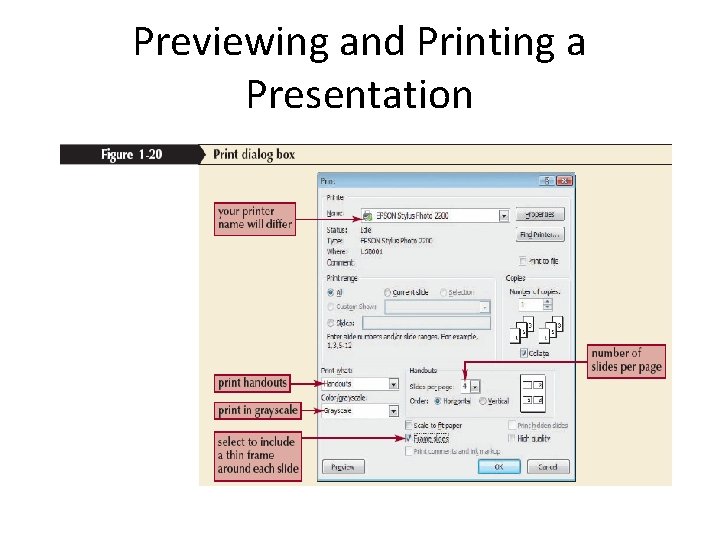
Saving and Printing • Check your text for errors by pressing F 7. • To save, go to Office Button. Save As. – Good ideas- save as a 2003 compatible document – In pop-up window, give PPT show a simple file name • To print PPT, go to Office Button- Print. Under “Print What” choose “handouts” and choose the # of slides per page.
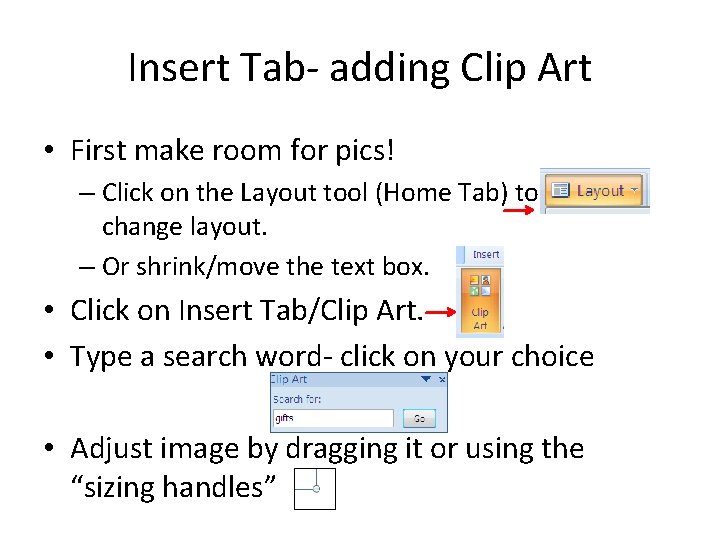
Insert Tab- adding Clip Art • First make room for pics! – Click on the Layout tool (Home Tab) to change layout. – Or shrink/move the text box. • Click on Insert Tab/Clip Art. • Type a search word- click on your choice • Adjust image by dragging it or using the “sizing handles”
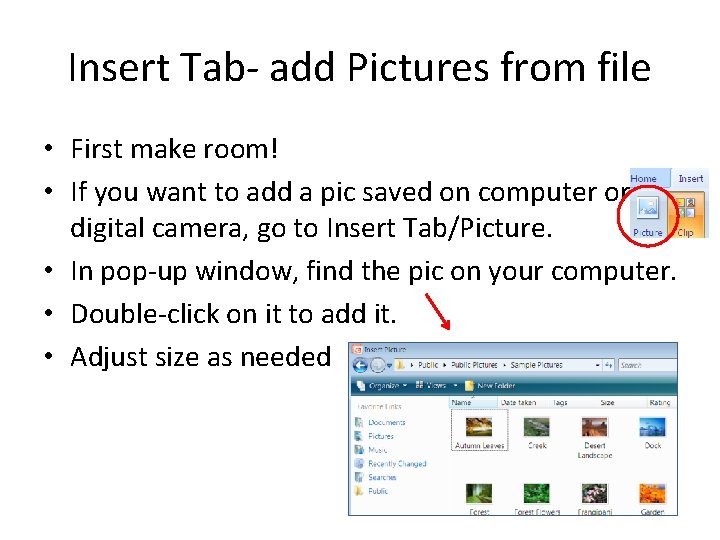
Insert Tab- add Pictures from file • First make room! • If you want to add a pic saved on computer or digital camera, go to Insert Tab/Picture. • In pop-up window, find the pic on your computer. • Double-click on it to add it. • Adjust size as needed
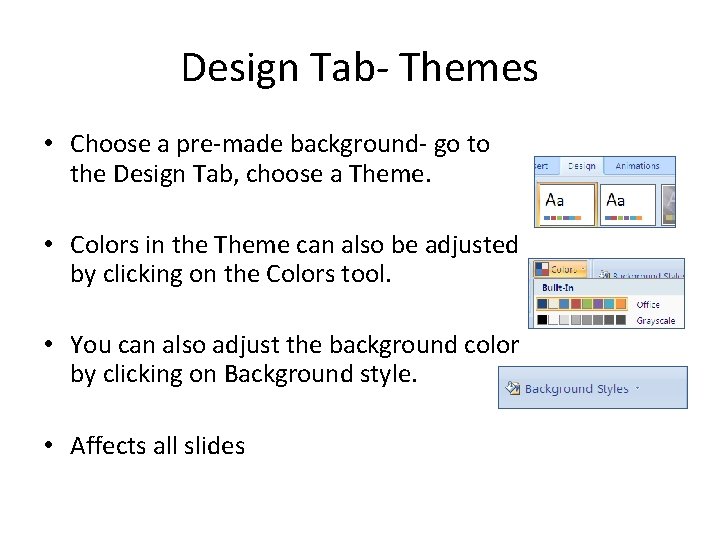
Design Tab- Themes • Choose a pre-made background- go to the Design Tab, choose a Theme. • Colors in the Theme can also be adjusted by clicking on the Colors tool. • You can also adjust the background color by clicking on Background style. • Affects all slides
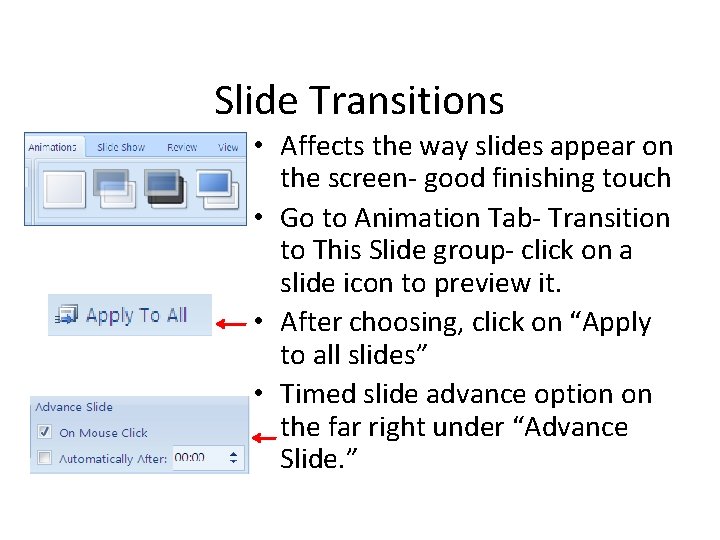
Slide Transitions • Affects the way slides appear on the screen- good finishing touch • Go to Animation Tab- Transition to This Slide group- click on a slide icon to preview it. • After choosing, click on “Apply to all slides” • Timed slide advance option on the far right under “Advance Slide. ”
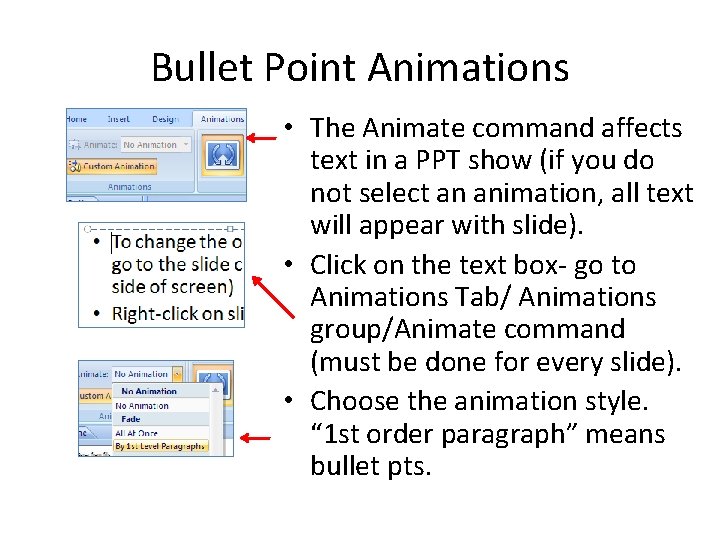
Bullet Point Animations • The Animate command affects text in a PPT show (if you do not select an animation, all text will appear with slide). • Click on the text box- go to Animations Tab/ Animations group/Animate command (must be done for every slide). • Choose the animation style. “ 1 st order paragraph” means bullet pts.
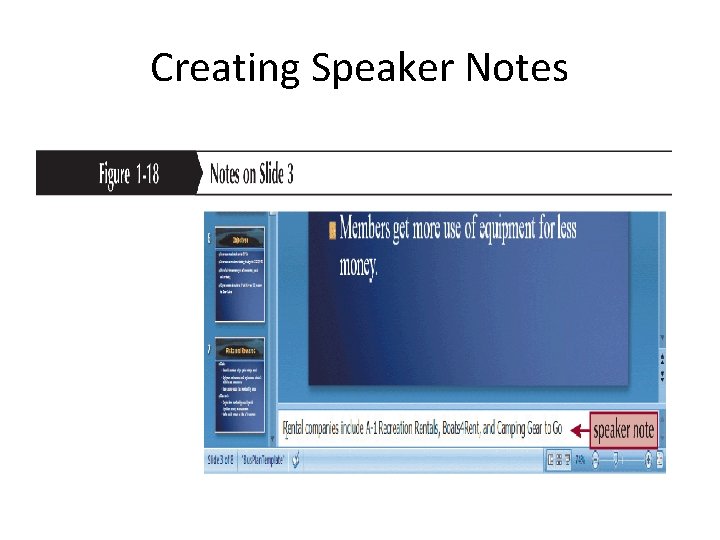
Creating Speaker Notes • Notes (also called speaker notes) help the speaker remember what to say when a particular slide appears during the presentation • They appear in the notes pane below the slide pane in Normal view • You can also print notes pages with a picture of and notes about each slide
Creating Speaker Notes
Presenting • To start show, press F 5 • To start from a certain slide, click on slide, go to Slide Show Tab, and choose “From Current Slide. ” • To advance a slide, press Enter (keyboard) – or click mouse • To go back a slide, press Backspace (keyboard) • To end the show press Escape (keyboard) • Keep presentations simple- remember that PPT is just a tool, not the presentation.
Adding You. Tube • Go to the Office Button/ Power. Point options. • Click “Show Developer tab in ribbon” checkbox. • Go to Developer tab/ Control Group/ More Controls…choose “Shockwave Flash Object. ” • Draw a box on the screen, right-click on it, select “properties. ” Copy the video URL. • In the pop-up menu, paste the Youtube URL in the box next to “Movie. ” In the URL, delete “watch? ” and replace the = sign after the capital “V” with a forward slash (/).
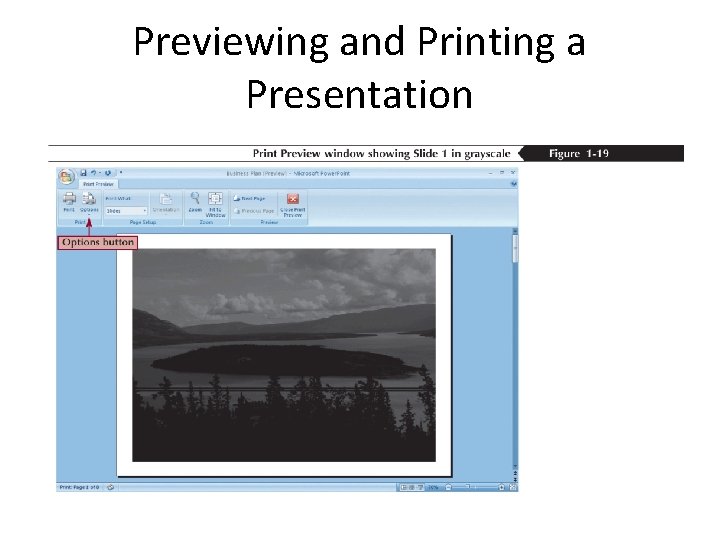
Previewing and Printing a Presentation • Power. Point provides several printing options – Color, grayscale, or pure black and white – Handouts are printouts of the slides themselves; these can be arranged with several slides printed on a page – Overhead transparency film • Print Preview allows you to see the slides as they will appear when they are printed
Previewing and Printing a Presentation
Previewing and Printing a Presentation