
MRP Transfers Aaron Leacock Rex Morgan Fab Trol
MRP Transfers Aaron Leacock Rex Morgan- Fab. Trol Simon Inman – Stru. MIS Amy Davis - Fabsuite
MRP Transfers • Fabtrol Export – Basics – New options • Full Transfer Export – Fabsuite – Stru. MIS • Status Transfer Import
Fab. Trol Export • Standard report will generate four XSR files. • ABM report will generate one XSR file. • Information can be taken from the Model or BOM. • If information is taken from the model an ABM report can be exported. • Cost codes, notes, etc. can be included by using User Routings
Fab. Trol Export • Standard report will generate four XSR files. • ABM report will generate one XSR file. • Information can be taken from the Model or BOM. • If information is taken from the model an ABM report can be exported. • Cost codes, notes, etc. can be included by using User Routings
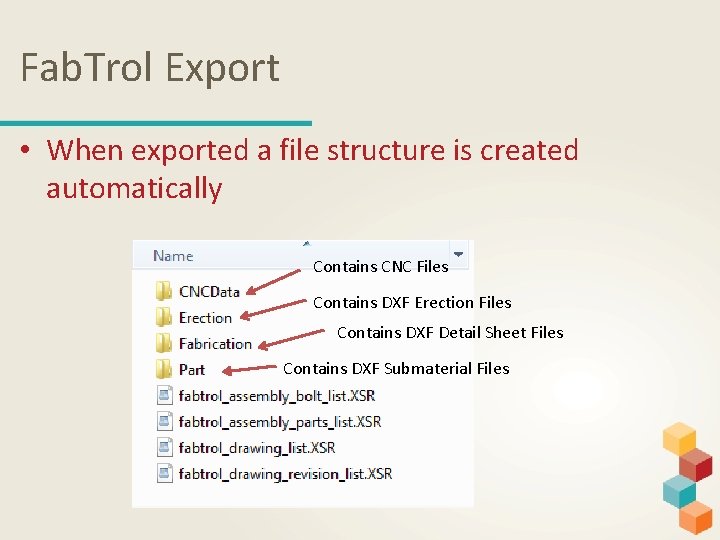
Fab. Trol Export • When exported a file structure is created automatically Contains CNC Files Contains DXF Erection Files Contains DXF Detail Sheet Files Contains DXF Submaterial Files
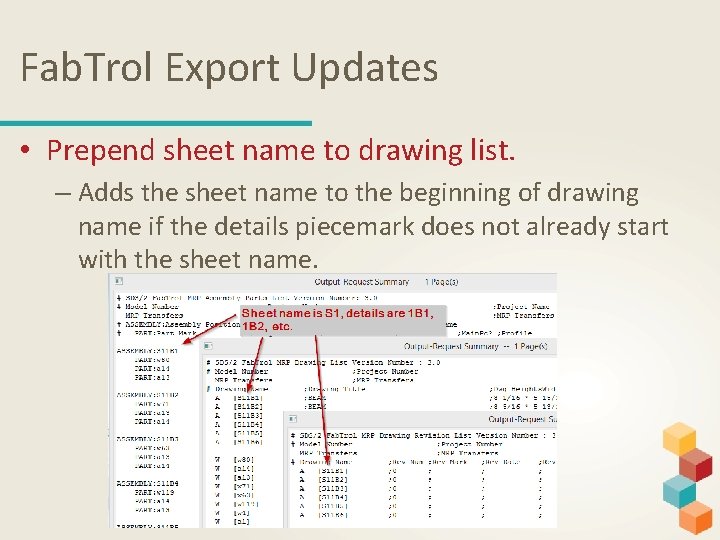
Fab. Trol Export Updates • Prepend sheet name to drawing list. – Adds the sheet name to the beginning of drawing name if the details piecemark does not already start with the sheet name.
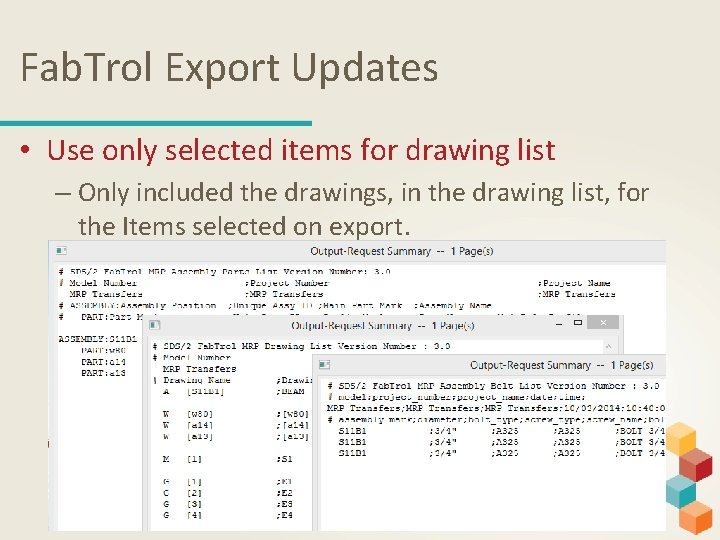
Fab. Trol Export Updates • Use only selected items for drawing list – Only included the drawings, in the drawing list, for the Items selected on export.
Fab. Trol Export Updates • Use only selected items for drawing list – If used With Fab. Trol MRP, you will need to include all previous exported information, so that Fab. Trol does not delete information from your Fab. Trol project. – Designed to be used with Fab. Trol Pro’s new importing options as well as with their drawing control package.
Full Transfer XML • Can include CNC files, PDF or DXF/DWG files for sheets, IFC model, and status and custom property information. – Will Depend on Your License Features • Used with Stru. M. I. S. and Fabsuite
Full Transfer XML • Includes model information and can include BOM information. – Can be ran from modeling through the Full transfer Icon. • This icon can be added through toolbar config> model parametric command group
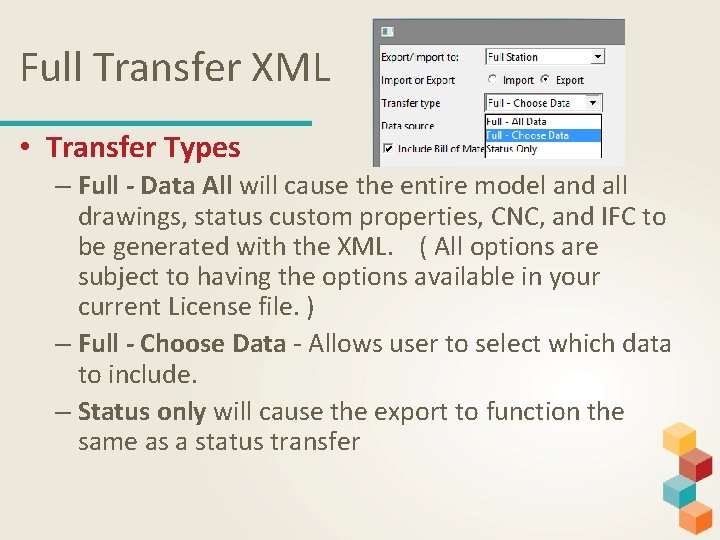
Full Transfer XML • Transfer Types – Full - Data All will cause the entire model and all drawings, status custom properties, CNC, and IFC to be generated with the XML. ( All options are subject to having the options available in your current License file. ) – Full - Choose Data - Allows user to select which data to include. – Status only will cause the export to function the same as a status transfer
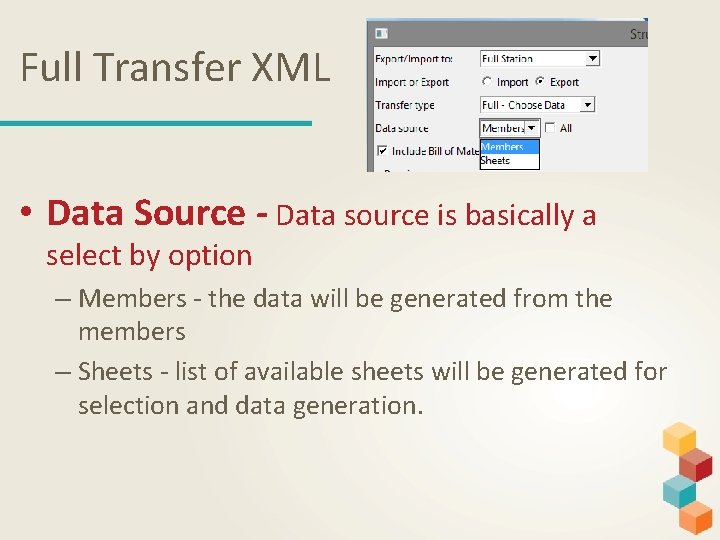
Full Transfer XML • Data Source - Data source is basically a select by option – Members - the data will be generated from the members – Sheets - list of available sheets will be generated for selection and data generation.
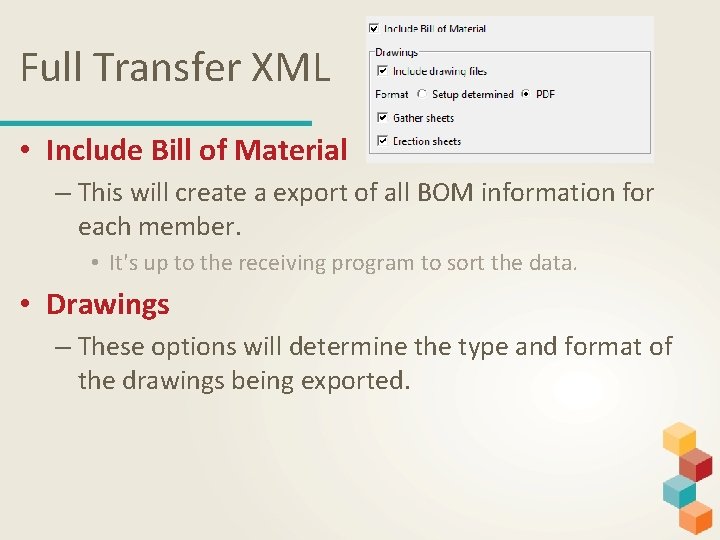
Full Transfer XML • Include Bill of Material – This will create a export of all BOM information for each member. • It's up to the receiving program to sort the data. • Drawings – These options will determine the type and format of the drawings being exported.
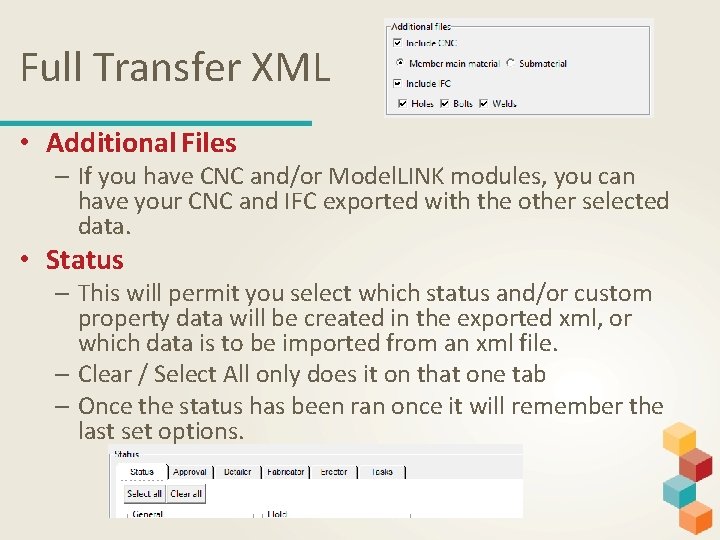
Full Transfer XML • Additional Files – If you have CNC and/or Model. LINK modules, you can have your CNC and IFC exported with the other selected data. • Status – This will permit you select which status and/or custom property data will be created in the exported xml, or which data is to be imported from an xml file. – Clear / Select All only does it on that one tab – Once the status has been ran once it will remember the last set options.
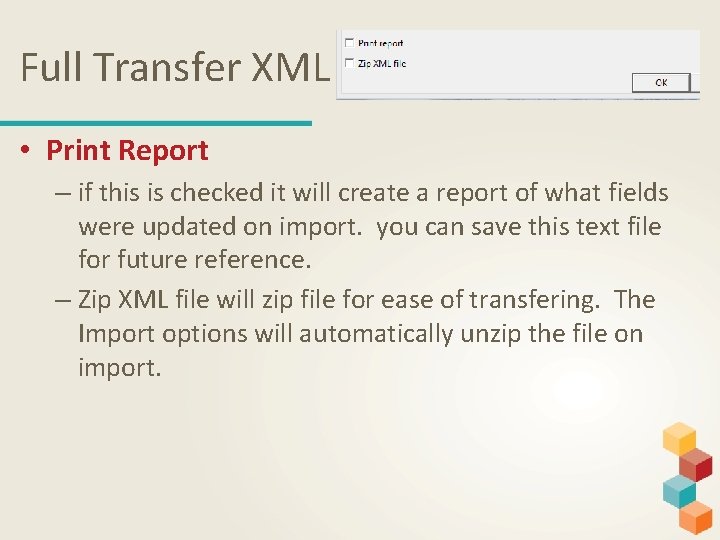
Full Transfer XML • Print Report – if this is checked it will create a report of what fields were updated on import. you can save this text file for future reference. – Zip XML file will zip file for ease of transfering. The Import options will automatically unzip the file on import.
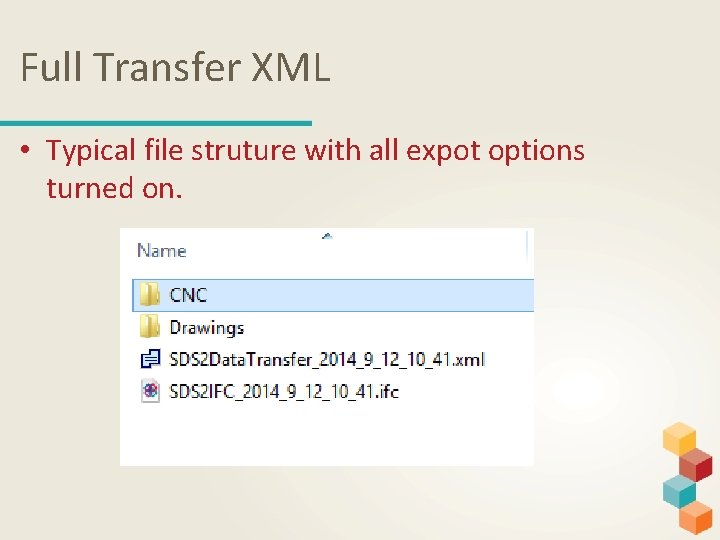
Full Transfer XML • Typical file struture with all expot options turned on.
Status Transfer– Bringing it Back Currently only Fabsuite and Stru. MIS will import our Full transfer XML file and are able to directly export out to our Status Transfer XML file to bring back in Status Information. Fab. Trol Is able to export the Status Transfer XML through their Fab. Trol Model. View package.
Status Transfer – Importing • When importing, only status and custom property information will be updated in the SDS/2 model. It is recommended that you use the Status Transfer, to import the xml file, from the main menu, or from the model using the Status Transfer Icons. • These can also be found in the Toolbar configurations under the Model—Parametric command group.
Status Transfer – Importing • Overwriting on import – Import will only Overwrite field if: • DATES - Has a later date that the field is going into, or is putting a date into a ** NOT SET** field • STRINGS- imported Blank strings will not overwrite. If the import value is filled out, it will overwrite a blank field and also a field with a string in it. • COMBO BOXES - Always overwrite • BOOLEAN - Always overwrites
Status Transfer – Importing • Exporting/importing User added Custom properties – You must edit the python file located in your 7. 3 b data directory in macro> macrolib> SDSData. Transfer folder. • This is over written with every install. So save a copy of the file if you make change to it.
Status Transfer – Importing • Group members – You must apply all status and custom properties to each sub-member in the group member.
Fab. Trol
Stru. MIS

Fab. Suite
Import Demo into SDS/2 • Will Be importing some Approval Statuses and Fabrication Dates. • Show status display to show information is updated
- Slides: 25