
Mr Armstrongs Definitions Slide Creator For Teachers Instructions

- Slides: 18
Mr Armstrong’s Definitions Slide Creator For Teachers! Instructions On the next slide enter your keywords and definitions for the lesson. This Power. Point will generate slides with your key terms and definitions on. All of the slides except for the last one can be copied into your own presentation files. The last slide contains a separate matching activity which needs macros to run! Please enable macros to run the program! Click Here to Run The Matching Activity
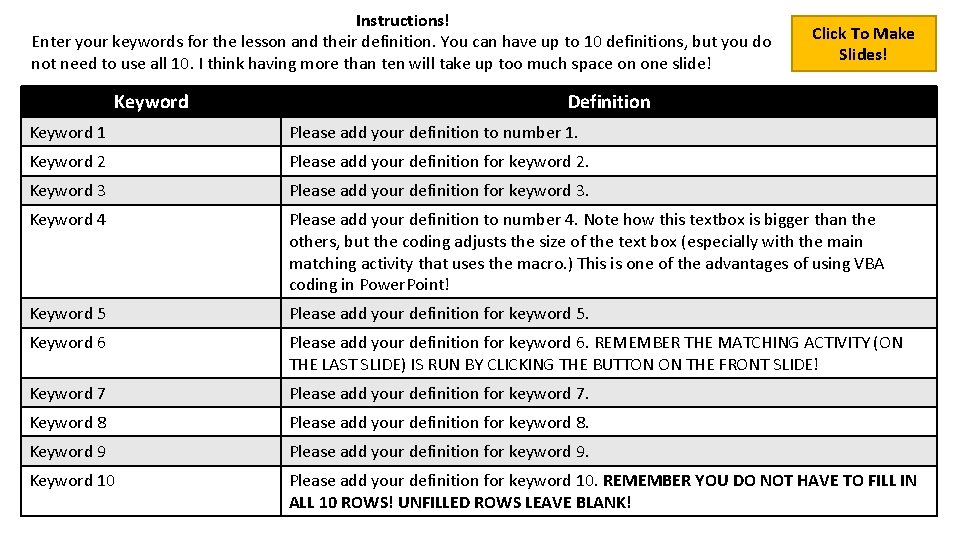
Instructions! Enter your keywords for the lesson and their definition. You can have up to 10 definitions, but you do not need to use all 10. I think having more than ten will take up too much space on one slide! Keyword Click To Make Slides! Definition Keyword 1 Please add your definition to number 1. Keyword 2 Please add your definition for keyword 2. Keyword 3 Please add your definition for keyword 3. Keyword 4 Please add your definition to number 4. Note how this textbox is bigger than the others, but the coding adjusts the size of the text box (especially with the main matching activity that uses the macro. ) This is one of the advantages of using VBA coding in Power. Point! Keyword 5 Please add your definition for keyword 5. Keyword 6 Please add your definition for keyword 6. REMEMBER THE MATCHING ACTIVITY (ON THE LAST SLIDE) IS RUN BY CLICKING THE BUTTON ON THE FRONT SLIDE! Keyword 7 Please add your definition for keyword 7. Keyword 8 Please add your definition for keyword 8. Keyword 9 Please add your definition for keyword 9. Keyword 10 Please add your definition for keyword 10. REMEMBER YOU DO NOT HAVE TO FILL IN ALL 10 ROWS! UNFILLED ROWS LEAVE BLANK!
Key Definition For The Lesson Keyword 1 Please add your definition to number 1.
Key Definitions for today’s lesson! Keyword 1 Please add your definition to number 1. Keyword 2 Please add your definition for keyword 2.
Key Terms And Definitions For Lesson Keyword 1 Please add your definition to number 1. Keyword 2 Please add your You definition can writefor keyword 2. your explanation Keyword 3 Please add your definition for keyword 3. of the term here. Write more text here and leave some space. Right click on card and “Bring to Front” to edit. Right click and “Send to Back” when finished. In slideshow mode, click to the card topic to reveal explanation text
Key Terms And Definitions For Lesson Keyword 1 Keyword 2 Keyword 3 Please add your definition to number 1. Please add your definition for keyword 2. Please add your definition for keyword 3. Keyword 4 Please add your definition to number 4. Note how this textbox is bigger than the others, but the coding adjusts the size of the text box (especially with the main matching activity that uses the macro. ) This is one of the advantages of using VBA coding in Power. Point!
Reveal animation effect Keyword 1 Keyword 2 Keyword 3 Keyword 4 Sorry, you will have to paste in your keywords and definitions yourself as this uses an animation not available in later versions of Power. Point
4 Definitions and Explanations – More text Keyword 1 Please add your definition to number 1. Keyword 2 Please add your definition for keyword 2. Keyword 3 Please add your definition for keyword 3. Keyword 4 Please add your definition to number 4. Note how this textbox is bigger than the others, but the coding adjusts the size of the text box (especially with the main matching activity that uses the macro. ) This is one of the advantages of using VBA coding in Power. Point!
Key Terms and Definitions! Please add your definition to Keyword 1 number 1. Please add your definition for Keyword 2 keyword 2. Please add your definition for Keyword 3 keyword 3. Please add your definition to number 4. Note how this textbox is bigger than the others, but the coding adjusts the size of the text box (especially with the main matching activity that uses the macro. ) This is one of the advantages of using VBA coding in Power. Point! Keyword 4 Please add your definition for Keyword 5 keyword 5.
Key Definitions for the lesson! Sorry, you will have to paste in your keywords and definitions yourself as this uses an animation not available in later versions of Power. Point Keyword 1 Keyword 2 Keyword 3 Keyword 4 Keyword 5
Key Definitions for the lesson! Please add your definition to number 1. Please add your definition for keyword 2. Please add your definition for keyword 3. Keyword 1 Keyword 2 Keyword 3 Please add your definition to number 4. Note how this textbox is bigger than the others, but the coding adjusts the size of the text box (especially with the main matching activity that uses the macro. ) This is one of the advantages of using VBA coding in Power. Point! Keyword 4 Please add your definition for keyword 5. Keyword 5
Today’s Key Terms and Definitions! Keyword 1 Please add your definition to number 1. Keyword 2 Please add your definition for keyword 2. Keyword 3 Please add your definition for keyword 3. Keyword 4 Please add your definition to number 4. Note how this textbox is bigger than the others, but the coding adjusts the size of the text box (especially with the main matching activity that uses the macro. ) This is one of the advantages of using VBA coding in Power. Point! Keyword 5 Please add your definition for keyword 5. Keyword 6 Please add your definition for keyword 6. REMEMBER THE MATCHING ACTIVITY (ON THE LAST SLIDE) IS RUN BY CLICKING THE BUTTON ON THE FRONT SLIDE!
Today’s Key Terms and Definitions! Keyword 1 Keyword 2 Please add your definition to number 1. Please add your definition for keyword 2. Keyword 3 Please add your definition for keyword 3. Keyword 4 Please add your definition to number 4. Note how this textbox is bigger than the others, but the coding adjusts the size of the text box (especially with the main matching activity that uses the macro. ) This is one of the advantages of using VBA coding in Power. Point! Keyword 5 Please add your definition for keyword 5. Keyword 6 Please add your definition for keyword 6. REMEMBER THE MATCHING ACTIVITY (ON THE LAST SLIDE) IS RUN BY CLICKING THE BUTTON ON THE FRONT SLIDE! Keyword 7 Please add your definition for keyword 7.
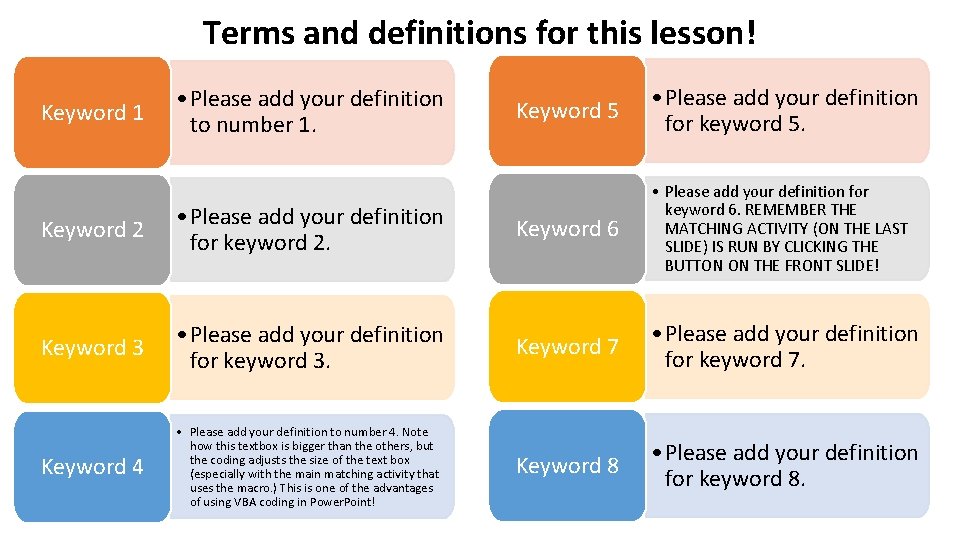
Terms and definitions for this lesson! Keyword 1 • Please add your definition to number 1. Keyword 5 • Please add your definition for keyword 5. Keyword 2 • Please add your definition for keyword 2. Keyword 6 • Please add your definition for keyword 6. REMEMBER THE MATCHING ACTIVITY (ON THE LAST SLIDE) IS RUN BY CLICKING THE BUTTON ON THE FRONT SLIDE! Keyword 3 • Please add your definition for keyword 3. Keyword 7 • Please add your definition for keyword 7. Keyword 4 • Please add your definition to number 4. Note how this textbox is bigger than the others, but the coding adjusts the size of the text box (especially with the main matching activity that uses the macro. ) This is one of the advantages of using VBA coding in Power. Point! Keyword 8 • Please add your definition for keyword 8.
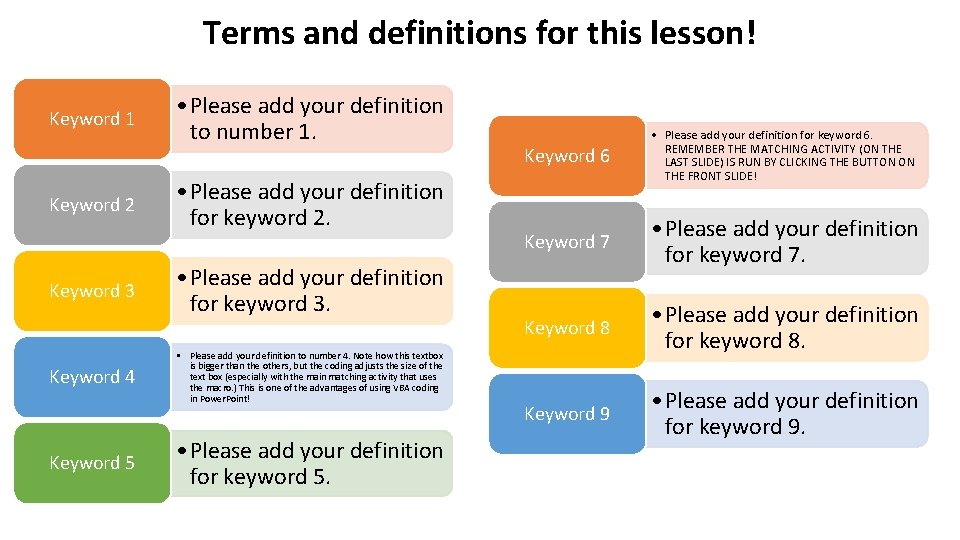
Terms and definitions for this lesson! Keyword 1 Keyword 2 Keyword 3 Keyword 4 Keyword 5 • Please add your definition to number 1. • Please add your definition for keyword 2. • Please add your definition for keyword 3. • Please add your definition to number 4. Note how this textbox is bigger than the others, but the coding adjusts the size of the text box (especially with the main matching activity that uses the macro. ) This is one of the advantages of using VBA coding in Power. Point! • Please add your definition for keyword 5. Keyword 6 • Please add your definition for keyword 6. REMEMBER THE MATCHING ACTIVITY (ON THE LAST SLIDE) IS RUN BY CLICKING THE BUTTON ON THE FRONT SLIDE! Keyword 7 • Please add your definition for keyword 7. Keyword 8 • Please add your definition for keyword 8. Keyword 9 • Please add your definition for keyword 9.
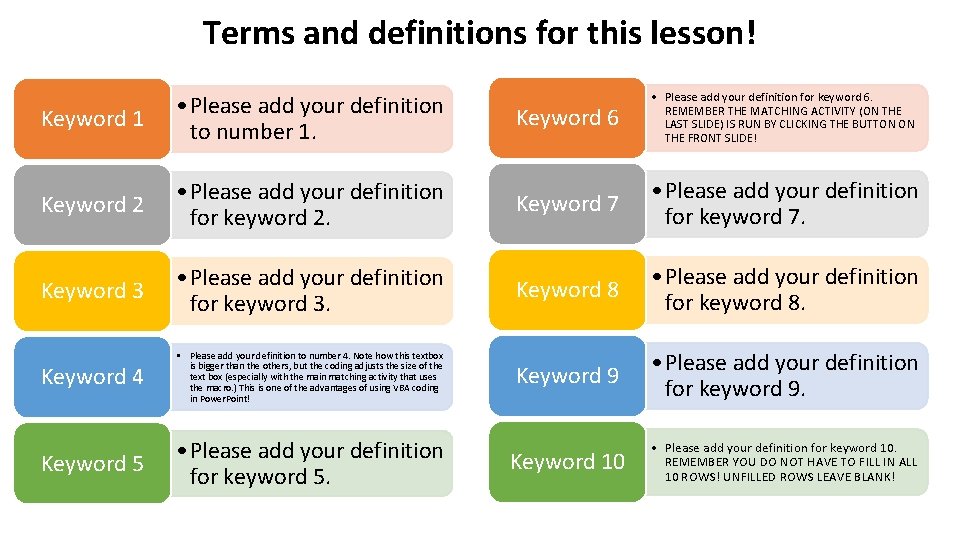
Terms and definitions for this lesson! Keyword 1 • Please add your definition to number 1. Keyword 6 • Please add your definition for keyword 6. REMEMBER THE MATCHING ACTIVITY (ON THE LAST SLIDE) IS RUN BY CLICKING THE BUTTON ON THE FRONT SLIDE! Keyword 2 • Please add your definition for keyword 2. Keyword 7 • Please add your definition for keyword 7. Keyword 3 • Please add your definition for keyword 3. Keyword 8 • Please add your definition for keyword 8. Keyword 4 • Please add your definition to number 4. Note how this textbox is bigger than the others, but the coding adjusts the size of the text box (especially with the main matching activity that uses the macro. ) This is one of the advantages of using VBA coding in Power. Point! Keyword 9 • Please add your definition for keyword 9. Keyword 5 • Please add your definition for keyword 5. Keyword 10 • Please add your definition for keyword 10. REMEMBER YOU DO NOT HAVE TO FILL IN ALL 10 ROWS! UNFILLED ROWS LEAVE BLANK!
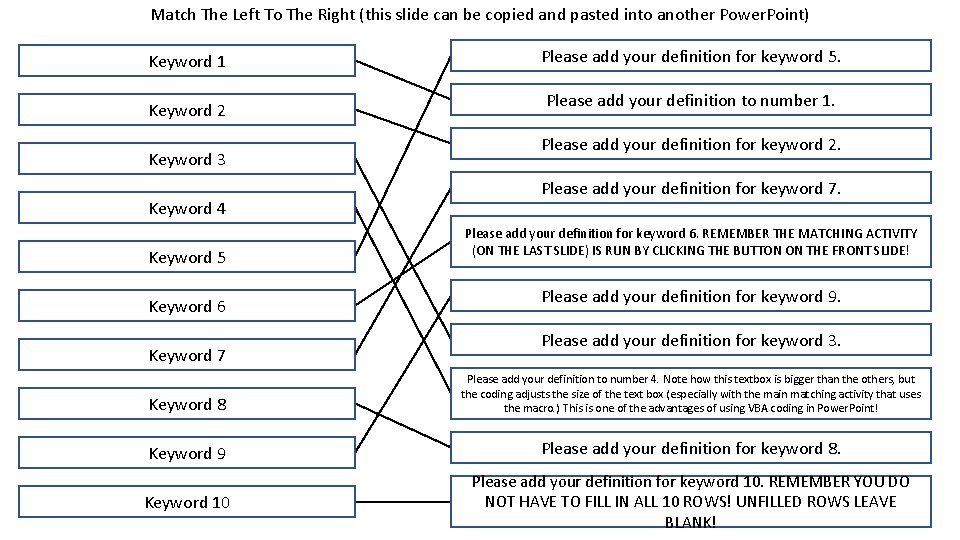
Match The Left To The Right (this slide can be copied and pasted into another Power. Point) Keyword 1 Keyword 2 Keyword 3 Keyword 4 Keyword 5 Keyword 6 Keyword 7 Please add your definition for keyword 5. Please add your definition to number 1. Please add your definition for keyword 2. Please add your definition for keyword 7. Please add your definition for keyword 6. REMEMBER THE MATCHING ACTIVITY (ON THE LAST SLIDE) IS RUN BY CLICKING THE BUTTON ON THE FRONT SLIDE! Please add your definition for keyword 9. Please add your definition for keyword 3. Keyword 8 Please add your definition to number 4. Note how this textbox is bigger than the others, but the coding adjusts the size of the text box (especially with the main matching activity that uses the macro. ) This is one of the advantages of using VBA coding in Power. Point! Keyword 9 Please add your definition for keyword 8. Keyword 10 Please add your definition for keyword 10. REMEMBER YOU DO NOT HAVE TO FILL IN ALL 10 ROWS! UNFILLED ROWS LEAVE BLANK!
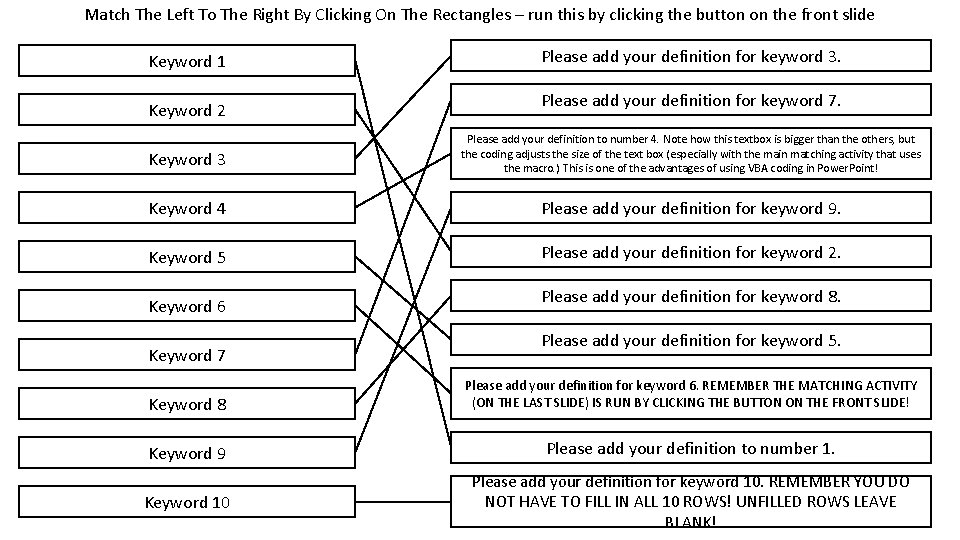
Match The Left To The Right By Clicking On The Rectangles – run this by clicking the button on the front slide Keyword 1 Keyword 2 Please add your definition for keyword 3. Please add your definition for keyword 7. Keyword 3 Please add your definition to number 4. Note how this textbox is bigger than the others, but the coding adjusts the size of the text box (especially with the main matching activity that uses the macro. ) This is one of the advantages of using VBA coding in Power. Point! Keyword 4 Please add your definition for keyword 9. Keyword 5 Please add your definition for keyword 2. Keyword 6 Keyword 7 Please add your definition for keyword 8. Please add your definition for keyword 5. Keyword 8 Please add your definition for keyword 6. REMEMBER THE MATCHING ACTIVITY (ON THE LAST SLIDE) IS RUN BY CLICKING THE BUTTON ON THE FRONT SLIDE! Keyword 9 Please add your definition to number 1. Keyword 10 Please add your definition for keyword 10. REMEMBER YOU DO NOT HAVE TO FILL IN ALL 10 ROWS! UNFILLED ROWS LEAVE BLANK!