
More VB Tools Creating a Menu What is
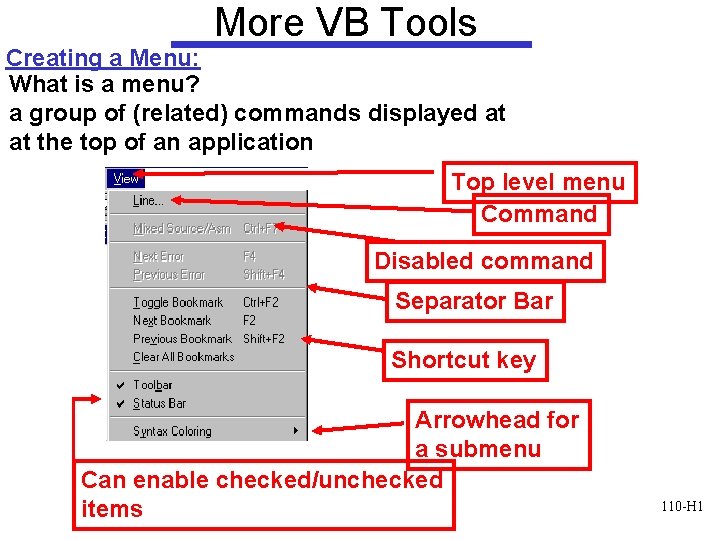
More VB Tools Creating a Menu: What is a menu? a group of (related) commands displayed at at the top of an application Top level menu Command Disabled command Separator Bar Shortcut key Arrowhead for a submenu Can enable checked/unchecked items 110 -H 1
Menus (Cont) • Menu Bar – Drop-down list of commands • Have properties • Have events to write code for • Add Main. Menu control to form – Appears in the Component Tray, pane at bottom of Form Designer where non-display controls are shown – Words "Type Here" appear at the top of the form 110 -H 2
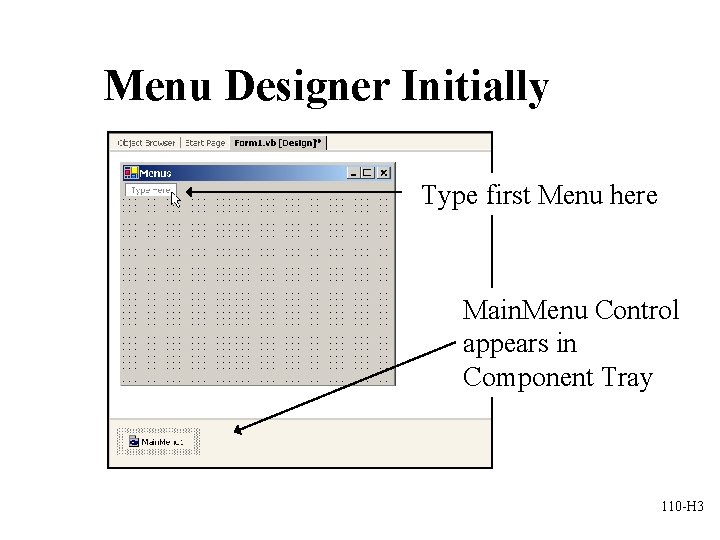
Menu Designer Initially Type first Menu here Main. Menu Control appears in Component Tray 110 -H 3
Using the Menu Designer • To create the menus simply type where the words "Type Here" appear at the top of the form • Include & symbol as you type to indicate Keyboard Access Keys • You are actually entering the Text property for a Menu. Item object • Change Menu. Item object names in the Properties Window to include mnu prefix 110 -H 4
Submenus • Popup to the right of the menu • Filled triangle to the right of the menu item indicates to the user the existence of a submenu • Avoid more than one level deep • Create submenus by moving to the right of a menu item and typing the next item's text 110 -H 5

Sub. Menus (cont. ) 110 -H 6
Separator Bars • Used for grouping menu items according to their purpose • Visually represented as a bar across the menu • Create using one of two methods – Typing a single hyphen for the text – Right-click on Menu Designer where you want separator bar and choose Insert Separator 110 -H 7
Menu Properties • Text • Name, prefix = mnu – Examples: mnu. File. Exit, mnu. Help. About, mnu. Format. Color. Red • Checked, True/False • Enabled, True/False • Visible, True/False 110 -H 8
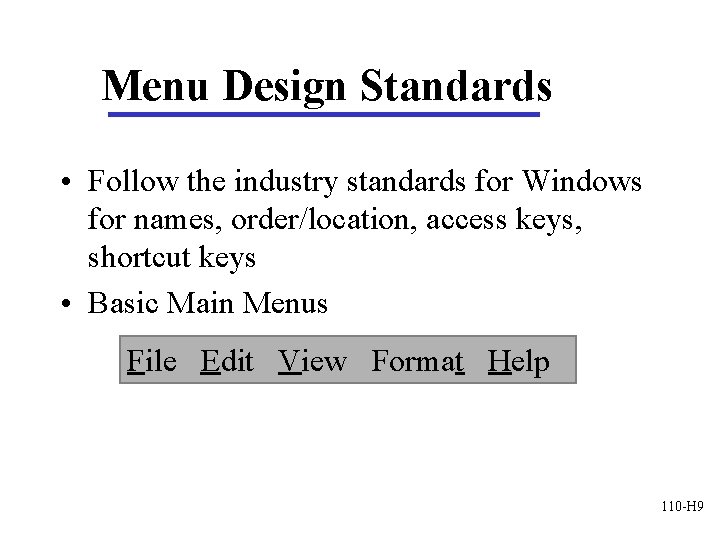
Menu Design Standards • Follow the industry standards for Windows for names, order/location, access keys, shortcut keys • Basic Main Menus File Edit View Format Help 110 -H 9
Modifying Menu Items Using Menu Designer • Right-Click the Menu Bar on the Form to – Insert New menu – Delete menu – Insert Separator – Edit Name, displays menu item Name property rather than Text property on Form • Drag and Drop menu items to new locations 110 -H 10
Windows Common Dialog Boxes (dlg prefix) • Predefined standard dialog boxes for: – File Open and Saving – Printing and Previewing – Color selection – Font selection • Add the Common Dialog control to form – Appears in the Component Tray, pane at bottom of Form Designer where non-display controls are shown 110 -H 11
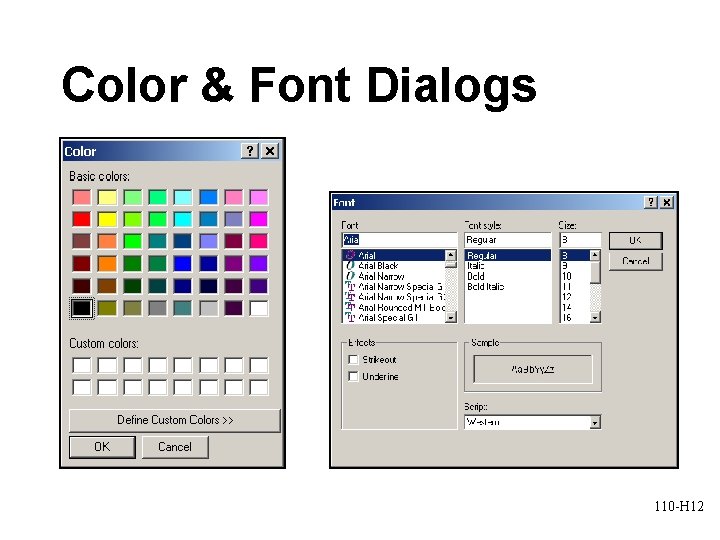
Color & Font Dialogs 110 -H 12
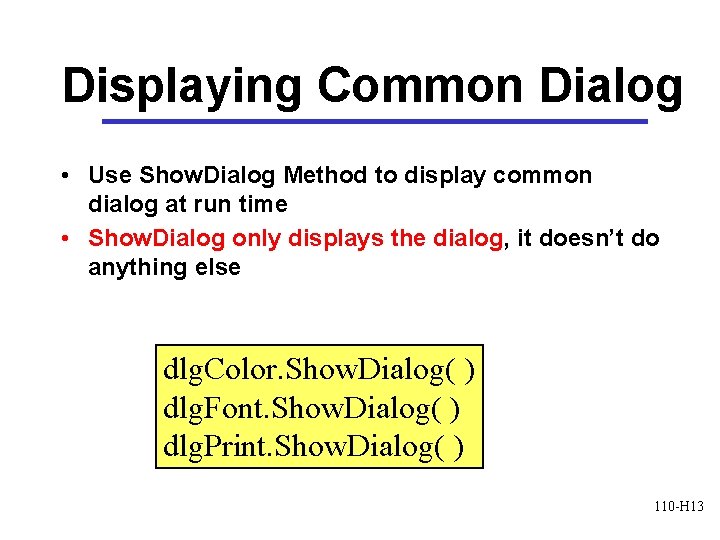
Displaying Common Dialog • Use Show. Dialog Method to display common dialog at run time • Show. Dialog only displays the dialog, it doesn’t do anything else dlg. Color. Show. Dialog( ) dlg. Font. Show. Dialog( ) dlg. Print. Show. Dialog( ) 110 -H 13
Using the Common Dialog Information • Code must be written to retrieve and use the choices made by the user in the Common dialog • Example: – Color Dialog is displayed – User selects color and clicks OK – Code must be written to apply the selected (dlg. Color) color to an object(s) 110 -H 14
Set Initial Values for Color or Font Common Dialogs • In Windows, when a Color or Font Common Dialog is displayed it normally displays the current values of the object being updated • Before executing the Show. Dialog method, you should therefore assign the Object's existing values 110 -H 15
Set Initial Values (cont. ) • Examples – Changing the background color of a form • Assign the current color to be selected when the Color Dialog displays (otherwise black is selected) – Changing the font of a label • Assign the current font name, size, and style to be selected when the Font Dialog displays 110 -H 16
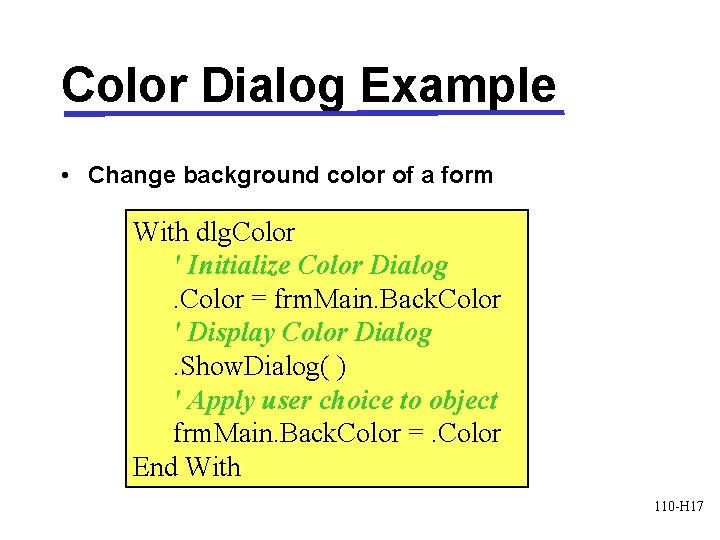
Color Dialog Example • Change background color of a form With dlg. Color ' Initialize Color Dialog. Color = frm. Main. Back. Color ' Display Color Dialog. Show. Dialog( ) ' Apply user choice to object frm. Main. Back. Color =. Color End With 110 -H 17
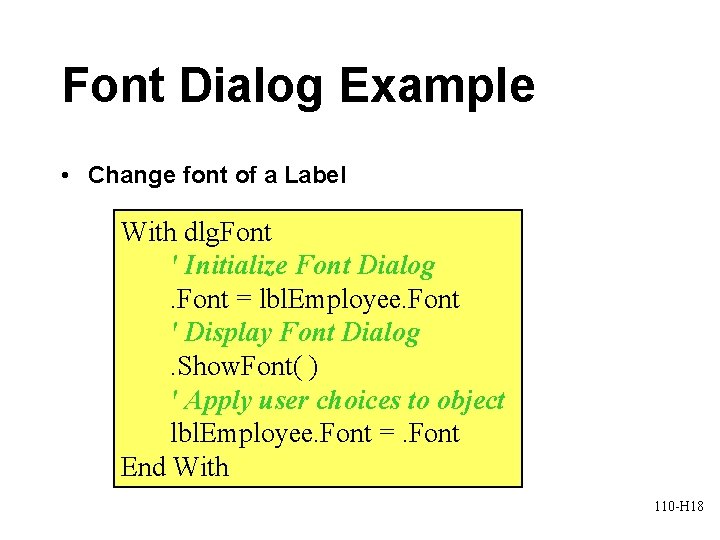
Font Dialog Example • Change font of a Label With dlg. Font ' Initialize Font Dialog. Font = lbl. Employee. Font ' Display Font Dialog. Show. Font( ) ' Apply user choices to object lbl. Employee. Font =. Font End With 110 -H 18
Context Menus • Popup in response to right mouse click on form or on a control • Are specific to the component to which user is pointing when right-clicking • Also called Popup menus or Shortcut menus • Do not have top level menus like the menu bar 110 -H 19
Creating Context Menus • Add Context. Menu control – Appears in the Component Tray, pane at bottom of Form Designer where non-display controls are shown – Words "Context Menu" appear at the top of the form • Click on the words "Context Menu" and the words "Type Here" appear underneath • Proceed as you did for Menu Bar 110 -H 20
Connecting Context Menu to Object • Use Context Menu's property window to give it a standard name using the mnu prefix • Modify the Context. Menu property of the associated object so that this Context Menu displays when user right-clicks the object • If there is only one Context Menu connect it to the form and it will display for the form and all of the controls on the form 110 -H 21
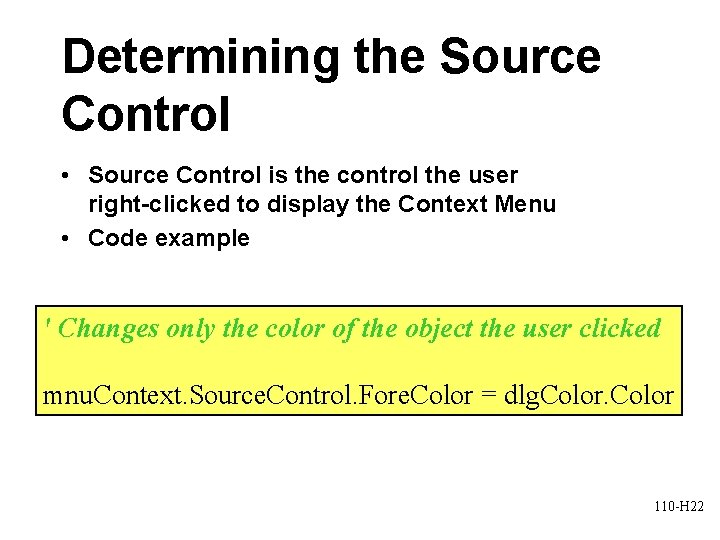
Determining the Source Control • Source Control is the control the user right-clicked to display the Context Menu • Code example ' Changes only the color of the object the user clicked mnu. Context. Source. Control. Fore. Color = dlg. Color 110 -H 22
- Slides: 22