
More VB Controls and Code Writing to the
More VB Controls and Code
Writing to the Clipboard • Any time that you Cut or Copy something, it gets stored in something called the Windows Clipboard. • Whenever you paste, Windows retrieves the contents of the Clipboard and inserts them into whatever program you have selected (if it can). • For this assignment, you will want to be able to copy the program’s output (the code for a class) so that you can paste it into Visual Studio.
Clipboard • The Text. Box control already has editing capabilities built in. • You can paste text from any program into a Text. Box in your program (when running). • You can cut or copy text from a Text. Box in your program as well. • However, the class code produced by this program may have many lines, making it tedious for users to select it all for copying.
Clipboard • Instead, give the user a button or menu item which allows for the entire output to be placed on the clipboard, ready for pasting. • This can be done with one line of code: My. Computer. Clipboard. Set. Text(lbl. Output. Text) • This code takes whatever text is in lbl. Output and puts it into the clipboard, ready to be pasted. • Of course, Set. Text can take any valid string as a parameter, including string variables or the contents of a Text. Box.
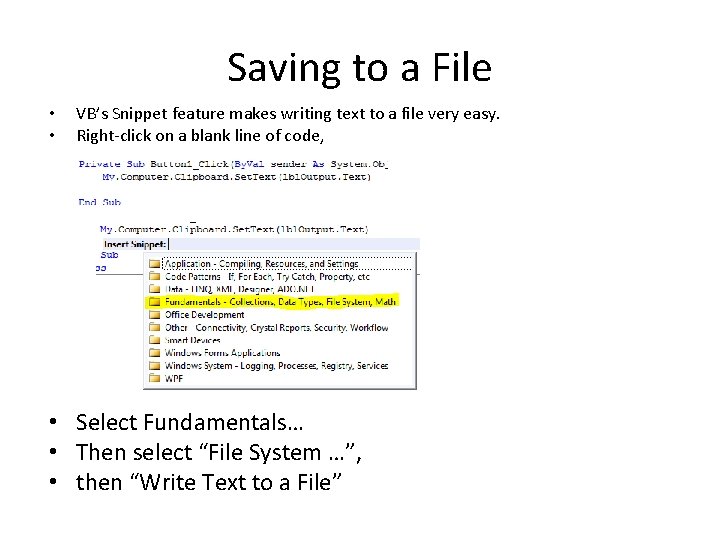
Saving to a File • • VB’s Snippet feature makes writing text to a file very easy. Right-click on a blank line of code, • Select Fundamentals… • Then select “File System …”, • then “Write Text to a File”
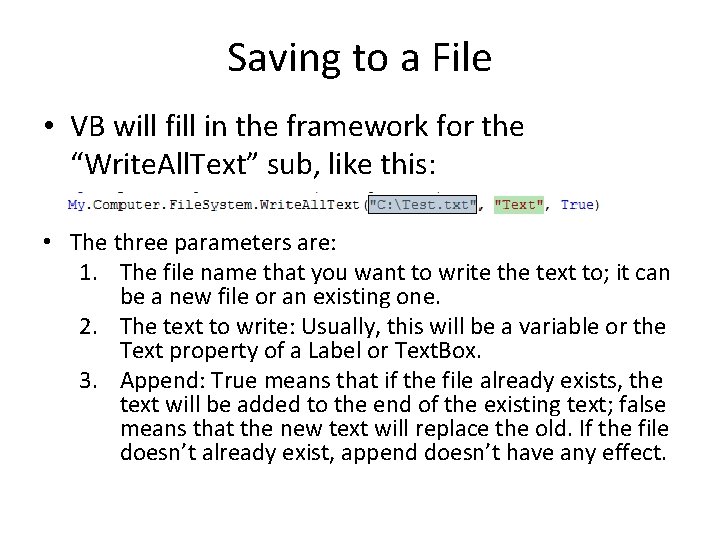
Saving to a File • VB will fill in the framework for the “Write. All. Text” sub, like this: • The three parameters are: 1. The file name that you want to write the text to; it can be a new file or an existing one. 2. The text to write: Usually, this will be a variable or the Text property of a Label or Text. Box. 3. Append: True means that if the file already exists, the text will be added to the end of the existing text; false means that the new text will replace the old. If the file doesn’t already exist, append doesn’t have any effect.

Save. File. Dialog • Generally, when a program saves a file, it gives the user the option of naming the file and putting it in a desired location. • You can do this in your programs using the Save. File. Dialog control. • You can add one of these to your form simply by double-clicking on it in the Toolbox (Dialogs section).
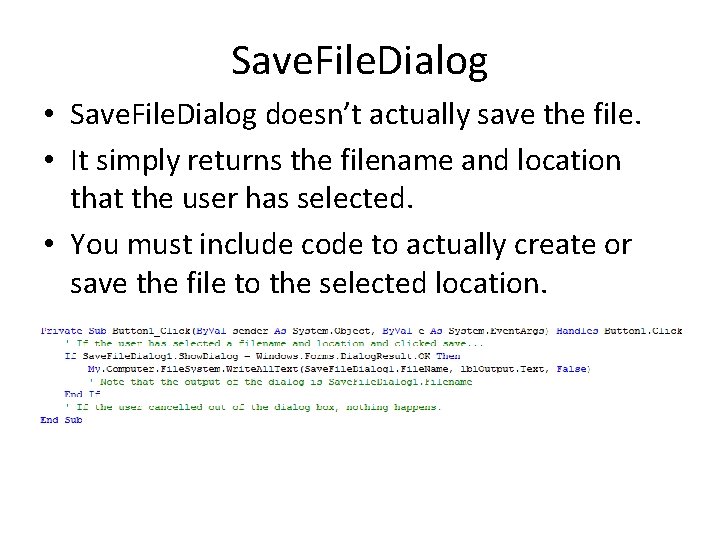
Save. File. Dialog • Save. File. Dialog doesn’t actually save the file. • It simply returns the filename and location that the user has selected. • You must include code to actually create or save the file to the selected location.
Large Labels and Text. Boxes • By default, Label and Text. Box controls are designed for fairly short strings (one or two words). • However, they can easily handle much larger strings by changing the value of a property.
Autosize in Labels • Labels have an “Autosize” property which defaults to True. This means that the Label resizes itself to hold the text that you put into it. • When Autosize is True, VB won’t allow you to manually set the size of the label—it always matches the text in it. • When Autosize is True, the text in the Label is always on one line. • If you set Autosize to False, you will – Be able to size the Label with the mouse – Have the text wrap around (multi-line)
Multiline in Text. Boxes • A similar property in Text. Boxes is “Multiline”. • Multiline defaults to False. All text in the Text. Box will be on one line. • When Multiline is False, you can change the width of a Text. Box, but not the height. • If you set Multiline to True, – You can change the height of the Text. Box – The text will wrap around when it reaches the right edge of the Text. Box
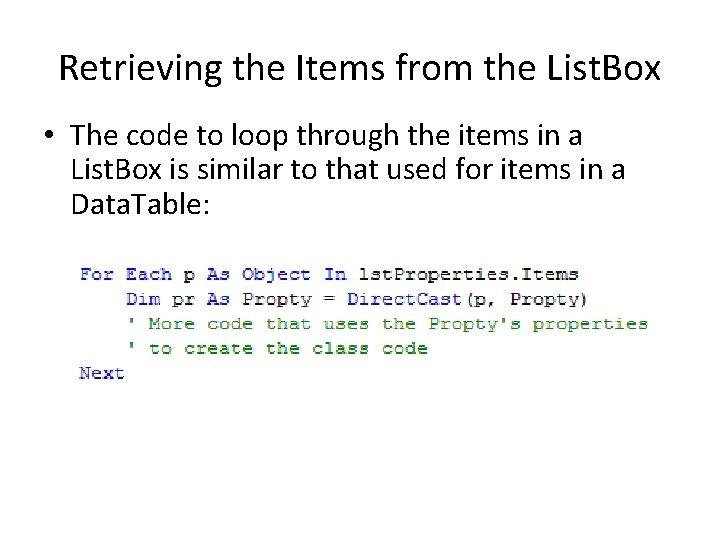
Retrieving the Items from the List. Box • The code to loop through the items in a List. Box is similar to that used for items in a Data. Table:
- Slides: 12