
Module ASP Net for Web based Applications 1
Module - ASP. Net for Web based Applications 1 Company Confidential
Introduction • ASP. NET – is the major part of the Microsoft’s. NET Framework – is a server side scripting technology that enables scripts (embedded in web pages) to be executed by an Internet server • The. NET Framework – is the infrastructure for the Microsoft. NET platform – is an environment for building, deploying, and running Web applications and Web Services
Introduction (Cont …) • ASP. NET is – a compiled, –. NET-based environment; – we can author applications in any. NET compatible language, including Visual Basic. NET, C#, and JScript. NET. – Additionally, the entire. NET Framework is available to any ASP. NET application
Objectives • Create an ASP. NET Web application project using Visual Studio. NET • Comparison of the. NET based Languages like VB. NET, C#, J# • Create a Component using Visual Studio. NET • Creating Web Forms • Using Server Controls • Creating the default. aspx Web Form • Using Code Behind Pages
Objectives (Cont…) • Event – Event procedures to Web Server controls – Using Page Events – Creating a Page_Load Event Procedure, Creating a Click Event Procedure • Understanding Tracing, Using Trace Statements • Remote Debugging • Overview of User Input Validation – Using Validation Controls, Page Validation, Required. Field. Validator Controls , Validation. Summary Control etc. • Creating User Controls, Adding User Controls
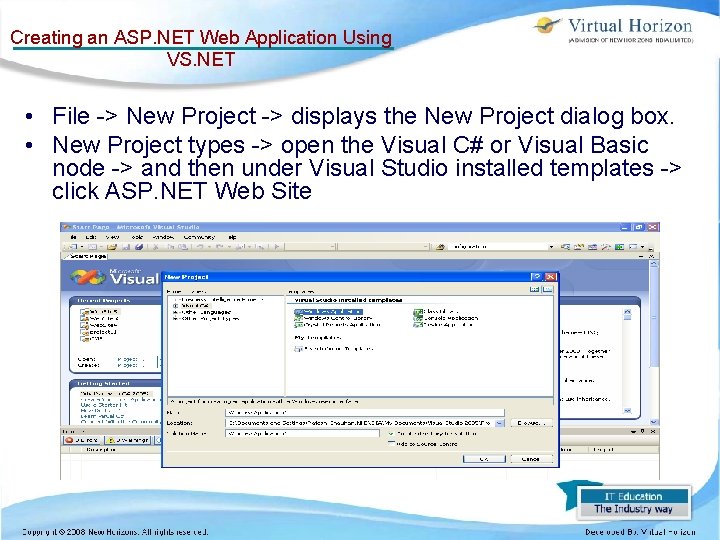
Creating an ASP. NET Web Application Using VS. NET • File -> New Project -> displays the New Project dialog box. • New Project types -> open the Visual C# or Visual Basic node -> and then under Visual Studio installed templates -> click ASP. NET Web Site
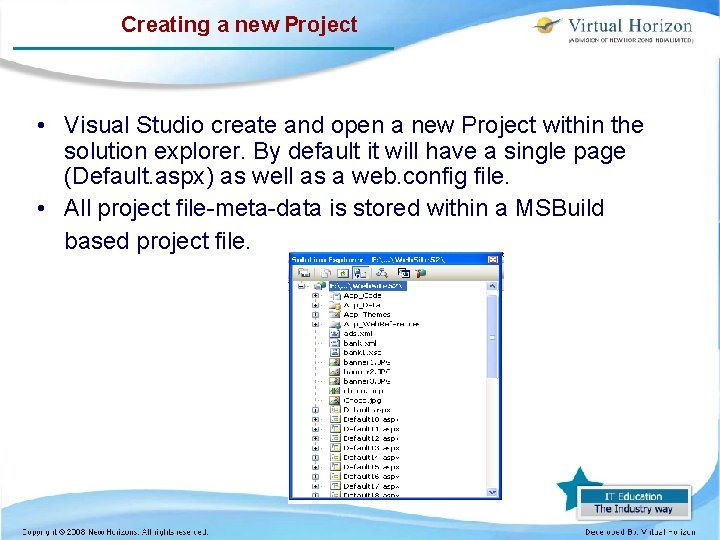
Creating a new Project • Visual Studio create and open a new Project within the solution explorer. By default it will have a single page (Default. aspx) as well as a web. config file. • All project file-meta-data is stored within a MSBuild based project file.
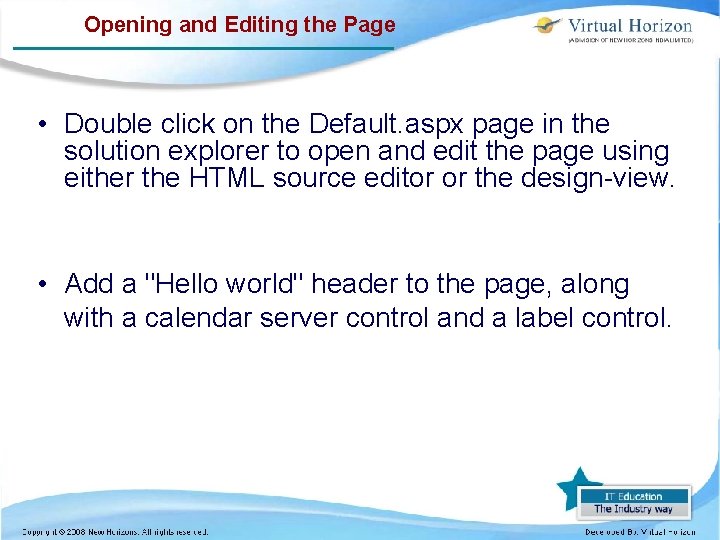
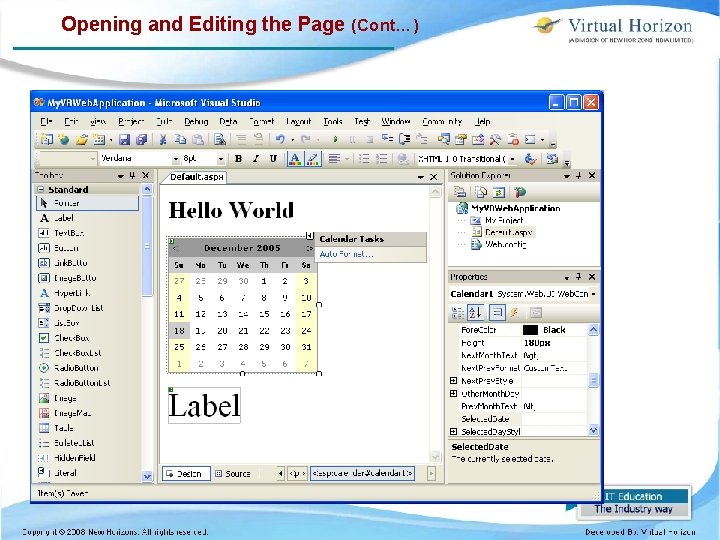
Opening and Editing the Page • Double click on the Default. aspx page in the solution explorer to open and edit the page using either the HTML source editor or the design-view. • Add a "Hello world" header to the page, along with a calendar server control and a label control.
Opening and Editing the Page (Cont…)
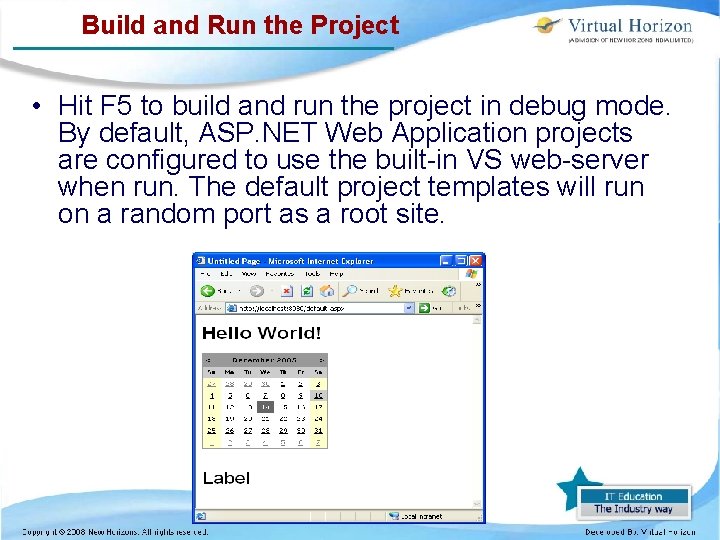
Build and Run the Project • Hit F 5 to build and run the project in debug mode. By default, ASP. NET Web Application projects are configured to use the built-in VS web-server when run. The default project templates will run on a random port as a root site.
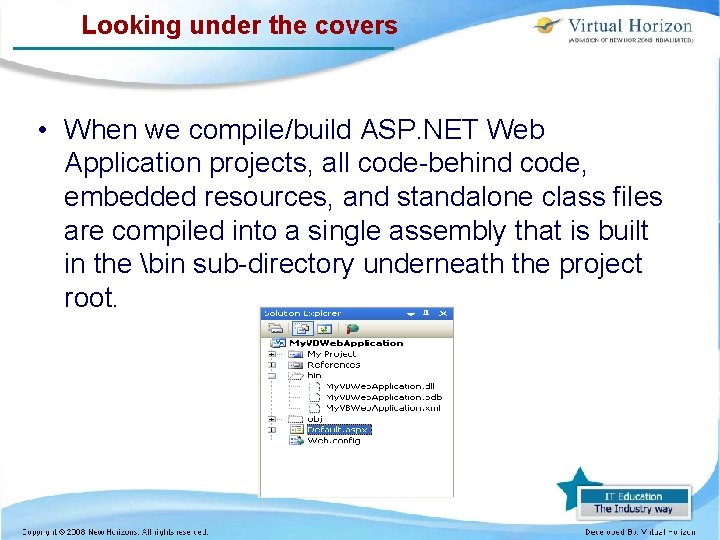
Looking under the covers • When we compile/build ASP. NET Web Application projects, all code-behind code, embedded resources, and standalone class files are compiled into a single assembly that is built in the bin sub-directory underneath the project root.
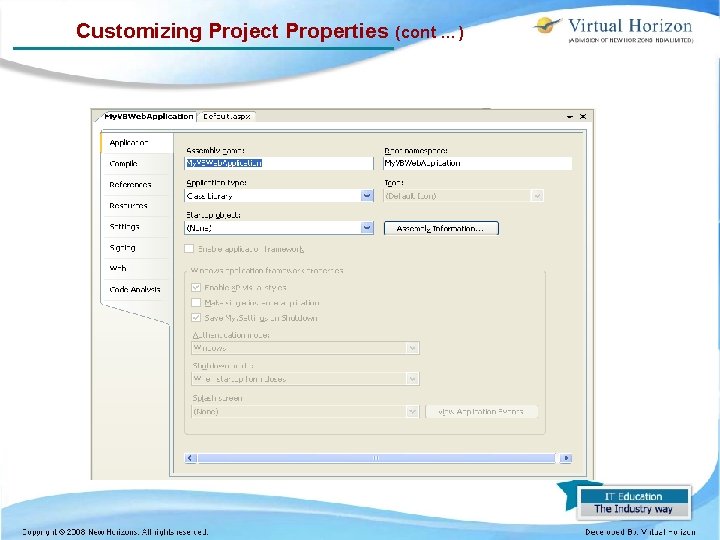
Customizing Project Properties • Access the configuration settings by doubleclicking on the "My Project" node in the Solution Explorer with VB projects in VS 2005. • Using Project properties configuration editor change the name of the generated assembly, the build compilation settings of the project, its references, its resource string values, codesigning settings, etc.
Customizing Project Properties (cont …)
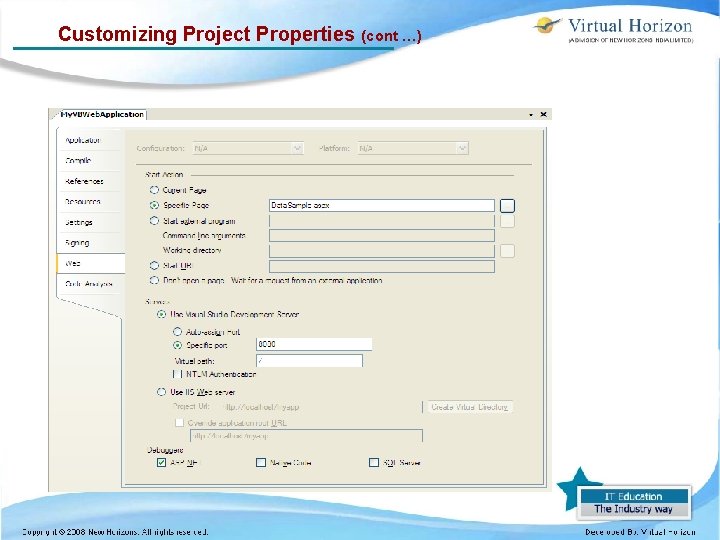
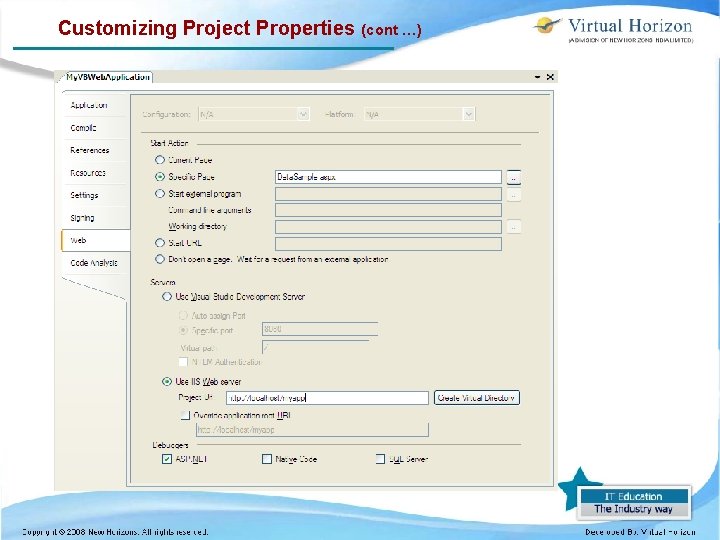
Customizing Project Properties (cont …) • Using “web” tab in project properties list, configure how a web project is run and debugged. • By default, ASP. NET Web Application Projects are configured to launch and run using the builtin VS Web Server on a random port of the machine. • This port number can be changed if this port is already in use, or if user want to specifically test and run using a different number.
Customizing Project Properties (cont …)
Customizing Project Properties (cont …) • Visual Studio can connect and debug IIS when running the web application. • To use IIS instead, select the "Use IIS Web Server" option and enter the url of the application to launch, connect-to, and use when F 5 or Control-F 5 is selected.
Customizing Project Properties (cont …)
Customizing Project Properties (cont …) • Configure the url to this application in the above property page for the web project. • When you hit F 5 in the project, Visual Studio will then launch a browser to that web application and automatically attach a debugger to the webserver process to enable you to debug it. • ASP. NET Web Application Projects can create the IIS vroot and configure the application by clicking the "Create Virtual Directory" button.
Comparison of the. NET based Languages • Visual Basic. NET is a true object-oriented programming language that includes new and improved features such as inheritance, polymorphism, interfaces, and overloading. • Both Visual Basic. NET and Visual C#. NET use the common language runtime. • There almost no performance issues between Visual Basic. NET and Visual C#. NET.
Comparison of the. NET based Languages (Cont …) • Visual C#. NET may have a few more "power" features such as handling unmanaged code. • Visual Basic. NET may be skewed a little toward ease of use by providing features such as late binding. • However, the differences between Visual Basic. NET and Visual C#. NET are very small compared to what they were in earlier versions. • . NET Framework is intended to be language independent.
Comparison of the. NET based Languages (Cont …) • J# allows developers to leave much of their Java or J++ code unchanged while still running it in the. NET framework. • Thus allowing them to migrate small pieces of it into another. NET language, such as C#, individually. • J# does not receive the same level of updates as the other languages and does not have the same level of community support. – For example, Visual Studio 2005 supports automatic generation of Unit Tests in C#, VB. Net, and C++, but excludes J#.
Comparison of the. NET based Languages (Cont …) • Microsoft recommends against developing new applications in J#. • C++/CLI supports pointers, deconstructors, and other program concepts which are not supported/limited in the other languages. • It allows the direct use of both. NET code and standard C++ code. • C++/CLI is used for porting native/legacy C++ applications into the. NET framework.
Comparison of the. NET based Languages (Cont …) • Coding directly in CIL (Common Intermediate Language) – often makes code that is difficult or impossible to decompile to a higher level language like C#. – Either the decompile fails or the resulting code is not very readable. – This is analogous to writing directly in assembly language, and then decompiling to C++. – This technique is used to help prevent reverseengineering. – It is possible to code an entire application directly in CIL, but this would be very cumbersome.
Creating a Component Using Visual Studio. NET • In the. NET Framework – a component is a class that implements the System. Component. Model. IComponent interface – or that derives directly or indirectly from a class that implements IComponent. • To use the components and controls from other programming languages, – it is must to author them in a Common Language Specification (CLS)-compliant language and ensure that all public and protected members are CLScompliant.
Creating a Component Using Visual Studio. NET(Cont…) • The. NET Framework SDK provides compilers for four CLS-compliant languages — Visual Basic. NET, C#, the Managed Extensions for C++, and JScript. NET. • Component is the default implementation of IComponent and serves as the base class for all components in the common language runtime. • Provides the base implementation for the IComponent interface and enables objectsharing between applications.
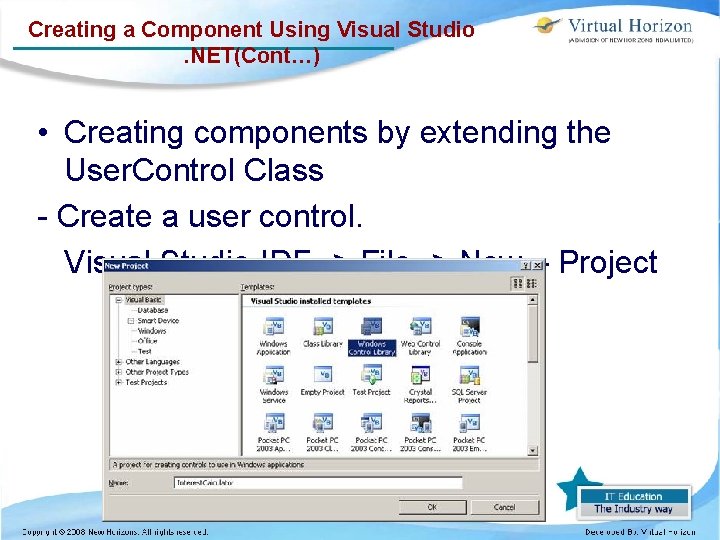
Creating a Component Using Visual Studio. NET(Cont…) • Creating components by extending the User. Control Class - Create a user control. Visual Studio IDE -> File -> New – Project
Creating a Component Using Visual Studio. NET(Cont…) • Select Windows Control Library from the items displayed. Type the name of the project as Interest. Calculator. Click on OK. • In the solution Explorer window, right-click User. Control 1 and select View Code. • change the default name User. Control 1 to any name of your choice. • The class inherits from the User. Control class by default. It can be inherit from another existing control, by edit the statement Inherits System. Windows. Forms. User. Control to refer to your class.
Creating a Component Using Visual Studio. NET(Cont…) • • • Save the Project. Enter the following code in to the windows: - Testing the Control Build the control by clicking Build menu. Create a new windows application project. In the solution explorer window of the new project, right –click the Reference node. Select Add reference to open the Add reference dialog box.
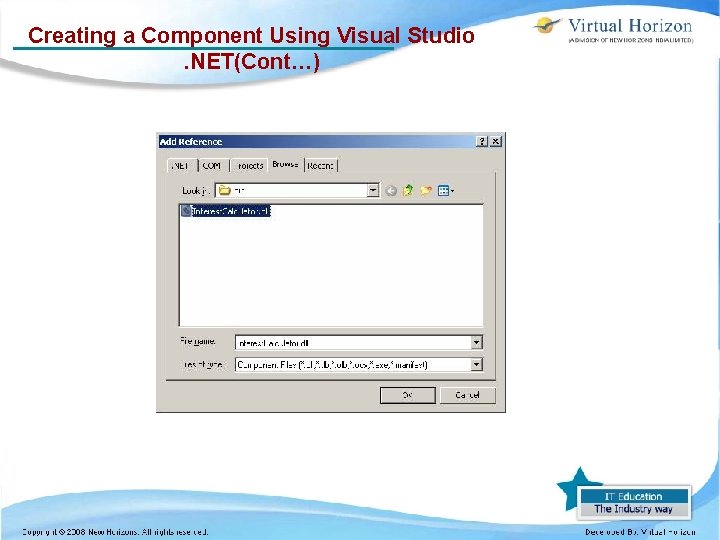
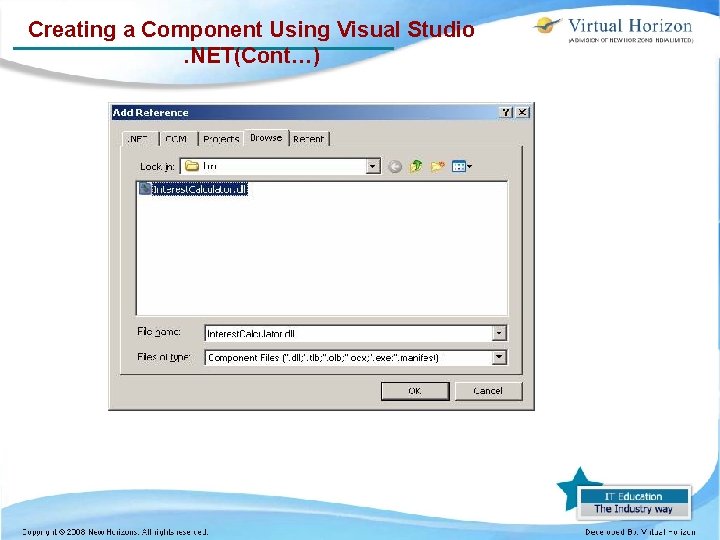
Creating a Component Using Visual Studio. NET(Cont…) • Add the project with your custom control to the selected – Components section in the Add. Reference Dialog. Box. • Add the control to your toolbar. • In the dialog box that you have opened select. NET Framework Component tab from the Add Reference Dialog Box.
Creating a Component Using Visual Studio. NET(Cont…)
Creating a Component Using Visual Studio. NET(Cont…)
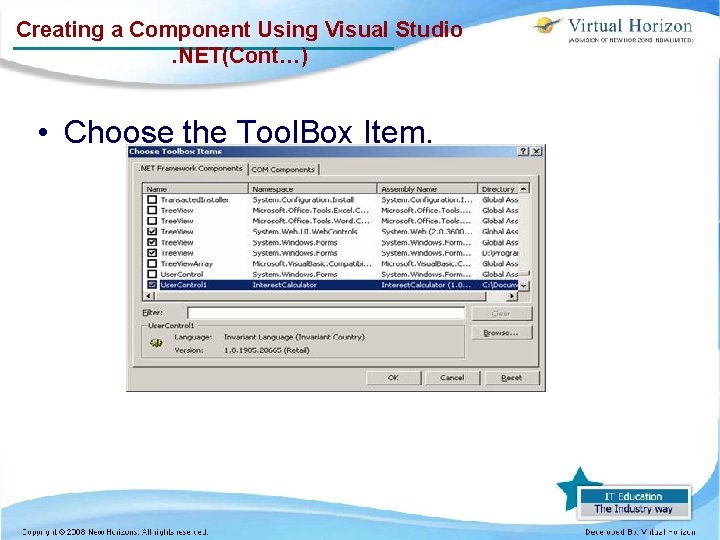
Creating a Component Using Visual Studio. NET(Cont…) • Choose the Tool. Box Item.
Creating a Component Using Visual Studio. NET(Cont…) • After adding the control to the Tool. Box, add three text boxes, two buttons and five labels and arrange them to see in the final output form shown below. • In the code editor add the following code to the Form 1:
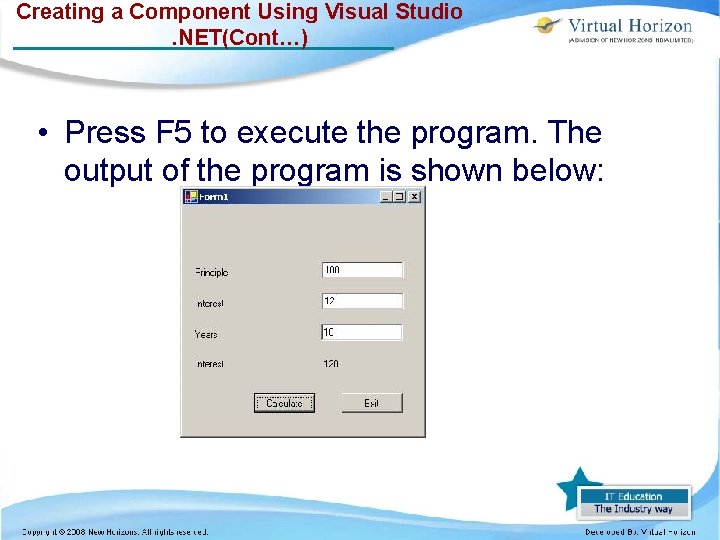
Creating a Component Using Visual Studio. NET(Cont…) • Press F 5 to execute the program. The output of the program is shown below:
Creating a new project in Visual Studio. NET for a Visual Basic Class • Class -A container for data and code. The data within the class can be accessed with properties. The code is referred to as methods. • Wrapping up the representation and set of operations which perform on a database table, for example adding, editing, deleting, and retrieving data. • Wrapping up the set of operations and data for dealing with text files such as reading, writing, and indexing the lines of text within the file.
Creating a new project in Visual Studio. NET for a Visual Basic Class (Cont…) • Wrapping up all global variables in a program into properties within a class. • This can help with keeping track of the amount of "free-floating" globals that somehow seem to work their way into many programs.
Creating Web Forms • Web Form Pages can contain two things that cannot be included in static HTML pages. – Web Form Pages can contain server controls and application logic. – When a server control is added to a page, the control is executed on Web server and it generates content that is sent to a Web browser. • The advantage of server controls – over plain old HTML tags is that we can program server controls. – Server controls have properties, methods, and events that can be manipulated in code.
Creating Web Forms (Cont…) • A Web Form Page can also contain application logic. You can add programming code to a Web Form Page that executes whenever the page is requested. – For example, you can write Visual Basic. NET code that retrieves data from a database table and displays the data in a server control. • Add application logic to a Web Form Page that handles different page events. – For example, you'll learn how to display different messages on a page depending on the options that a user selects in a form. Web
Using Server Controls • Server controls are tags that are understood by the server. • There are three kinds of server controls: – HTML Server Controls - Traditional HTML tags – Web Server Controls - New ASP. NET tags – -Validation Server Controls - For input validation • ASP. NET - HTML Server Controls: – HTML server controls are HTML tags understood by the server.
Using Server Controls (Cont…) • HTML elements in ASP. NET files are, by default, treated as text. • To make these elements programmable, add a runat="server" attribute to the HTML element. • This attribute indicates that the element should be treated as a server control. • The id attribute is added to identify the server control. The id reference can be used to manipulate the server control at run time.
Using Server Controls (Cont…) • Note: – All HTML server controls must be within a <form> tag with the runat="server" attribute. – The runat="server" attribute indicates that the form should be processed on the server. – It also indicates that the enclosed controls can be accessed by server scripts.
Using Server Controls (Cont…) • In the following example we declare an Html. Anchor server control in an. aspx file. • Then we manipulate the HRef attribute of the Html. Anchor control in an event handler (an event handler is a subroutine that executes code for a given event).
Using Server Controls (Cont…) • The Page_Load event is one of many events that ASP. NET understands: <script runat="server"> Sub Page_Load link 1. HRef=http: //www. w 3 schools. com End Sub </script> <html> <body> <form runat="server"> <a id="link 1" runat="server">Visit W 3 Schools!</a> </form> </body> </html>
Using Server Controls (Cont…) • ASP. NET - Web Server Controls: • Web server controls are special ASP. NET tags understood by the server. • Like HTML server controls, Web server controls are also created on the server and they require a runat="server" attribute to work. However, Web server controls do not necessarily map to any existing HTML elements and they may represent more complex elements. • The syntax for creating a Web server control is: <asp: control_name id="some_id" runat="server" />
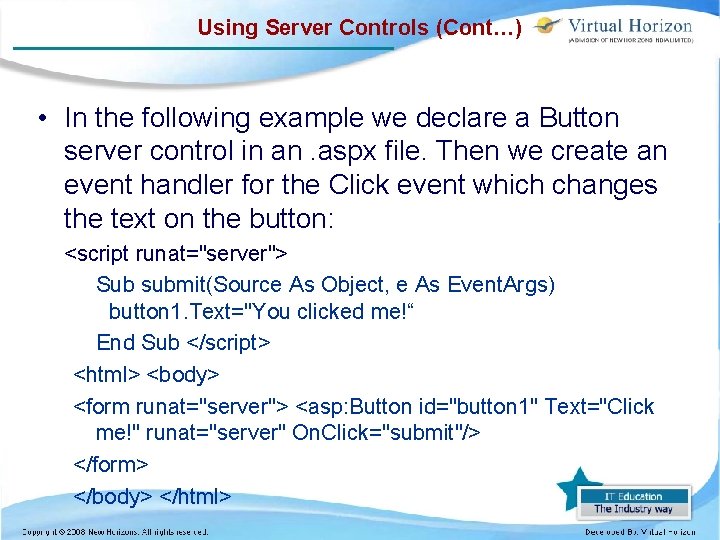
Using Server Controls (Cont…) • In the following example we declare a Button server control in an. aspx file. Then we create an event handler for the Click event which changes the text on the button: <script runat="server"> Sub submit(Source As Object, e As Event. Args) button 1. Text="You clicked me!“ End Sub </script> <html> <body> <form runat="server"> <asp: Button id="button 1" Text="Click me!" runat="server" On. Click="submit"/> </form> </body> </html>
Using Server Controls (Cont…) • ASP. NET - Validation Server Controls: – It is used to validate user-input. If the user-input does not pass validation, it will display an error message to the user. – Each validation control performs a specific type of validation (like validating against a specific value or a range of values). • By default, page validation is performed when a Button, Image. Button, or Link. Button control is clicked.
Using Server Controls (Cont…) • We can prevent validation when a button control is clicked by setting the Causes. Validation property to false. • The syntax for creating a Validation server control is: <asp: control_name id="some_id" runat="server" /> – In the following example we declare one Text. Box control, one Button control, and one Range. Validator control in an. aspx file. If validation fails, the text "The value must be from 1 to 100!" will be displayed in the Range. Validator control:
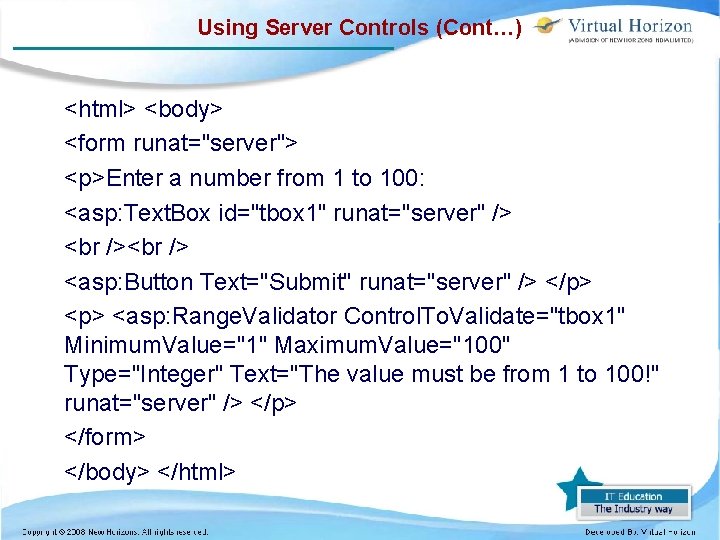
Using Server Controls (Cont…) <html> <body> <form runat="server"> <p>Enter a number from 1 to 100: <asp: Text. Box id="tbox 1" runat="server" /> <asp: Button Text="Submit" runat="server" /> </p> <asp: Range. Validator Control. To. Validate="tbox 1" Minimum. Value="1" Maximum. Value="100" Type="Integer" Text="The value must be from 1 to 100!" runat="server" /> </p> </form> </body> </html>
Using Server Controls (Cont…) • ASP. NET server controls don't have a one-to-one mapping to standard HTML elements. • A rich object model that allows for type-safe programming, Automatic browser detection. The controls detect the browser's capabilities and provide client-side code appropriate to the client. • For some controls, the ability to specify whether an event for a control should be cached for later form submission or posted immediately to the server.
Using Server Controls (Cont…) • The syntax for creating a Web server control is: <asp: control_name id="some_id" runat="server" /> • To collect user input, the ASP. NET web page must contain a Web Form. A Web Form is a Web control that has the following syntax: <form runat="server">. . . </form> • When you create a new ASP. NET web page in Visual Web Developer, a Web Form is automatically added. • View the page through the Design view. It shows an empty designer because we've yet to add any Web controls to our ASP. NET page.
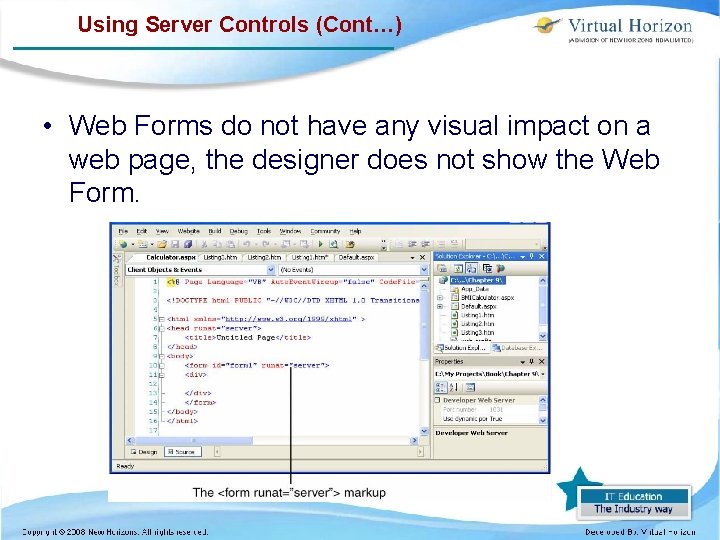
Using Server Controls (Cont…) • Web Forms do not have any visual impact on a web page, the designer does not show the Web Form.
Creating the default. aspx Web Form • When we start Visual Web Developer – we can either create a new website or open an existing website. • A website is a collection of resources: – static and dynamic web pages, graphic files, style sheets, configuration files, and so on. • A website is similar to a folder. It's a repository for files and subfolders. • In addition to various files, a website may contain subdirectories, each of which may contain its own set of files and further subdirectories.
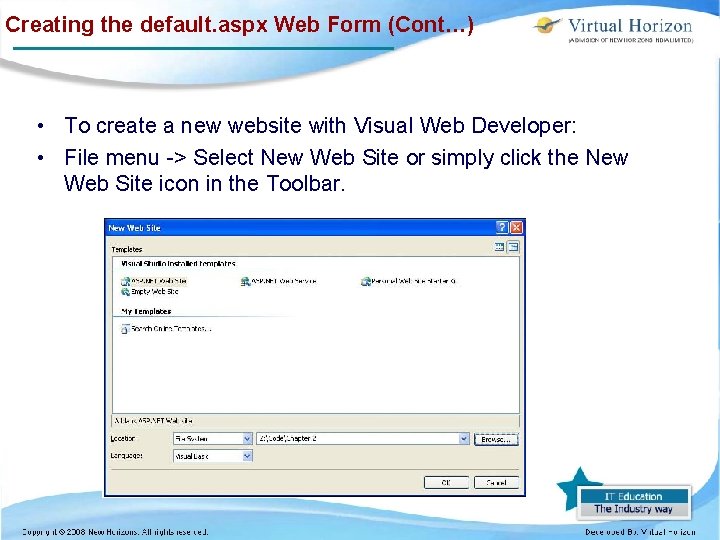
Creating the default. aspx Web Form (Cont…) • To create a new website with Visual Web Developer: • File menu -> Select New Web Site or simply click the New Web Site icon in the Toolbar.
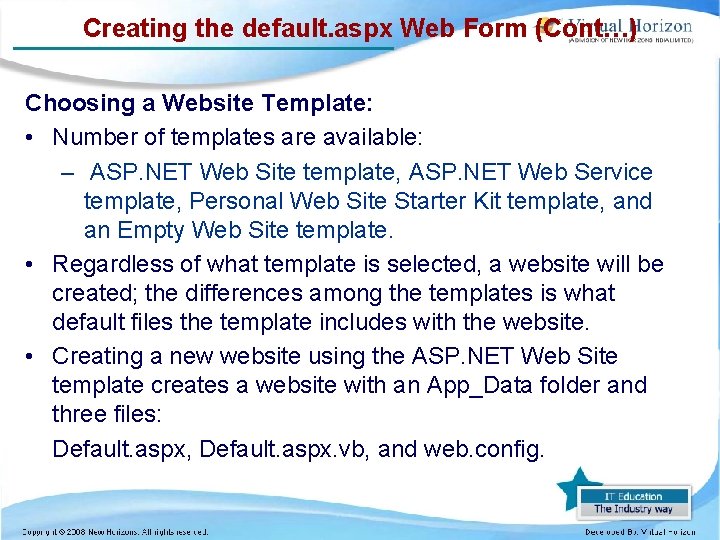
Creating the default. aspx Web Form (Cont…) Choosing a Website Template: • Number of templates are available: – ASP. NET Web Site template, ASP. NET Web Service template, Personal Web Site Starter Kit template, and an Empty Web Site template. • Regardless of what template is selected, a website will be created; the differences among the templates is what default files the template includes with the website. • Creating a new website using the ASP. NET Web Site template creates a website with an App_Data folder and three files: Default. aspx, Default. aspx. vb, and web. config.
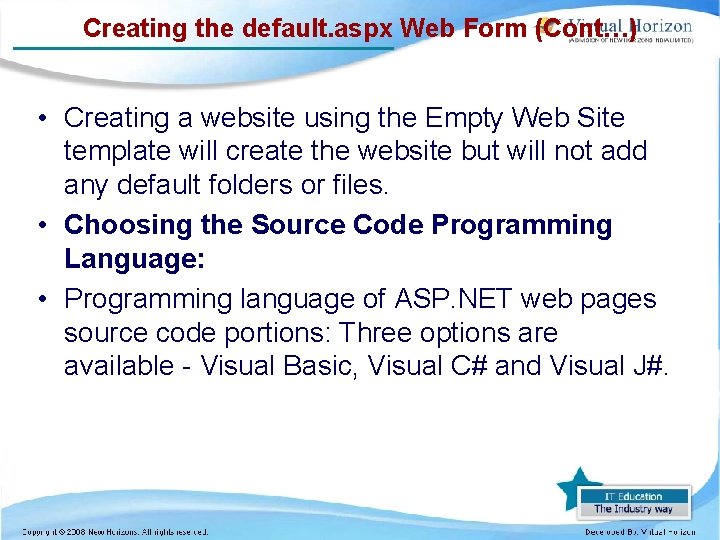
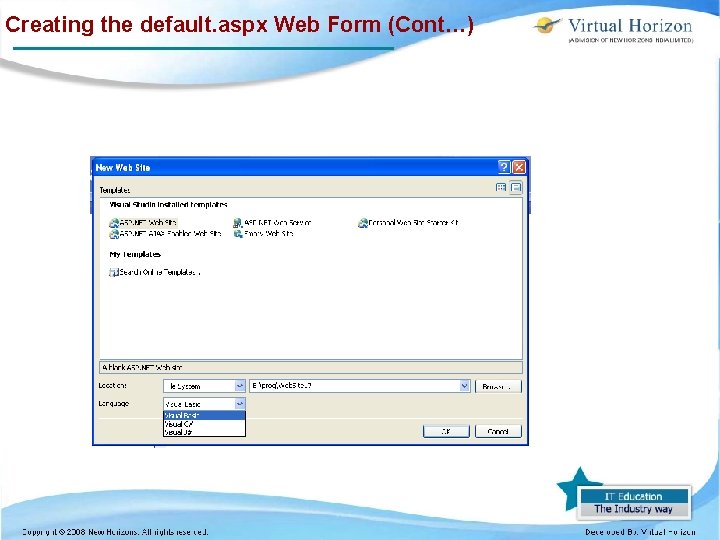
Creating the default. aspx Web Form (Cont…) • Creating a website using the Empty Web Site template will create the website but will not add any default folders or files. • Choosing the Source Code Programming Language: • Programming language of ASP. NET web pages source code portions: Three options are available - Visual Basic, Visual C# and Visual J#.
Creating the default. aspx Web Form (Cont…)
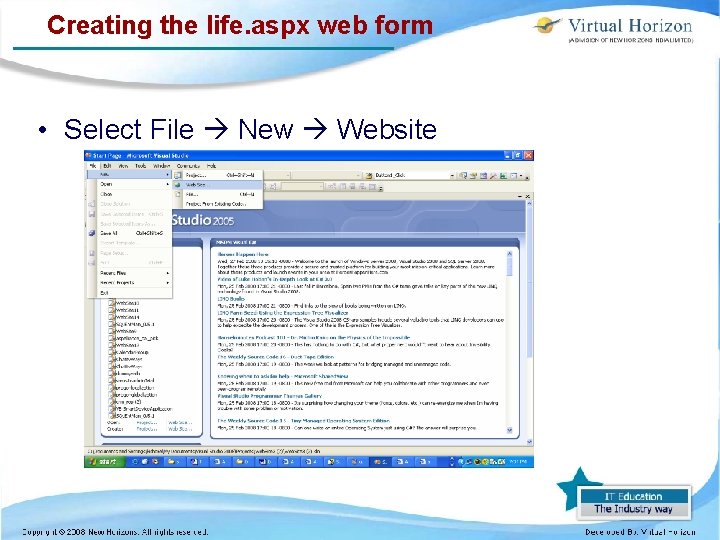
Creating the life. aspx web form • Select File New Website
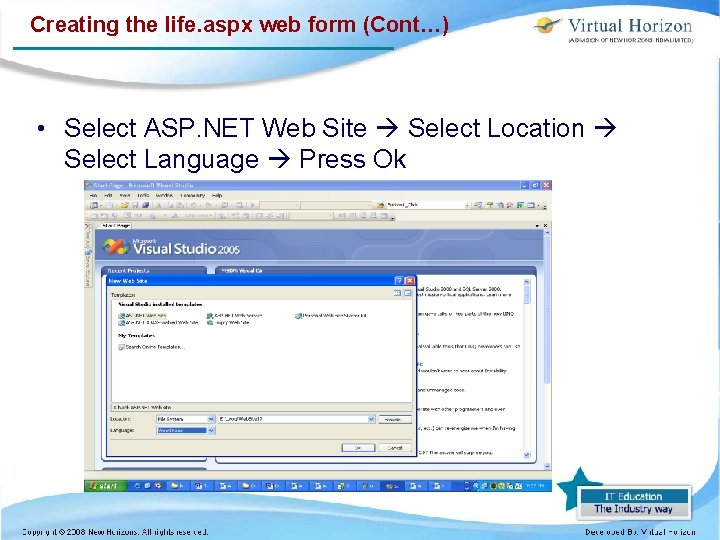
Creating the life. aspx web form (Cont…) • Select ASP. NET Web Site Select Location Select Language Press Ok
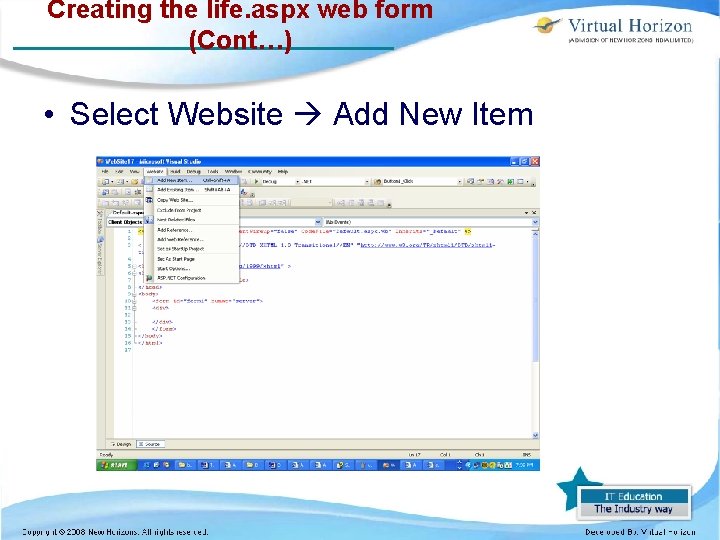
Creating the life. aspx web form (Cont…) • Select Website Add New Item
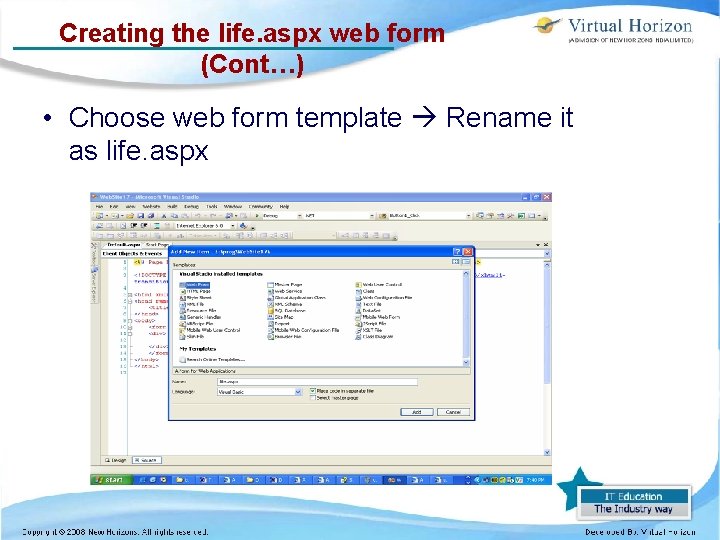
Creating the life. aspx web form (Cont…) • Choose web form template Rename it as life. aspx
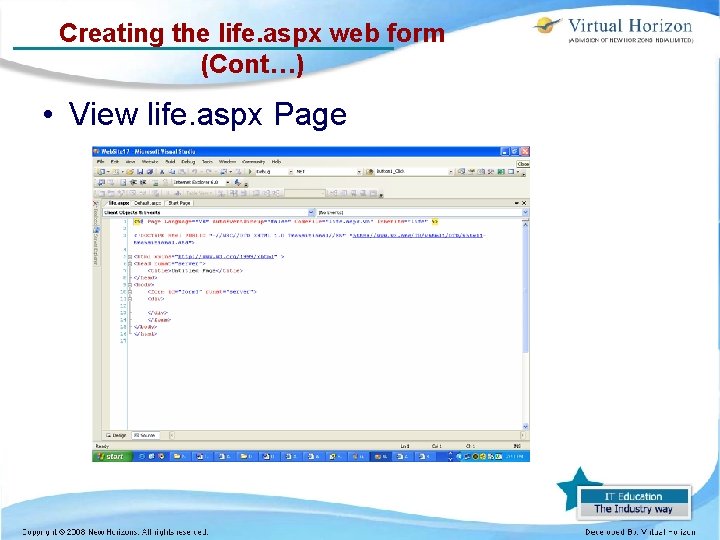
Creating the life. aspx web form (Cont…) • View life. aspx Page
Using code behind pages • We can develop asp. net pages by using two types: – in page technique and code behined technique. • In Inpage Technique – we can write both designing file and code file with in a single file. – By using this technique we can host the application very easily. • In Code Behind technique – both logic part i. e code part of the page and designing part will be separated: . aspx as design file and. aspx. vb/cs as code file. – In this application development will be faster as the designer and developer are working simultaneously.
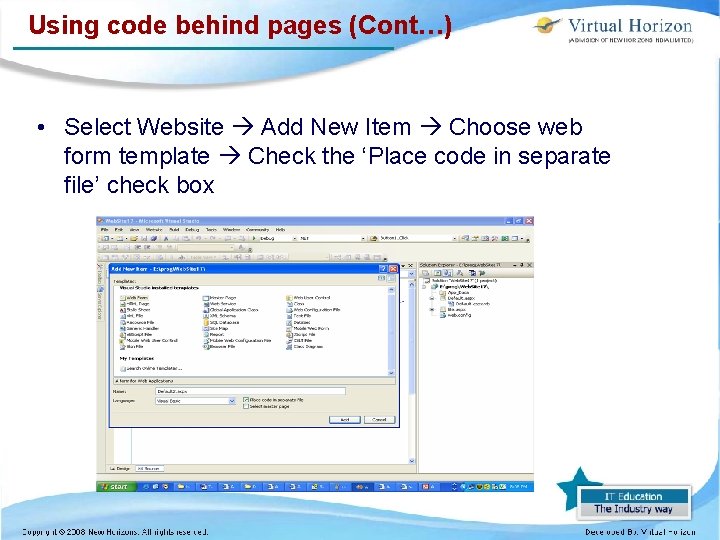
Using code behind pages (Cont…) • Select Website Add New Item Choose web form template Check the ‘Place code in separate file’ check box
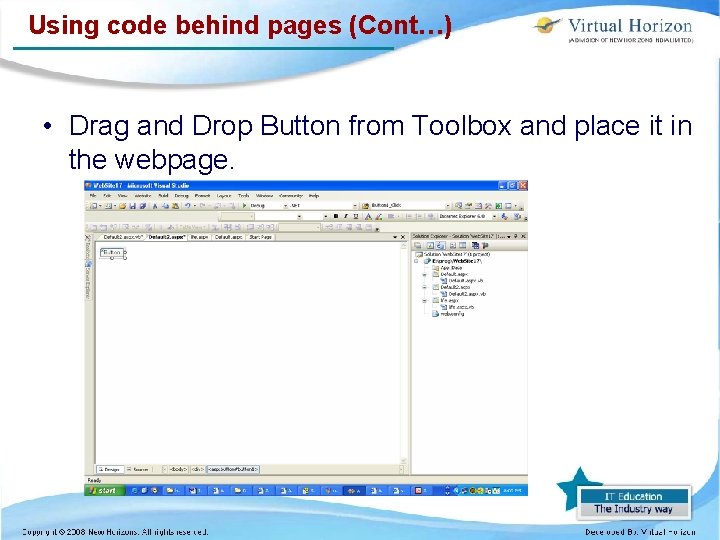
Using code behind pages (Cont…) • Drag and Drop Button from Toolbox and place it in the webpage.
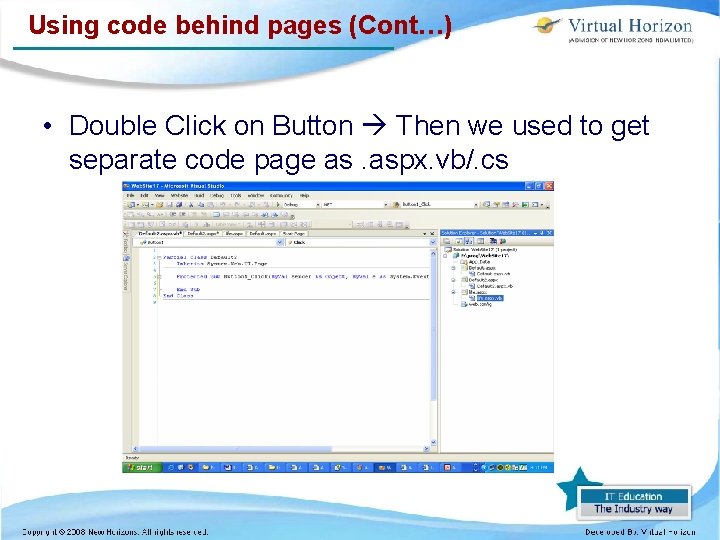
Using code behind pages (Cont…) • Double Click on Button Then we used to get separate code page as. aspx. vb/. cs
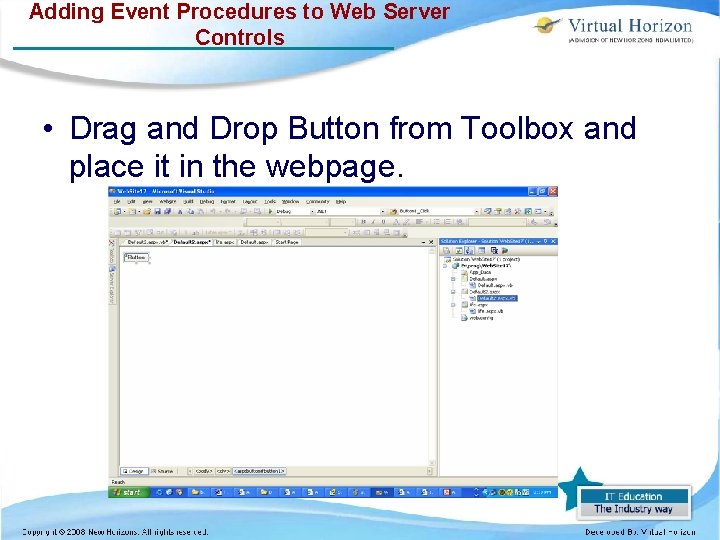
Adding Event Procedures to Web Server Controls • Drag and Drop Button from Toolbox and place it in the webpage.
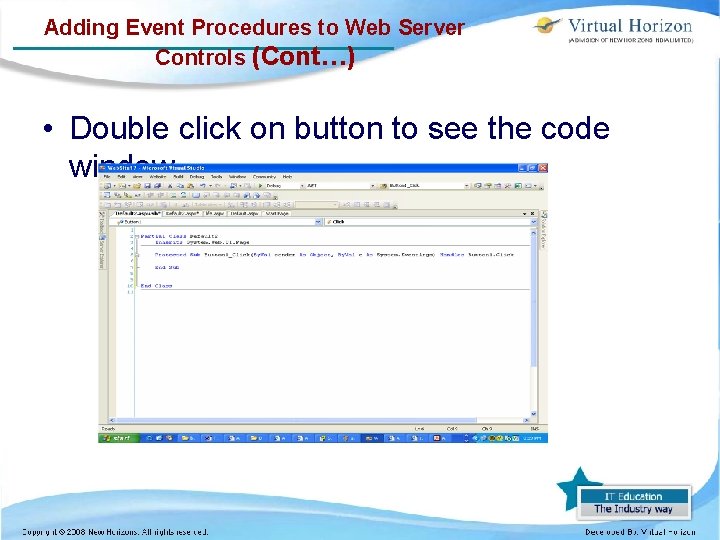
Adding Event Procedures to Web Server Controls (Cont…) • Double click on button to see the code window
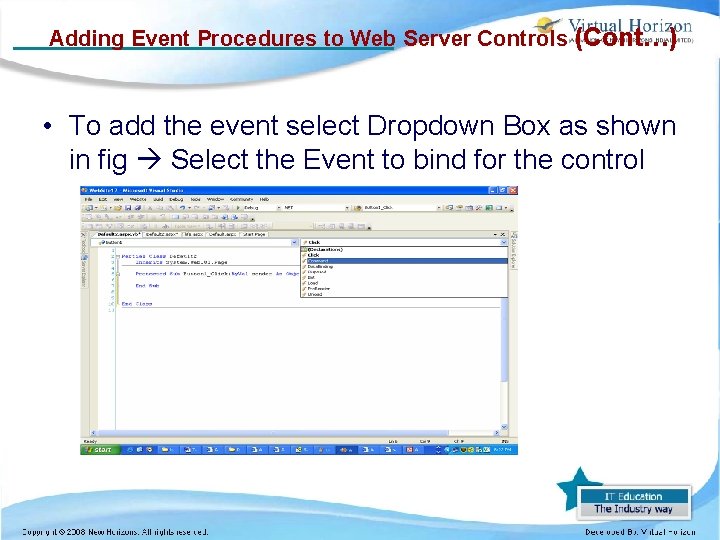
Adding Event Procedures to Web Server Controls (Cont…) • To add the event select Dropdown Box as shown in fig Select the Event to bind for the control
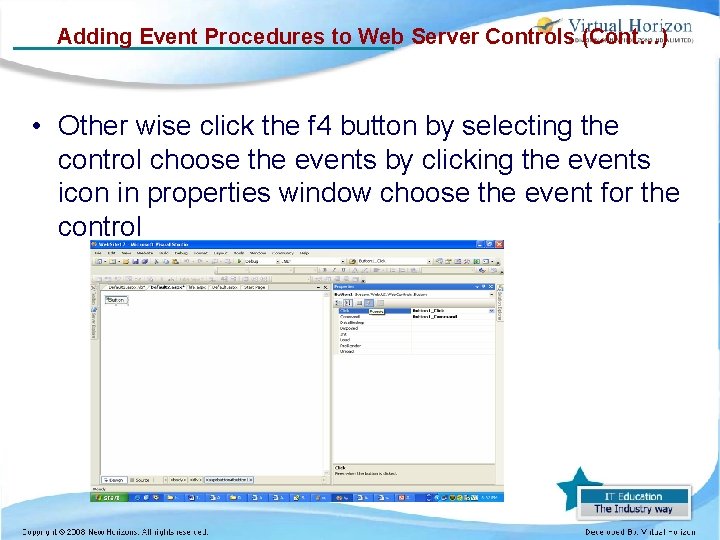
Adding Event Procedures to Web Server Controls (Cont…) • Other wise click the f 4 button by selecting the control choose the events by clicking the events icon in properties window choose the event for the control
Using Page Events • Pre. Init - Check the Is. Post. Back property to determine whether this is the first time the page is being processed. - Create or re-create dynamic controls. - Set a master page dynamically. - Set the Theme property dynamically. - If the request is a postback, the values of the controls have not yet been restored from view state. If you set a control property at this stage, its value might be overwritten in the next event. - Read or set profile property values.
Using Page Events (Cont…) • Init – Raised after all controls have been initialized any hide settings have been applied. Use this event to read or initialize control properties. • Init. Complete - Raised by the Page object. Use this event for processing tasks that require all initialization be complete. • Pre. Load - Use this event to perform processing on your page or control before the Load event.
Using Page Events (Cont…) - After the Page raises this event, it loads view state for itself and all controls, and then processes any postback data included with the Request instance. • Load - The Page calls the On. Load event method on the Page, – then recursively does the same for each child control, which does the same for each of its child controls until the page and all controls are loaded. – Use the On. Load event method to set properties in controls and establish database connections.
Using Page Events (Cont…) • Control events - Use these events to handle specific control events, such as a Button control's Click event or a Text. Box control's Text. Changed event. – Note: In a postback request, if the page contains validator controls, check the Is. Valid property of the Page and of individual validation controls before performing any processing. • Load. Complete - Use this event for tasks that require that all other controls on the page be loaded.
Using Page Events (Cont…) • Pre. Render - Before this event occurs: – The Page object calls Ensure. Child. Controls for each control and for the page. – Each data bound control whose Data. Source. ID property is set calls its Data. Bind method. – The Pre. Render event occurs for each control on the page. Use the event to make final changes to the contents of the page or its controls. • Save. State. Complete - Before this event occurs, View. State has been saved for the page and for all controls. Any changes to the page or controls at this point will be ignored.
Using Page Events (Cont…) – This event can be used to perform tasks that require view state to be saved, but that do not make any changes to controls. • Render – This is not an event; instead, – at the stage of processing, the Page object calls this method on each control. – All ASP. NET Web server controls have a Render method that writes out the control's markup that is sent to the browser. - If we create a custom control, we typically override this method to output the control's markup.
Using Page Events (Cont…) – However, if custom control incorporates only standard ASP. NET Web server controls and no custom markup, then no need to override the Render method. - A user control (an. ascx file) automatically incorporates rendering, so no need to explicitly render the control in code. • Unload - This event occurs for each control and then for the page. In controls, use this event to do final cleanup for specific controls, such as closing control-specific database connections.
Using Page Events (Cont…) – For the page itself, use this event to do final cleanup work, such as closing open files and database connections, or finishing up logging or other request-specific tasks. - For the page itself, use this event to do final cleanup work, such as closing open files and database connections, or finishing up logging or other requestspecific tasks.
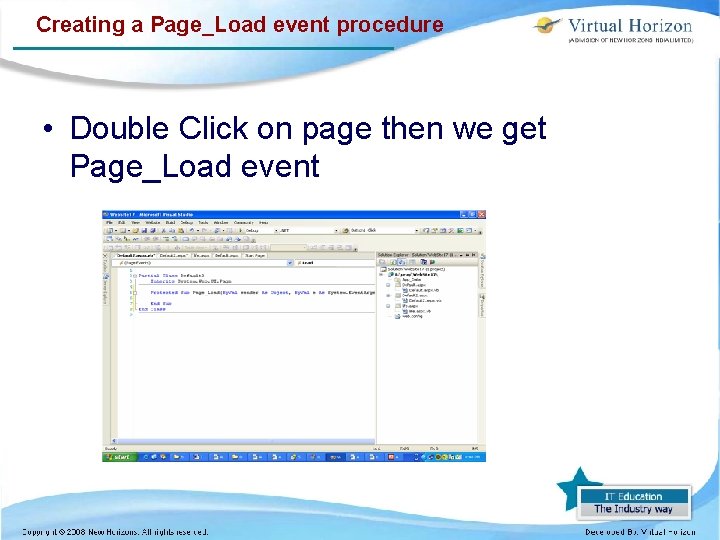
Creating a Page_Load event procedure • Double Click on page then we get Page_Load event
Creating a Page_Load event procedure (Cont…) • The Page_Load event is triggered when a page loads, and ASP. NET will automatically call the subroutine Page_Load, and execute the code inside it: <script runat="server"> Sub Page_Load lbl 1. Text="The date and time is " & now() End Sub </script> <html> <body> <form runat="server"> <h 3><asp: label id="lbl 1" runat="server" /></h 3> </form> </body> </html>
Creating a Click Event procedure • The following code example shows an event handler for the Click event of a button named Sample. Button. The method in the example is named Clicked. • Protected Sub Sample. Button_Click(By. Val sender As Object, By. Val e As System. Event. Args) Handles Sample. Button. Click ' Code goes here. End Sub
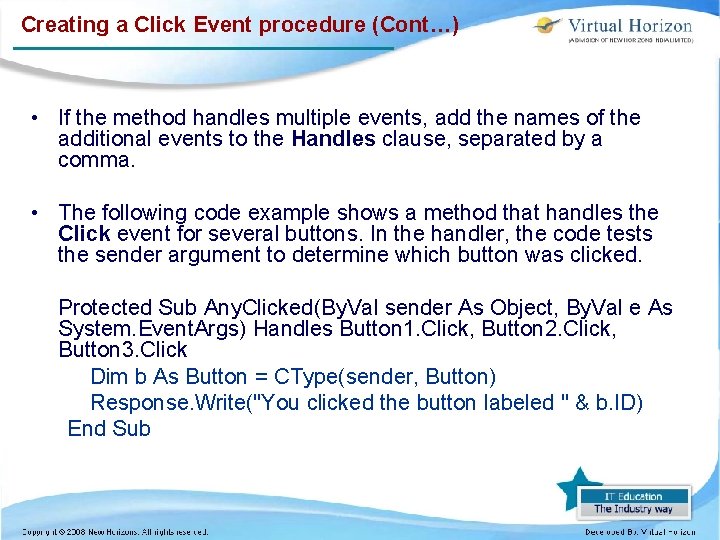
Creating a Click Event procedure (Cont…) • If the method handles multiple events, add the names of the additional events to the Handles clause, separated by a comma. • The following code example shows a method that handles the Click event for several buttons. In the handler, the code tests the sender argument to determine which button was clicked. Protected Sub Any. Clicked(By. Val sender As Object, By. Val e As System. Event. Args) Handles Button 1. Click, Button 2. Click, Button 3. Click Dim b As Button = CType(sender, Button) Response. Write("You clicked the button labeled " & b. ID) End Sub
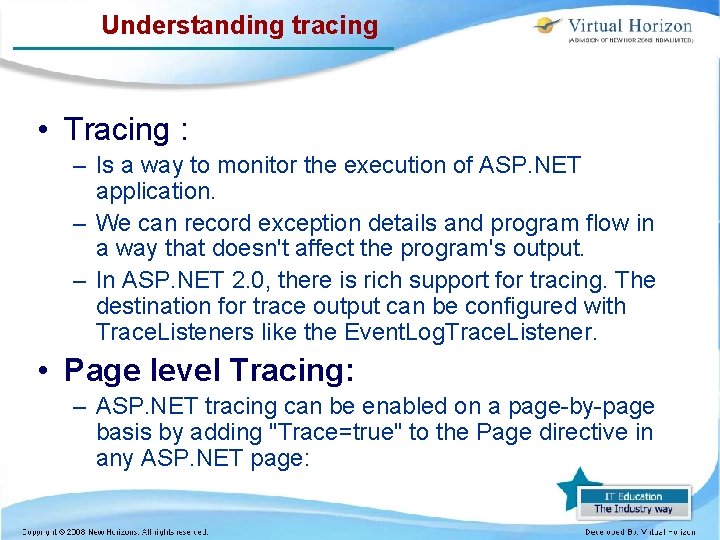
Understanding tracing • Tracing : – Is a way to monitor the execution of ASP. NET application. – We can record exception details and program flow in a way that doesn't affect the program's output. – In ASP. NET 2. 0, there is rich support for tracing. The destination for trace output can be configured with Trace. Listeners like the Event. Log. Trace. Listener. • Page level Tracing: – ASP. NET tracing can be enabled on a page-by-page basis by adding "Trace=true" to the Page directive in any ASP. NET page:
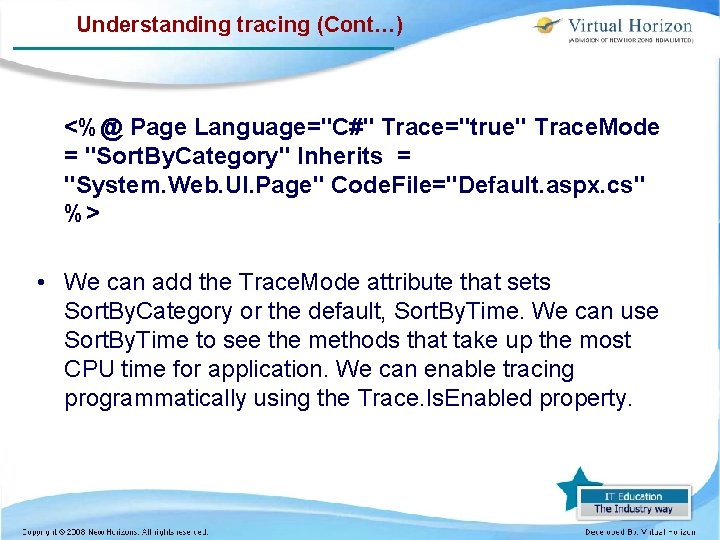
Understanding tracing (Cont…) <%@ Page Language="C#" Trace="true" Trace. Mode = "Sort. By. Category" Inherits = "System. Web. UI. Page" Code. File="Default. aspx. cs" %> • We can add the Trace. Mode attribute that sets Sort. By. Category or the default, Sort. By. Time. We can use Sort. By. Time to see the methods that take up the most CPU time for application. We can enable tracing programmatically using the Trace. Is. Enabled property.
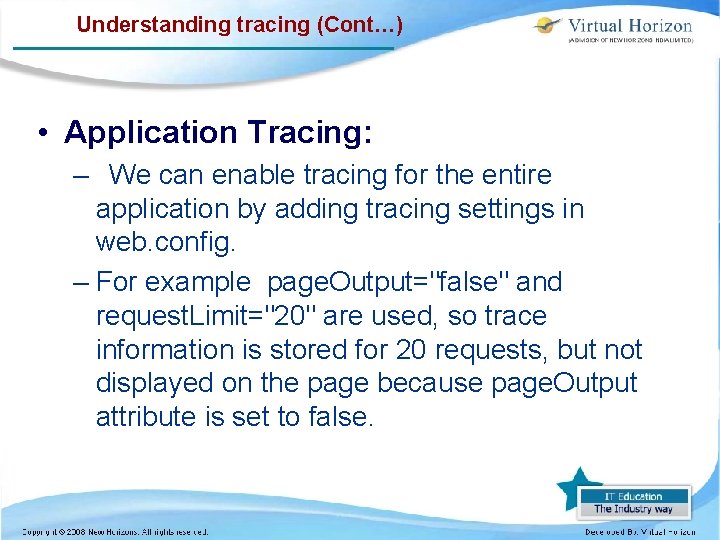
Understanding tracing (Cont…) • Application Tracing: – We can enable tracing for the entire application by adding tracing settings in web. config. – For example page. Output="false" and request. Limit="20" are used, so trace information is stored for 20 requests, but not displayed on the page because page. Output attribute is set to false.
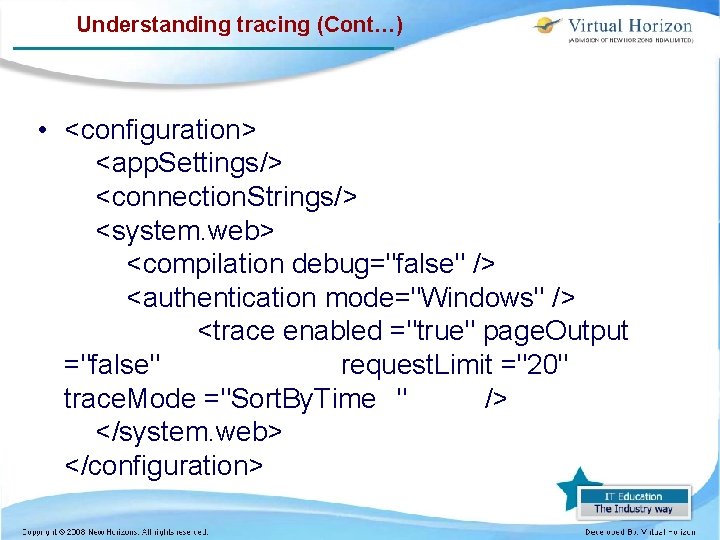
Understanding tracing (Cont…) • <configuration> <app. Settings/> <connection. Strings/> <system. web> <compilation debug="false" /> <authentication mode="Windows" /> <trace enabled ="true" page. Output ="false" request. Limit ="20" trace. Mode ="Sort. By. Time " /> </system. web> </configuration>
Understanding tracing (Cont…) • The page-level settings take precedence over settings in Web. config, so if enabled="false" is set in Web. config, but trace="true" is set on the page, tracing occurs. • Tracing can be viewed for multiple page requests at the application level by requesting a special page called trace. axd. • When ASP. NET detects an HTTP request for trace. axd, that request is handled by the Trace. Handler rather than by a page.
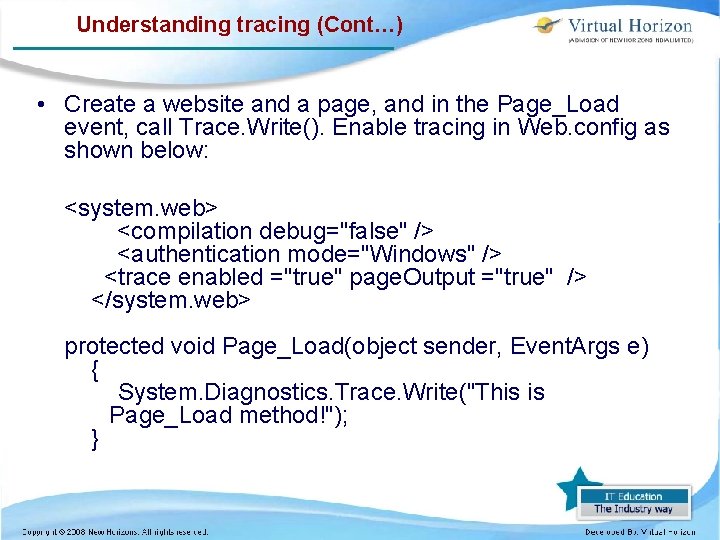
Understanding tracing (Cont…) • Create a website and a page, and in the Page_Load event, call Trace. Write(). Enable tracing in Web. config as shown below: <system. web> <compilation debug="false" /> <authentication mode="Windows" /> <trace enabled ="true" page. Output ="true" /> </system. web> protected void Page_Load(object sender, Event. Args e) { System. Diagnostics. Trace. Write("This is Page_Load method!"); }
Understanding tracing (Cont…) • When we run the page, we can see a great deal of trace information in the browser because we have set Page. Output=true. • The message from Trace. Write appears after Begin Load and before End Load. • Request Details: This section includes the ASP. NET Session ID, the character encoding of the request and response, and the HTTP conversation's returned status code. • Trace Information: This section includes all the Trace. Write methods called during the lifetime of the HTTP request and a great deal of information about timing.
Understanding tracing (Cont…) • Control Tree: – Control tree presents an HTML representation of the ASP. NET Control Tree. – Shows each control's ID, run time type, the number of bytes it took to be rendered, and the bytes it requires in View State and Control State. • Session State: – Lists all the keys for a particular user's session, their types and their values. • Application State: – Lists all the keys in the current application's Application object and their type and values.
Understanding tracing (Cont…) • Request Cookies: – Lists all the cookies passed in during the page is requested. • Response Cookies: – Lists all the cookies that were passed back during the page's response. • Headers Collection: – Shows all the headers that might be passed in during the request from the browser, including Accept-Encoding, indicating whether the browser supports the compressed HTTP responses and Accept languages. • Form Collection: – Displays a complete dump of the Form Collection and all its keys and values.
Understanding tracing (Cont…) • Query. String Collection: – Displays a dump of the Querystring collection and all its contained keys and values. • Server Variables: – A complete dump of name-value pairs of everything that the web server knows about the application. • Trace. axd: – Page output of tracing shows only the data collected for the current page request. – However, if we want to collect detailed information for all the requests then we need to use Trace. axd. We can invoke Trace. axd tool for the application using the following URL http: //localhost/application-name/trace. axd.
Understanding tracing (Cont…) • Trace. axd displays all the tracing information for all requests up to a present limit. • After final request, tracing data is not saved until an application recycle or until we click "Clear Current Trace" from the Trace. axd page. • The request limit can be raised in Web. config by setting request. Limit to a higher value as shown below: <trace enabled ="true" request. Limit ="20" page. Output ="true"/>
Understanding tracing (Cont…) • Trace forwarding: – ASP. NET 2. 0 introduced new attribute to Web. config <trace> element that allows user to route messages emitted by ASP. NET tracing to System. Diagnostics. Trace: write. To. Diagnostics. Trace. <trace enabled ="true" request. Limit ="20" write. To. Diagnostics. Trace ="true " page. Output ="true"/> • When we set write. To. Diagnostics. Trace to true, all calls to System. Web. UI. Page. Trace. Write (the ASP. NET Trace. Content) also go to System. Diagnostics. Trace. Write, enabling user to use all the standard Trace. Listeners.
Understanding tracing (Cont…) • The simple write. To. Diagnostics. Trace setting connects the ASP. NET tracing functionality with the rest of the base class library. • New Trace Listeners in ASP. NET 2. 0: – The new ASP. NET 2. 0 Web. Page. Trace. Listener derives from System. Diagnostics. Trace. Listener and automatically forwards tracing information from any component calls to System. Diagnostics. Trace. Write. – This enables user to write components using the most generic trace provider and to see its tracing output in the context of ASP. NET application.
Understanding tracing (Cont…) • The Web. Page. Trace. Listener is added to the web. config as shown below: <system. diagnostics> <trace autoflush ="false" indentsize ="4"> <listeners> <add name="web. Listeners" type="System. Web. Page. Trace. Listener, System. Web" /> </listeners> </trace> • </system. diagnostics>
Understanding tracing (Cont…) • Xml. Writer. Trace. Listener: – Xml. Writer. Trace. Listener derives from Text. Writer. Trace. Listener and writes out a strongly typed XML file. – The XML created is not well formed. Specifically, it doesn't have root node. It's just collection of peer nodes. • Delimited. List. Trace. Listener: – Delimited. List. Trace. Listener derives from Text. Writer. Trace. Listener. It writes out commaseparated values (CSV) files.
Remote Debugging • We can consider using remote debugging when we have the following situations: • We cannot run a Web application locally. • You cannot have a local Web server, and we need to develop an application for Internet users or we want an application to be deployed on a Web server. • The application is not available locally. • We want to store the application at a centralized location.
Remote Debugging (Cont…) • Build a Web solution: • To do this, follow these steps: • 1. Start -> All Programs -> Microsoft Visual Studio 2005. • 2. File menu -> New -> Web Site. • 3. In the New Web Site dialog box, click ASP. NET Web Site under Visual Web Developer installed templates. • 4. In the Location box, click HTTP. • 5. For the location, enter a path on the remote server.
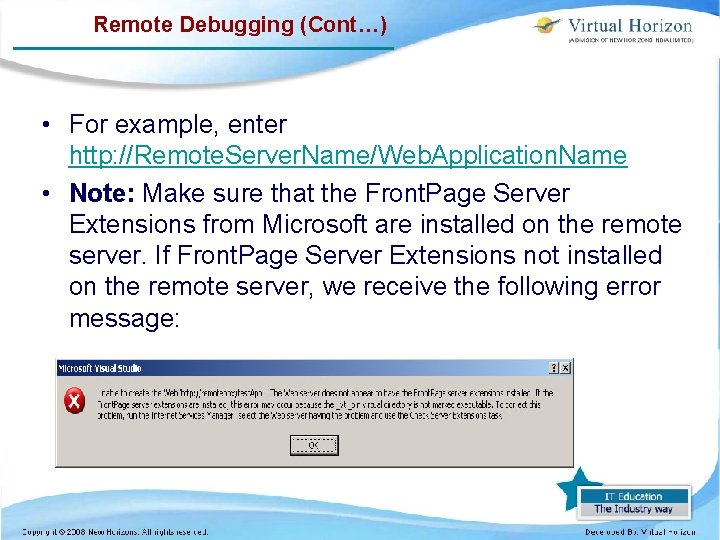
Remote Debugging (Cont…) • For example, enter http: //Remote. Server. Name/Web. Application. Name • Note: Make sure that the Front. Page Server Extensions from Microsoft are installed on the remote server. If Front. Page Server Extensions not installed on the remote server, we receive the following error message:
Remote Debugging (Cont…) • 6. Open Default. aspx in the designer view. • 7. Double-click the designer to open the Code Editor. We are placed in the Page_Load event. • 8. Add the following line of code to the Page_Load event. ' Visual Basic Response. Write("Hello World") // C# Response. Write("Hello World"); • 9. Press F 9 on the current line to set a breakpoint.
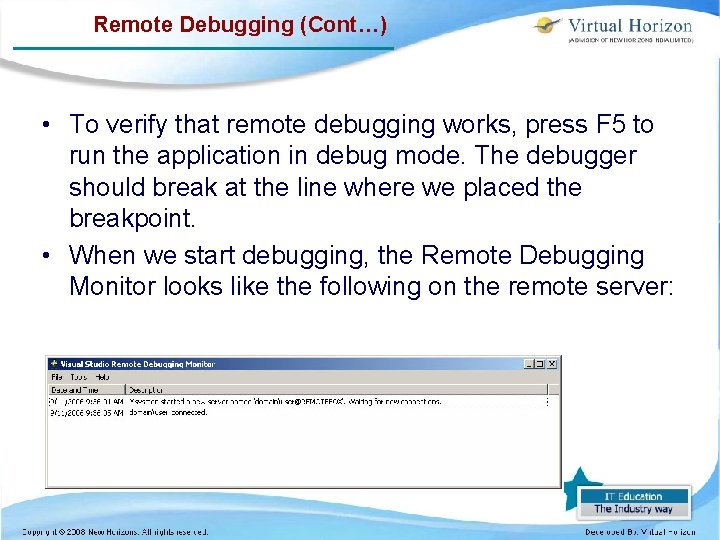
Remote Debugging (Cont…) • To verify that remote debugging works, press F 5 to run the application in debug mode. The debugger should break at the line where we placed the breakpoint. • When we start debugging, the Remote Debugging Monitor looks like the following on the remote server:
Remote Debugging (Cont…) • This shows that the user is connected to debug the application. • If the breakpoint is not hit, then we should consider looking at the Microsoft Internet Information Services (IIS) logs. The IIS logs will help us determine which step isn't working or whether the DEBUG verb is being sent to the Web server. The IIS logs are in the following location: %windir%system 32logfilesw 3 svc. Number Note: Number is the IIS instance number of the Web site.
Remote Debugging (Cont…) • Tip: – We can also click Start, click Run, and then type Log. Files to go to the default log file directory. • We can get the path by checking the IIS properties: – 1. Start IIS Manager. – 2. Right-click the Web site we are creating projects against, and then click Properties. – 3. On the Web Site tab, click Properties under Enable Logging. The log file path and the directory are listed at the bottom of the General Properties tab.
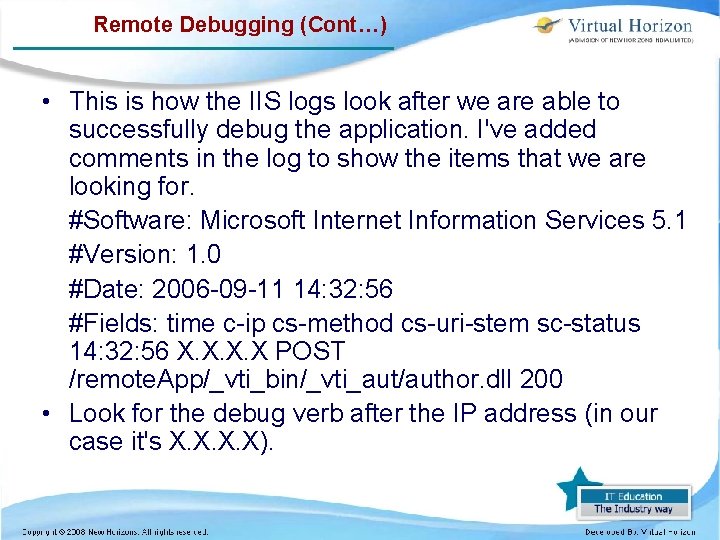
Remote Debugging (Cont…) • This is how the IIS logs look after we are able to successfully debug the application. I've added comments in the log to show the items that we are looking for. #Software: Microsoft Internet Information Services 5. 1 #Version: 1. 0 #Date: 2006 -09 -11 14: 32: 56 #Fields: time c-ip cs-method cs-uri-stem sc-status 14: 32: 56 X. X POST /remote. App/_vti_bin/_vti_aut/author. dll 200 • Look for the debug verb after the IP address (in our case it's X. X).
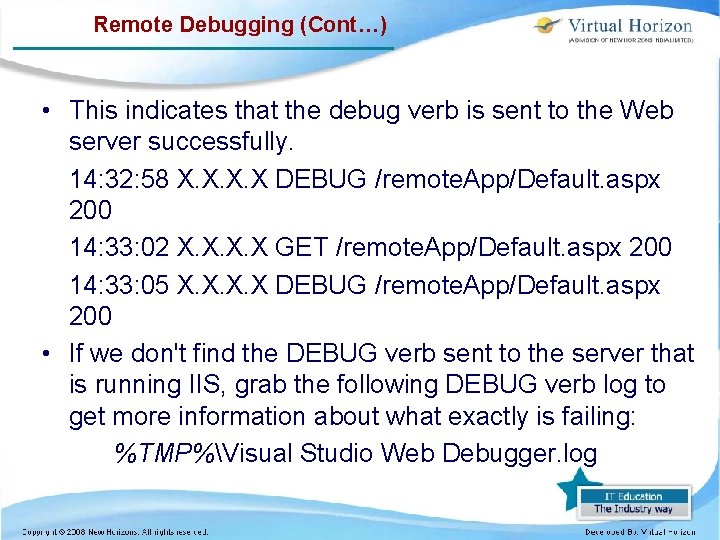
Remote Debugging (Cont…) • This indicates that the debug verb is sent to the Web server successfully. 14: 32: 58 X. X DEBUG /remote. App/Default. aspx 200 14: 33: 02 X. X GET /remote. App/Default. aspx 200 14: 33: 05 X. X DEBUG /remote. App/Default. aspx 200 • If we don't find the DEBUG verb sent to the server that is running IIS, grab the following DEBUG verb log to get more information about what exactly is failing: %TMP%Visual Studio Web Debugger. log
Using Trace Statements • As discussed in ‘Understanding Tracing’ topic, • 'Display an informational message Trace. Write(category, message) • 'Display a warning Trace. Warn(category, message)
Overview of User Input Validation • In HTML 3. 2, – validating data is a difficult process. – Each time we get a request, we need to write code to check the input and write any errors the user has made back to the page to help the user to correctly fill in the form. – This is a taxing process for end users, developers, and servers alike. • It is possible to provide the user with immediate feedback on bad input and to prevent them from posting a page until it has been corrected.
Overview of User Input Validation (Cont…) • However, it can be almost impossible to guarantee that every user of site has the required scripting environment. • This usually means that if we want to use script to improve the interface of pages, we have to write the same validation logic twice, once on the client, and again on the server, just in case the client script cannot be executed.
Using Validation Controls • The validator controls – Are the main elements of the solution. – A validator is a visual ASP. NET control that checks a specific validity condition of another control. – It generally appears to the user as a piece of text that displays or hides depending on whether the control it is checking is in error. – It can also be an image, or can even be invisible and still do useful work. • There are five types of validator controls that perform different types of checks – – Required. Field. Validator, Regular. Expression. Validator, Compare. Validator, Range. Validator, Custom. Validator.
Using Validation Controls (Cont…) • The client side validation has a number of features: – Errors can appear and disappear immediately after the bad input is entered/corrected. – This immediate feedback makes it much easier to correct bad input. – Post-back is prevented if there are errors that are detectable on the client, saving the user time and reducing hits on the server. – The Validation. Summary updates itself without posting back if it detects errors.
Using Validation Controls (Cont…) • The Validation. Summary can optionally display a message box to the user if there are errors. • The client logic is all contained in a JScript library, so no Active. X components or Java applets are used. • An object model is exposed on the client to allow enhancement of client-side validation and behavior. • "A validator is a control that checks one input control for a specific type of error condition and displays a description of that problem. "
Using Validation Controls (Cont…) • (ie) we frequently need to use more than one validator control for each input control. • Another element is the Validation. Summary control. – Large data entry pages generally have an area where all errors are listed. – The Validation. Summary automatically generates this content by gathering it up from validator controls on the page. • The final element is the Page object itself. It exposes the all-important "Is. Valid" property, which we check in server code to determine if all of the user input is OK.
Page Validation • ASP. NET provides validation controls that perform basic validation on a page. • Whenever a control on the page causes post back and has its Causevalidation property true ASP. net validate all validators of that page. • To validate different parts of the page independently, Control or that particular portion of page should validate itself without affecting anything else that might be on the page and also these validator should not be validated against any other component or control that raises a post back on the server.
Page Validation (Cont…) • There are two possible solutions: • 1. Validating portions of page at client side. • 2. Validating implicitly through validator controls at server side. • Client side validation has its advantage – that values will be validated before being submitting to the server and also quick response to user • But has disadvantage – that user can modify the page validation logic and now is ready to submit invalid values to server that might result in a website crash. Server side validation require a post back but the validation logic is safe enough.
Using Required. Field. Validator Controls • The Required. Field. Validator control – is used to make an input control a required field. It checks that the user has entered or selected anything. – With this control, the validation fails if the input value does not change from its initial value. By default, the initial value is an empty string (""). Note: The Initial. Value property does not set the default value for the input control. It indicates the value that we do not want the user to enter in the input control.
Using Required. Field. Validator Controls (Cont…) • Note: Leading and trailing spaces of the input value are removed before validation. • The input control fails validation if the value it contains does not change from its initial value when validation is performed. This prevents the user from leaving the associated input control unchanged. • The following code example demonstrates how to use the Required. Field. Validator control to make a Text. Box control a mandatory field:
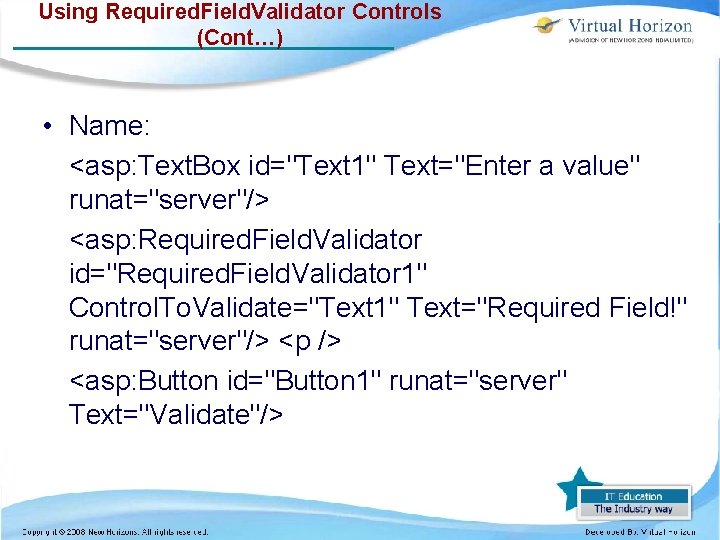
Using Required. Field. Validator Controls (Cont…) • Name: <asp: Text. Box id="Text 1" Text="Enter a value" runat="server"/> <asp: Required. Field. Validator id="Required. Field. Validator 1" Control. To. Validate="Text 1" Text="Required Field!" runat="server"/> <p /> <asp: Button id="Button 1" runat="server" Text="Validate"/>
Using the Validation. Summary Control • The Validation. Summary control – allows user to summarize the error messages from all validation controls on a Web page in a single location. – The summary can be displayed as a list, a bulleted list, or a single paragraph, based on the value of the Display. Mode property. – The error message displayed in the Validation. Summary control for each validation control on the page is specified by the Error. Message property of each validation control.
Using the Validation. Summary Control (Cont…) – If the Error. Message property of the validation control is not set, no error message is displayed in the Validation. Summary control for that validation control. We can also specify a custom title in the heading section of the Validation. Summary control by setting the Header. Text property. – We can control whether the Validation. Summary control is displayed or hidden by setting the Show. Summary property.
Using the Validation. Summary Control (Cont…) • The summary can also be displayed in a message box by setting the Show. Message. Box property to true.
Using Compare. Validator Control (Cont…) • Compare. Validator Control : – Evaluates the value of an input control against a constant value or the value of another input control to determine whether the two values match the relationship specified by a comparison operator (less than, equal to, greater than, and so on). – The Compare. Validator control allows user to compare the value entered by the user into an input control, such as a Text. Box control, with the value entered into another input control, or with a constant value.
Using Compare. Validator Control (Cont…) • Compare. Validator – We can also use the Compare. Validator control to determine whether the value entered into an input control can be converted to the data type specified by the Type property. – Specify the input control to validate by setting the Control. To. Validate property. – If we want to compare a specific input control with another input control, set the Control. To. Compare property with the name of the control to compare.
Using Compare. Validator Control (Cont…) • Compare. Validator : – The Operator property allows user to specify the type of comparison to perform, such as greater than, equal to, and so on. – If we set the Operator property to Validation. Compare. Operator. Data. Type. Check, the Compare. Validator control ignores both the Control. To. Compare and Value. To. Compare properties and simply indicates whether the value entered into the input control can be converted to the data type specified by the Type property.
Using Compare. Validator Control (Cont…) • Compare. Validator : – Instead of comparing the values of two input controls, we can compare the value of an input control to a constant value. Specify the constant value to compare with by setting the Value. To. Compare property. • If the input control is empty, no validation functions are called and validation succeeds. Use a Required. Field. Validator control to prevent the user from skipping an input control.
Using the Regular. Expression. Validator Control • The Regular. Expression. Validator control – is used to determine whether the value of an input control matches a pattern defined by a regular expression. – This type of validation allows user to check for predictable sequences of characters, such as those in social security numbers, e-mail addresses, telephone numbers, postal codes, and so on. • Both server-side and client-side validation are performed unless the browser does not support client-side validation or client-side validation is explicitly disabled (the Enable. Client. Script property is set to false).
Using the Regular. Expression. Validator Control (Cont…) • Regular. Expression. Validator – Use the Validation. Expression property to specify the regular expression used to validate an input control. – The regular expression validation syntax is slightly different on the client than on the server. – On the server, Regex syntax is used. Because JScript regular expression syntax is a subset of Regex syntax, it is recommended that we use JScript regular expression syntax in order to yield the same results on both the client and the server.
Using the Validation. Summary Control (Cont…) • On the client, JScript regular expression syntax is used. • ASP. NET 2. 0 provides predefined set of universal patterns (Regular Expressions) to choose from through Regular Expression Editor. To see Regular Expression Editor in action, switch to Design mode.
Using the Validation. Summary Control (Cont…) • Regular. Expression. Validator: – Using Regular. Expression. Validator server control, we can check a user's input based on a pattern that we define using a regular expression. • This means that we can define a structure that a user's input will be applied against to see if its structure matches the one that we define.
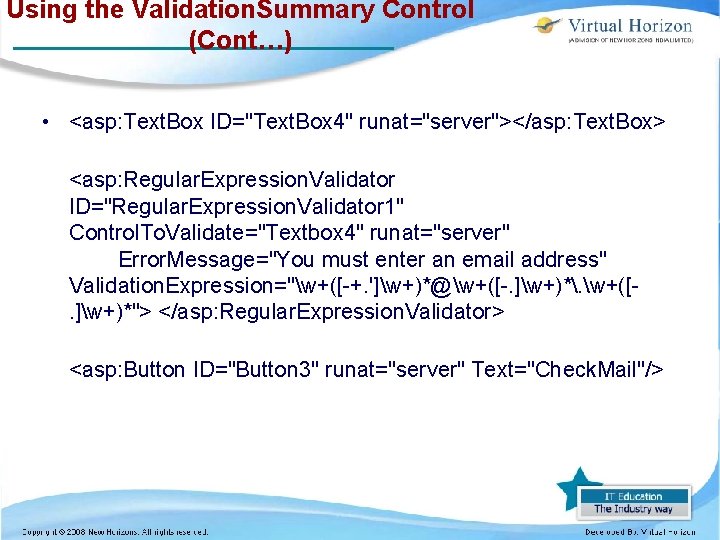
Using the Validation. Summary Control (Cont…) • <asp: Text. Box ID="Text. Box 4" runat="server"></asp: Text. Box> <asp: Regular. Expression. Validator ID="Regular. Expression. Validator 1" Control. To. Validate="Textbox 4" runat="server" Error. Message="You must enter an email address" Validation. Expression="w+([-+. ']w+)*@w+([-. ]w+)*. w+([. ]w+)*"> </asp: Regular. Expression. Validator> <asp: Button ID="Button 3" runat="server" Text="Check. Mail"/>
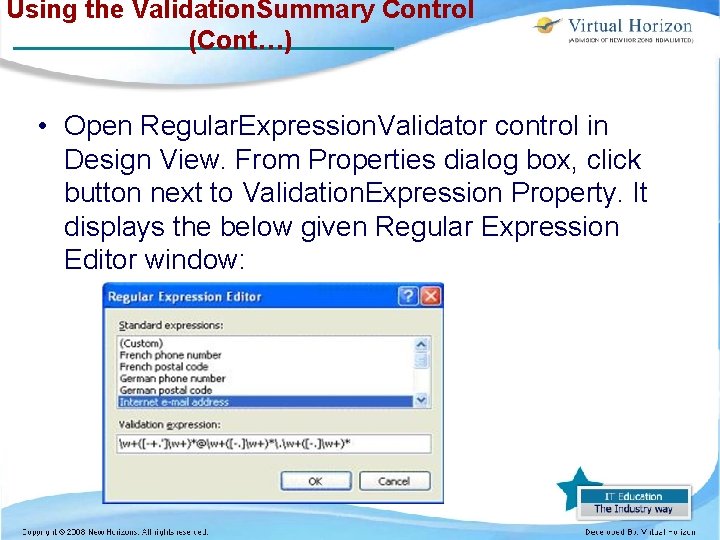
Using the Validation. Summary Control (Cont…) • Open Regular. Expression. Validator control in Design View. From Properties dialog box, click button next to Validation. Expression Property. It displays the below given Regular Expression Editor window:
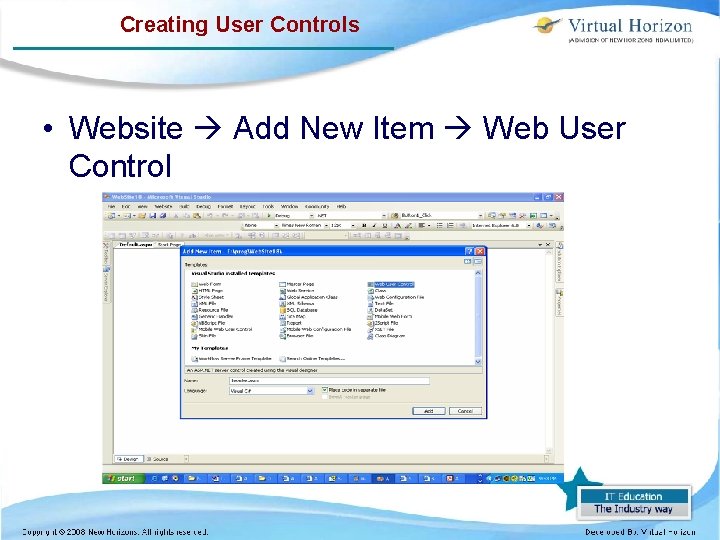
Creating User Controls • Website Add New Item Web User Control
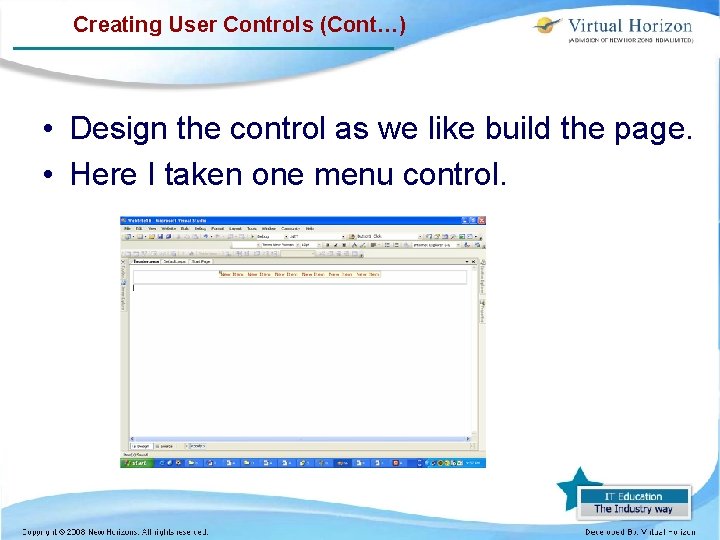
Creating User Controls (Cont…) • Design the control as we like build the page. • Here I taken one menu control.
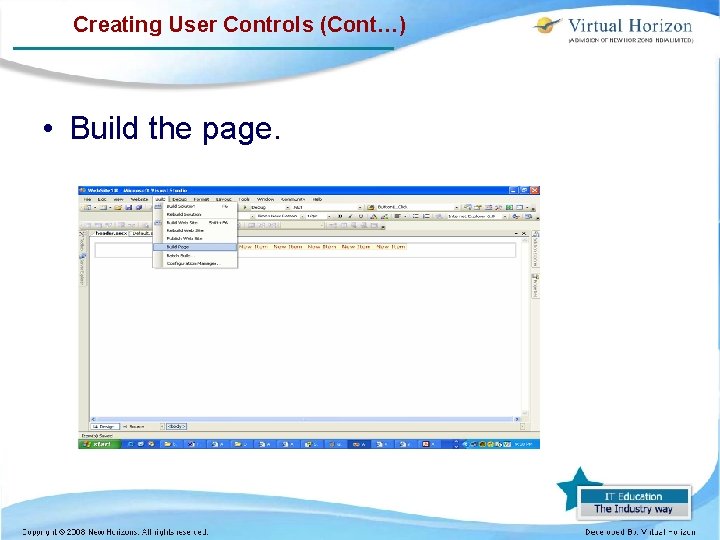
Creating User Controls (Cont…) • Build the page.
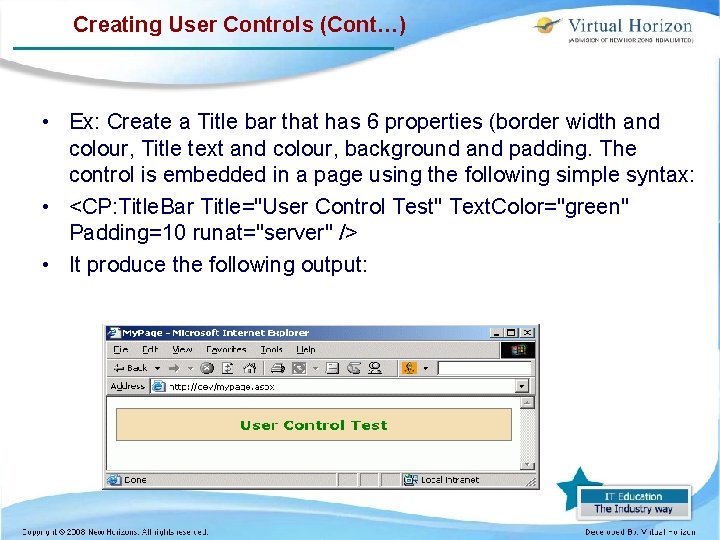
Creating User Controls (Cont…) • Ex: Create a Title bar that has 6 properties (border width and colour, Title text and colour, background and padding. The control is embedded in a page using the following simple syntax: • <CP: Title. Bar Title="User Control Test" Text. Color="green" Padding=10 runat="server" /> • It produce the following output:
Adding user controls to an ASP. NET web form • Register to the page in which page we want to use the tag by using the register tag prefix <%@Register Tag. Prefix="usermenu" Tag. Name="menu 1" Src="~/header. ascx" %> • Then use the tag wherever we need by like <usermenu: menu 1 ID="menu 1" runat="server" />
Thank You Classification : Internal
- Slides: 136